How to Add Multiple Payment Modes in RetailGo Business Portal
This tutorial explains how to configure payment modes in the RetailGo Business Portal. Supporting
multiple payment methods enables flexible payment options for customers
Go to
retailgo.quicklyservices.com
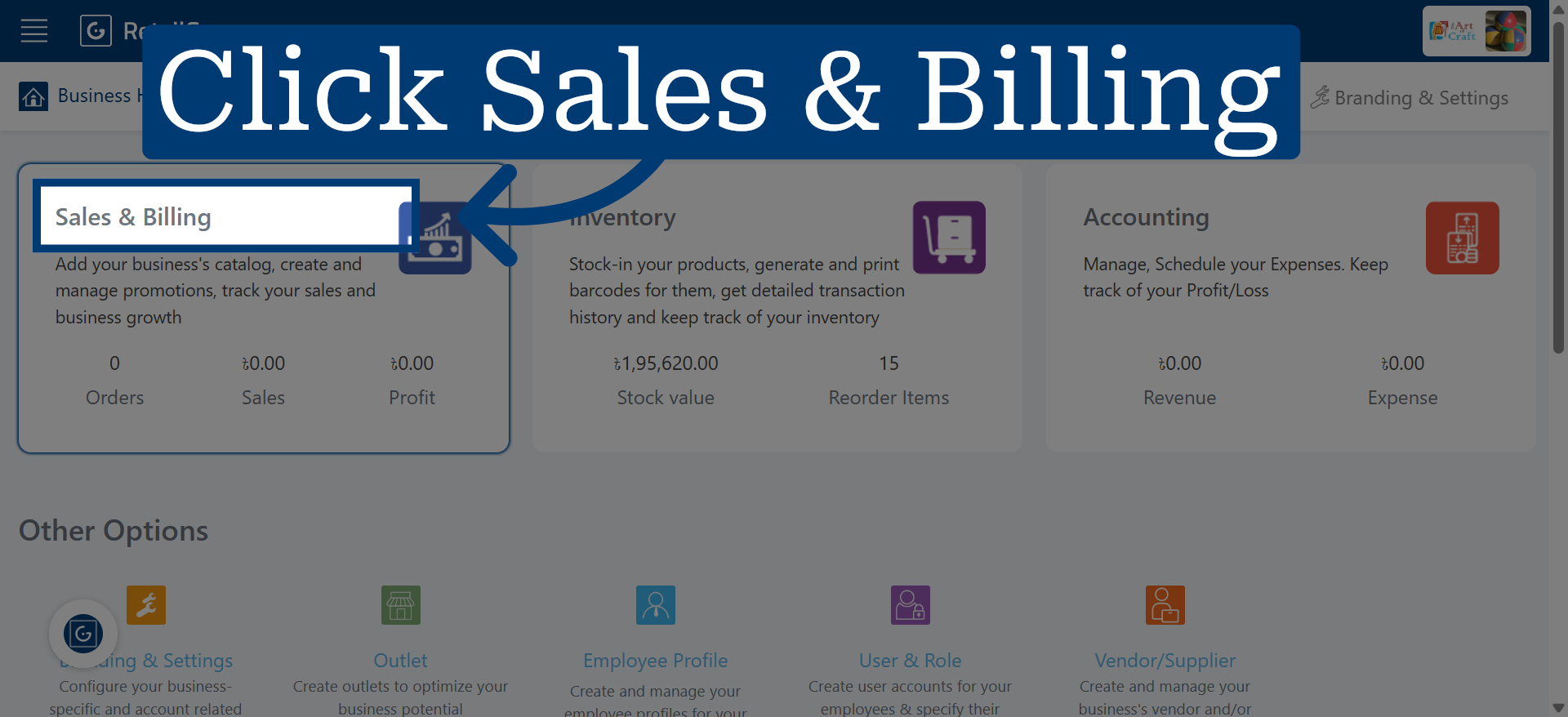
1. Access Sales and Billing Module
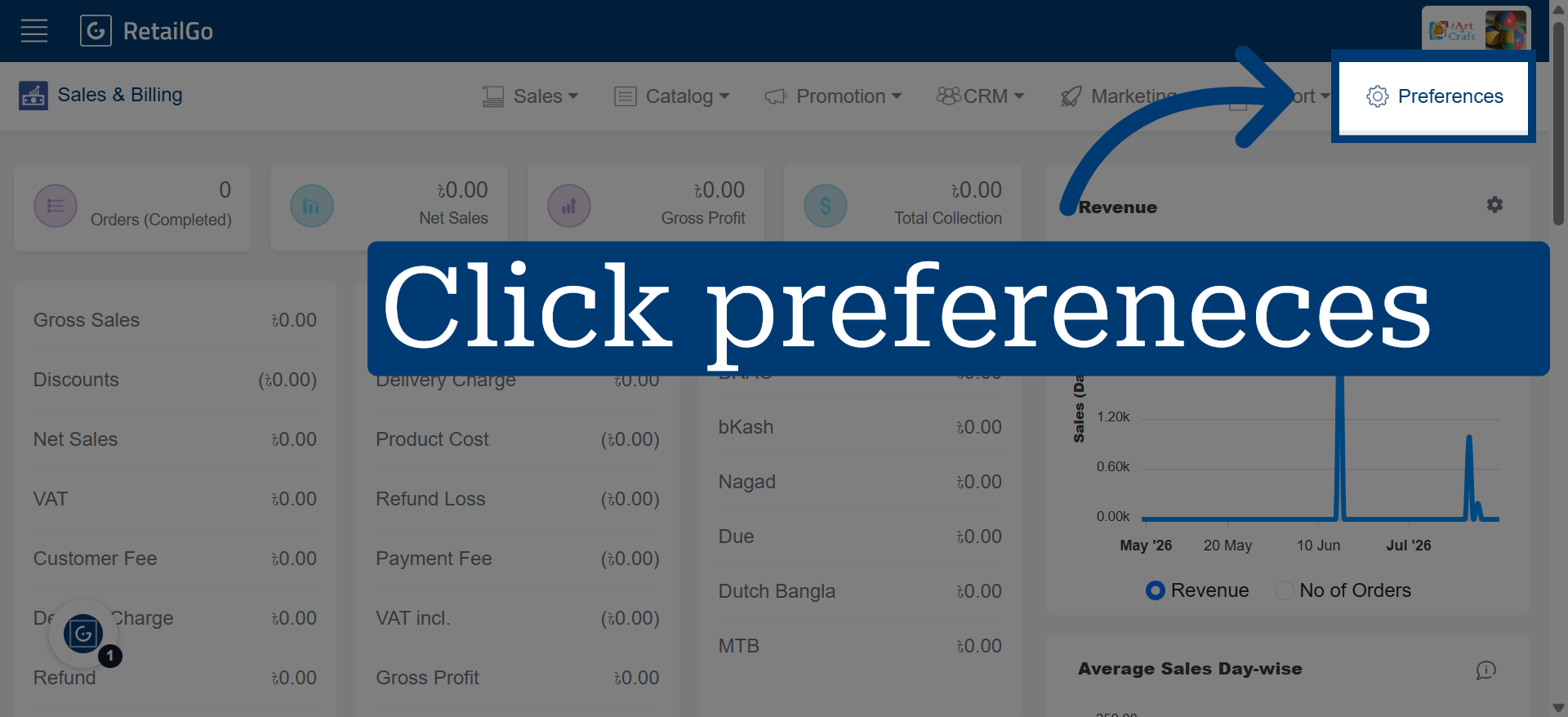
2. Open Preferences
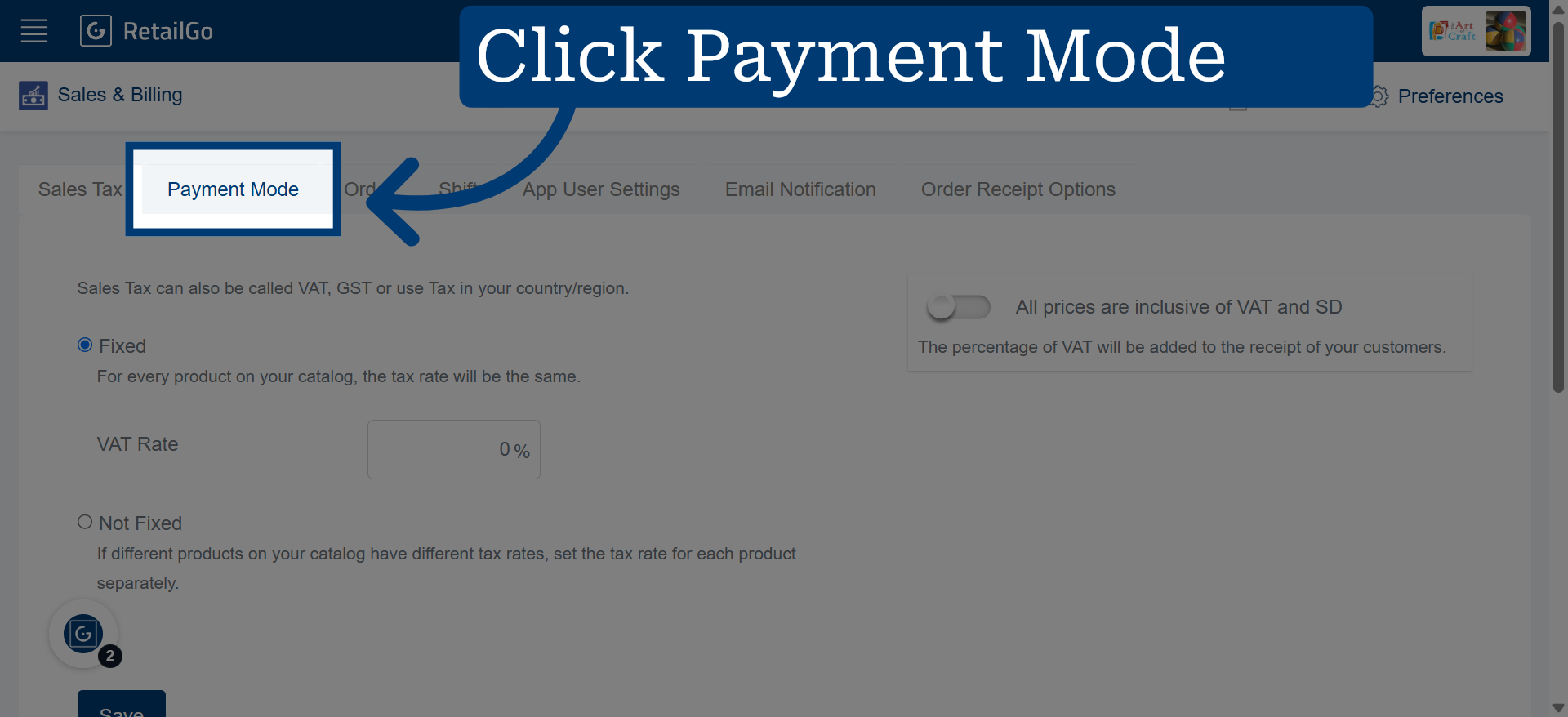
3. Select Payment Mode Option
4. Add New Payment Mode
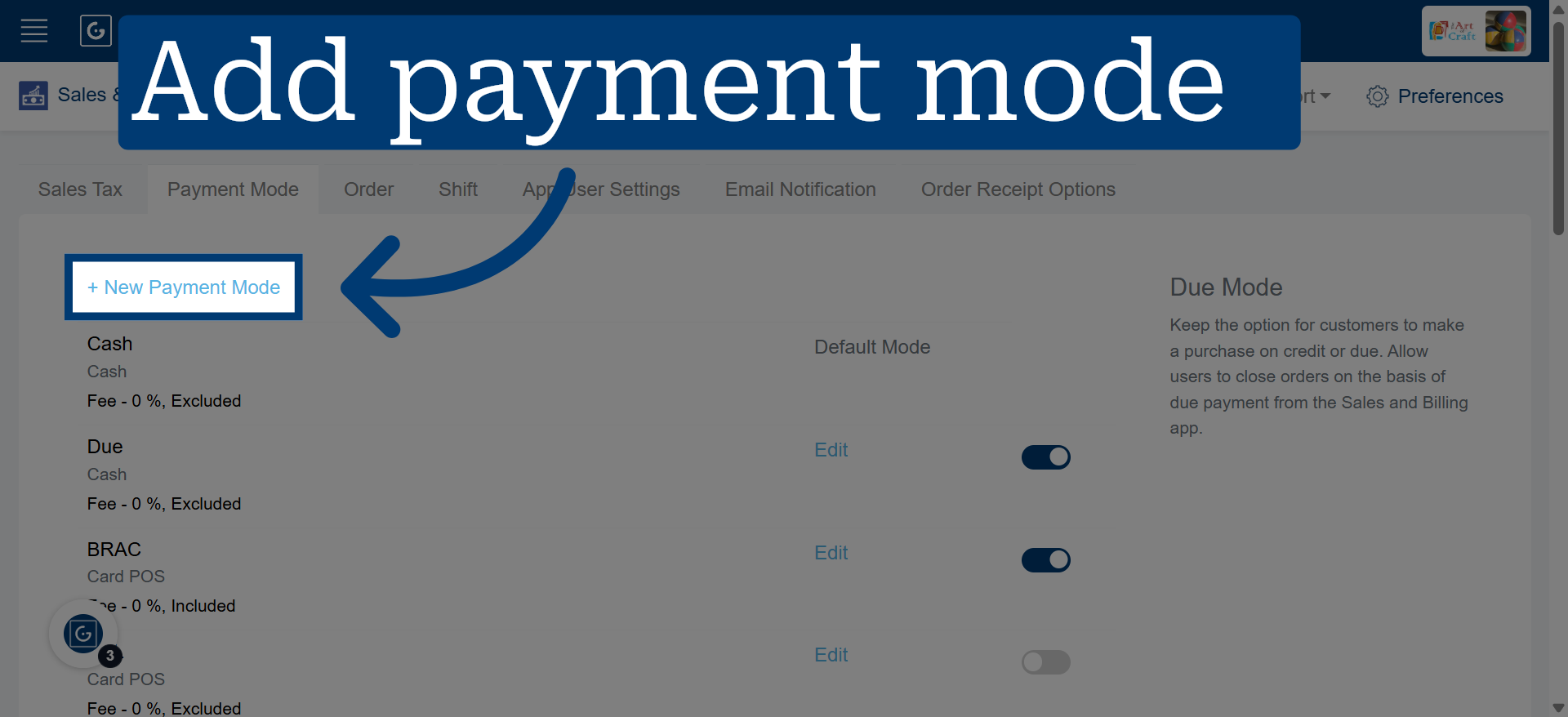
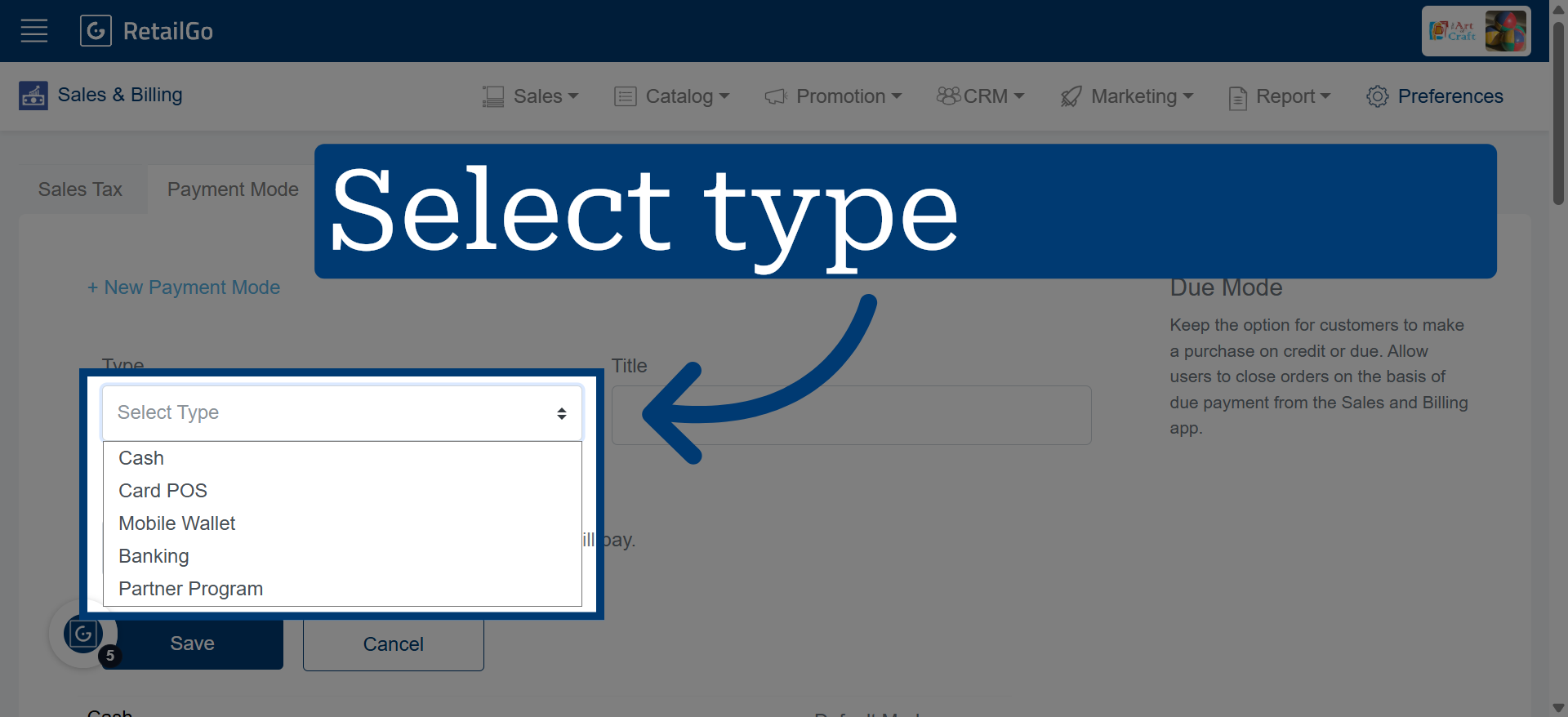
5. Open Type Selection Dropdown To Select The Appropriate Payment Type
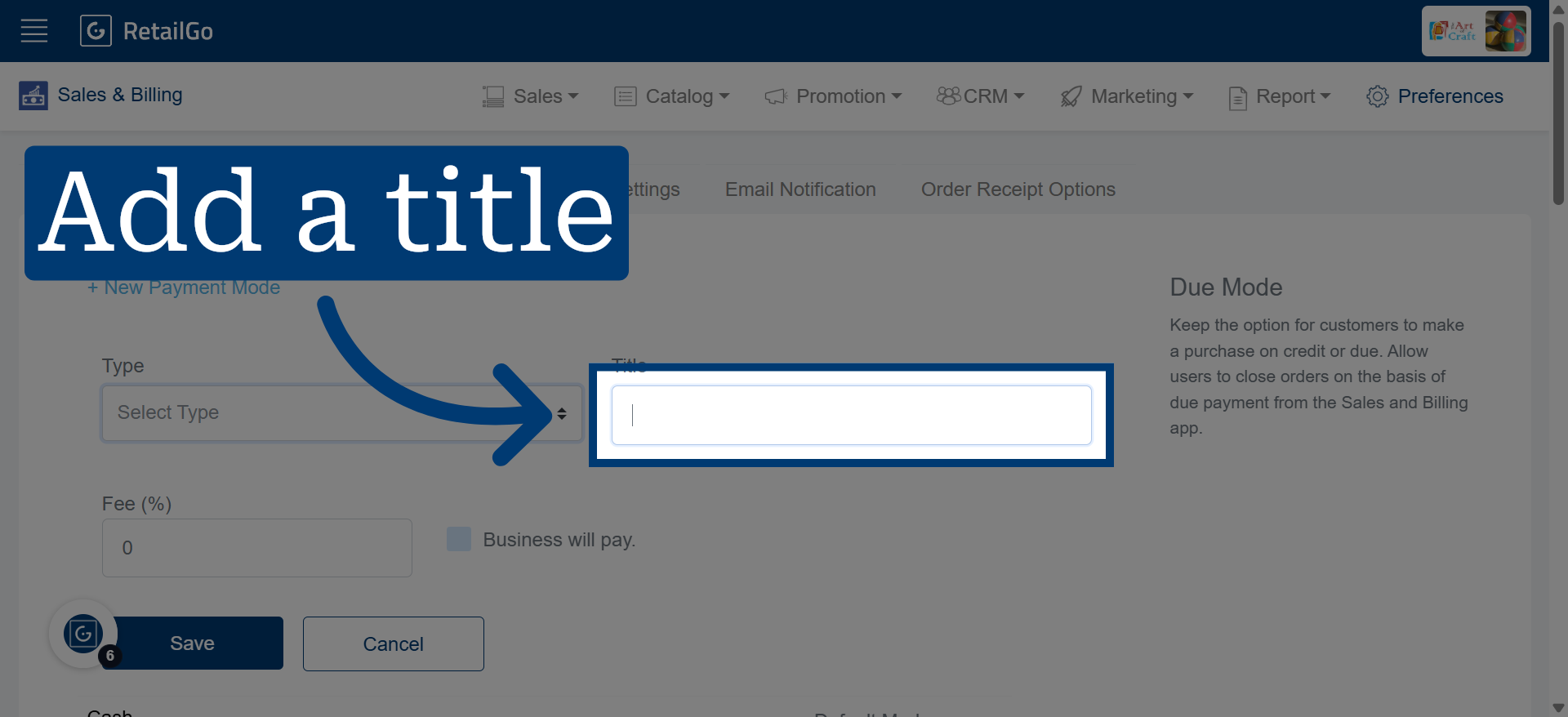
6. Enter Payment Mode Name
Adding a title will display it as a payment mode in the POS app under the name you have configured.
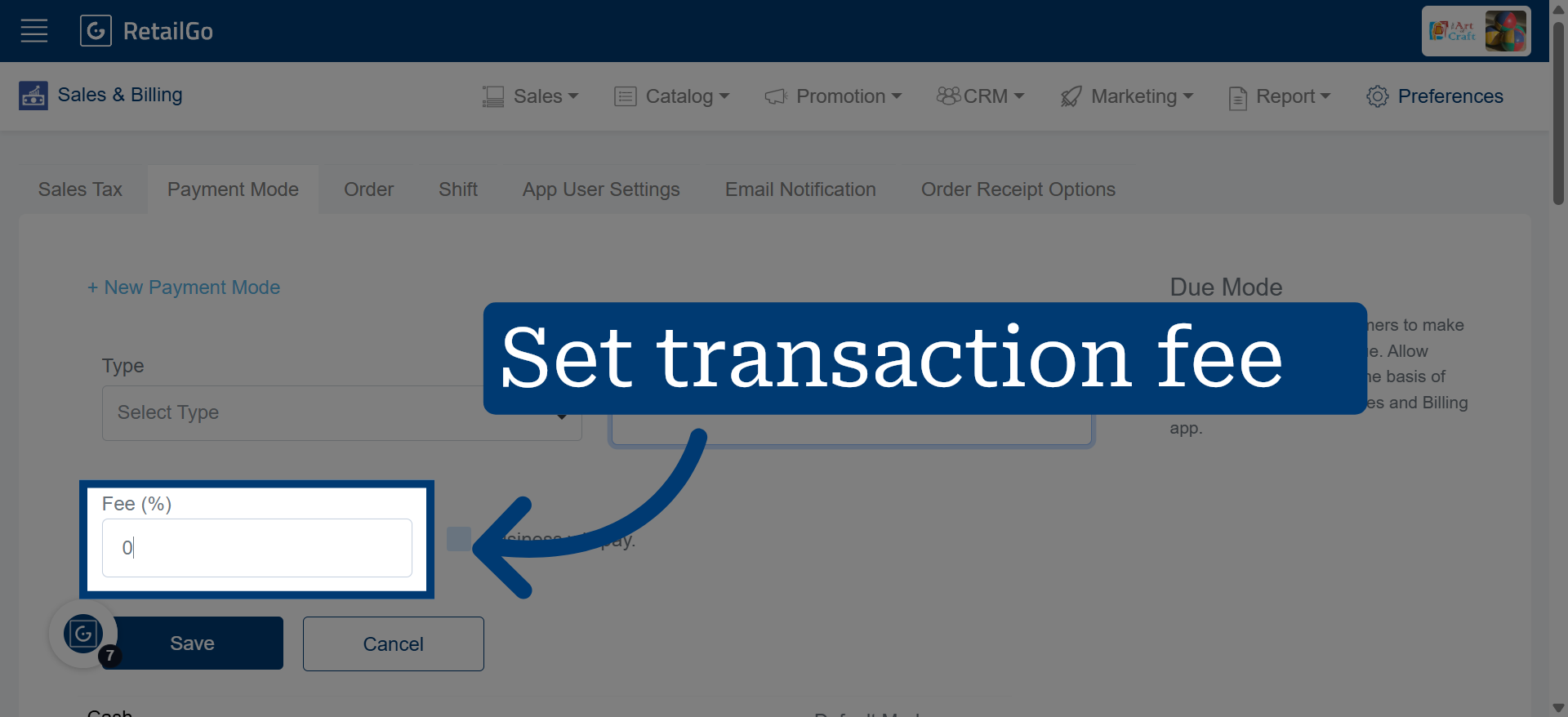
7. Set Transaction Fee by Payment Mode
Configure transaction fees for each payment mode to define applicable charges during payments.
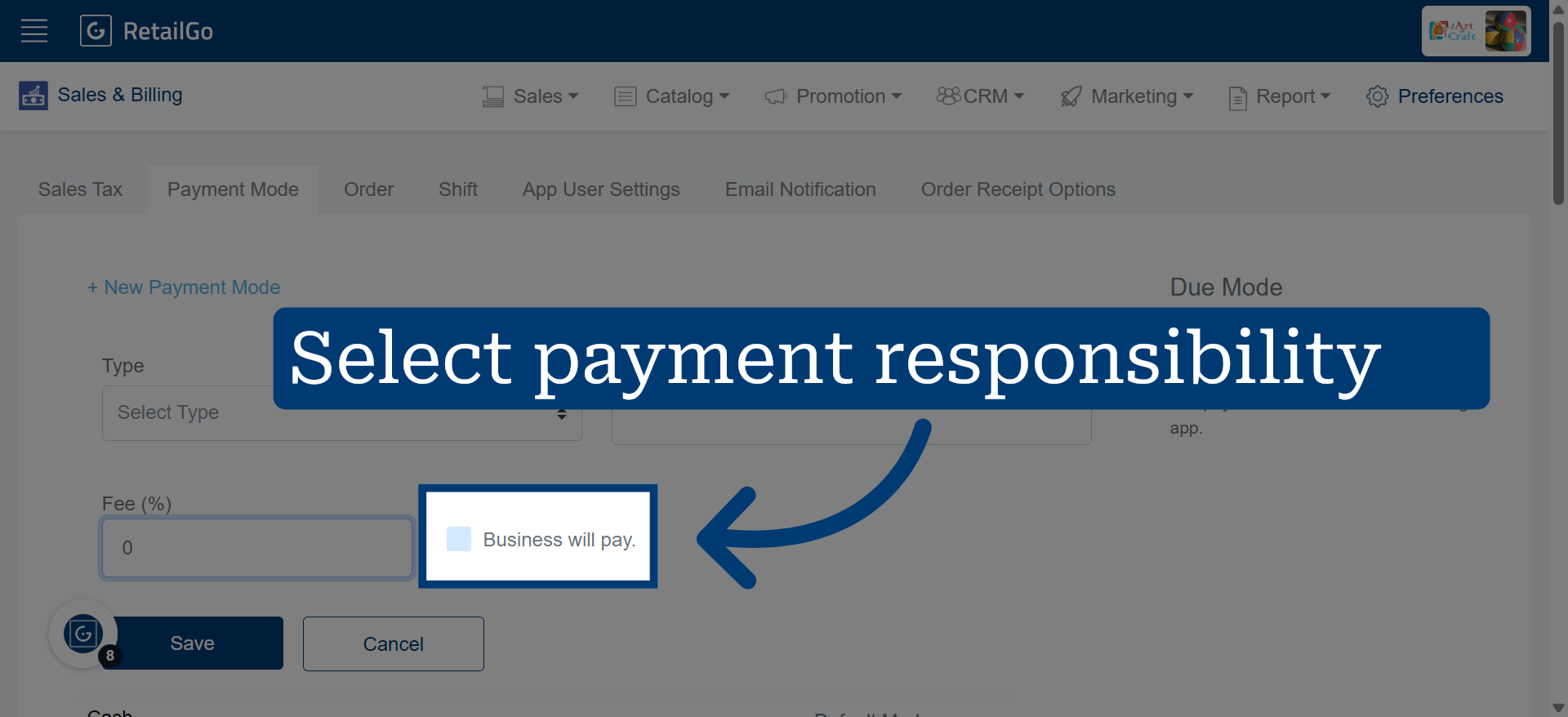
8. Choose Payment Responsibility
Click "Business will pay." to designate that the business covers the payment fees.
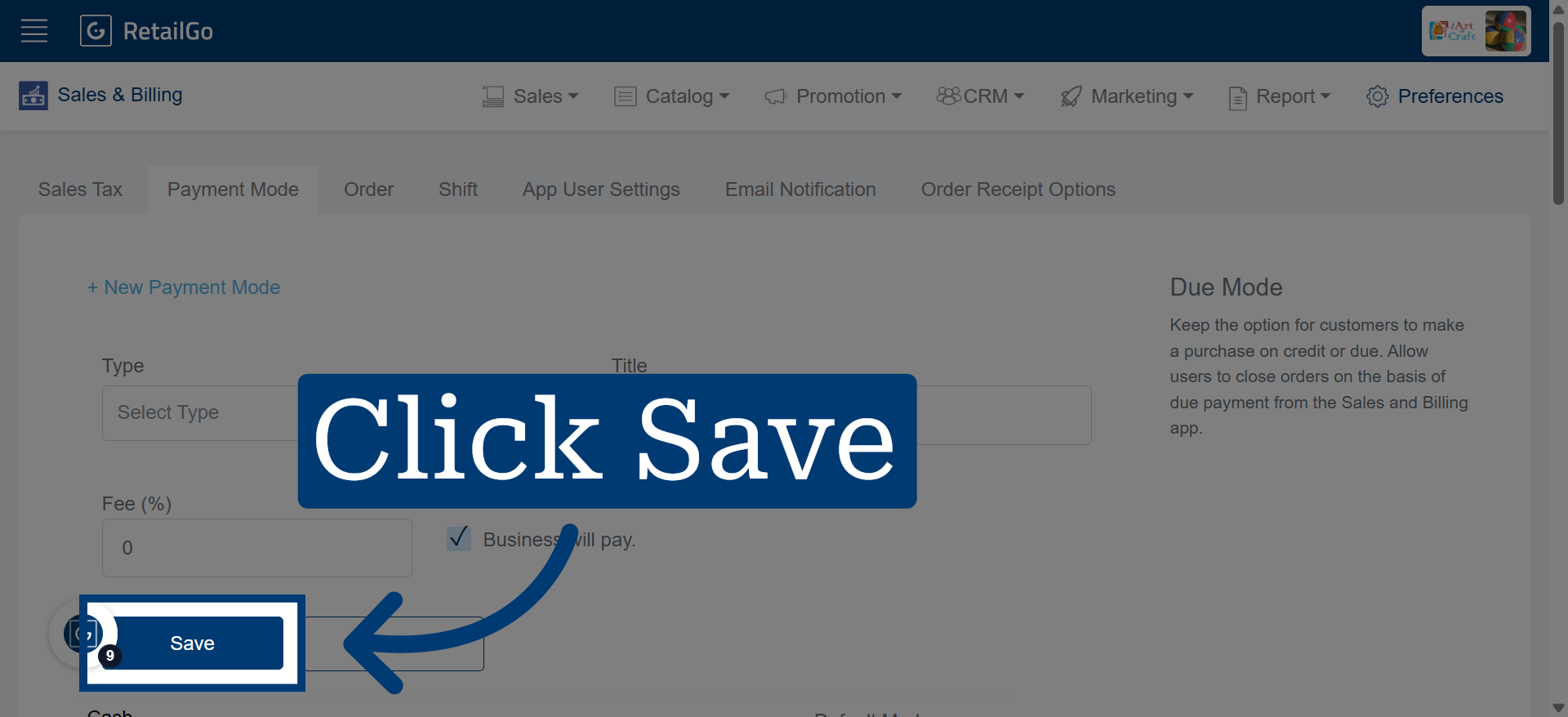
9. Save Payment Mode Configuration
Click "Save" to store your new payment mode settings and complete the setup process.