How to Create Purchase Orders in RetailGo Business Portal
This tutorial guides you through creating and managing purchase orders in the RetailGo Business
Portal.
A Purchase Order (PO) is a formal document sent to a supplier to request goods or services at
agreed prices and terms. It helps streamline procurement, control spending, maintain accurate
records, and track orders from creation to delivery and payment.
Go to
retailgo.quicklyservices.com
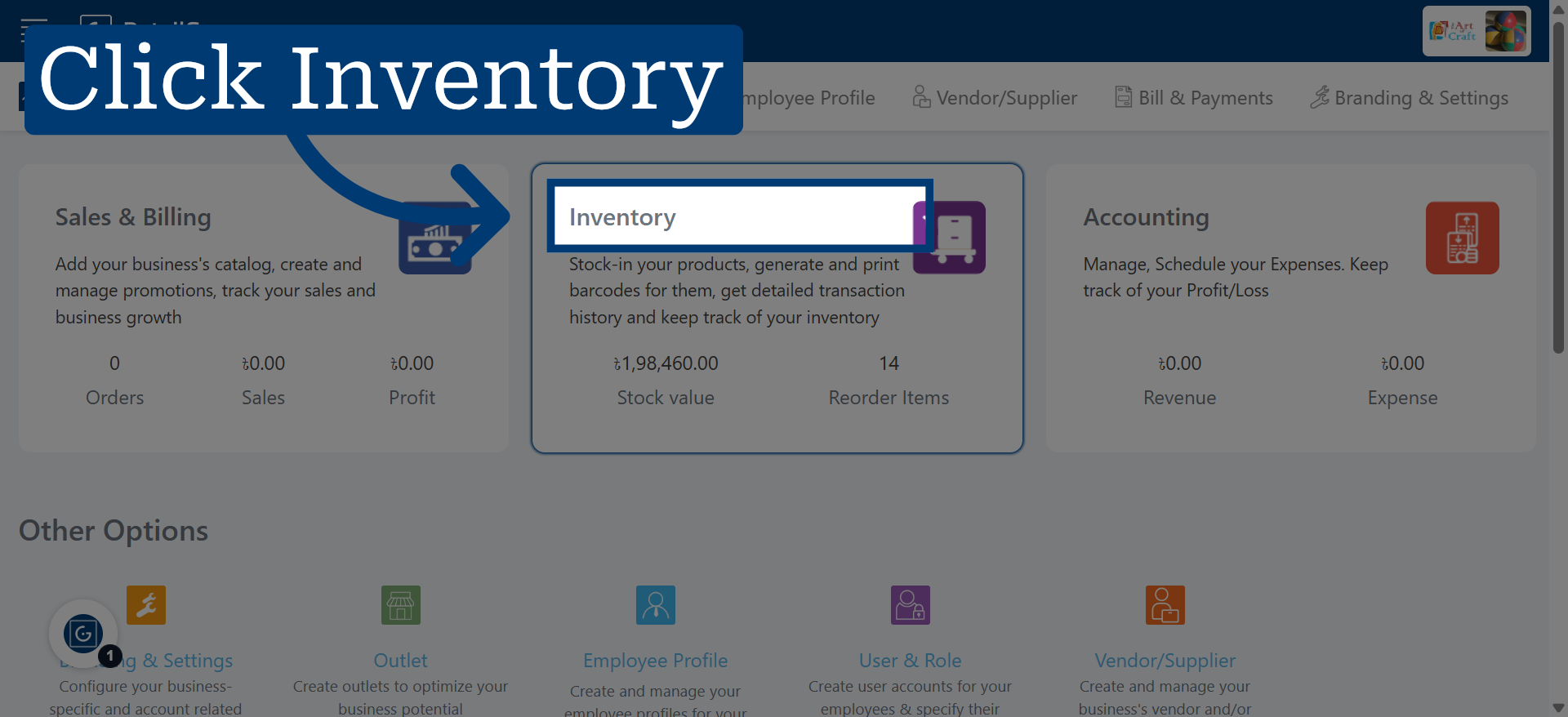
1. Open Inventory Module
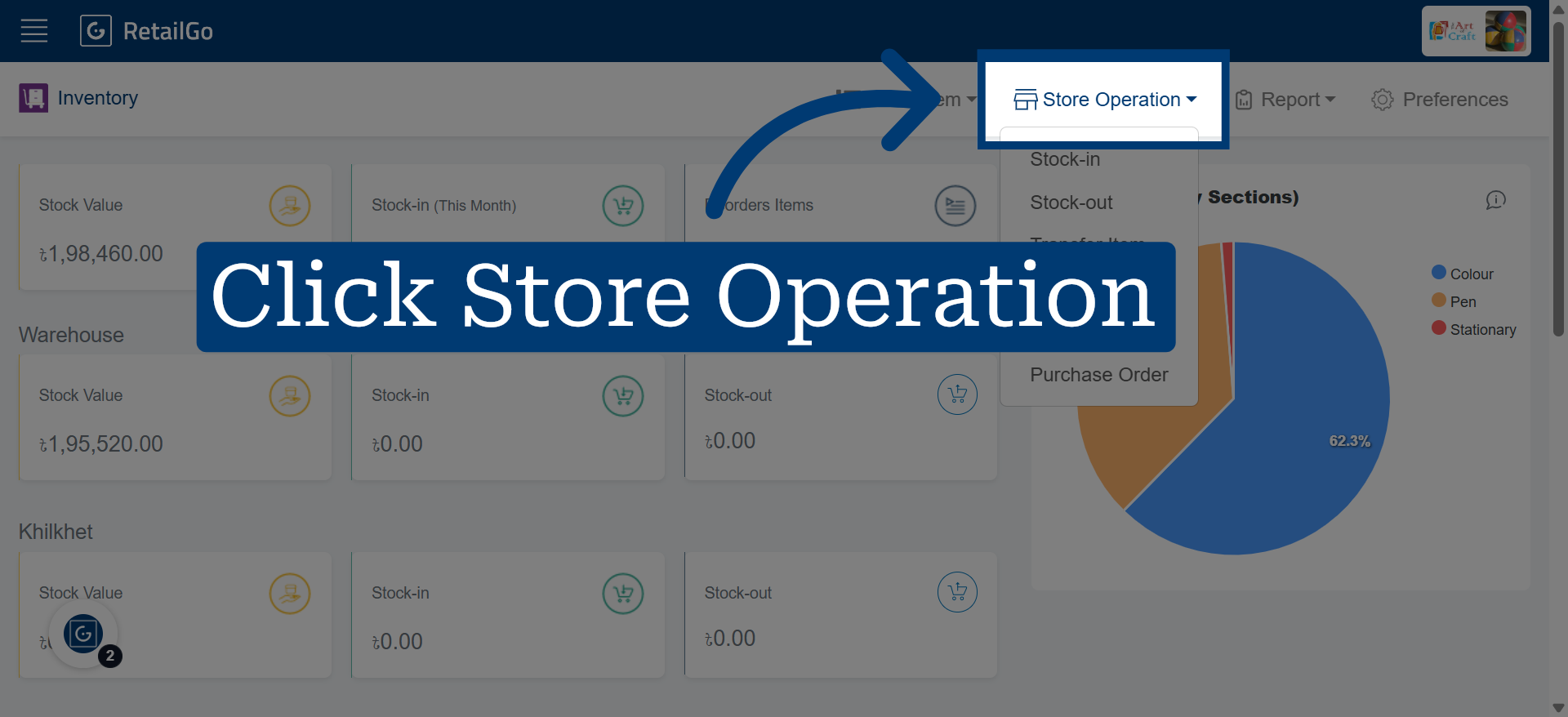
2. Navigate To Store Operation
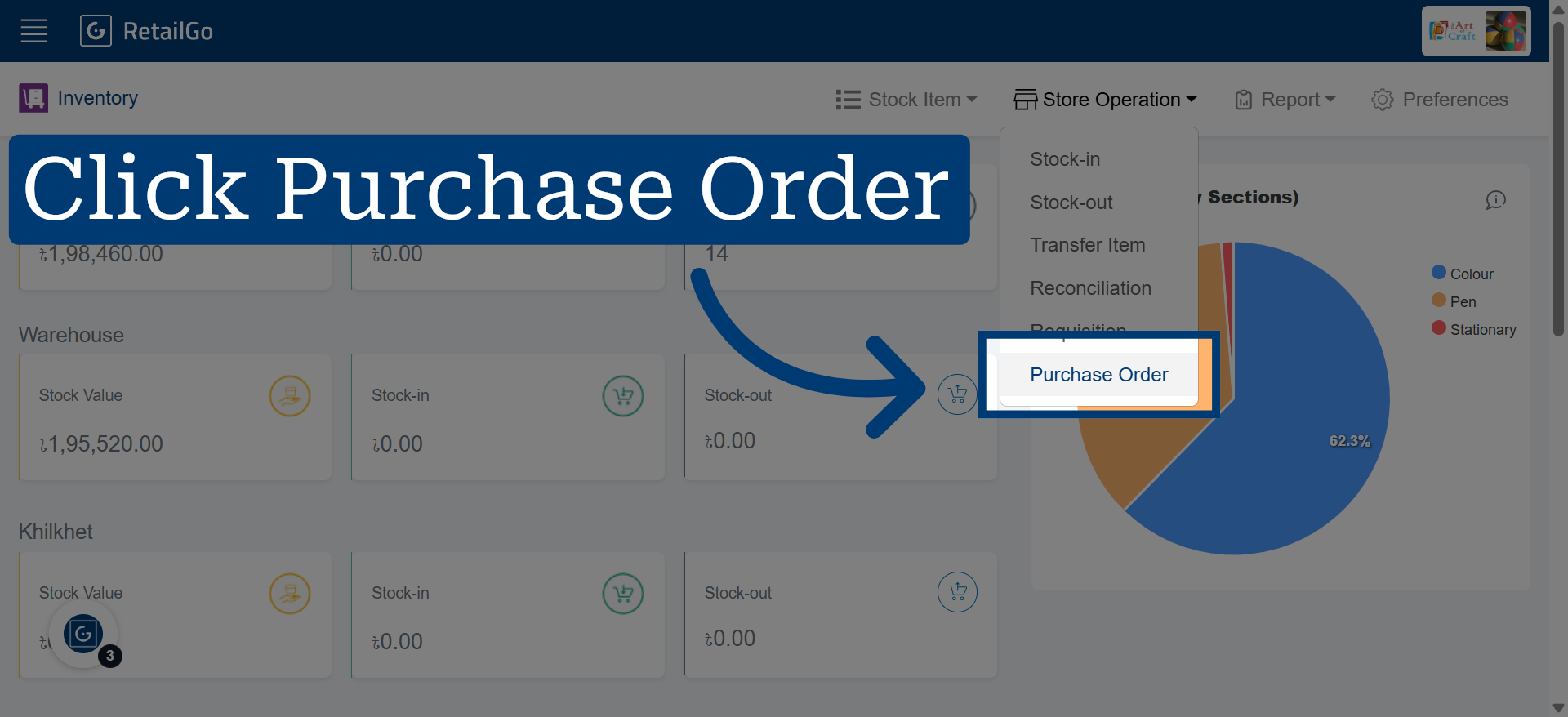
3. Access Purchase Orders
4. Initiate New Purchase Order
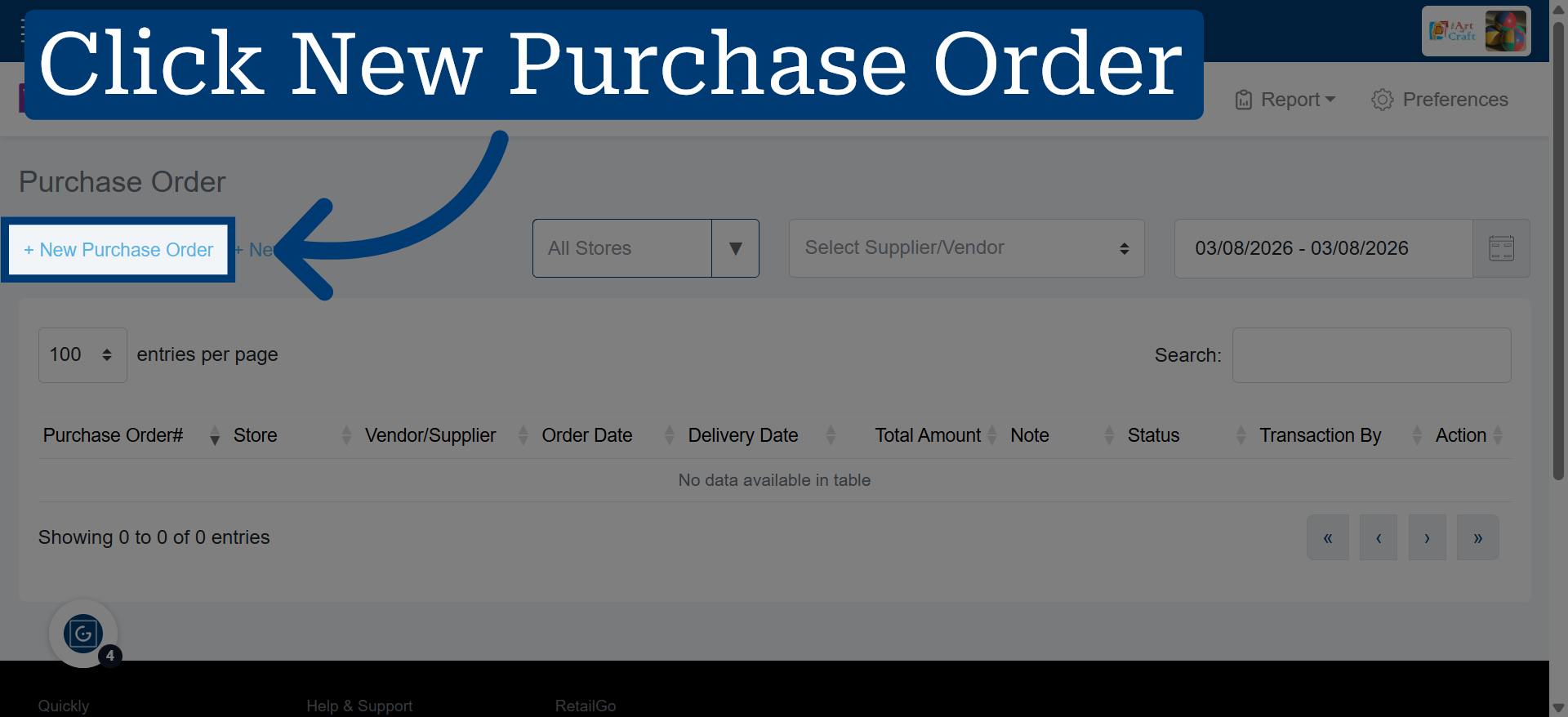
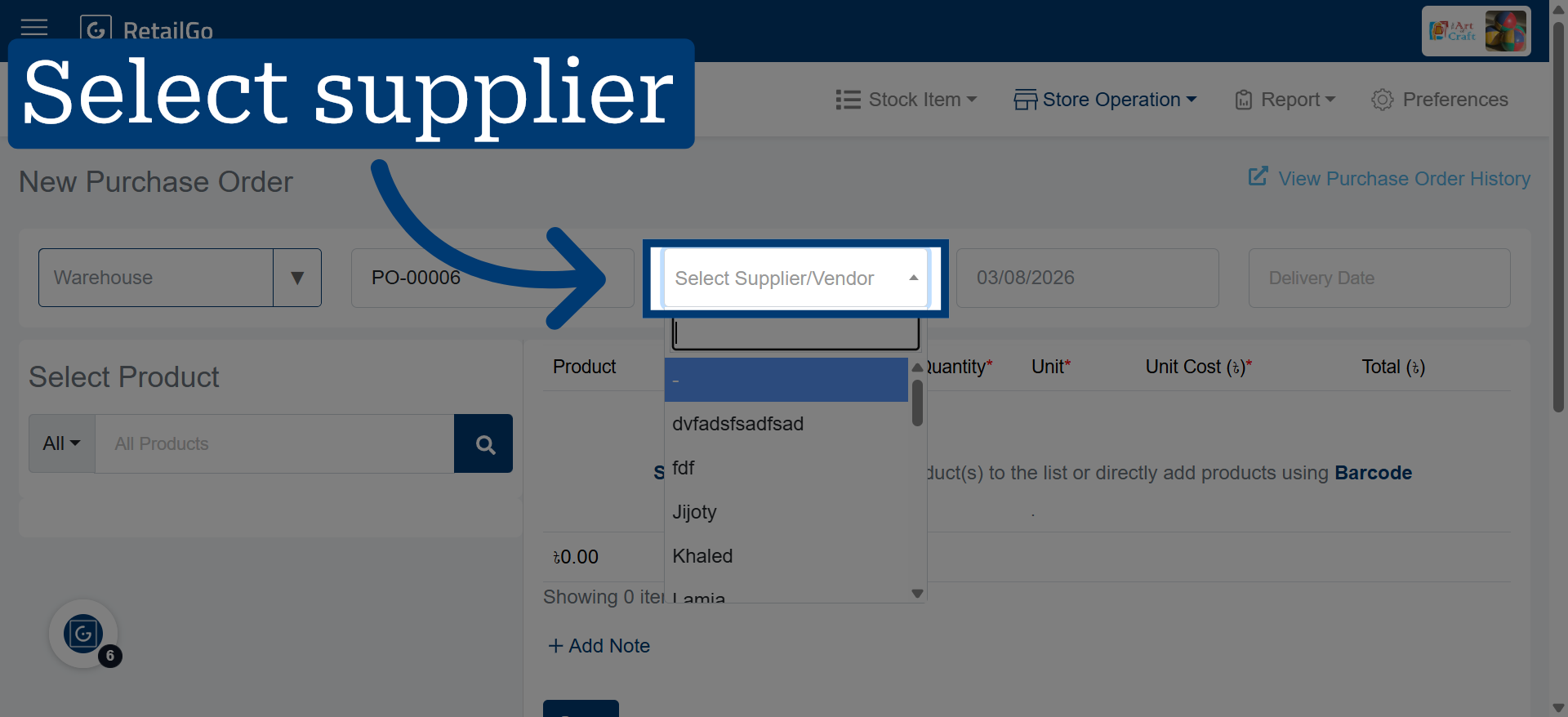
5. Choose Supplier Or Vendor
Click "Select Supplier/Vendor" to choose the supplier for this purchase order.
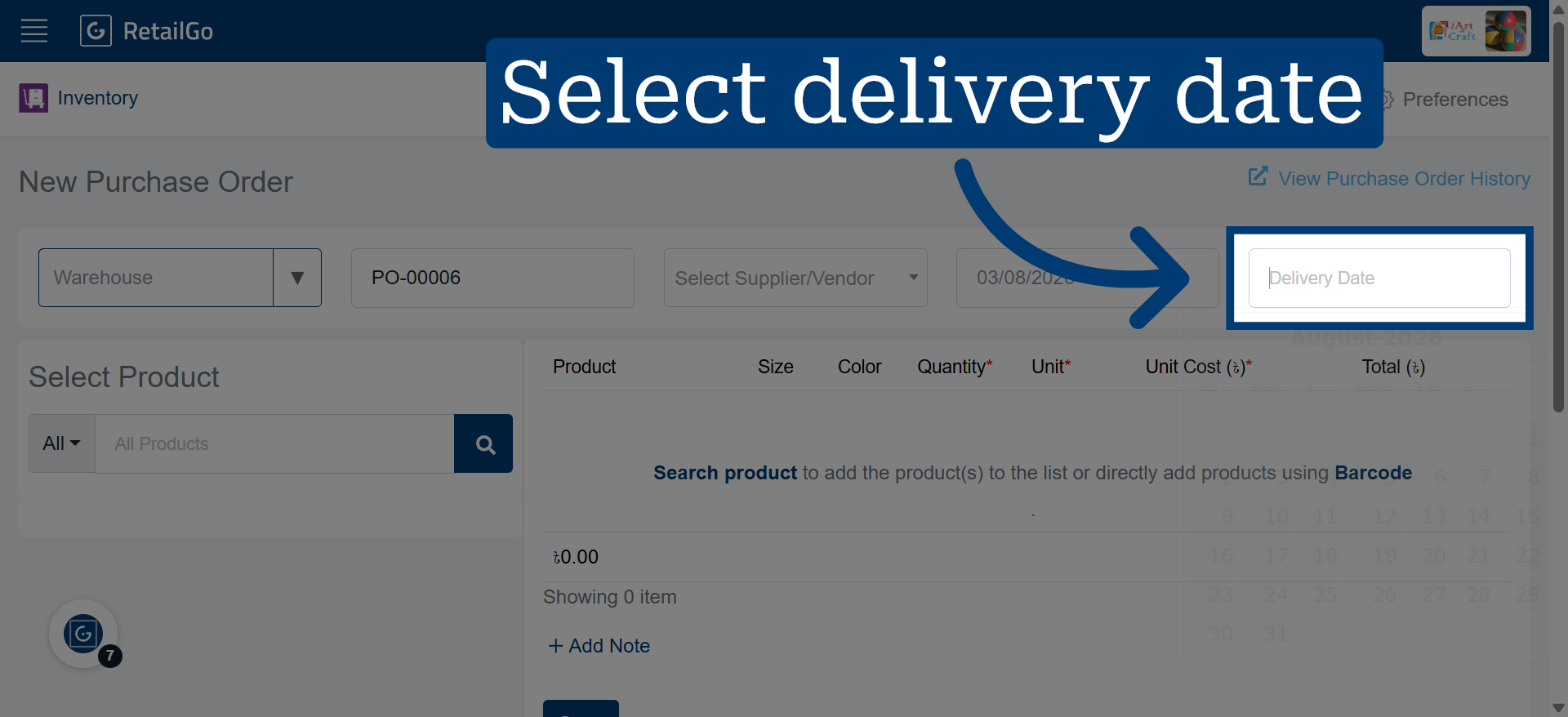
6. Set Delivery Date
Choose a "Delivery Date" if needed to finalize the delivery date selection for the purchase order.
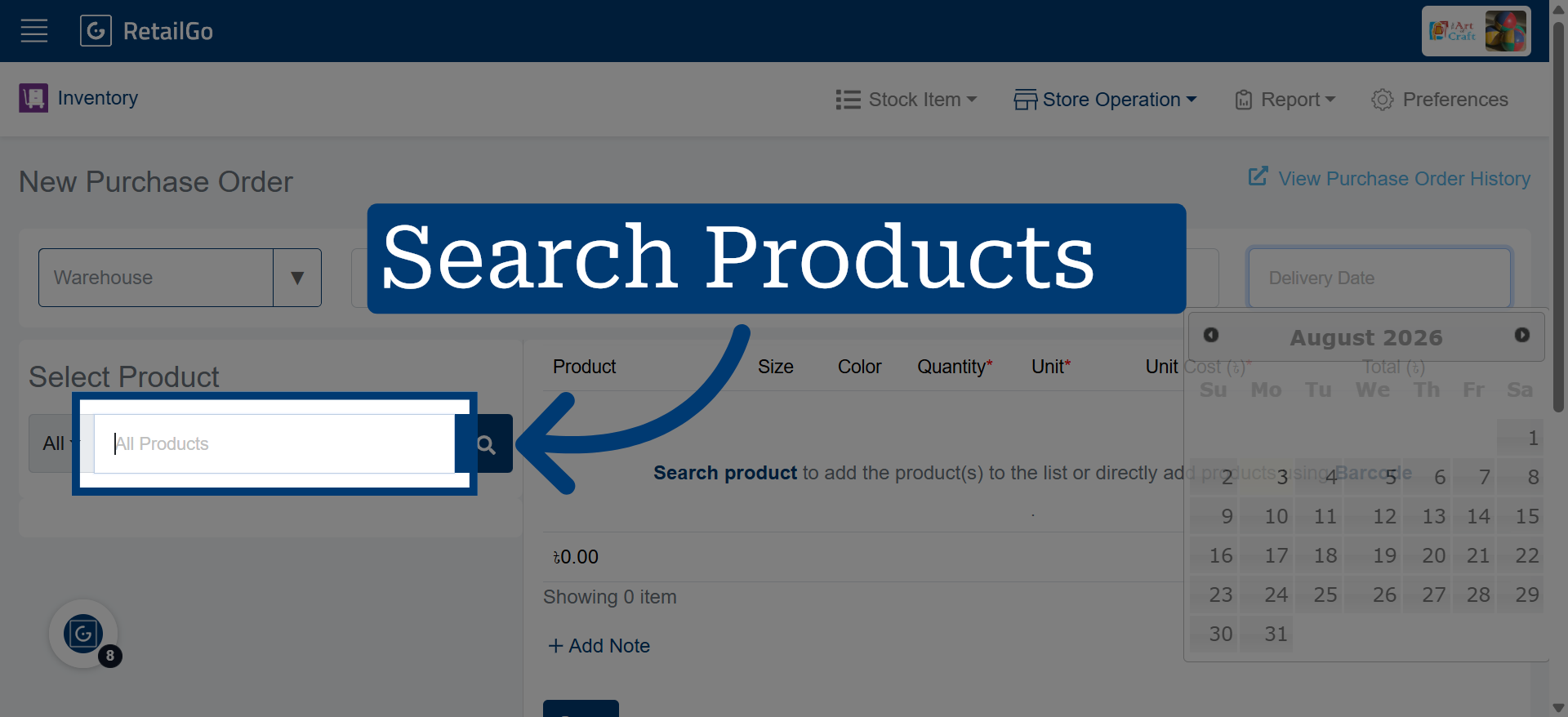
7. Search for a Product
Products can be added manually through search or quickly using barcode scanning.
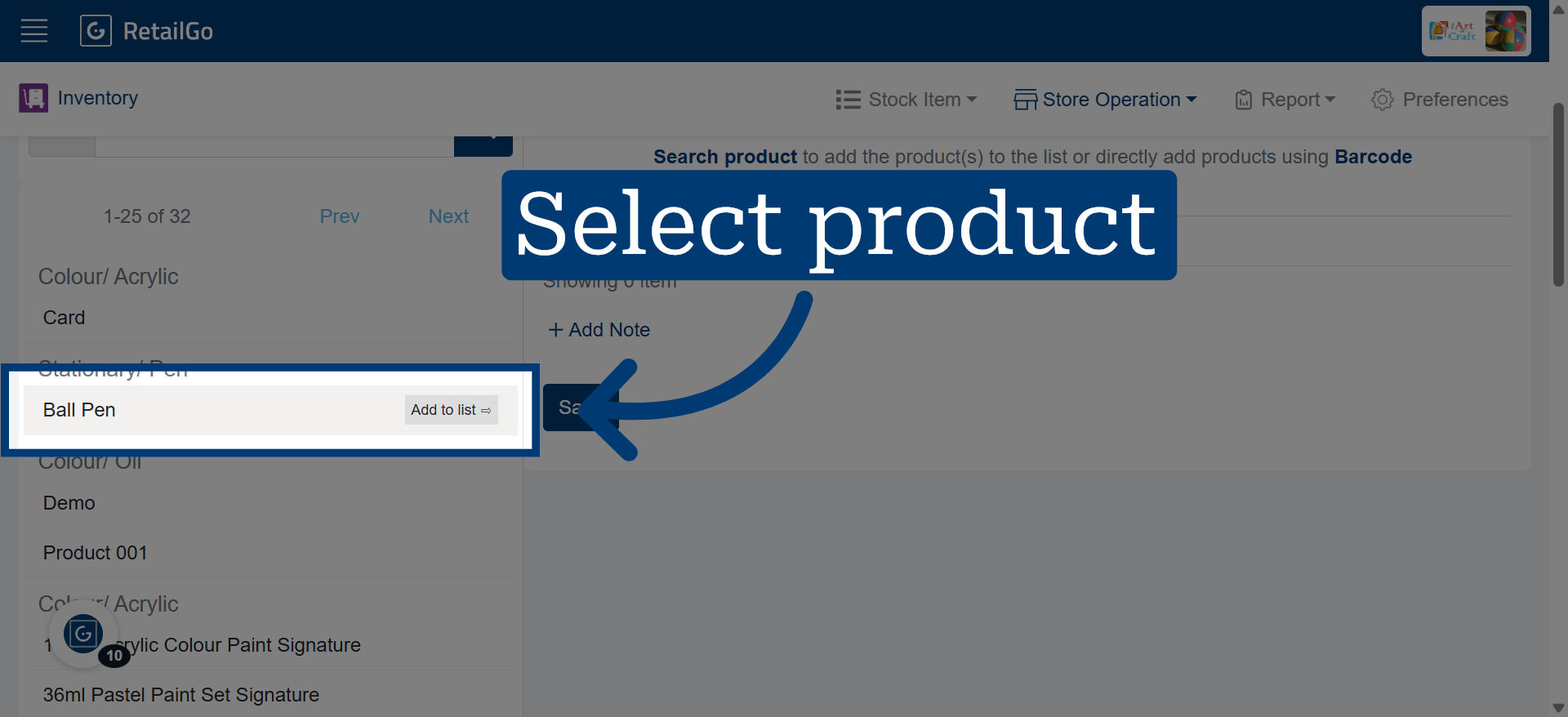
8. Select Product Accordingly
You can add multiple products to a single Purchase Order by searching for each product manually or by scanning their barcodes.
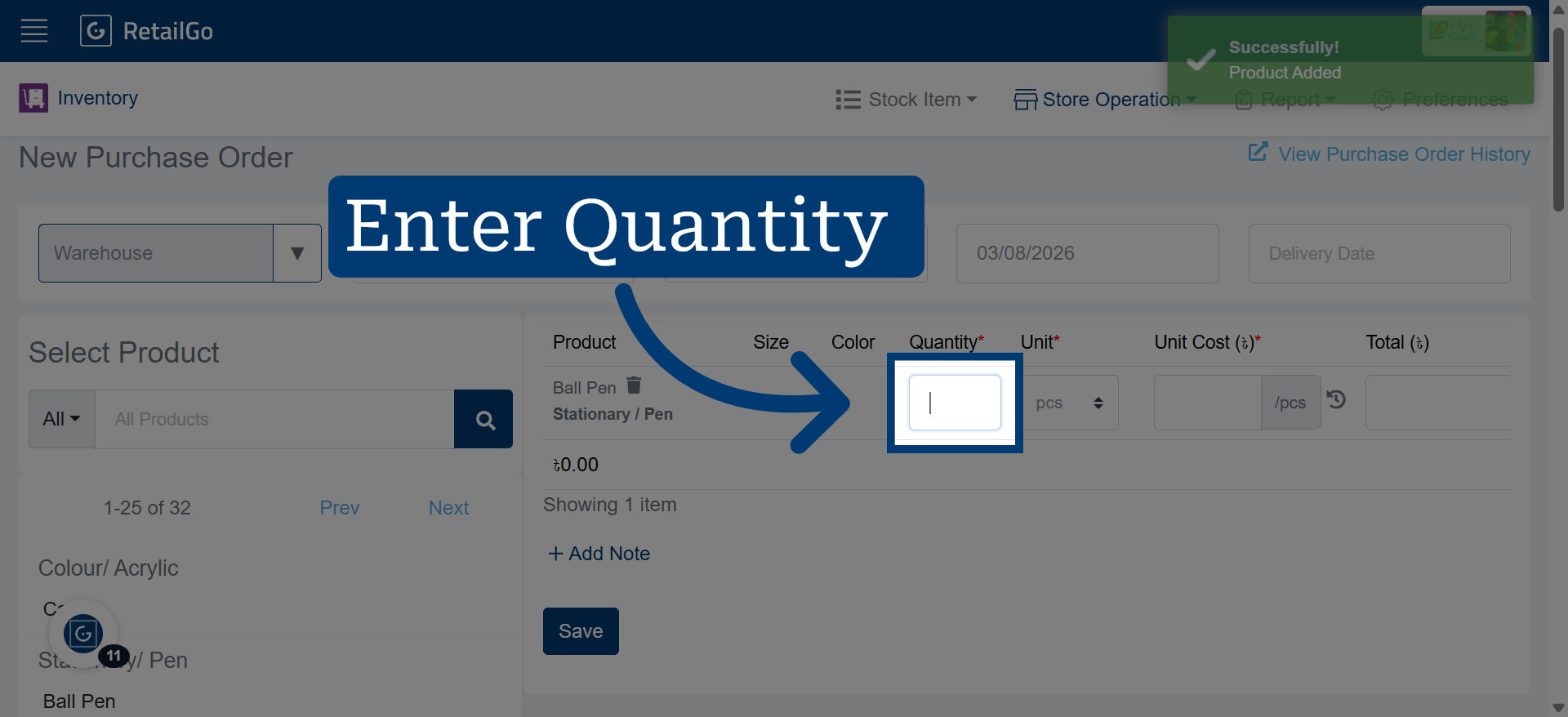
9. Open Quantity Input
Click Submit to send the stock information for processing.
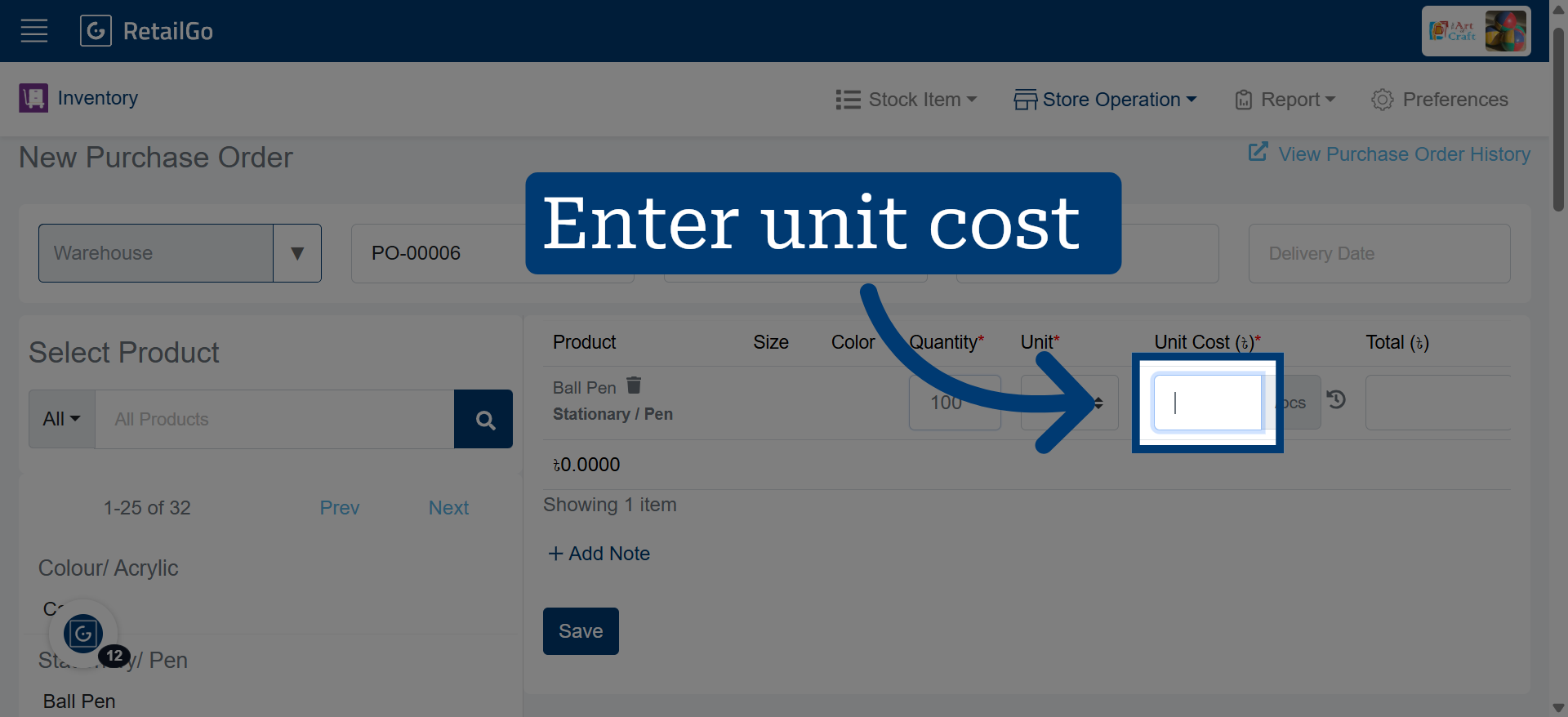
10. Input Unit Cost
Specify the purchase price for one unit of the item.
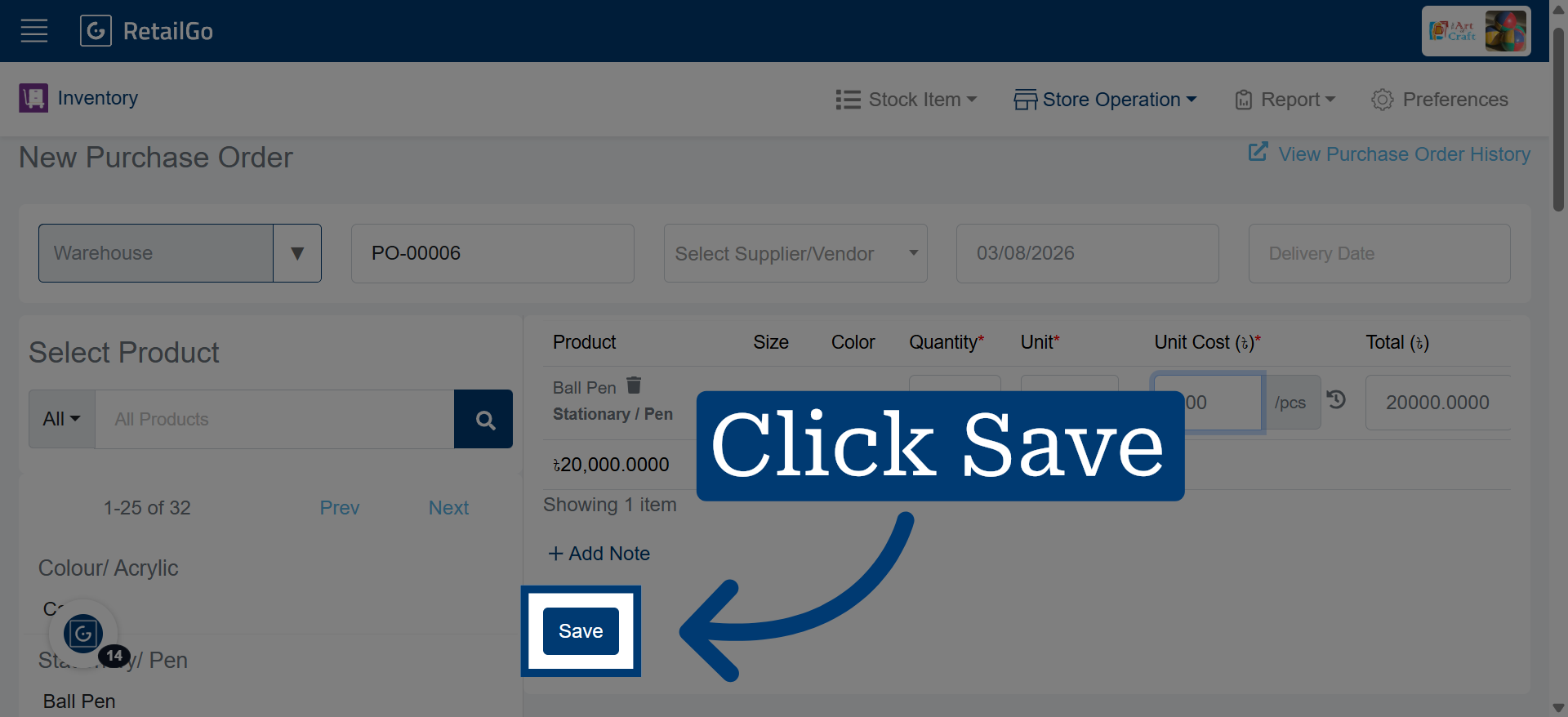
11. Save Purchase Order