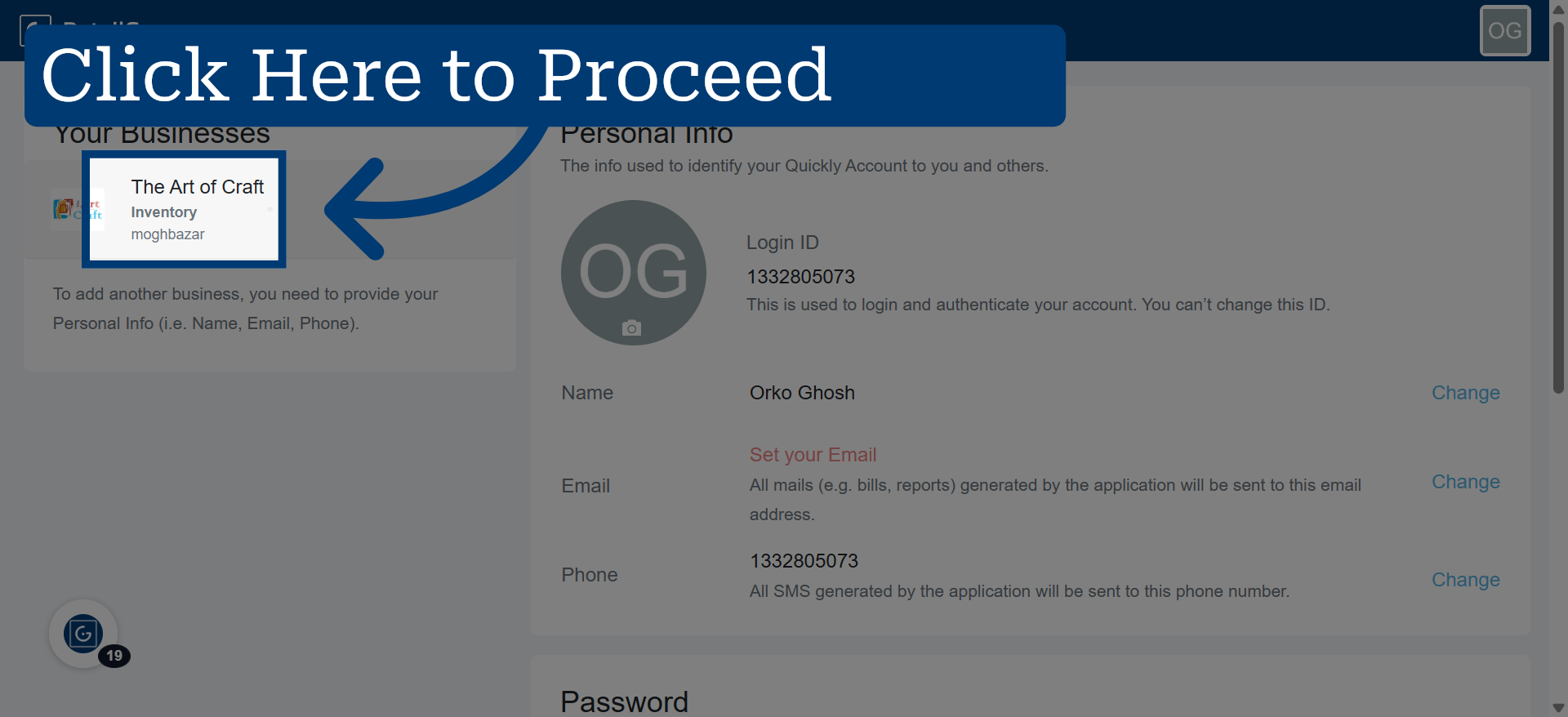
How to Add a New User in RetailGo Business Portal
This tutorial guides you to add a new user and access within the RetailGo Business Portal.
Go to
retailgo.quicklyservices.com
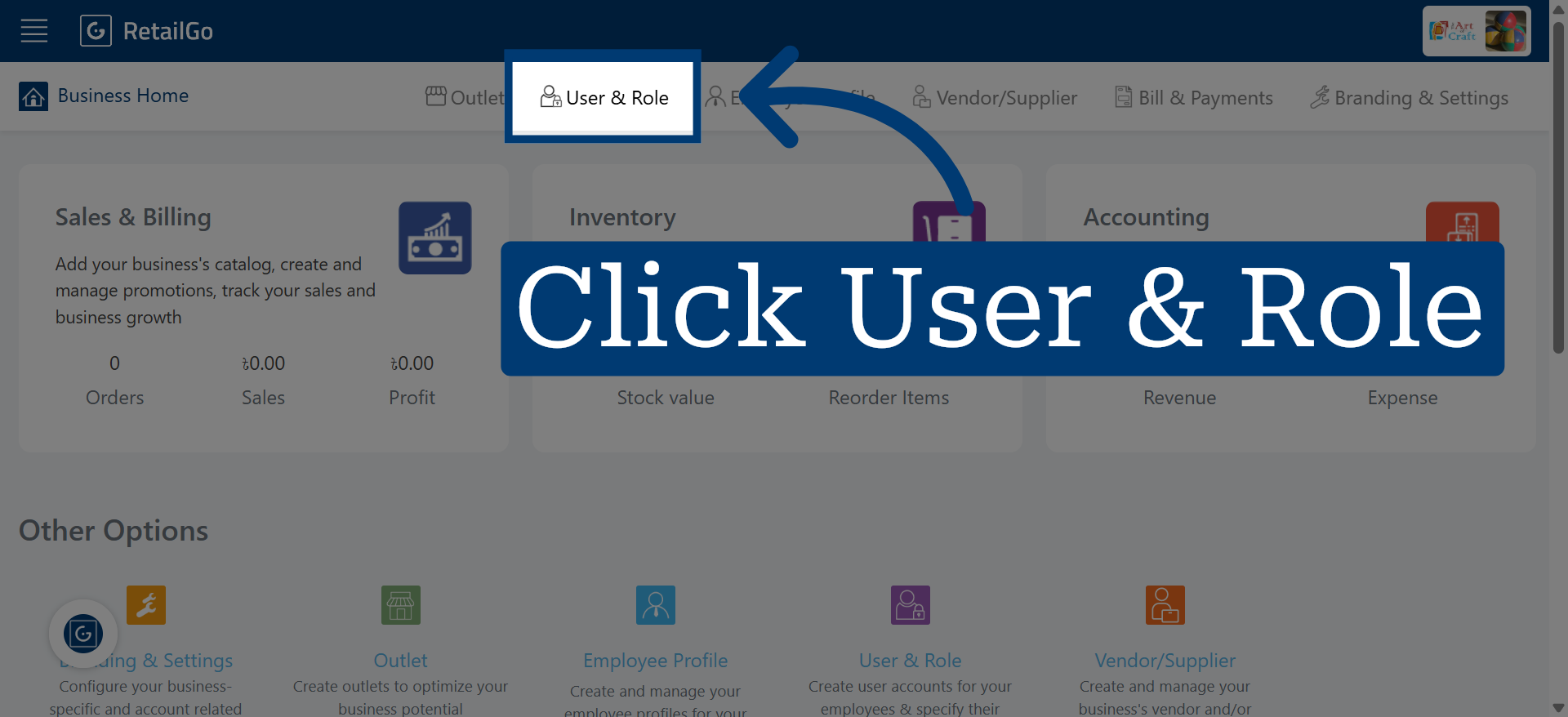
1. Access User & Role Settings
Open the user management section in the Business Portal.
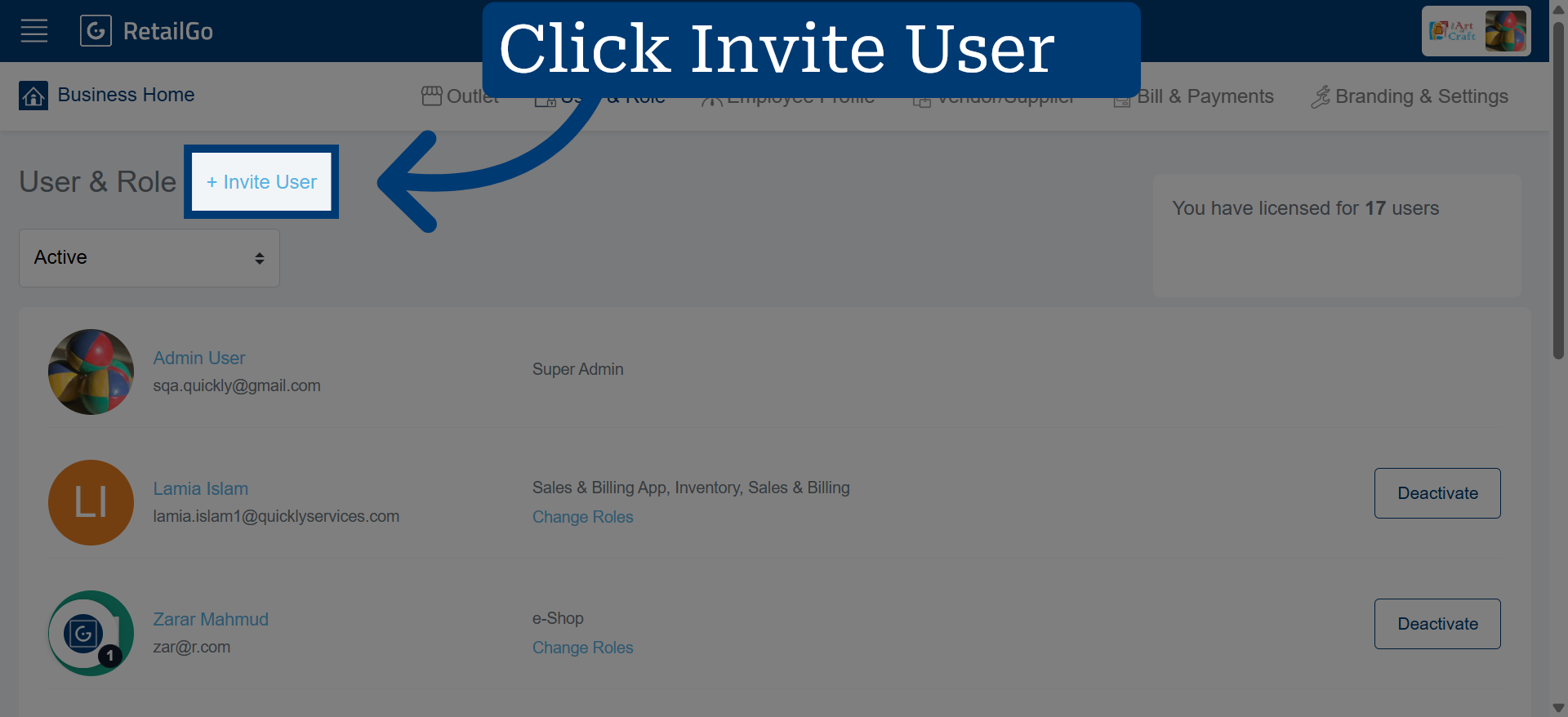
2. Open Invite User Dialog
Click " Invite User" to start adding a new user to your RetailGo account.
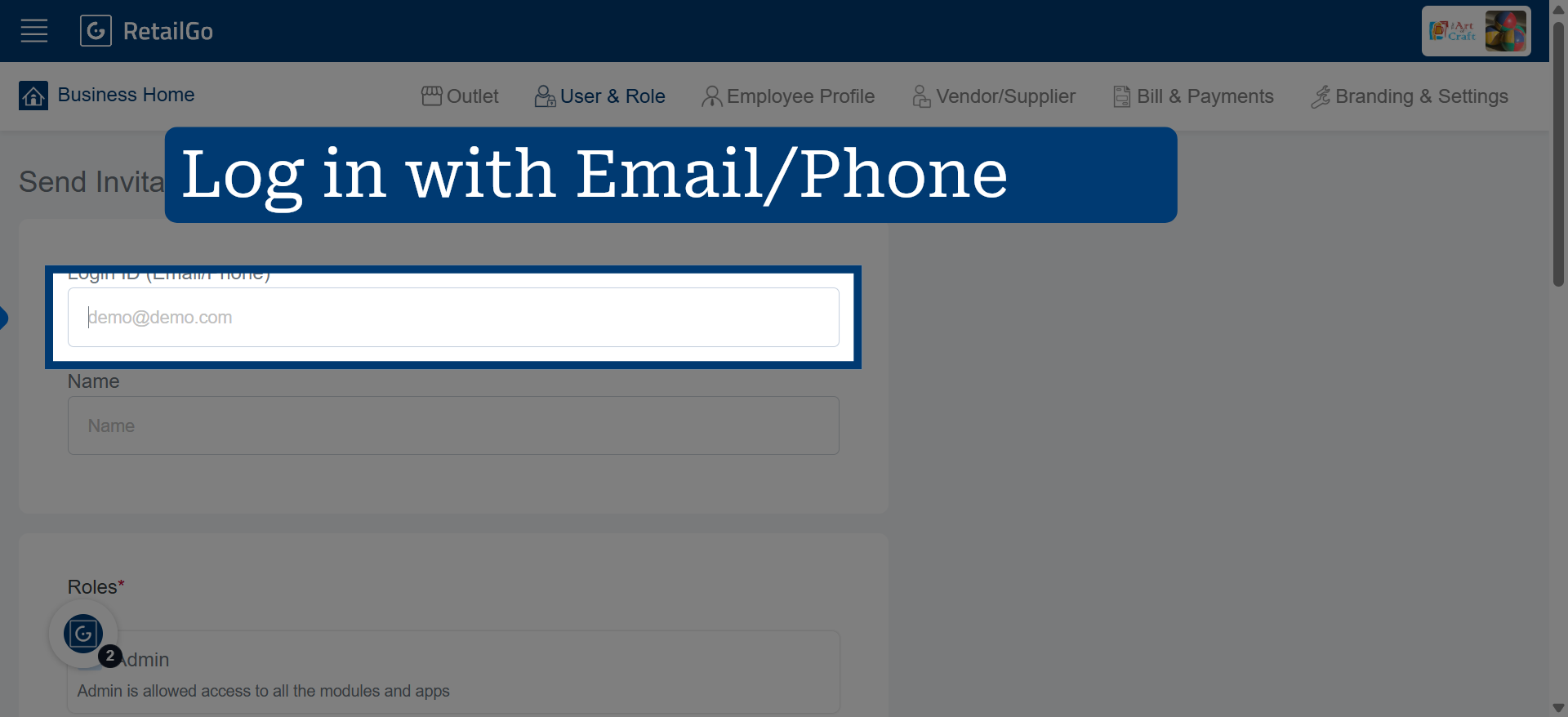
3. Select User Email
Proceed with user's Email ID or Phone number.
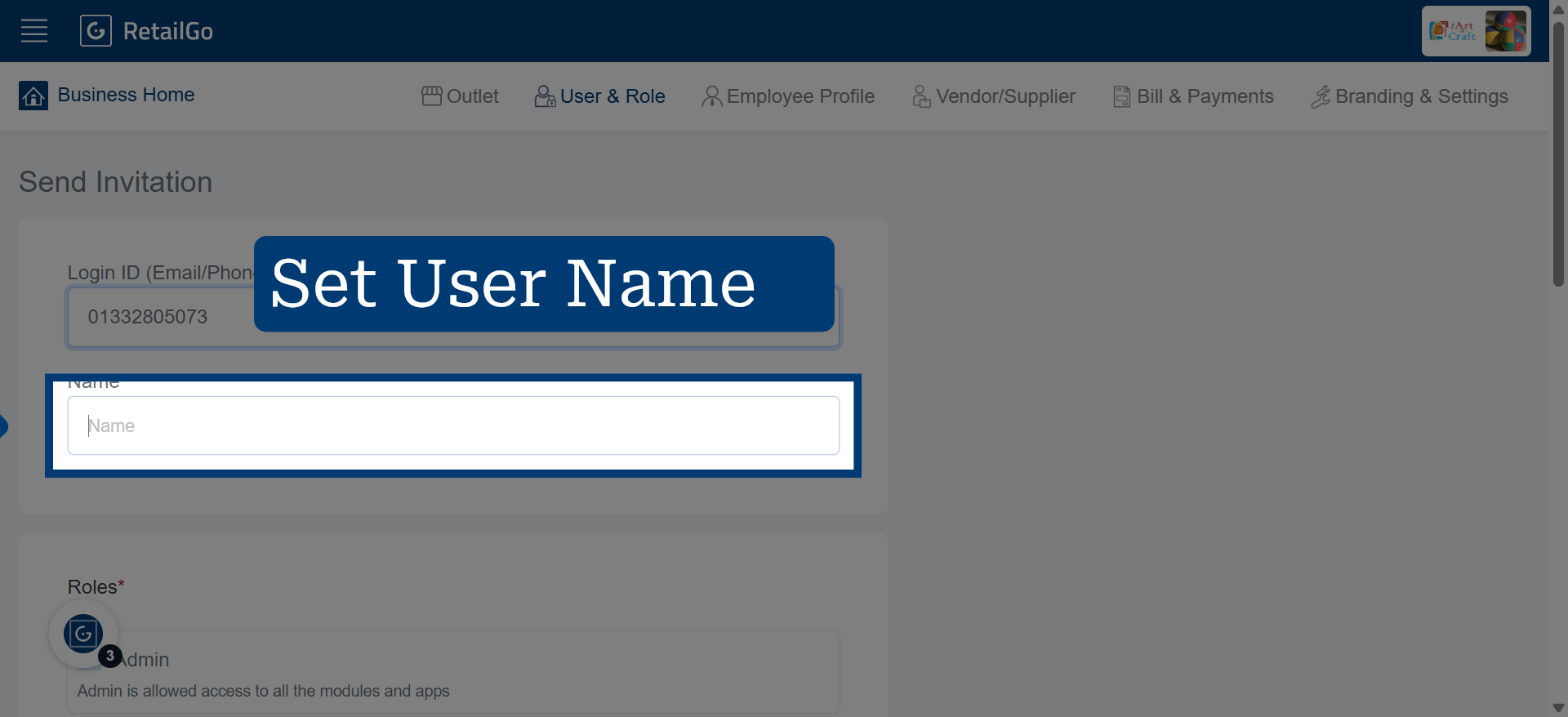
4. Set the User Name
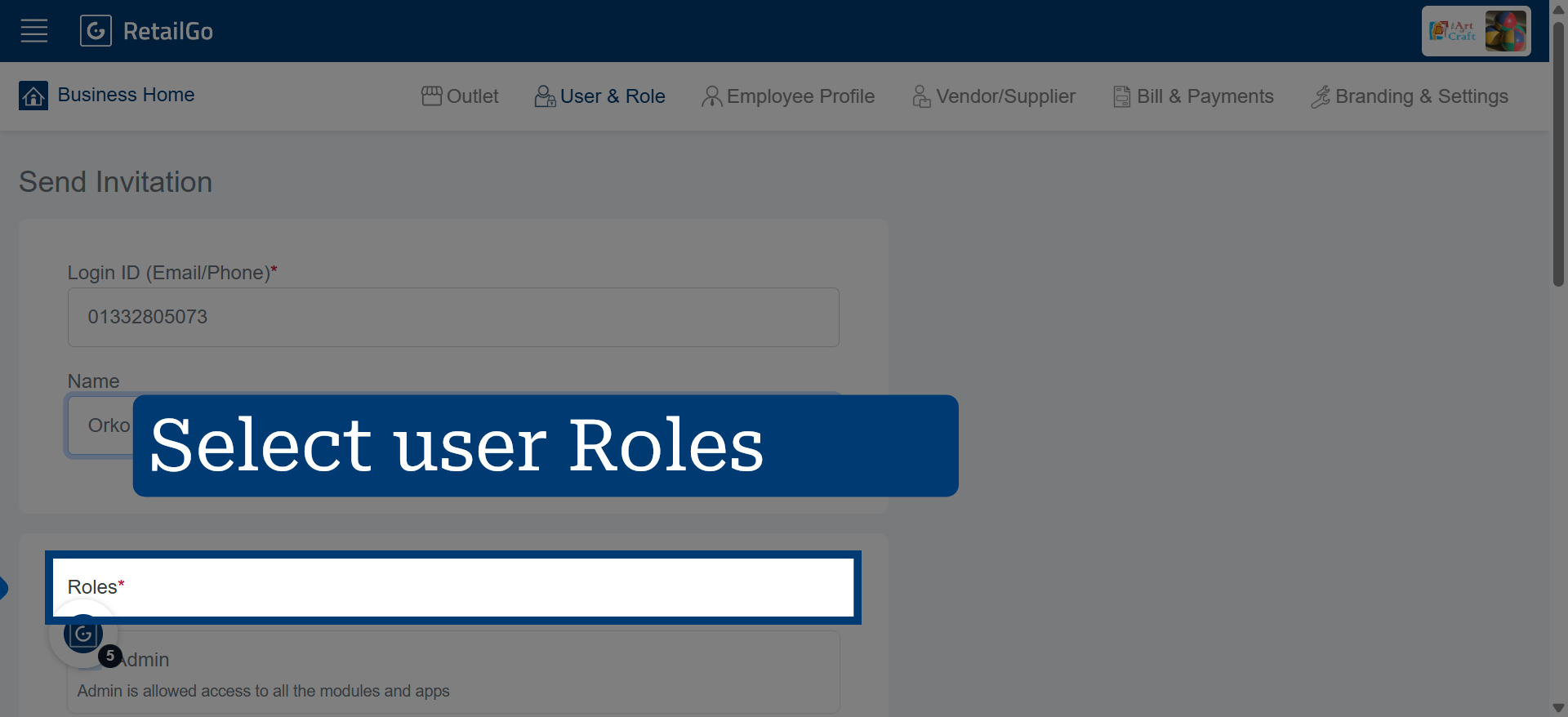
5. Select User Roles Accordingly
Click "Roles" to assign appropriate permissions and access levels to the new user.
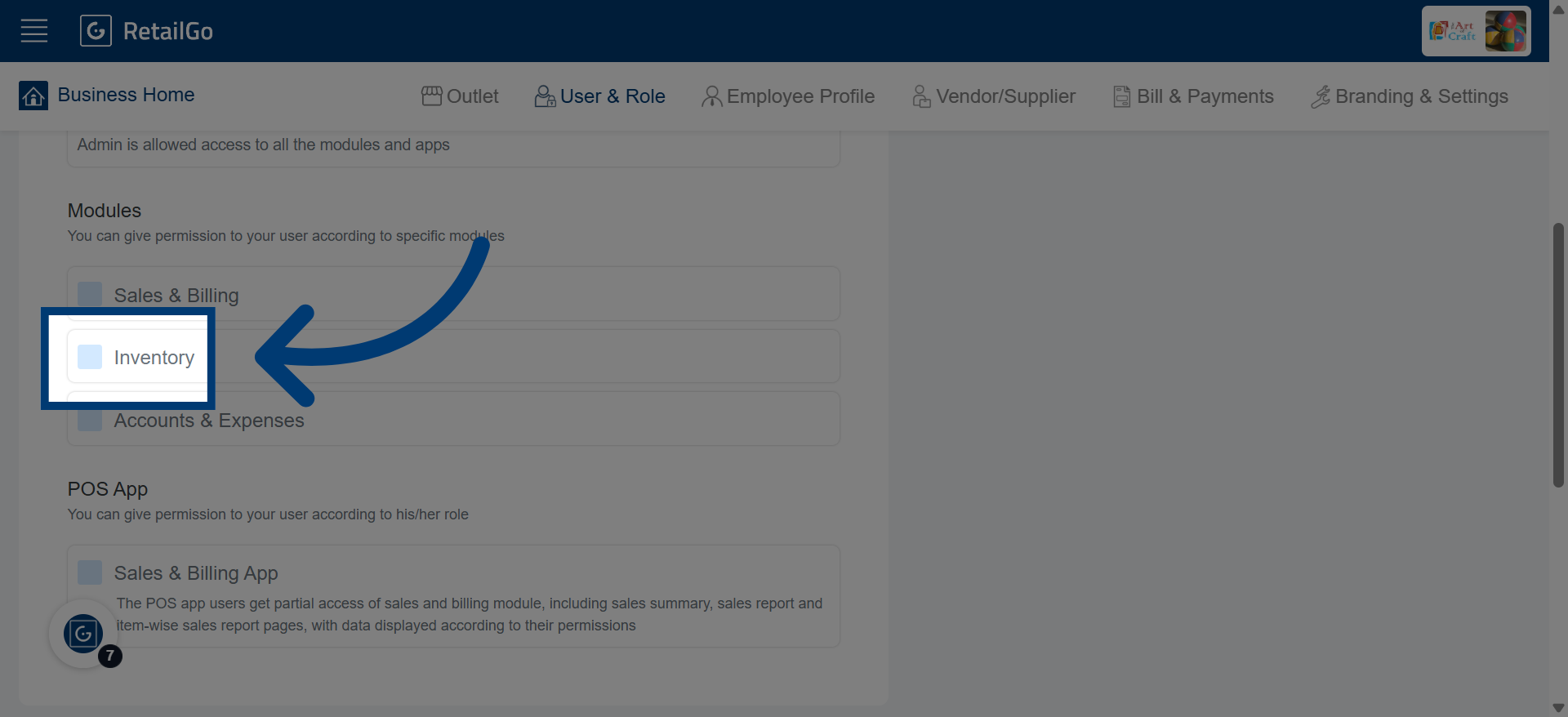
6. Choose a Role
You can give permission to your user to specific modules.
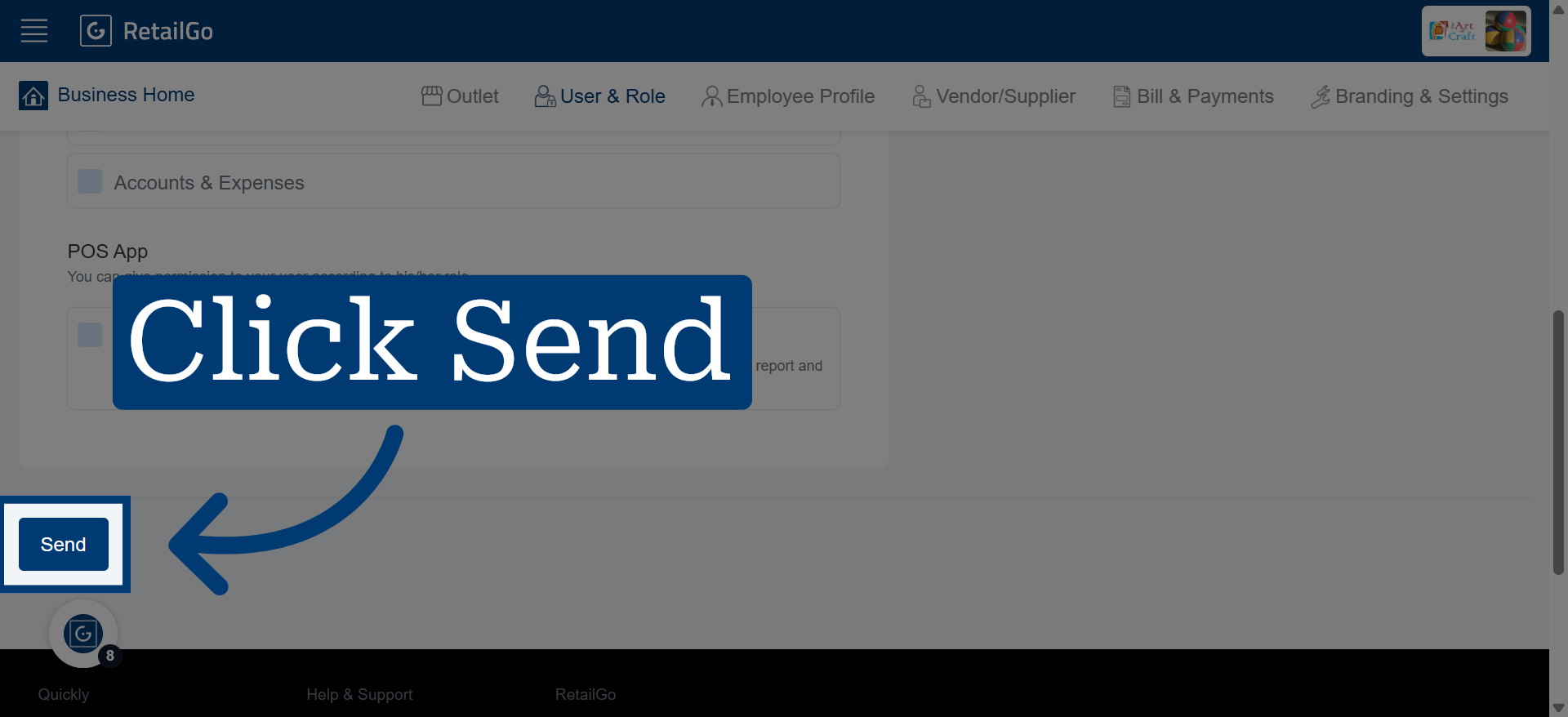
7. Send User Invitation
Click "Send" to dispatch the invitation email to the new user for account activation.
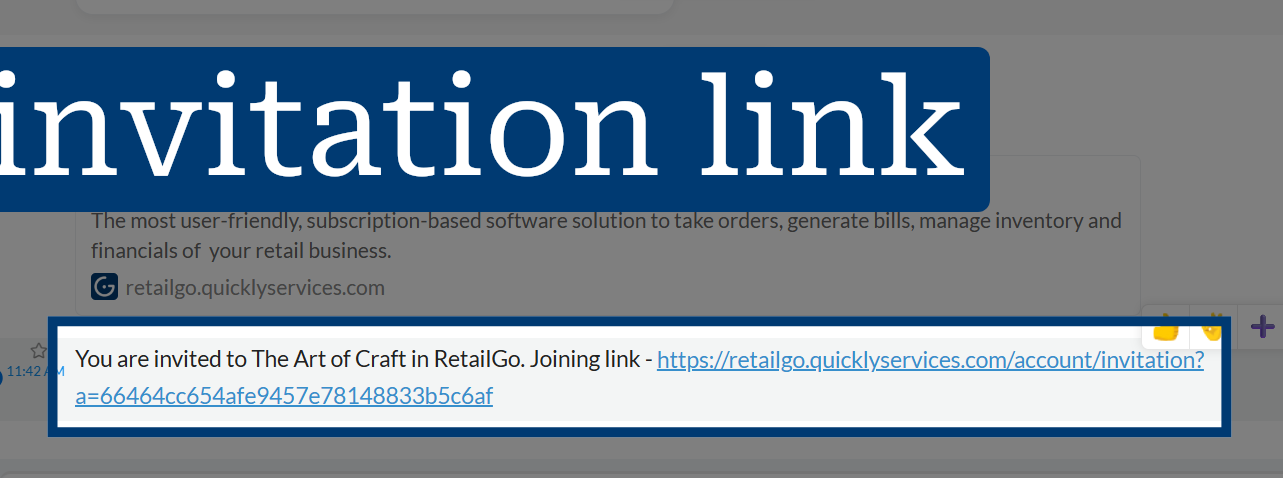
8. Open Invitation URL
The user will received invitation Link through SMS or Email.
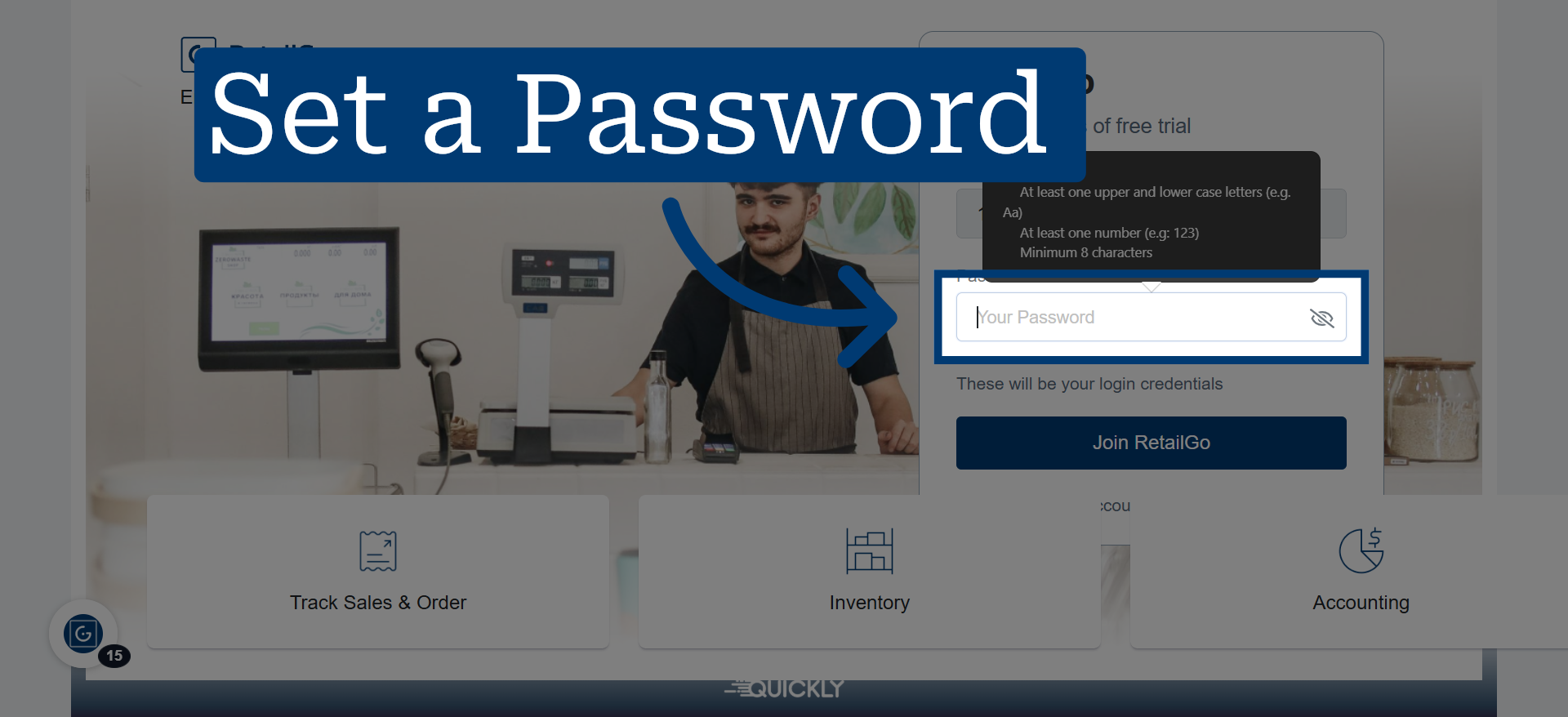
9. Focus Password Field
Click "Password" to enter a secure password for the new RetailGo account.
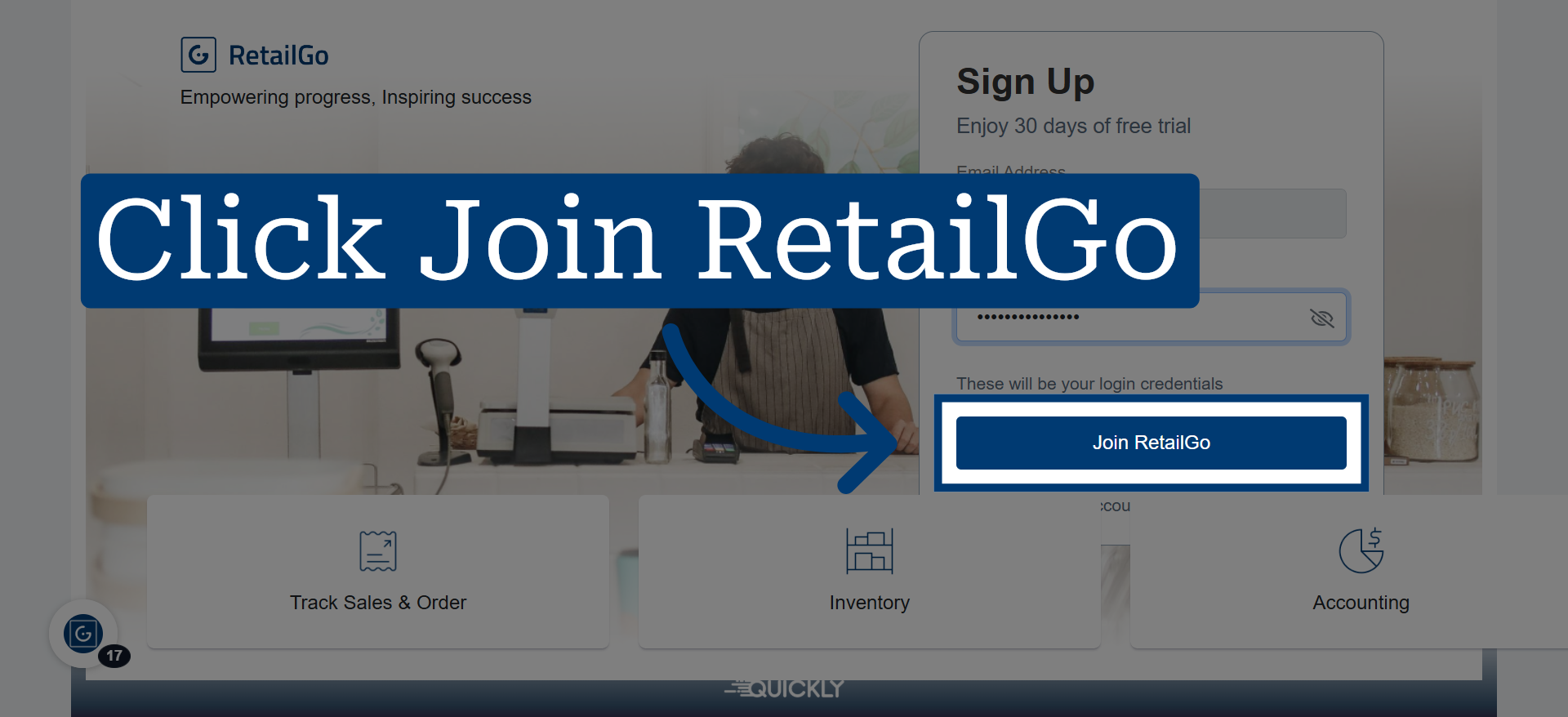
10. Complete Account Registration
Click "Join RetailGo" to finalize the account creation and join the RetailGo platform.
11. Access Inventory Dashboard