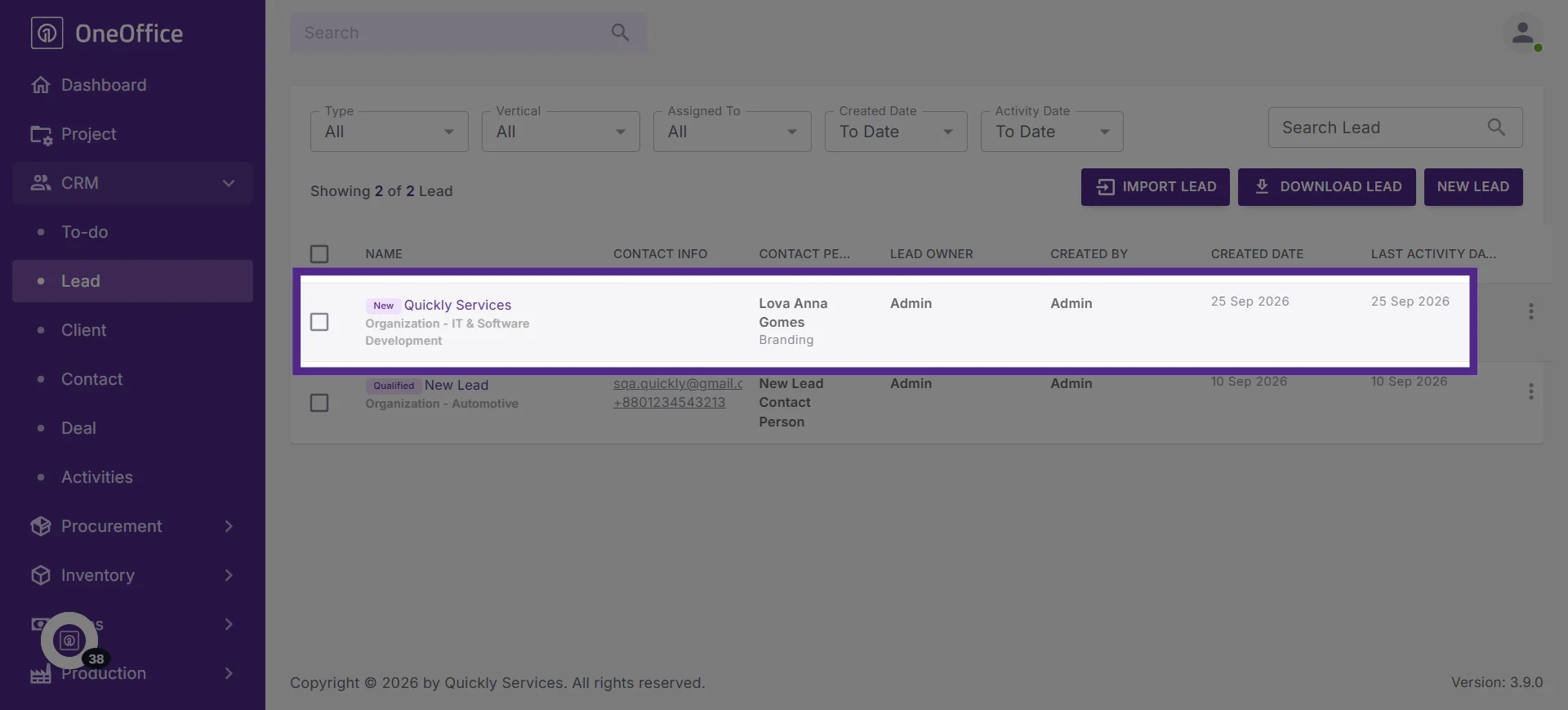
How to Create and Submit a New Lead in OneOffice
This tutorial guides you through creating and submitting a new lead in OneOffice by entering their
contact information, business details, and lead source, and assigning an owner for follow-up.
Go to
oneoffice.quicklyservices.com
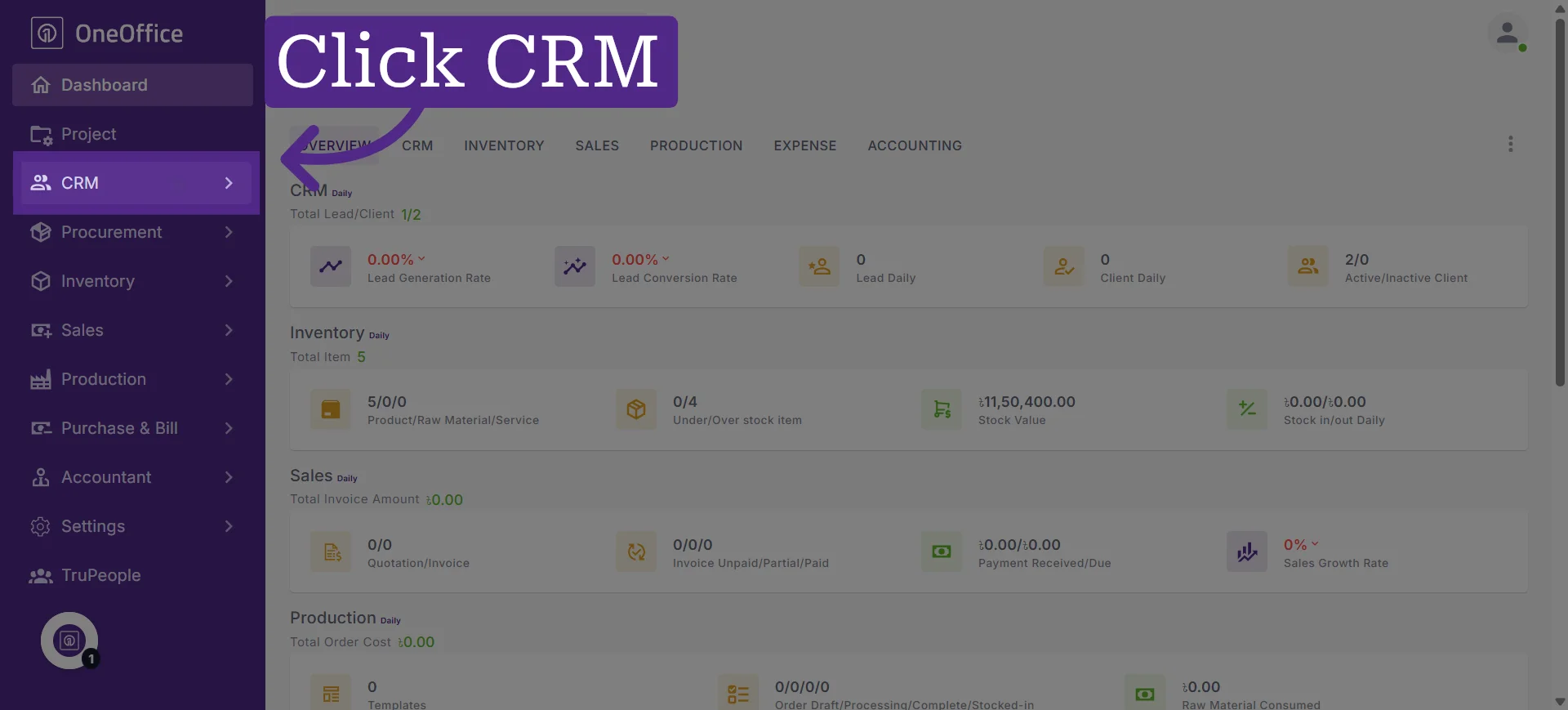
1. Click CRM from the navigation menu
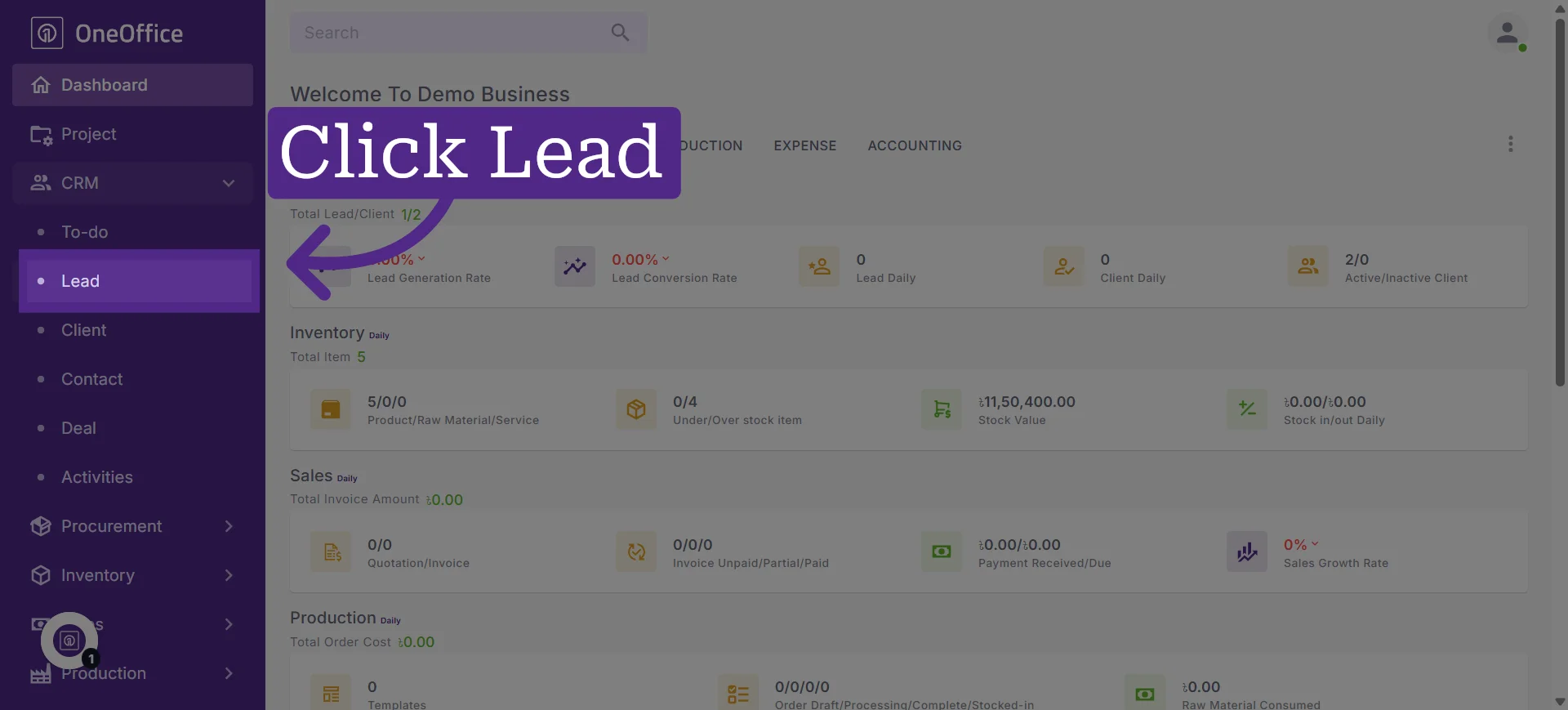
2. Click the "Lead" tab
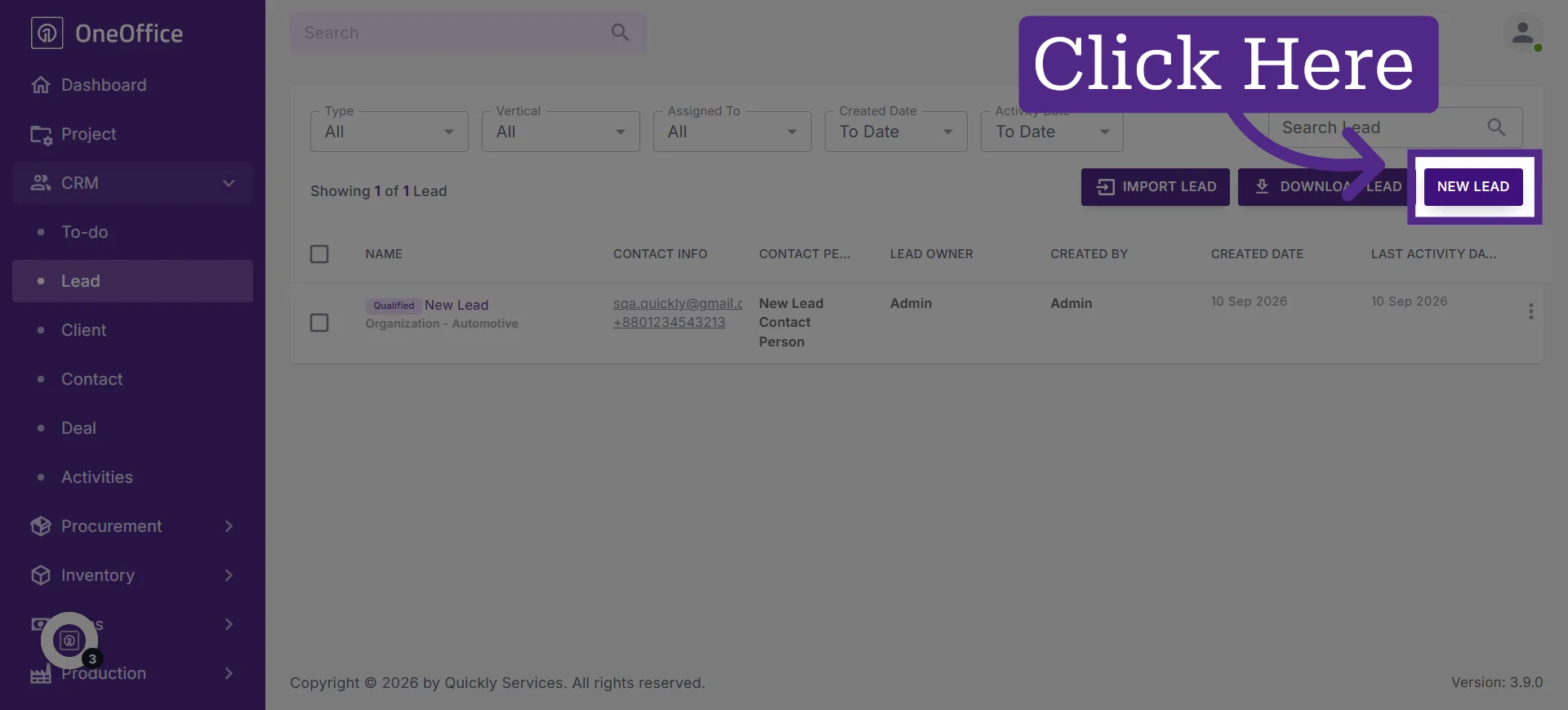
3. Click "New Lead" to add the lead
4. Select Organization or Individual, depending on the type of lead
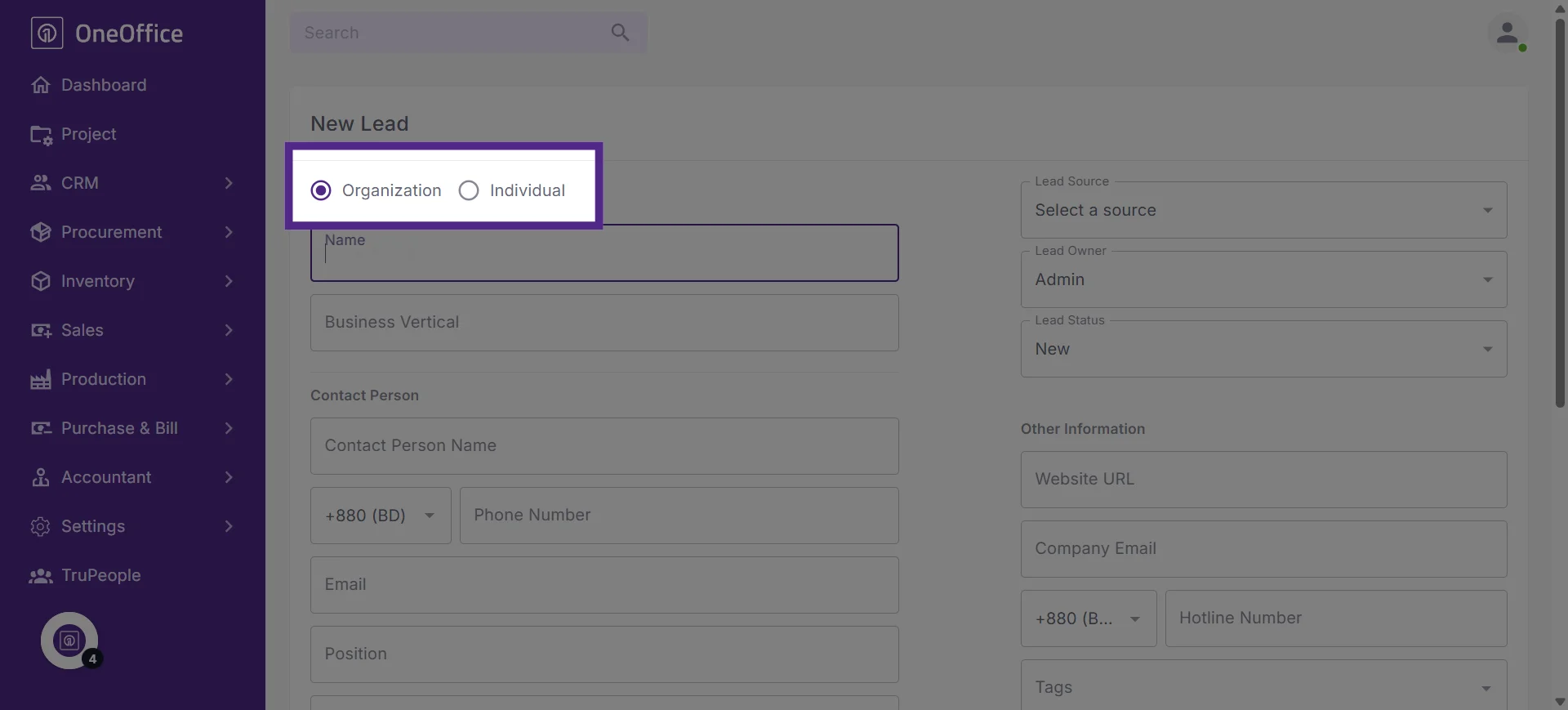
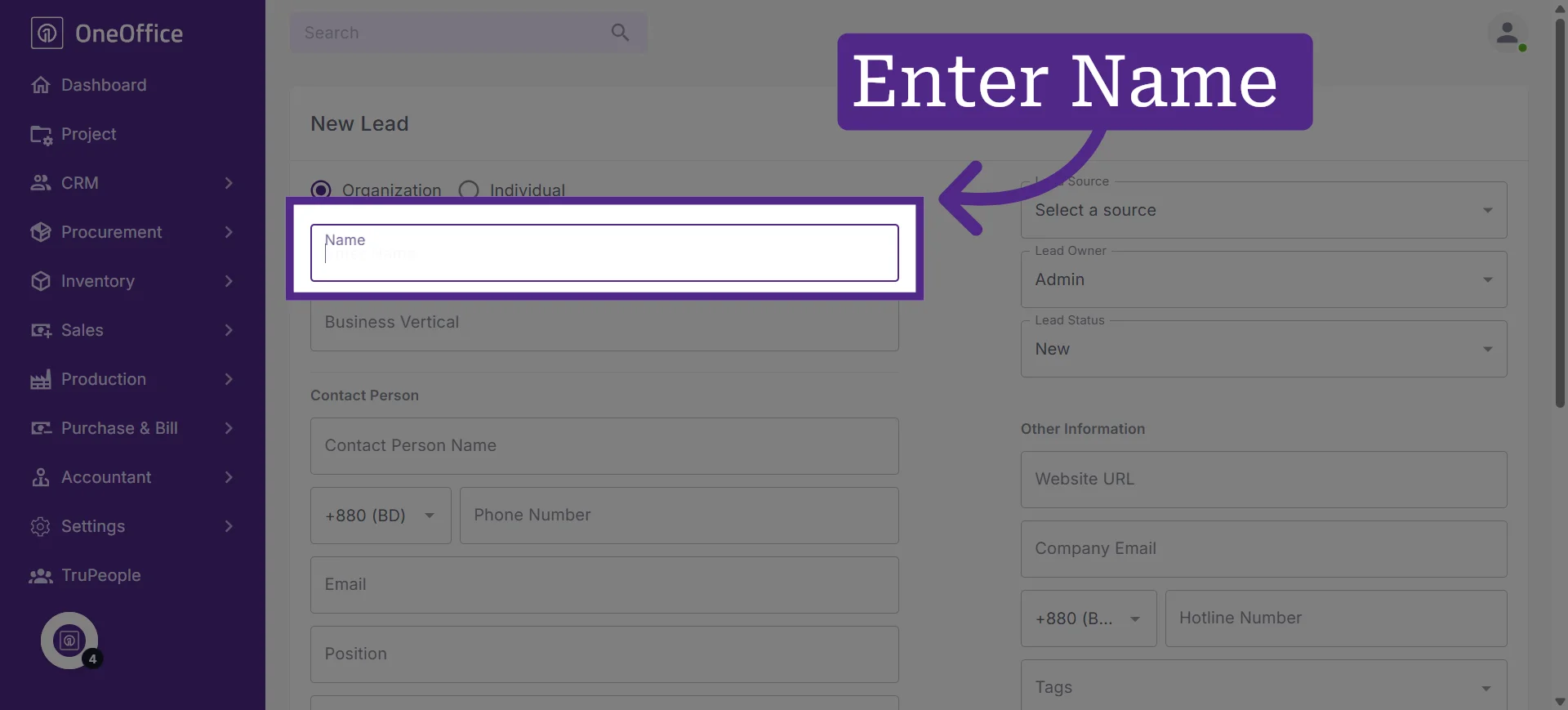
5. Enter the organization's name if you selected Organization
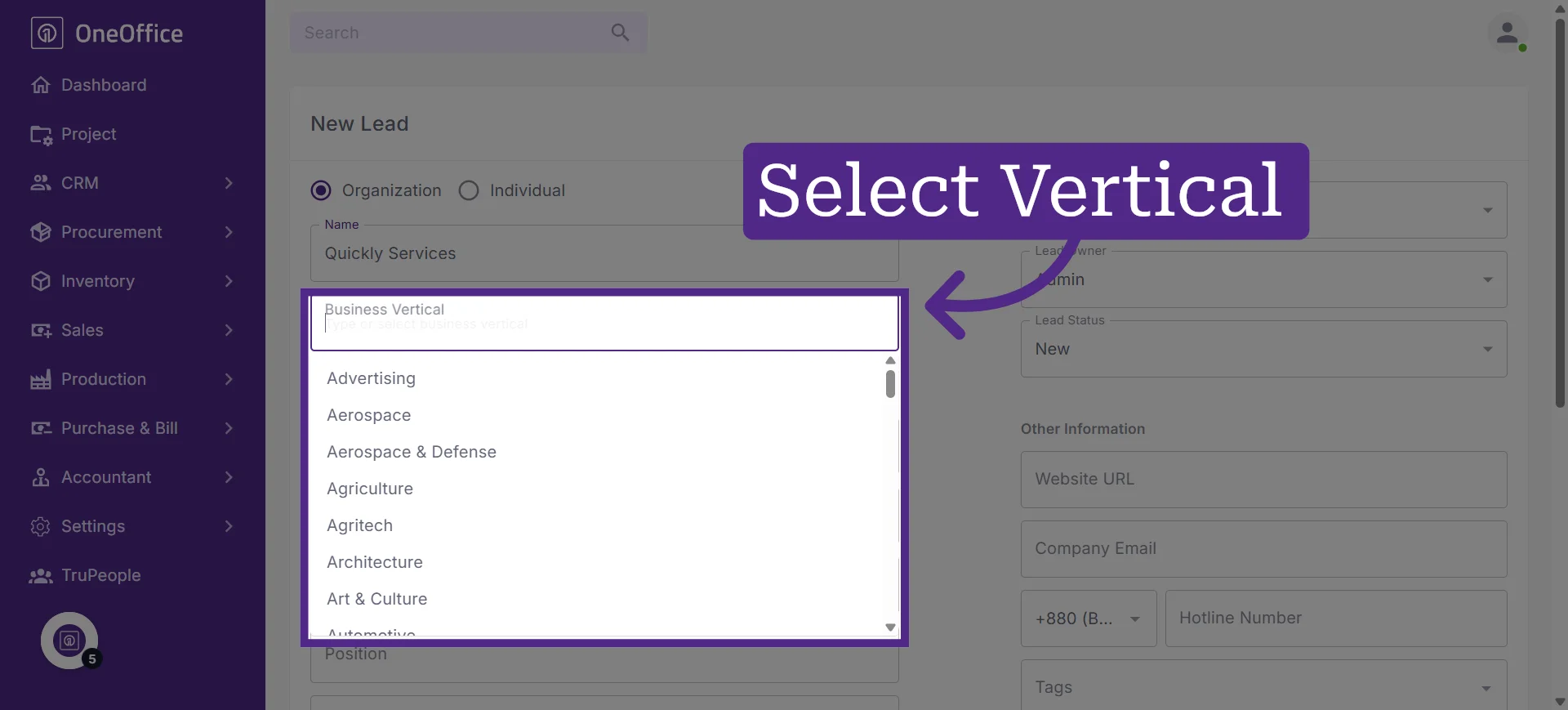
6. Select the appropriate business vertical for the lead
7. Enter the lead's name
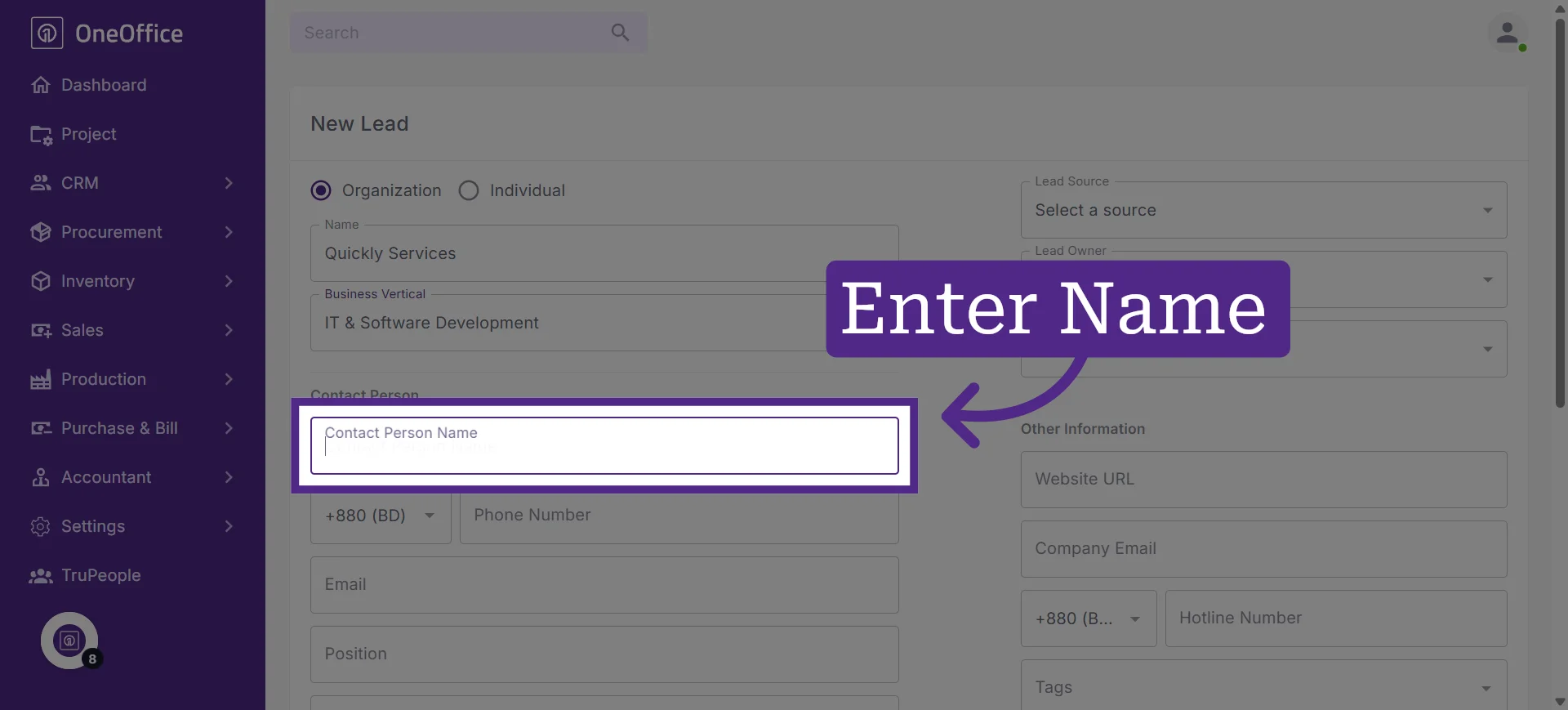
8. Add the lead's contact number
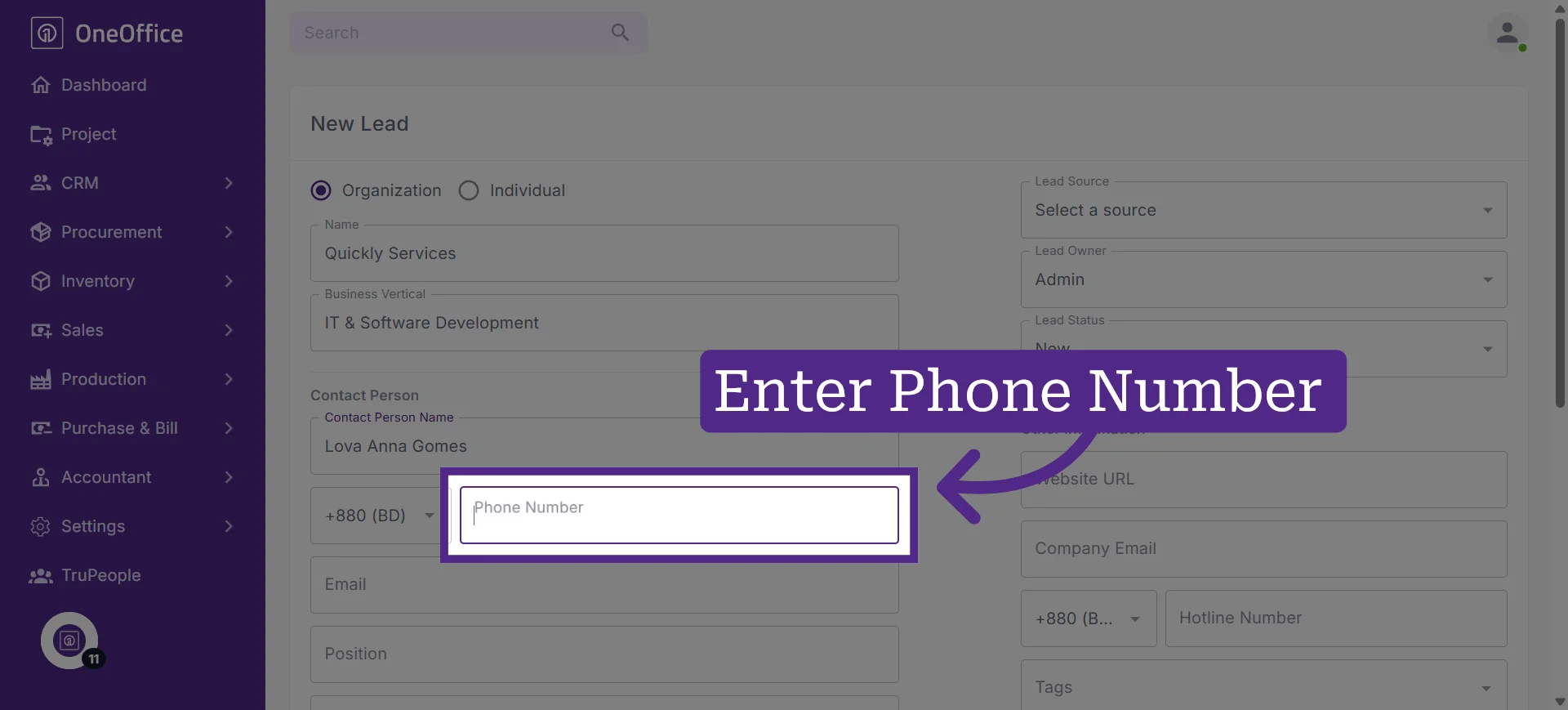
9. Enter the lead's email address
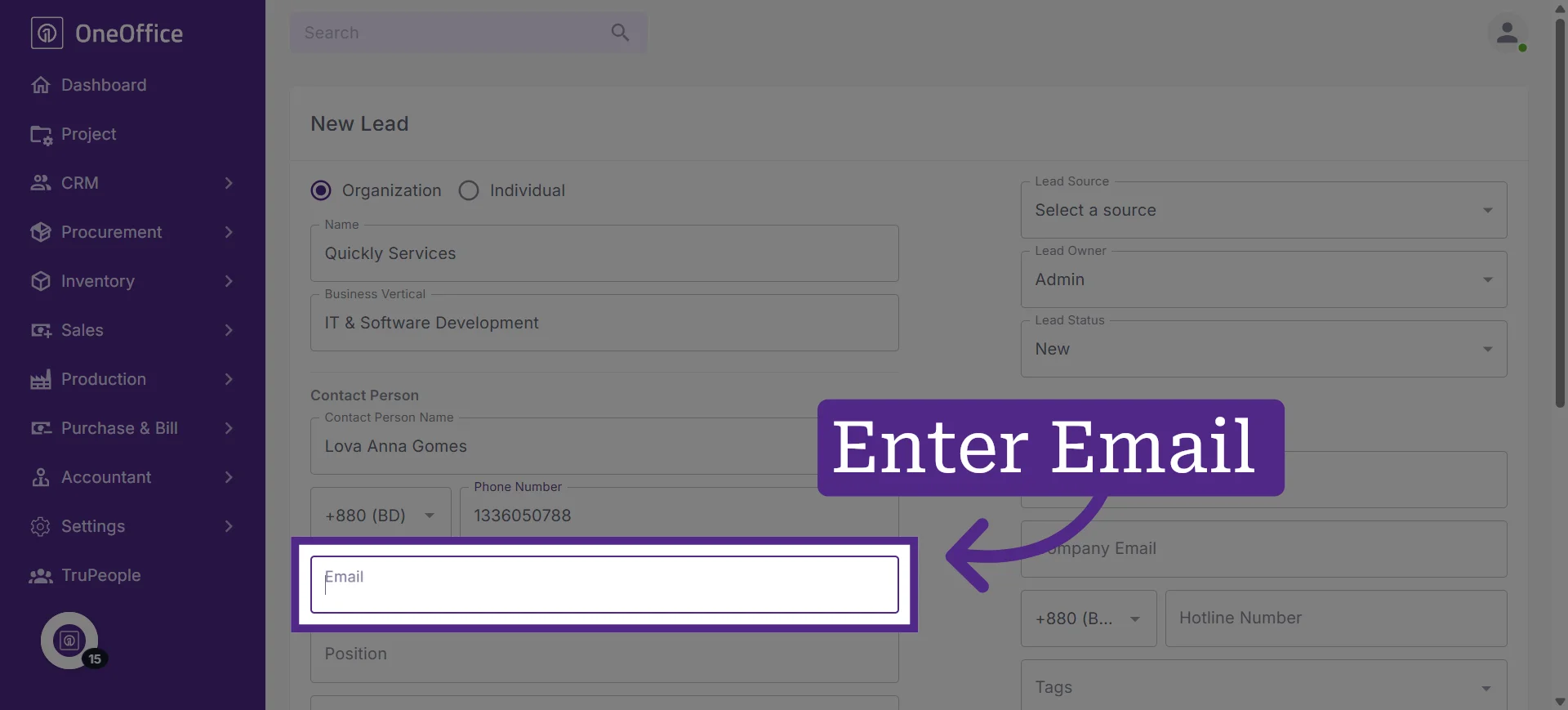
10. Enter the lead's designation within the organization
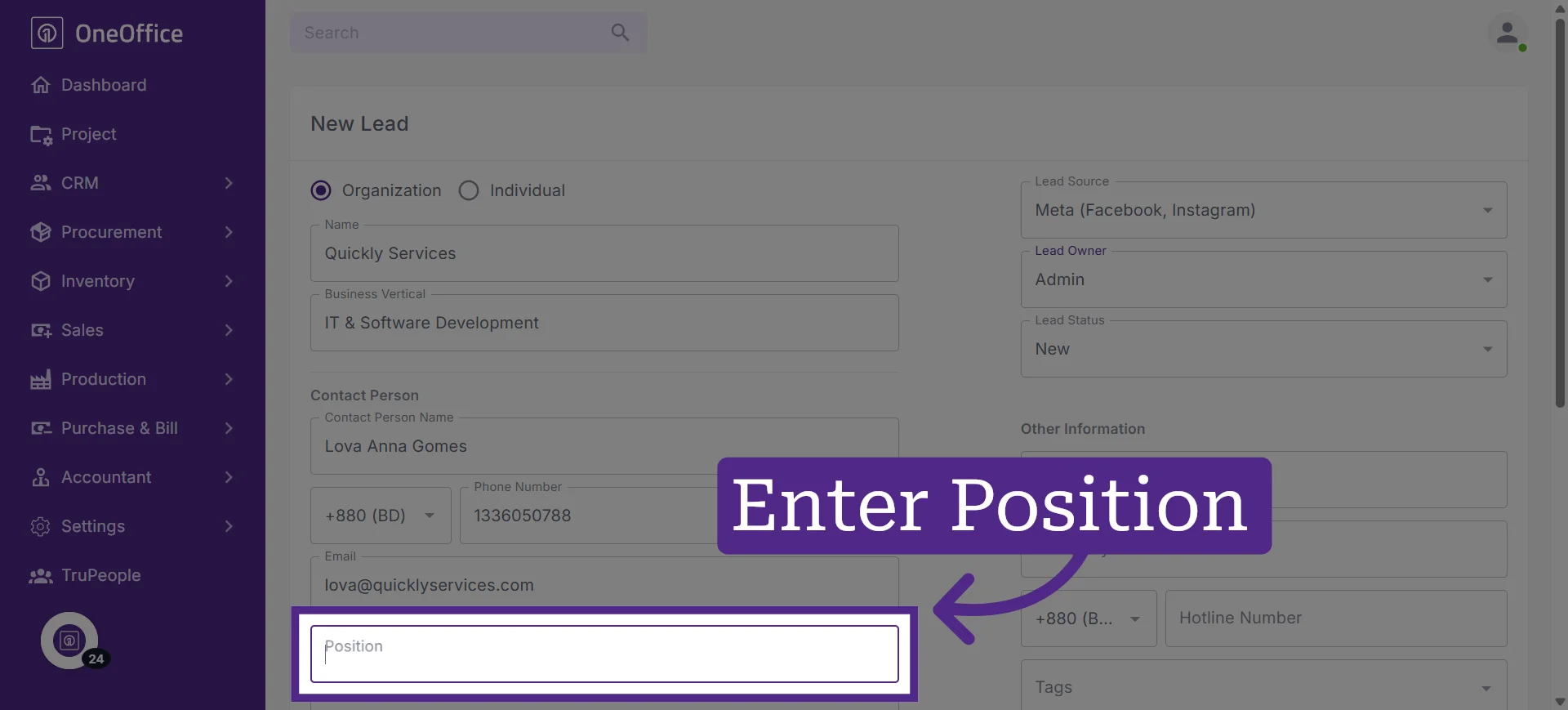
11. Select the source from which you received the lead
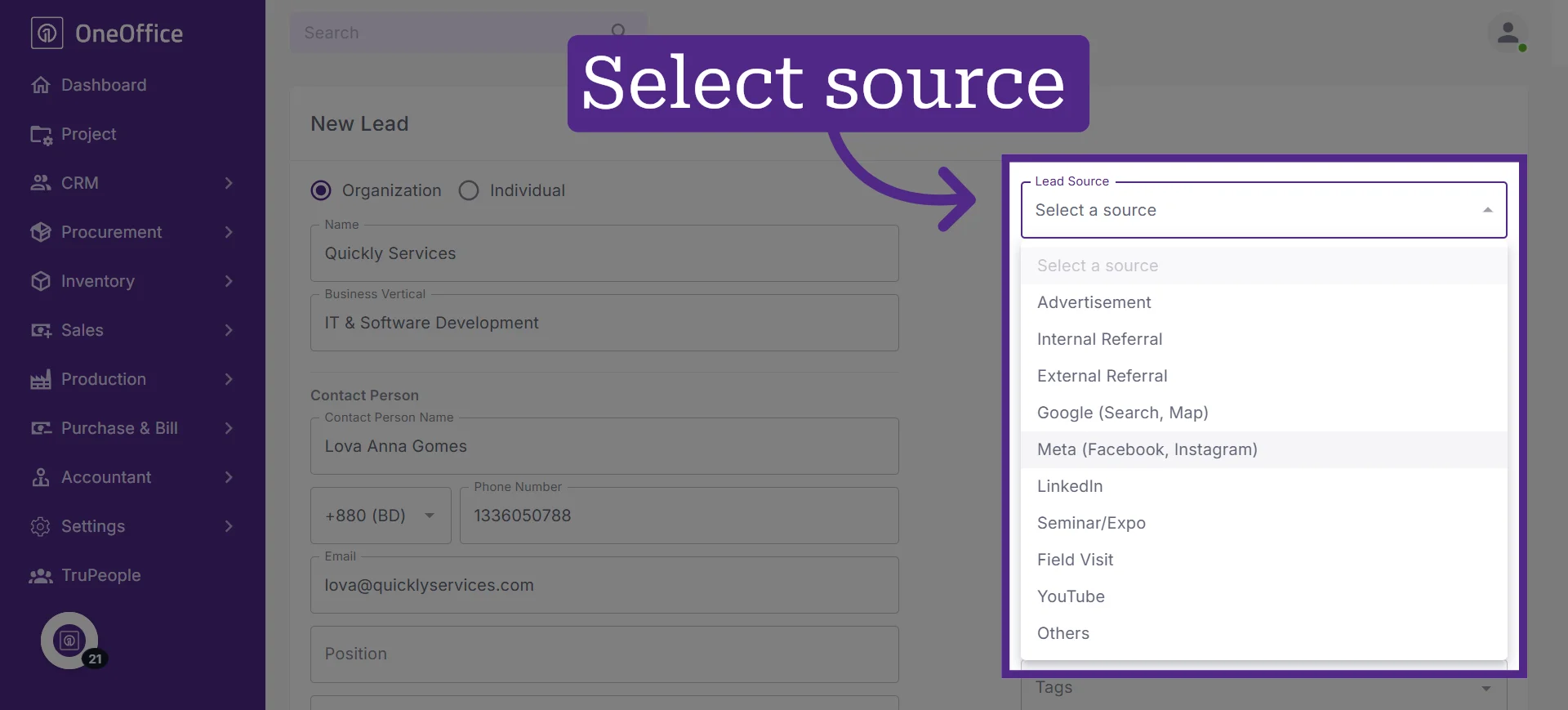
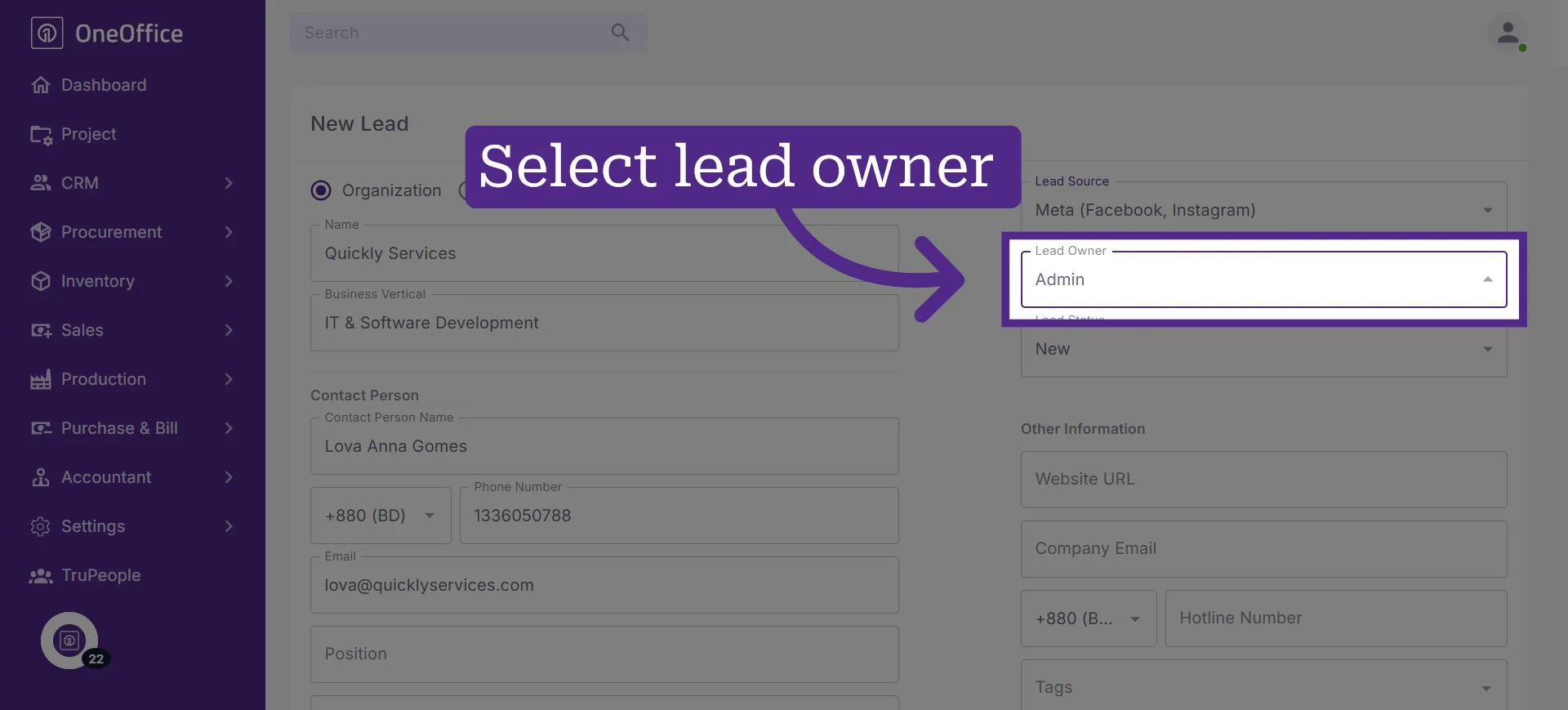
12. Select the owner responsible for following up with the lead
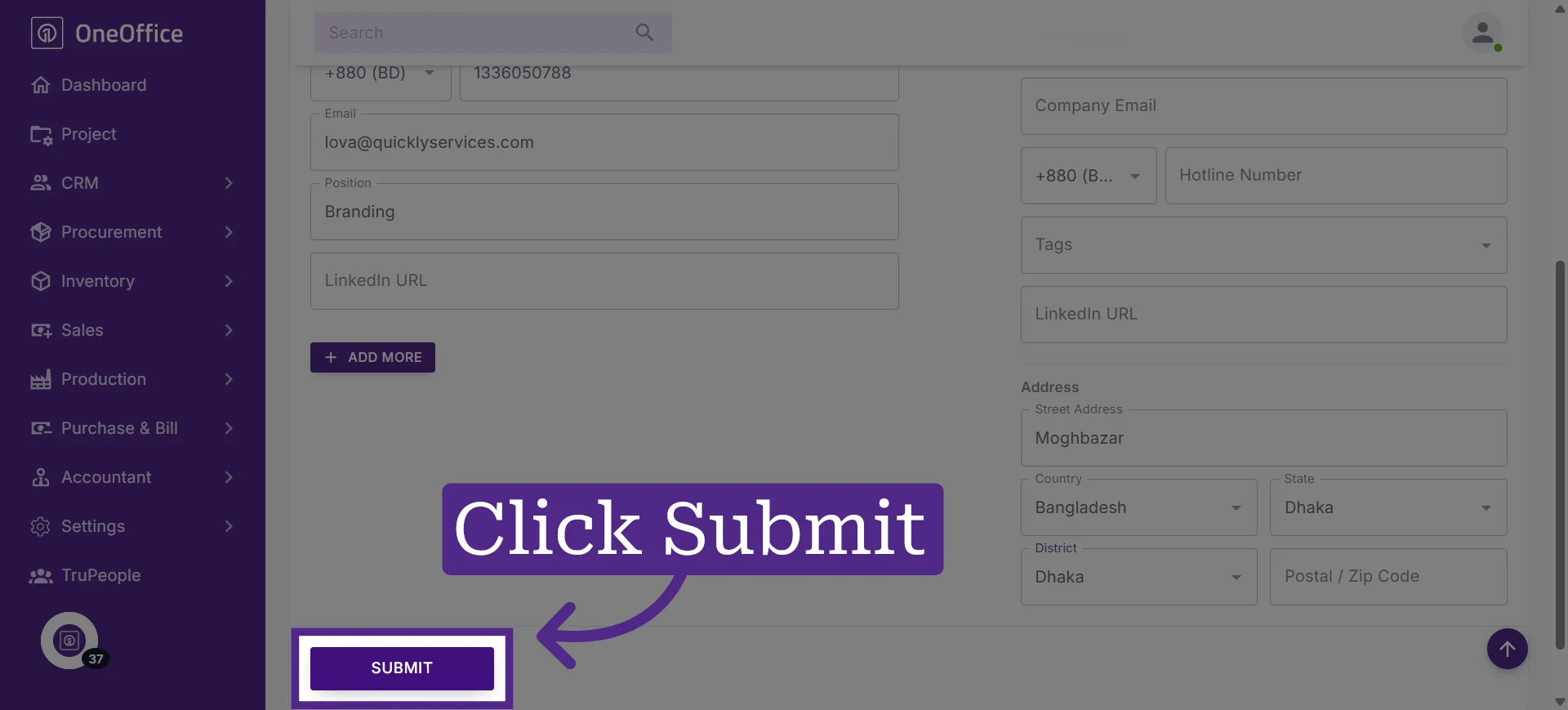
13. Click "Submit" to save the lead
14. The newly created lead will now appear in the Lead dashboard