How to Adjust Damaged Stock in RestroGreen Business Portal
This tutorial guides you through managing stock adjustments in the RestroGreen Business Portal.
Go to
restrogreen.quicklyservices.com
1. Login to your Business Portal
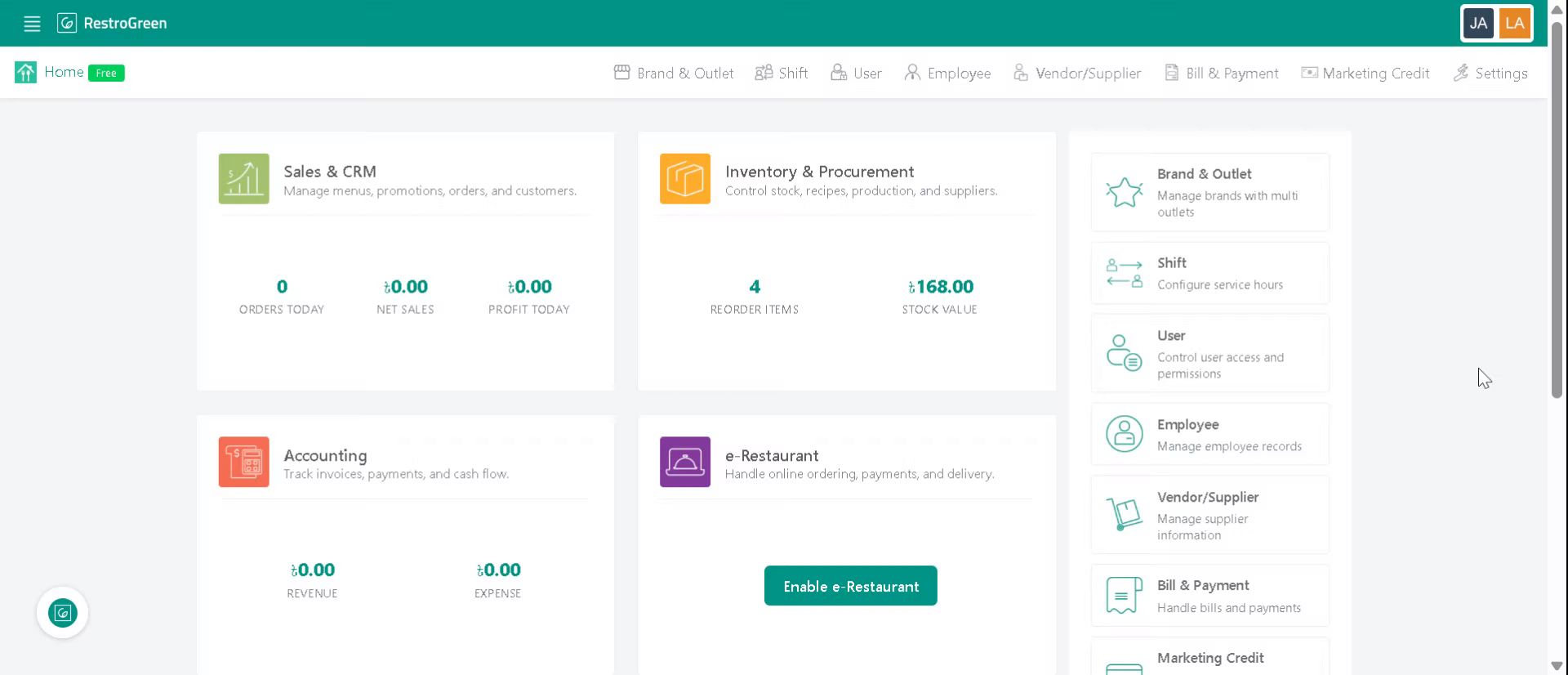
2. Click "Inventory & Procurement" module to access the inventory management section
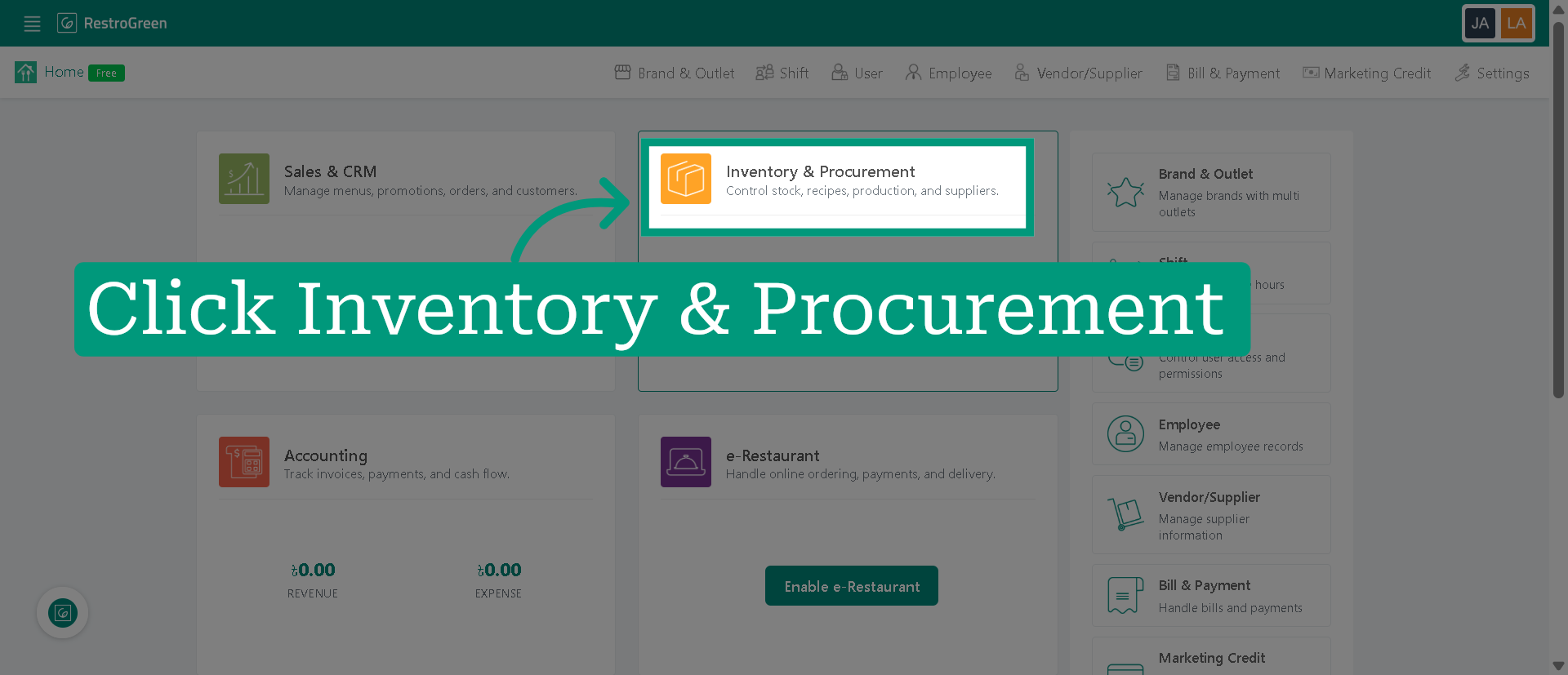
3. Click "Stock Adjustment" from the top navigation menu
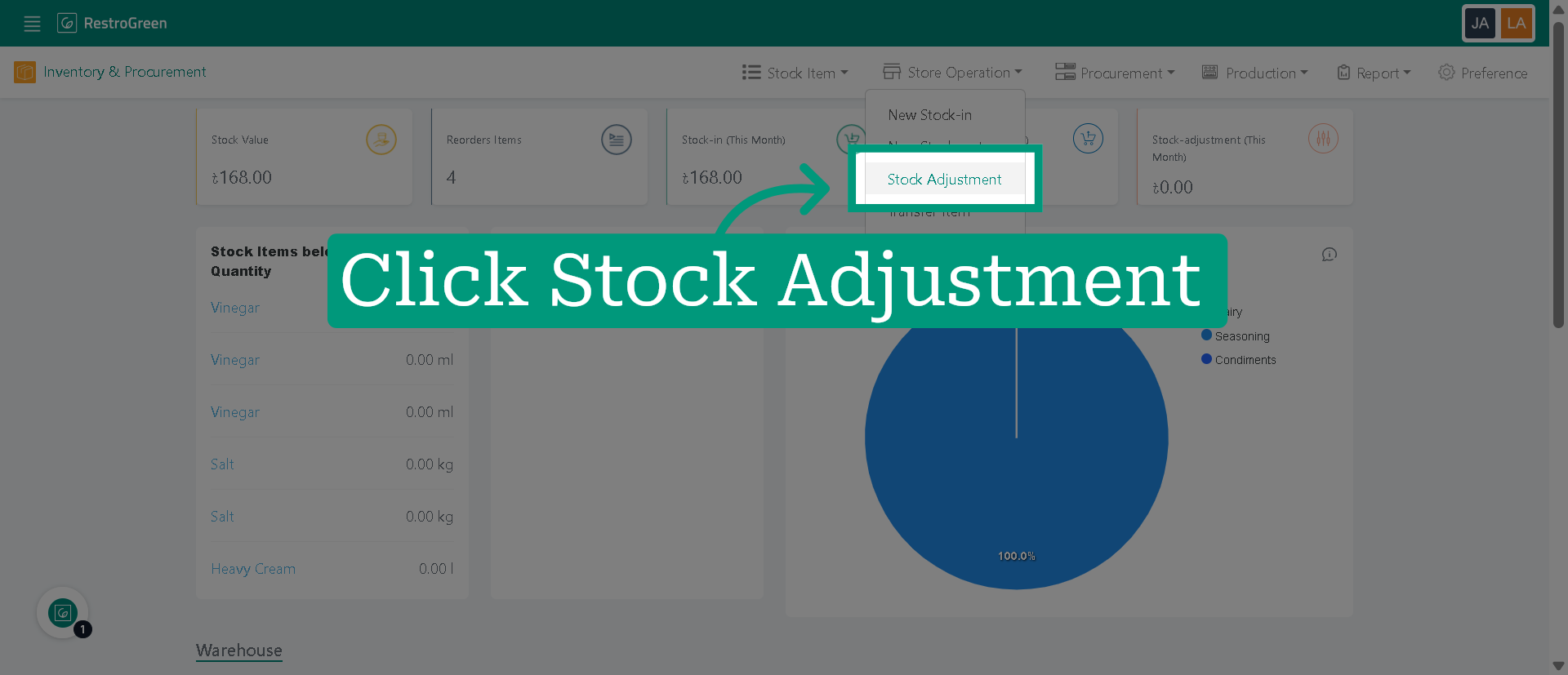
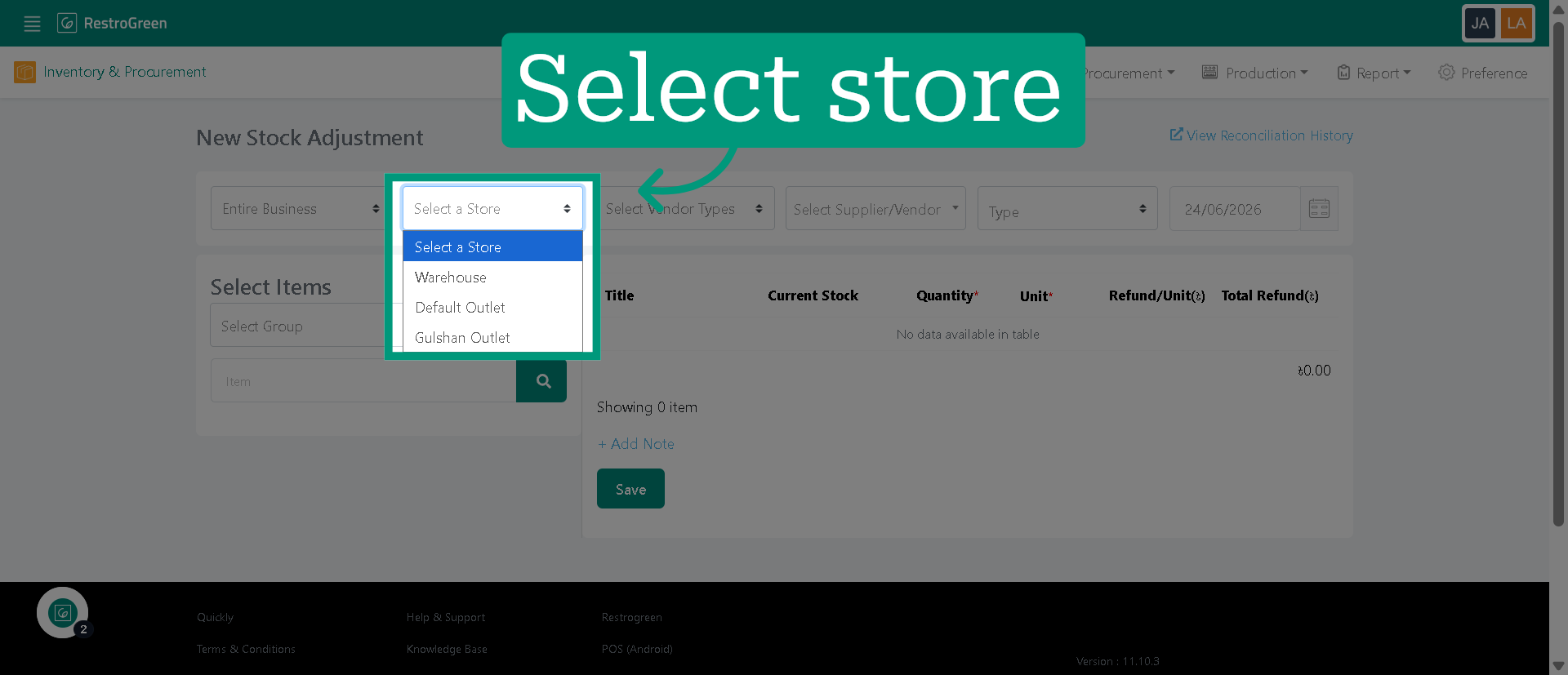
4. Select the outlet/store you want to adjust the stock for
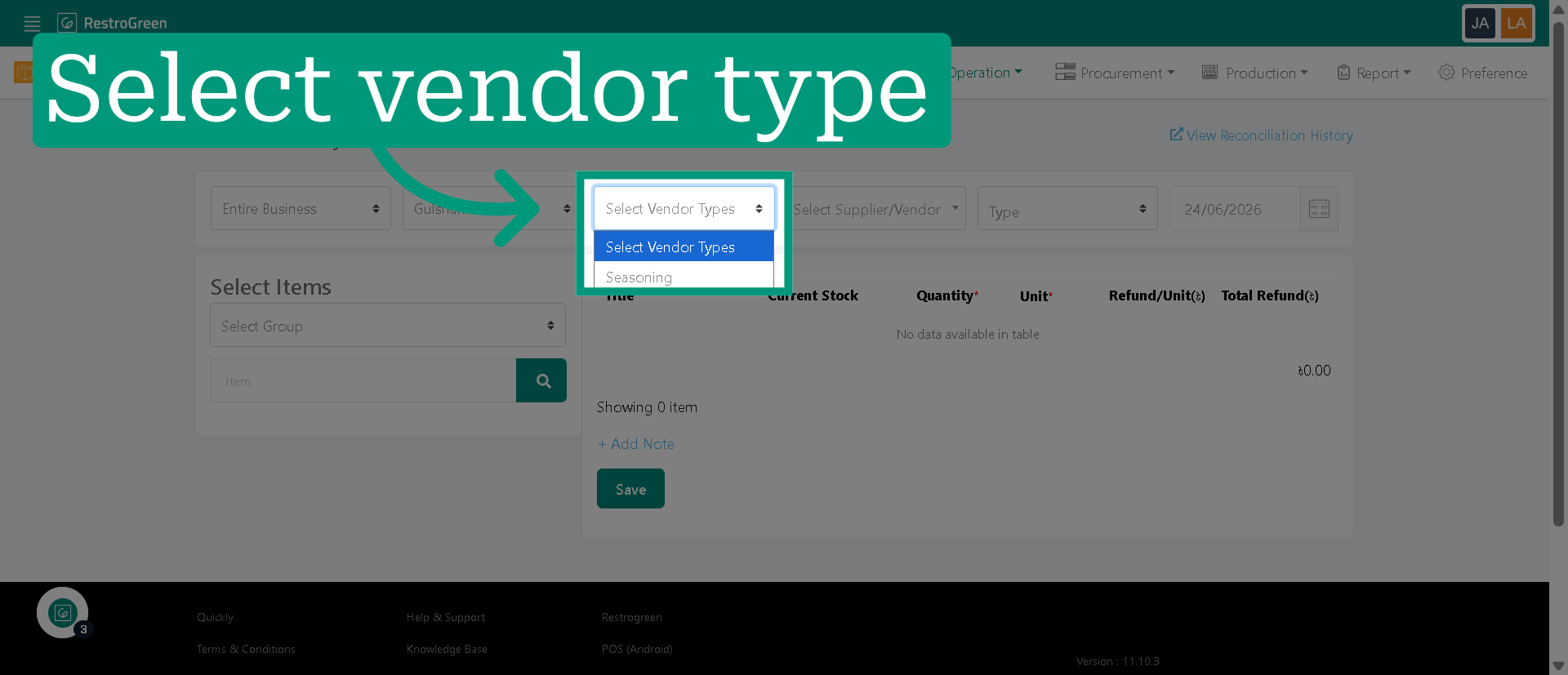
5. Select the relevant vendor category
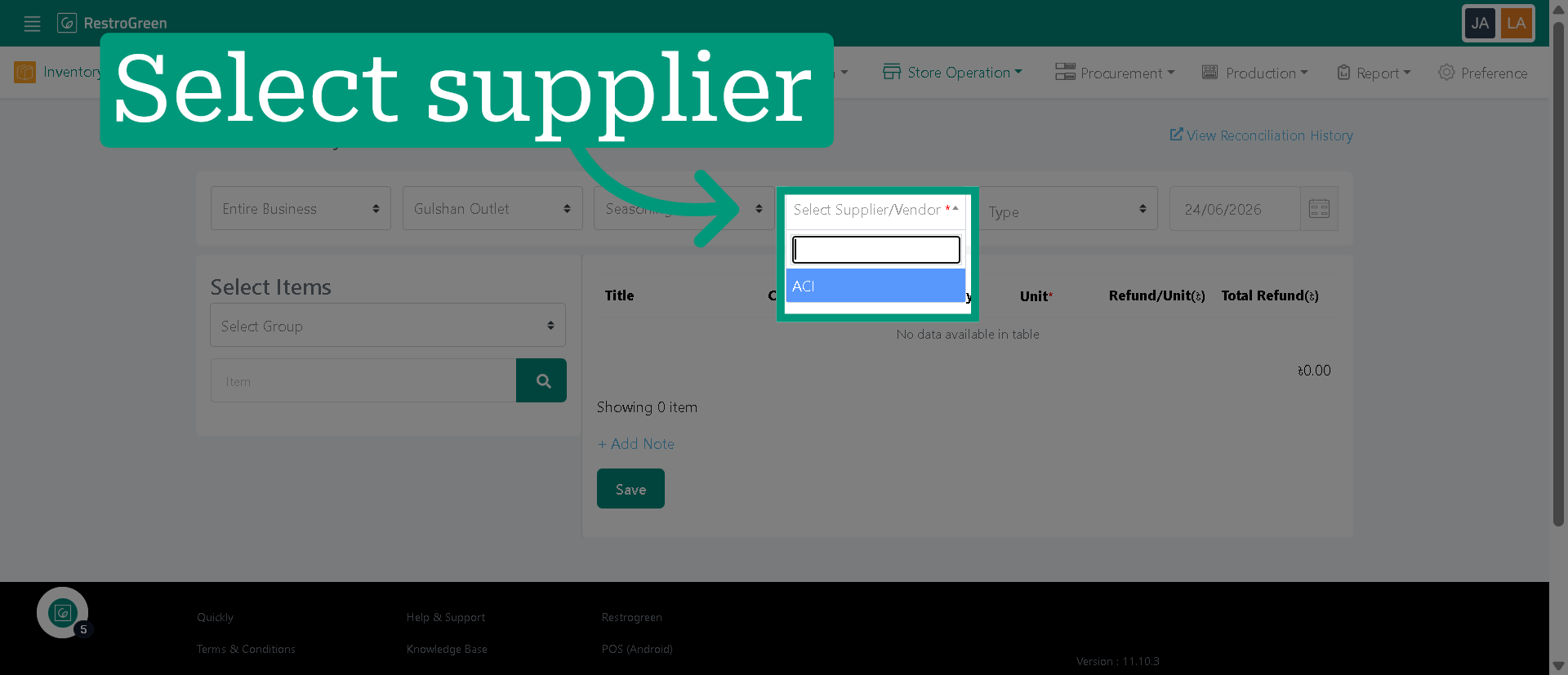
6. Select the supplier/vendor associated with the stock
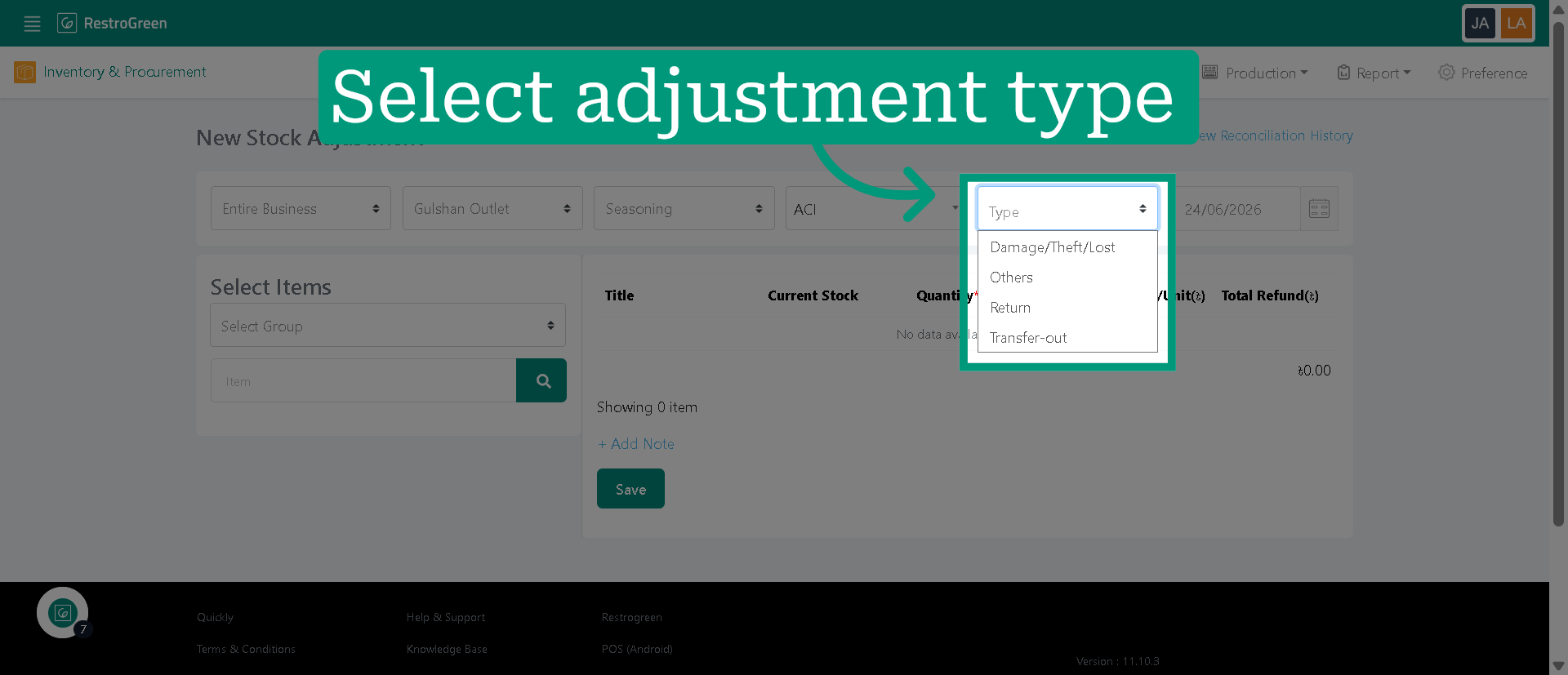
7. Choose the "Damage/Theft/Lost" as reason for the stock adjustment
8. Select the stock group relevant to the stock item to be adjusted
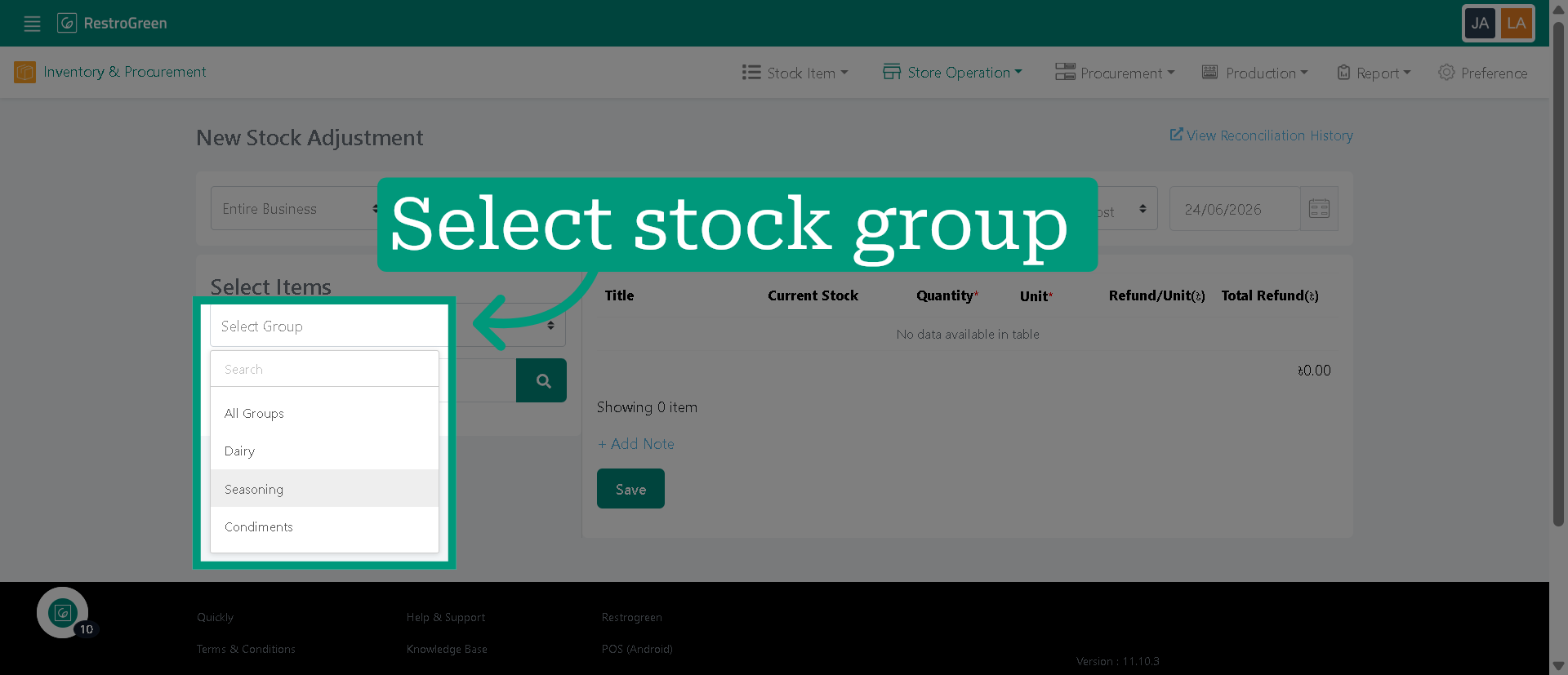
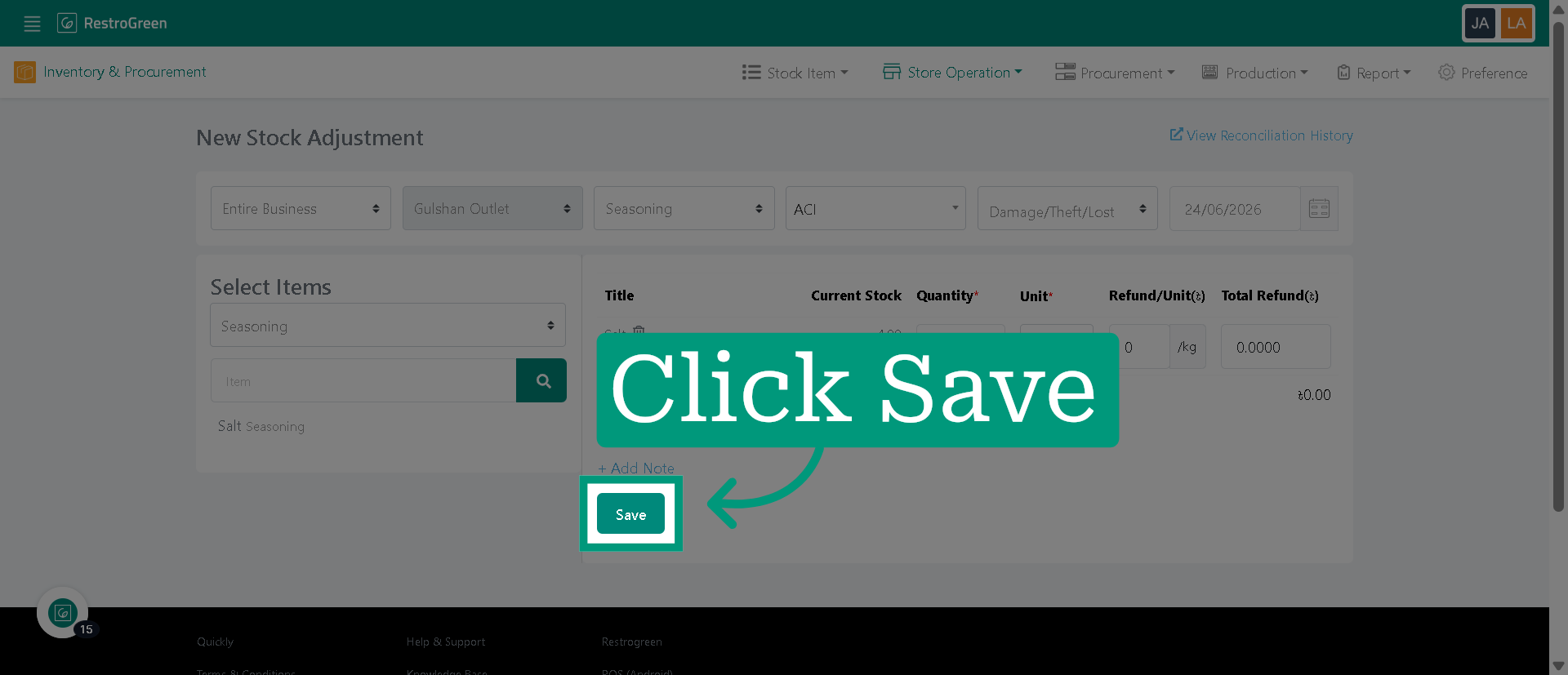
9. Select the item that was damaged
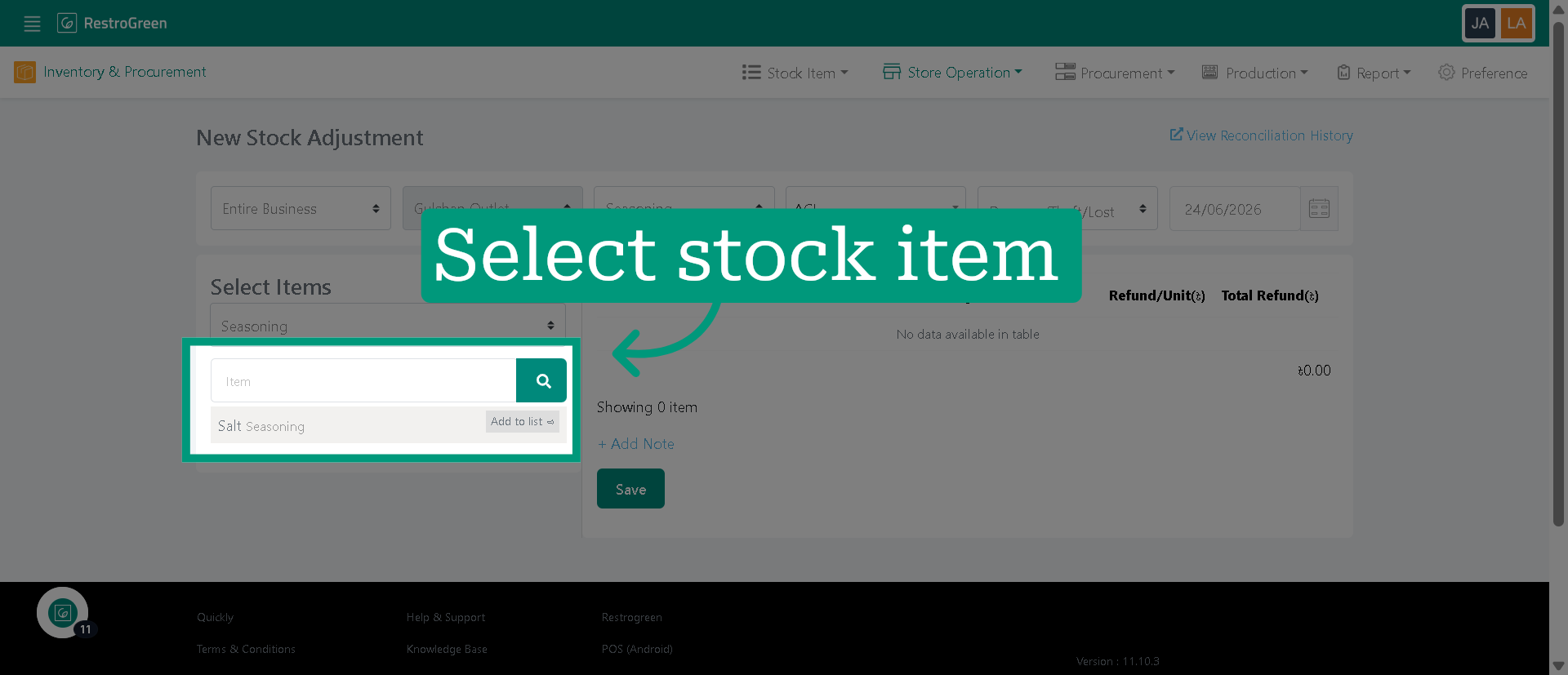
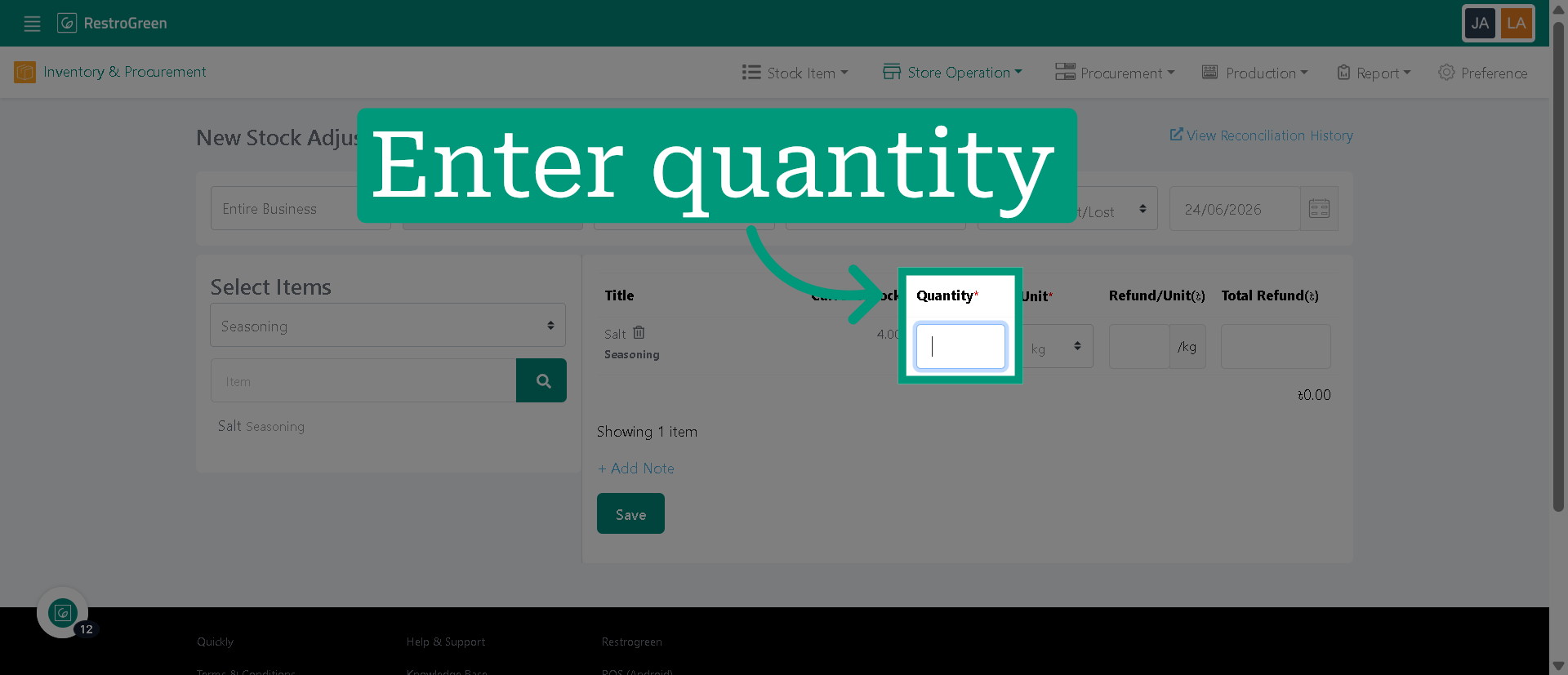
10. Specify the adjustment amount
11. Type-in an amount of refund for this stock adjustment
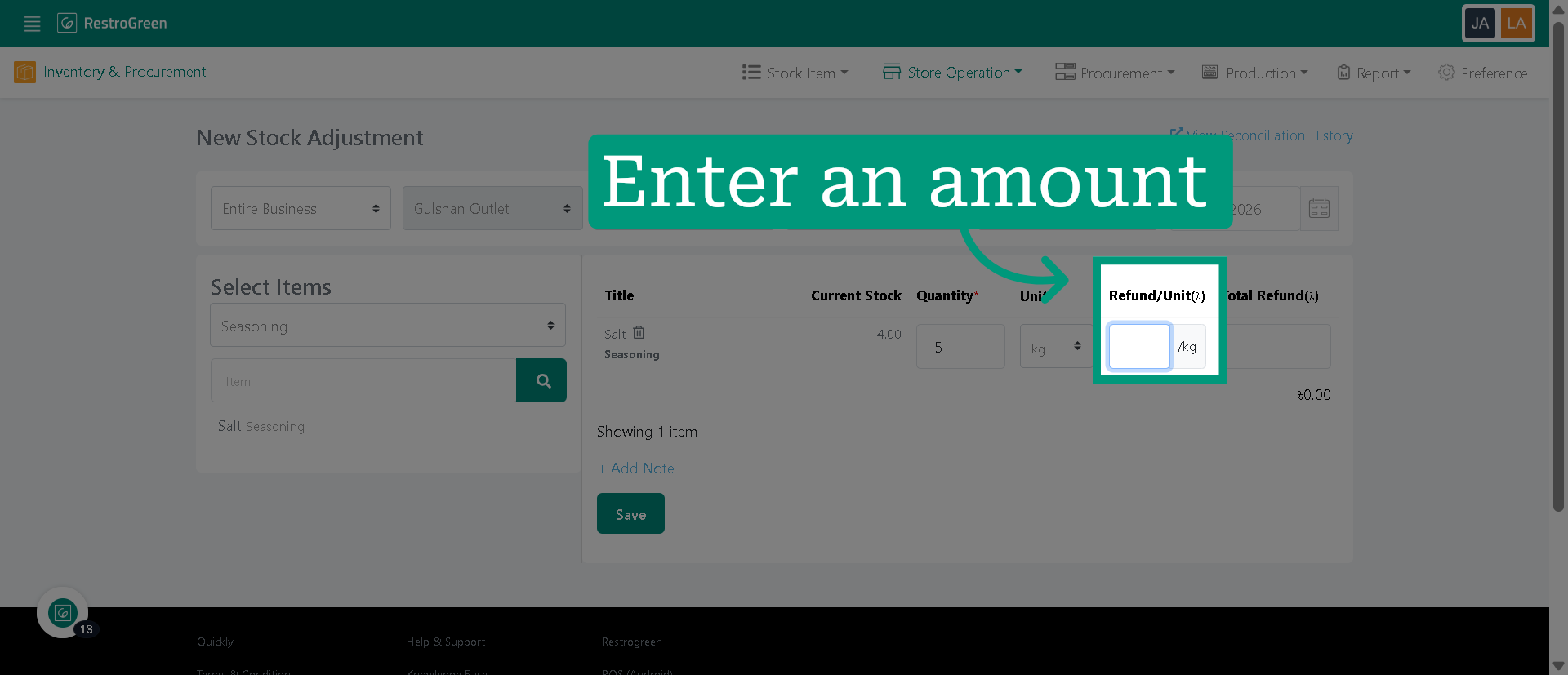
12. Click "Save" to confirm the stock adjustment