How to Adjust Transferred Stock in RestroGreen Business Portal
This tutorial guides you through adjusting stock that has been transferred physically but wasn't
recorded in the RestroGreen Business Portal.
Go to
restrogreen.quicklyservices.com
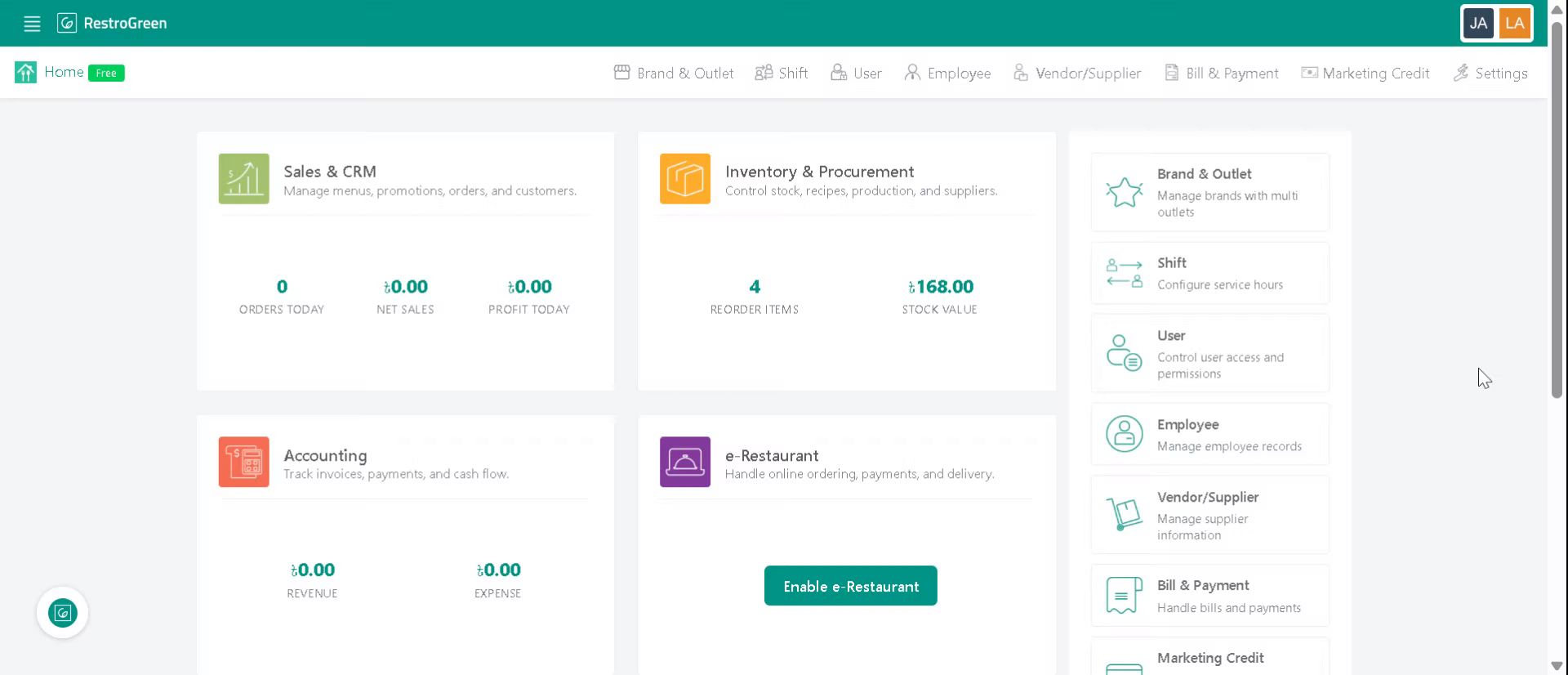
1. Login to your Business Portal
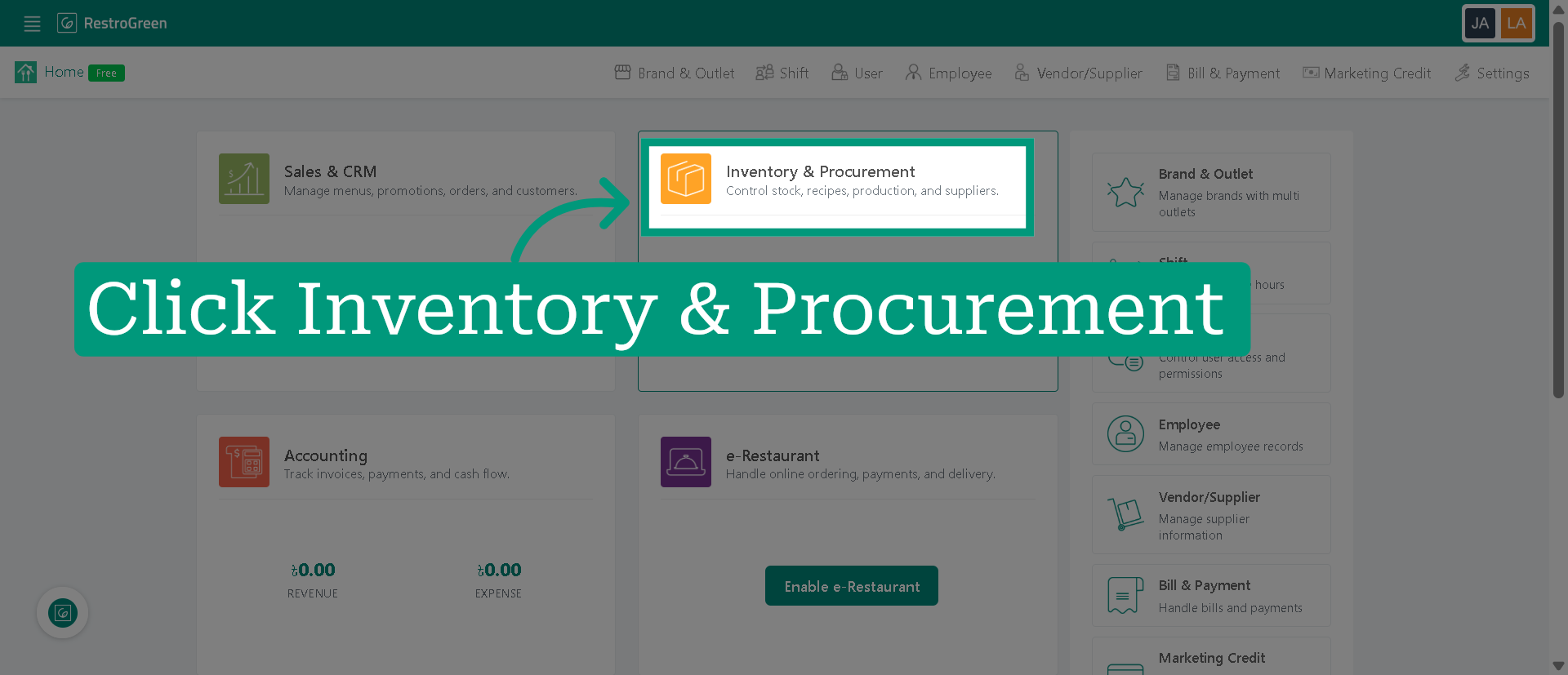
2. Click "Inventory & Procurement" module to open the inventory management section
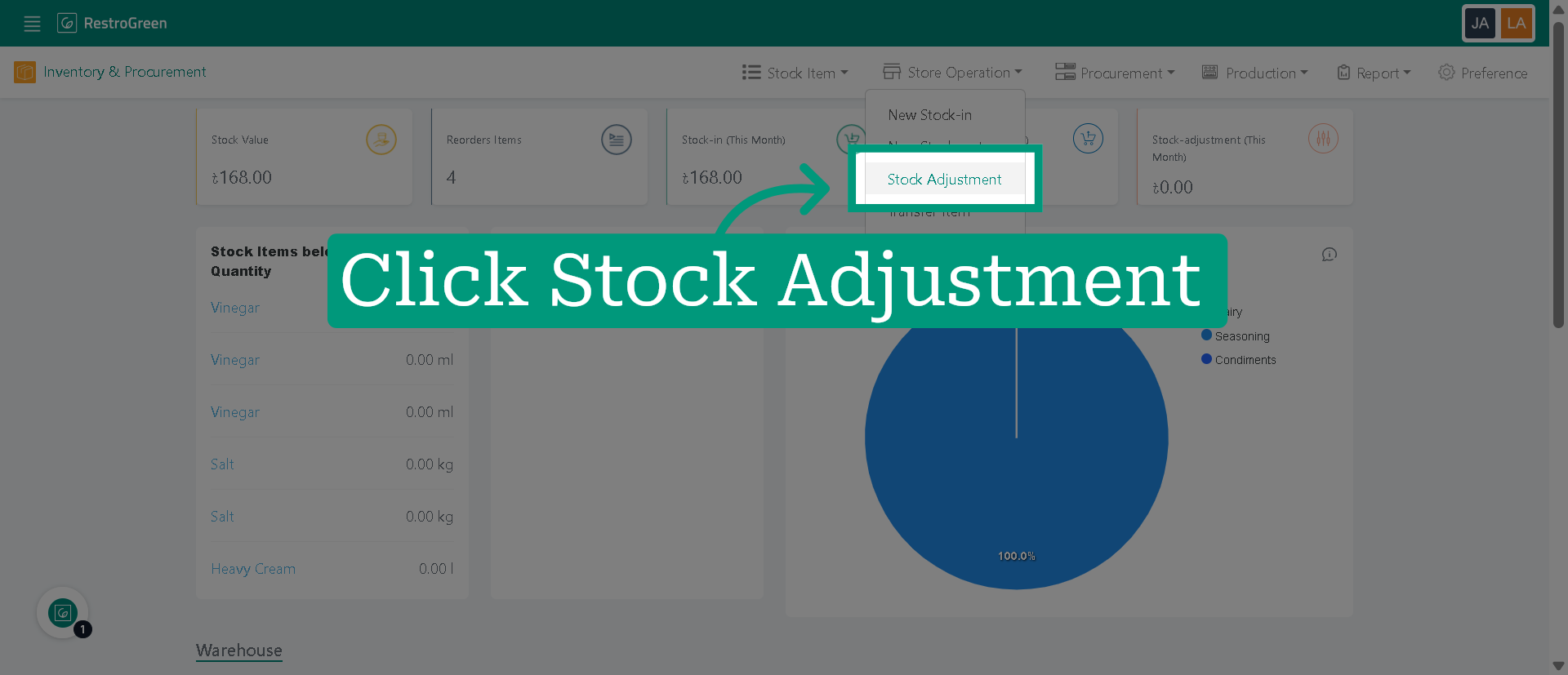
3. Click "Stock Adjustment" to start adjusting stock
4. Choose the store for the stock adjustment
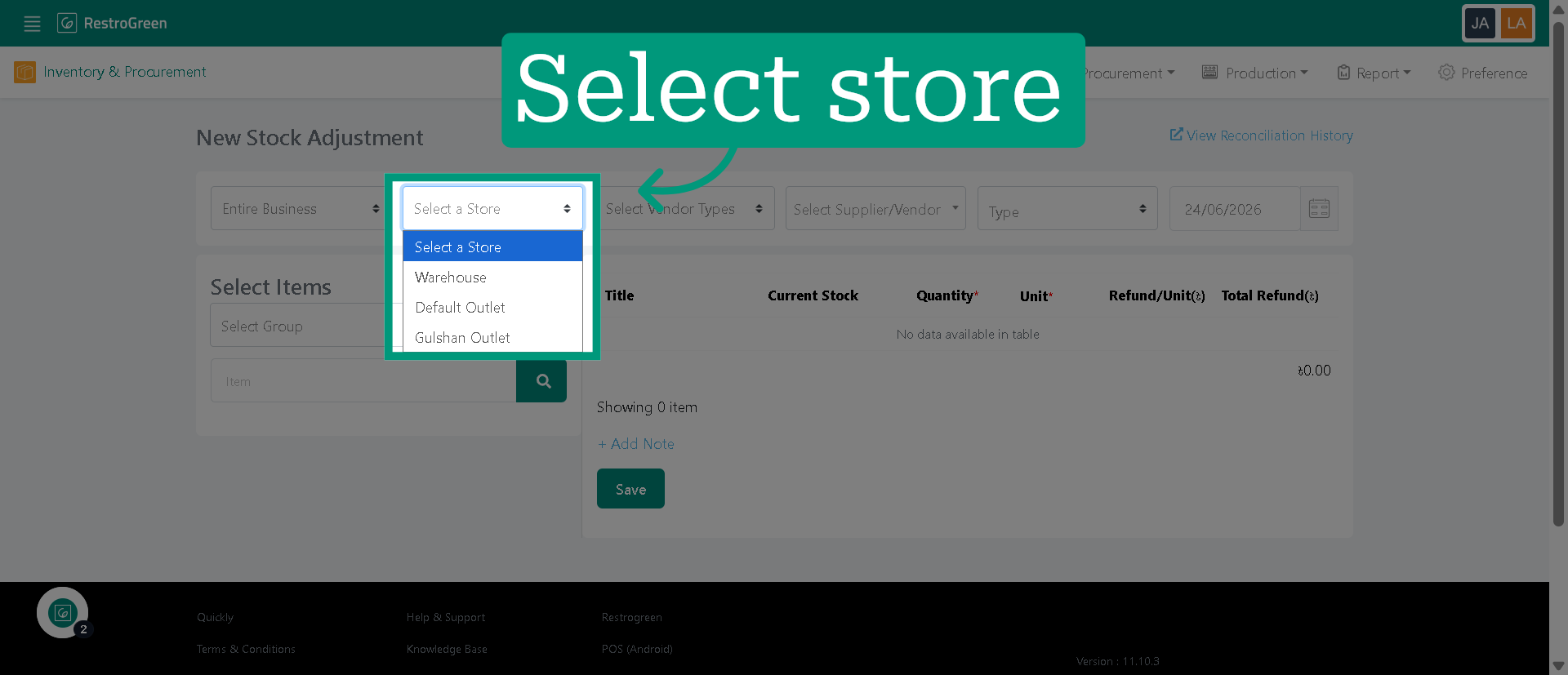
5. Select the appropriate vendor category
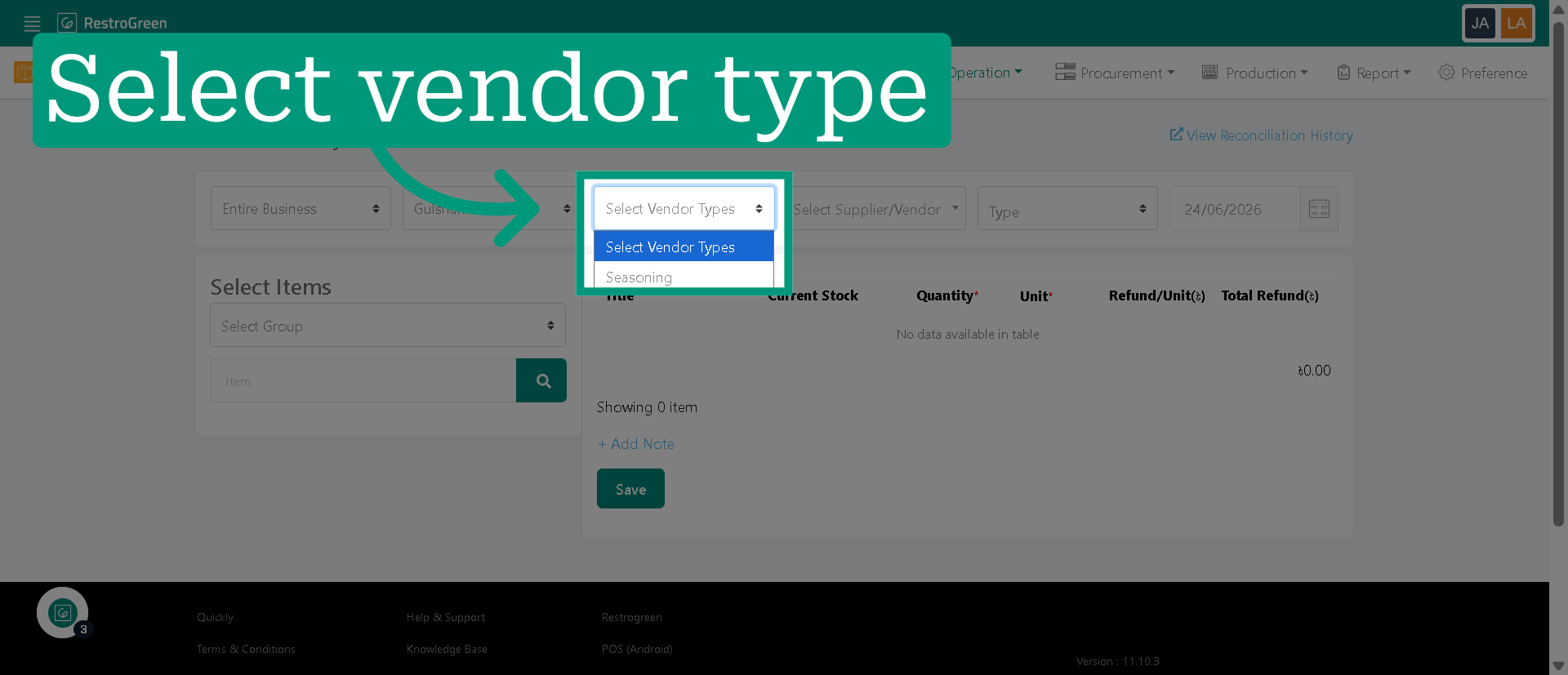
6. Choose the supplier associated with the stock adjustment
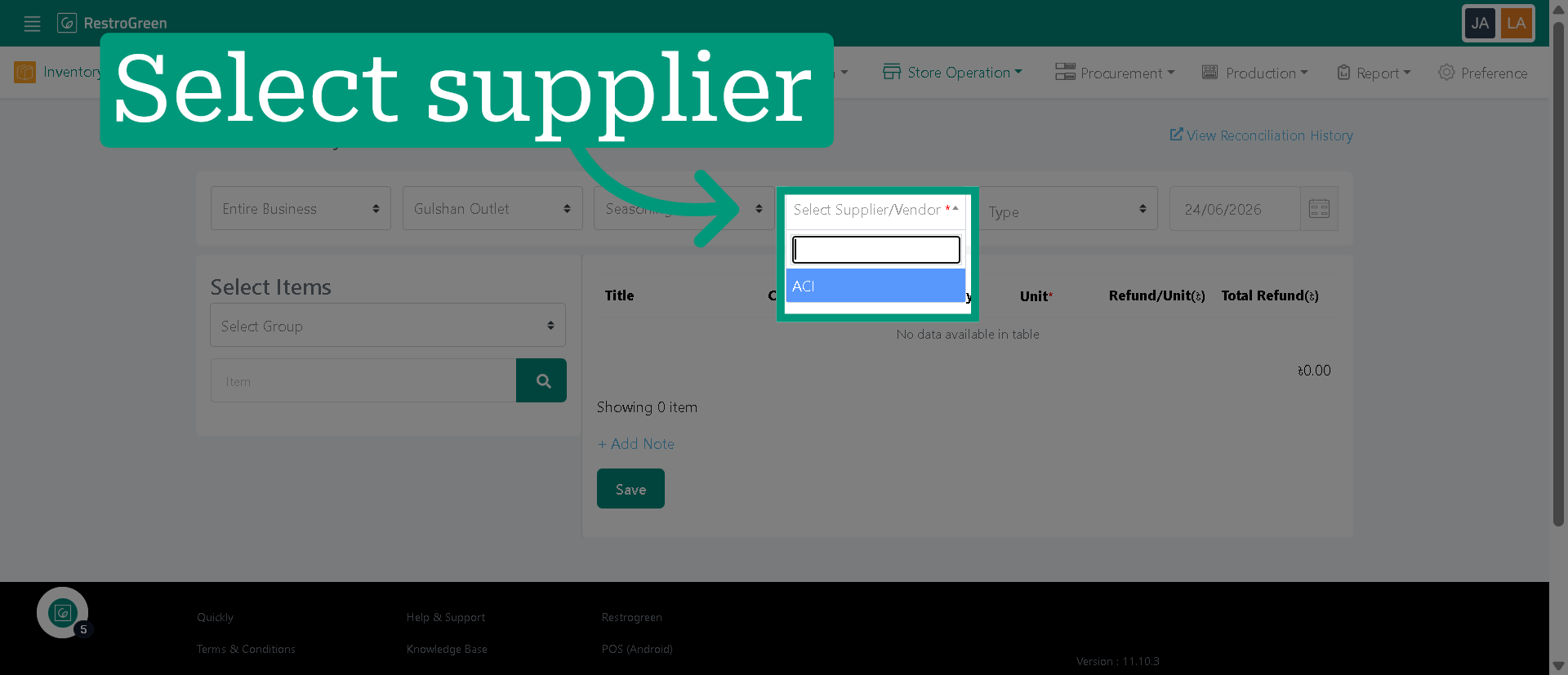
7. Select "Transfer out" as reason for stock adjustment
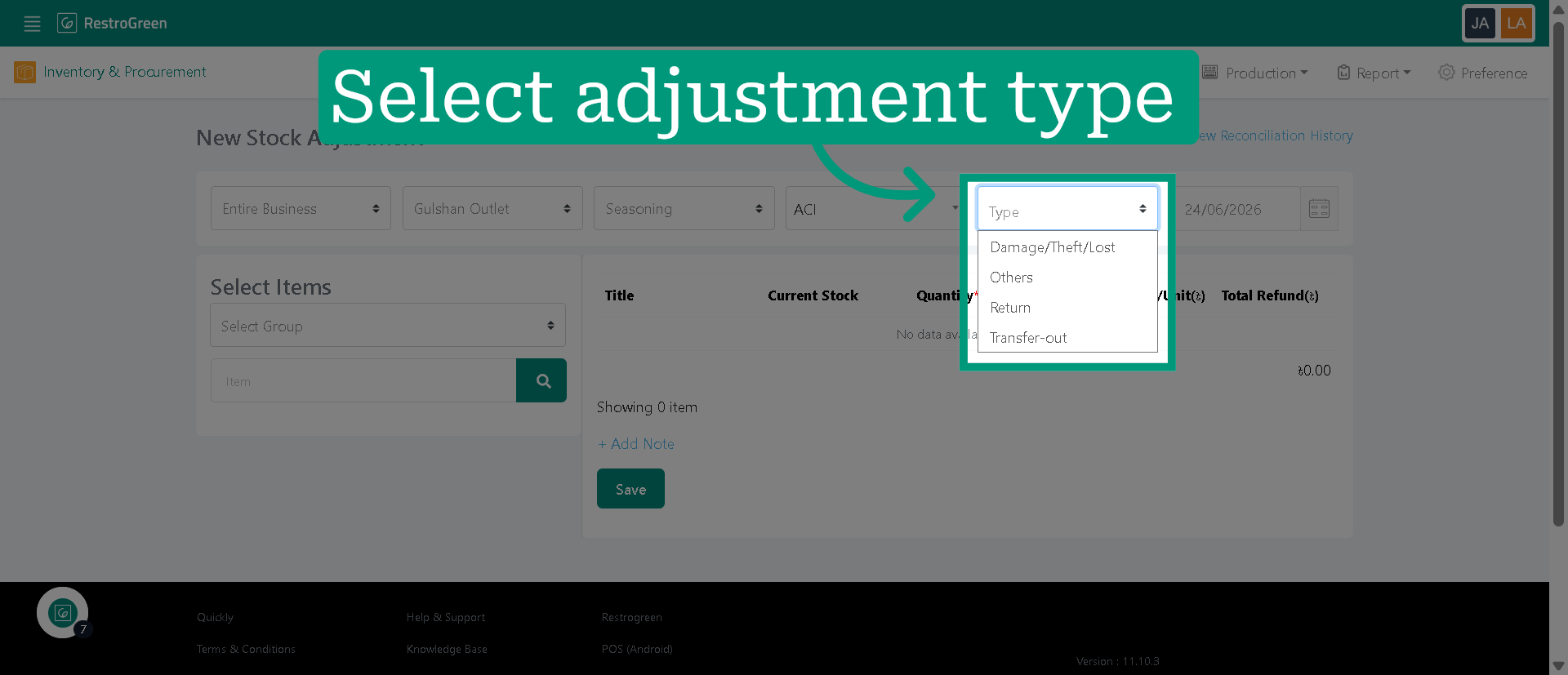
8. Specify the stock group for the stock adjustment
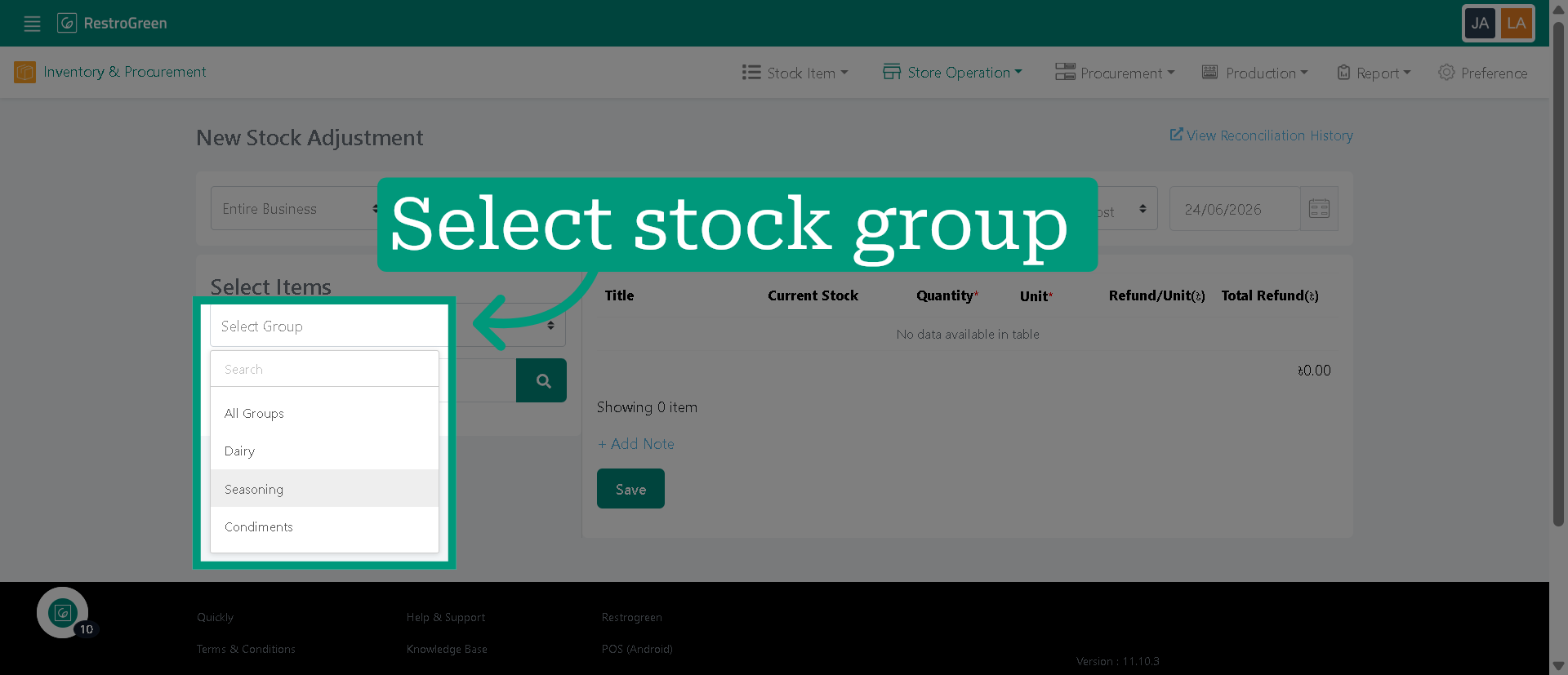
9. Specify the stock item that has been transferred
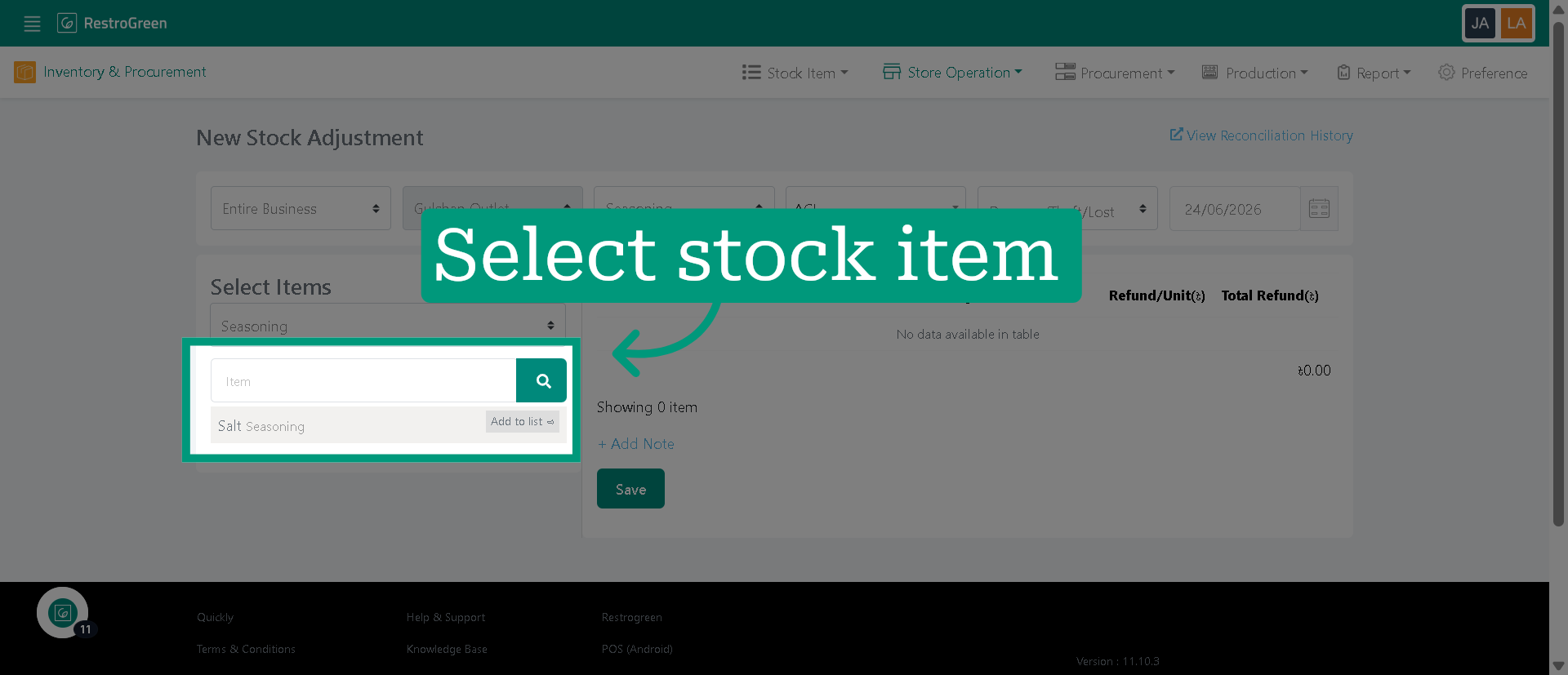
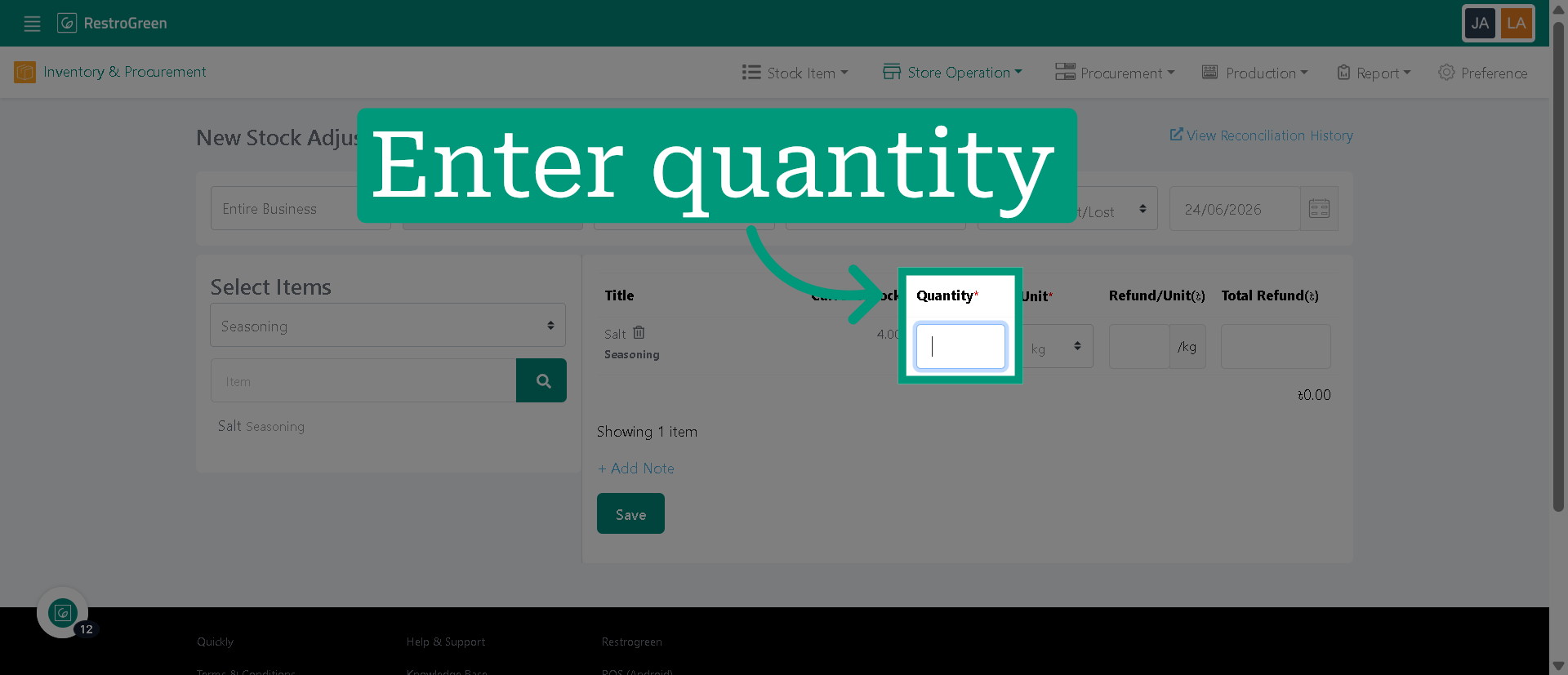
10. Enter the quantity of transfer item
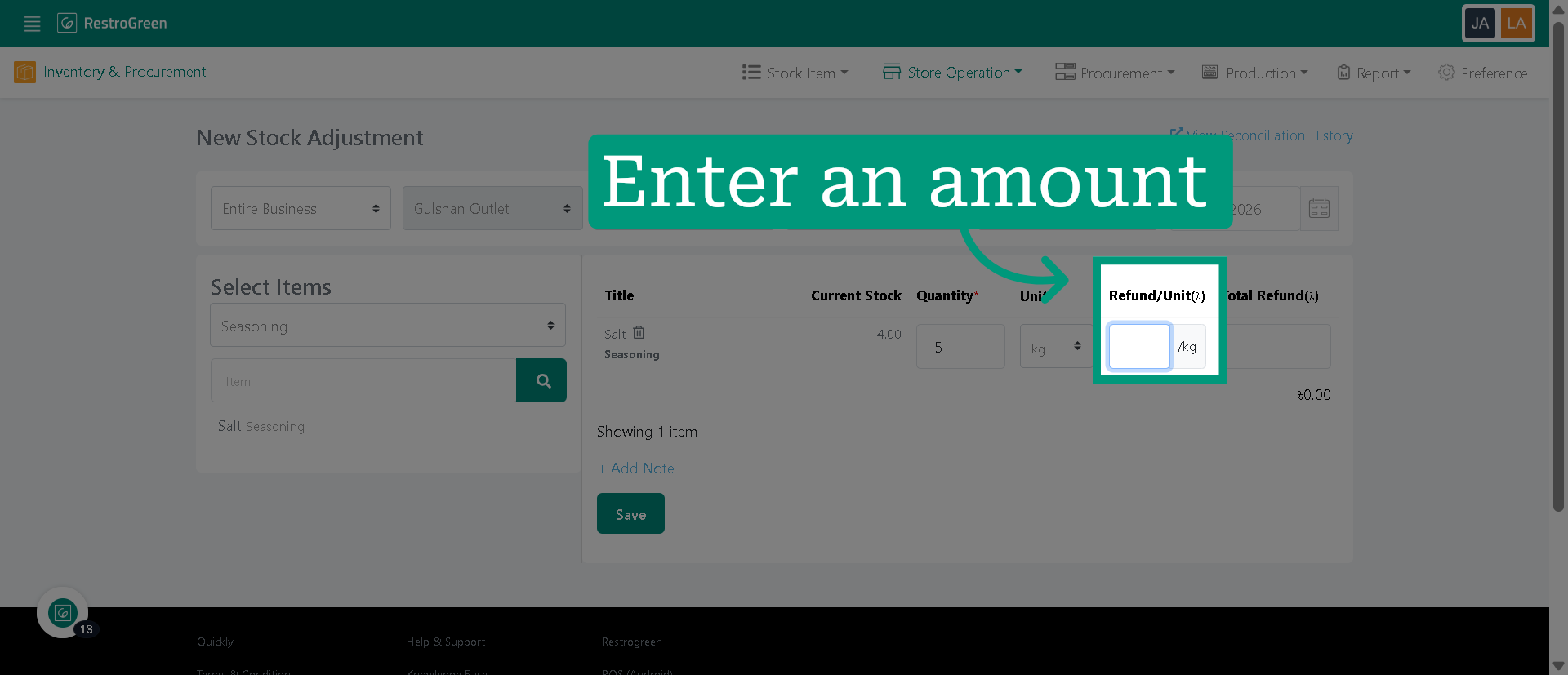
11. Enter the cost associated with the stock adjustment
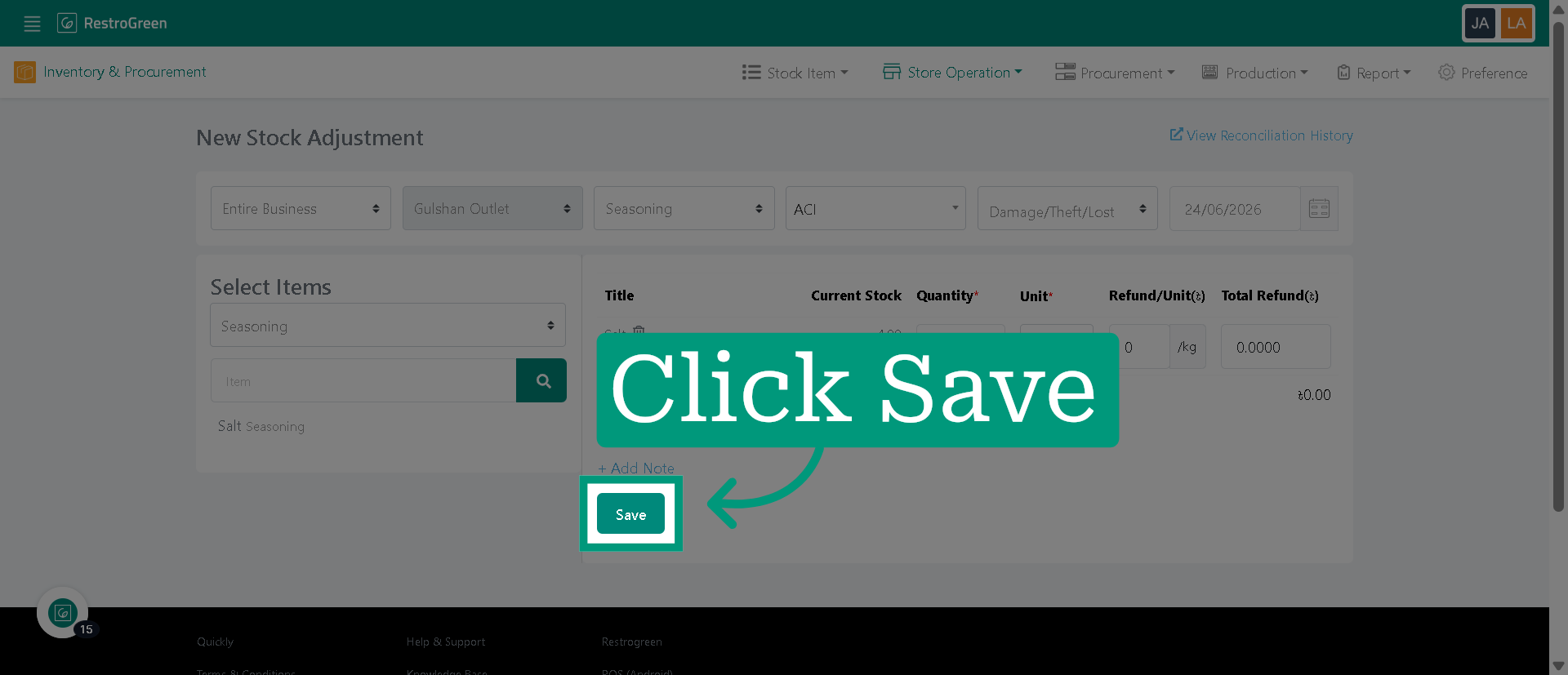
12. Click "Save" to finalize and record the stock adjustment