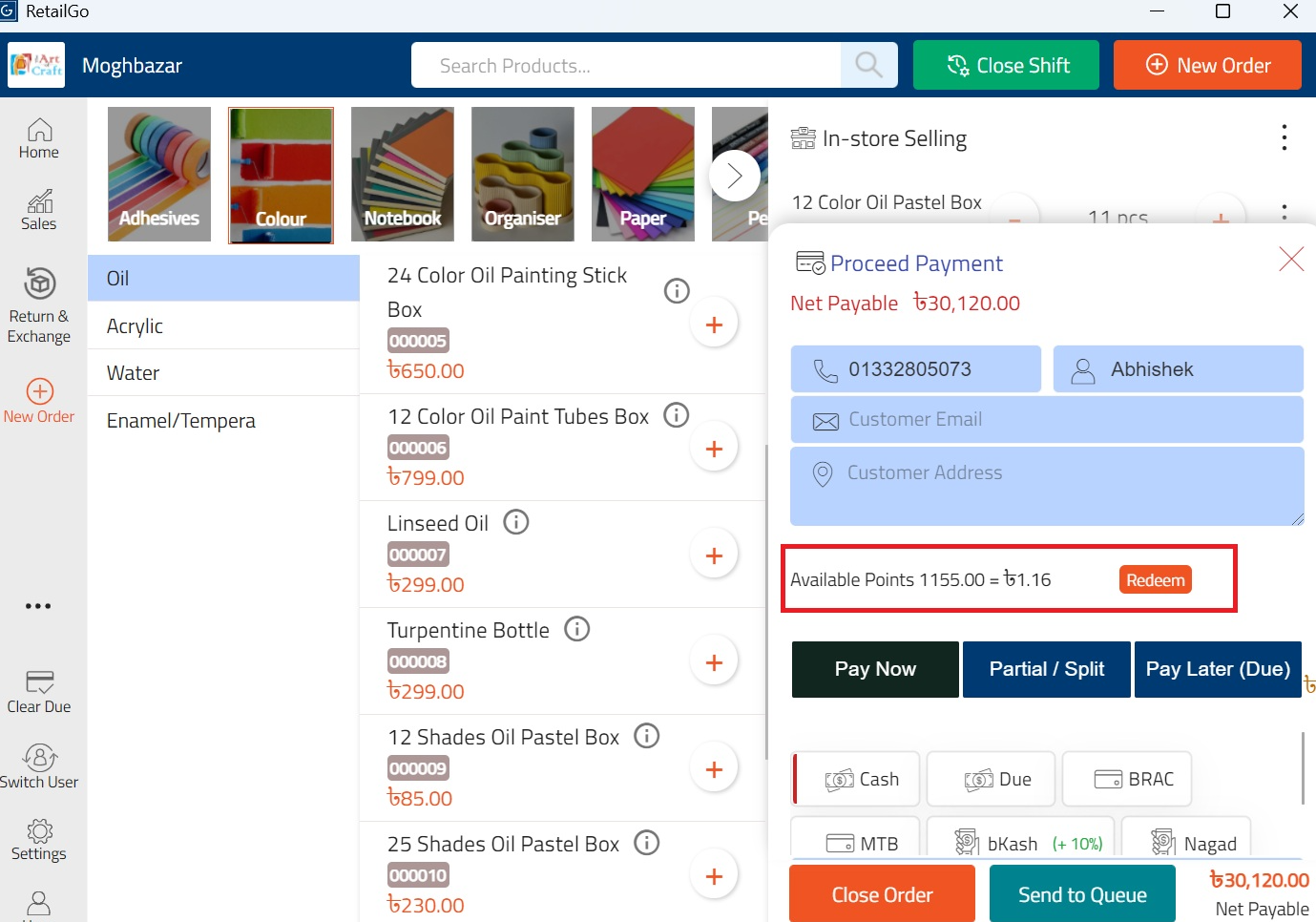
How to Manage Loyalty Programs and Point Redemption in RetailGo Business Portal
This tutorial guides you through setting up the loyalty program in the RetailGo Business Portal.
Go to
retailgo.quicklyservices.com
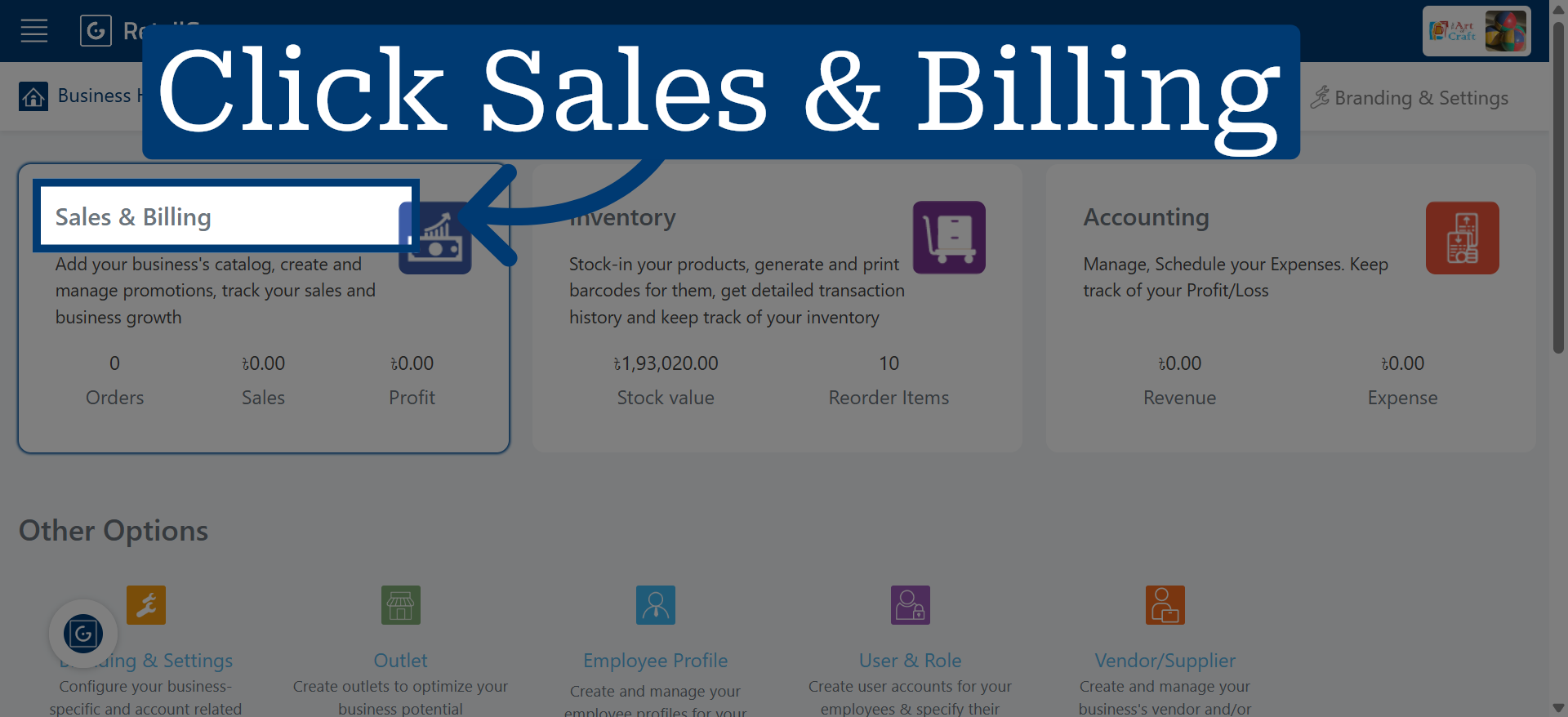
1. Access Sales & Billing Module
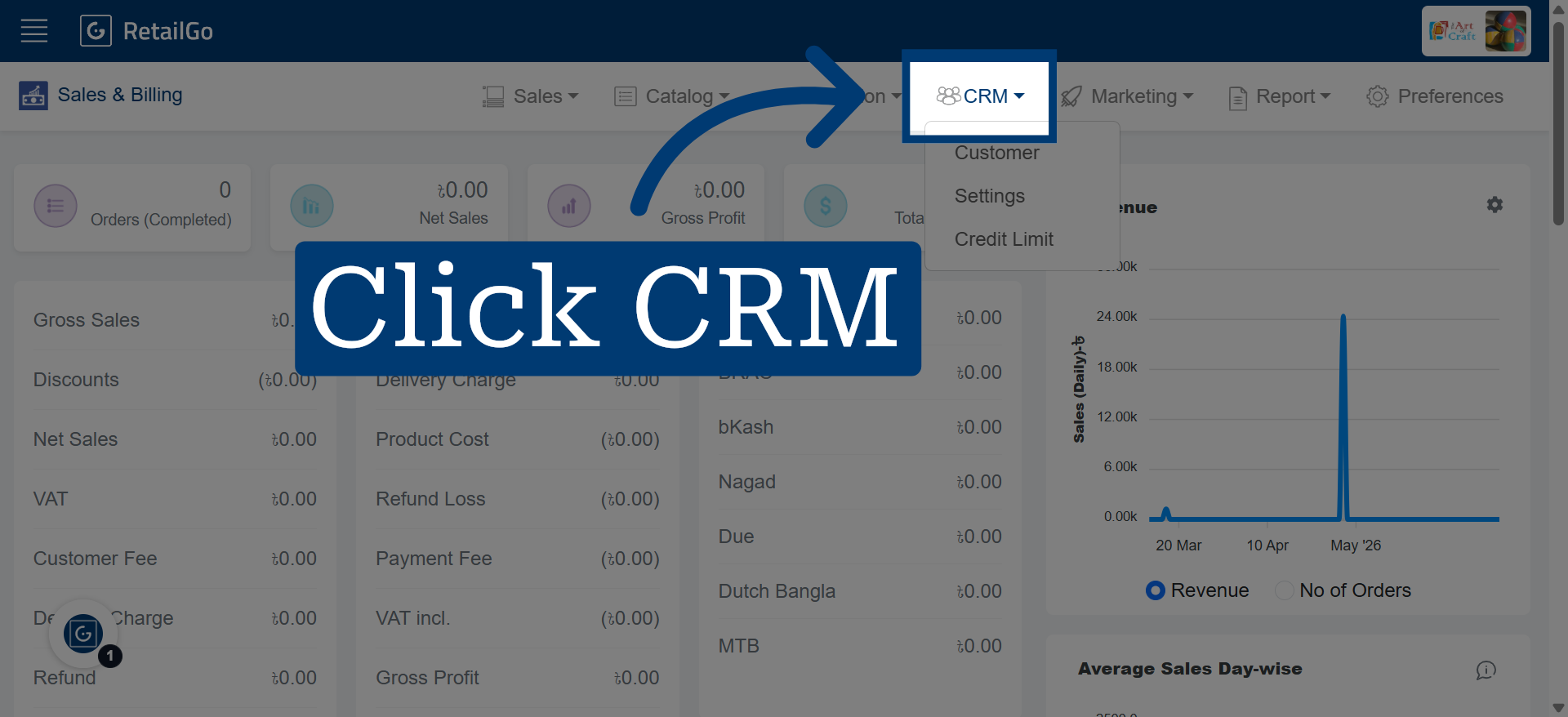
2. Open CRM Settings
Click the CRM section to access customer relationship management options within the portal.
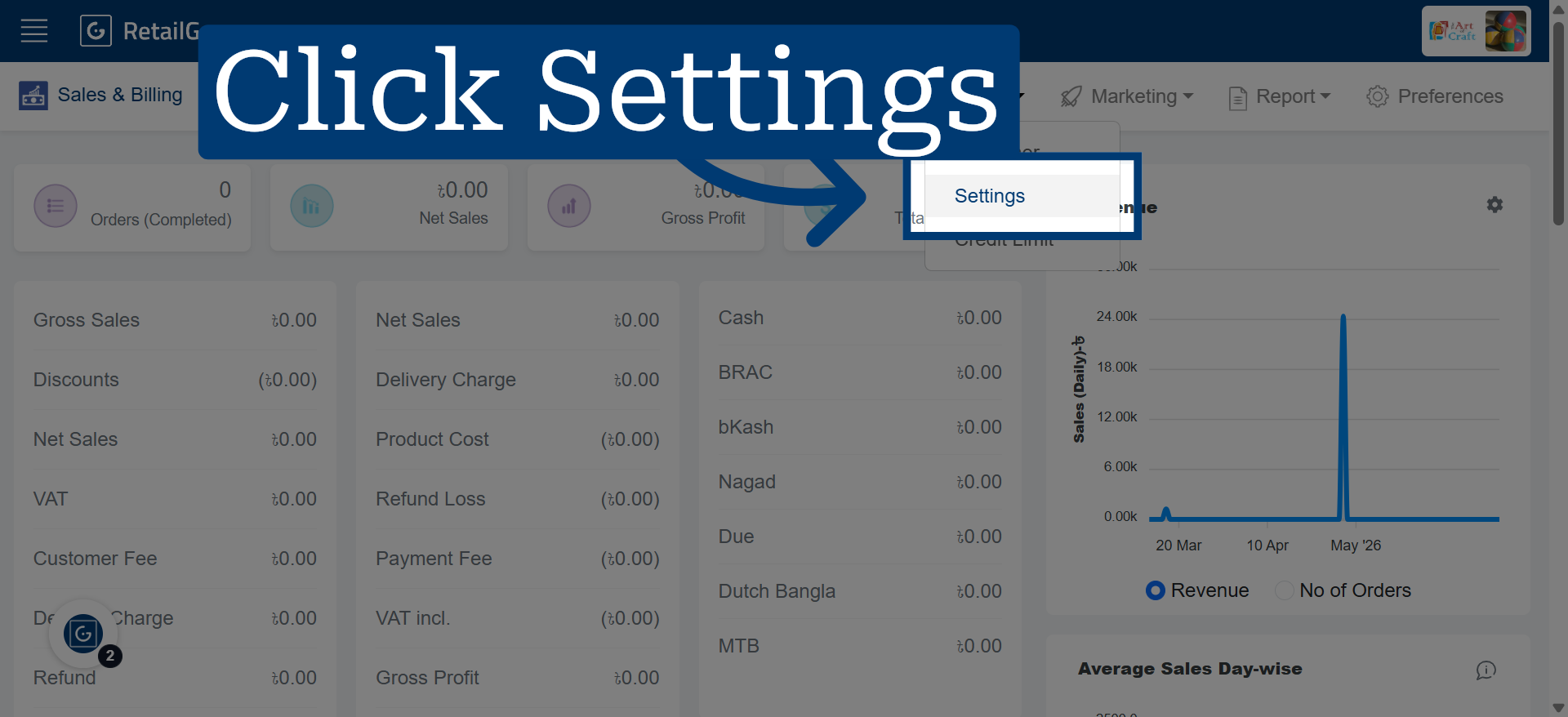
3. Navigate to Settings
Click "Settings" to open the configuration options for your CRM and loyalty program.
4. Access Loyalty Program Options
Click here to open the loyalty program settings where you can customize reward parameters.
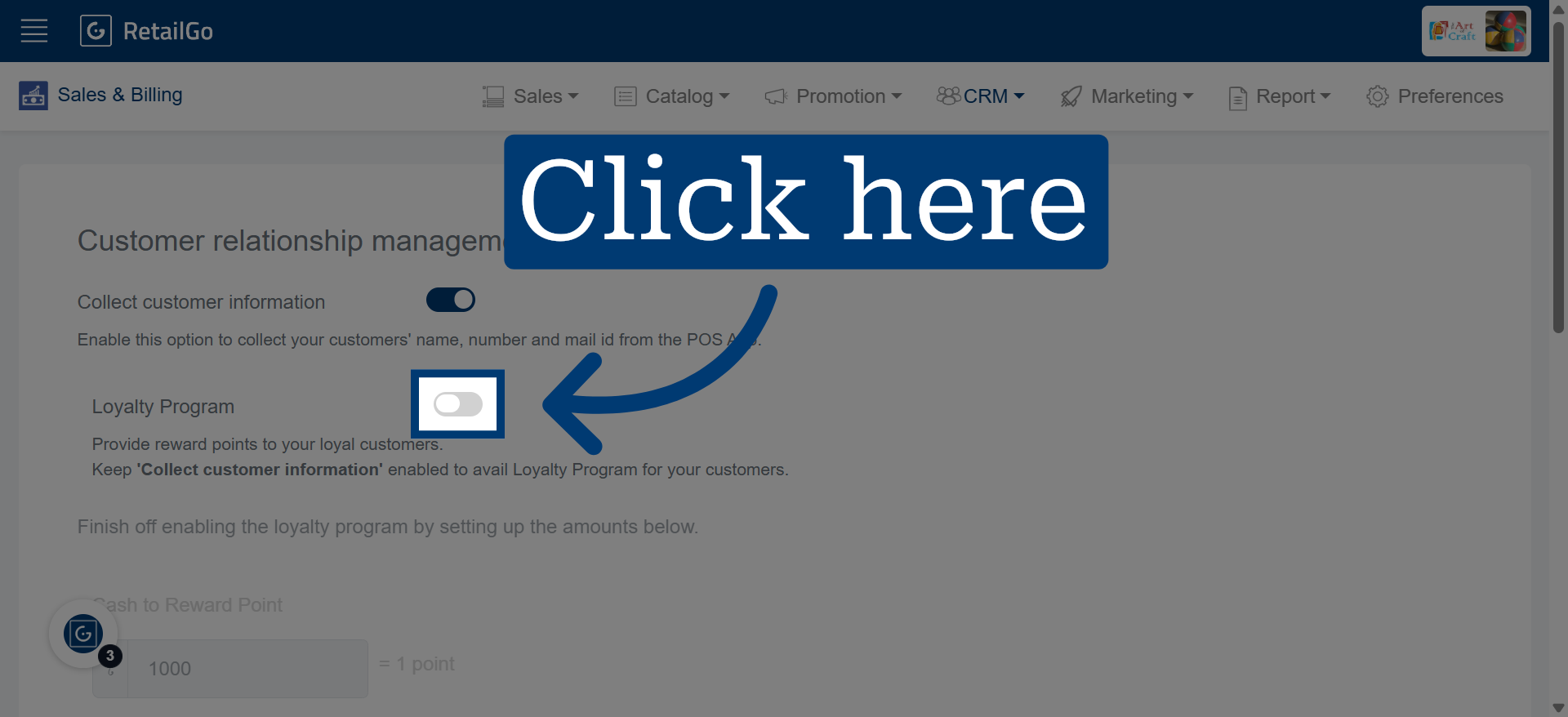
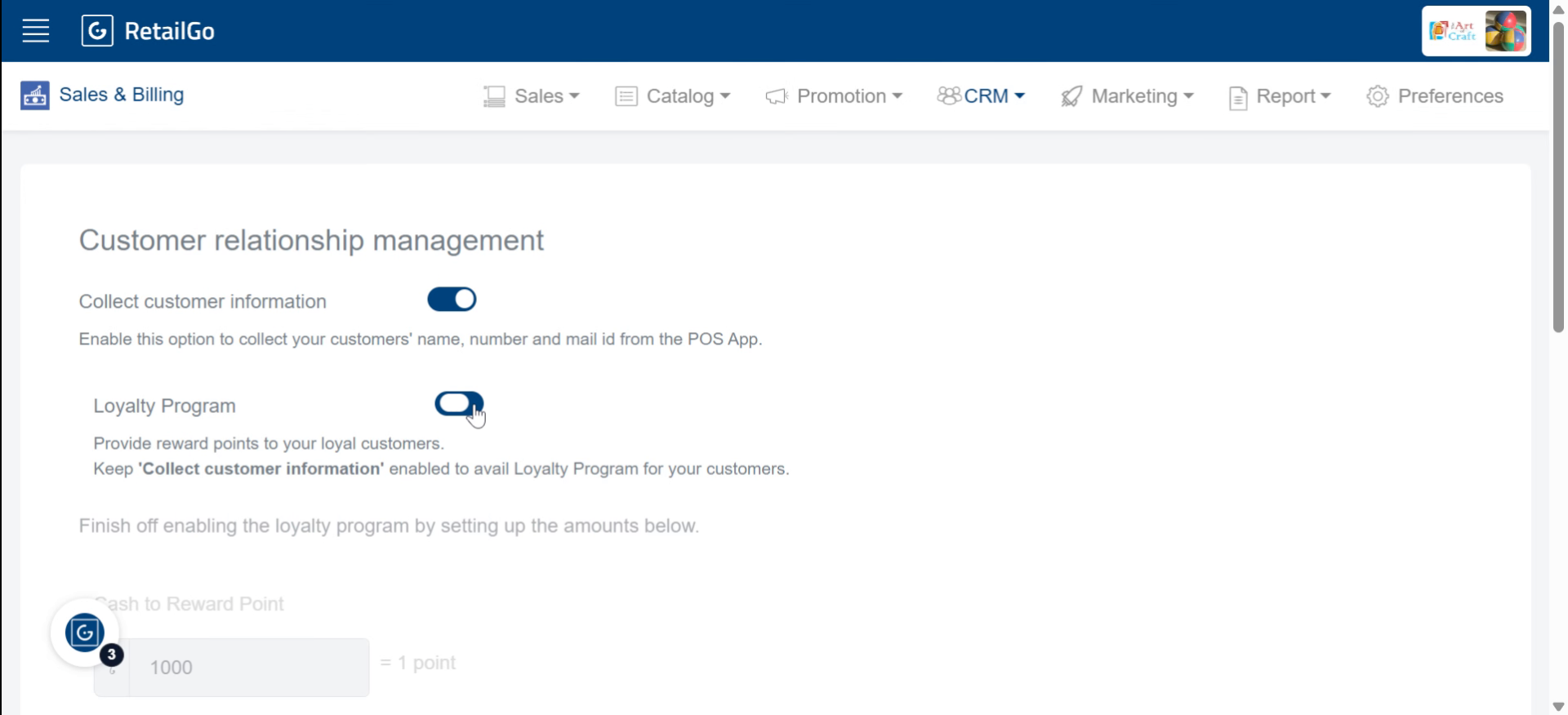
5. Enable Loyalty Feature
Fill "on" to activate the loyalty program feature in your account settings.
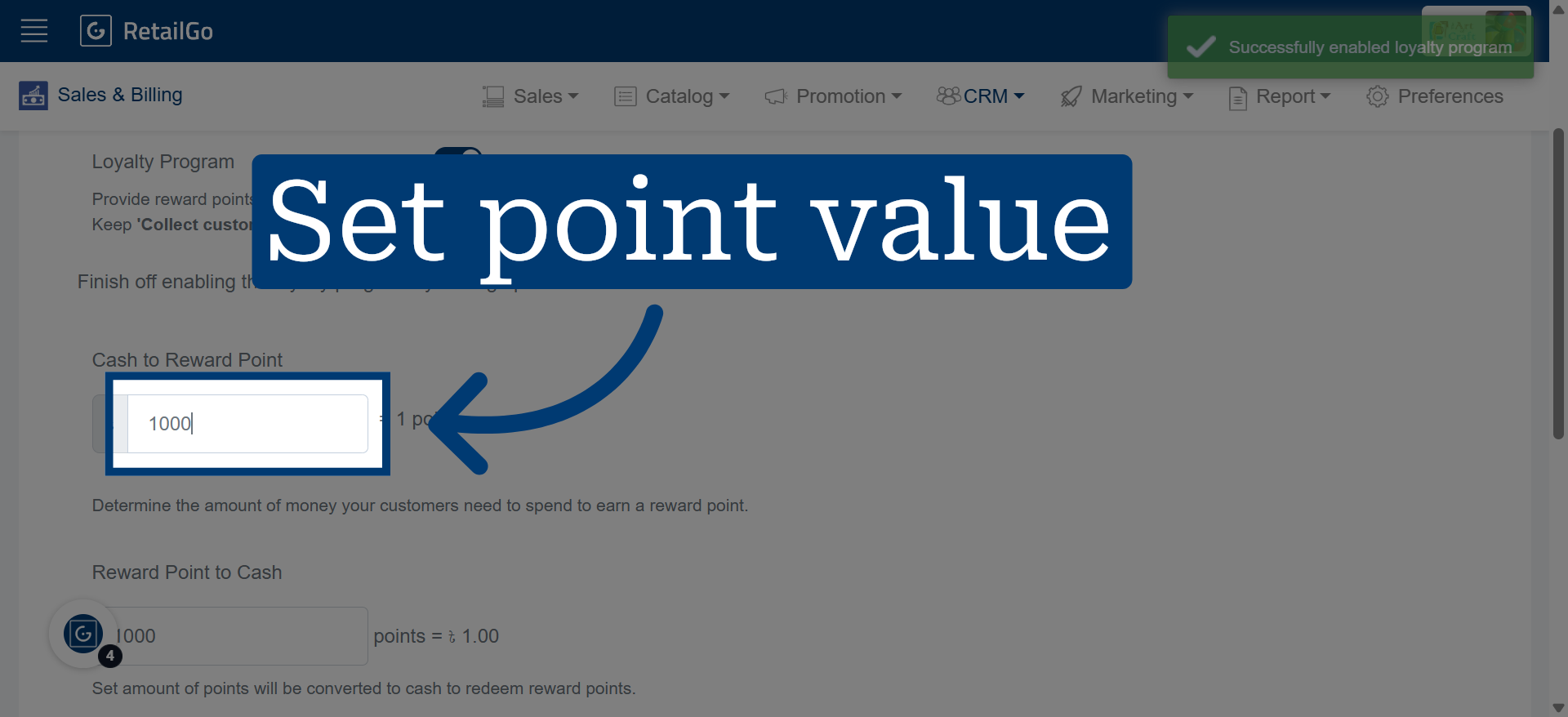
6. Set Reward Point Value
Determine the amount of money your customers need to spend to earn a reward point.
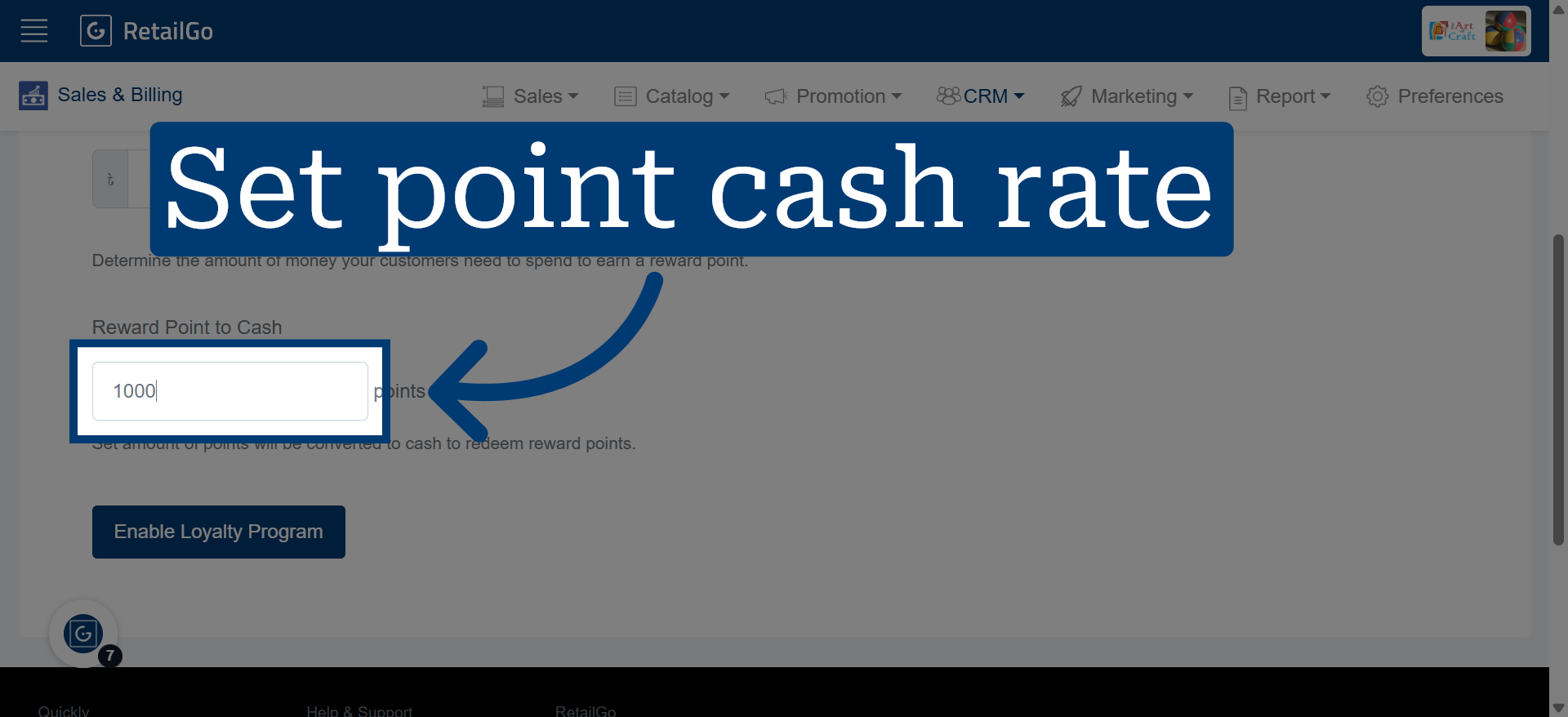
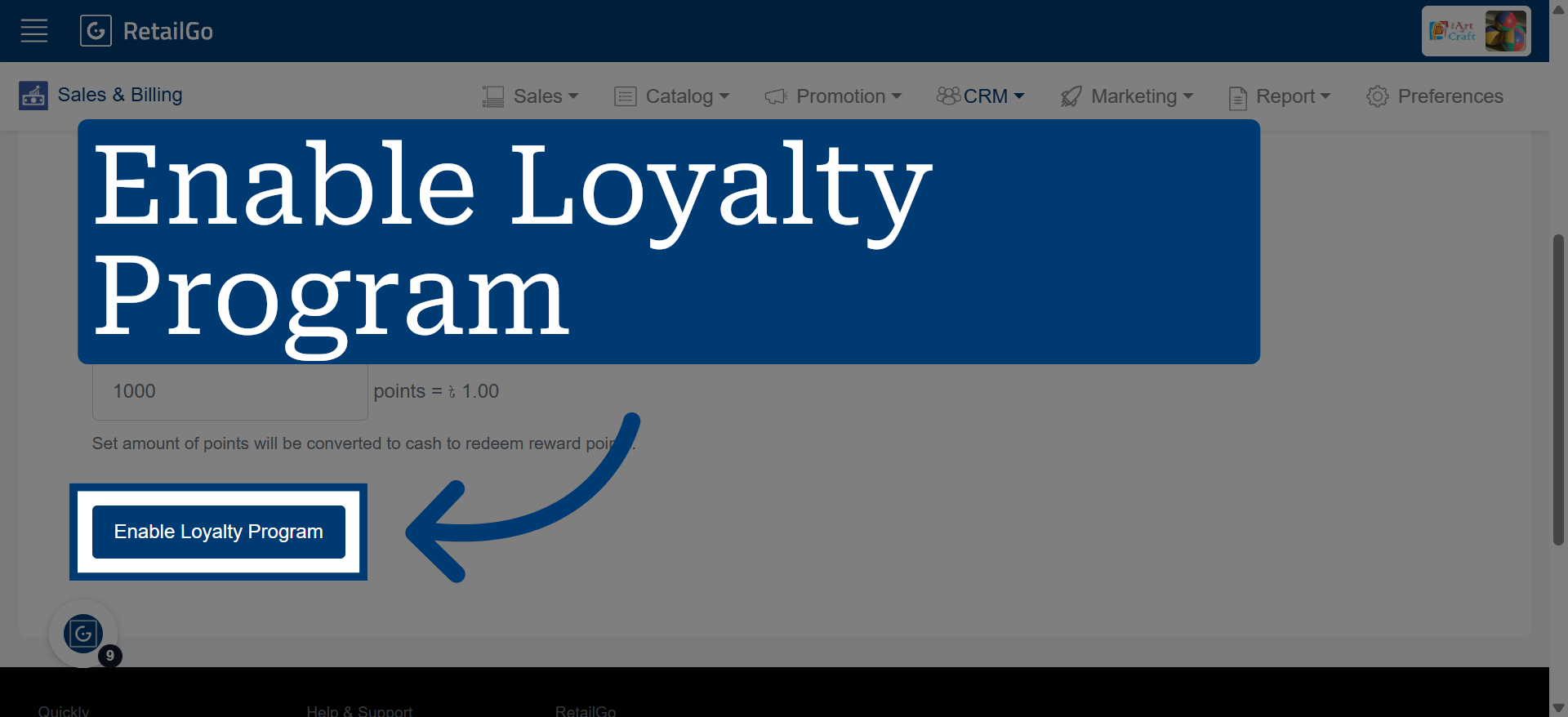
7. Configure Point-to-Cash Rate
Set amount of points will be converted to cash to redeem reward points.
8. Activate Loyalty Program
Click "Enable Loyalty Program" to finalize and activate the loyalty rewards for your customers.
9. Redeem Loyalty Points in POS
Open the POS app and redeem the customer's loyalty points during checkout.