How to Add Marketing Credit Using RetailGo Business Portal
This tutorial walks you through adding marketing credits in the Business Portal. These credits can
be used for email and SMS campaigns, as well as email and SMS receipts, to enhance customer
engagement and communication.
Go to
retailgo.quicklyservices.com
1. Access Sales and Billing Module
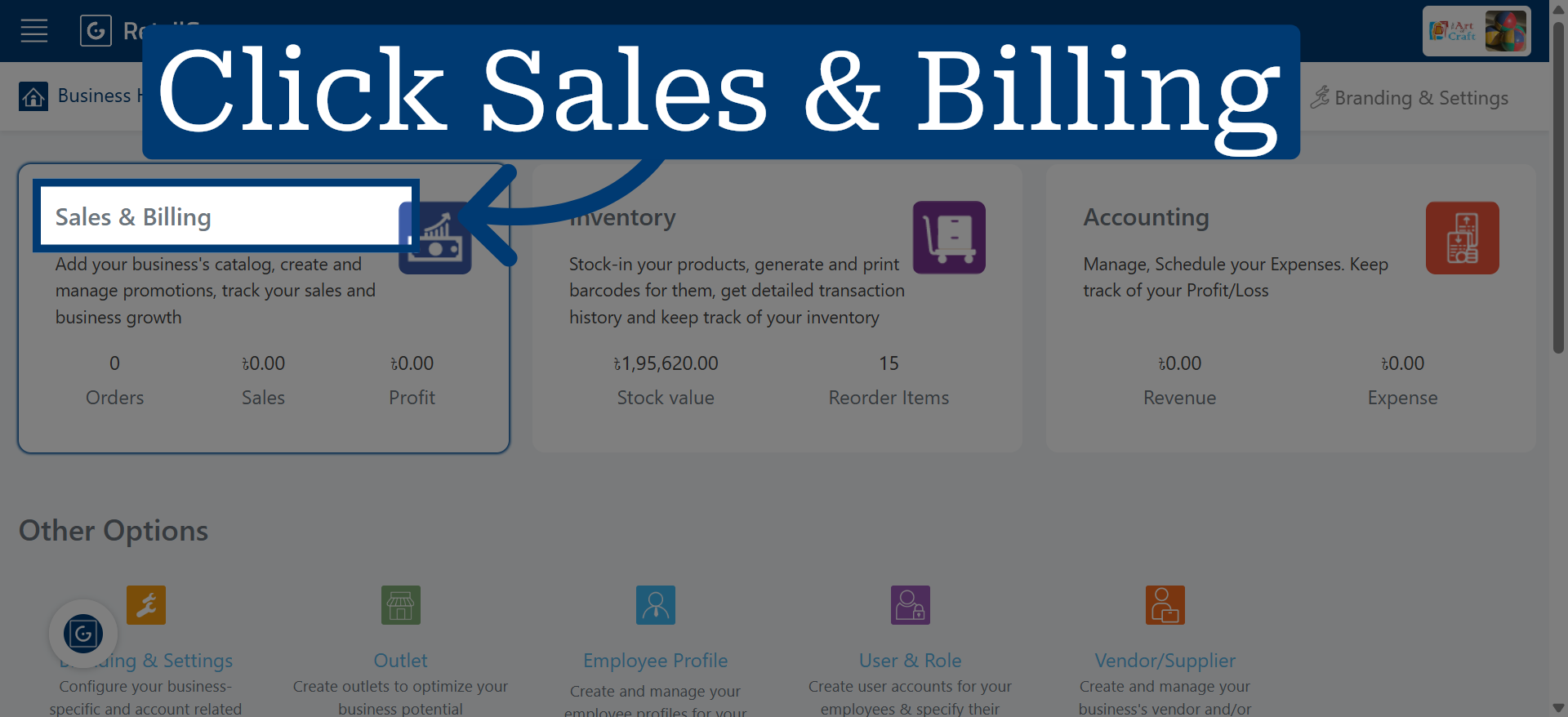
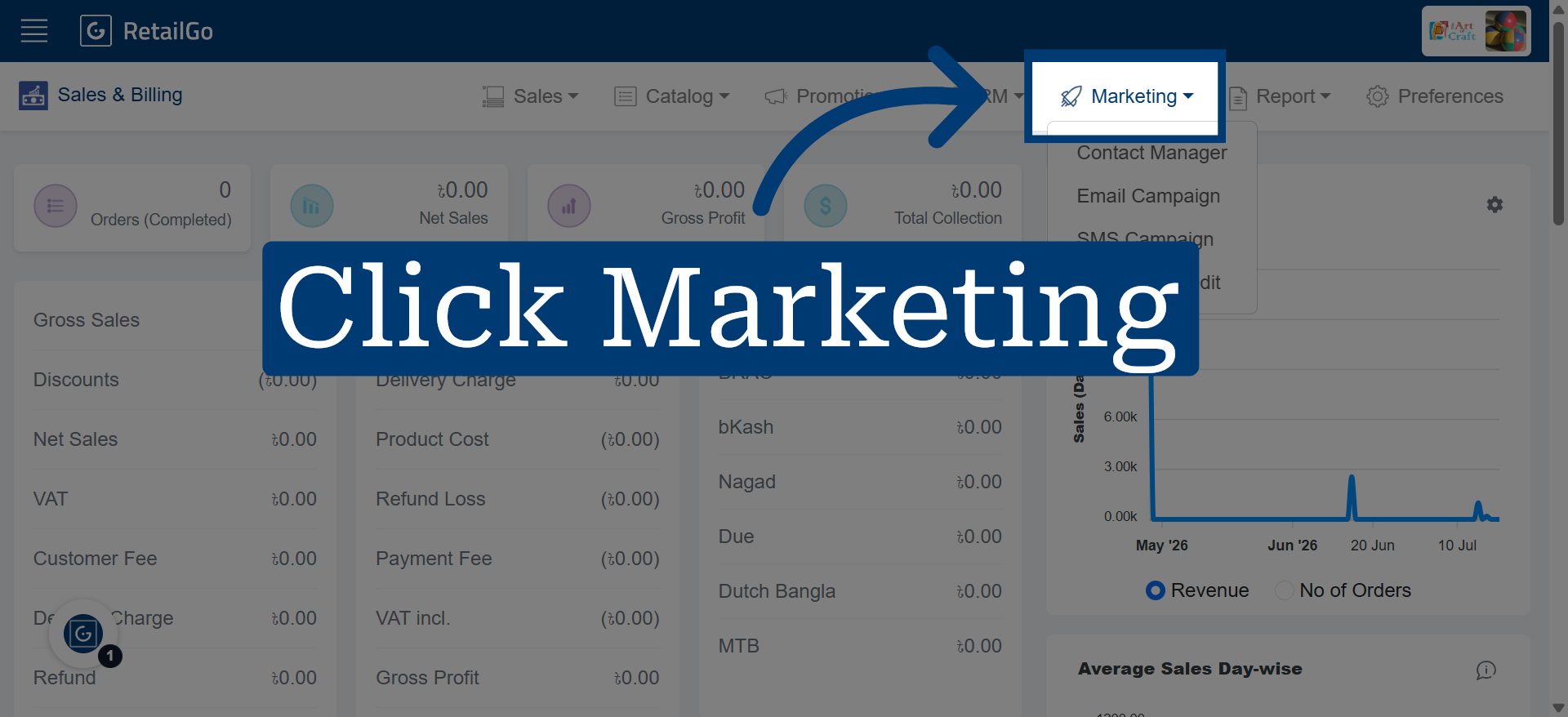
2. Navigate to Marketing Section
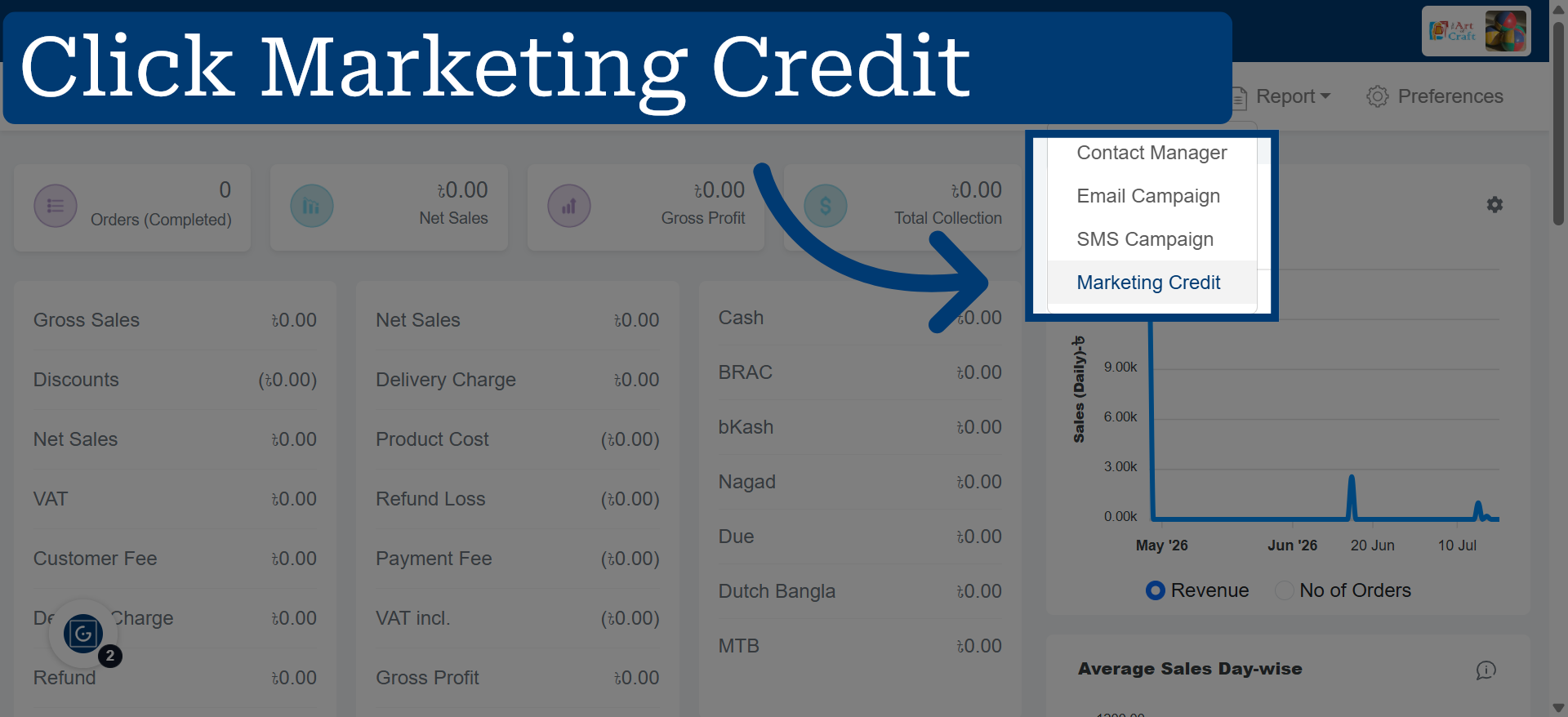
3. Select Marketing Credit Option
4. Initiate Adding Credit
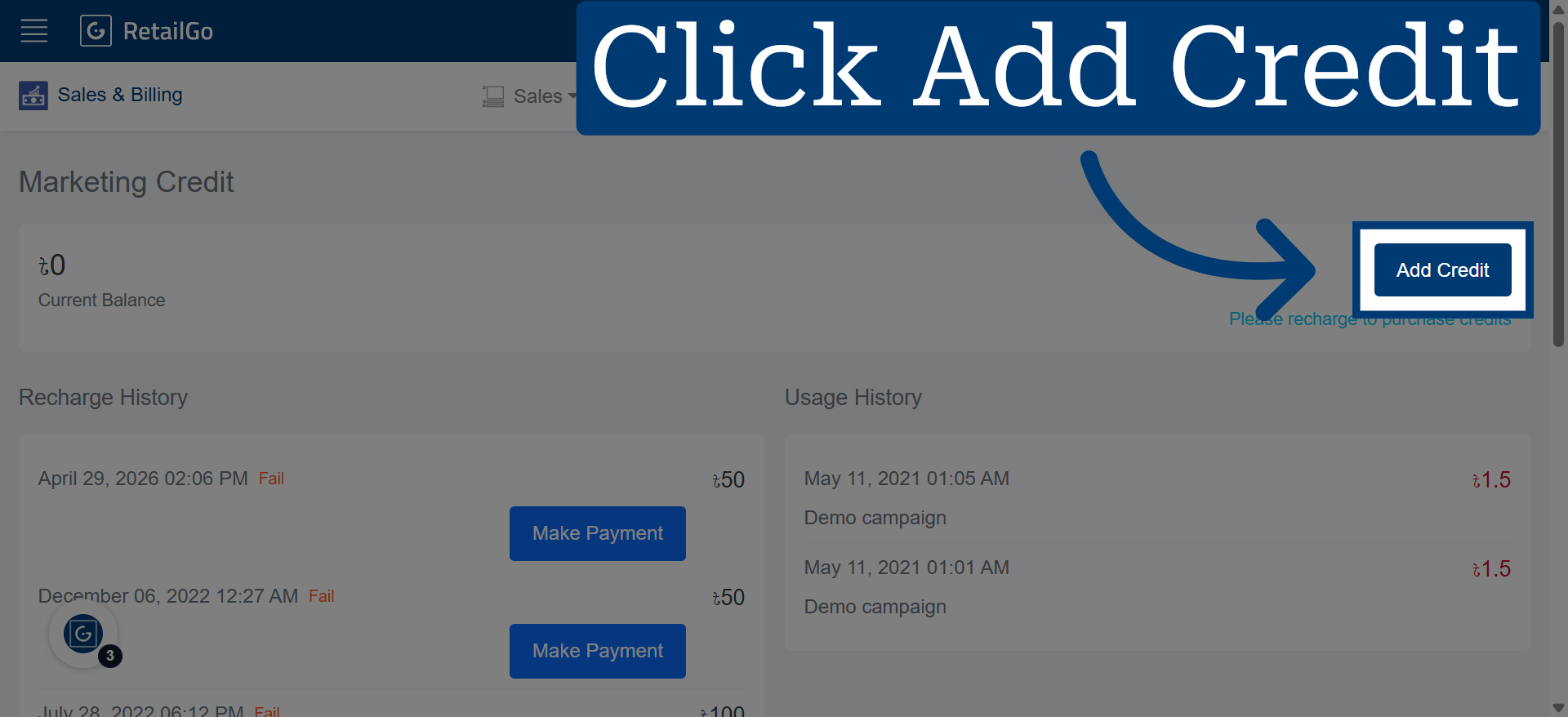
5. In the Credit Amount field, enter the desired credit value
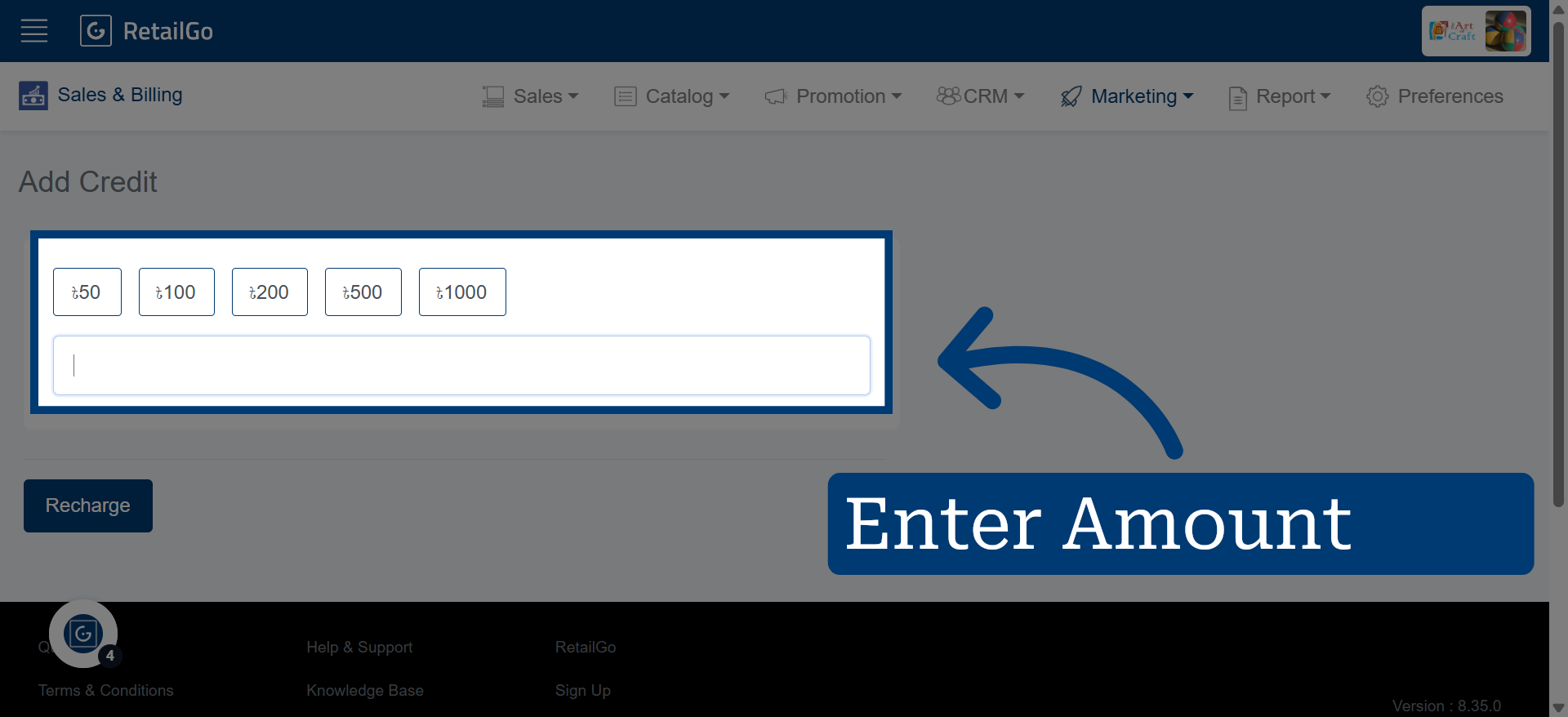
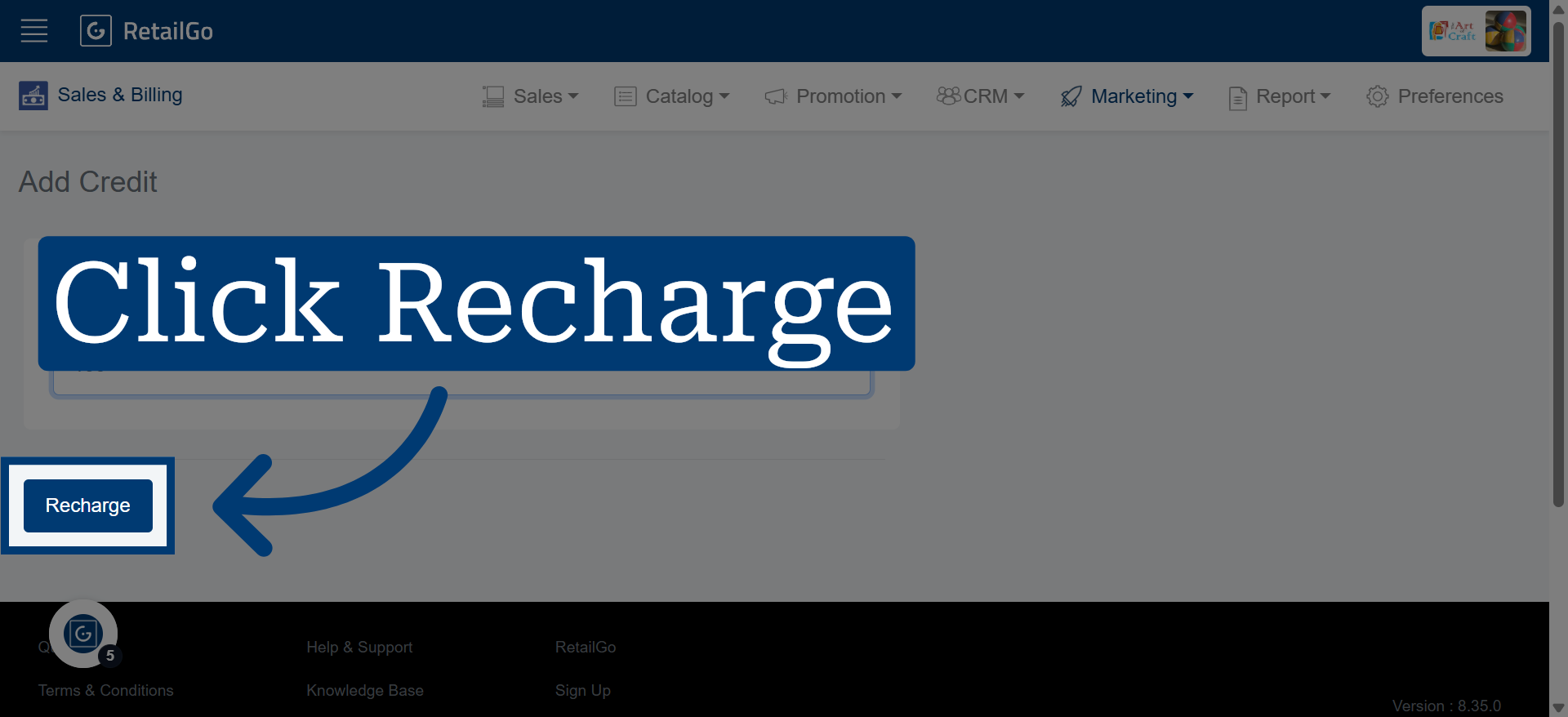
6. Confirm Recharge Action
Click "Recharge" to proceed with adding the specified credit amount to your account.
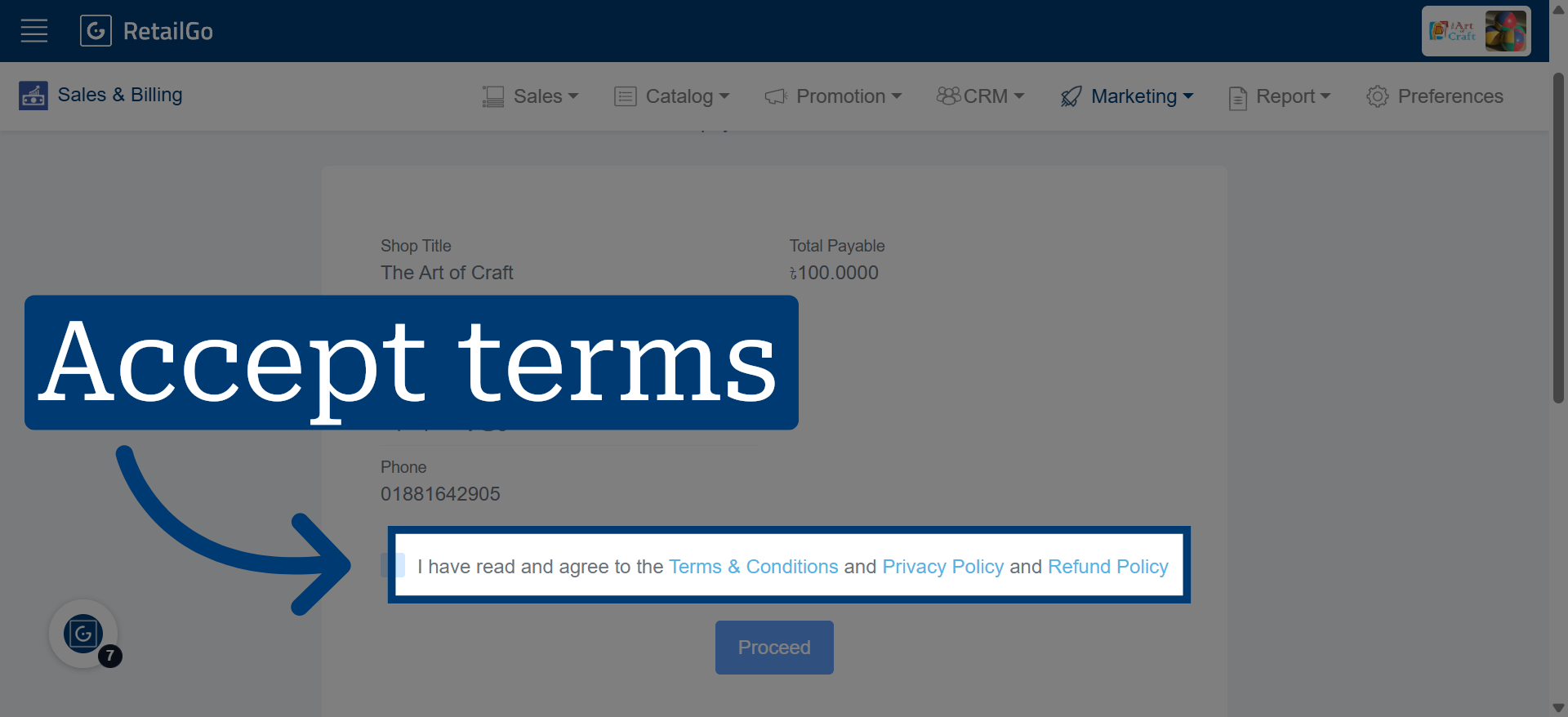
7. Agree to Terms and Conditions
Click "I have read and agree to the Terms & Conditions" to accept the terms before proceeding.
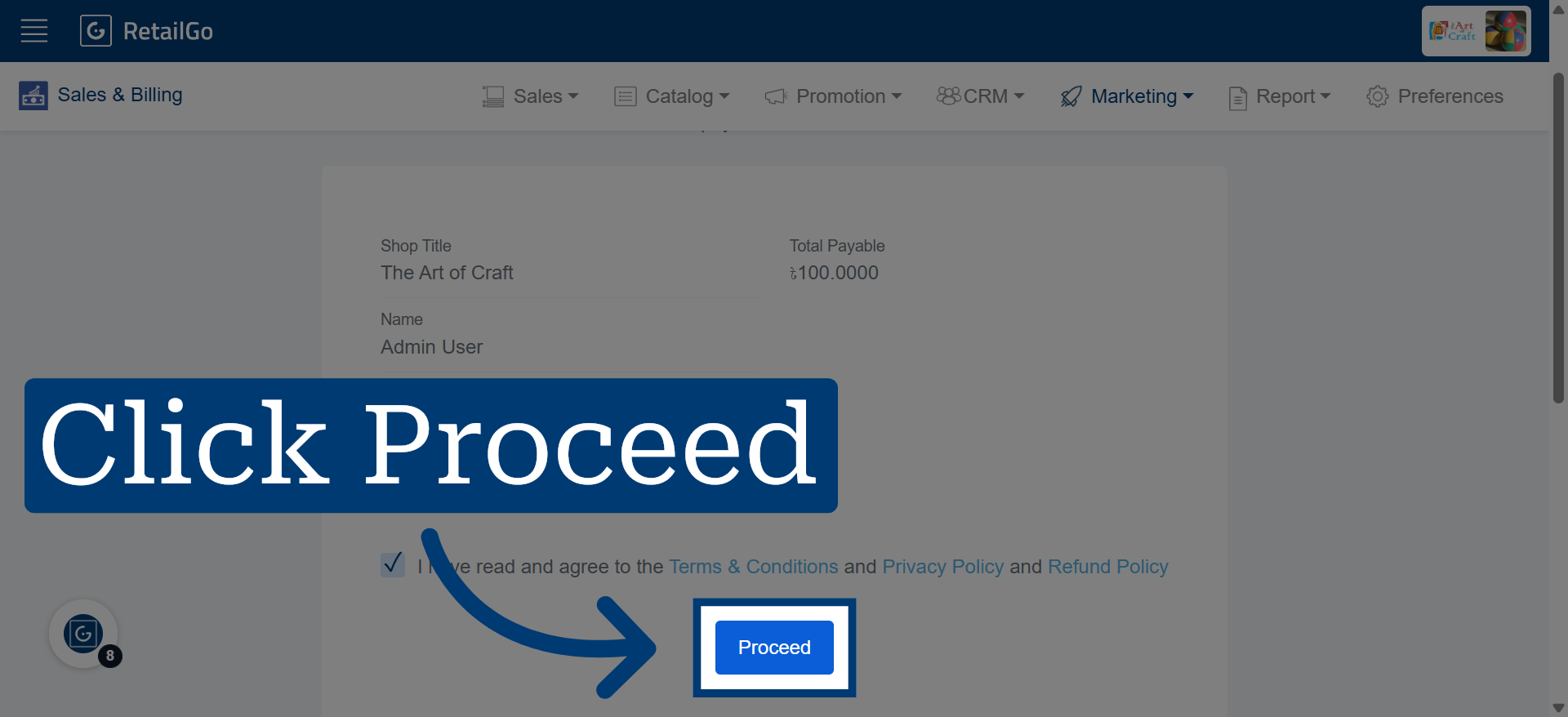
8. Proceed to Payment
Click "Proceed" to move forward to the payment gateway for completing the transaction.
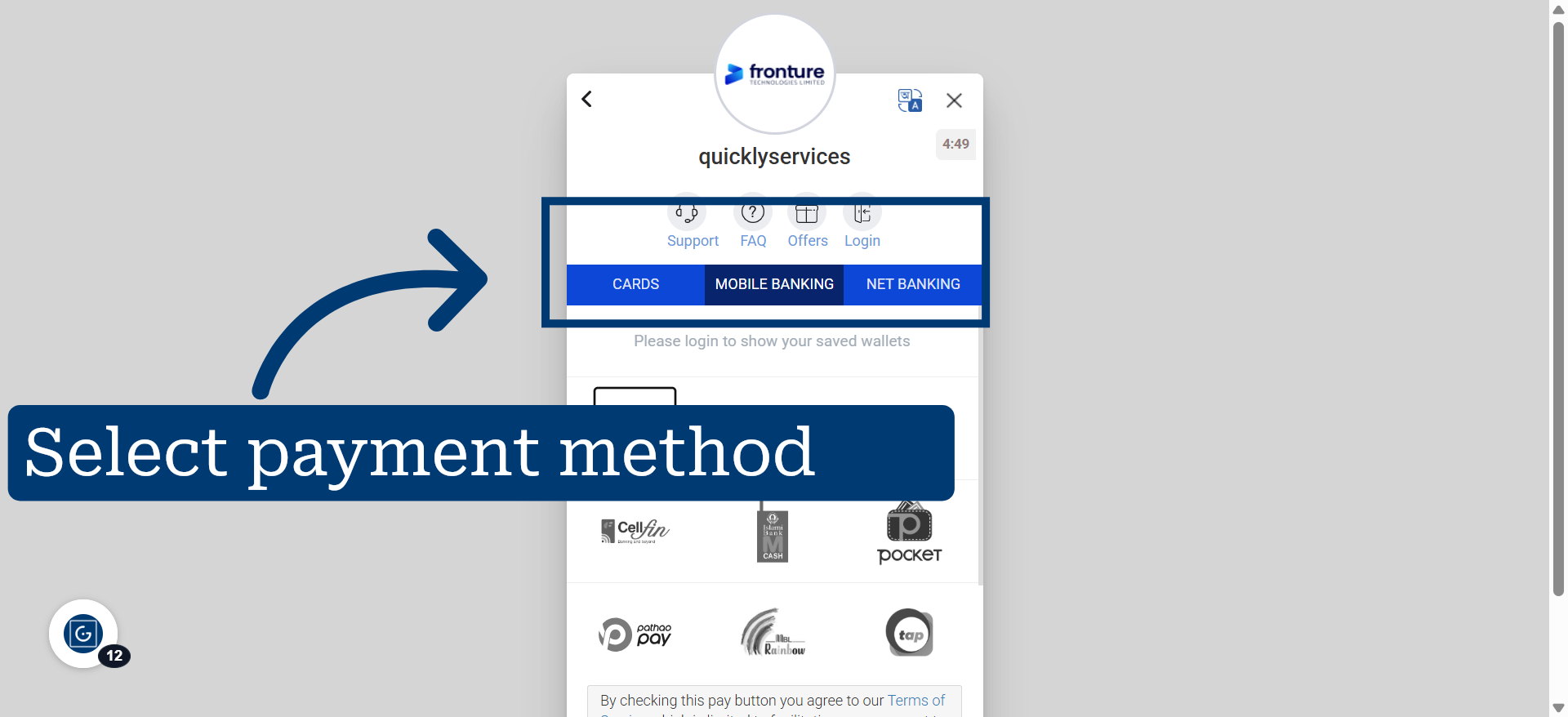
9. Switch to Payment Gateway
Select your preferred payment method and proceed to the secure payment gateway to complete your payment.