How to Create an SMS Campaign in RetailGo Business Portal
This tutorial guides you through creating an SMS campaign using the RetailGoBusiness
Portal. SMS campaigns help you reach customers instantly with promotional offers, updates,
announcements, and personalized messages, increasing customer engagement, driving
sales, and strengthening customer relationships
Go to
retailgo.quicklyservices.com
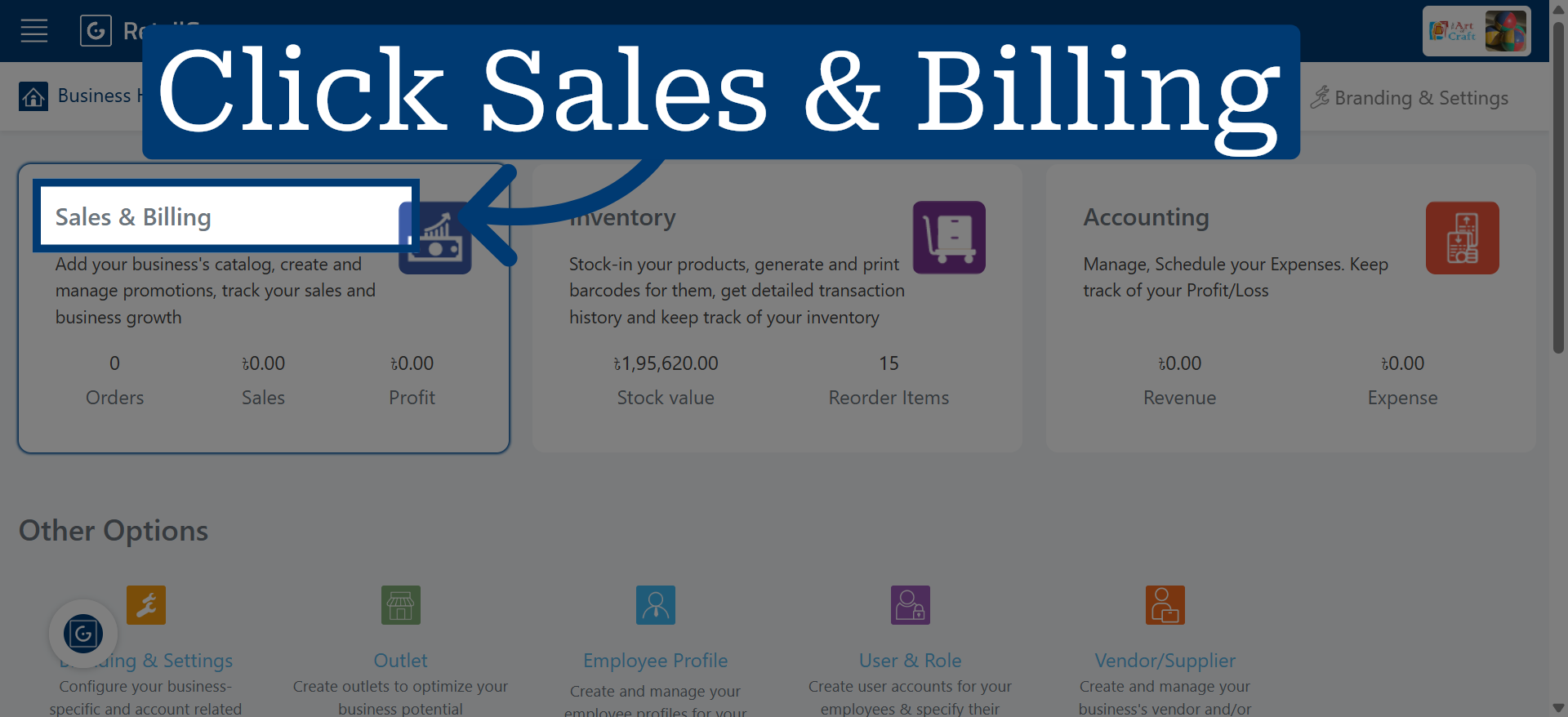
1. Access Sales and Billing Module
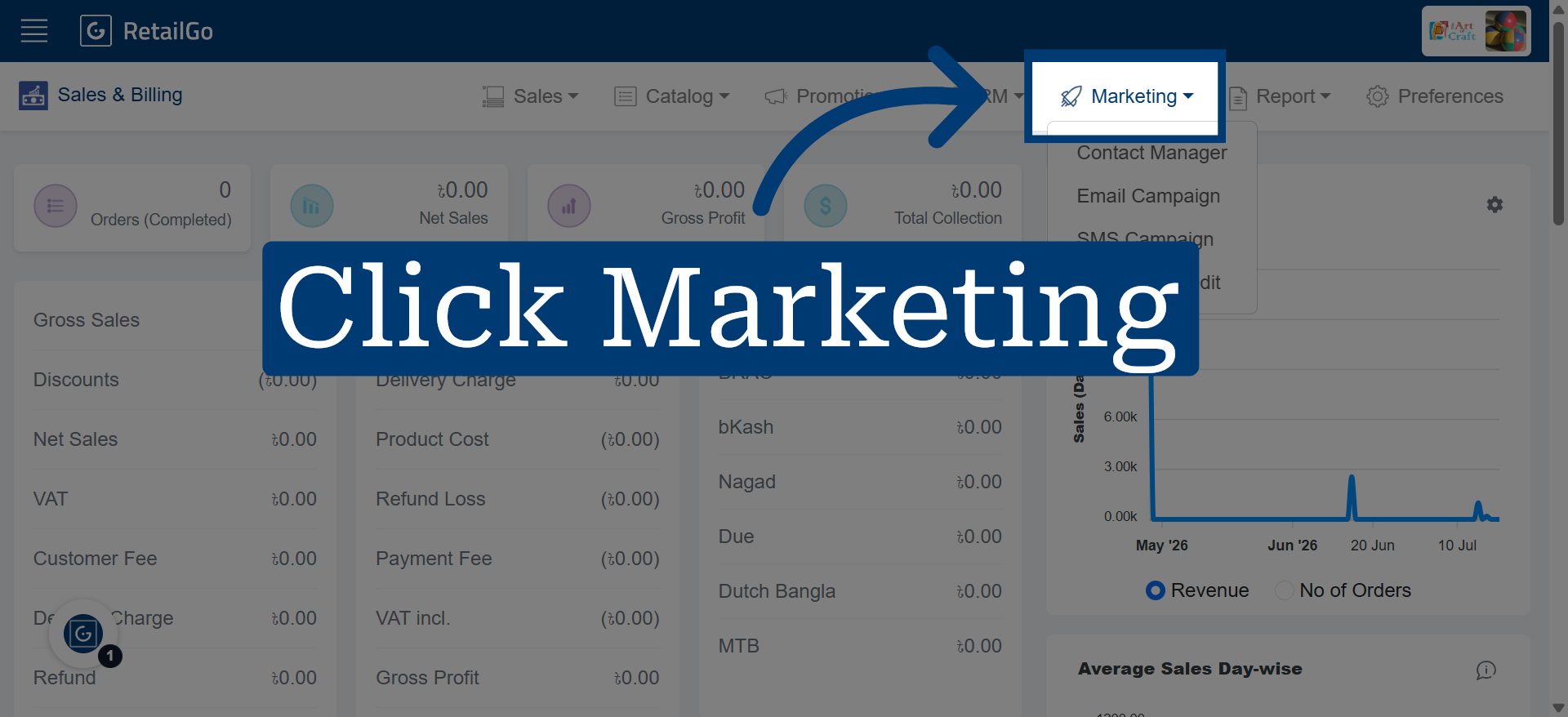
2. Open Marketing Menu
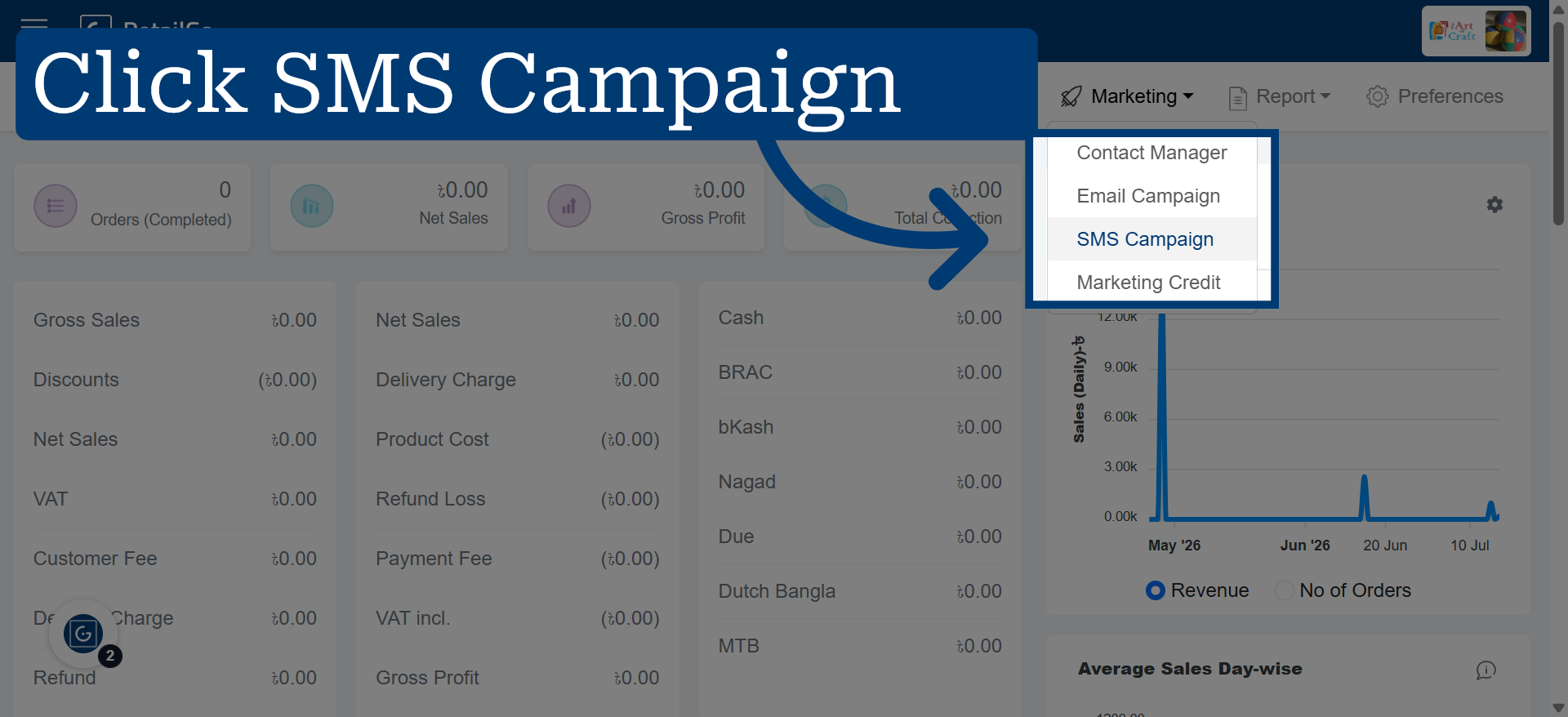
3. Select SMS Campaign Option
4. Start New Campaign Creation
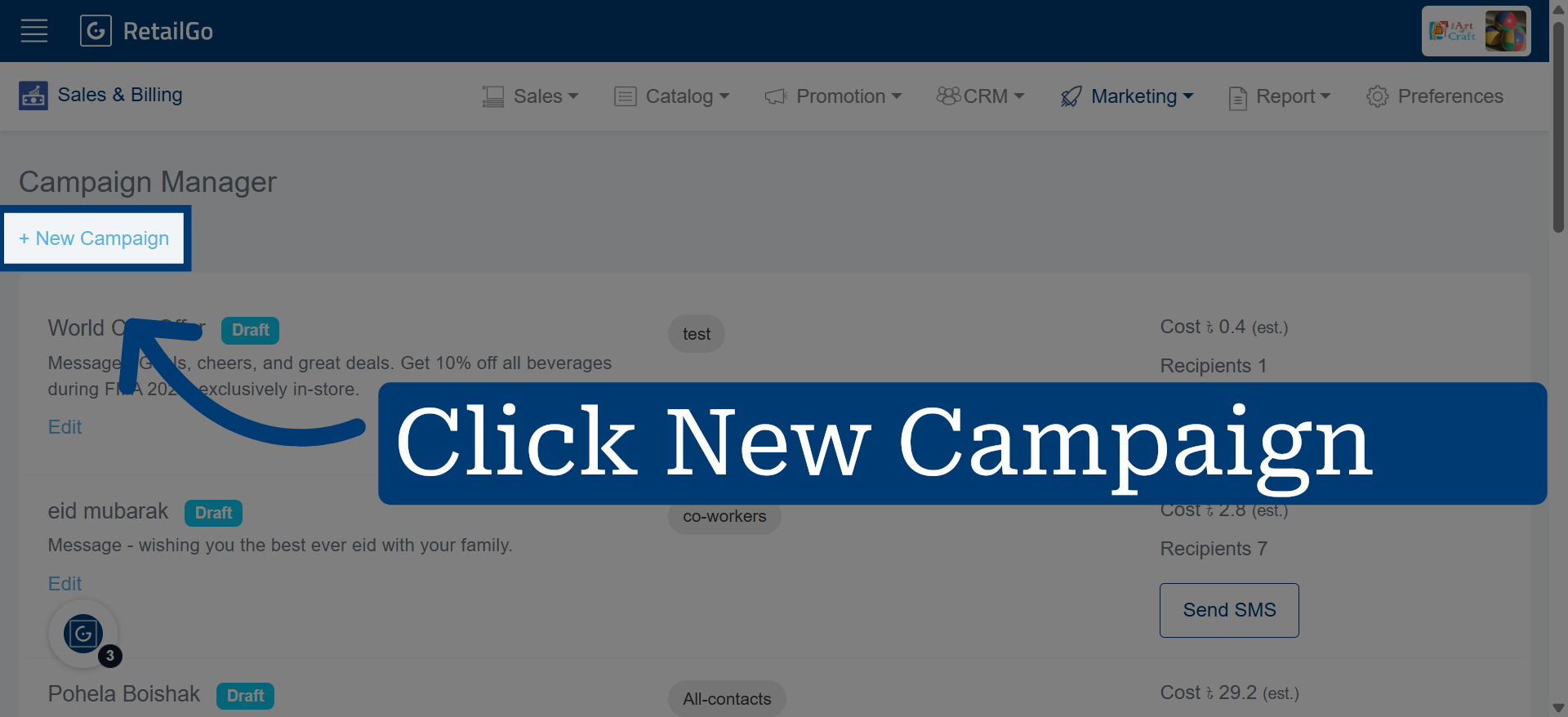
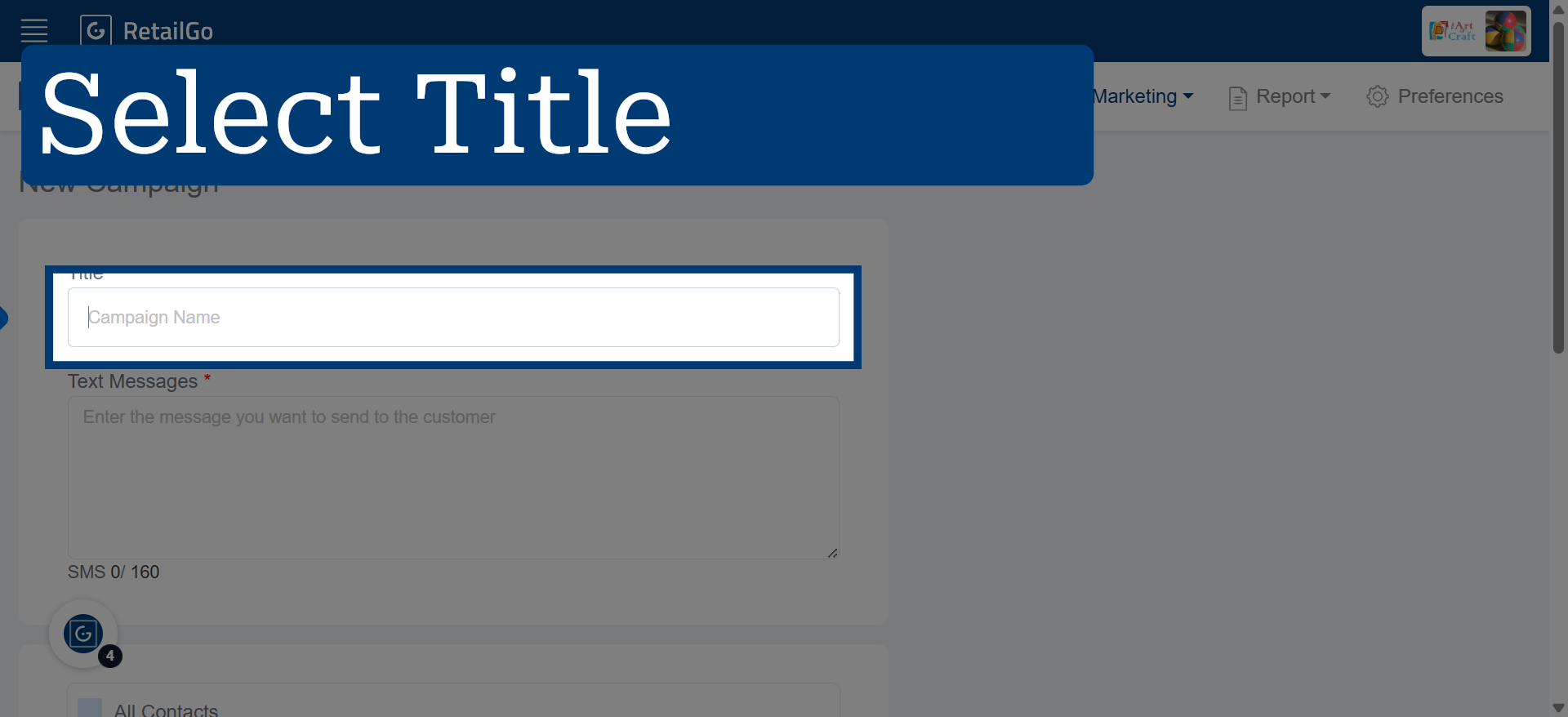
5. Add a Campaign Title
Add a campaign title to help identify and manage your SMS campaign.
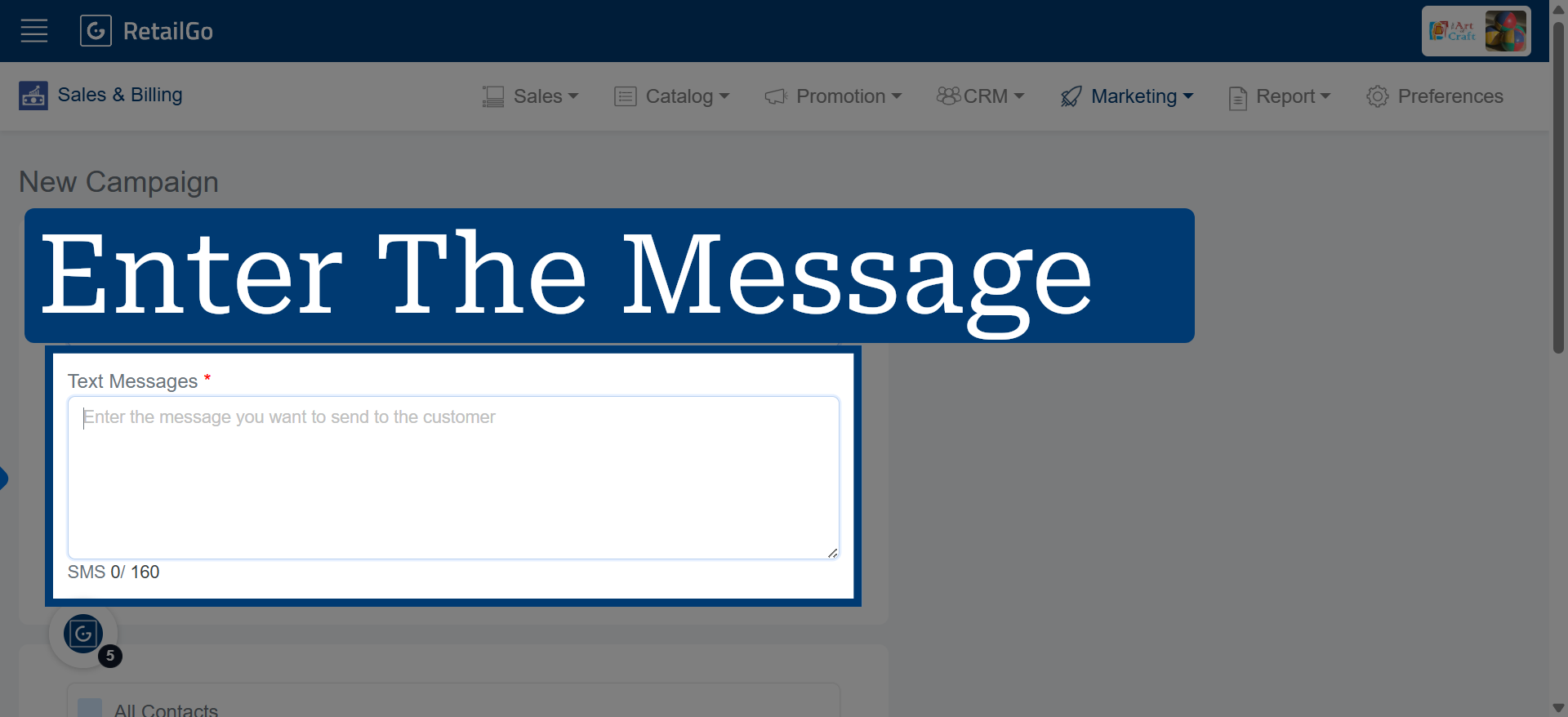
6. Access Message Text Field
Click "Text Messages" to open the area where you will compose the SMS content for your campaign.
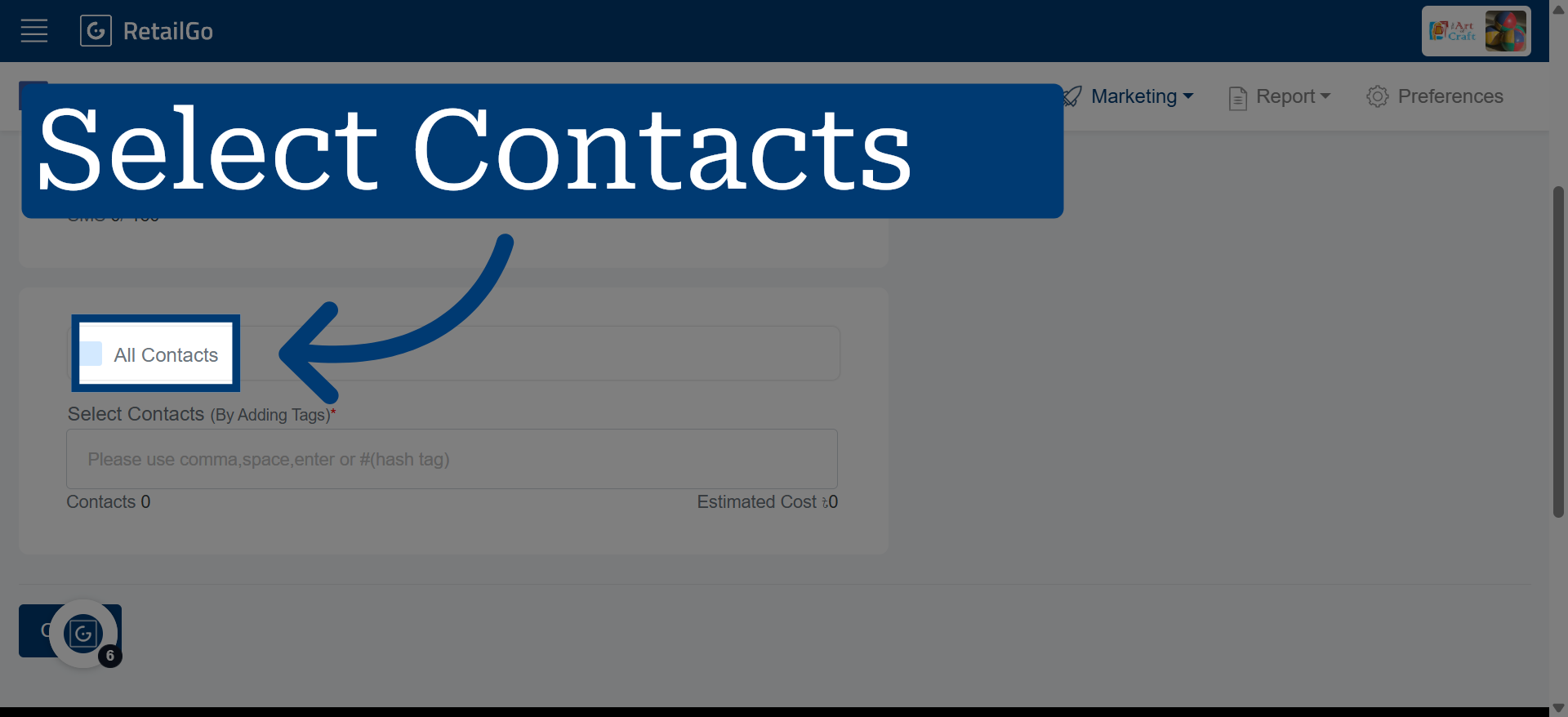
7. Choose Contact Group
Click "All Contacts" to send the SMS campaign to all contacts available in your CRM. Every selected contact will receive the promotional SMS message.
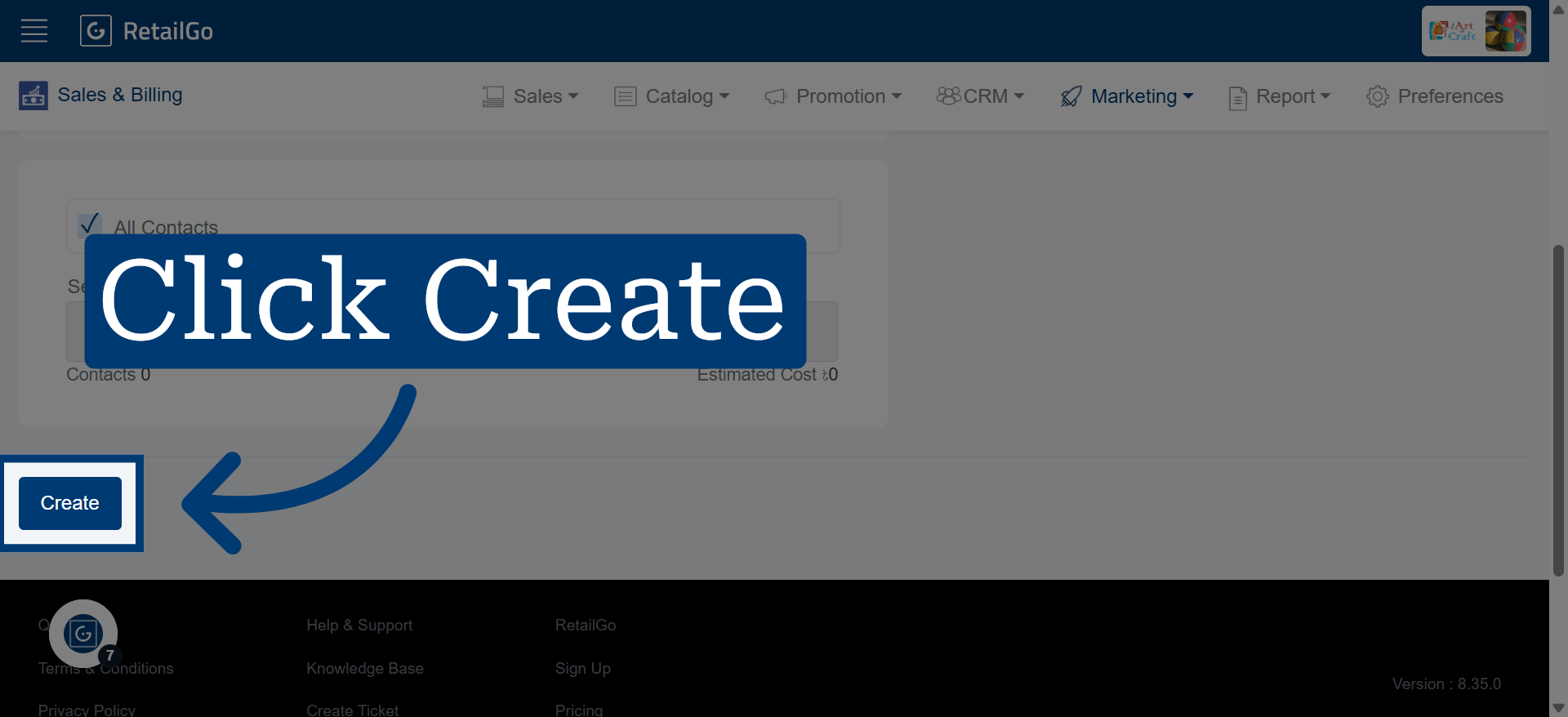
8. Create the SMS Campaign
Click "Create" to finalize and launch your SMS campaign within the Business Portal.