How to Process Order & Billing in RetailLife POS
This tutorial guides you through the complete order flow in RetailLife Window POS, from starting
an order and collecting customer information to processing payment and printing or sending the
receipt.
Go to
retaillife.quicklyservices.com
1. Go to the POS
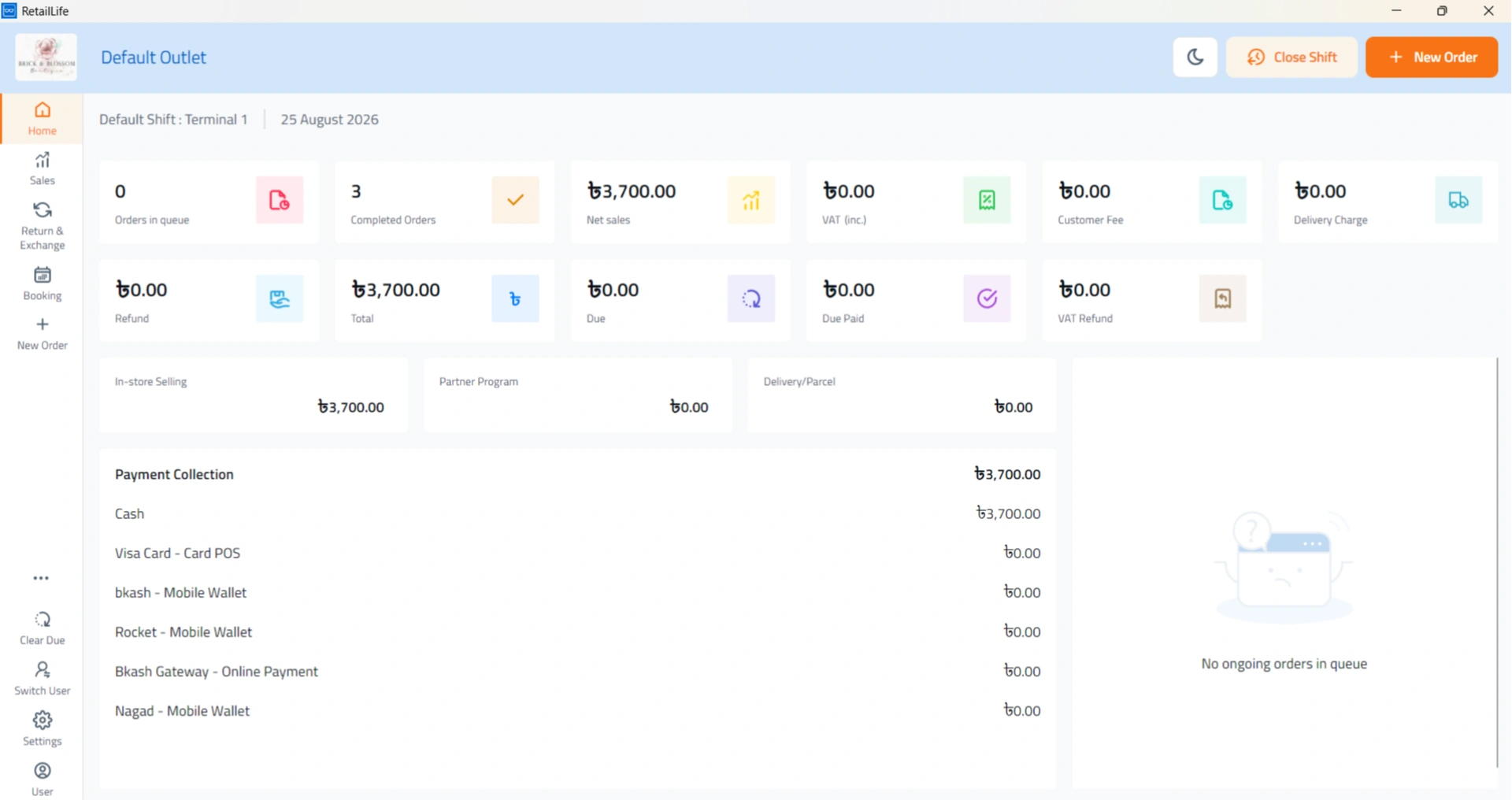
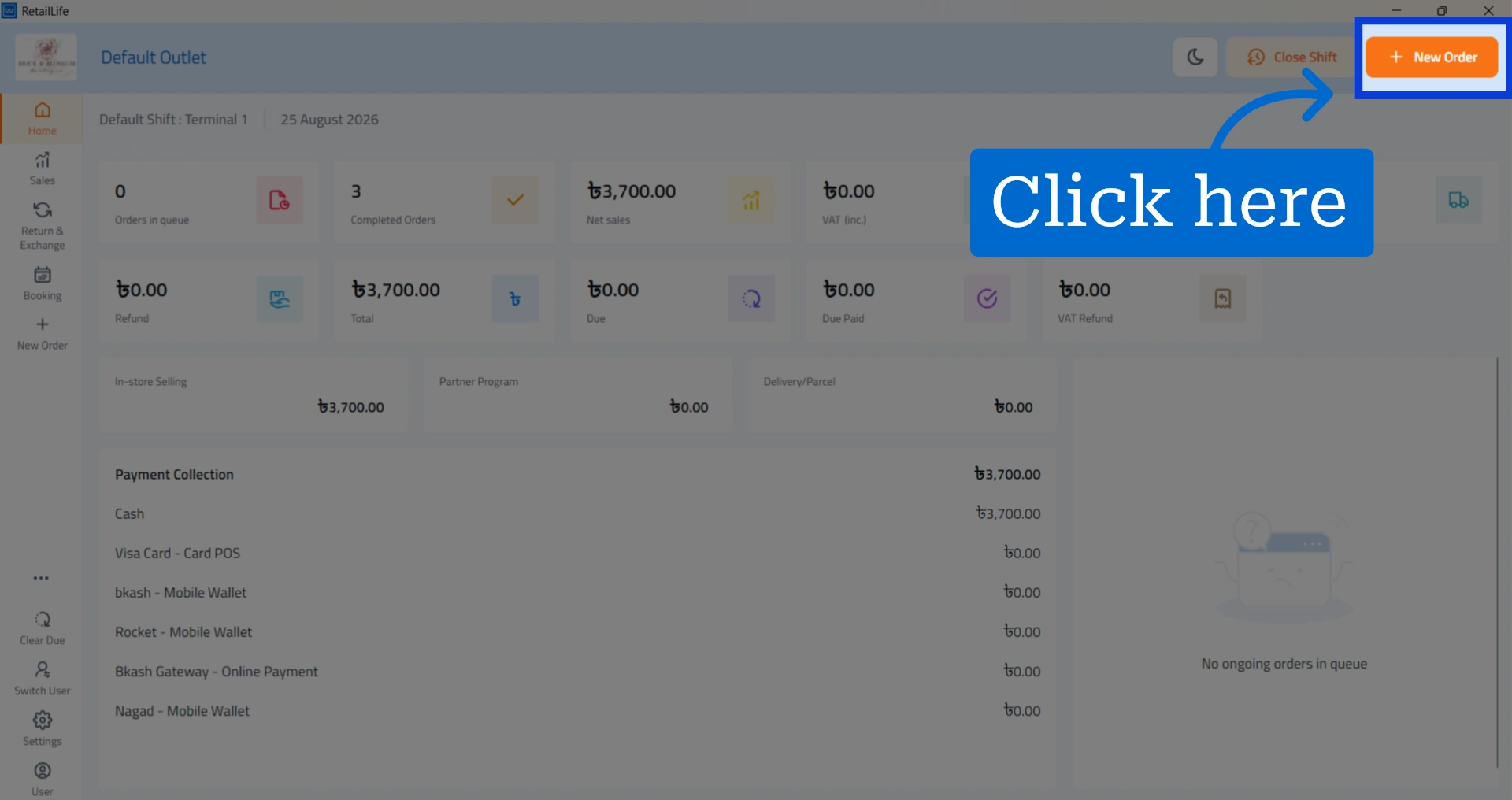
2. Start a new order by clicking “New Order"
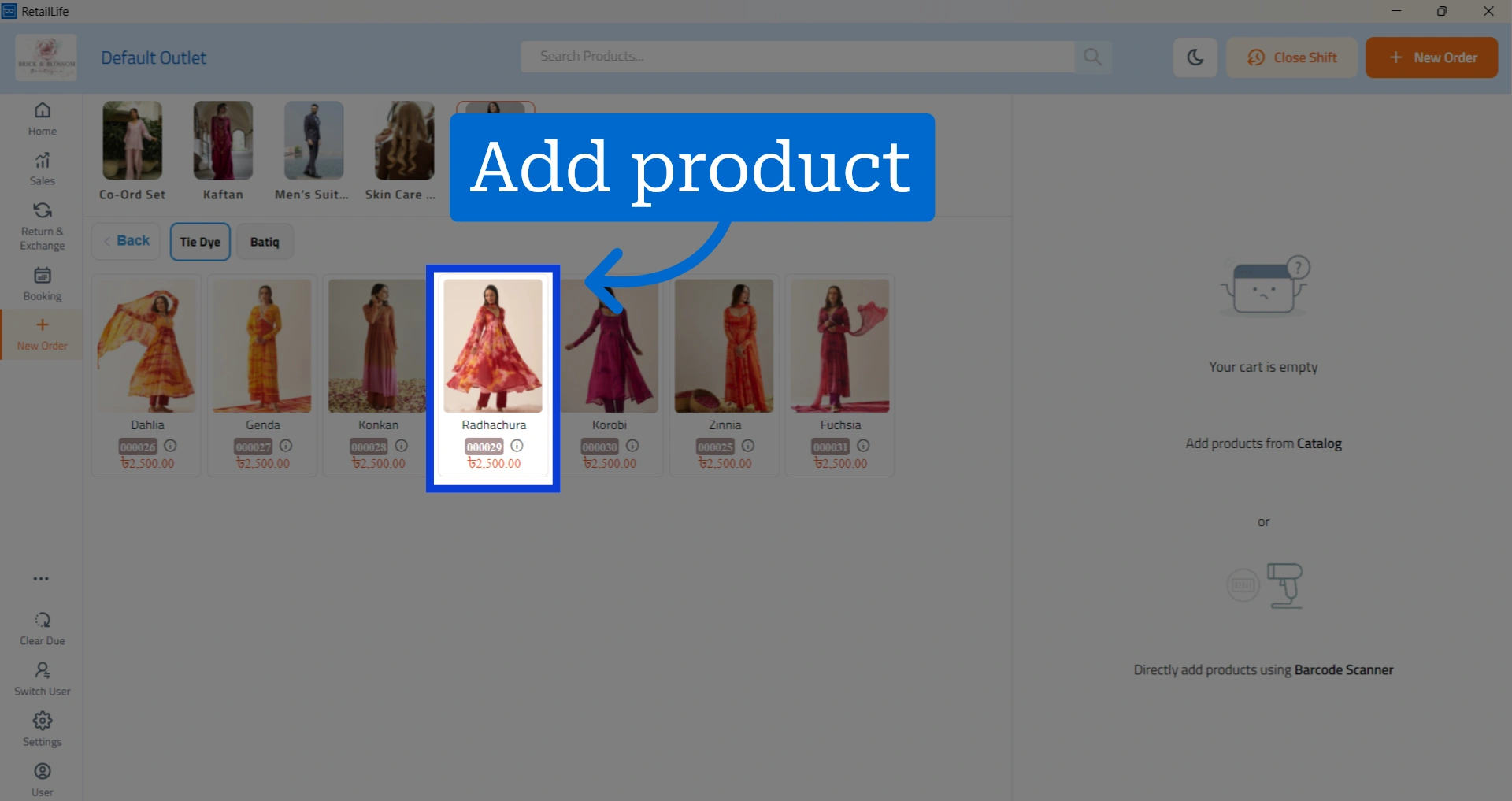
3. Add the products the customer wants to bill
4. Choose the action you want to take:
• Click “Proceed Order” to proceed with billing.
• Click “Send to Queue” to add the order to the queue and bill it later.
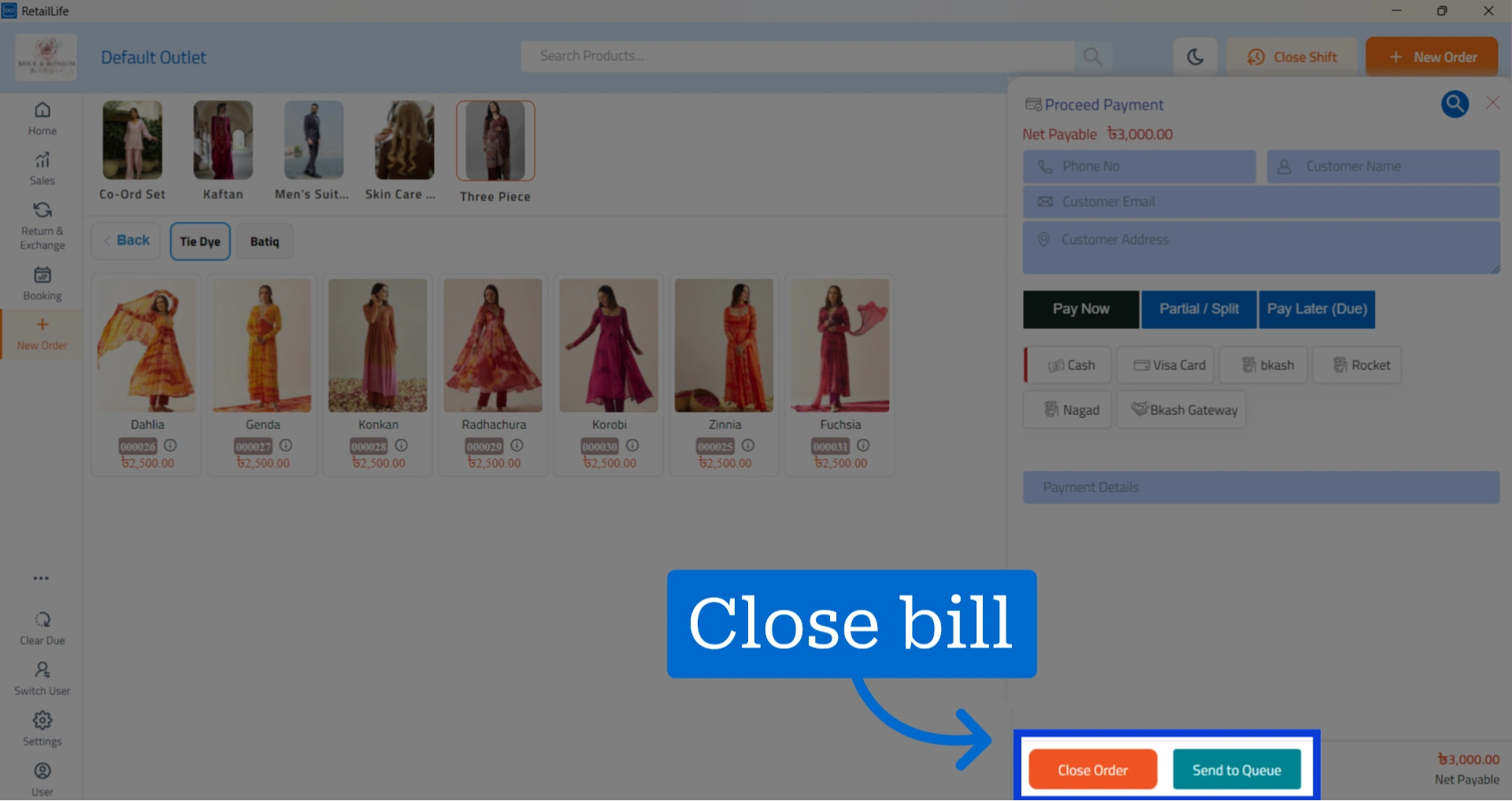
5. Enter the customer’s information to save it in the CRM database
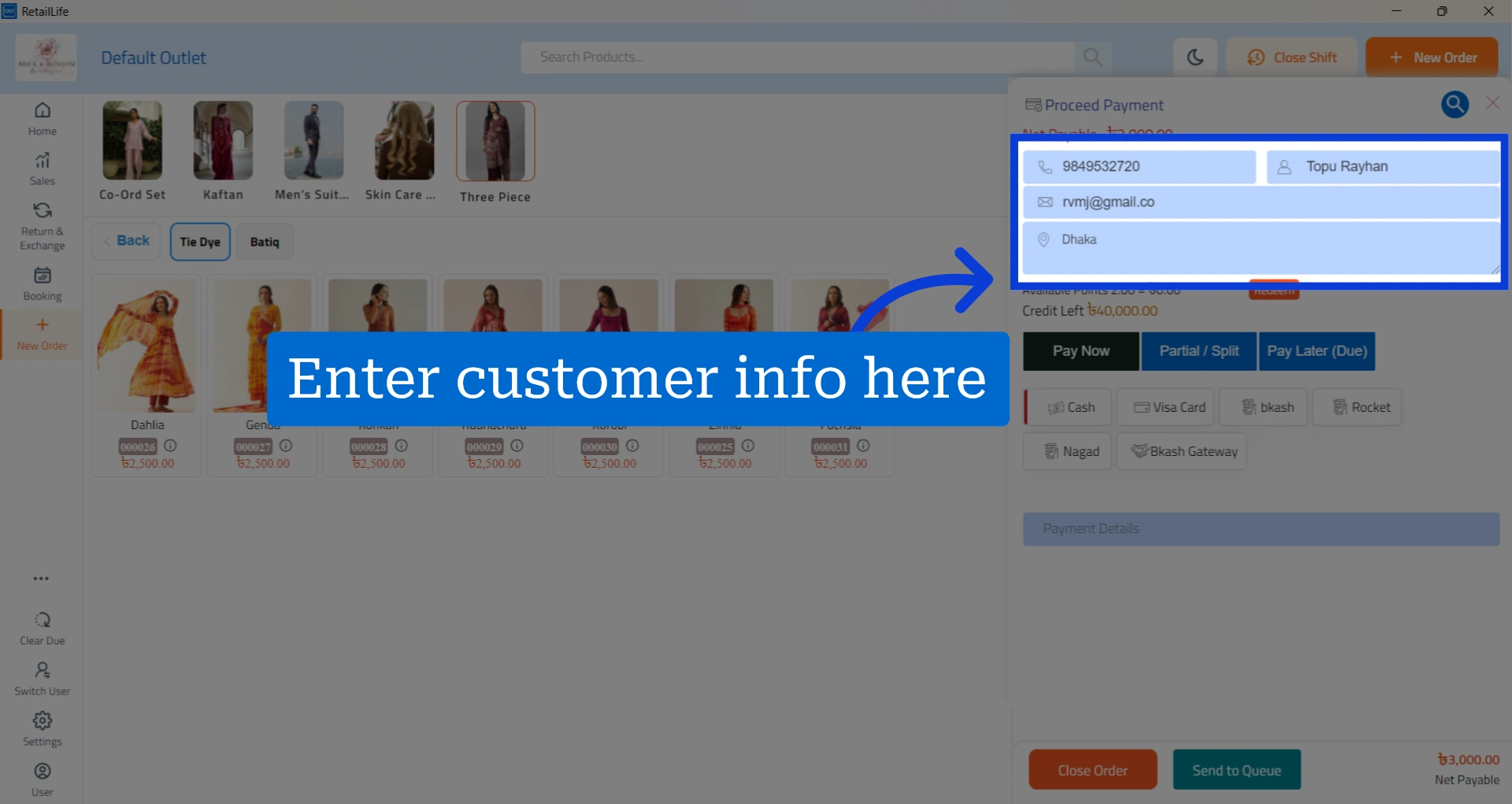
6. Select the payment method the customer will use
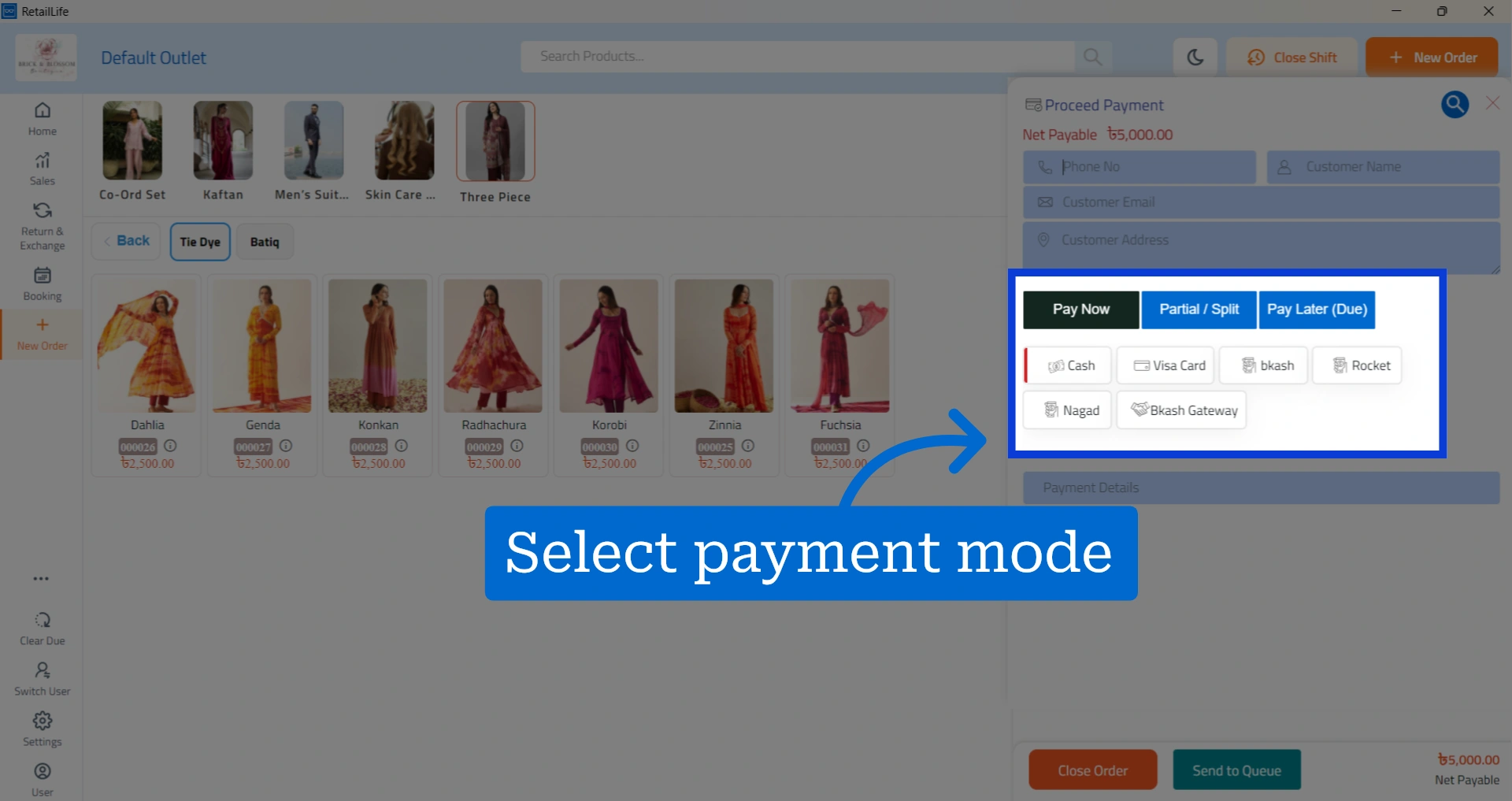
7. Close the bill
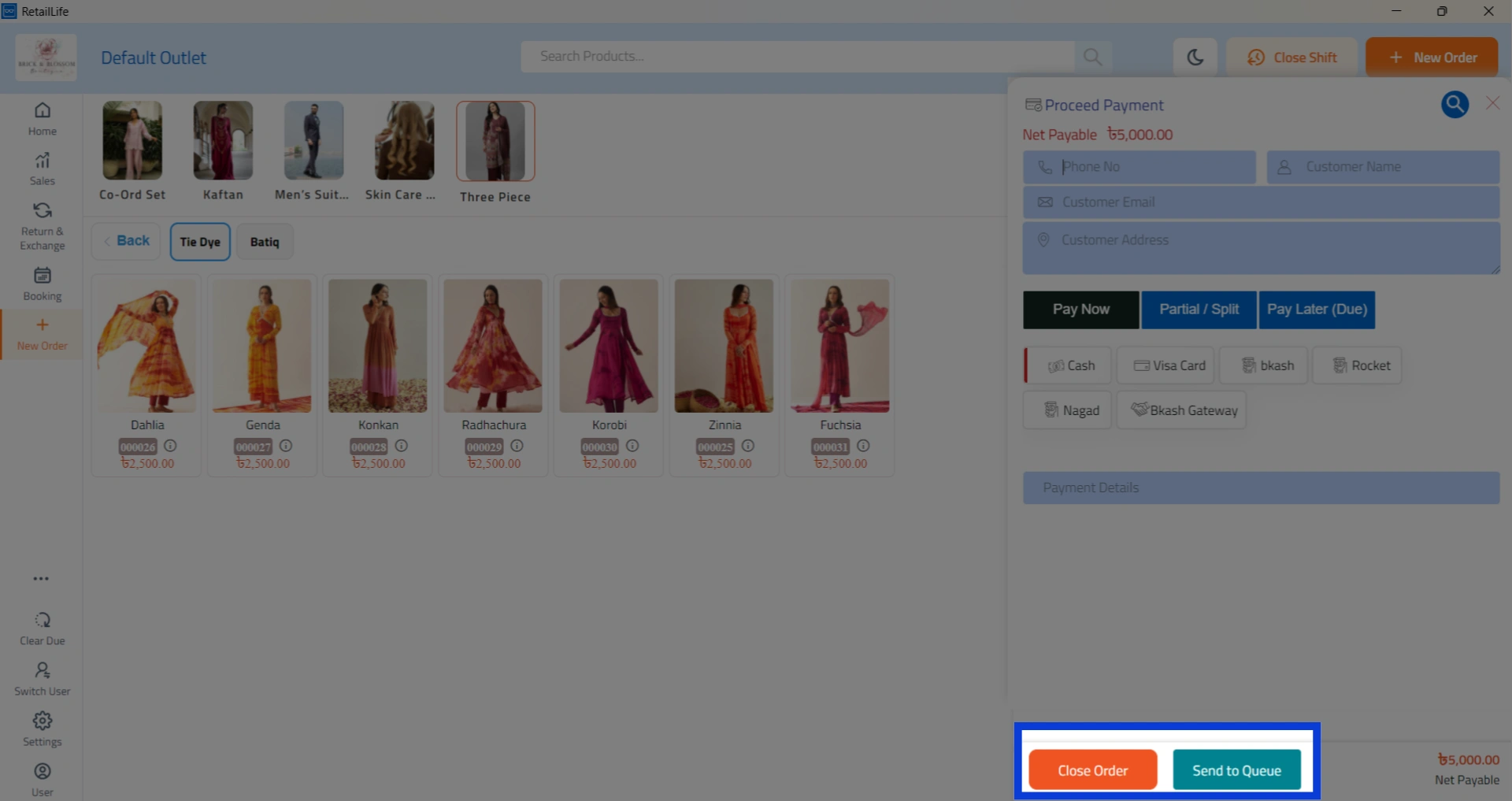
Select “Close Order” if you want to complete the billing. Otherwise, click “Send to Queue".
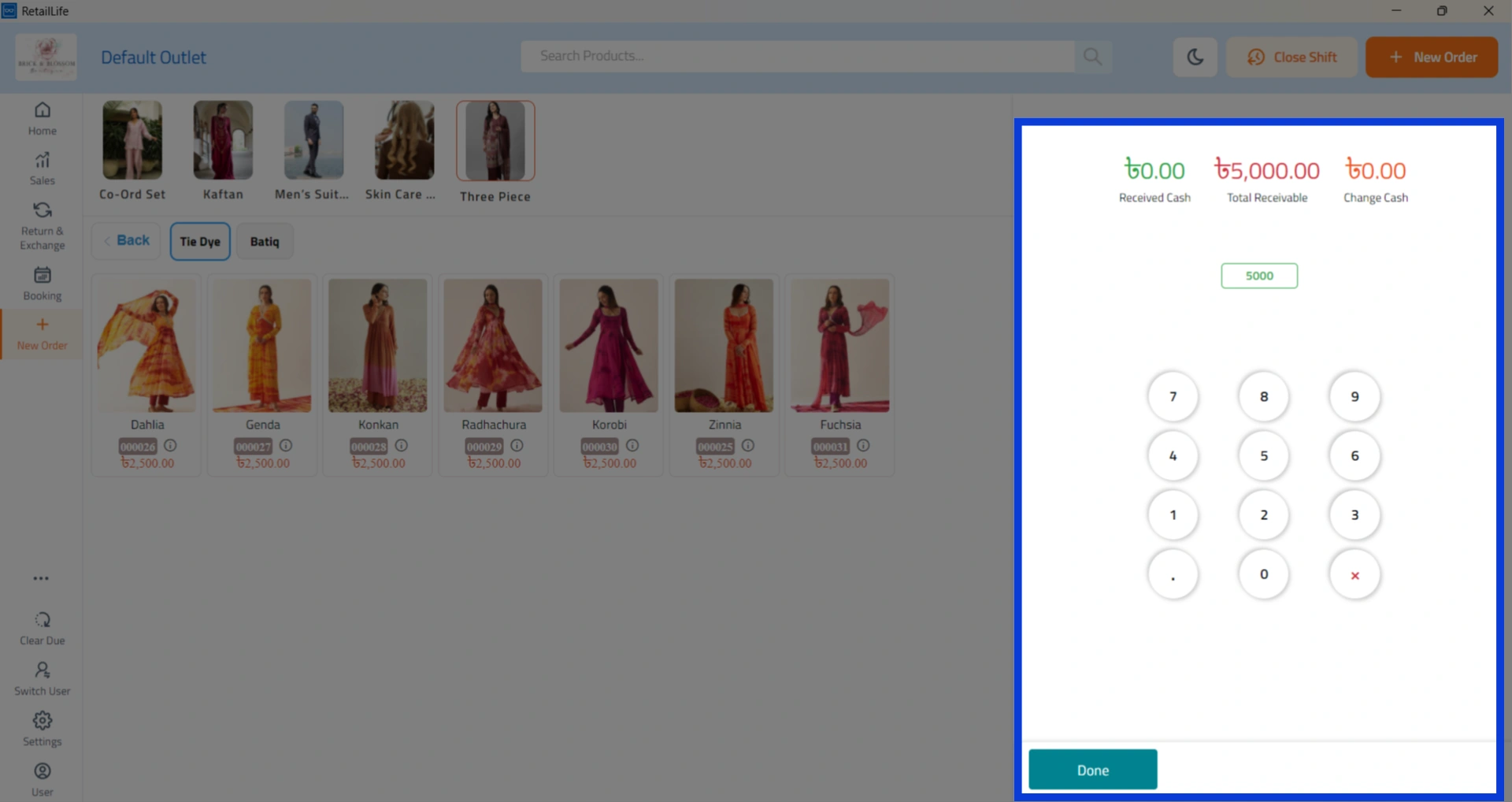
8. If the customer is paying with cash, the Change Calculator will appear
Use it to calculate the change and reduce manual calculation errors.
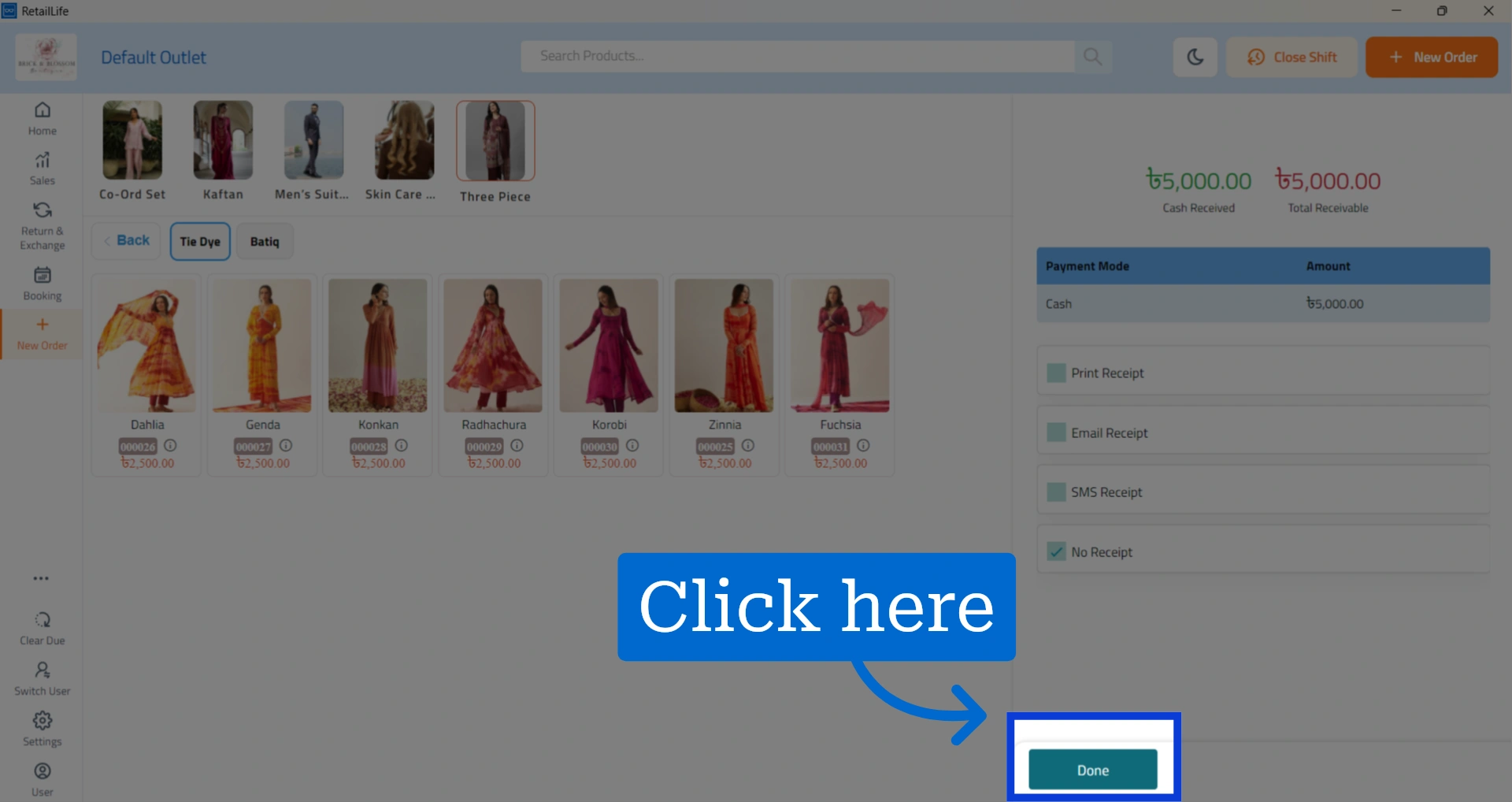
9. Select how the customer would like to receive their receipt
They can choose a paper receipt, digital receipt via SMS or email, or no receipt.
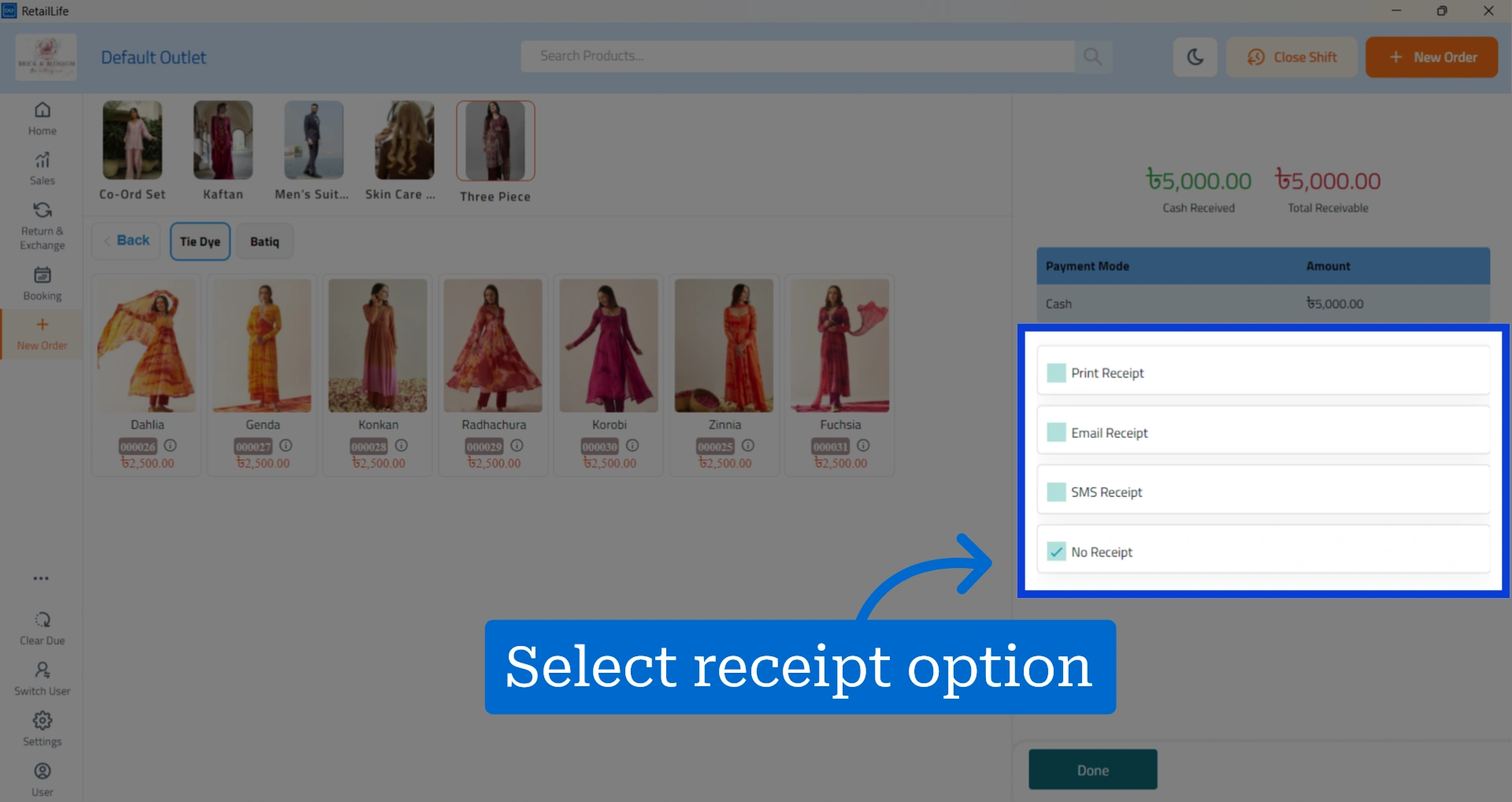
10. Click “Done” to complete the order