How to Modify an Existing Shift and Create Multiple Shifts in RetailLife Business Portal
This tutorial guides you through configuring and managing work shifts within the RetailLife
Business Portal.
Go to
retaillife.quicklyservices.com
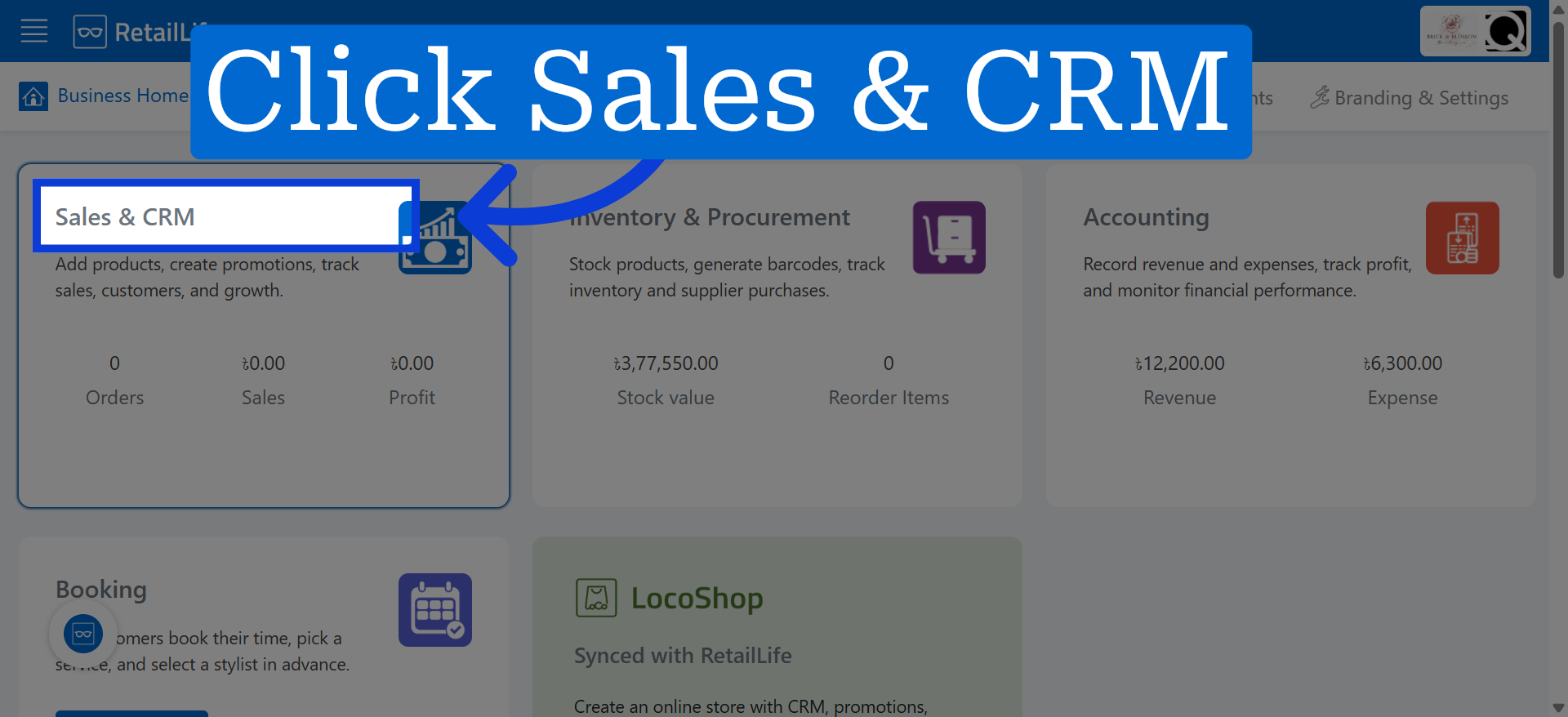
1. Access Sales & CRM Module
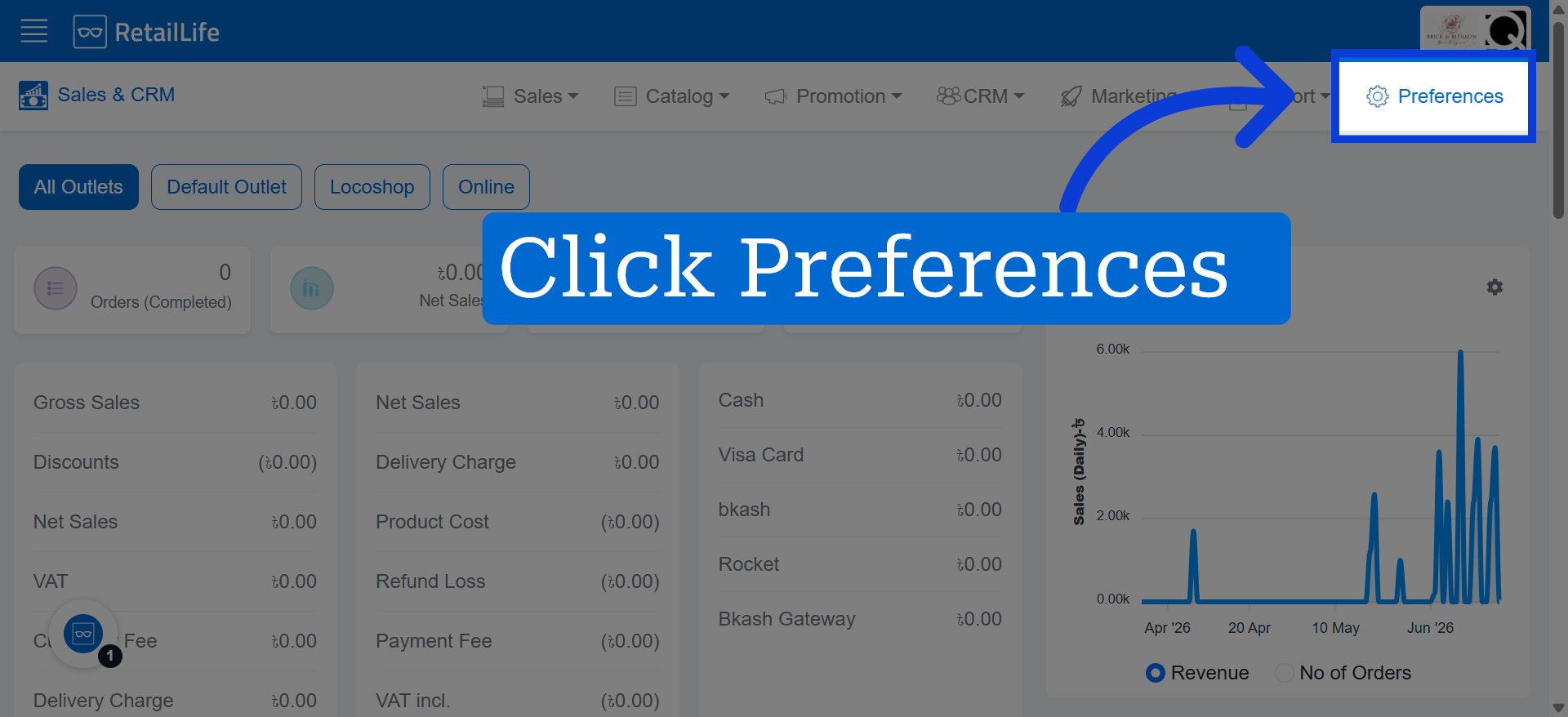
2. Go to 'Preferences'
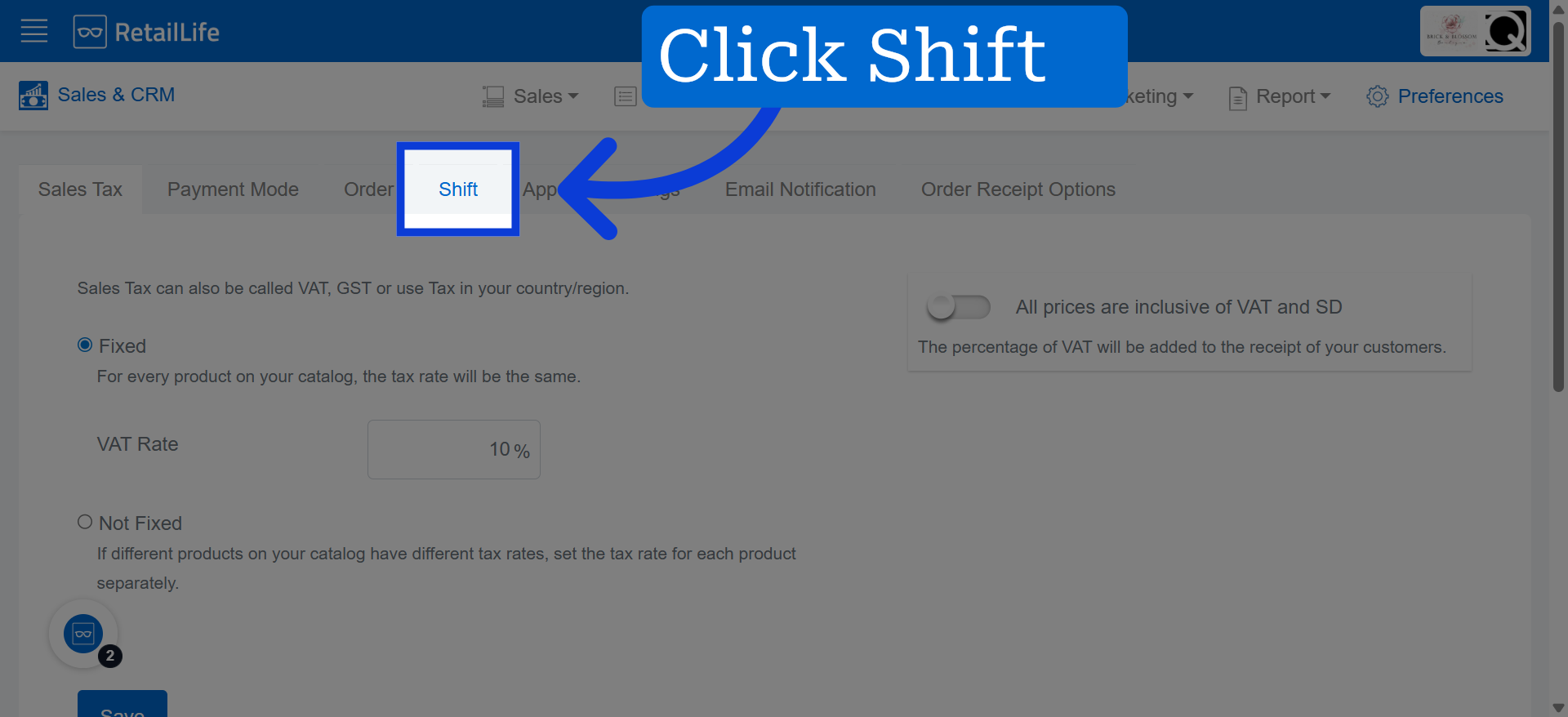
3. Select Shift
Click "Shift" to view and select the shift you want to modify.
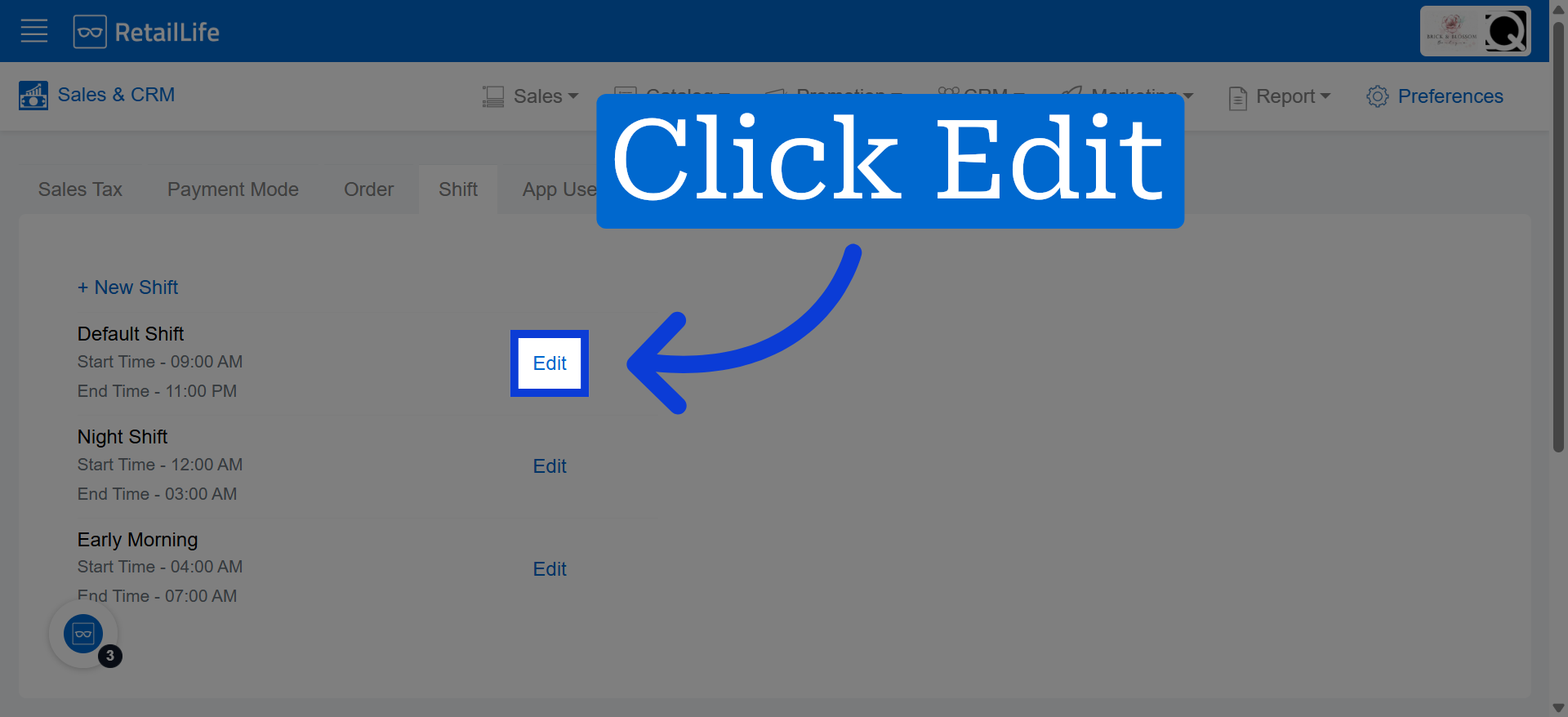
4. Enter Edit Mode
Click "Edit" to begin modifying the selected shift's details.
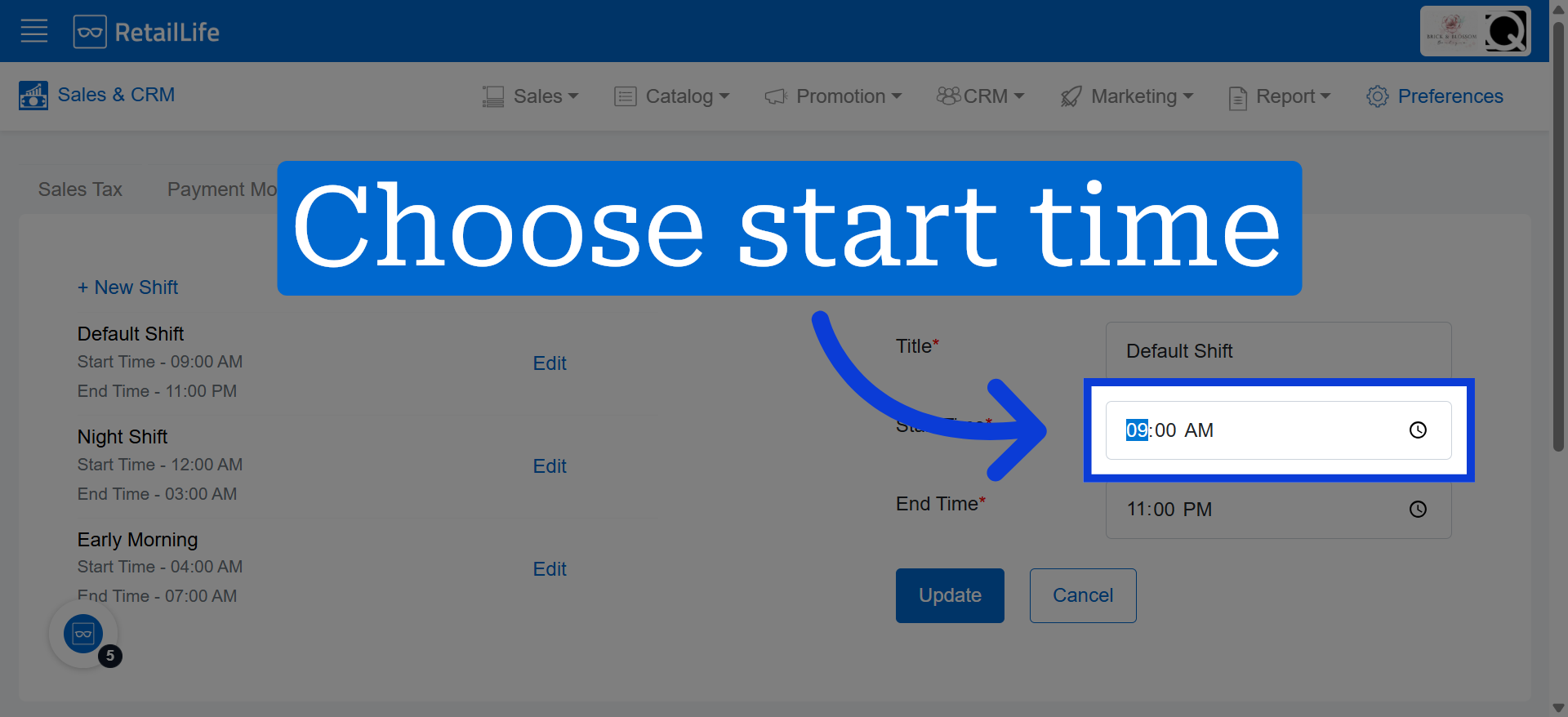
5. Set Shift Start Time
Set a starting time according to your business.
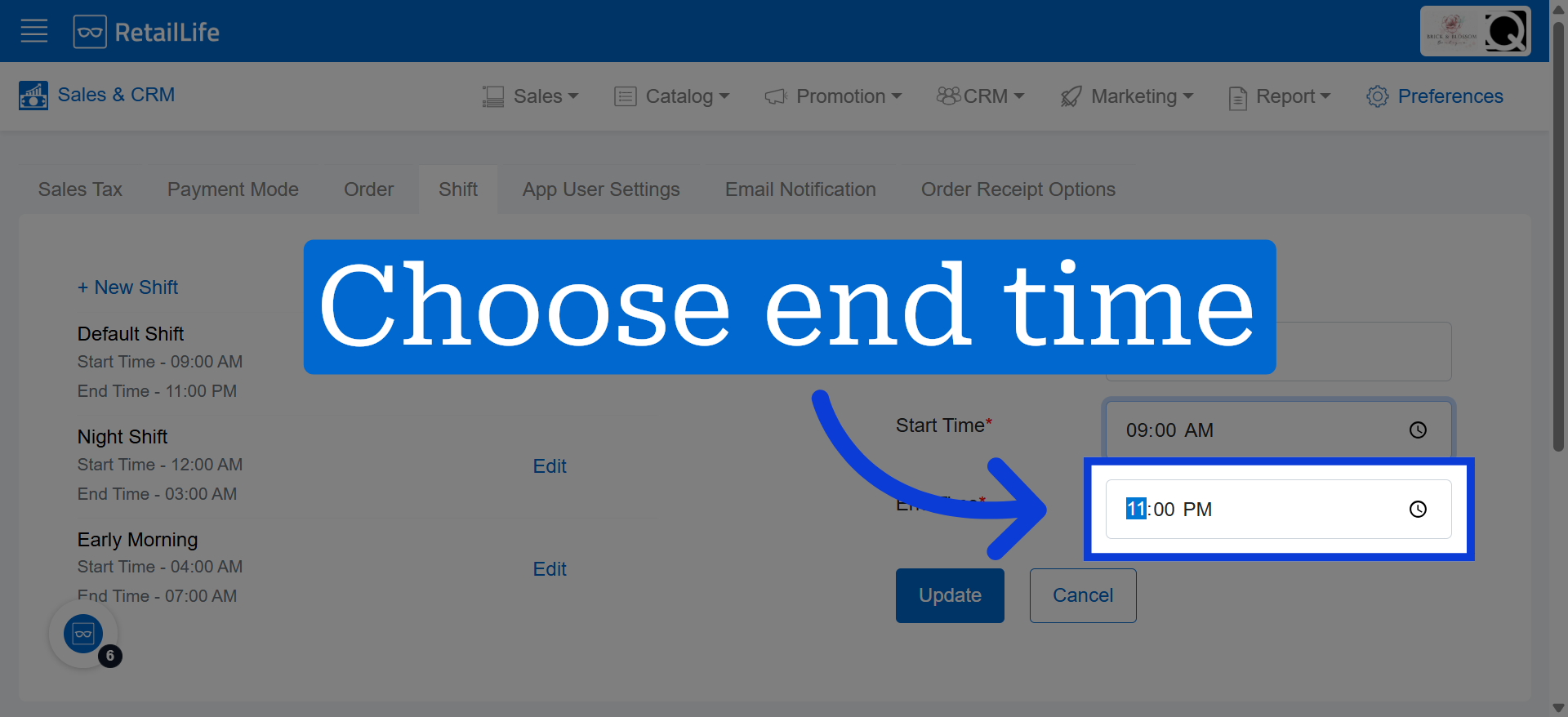
6. Set Shift End Time
Set an ending time according to your business.
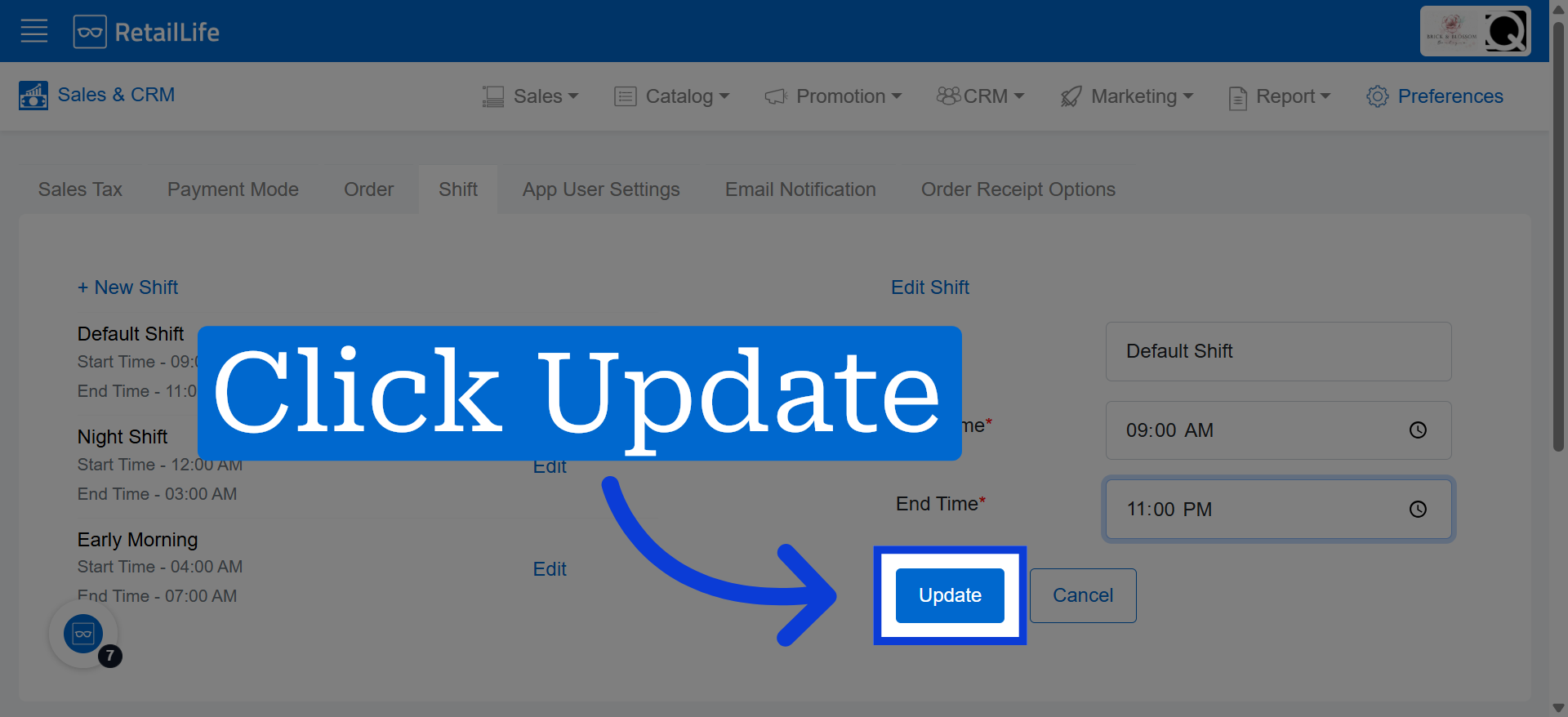
7. Save Shift Updates
Click "Update" to save the changes made to the shift timings and details.
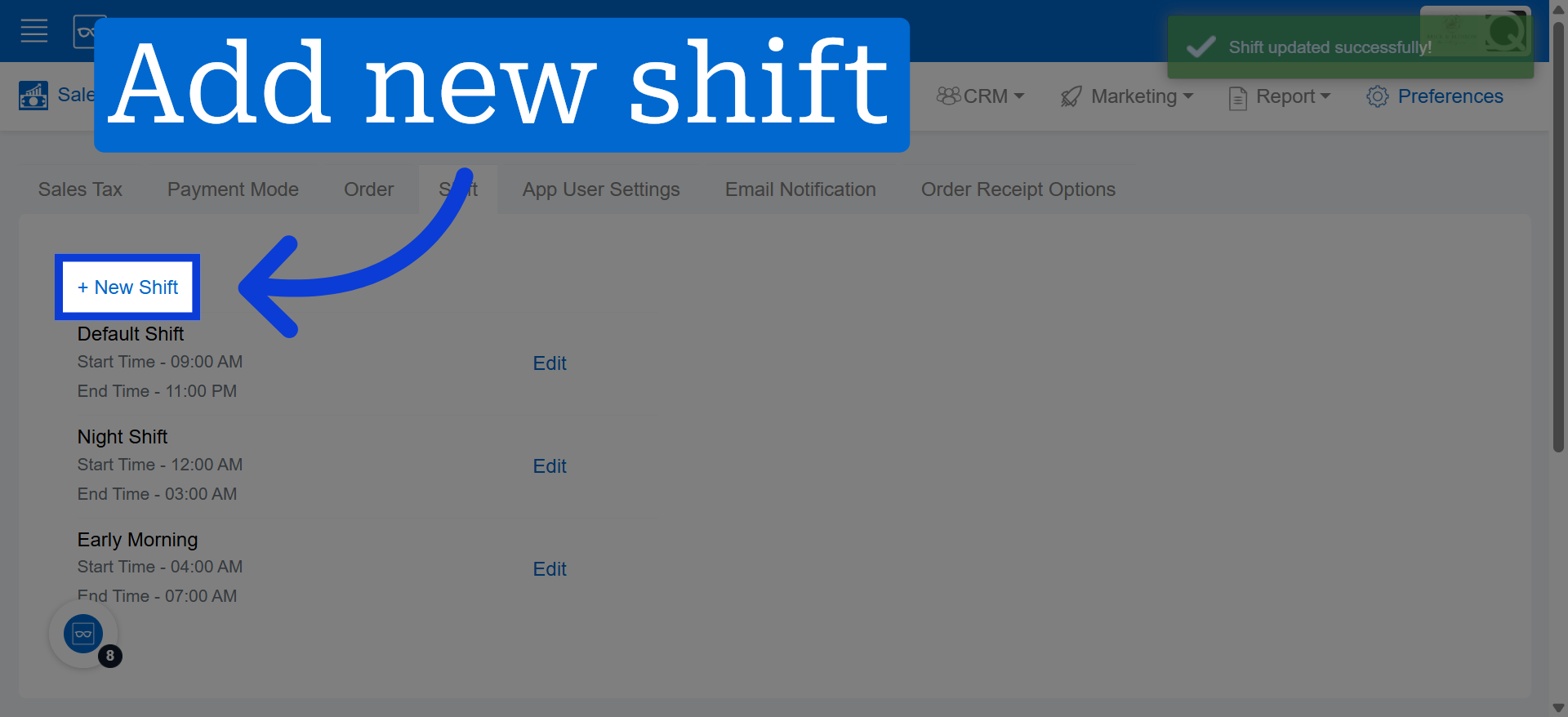
8. For Multiple Shift Creation
Click "+ New Shift" to start creating a new shift entry in the system.
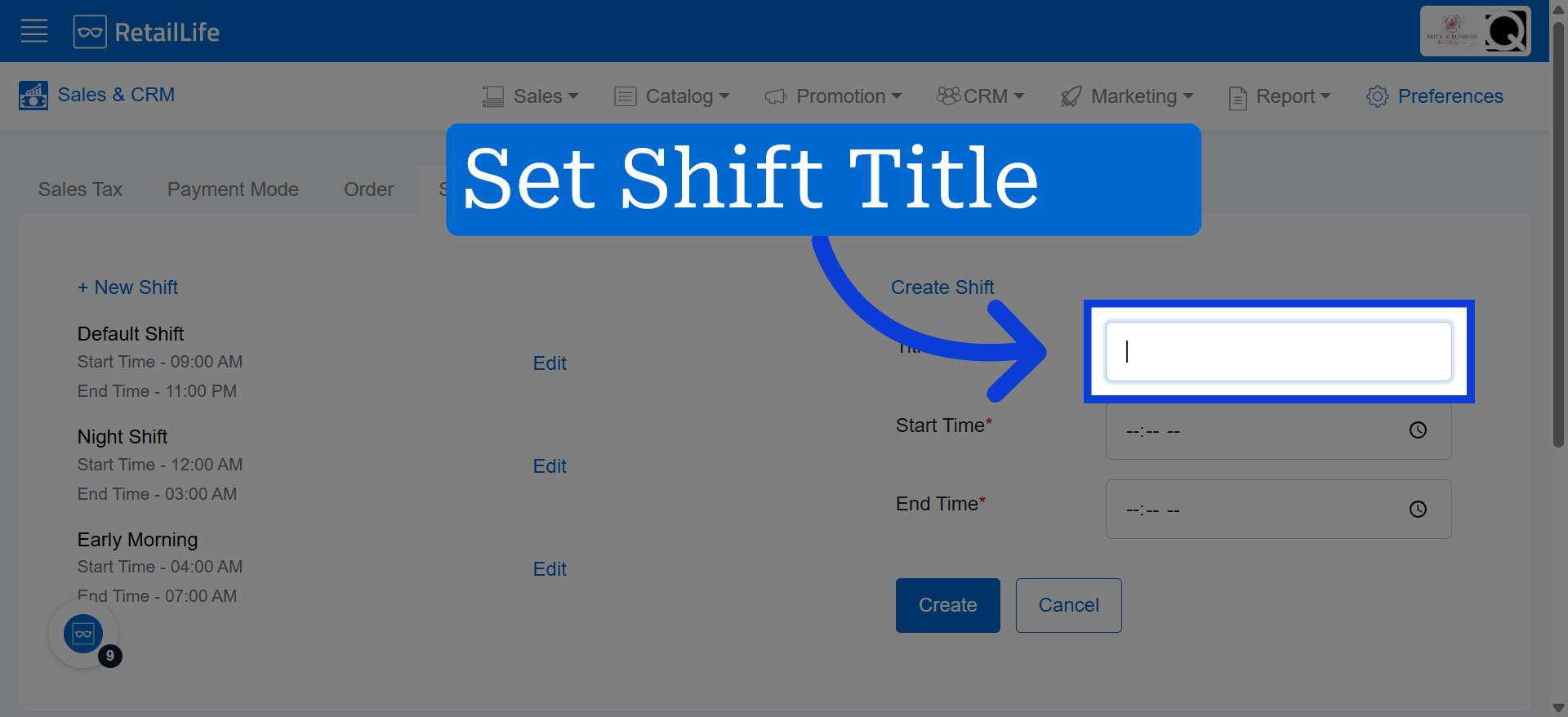
9. Open Shift Name Field
Click here to focus on the field where you will enter the new shift's name.
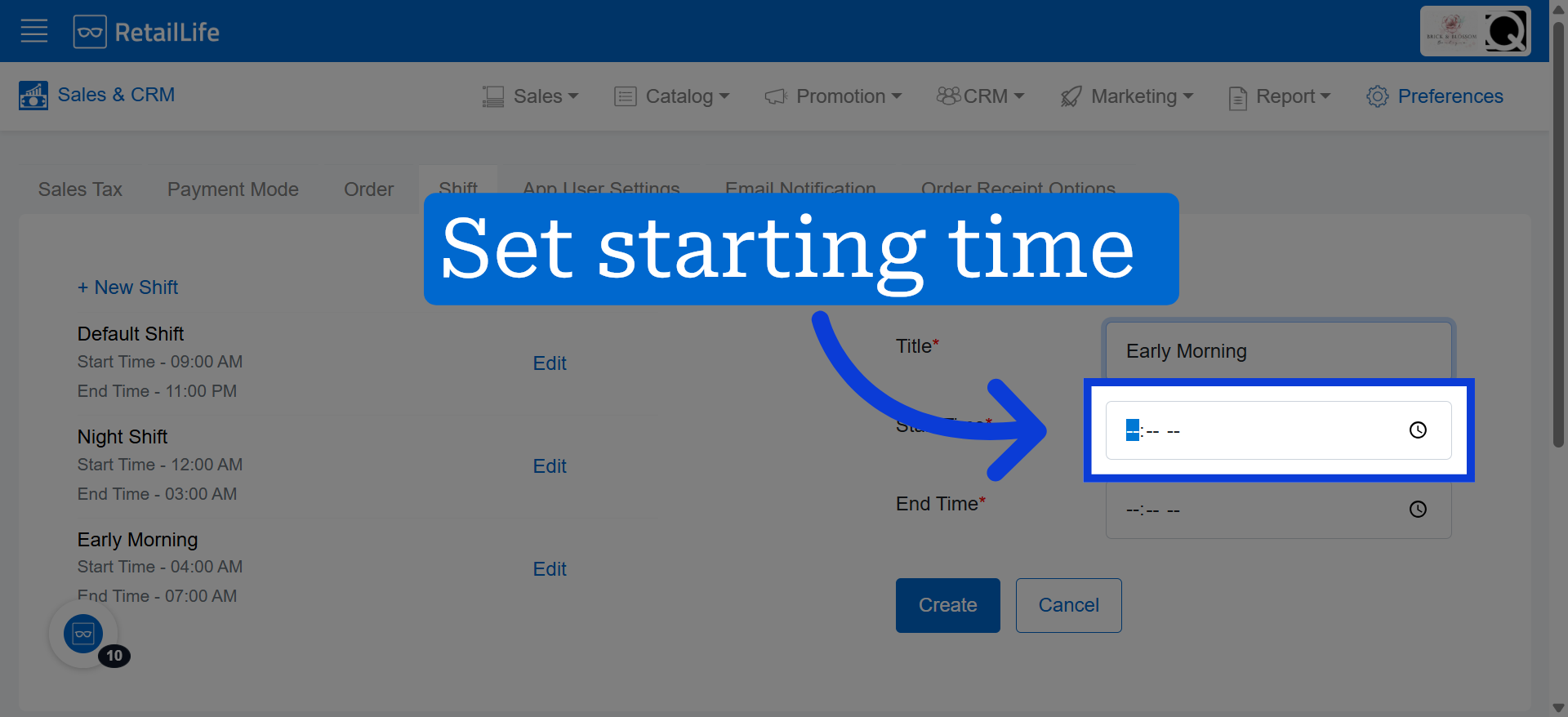
10. Open Shift Start Time Selector
Click here to select the start time for the new shift you are creating.
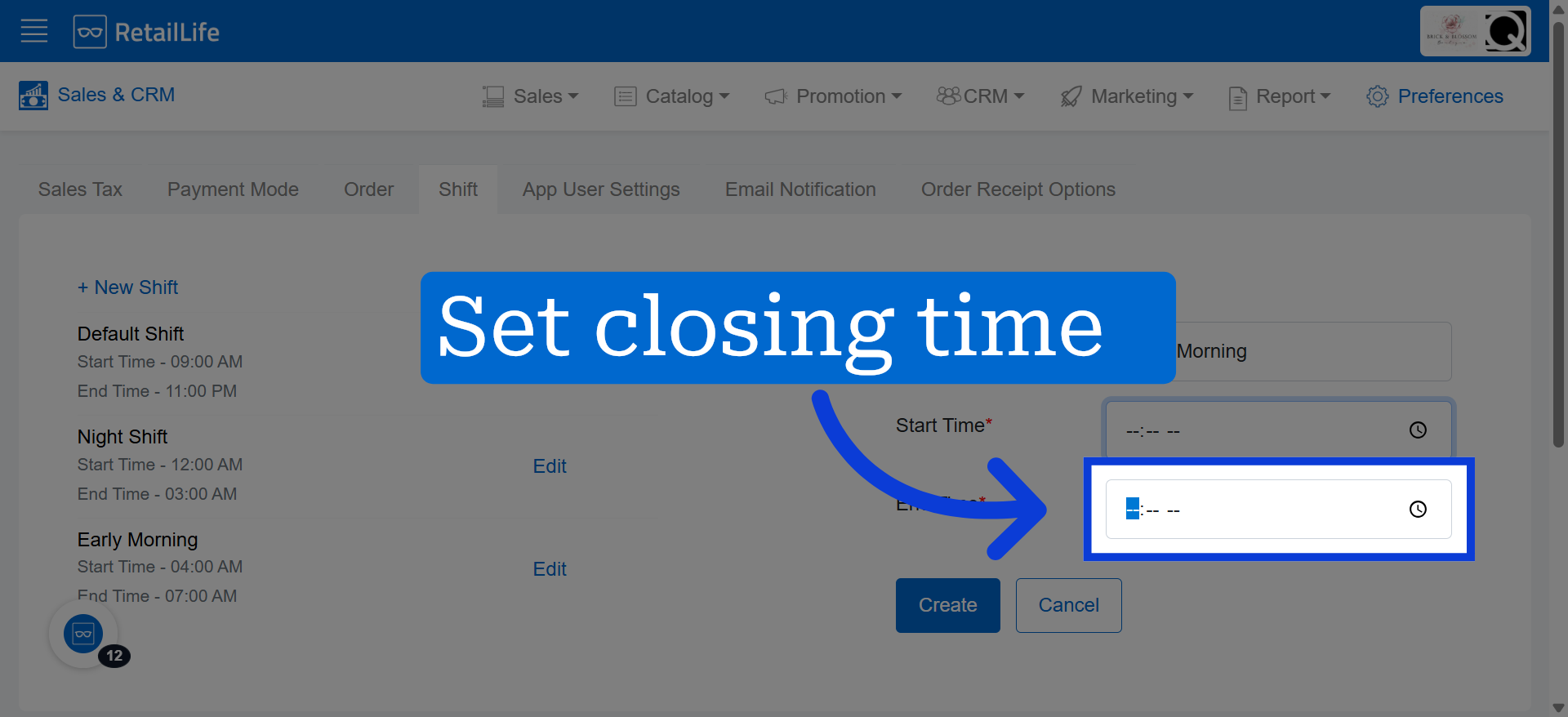
11. Open Shift End Time Selector
Click here to choose the end time for the new shift schedule.
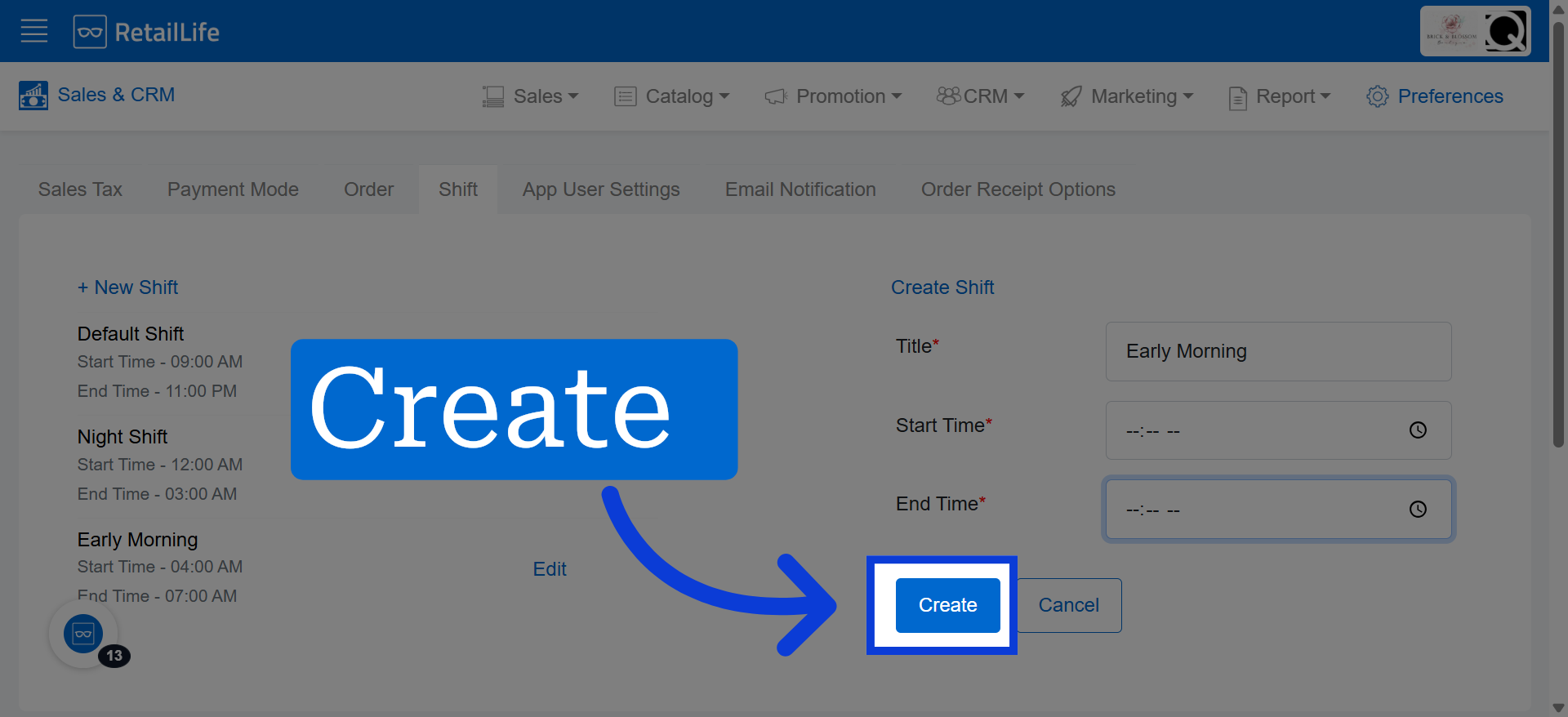
12. Finalize Shift Creation
Click "Create" to complete the creation of the new shift.