How to Reopen a Shift I Have Closed Mistakenly in RetailLife Business Portal
In this tutorial, you will learn how to reopen a shift that was accidentally closed. Reopening a shift
allows you to continue processing transactions, make necessary corrections, and ensure your shift
records remain accurate.
Go to
retaillife.quicklyservices.com
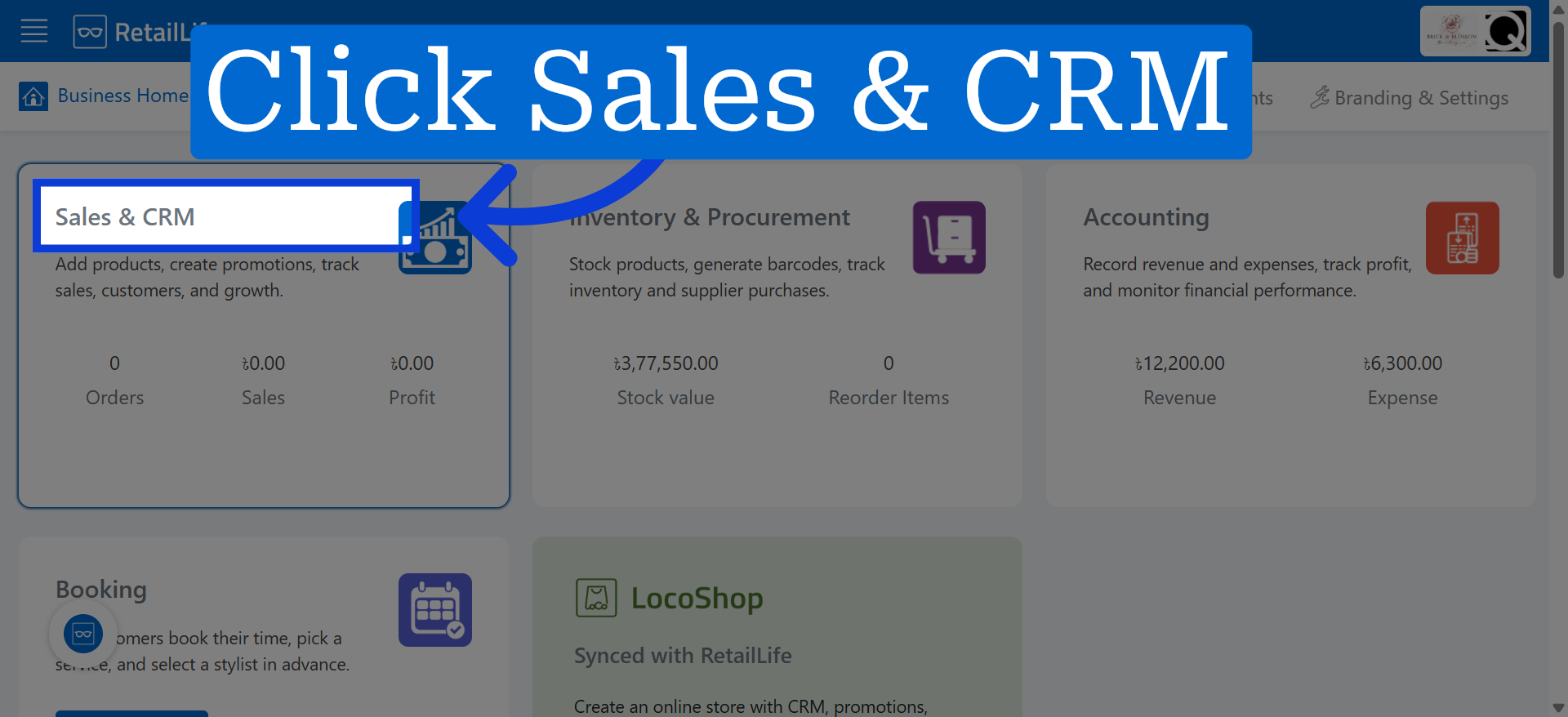
1. Access Sales & CRM Section
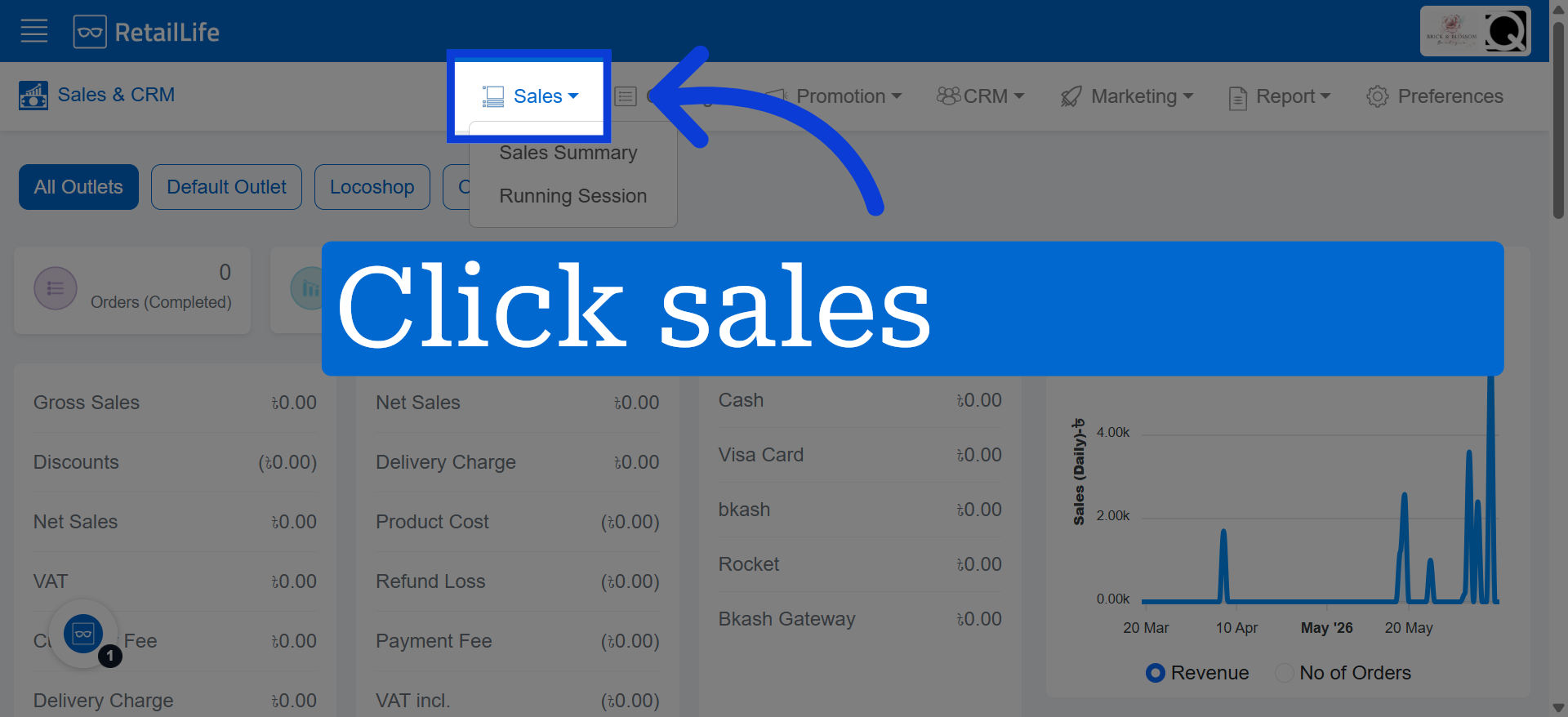
2. Click on Sales in the navigation menu
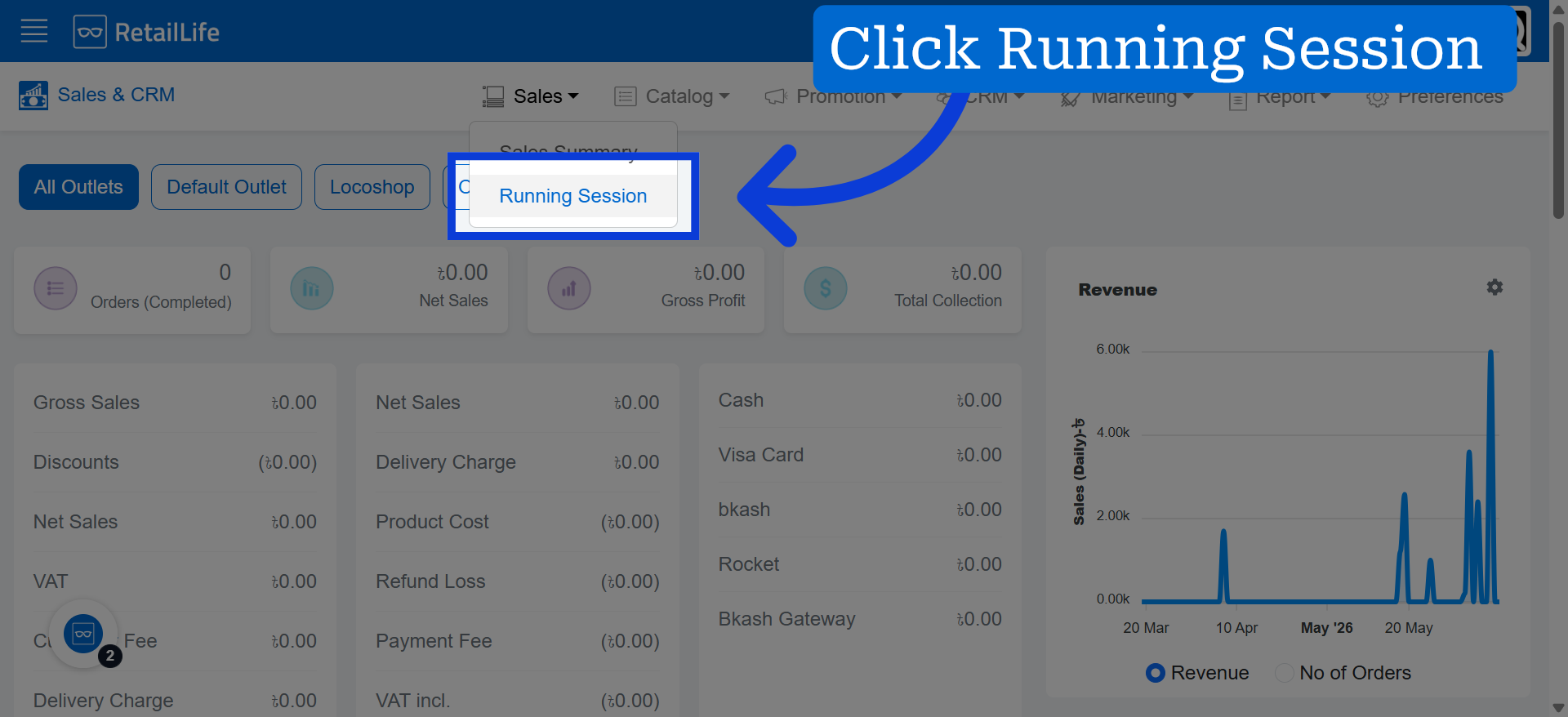
3. Select Running Session
Click "Running Session" to view and manage your current active business sessions.
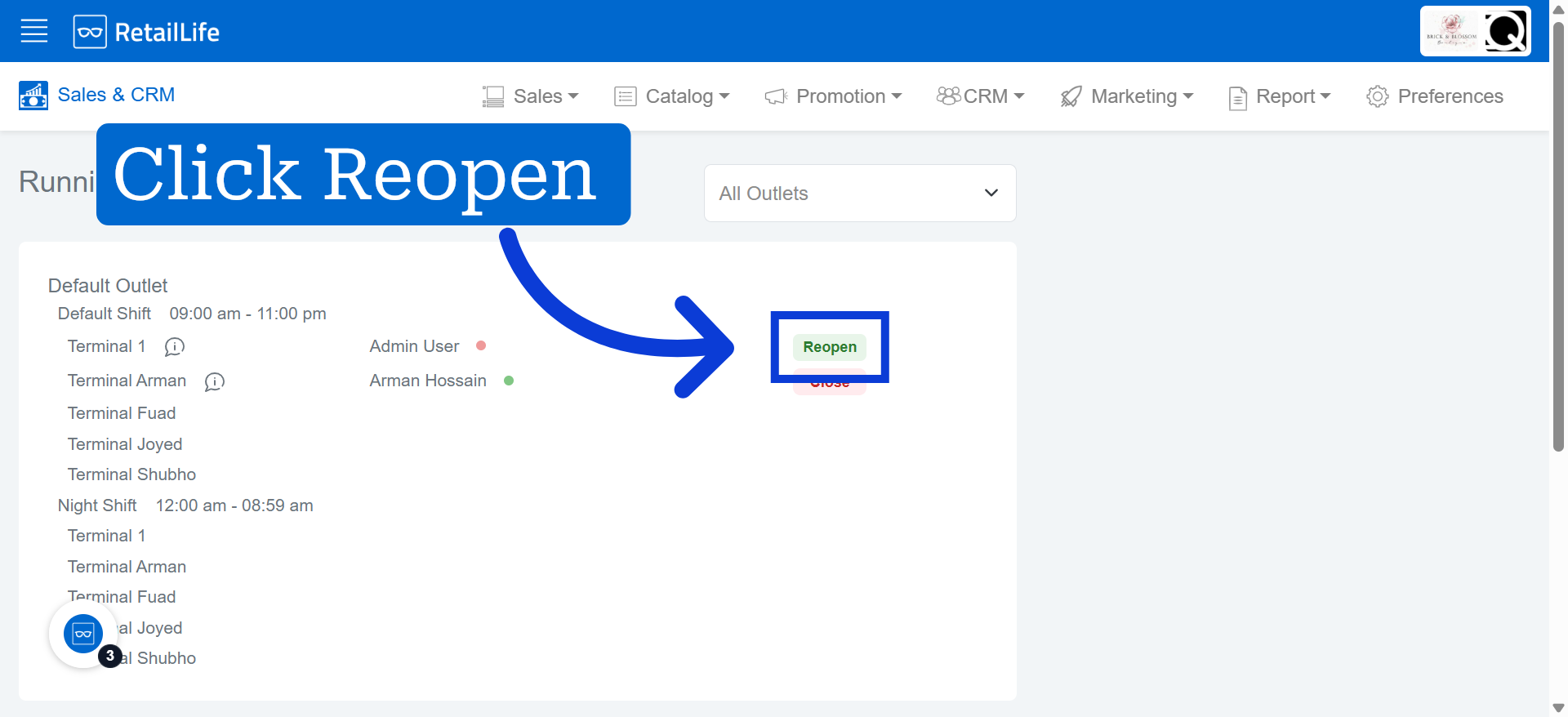
4. Reopen Selected Session
Click "Reopen" to reactivate a previously closed session for further management or review.
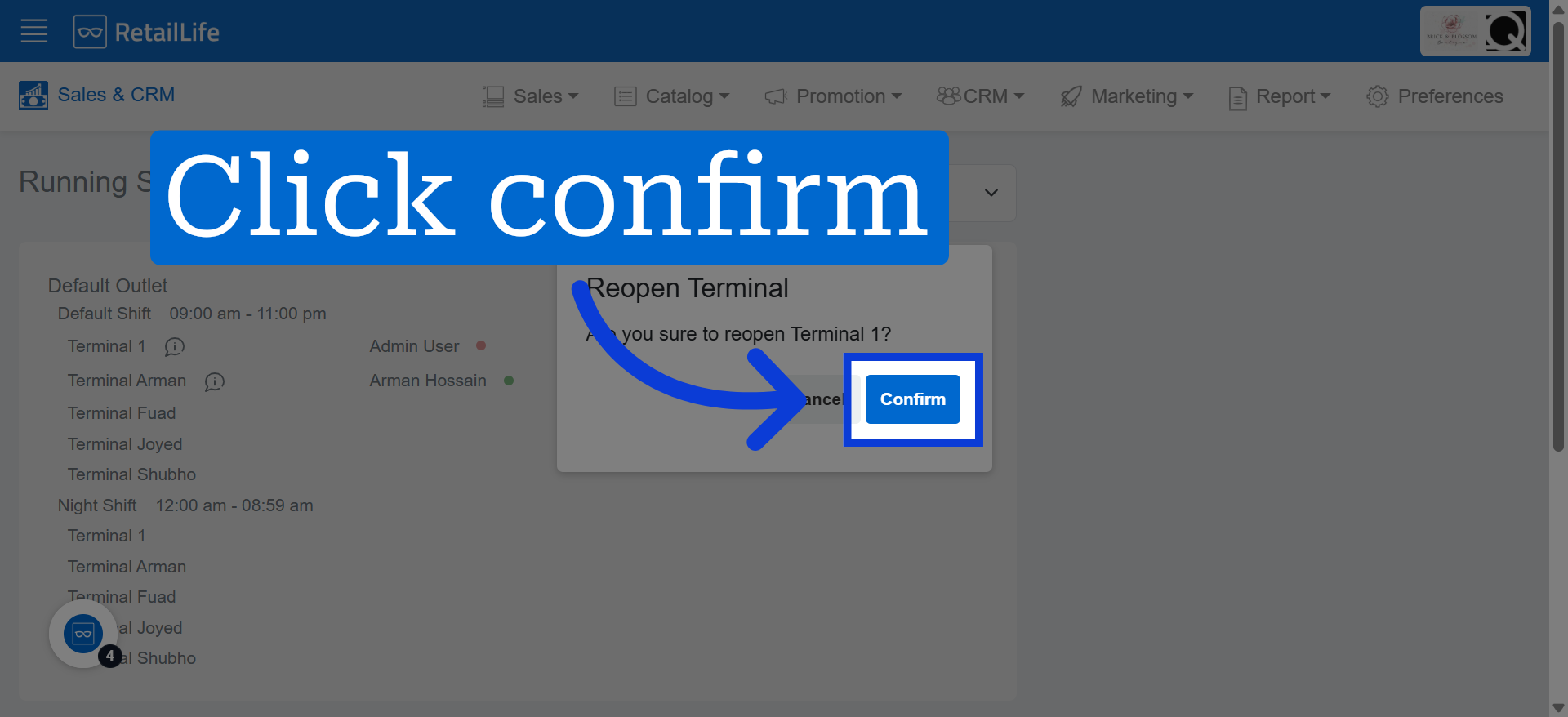
5. Confirm Session Reopening
Click "confirm" to finalize reopening the running session. Confirming ensures that the session is properly reactivated and ready for use.