How to Configure Delivery Settings in LocoShop Business Portal
This tutorial guides you through configuring delivery settings in the LocoShop Business Portal.
By selecting the districts where you provide delivery, you can ensure shoppers can place orders
only from locations within your service area, helping you manage deliveries efficiently and avoid
orders you cannot fulfill.
Go to
locoshop.quicklyservices.com
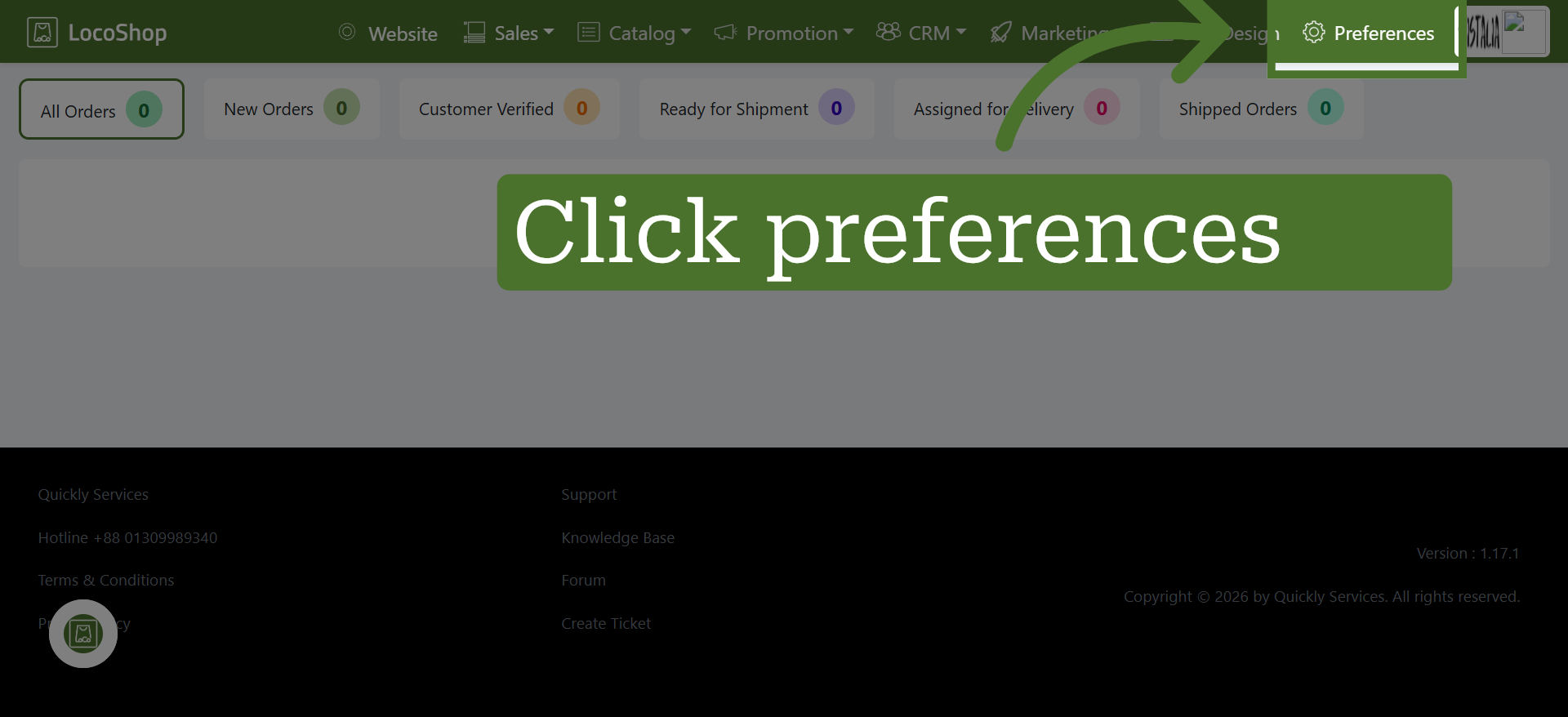
1. Go to Preferences
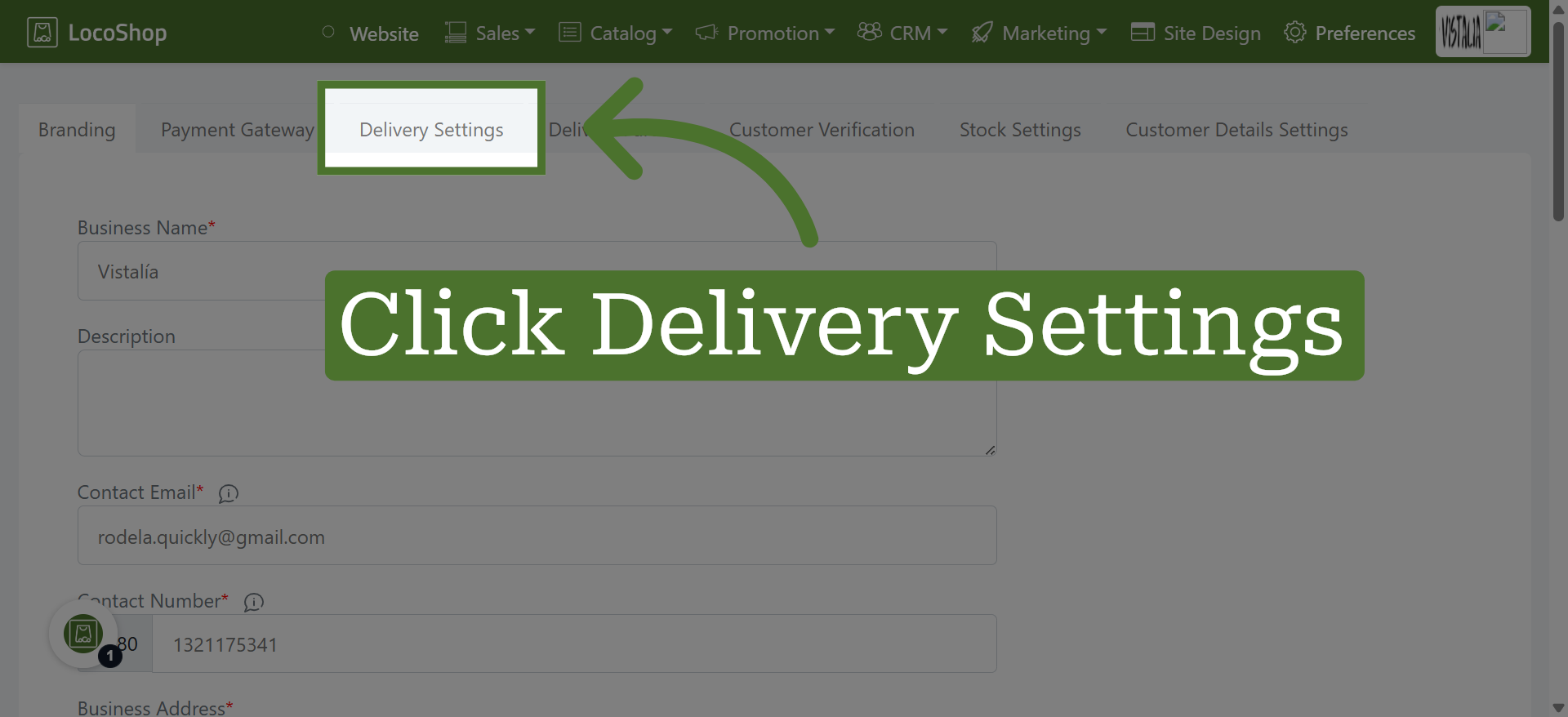
2. Open Delivery Settings Section
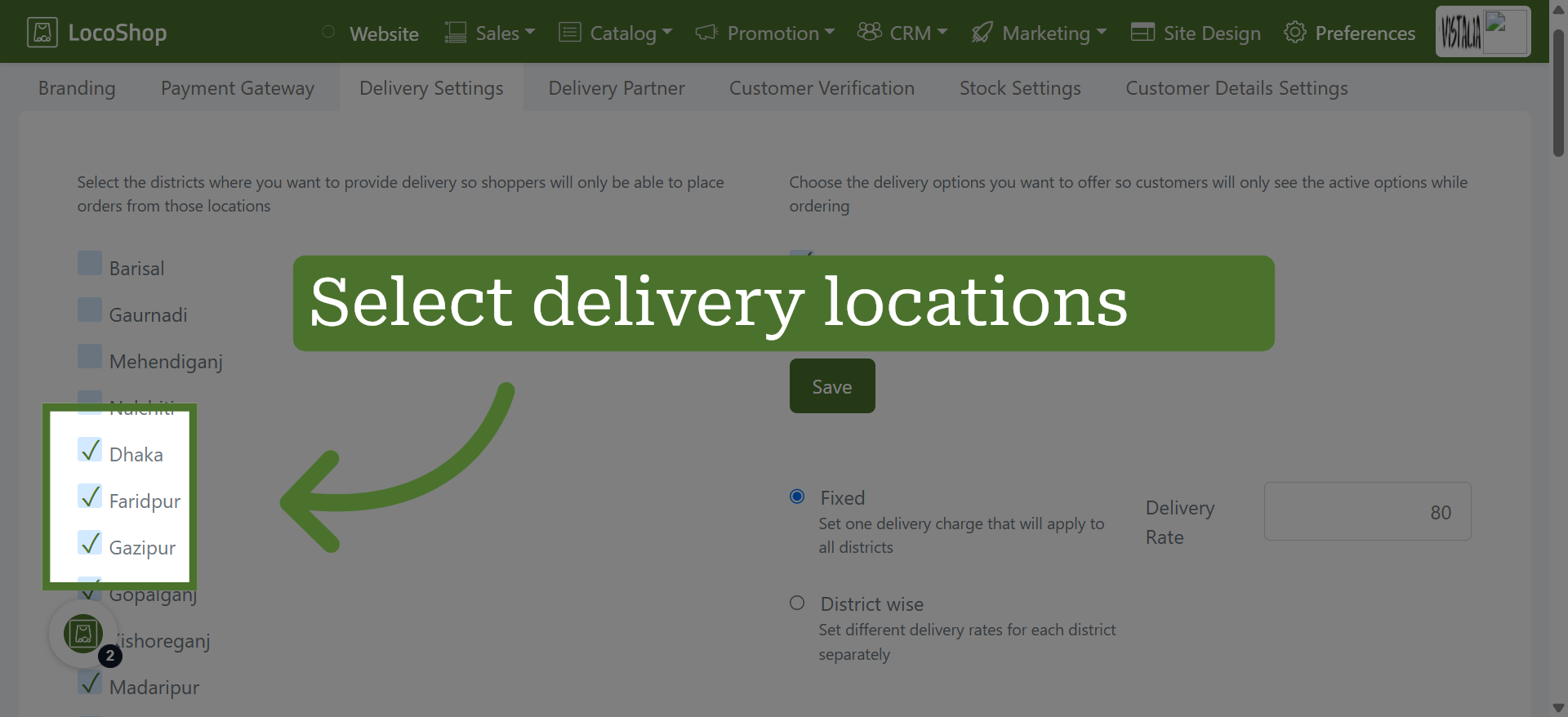
3. Select Delivery Location
Choose the districts where you want to offer delivery.
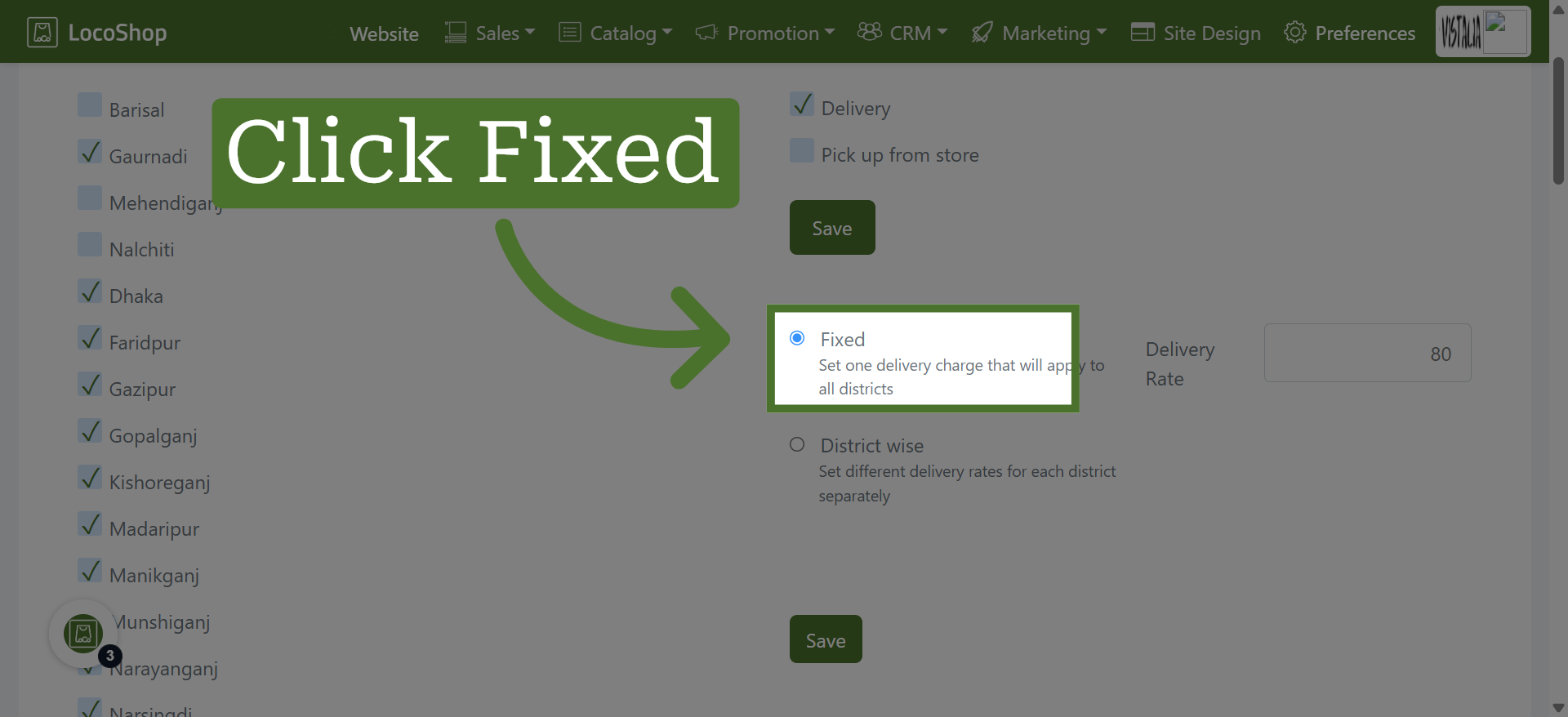
4. For Fixed Delivery Charge
Click "Fixed" to select the fixed delivery type option. Set a fixed delivery charge by entering the amount you want to charge for each delivery within your selected delivery locations.
5. Set Delivery Charge
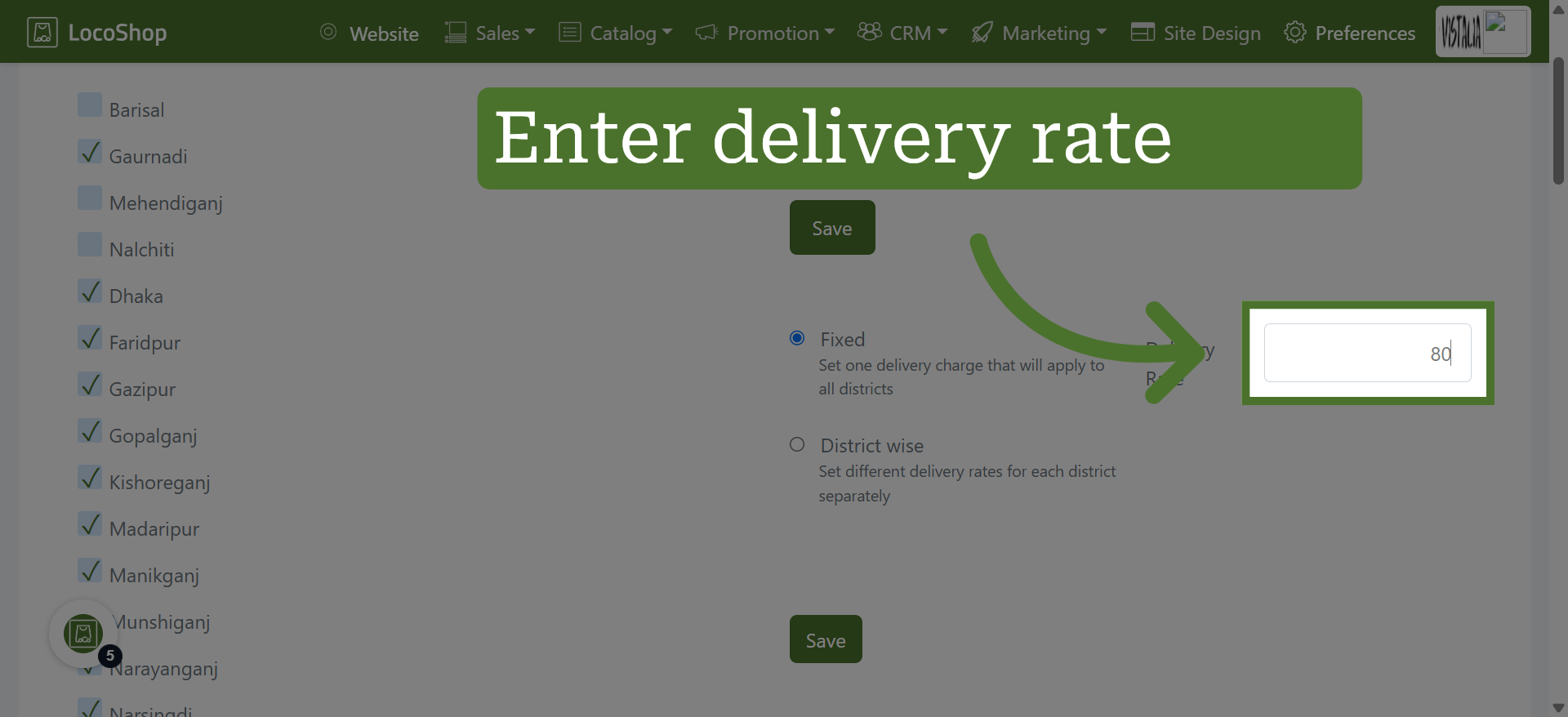
Click Delivery Rate to specify the fixed delivery charge for each delivery.
6. Select Delivery Method
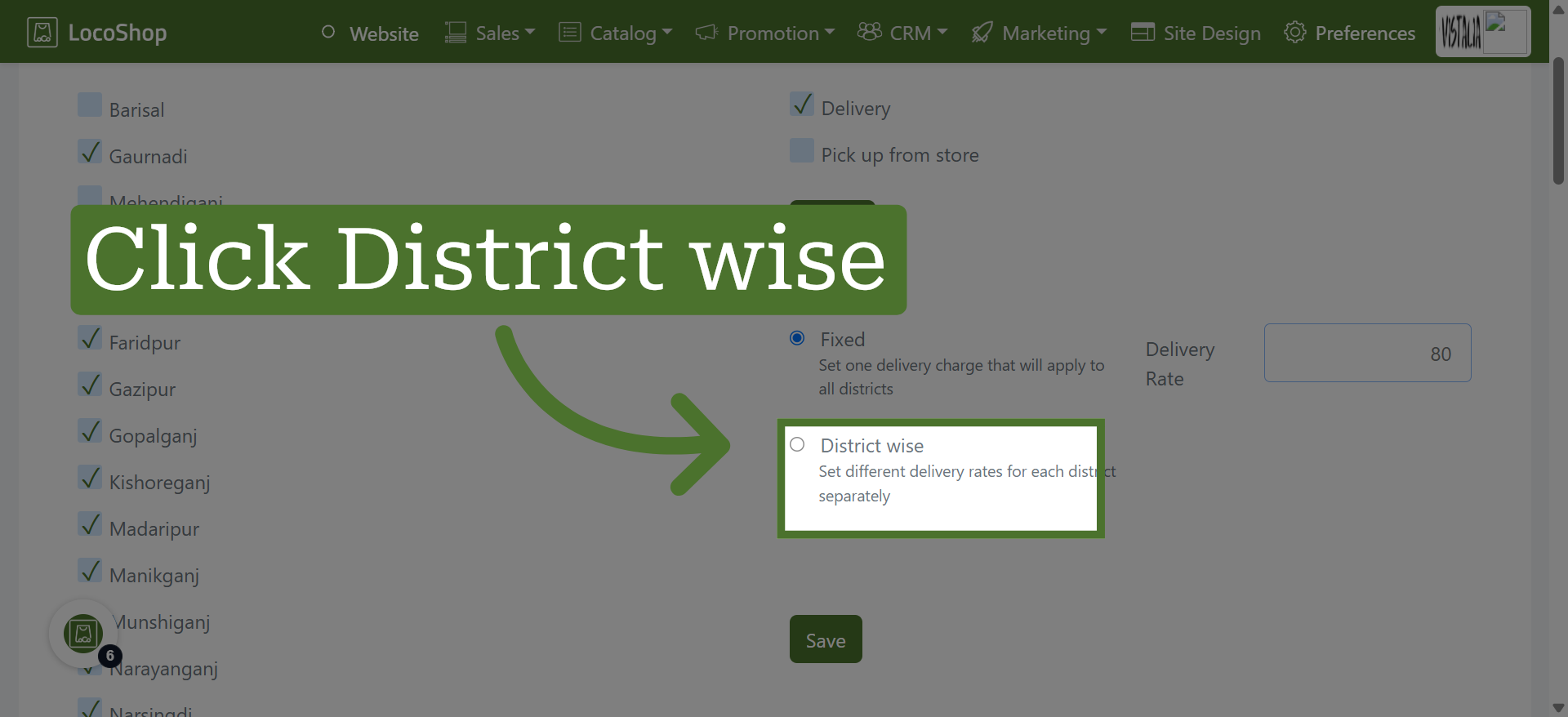
Click "District wise" to apply delivery settings based on districts.
7. Set Delivery Rates by Location
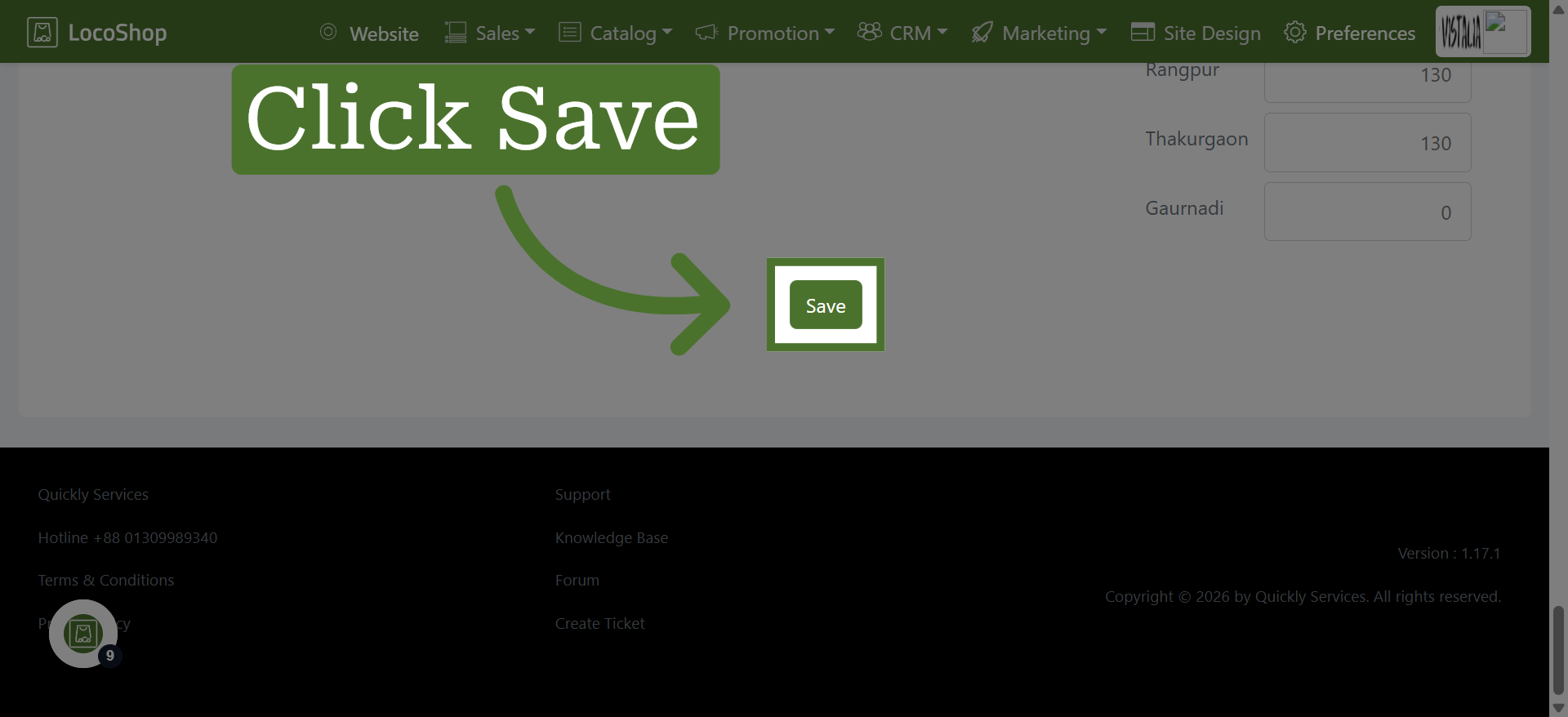
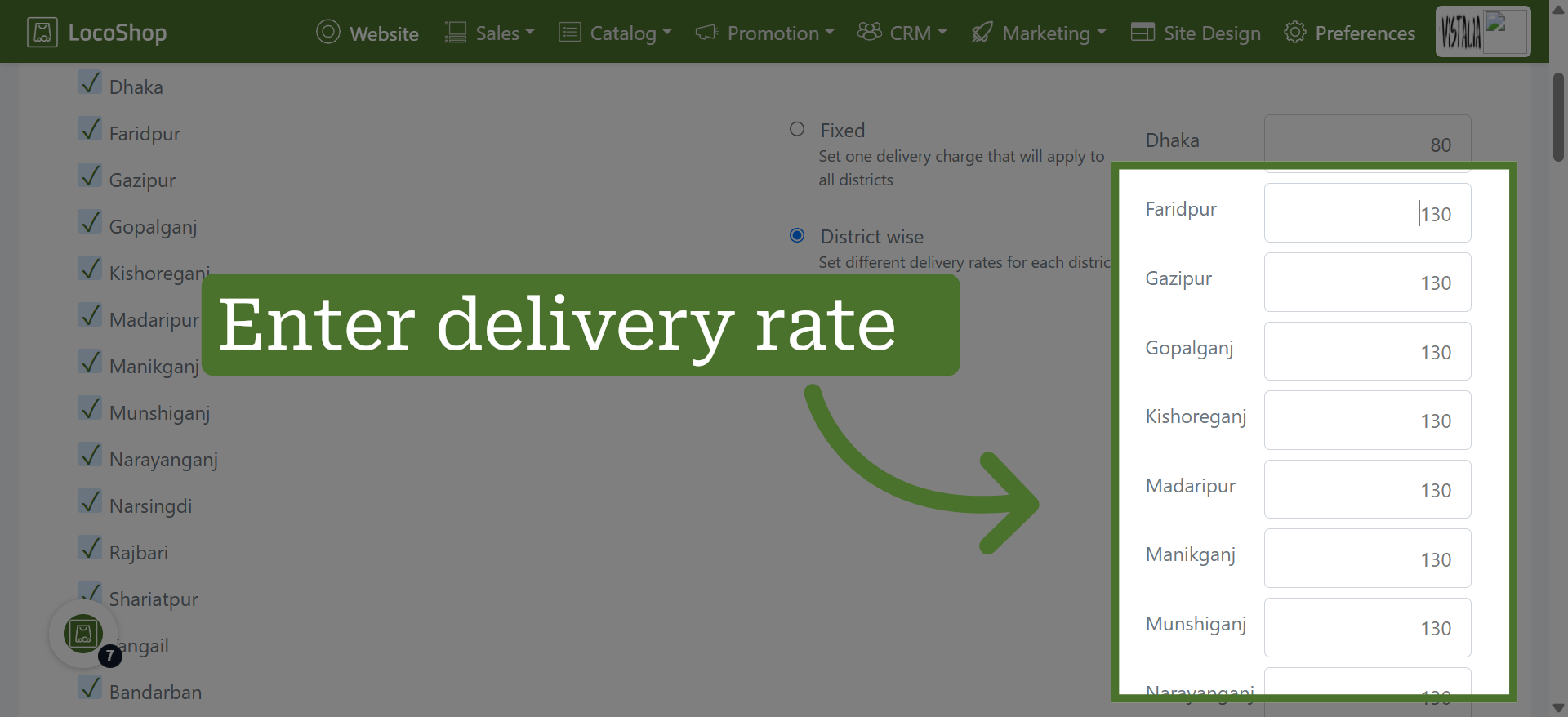
Set different delivery charges for each selected location based on your delivery rates, ensuring the appropriate fee is applied to orders from each area.
8. Save Delivery Settings