How to Process New Orders in LocoShop Business Portal
This tutorial guides you through processing a new order received from your LocoShop website and
updating the order status accordingly in the Business Portal.
Go to
locoshop.quicklyservices.com
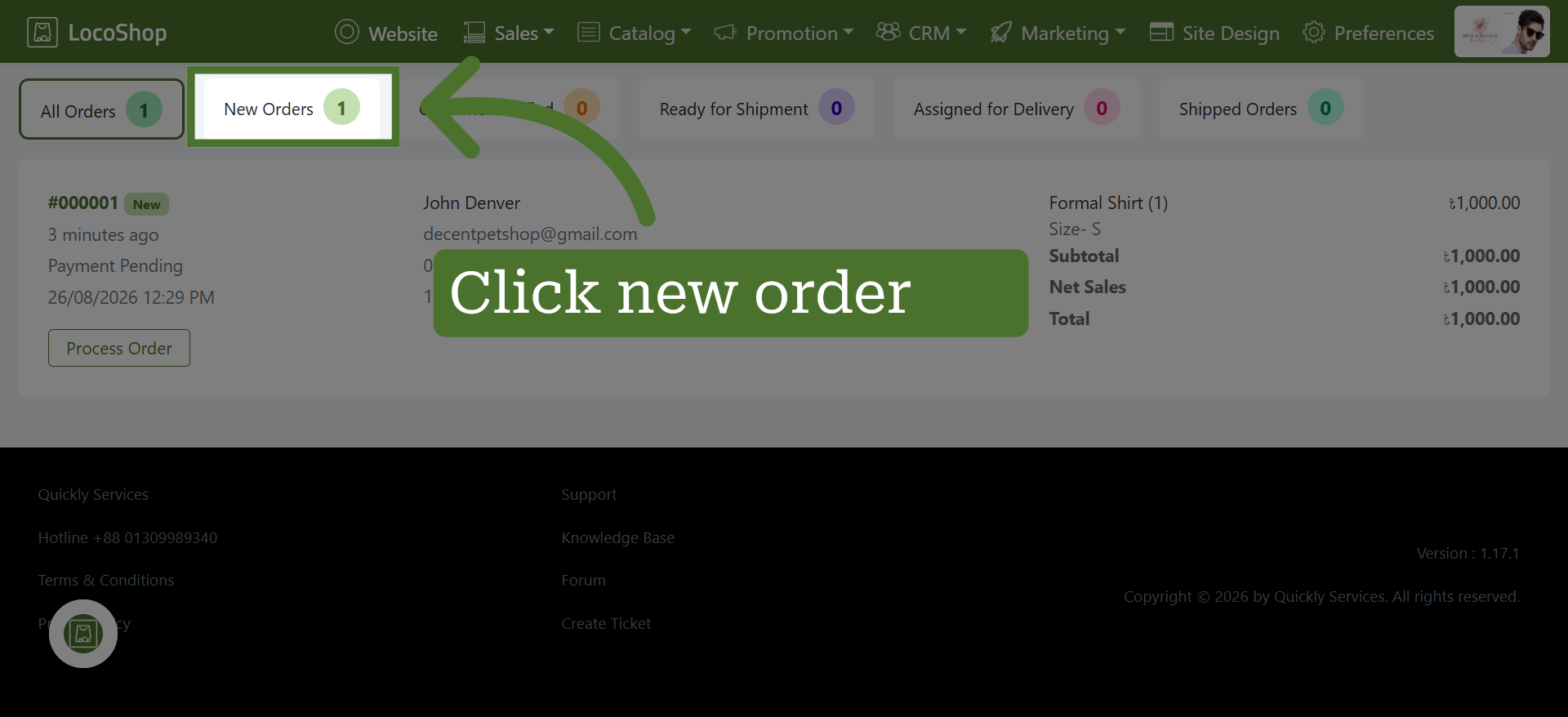
1. Go to New Orders
2. Open Process Order Section
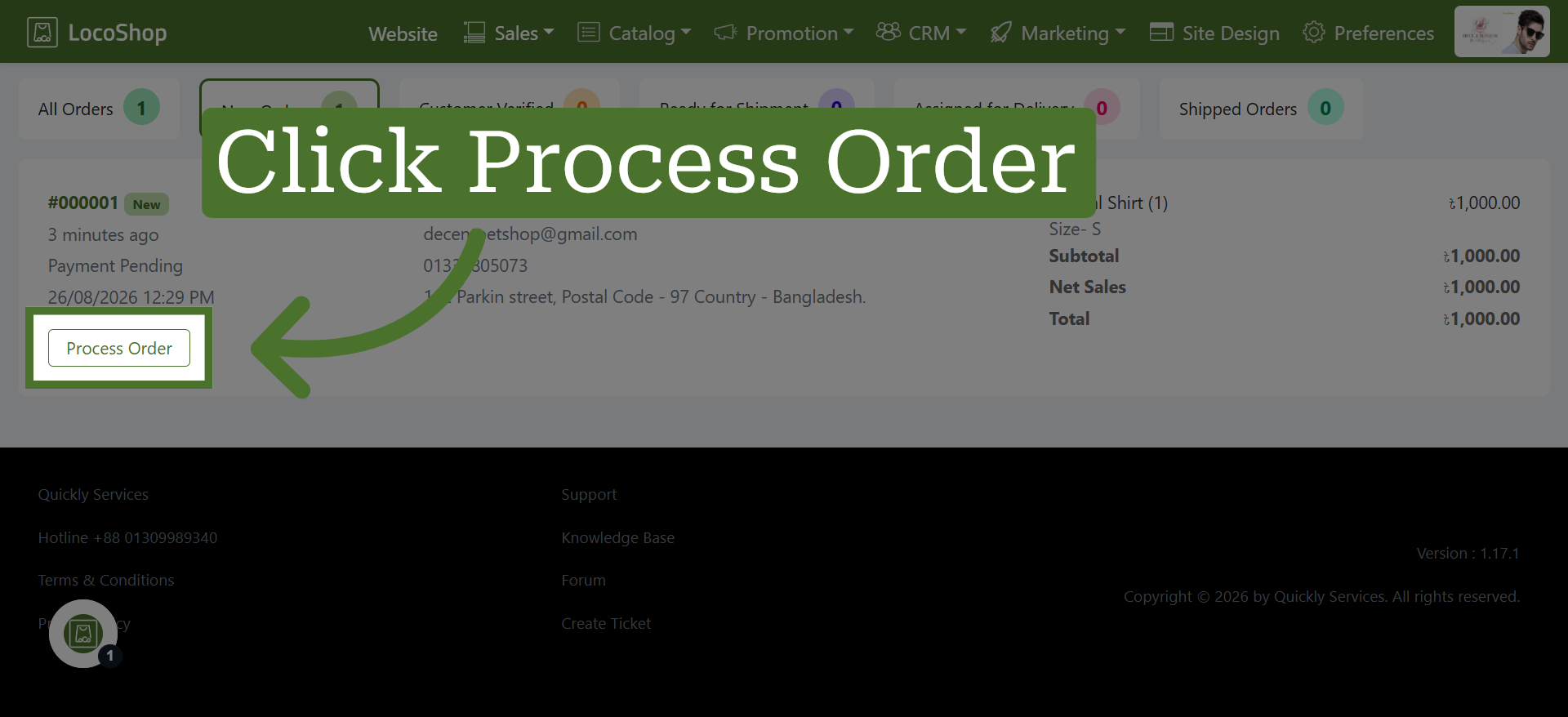
Choose the order you want to process and click “Process Order” to proceed with the order details.
3. Customer Verification by Call
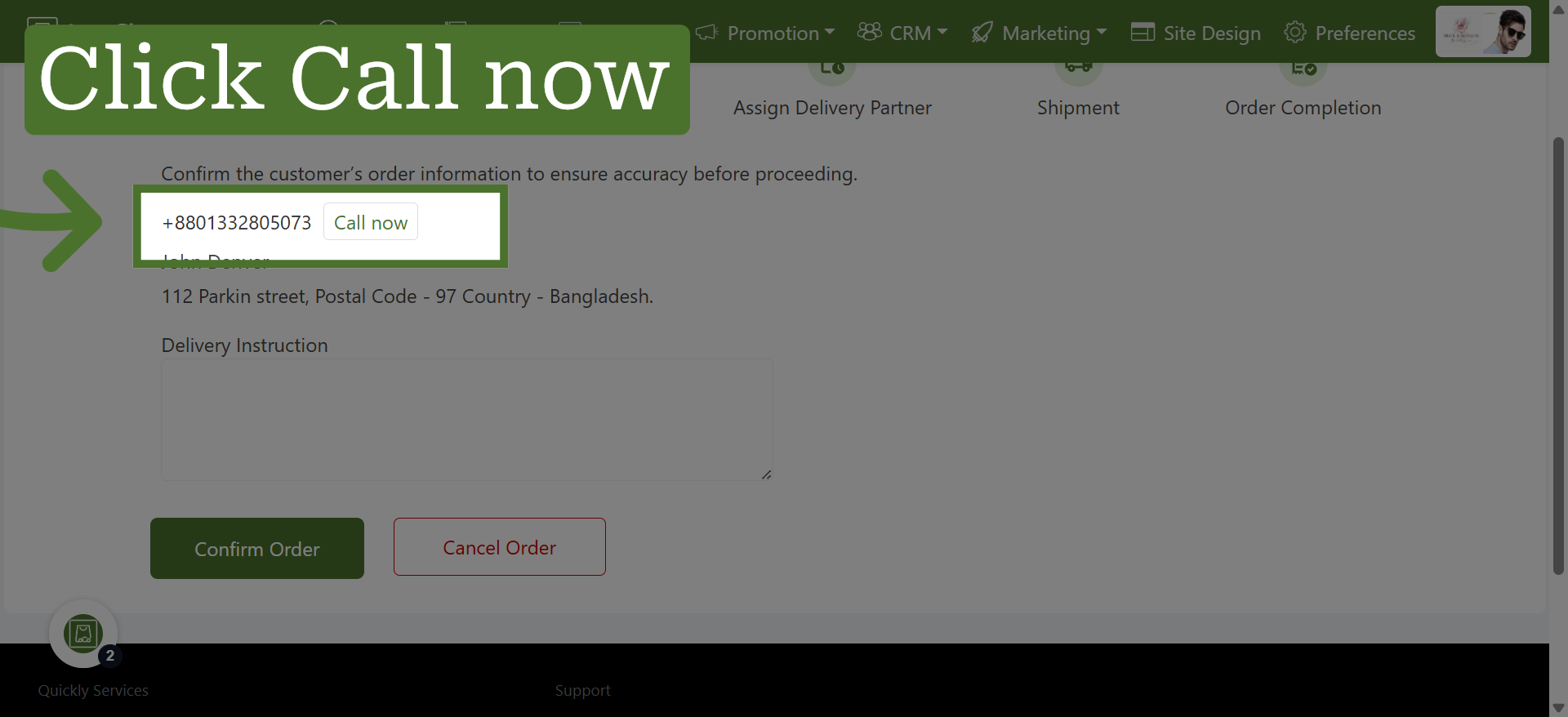
Verify customer details using the “Call Now” option to confirm orders and reduce incorrect or fraudulent orders.
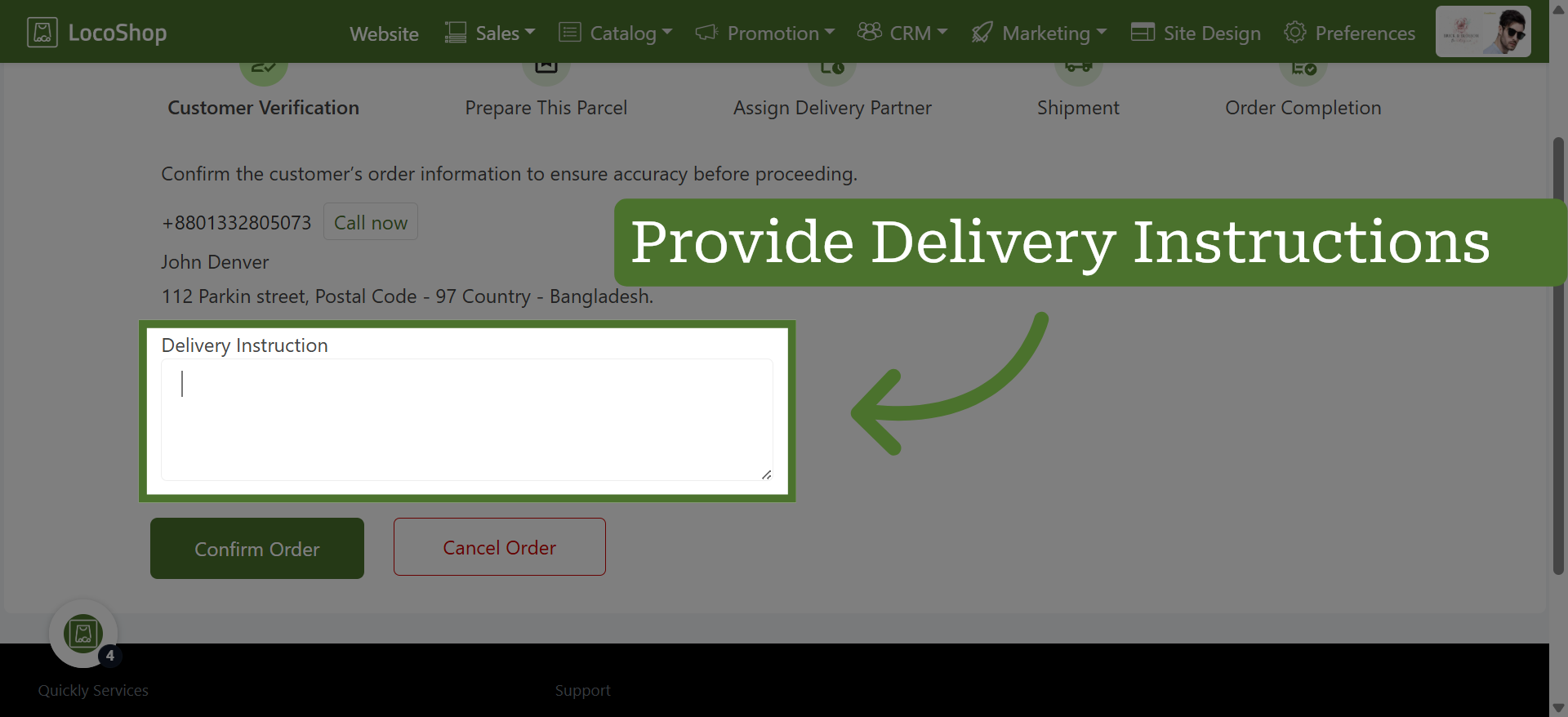
4. Provide Delivery Instructions
Add specific delivery instructions to help ensure the order is delivered correctly and according to the customer's requirements.
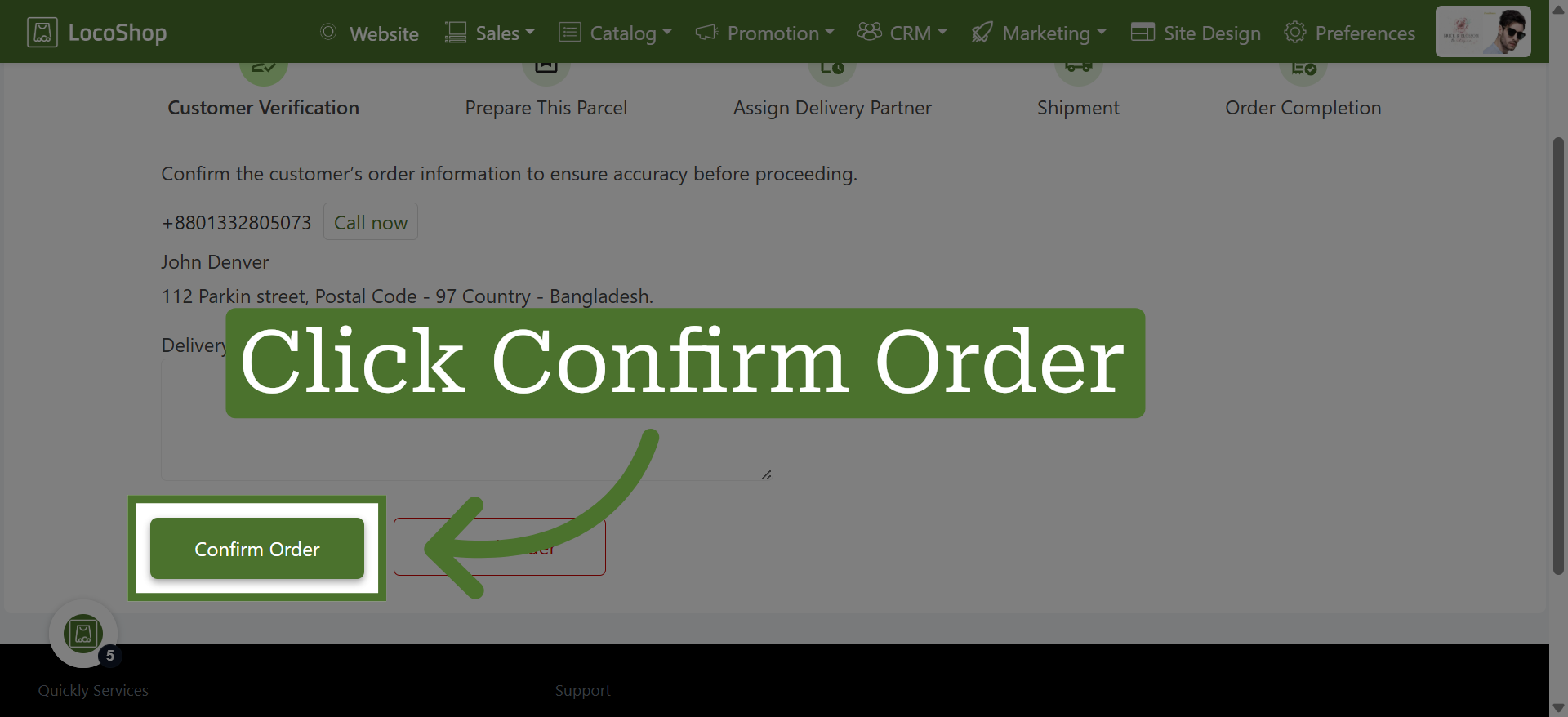
5. Confirm the Order
Click "Confirm Order" to finalize the order details.
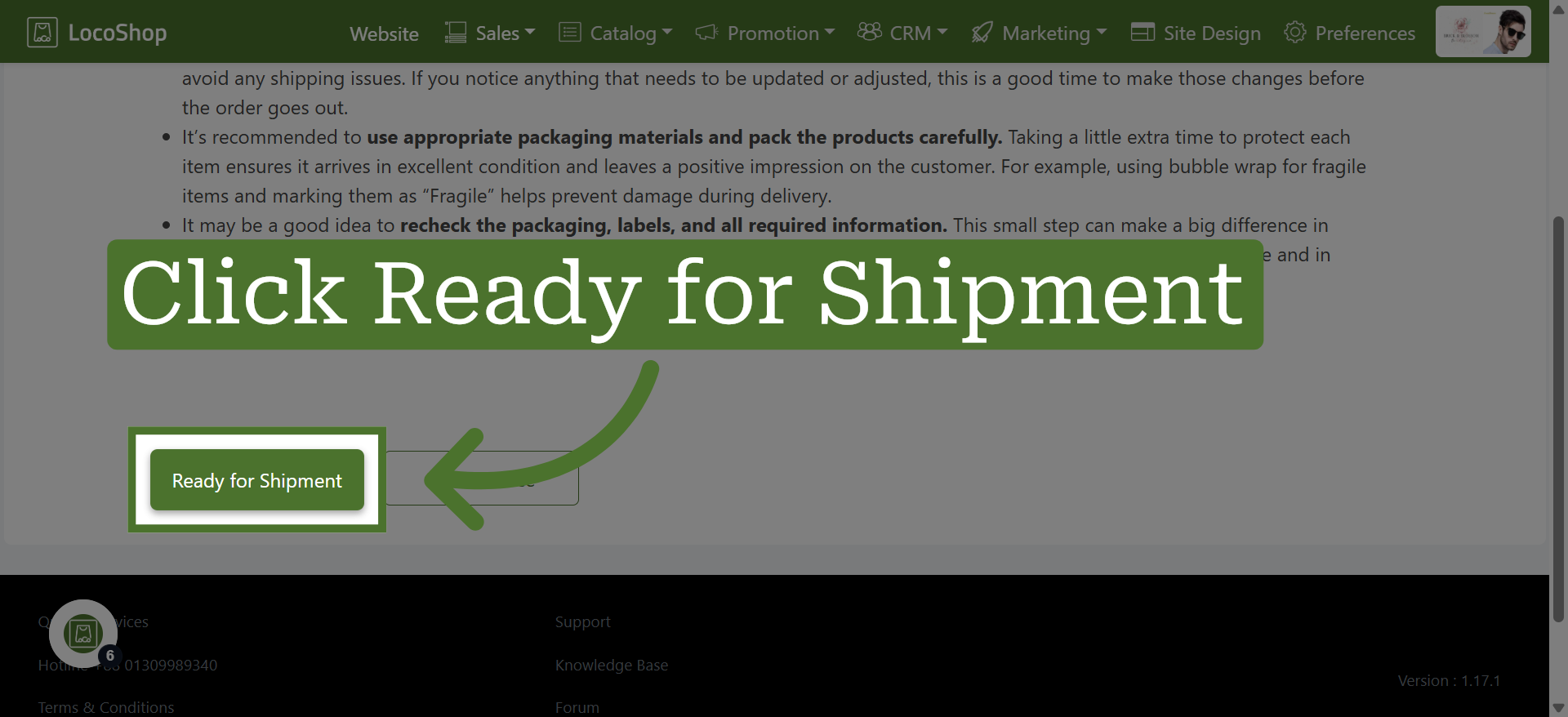
6. Mark Ready for Shipment
Click "Ready for Shipment" to update the order status accordingly.
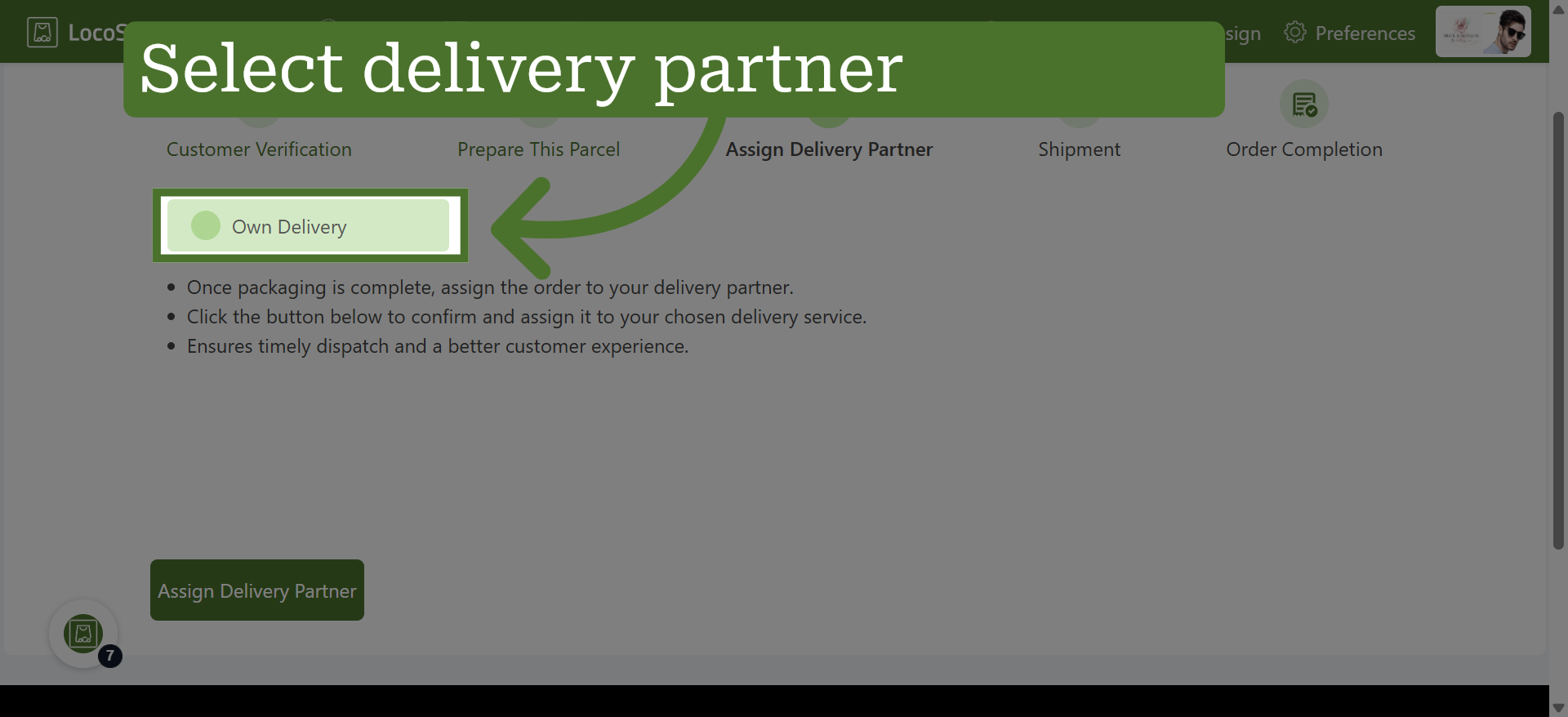
7. Choose Delivery Method
We have selected “Own Delivery” as an example. You can choose the delivery service that best suits your order from the available options in the portal.
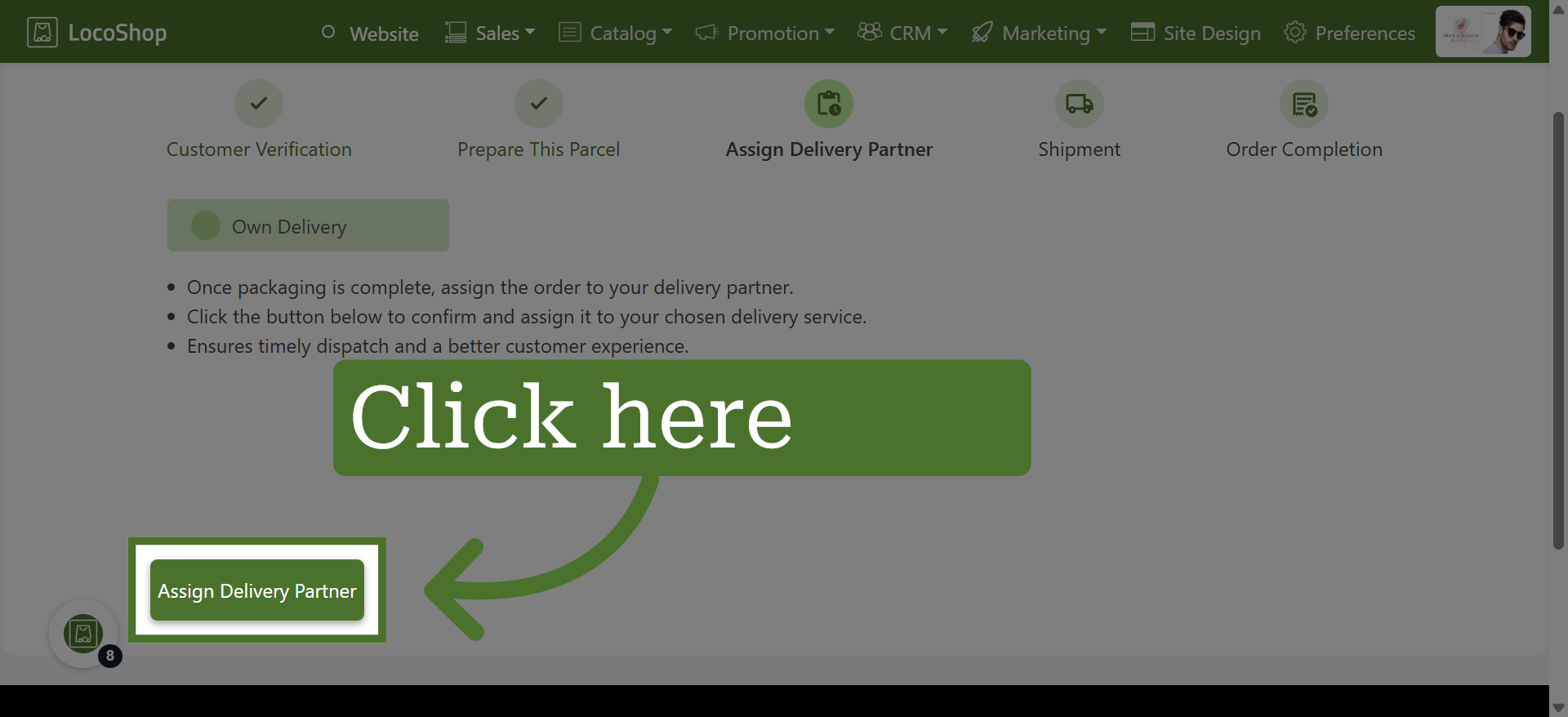
8. Assign Delivery Partner
Click "Assign Delivery Partner" to designate a delivery person for the shipment.
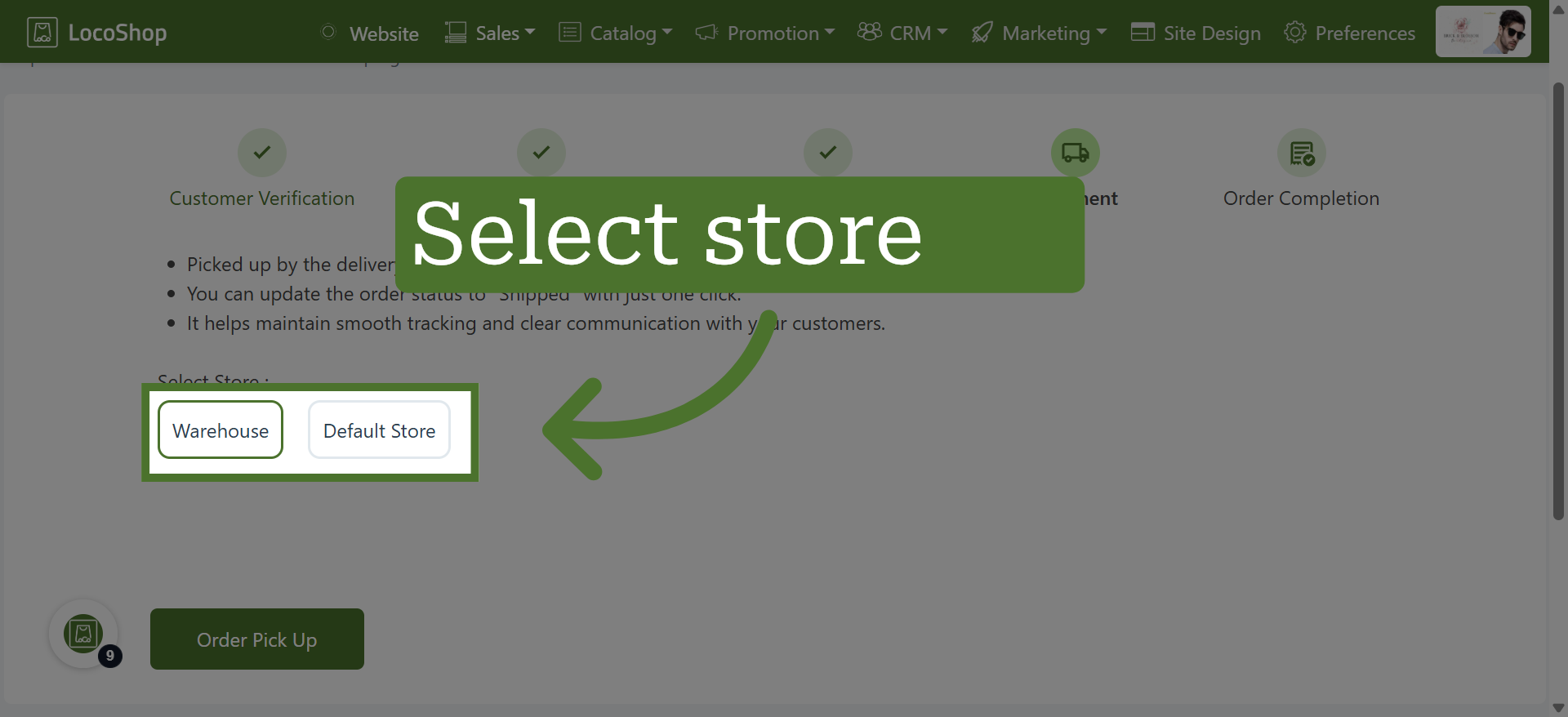
9. Select Store for Delivery
Select the store from which you want to deliver the product and proceed with the order.
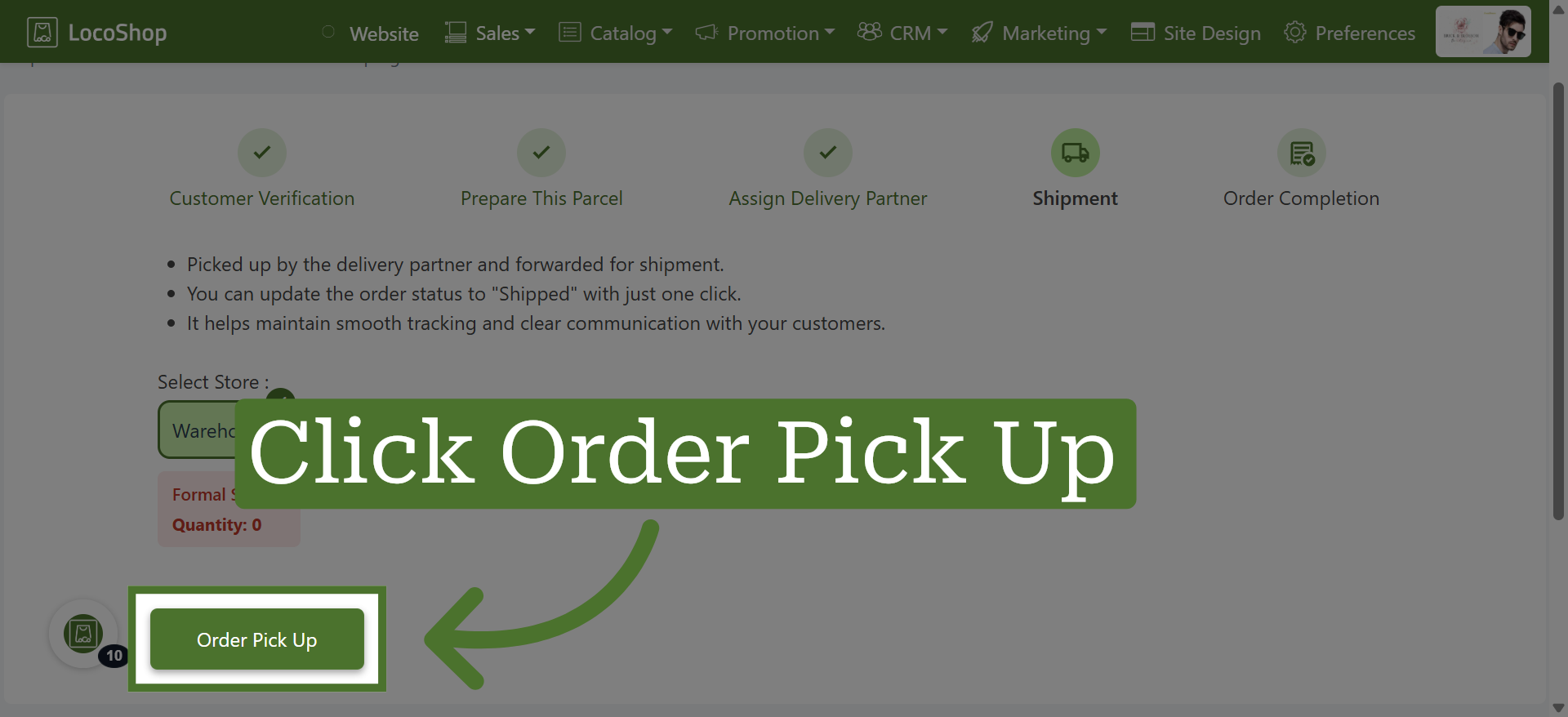
10. Schedule Order Pickup
Click "Order Pick Up" to arrange the pickup of the order from the store.
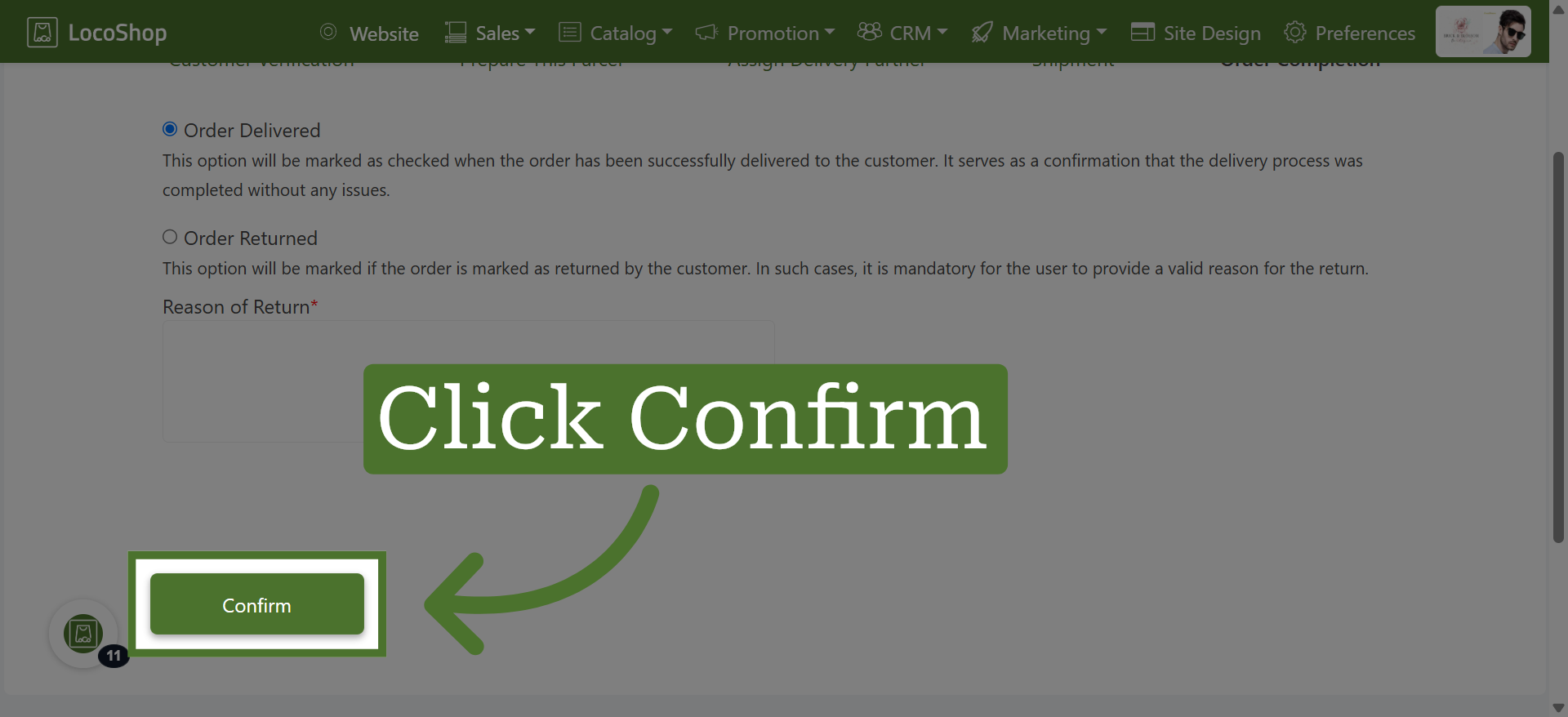
11. Confirm Pickup Details
Click "Confirm" to finalize the pickup arrangements.
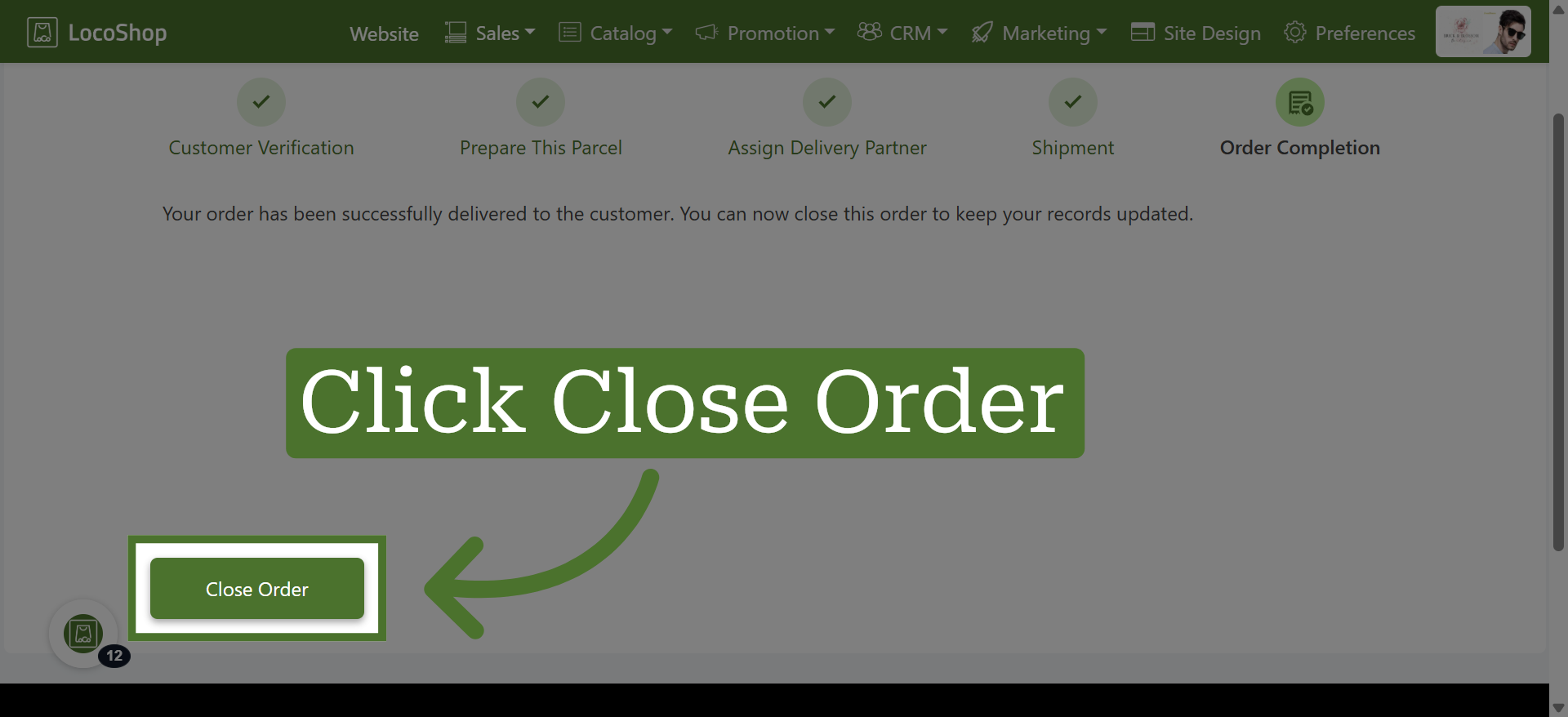
12. Close the Order
Click "Close Order" to complete the order processing workflow.