How to Configure Kitchen Print Settings in RestroGreen Business Portal
This tutorial guides you through configuring kitchen print settings in the Business Portal.
Go to
restrogreen.quicklyservices.com
1. Access Business Portal
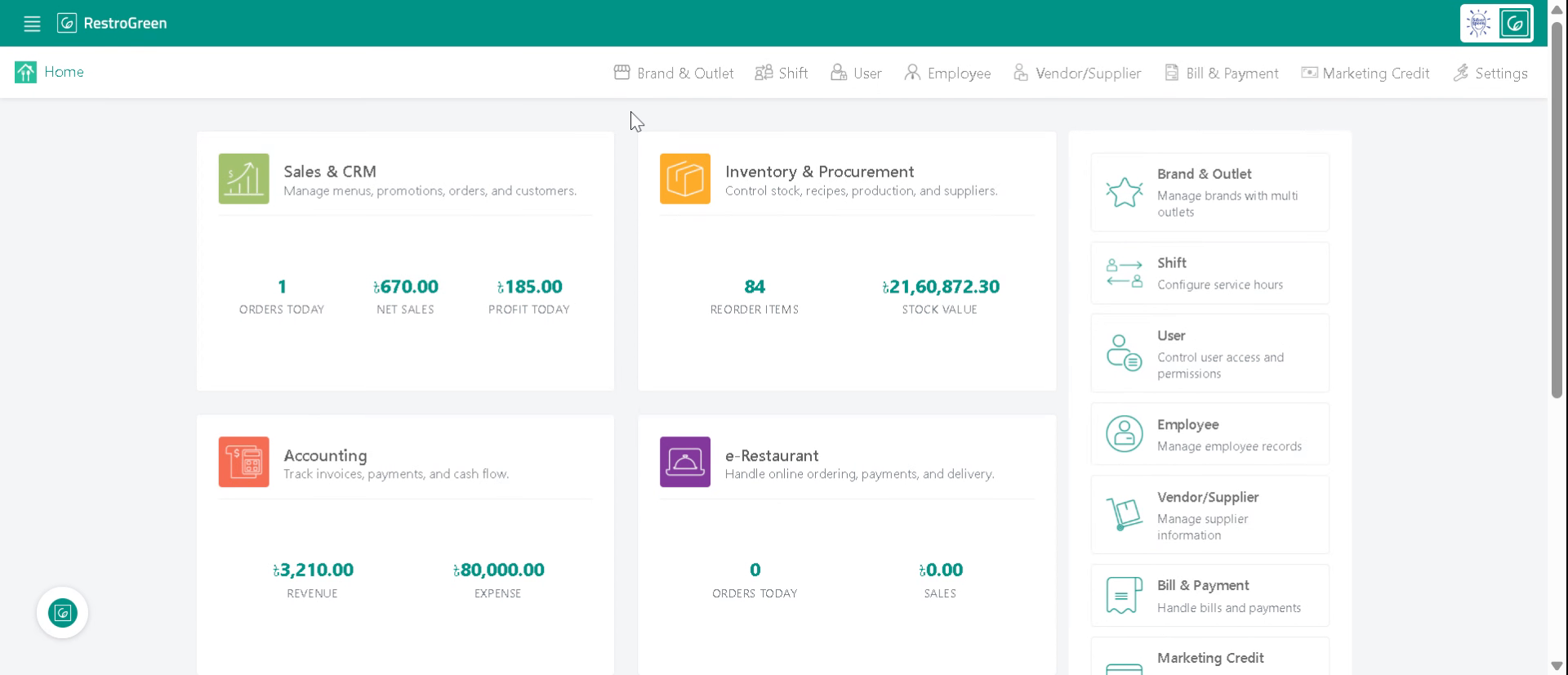
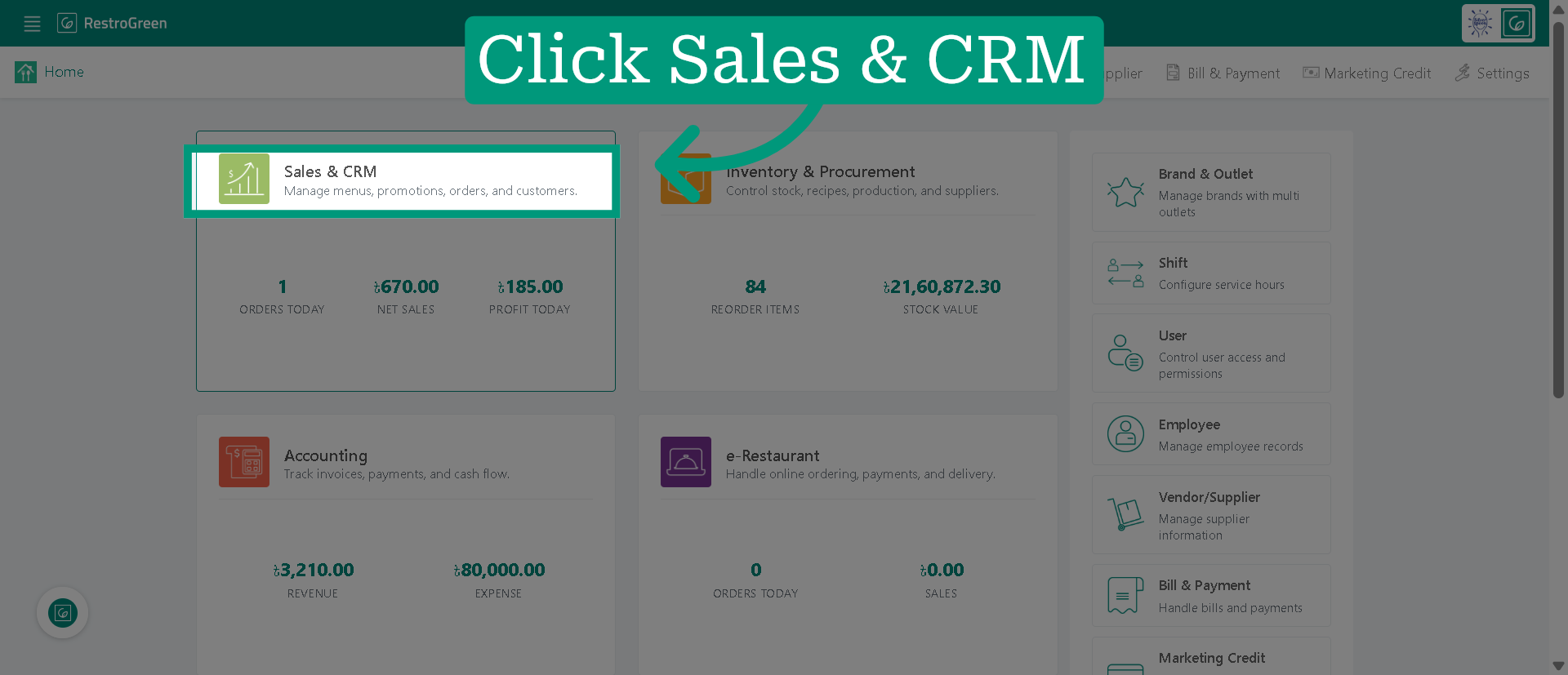
2. Click "Sales & CRM" Module
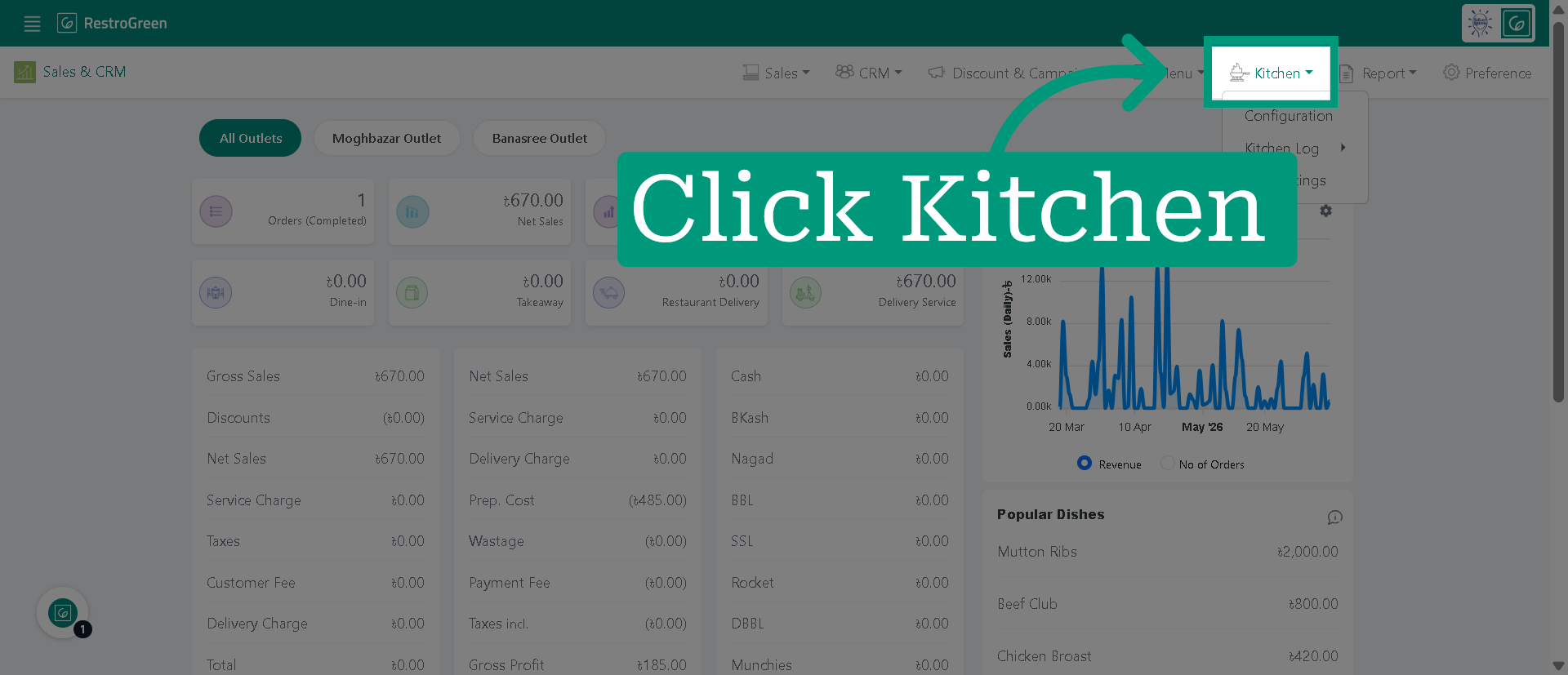
3. Click Kitchen From the Top Navigation Bar
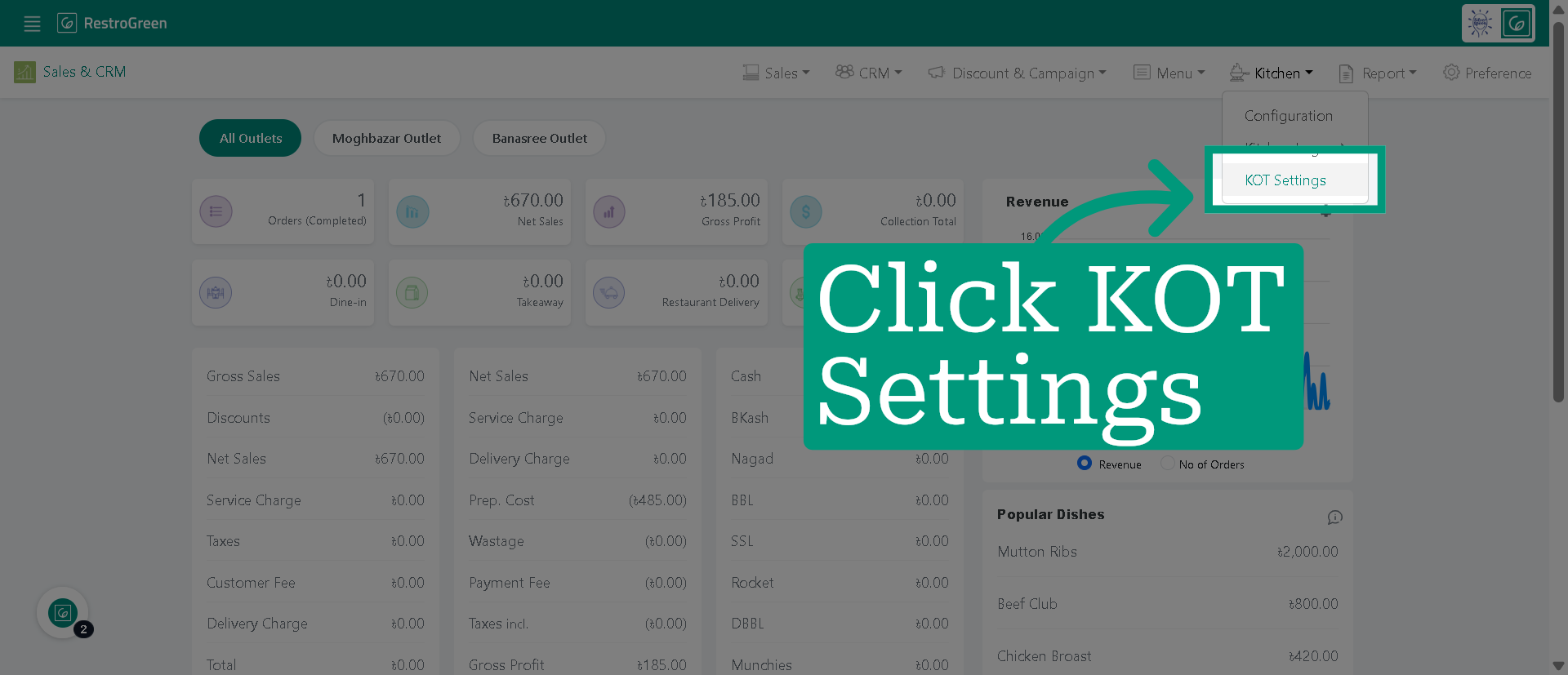
4. Click KOT Settings Menu
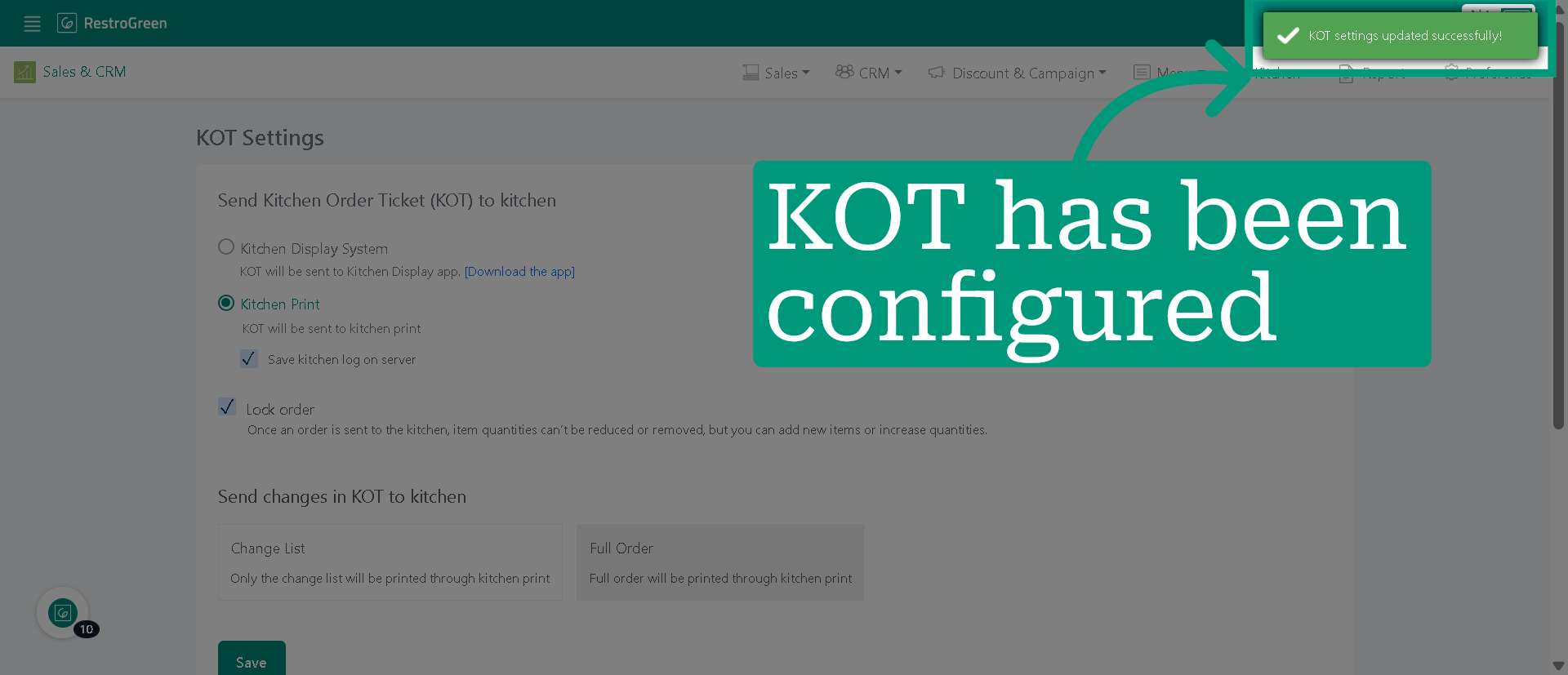
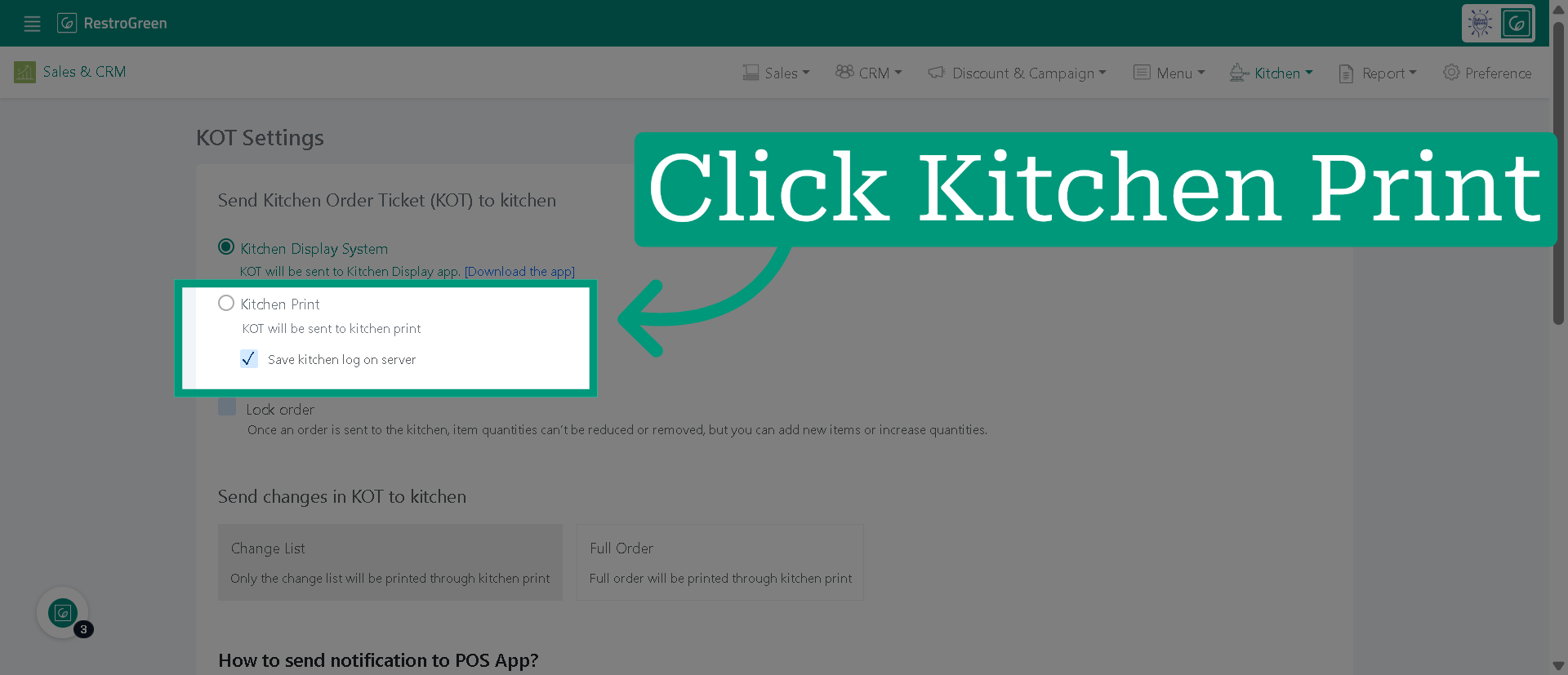
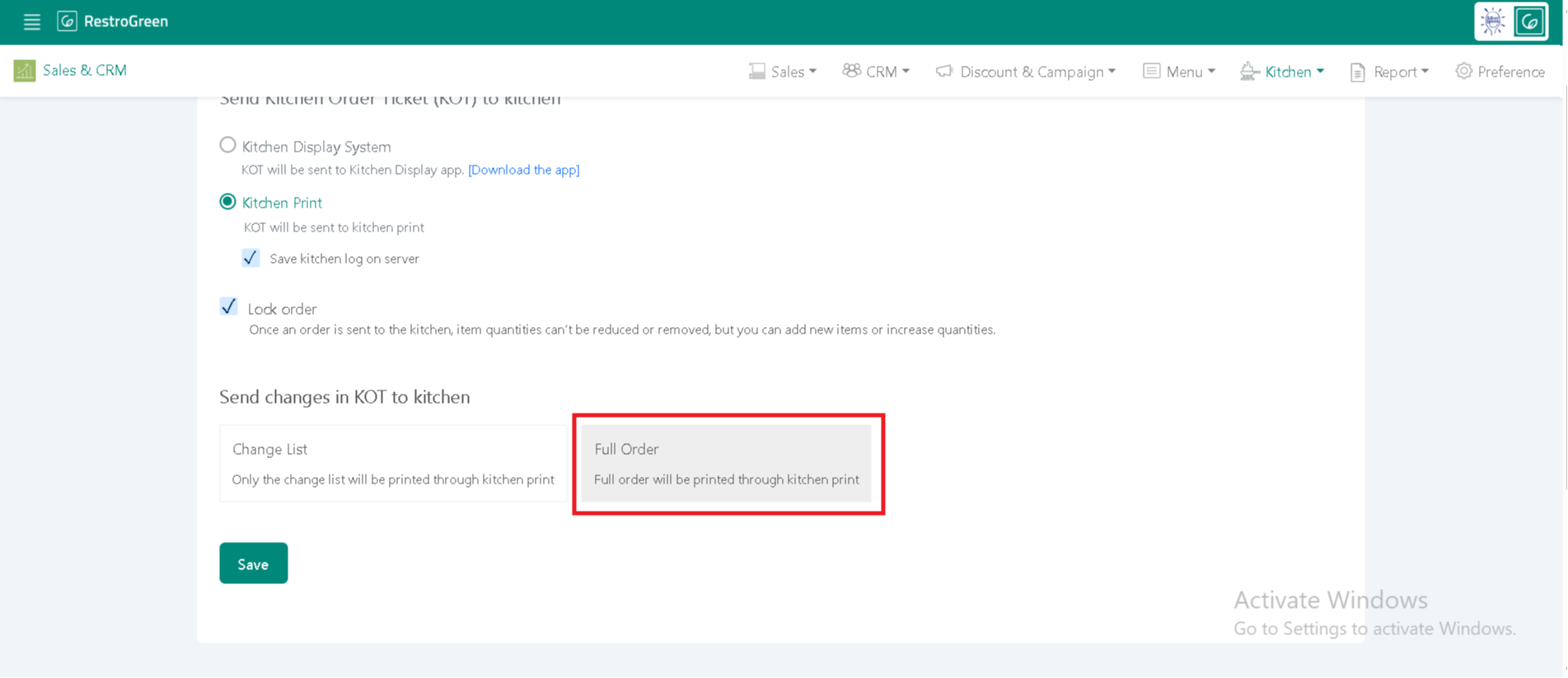
5. Select "Kitchen Print" and KOT will be sent to Kitchen Printer
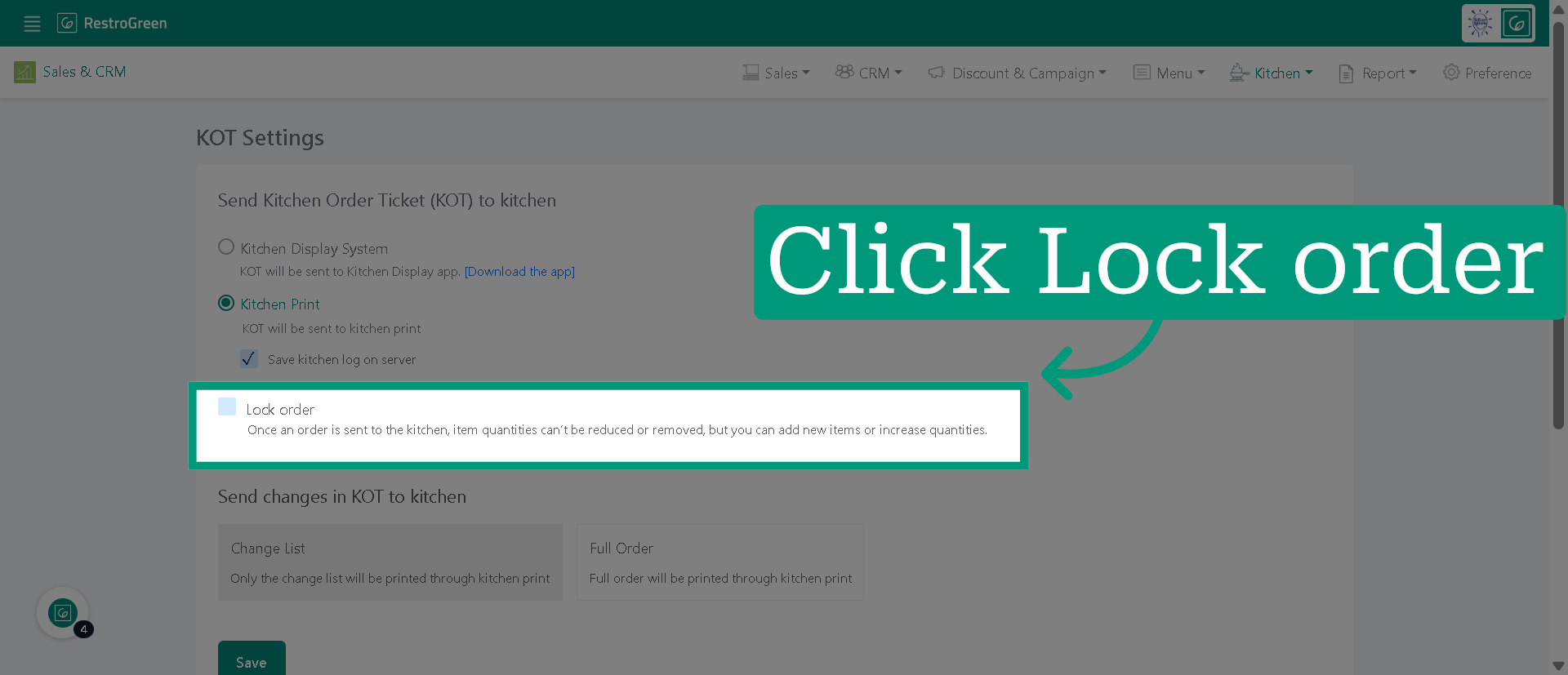
6. Enable Order Locking
Click "Lock order" only if you want to prevent order removal after kitchen print.
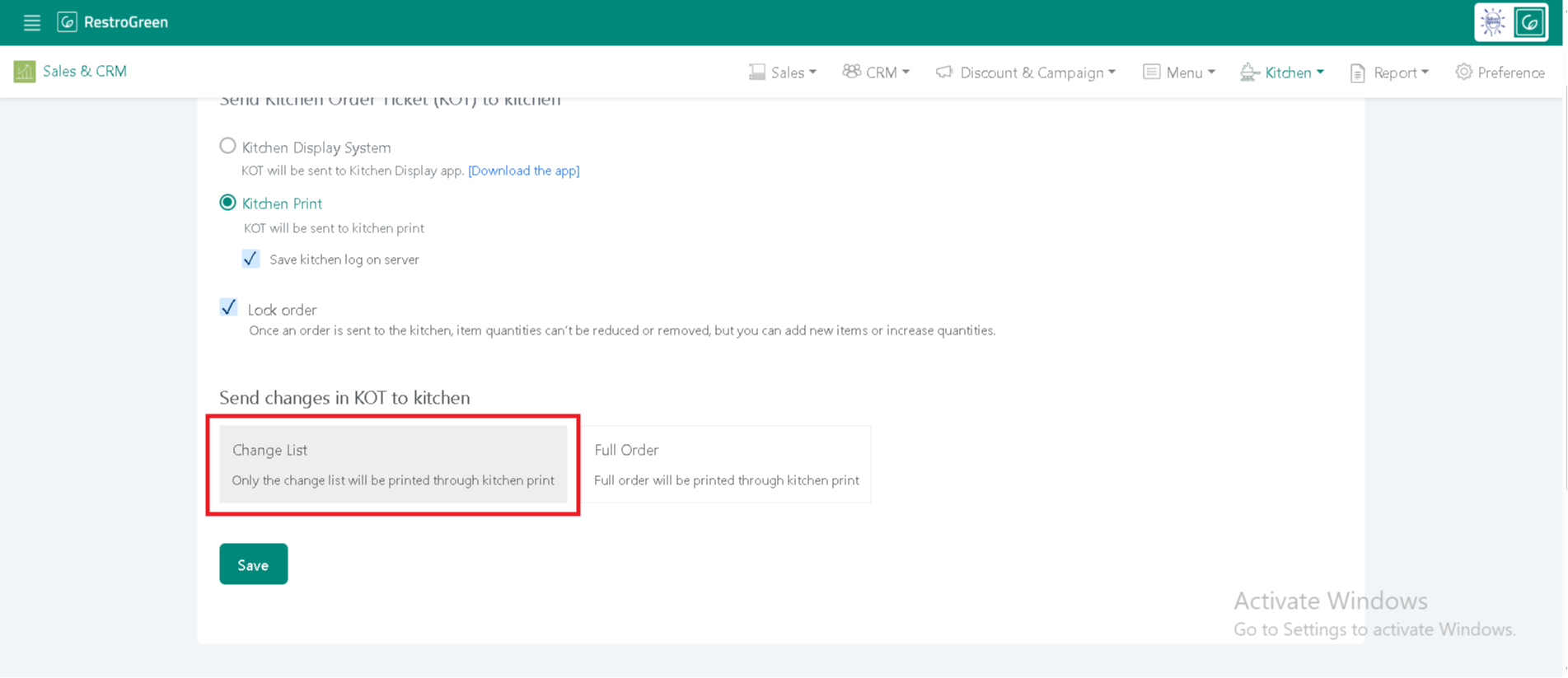
7. Choose how you want to receive order changes
Select "Change List" to print only the order changes in the kitchen printout.
8. Choose how you want to receive order changes
Select "Full Order" to print the complete order details in the kitchen printout.
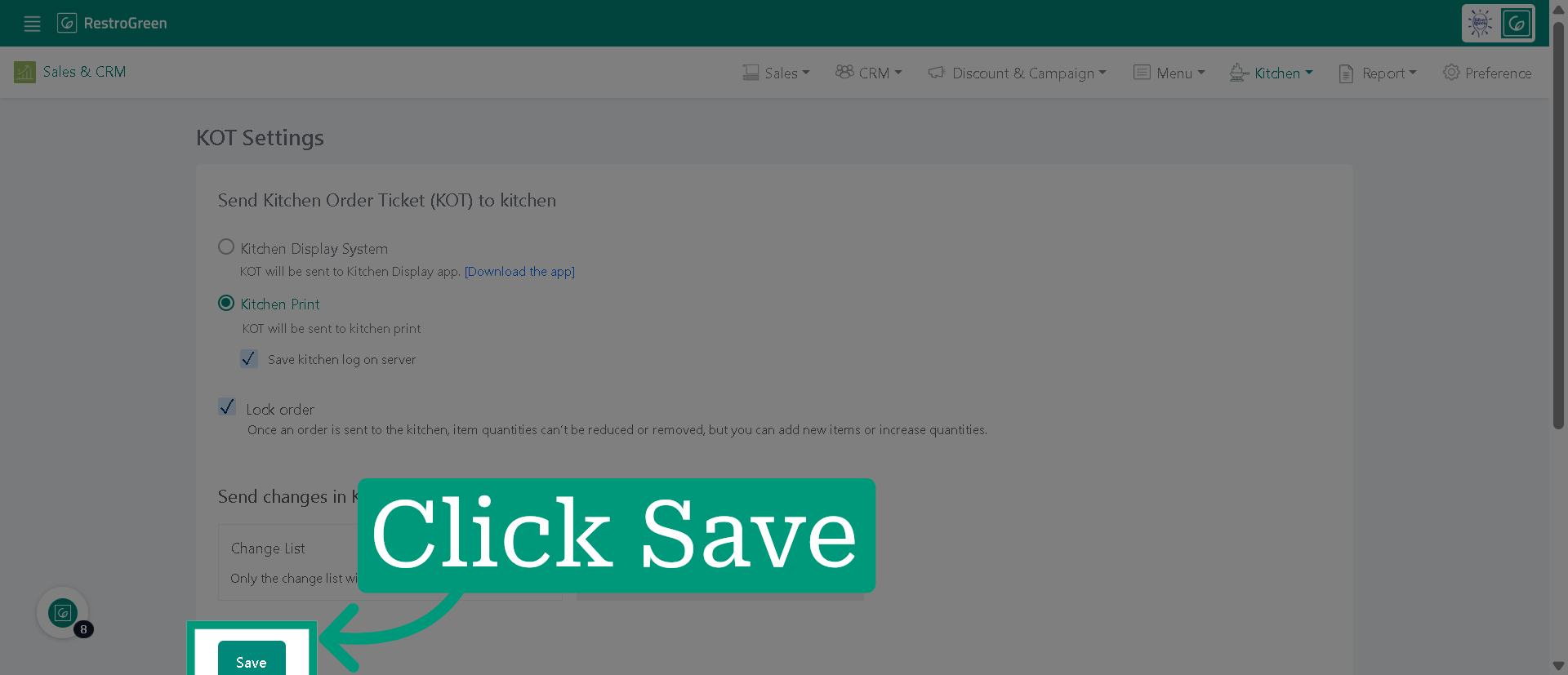
9. Click "Save" to apply the kitchen print configuration changes
10. You have learned to configure Kitchen Print in KOT settings effectively