How to Create Restaurant Offers in RestroGreen
This article explains how to create and configure promotional offers using the RestroGreen Business Portal. You will learn to set up offer details, availability, and applicable dishes to effectively
manage your promotions.
Go to
restrogreen.quicklyservices.com
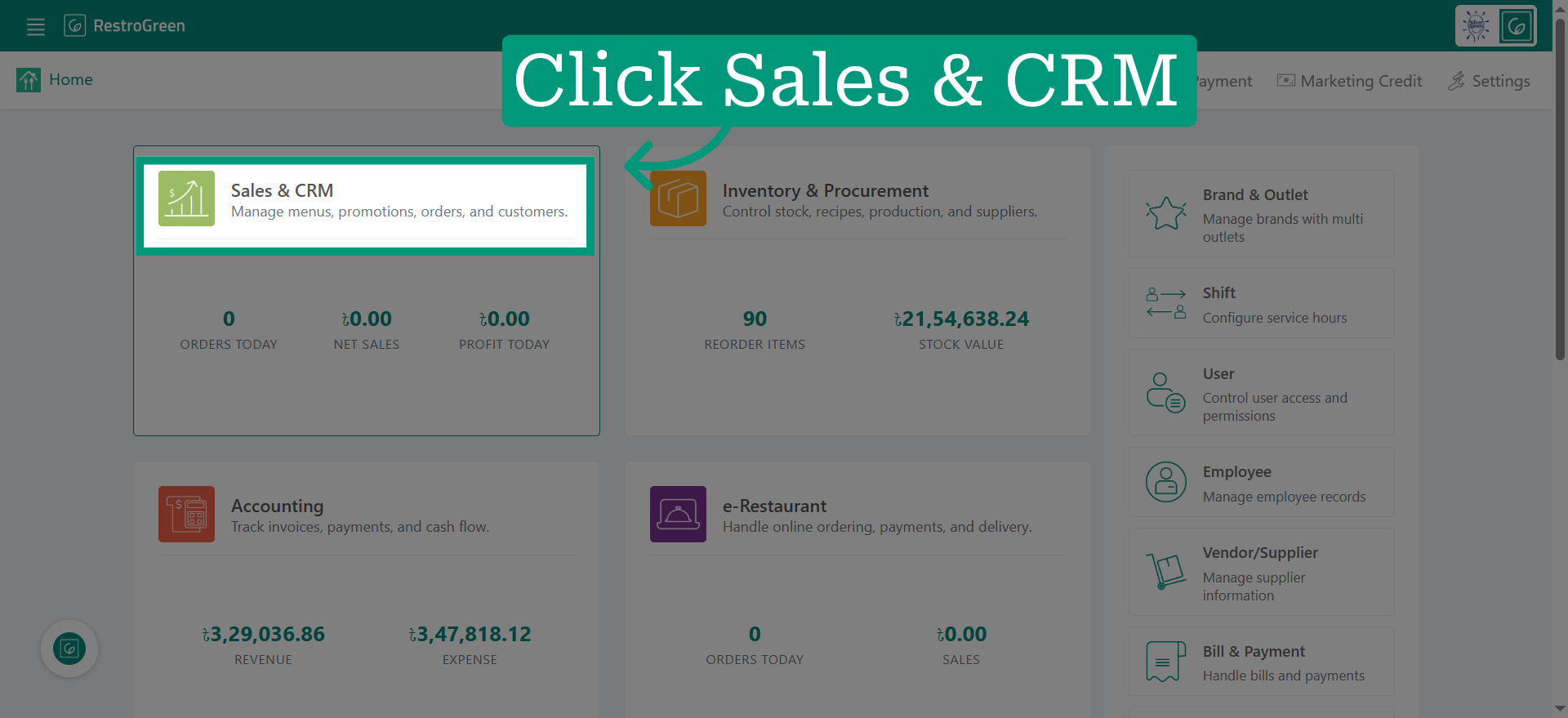
1. Access Sales & CRM Module
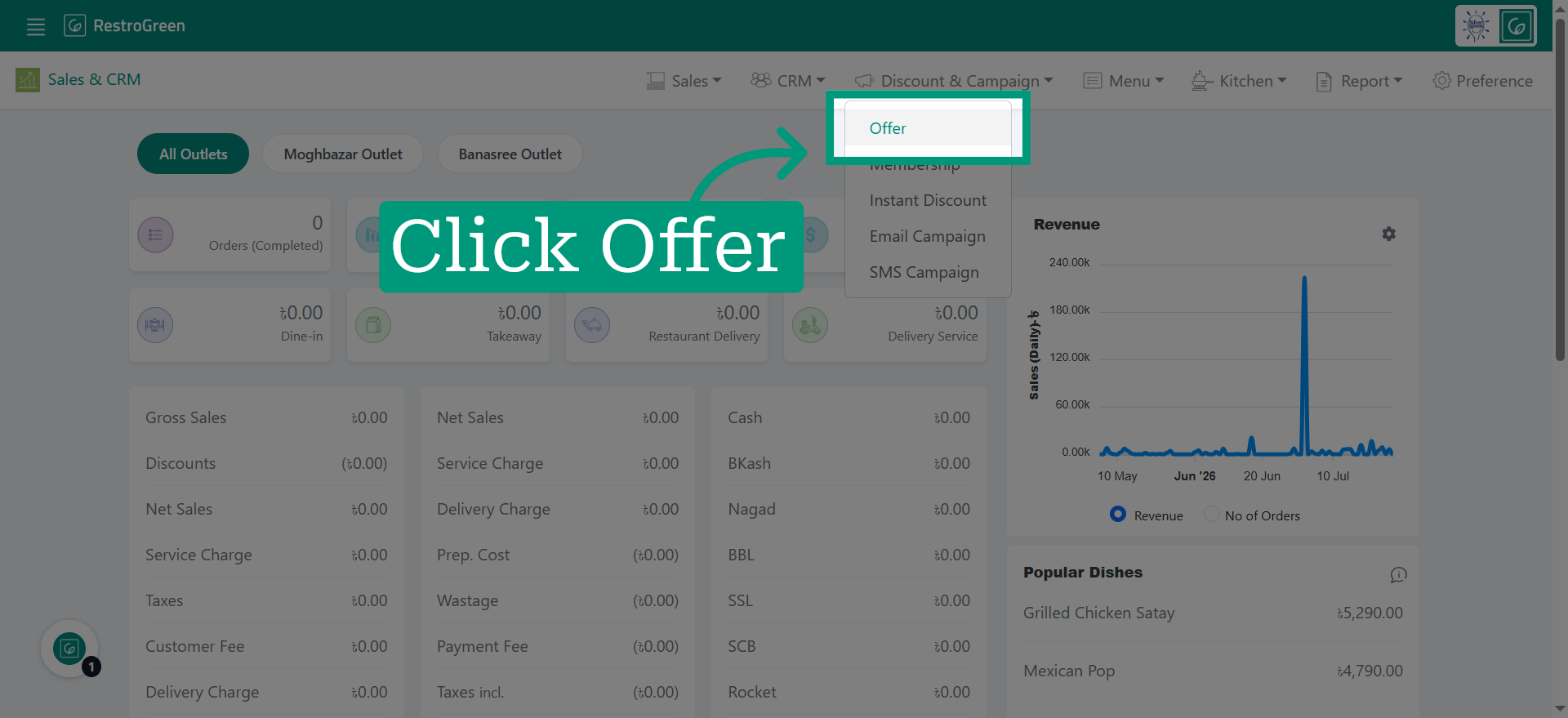
2. Click "Offer" to navigate to the offer management
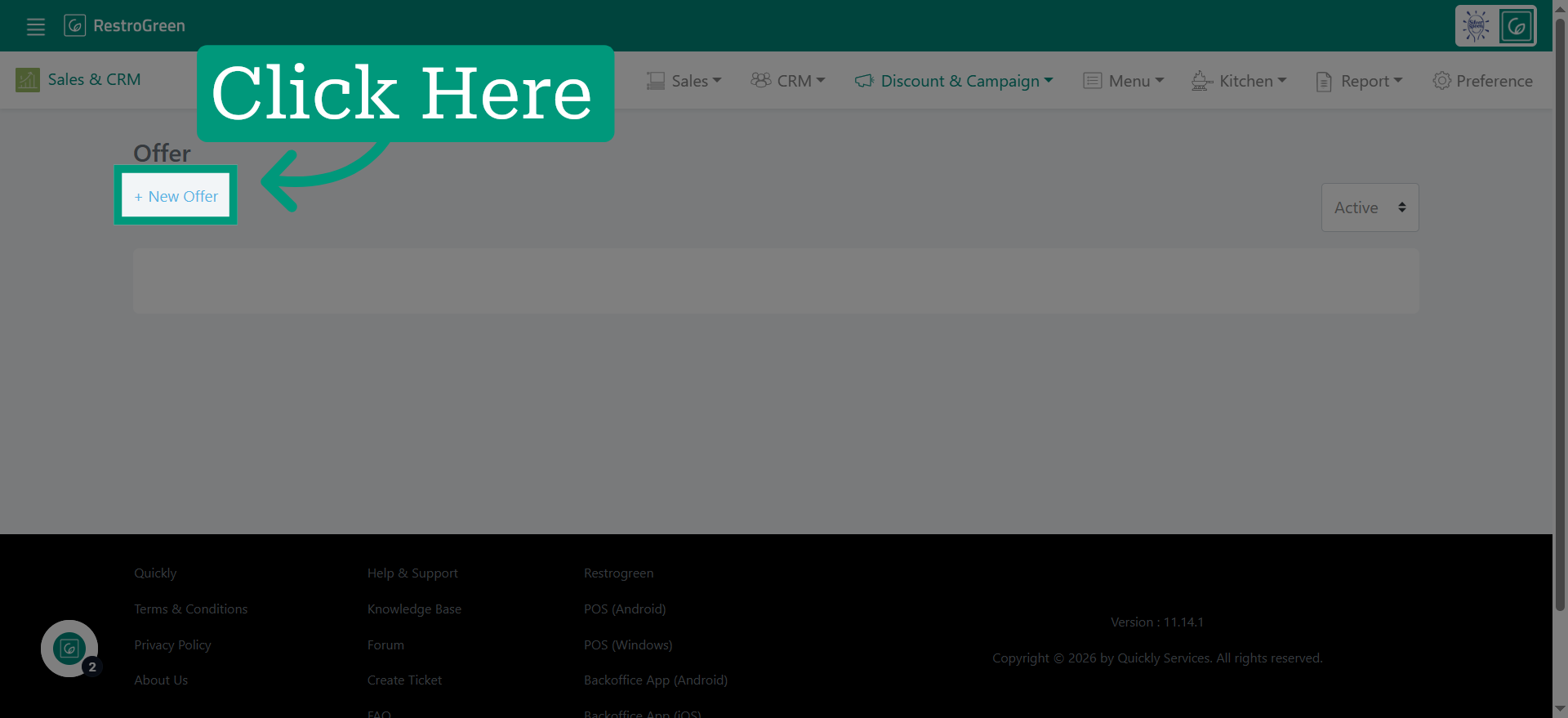
3. Initiate Offer Creation by clicking "New Offer"
4. Type-in a name for this offer
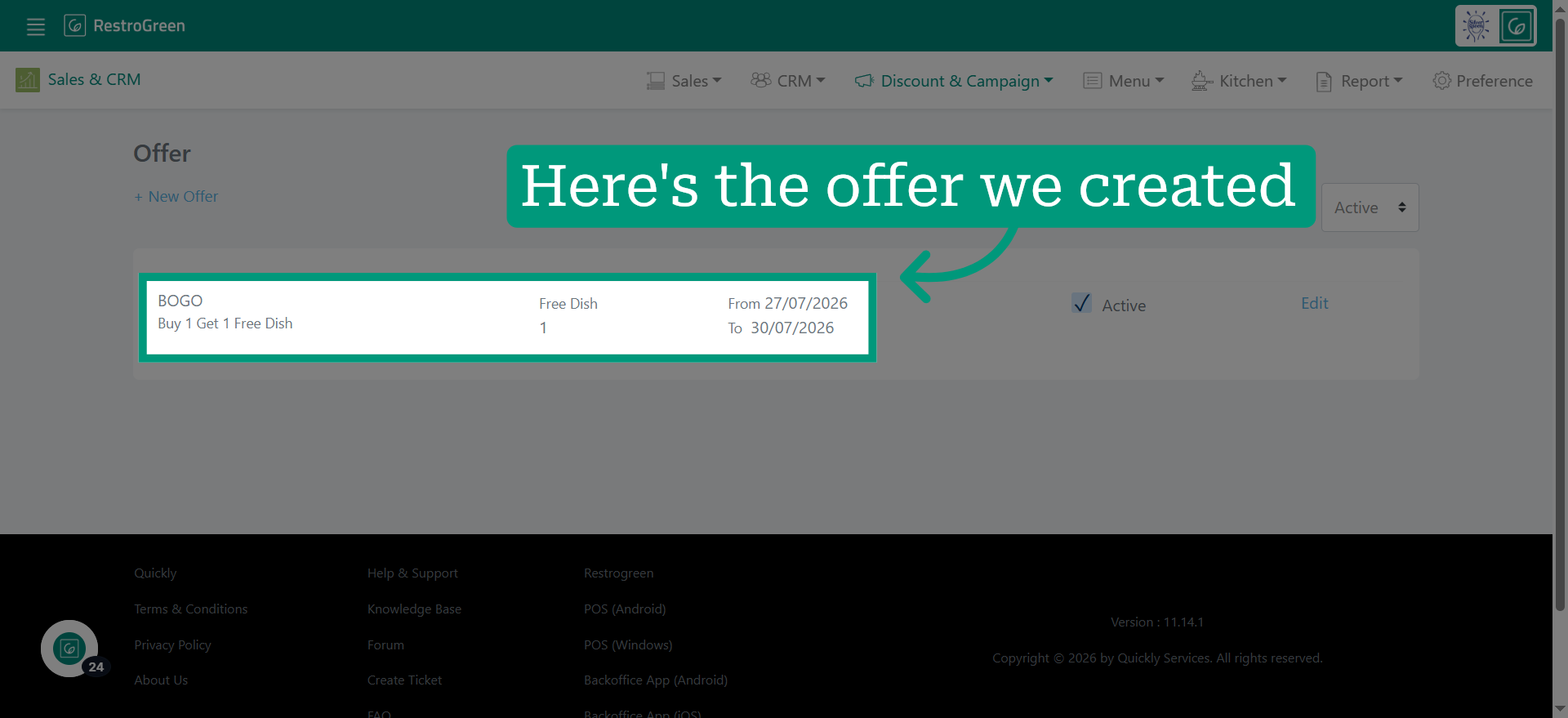
For example, we have used BOGO (Buy One Get One)
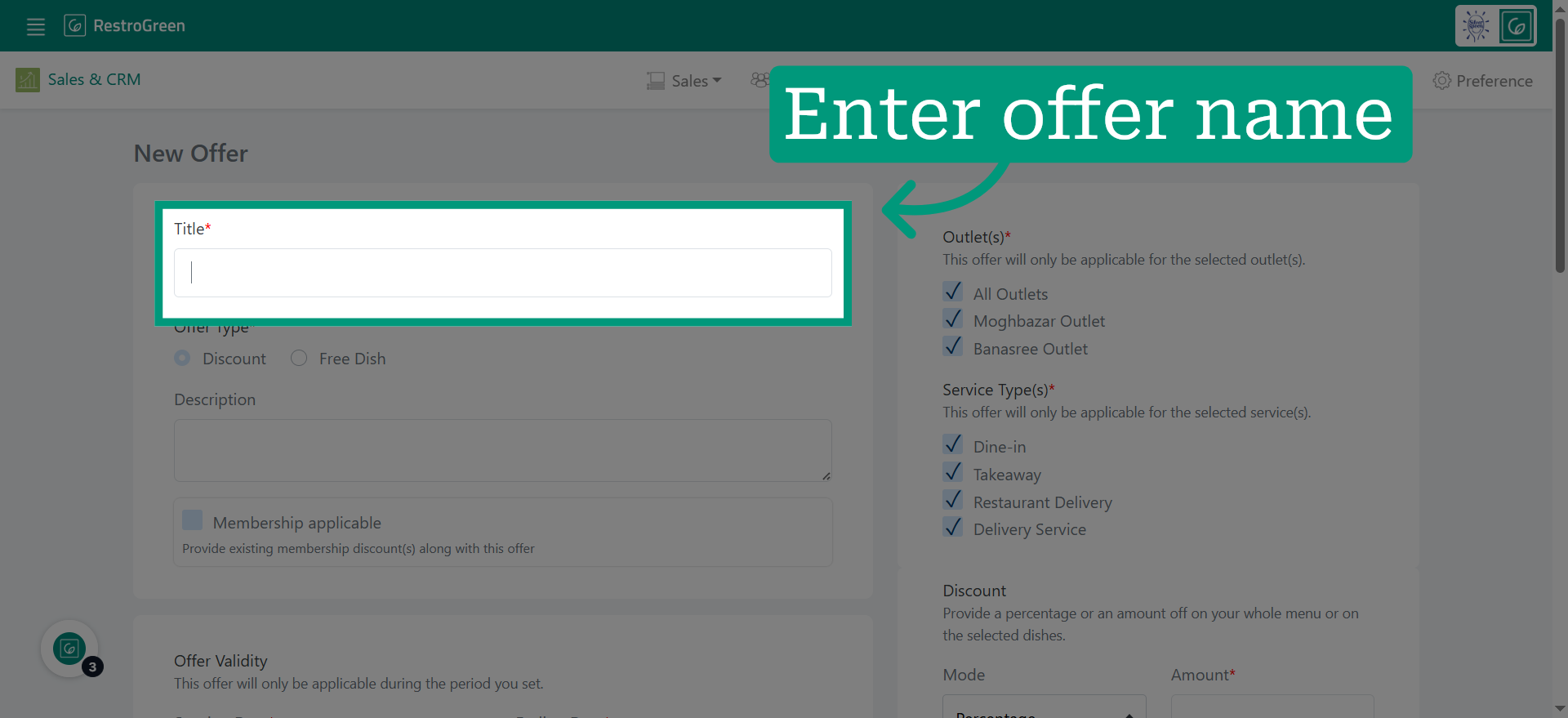
5. Select the type of this offer
For example, we have selected "Free Dish"
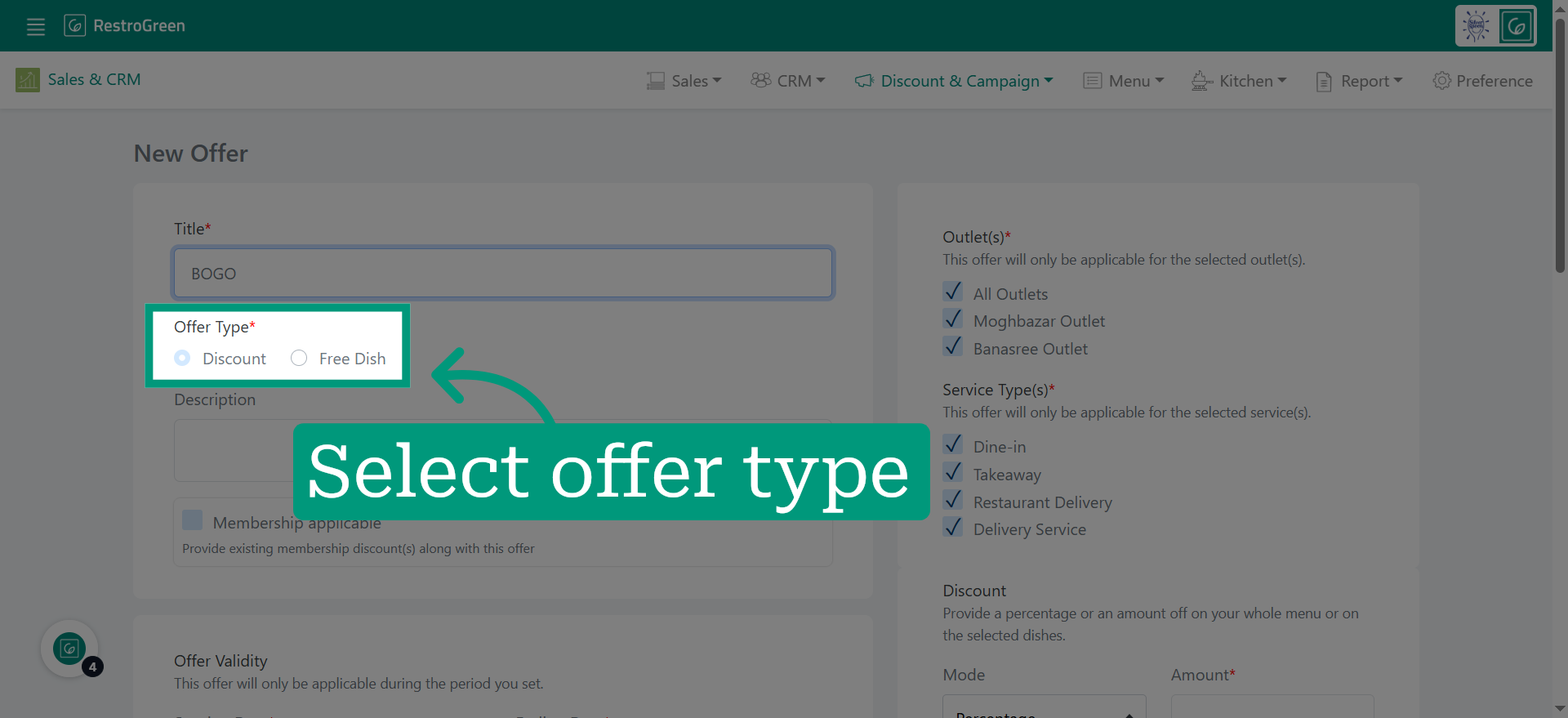
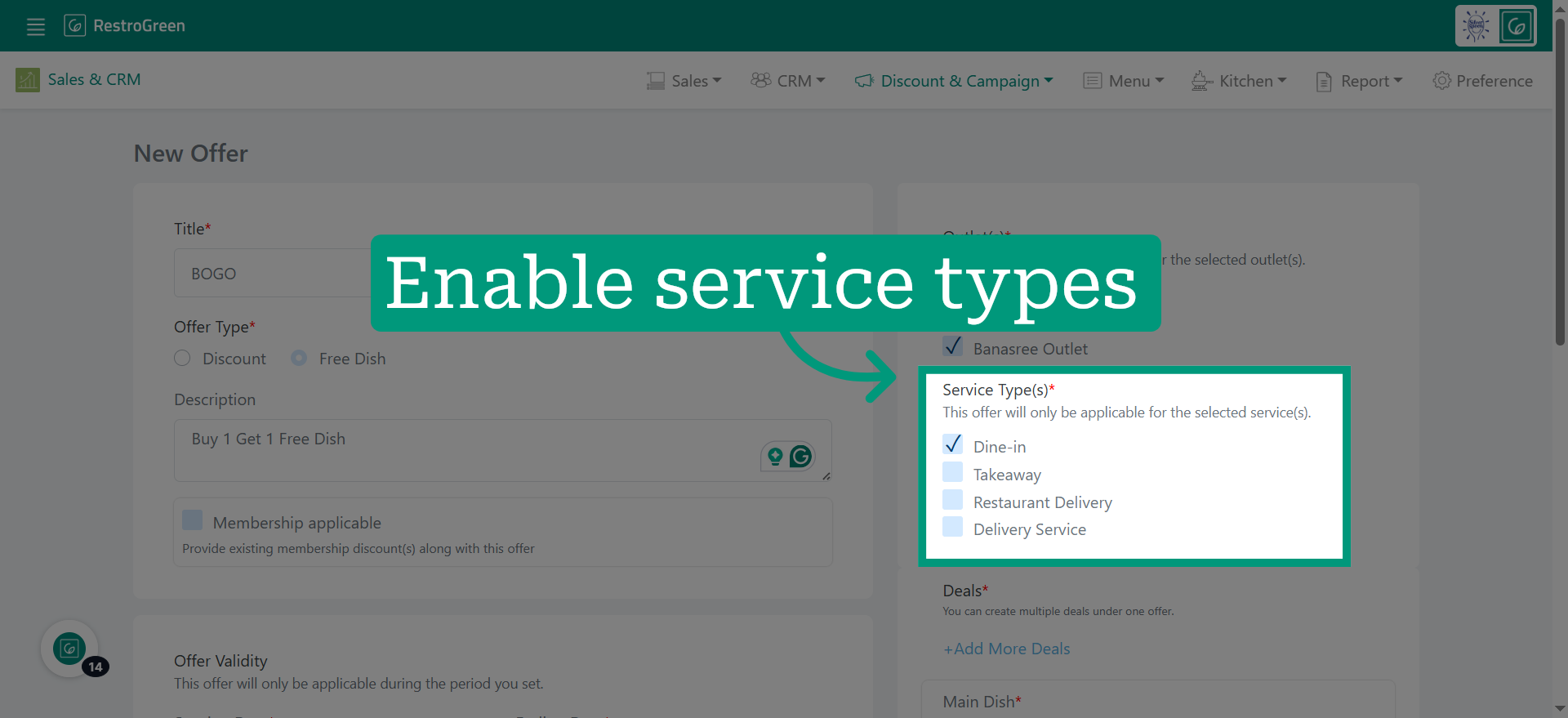
6. Activate the service types where the offer will be applicable
For example, this offer is only available in dine-in services.
7. Specify when this offer starts
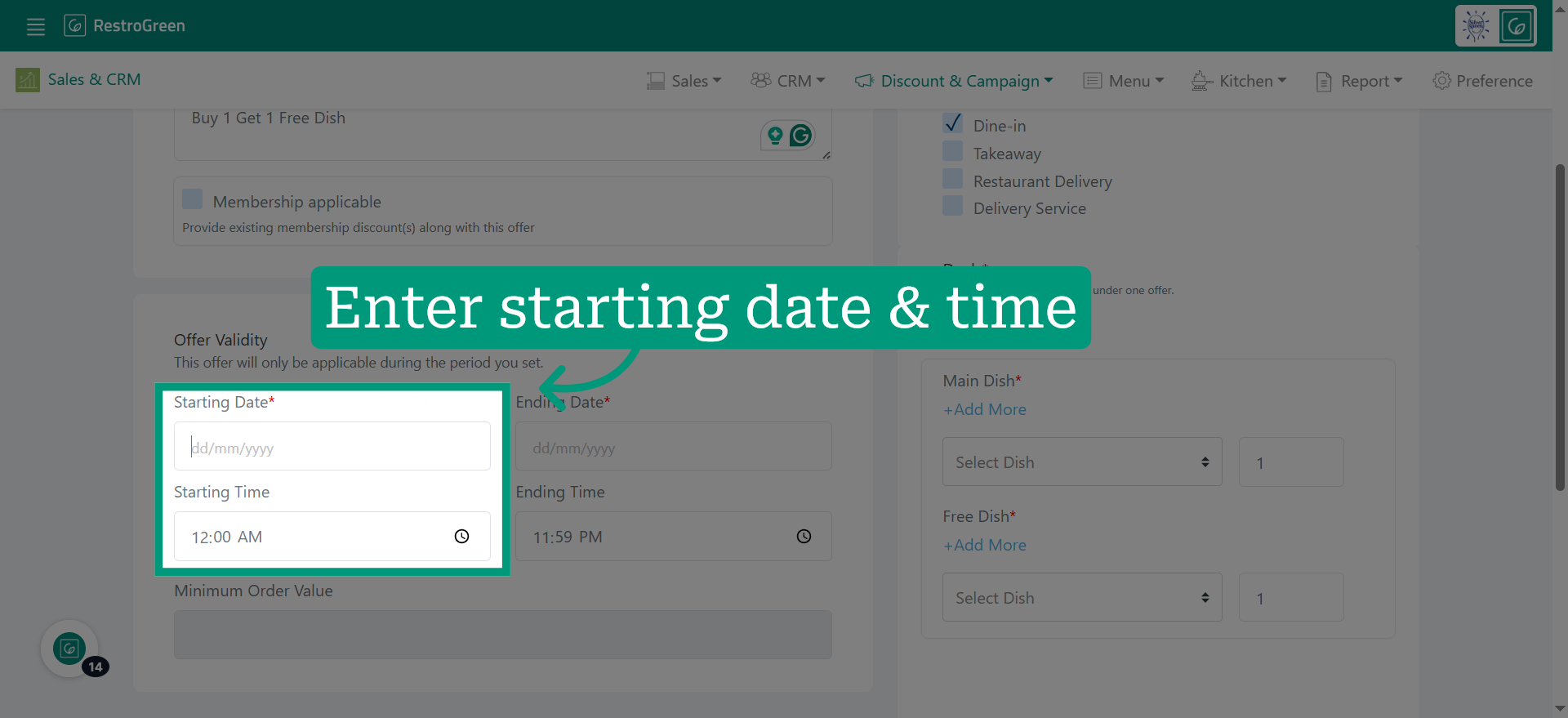
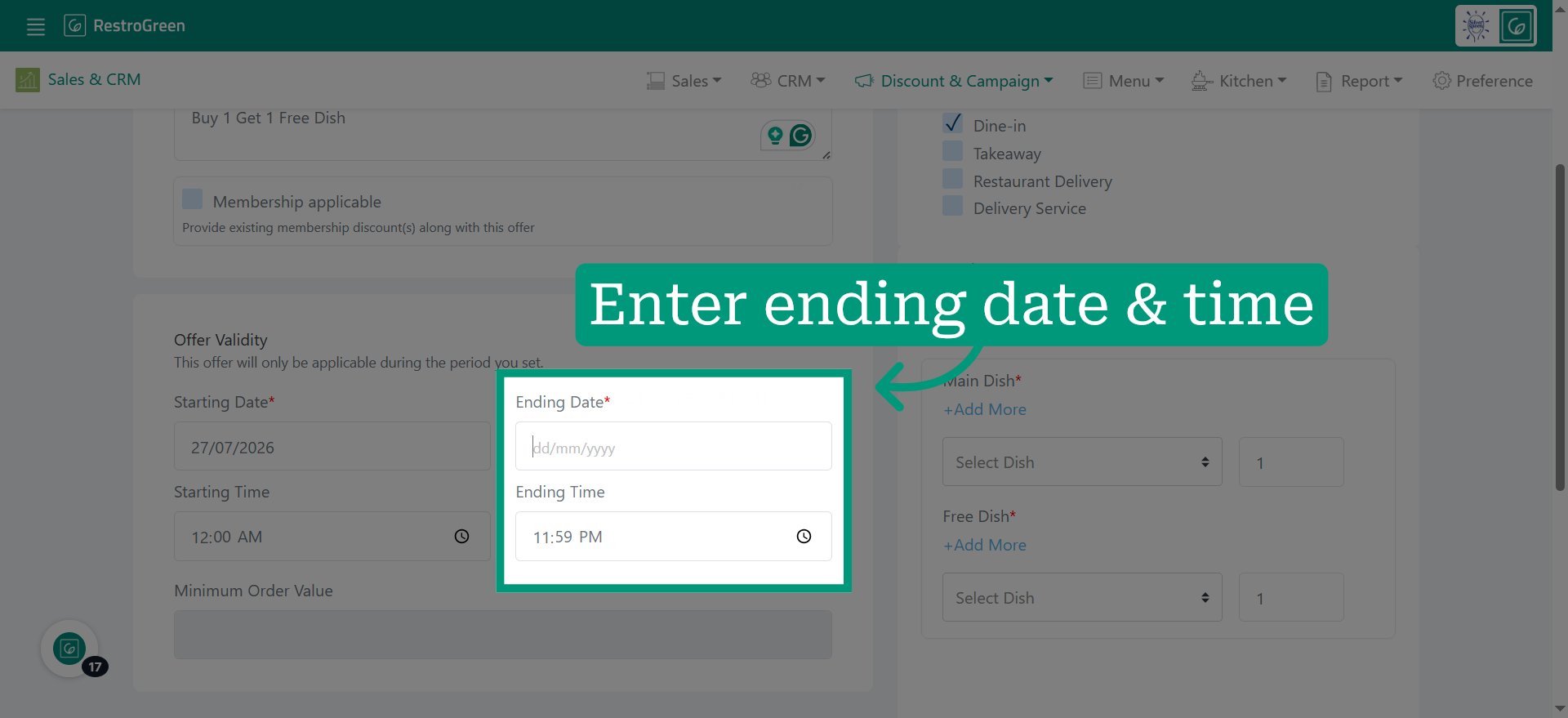
8. Specify when the offer will expire
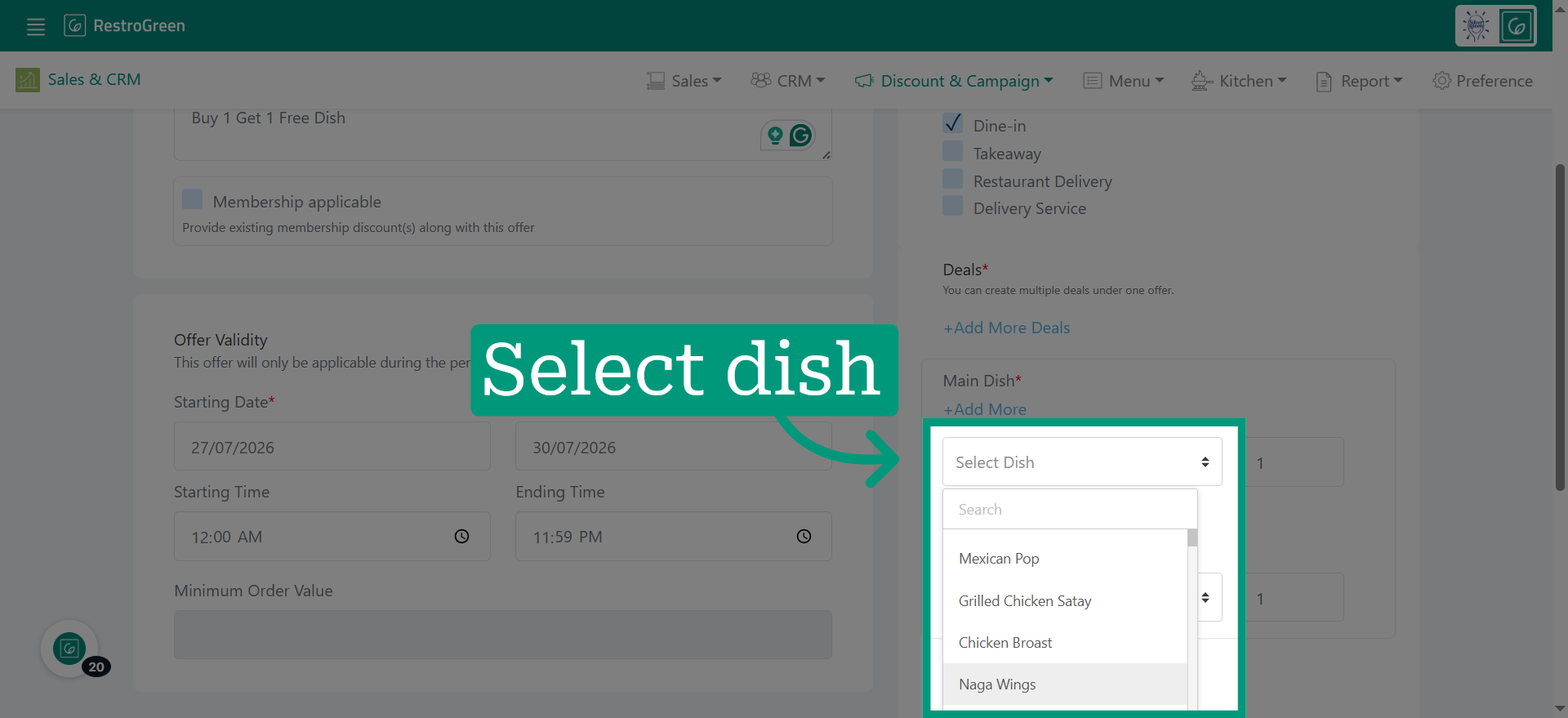
9. Add the dishes that are applicable for the offer
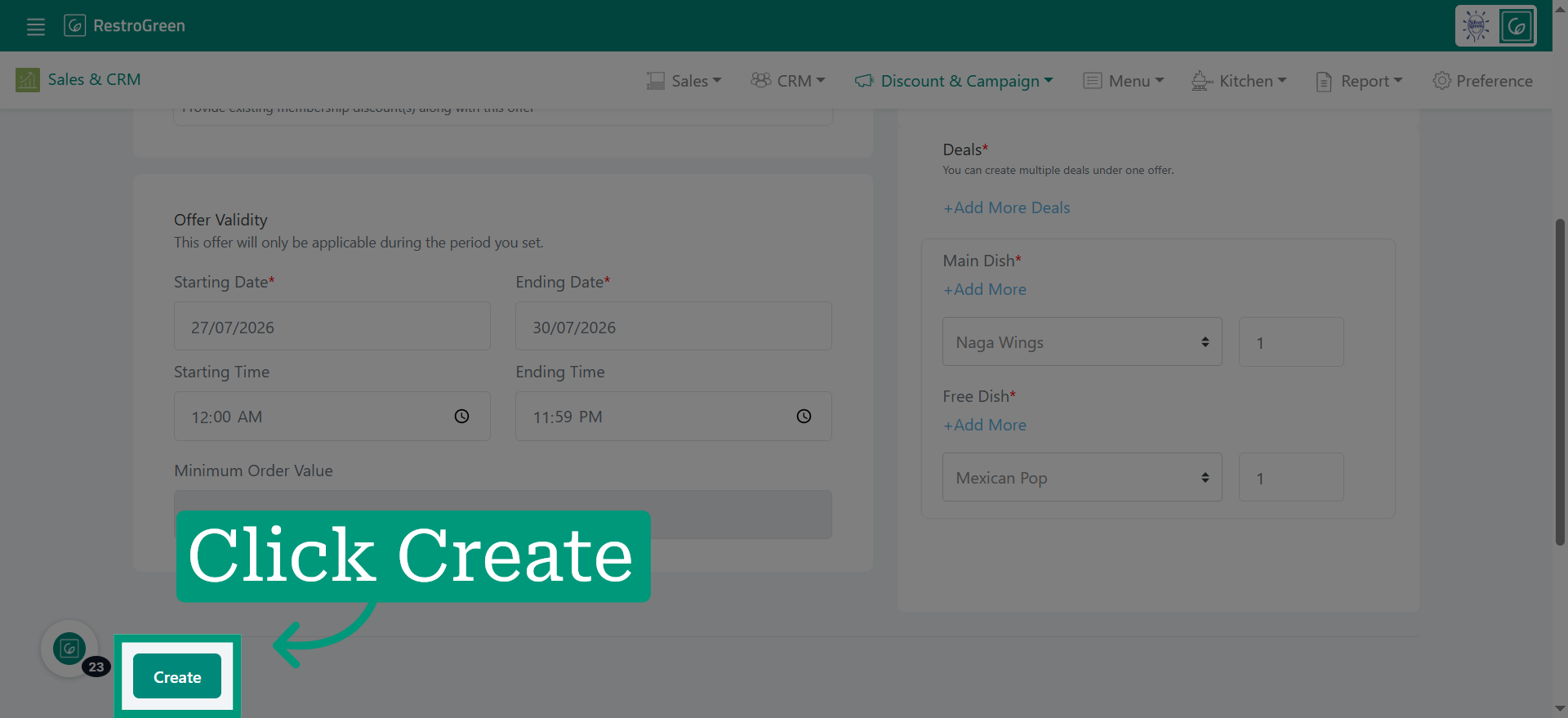
10. Click "Create" to finalize and save the new offer
11. Navigate back to "Offers" to view active offers