How to Create Production Template in RestroGreen Business Portal
This tutorial guides you through creating a production template in the RestroGreen Business
Portal.
Go to
restrogreen.quicklyservices.com
1. Login to your Business Portal
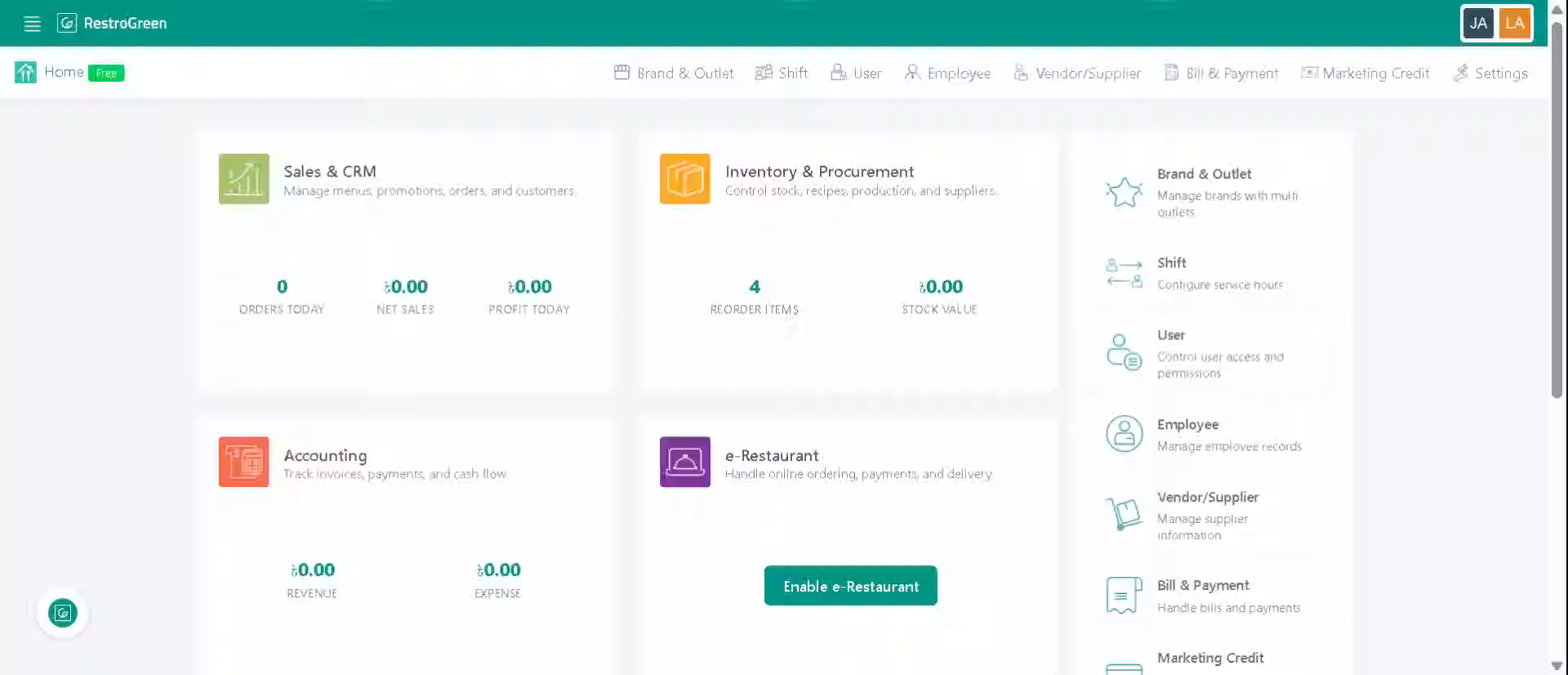
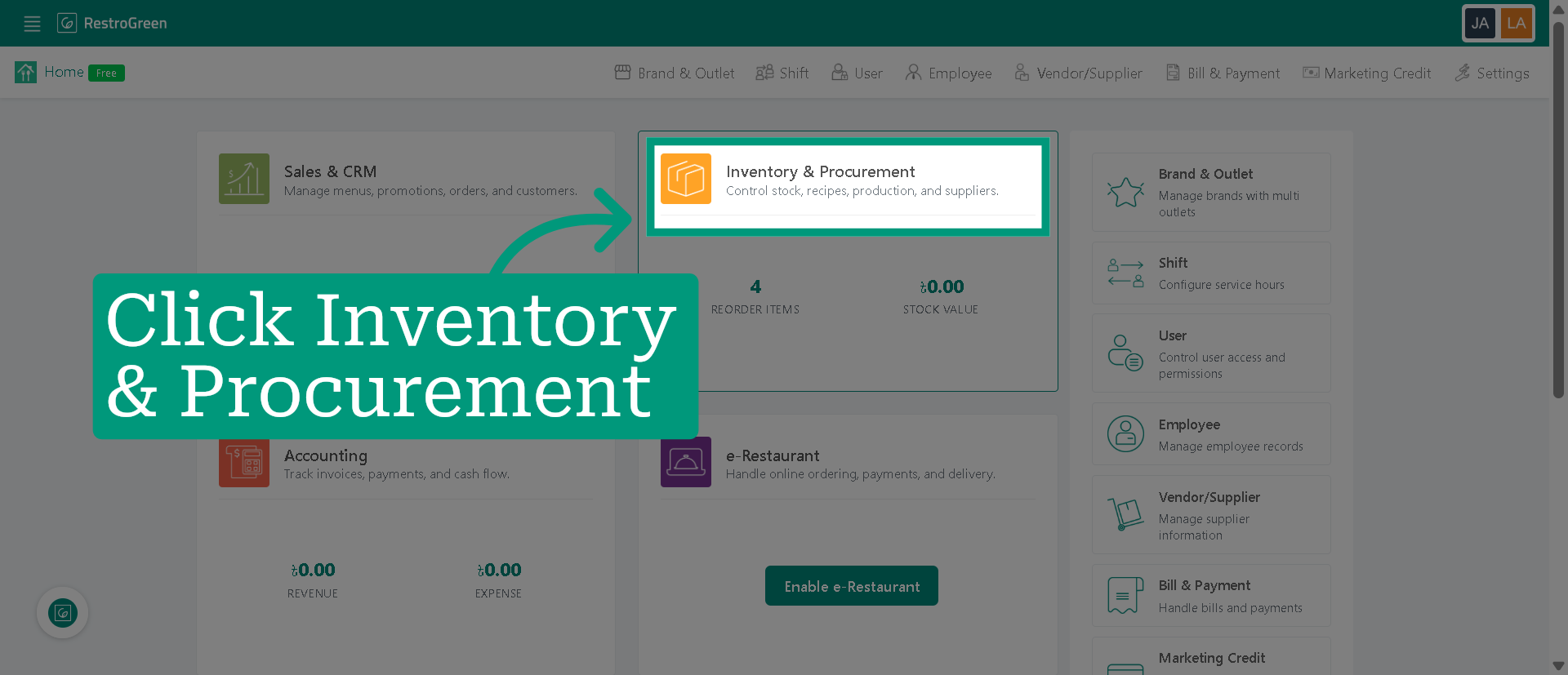
2. Click "Inventory & Procurement" Module
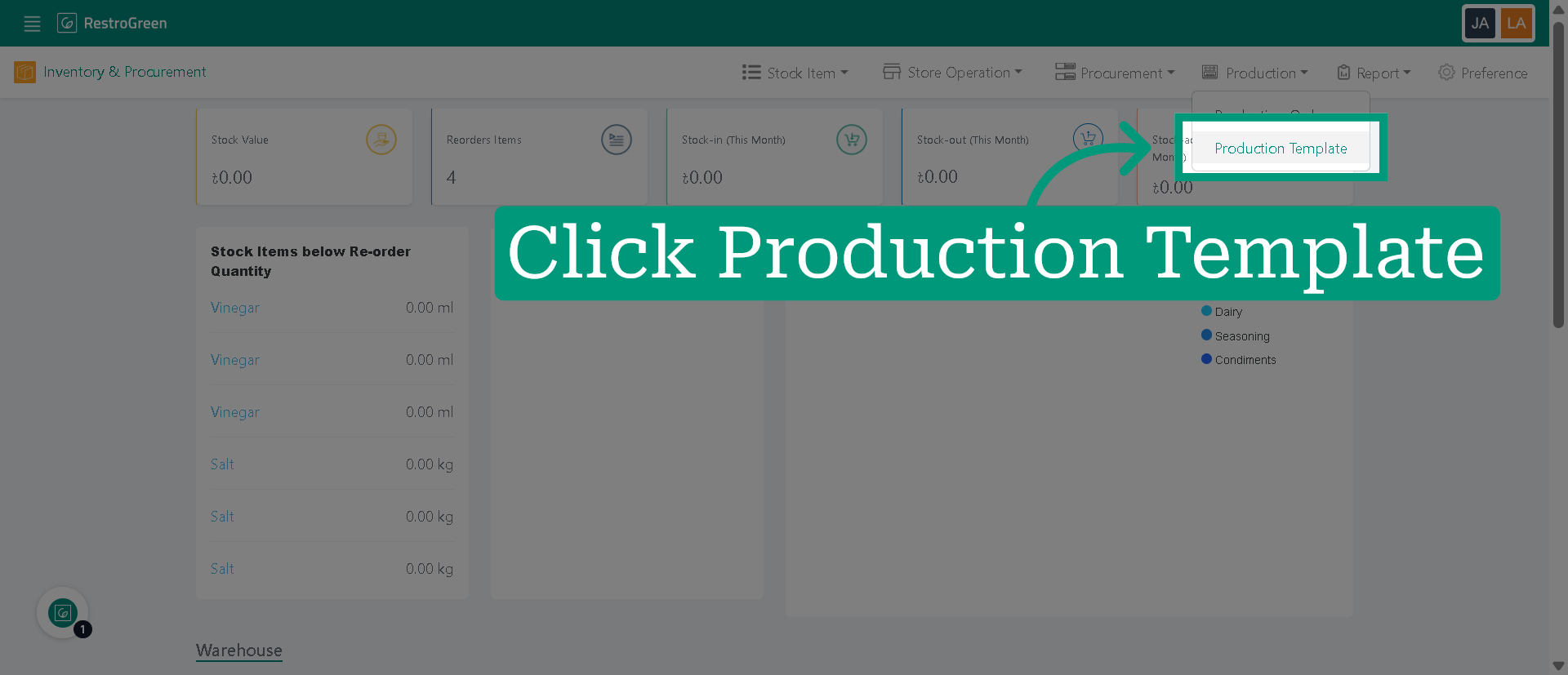
3. Select "Production Template" from the Production tab
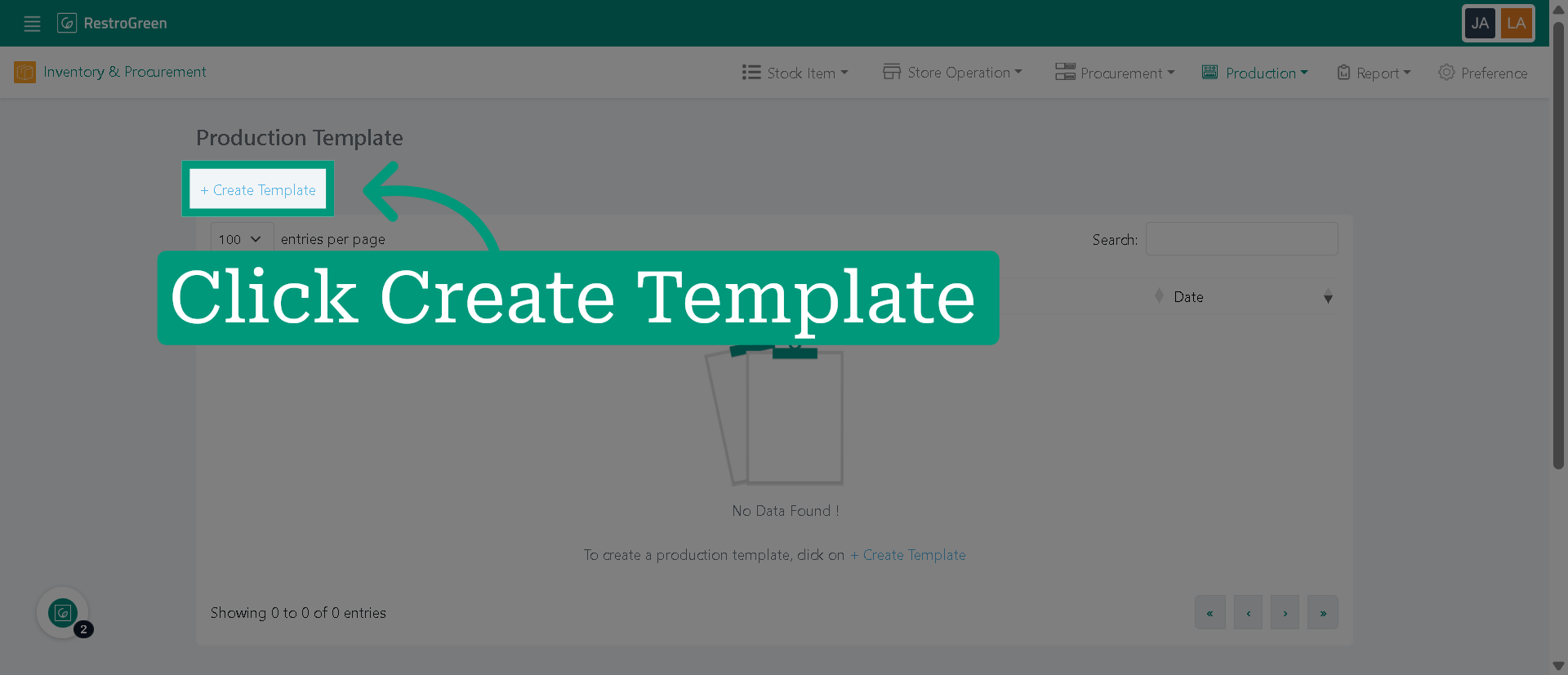
4. Click "Create Template" to start creating a new production template
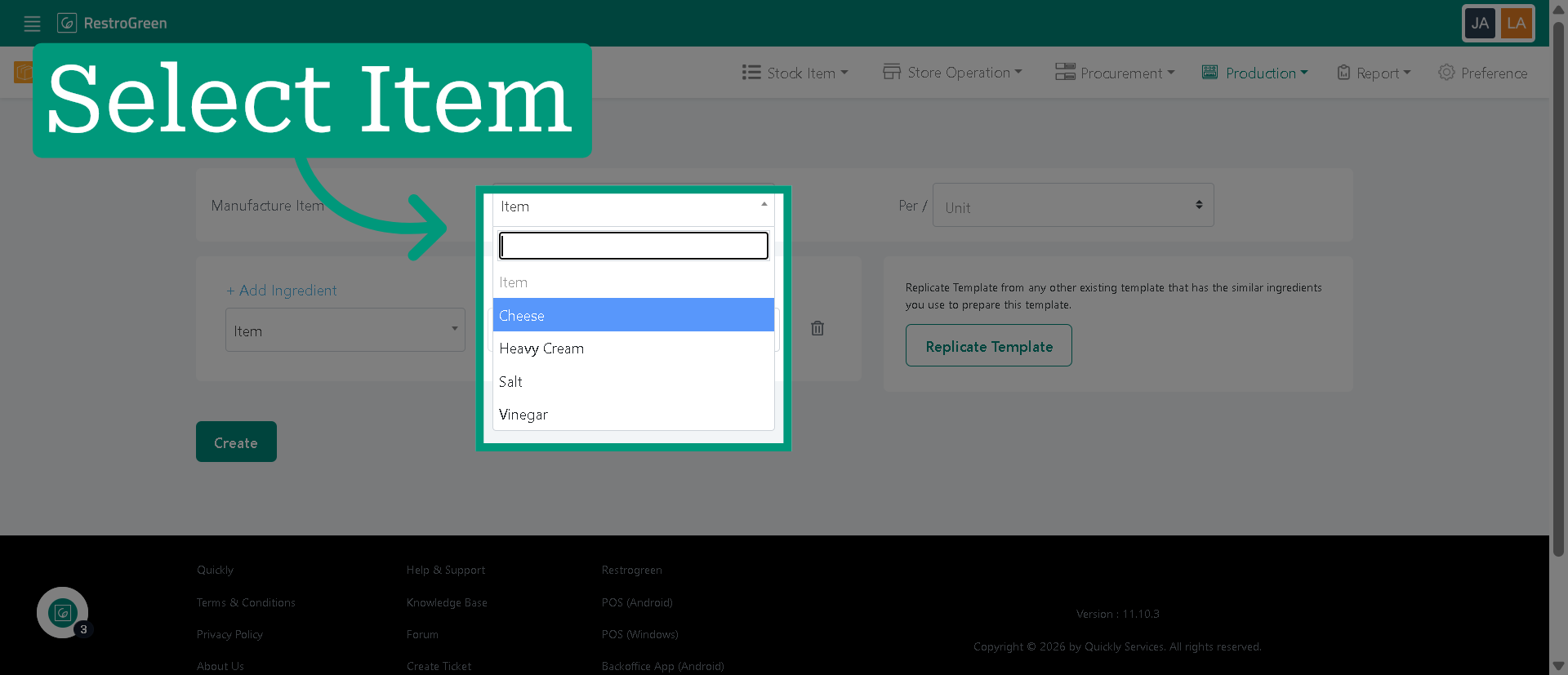
5. Select the item you want to produce
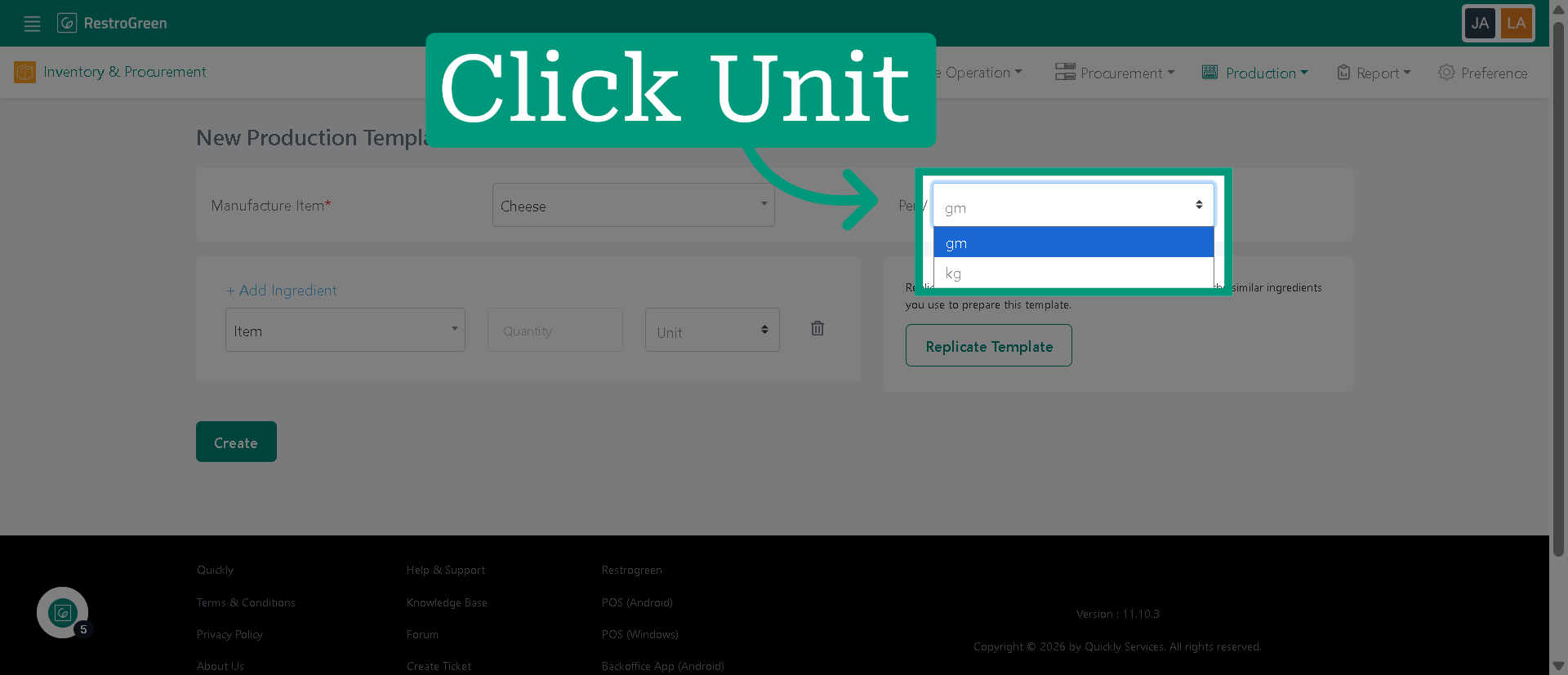
6. Specify the measurement unit
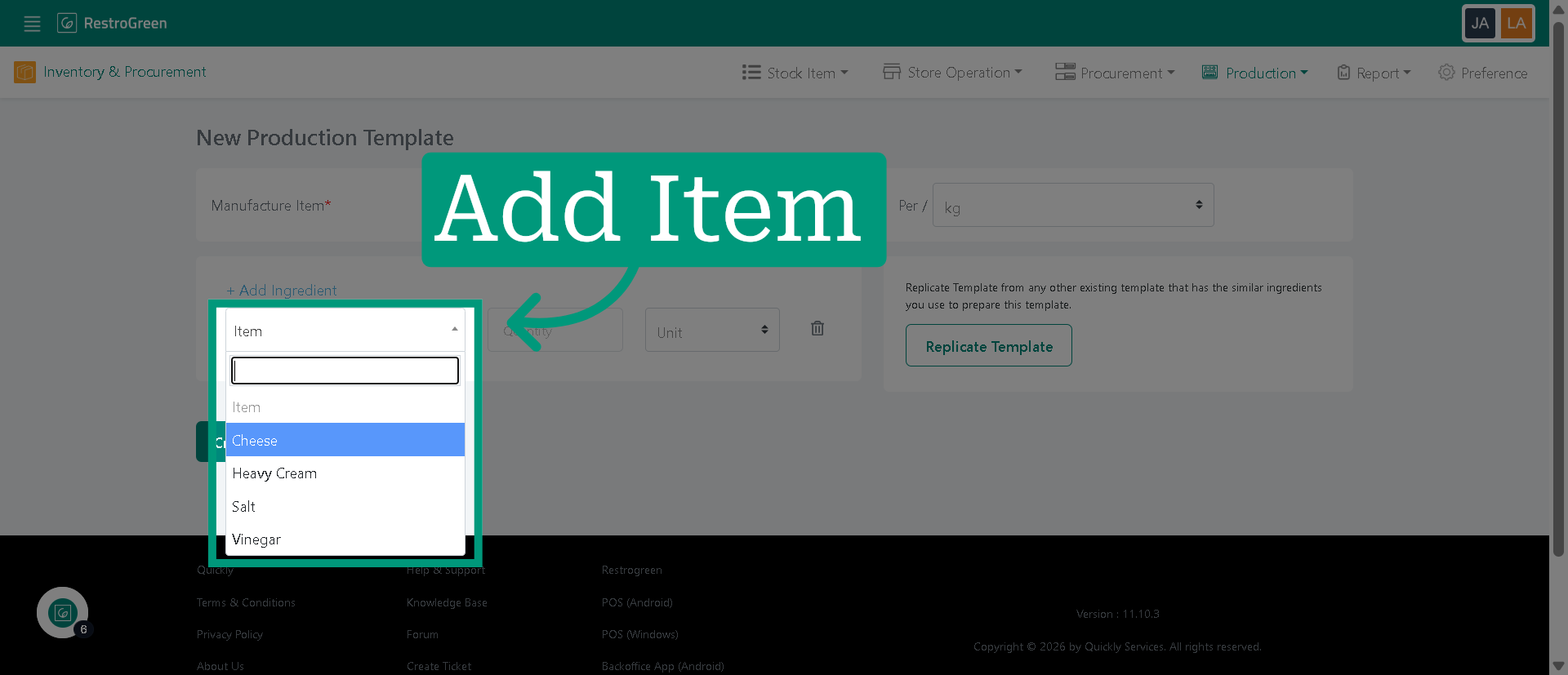
7. Select an ingredient for the item
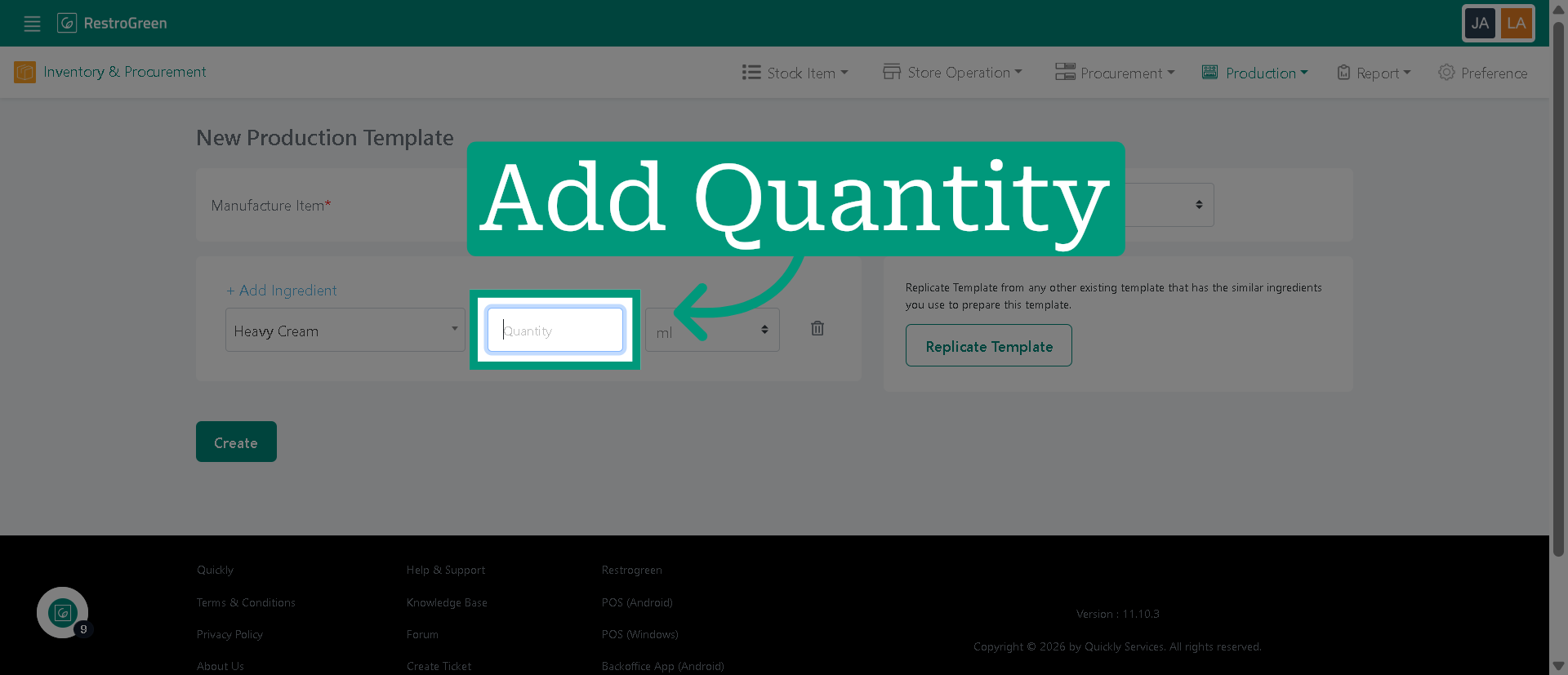
8. Enter quantity of the ingredient
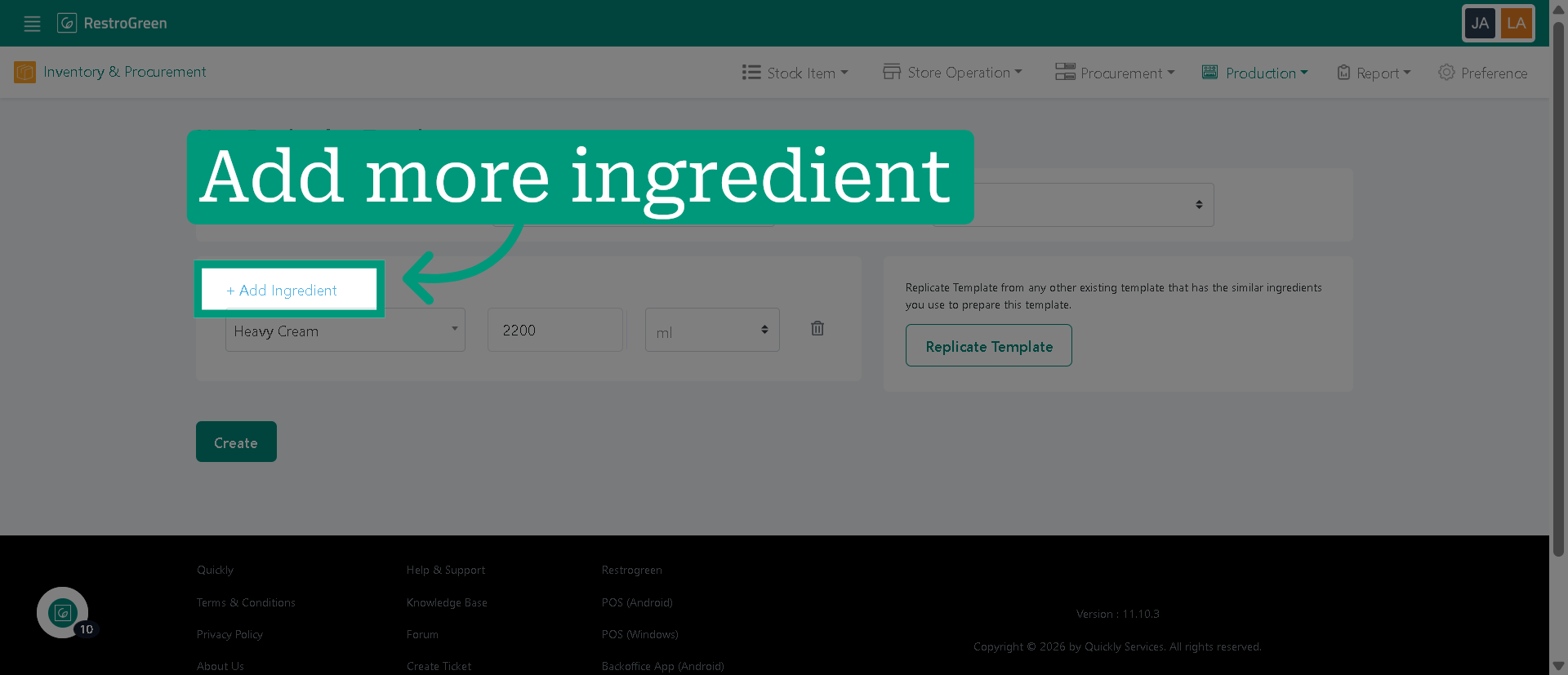
9. Add more ingredient by clicking here if necessary
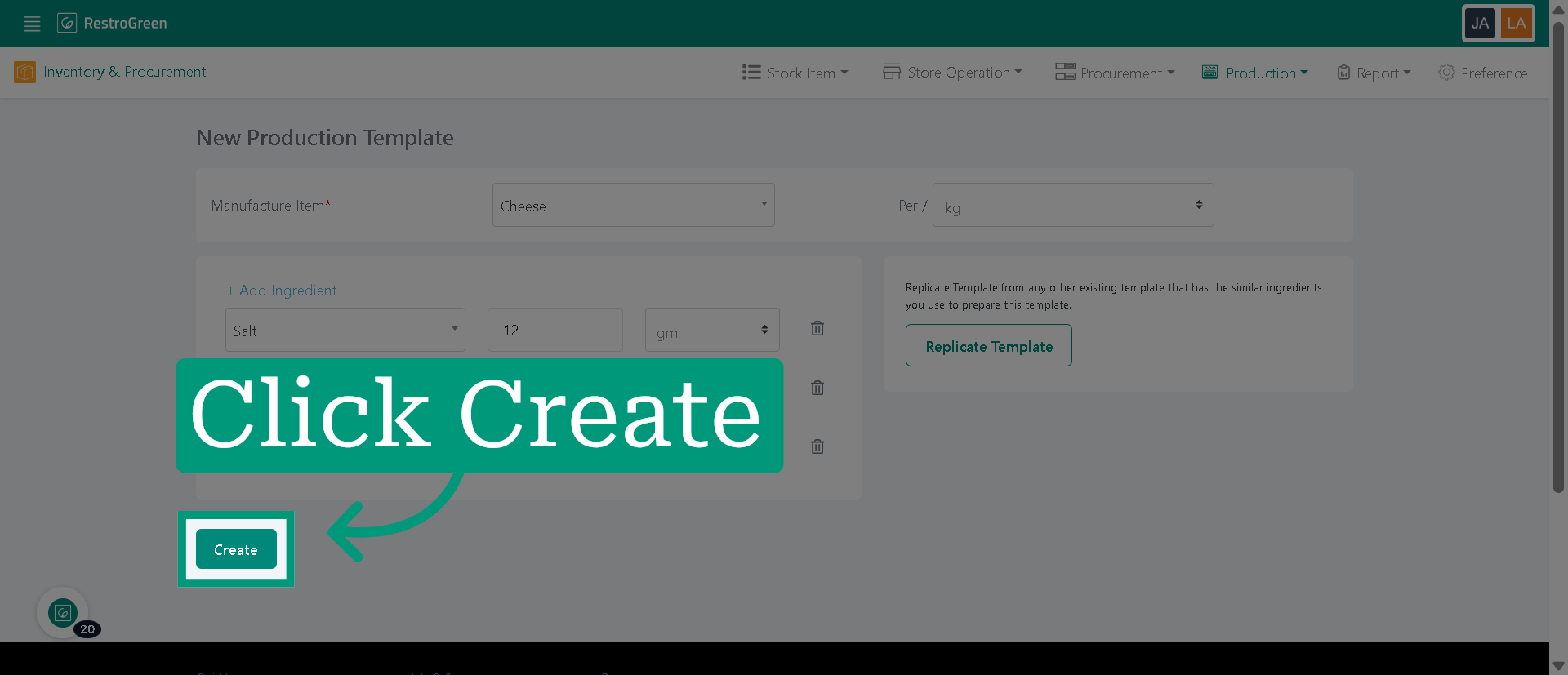
10. Click "Create" to save all specified ingredients and quantities
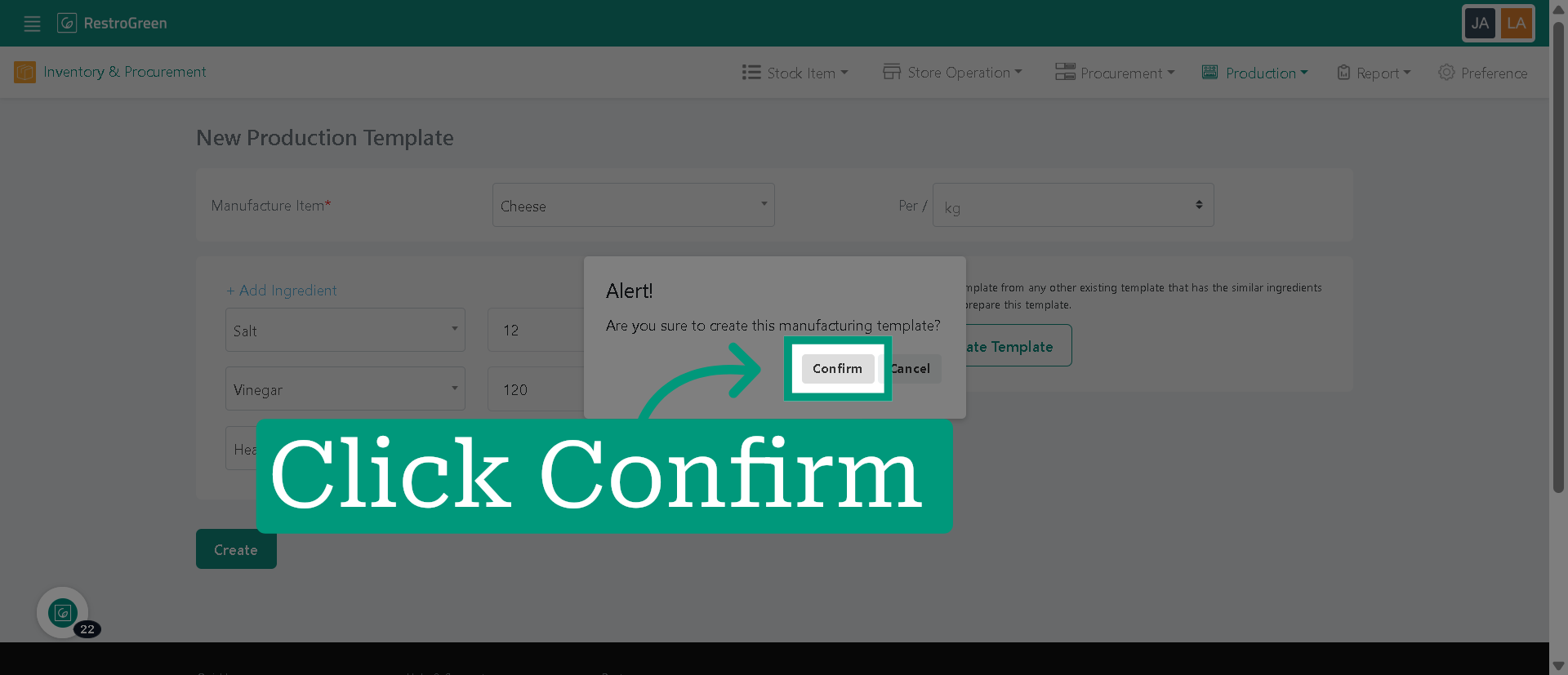
11. Click "confirm" to complete the production template