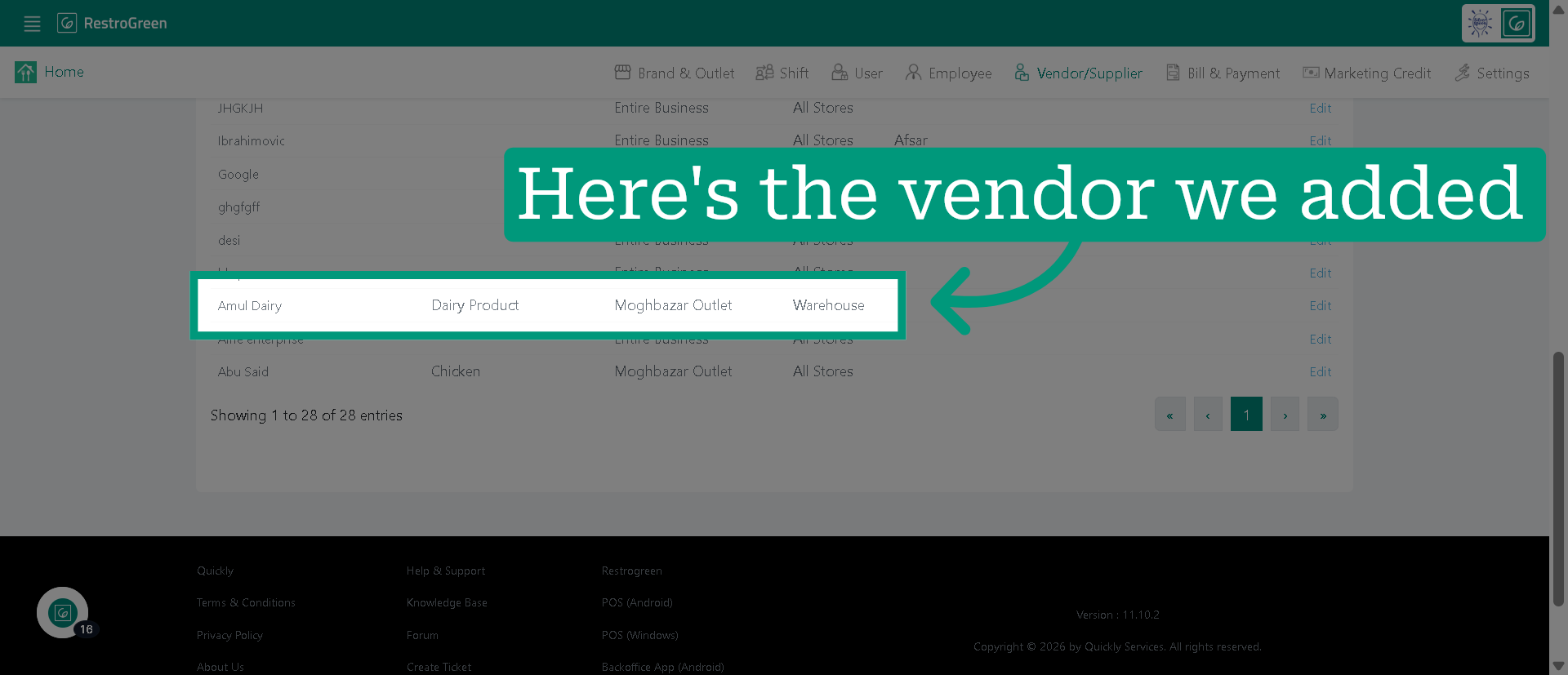
How to Add Vendor & Vendor Types in RestroGreen Business Portal
This tutorial guides you through configuring vendor types and adding new vendor/suppliers in the
RestroGreen Business Portal.
Go to
restrogreen.quicklyservices.com
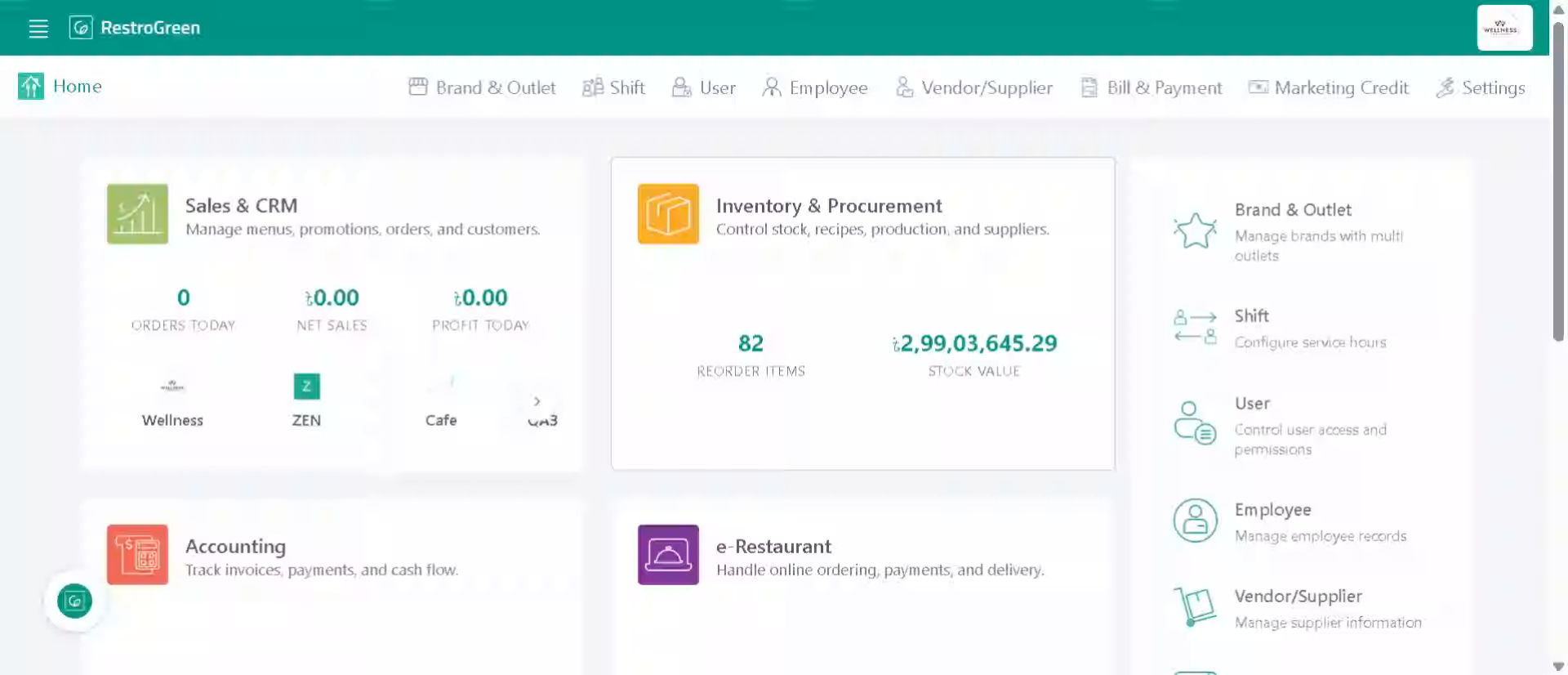
1. Login to your Business Portal
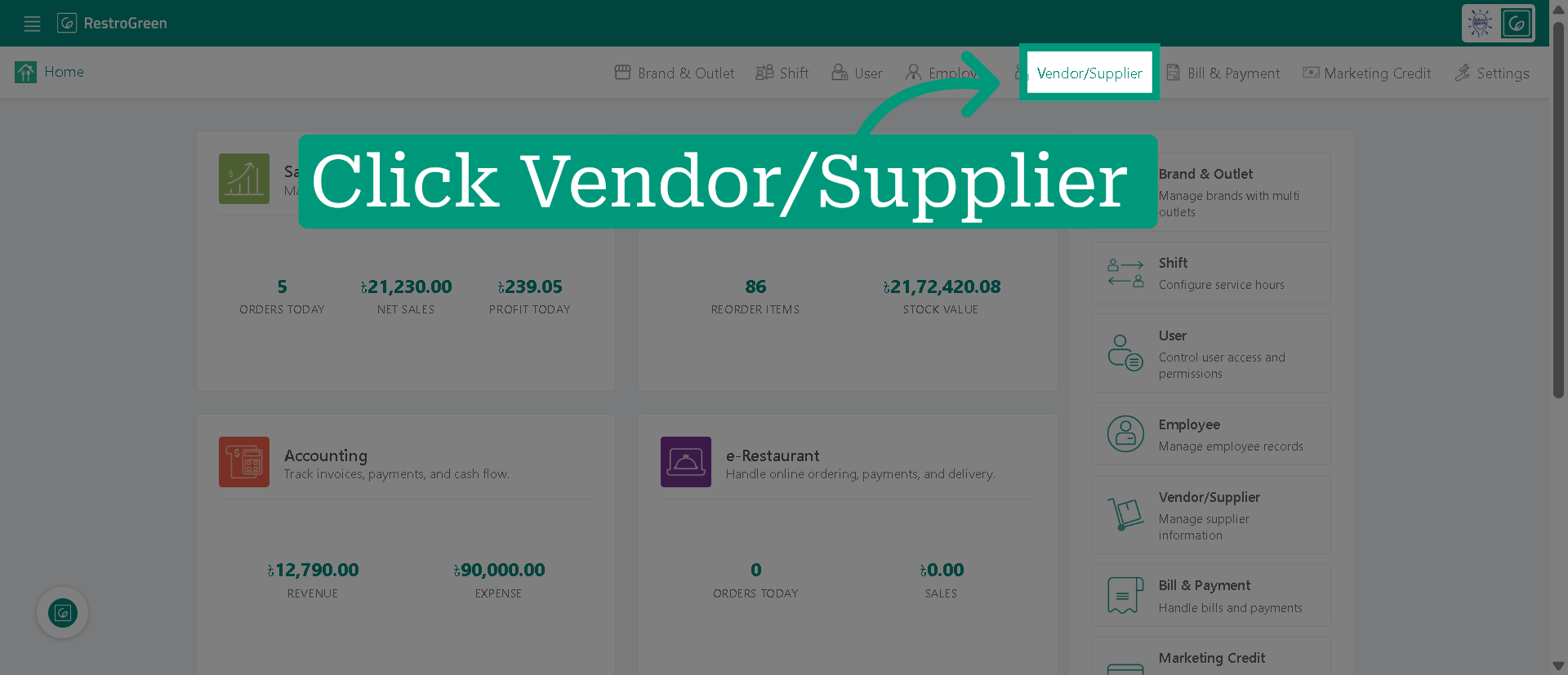
2. Click "Vendor/Supplier" to open the vendor management section
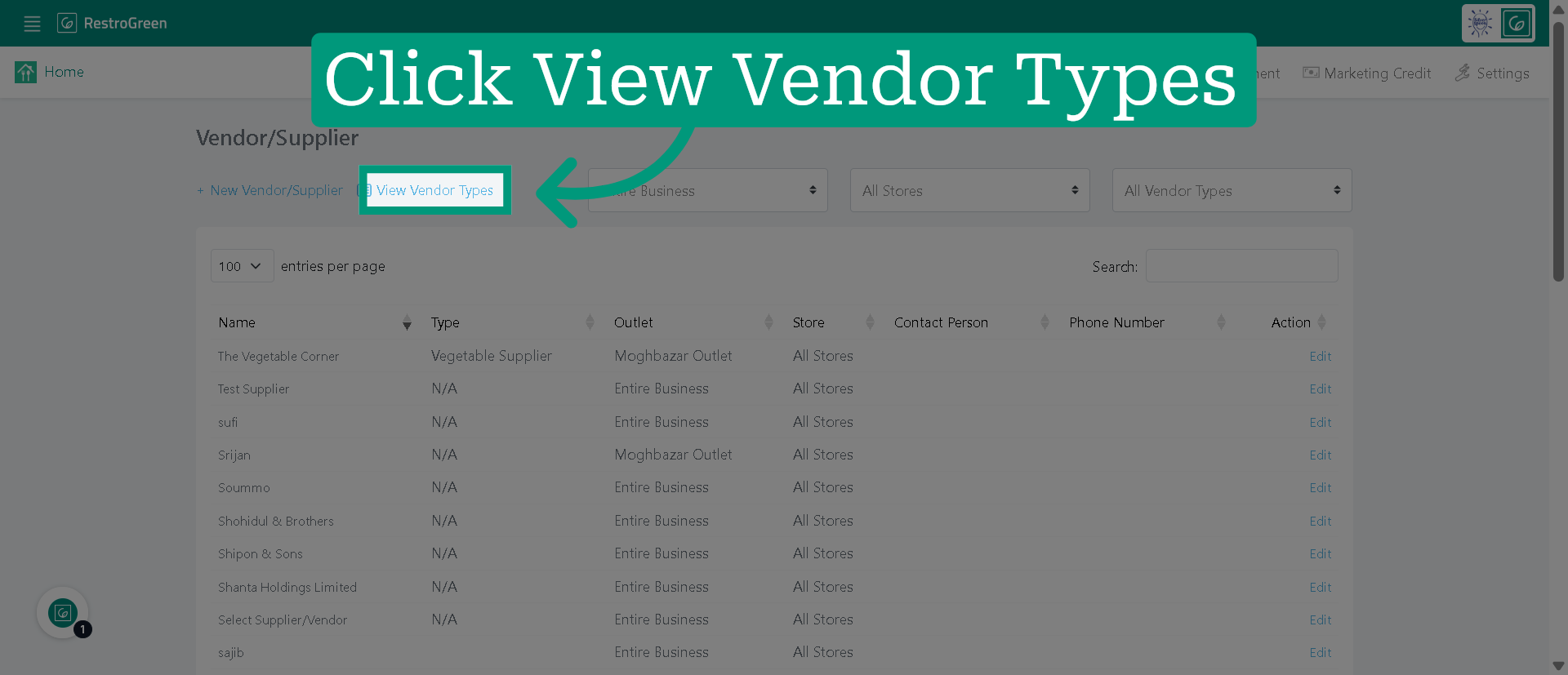
3. Click "View Vendor Types" to see the list of available vendors
4. Initiate New Vendor Type Creation
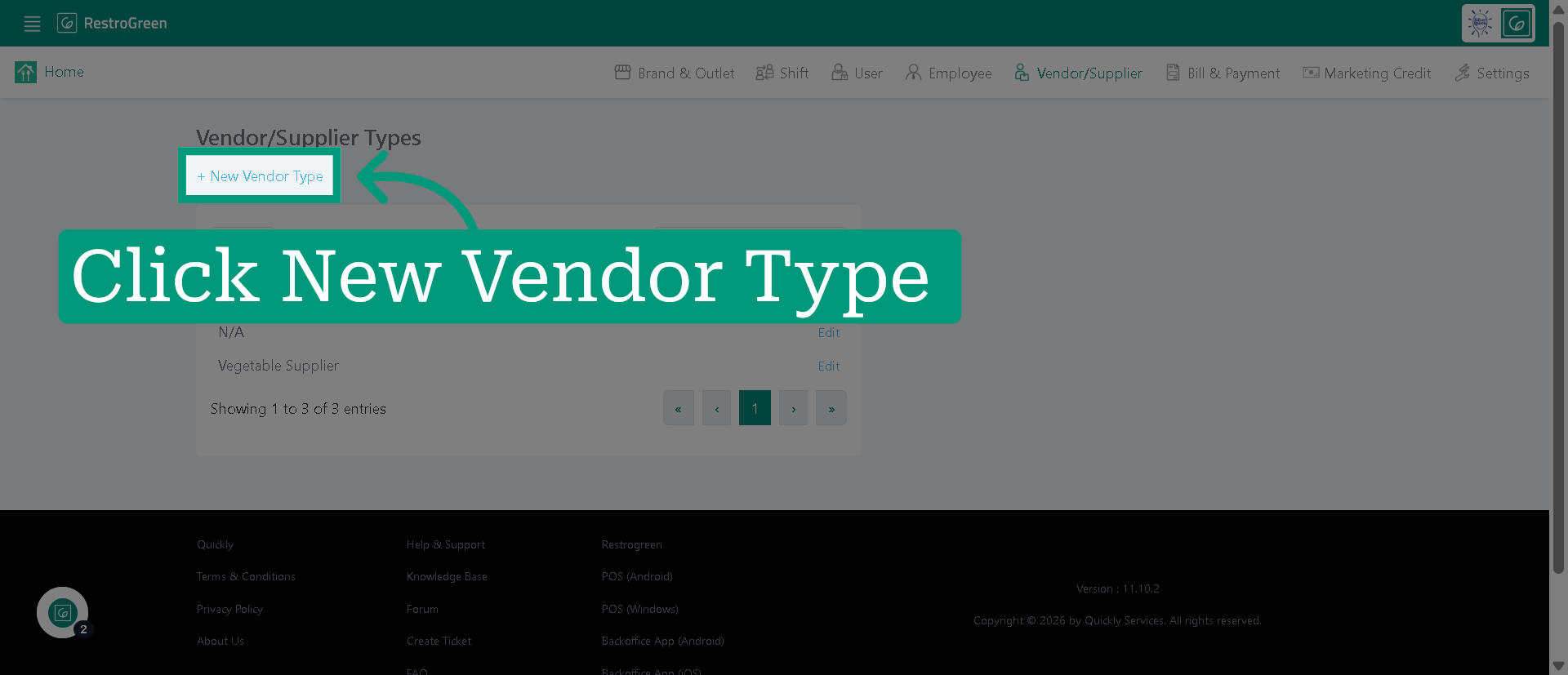
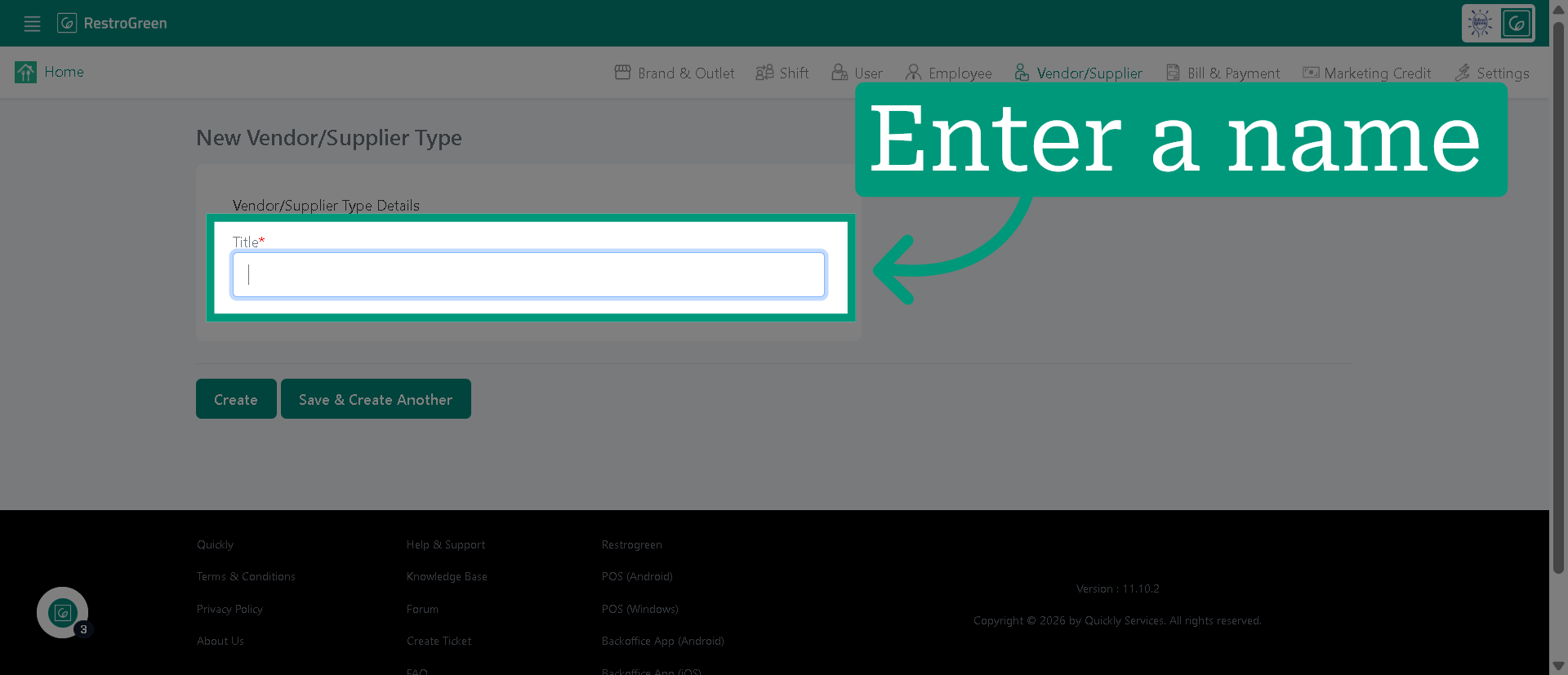
5. Type-in a name for this vendor type
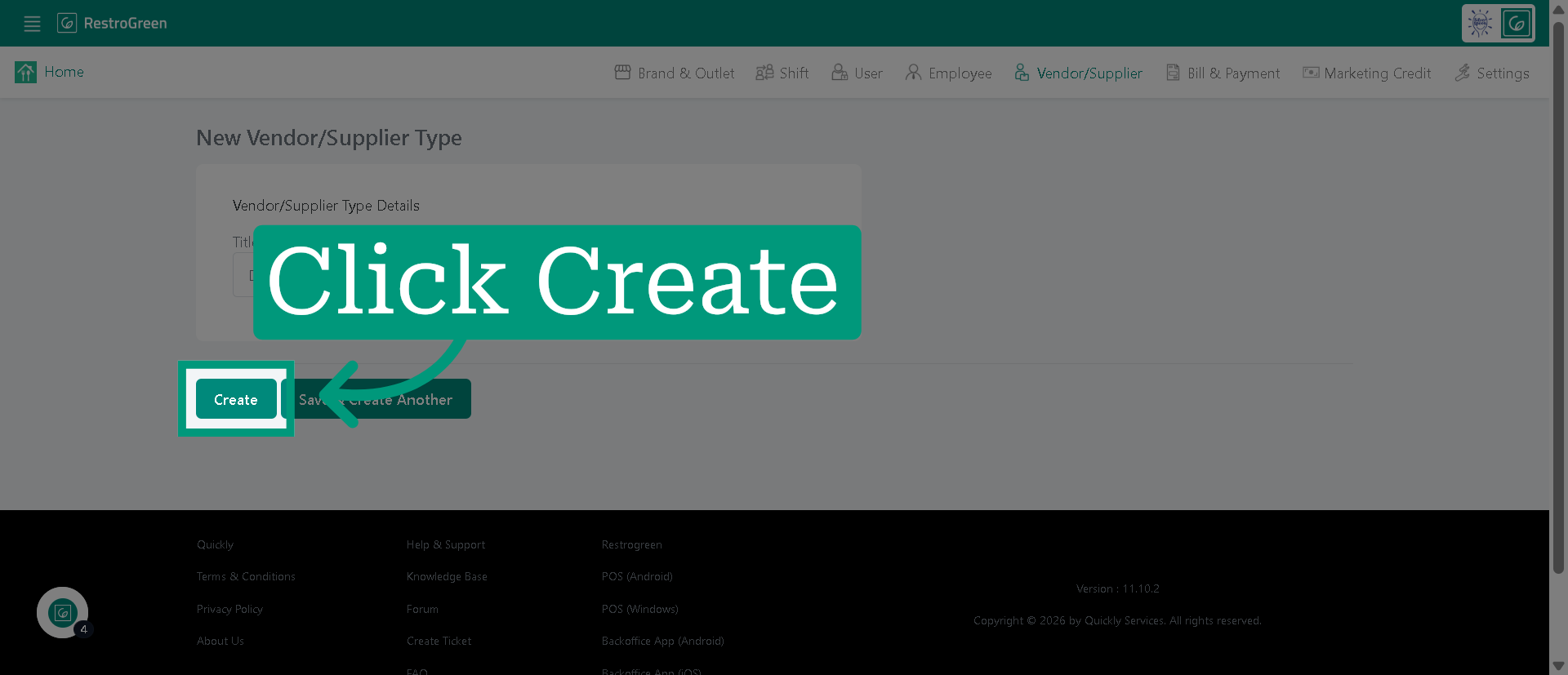
6. Click "Create" to save the new vendor type
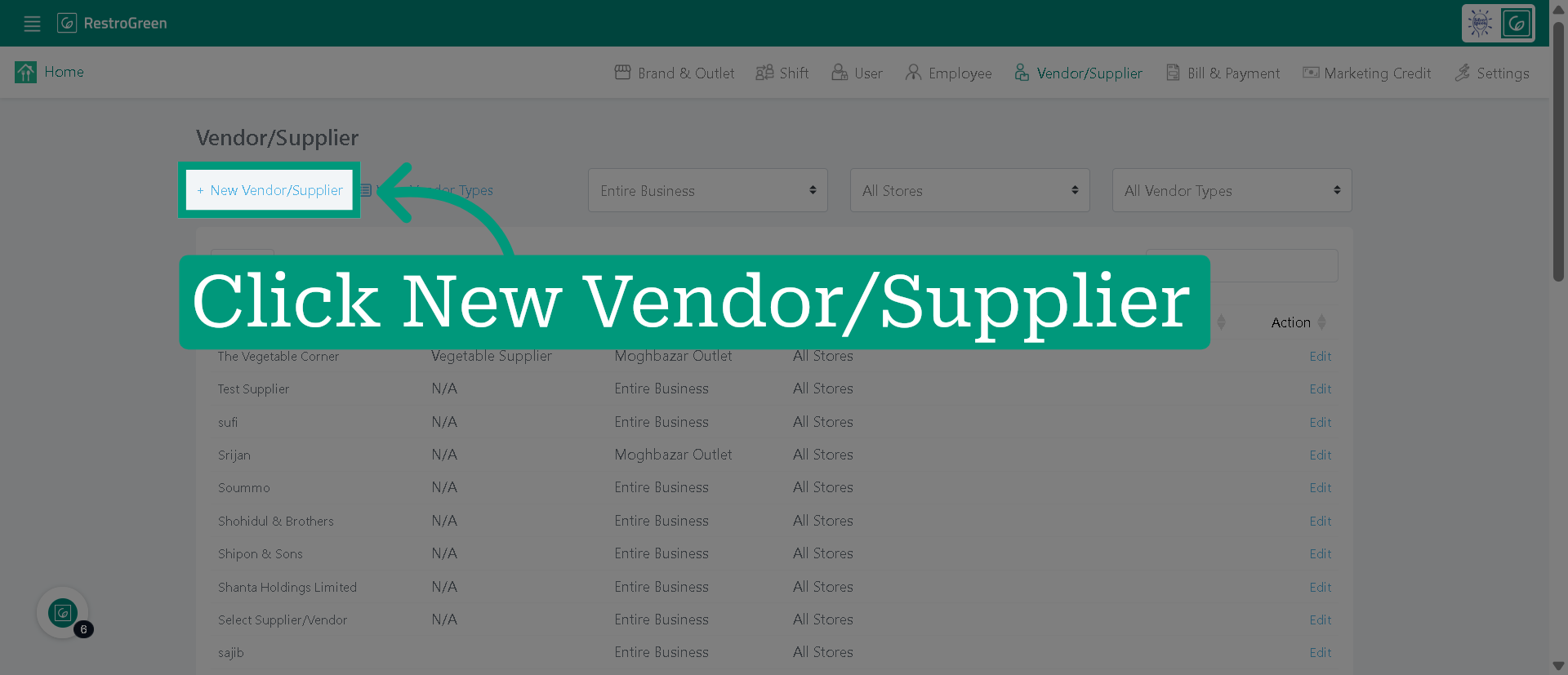
7. Click "New Vendor/Supplier" to begin adding a new supplier
8. Choose the vendor type we created earlier
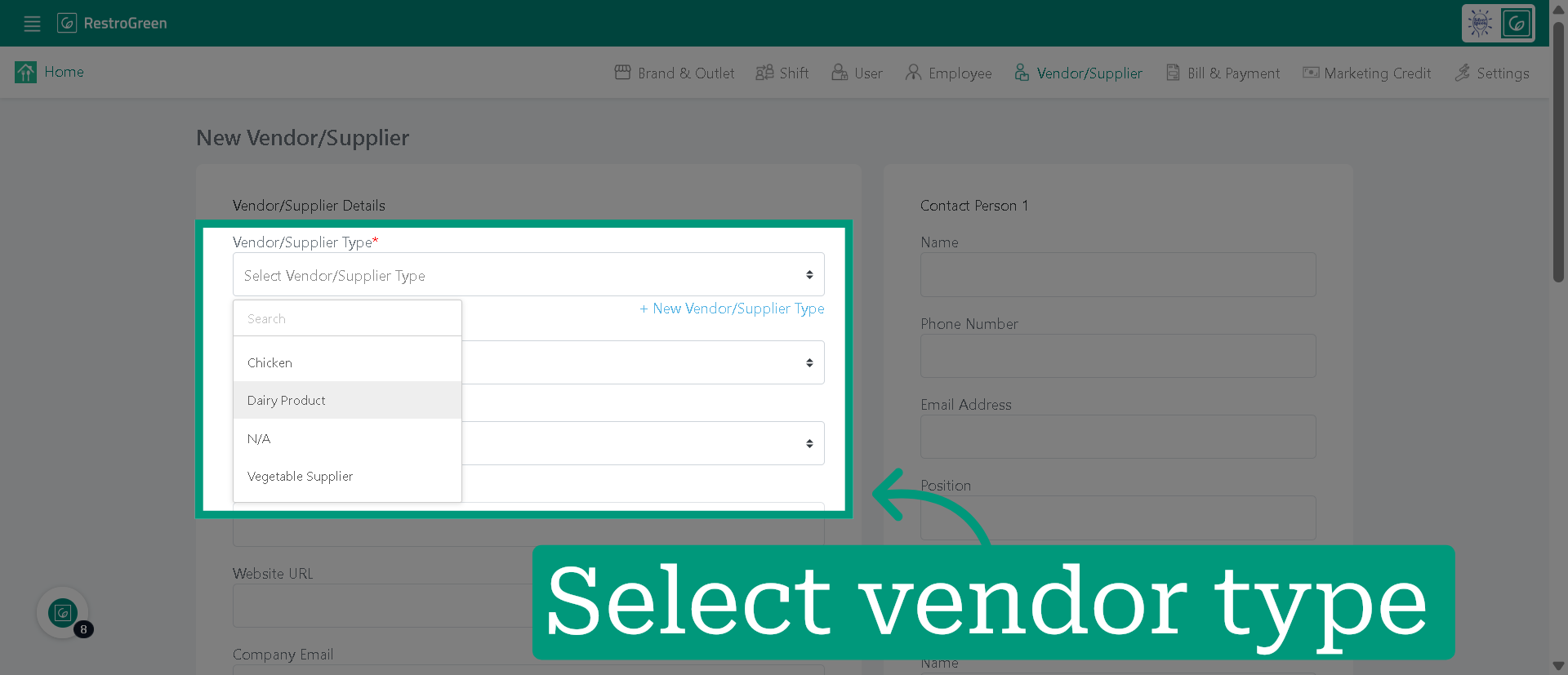
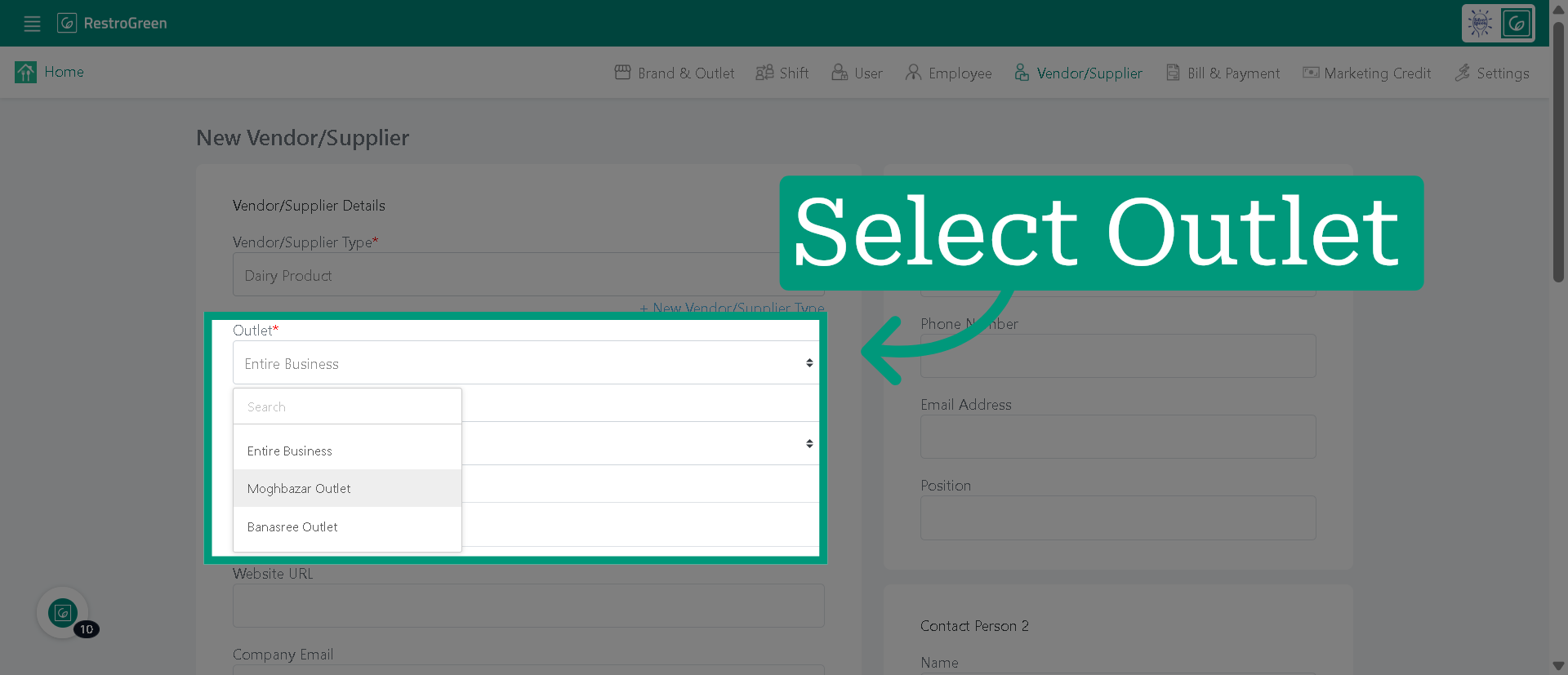
9. Select an outlet in which you want to assign the vendor
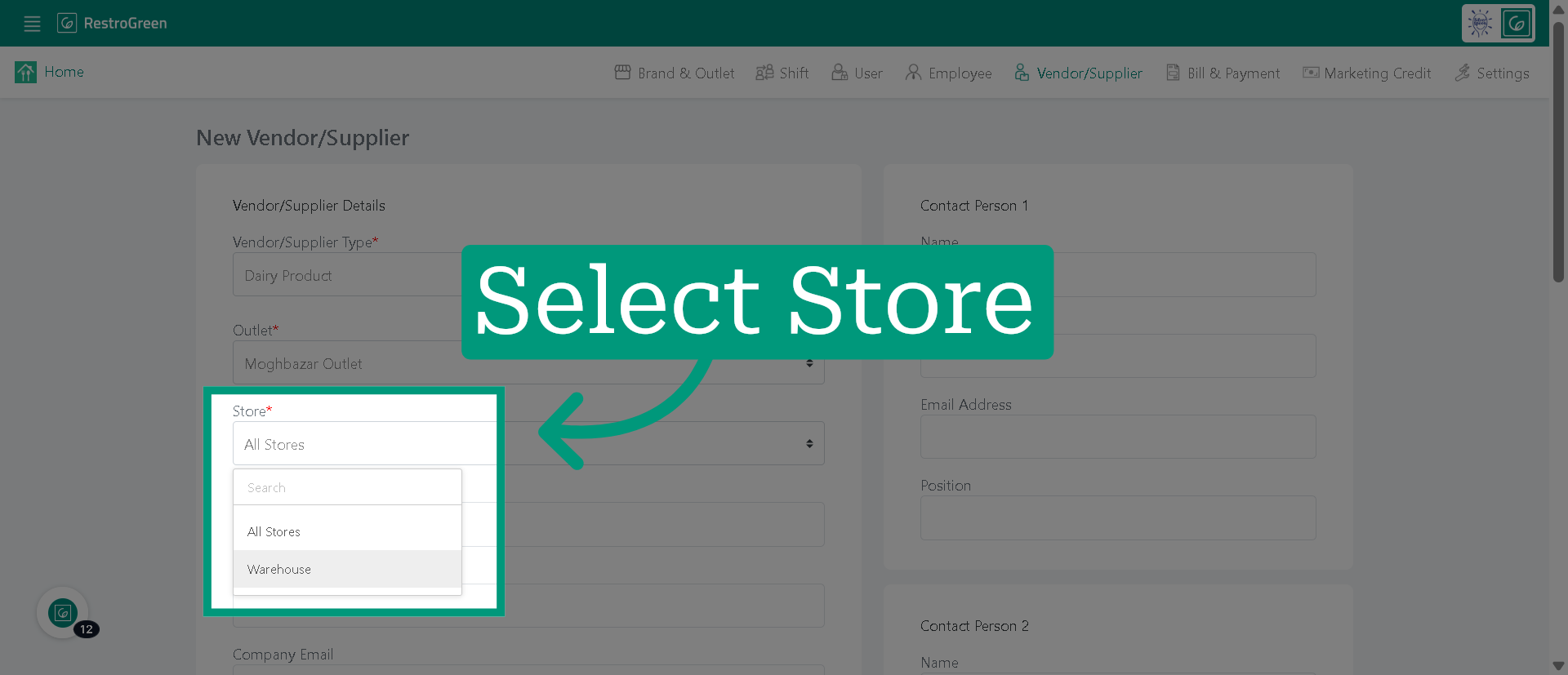
10. Select a store within that outlet
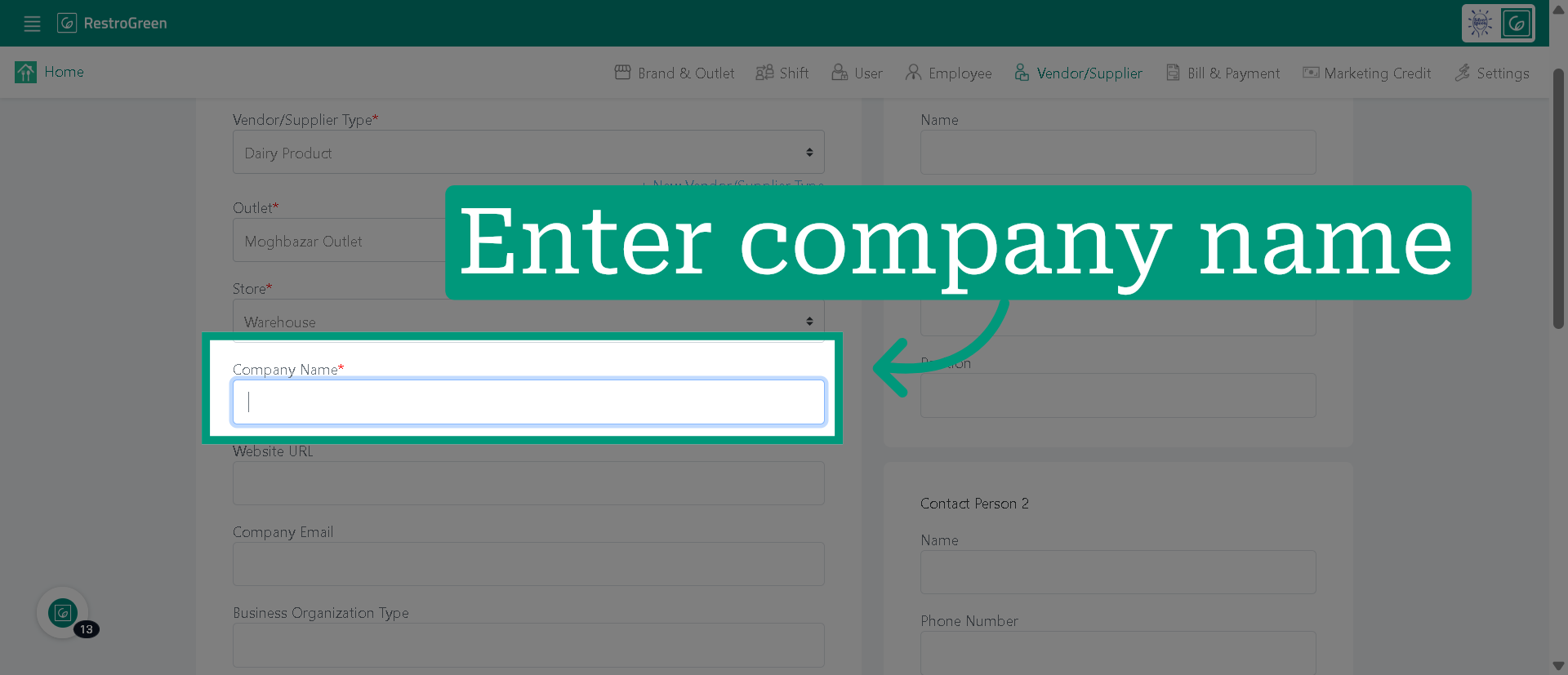
11. Type-in the supplier's company name
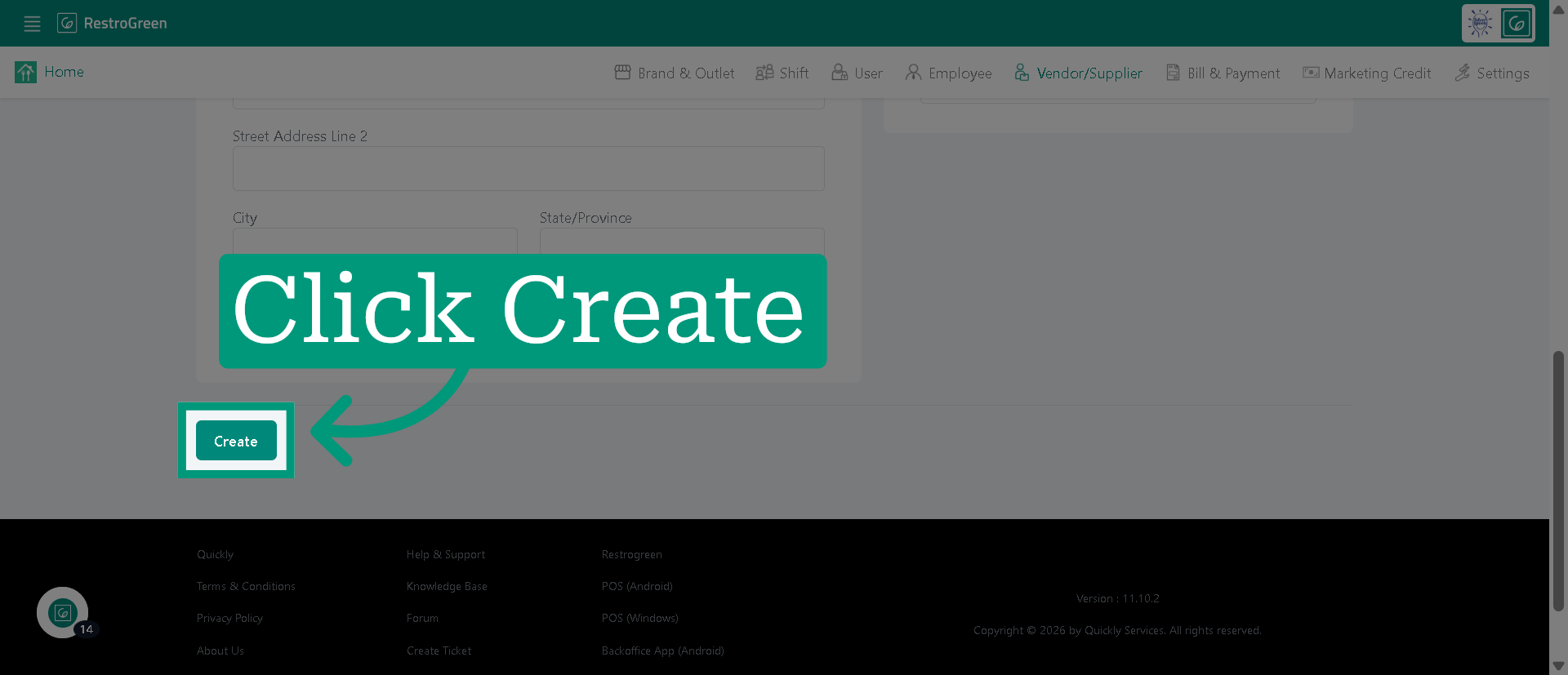
12. Click "Create" to save the new vendor information
13. The vendor/supplier is added for the next step of inventory management