How to Transfer Stocks between Outlets in RestroGreen Business Portal
This tutorial guides you through managing inventory transfers between multiple stores, warehouse, or outlets within the RestroGreen Business Portal.
Go to
restrogreen.quicklyservices.com
1. Login to your Business Portal
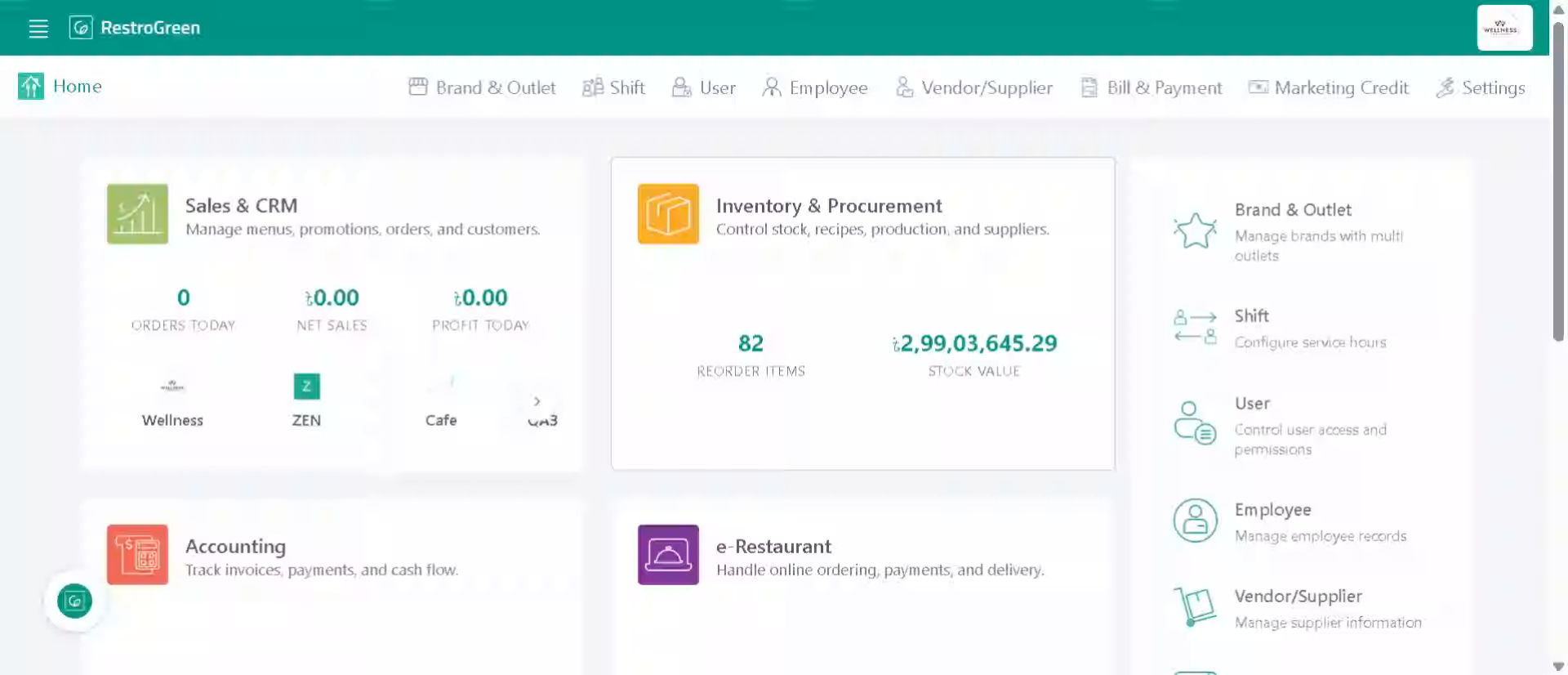
2. Access "Inventory & Procurement" Module
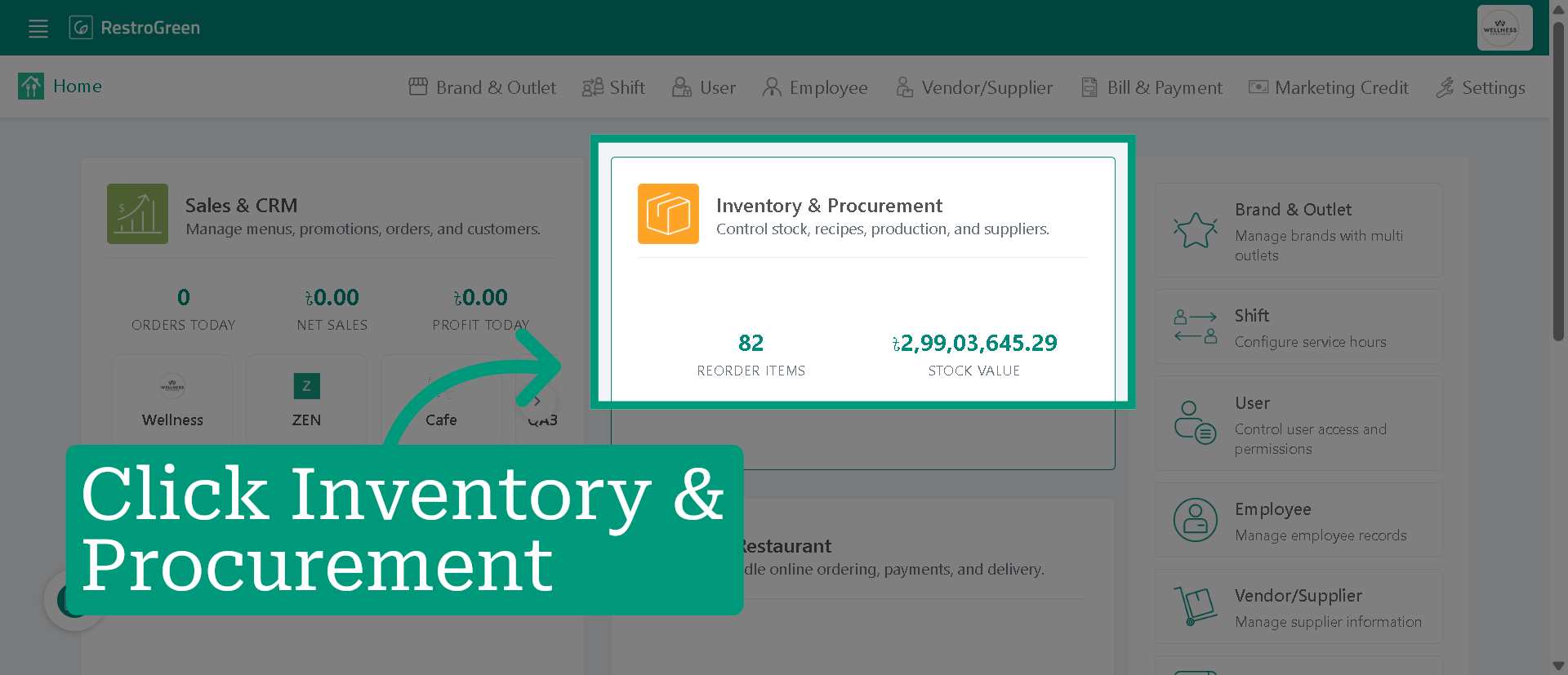
3. Click "Transfer Item" to begin the process of transferring inventory
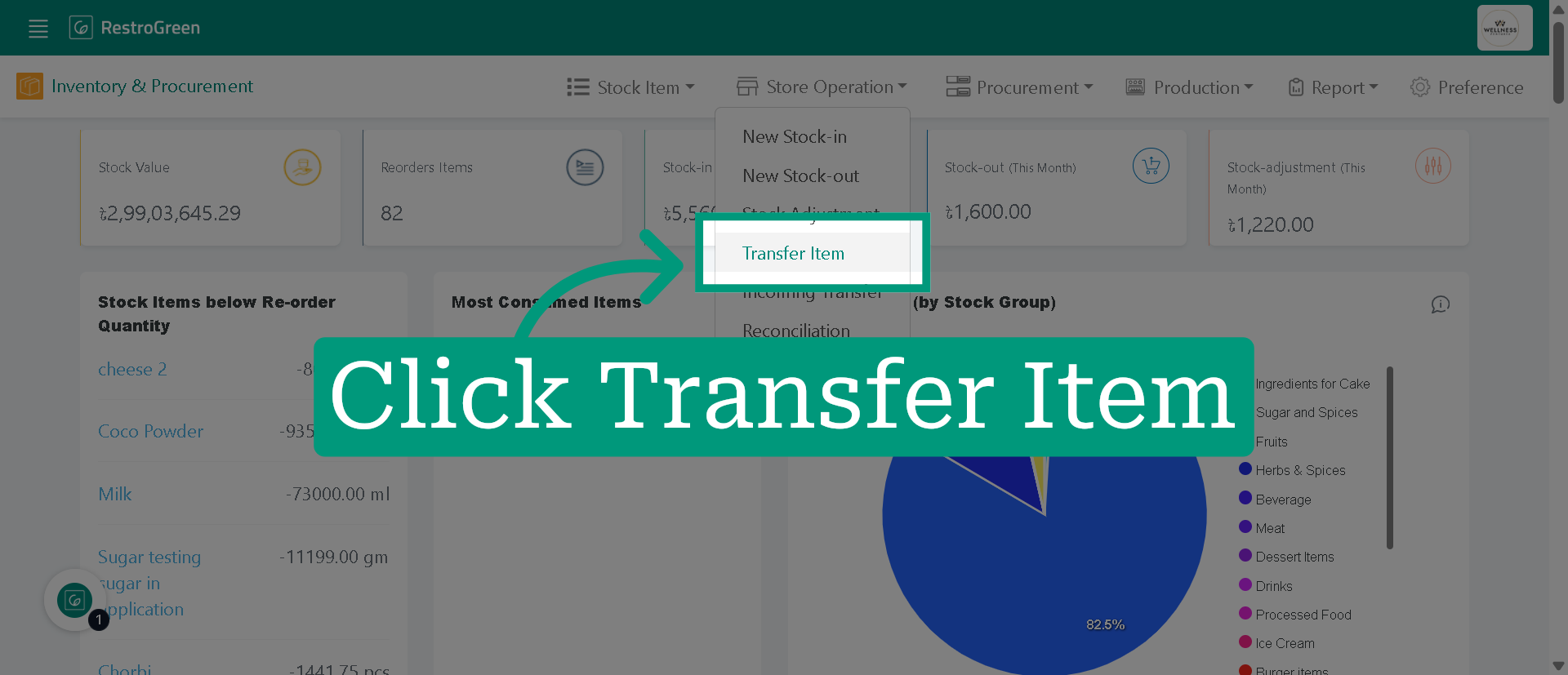
4. Select the outlet where the stock will be transferred from
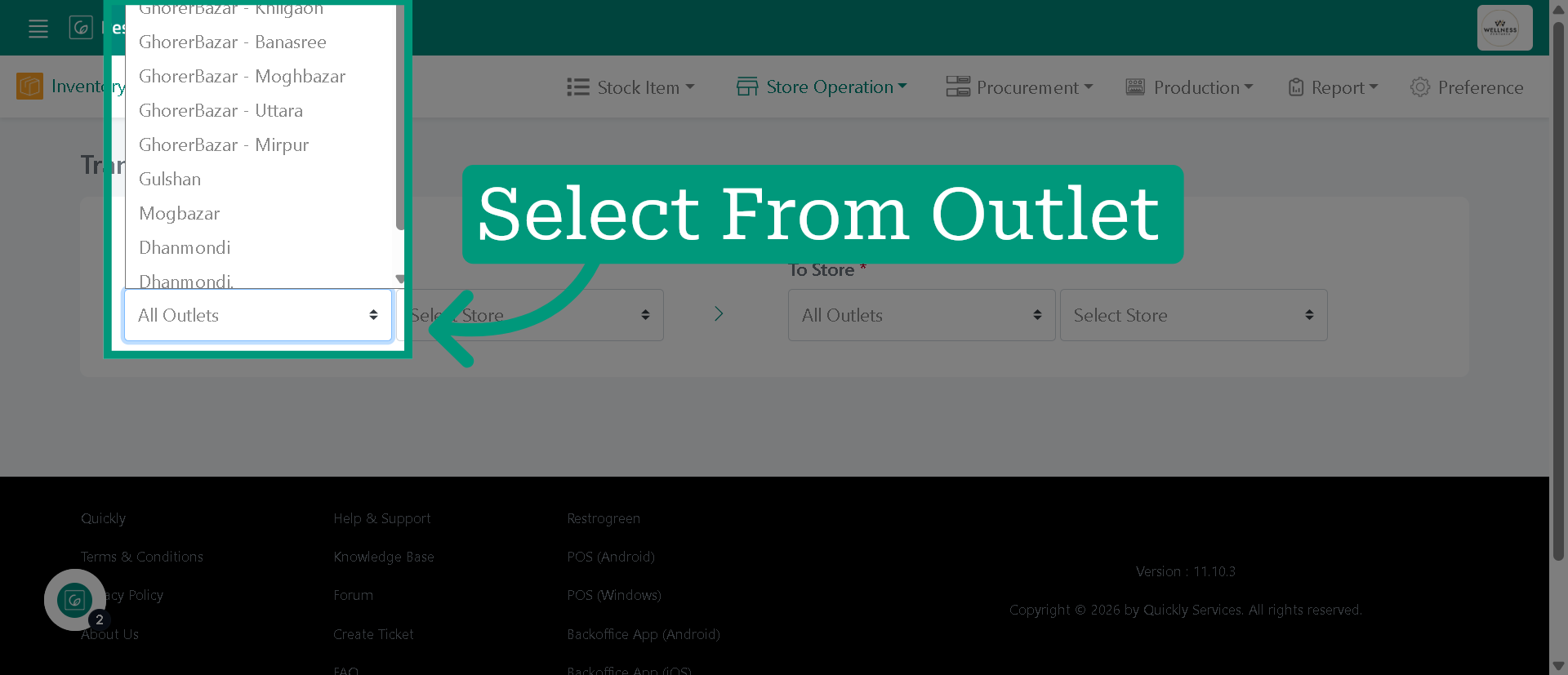
5. Select the outlet where the stock will be transferred to
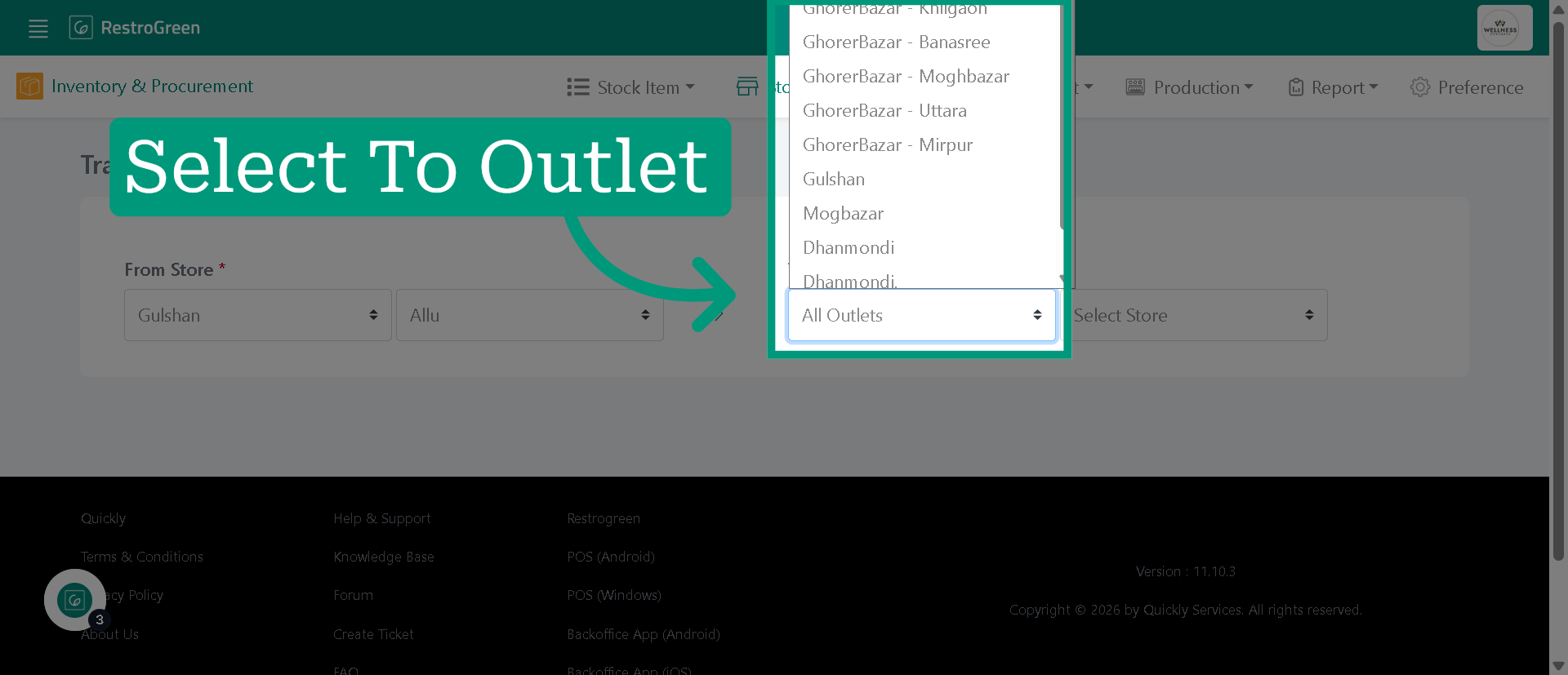
6. Select the stock group from which the stock item will be transferred
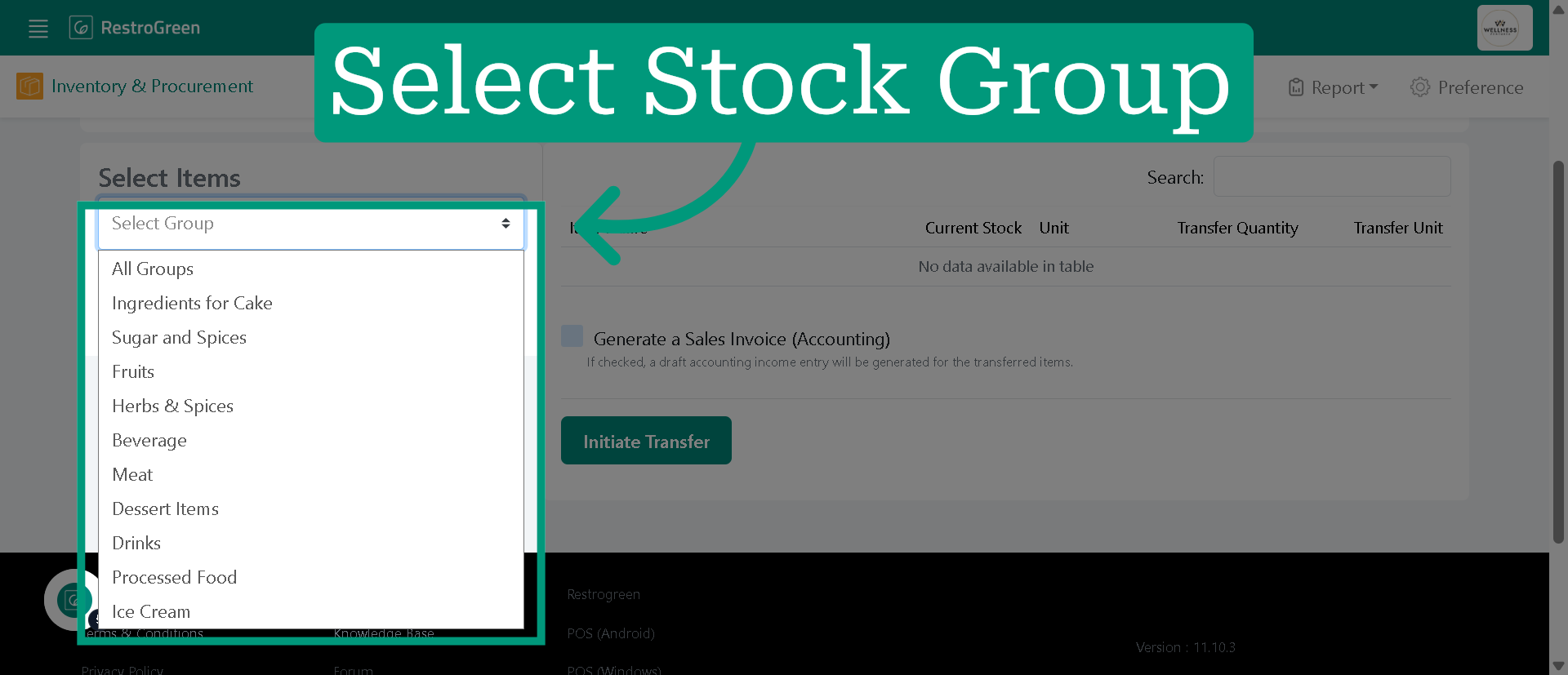
7. Select the stock item that will be transferred
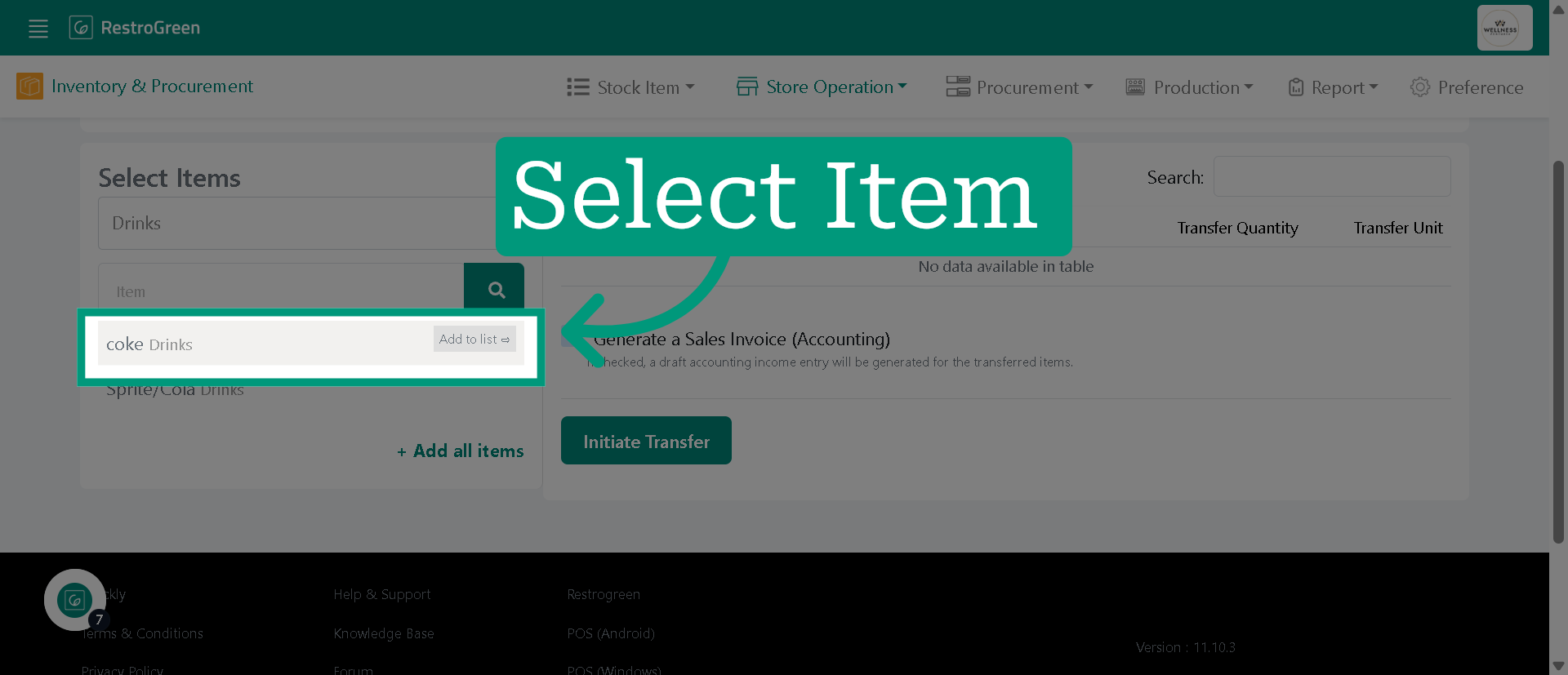
8. Type-in the quantity you want to transfer
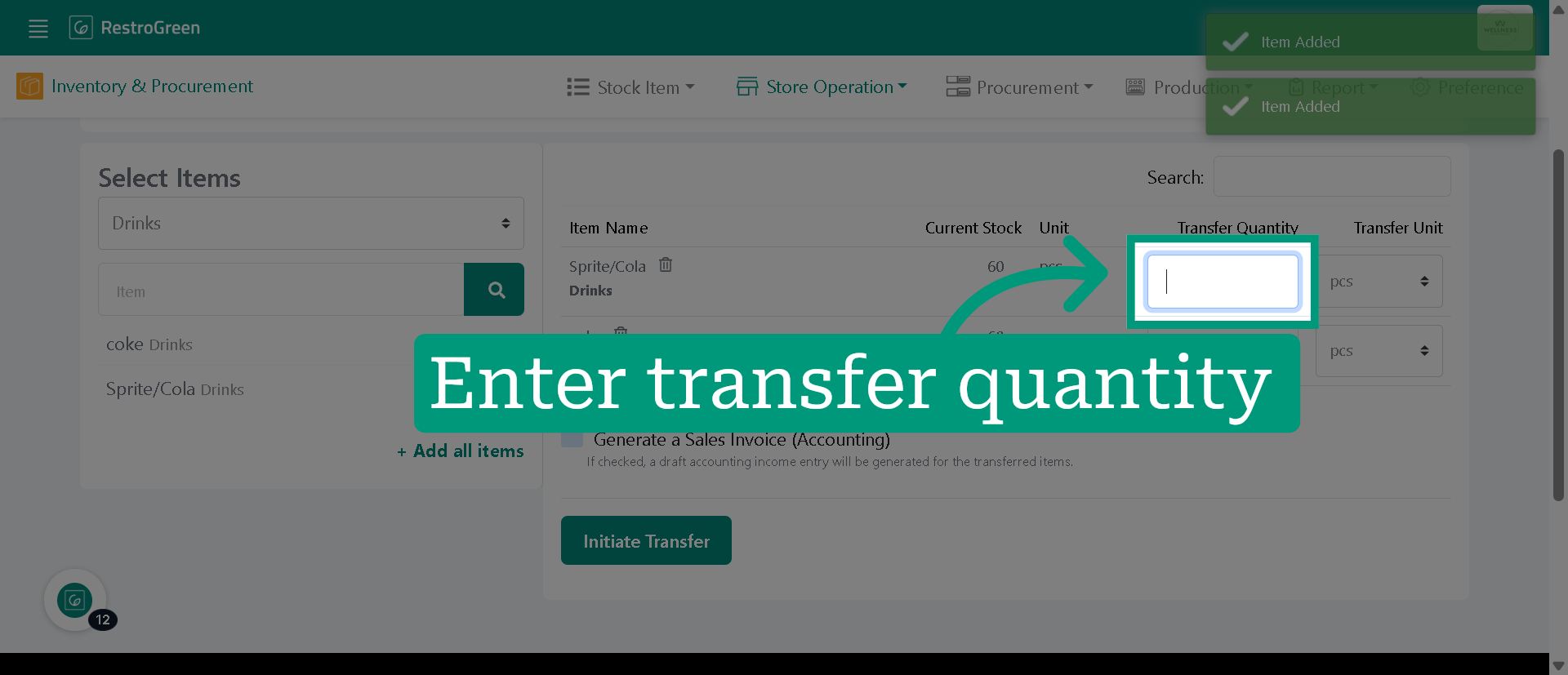
9. Click "Initiate Transfer" to process the selected items
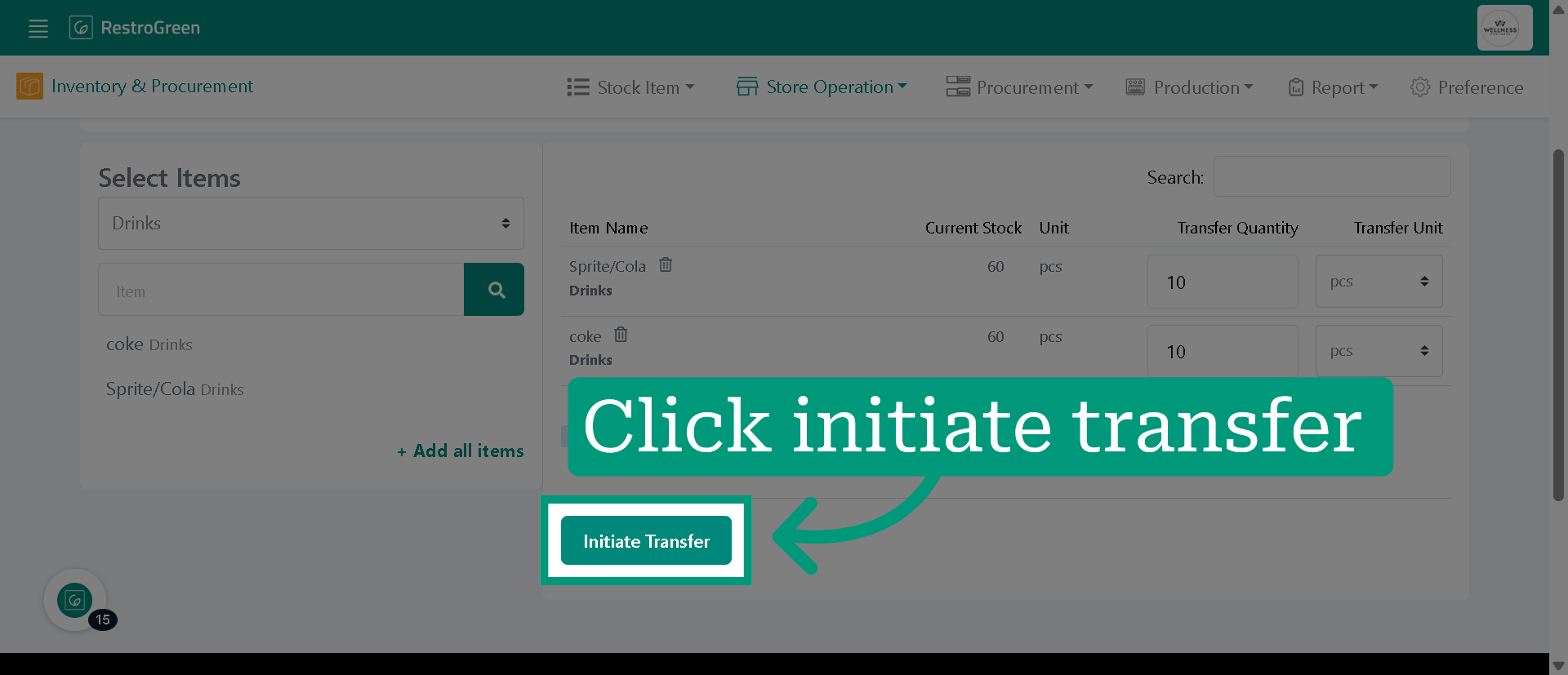
10. Click "Confirm" to finalize the initiation of the transfer
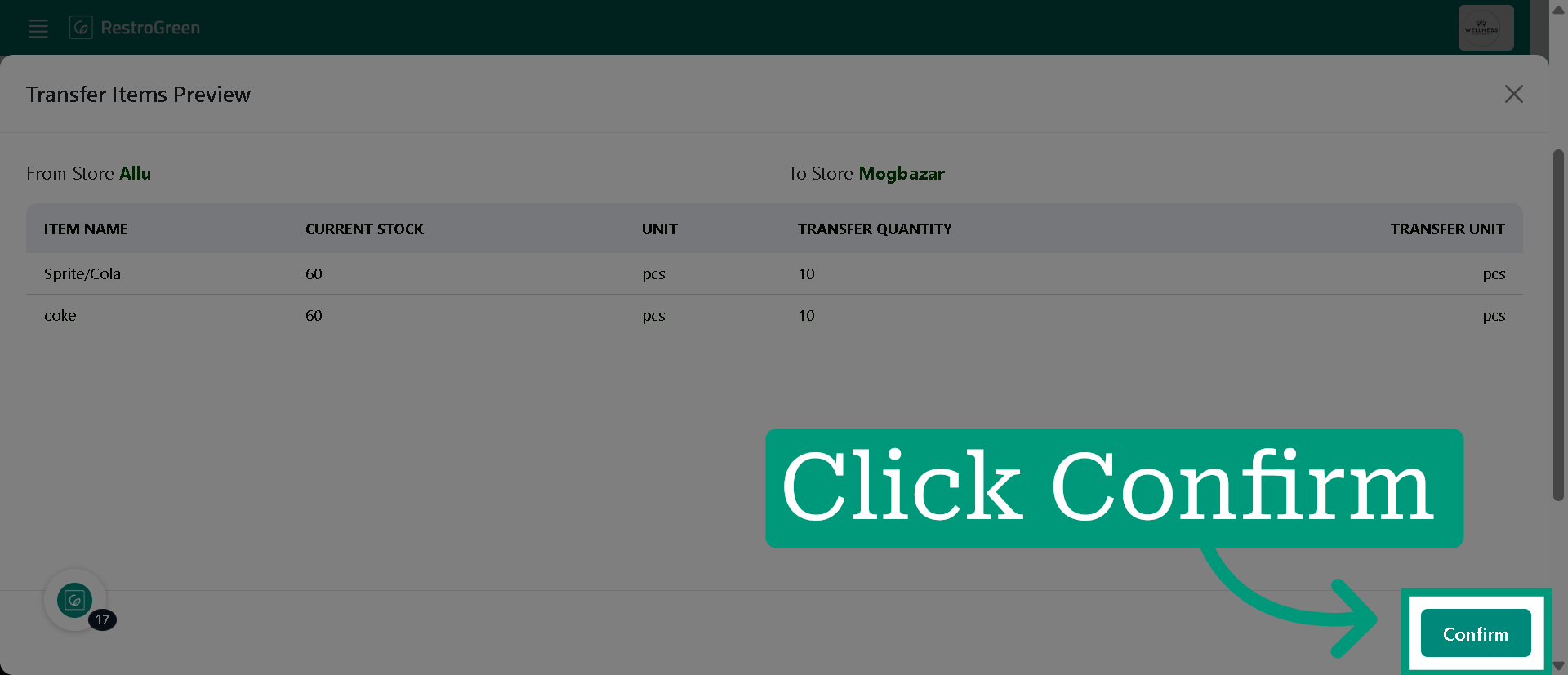
11. Click transfer record to view the details of the transfer
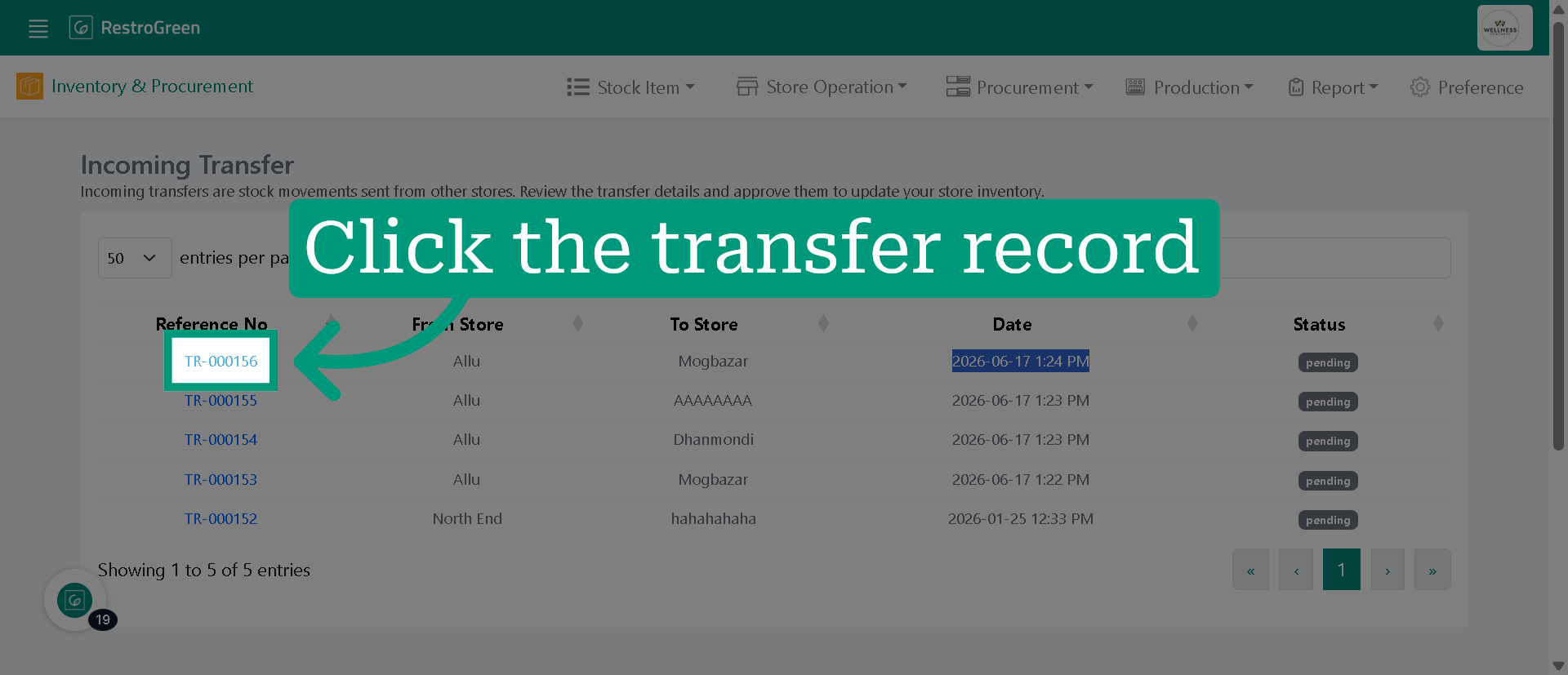
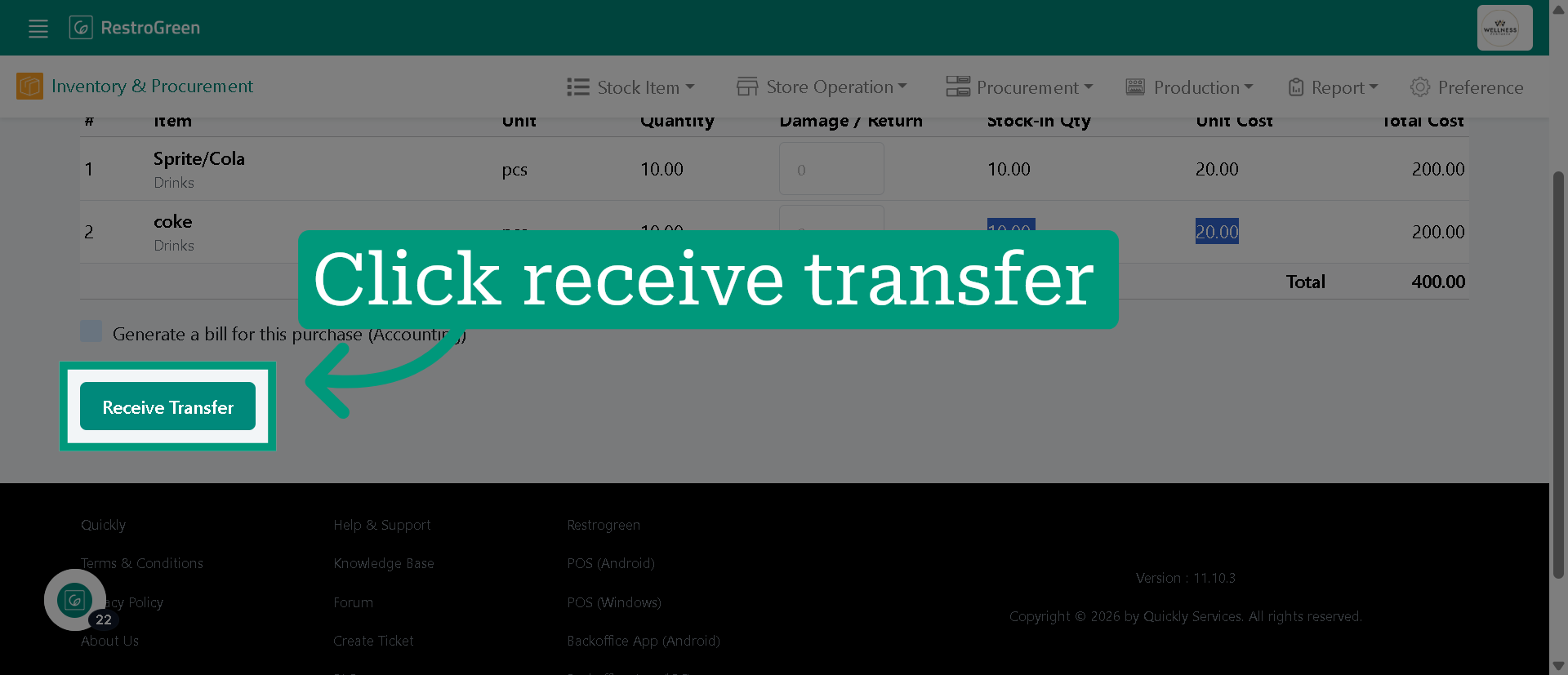
12. Click "Receive Transfer" once items has been transferred at the destination outlet
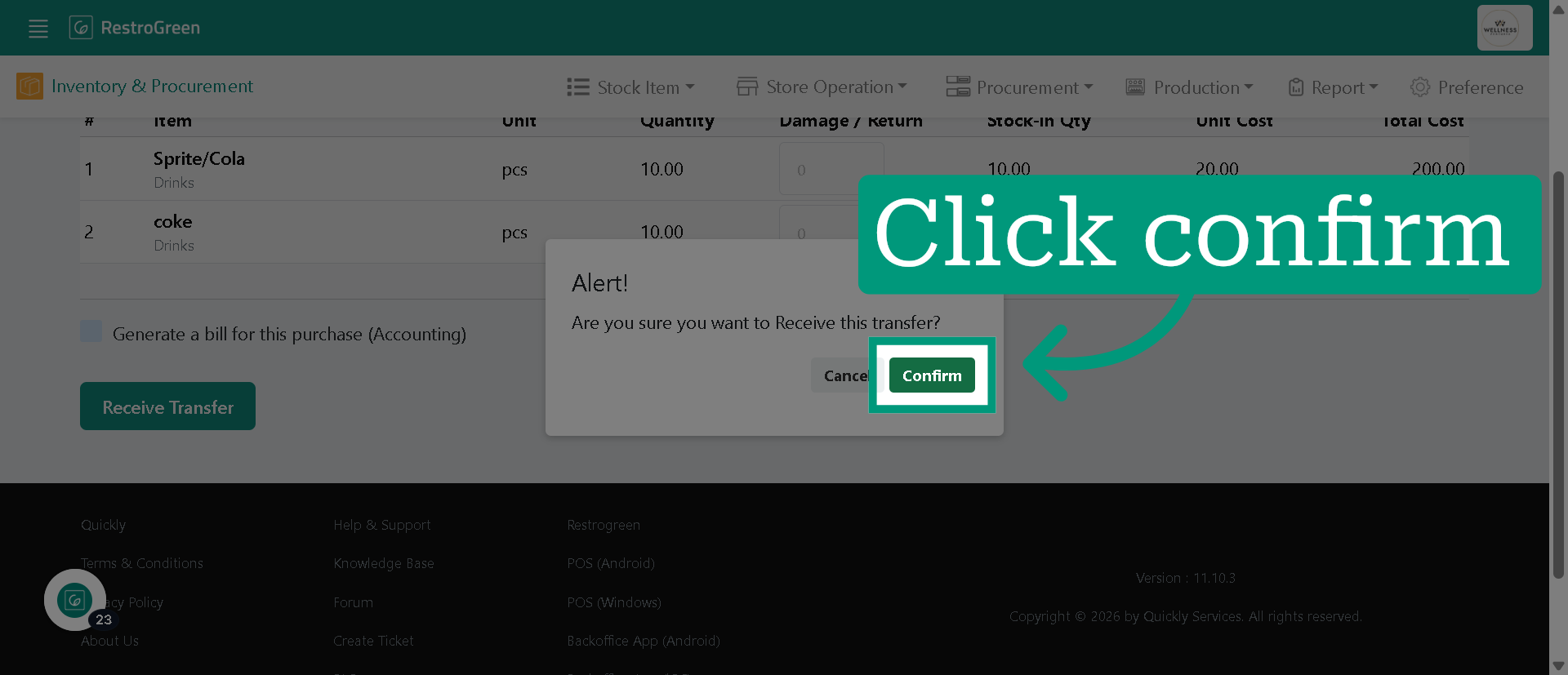
13. Click "confirm" to finalize the receipt of the transferred items
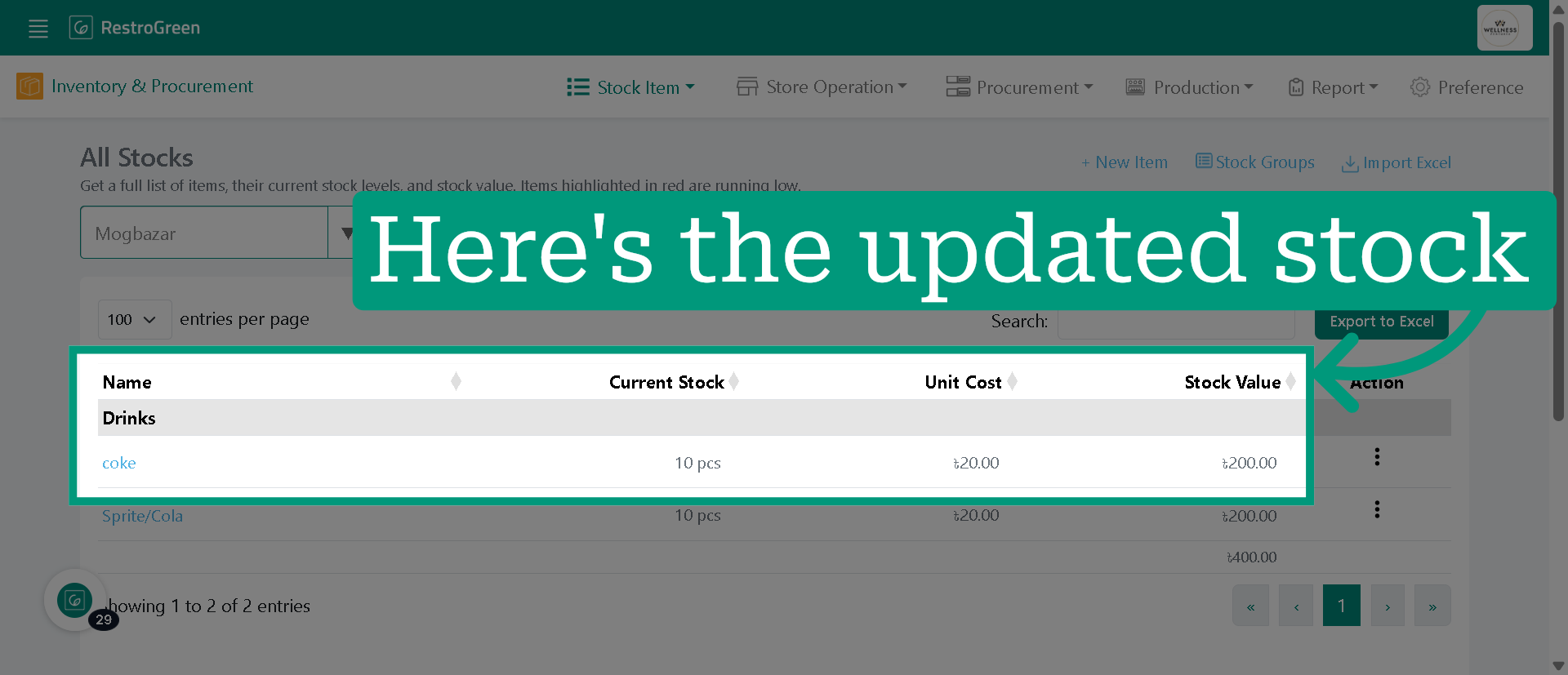
14. You can view the updated stock after the confirmation