How to Stock-in in RestroGreen Business Portal
This tutorial guides you through managing stock-in entries within the RestroGreen Business
Portal.
Go to
restrogreen.quicklyservices.com
1. Login to your Business Portal
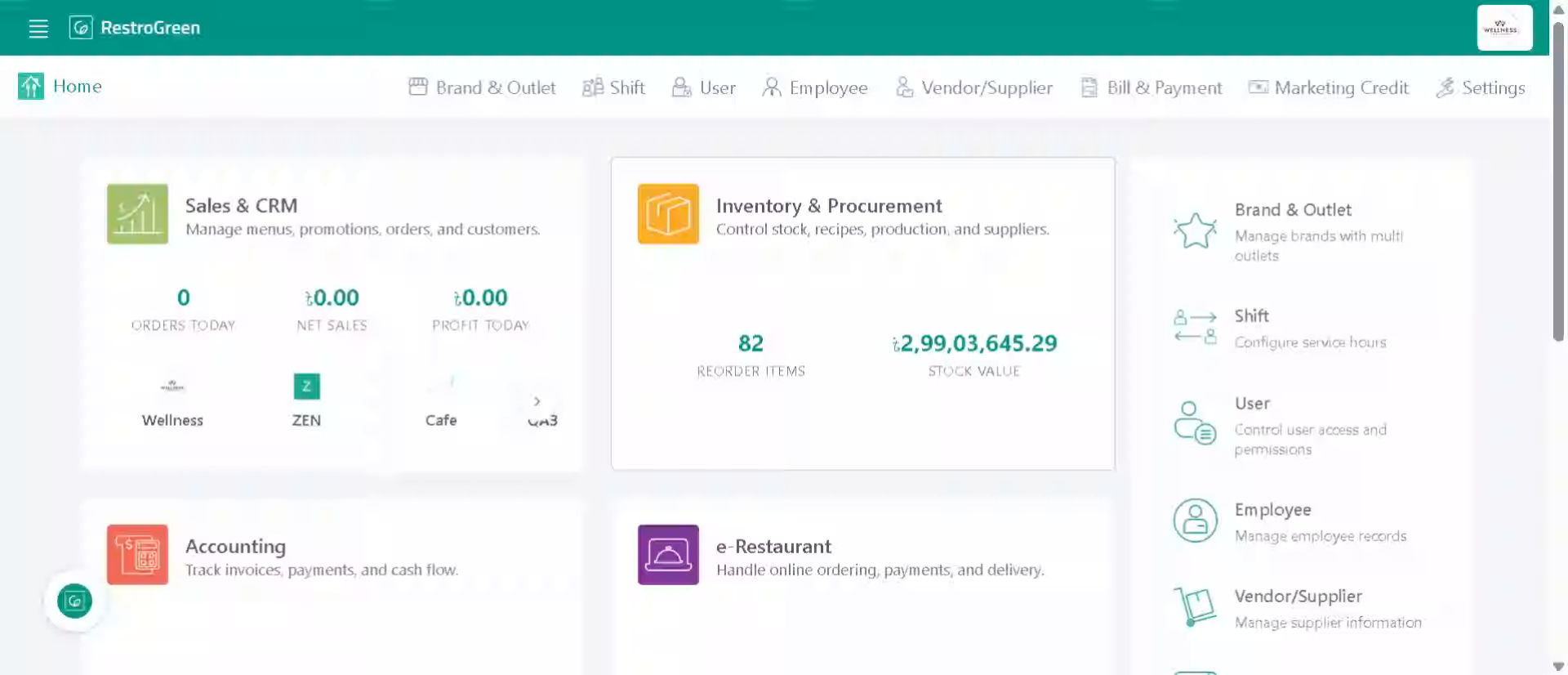
2. Click "Inventory & Procurement" Module to open the inventory management section
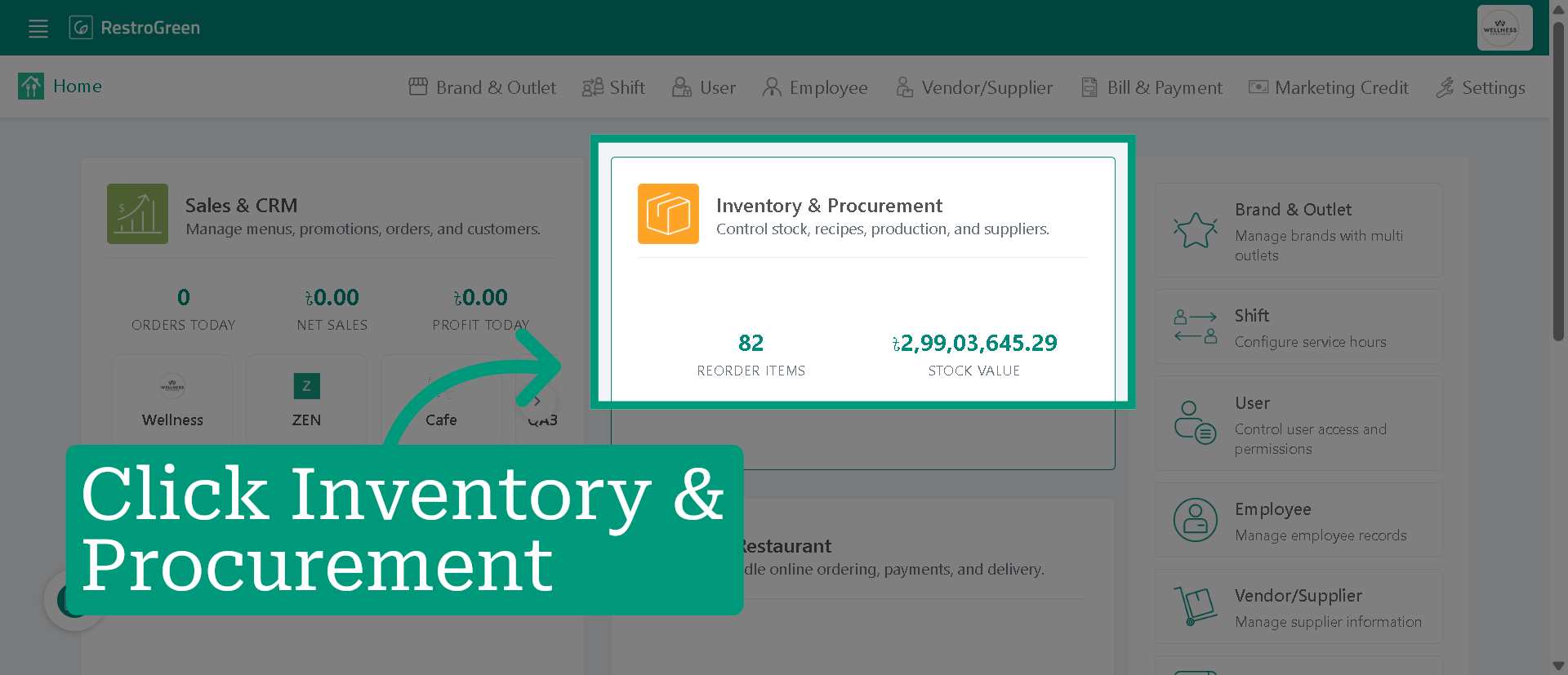
3. Click "New Stock-in" to start adding a new stock entry
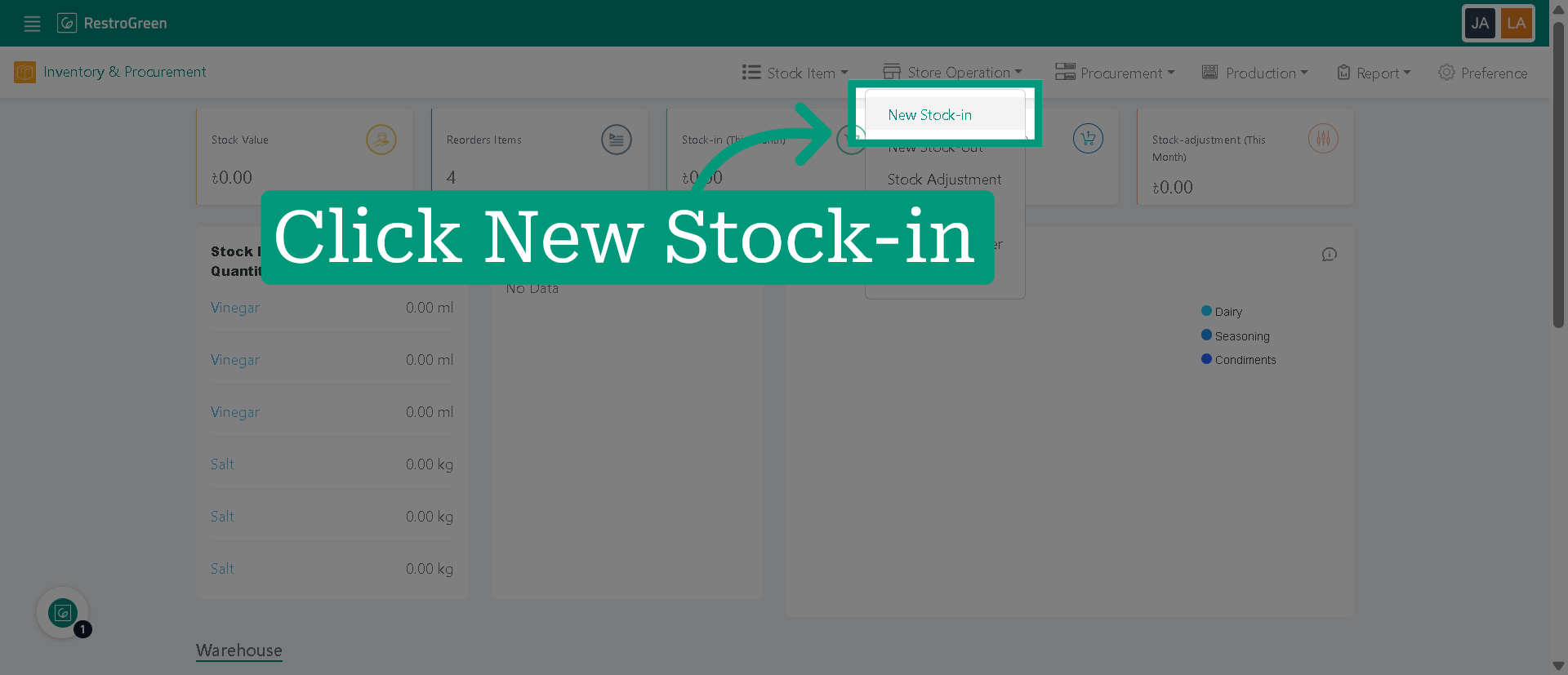
4. Choose the outlet for the stock-in entry
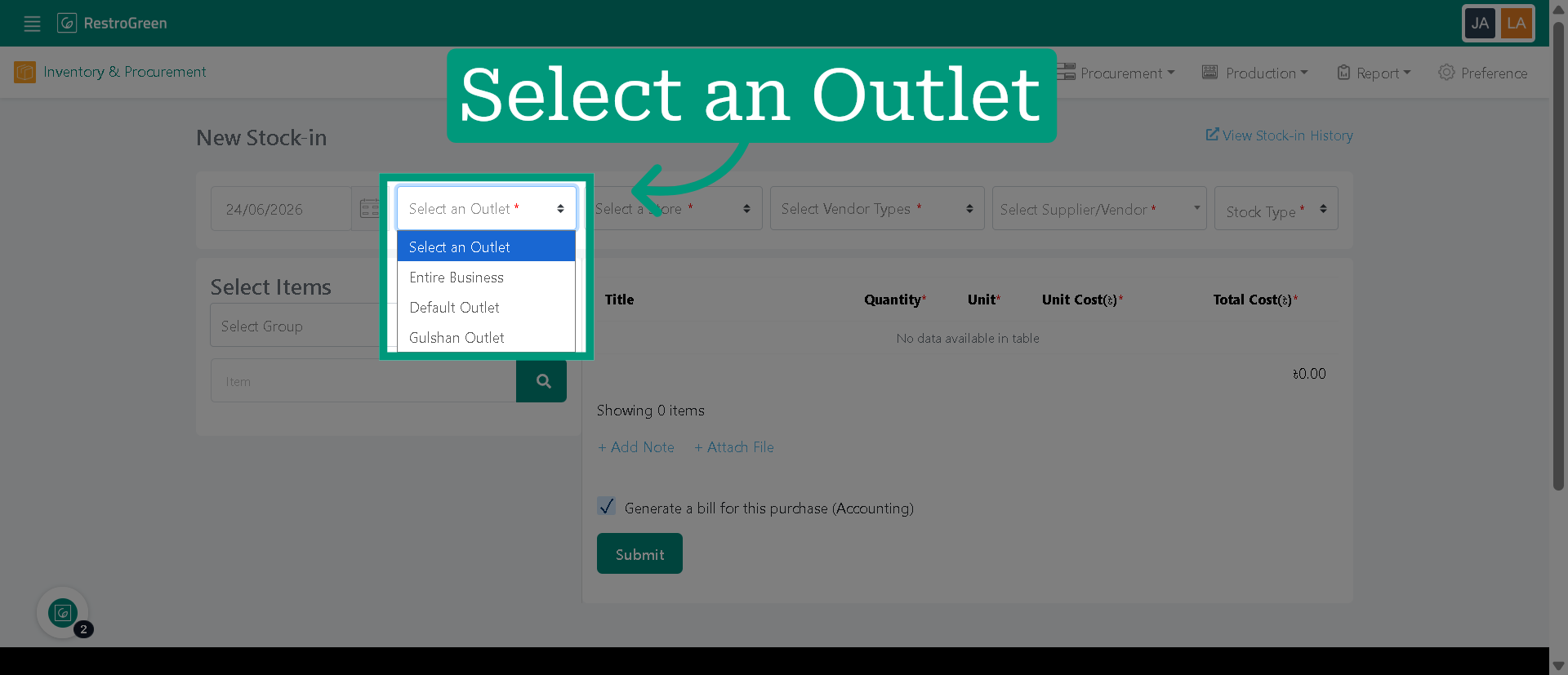
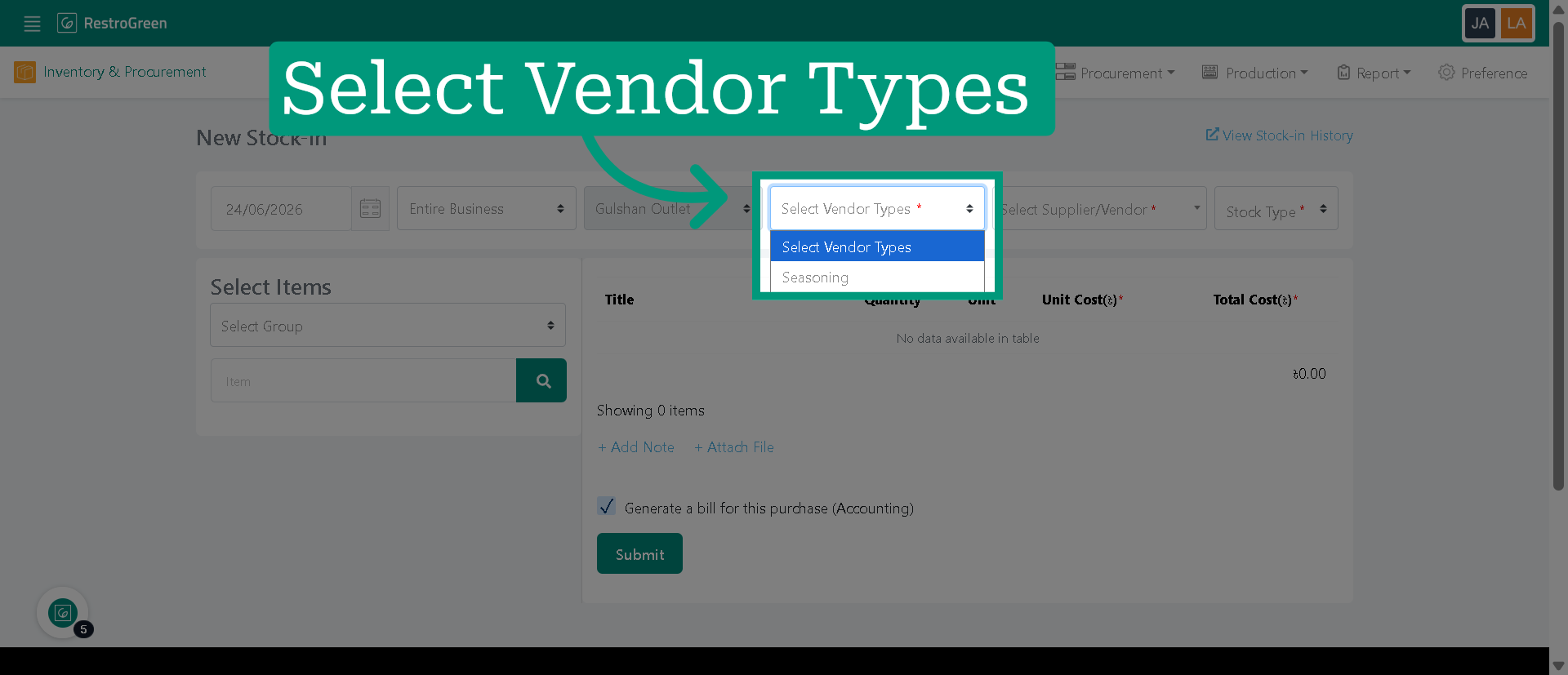
5. Choose the type of vendor supplying the stock
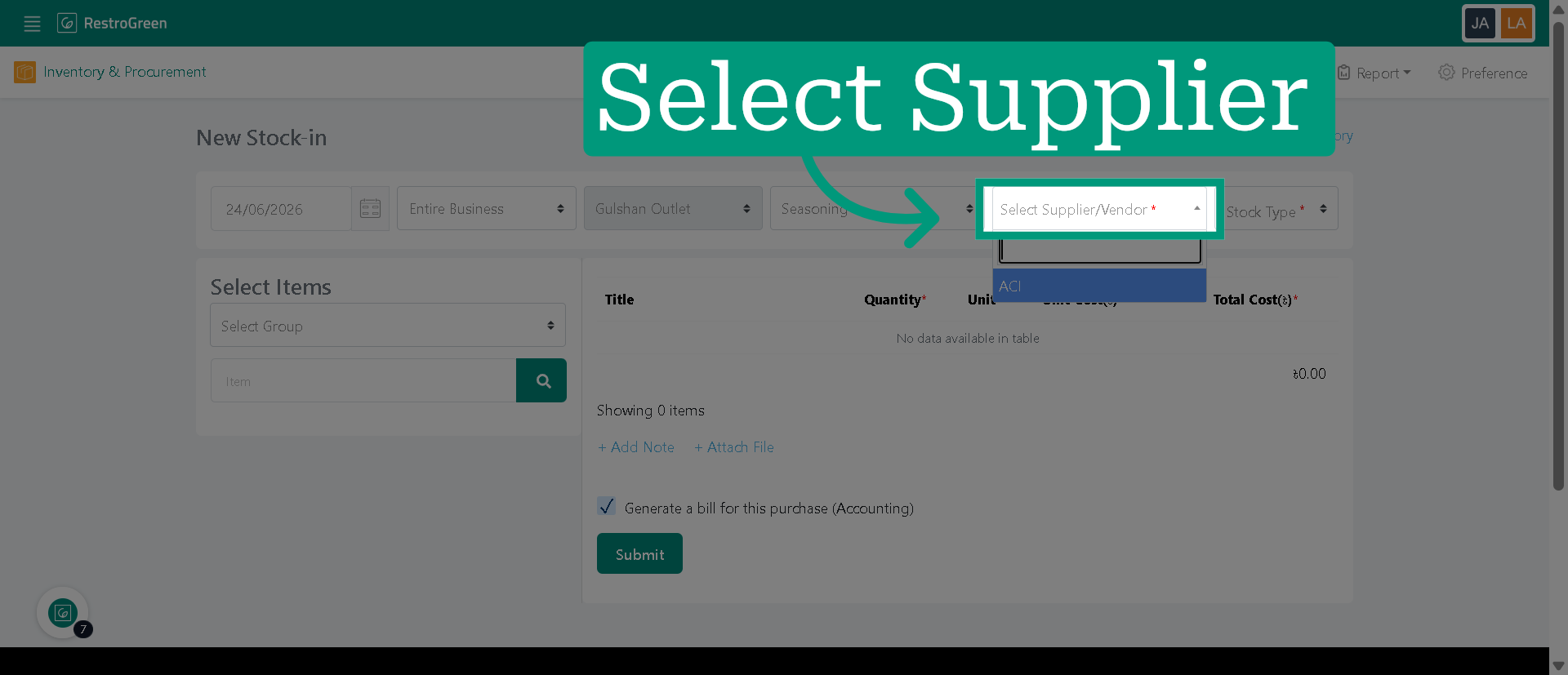
6. Select the supplier providing the stock items
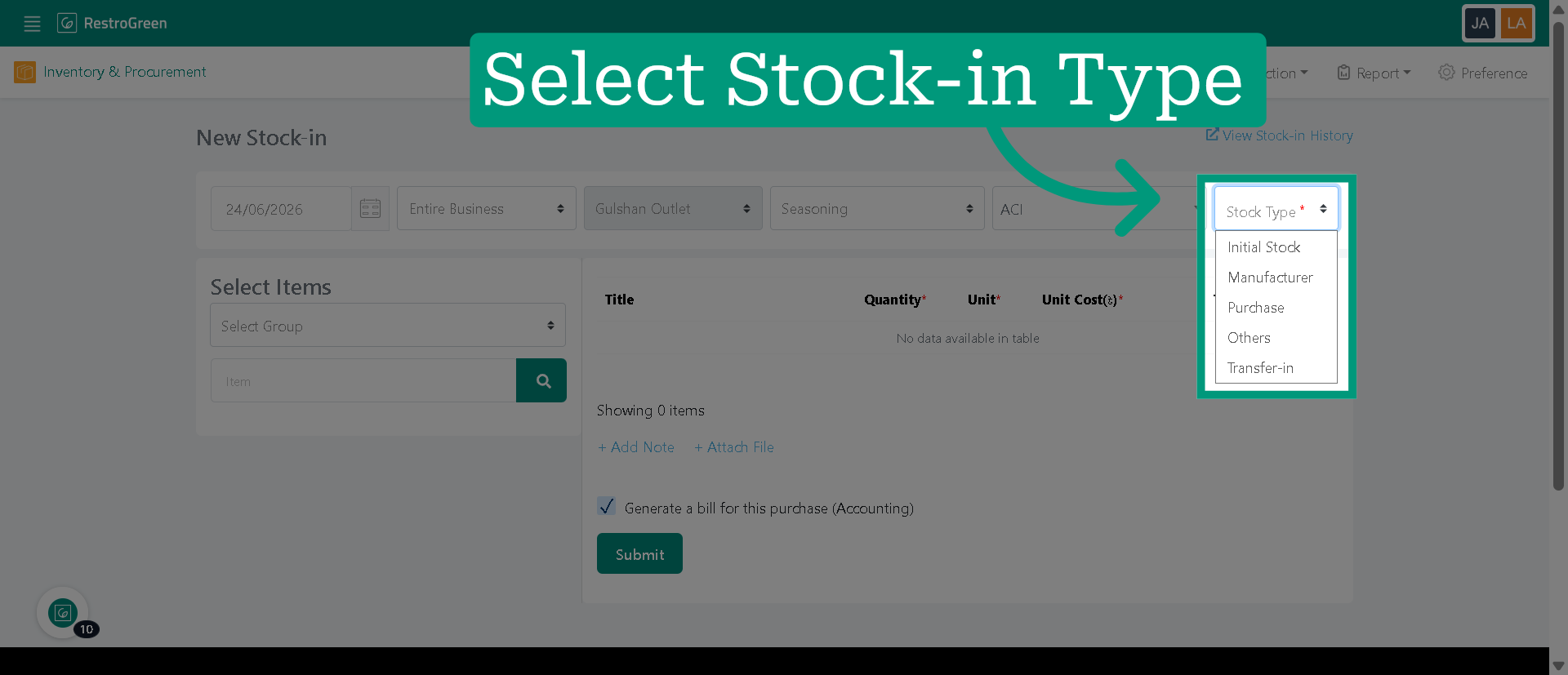
7. Specify the type of stock being added
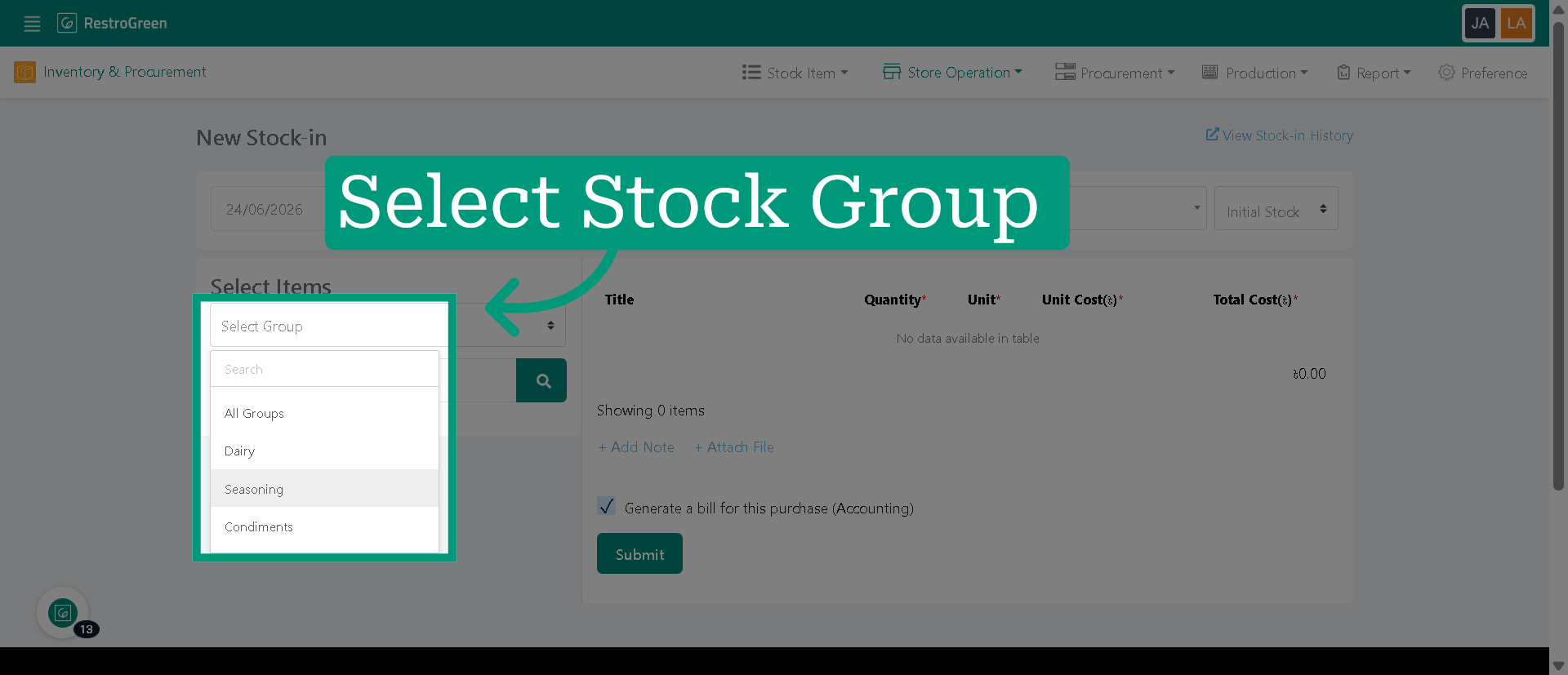
8. Select the stock group
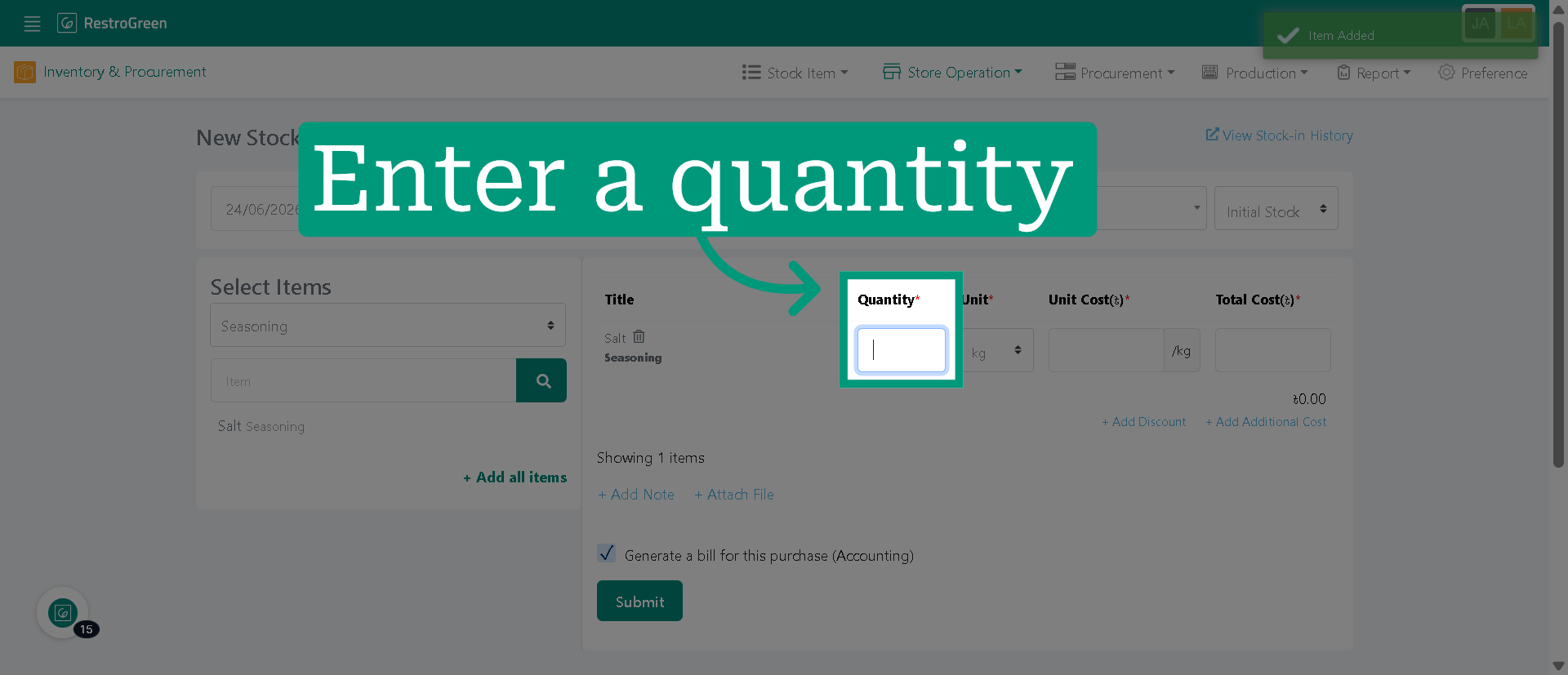
9. Specify the quantity of the stock item being added
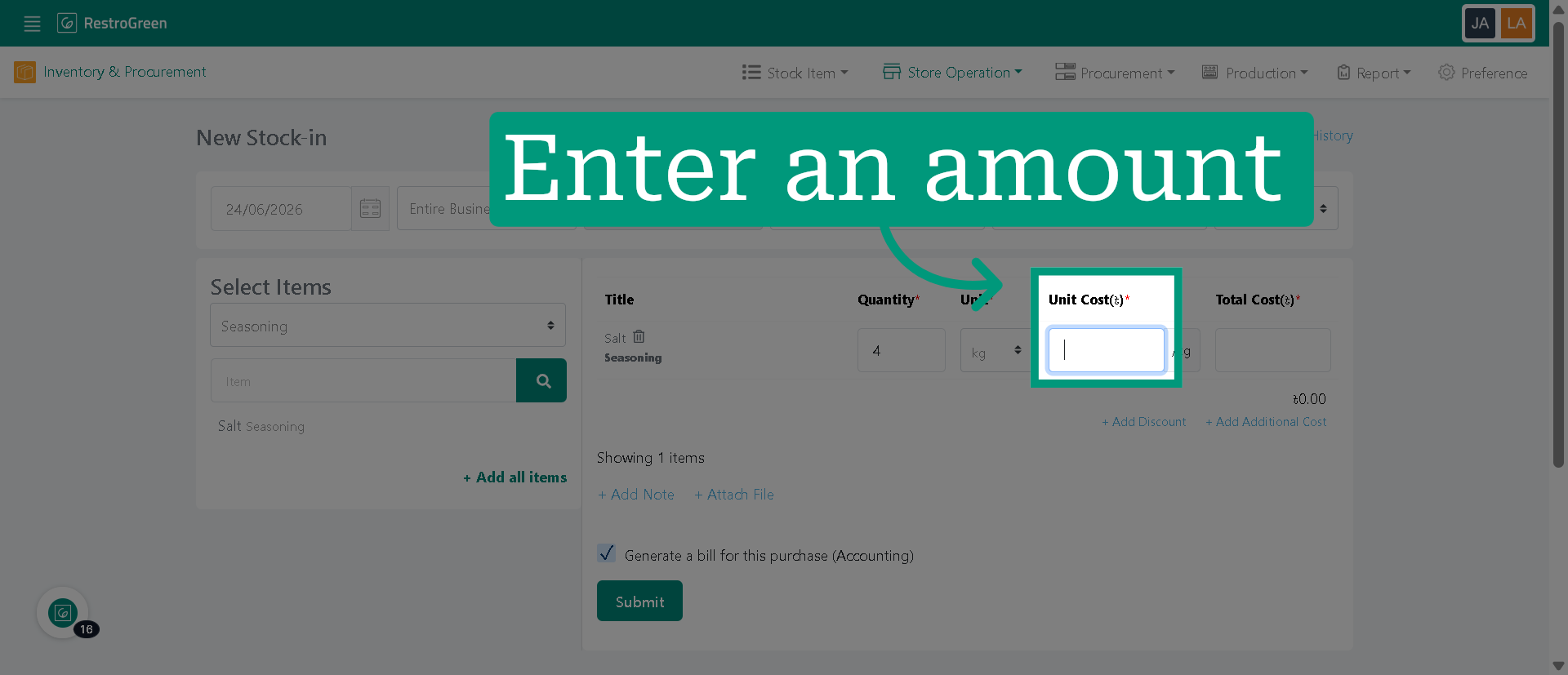
10. Specify the cost of each unit for the stock item
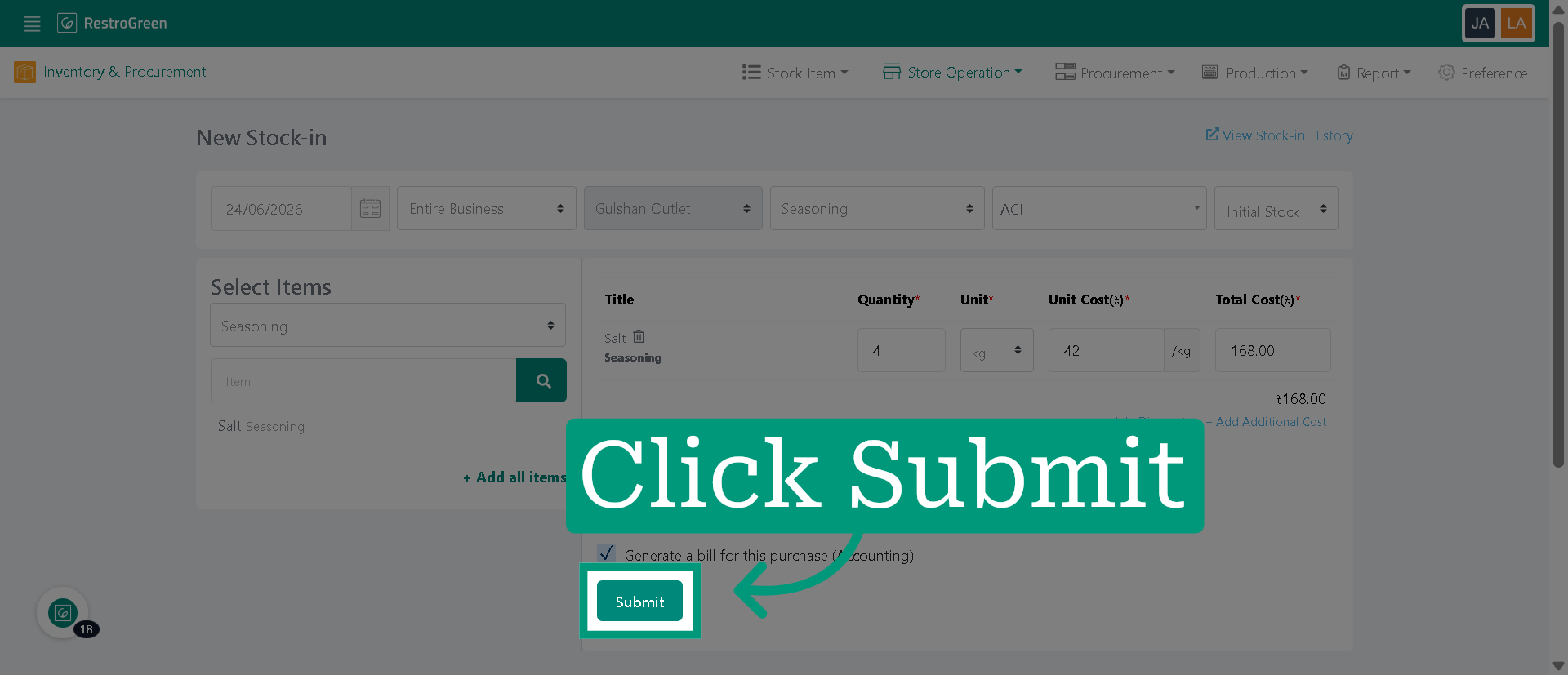
11. Click "Submit" to save the new stock-in entry
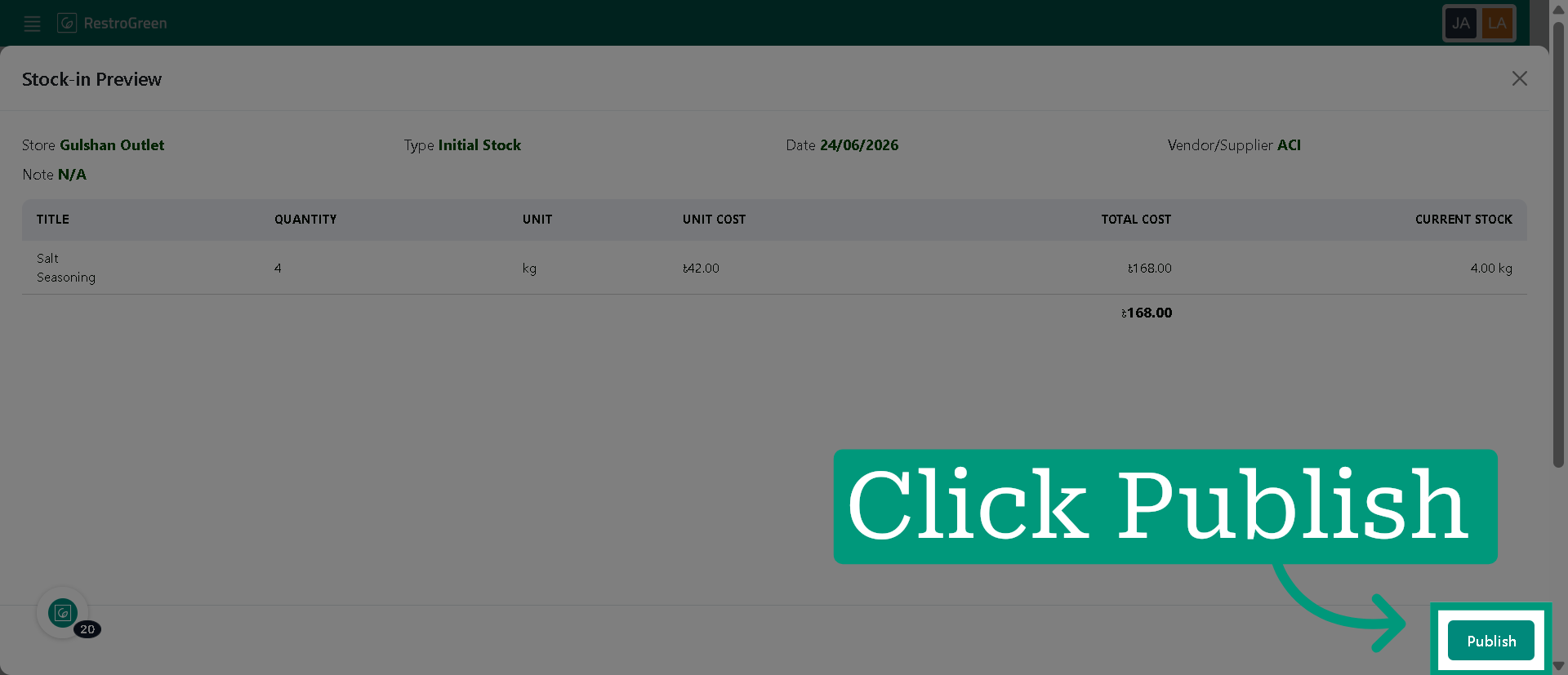
12. Click "Publish" to complete the stock-in entry