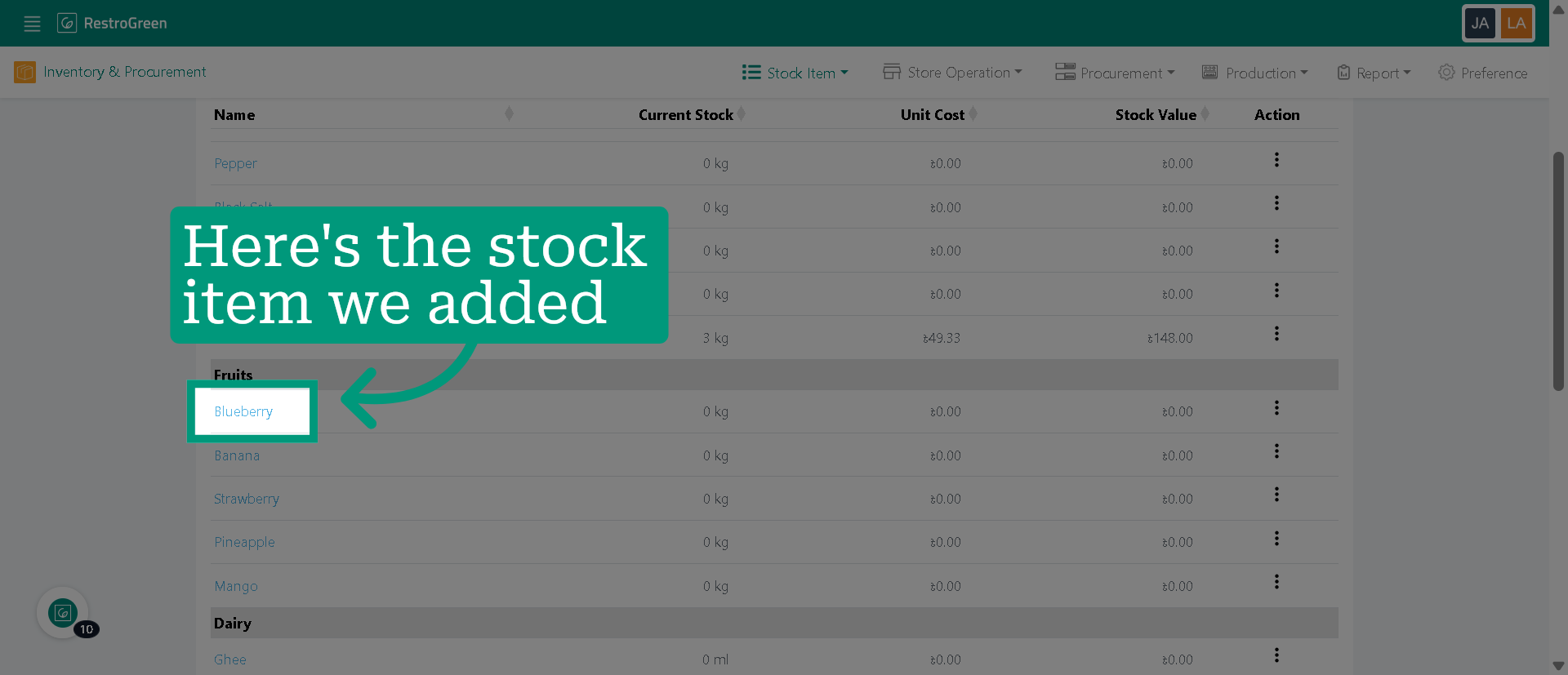
How to Add a Stock Item in Stock List Manually in RestroGreen
This tutorial guides you through adding inventory items manually in RestroGreen Business Portal.
Go to
restrogreen.quicklyservices.com
1. Login to Business Portal
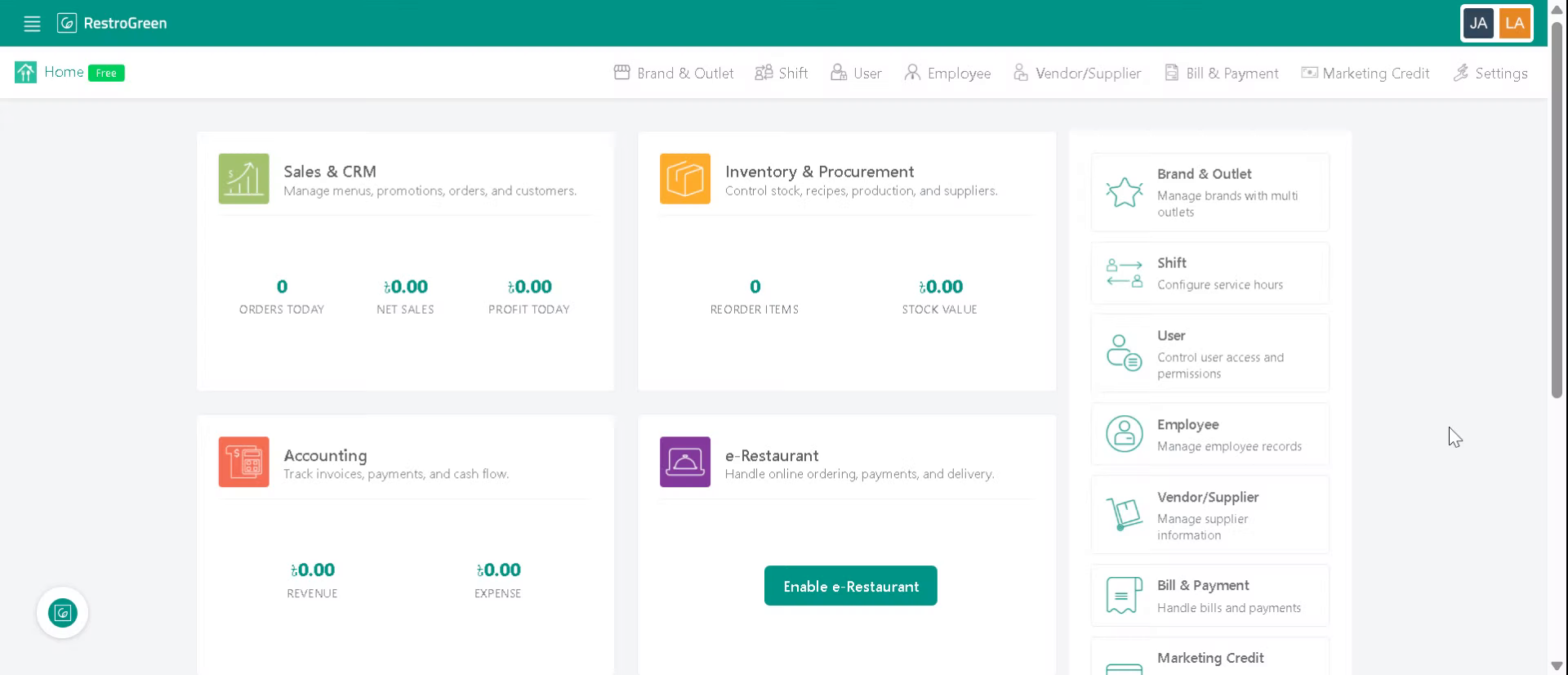
2. Click "Inventory & Procurement" Module
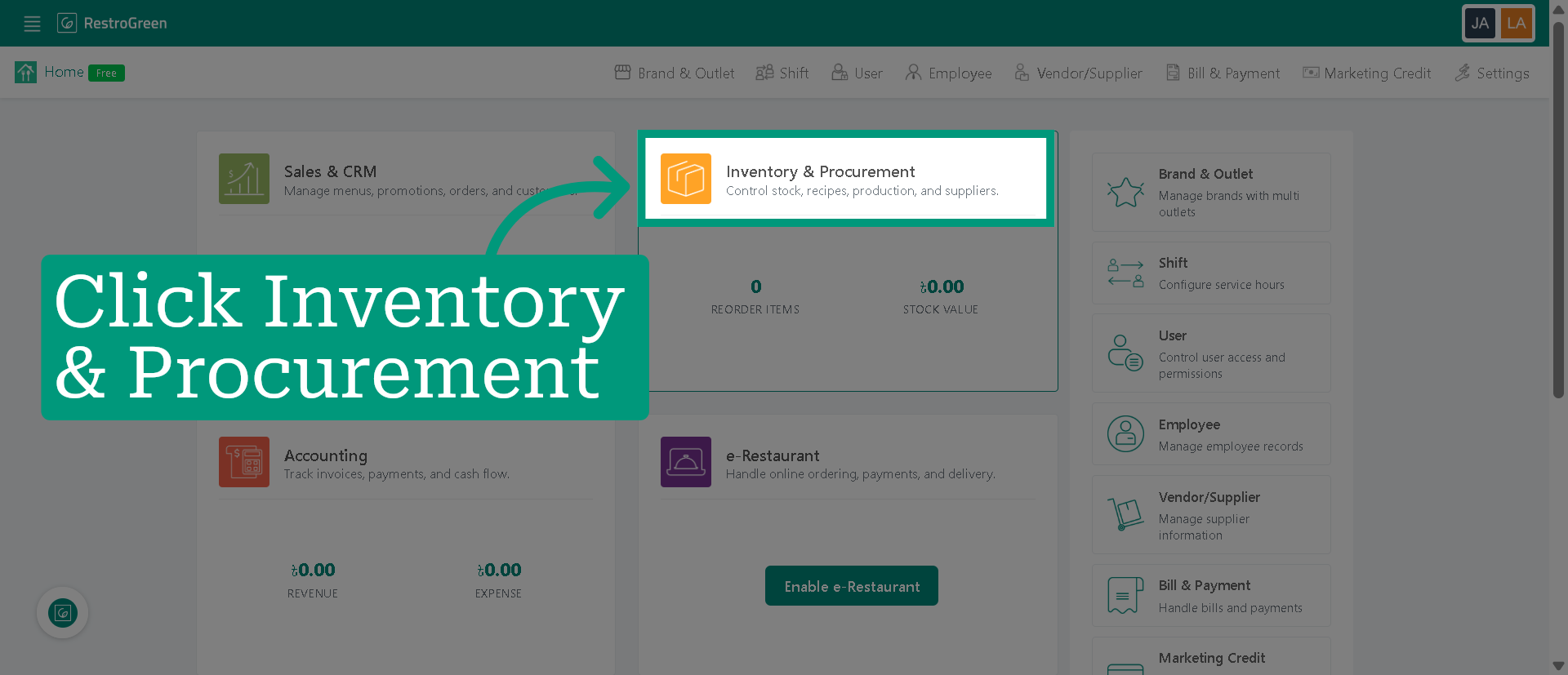
3. Click "List" to view all current inventory items
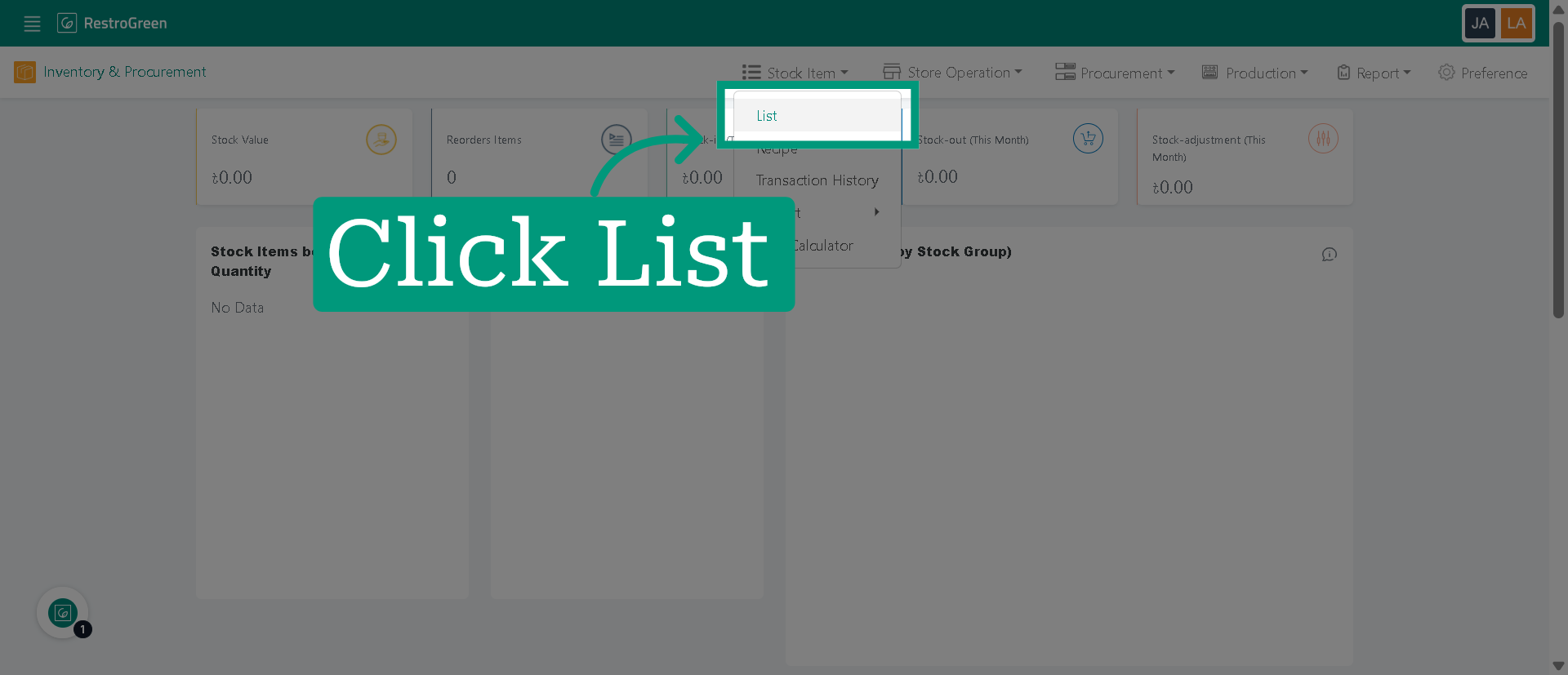
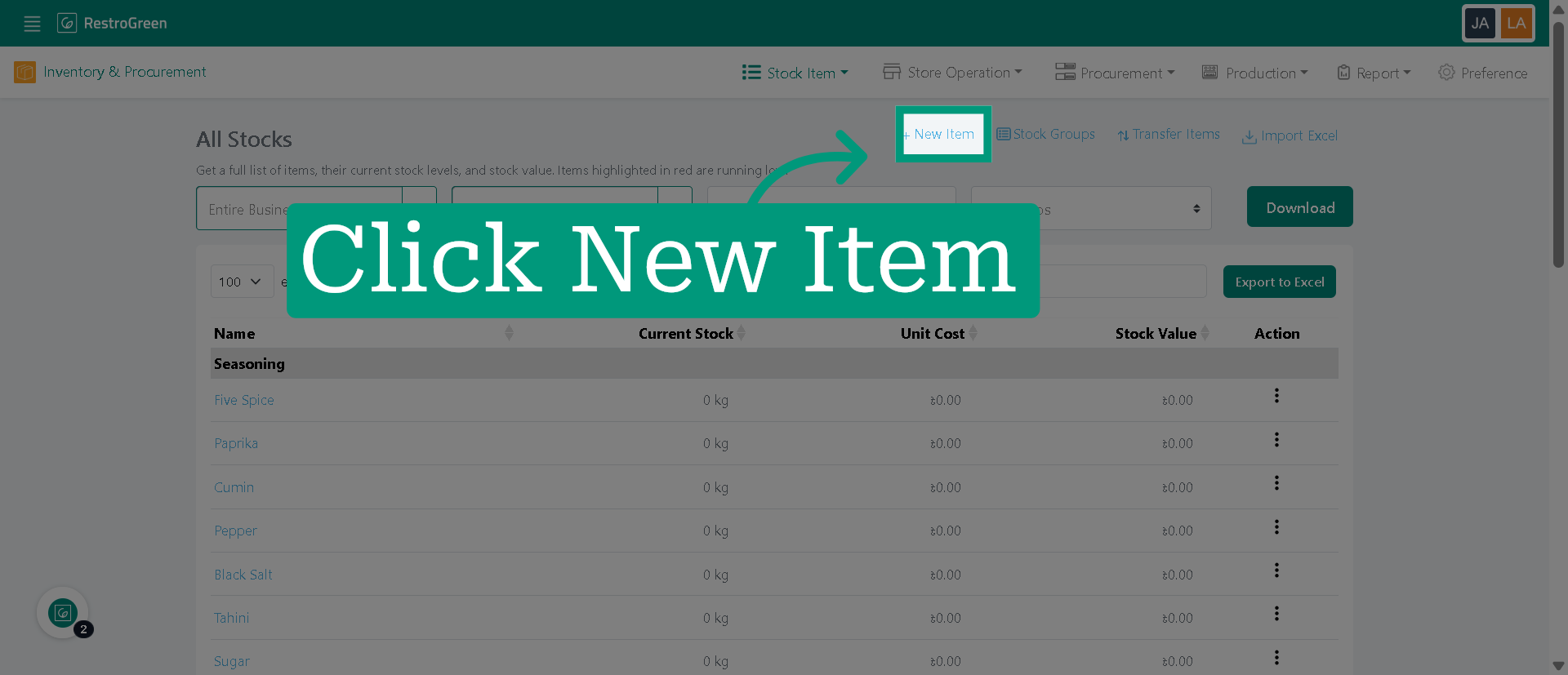
4. Click "New Item" to begin adding a new stock item
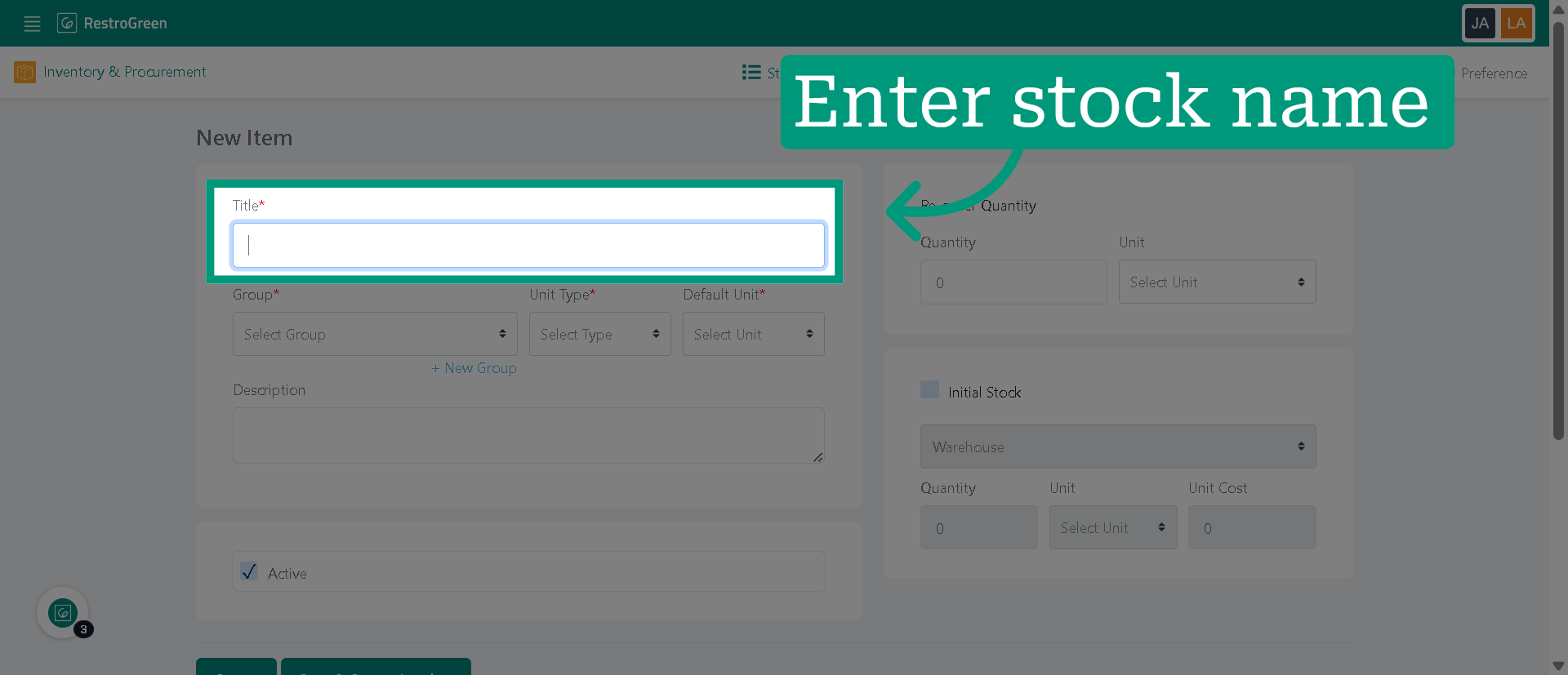
5. Type-in the stock name in the title field
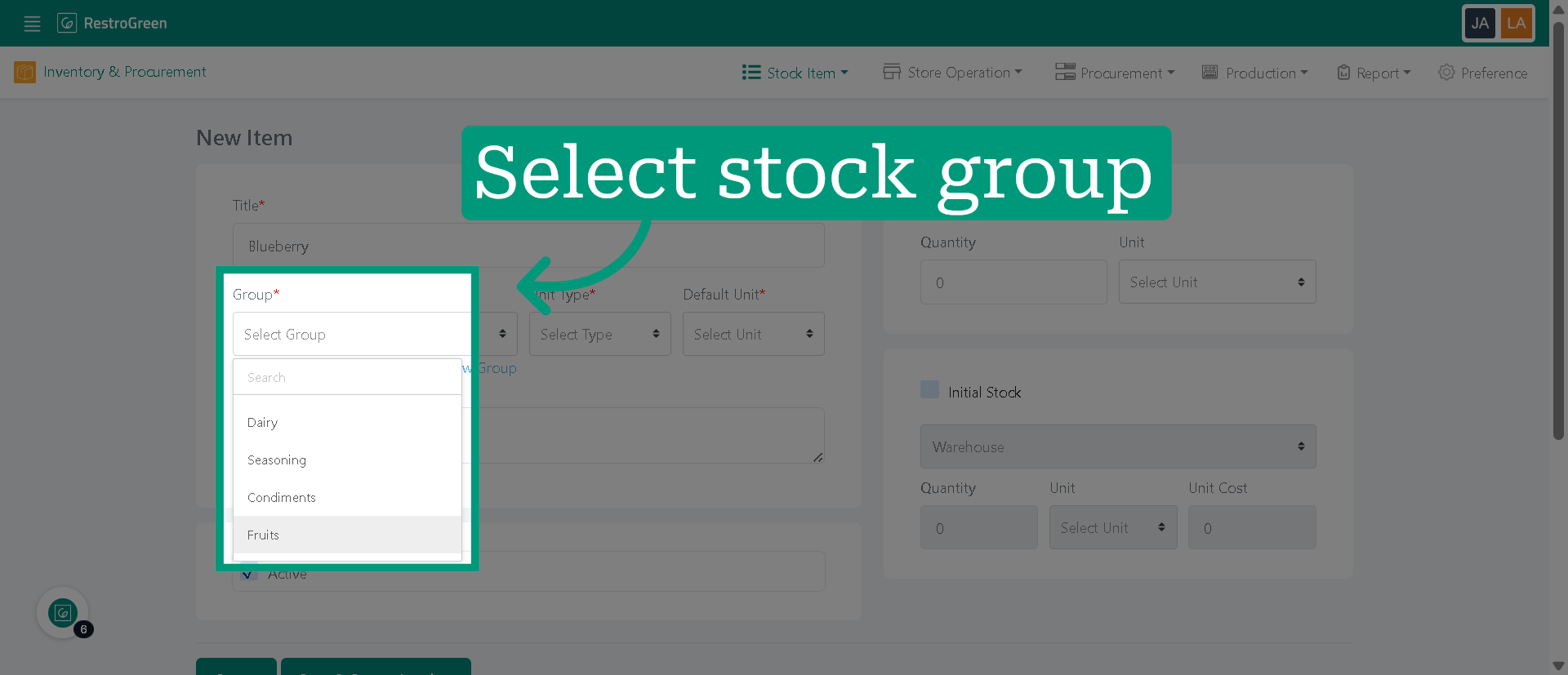
6. Choose a stock group for the new item
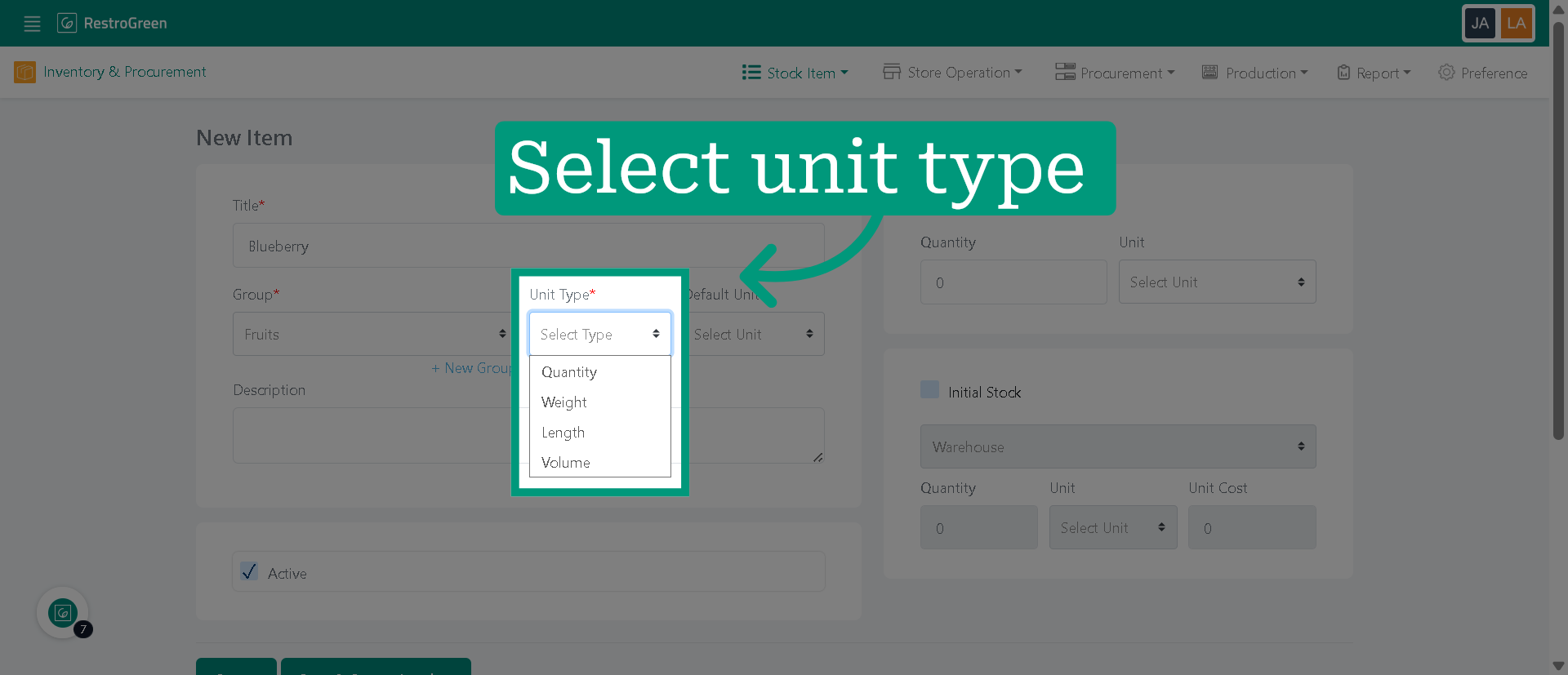
7. Specify the item's unit type
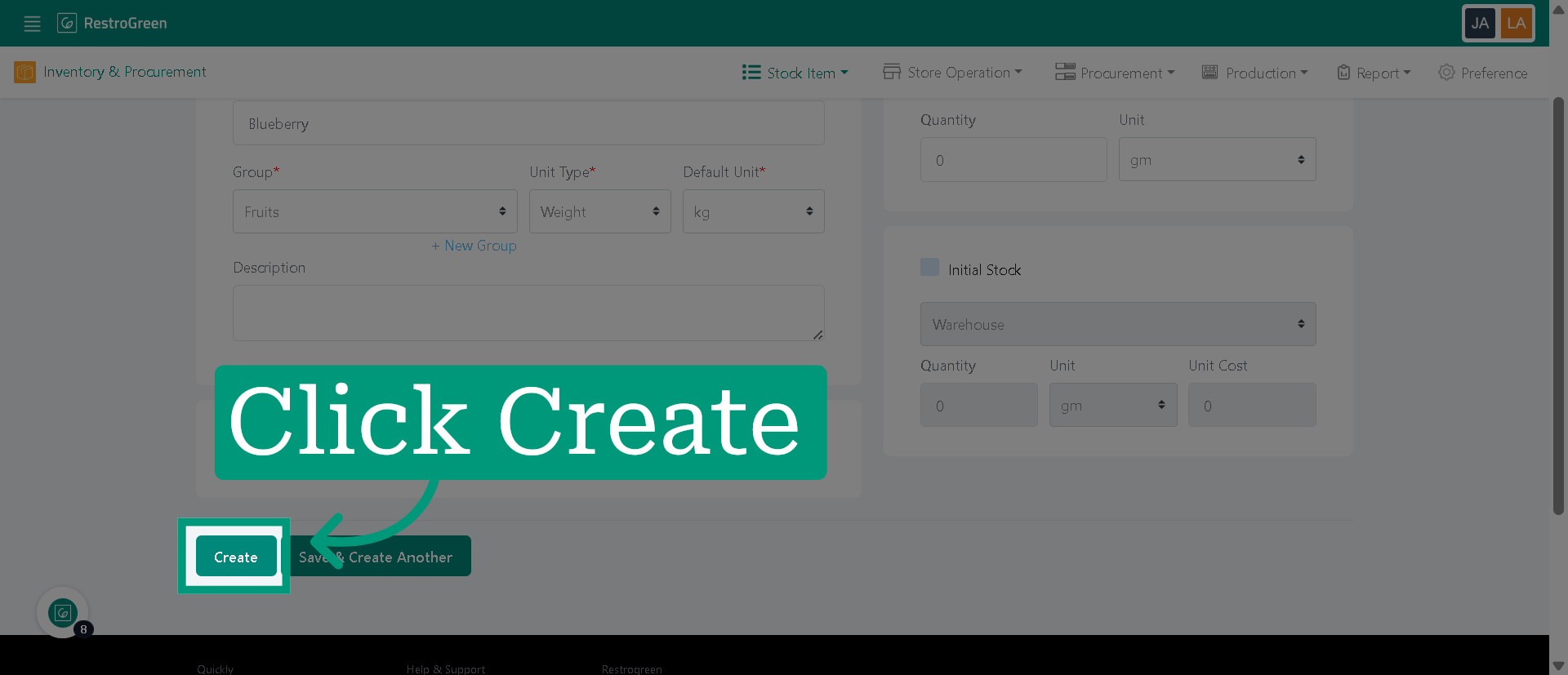
8. Click "Create" to save the new inventory item
9. The new stock item will be reflected in your stock list instantly