How to Create Stock Group and Add Stock Items in RestroGreen
This tutorial guides you through adding stock groups and items under the stock groups within the
Business Portal.
Go to
restrogreen.quicklyservices.com
1. Login to your Business Portal
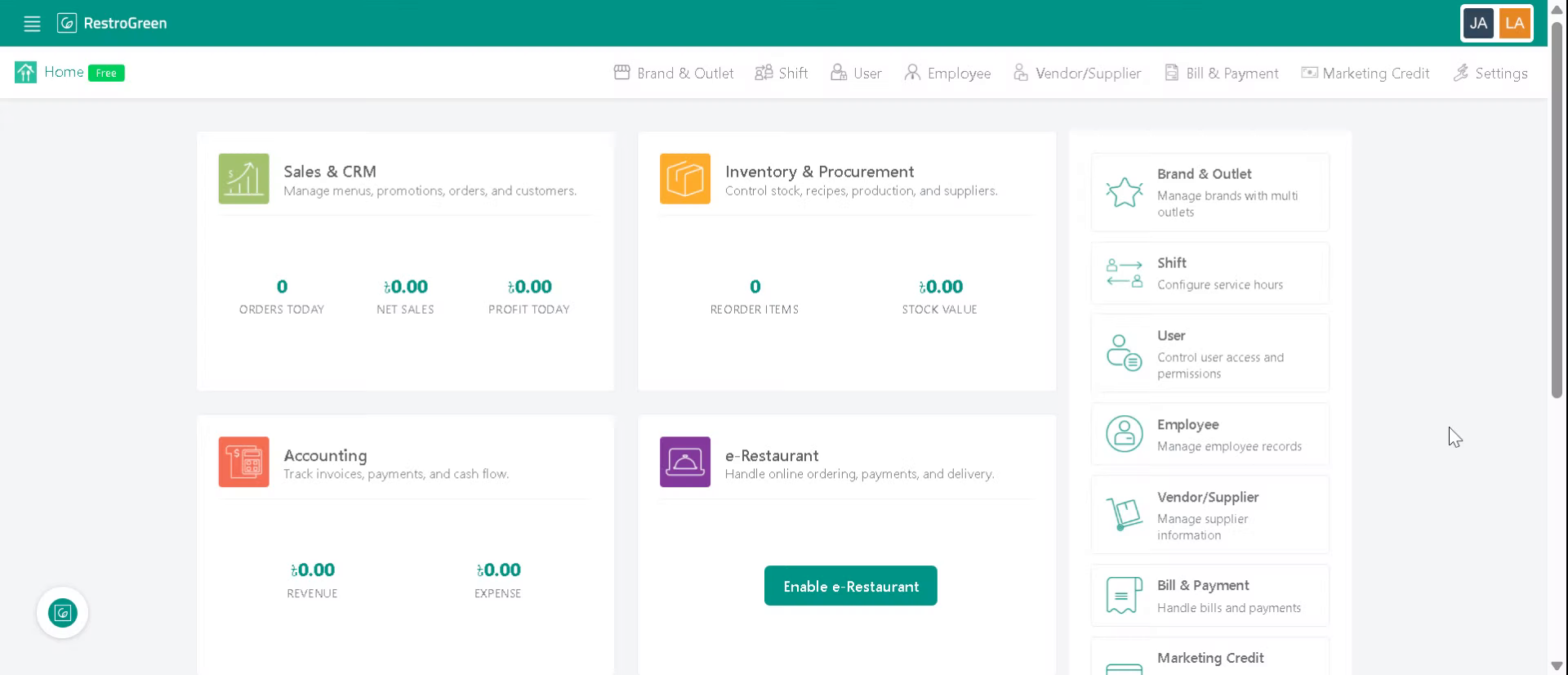
2. Click "Inventory & Procurement" Module
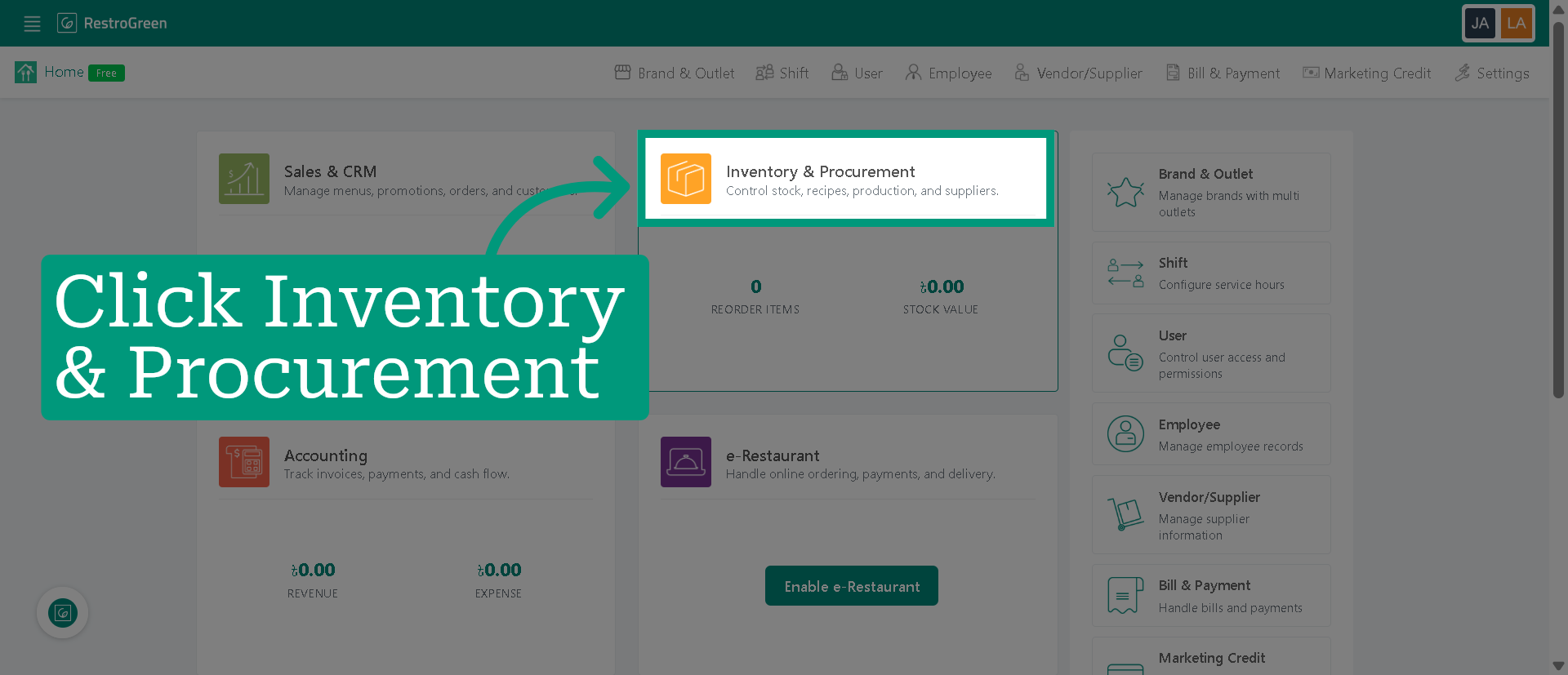
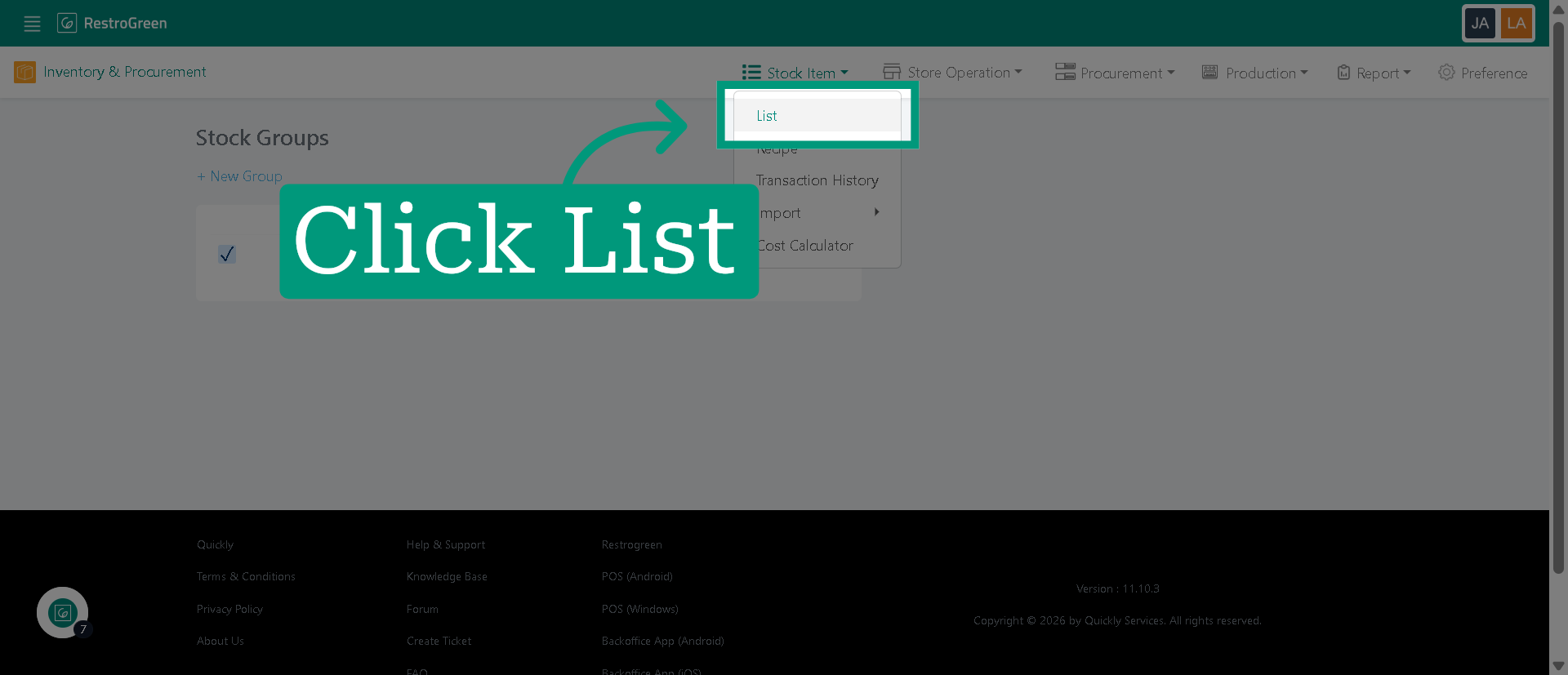
3. Click "List" to view the current inventory items and groups available
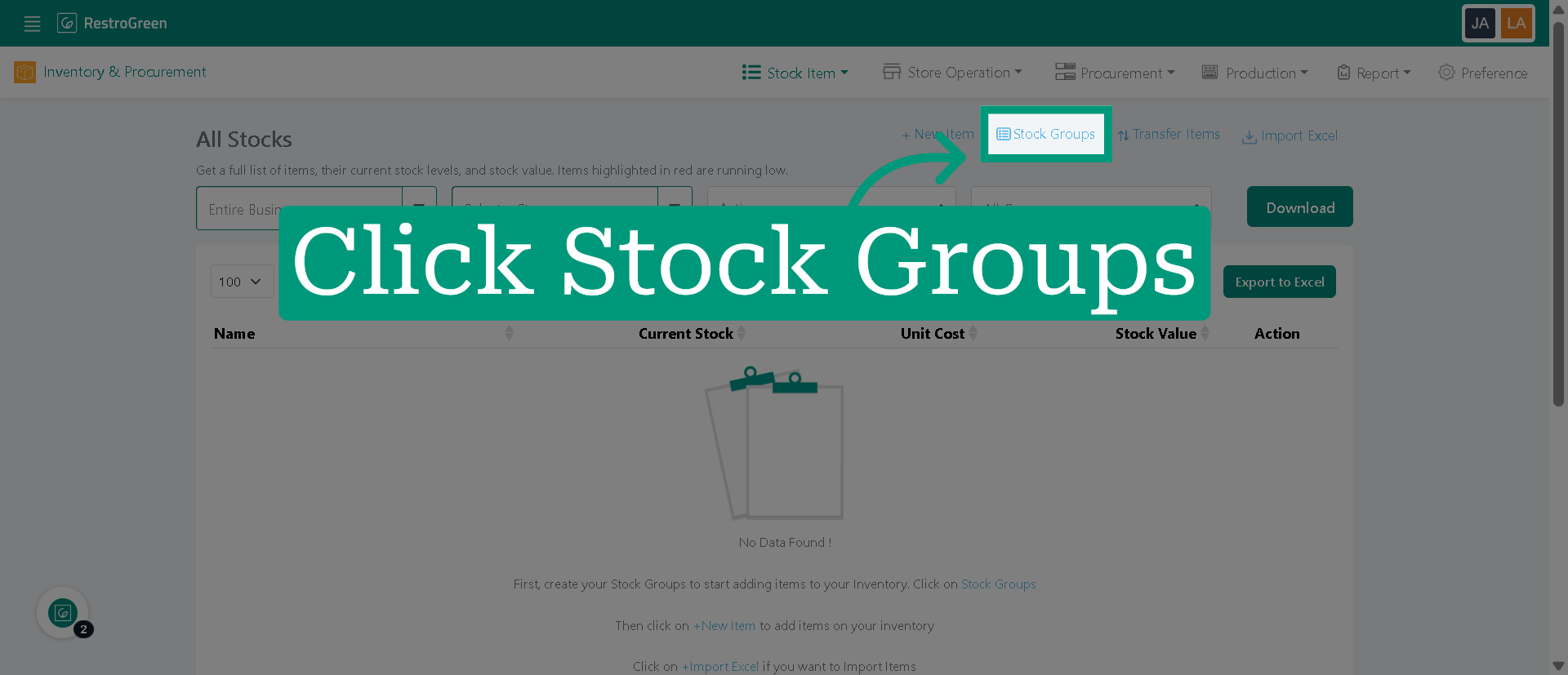
4. Click "Stock Groups" to manage different categories of stock
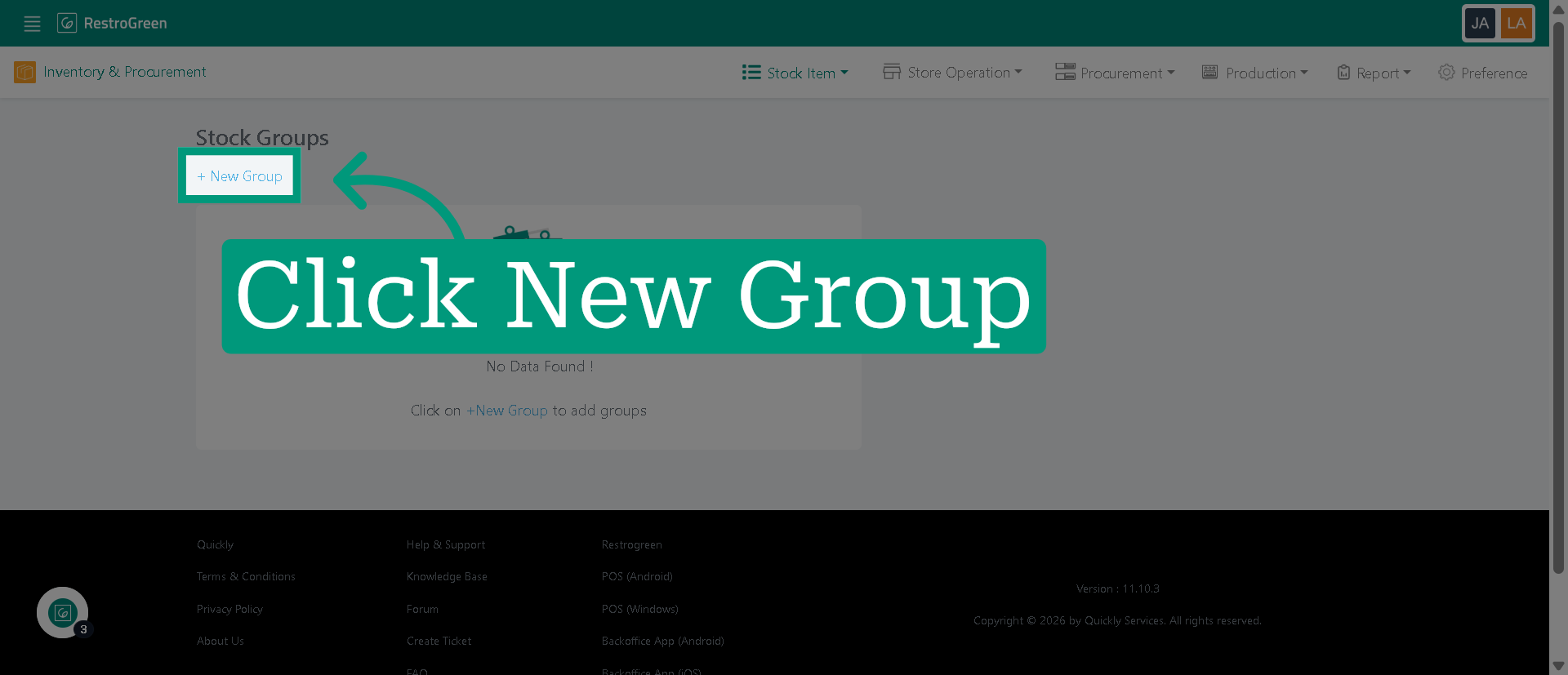
5. Click "New Group" to start creating a new stock group
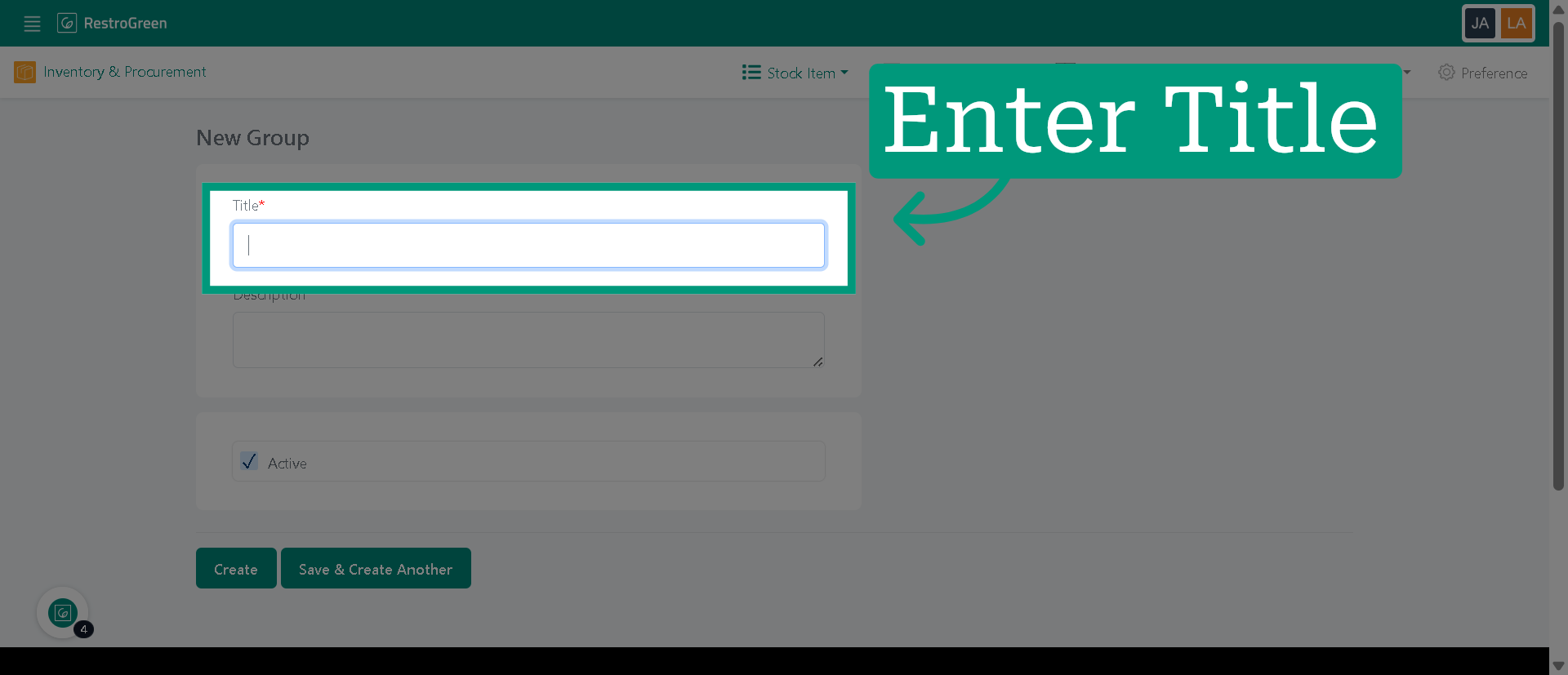
6. Enter a name for the stock group
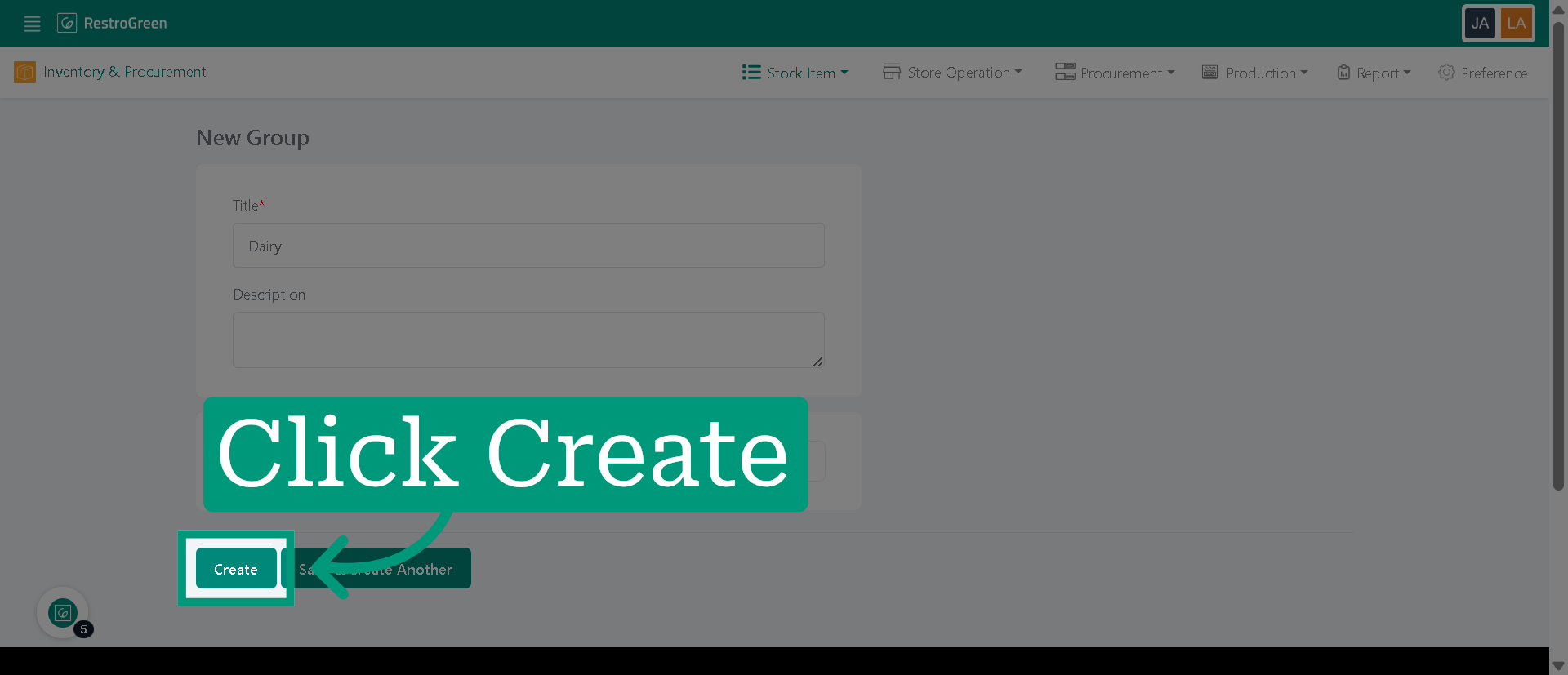
7. Click "Create" to save the new stock group
8. Click "List" to go back to the inventory overview
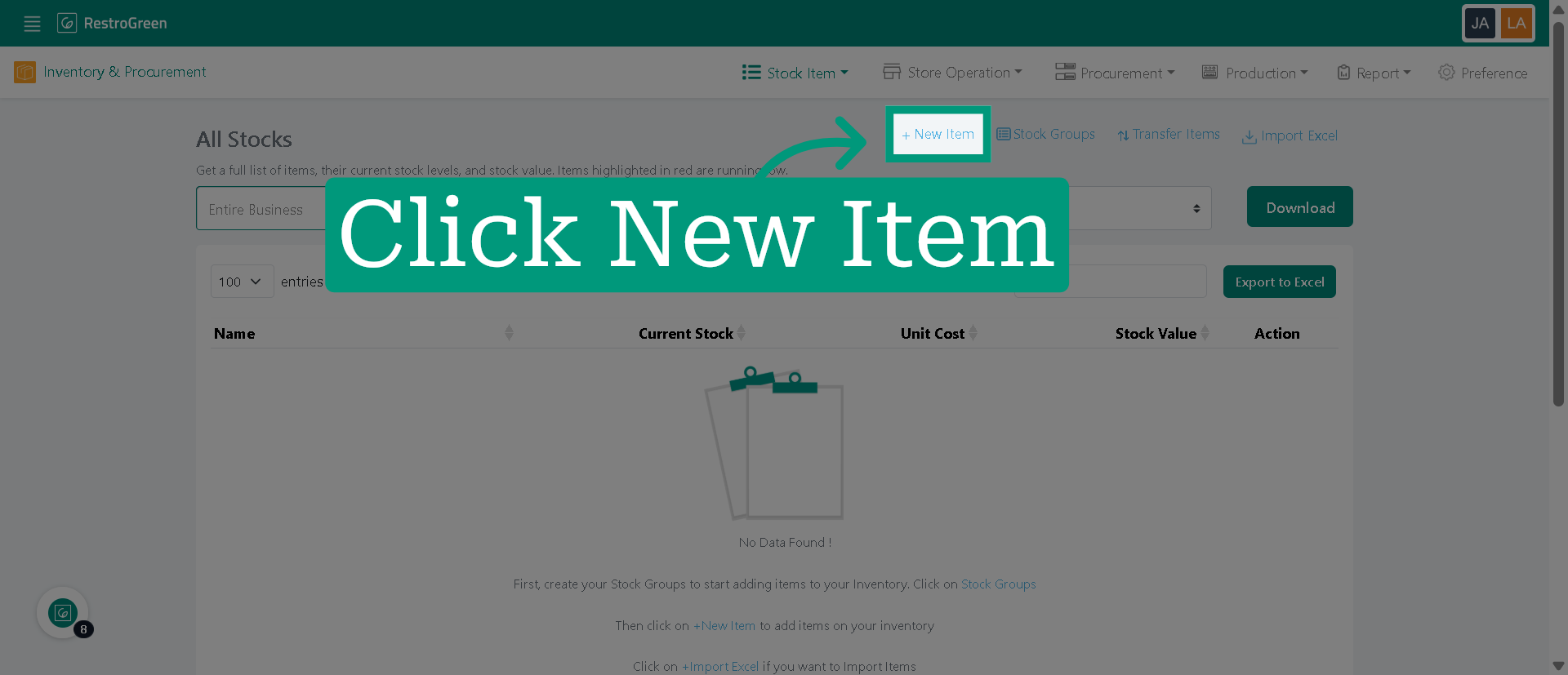
9. Click "New Item" to begin adding a new stock item
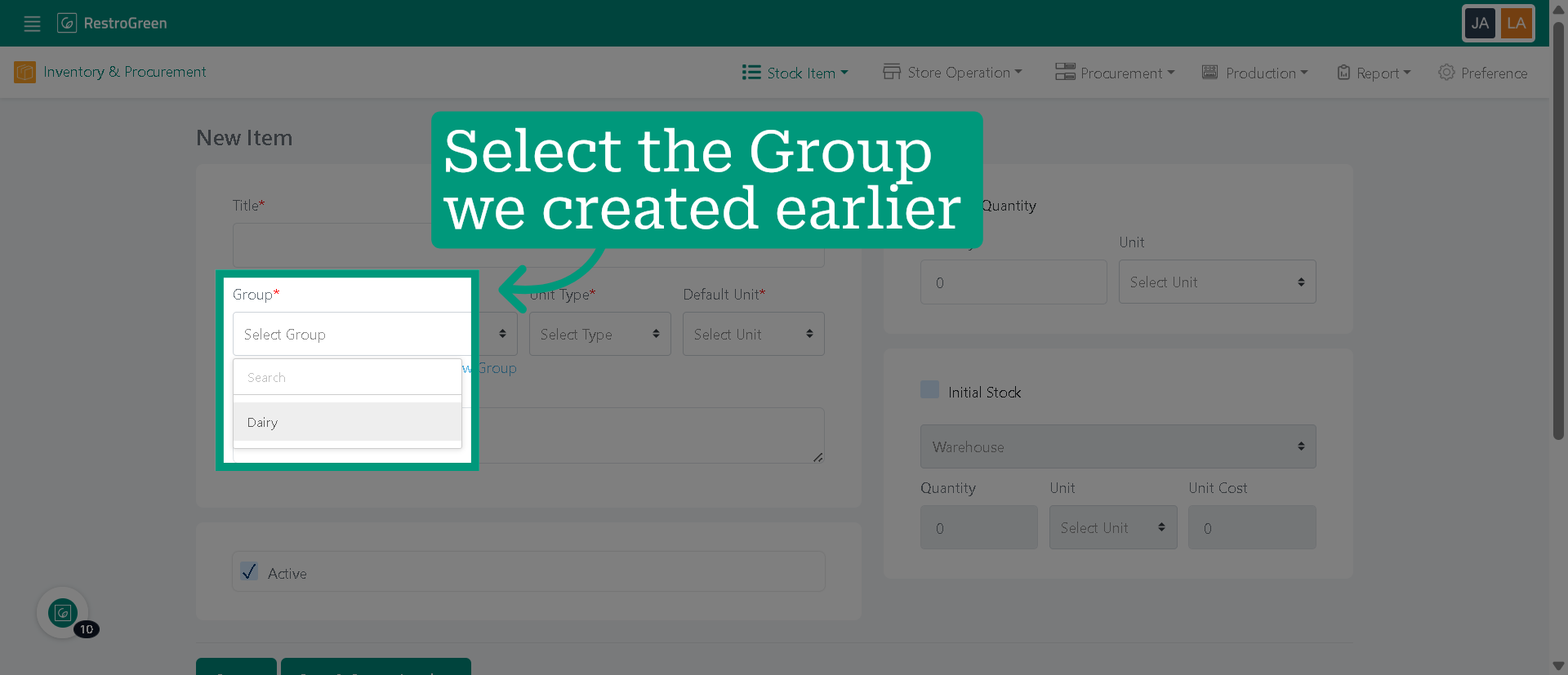
10. Choose a stock group for the inventory item
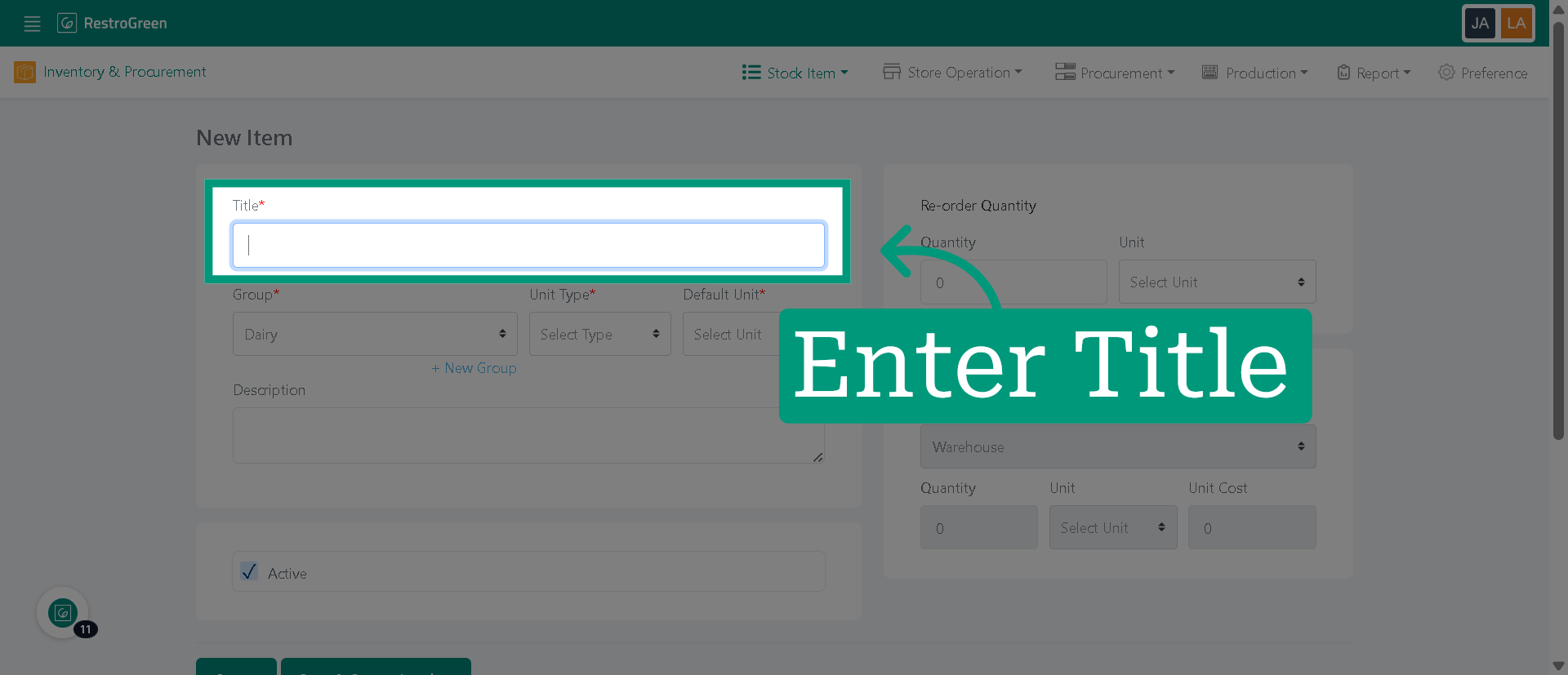
11. Enter the name of the new inventory item
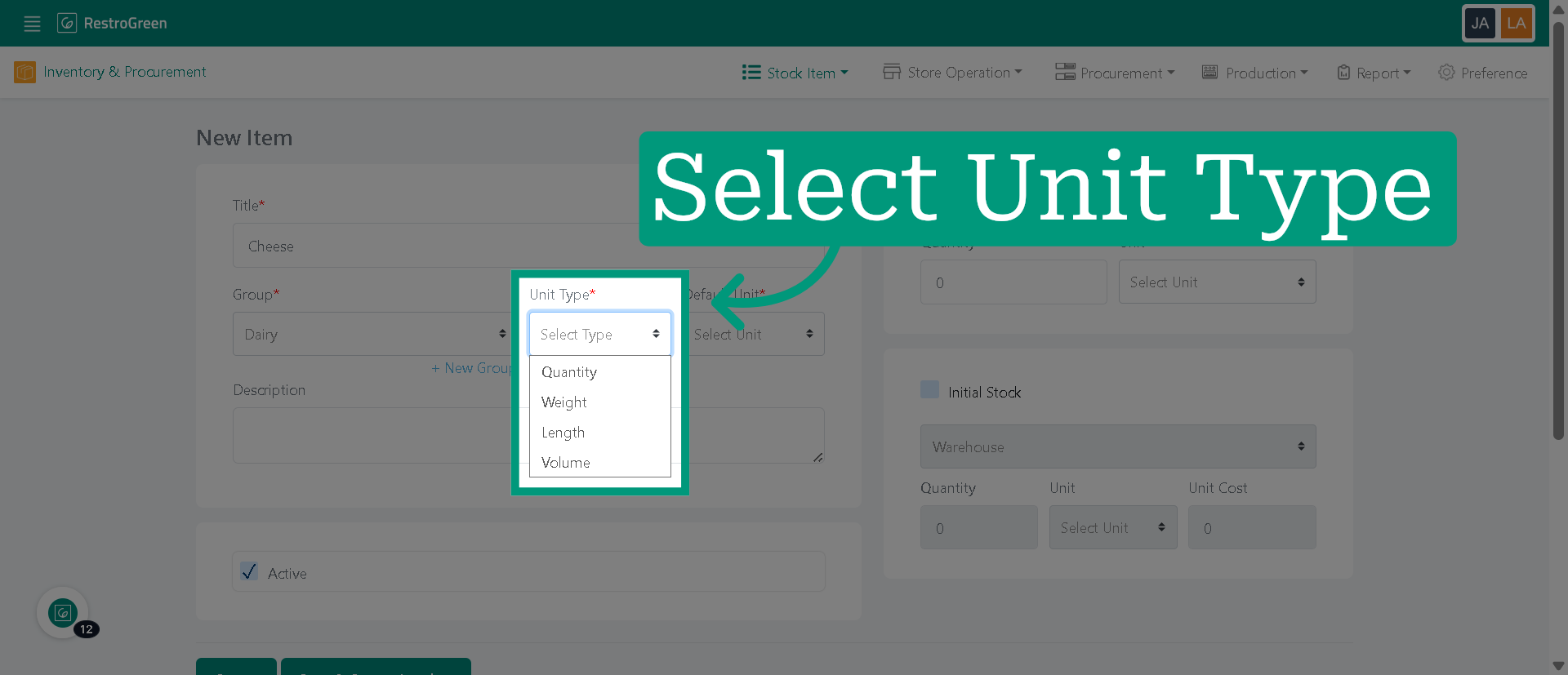
12. Click "Unit Type" to specify the unit of the inventory item
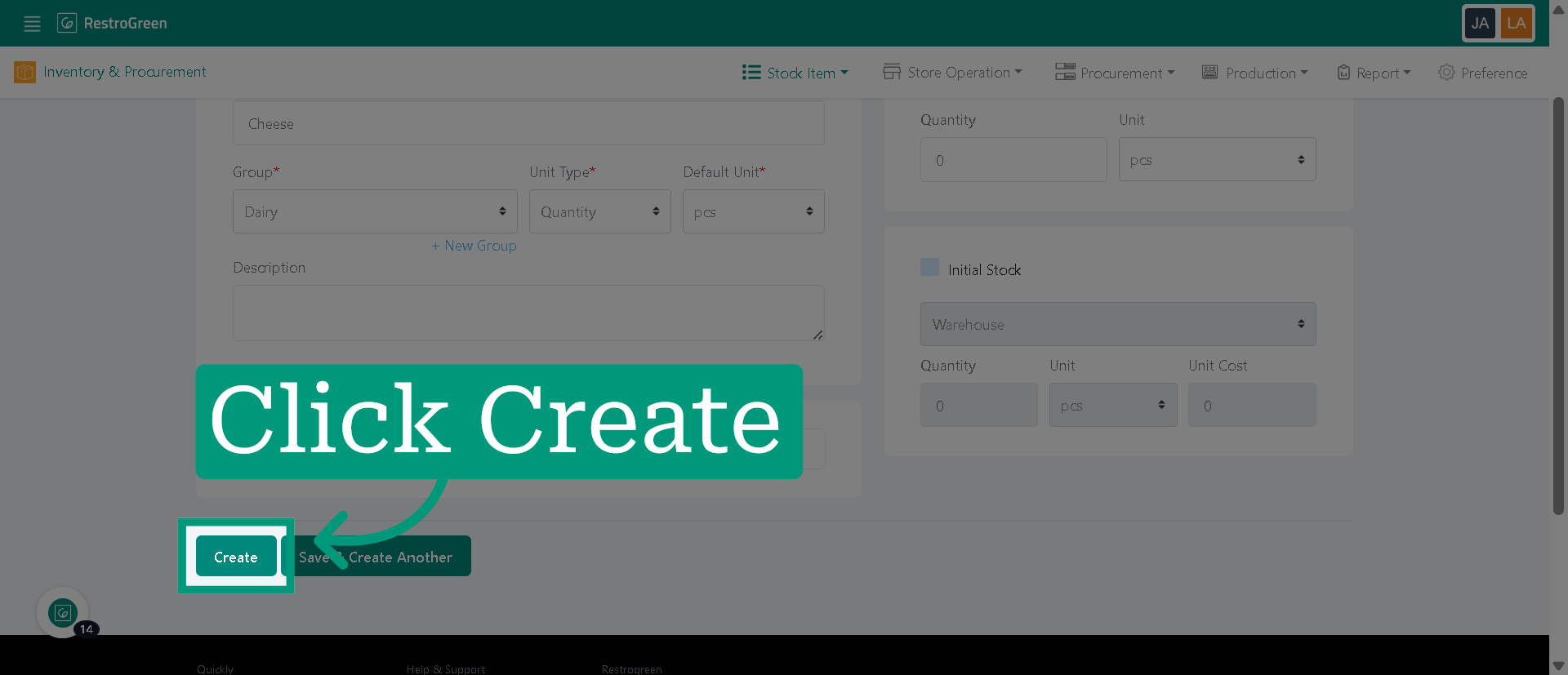
13. Click "Create" to save the stock item under the selected stock group