How to Import Stock List Using Excel in RestroGreen
This tutorial guides you through importing inventory data into the Business Portal using an Excel.
Go to
restrogreen.quicklyservices.com
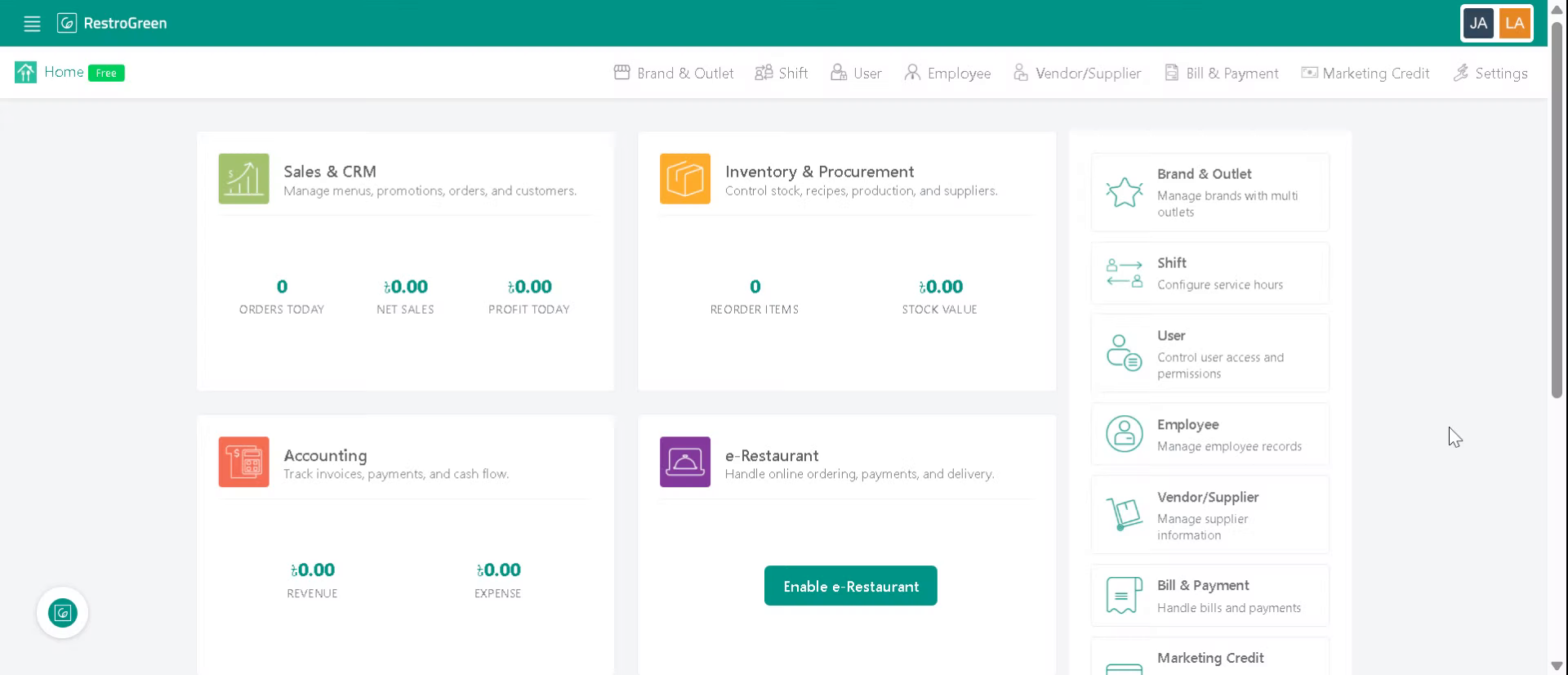
1. Login to Business Portal
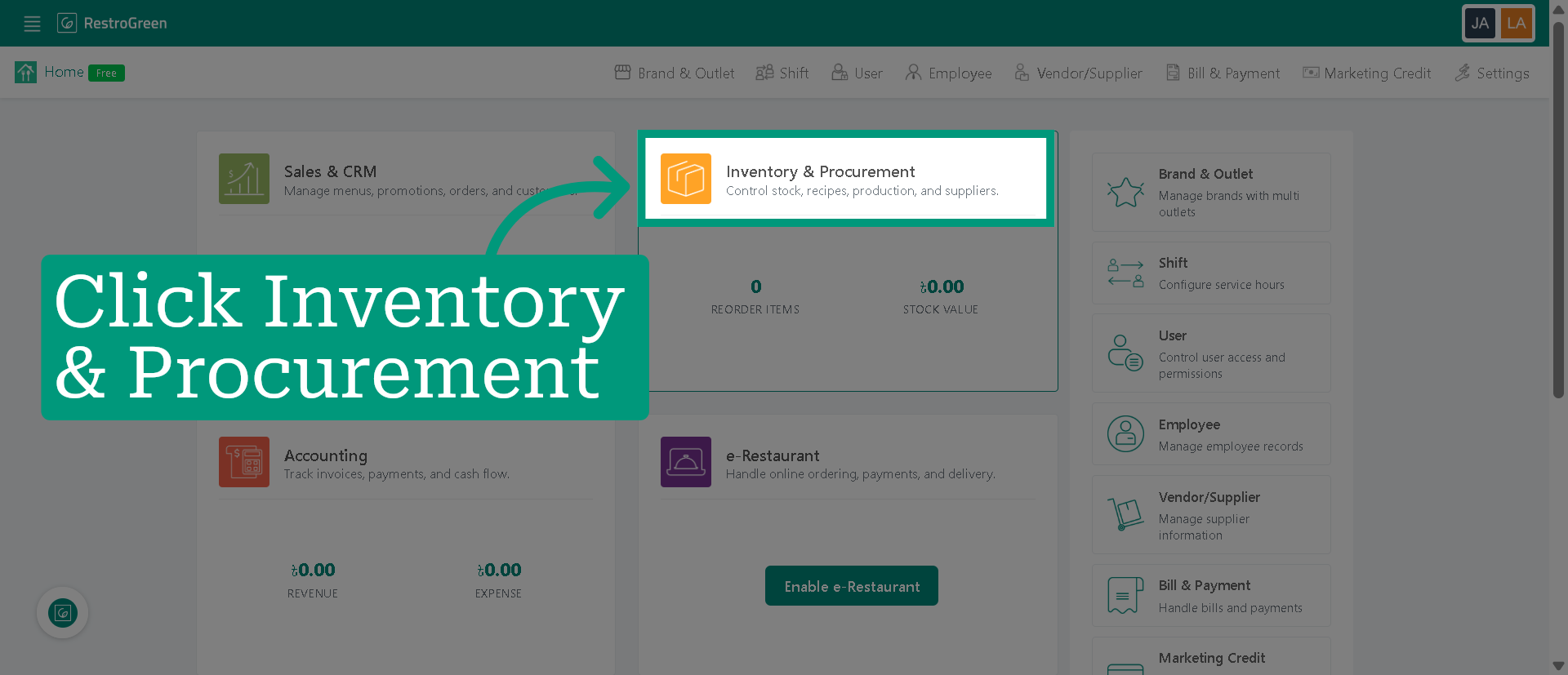
2. Click "Inventory & Procurement" Module
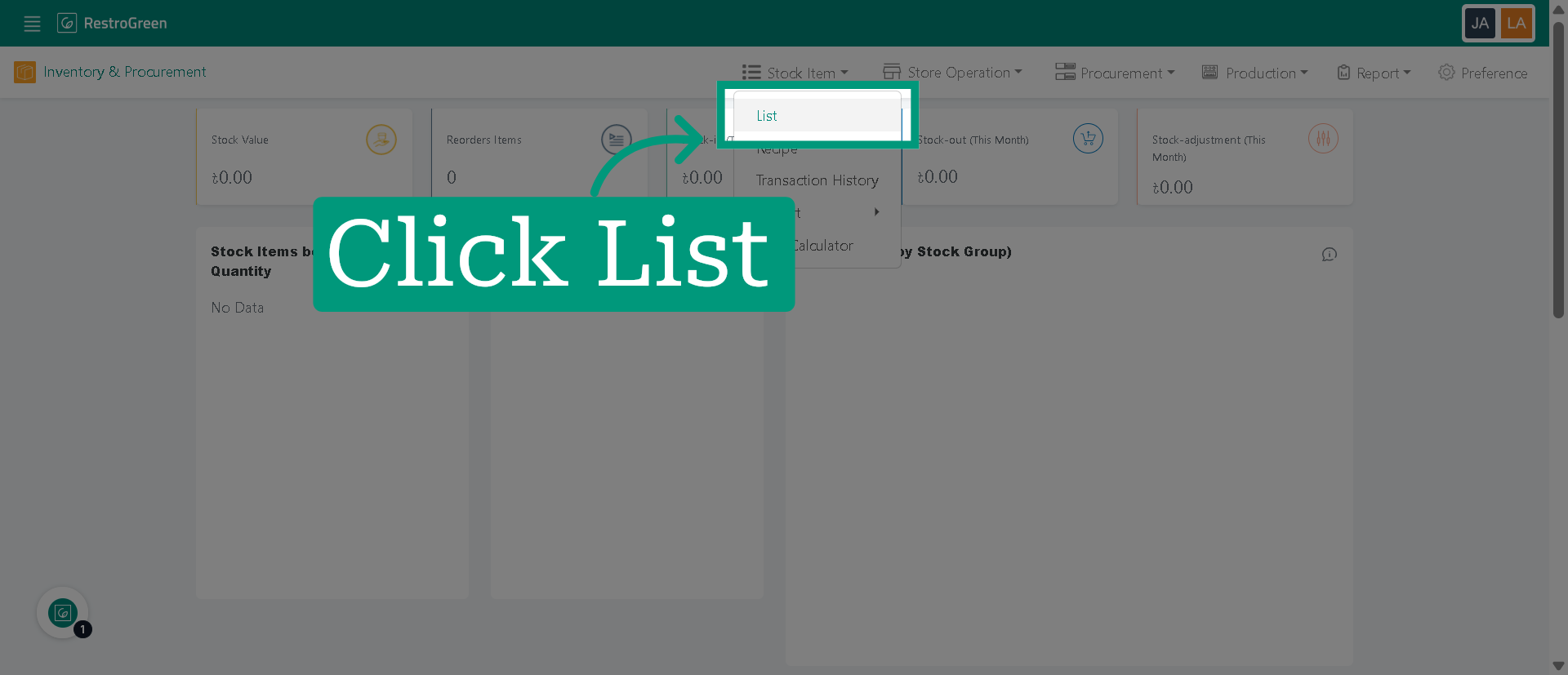
3. Click "List" to view the current inventory items
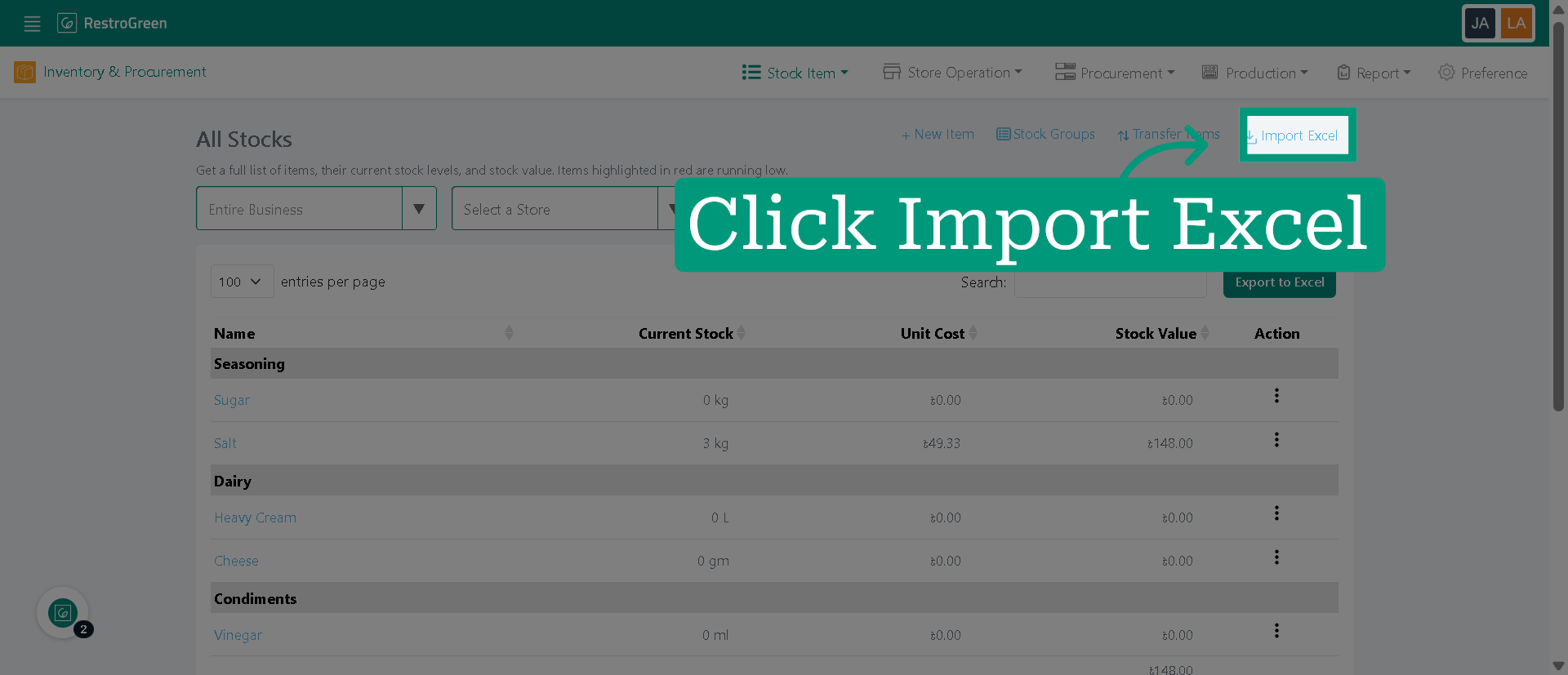
4. Click "Import Excel"
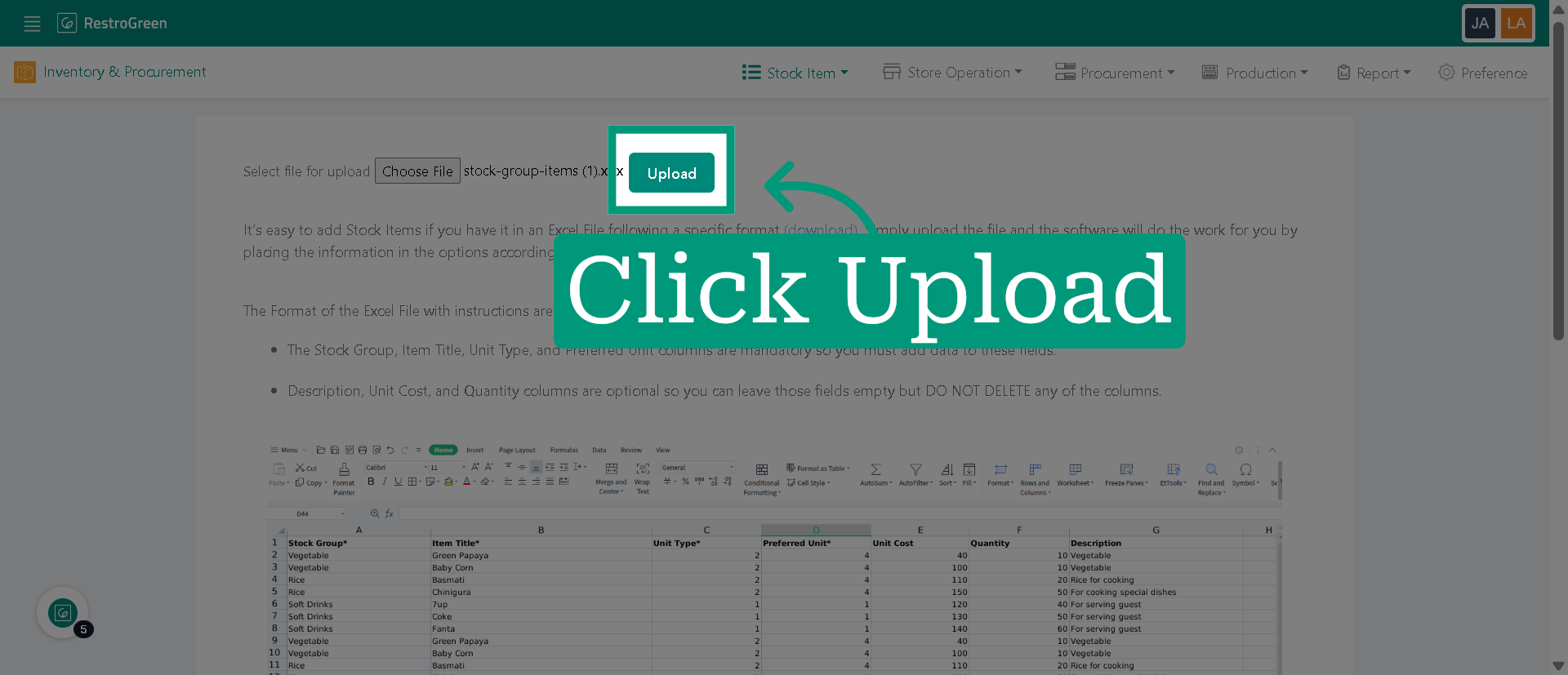
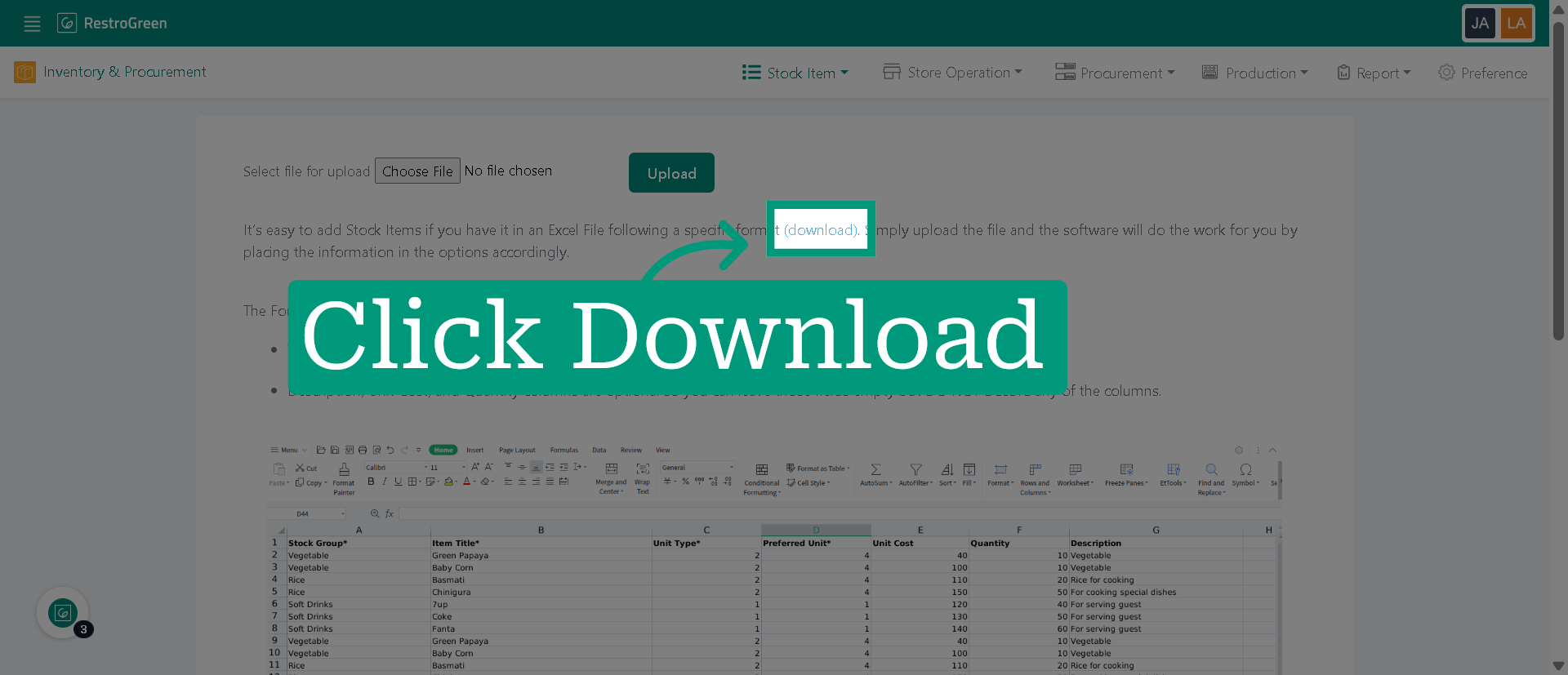
5. Click "(download)" to download the Excel template
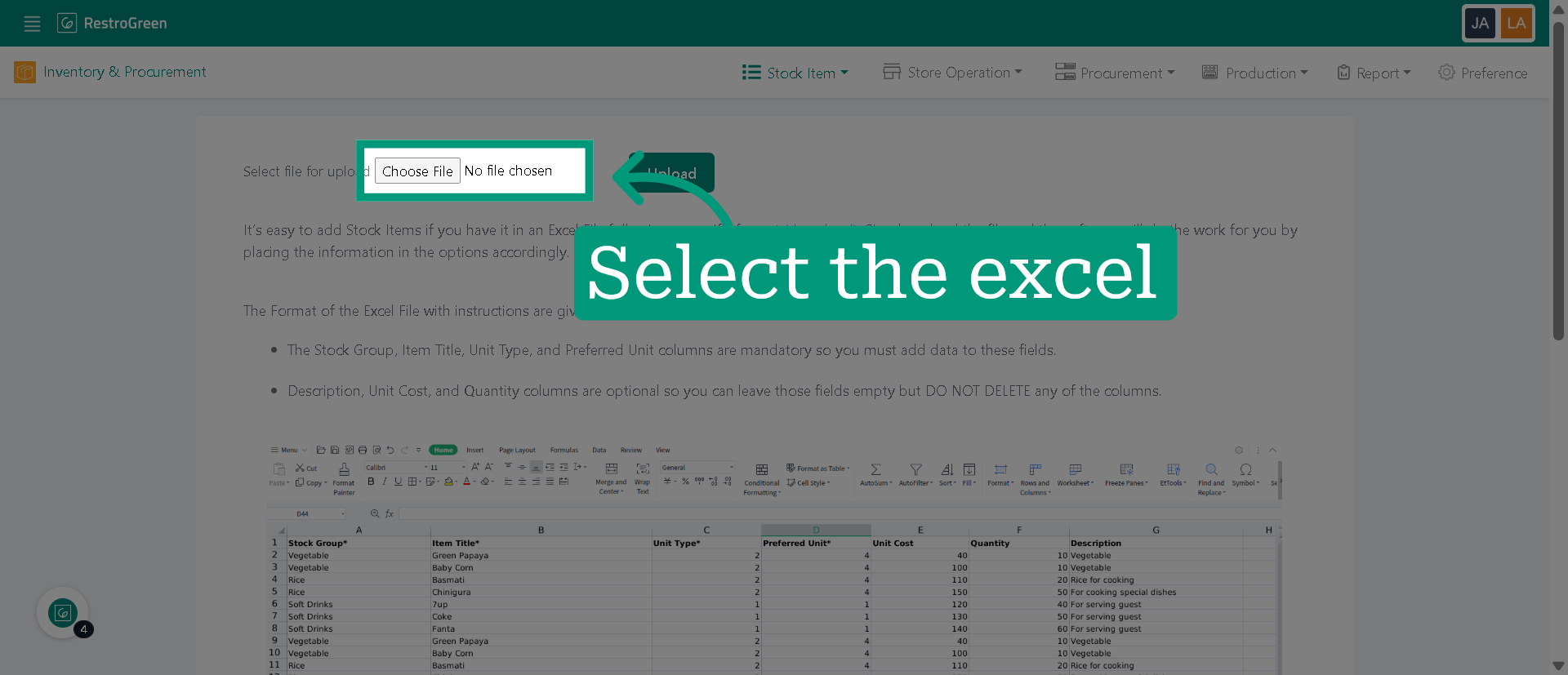
6. Select the Excel file once you have added the list of all stock items
7. Click "Upload" to upload the chosen Excel file into the Business Portal