How to Sign-up in RestroGreen
This tutorial guides you through all the steps from sign up to business setup in RestroGreen.
Go to
restrogreen.quicklyservices.com
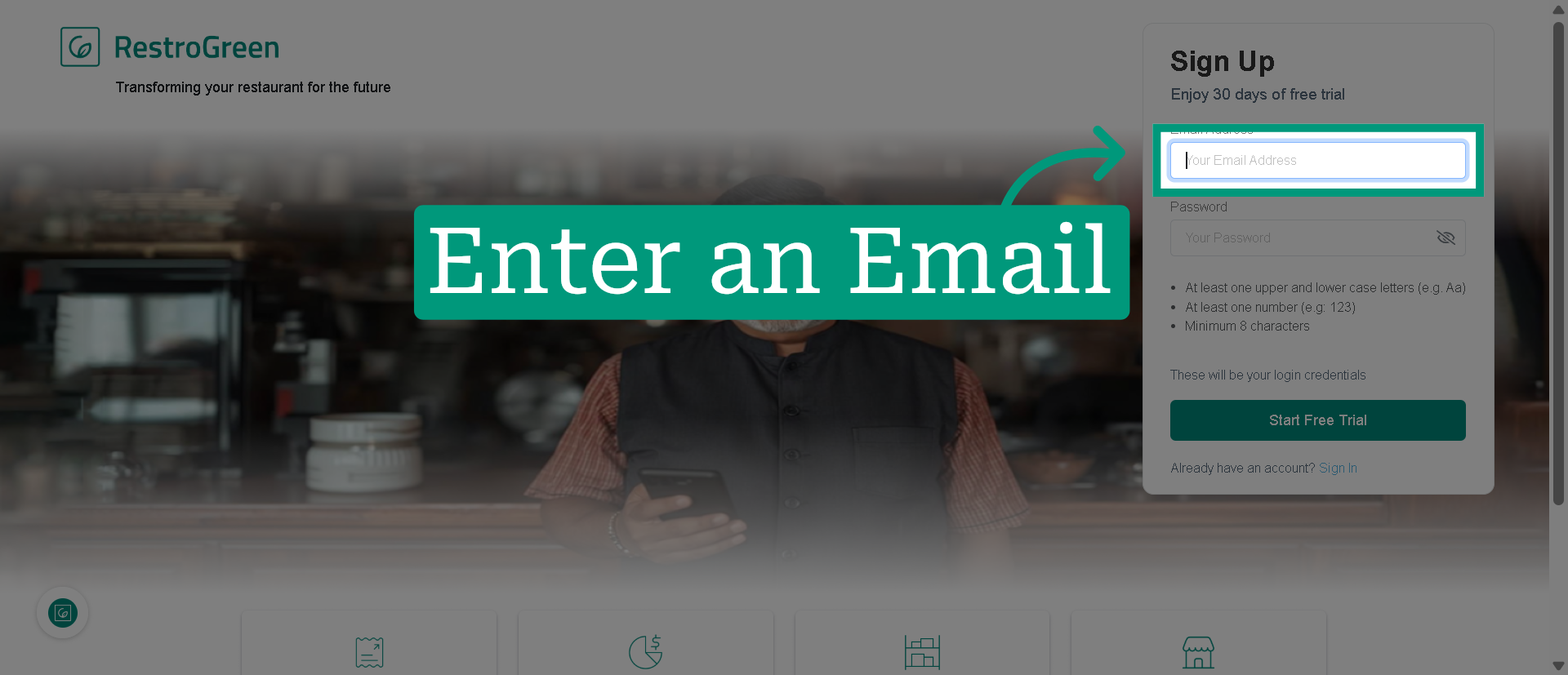
1. Enter your email address that will be used for the account
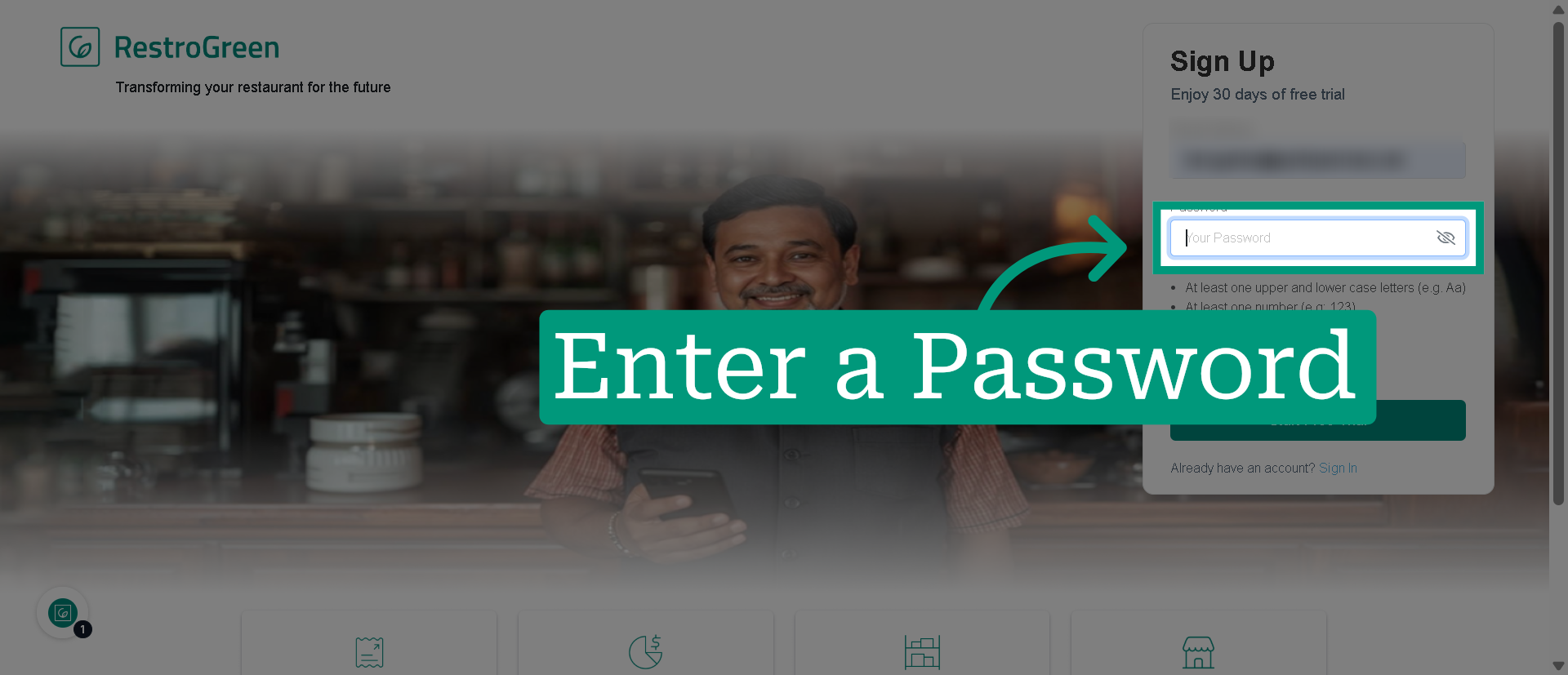
2. Enter a password to secure your account
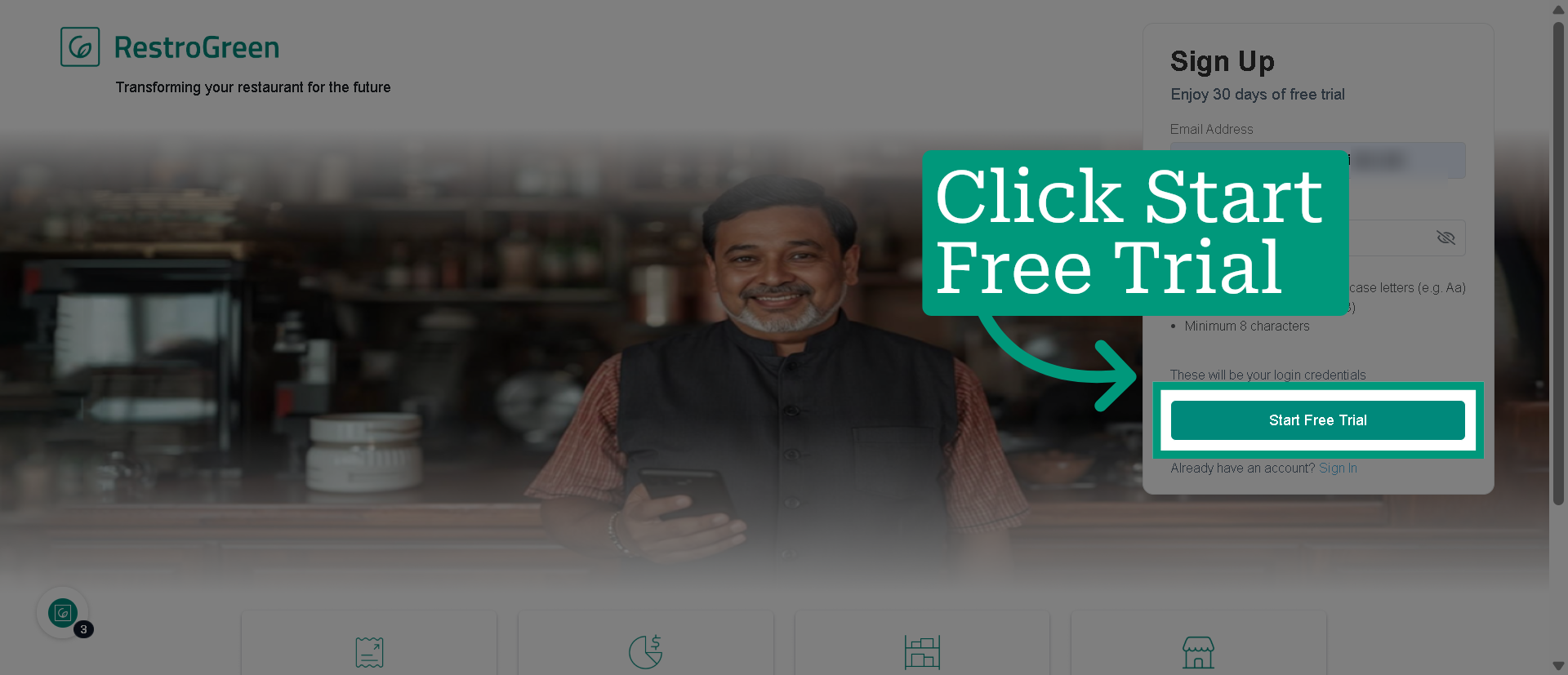
3. Click "Start Free Trial" to begin your trial period
4. Click the Change button to enter your name
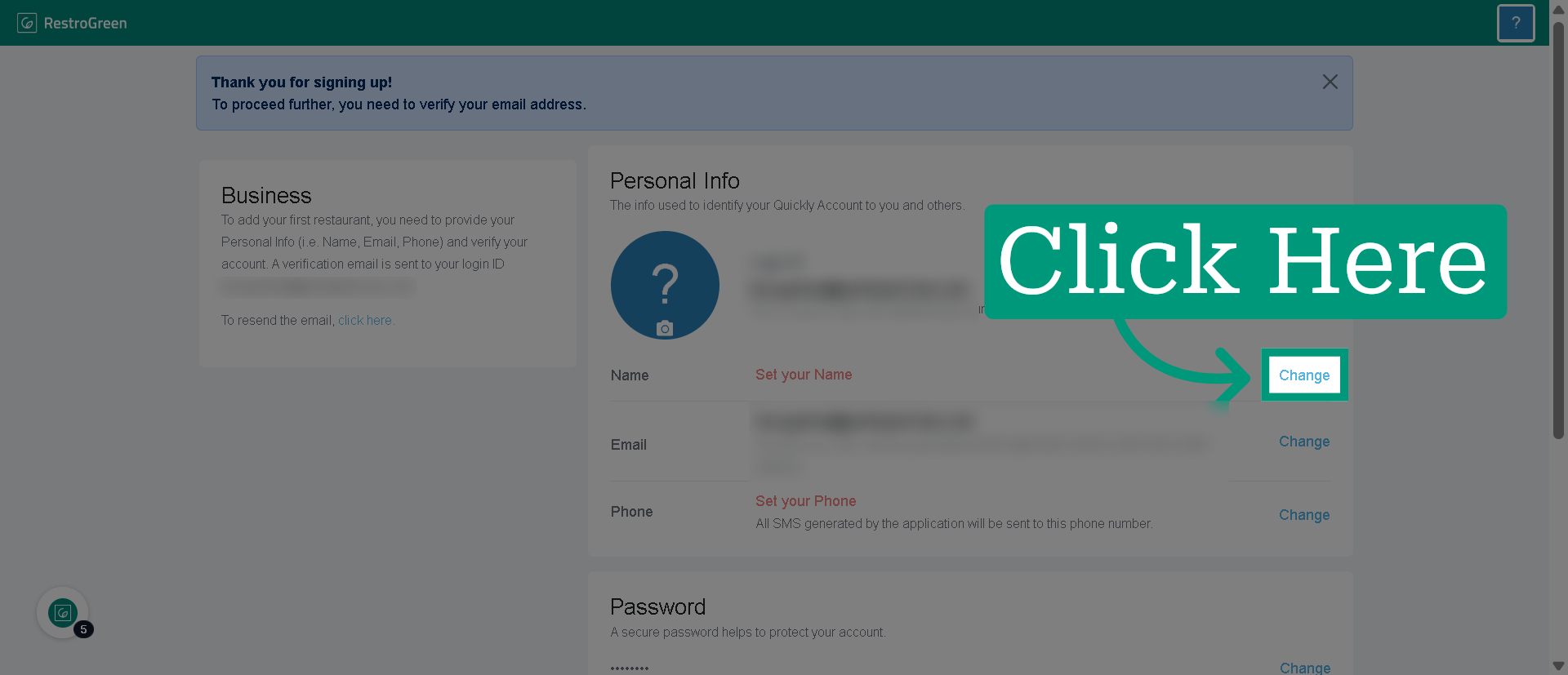
5. Type-in your name or the restaurant owners name
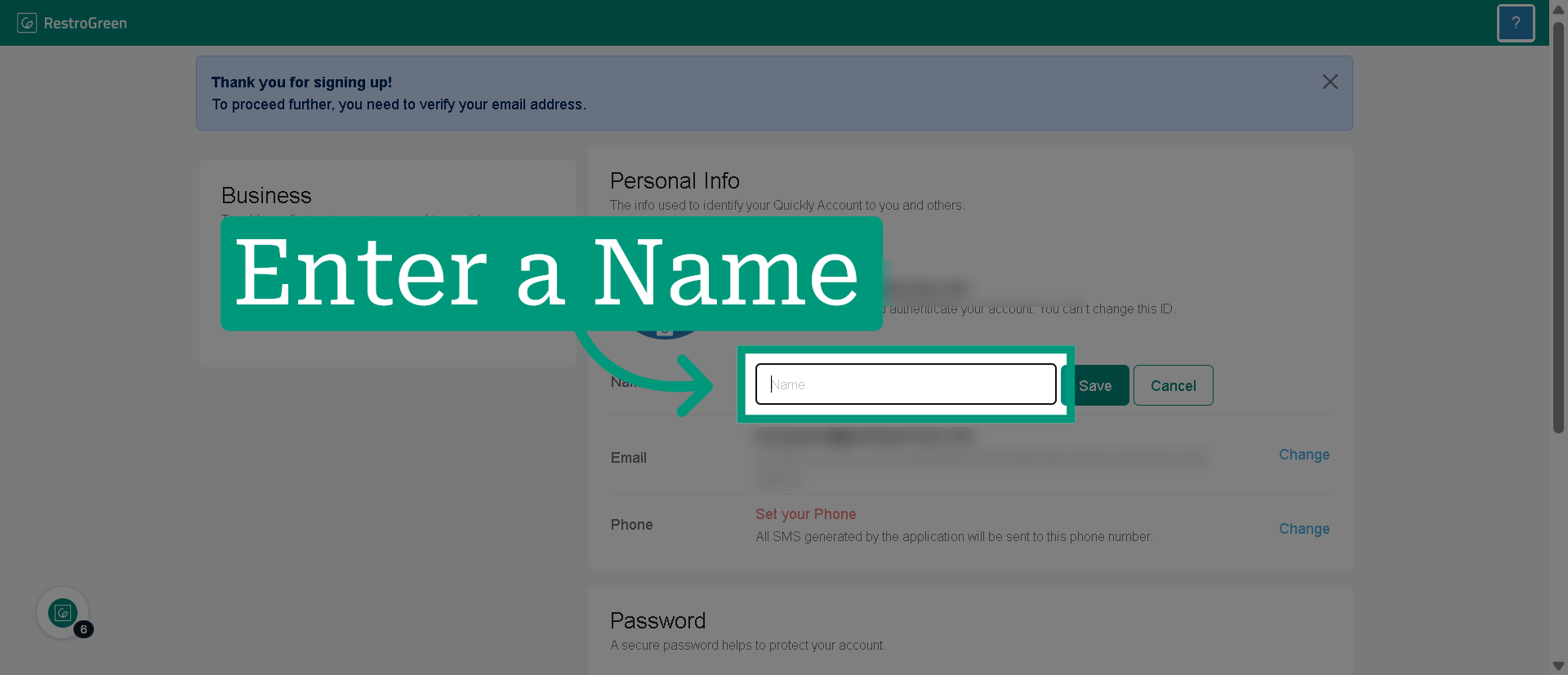
6. Click the Save button to confirm your name
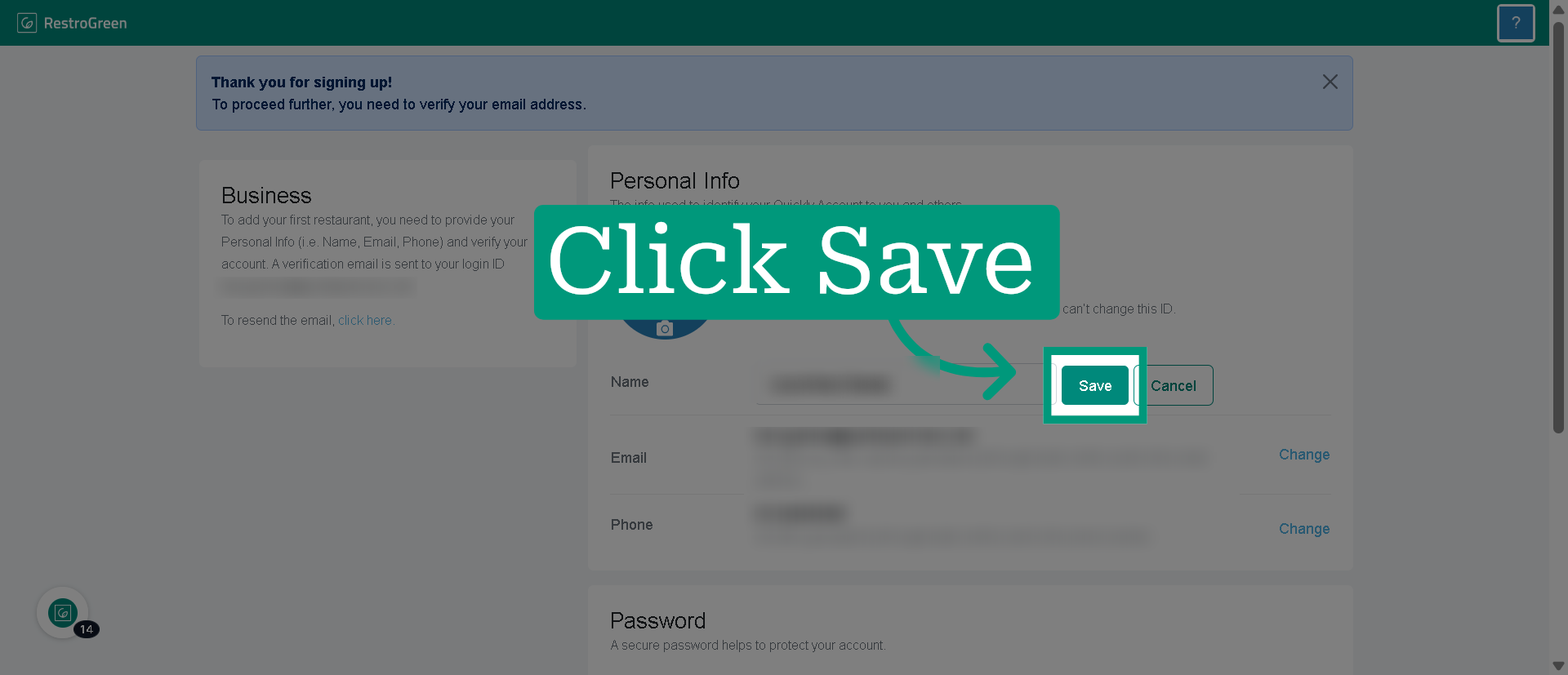
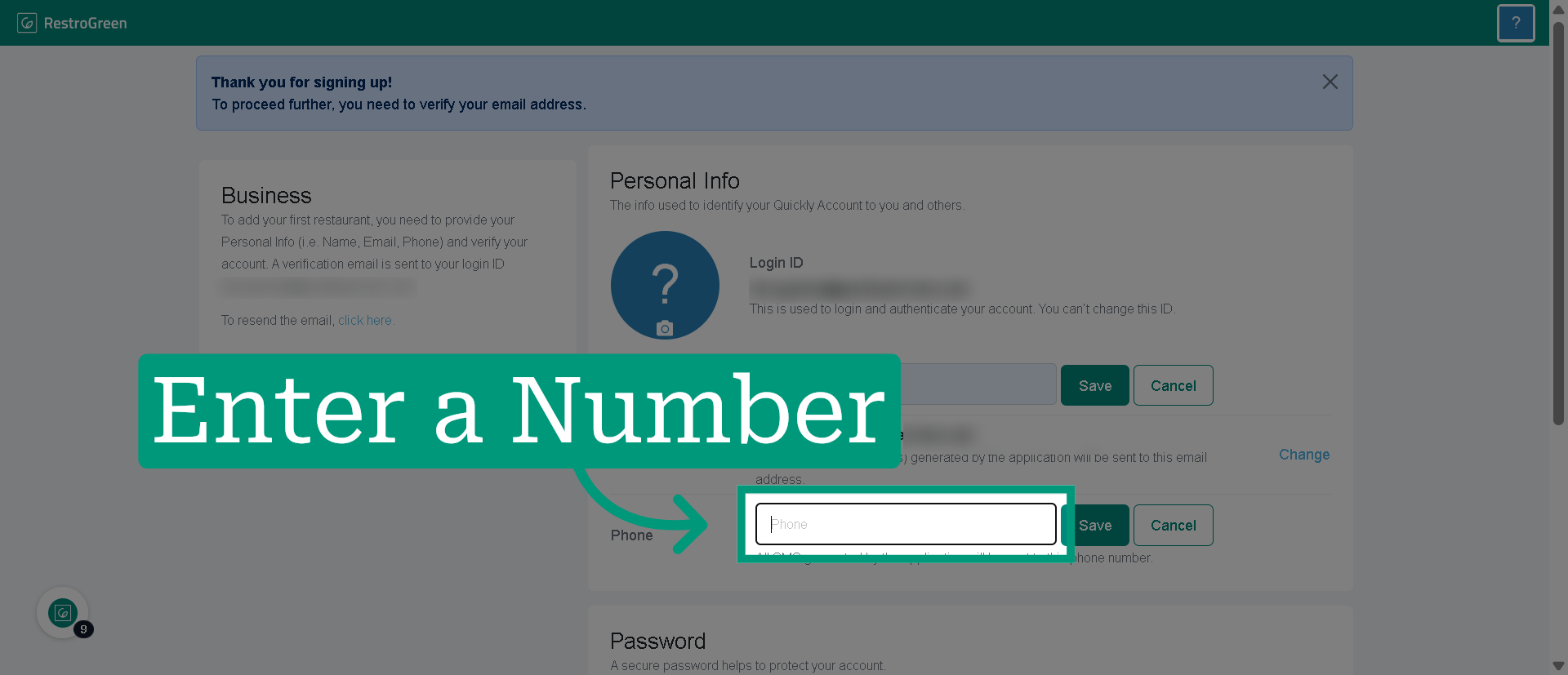
7. Click the Change button to enter your contact number
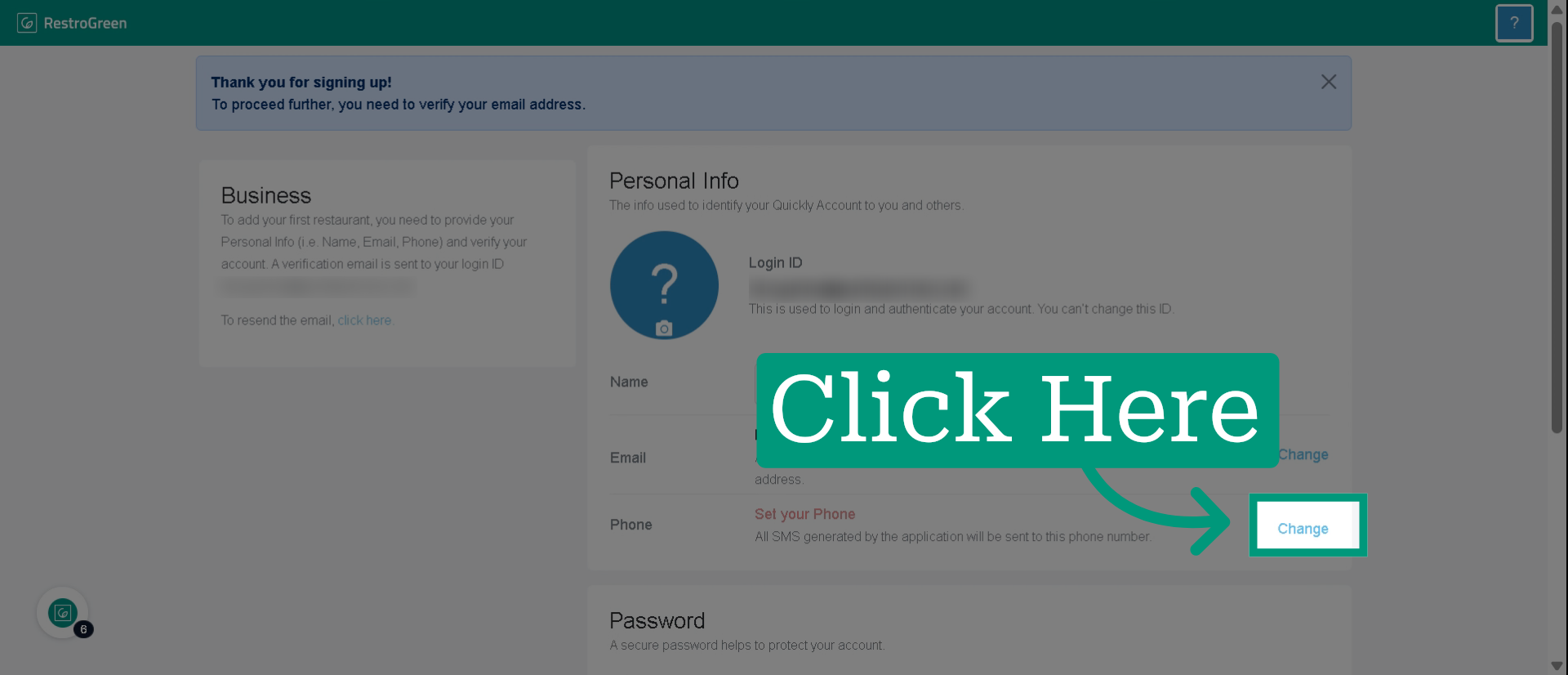
8. Type-in your or the restaurant owners contact number
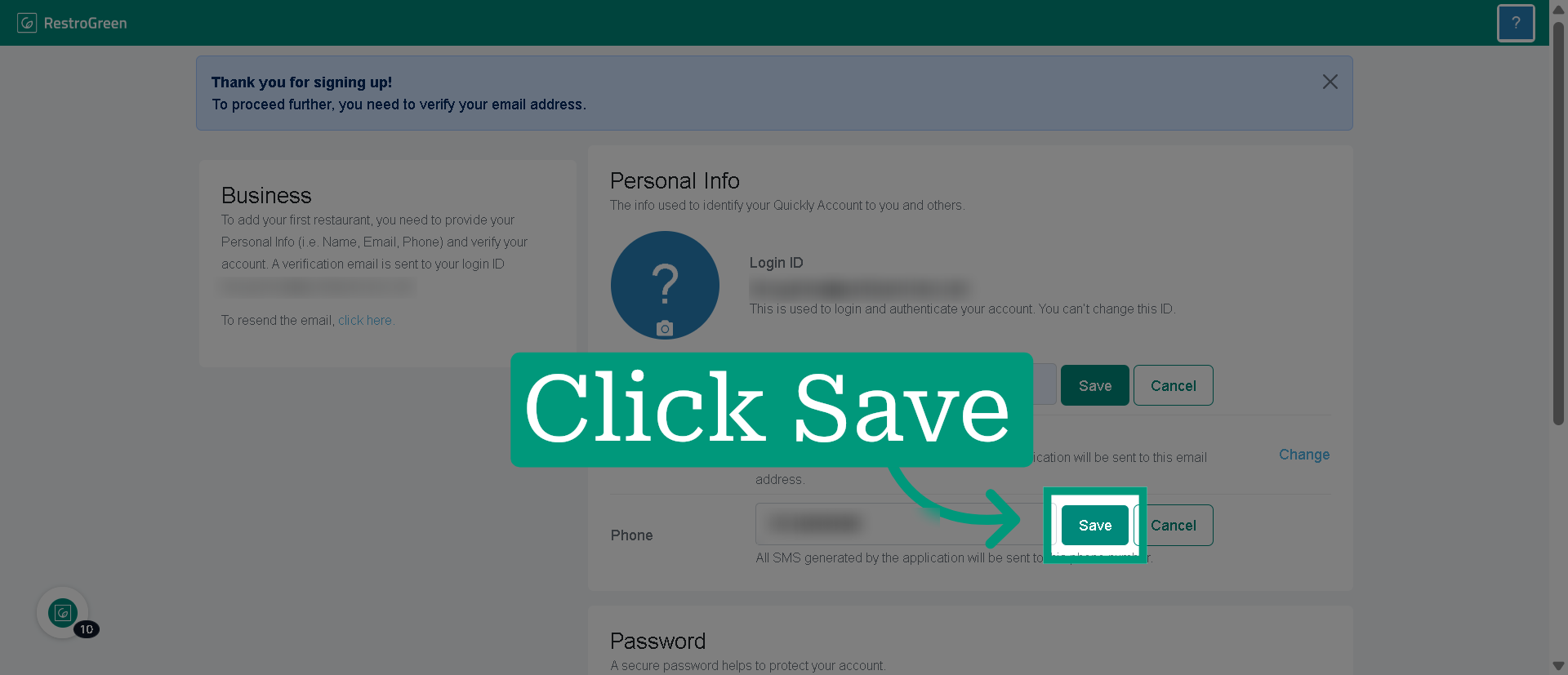
9. Click the Save button to confirm the contact details
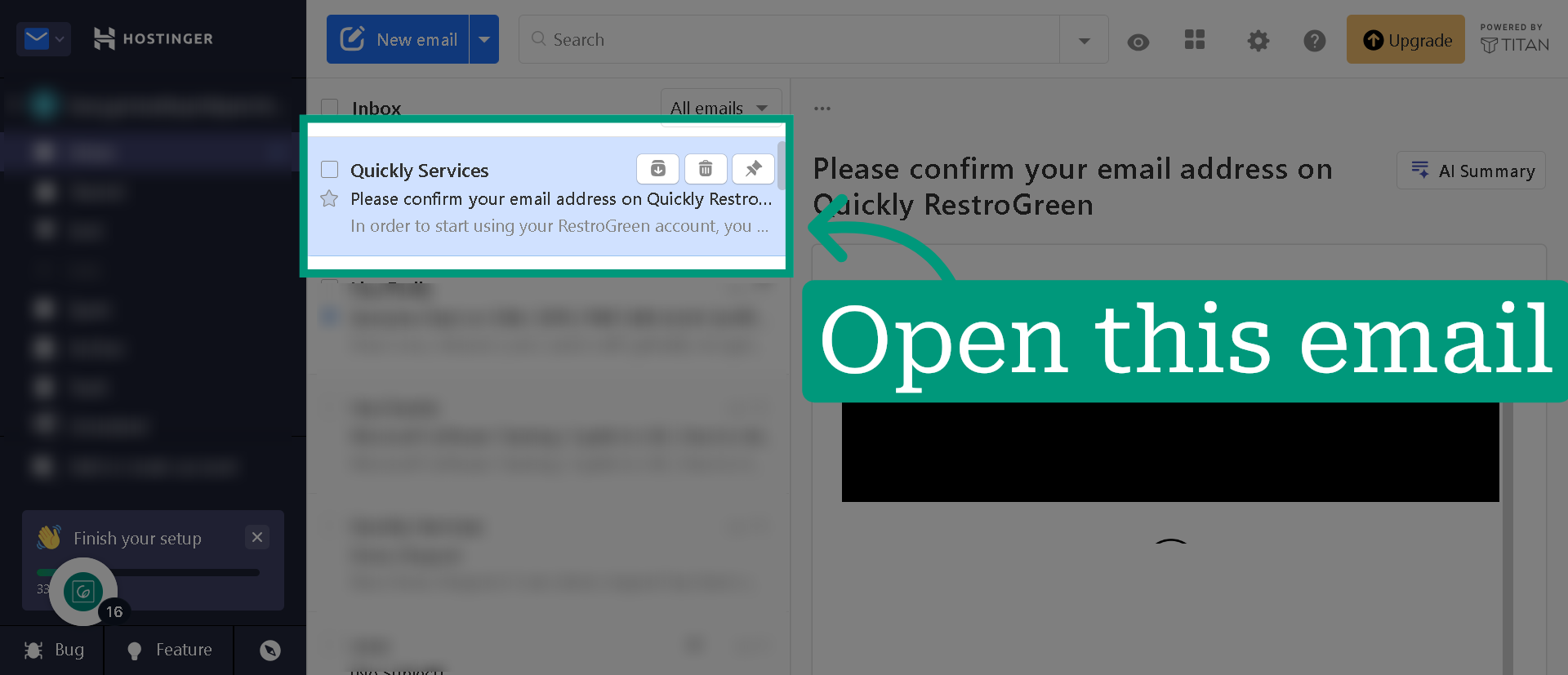
10. Go to your email account and open this verification email
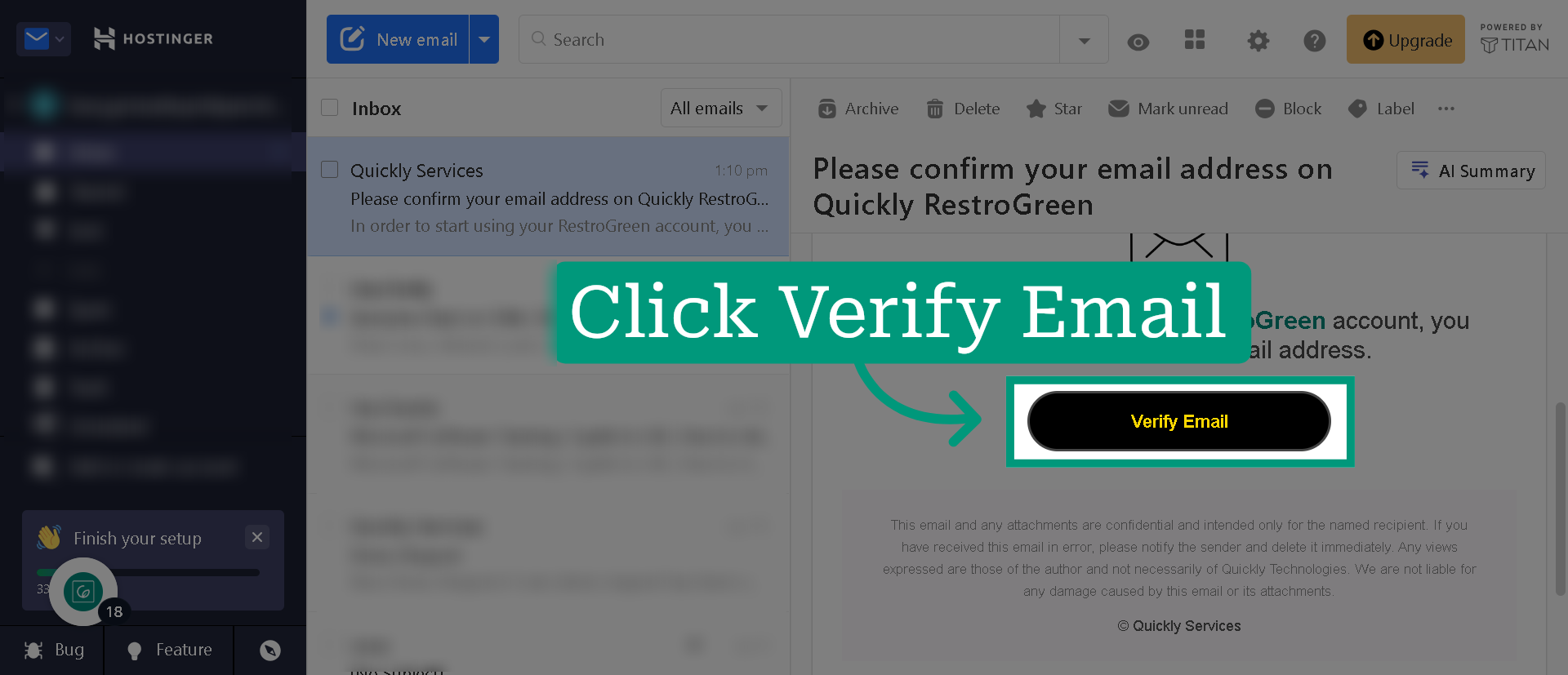
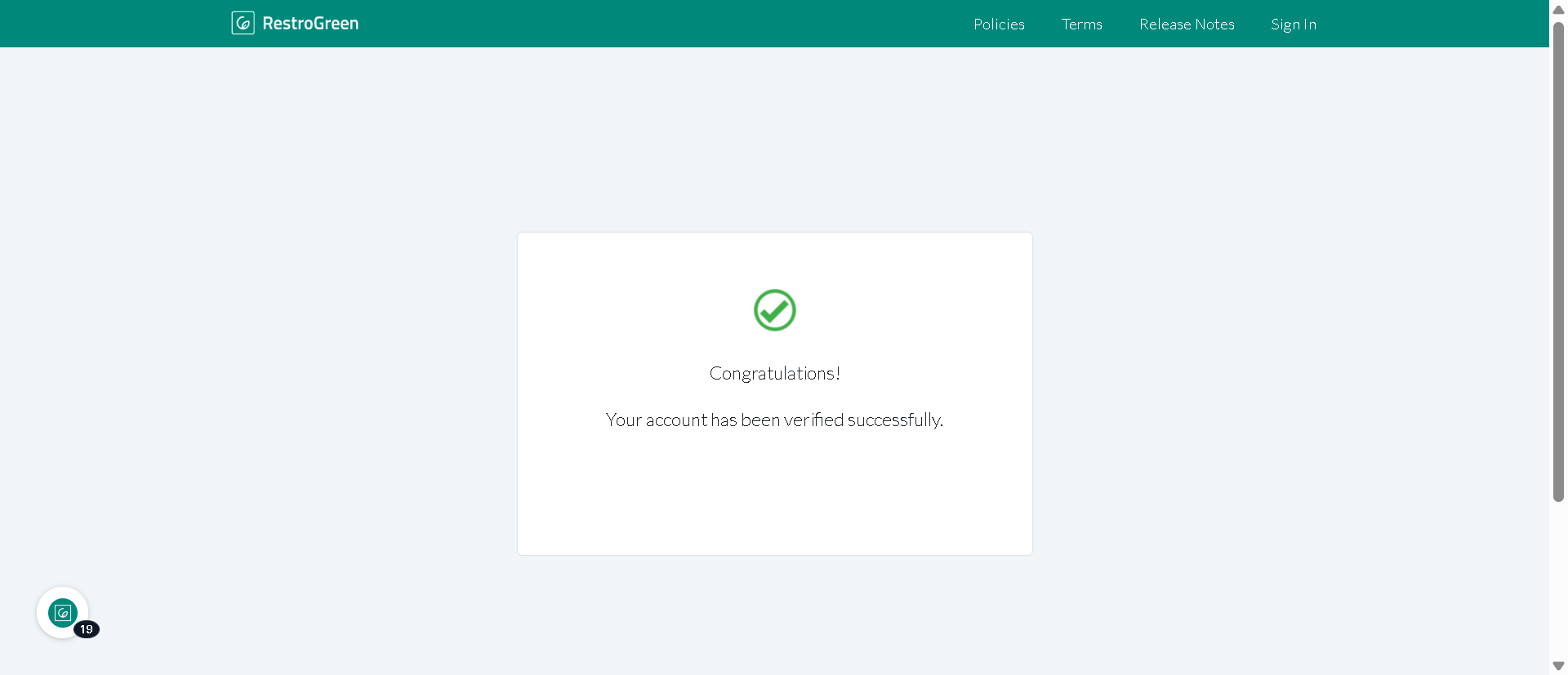
11. Click "Verify Email" to validate your email account on RestroGreen
12. This should redirect you to the RestroGreen Business Portal
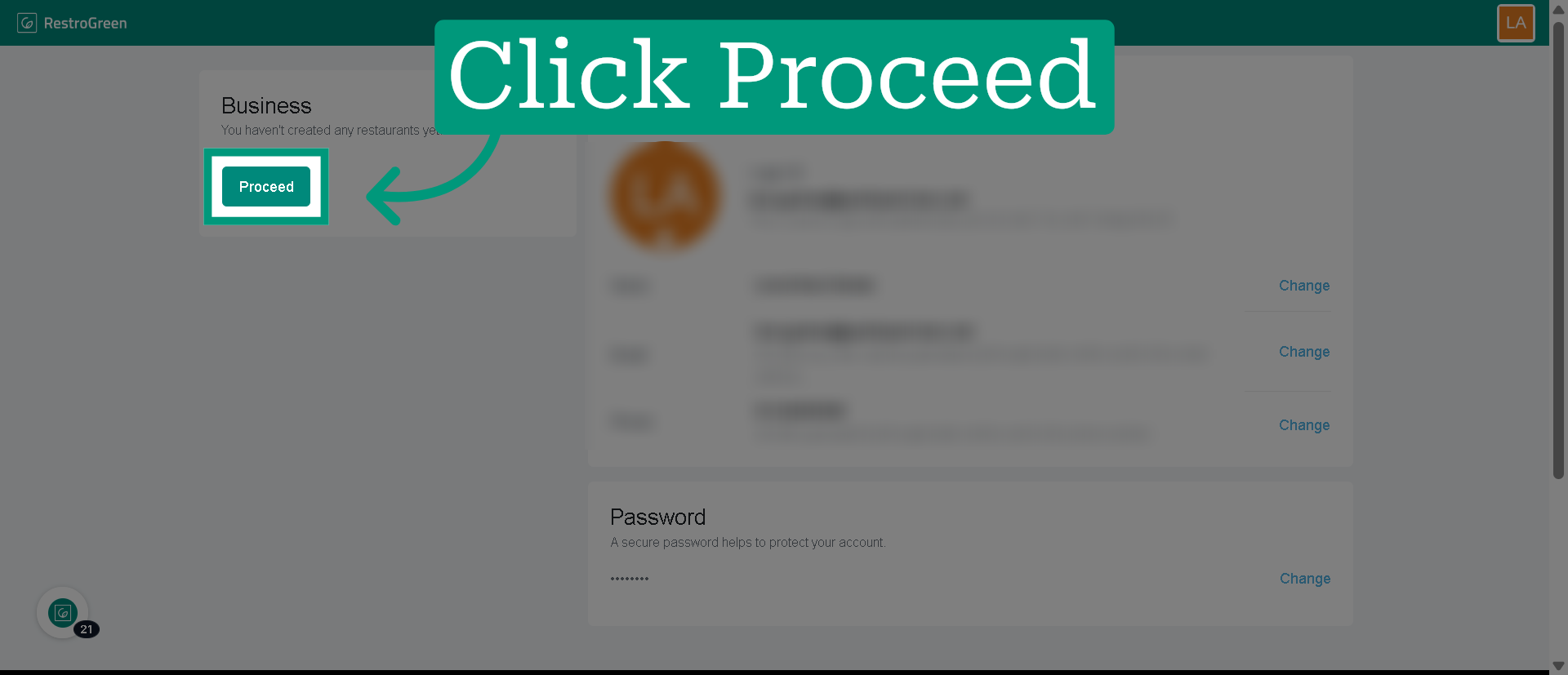
13. Click "Proceed" to enter your restaurant information
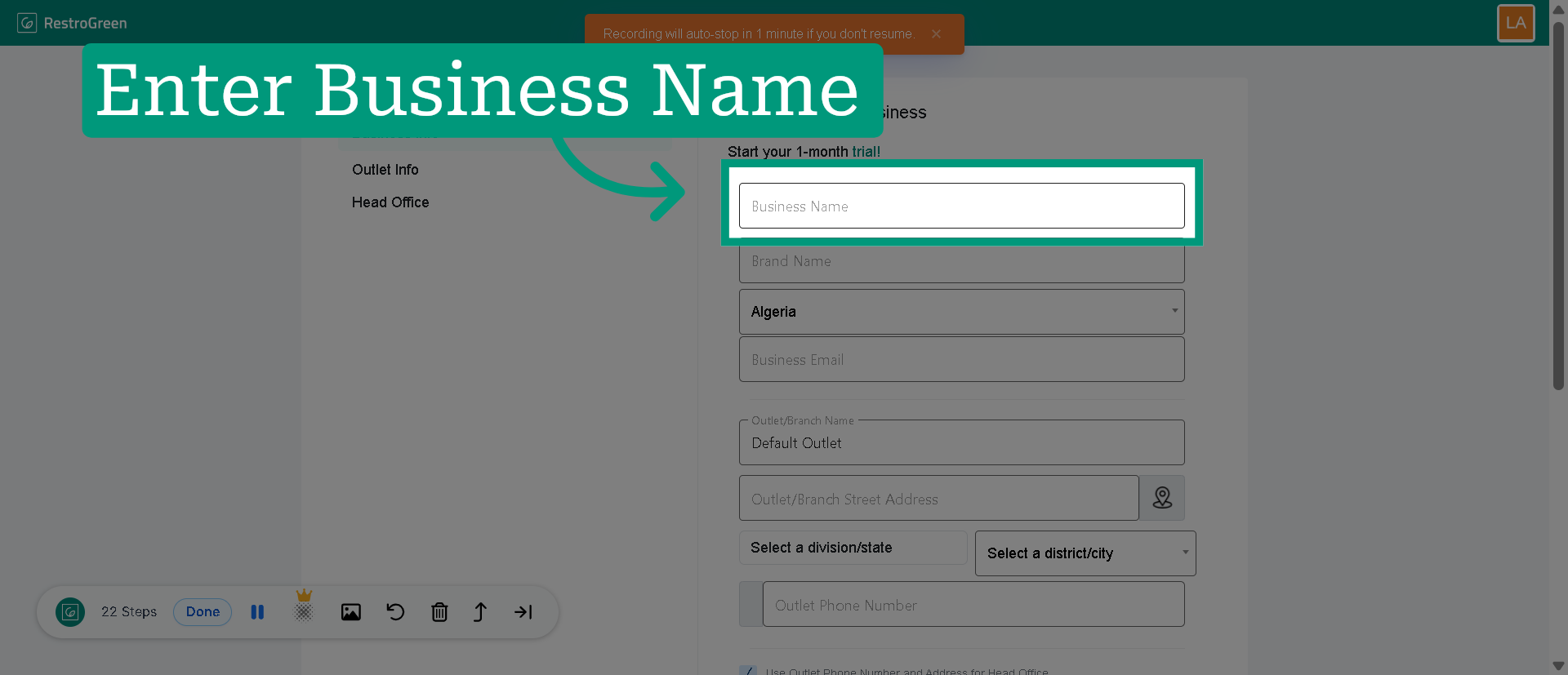
14. Enter your business's official name
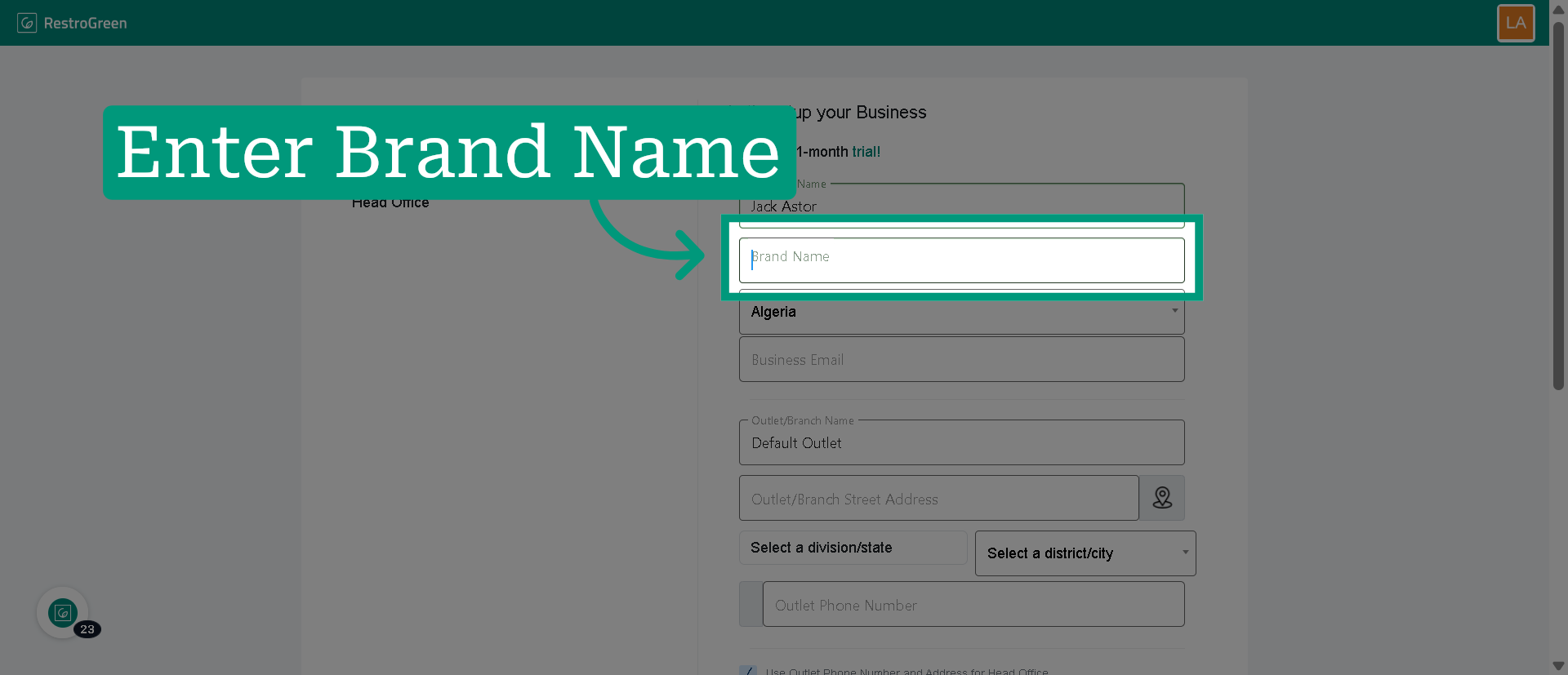
15. Enter a Brand name if your restaurant operates on different brand identity
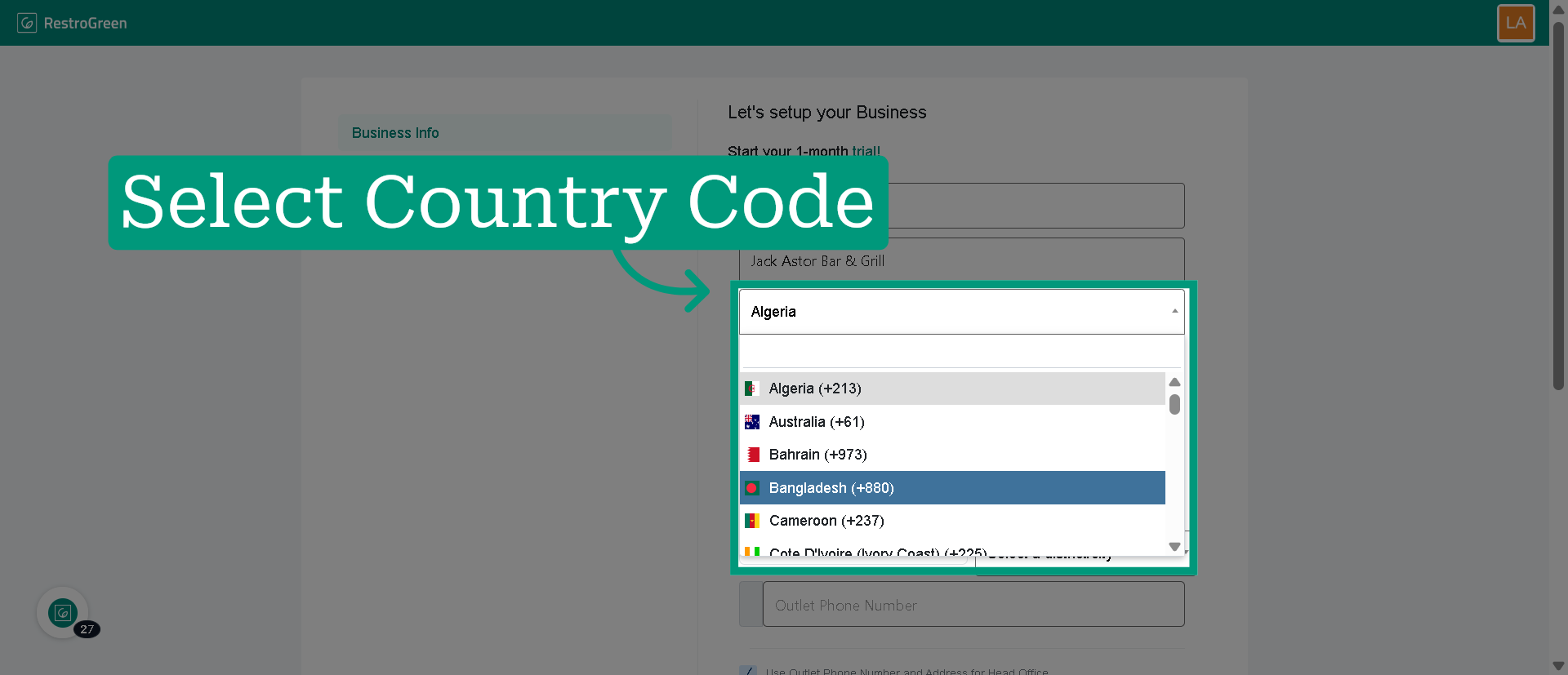
16. Select the correct country code for your phone number
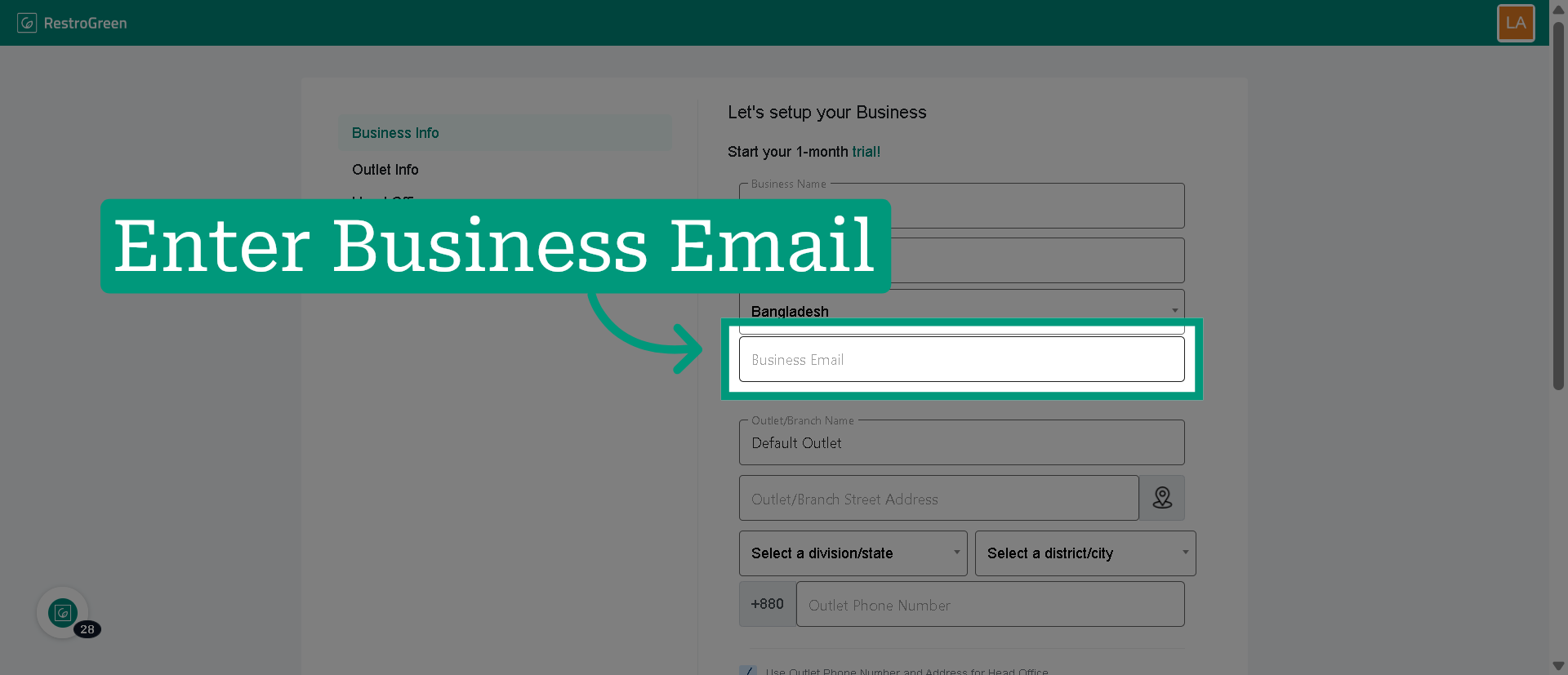
17. Enter your business email
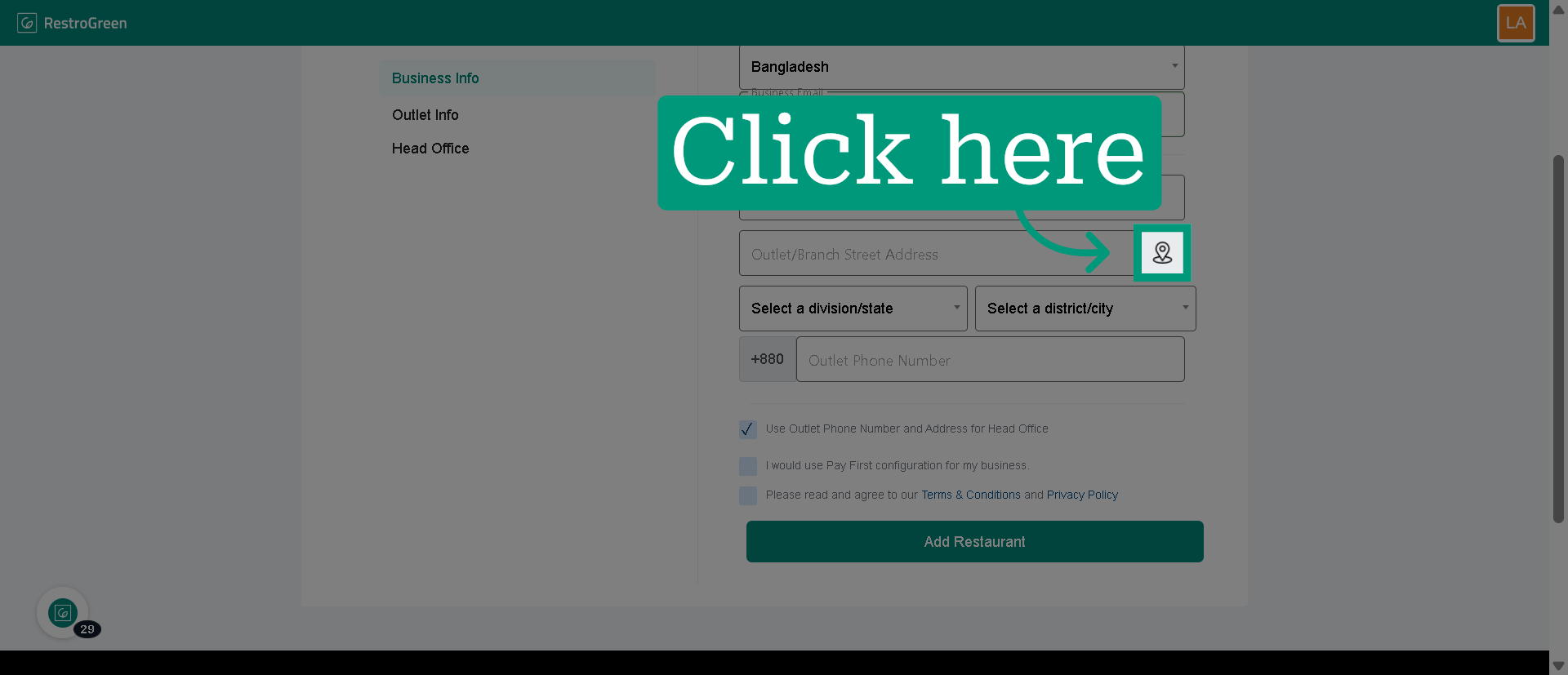
18. Click this icon to locate your restaurant on the map
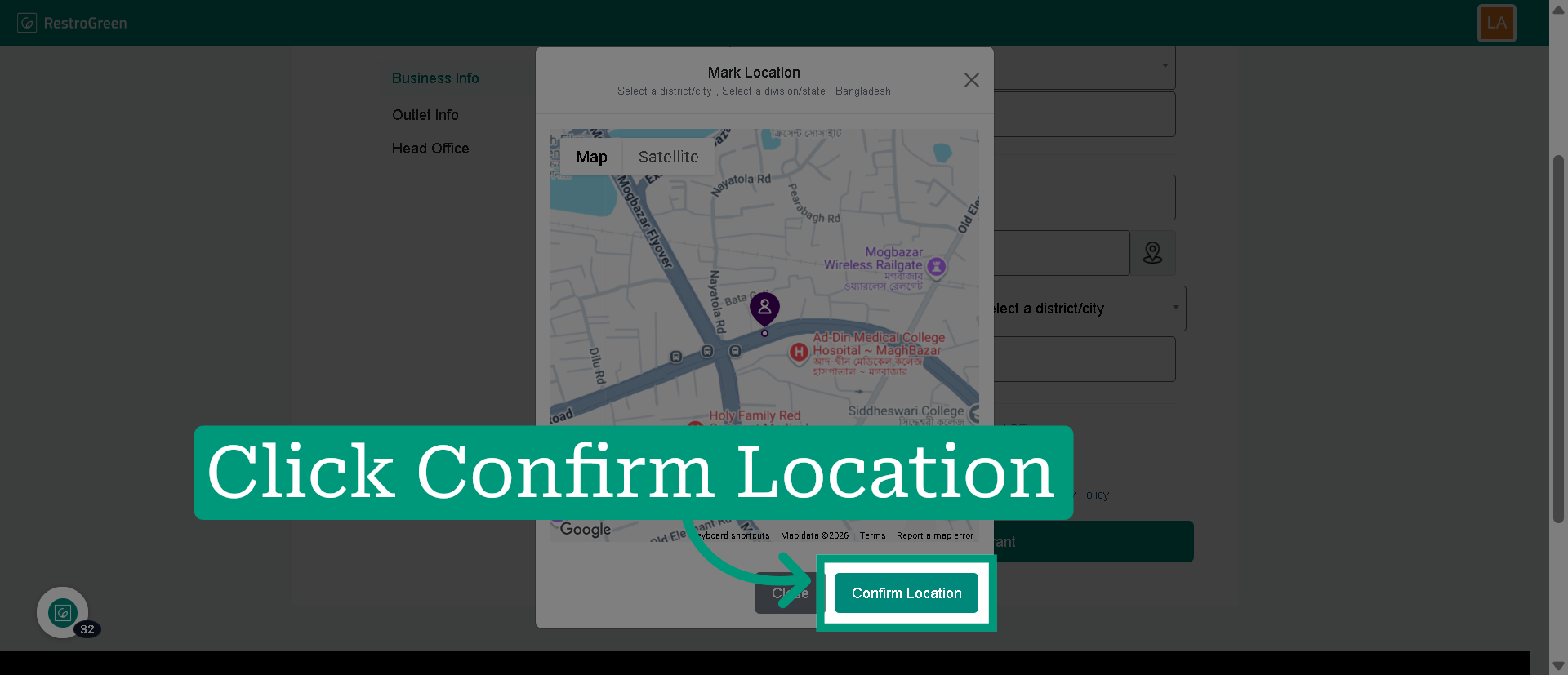
19. Find your location on this map
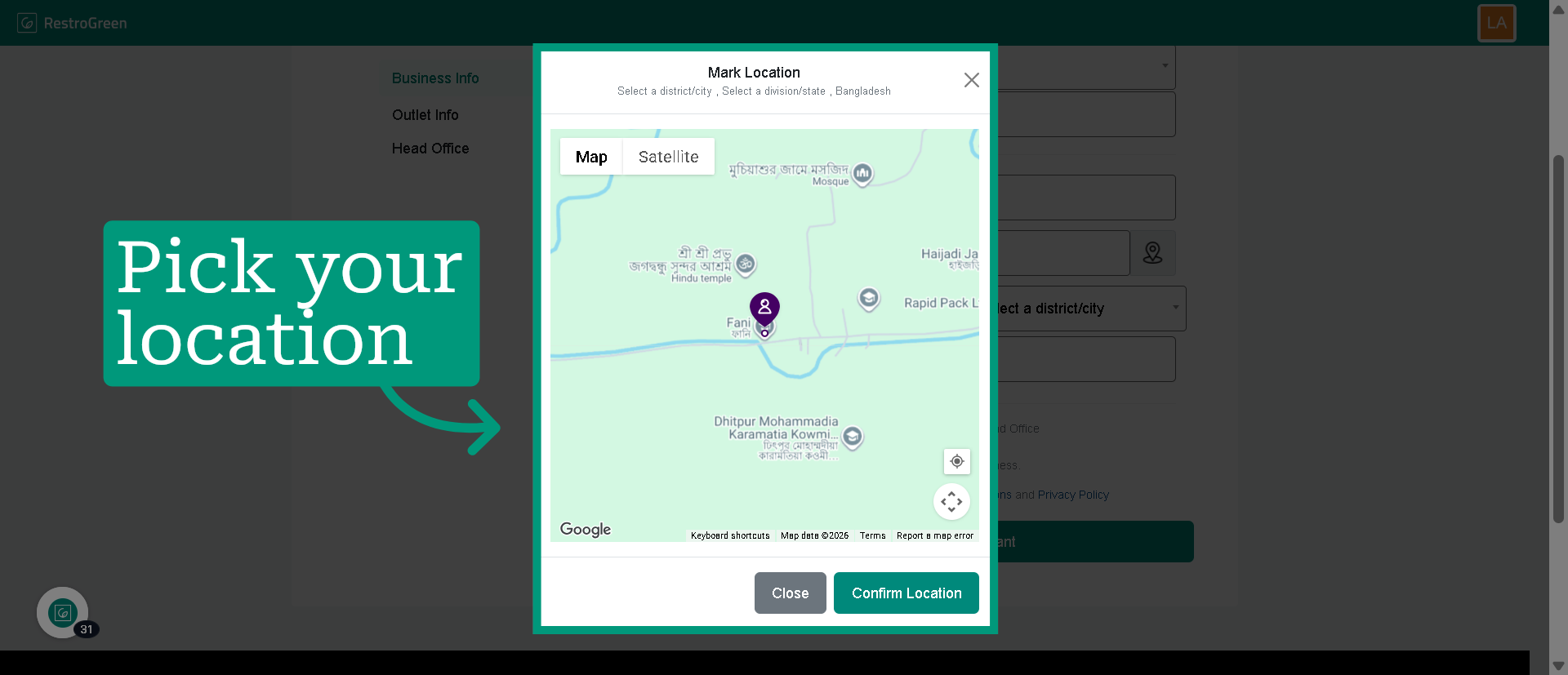
20. Click "Confirm Location" to verify your business address
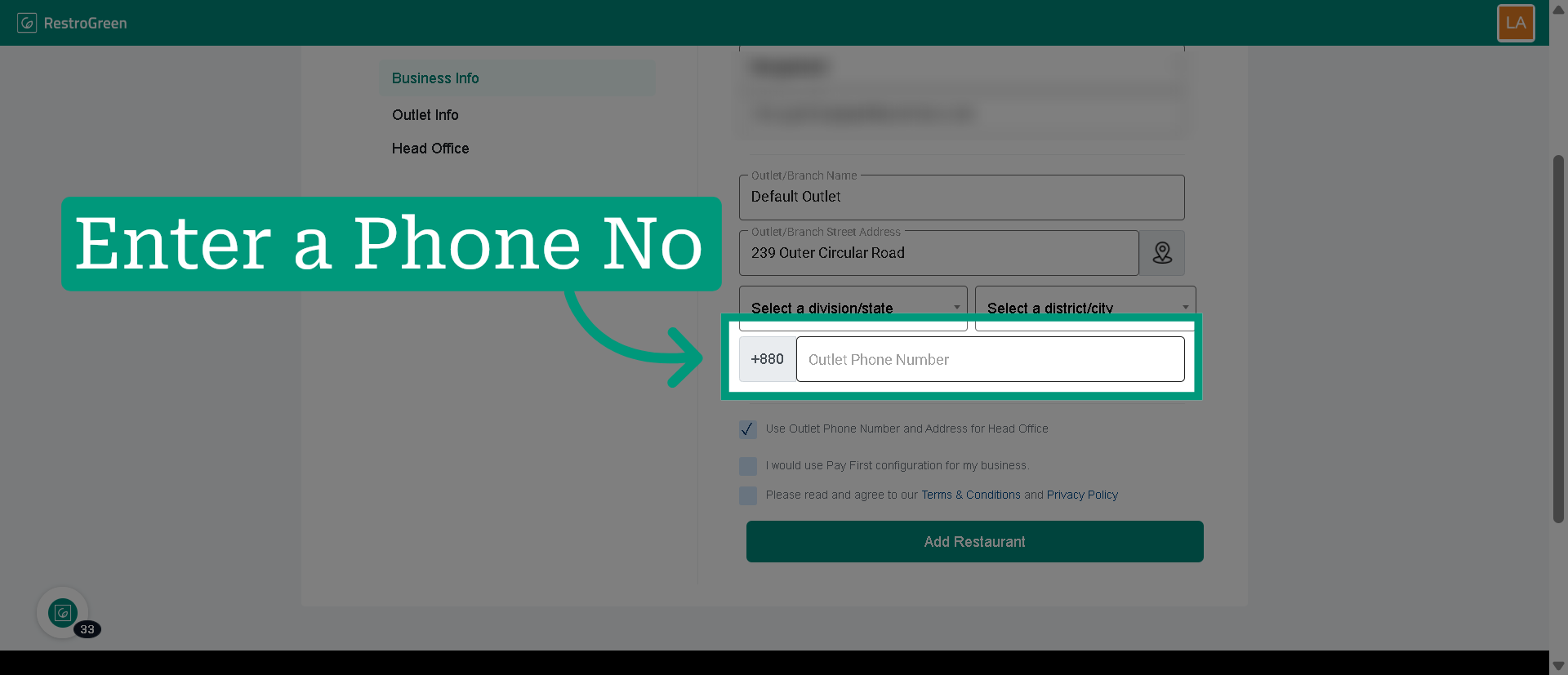
21. Enter your business contact number
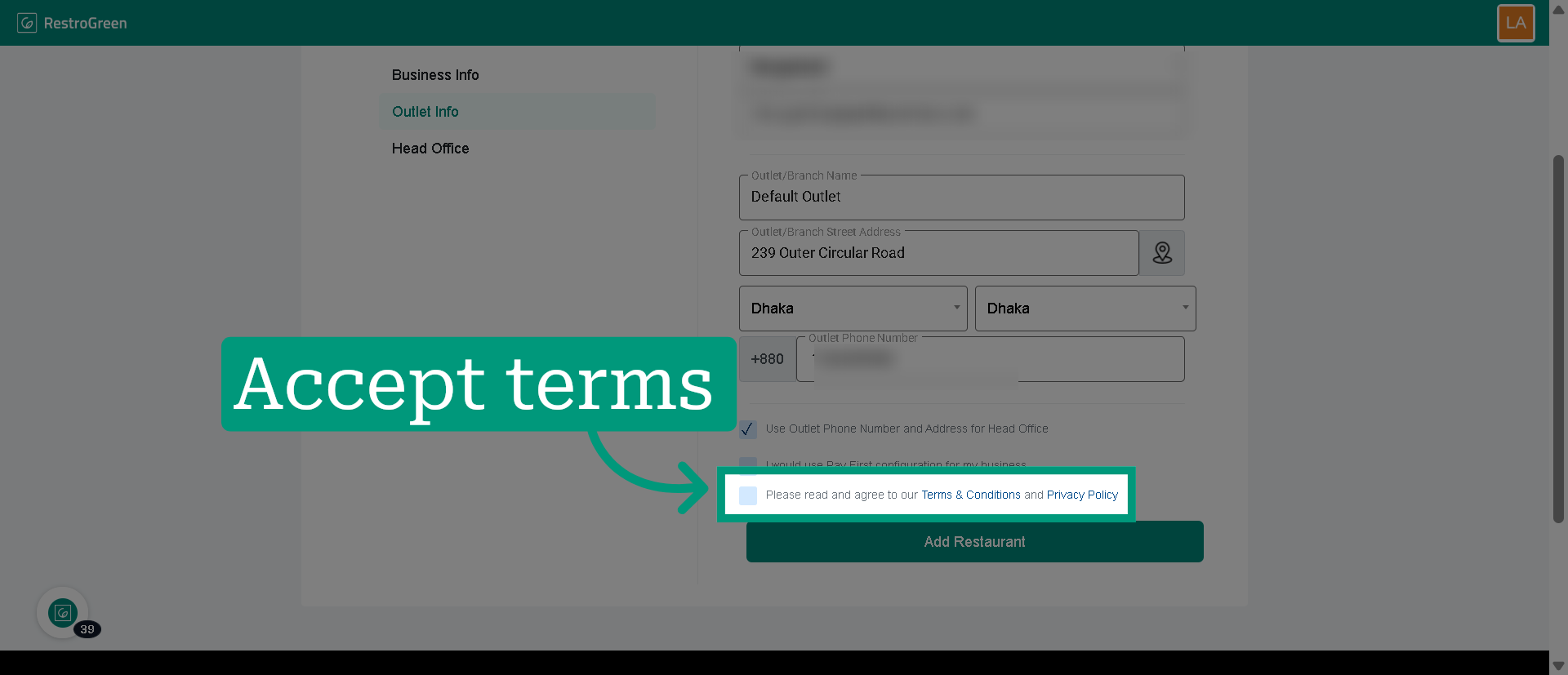
22. Click the checkbox to agree to the Terms & Conditions and Privacy Policy
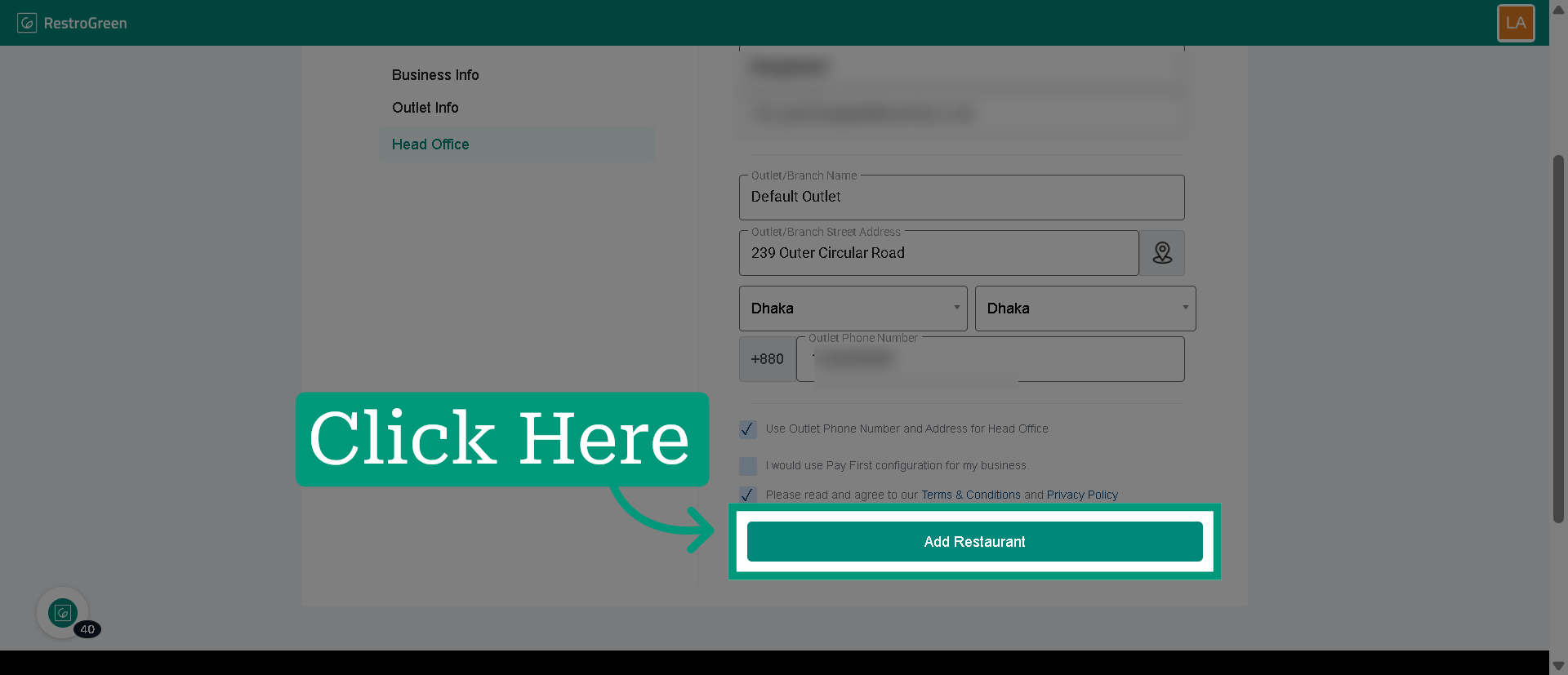
23. Click "Add Restaurant" to register your business
24. Choose your subscription plan
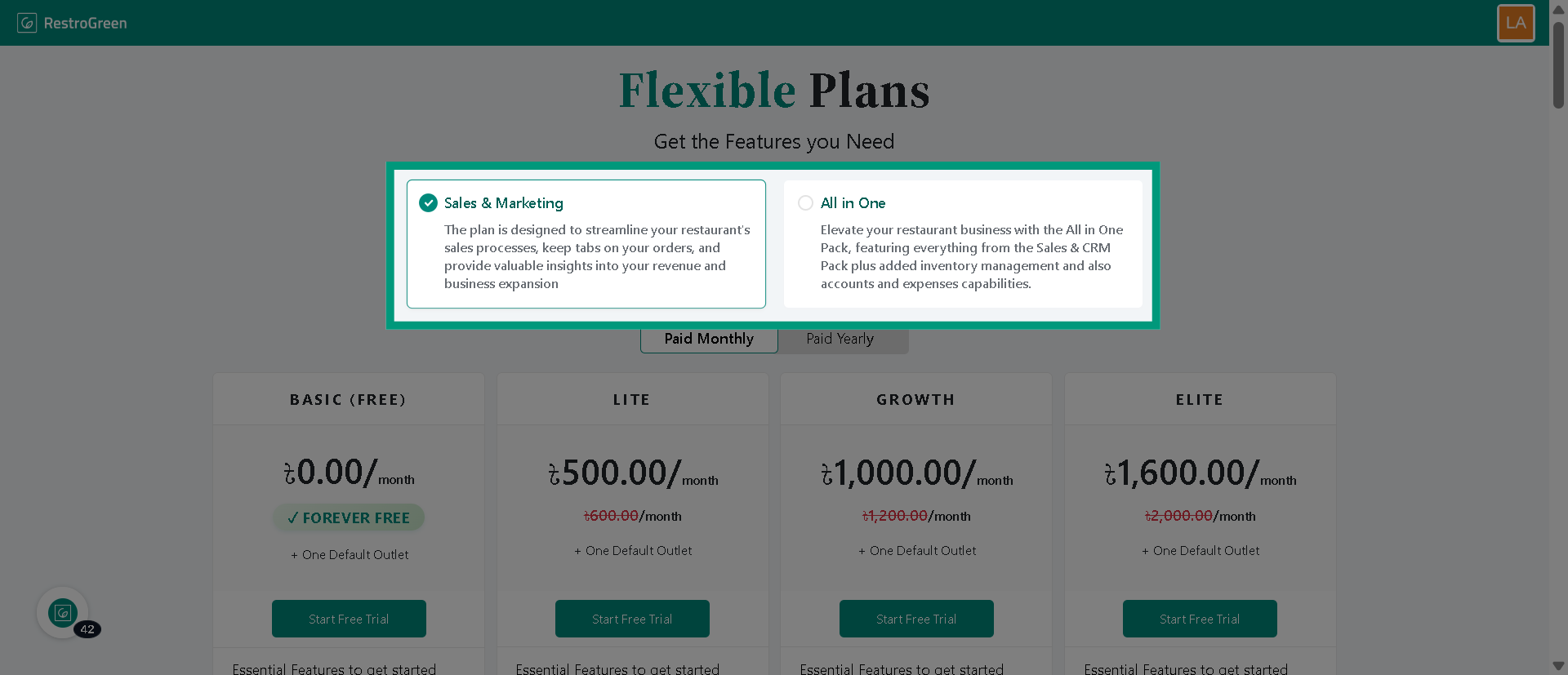
25. Click confirm to finalize your subscription plan
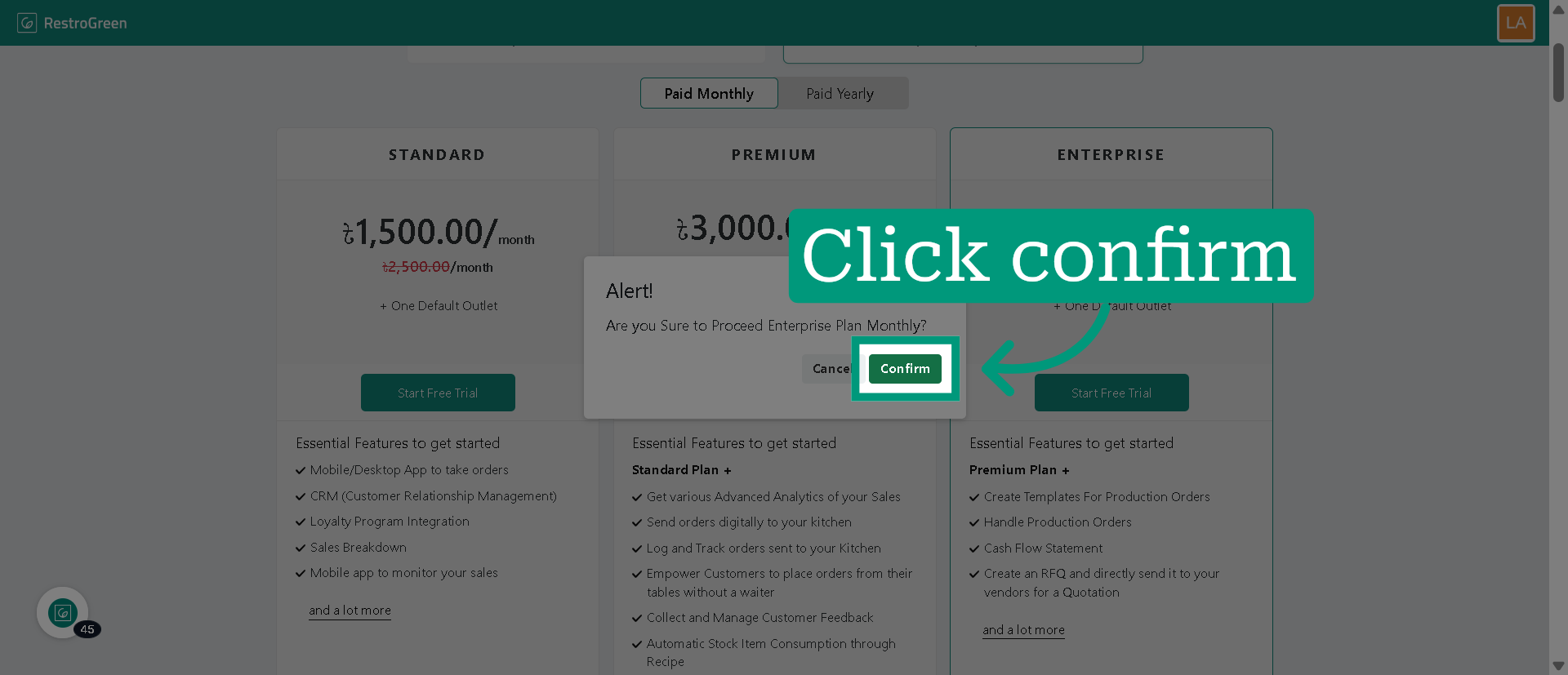
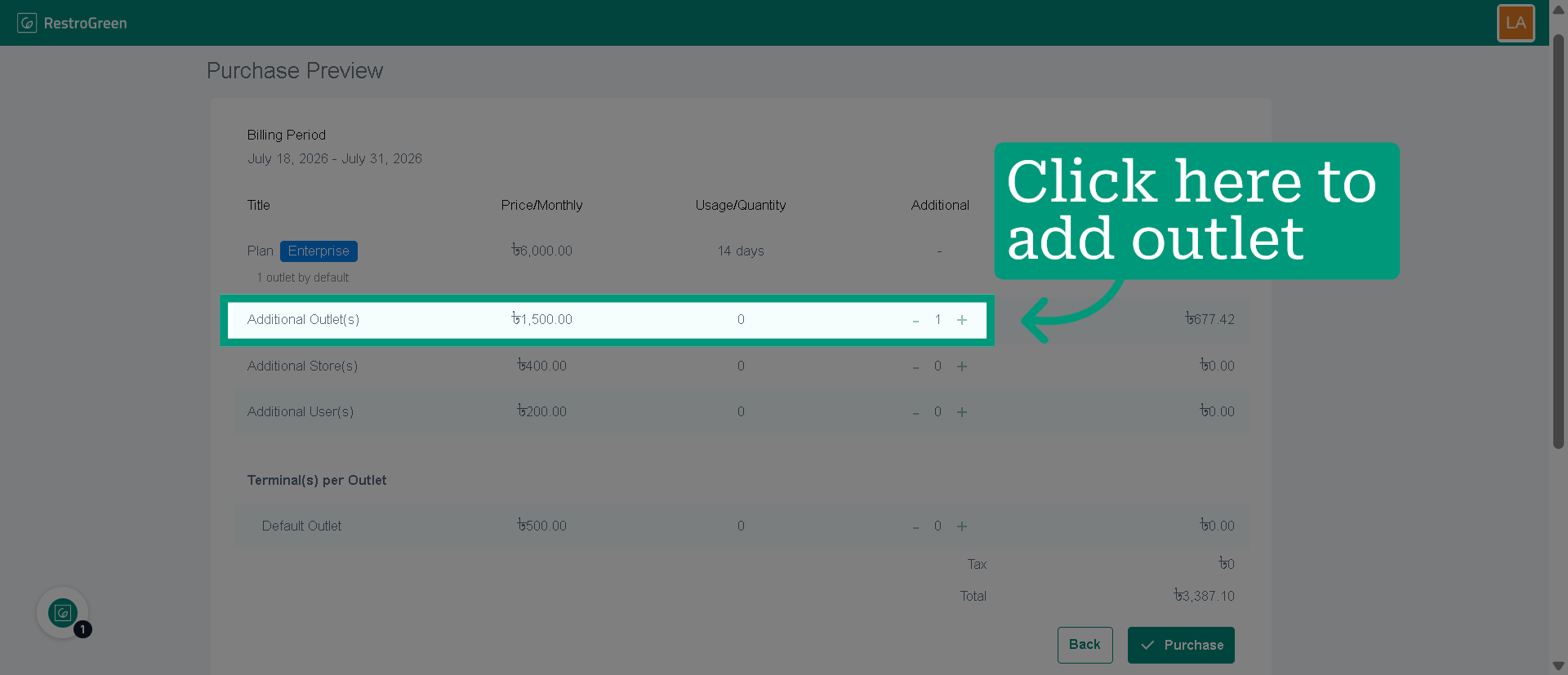
26. Add addition Outlet/Store/User from this page
27. Click "Purchase" to save your selections
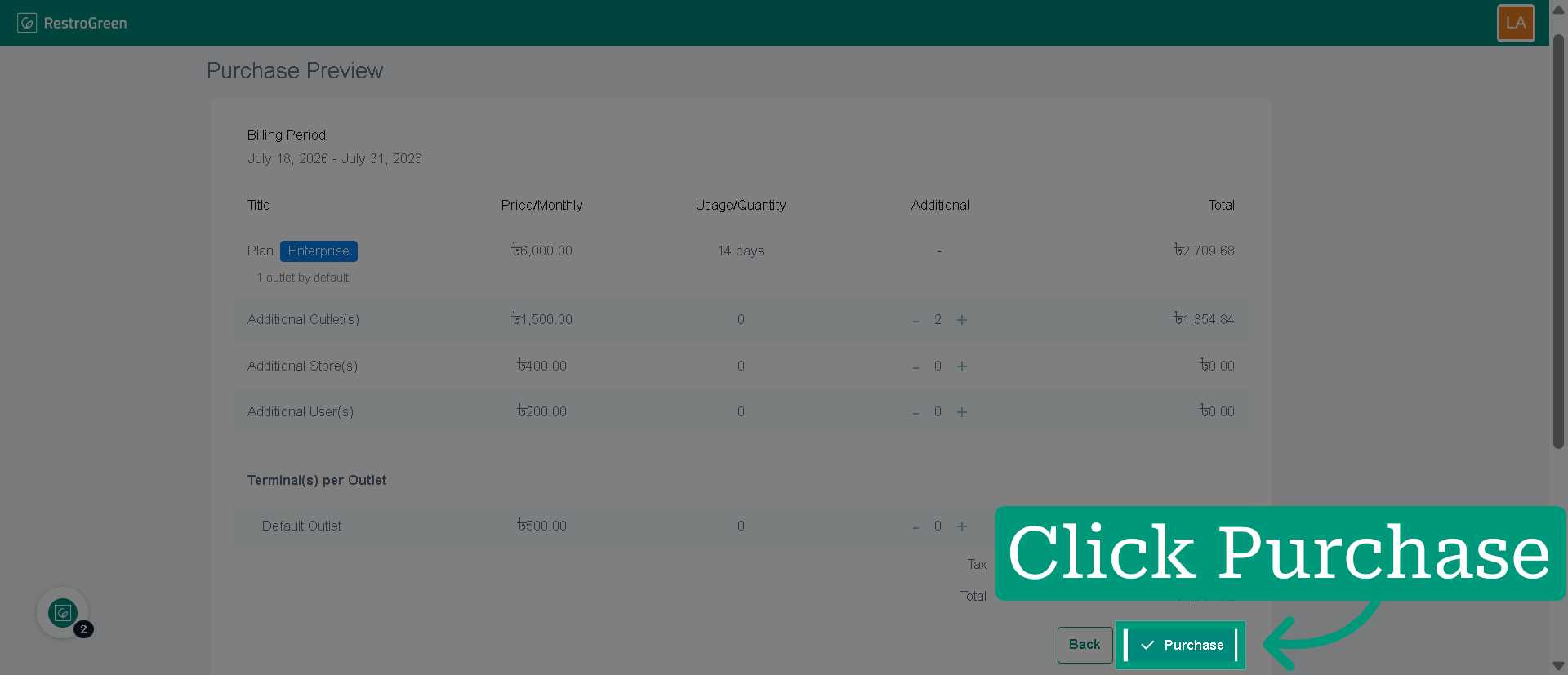
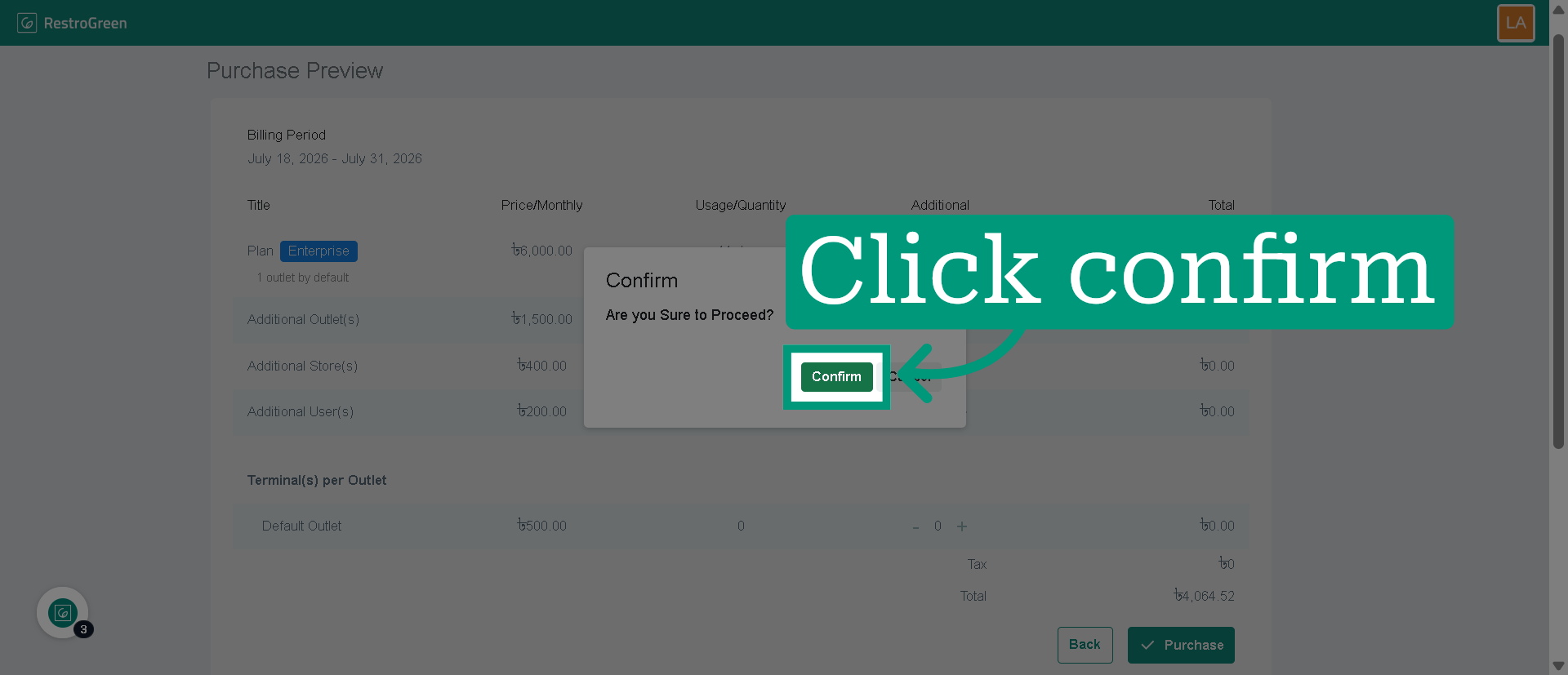
28. Click "confirm" to proceed with your purchase
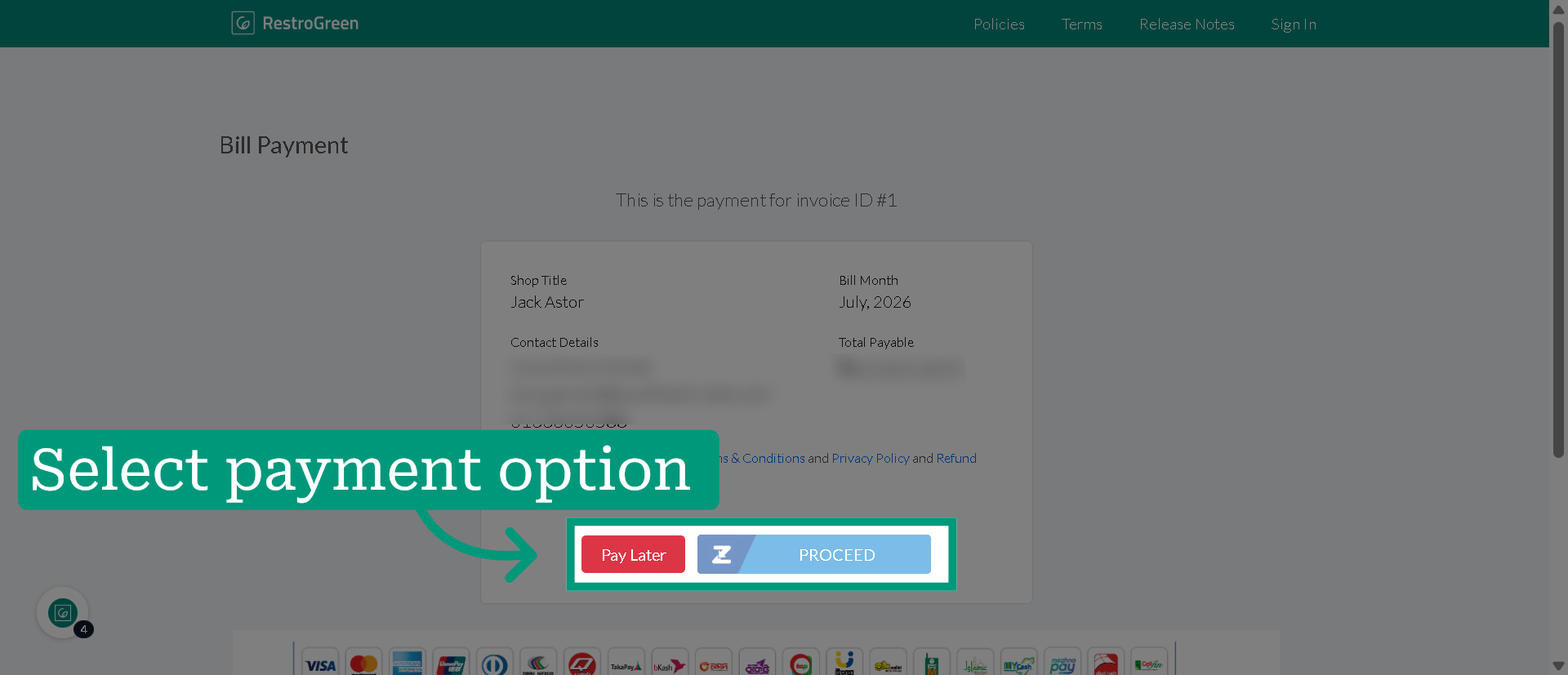
29. Choose your preferred payment option
You can pay later after your 30-days free trial or proceed with a payment now.