How to Generate Product Barcodes in RetailGo Business Portal
This tutorial guides you through generating and printing product barcodes in the RetailGo
Business Portal. Barcodes help streamline billing and inventory management by enabling faster
product scanning, improving accuracy, and reducing manual data entry.
Go to
retailgo.quicklyservices.com
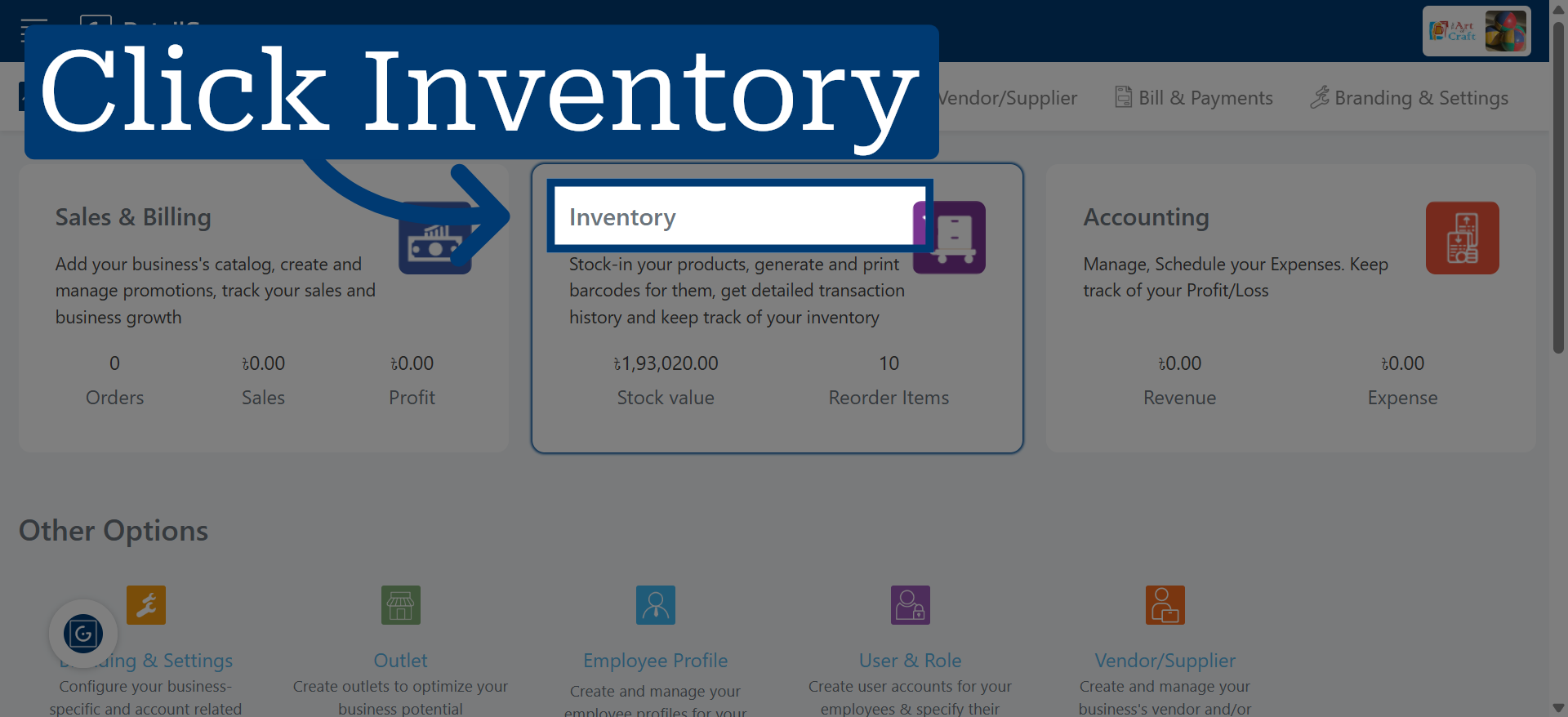
1. Access Inventory Module
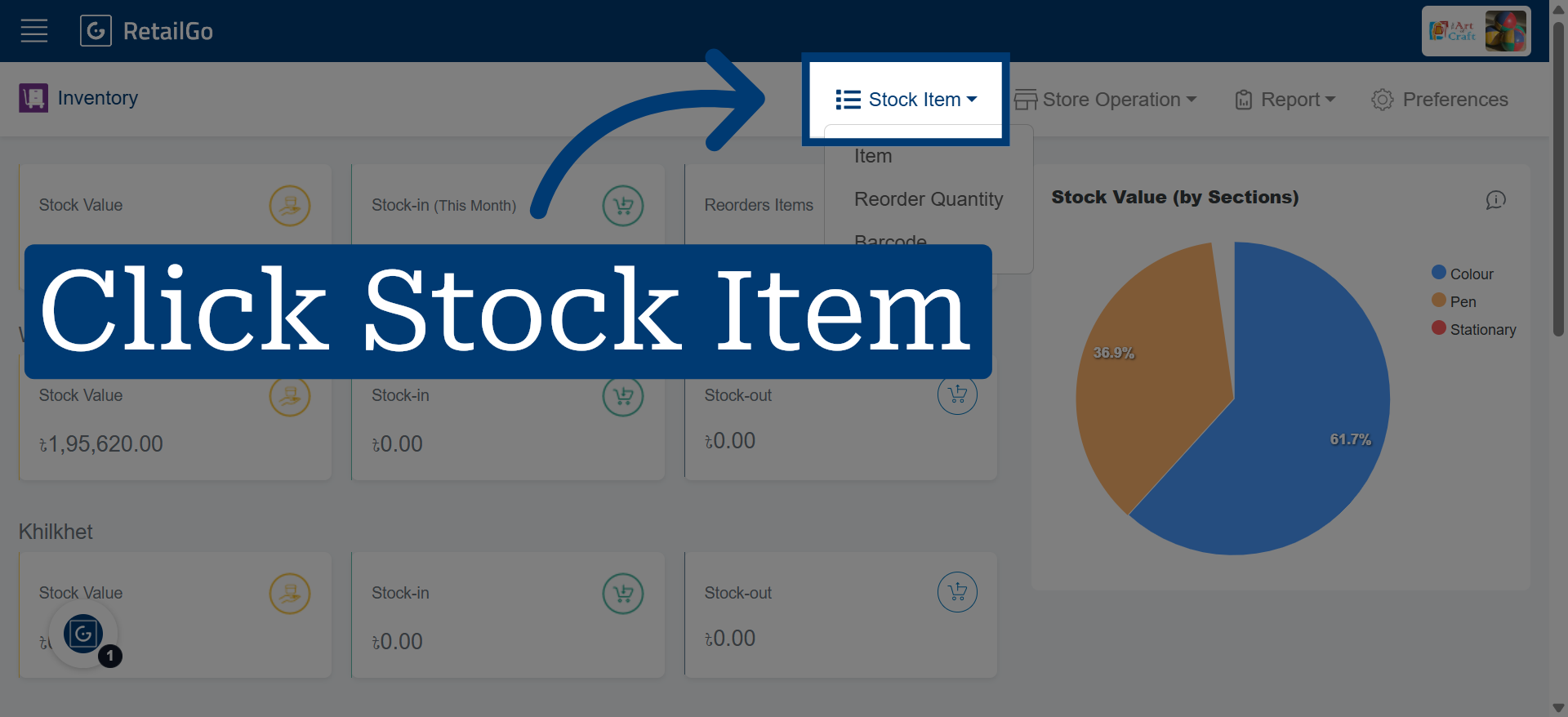
2. Open Stock Item Section
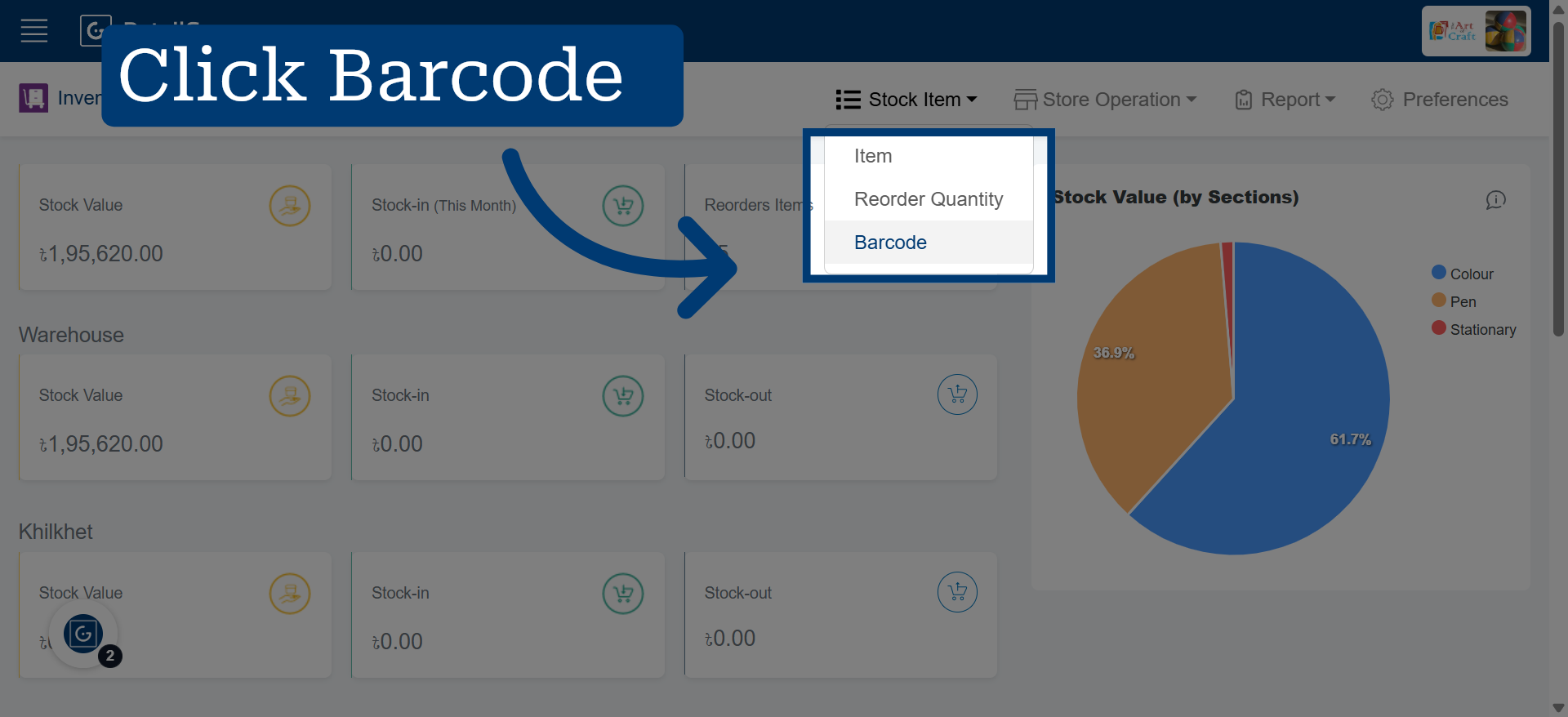
3. Select Barcode Option
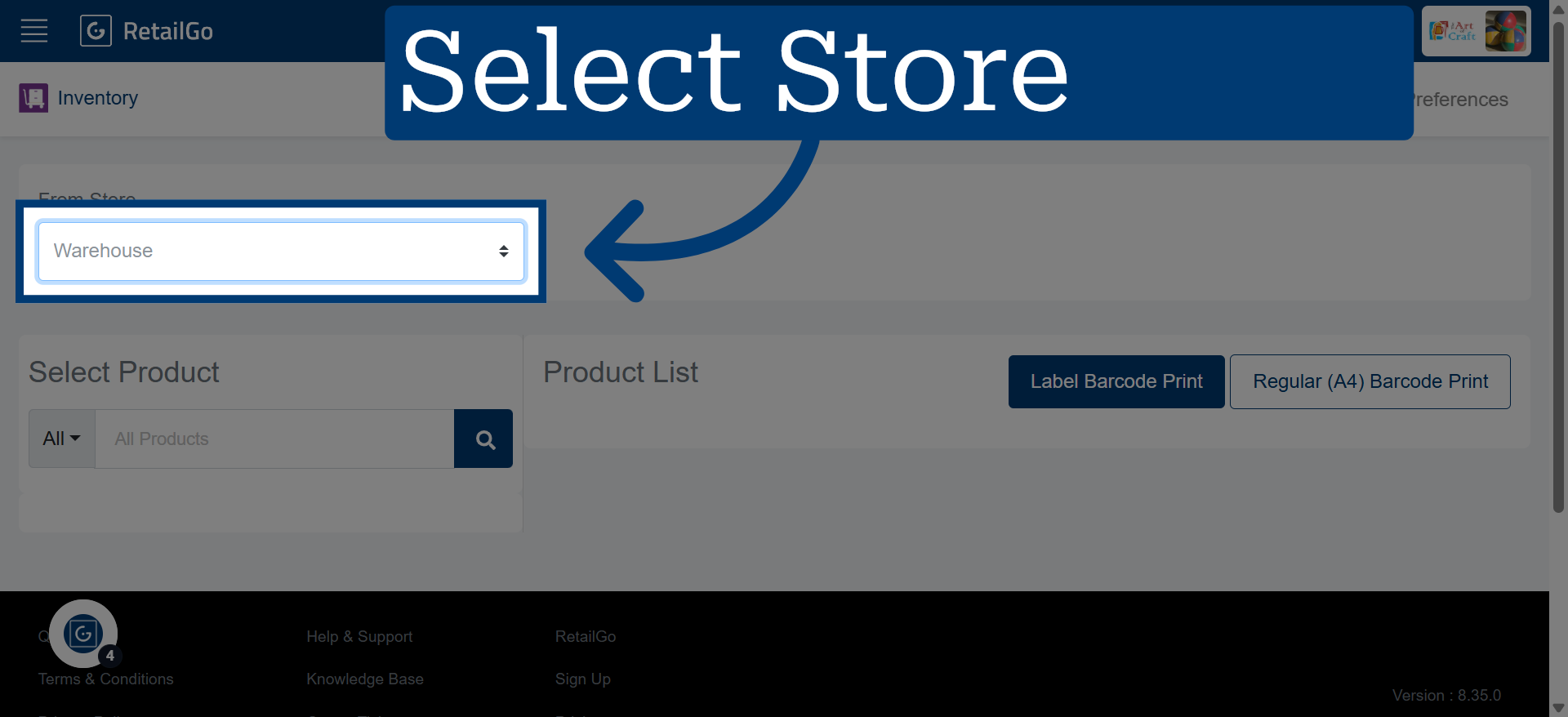
4. Select The Store
Select your store to specify the store location for barcode printing defaults.
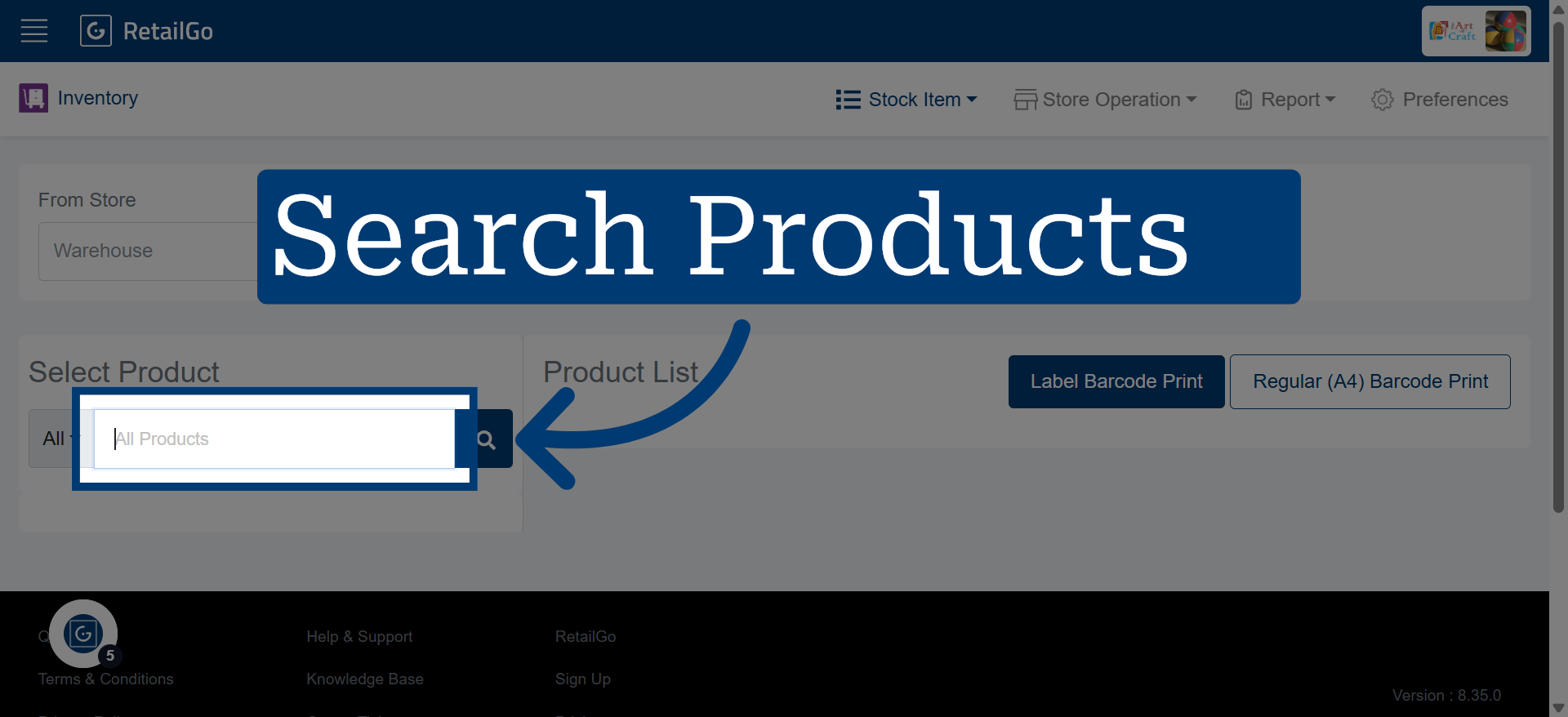
5. Product Selection
Search and select the product(s) for which you want to generate barcodes.
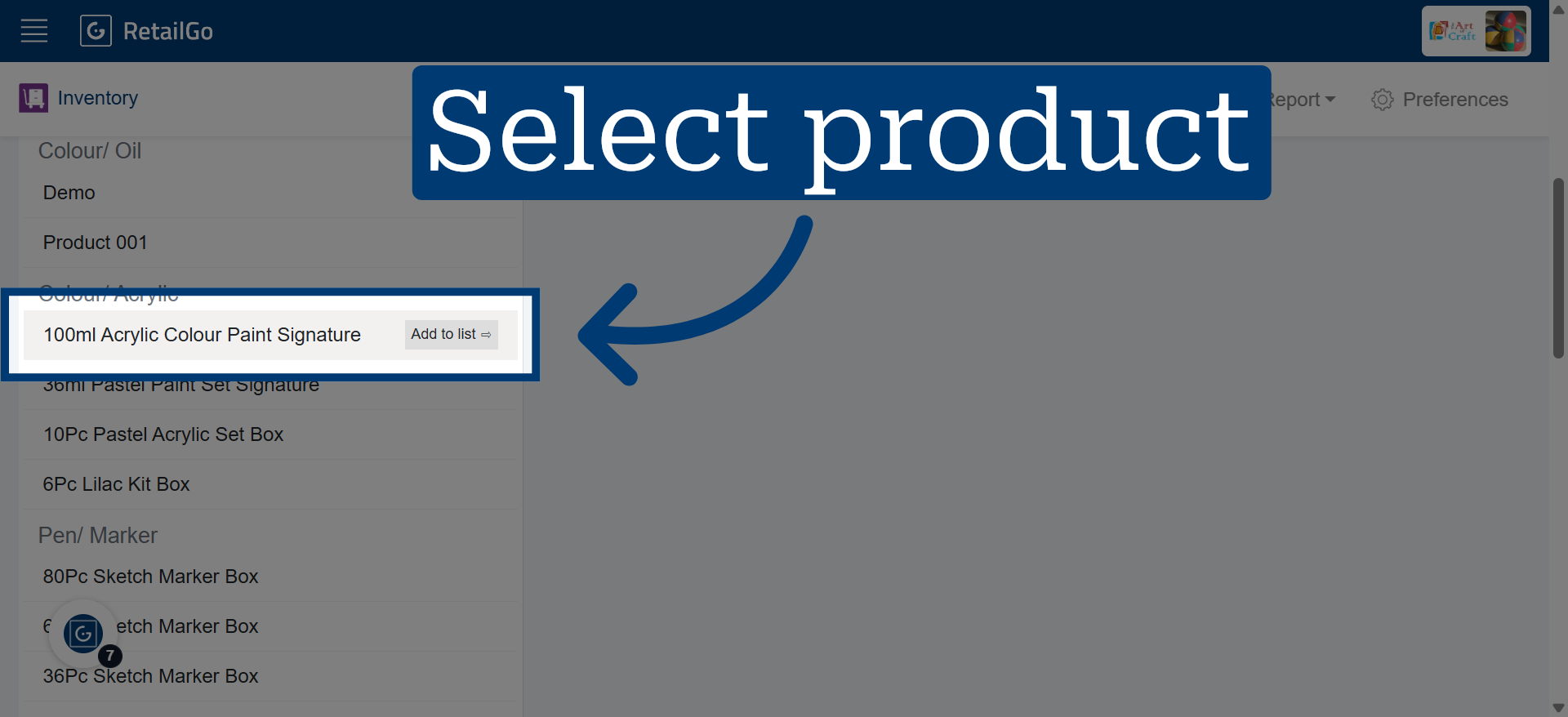
6. Select Specific Product
Choose your specific product for barcode label printing.
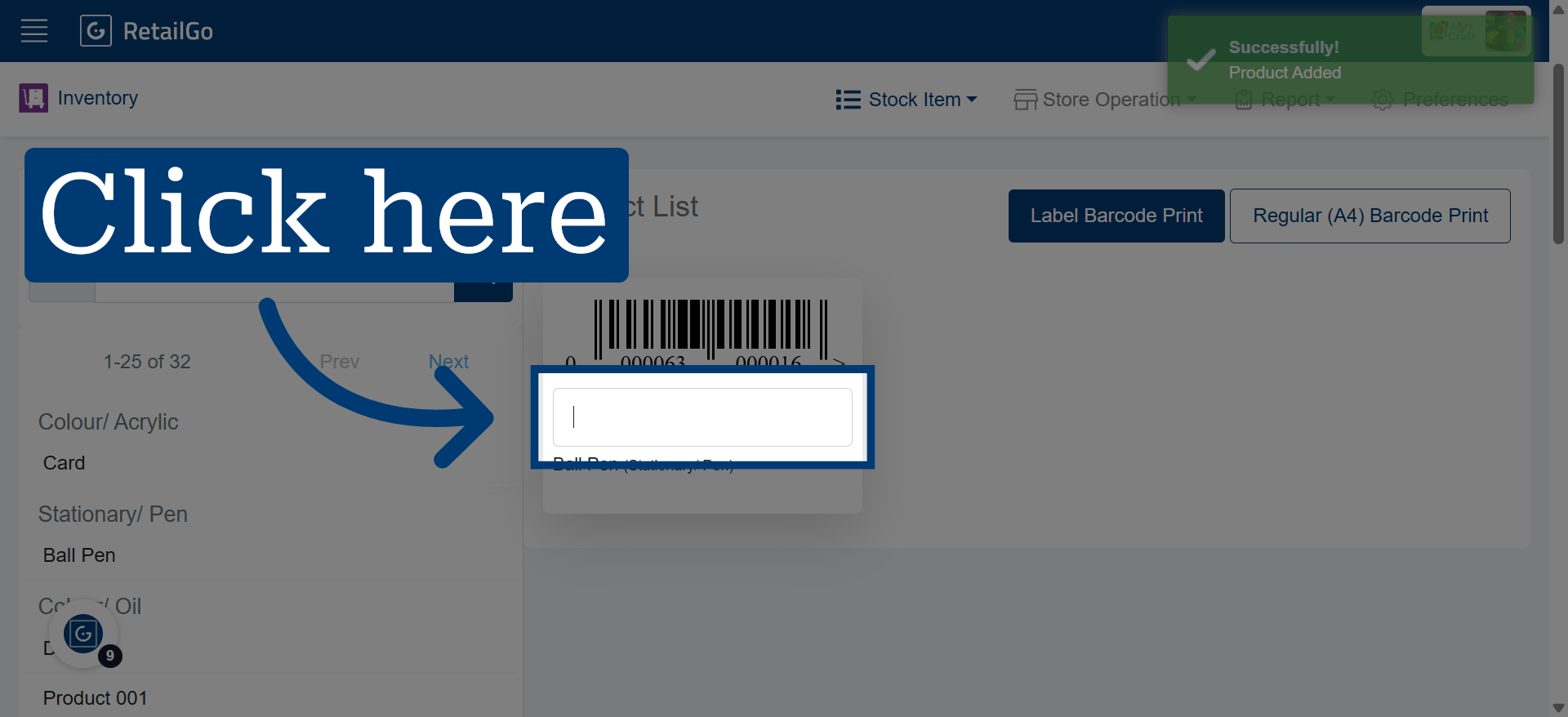
7. Enter Quantity Field
Click here to activate the quantity input field and specify how many barcode labels you want to print for the selected product.
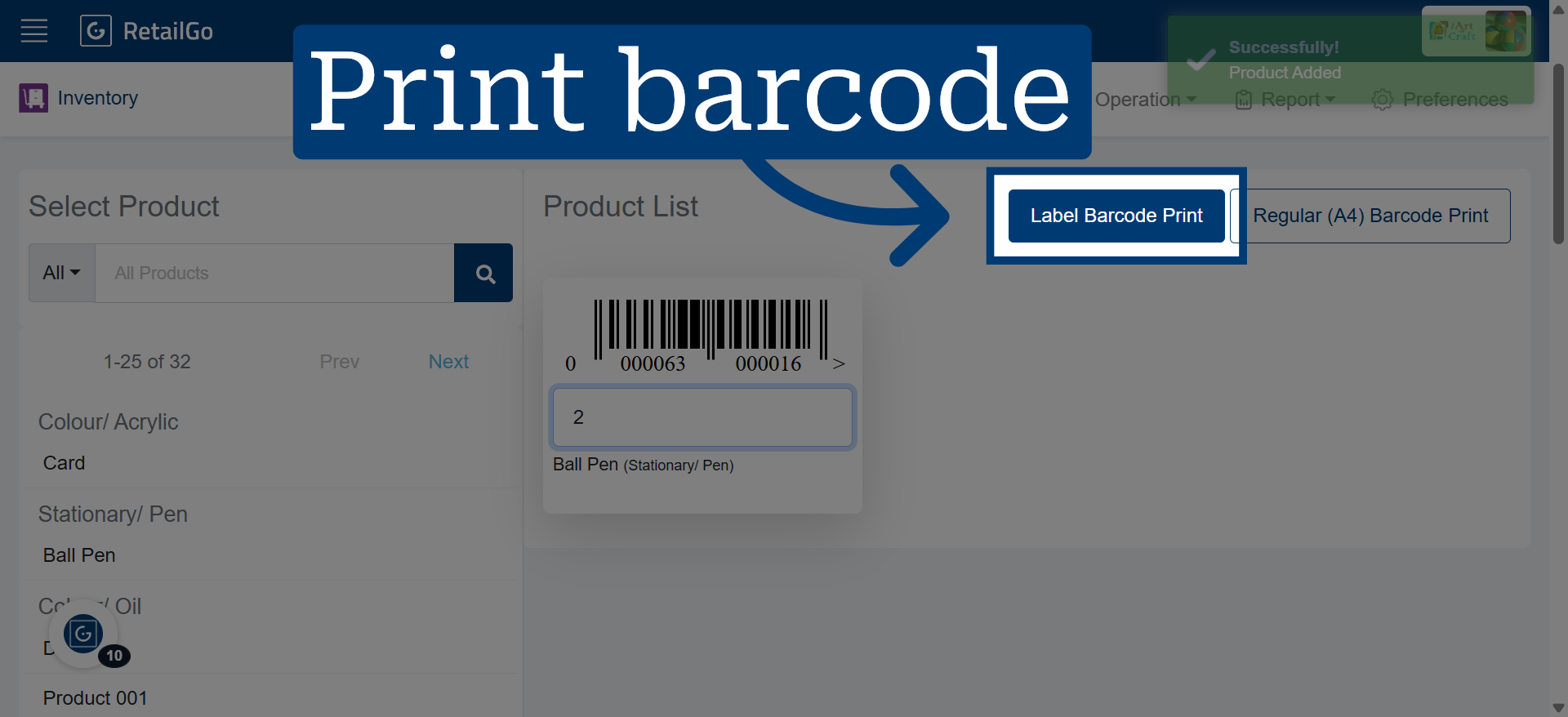
8. Initiate Barcode Label Print
Click here to enter the quantity for the selected product.
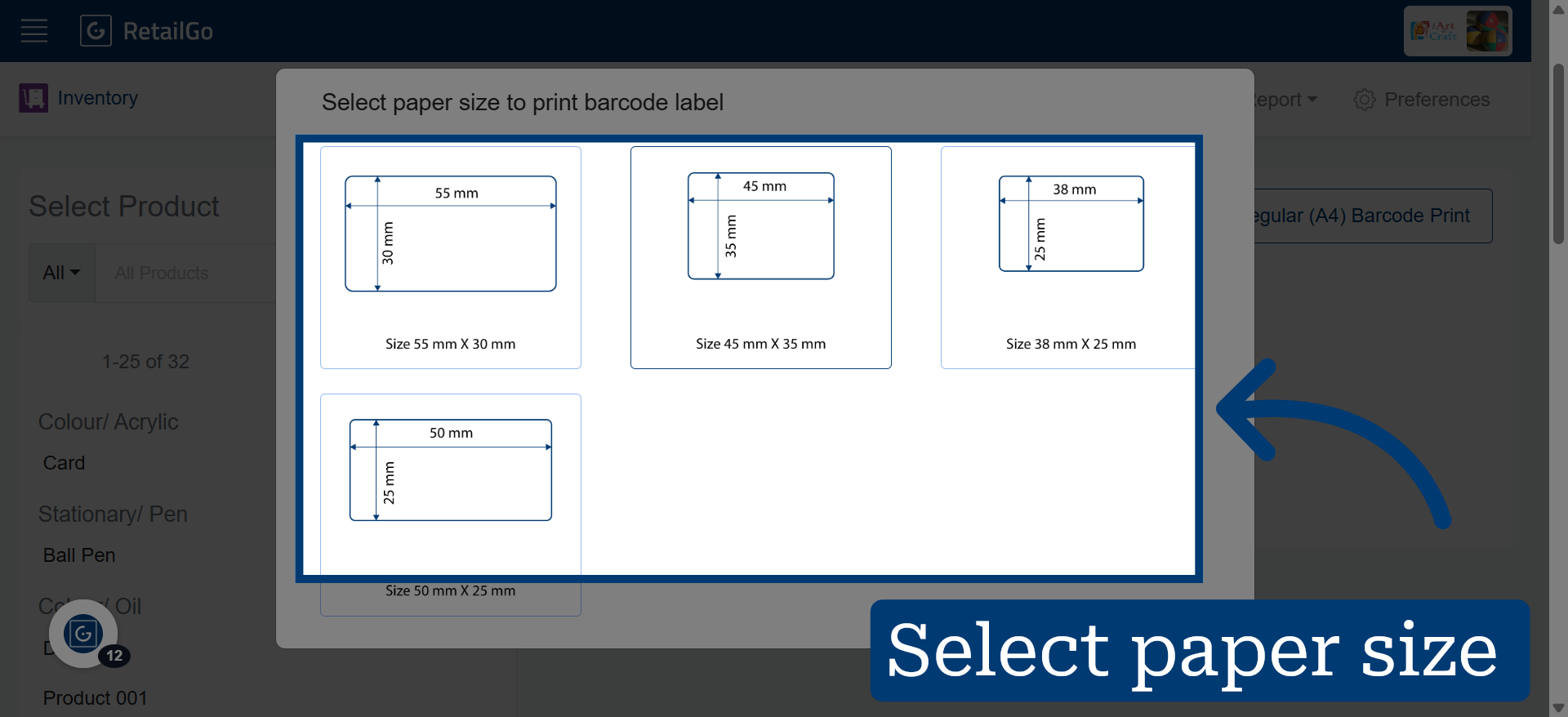
9. Select Paper Size
Select the paper size according to your barcode label printing needs.