How to Stock Out Damaged or Lost Products in RetailGo Business Portal
This tutorial guides you through tracking and managing damaged and lost products in the
RetailGo Business Portal. Separating these items from available inventory helps maintain accurate
stock records, reduces inventory discrepancies, and supports effective inventory control.
Go to
retailgo.quicklyservices.com
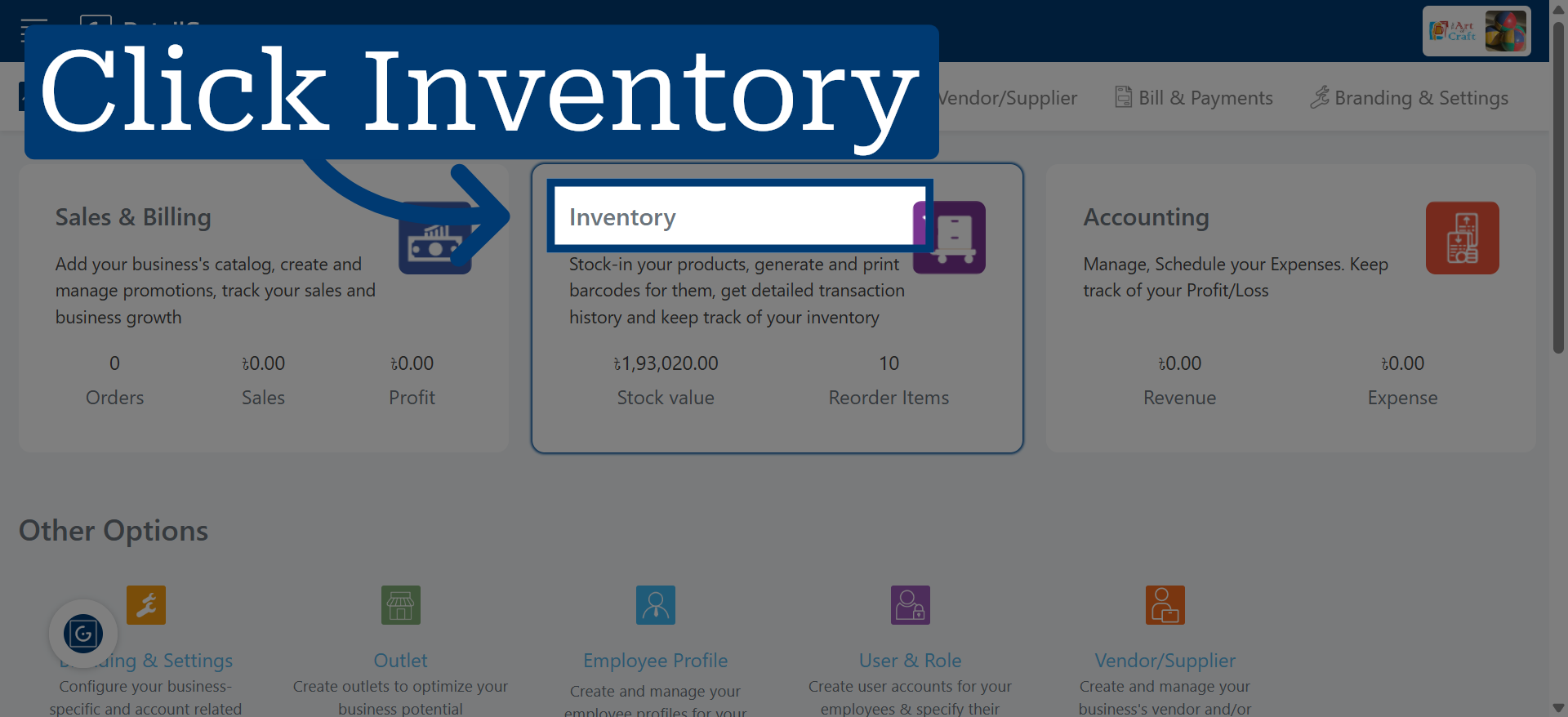
1. Open Inventory Module
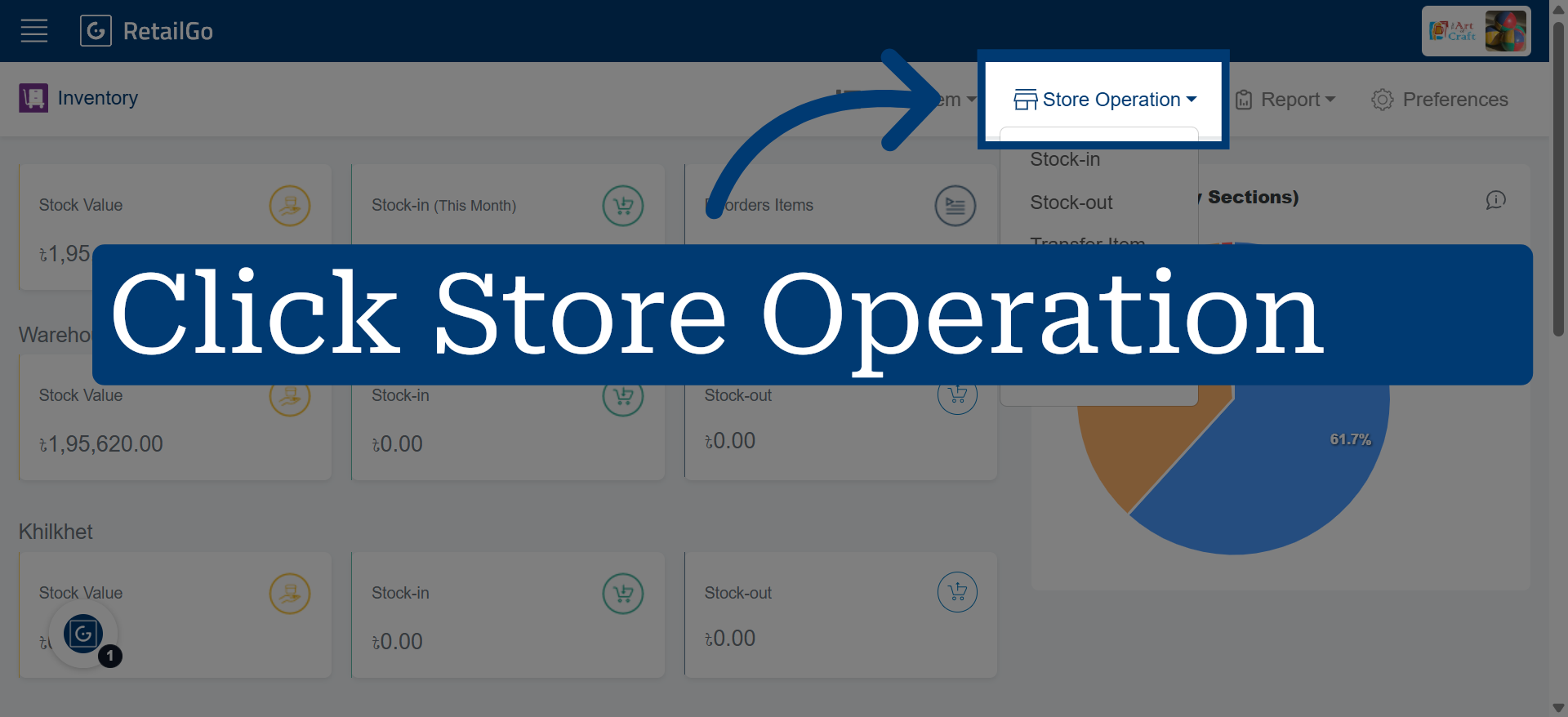
2. Access Store Operation
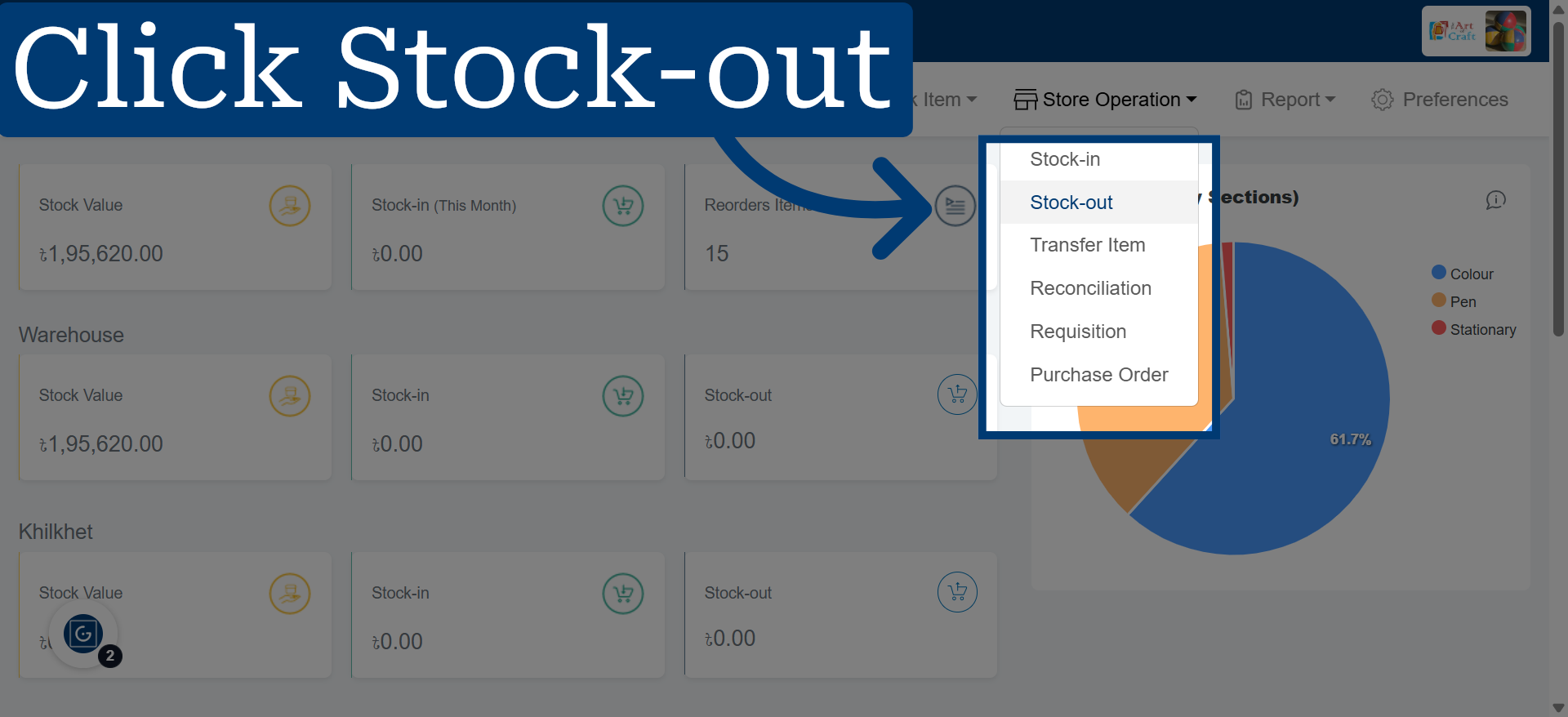
3. Access Stock-Out Section
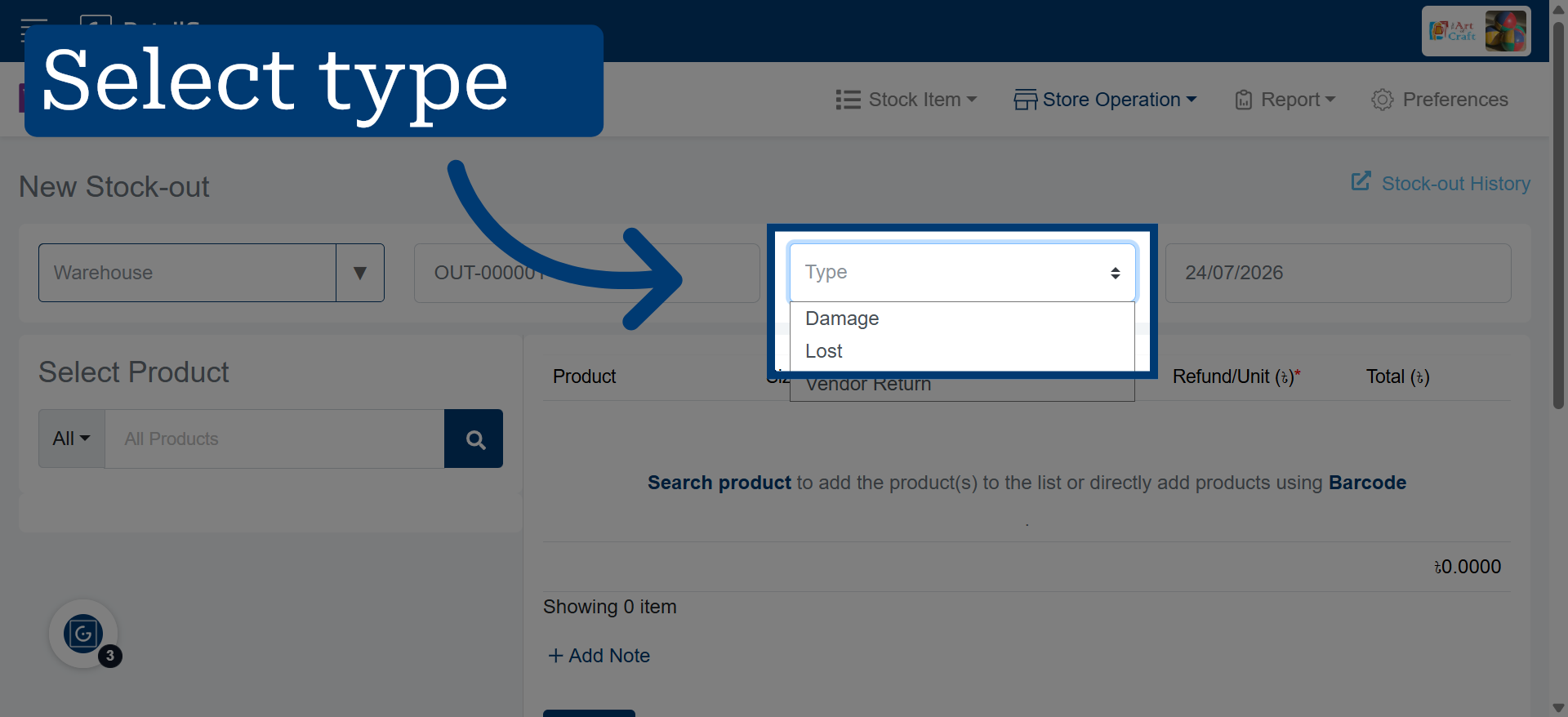
4. Specify Stock-Out Type
Select "Damage/Lost" dropdown to specify the reason for the stock-out.
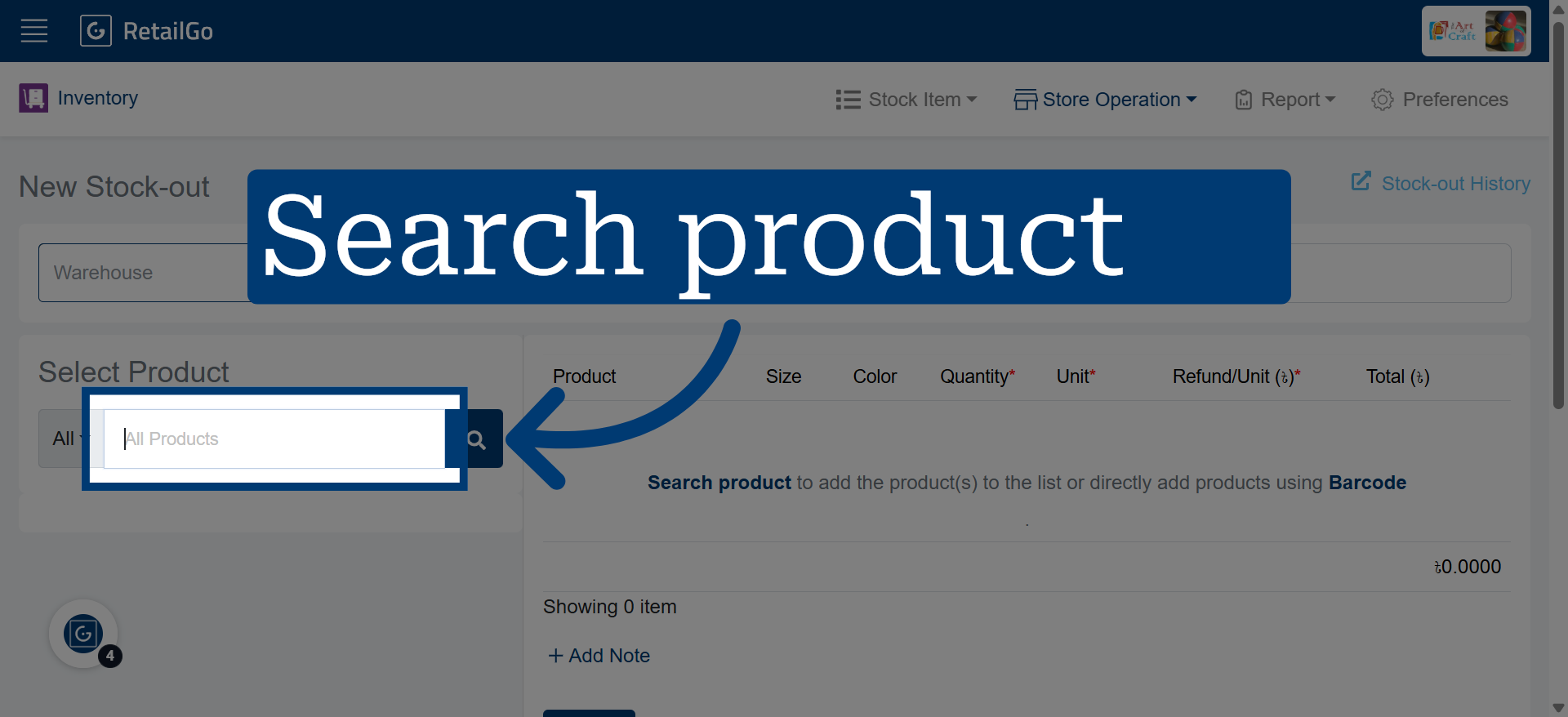
5. Search The Product
Search for the product you want to mark as damaged or lost. You can find products either by entering the product name manually or by scanning the barcode.
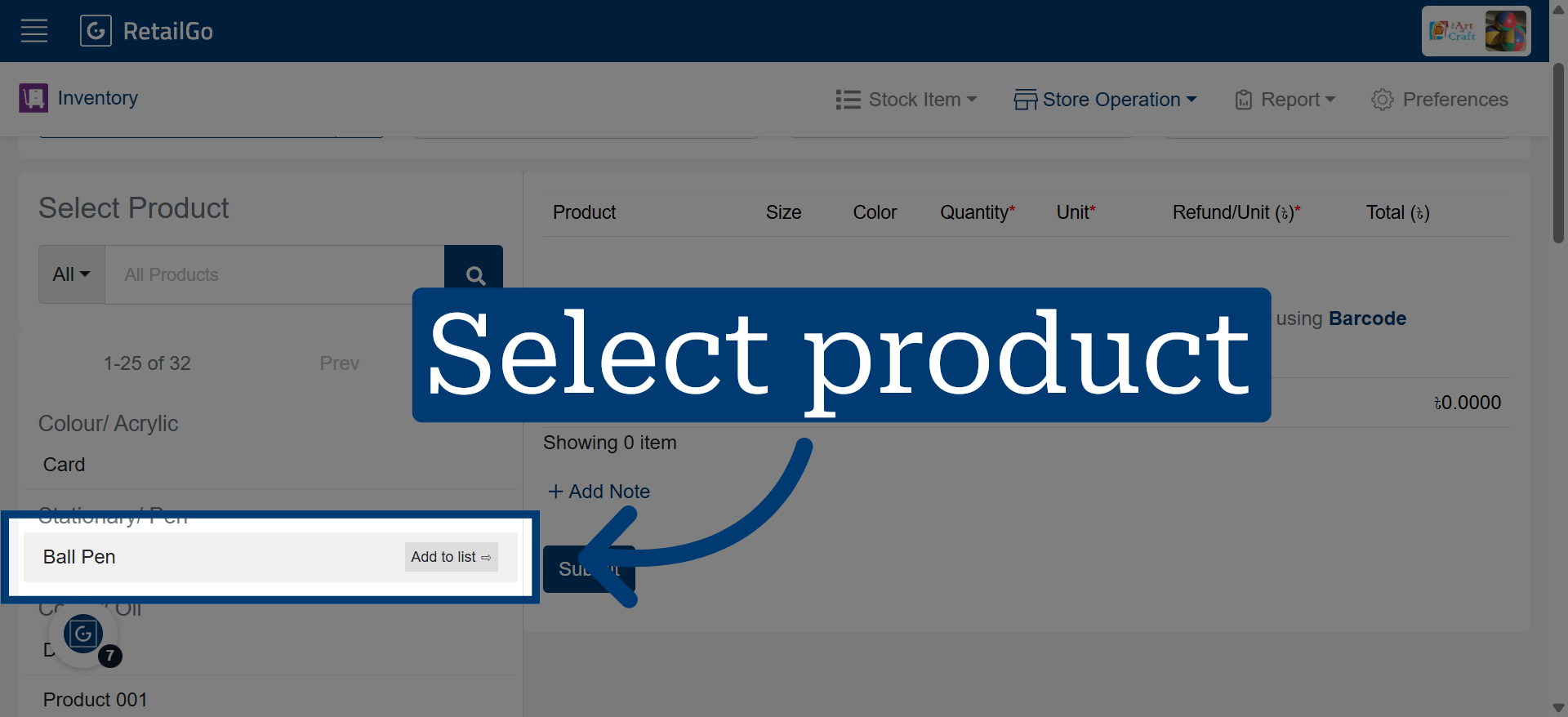
6. Choose Specific Product
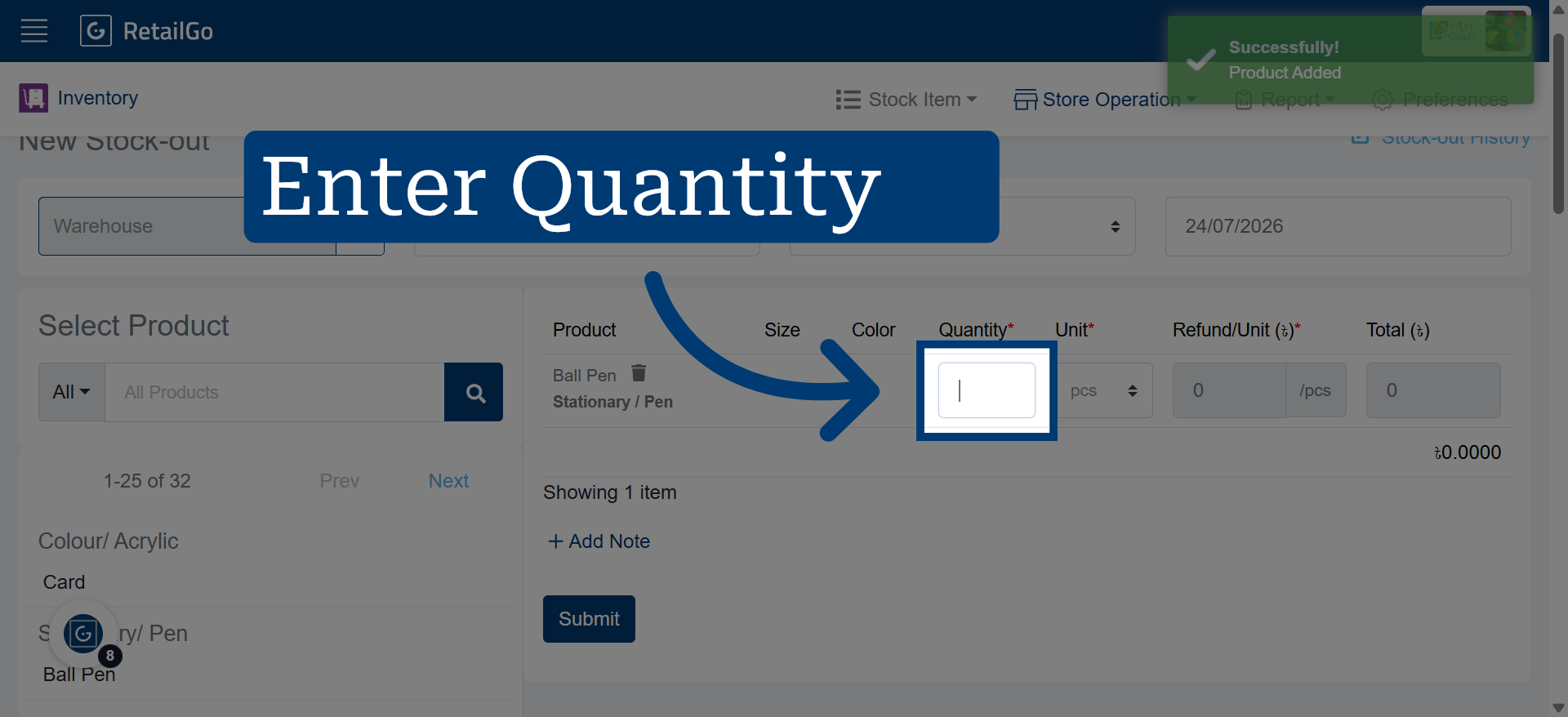
7. Specify The Quantity
Specify the quantity to accurately record how many products are damaged or lost.
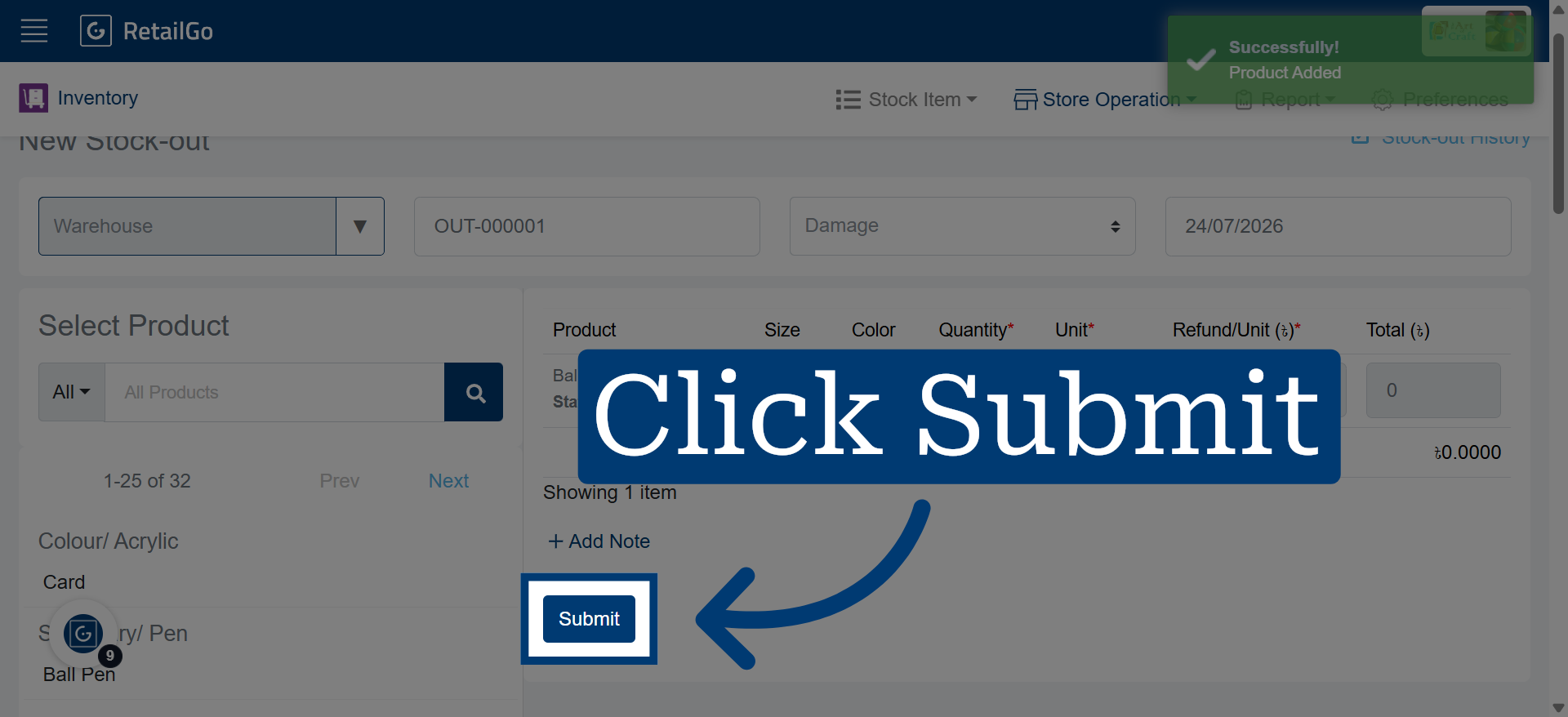
8. Submit Stock-Out Record
Click "Submit" to save the stock-out details for the selected product.
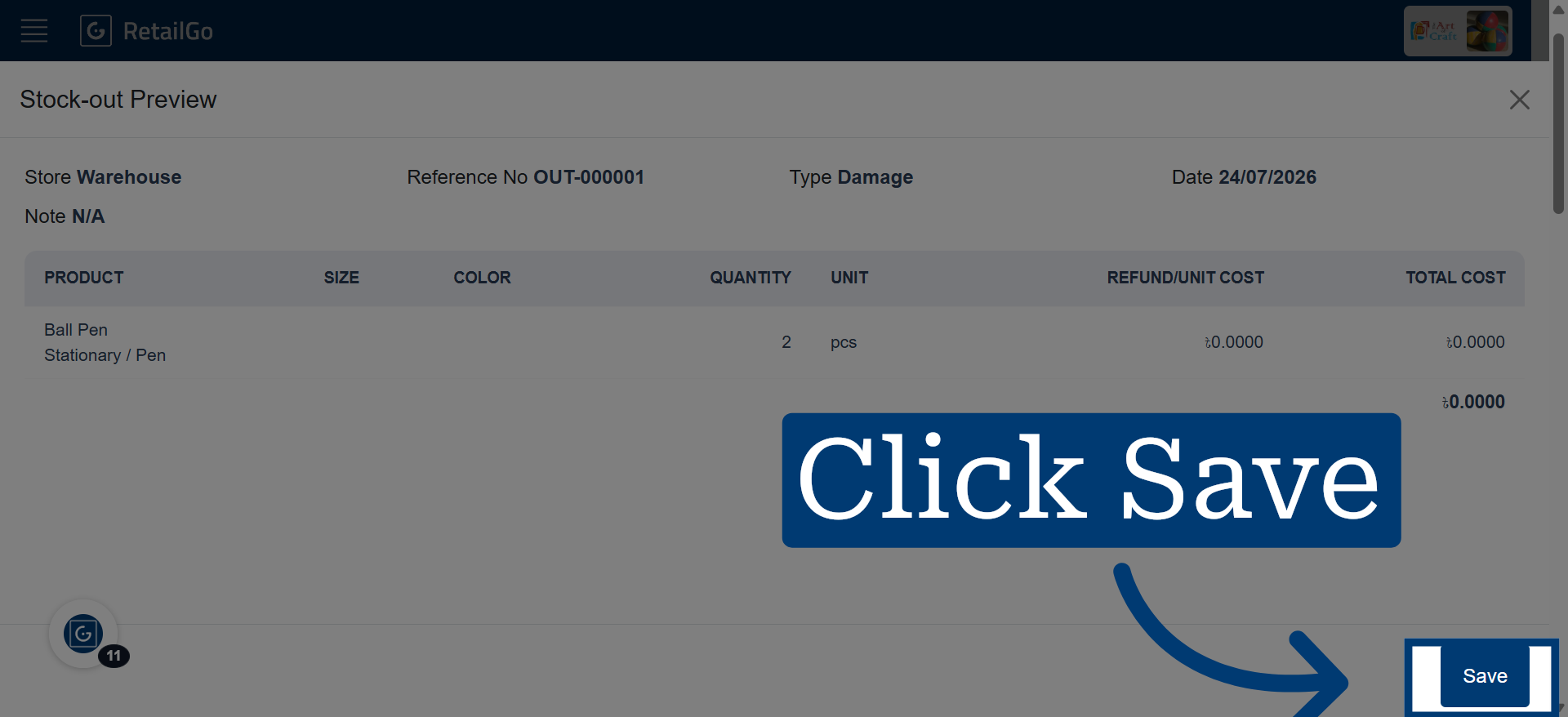
9. Save Stock-Out Changes
Click "Save" to finalize and store the stock-out record in the system.