How to Manage Purchase Orders in RetailLife Business Portal
This tutorial explains how to manage purchase orders in the RetailLife Business Portal by updating
their status from Issued to Received, allowing you to track orders from supplier confirmation to
goods receipt.
If you're not familiar with creating a purchase order, please refer to the How to Create Purchase
Orders in the RetailLife Portal tutorial before continuing
Go to
retaillife.quicklyservices.com
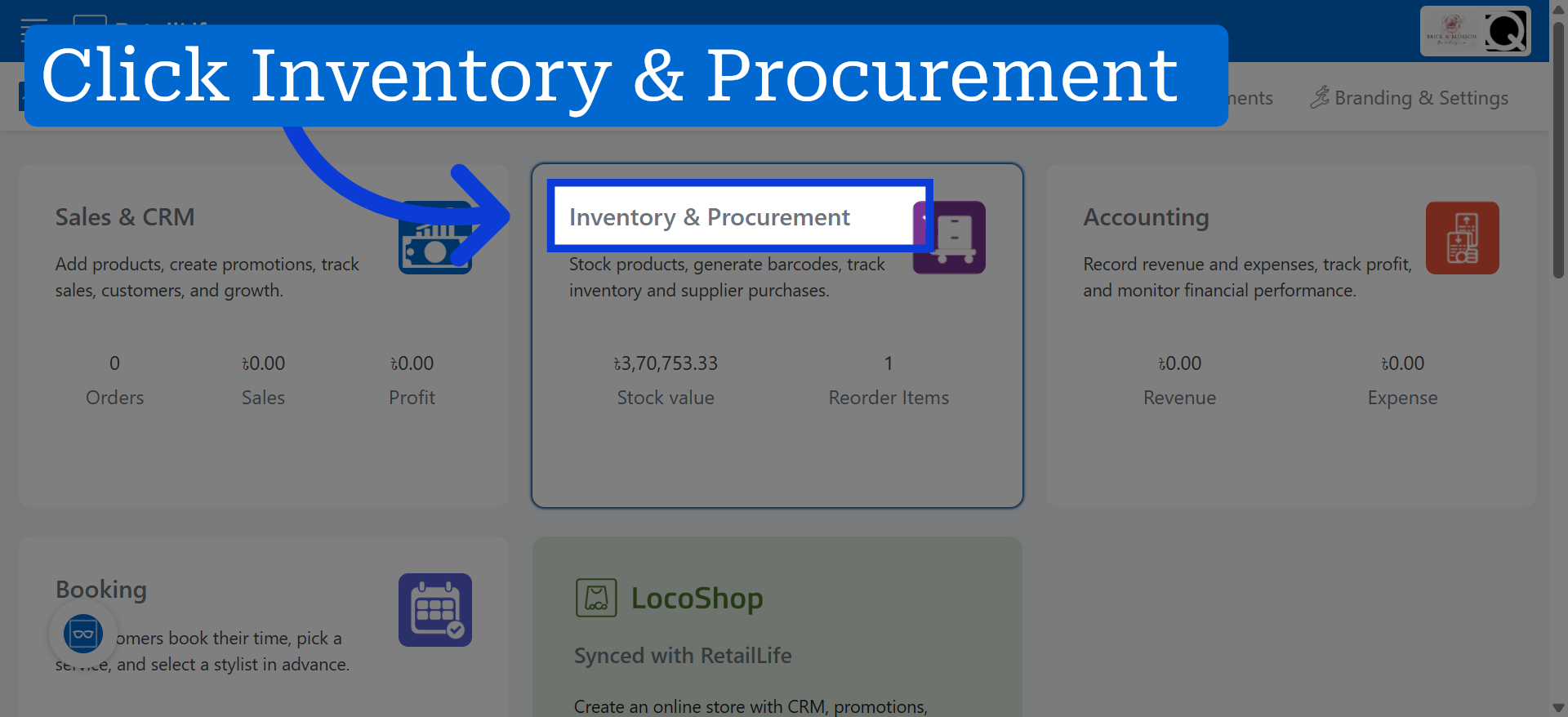
1. Access Inventory & Procurement
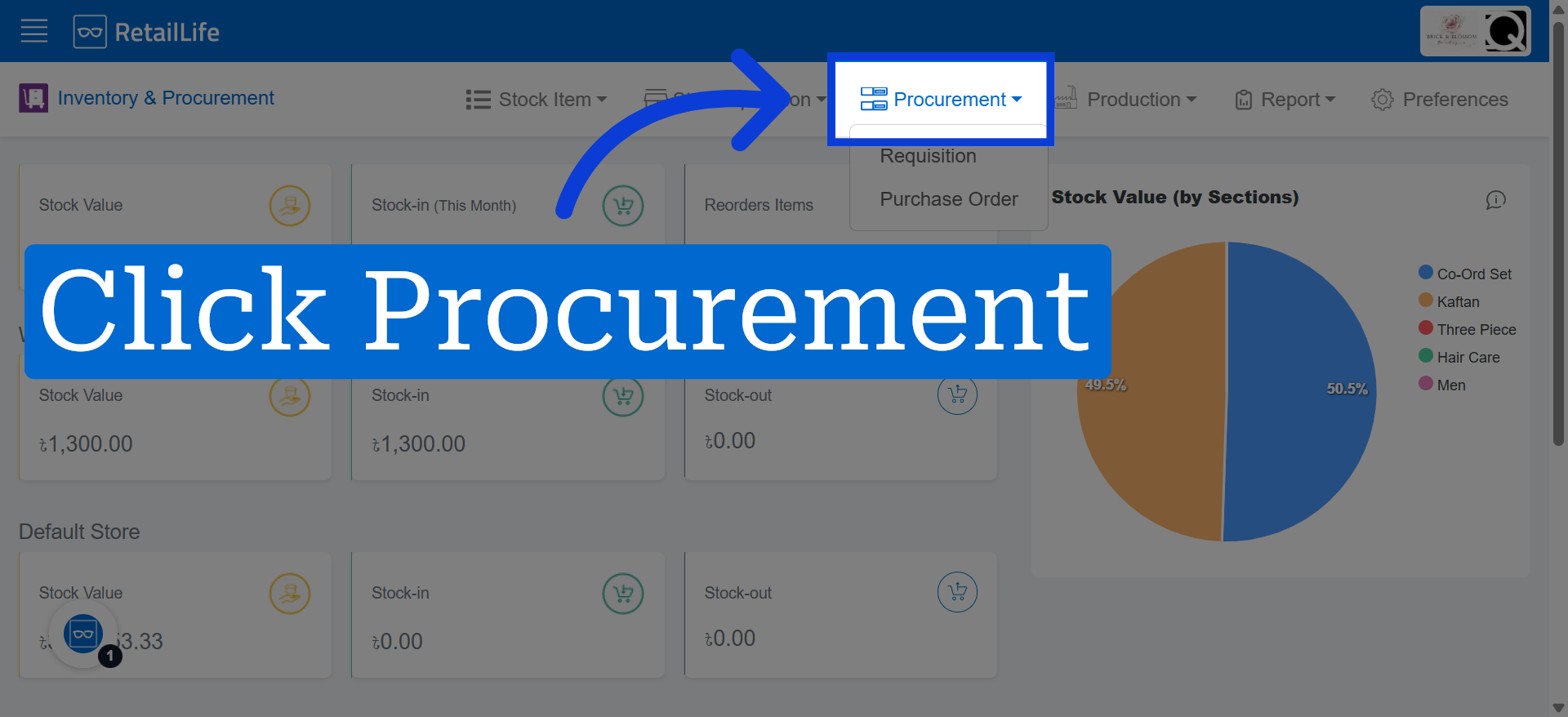
2. Open Procurement Section
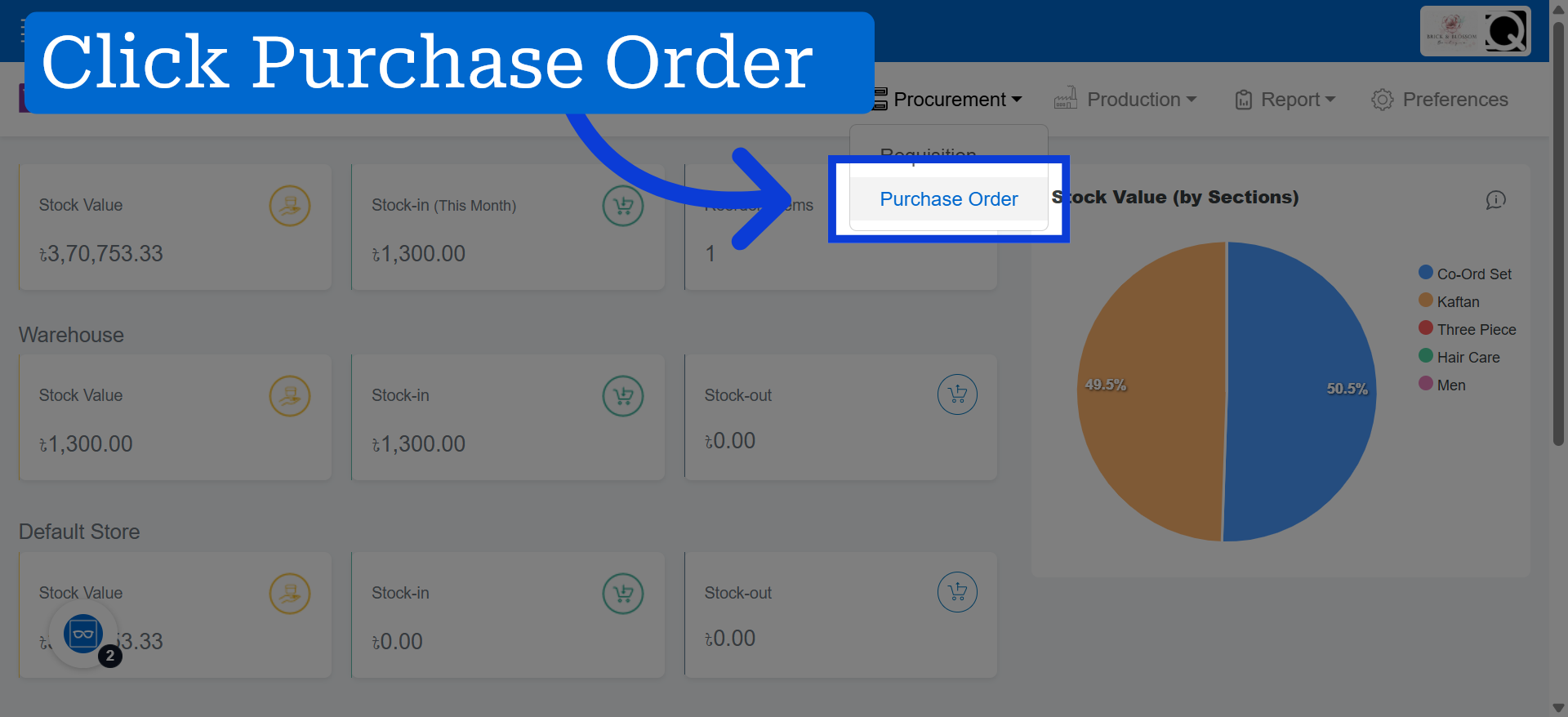
3. Navigate to Purchase Orders
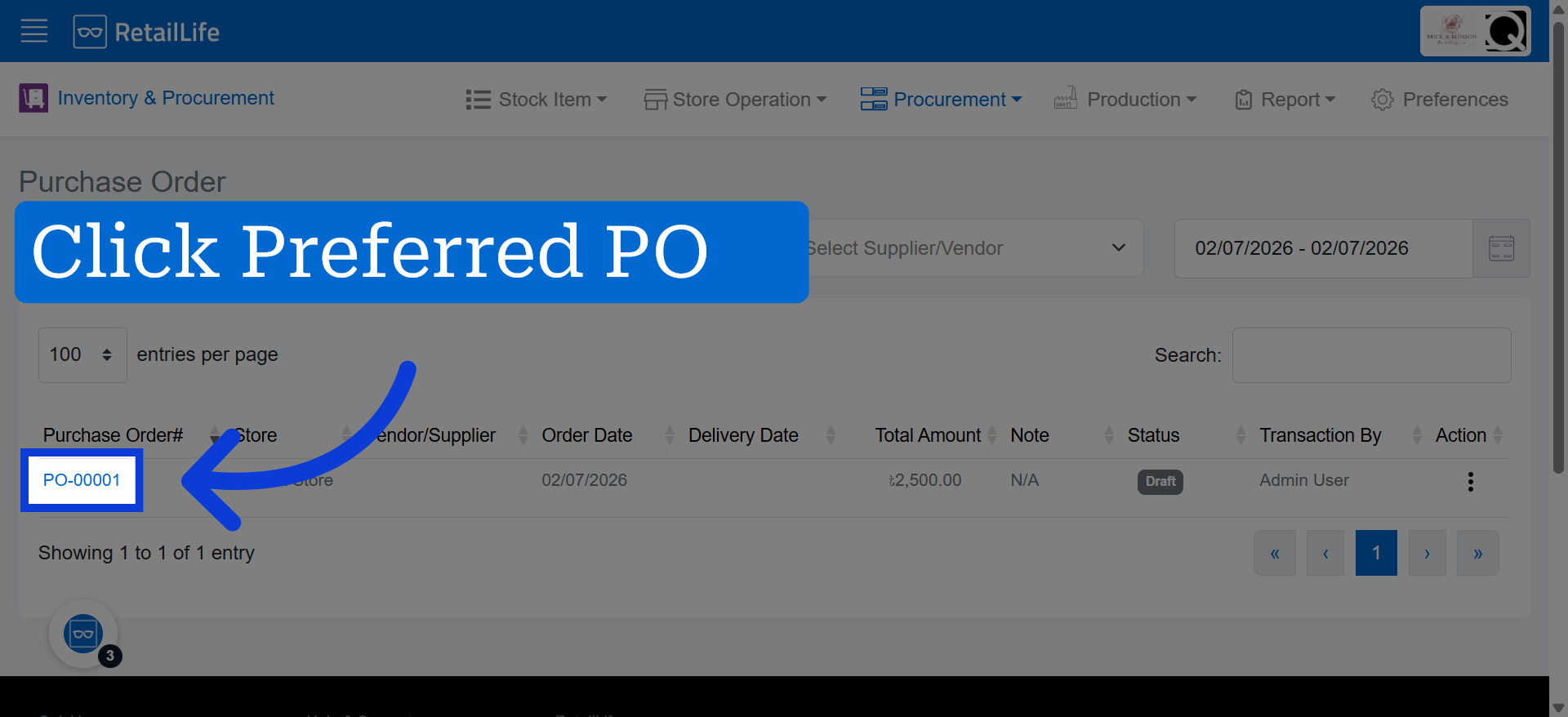
4. Select Specific Purchase Order
Click "PO Reference No" to open the details of the selected purchase order for review or action.
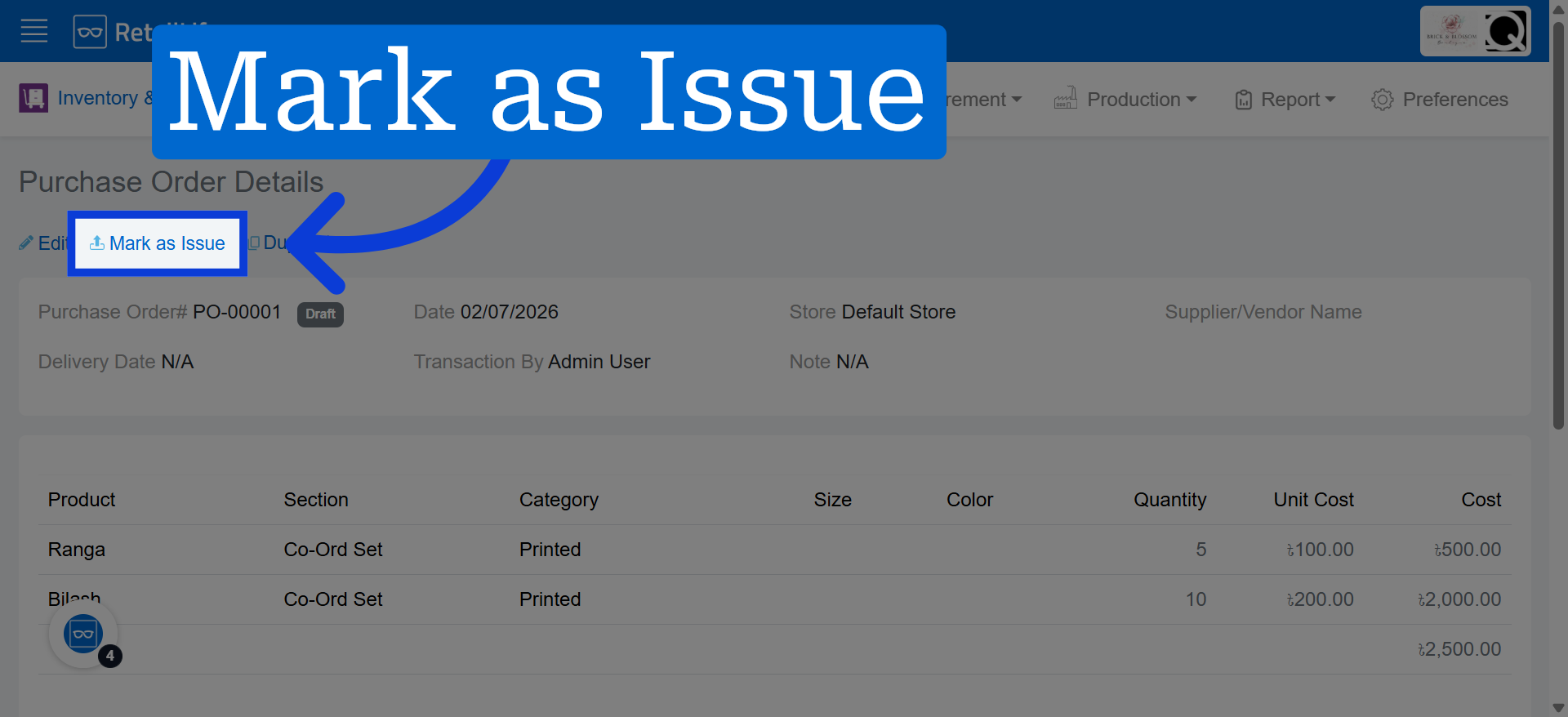
5. Mark Order as Issued
The purchase order is finalized and officially sent to the supplier. This indicates that the order has been placed and is awaiting fulfillment.
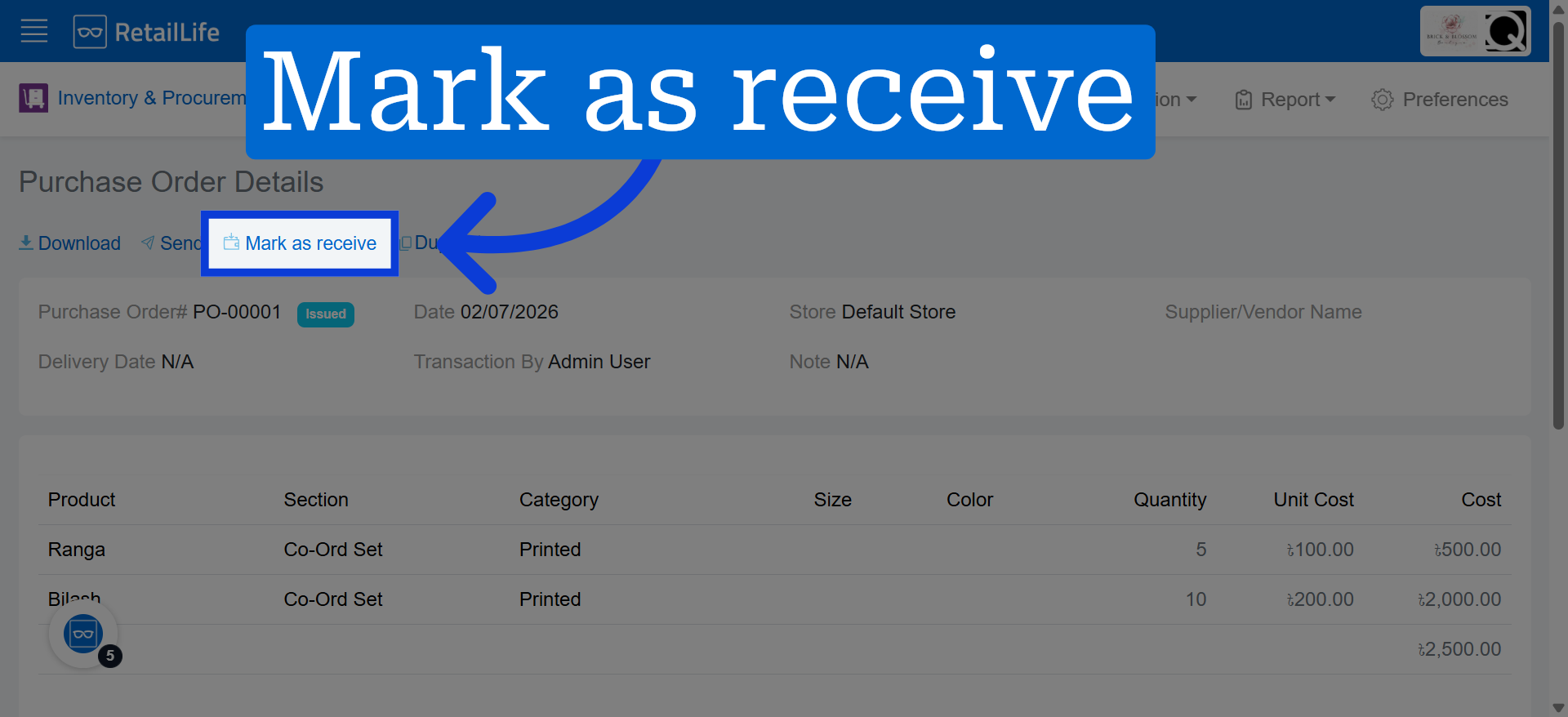
6. Mark Order as Received
After the supplier delivers the goods, confirm that the items have been received. This updates inventory and completes the receiving process.
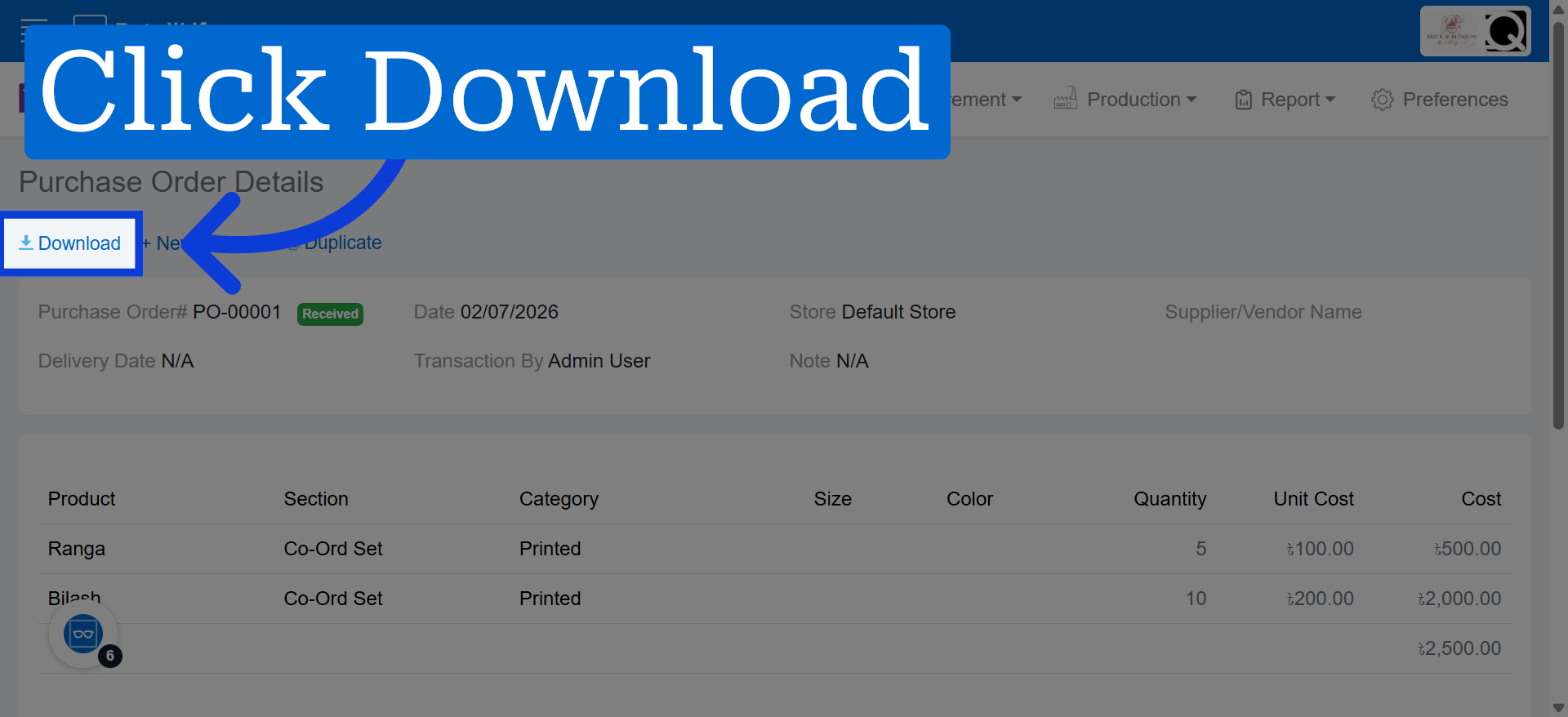
7. Download Purchase Order Document
Click "Download" to save a copy of the purchase order document for your records or further processing.