How to Apply Vendor Discount while Stock-in Inventory Items or Products in OneOffice
This tutorial guides you through applying a vendor discount while stocking in inventory items or
products in OneOffice.
Go to
oneoffice.quicklyservices.com
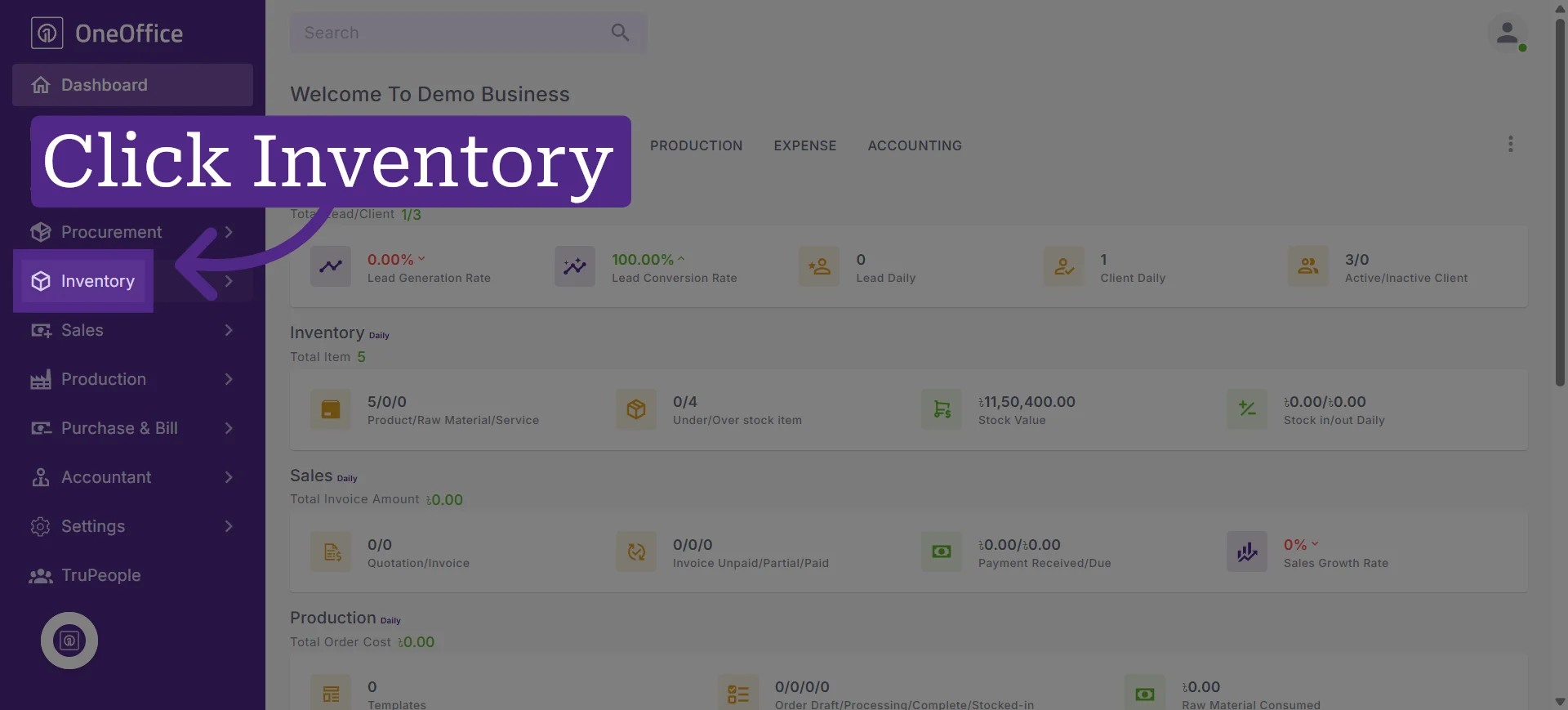
1. Click "Inventory" from the navigation menu
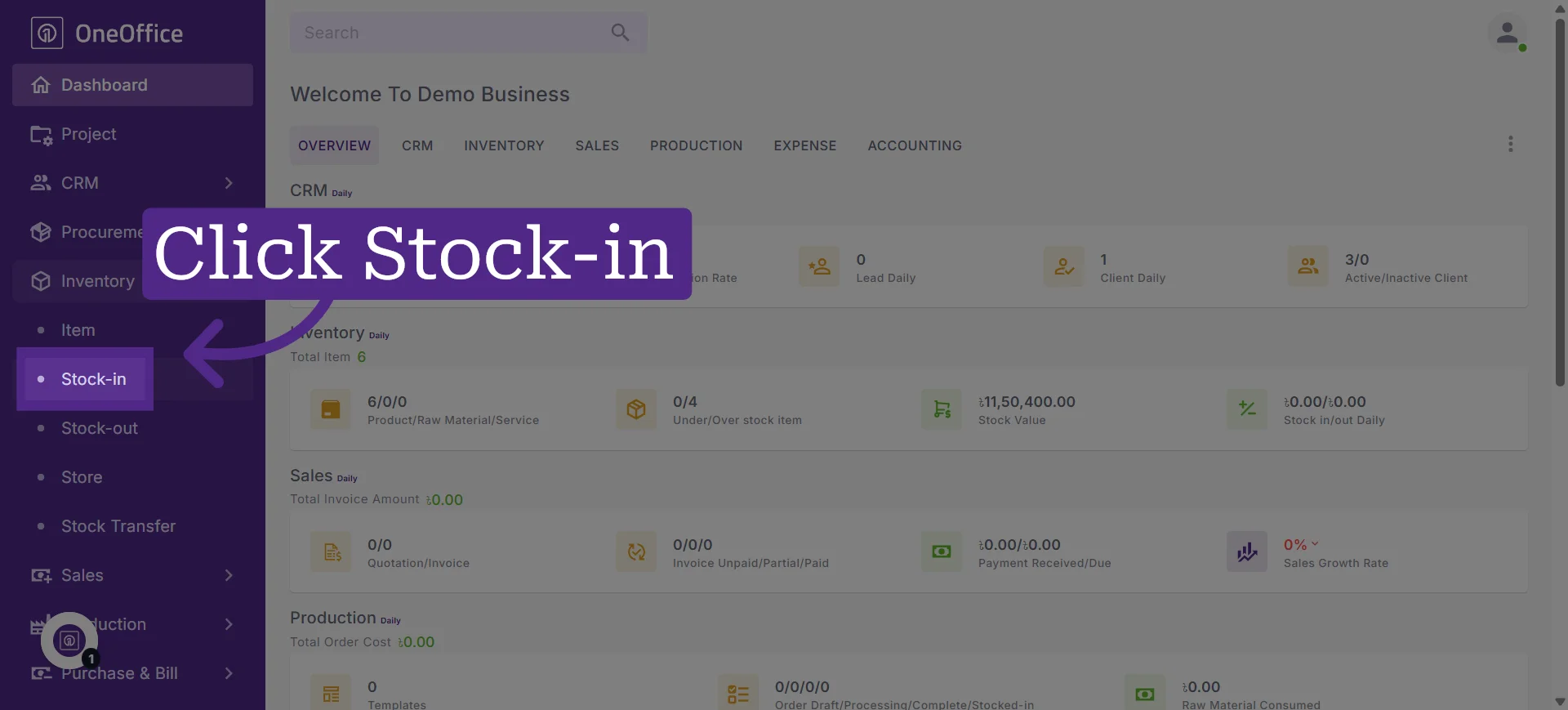
2. Click Stock-in
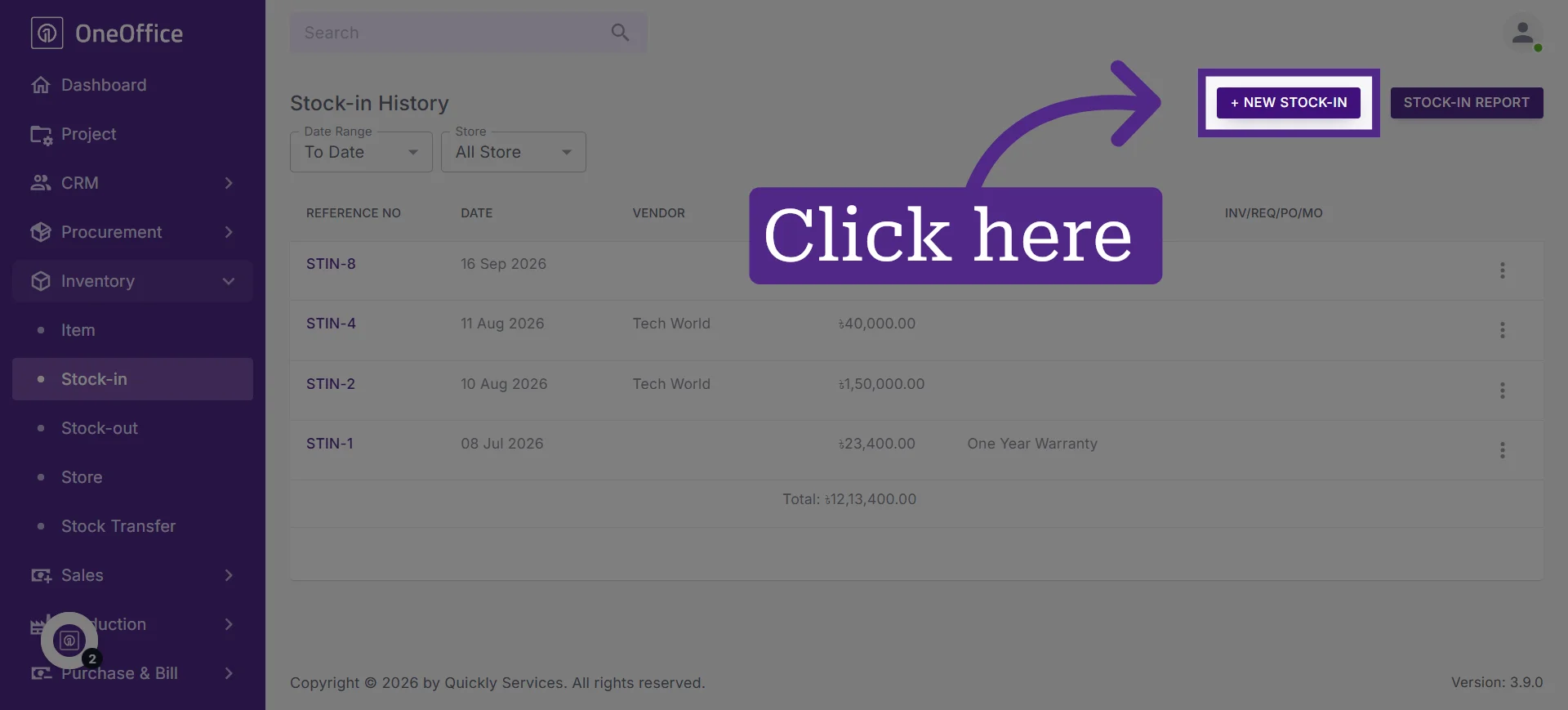
3. Initiate New Stock Entry
If you need help creating a stock-in entry, refer to the tutorial “How to Stock In Inventory Items or Products in OneOffice"
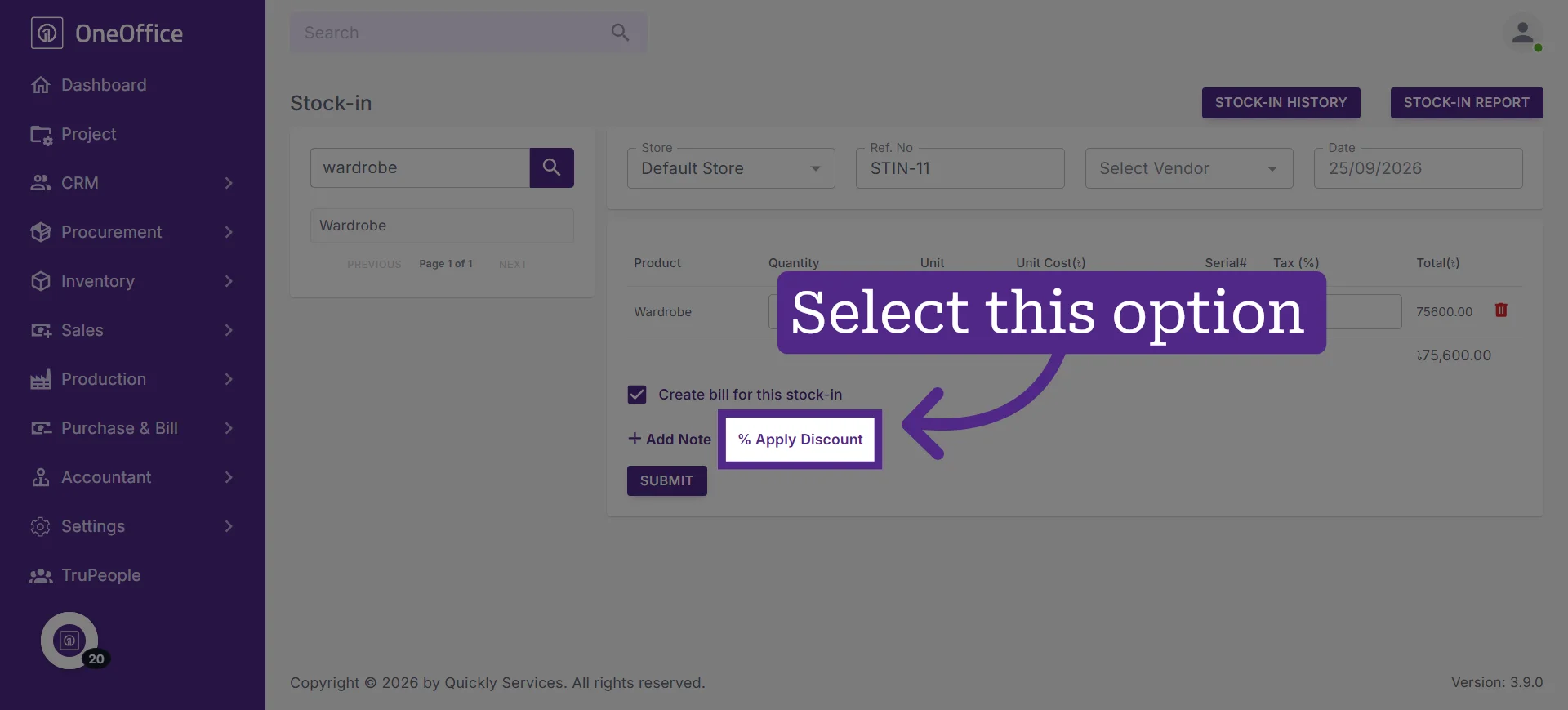
4. Select the checkbox next to "Apply Discount"
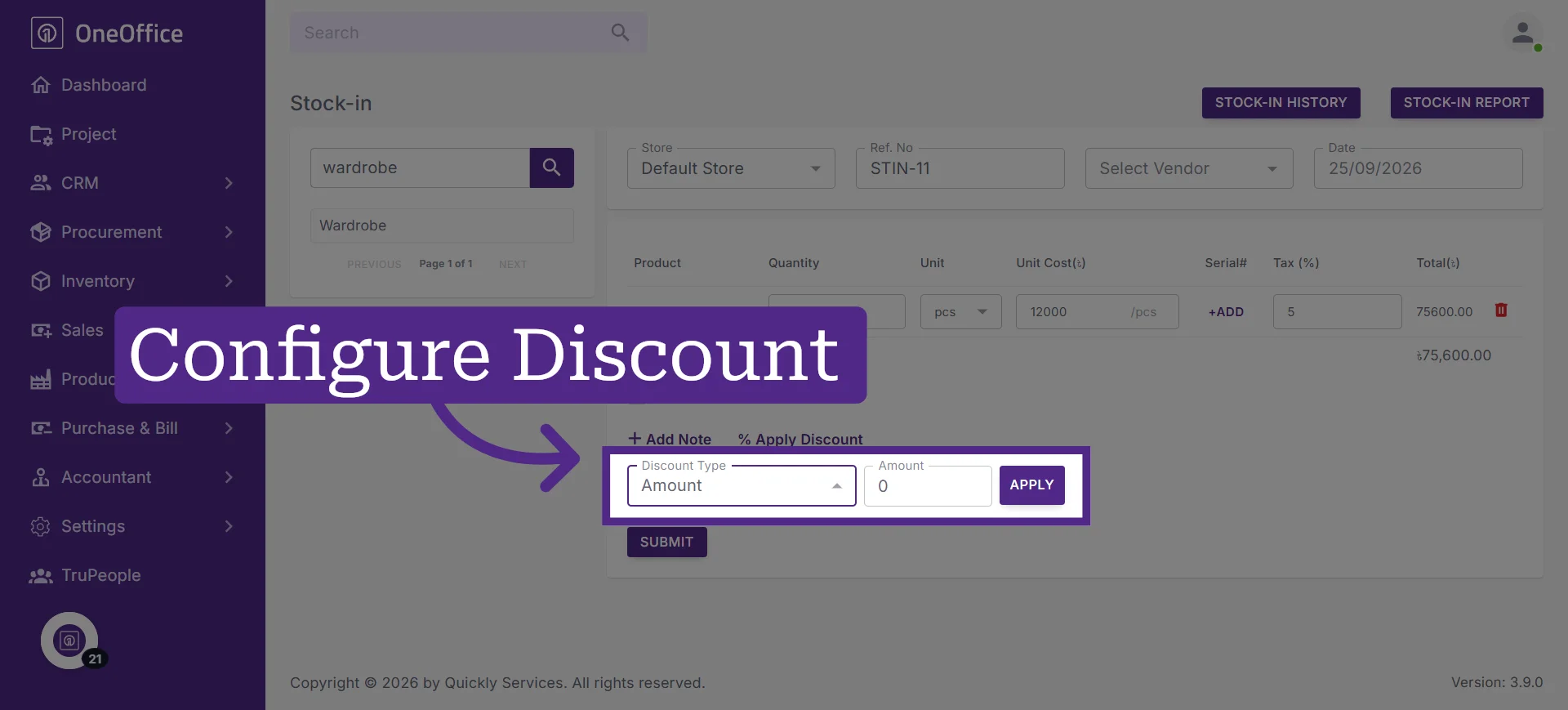
5. Select the discount type and enter the discount amount
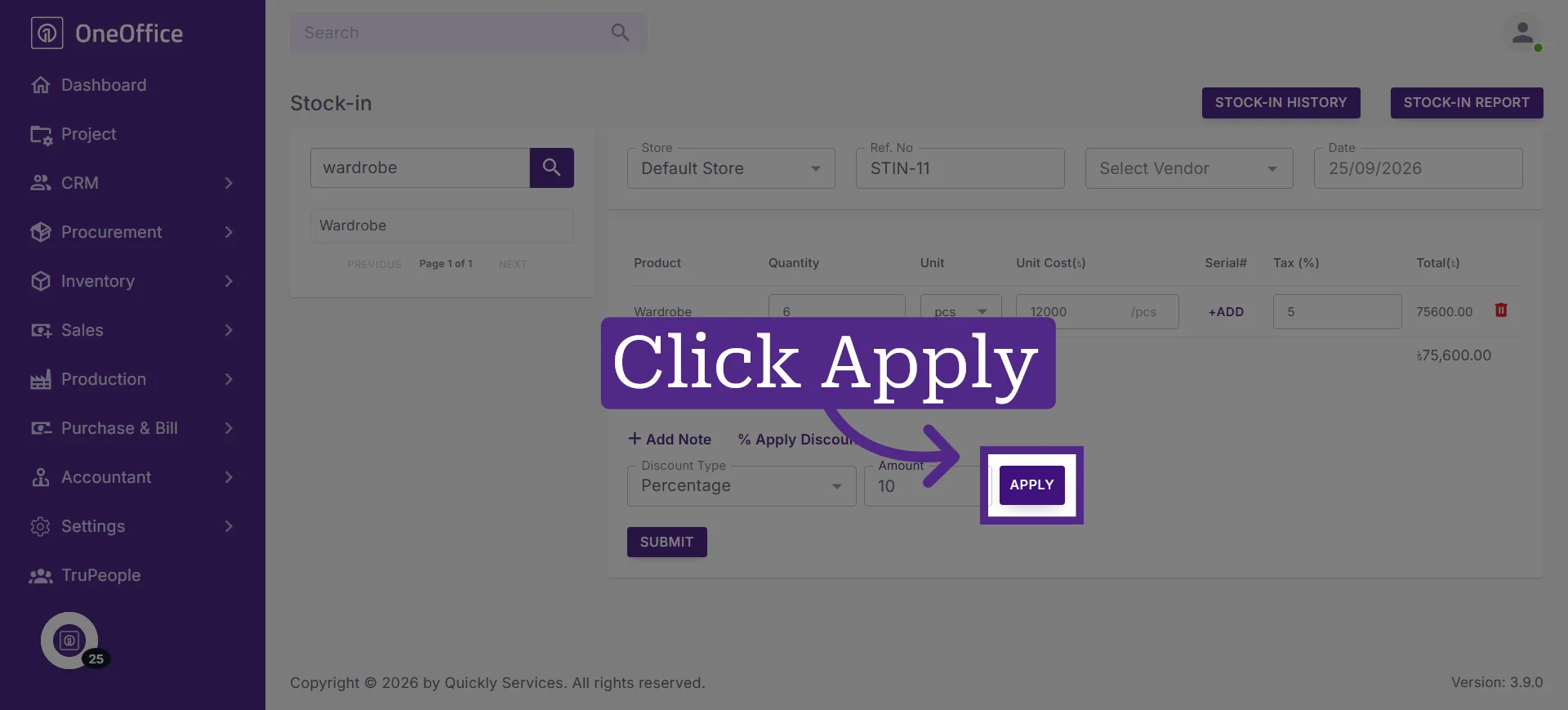
6. Click "Apply" to apply the discount
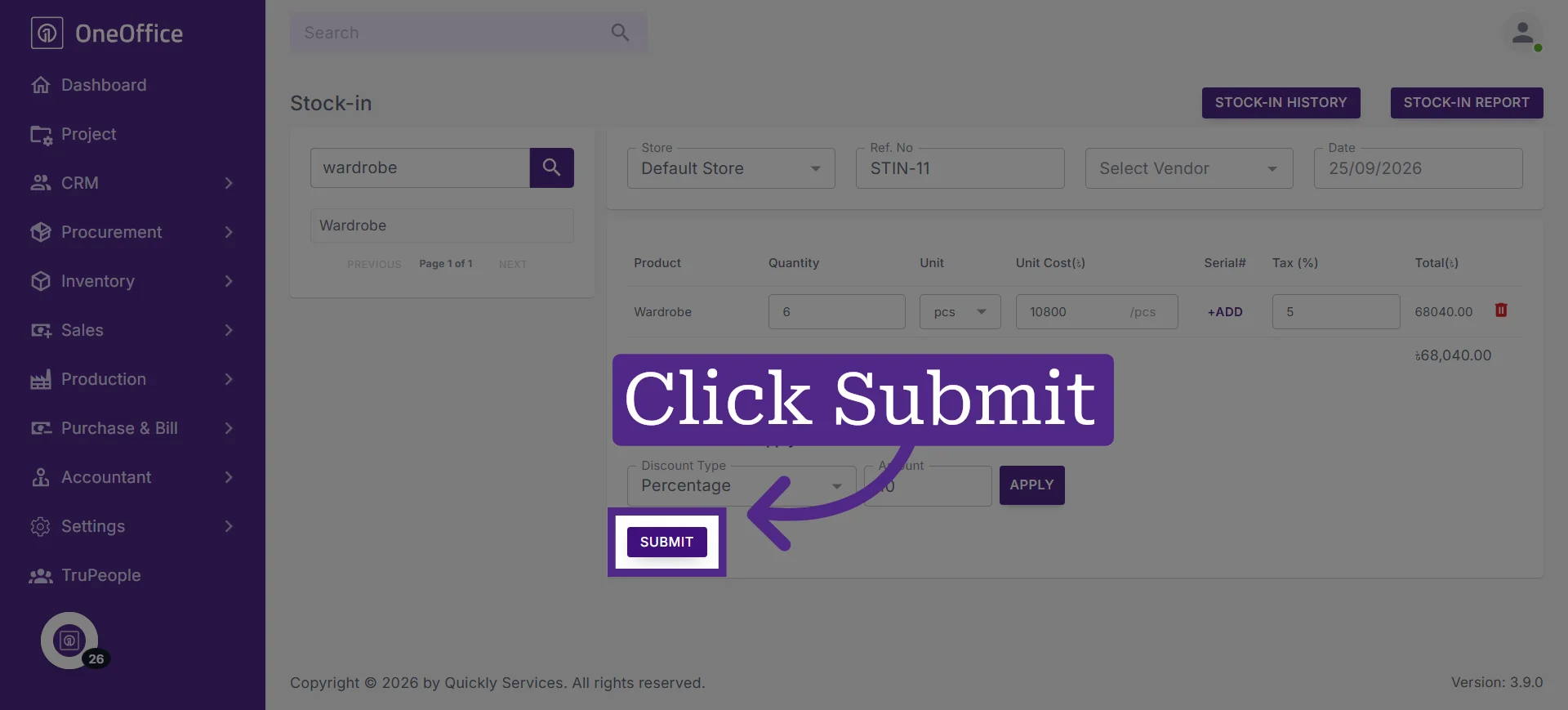
7. Click "Submit" to submit the stock-in details
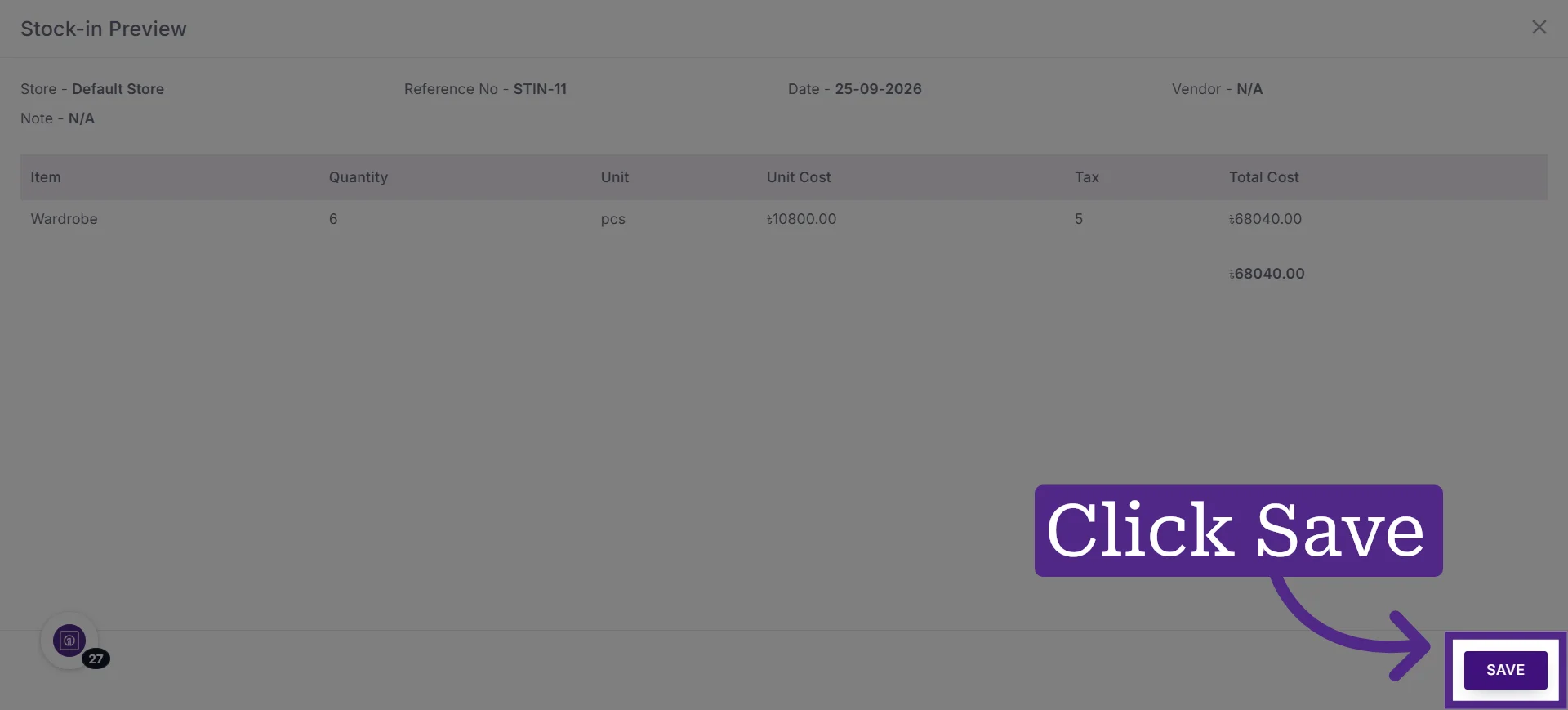
8. Click "Save" to finalize the stock-in entry