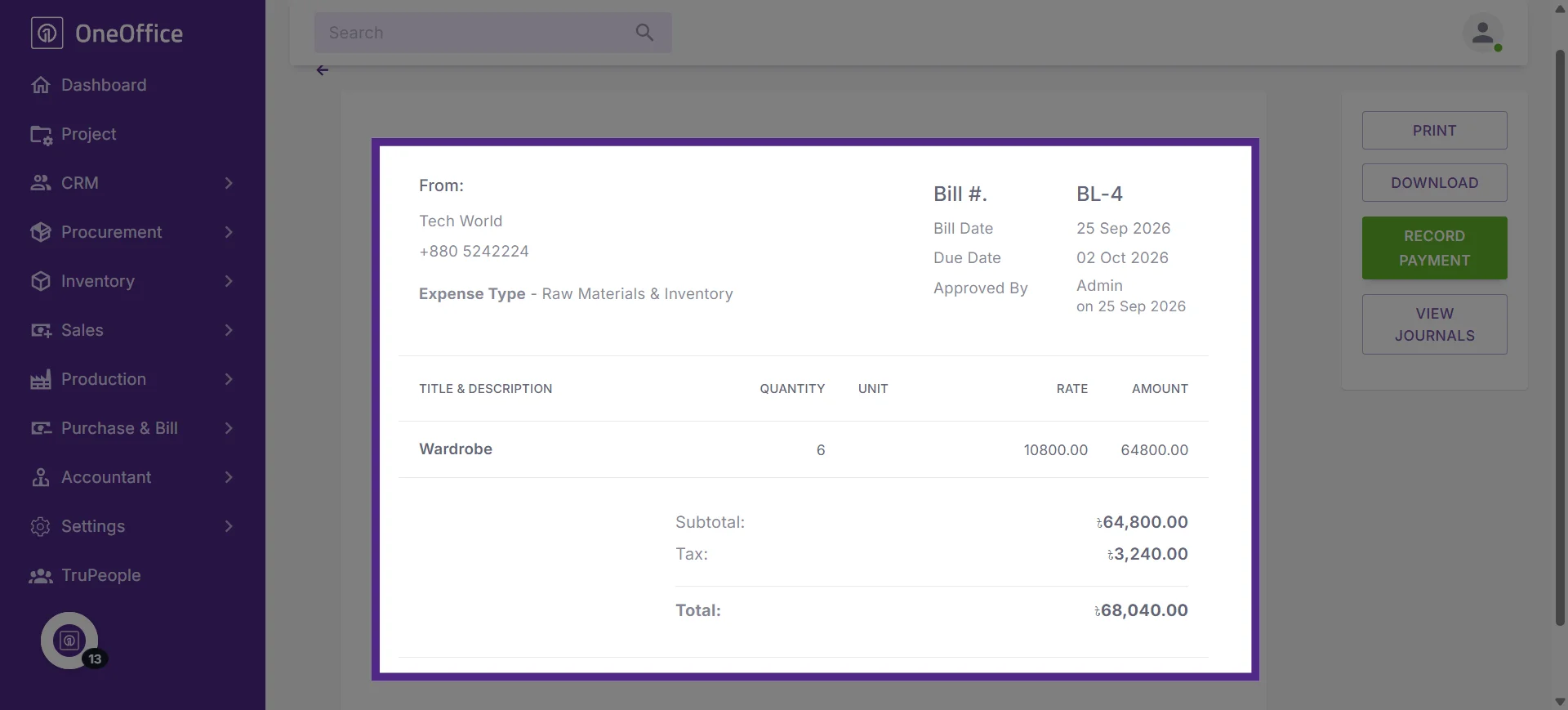
How to Generate Accounting Bill for Stock-in Inventory Items or Products in OneOffice
This tutorial guides you through generating an accounting bill from a stock-in entry in OneOffice.
Go to
oneoffice.quicklyservices.com
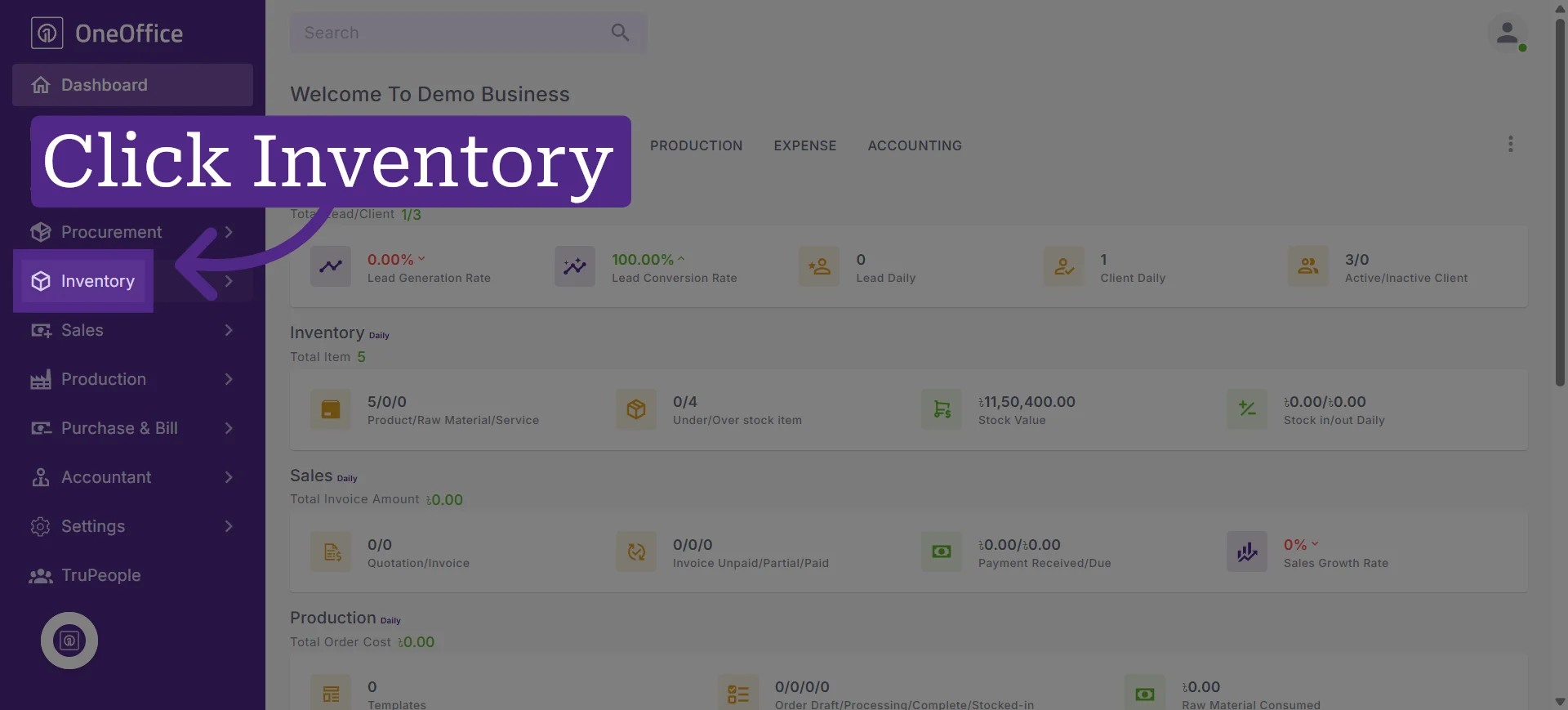
1. Click "Inventory" from the navigation menu
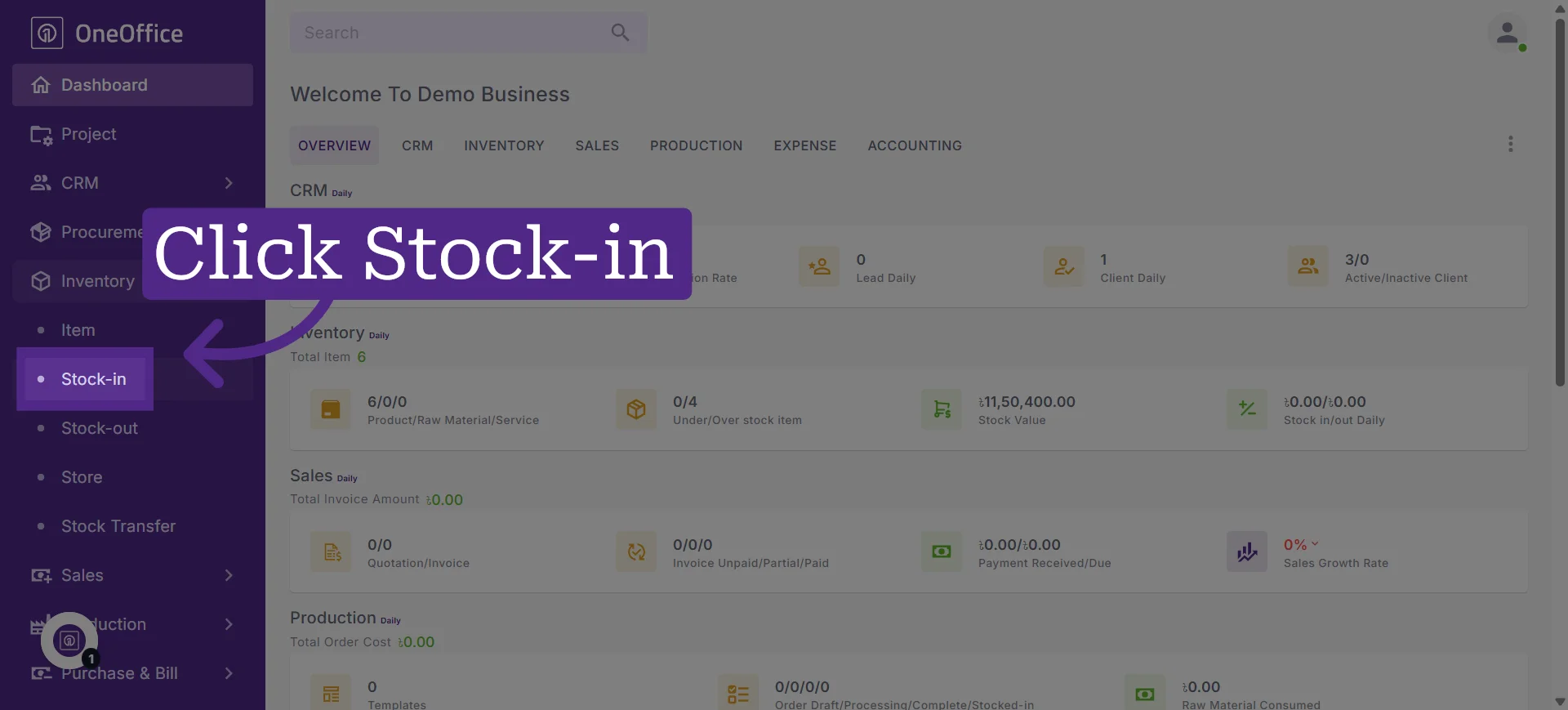
2. Click "Stock-in" to view active stock list
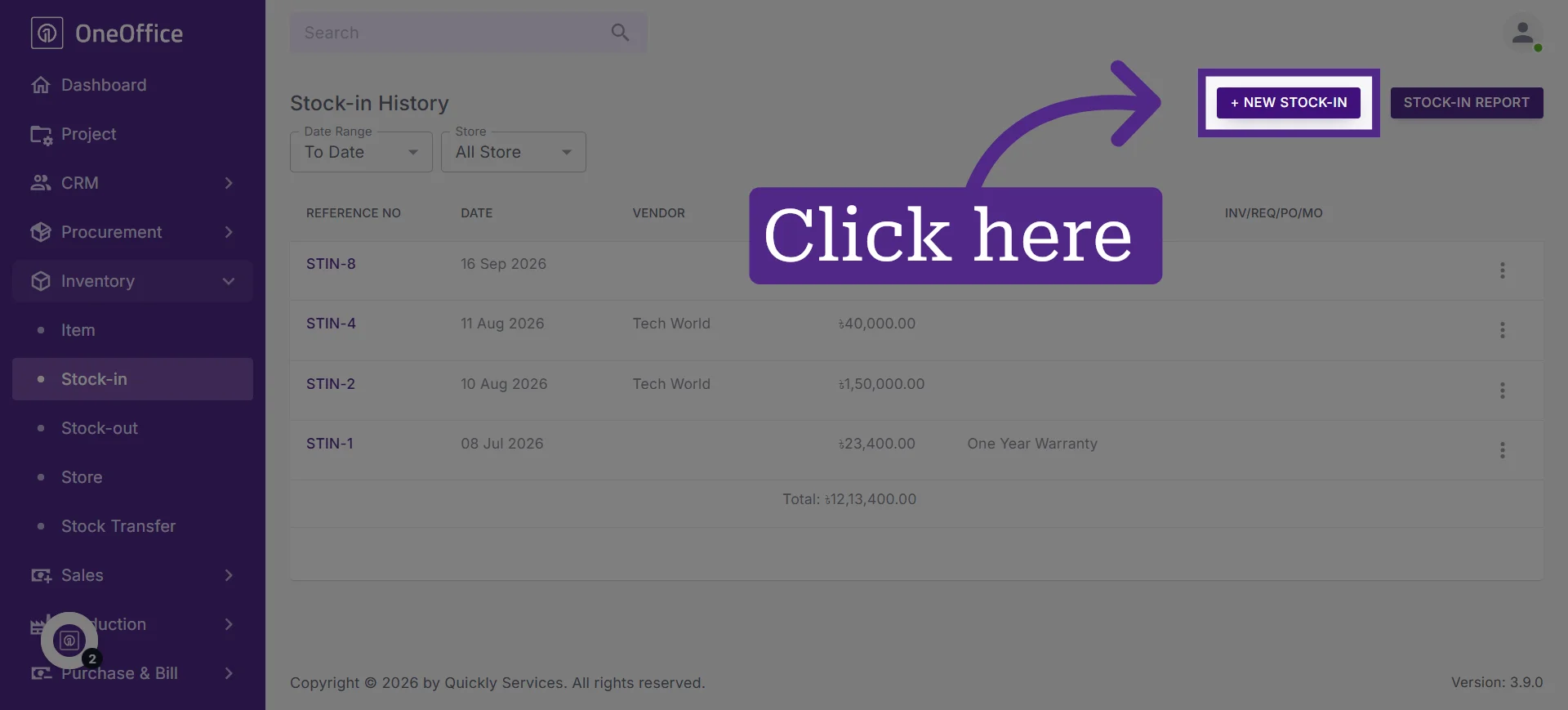
3. Initiate New Stock Entry
If you need help creating a stock-in entry, refer to the tutorial “How to Stock In Inventory Items or Products in OneOffice"
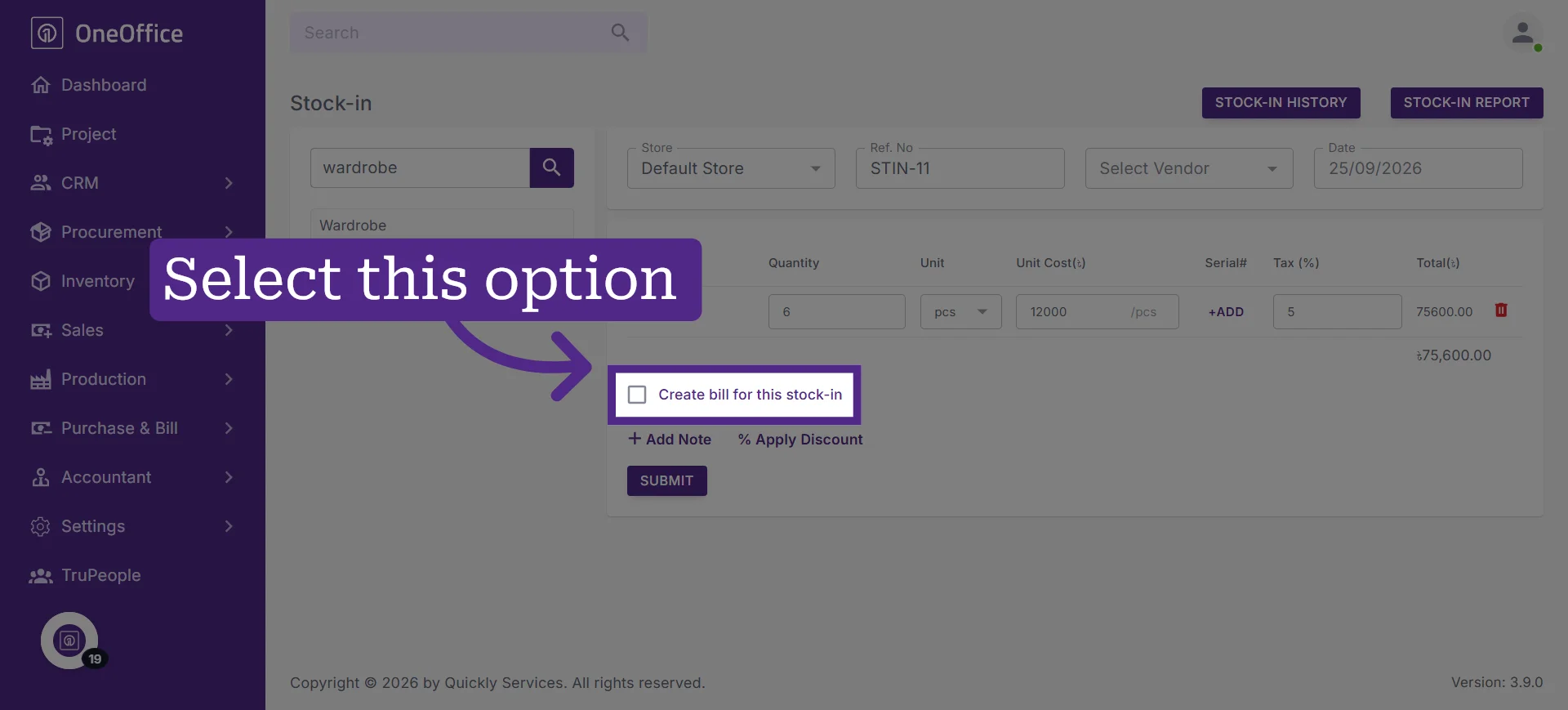
4. Select the checkbox next to "Create Bill for This Stock-in"
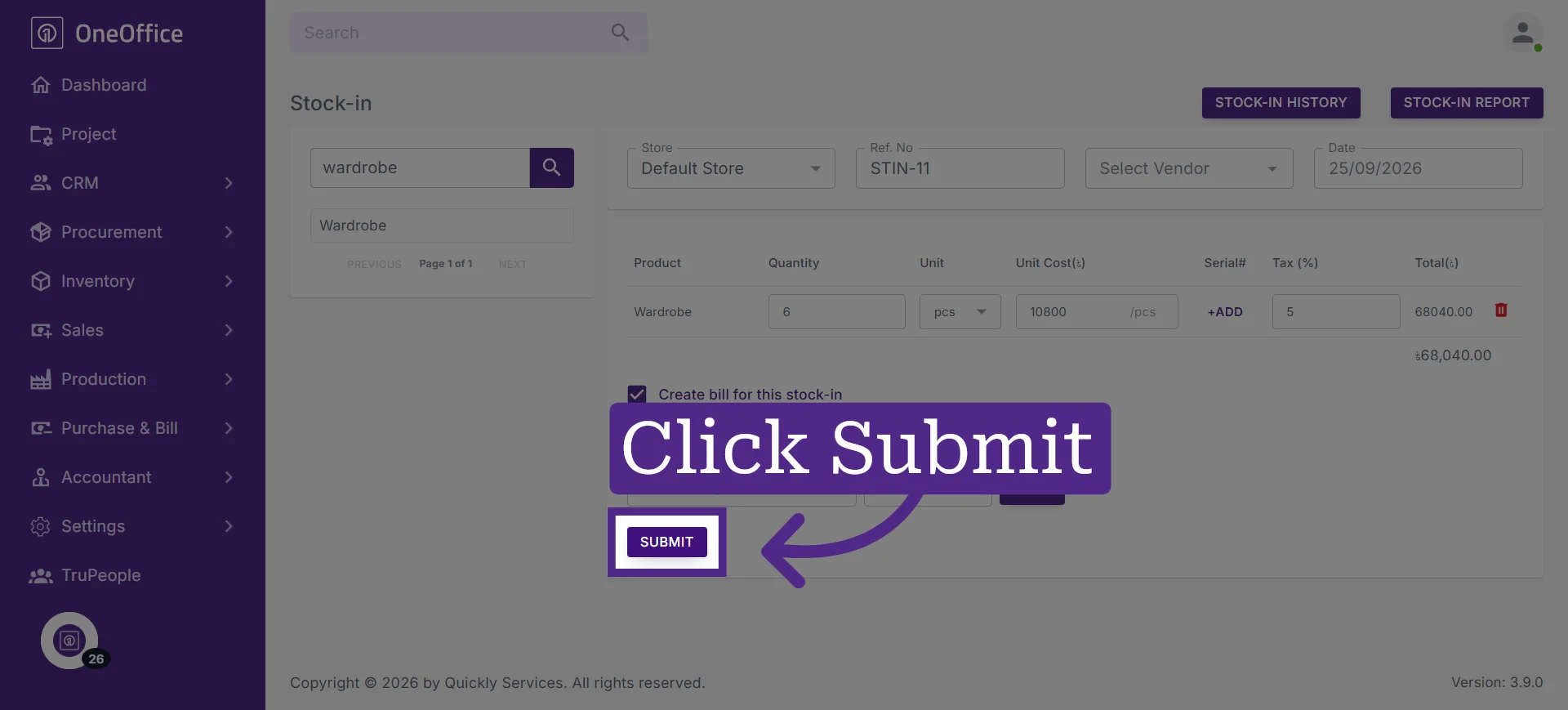
5. Click "Submit" to record the new stock
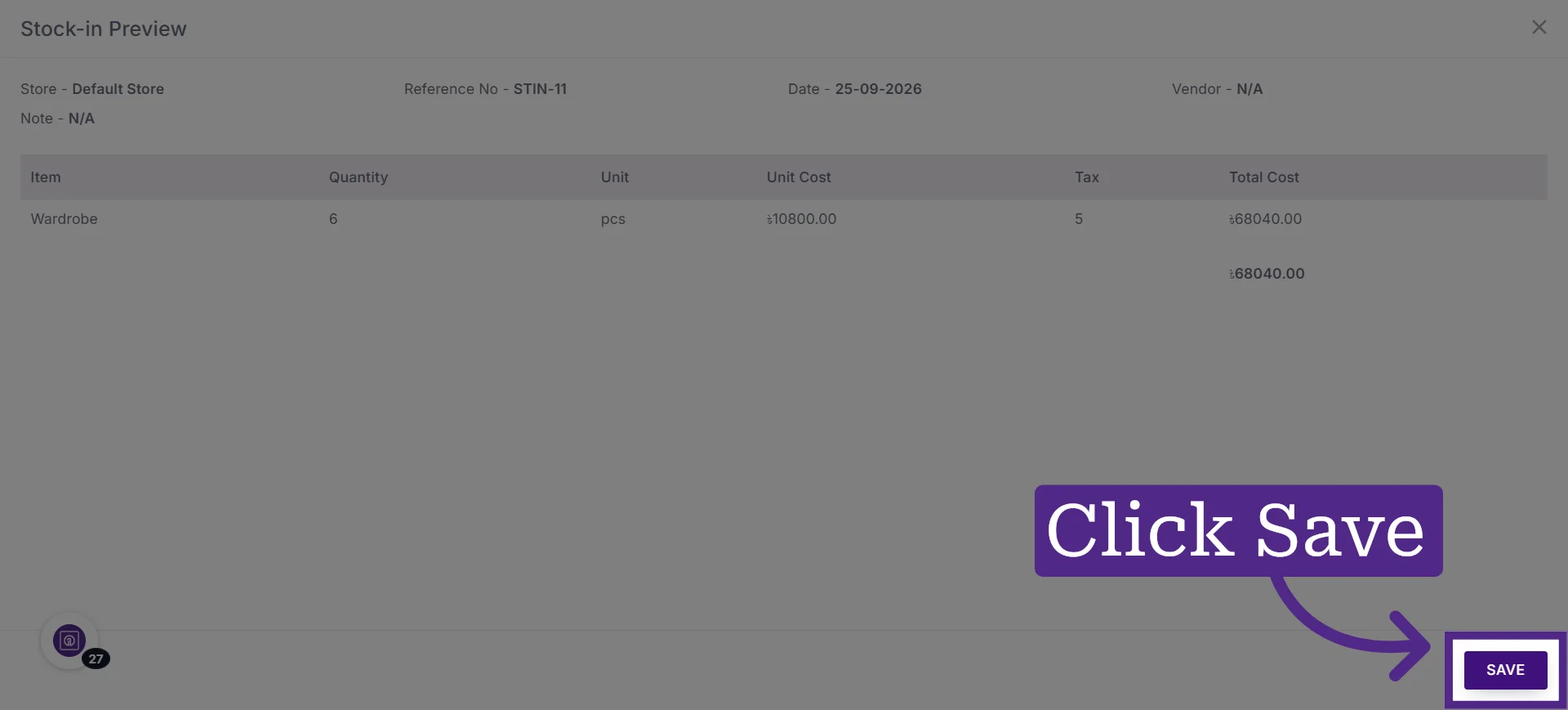
6. Click Save to save the stock-in entry
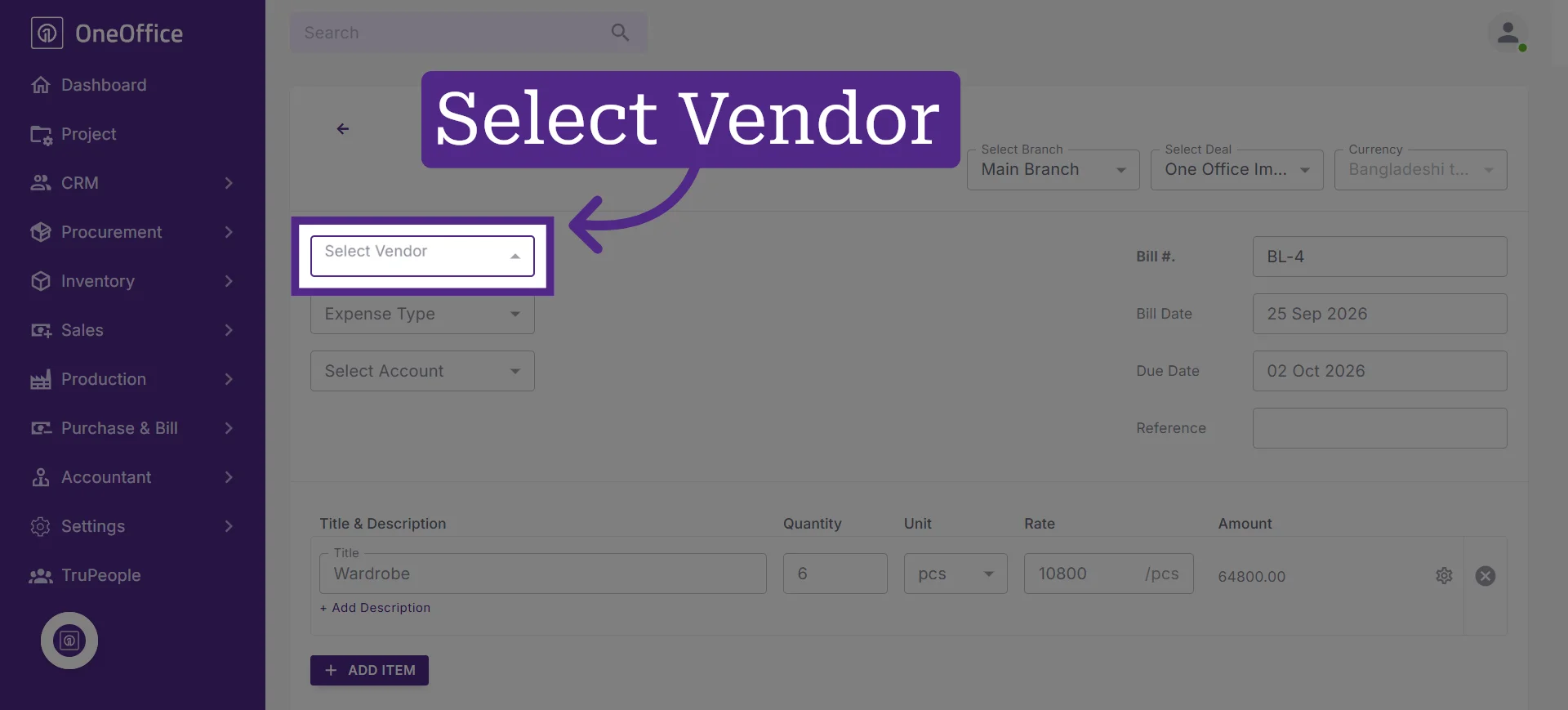
7. Select the vendor for the bill
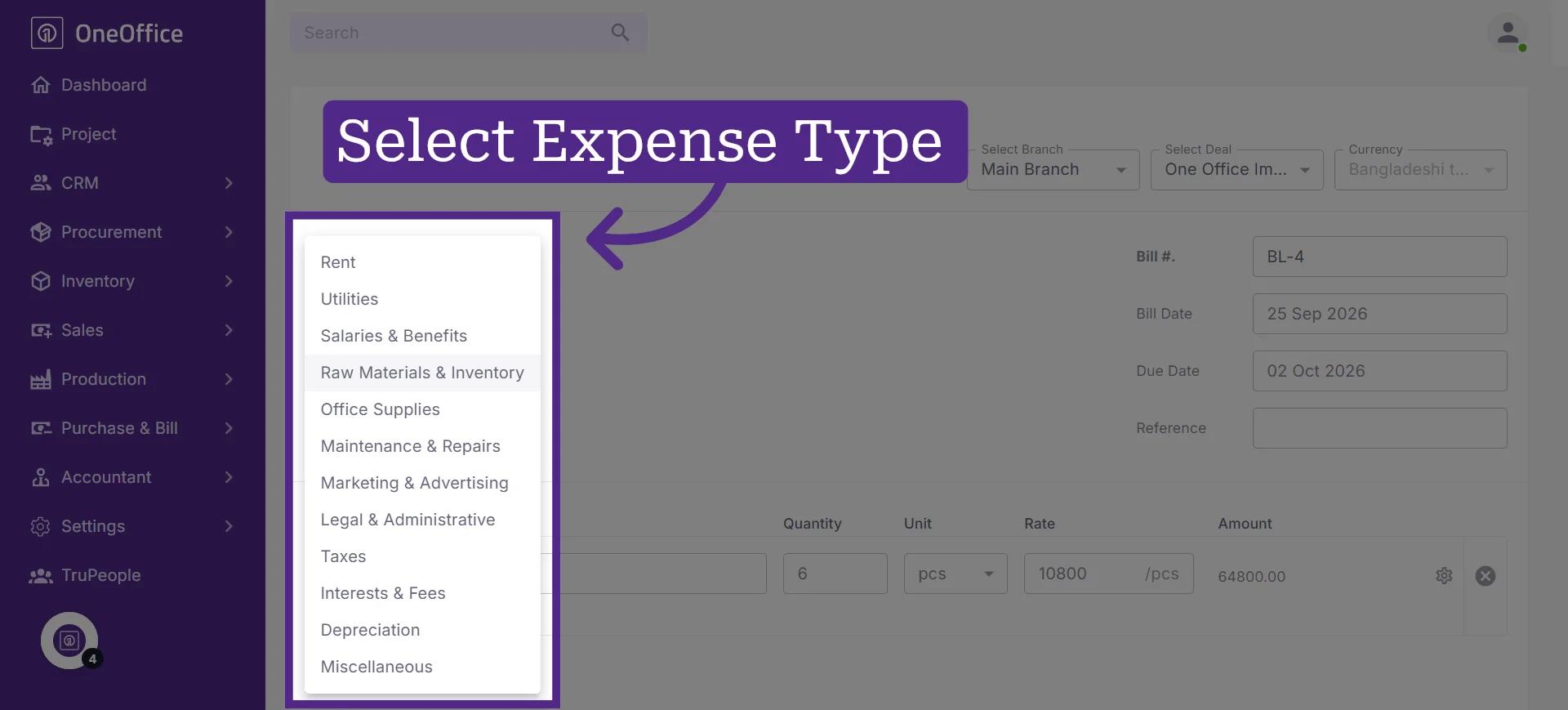
8. Select the appropriate expense type
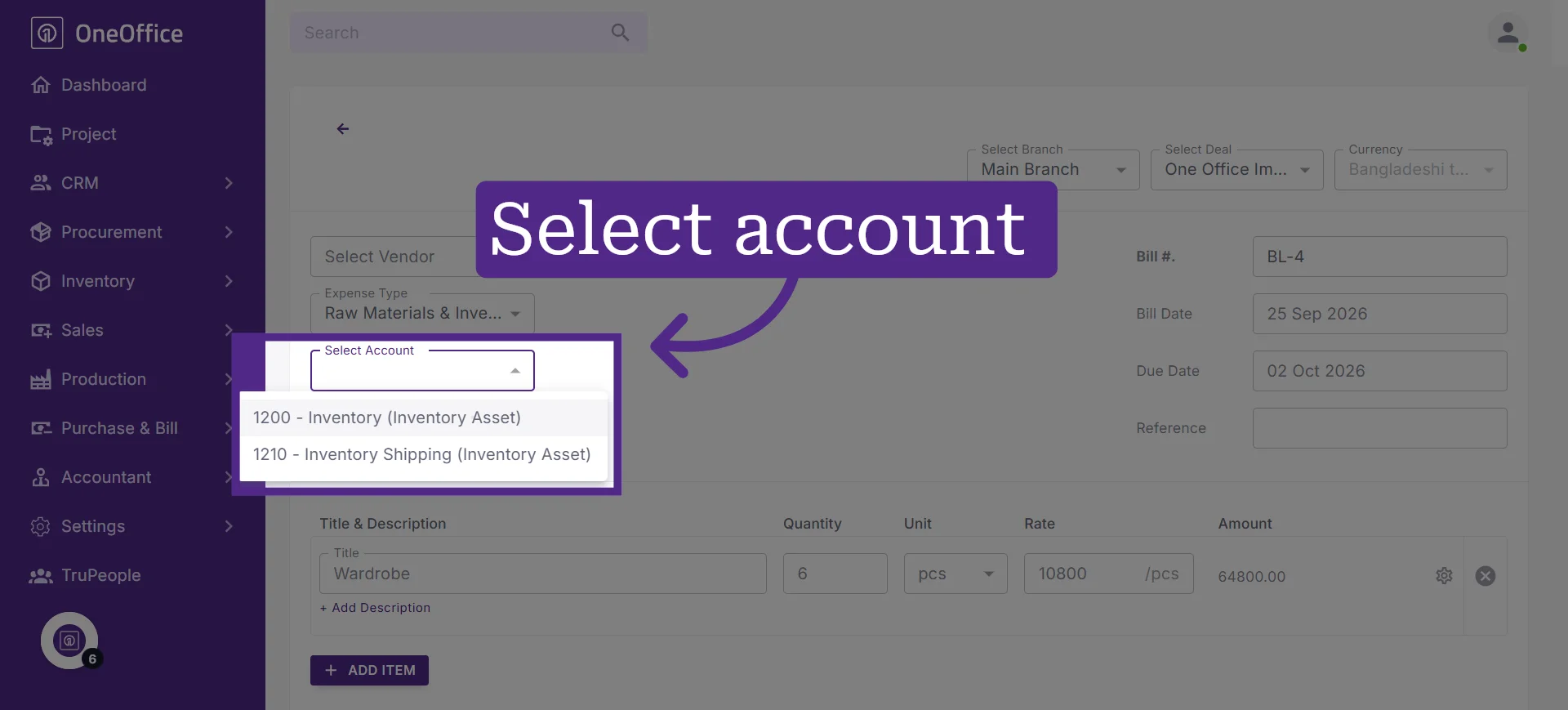
9. Select the accounting account for the bill
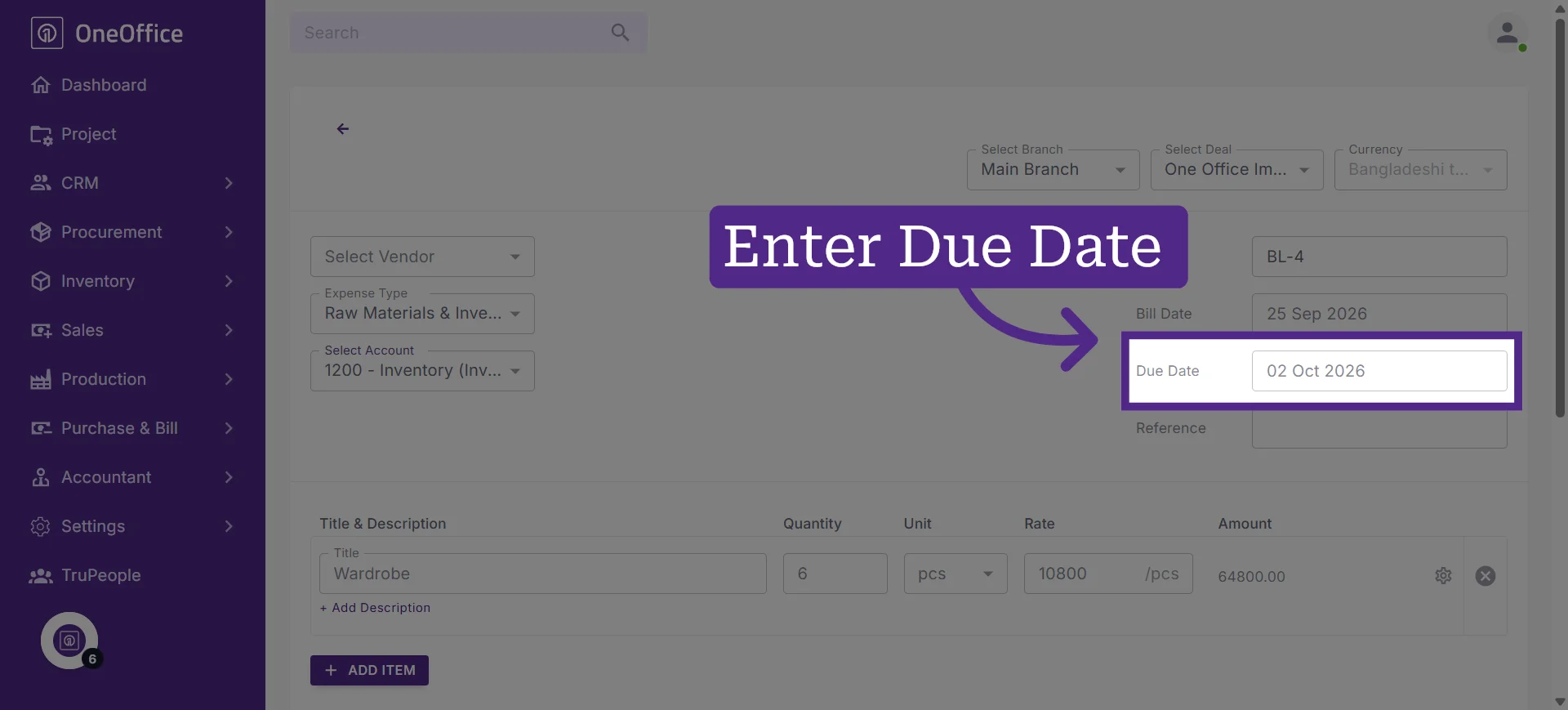
10. Enter the due date for the bill payment
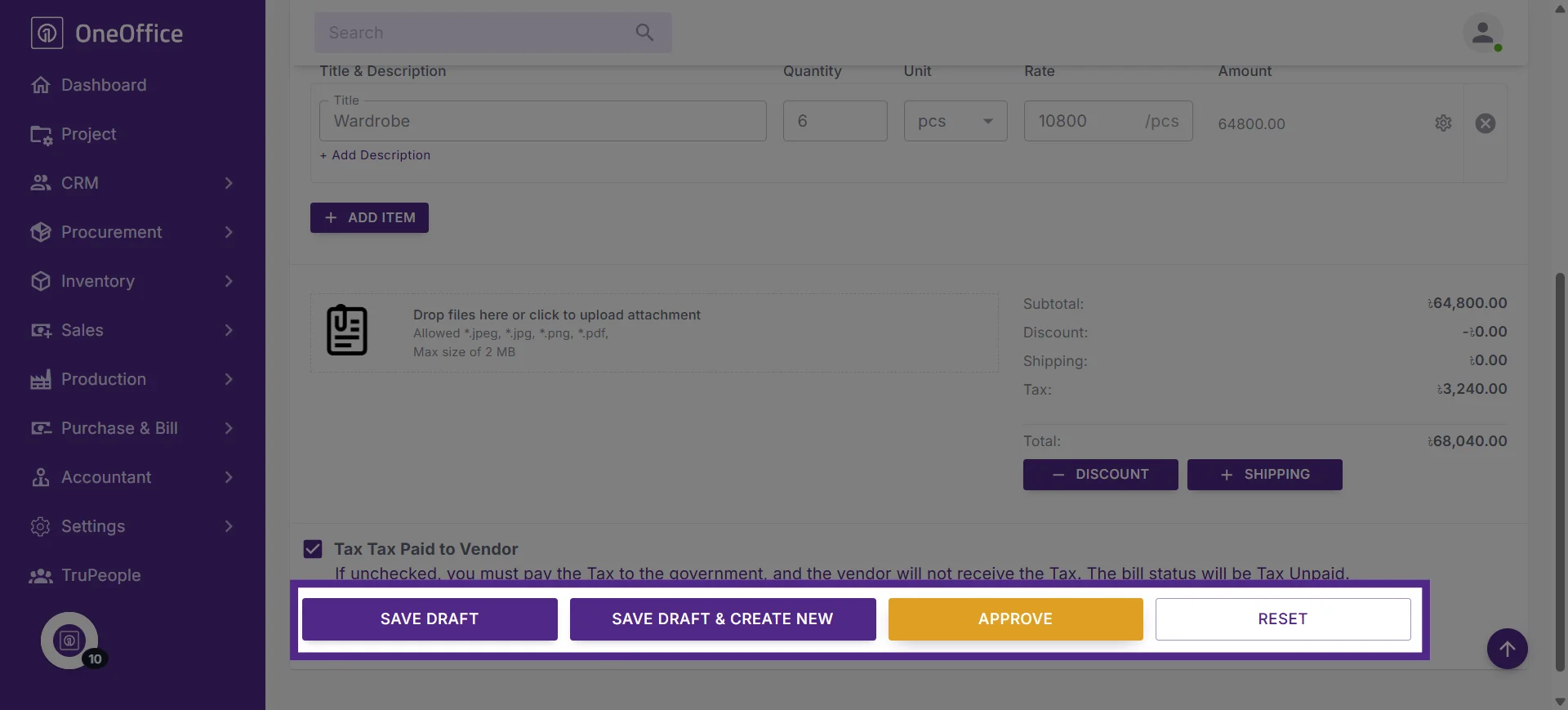
11. Select the appropriate next step
• Select Save Draft if you want to review or complete the bill later.
• Select Save Draft & Create New if you want to save this bill as a draft and create another bill.
• Select Approve if you want to finalize the bill.
• Select Reset if you want to clear the entered information and start again.
12. The accounting bill generated from the stock-in entry will now be available in the system