How to Add a New Brand in RetailLife Business Portal
This tutorial guides you through the process of creating a new brand in the Business Portal. Effective brand management helps organize products, track brand-specific insights, and streamline
inventory management.
Go to
retaillife.quicklyservices.com
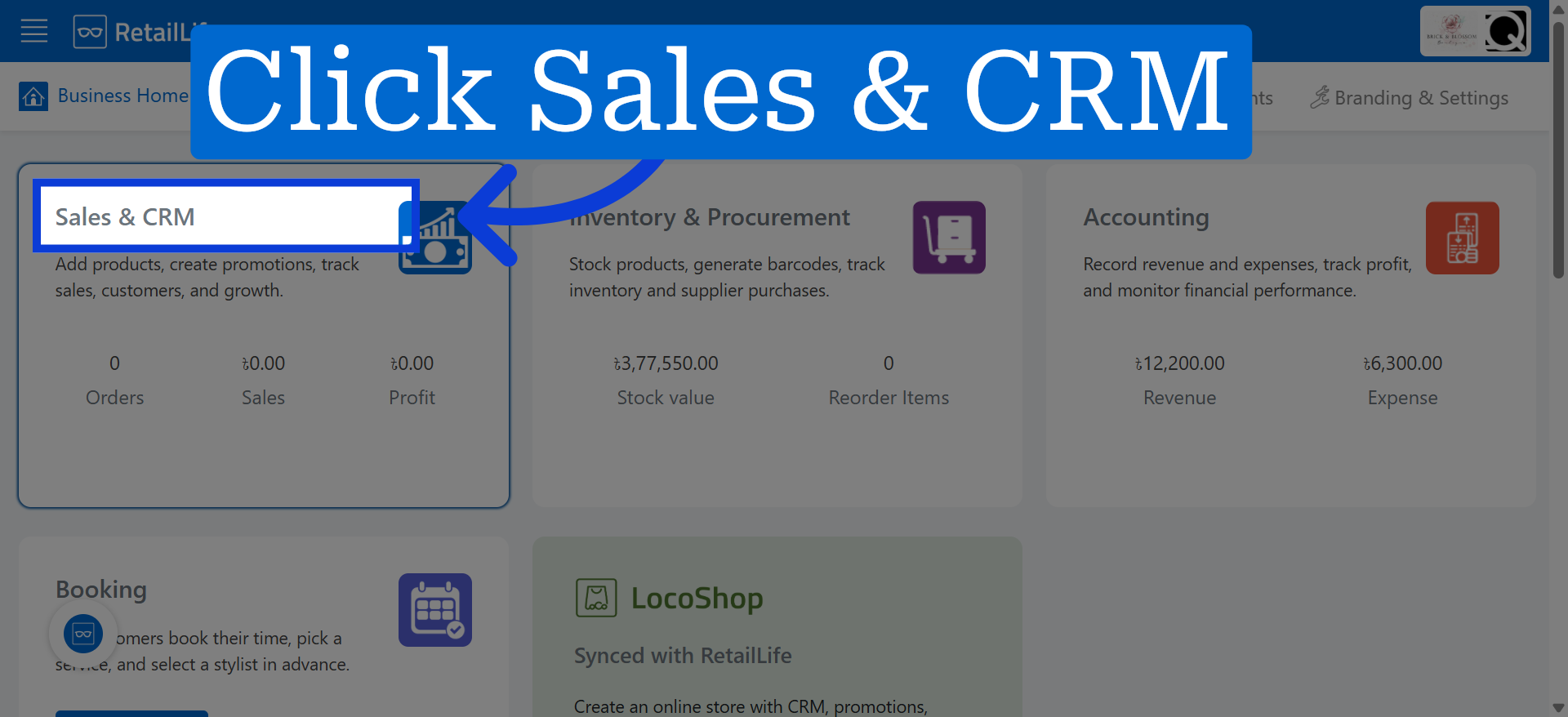
1. Access Sales & CRM Module
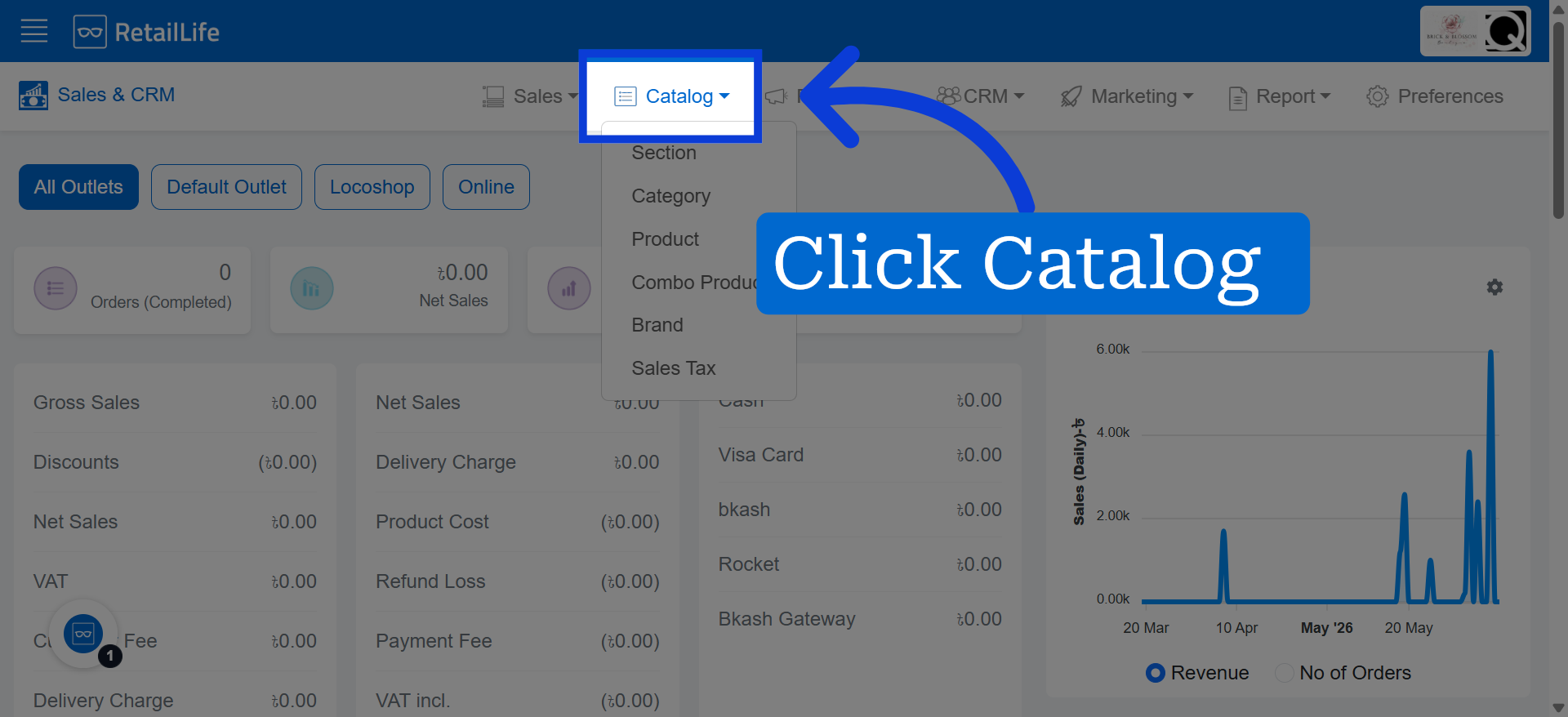
2. Open Catalog
Click the shift management icon to access the shift scheduling options within the portal.
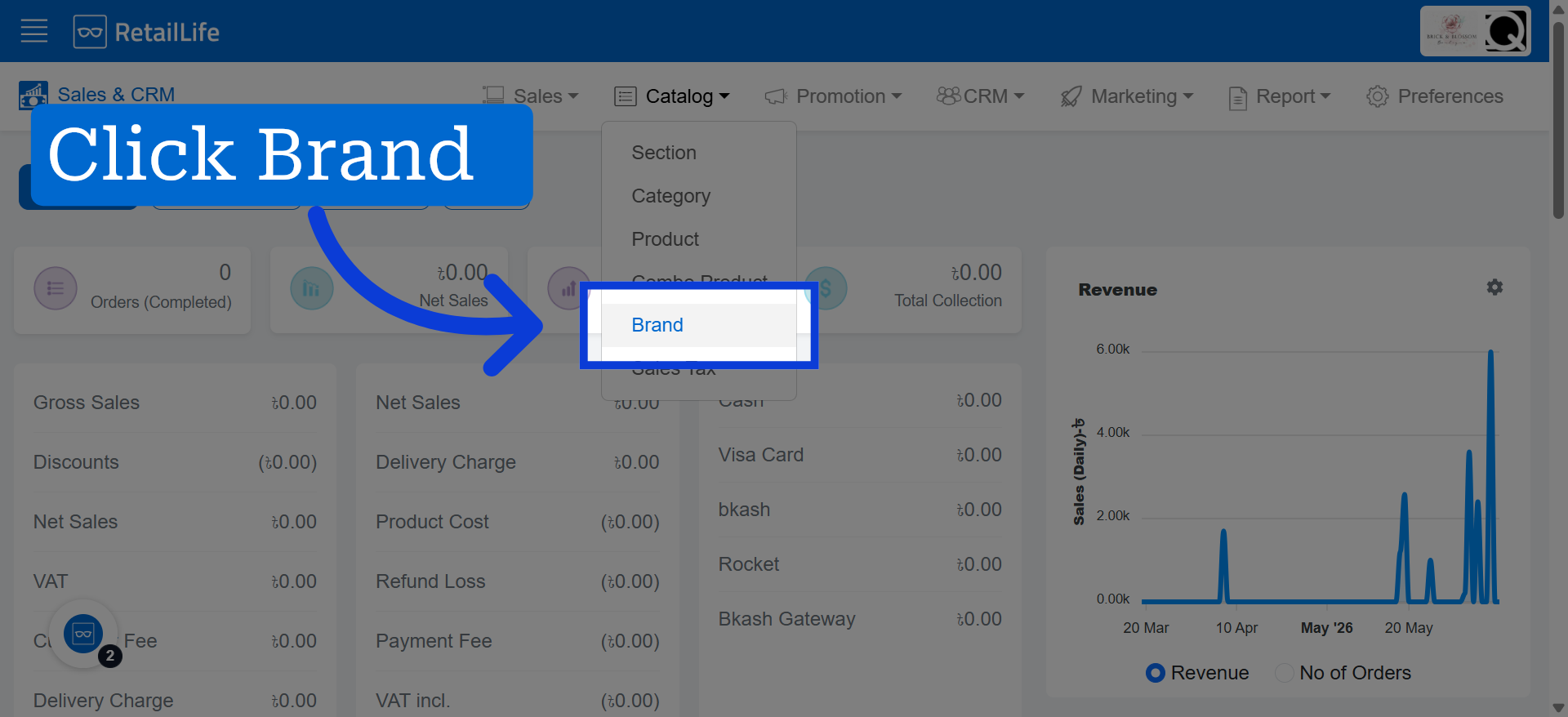
3. Select Brand Tab
Click "Brand" to view and manage existing brands in the portal.
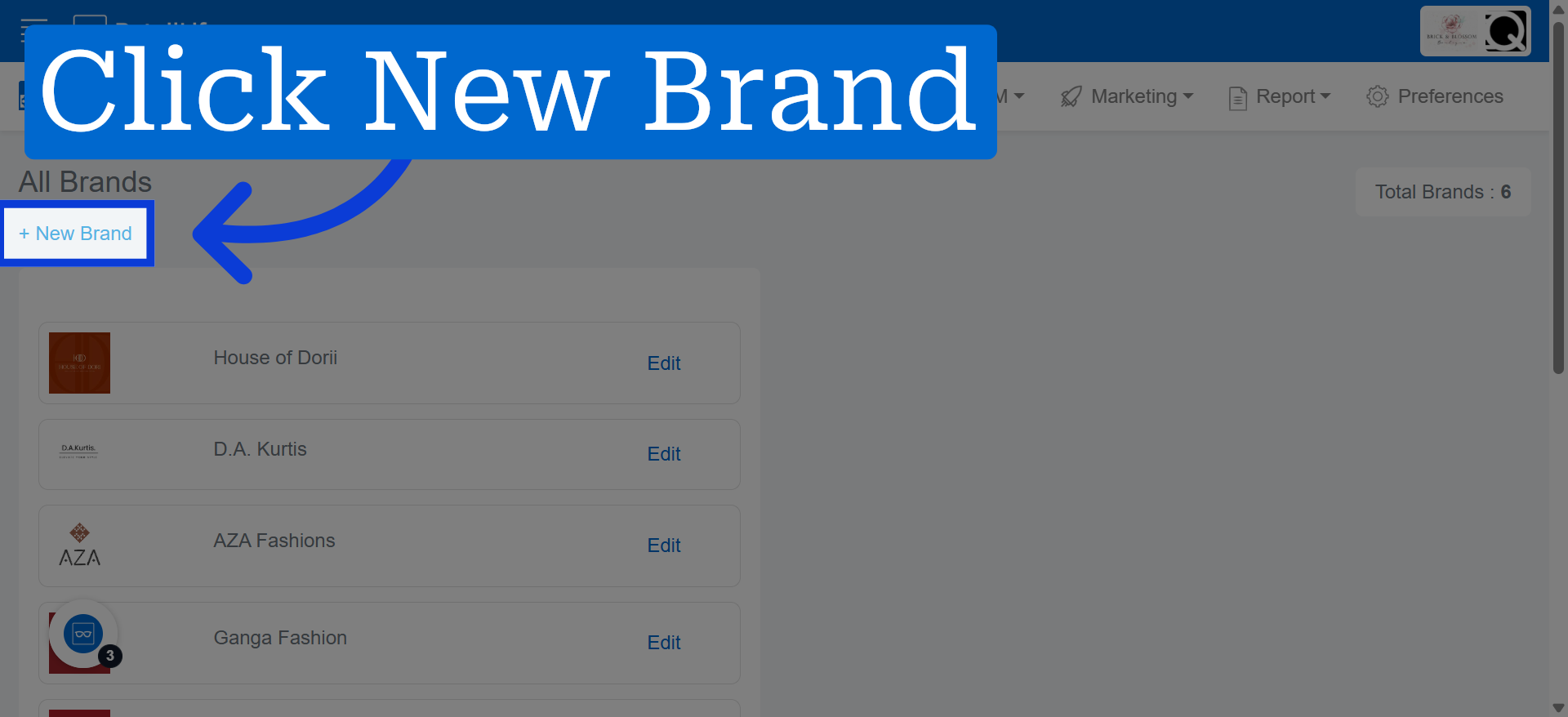
4. Initiate New Brand Creation
Click "+ New Brand" to start creating a new brand entry in the system.
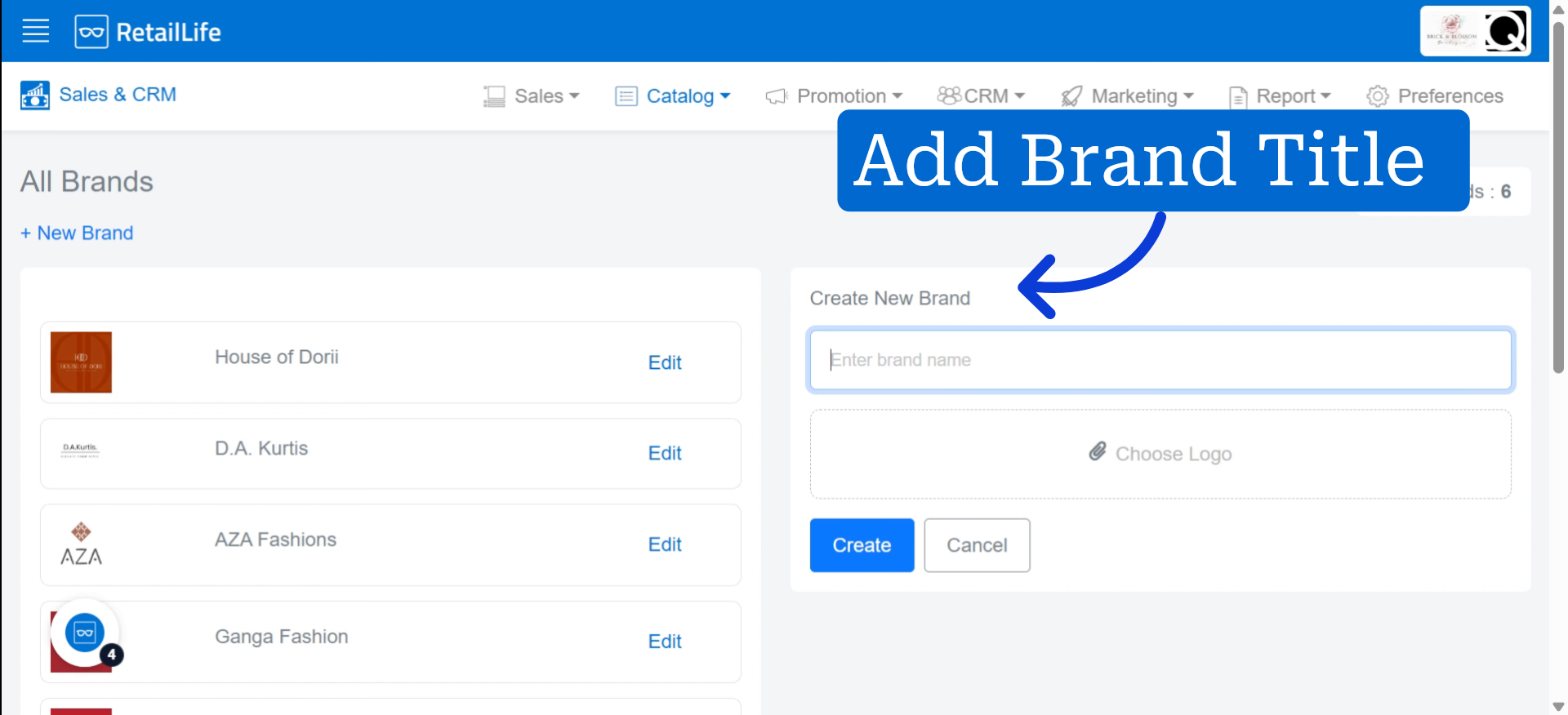
5. Enter Brand Name
Fill the name of the new brand you want to add.
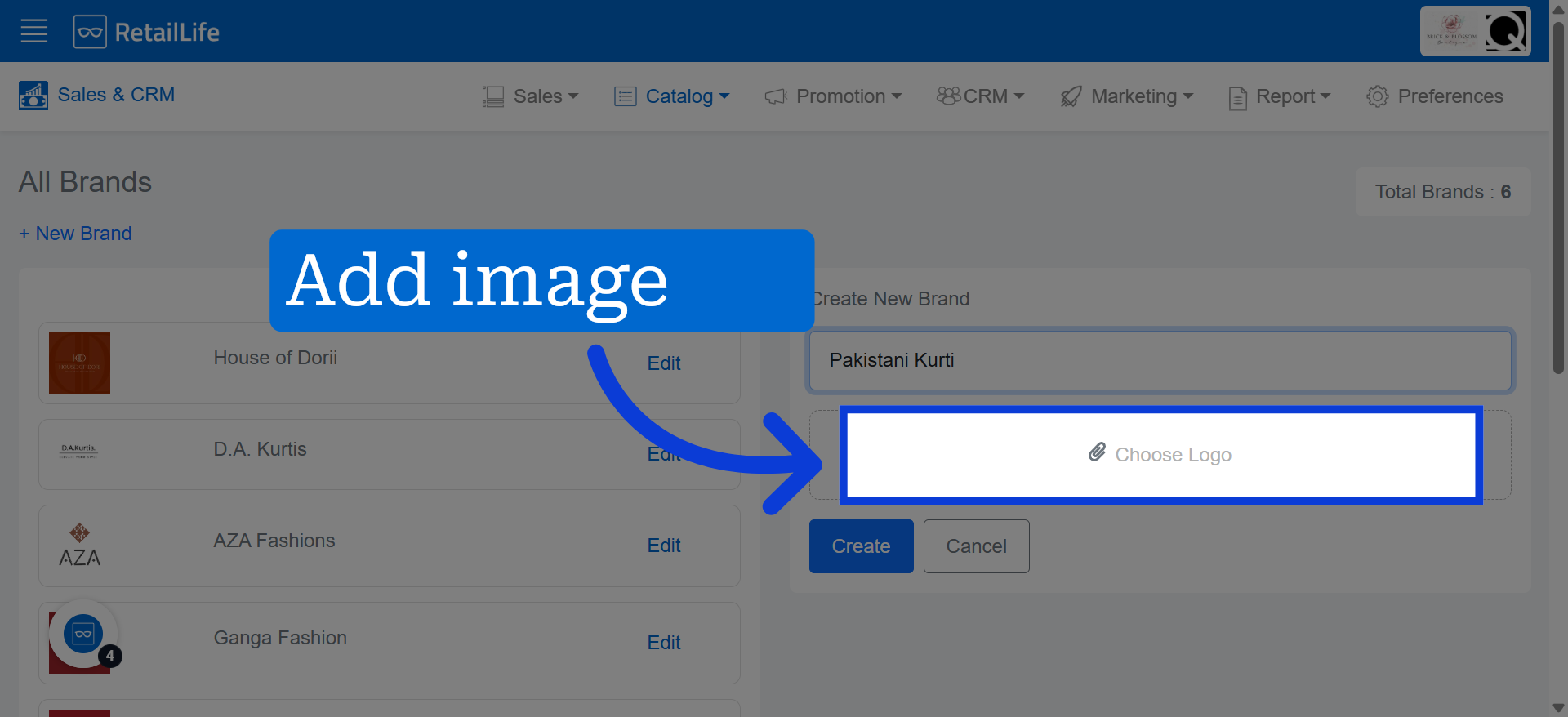
6. Choose Brand Logo
Click here to add a brand logo accordingly.
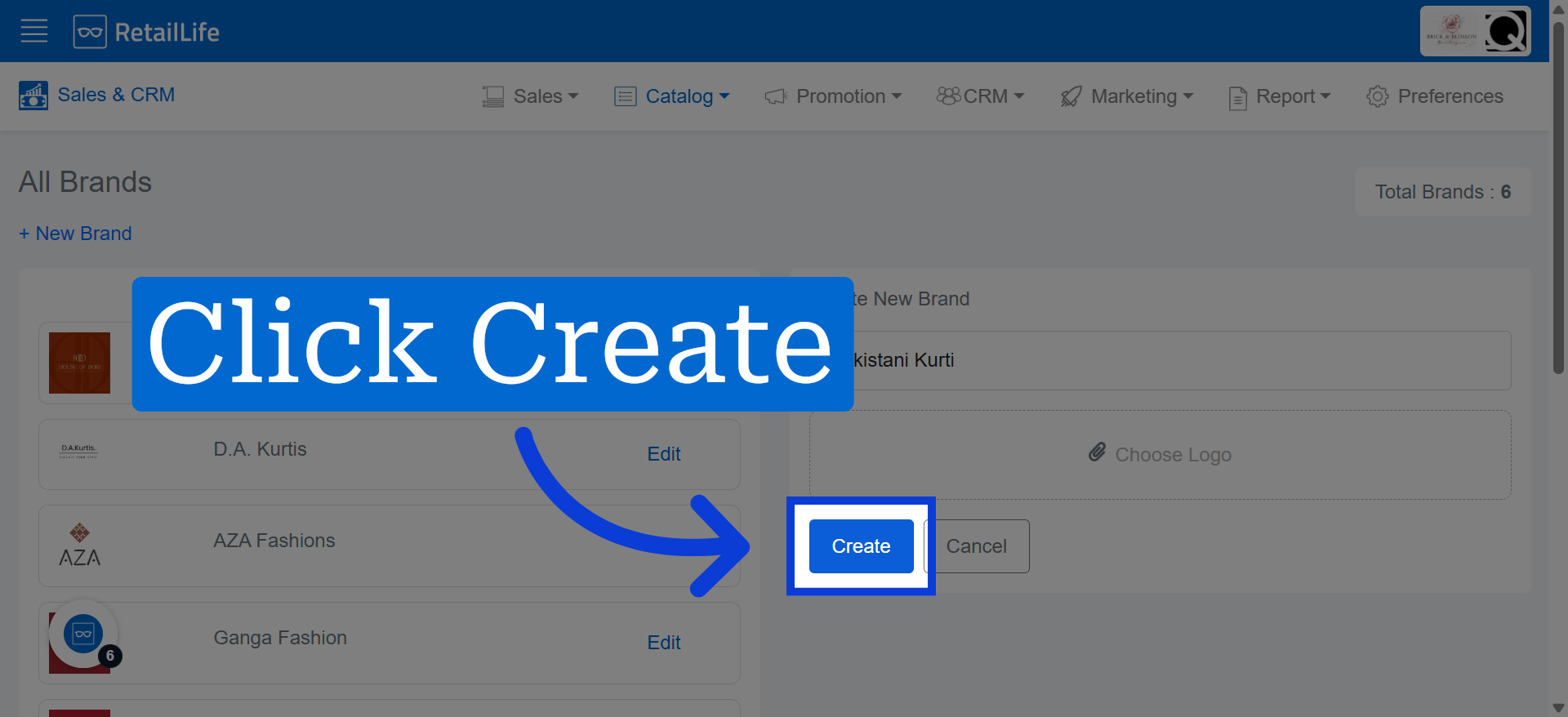
7. Finalize Brand Creation
Click "Create" to save the new brand and add it to the Business Portal.