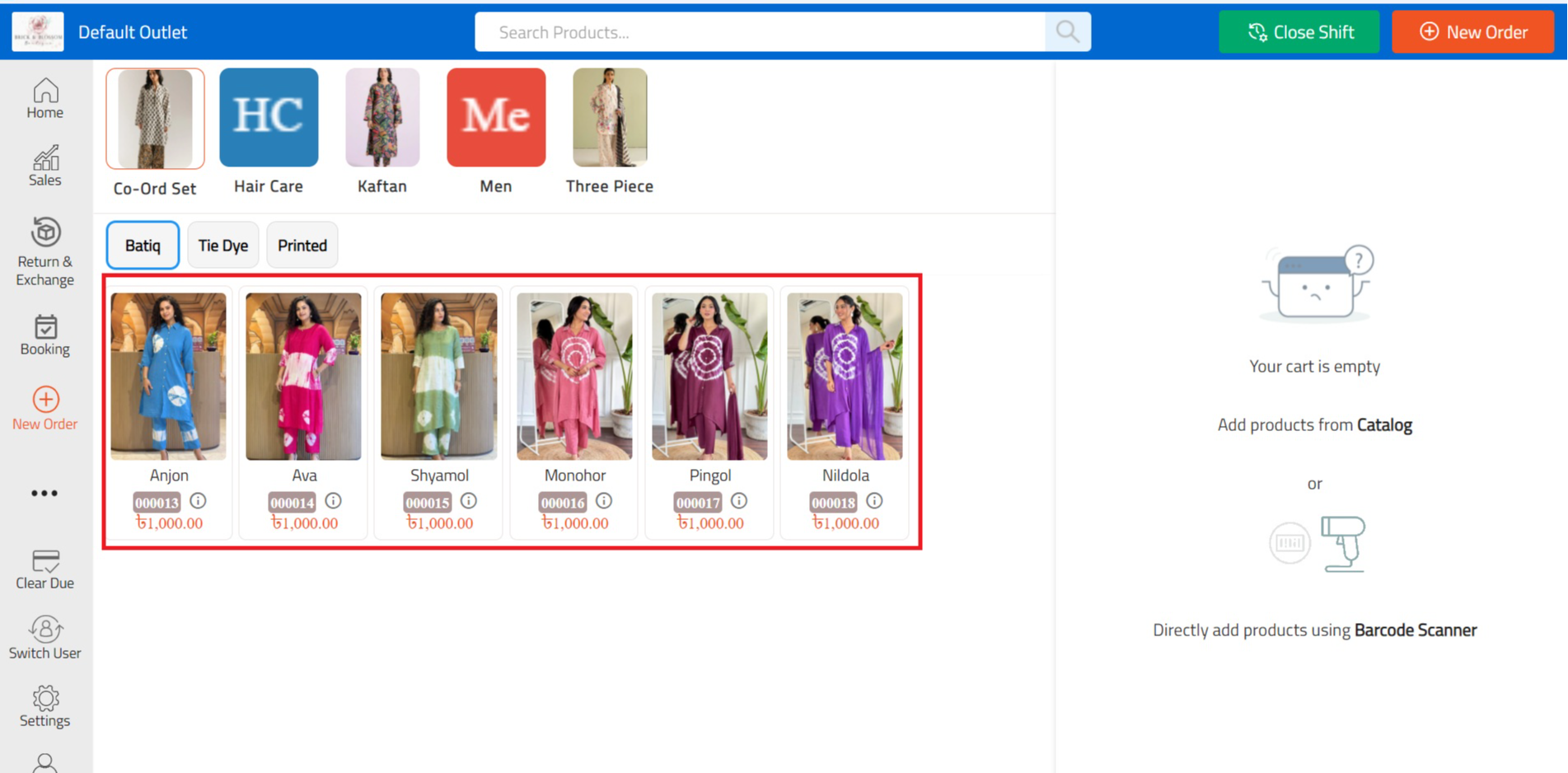
How to Add a New Product Manually in RetailLife Business Portal
This tutorial shows you how to create a new product manually.
Go to
retaillife.quicklyservices.com
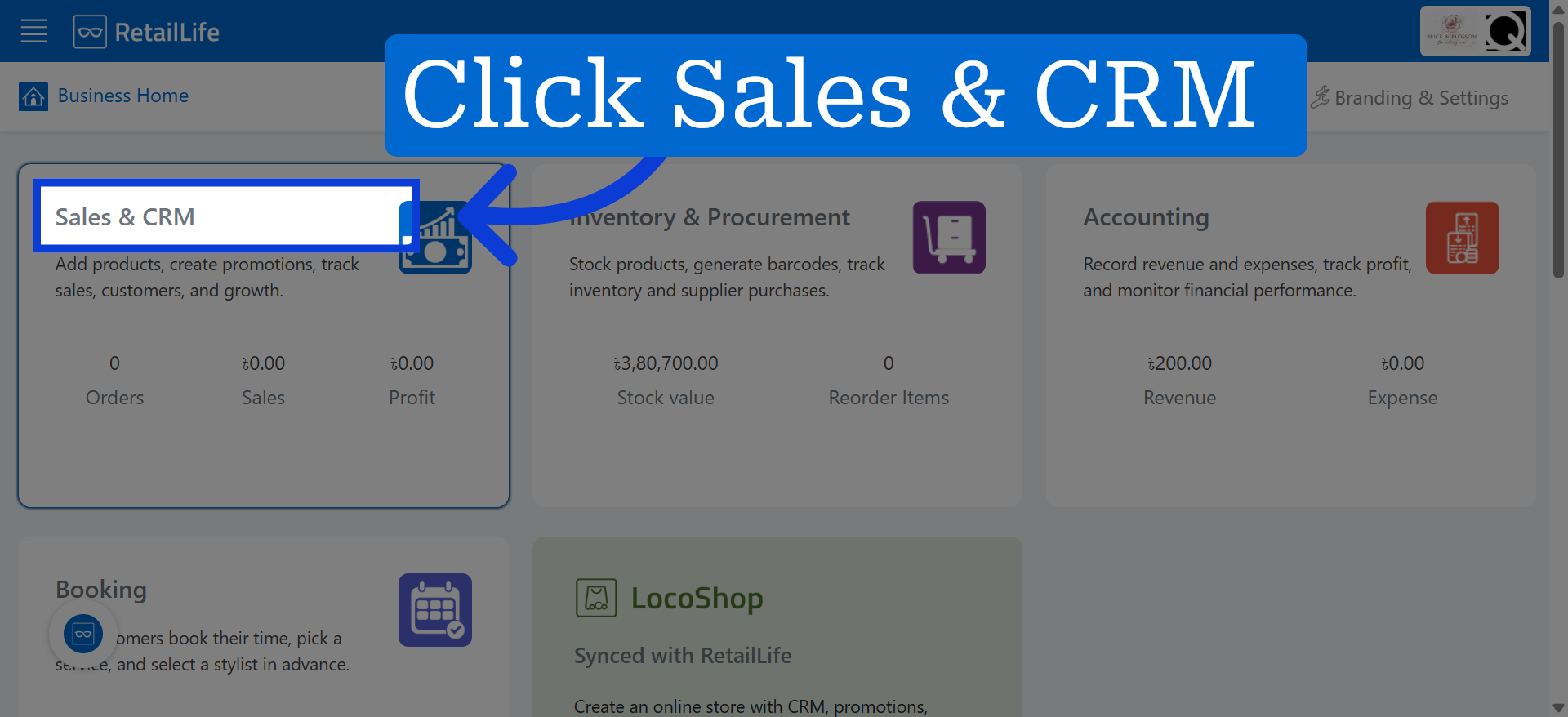
1. Access Sales & CRM Section
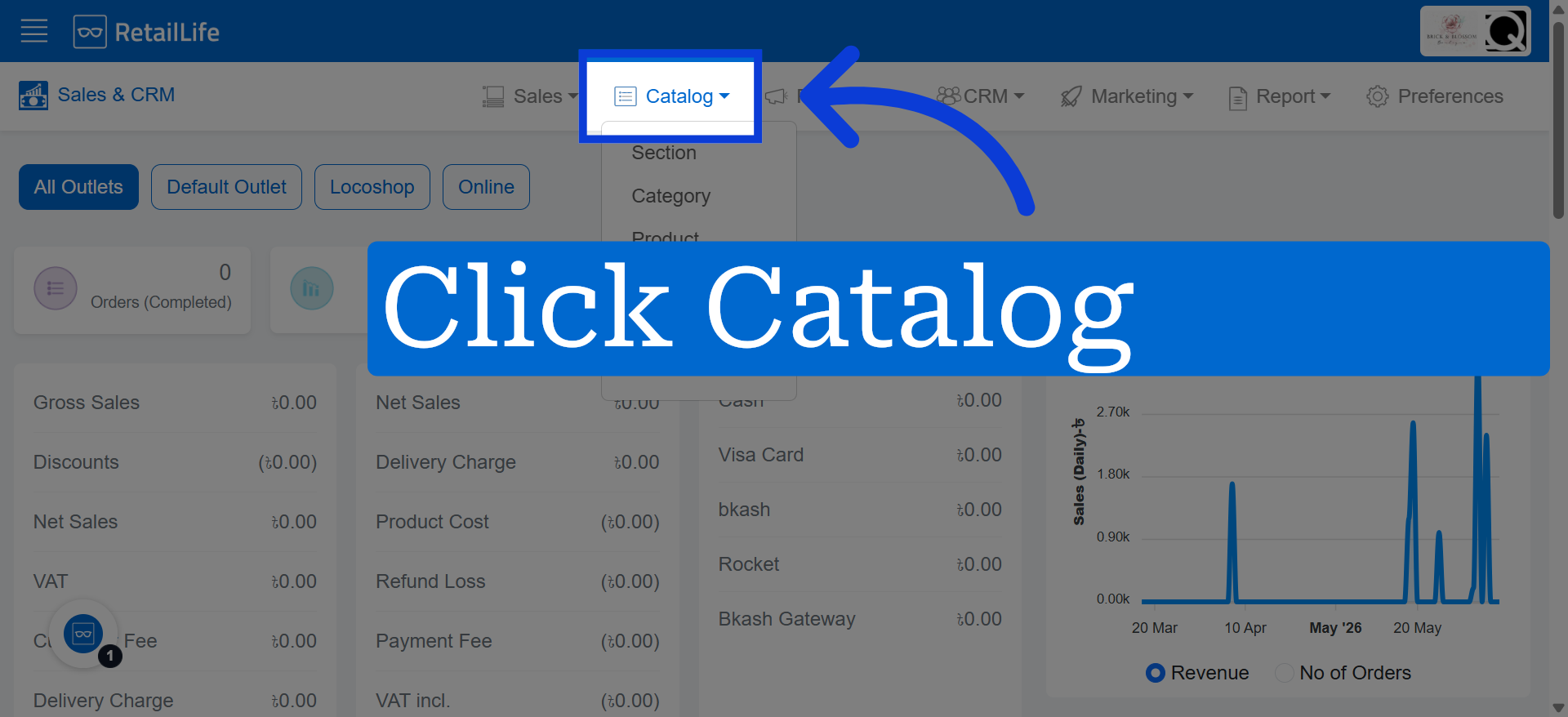
2. Open Catalog
Navigate to the Catalog section to access additional options.
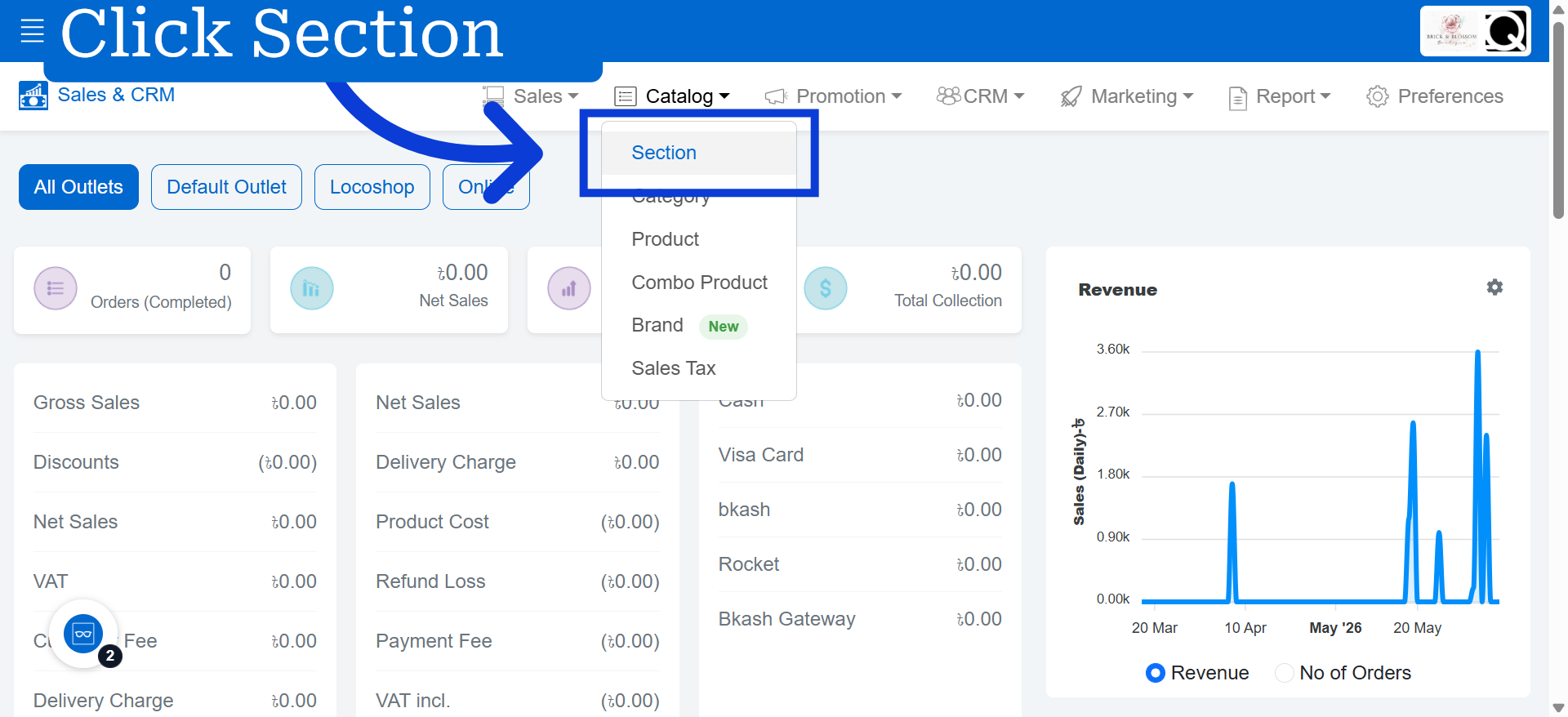
3. Select Section Option
Click "Section" to view and manage existing sales sections or create new section.
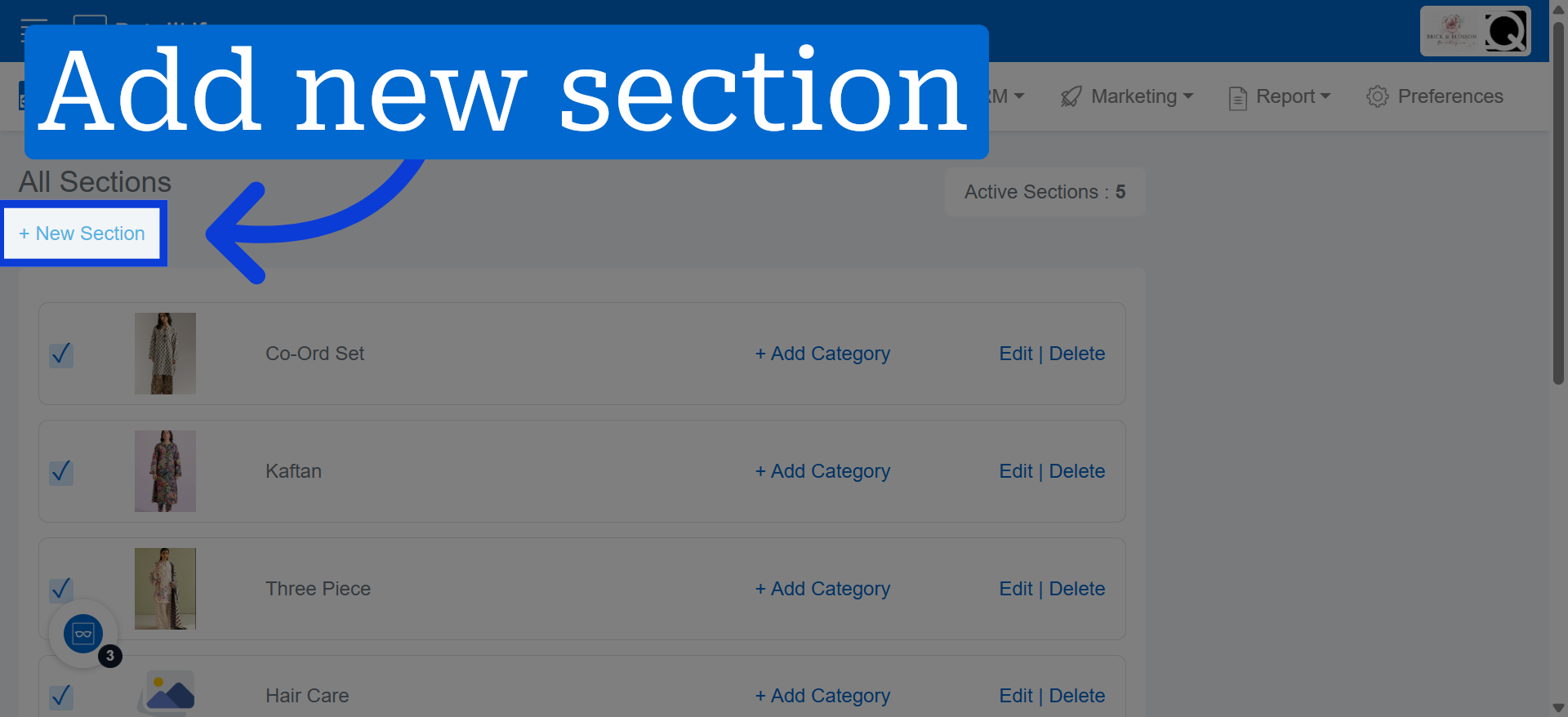
4. Add New Section
Click "+ New Section" to start creating a new sales section.
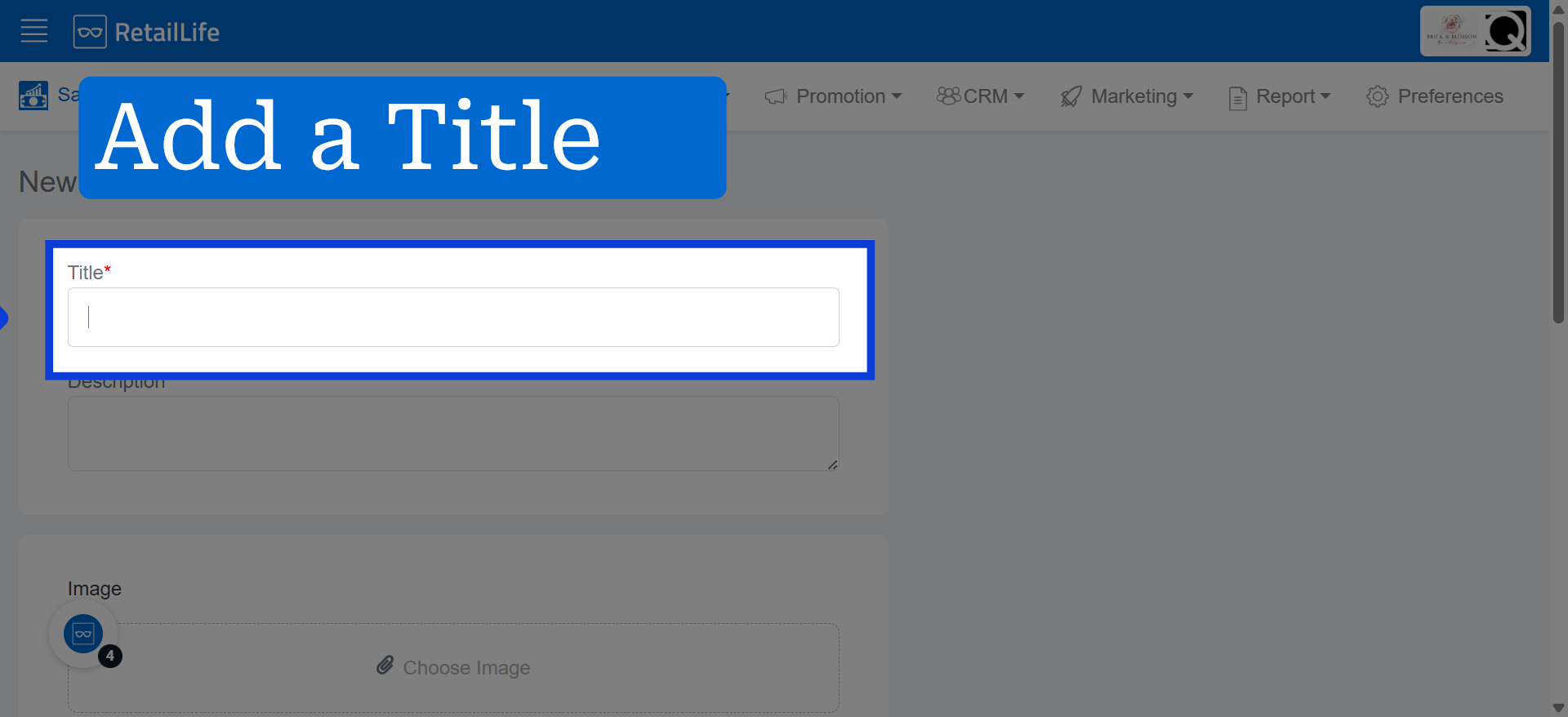
5. Access Title Field
Click the "Title" field to enter the name of the new section.
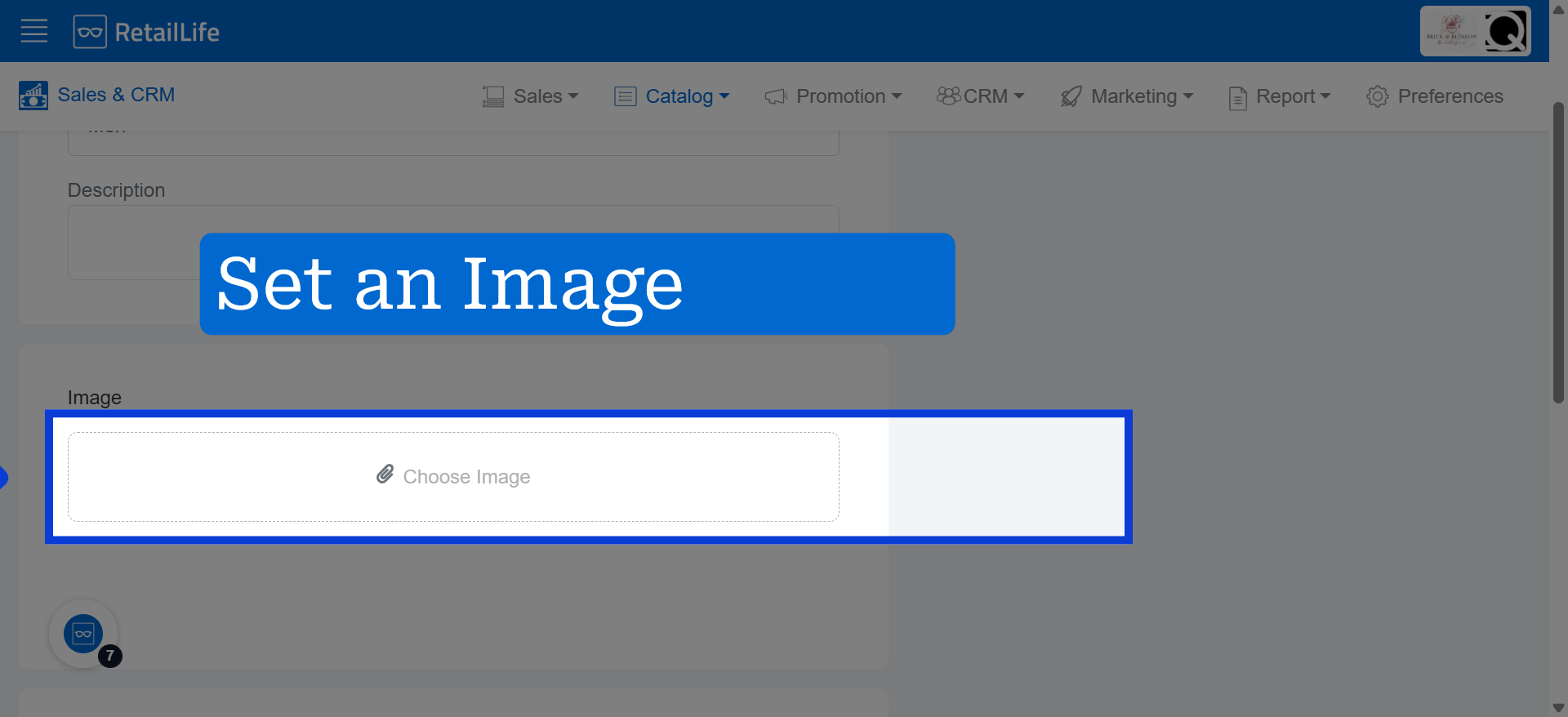
6. Add a 'Section' Image
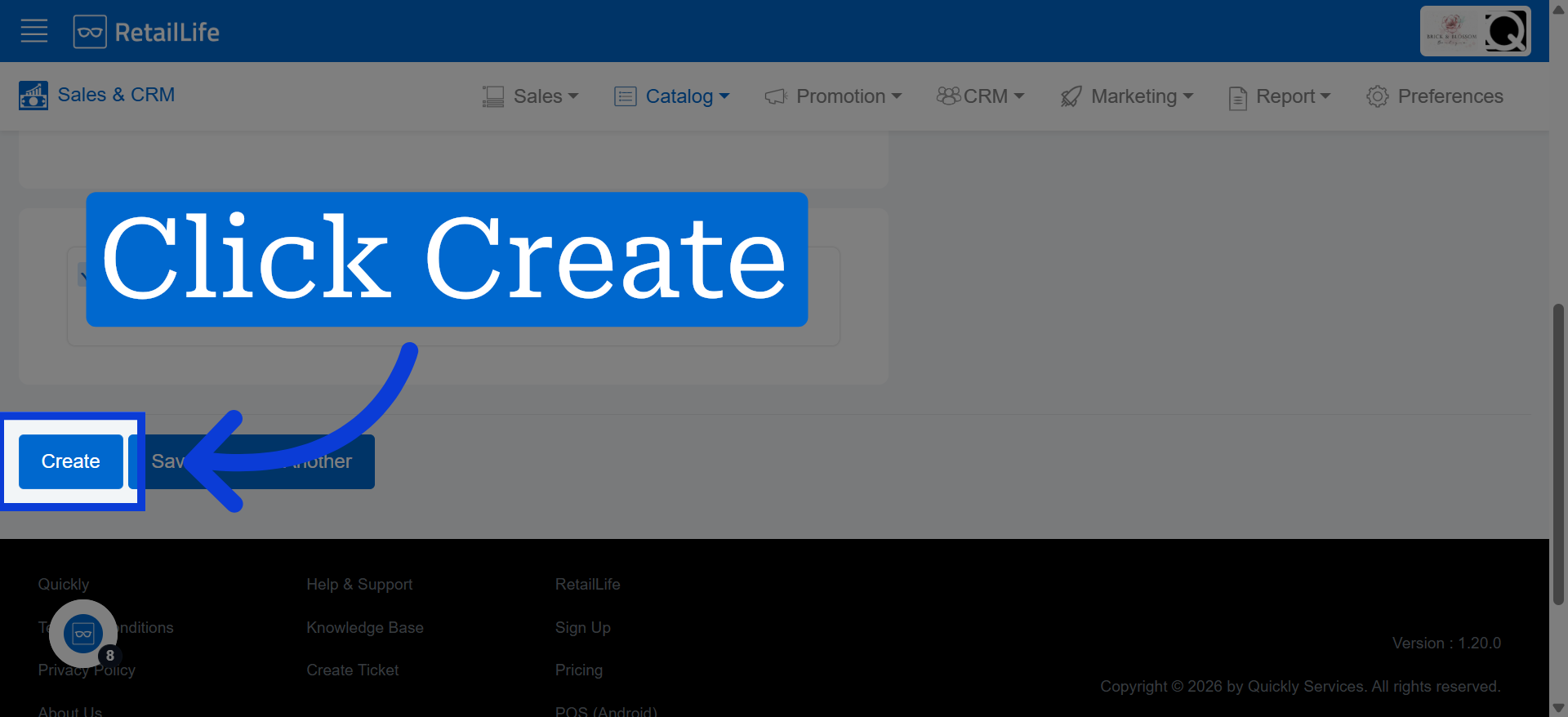
7. Create Section
Navigate to the Catalog section to access additional options.
8. Add New Category
Click "Section" to view and manage existing sales sections or create new section.
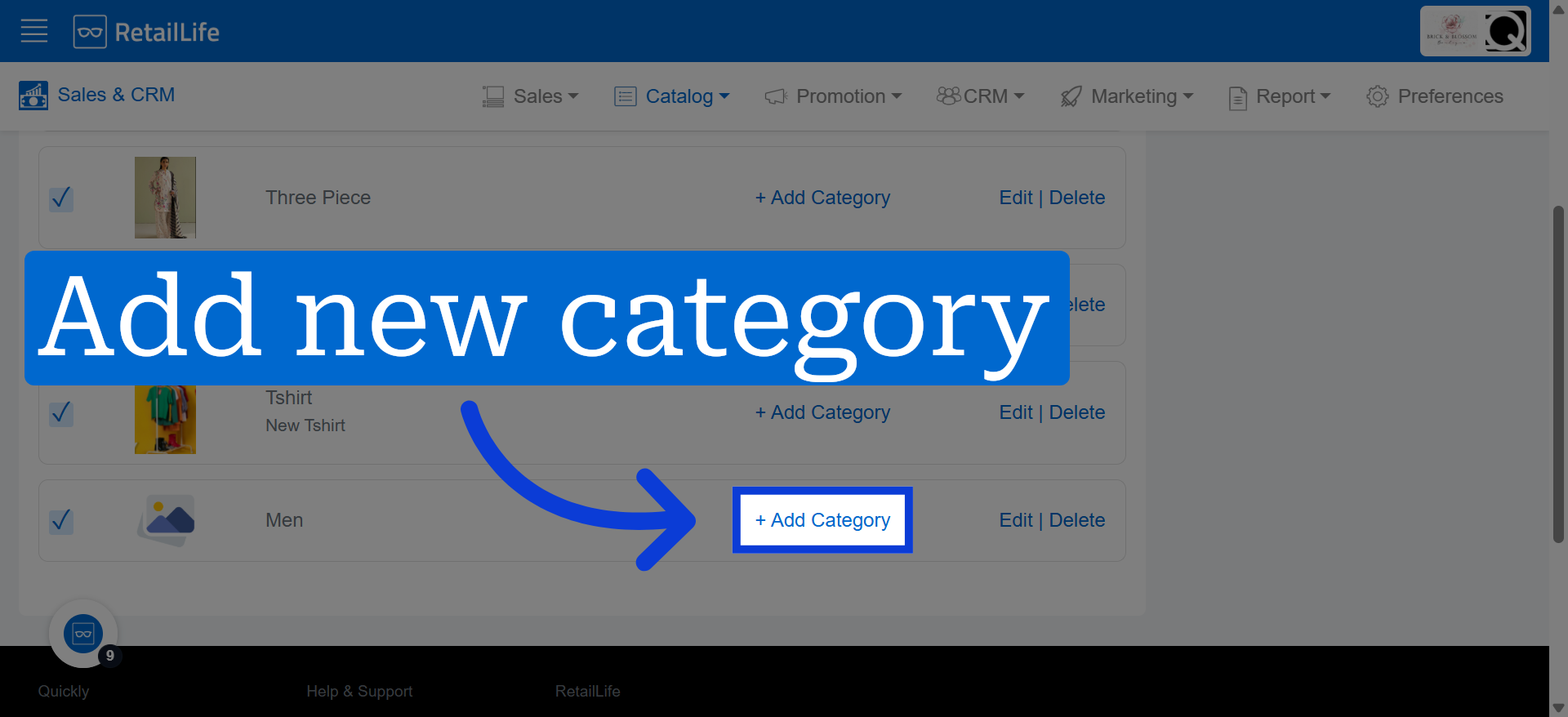
9. Add a 'Category' Title Accordingly
Click "+ New Section" to start creating a new sales section.
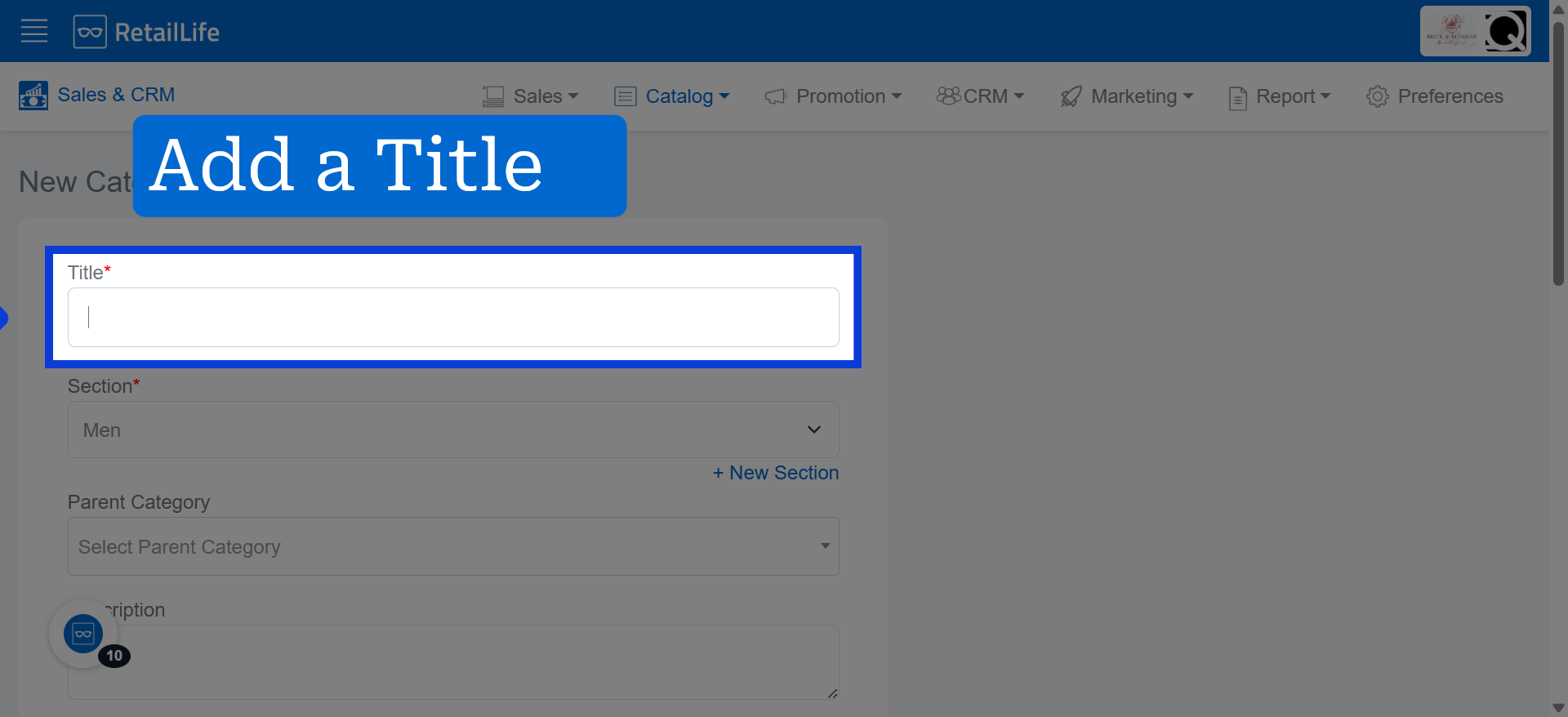
10. Create Category
Click the "Title" field to enter the name of the new section.
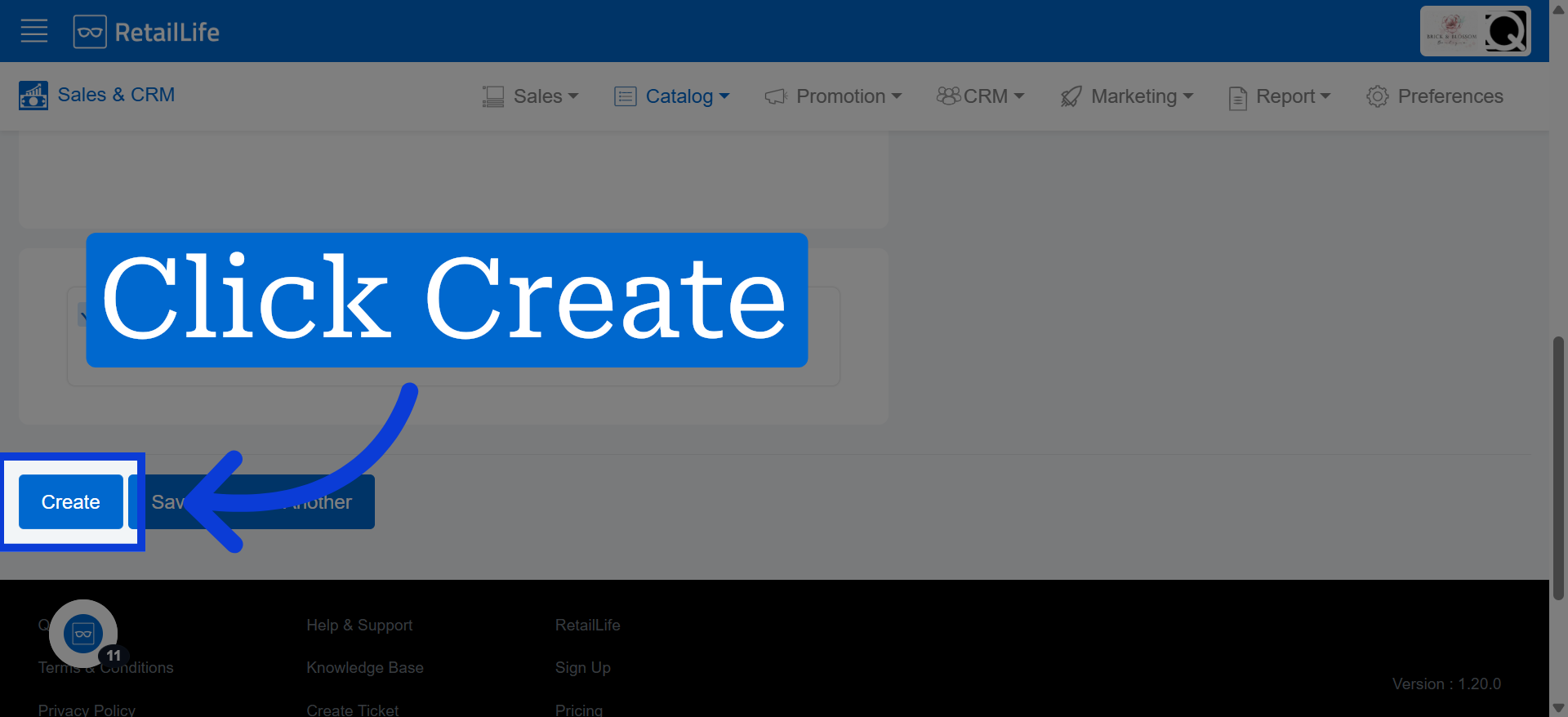
11. Select Category Tab
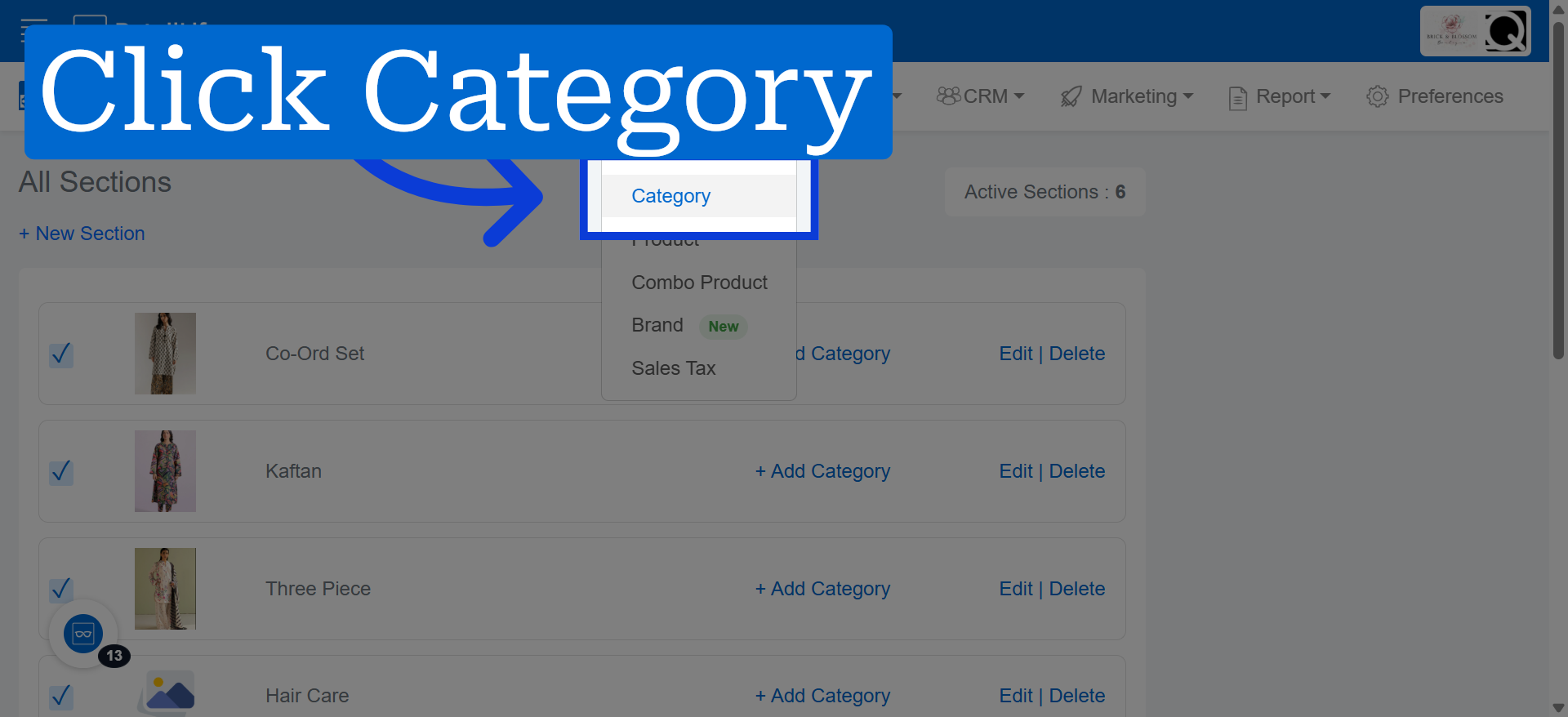
12. Click Here to Add a New product Under a Selected Category
Navigate to the Catalog section to access additional options.
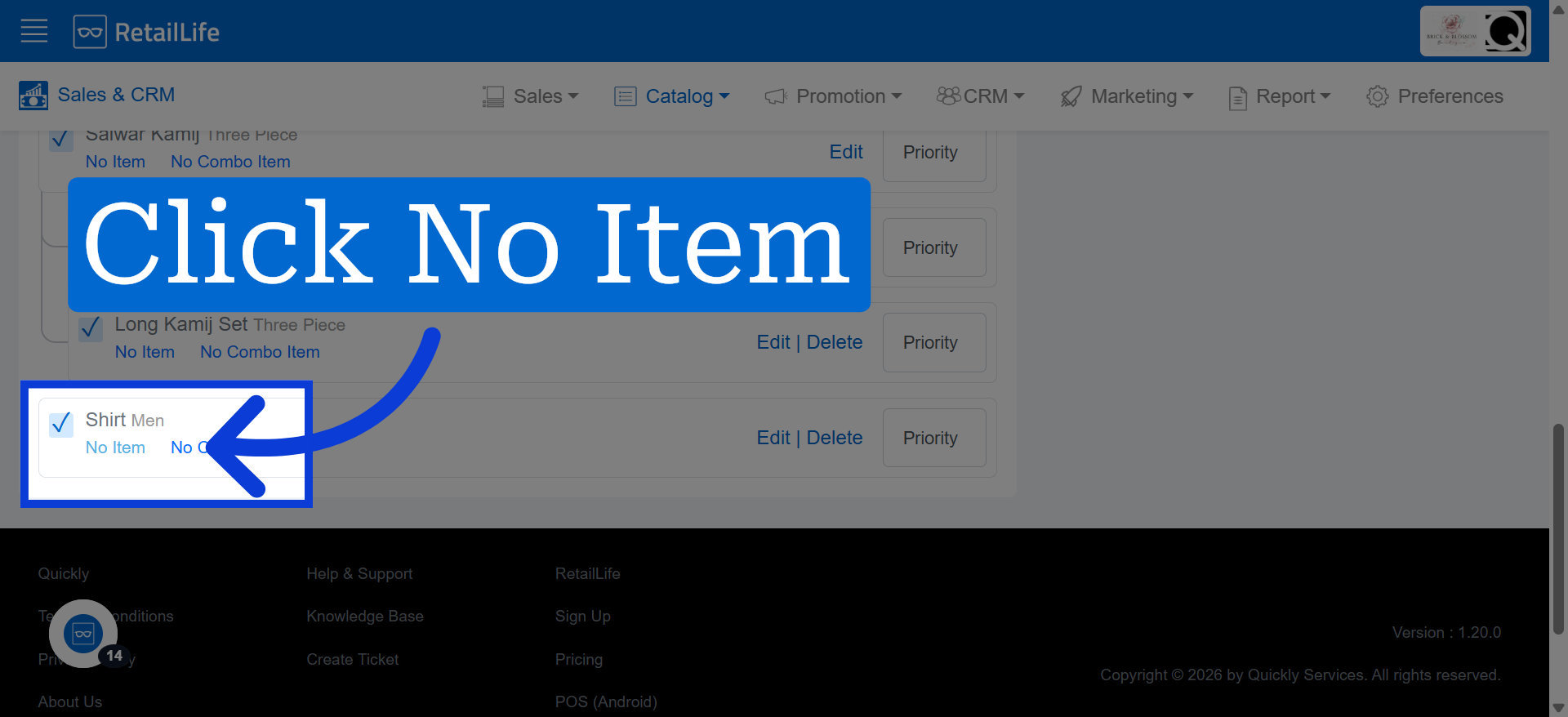
13. Add New Product
Click "Section" to view and manage existing sales sections or create new section.
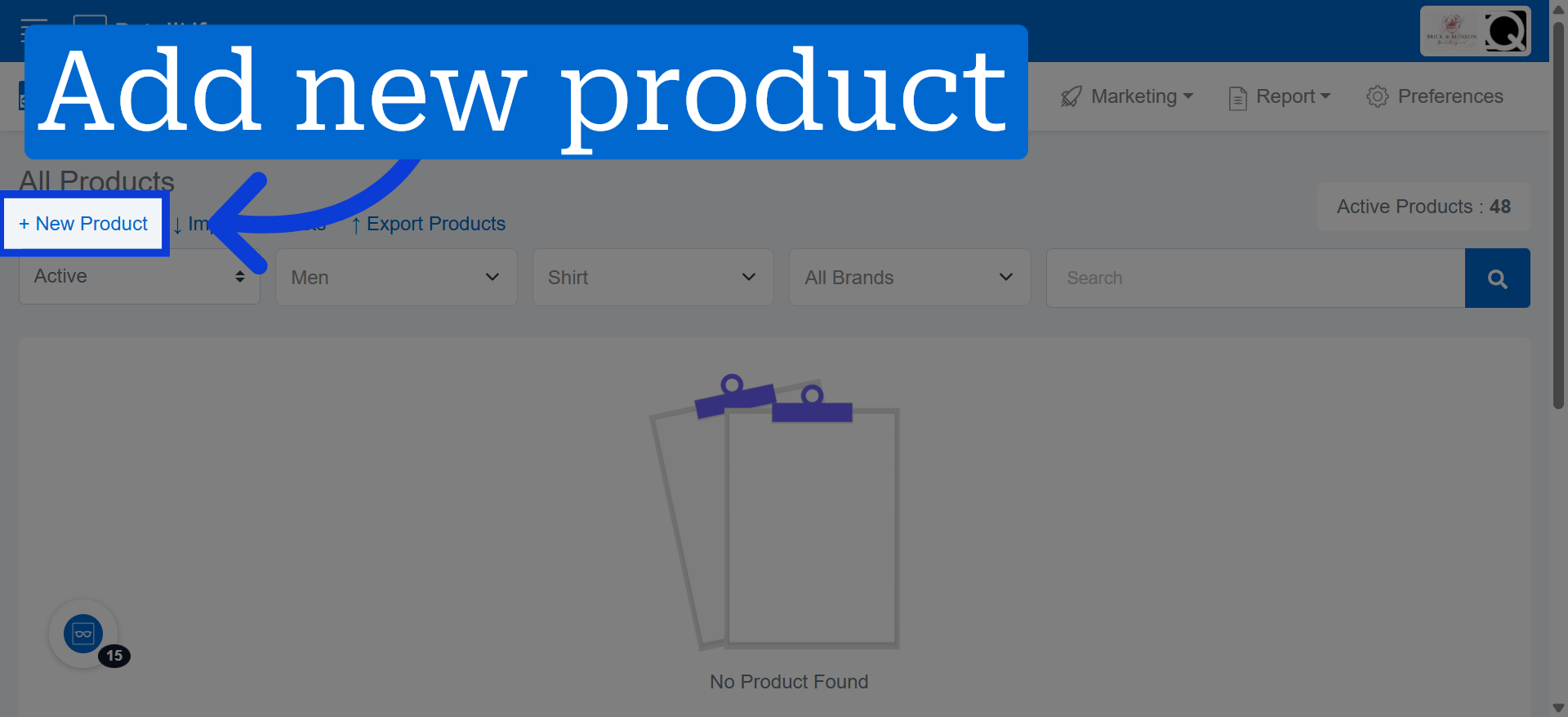
14. Access Product Title Field
Click "+ New Section" to start creating a new sales section.
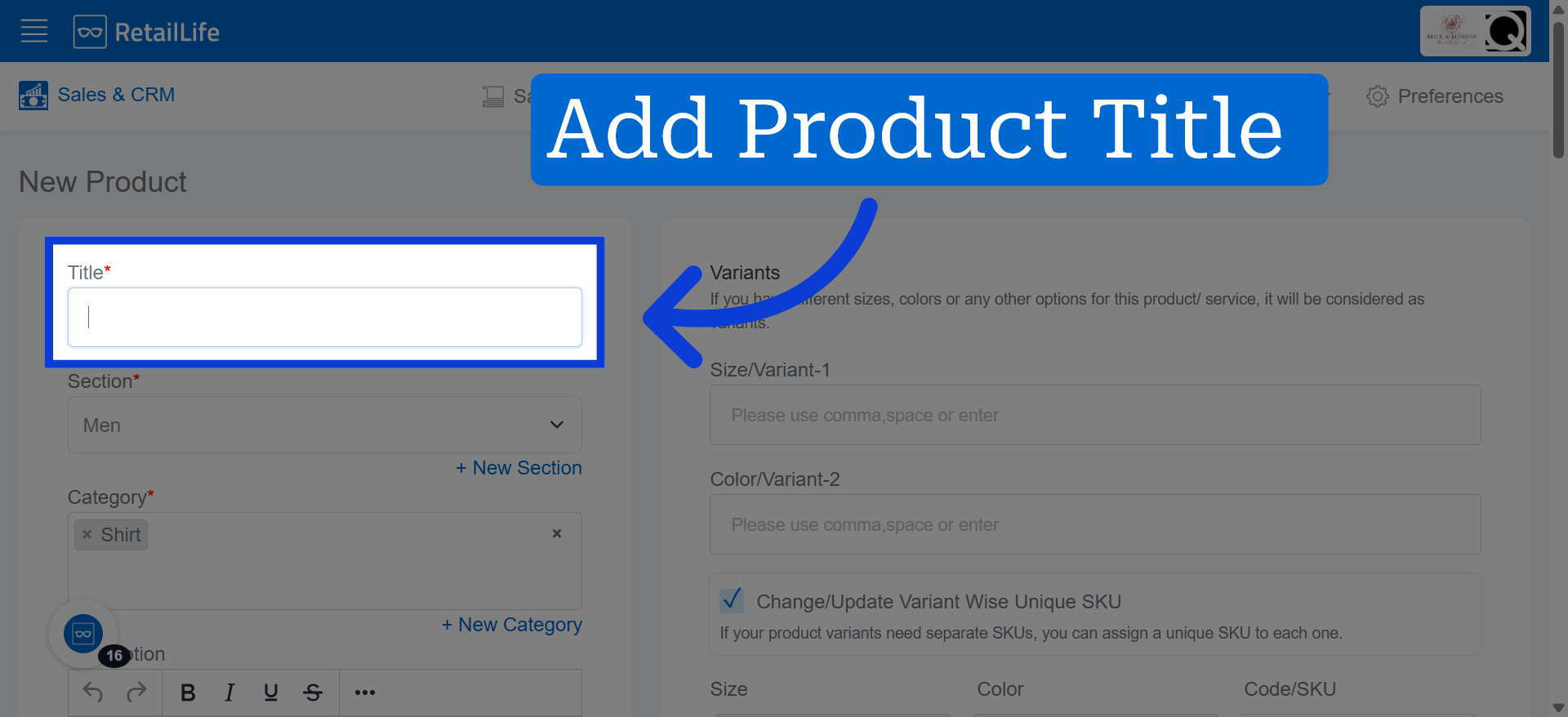
15. Access Price Field
Navigate to the Catalog section to access additional options.
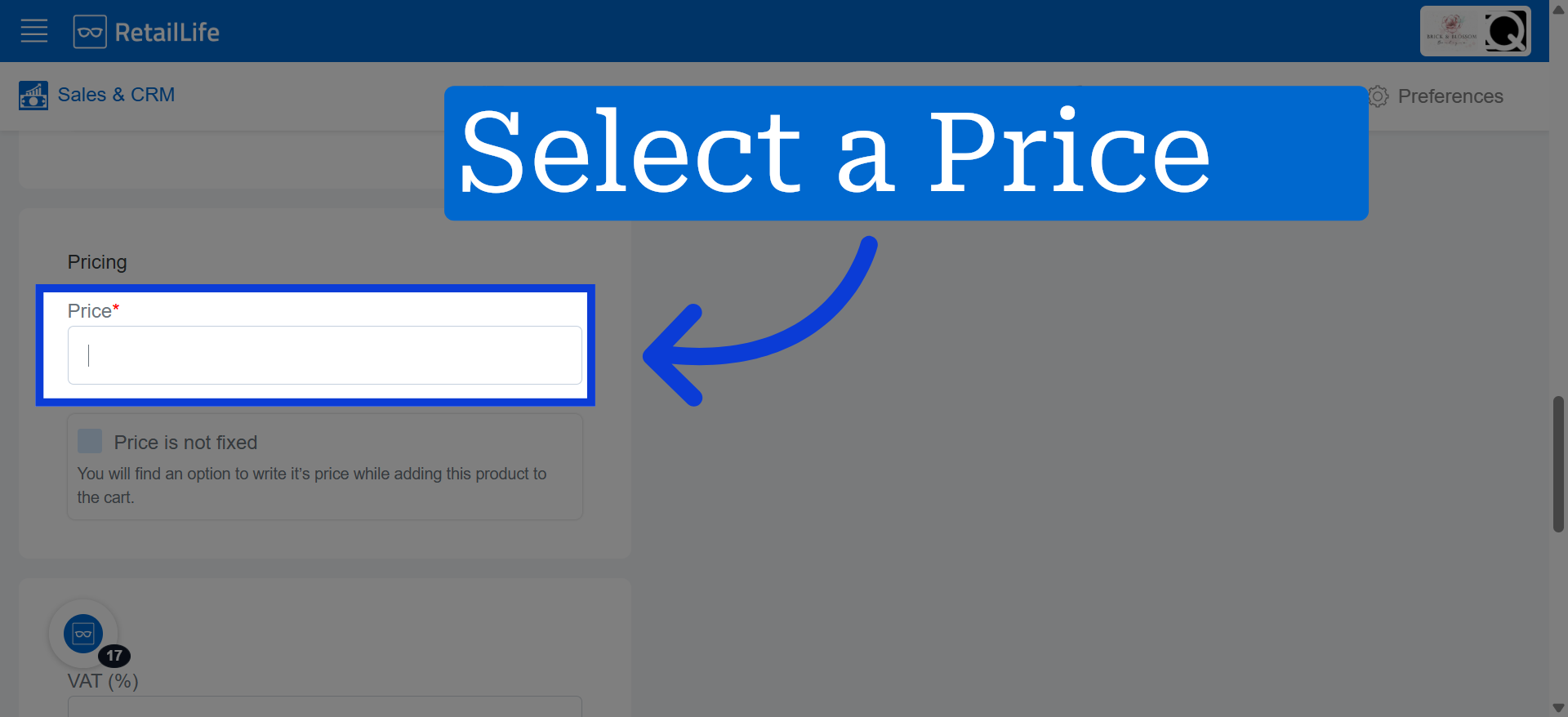
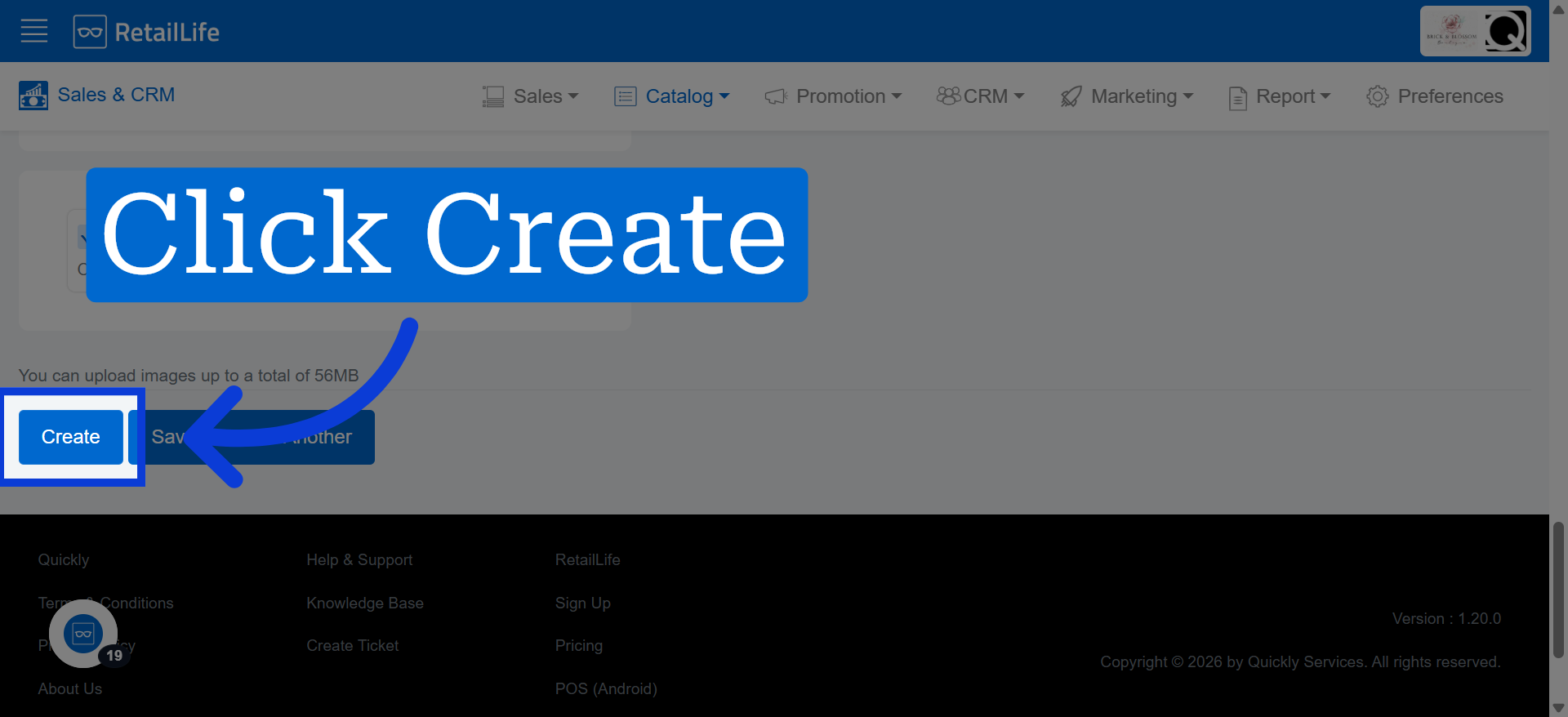
16. Create Product
Click "Section" to view and manage existing sales sections or create new section.
17. Go to the POS app
Click "+ New Section" to start creating a new sales section.