How to Add & Configure New Service in RetailLife
This tutorial guides you through adding a new service category, pricing, and other details in the
Business Portal.
Go to
retaillife.quicklyservices.com
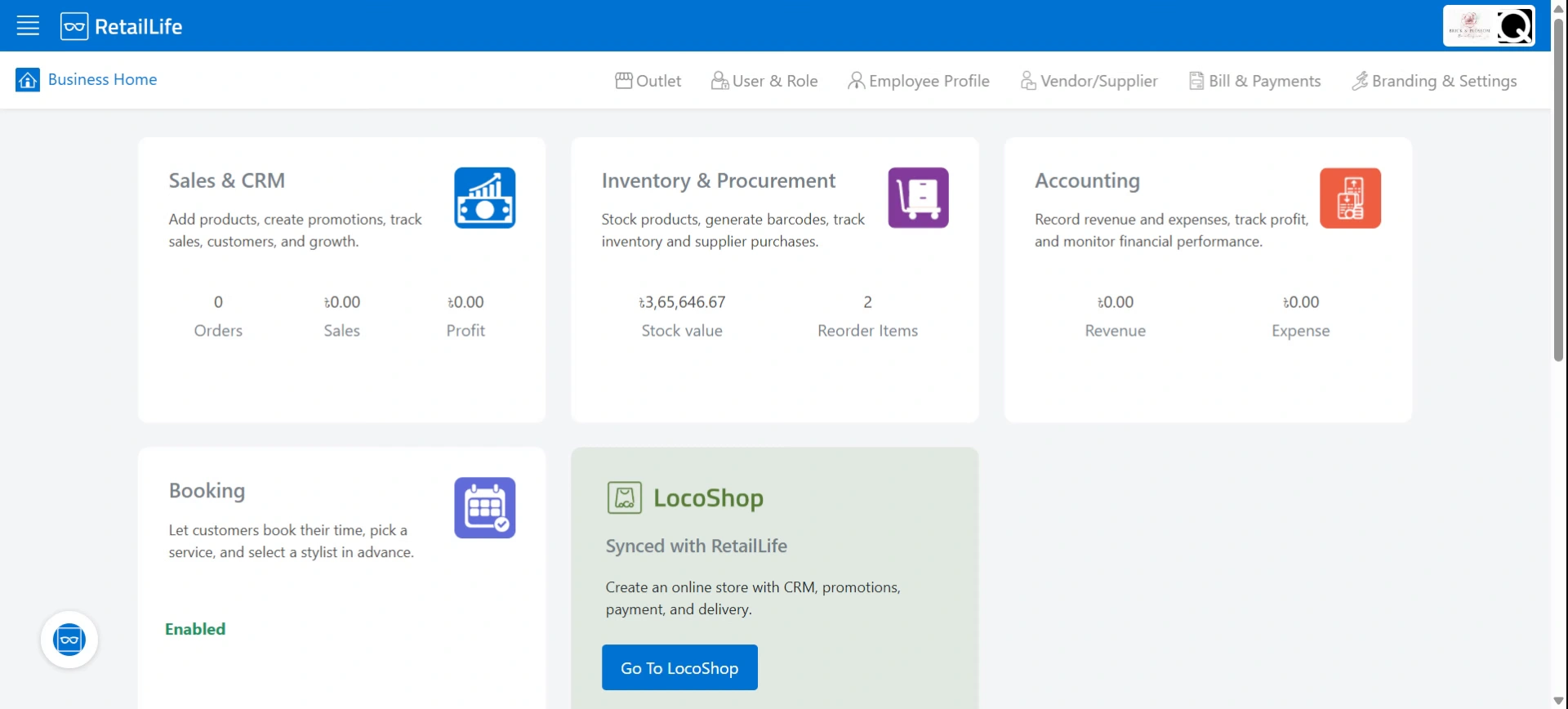
1. Login to your Business Portal
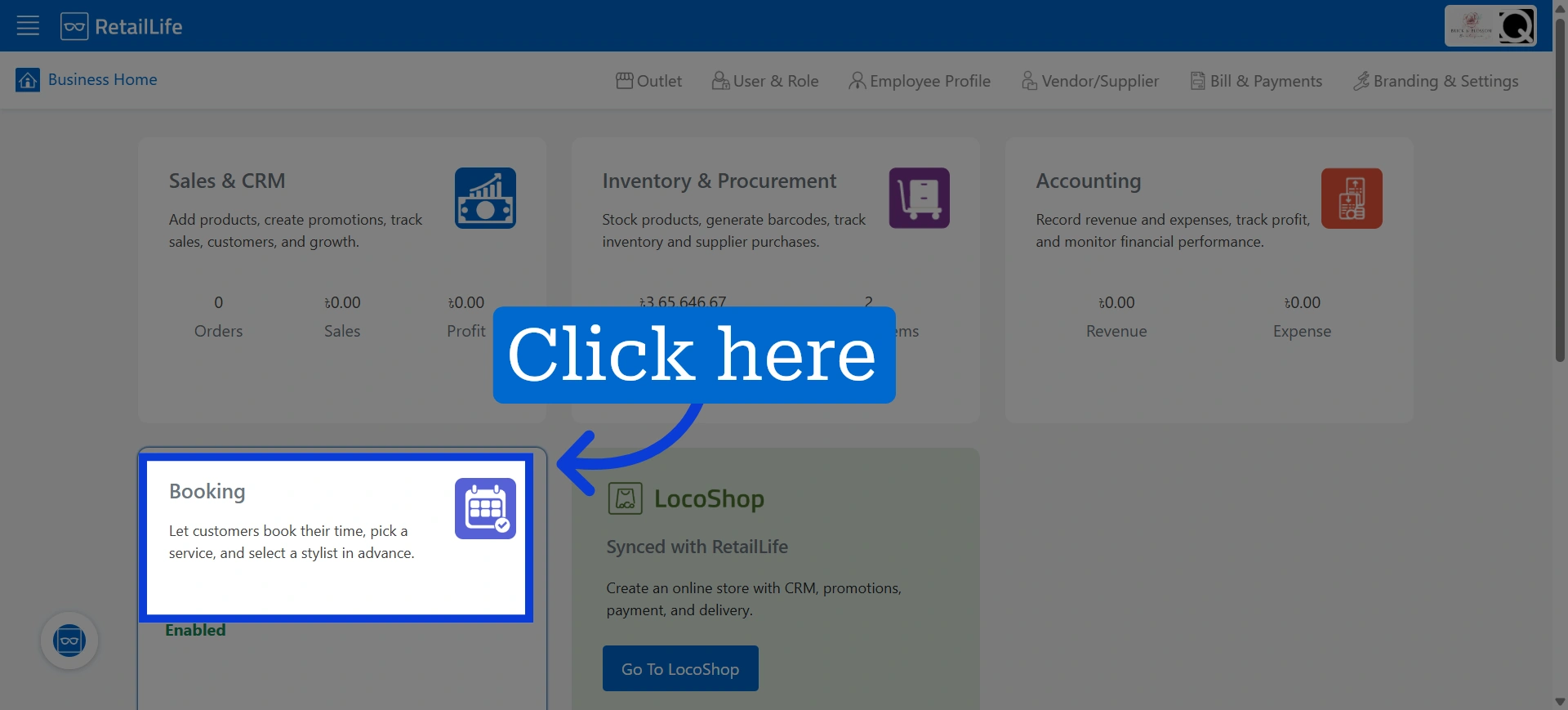
2. Access Booking Module
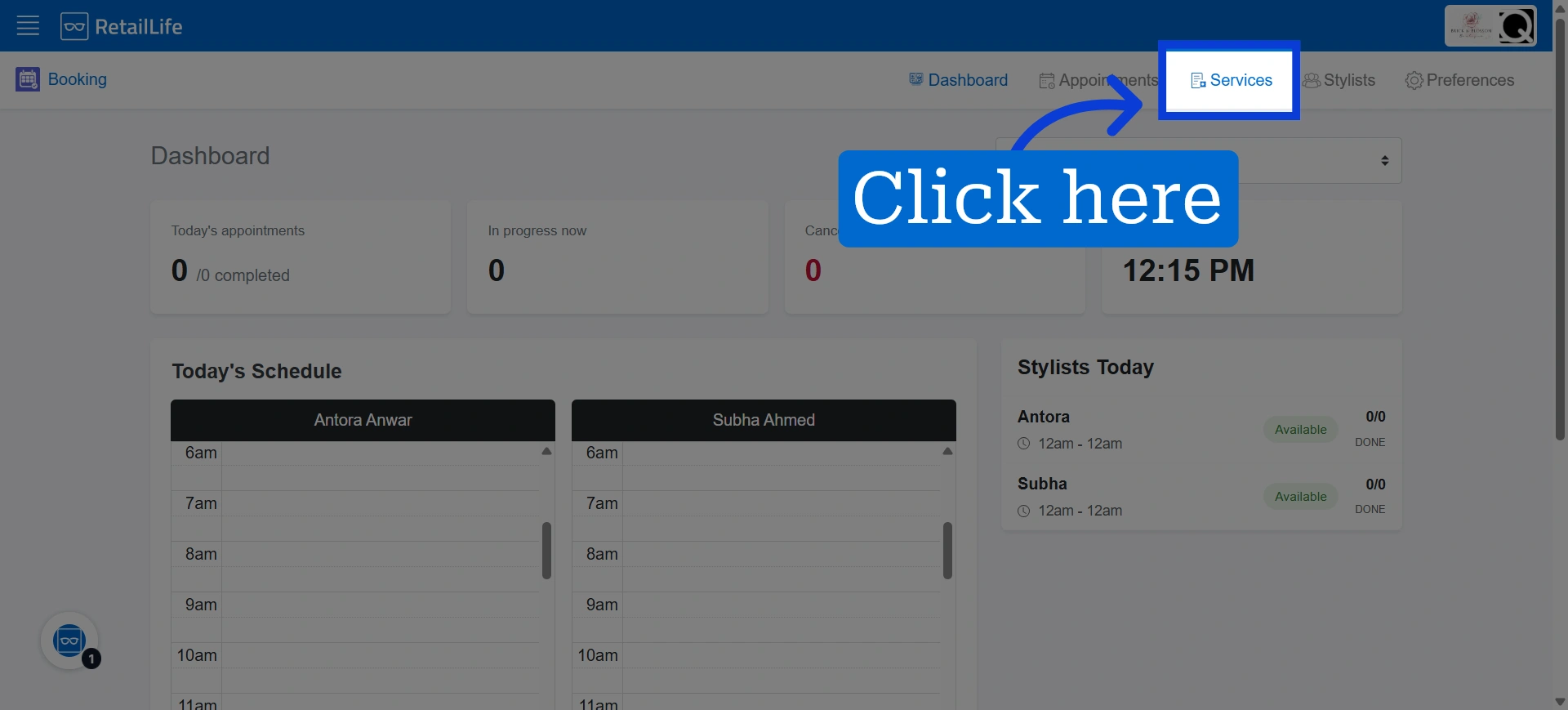
3. Click "Services" to view and manage active services
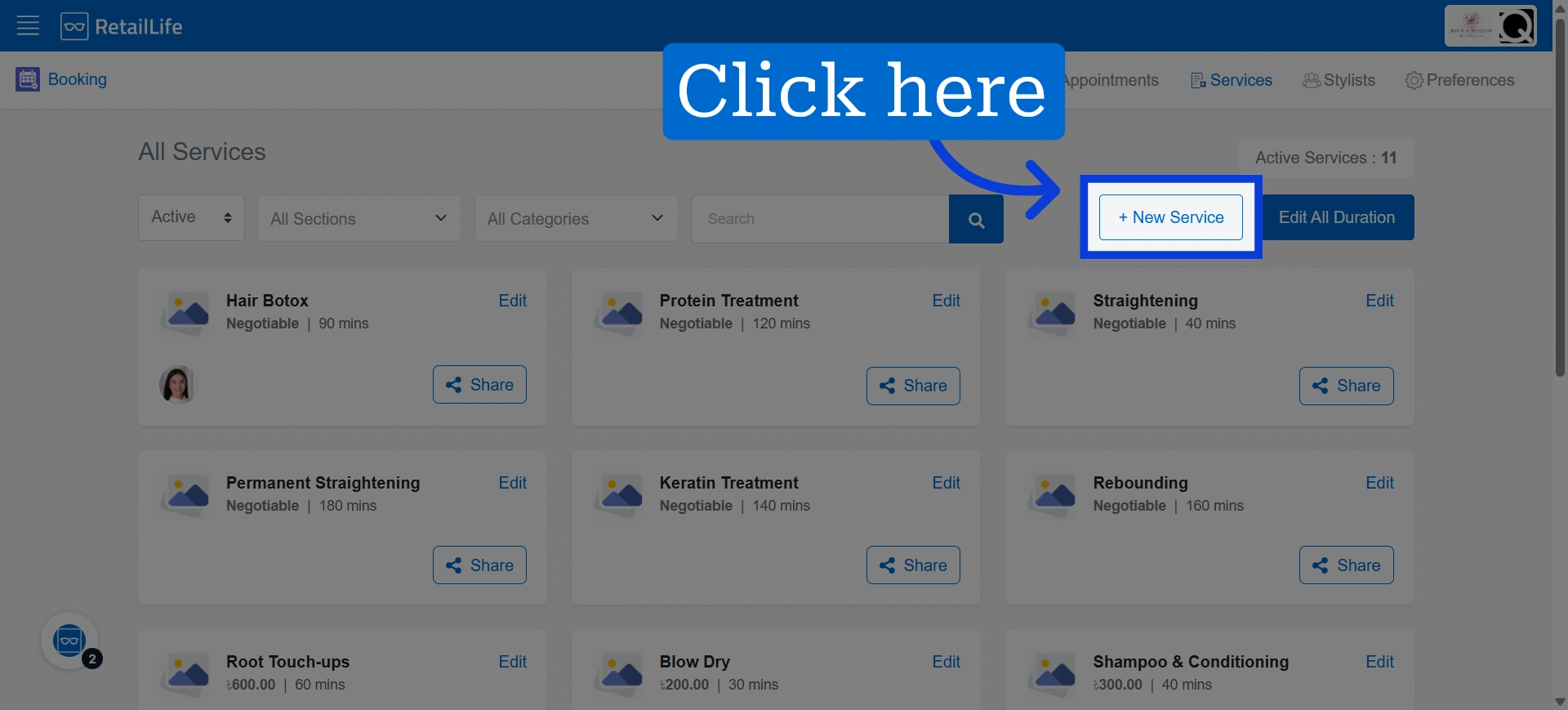
4. Initiate service creation by clicking "New Service"
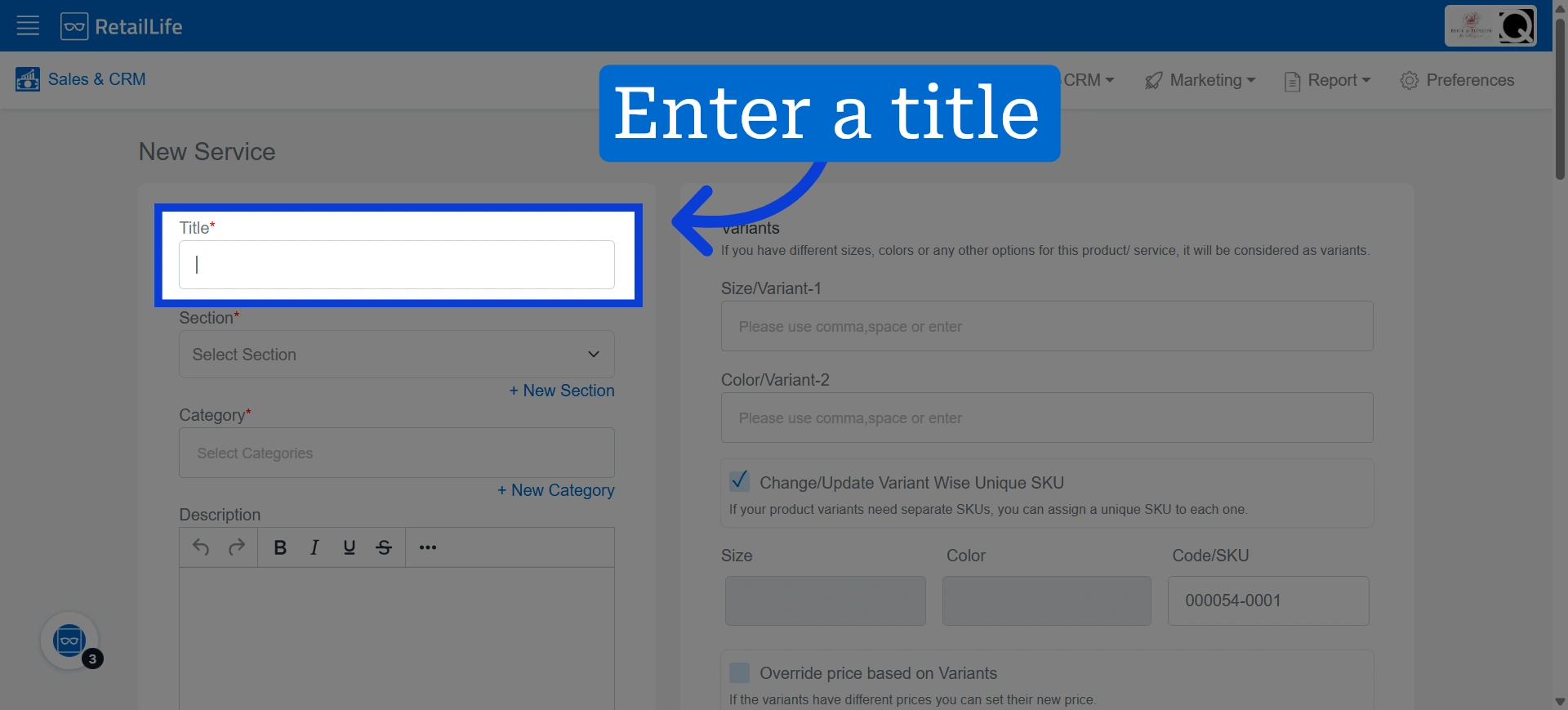
5. Enter the name of the new service
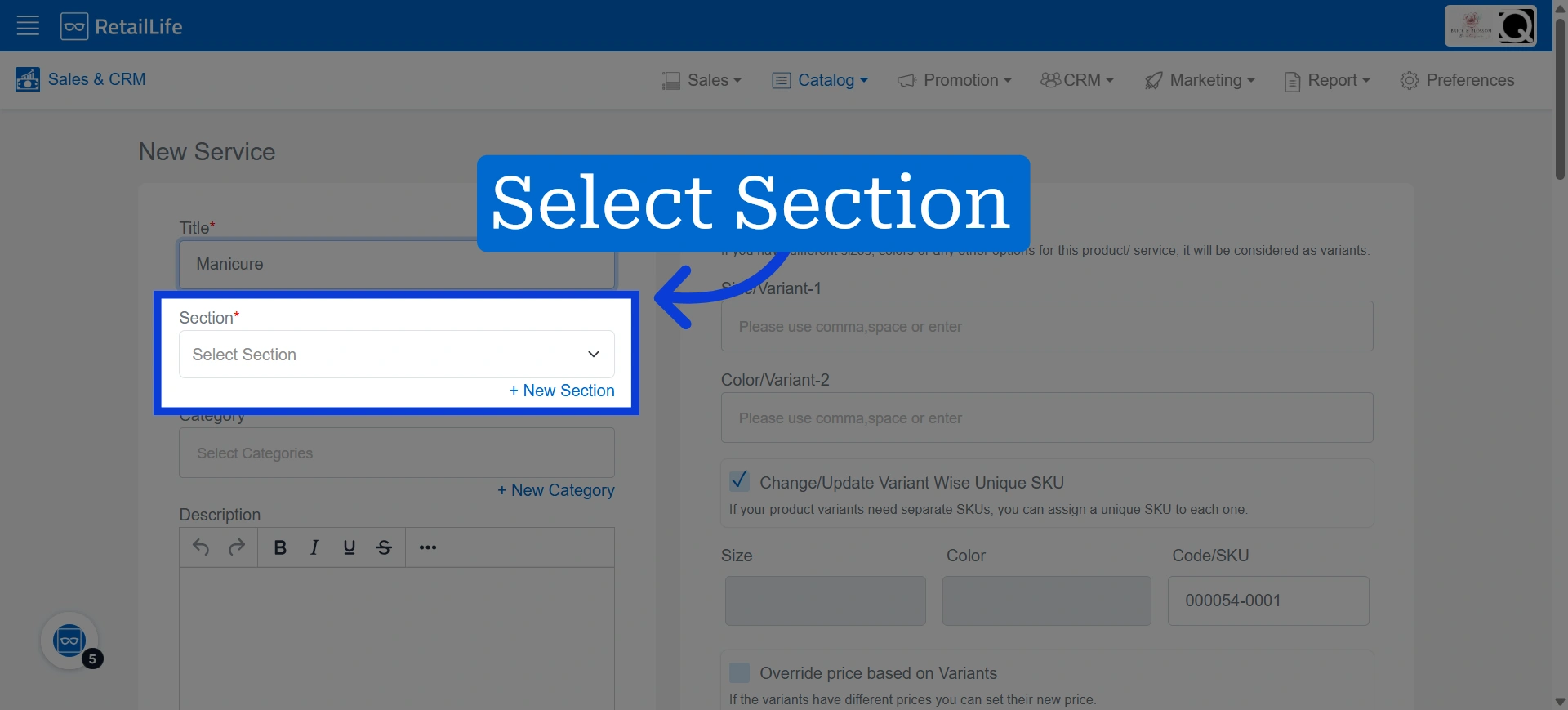
6. Select service section appropriate for the new service
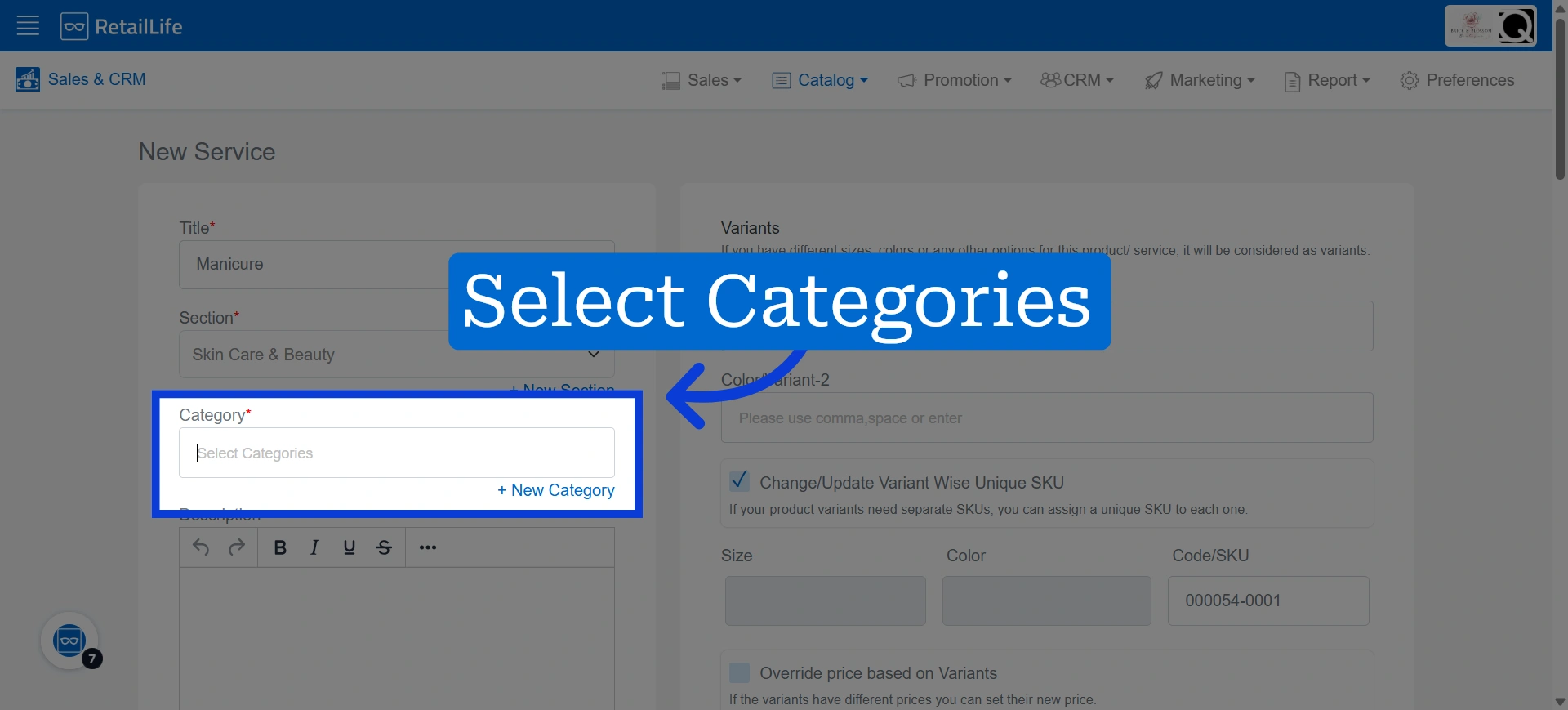
7. Select service category to specify the classification
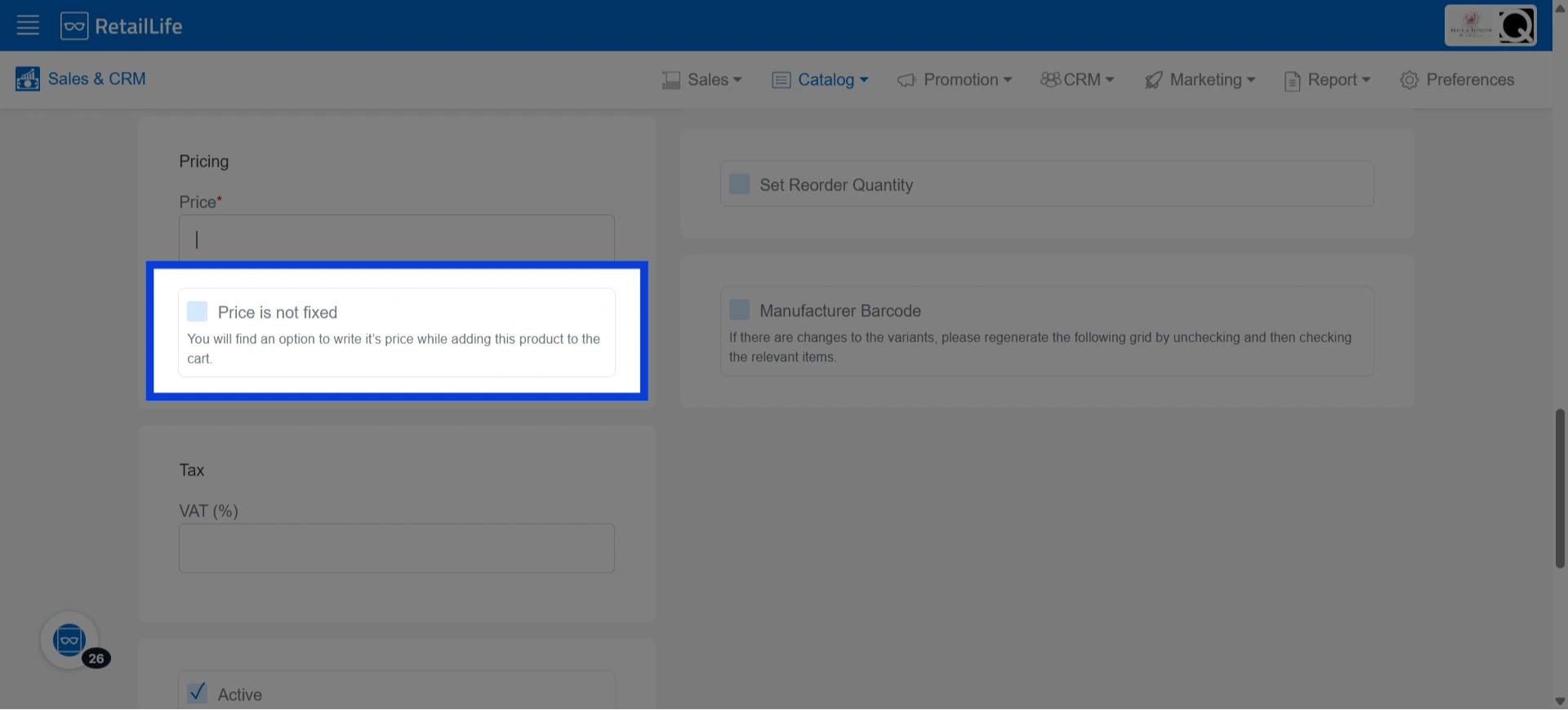
8. Select the checkbox next to "Price is not fixed" if you offer negotiable service pricing
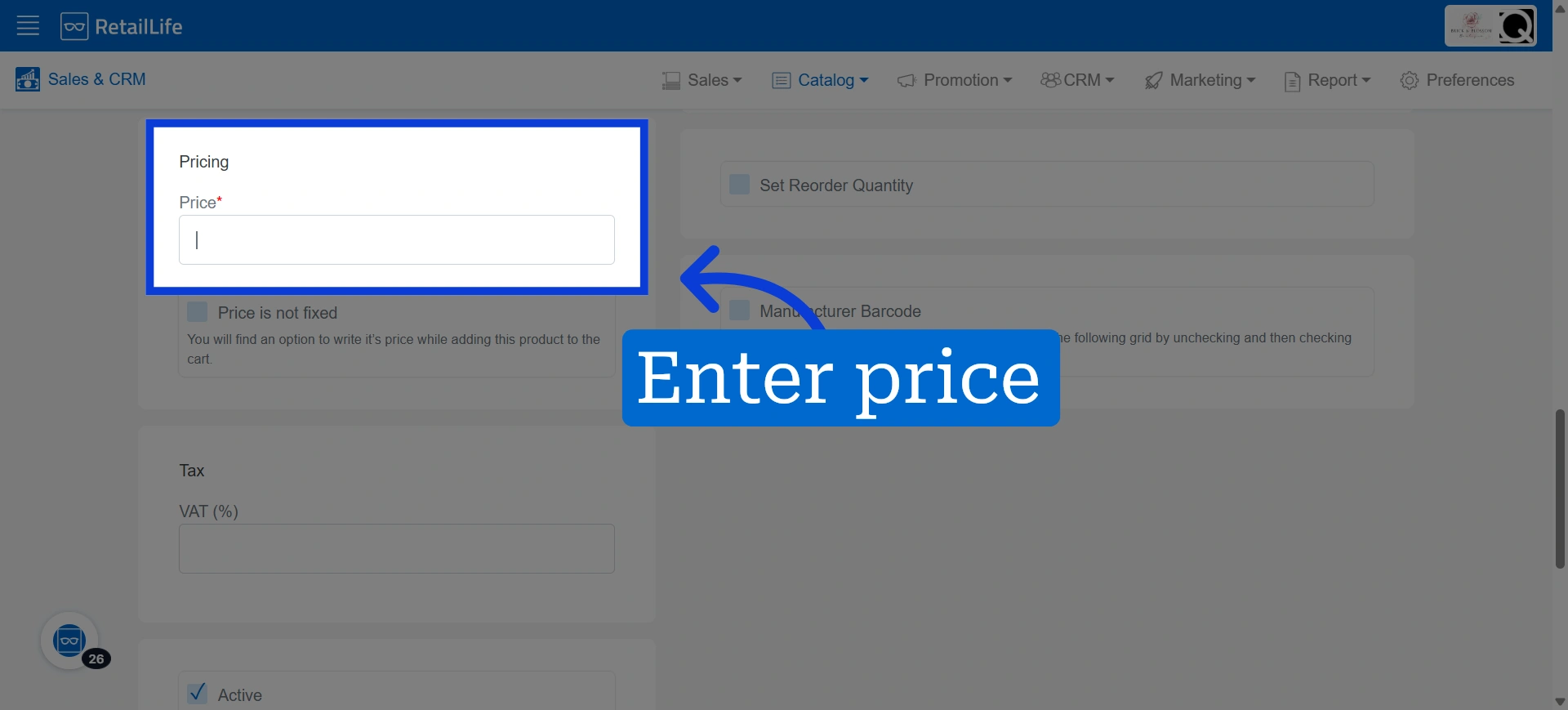
9. Specify pricing for this service if it has a fixed price
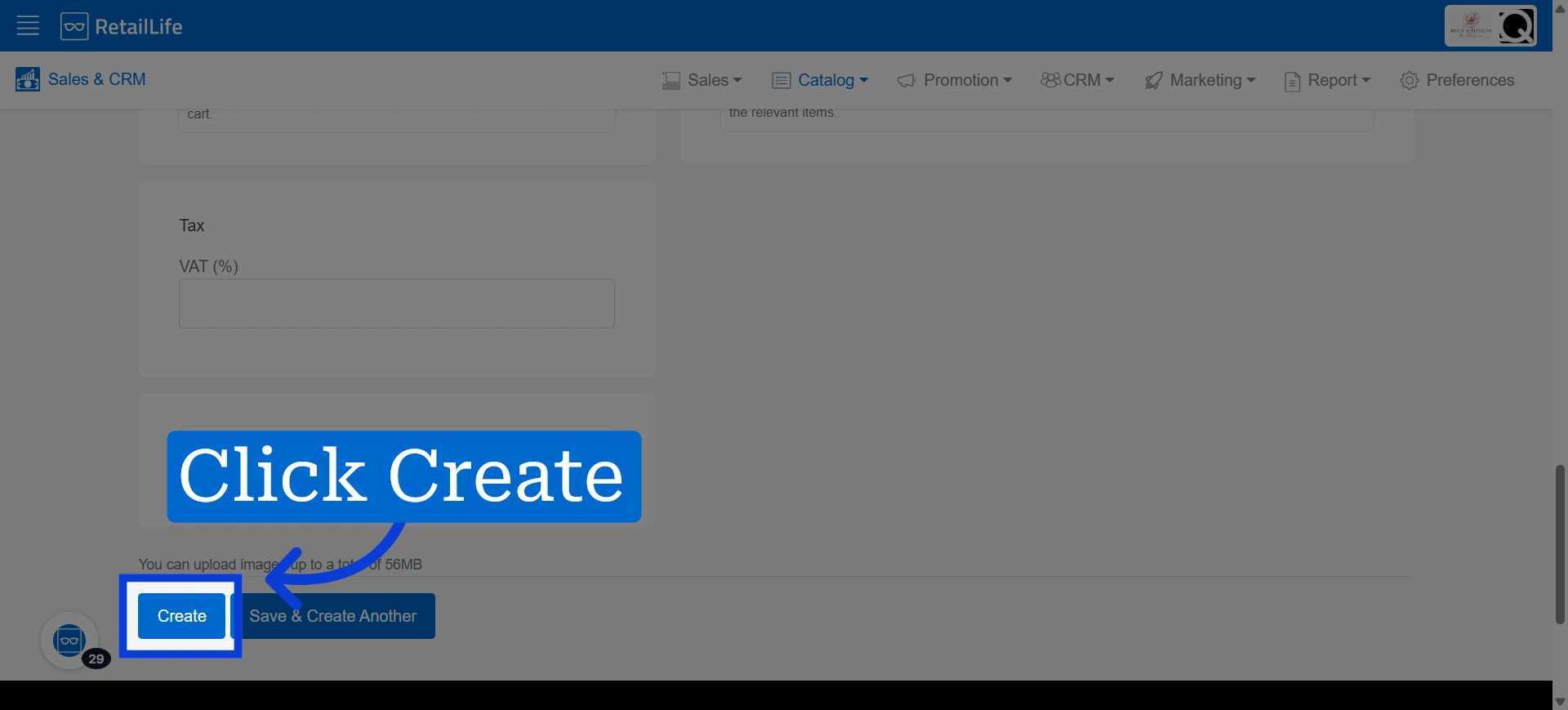
10. Click "Create" to save the service in the system, making it available for booking
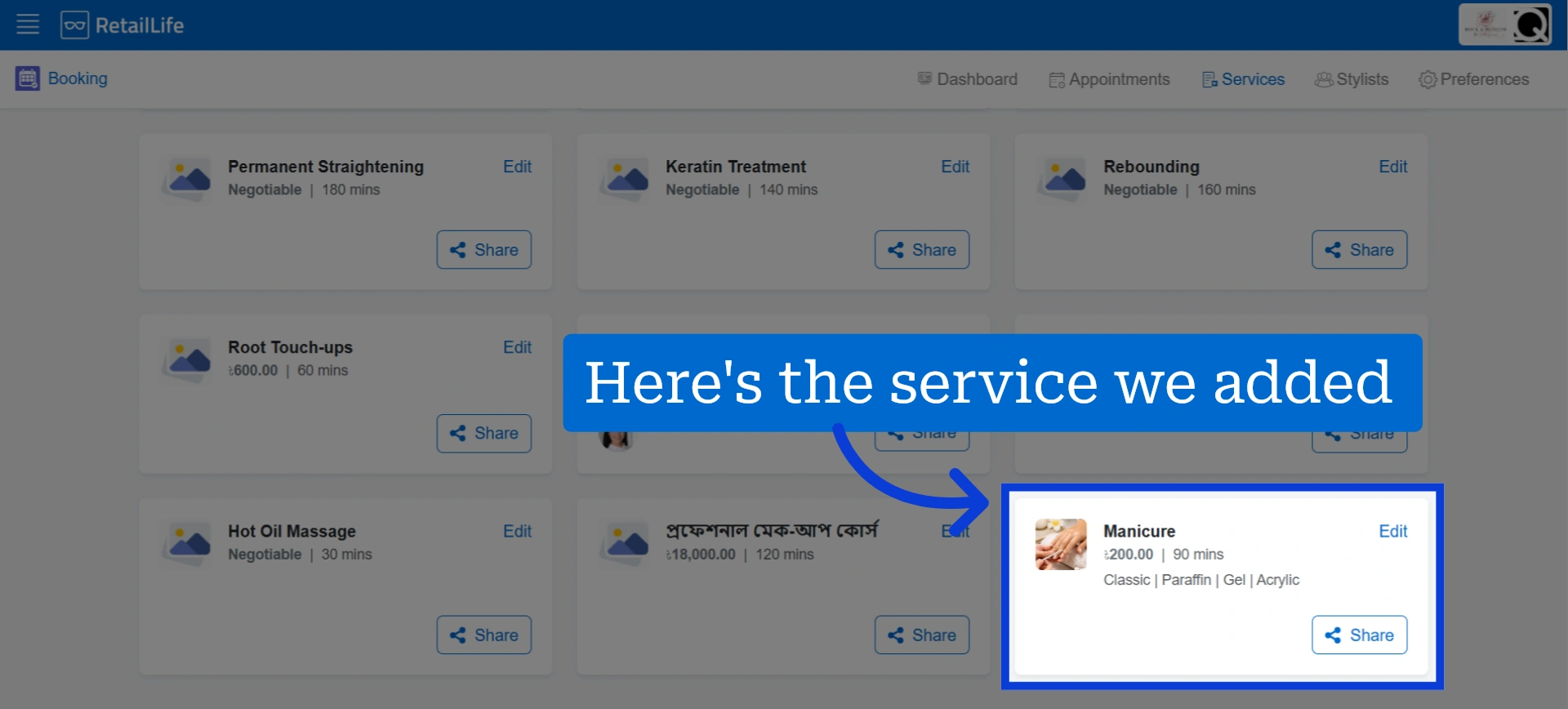
11. The new service will now be displayed on the active service list