How to Configure a New Stylist in RetailLife
This tutorial guides you through adding a new stylist, defining the services they provide and their
availability, and creating a user account for them through the Business Portal.
Go to
retaillife.quicklyservices.com
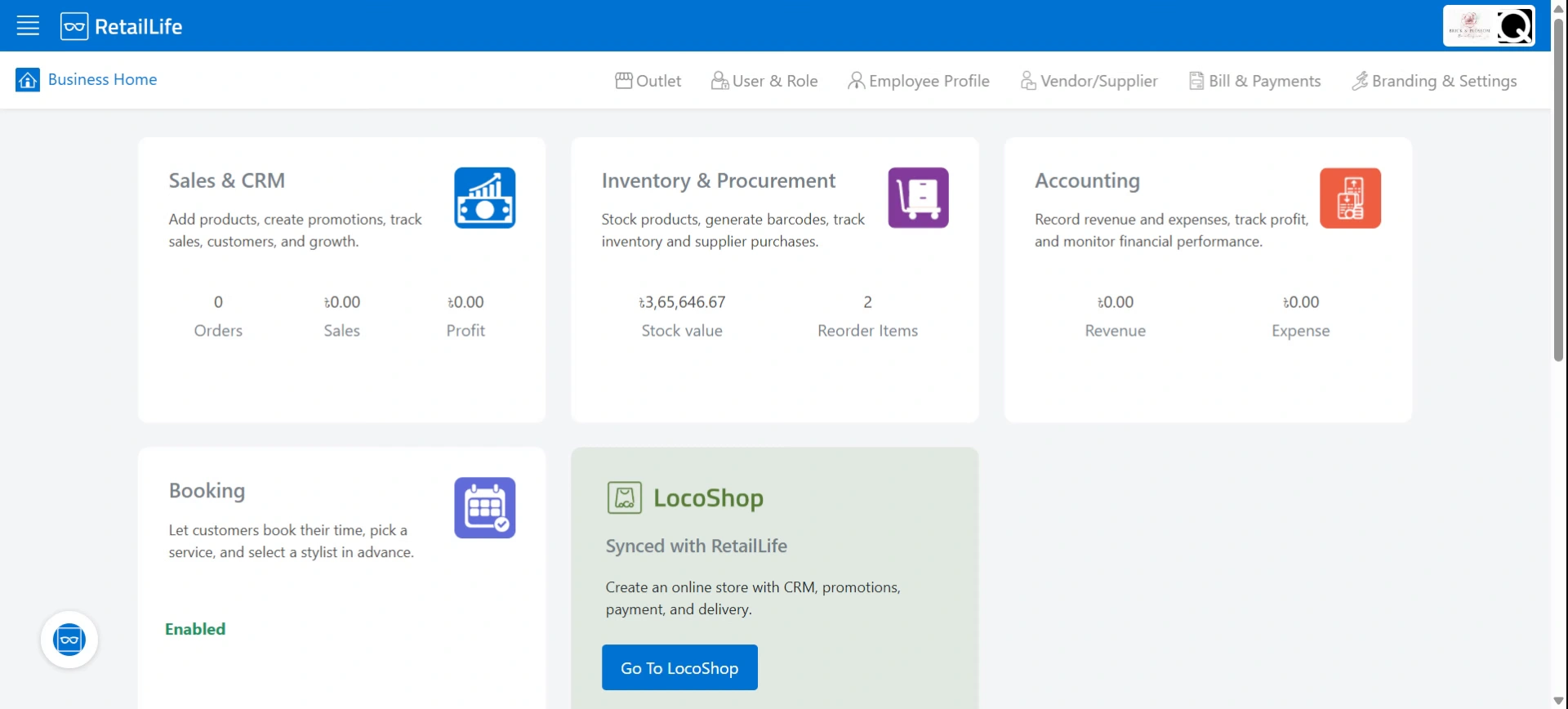
1. Login to your Business Portal
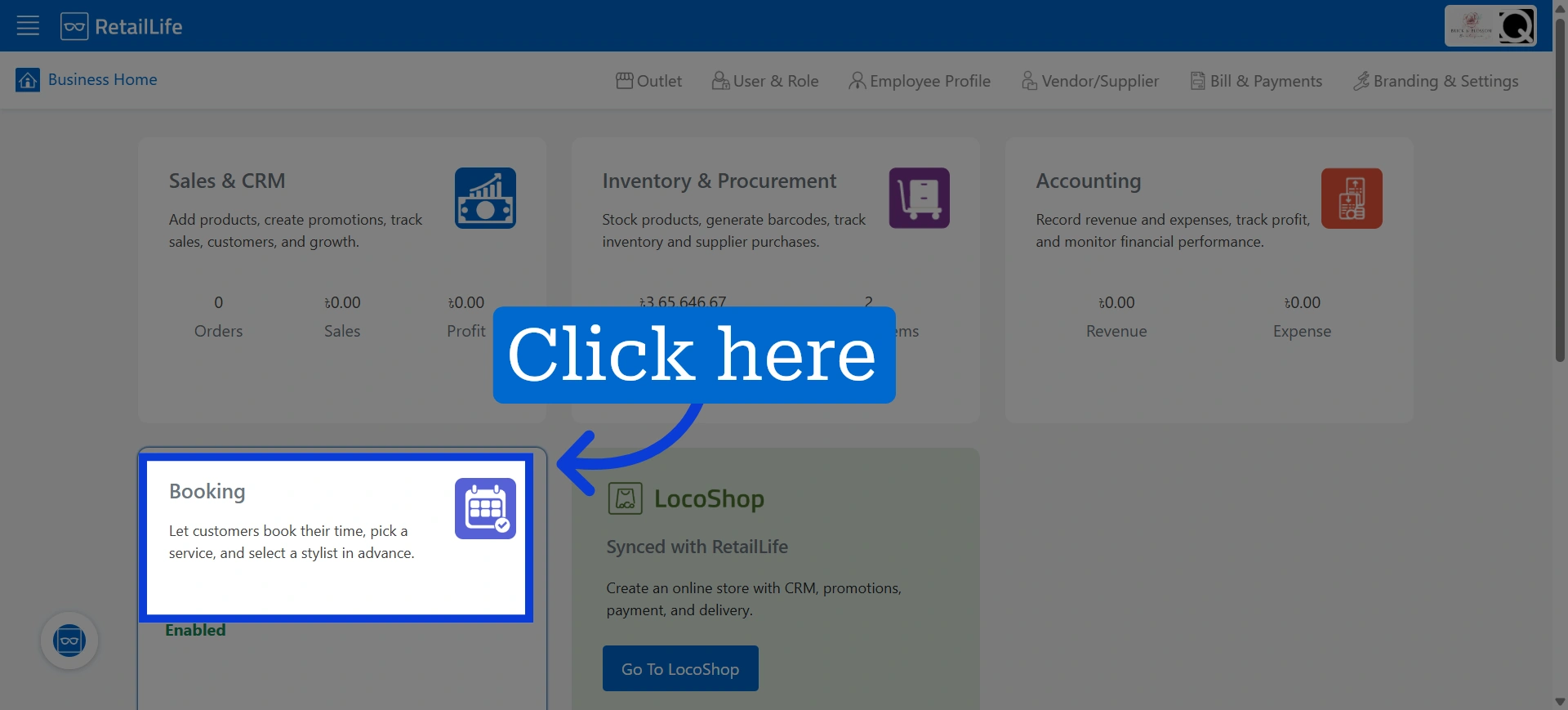
2. Access Booking Module
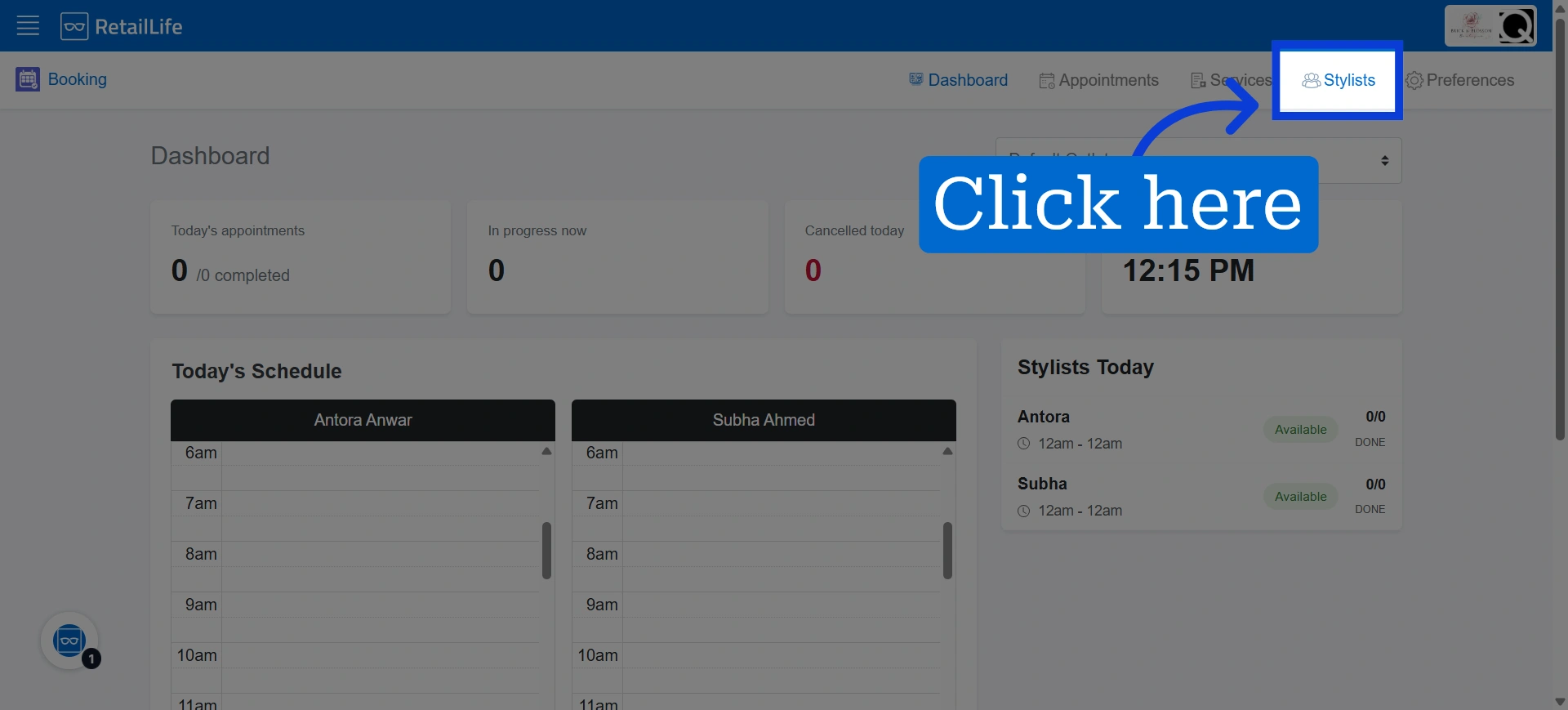
3. Click "Stylist" to view and manage available stylist
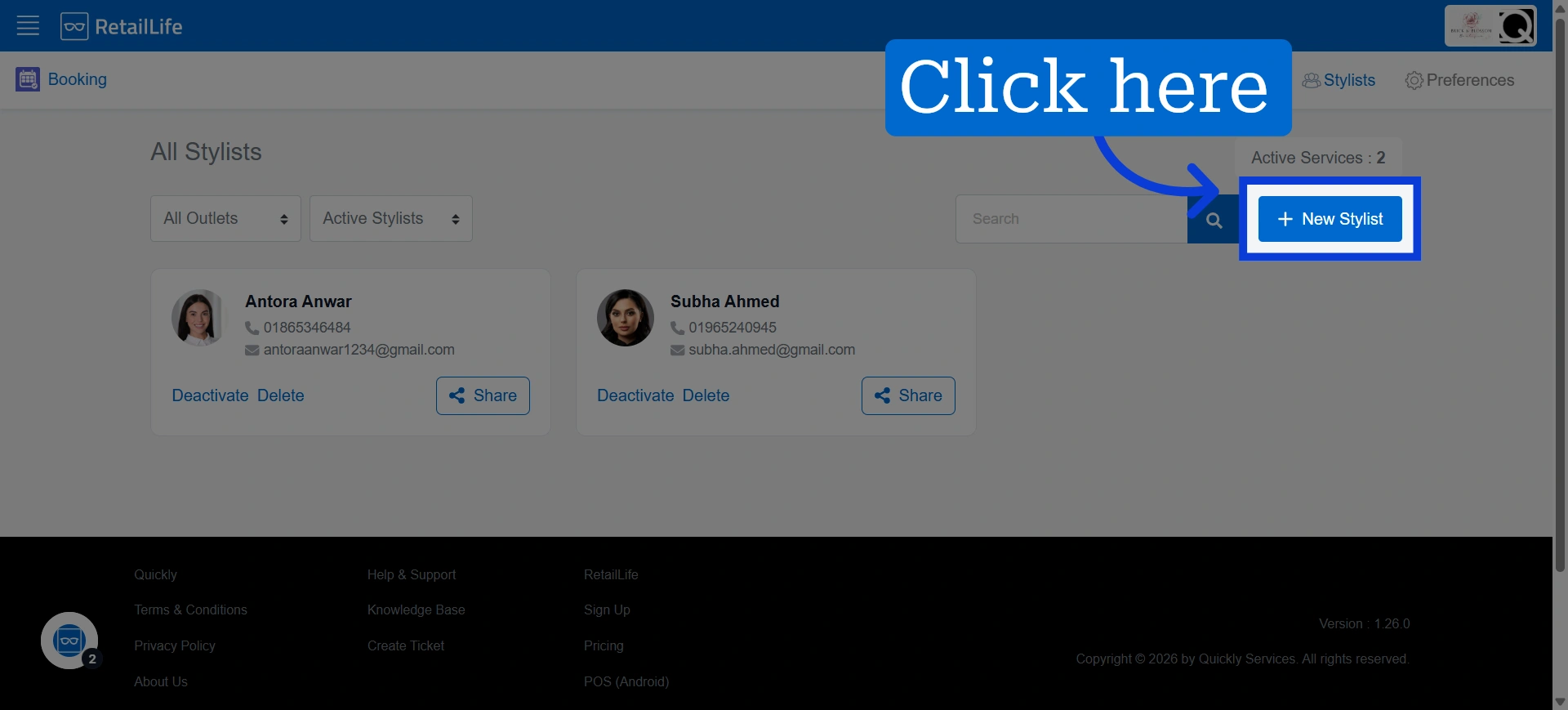
4. Initiate adding new stylist by clicking "New Stylist"
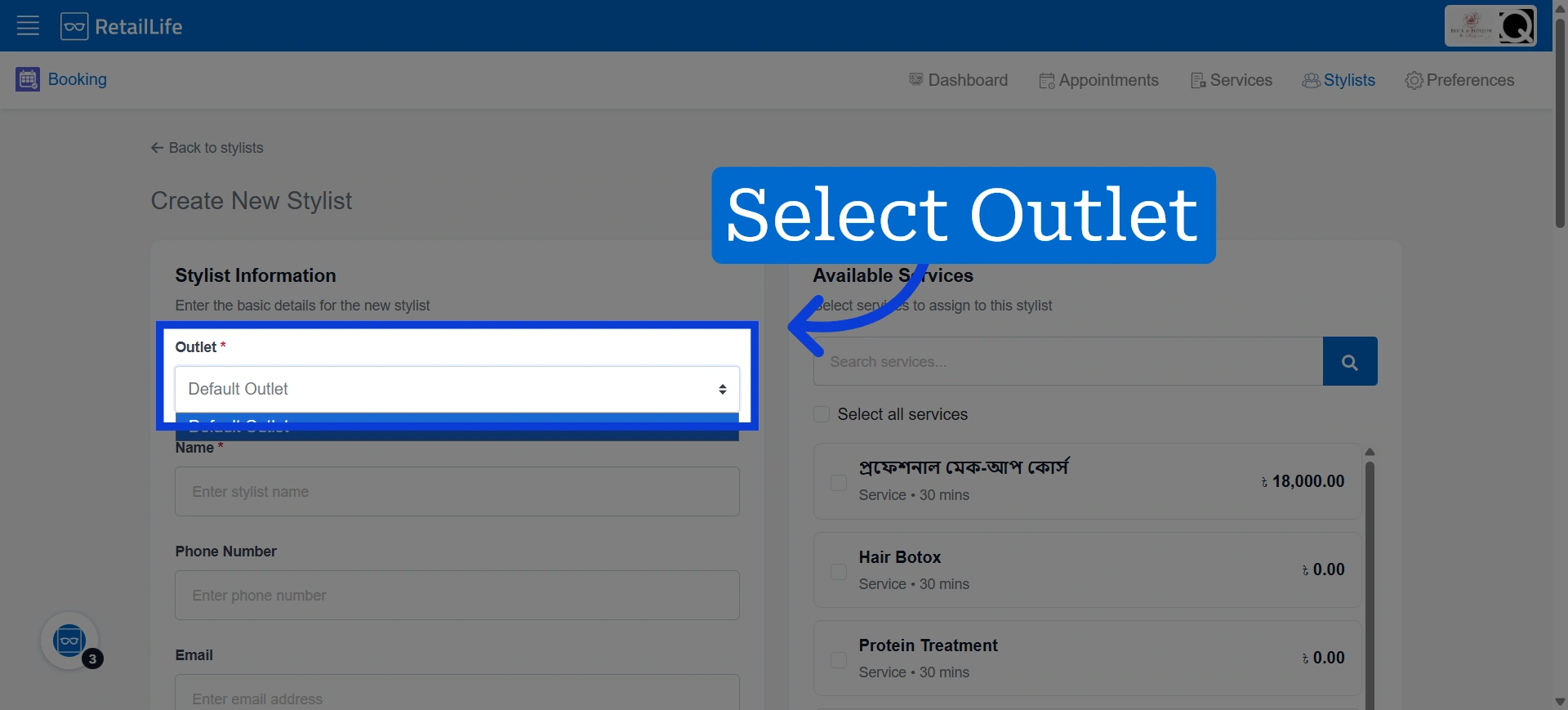
5. Choose the outlet where the new stylist will be assigned to work
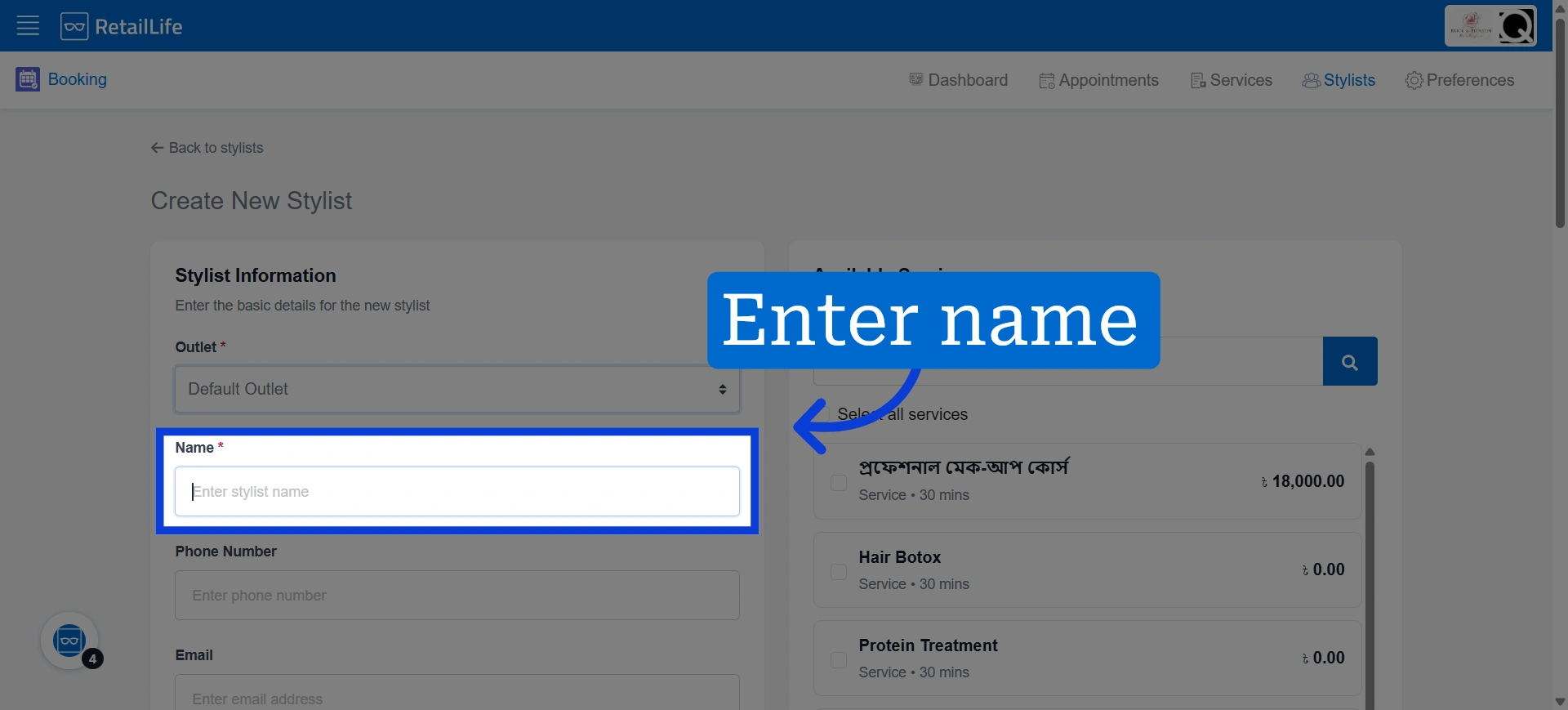
6. Enter the stylist’s name
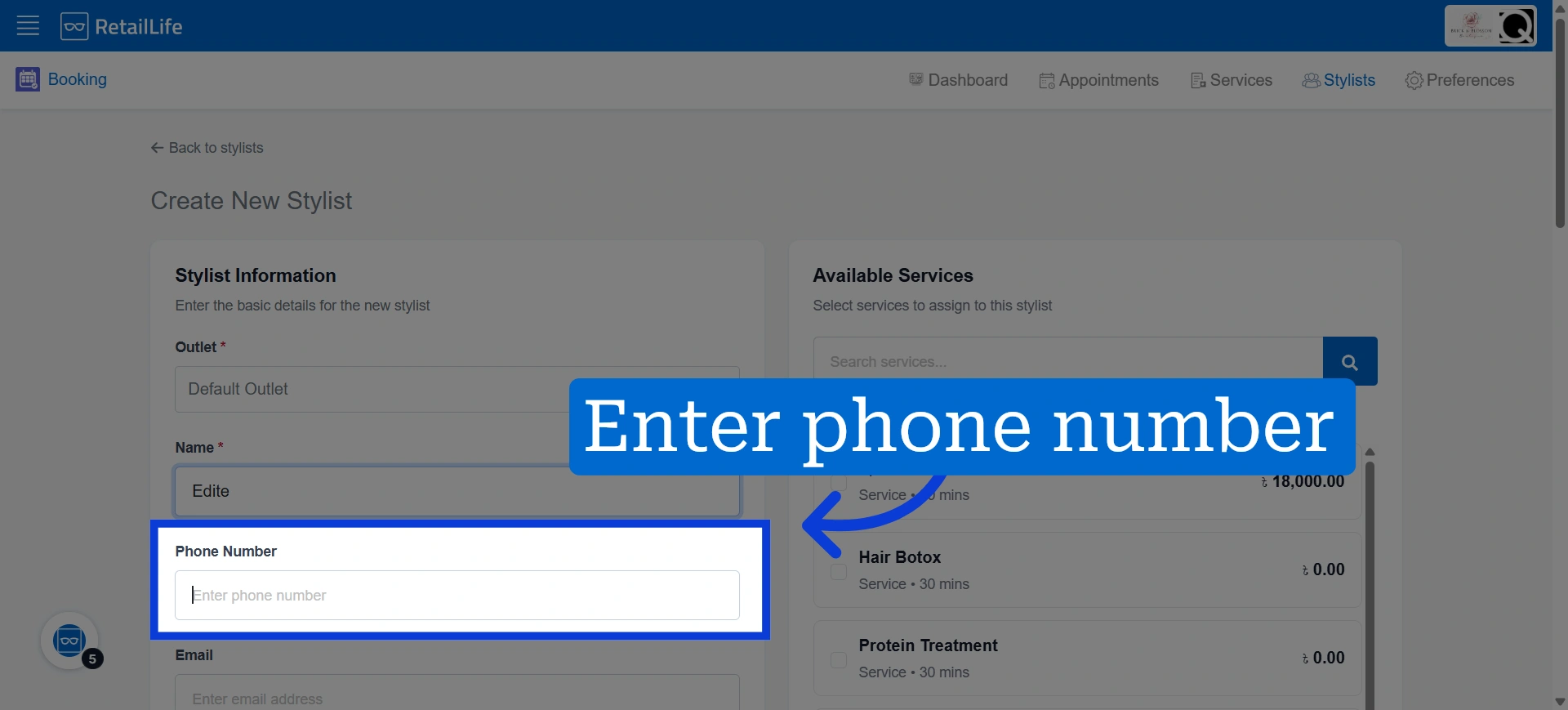
7. Enter the stylist’s phone number
This number can be used to contact them and will also be available through the booking portal.
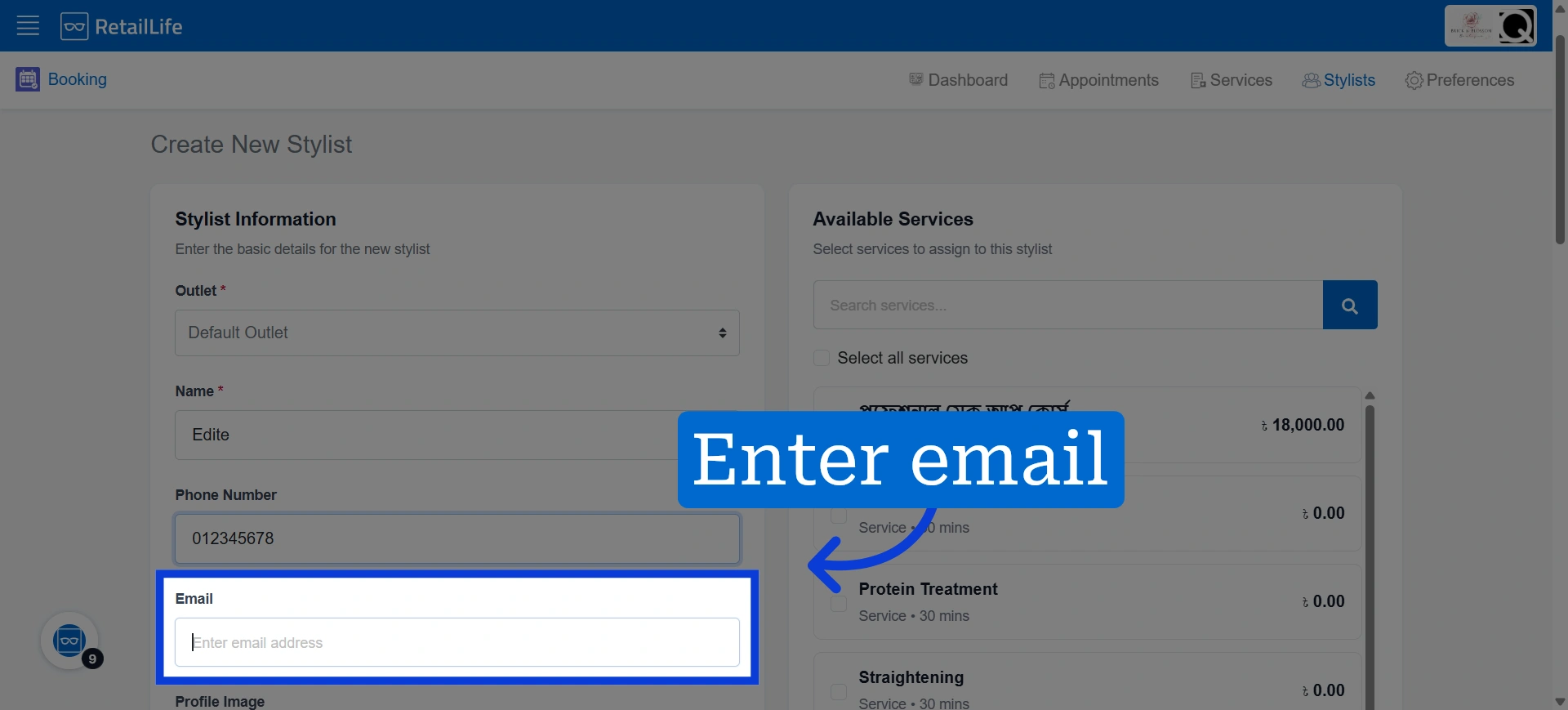
8. Enter the stylist’s email address
His email address can be used as their account credentials
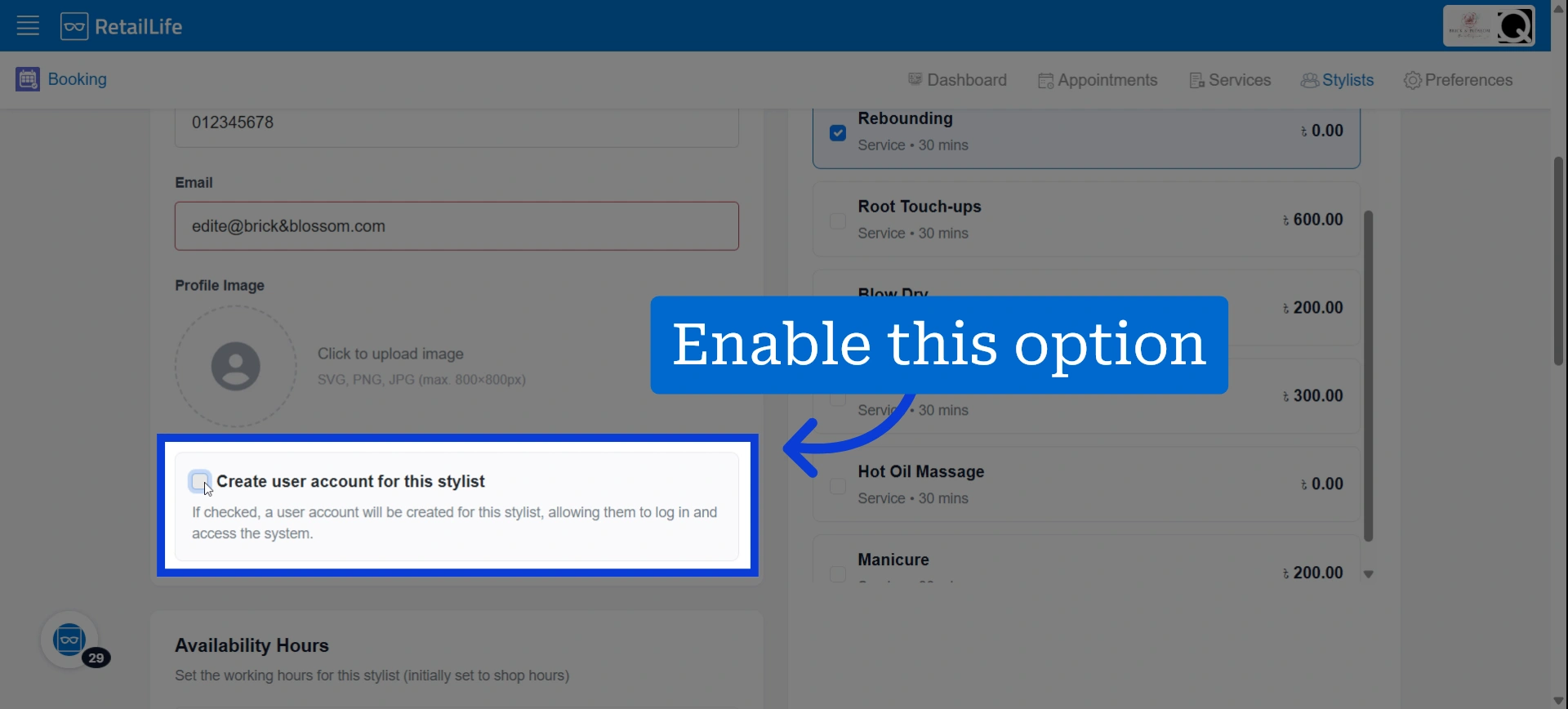
9. Select the checkbox next to "Create User Account for This Stylist" to create an account using their email address
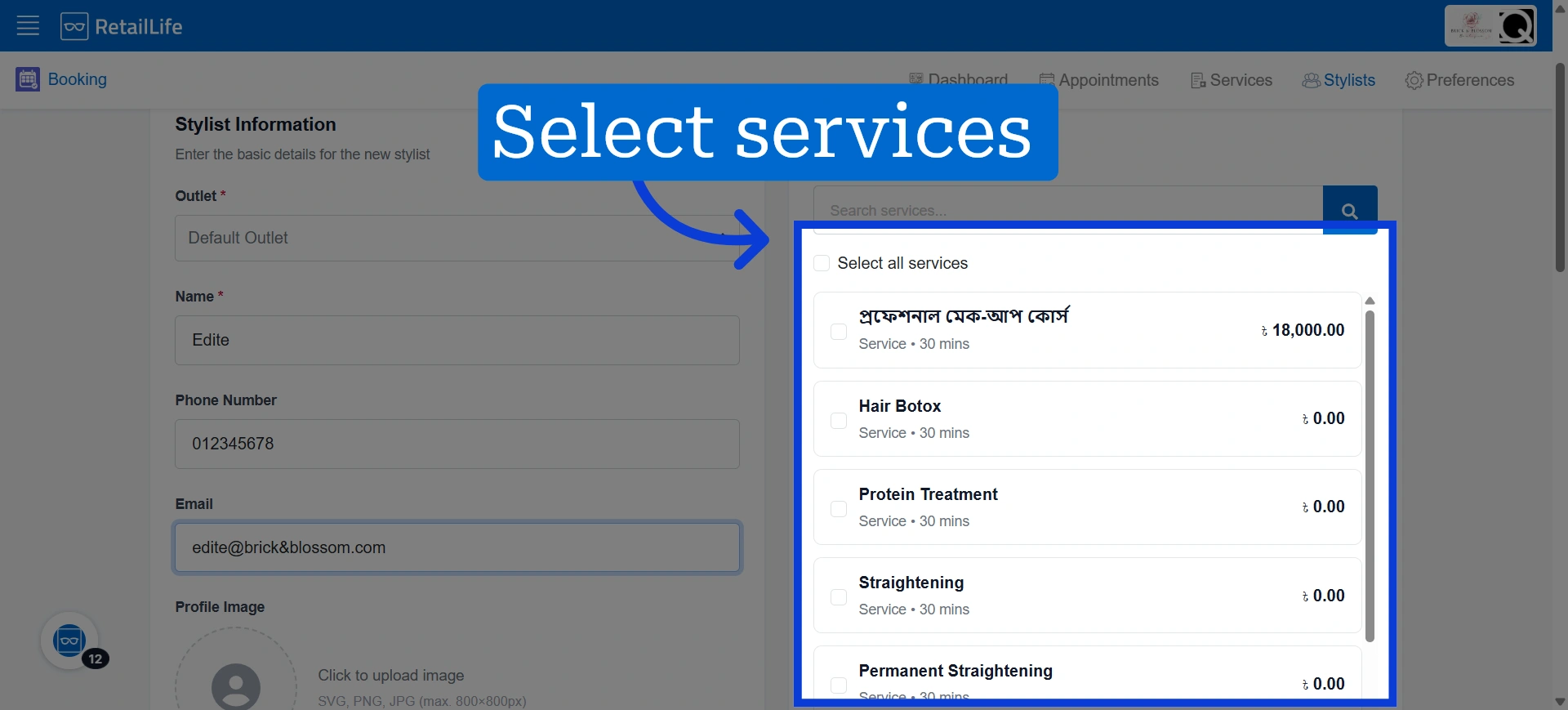
10. Select the services the stylist will provide
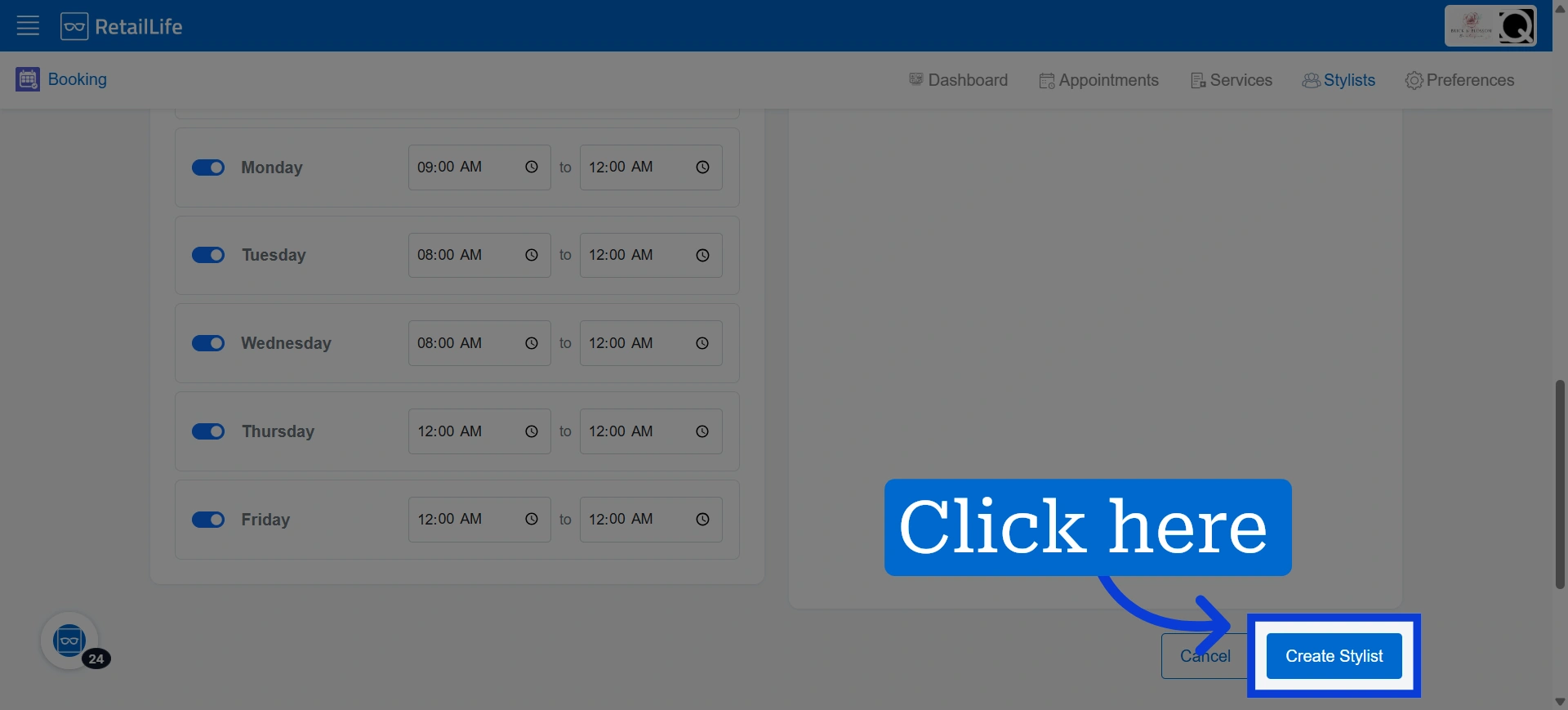
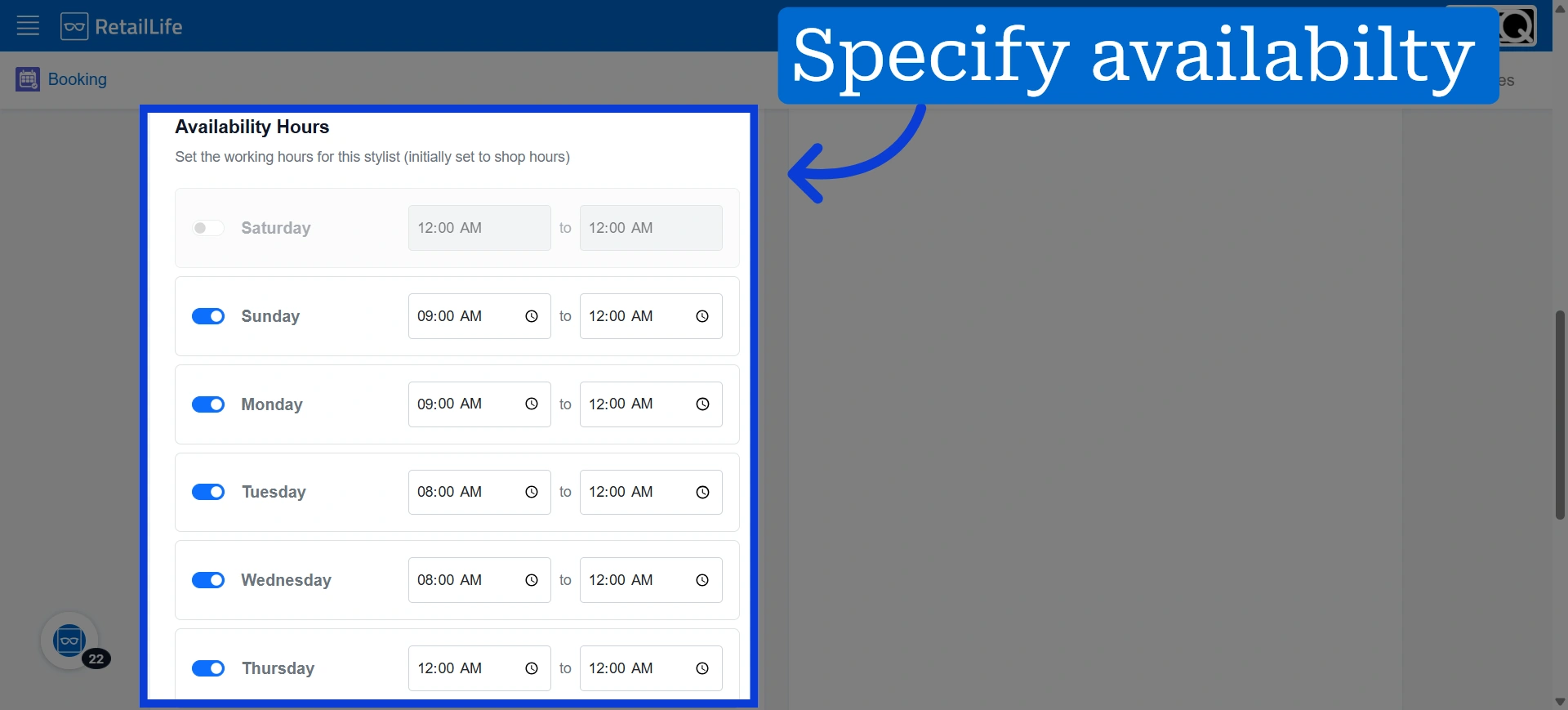
11. Select the days and times of the week when the stylist will be available for appointments
12. Click "Create" to save the stylist profile in the system