How to Configure Advance Payment Options and Gateways for Booking Portal in RetailLife
This tutorial guides you through configuring advanced payment options and payment gateways
for the customer Booking Portal using the Business Portal.
Go to
retaillife.quicklyservices.com
1. Go to your Business Portal
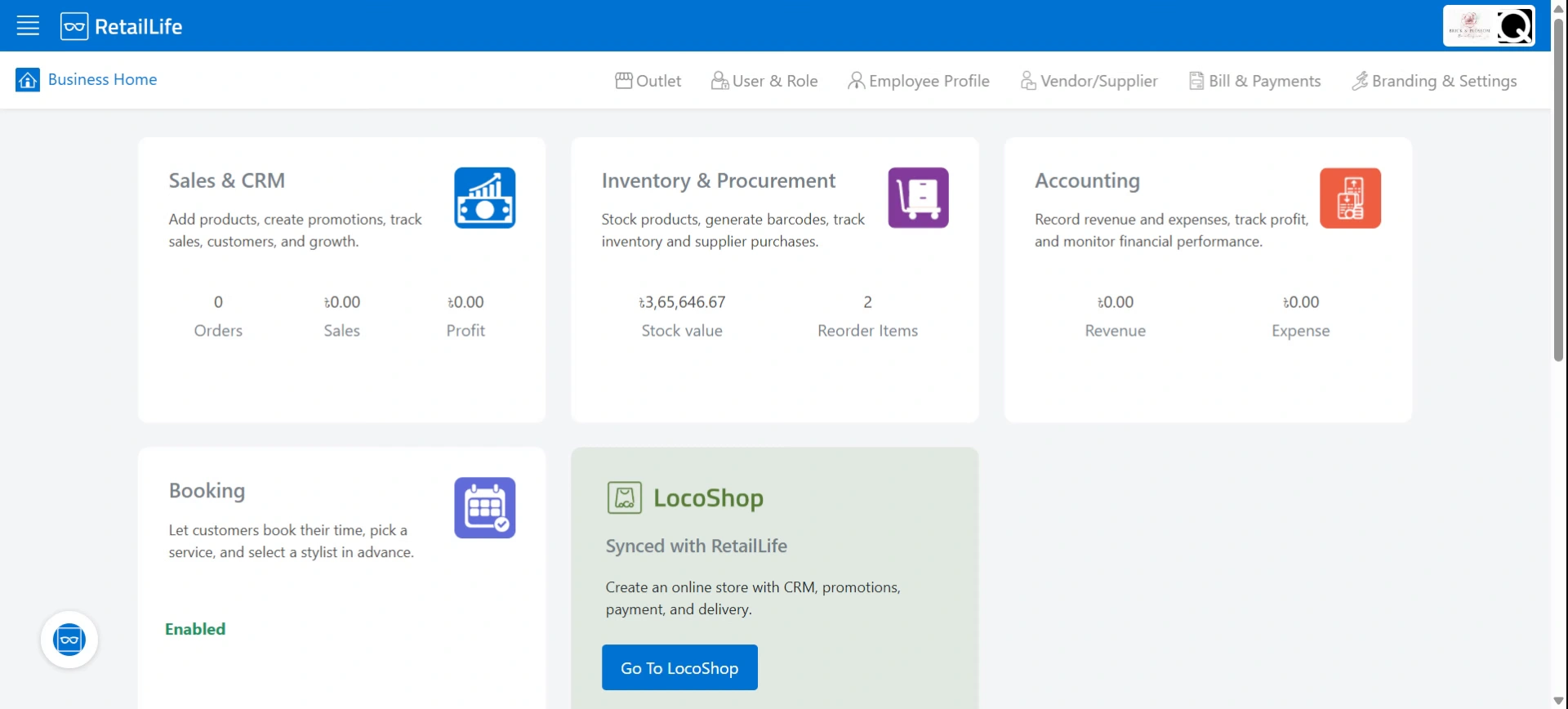
2. Access Booking module
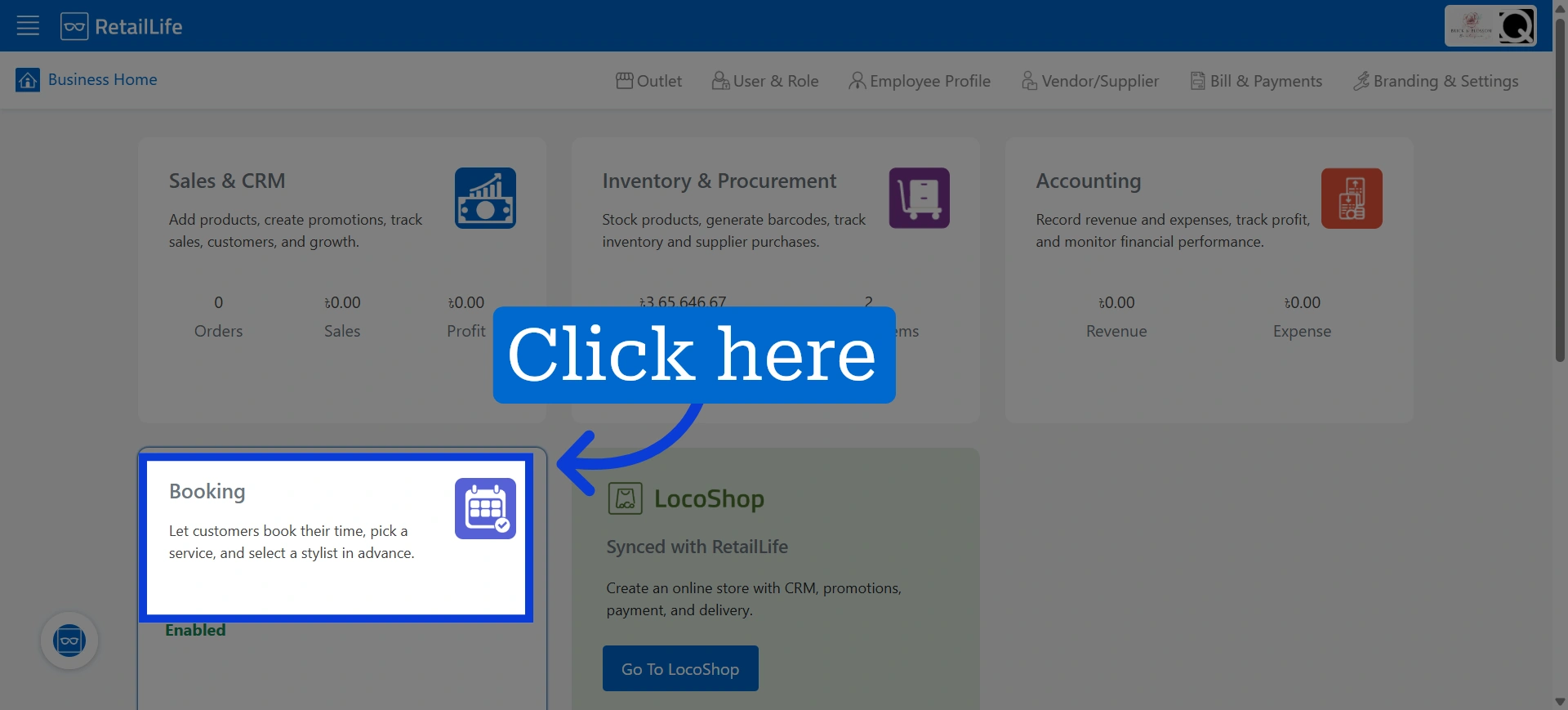
3. Click "Preferences" to access booking portal's configuration
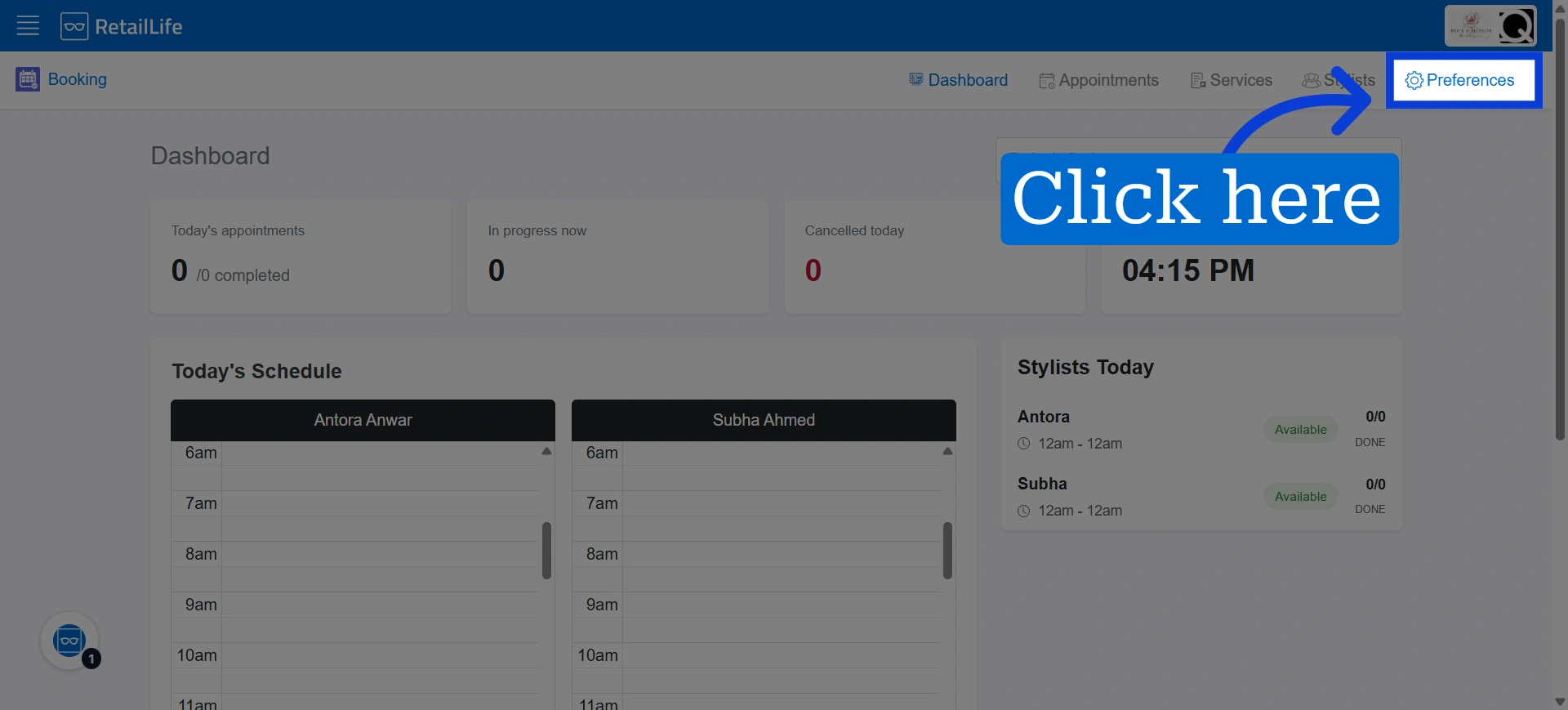
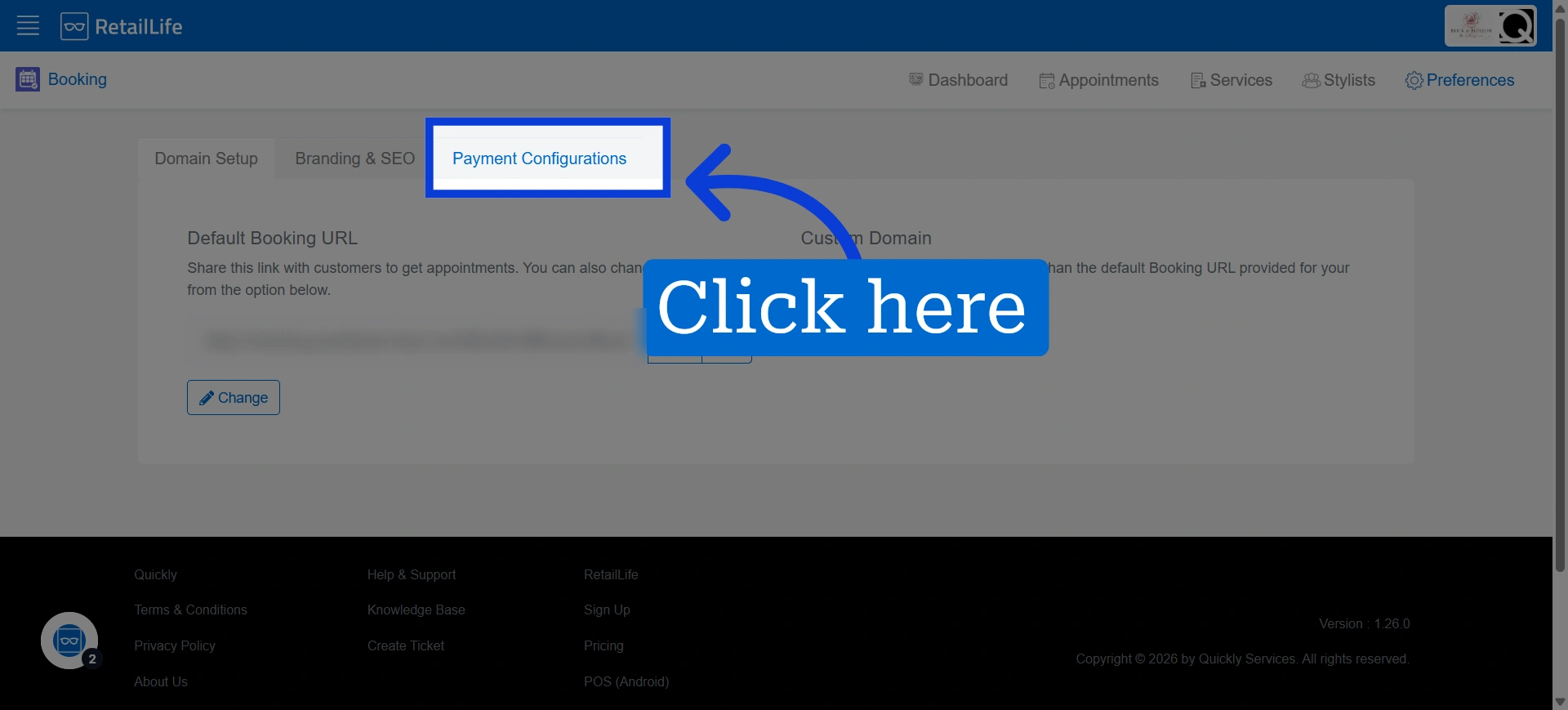
4. Click "Payment Configurations" to set up and adjust payment methods for your bookings
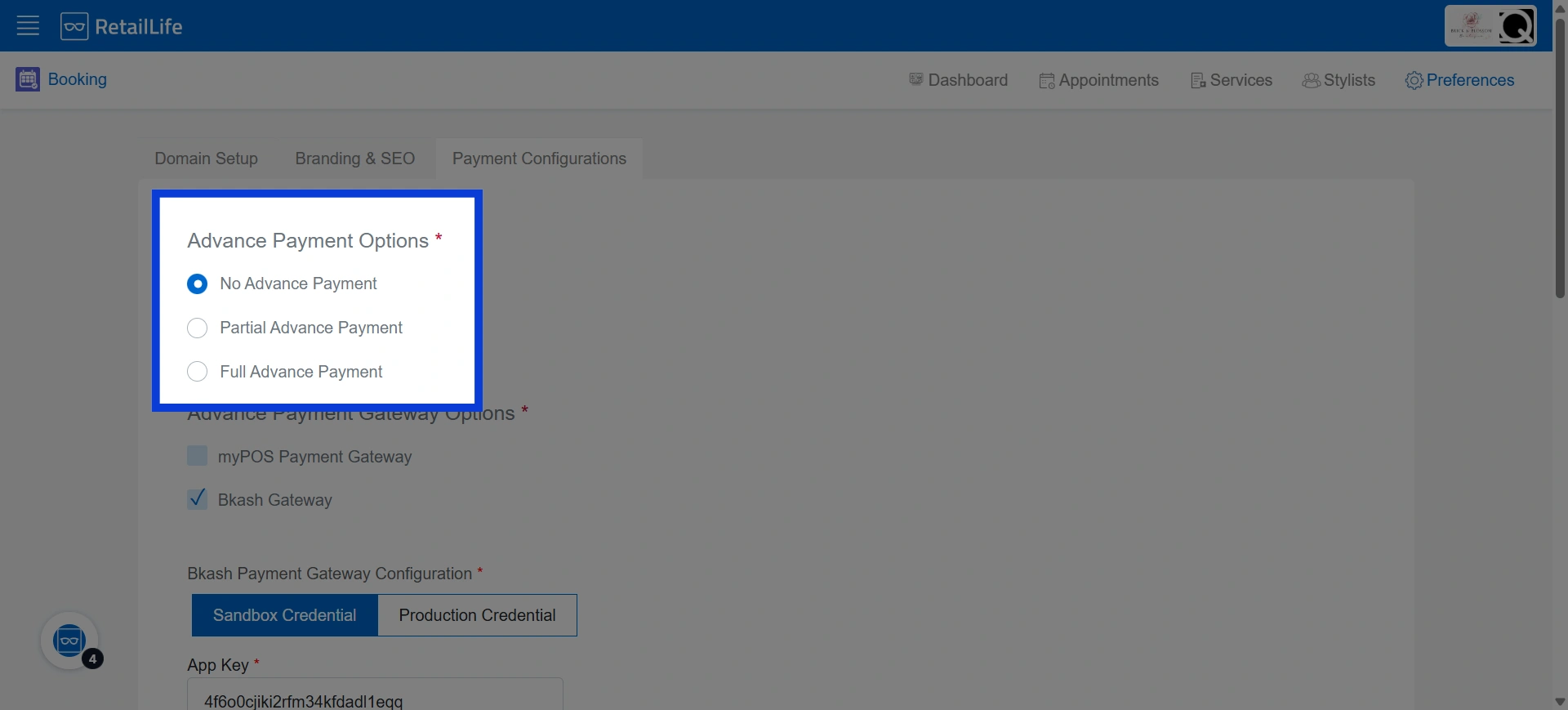
5. Choose an advance payment option
• Select No Advance Payment if customers do not need to make a payment while booking.
• Select Partial Advance Payment if customers need to pay half of the service amount when booking through the booking portal.
• Select Full Advance Payment if customers need to pay the full service amount when confirming their booking.
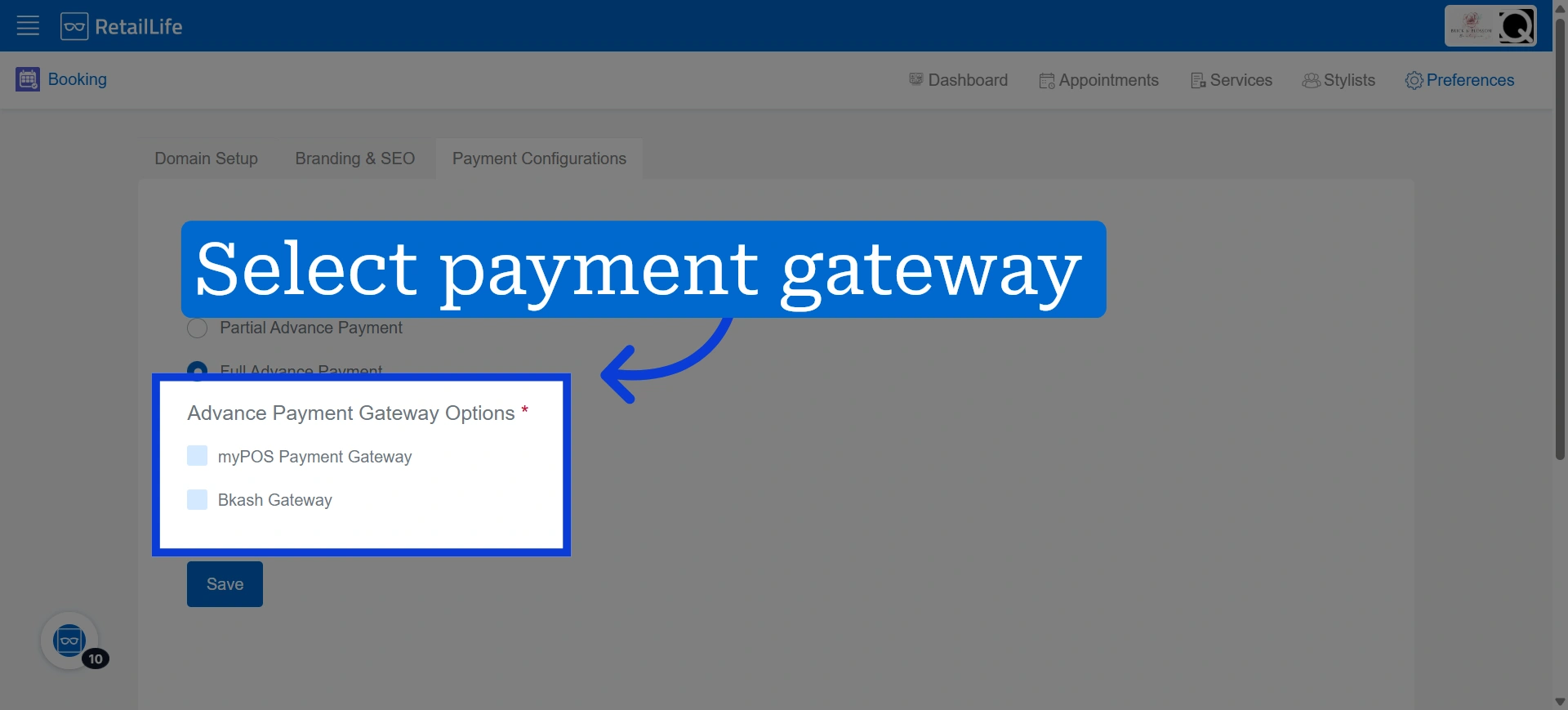
6. Select the payment gateway you want to use
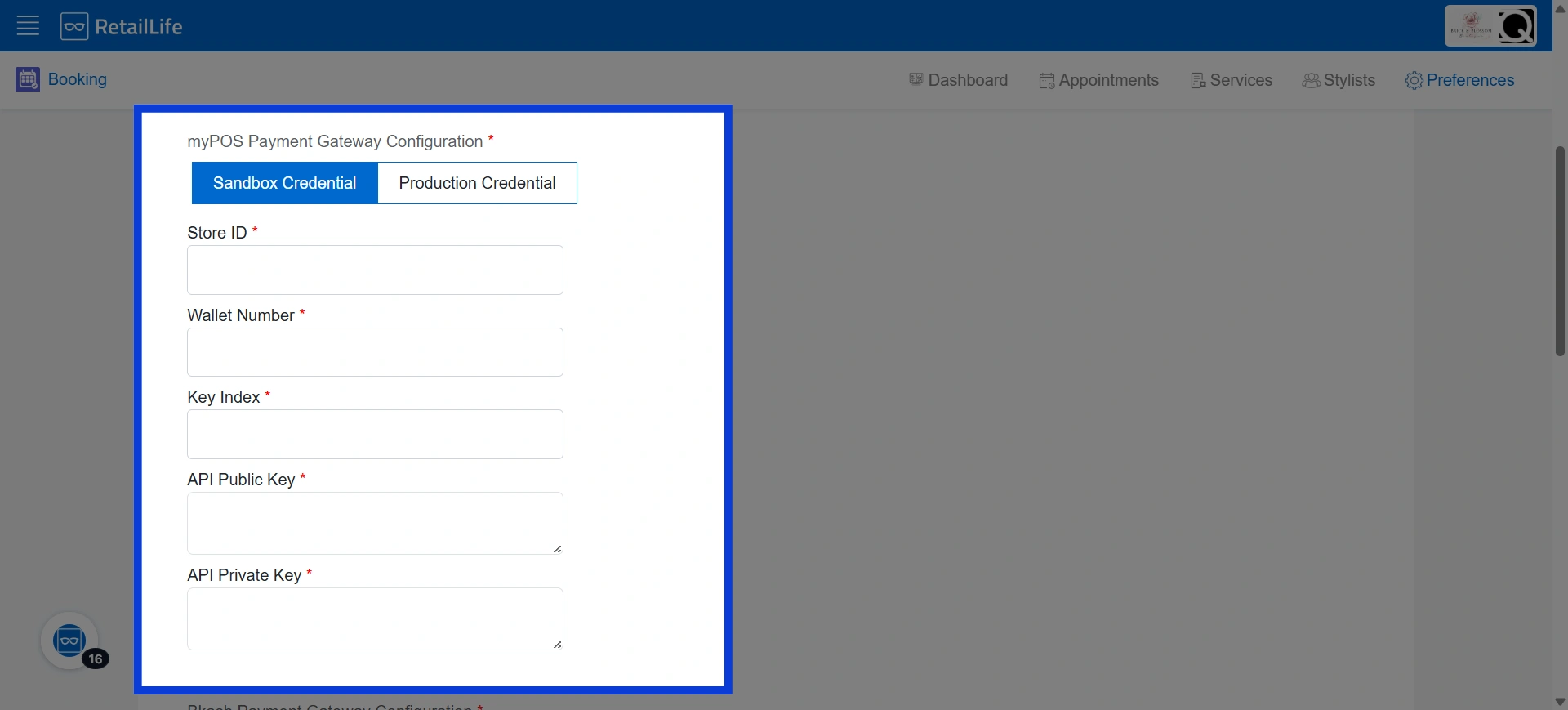
7. Enter the required details for the myPOS payment gateway if you selected myPOS
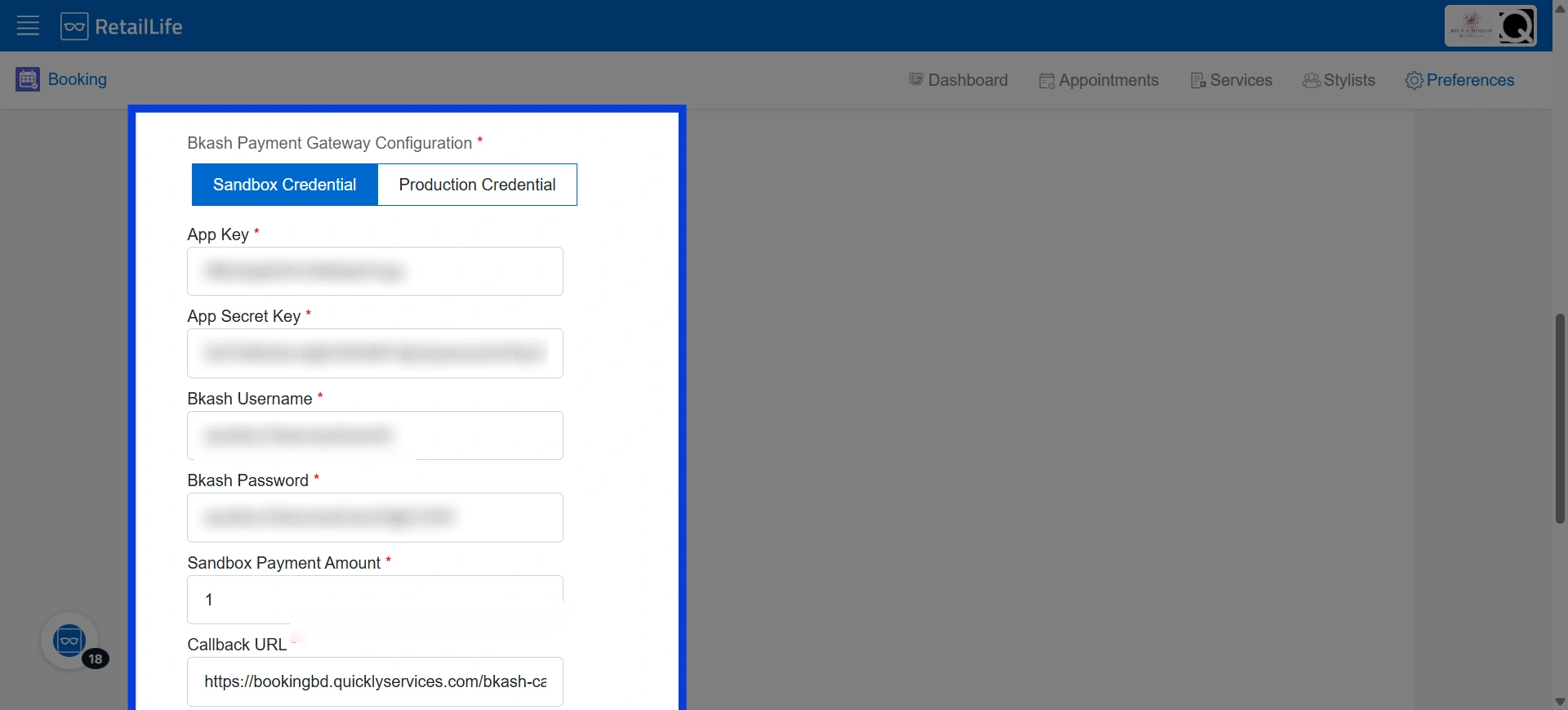
8. Enter the required details for the bKash payment gateway if you selected bKash
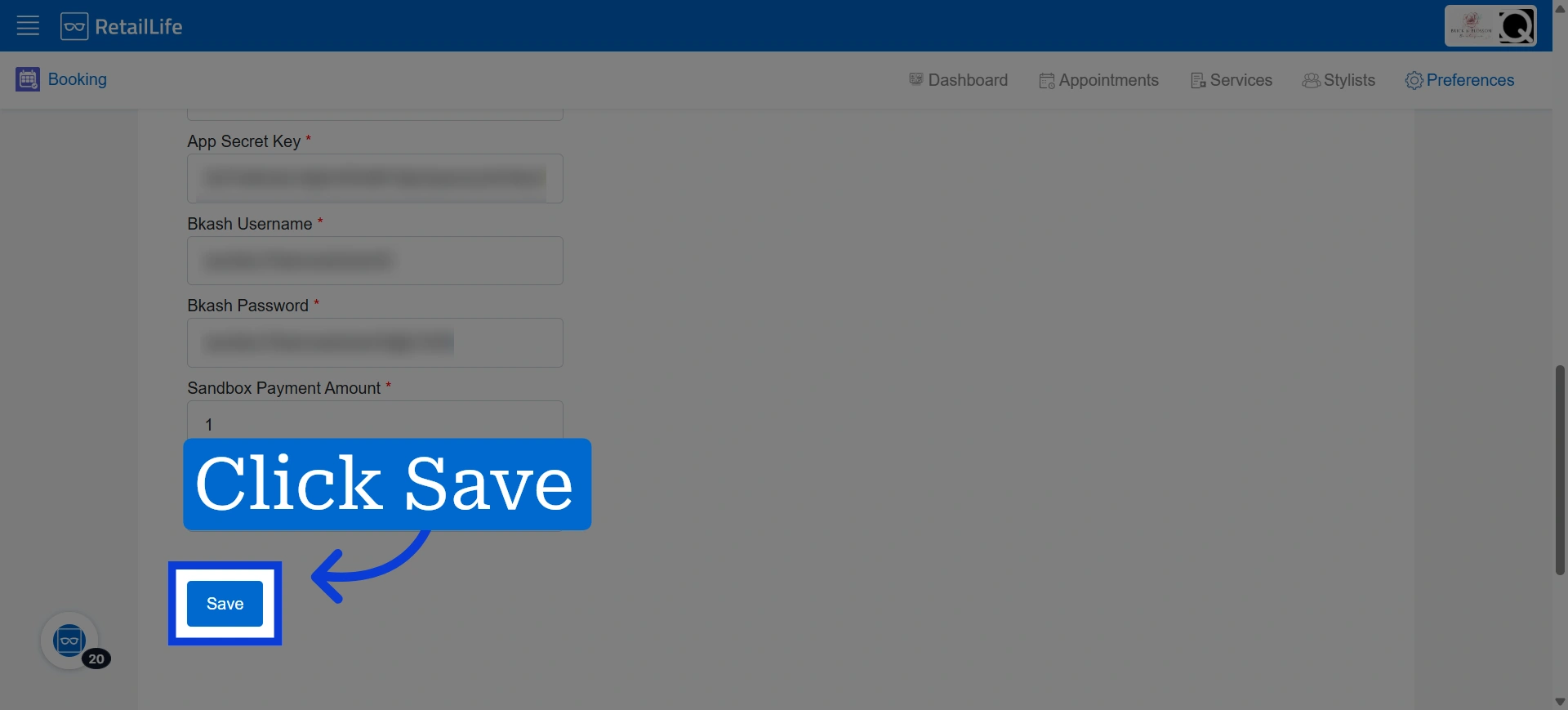
9. Click Save to finalize the advance payment and payment gateway settings for your booking portal