How to Add and Configure Service Variants for a New Service in RetailLife
This tutorial guides you through adding service variants, setting variant pricing, and updating
other service details for a new service in the Business Portal.
Go to
retaillife.quicklyservices.com
1. Login to your Business Portal
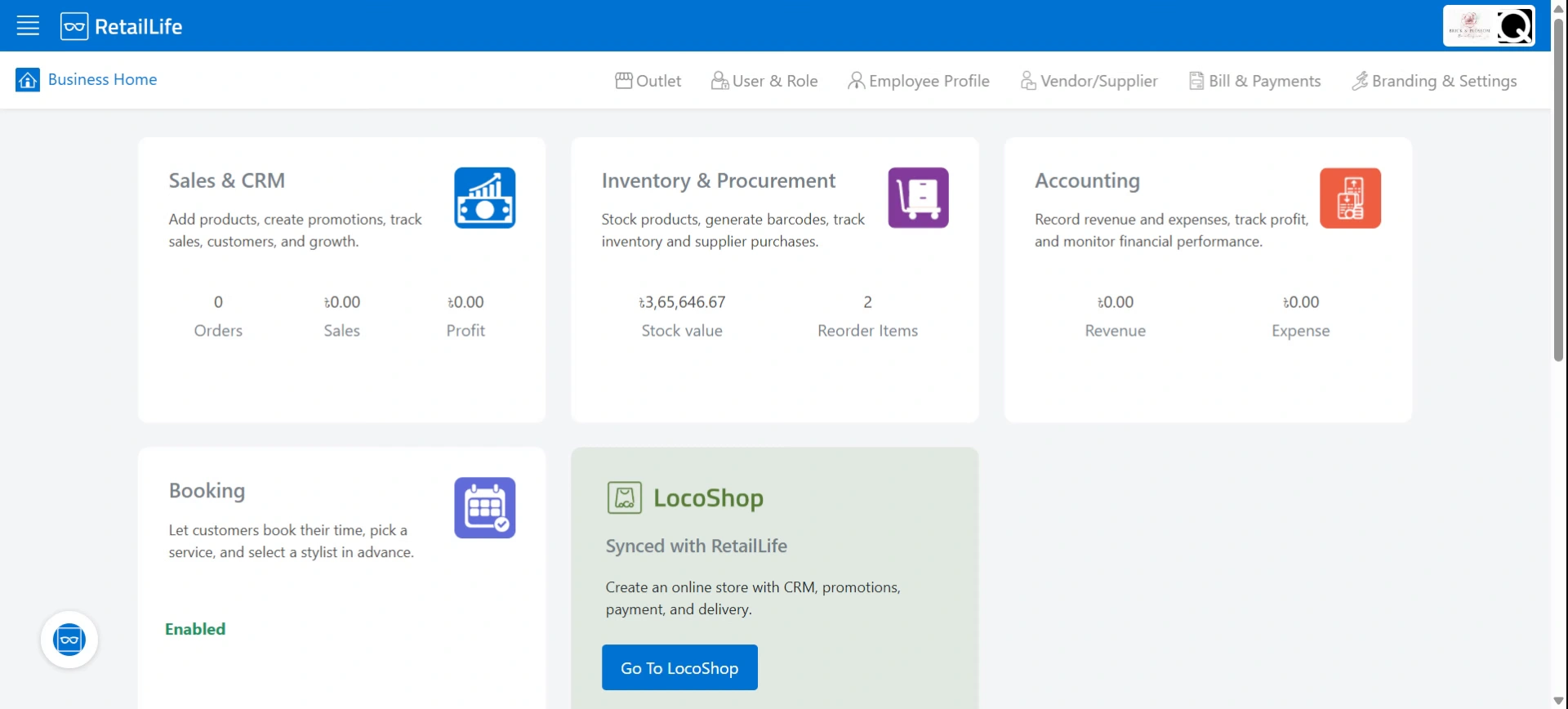
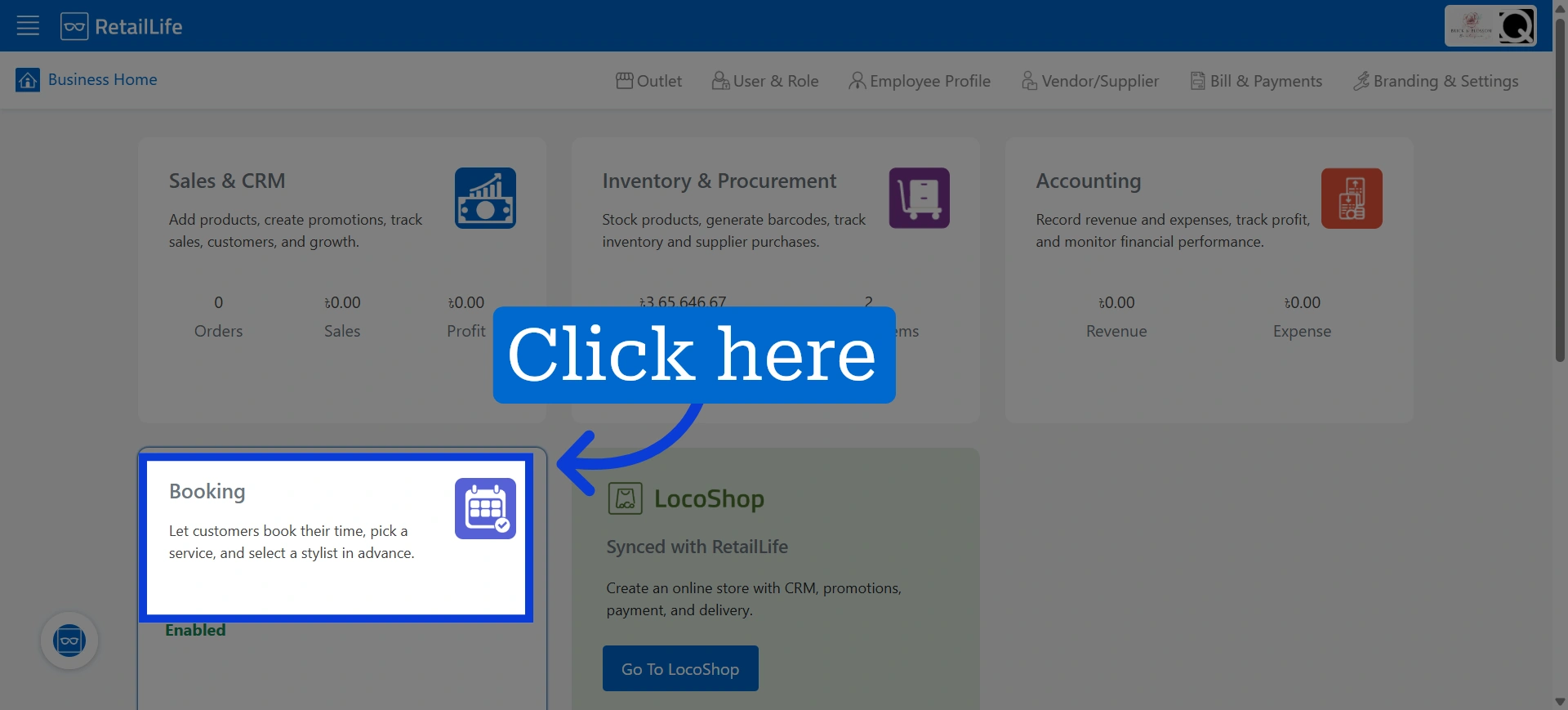
2. Access Booking module
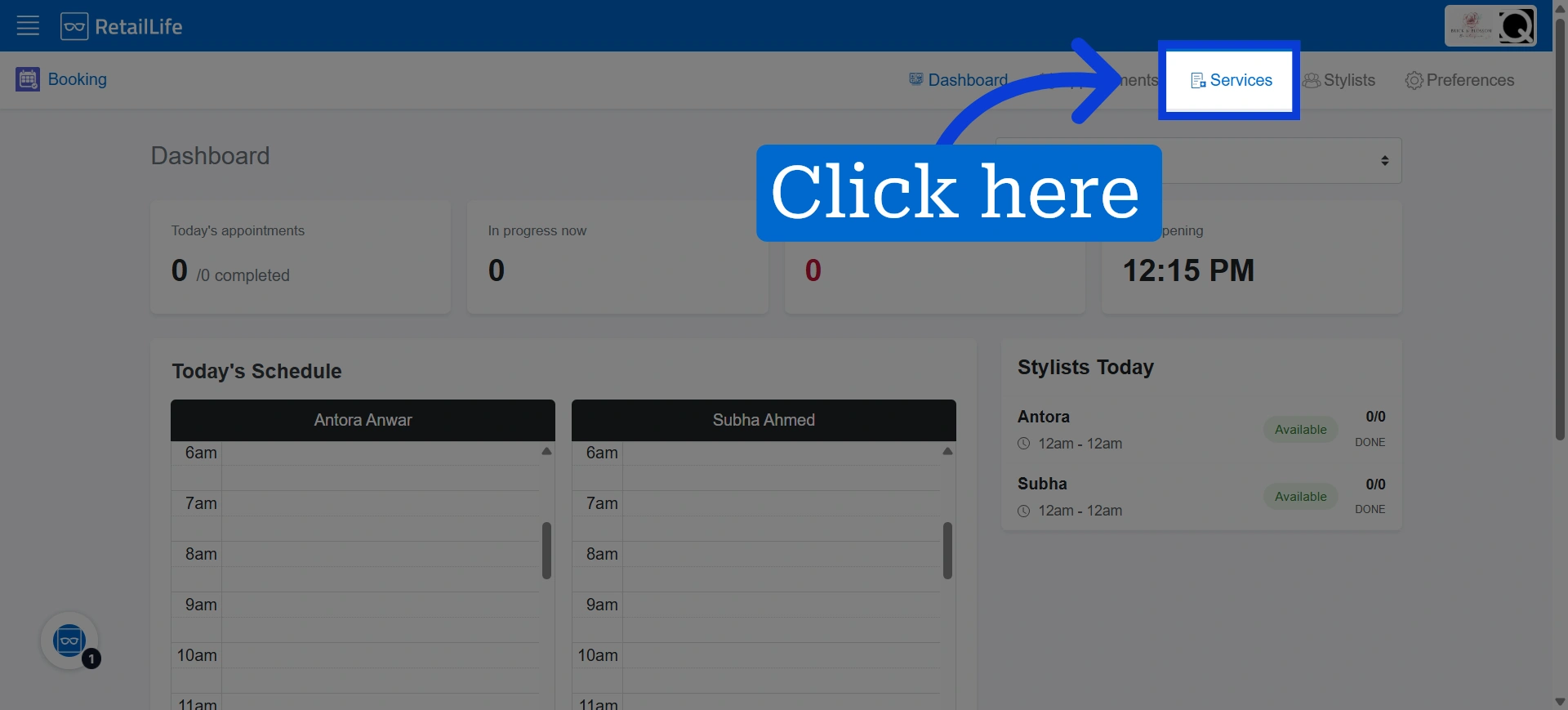
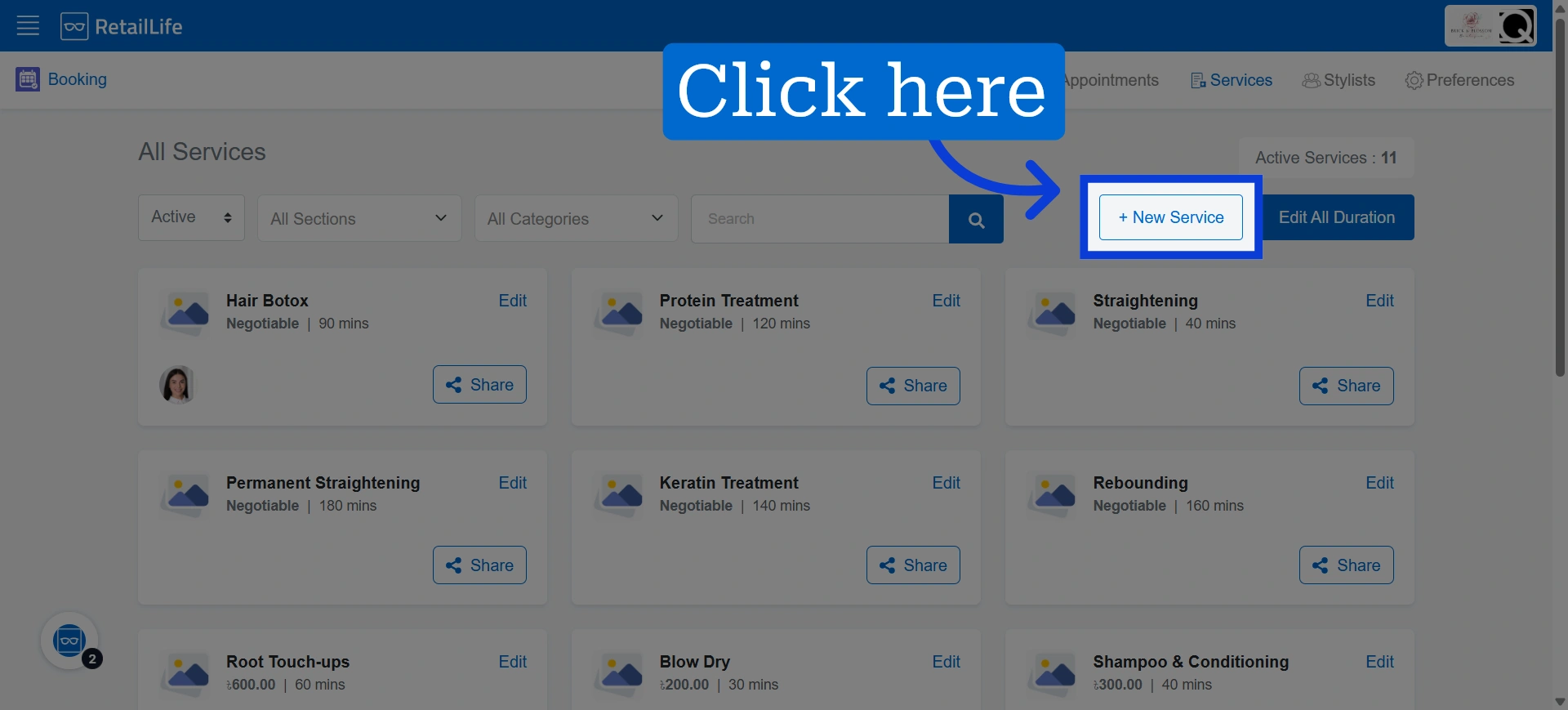
3. Click "Services" to view and manage active services
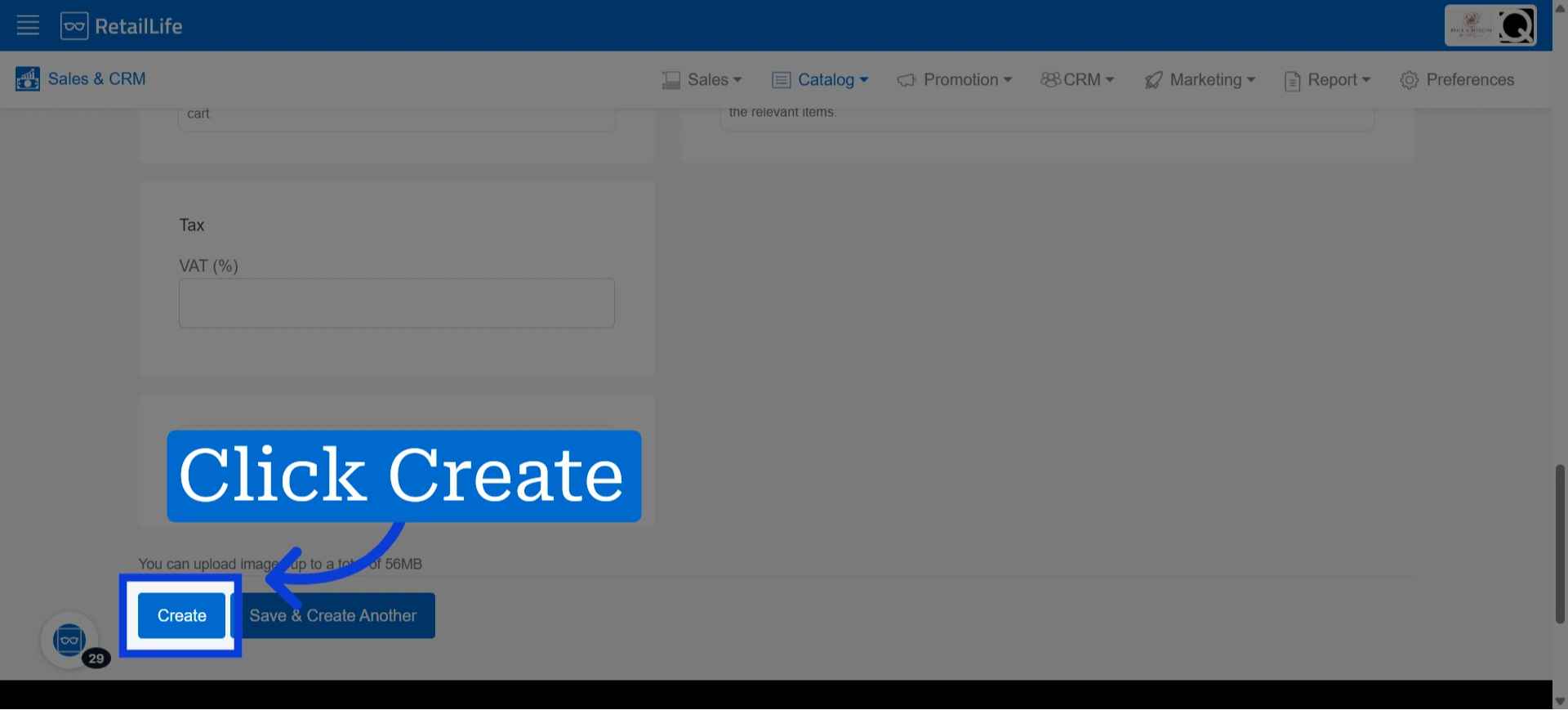
4. Initiate New Service Creation
If you need help adding a new service, refer to the tutorial: "How to Add & Configure New Service in RetailLife."
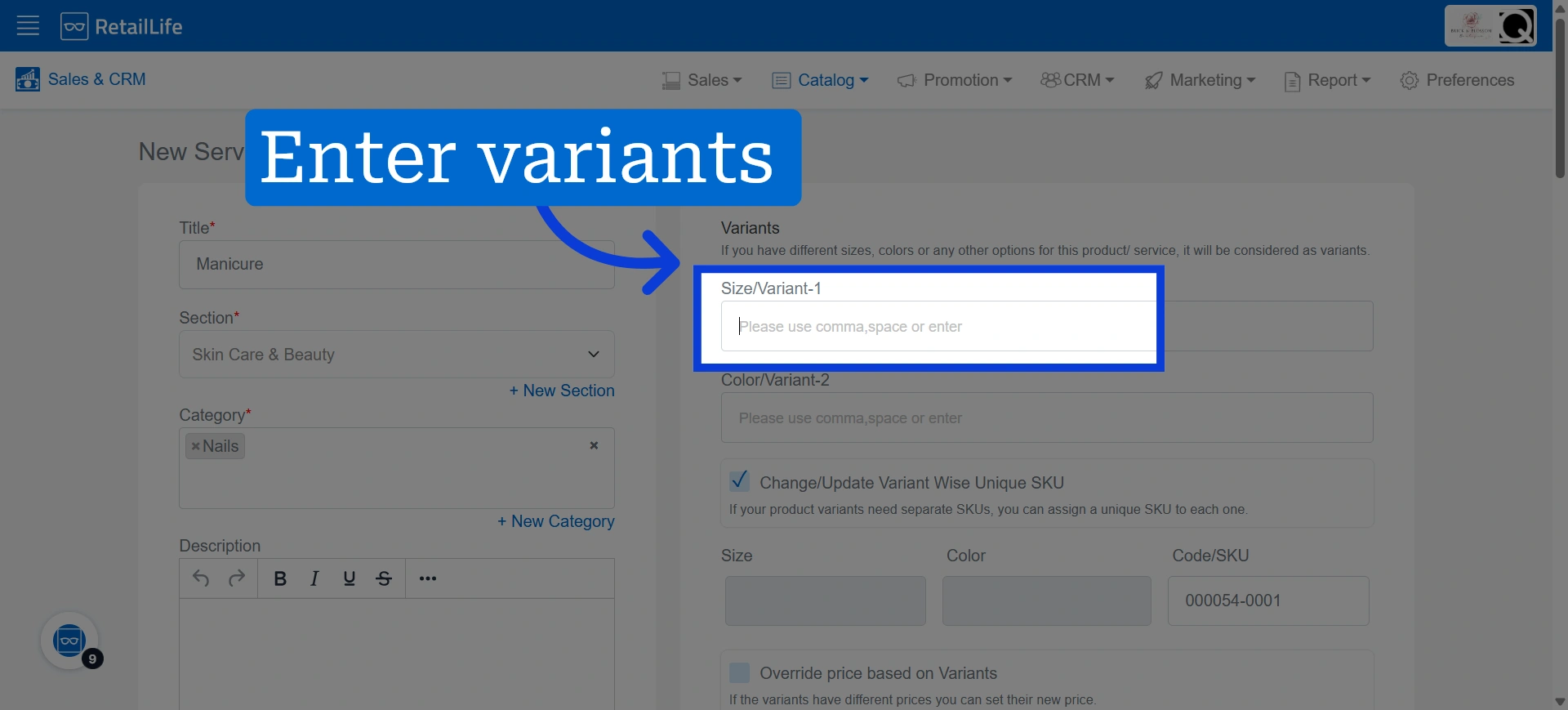
5. Enter the service variants, separating each variant with a comma or by pressing the Space key
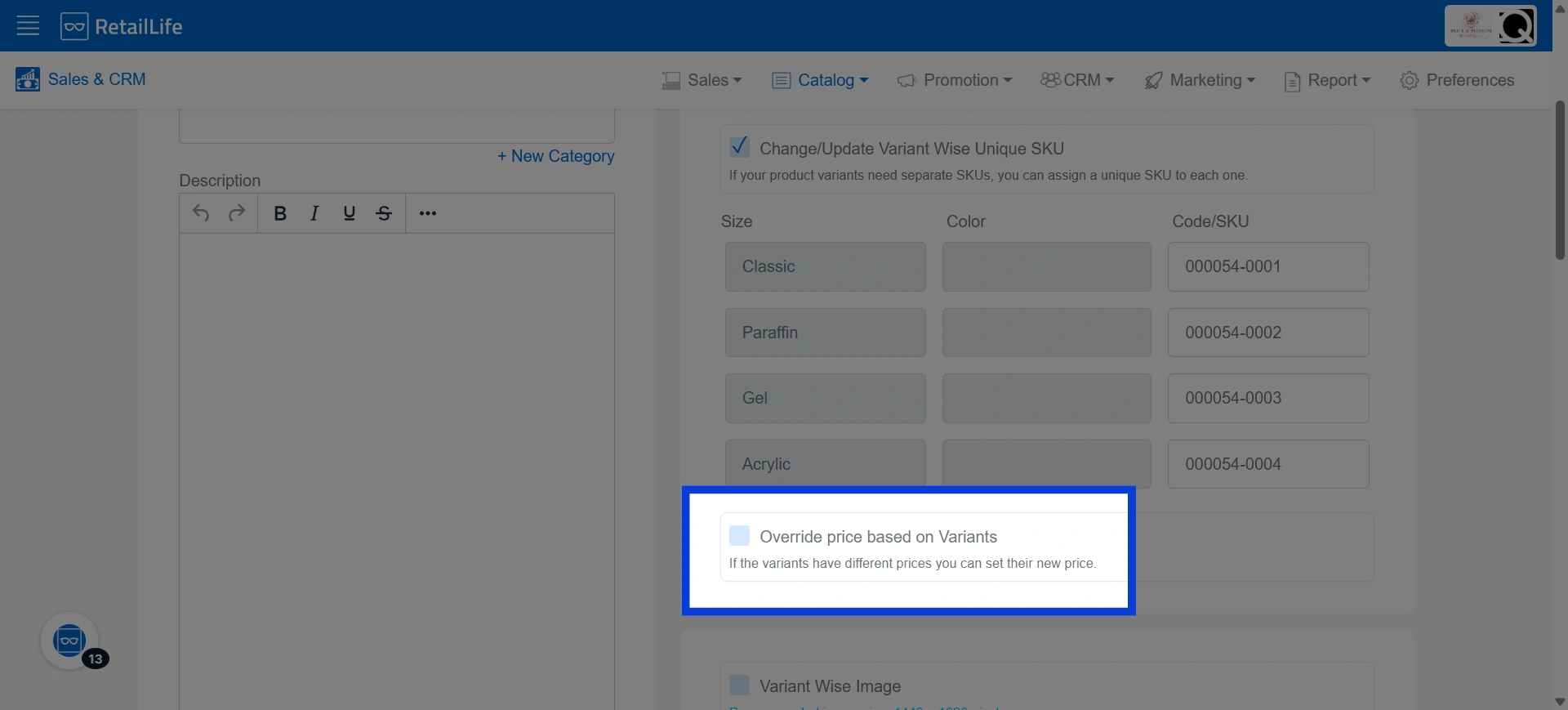
6. Select the checkbox next to "Override Pricing" if you want to set different prices for each service variant
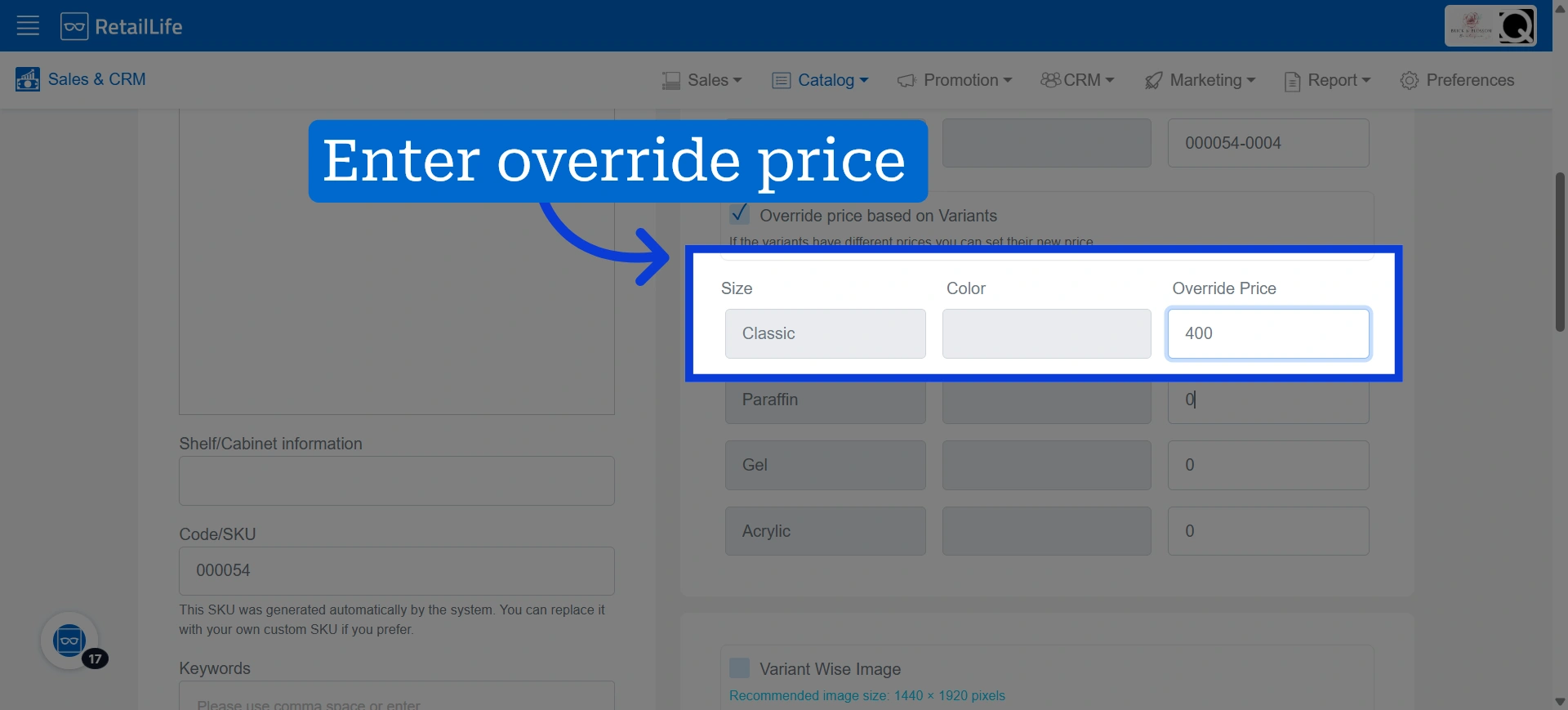
7. Enter the price for each variant if you have enabled Override Pricing
8. Click "Create" to save the new service, service variants, and variant-wise pricing