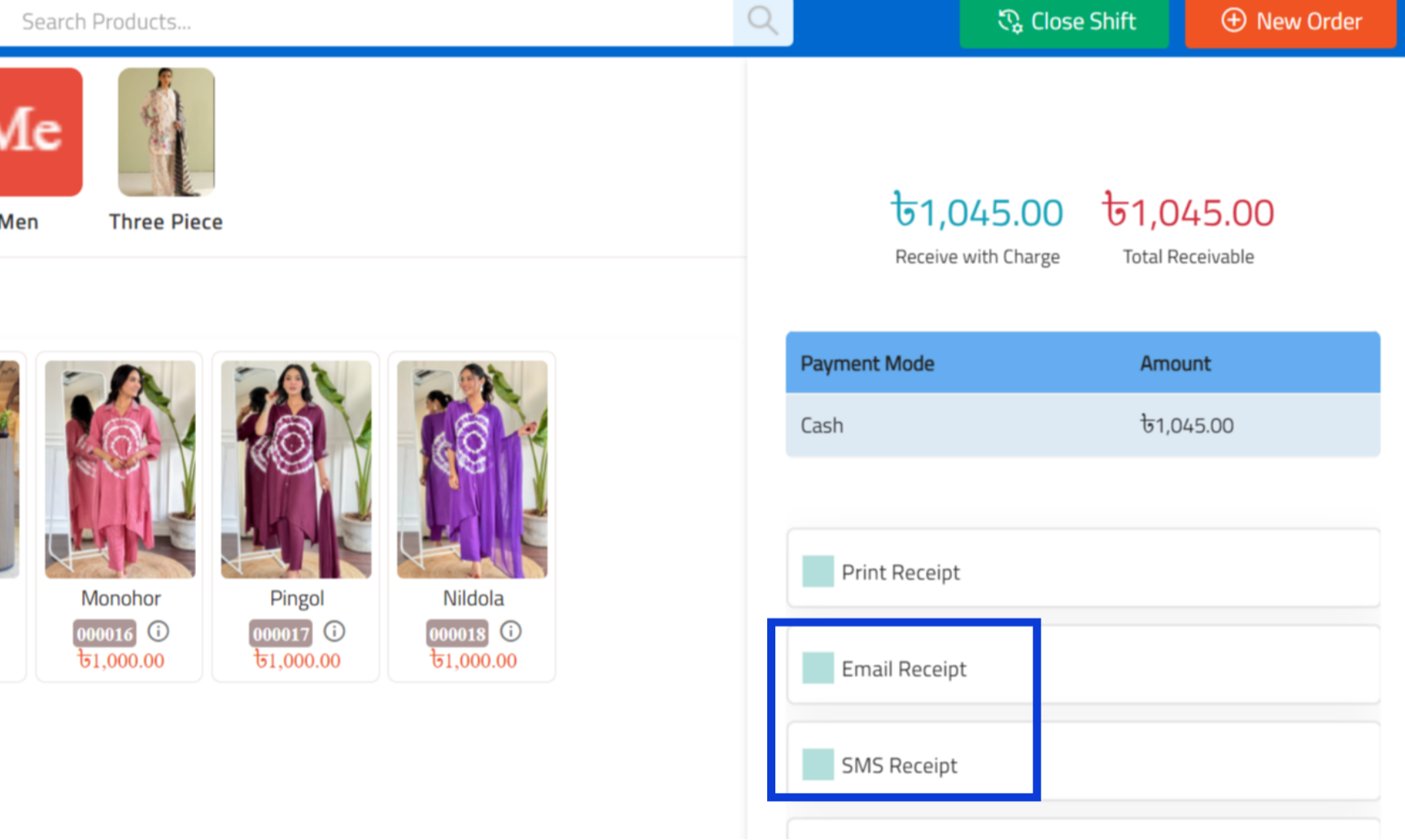
How to Send Receipts via SMS or Email in RetailLife Business Portal
This tutorial guides you through configuring paperless receipt options in the Business Portal. By
enabling receipt delivery via SMS or email, customers can receive digital receipts instantly, helping
reduce paper usage and save time during checkout.
Go to
retaillife.quicklyservices.com
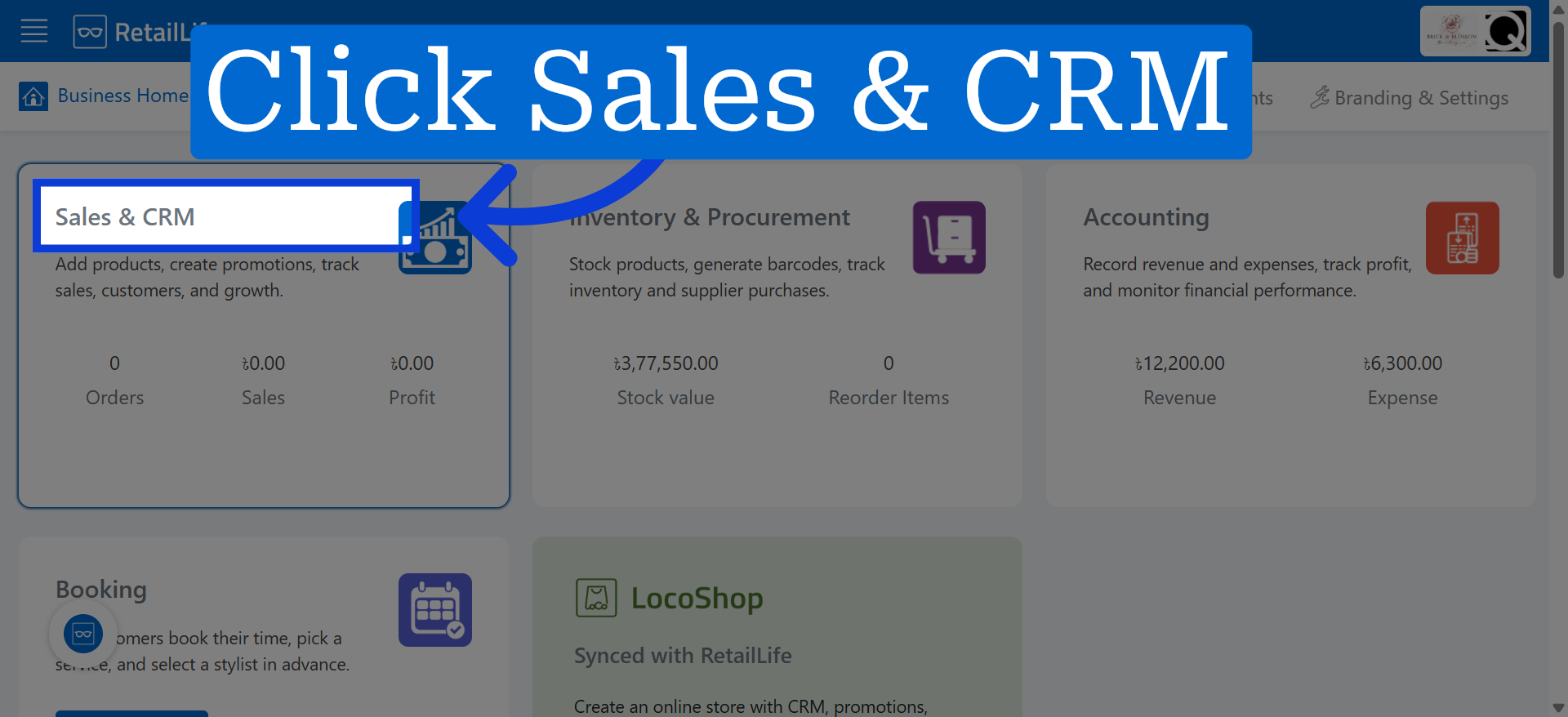
1. Access Sales & CRM Module
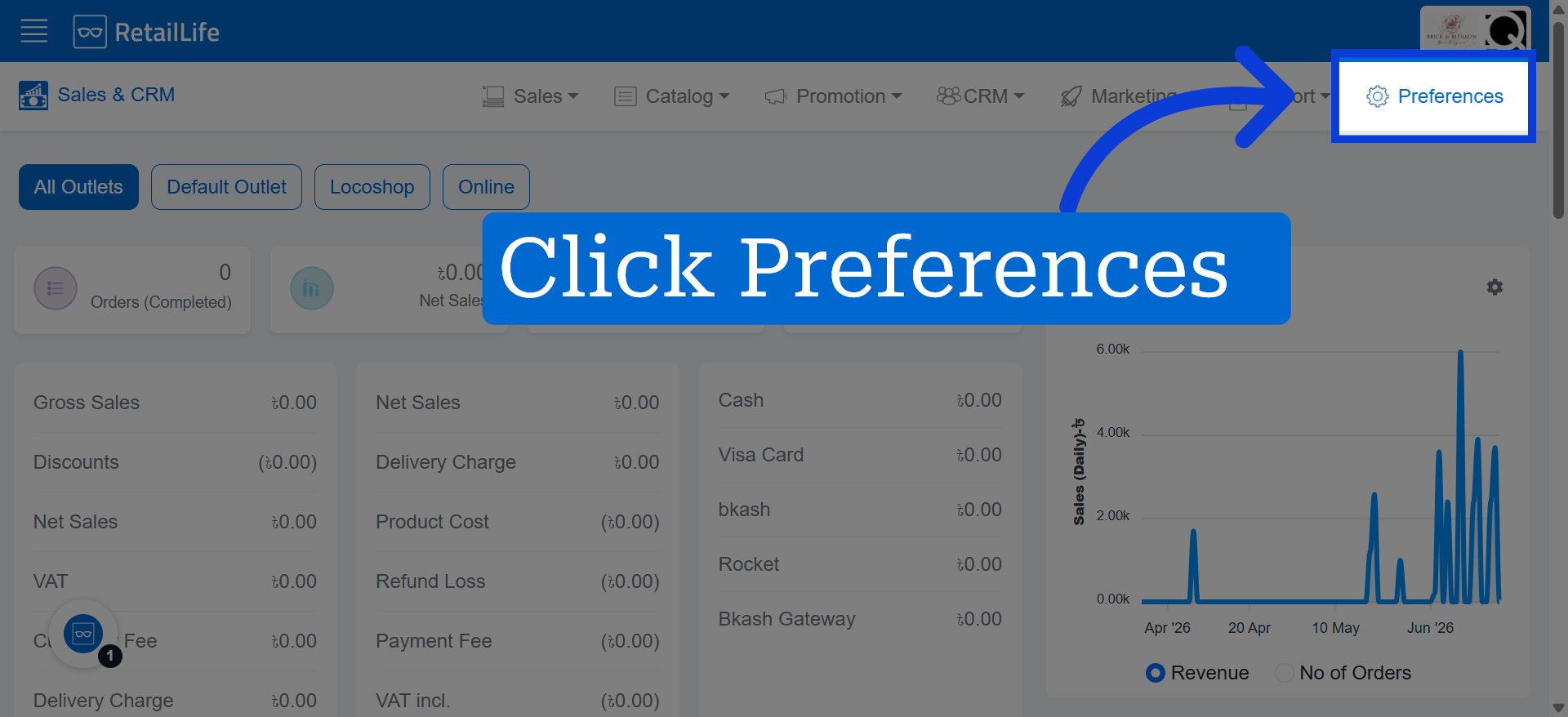
2. Open Preferences
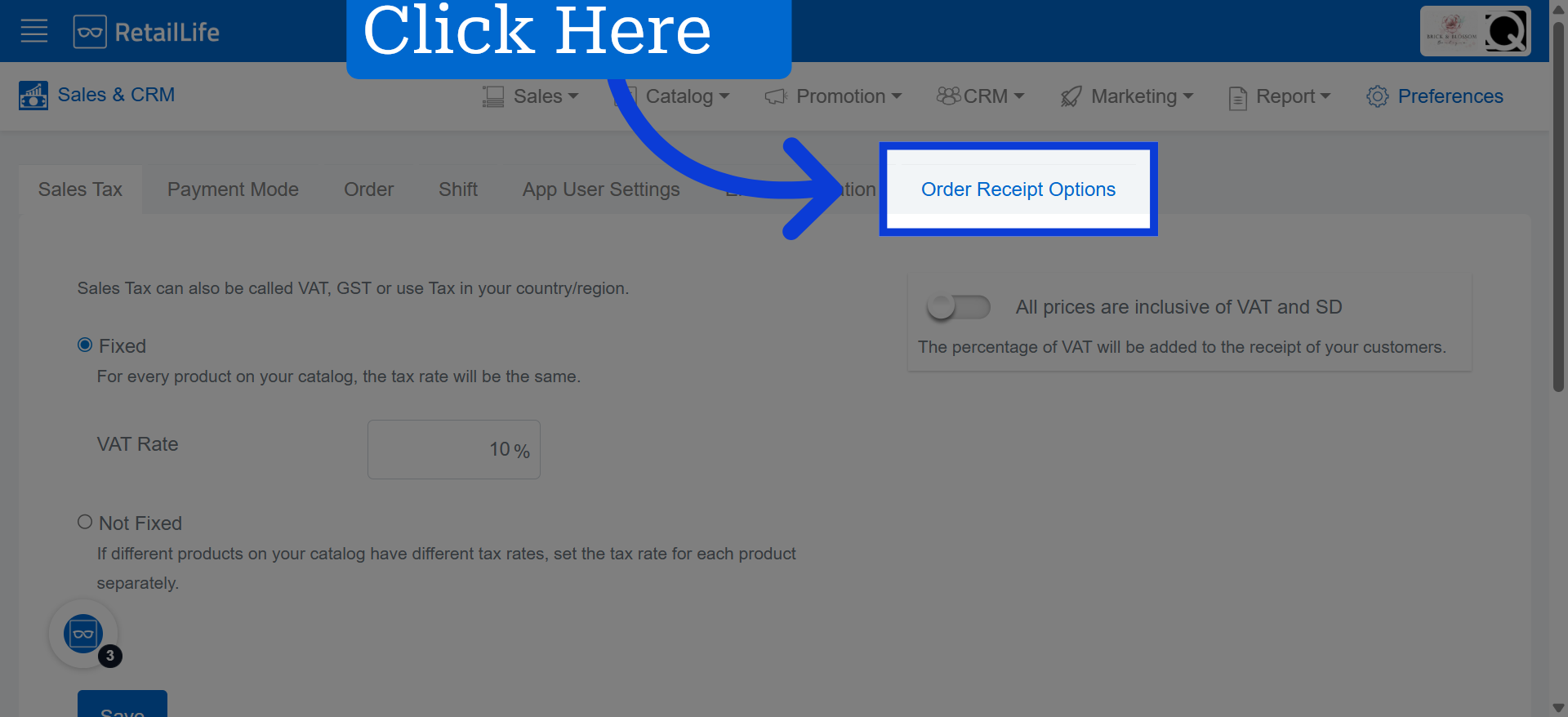
3. Open Order Receipt Settings
Click "Order Receipt Options" to view and modify how receipts are handled for orders.
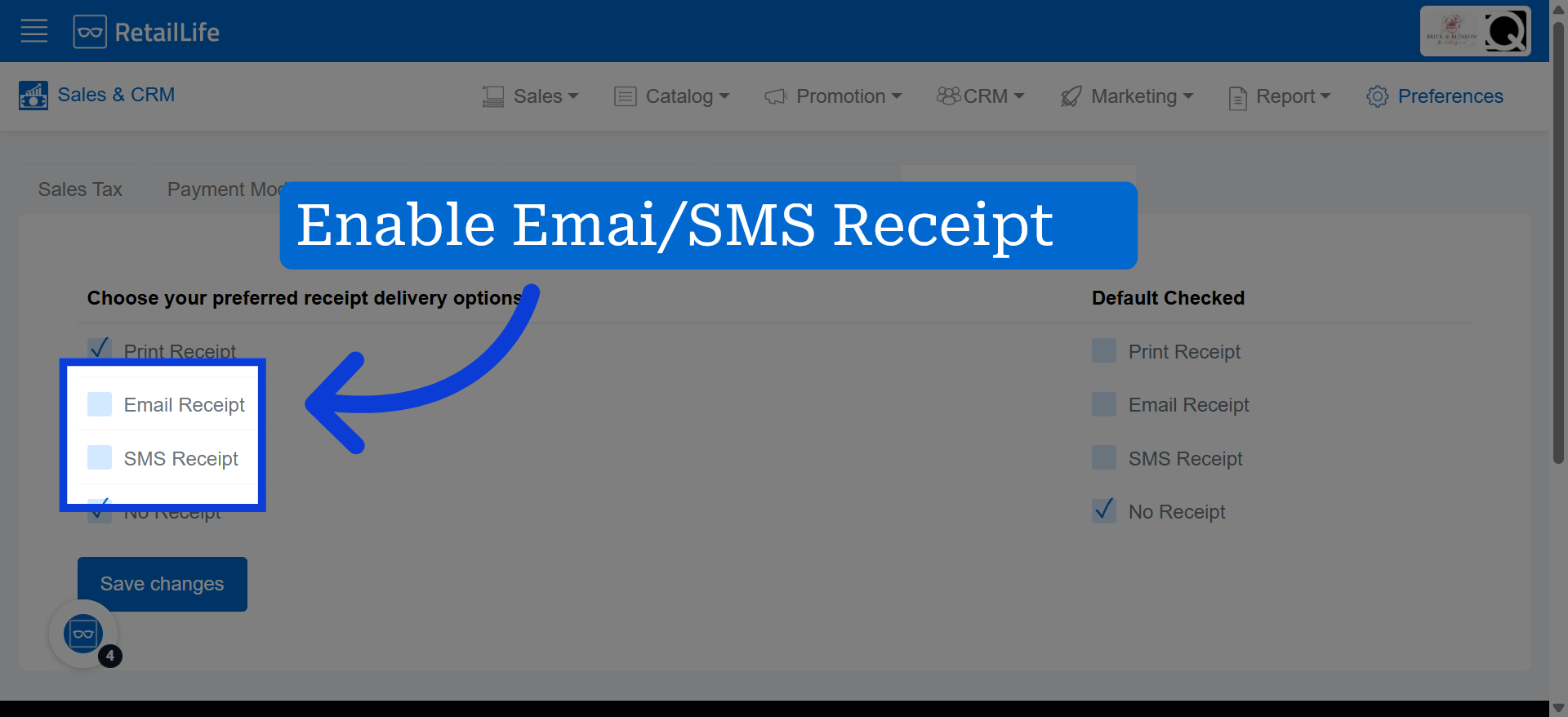
4. Select Email/SMS Receipt Option Accordingly
5. Save Receipt Settings
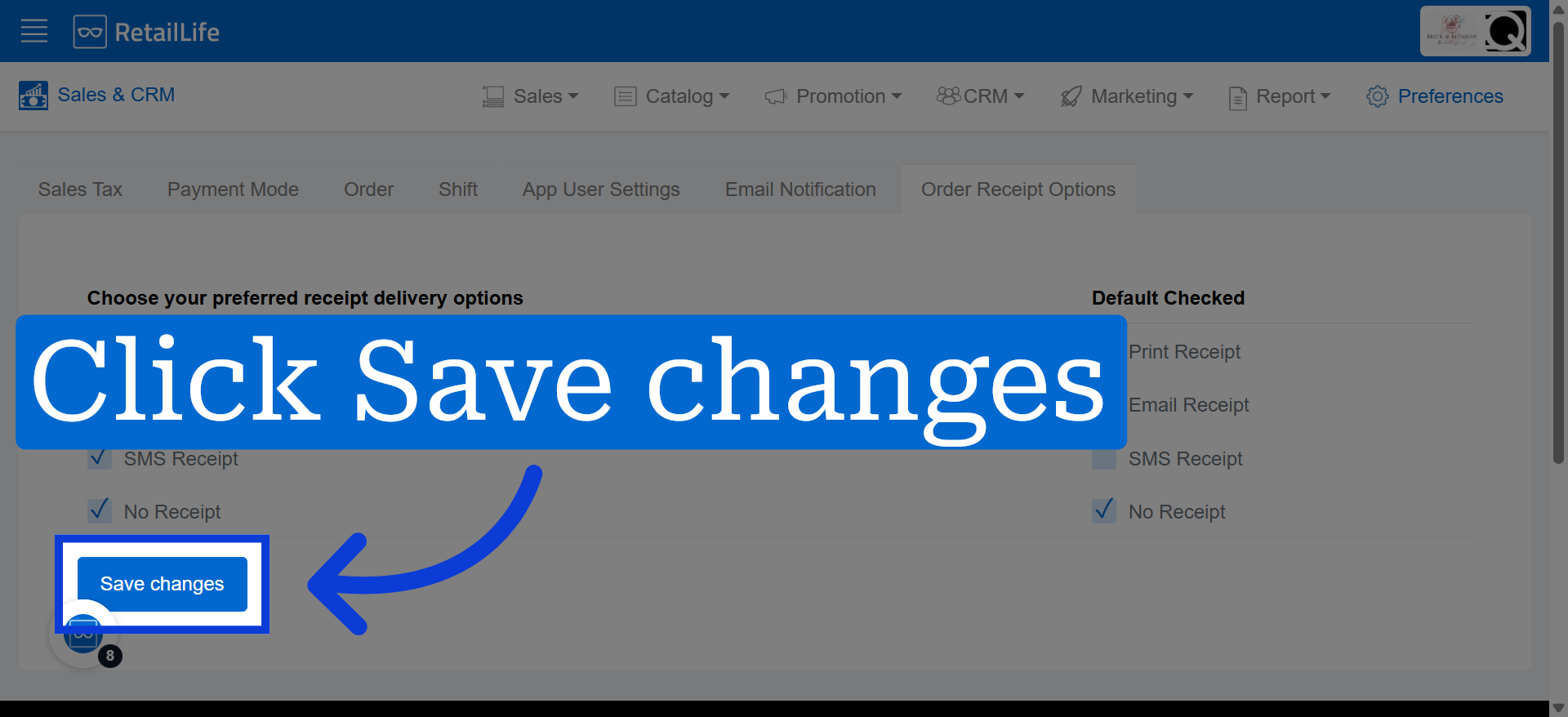
Click "Save changes" to apply and save your receipt configuration settings.
6. Go to POS App
Before completing the checkout, choose how you would like to send the receipt.