How to Set a Customer Credit Limit in RetailLife Business Portal
This tutorial guides you through configuring customer credit limit settings within the Business
Portal. A credit limit defines the maximum amount a customer can owe on credit, allowing them
to make purchases and pay later up to the specified limit.
Go to
retaillife.quicklyservices.com
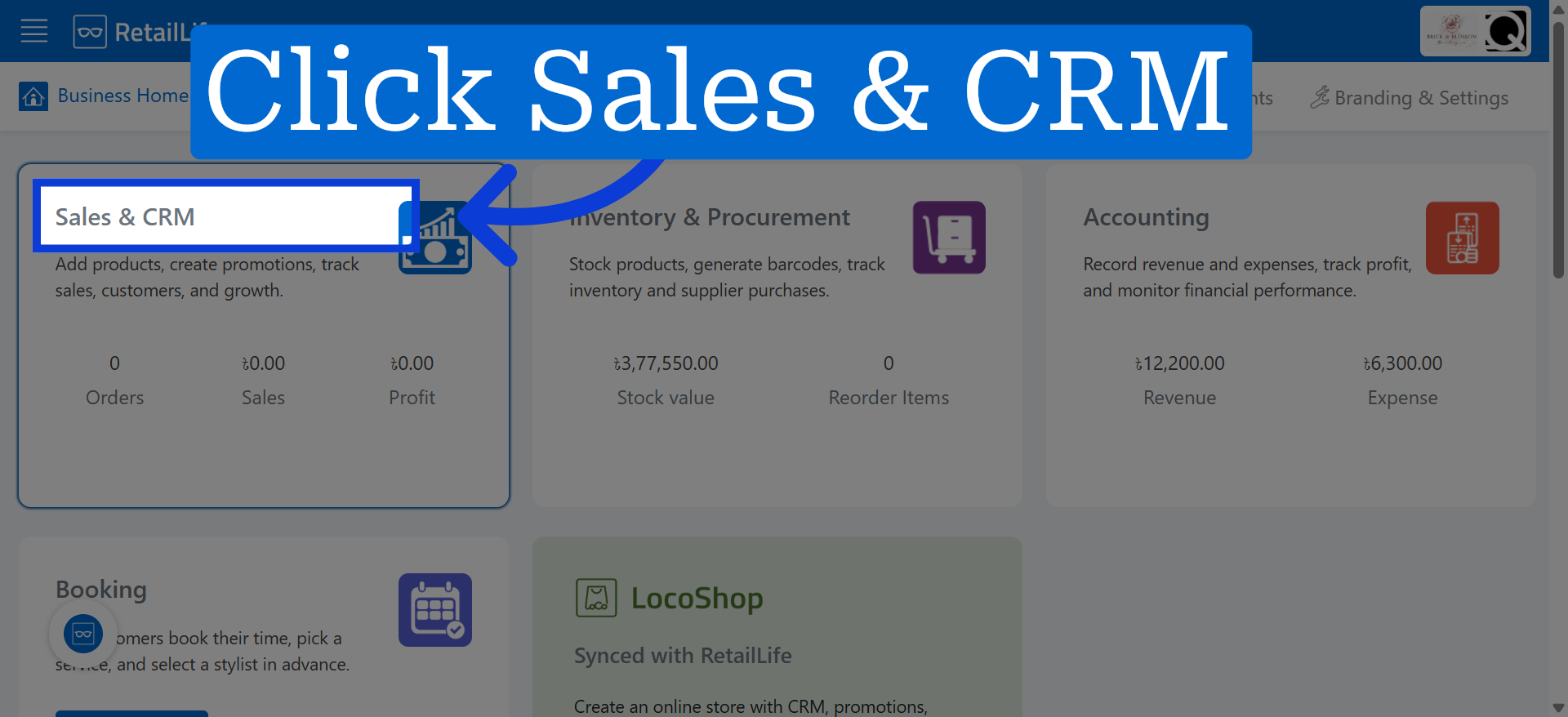
1. Access Sales & CRM Module
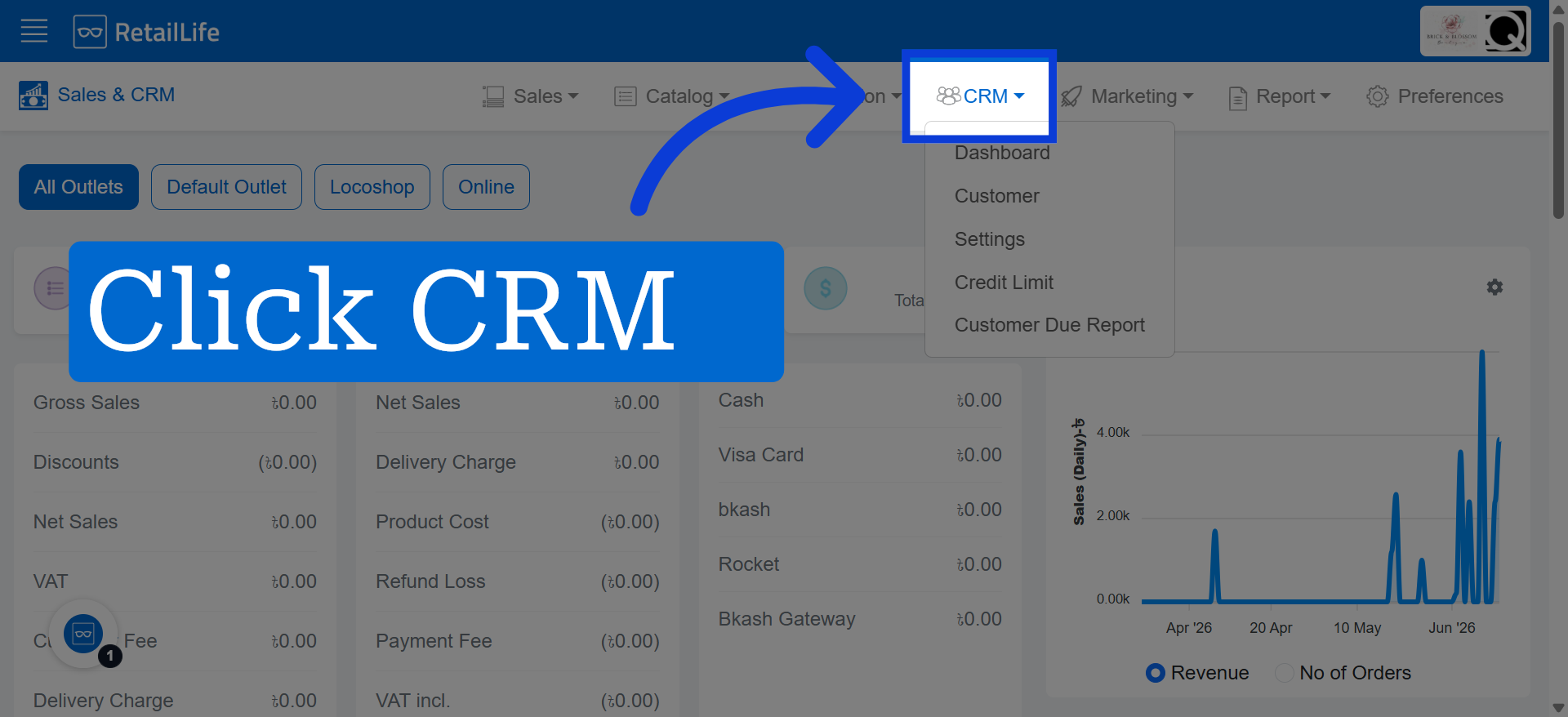
2. Open CRM Section
3. Navigate to Credit Limit Settings
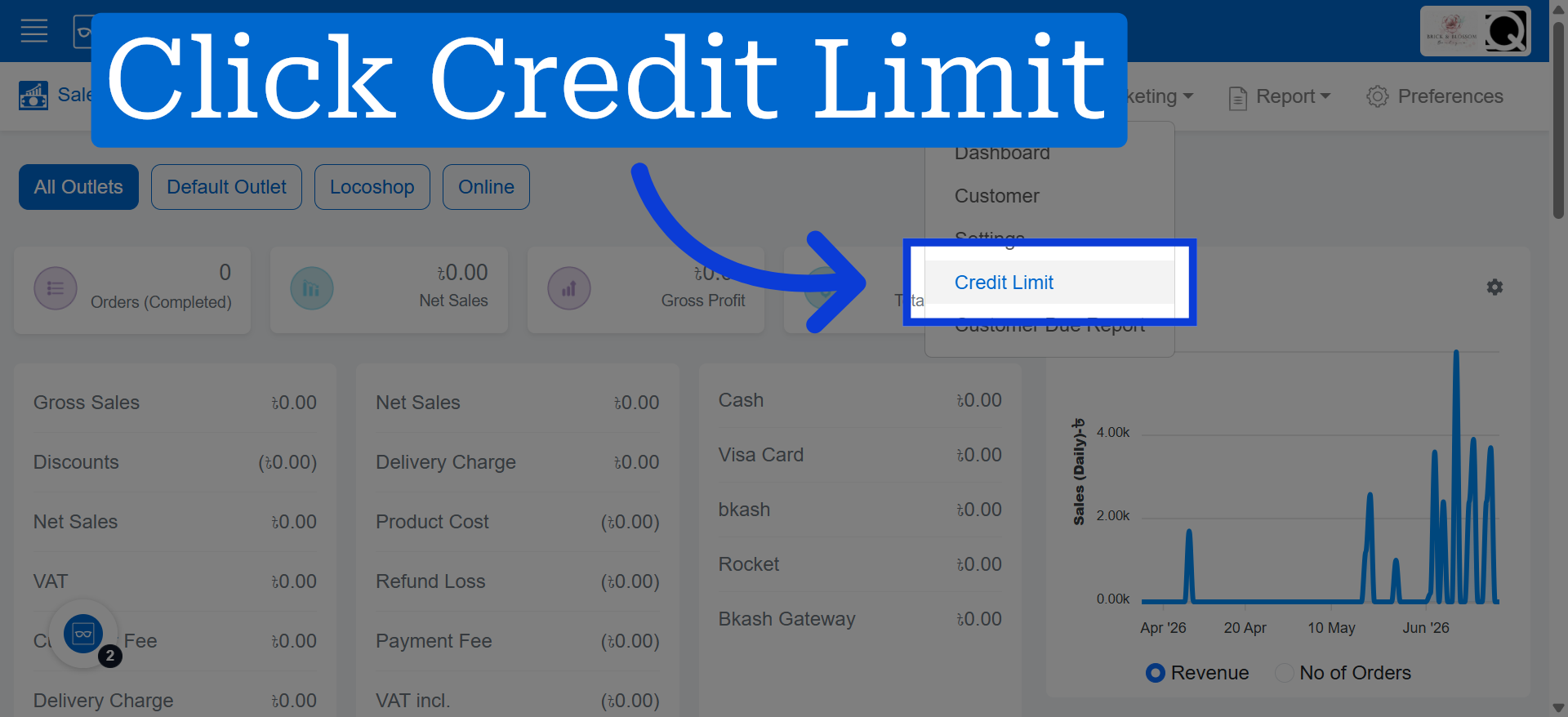
4. Select Credit Limit
Click the customer's credit limit value to edit the amount. This credit limit applies only to the selected customer.
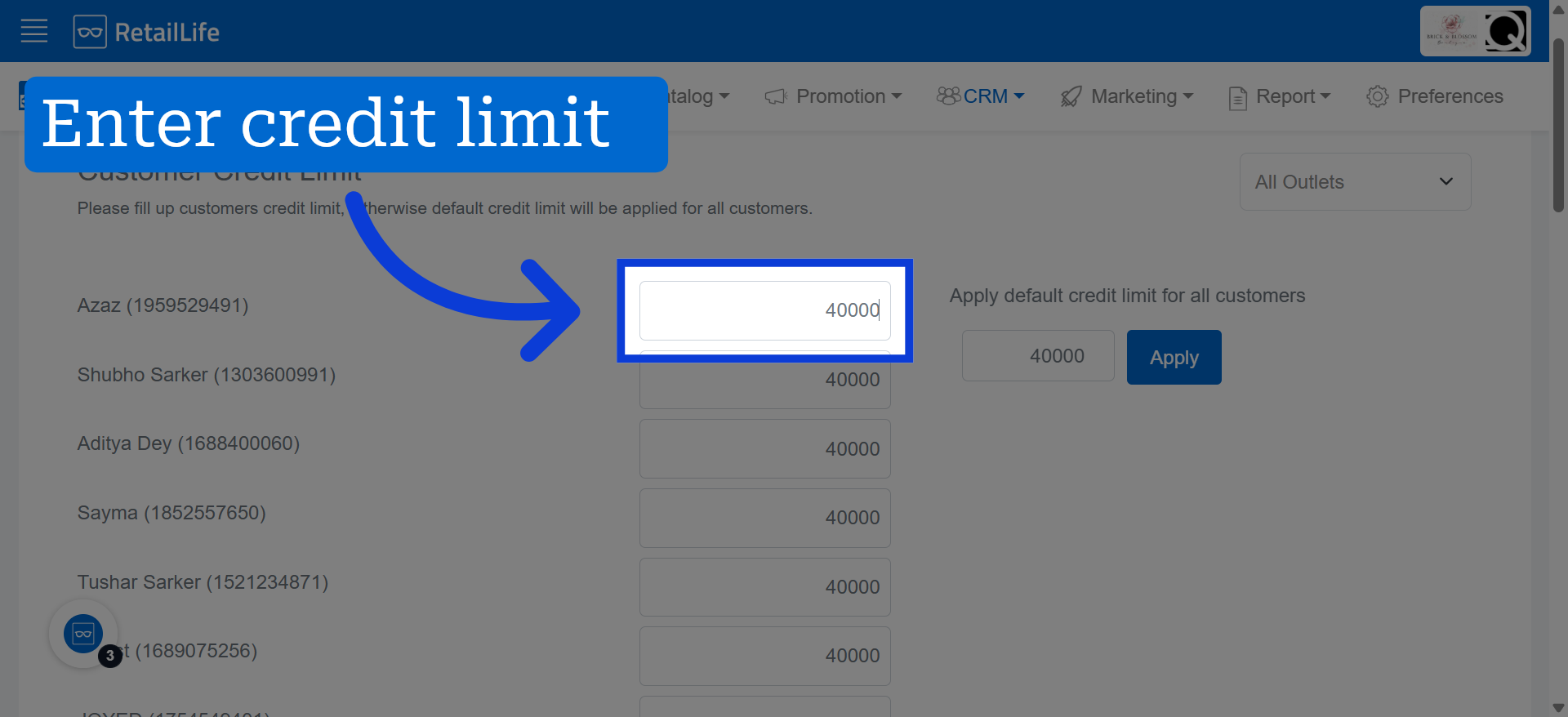
5. For Default Credit Limit
Click the default credit limit value to modify the amount. This default credit limit applies to all customers unless an individual customer-specific credit limit is configured
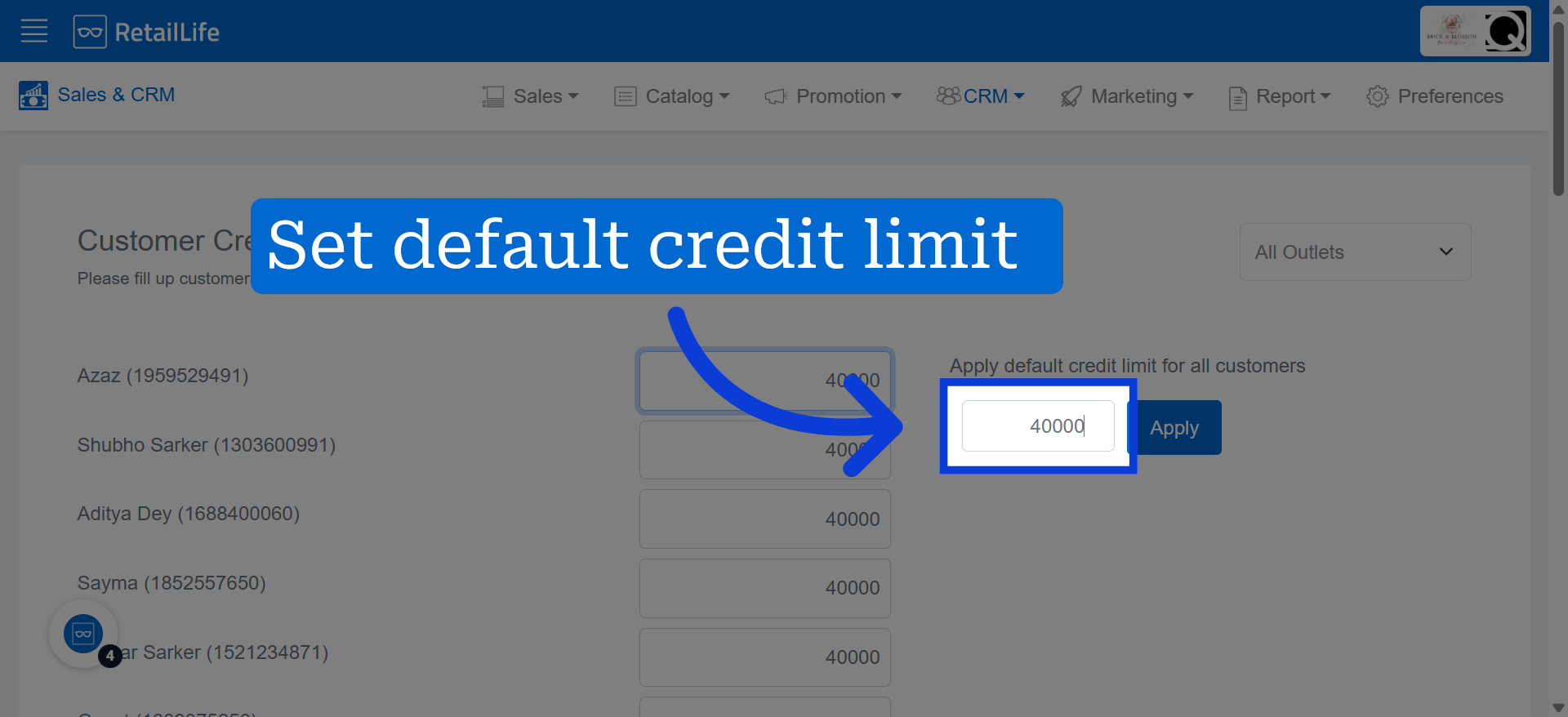
6. Apply Credit Limit Changes
Click "Apply" to implement the updated credit limit settings.
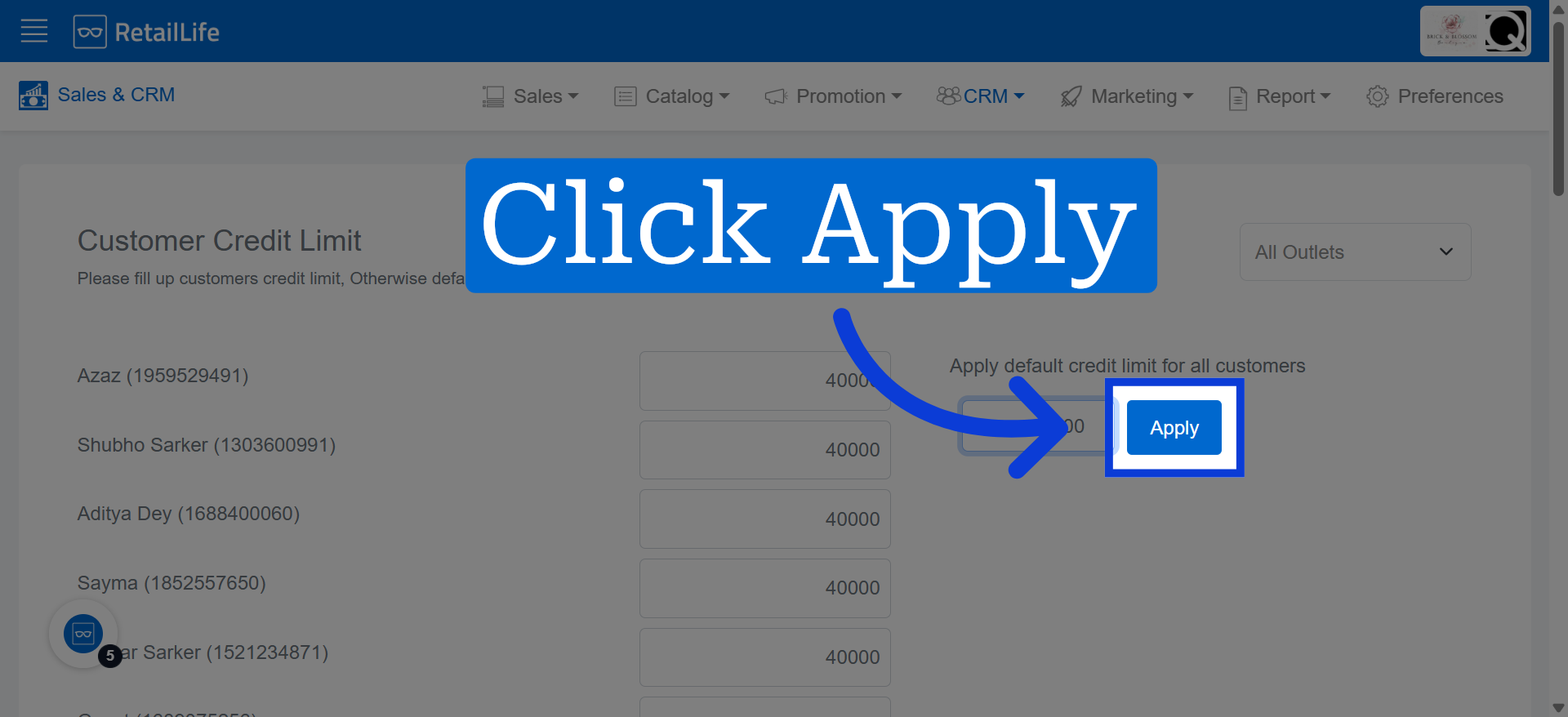
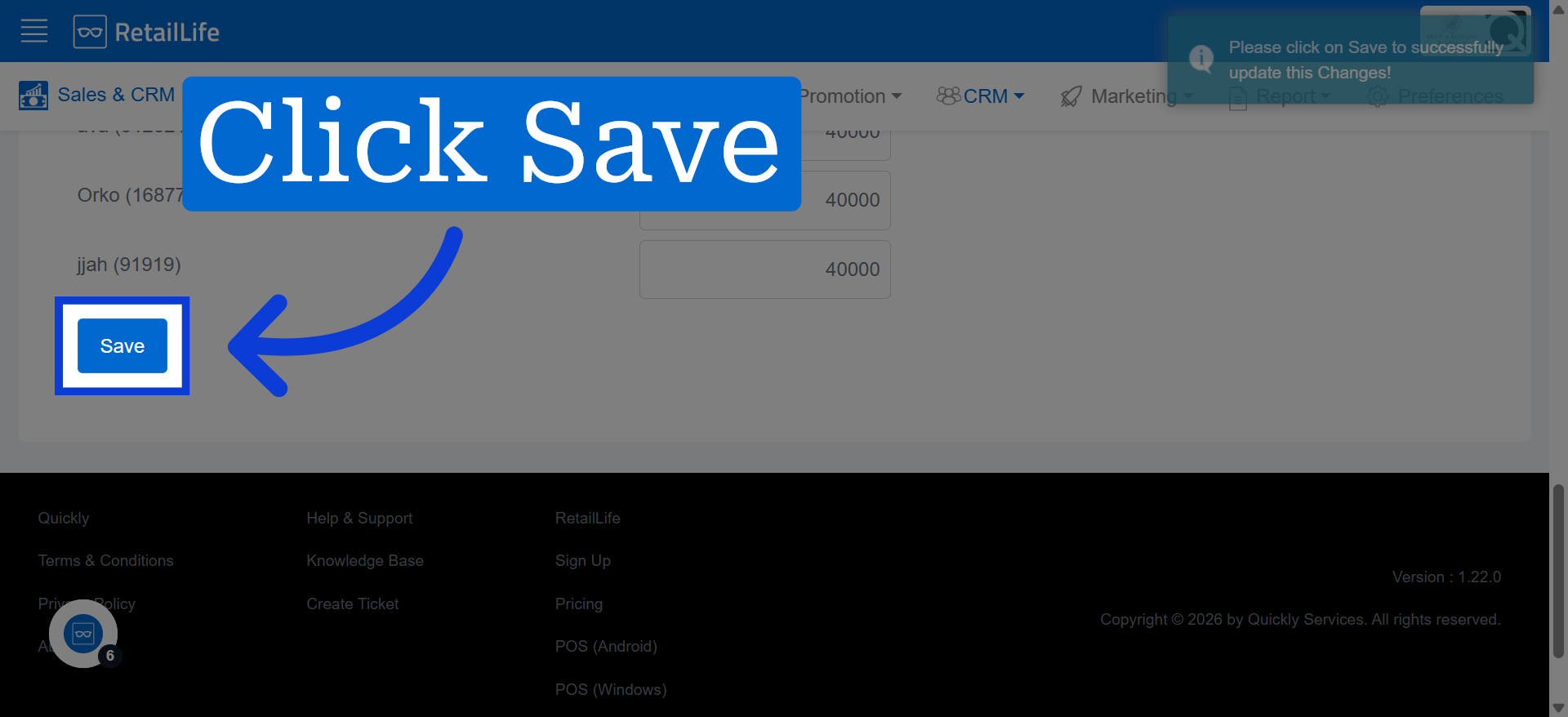
7. Save Updated Settings
Click "Save" to finalize and store the new credit limit configuration in the system.