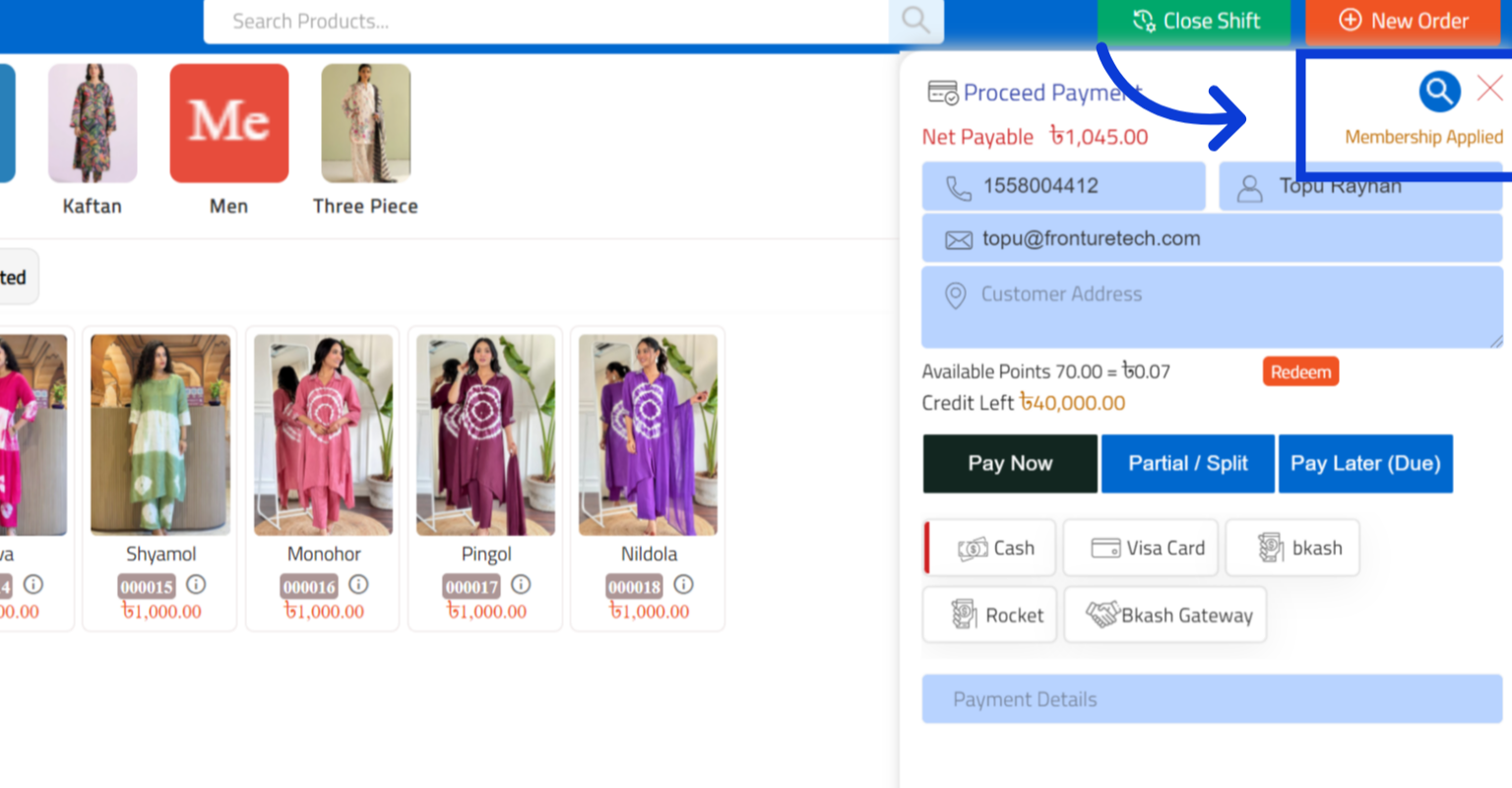
How to Assign a Membership in RetailLife Business Portal
This tutorial guides you through configuring a membership offer within the Business Portal. You
will also learn how to assign the membership to selected customers and define its purpose for
customer engagement and benefits.
Go to
retaillife.quicklyservices.com
1. Access Sales & CRM Module
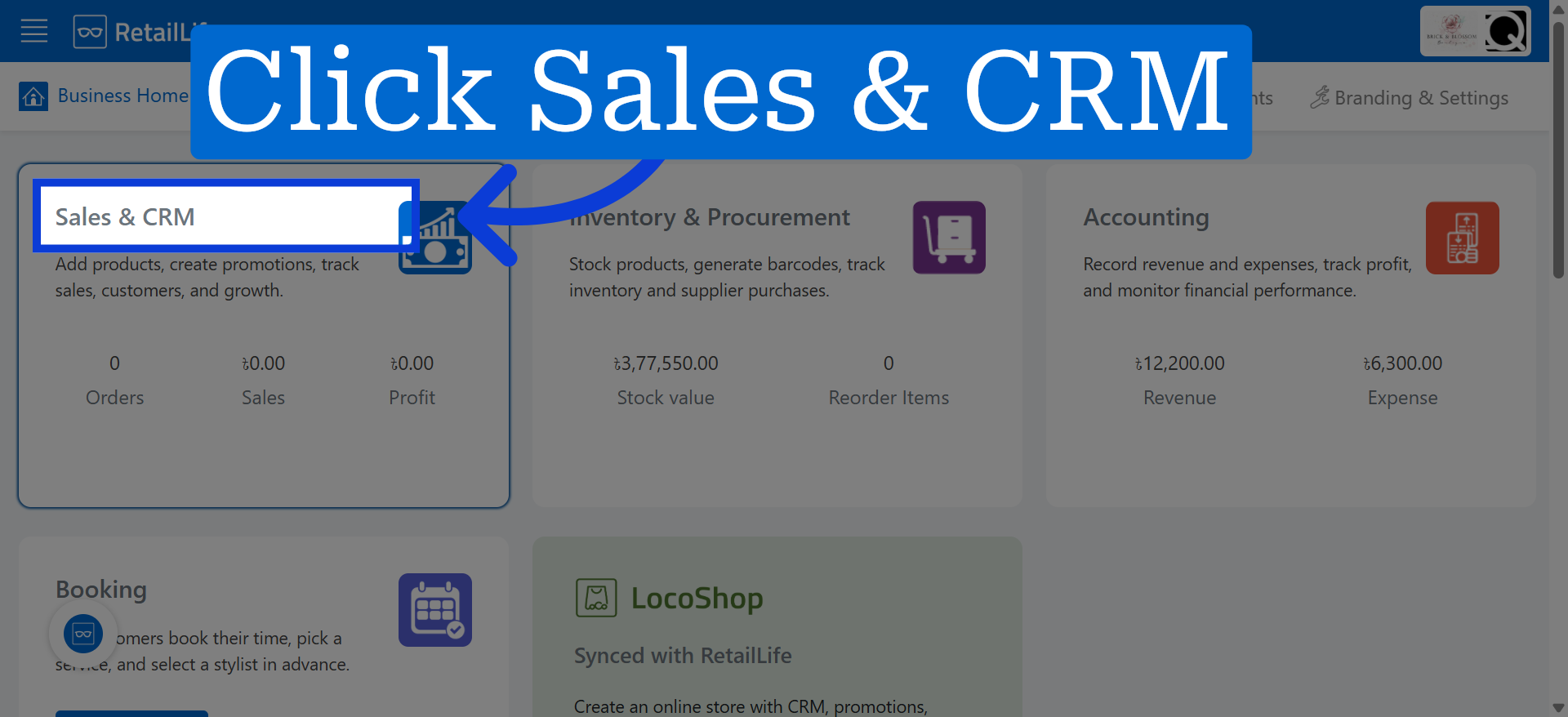
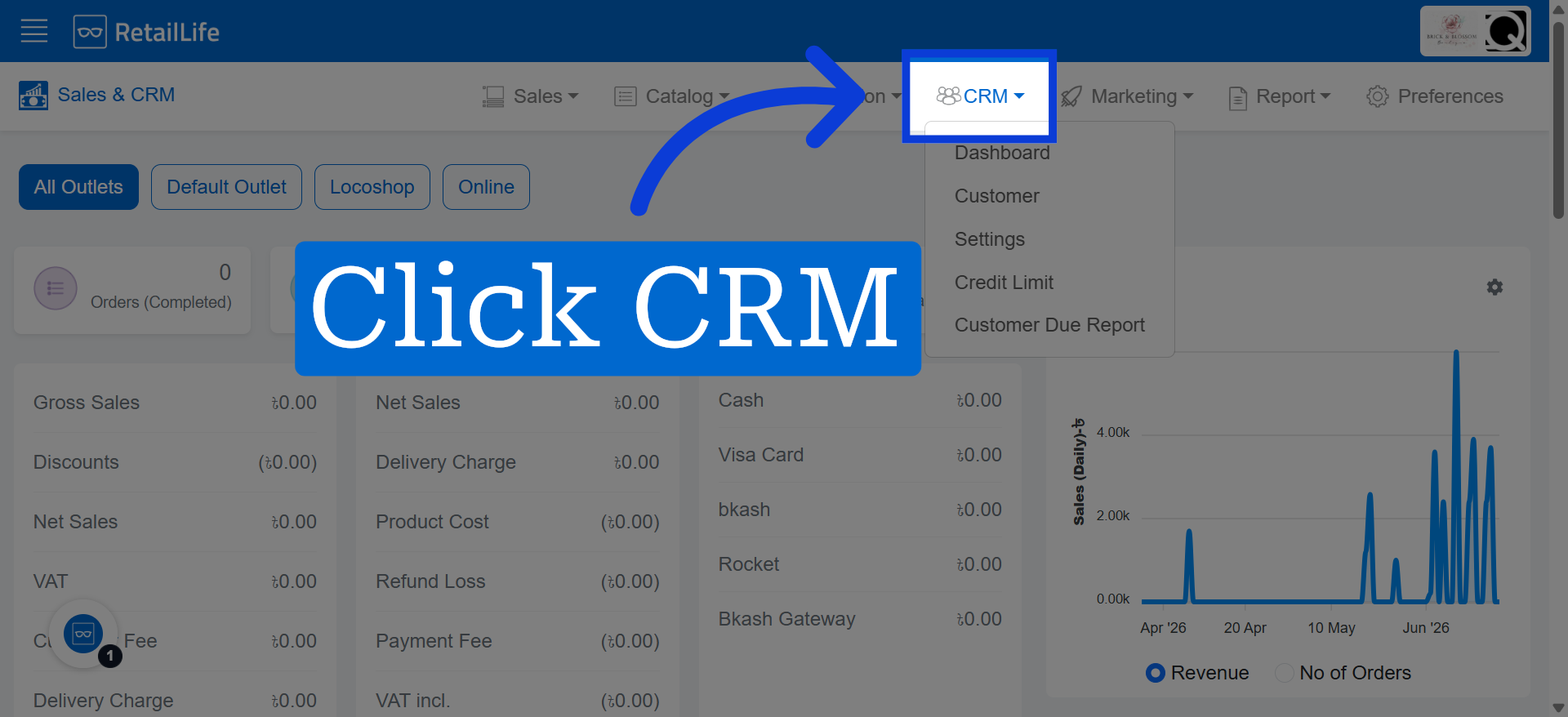
2. Open CRM
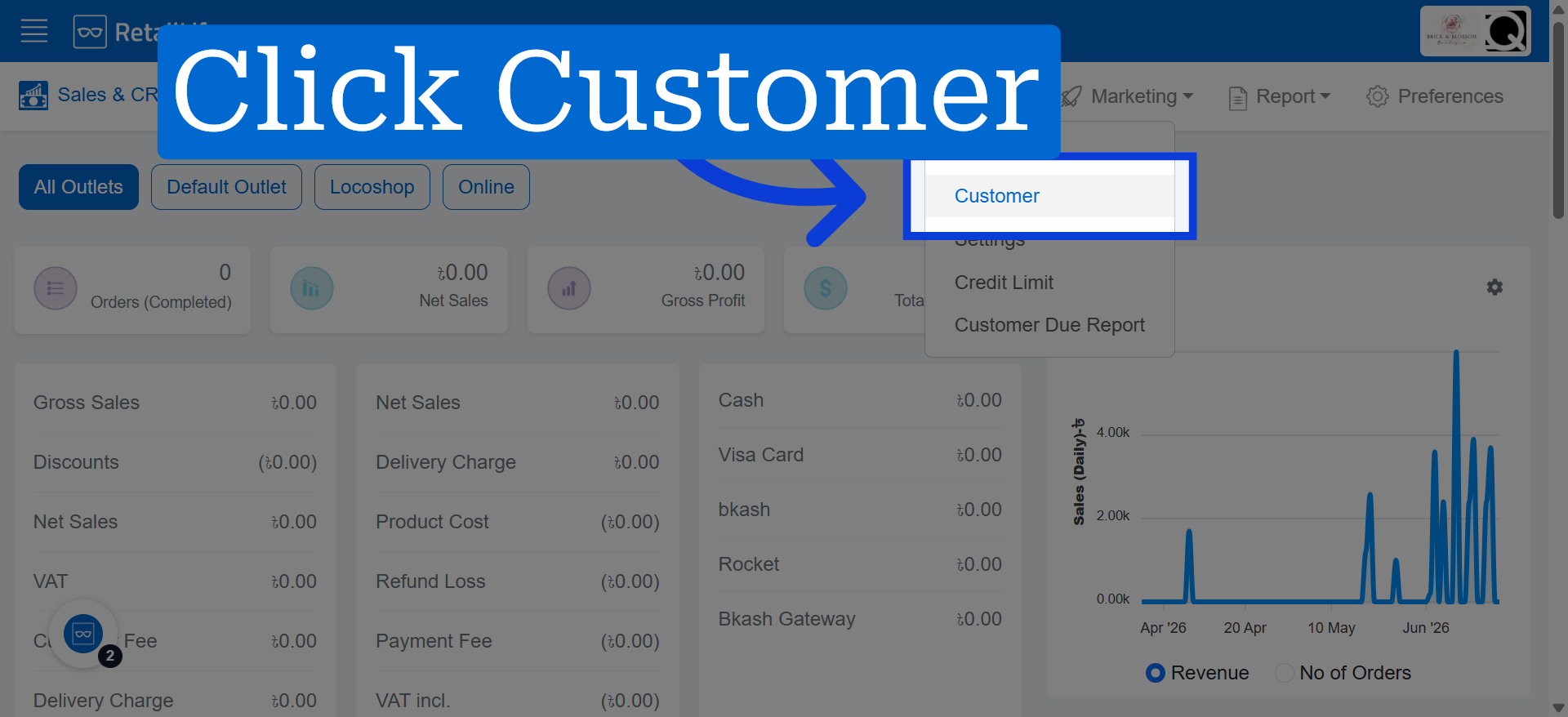
3. Navigate to Customer
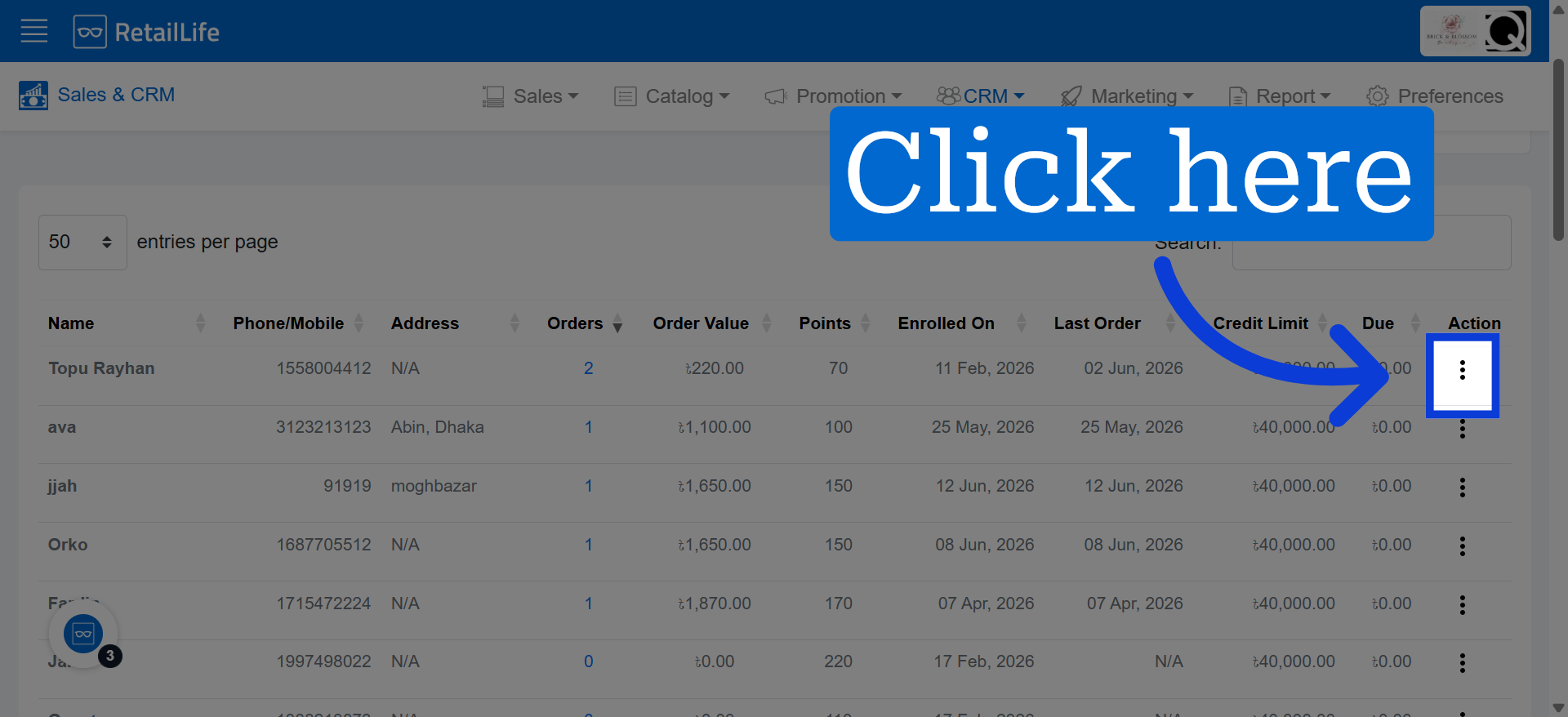
4. Proceed to This Action
Click here to continue to the next configuration step within the customer management area.
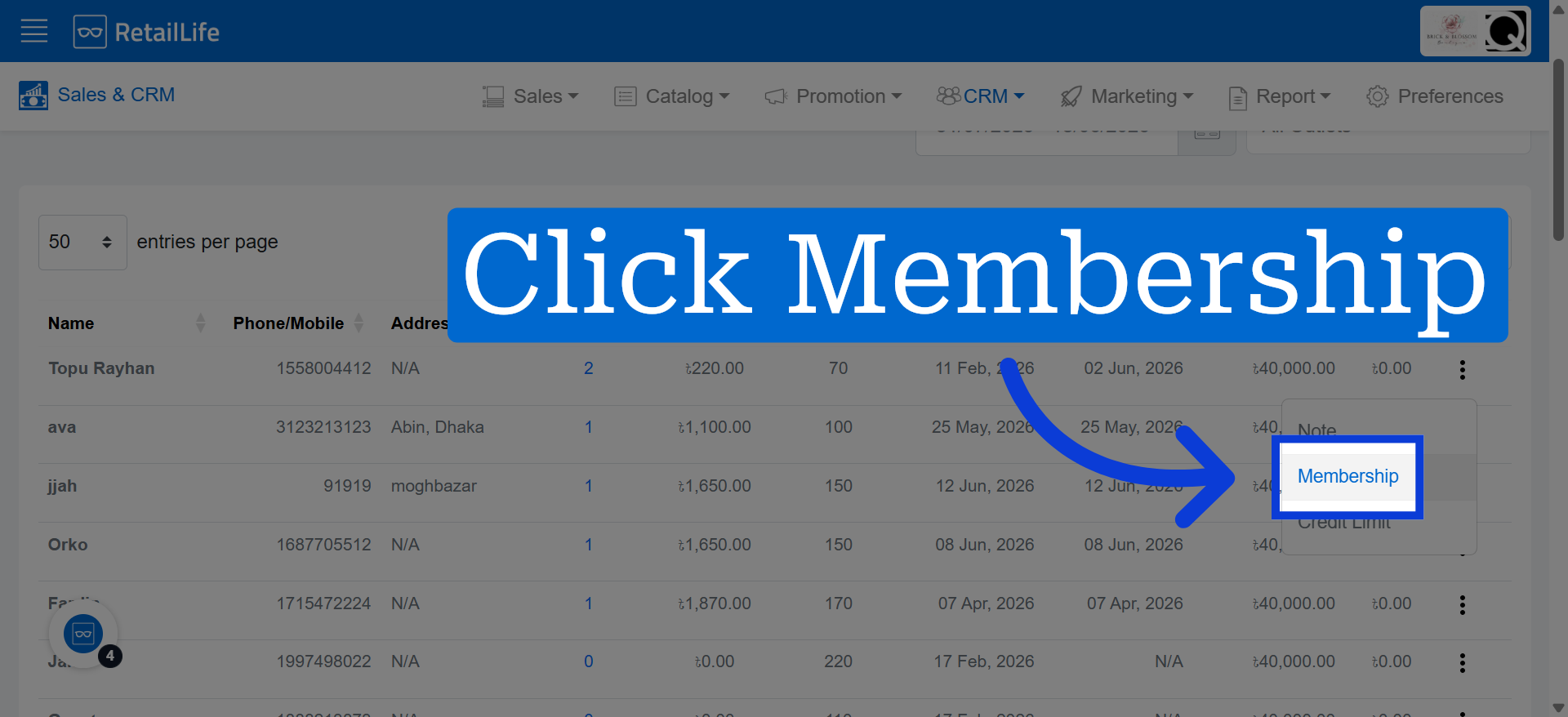
5. Click Membership
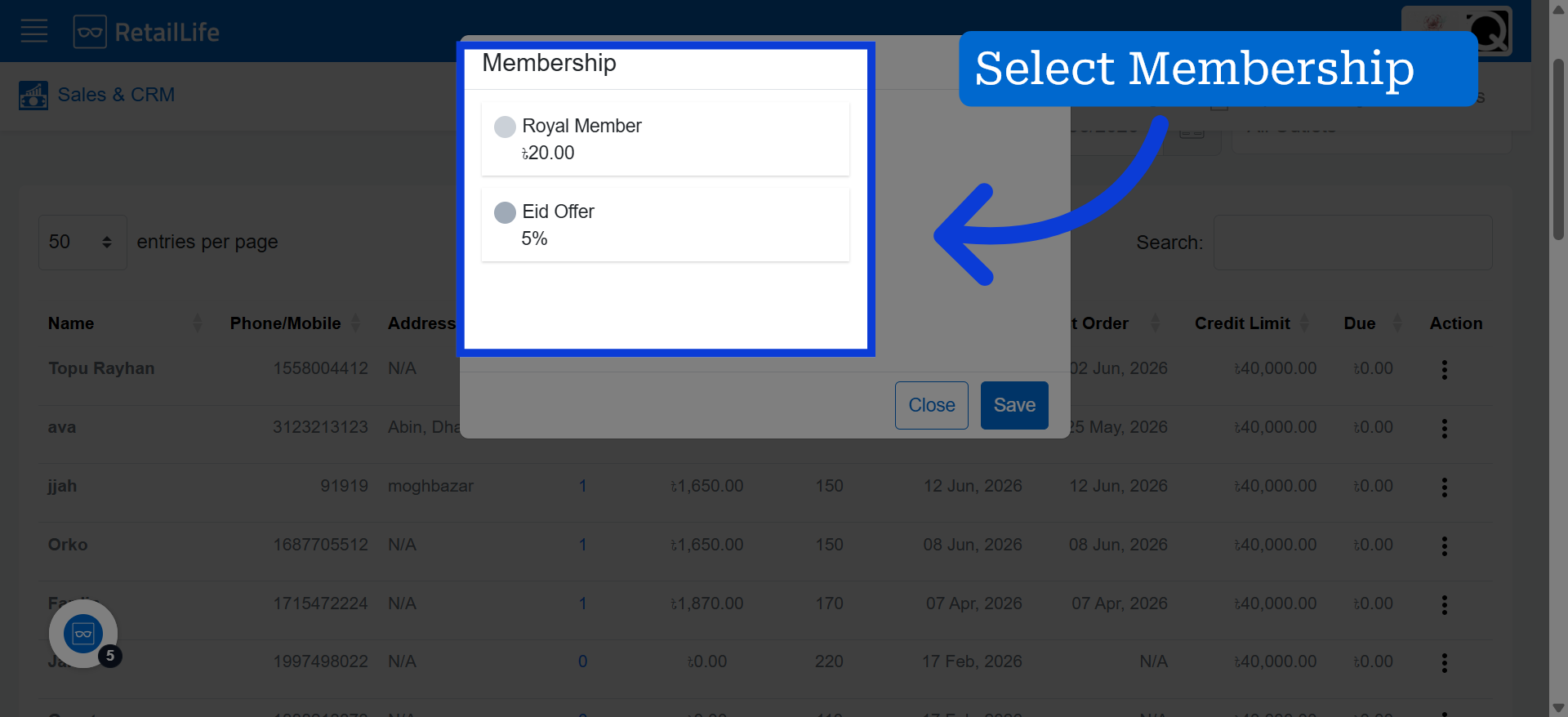
6. Choose Selected Membership
Click the membership promotion to select the one you want to configure. Then click the selected membership to apply it.
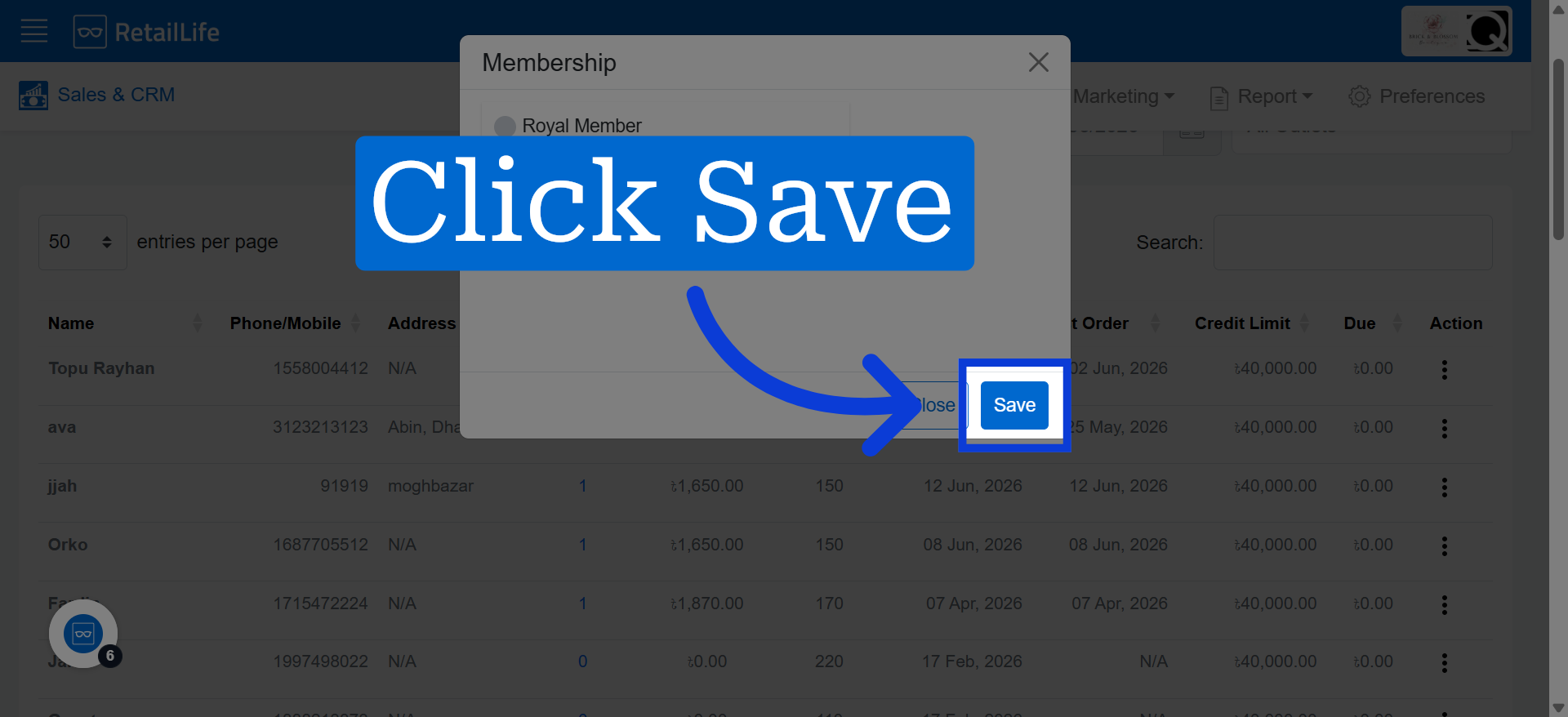
7. Save Membership Configuration
Click "Save" to apply and store the changes made to the membership offer settings.
8. Go to POS App
In the POS app, once customer details are entered using a name or number, the system will automatically apply the relevant membership.