How to Create a Value Wise Discount Offer in RetailLife Business Portal
This tutorial guides you through creating an value-wise discount offer in the RetailLife Business
Portal. By selecting specific products or categories, you can apply customized discounts and run
effective promotional campaigns.
Go to
retaillife.quicklyservices.com
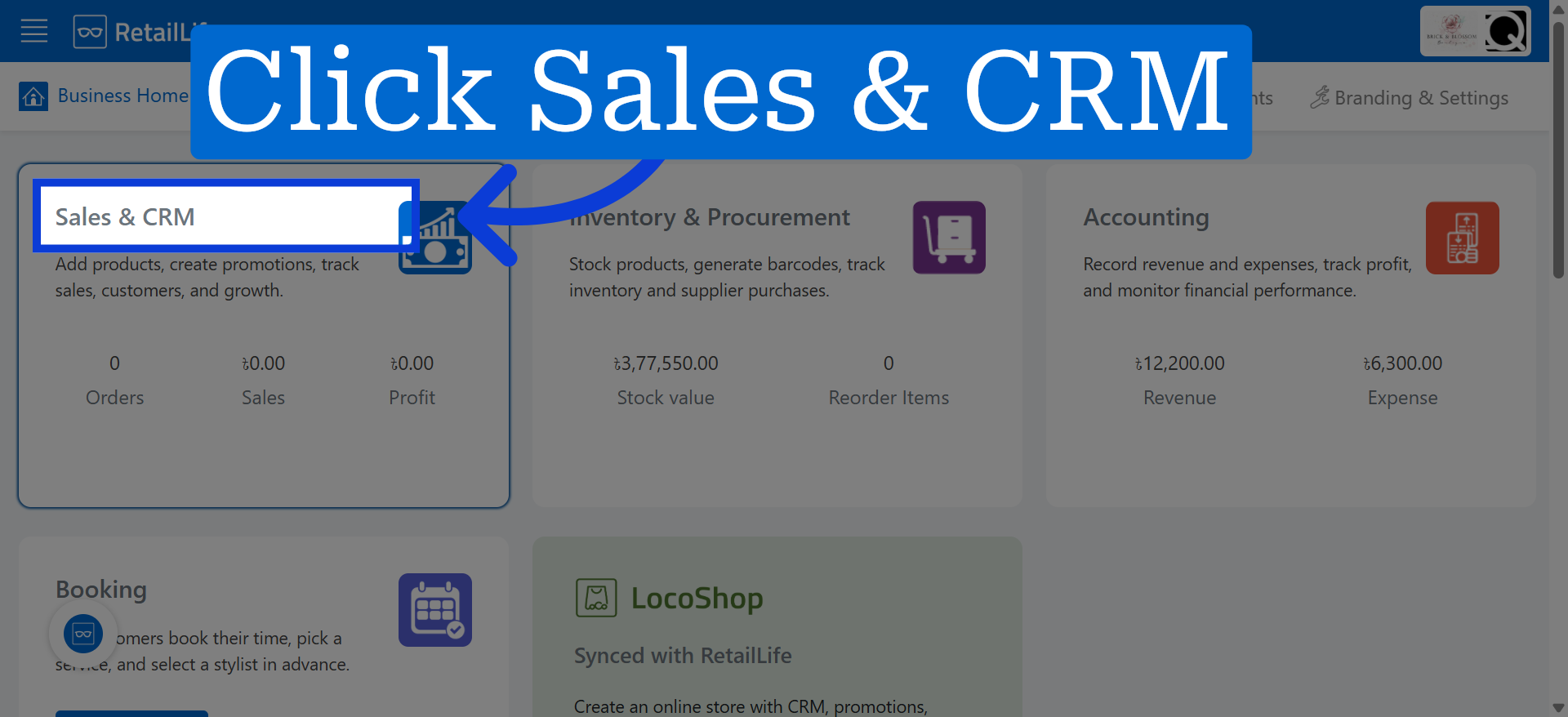
1. Access Sales & CRM Module
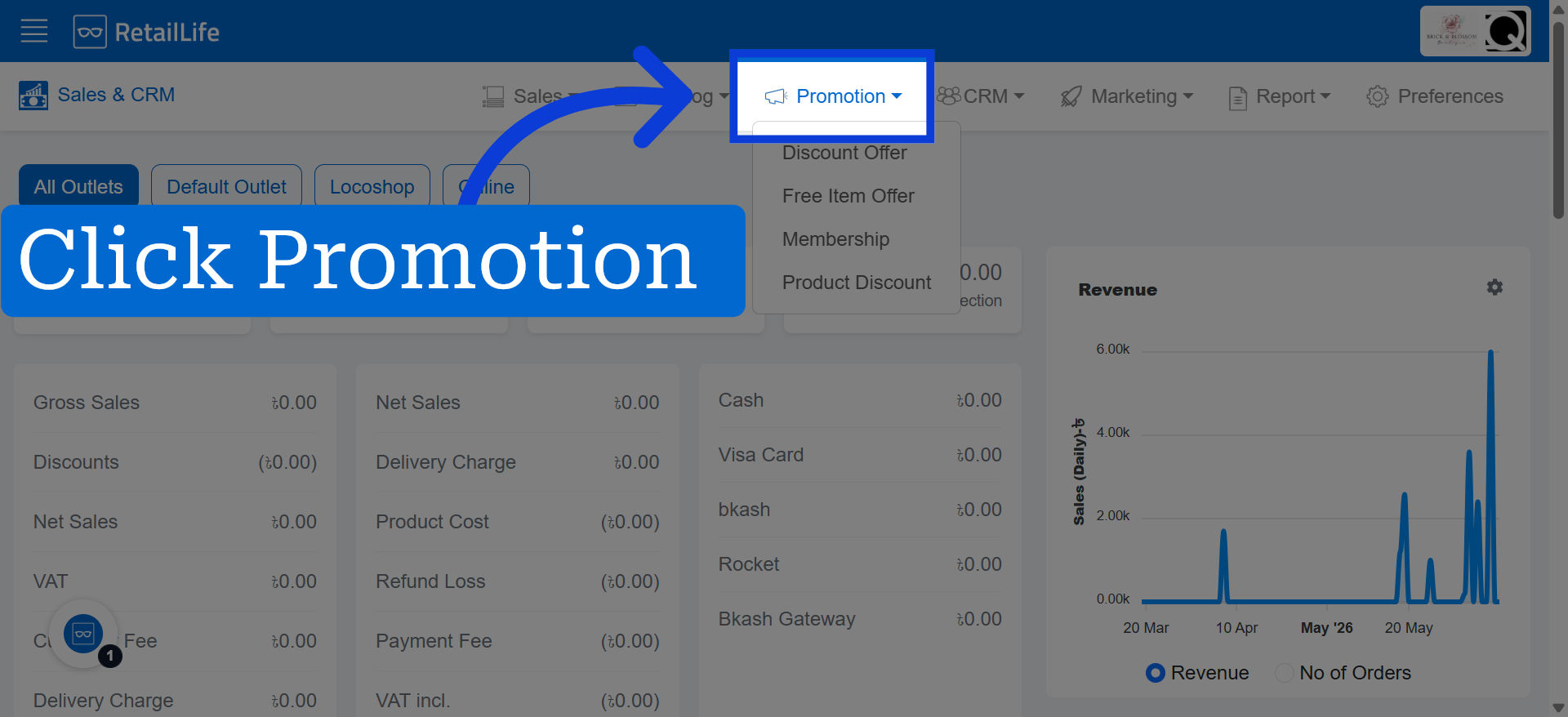
2. Open Promotion Bar
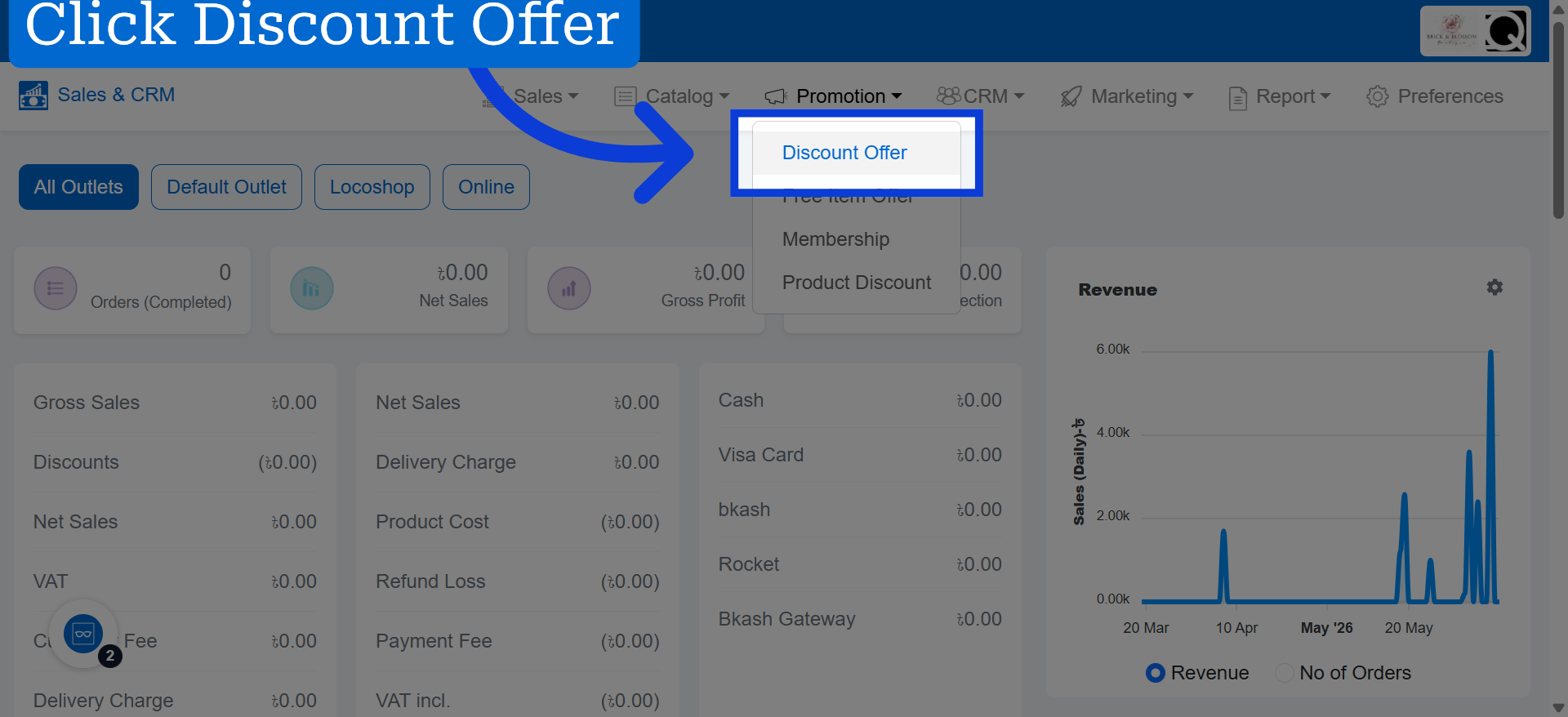
3. Select Discount Offer Option
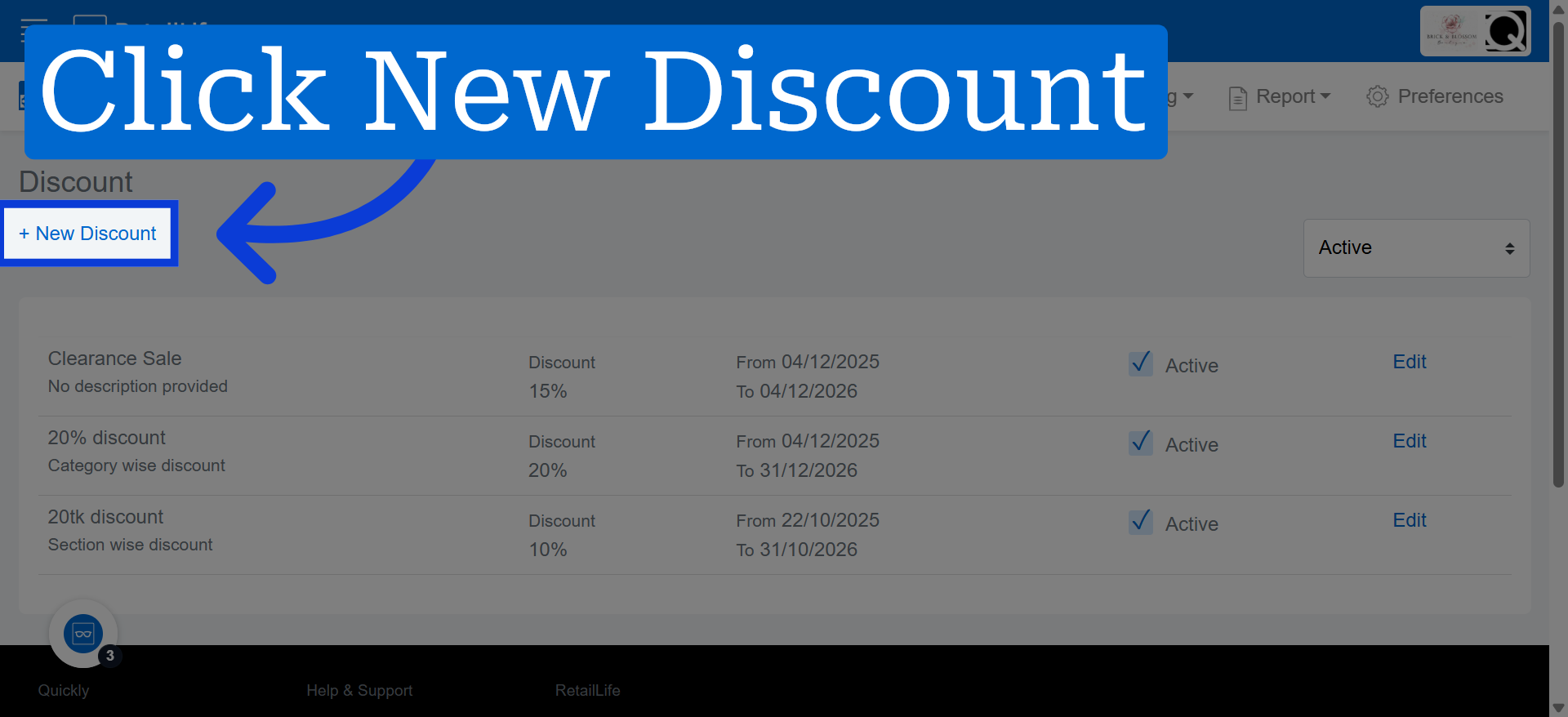
4. Initiate New Discount Creation
Click "+ New Discount" to start creating a new discount offer.
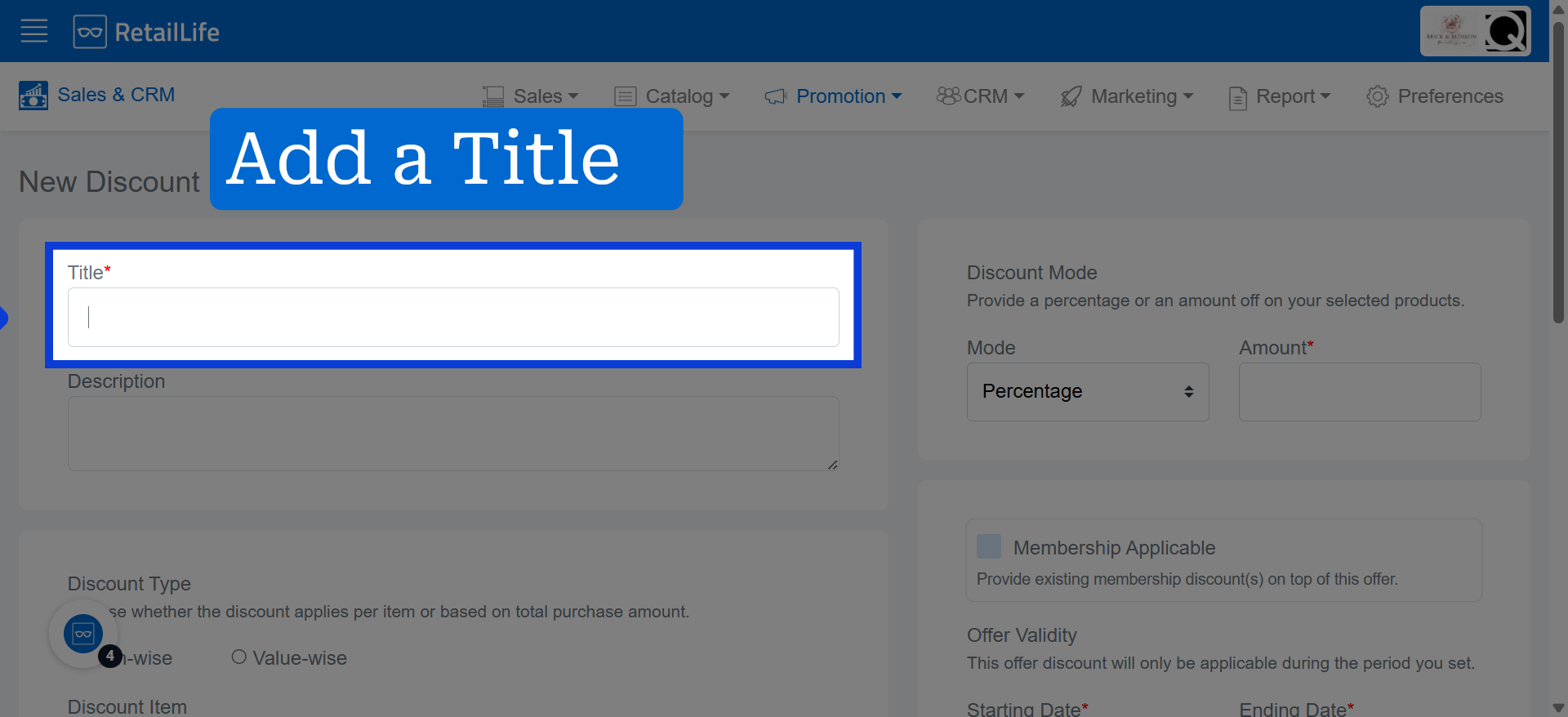
5. Enter Discount Title
Click here to to name the discount offer.
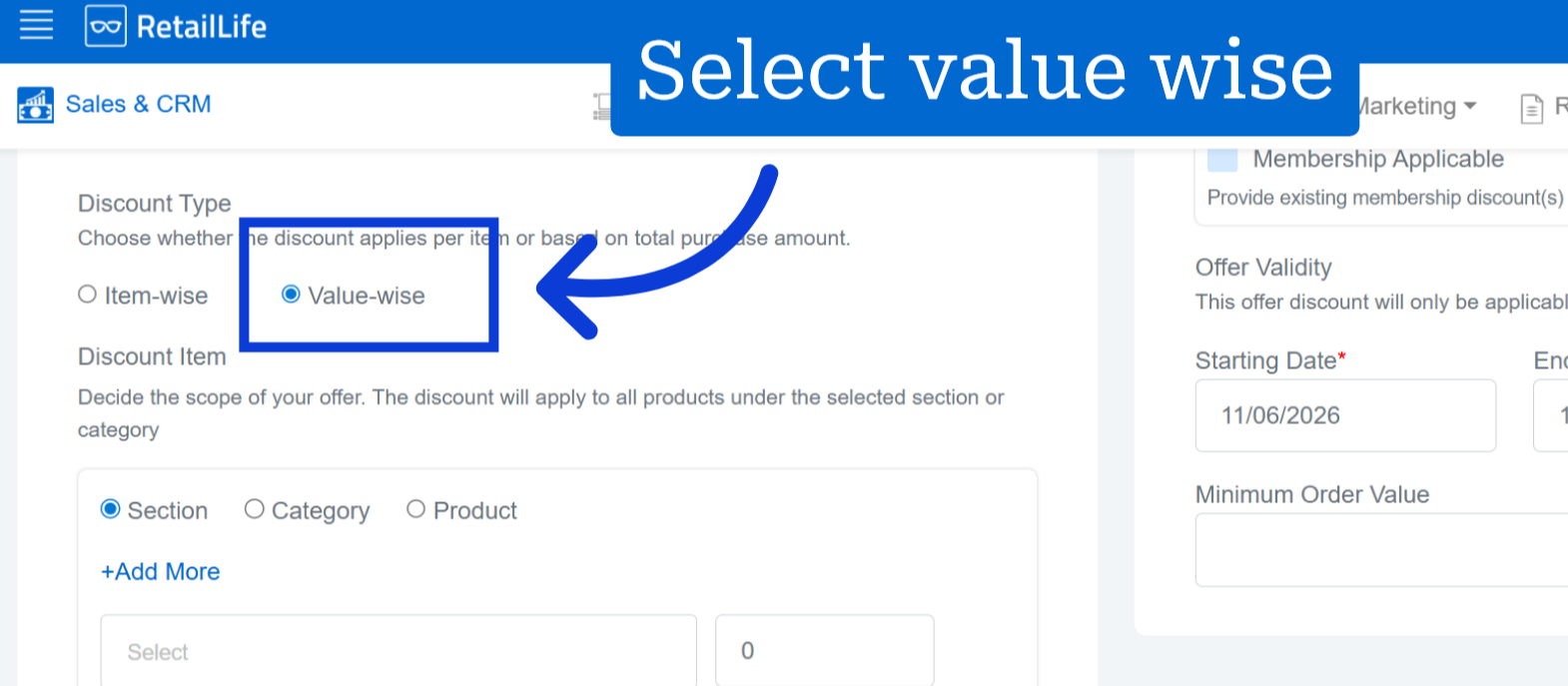
6. Choose Discount Type
Click "value-wise" to apply the discount to individual items.
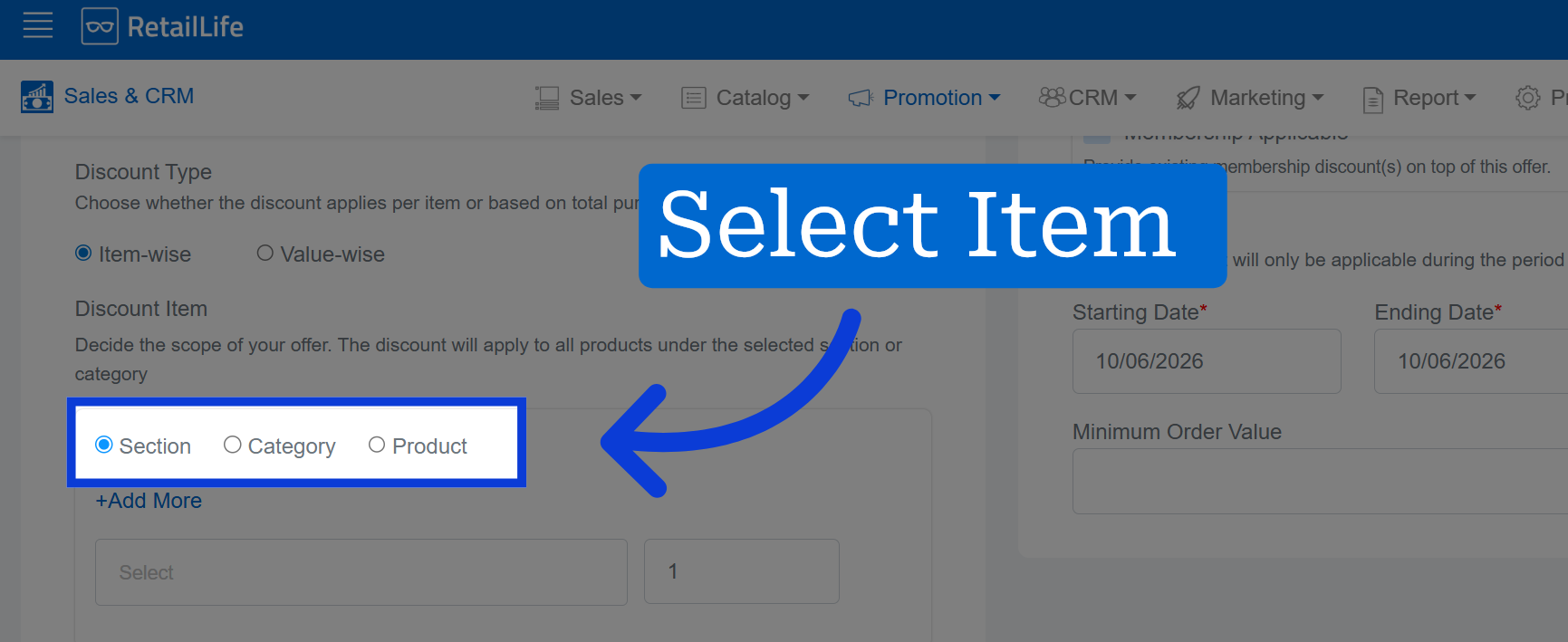
7. Select Discount Section
Click to choose the items the discount will apply to.
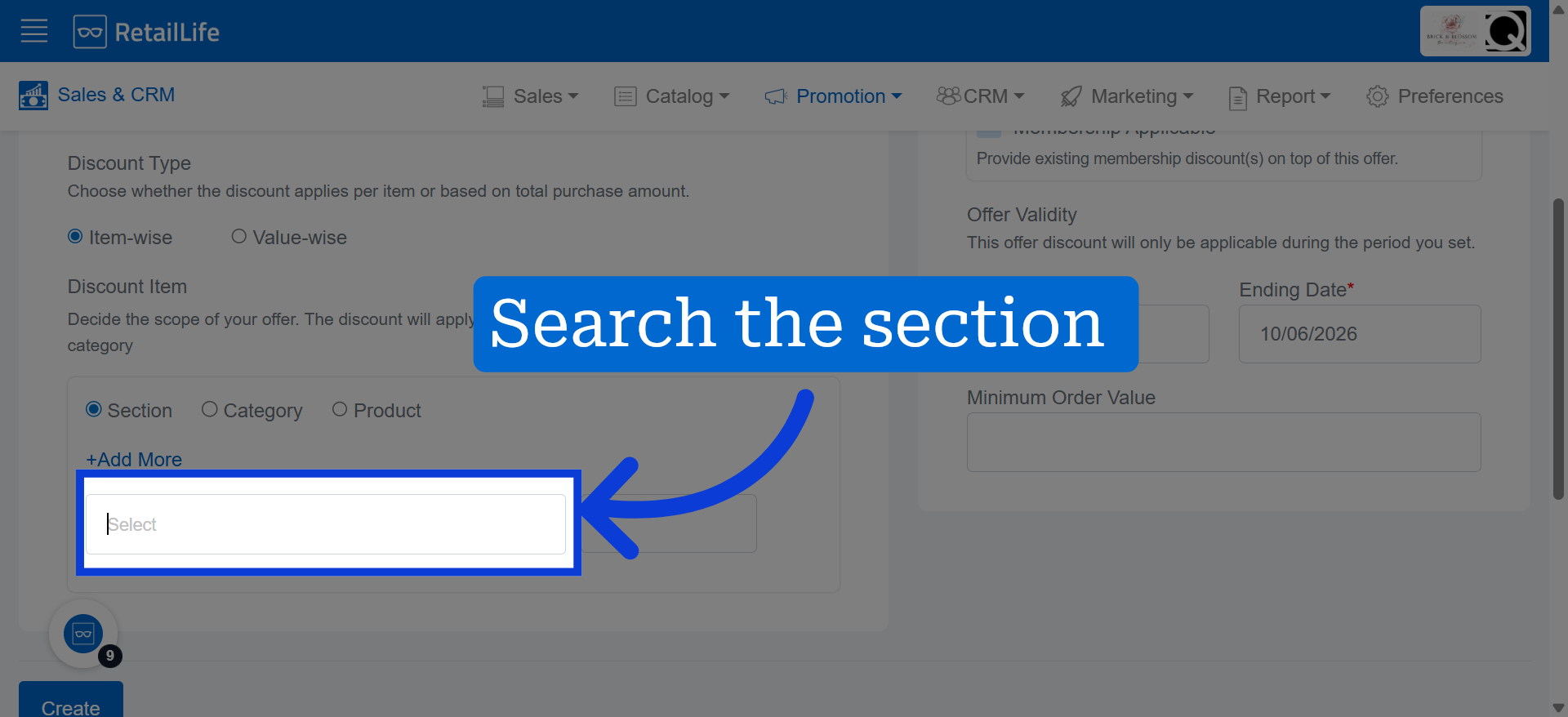
8. Open Section Selection
Here 'Section' is selected a an example. Click "Select" to open the list of available sections for the discount.
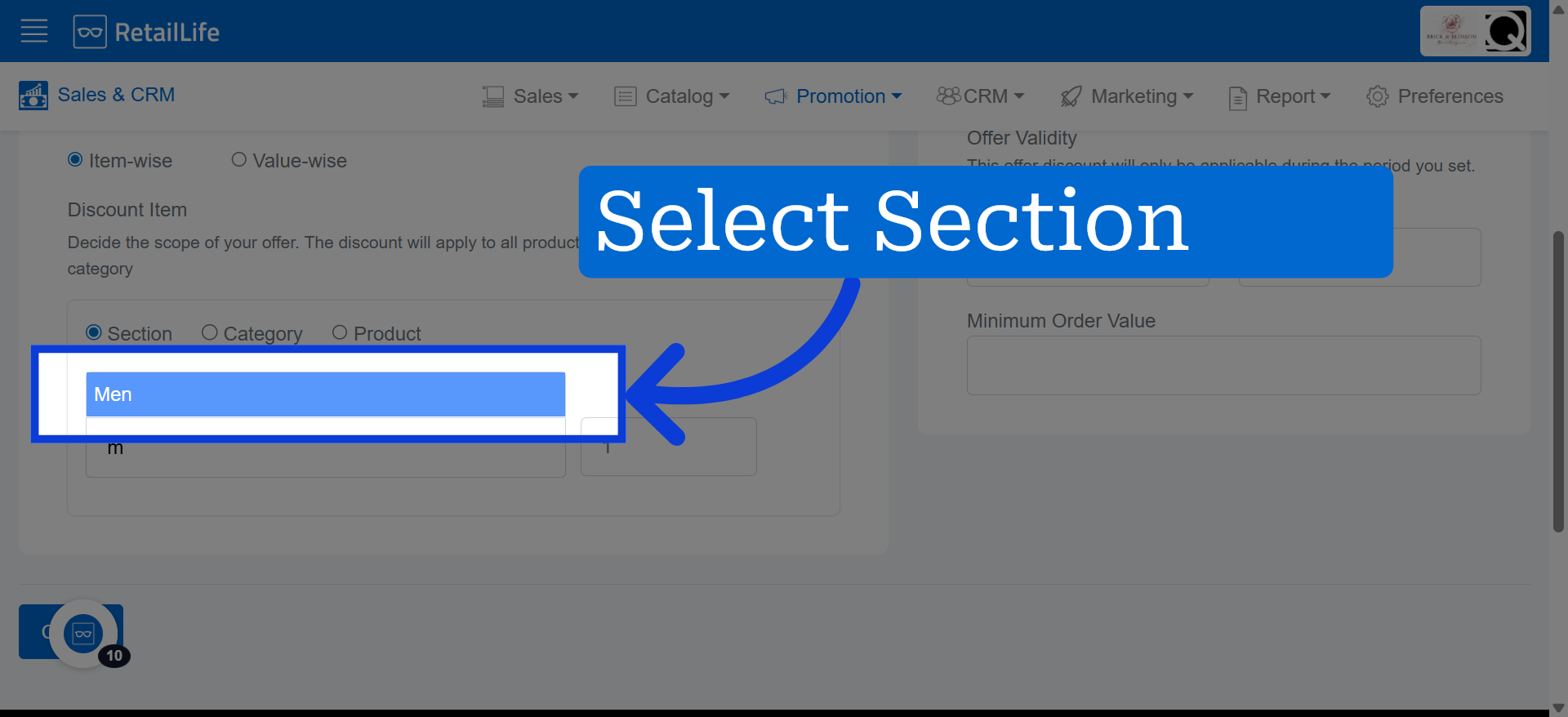
9. Choose Section Accordingly
Here we selected 'Men' section as an example. Click "Men" to select the men's section for the discount offer.
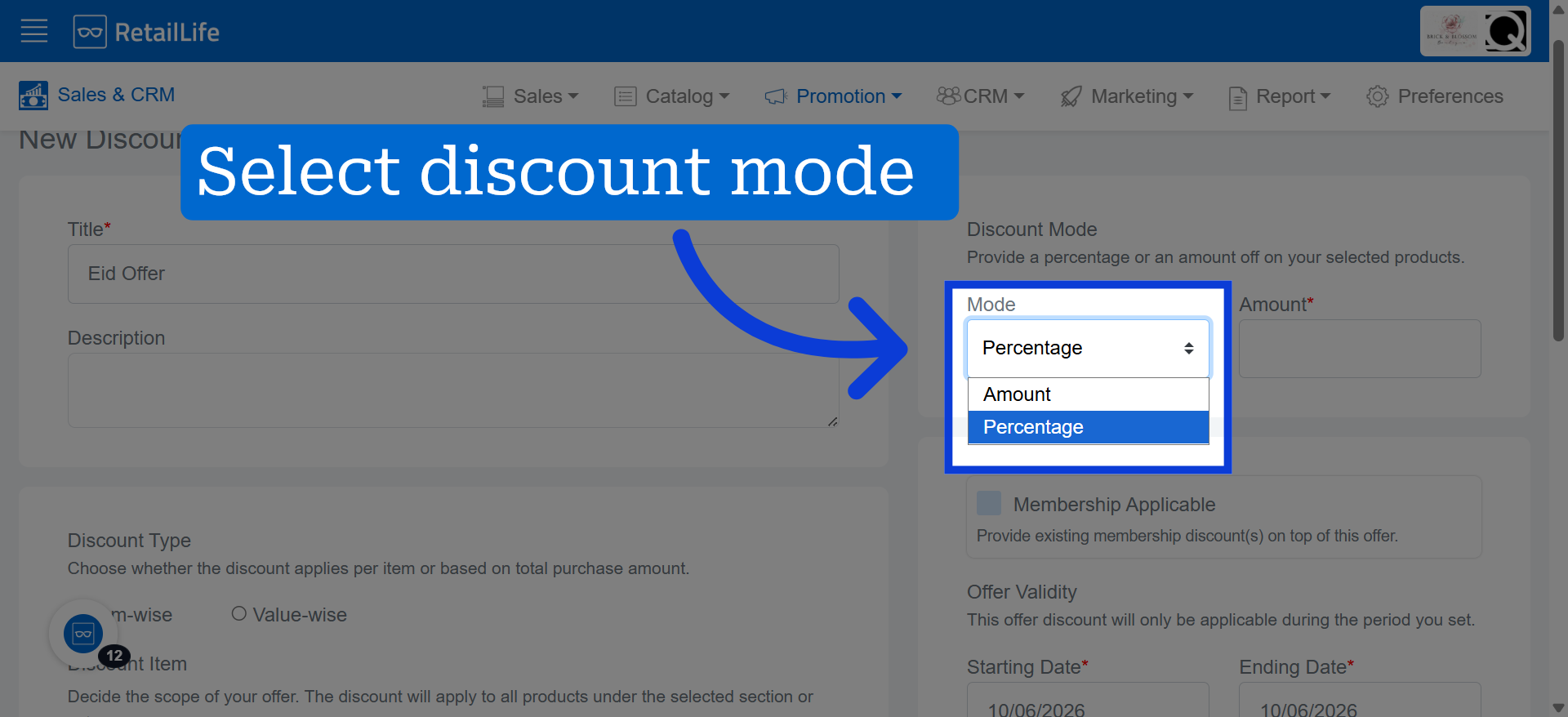
10. Select Discount Mode
Select "Amount/ Percentage" to specify how the discount amount will be calculated.
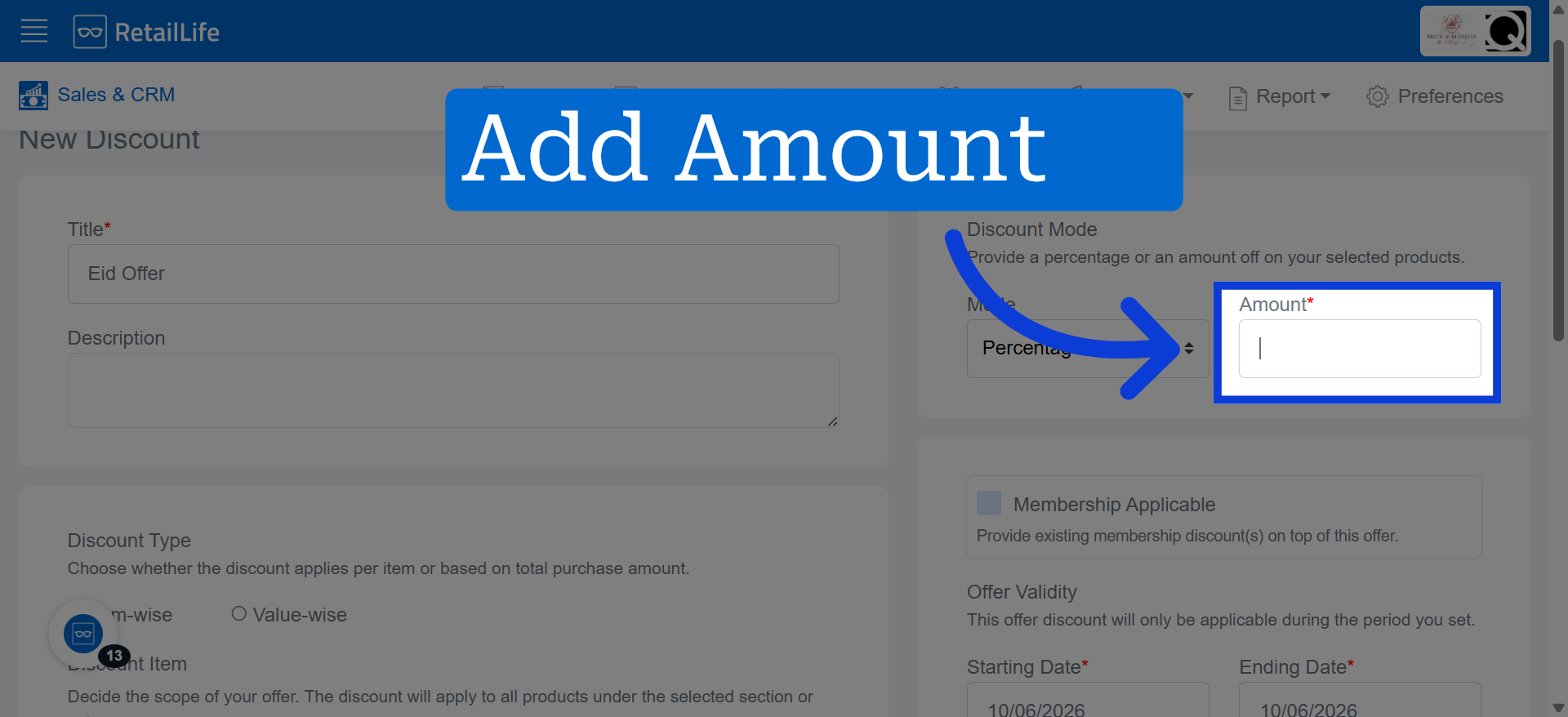
11. Enter Discount Value
Added amount value will reflect as a discount/offer for the selected Section.
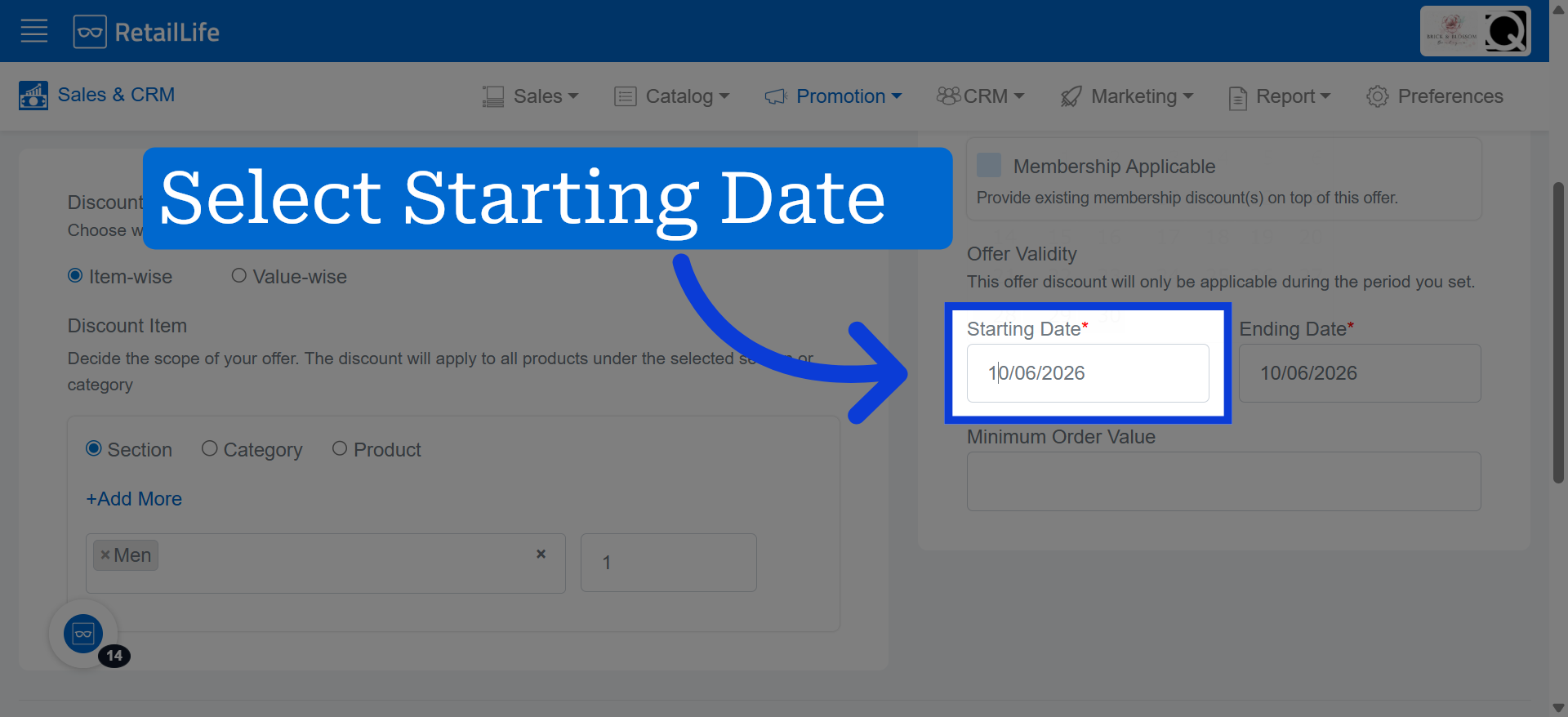
12. Set Starting Date
Click "Starting Date" to choose when the discount offer will begin.
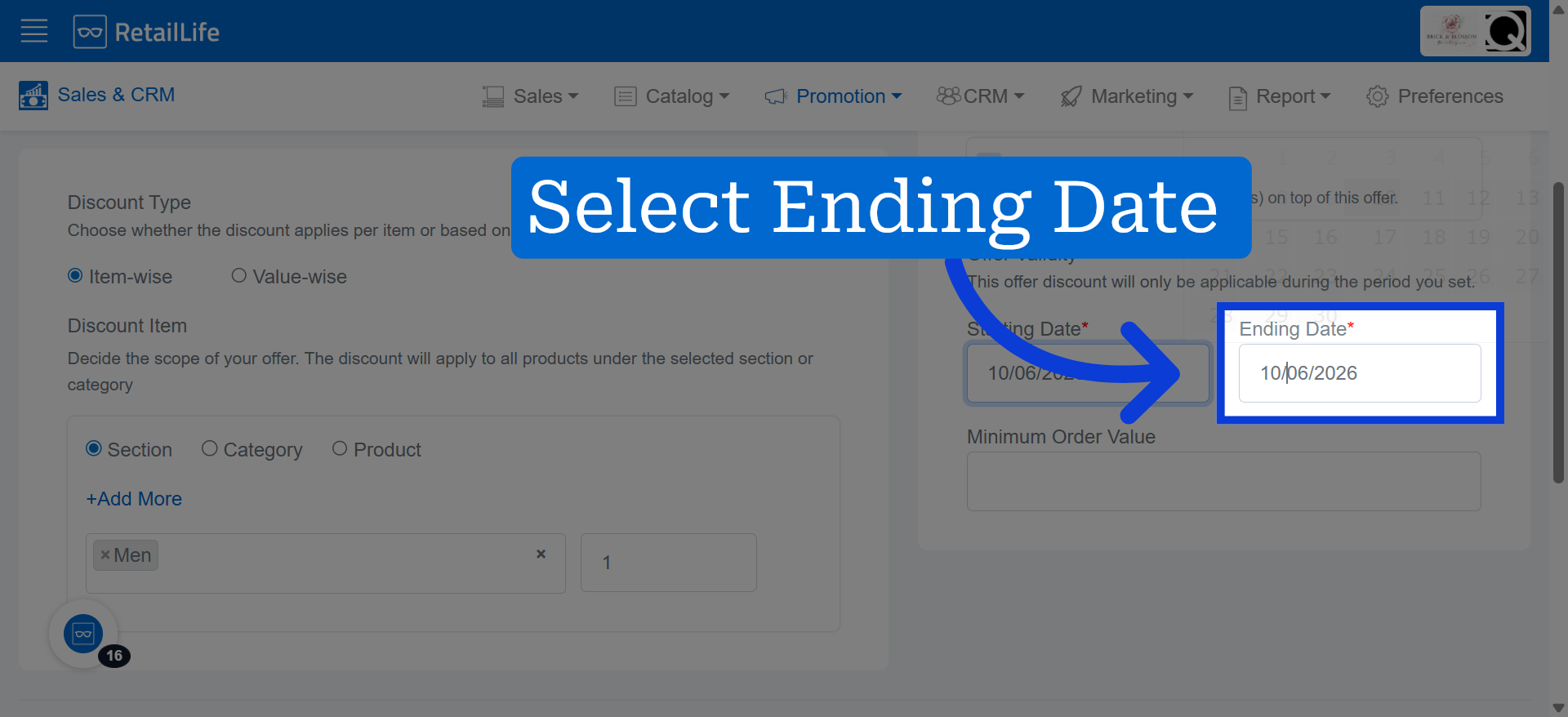
13. Set Ending Date
Click "Ending Date" to specify when the discount offer will end.
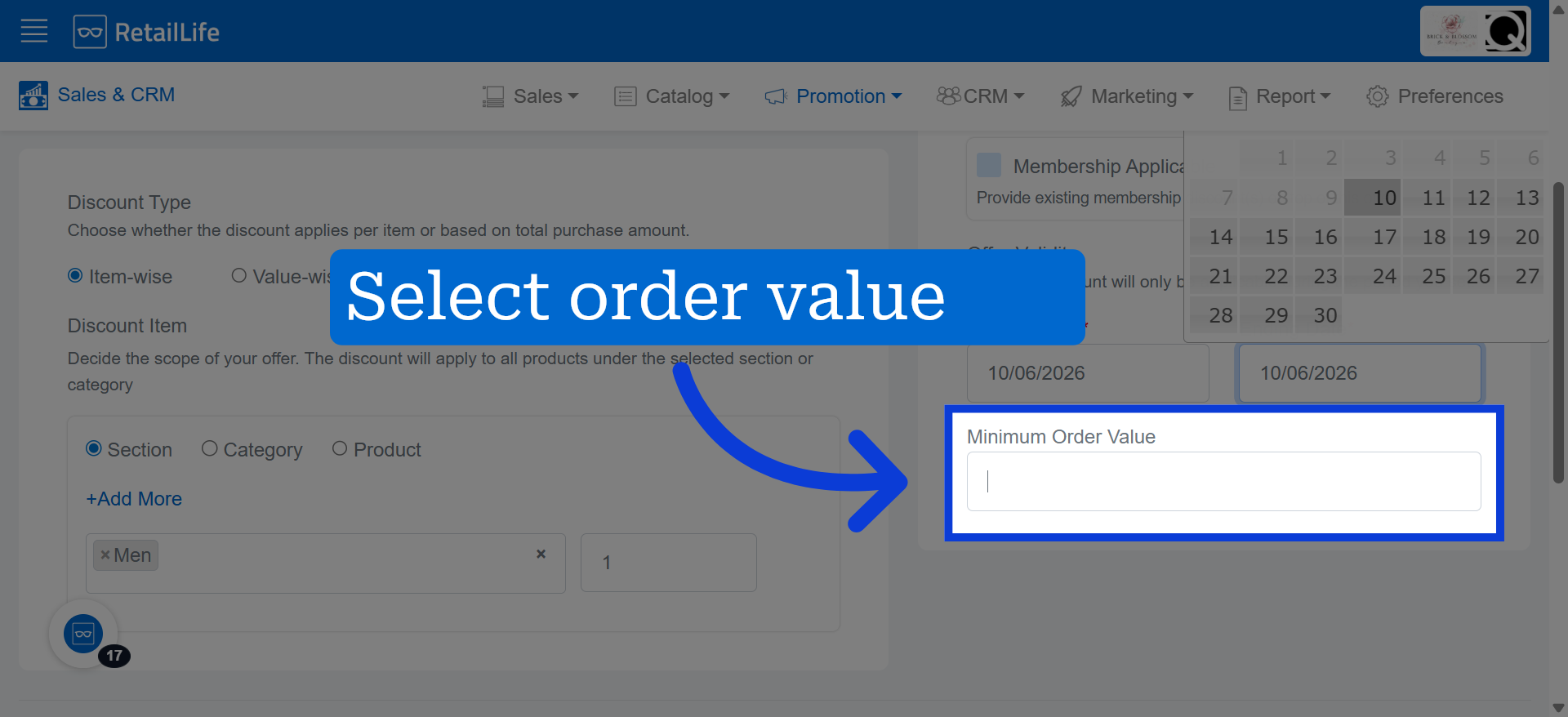
14. Select Order Value
Minimum Order Value refers to the lowest purchase amount required to avail the discount.
15. Create Discount Offer
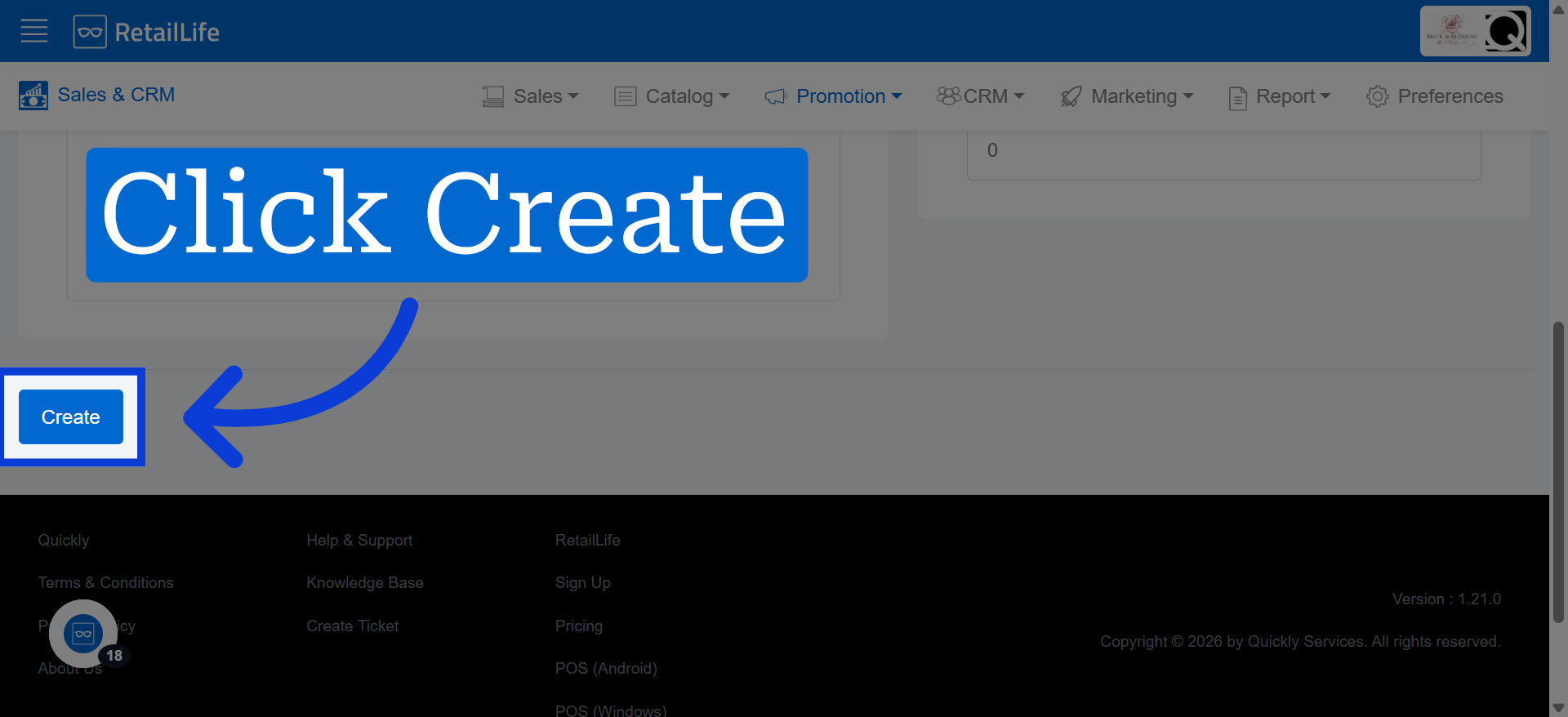
Click "Create" to save and activate the new discount offer in the Business Portal.