How to Set Up a Free Item Offer in RetailLife Business Portal
This tutorial guides you through setting up free item offers within the RetailLife Business Portal.
Go to
retaillife.quicklyservices.com
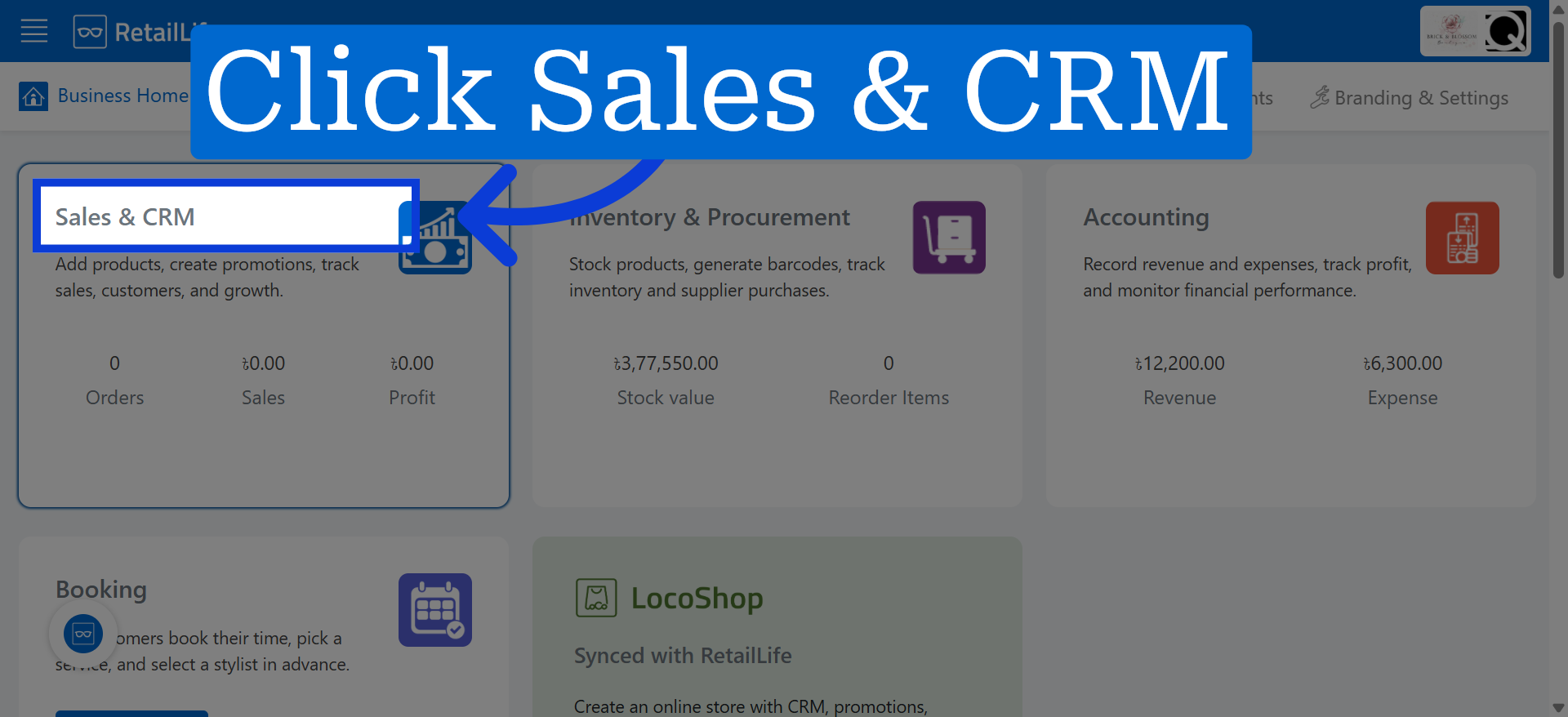
1. Access Sales & CRM Module
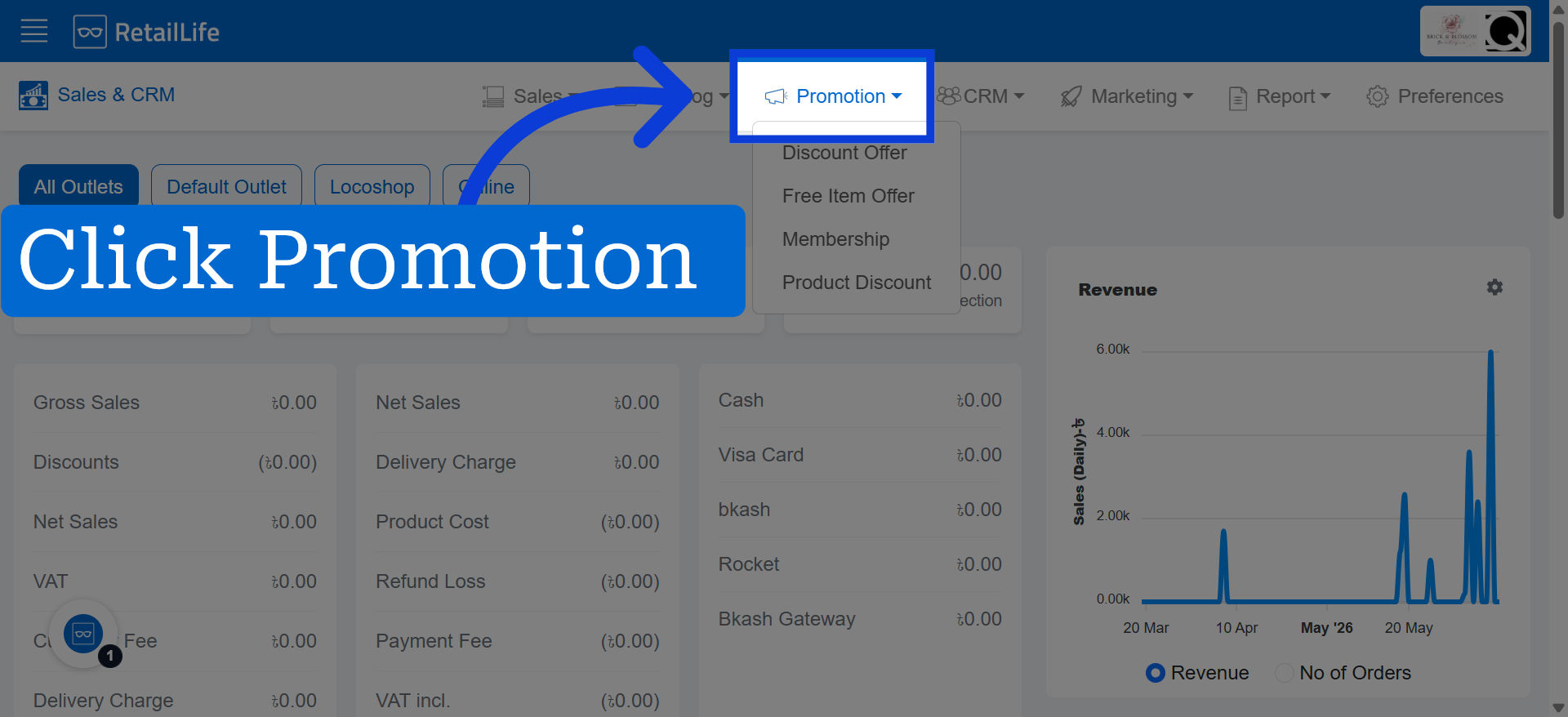
2. Open Promotion Bar
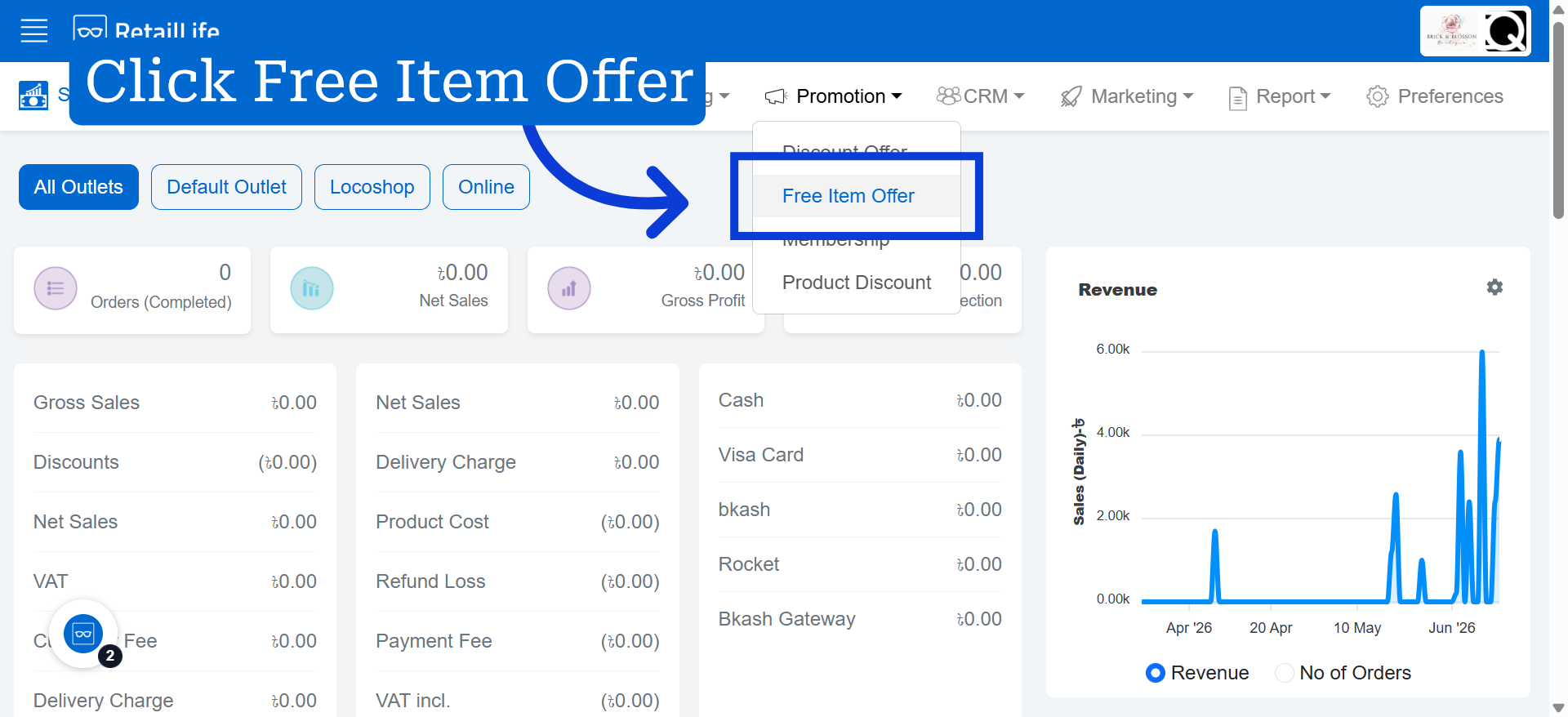
3. Select Discount Offer Option
4. Initiate New Discount Creation
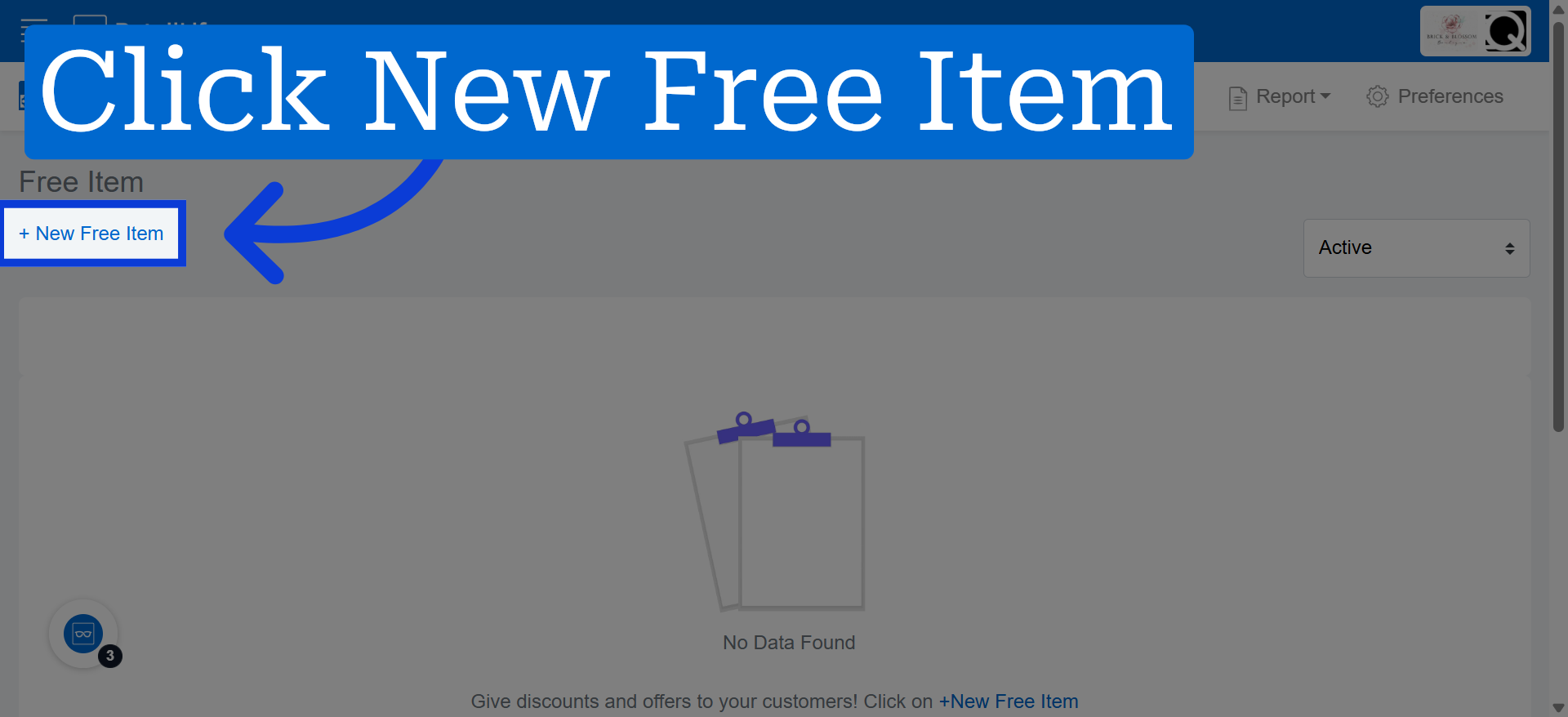
Click "+ New Free Item" to start creating a new free item promotion.
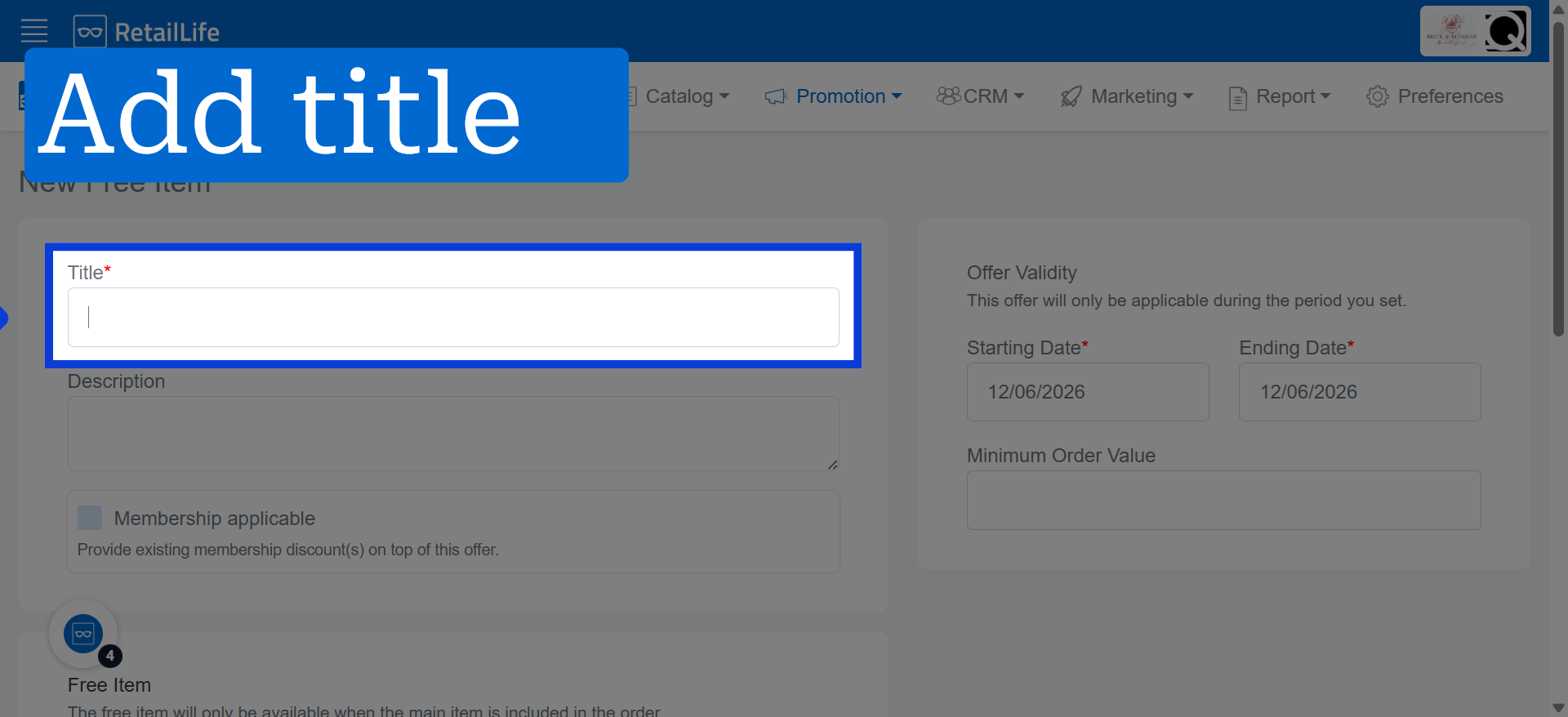
5. Enter Discount Title
Click here to add a title for your free offer.
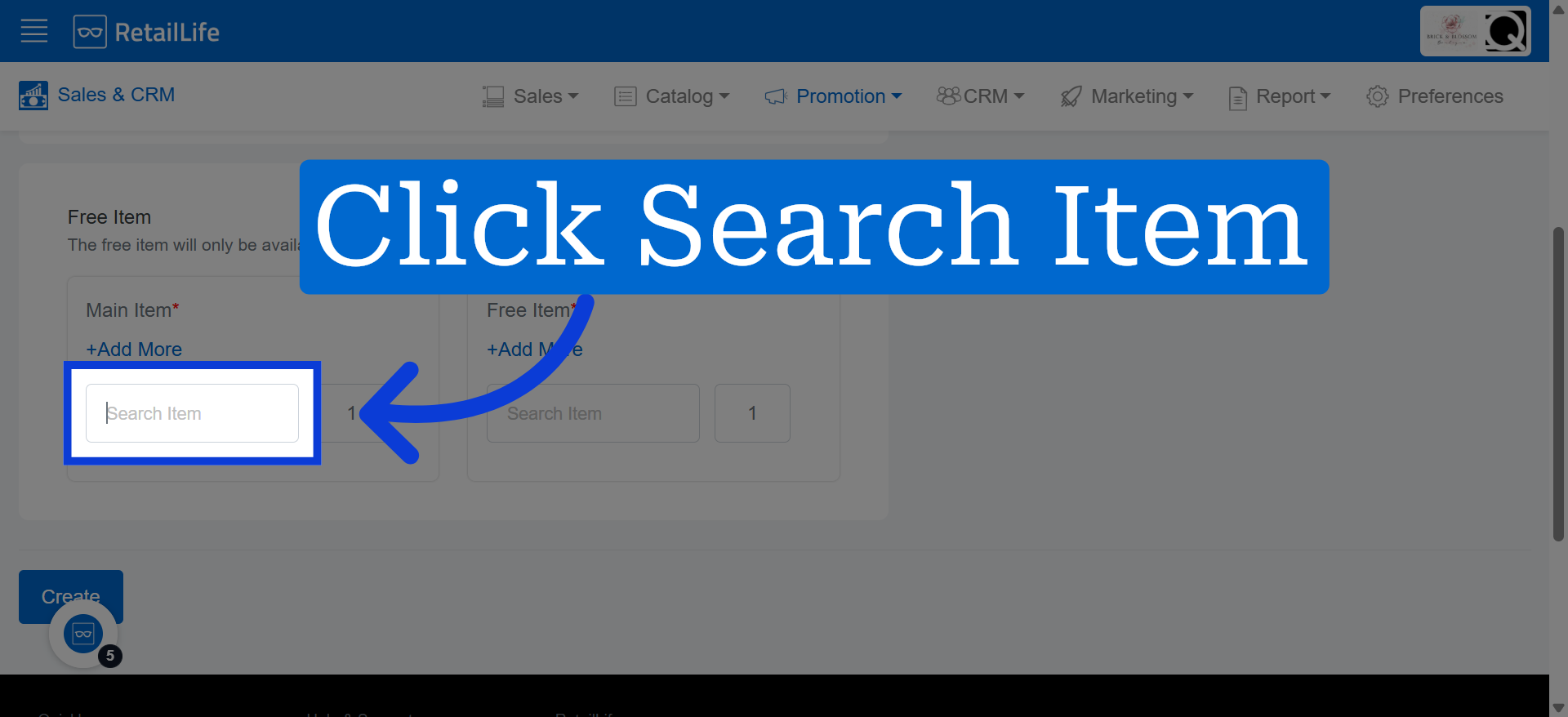
6. Choose Discount Type
Click "Search Item" to begin searching for the product you want to add to the free item offer as the "Main Item".
7. Select Discount Section
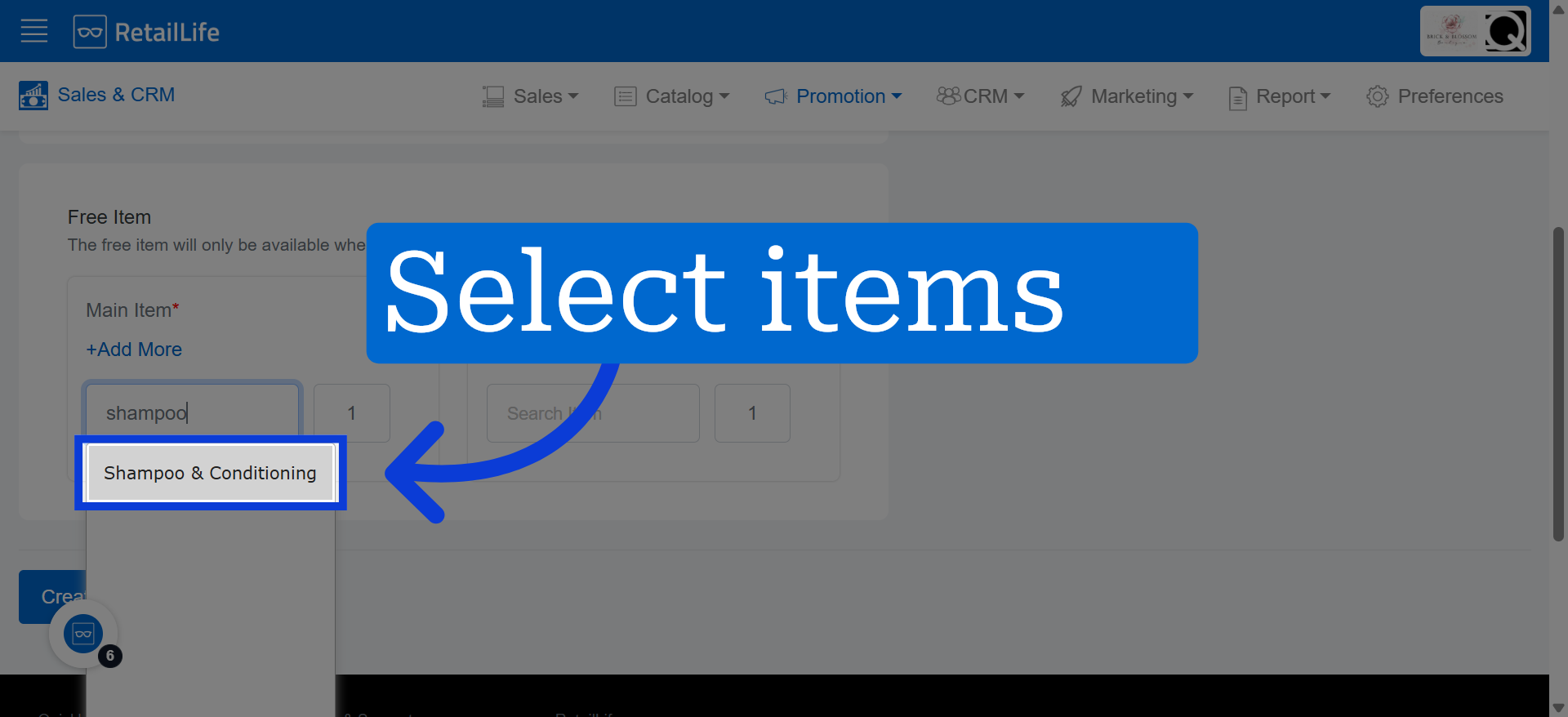
8. Open Section Selection
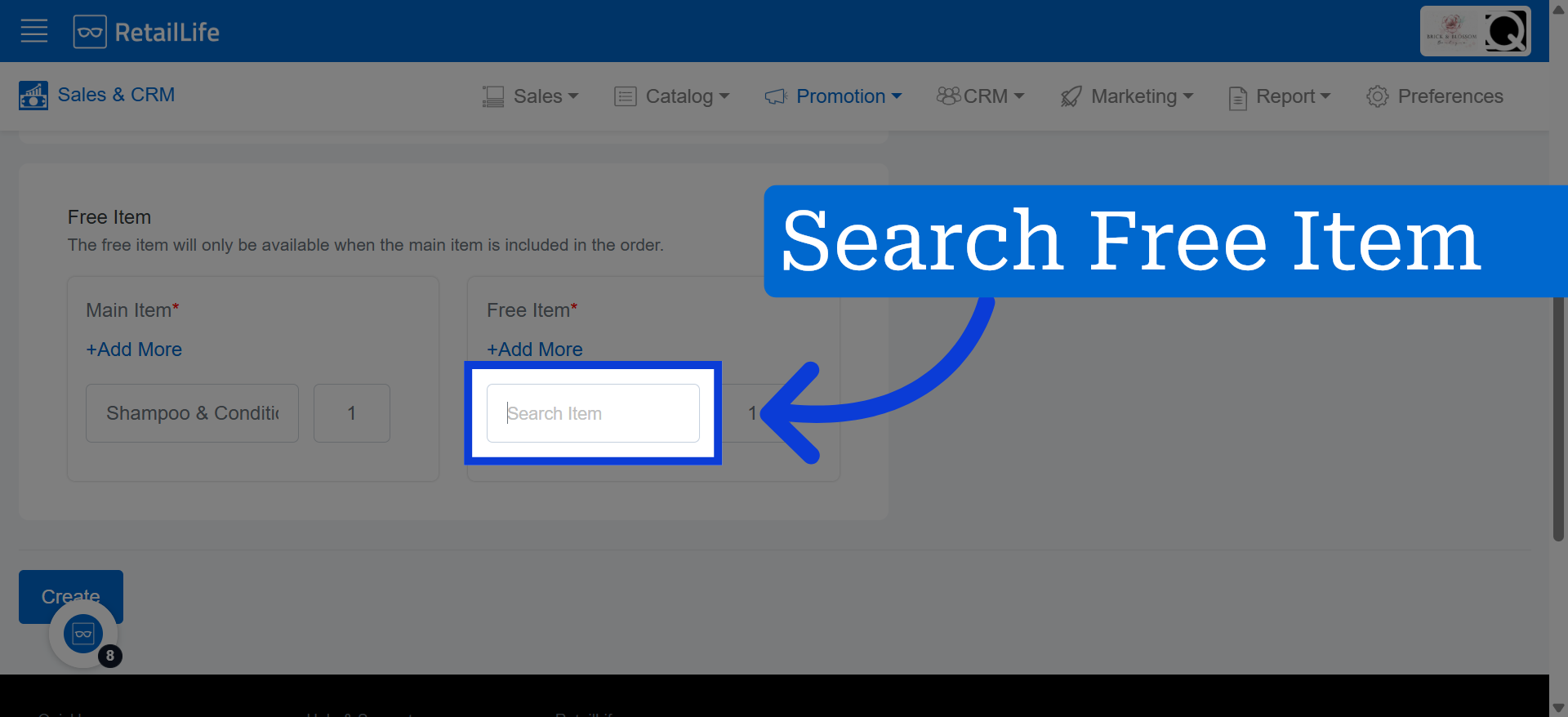
Click "Search Item" to begin searching for the product you want to add to the free item offer as the "Free Item".
9. Choose Section Accordingly
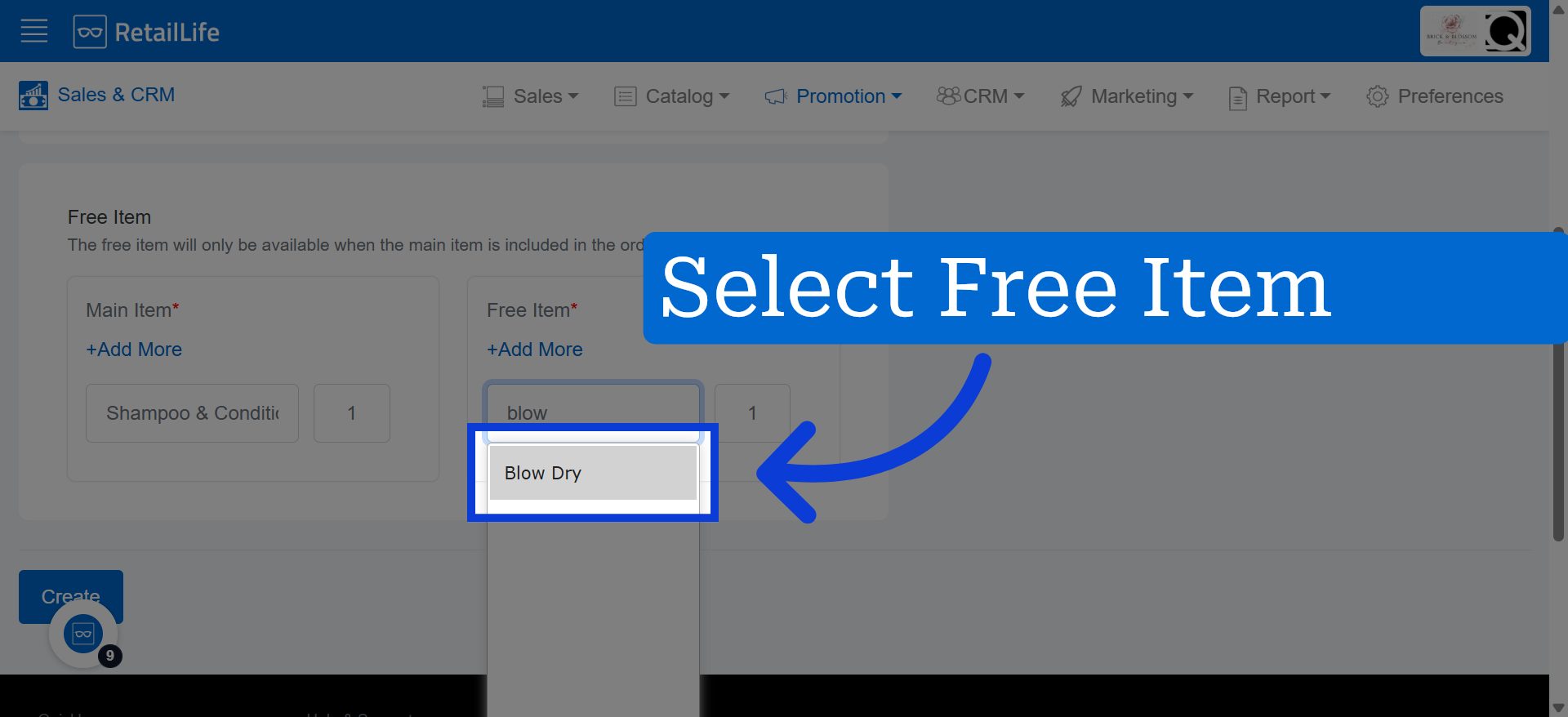
10. Select Discount Mode
11. Enter Discount Value
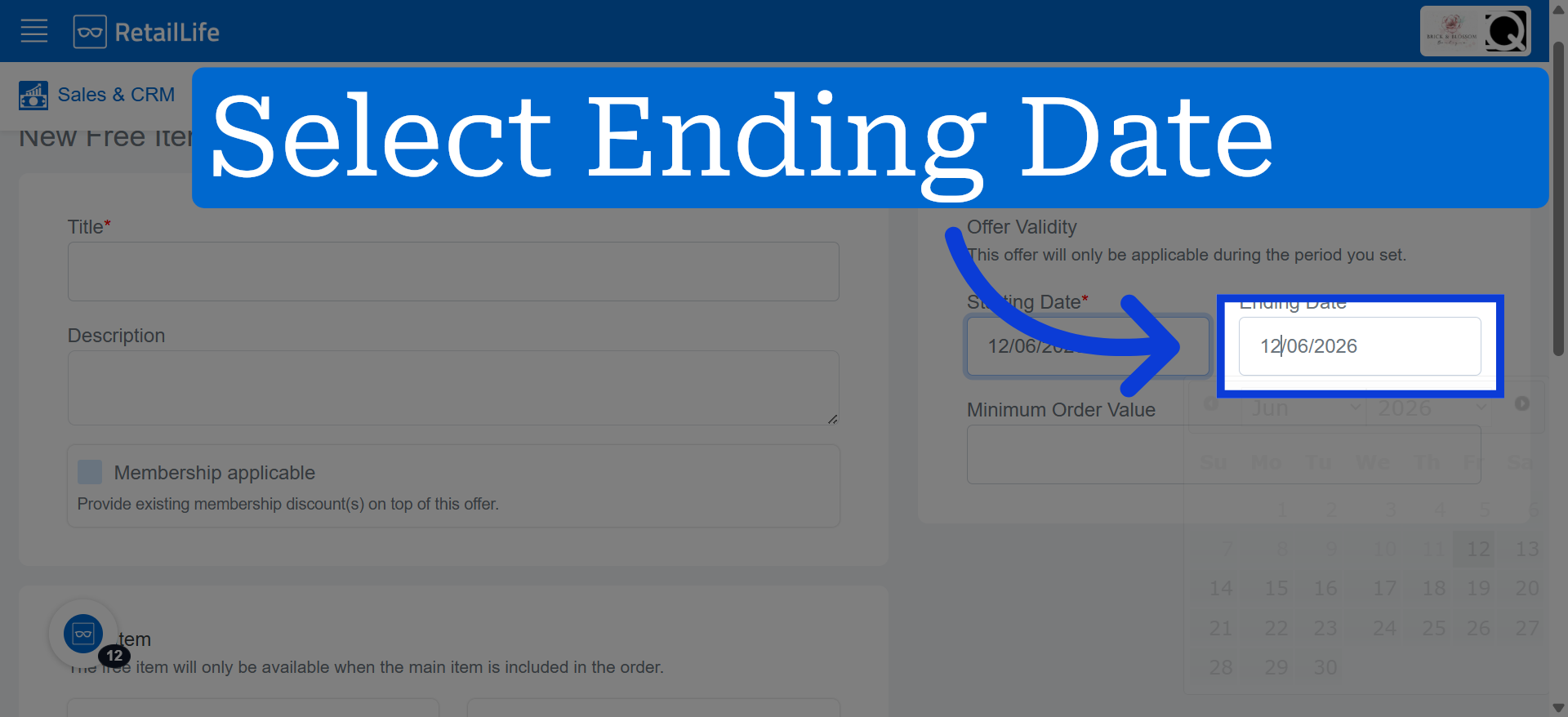
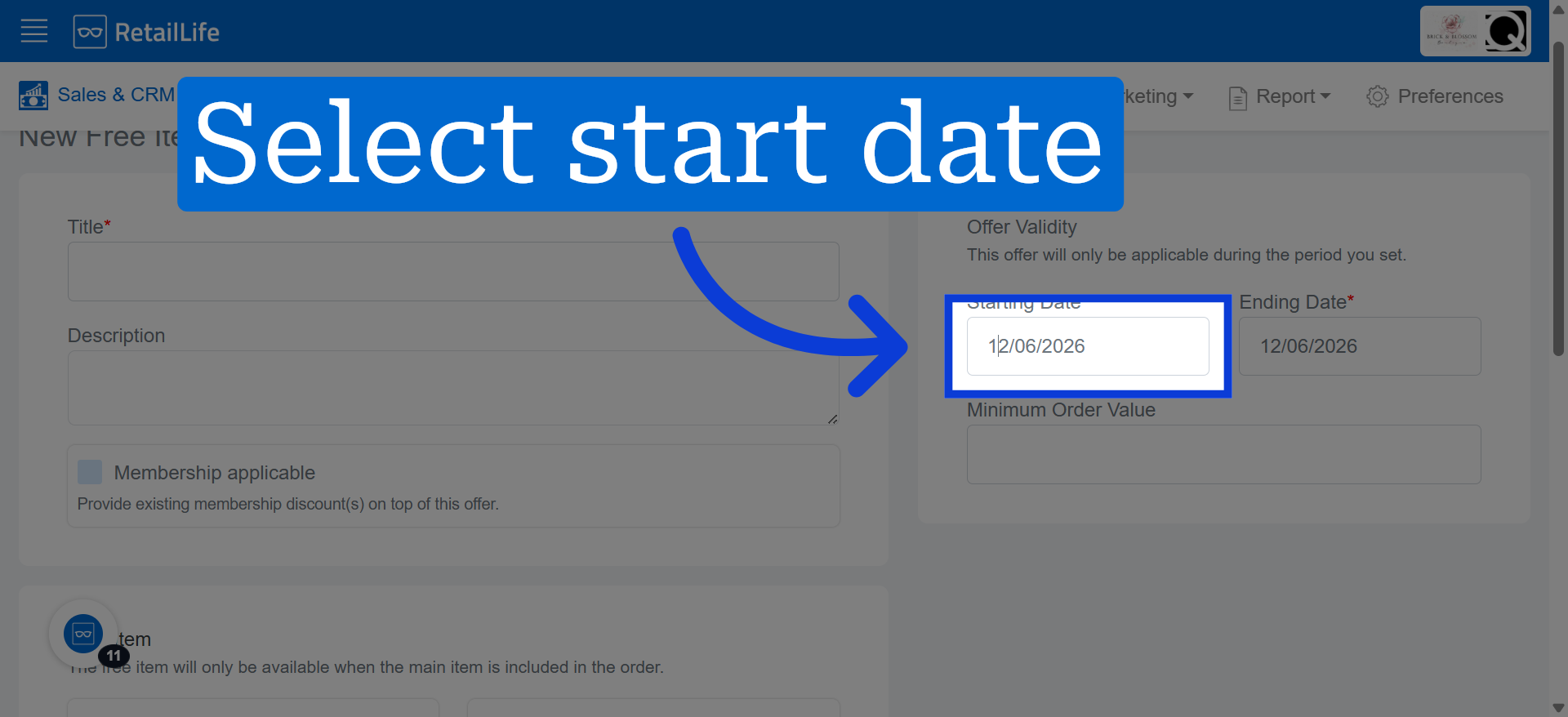
12. Set Starting Date
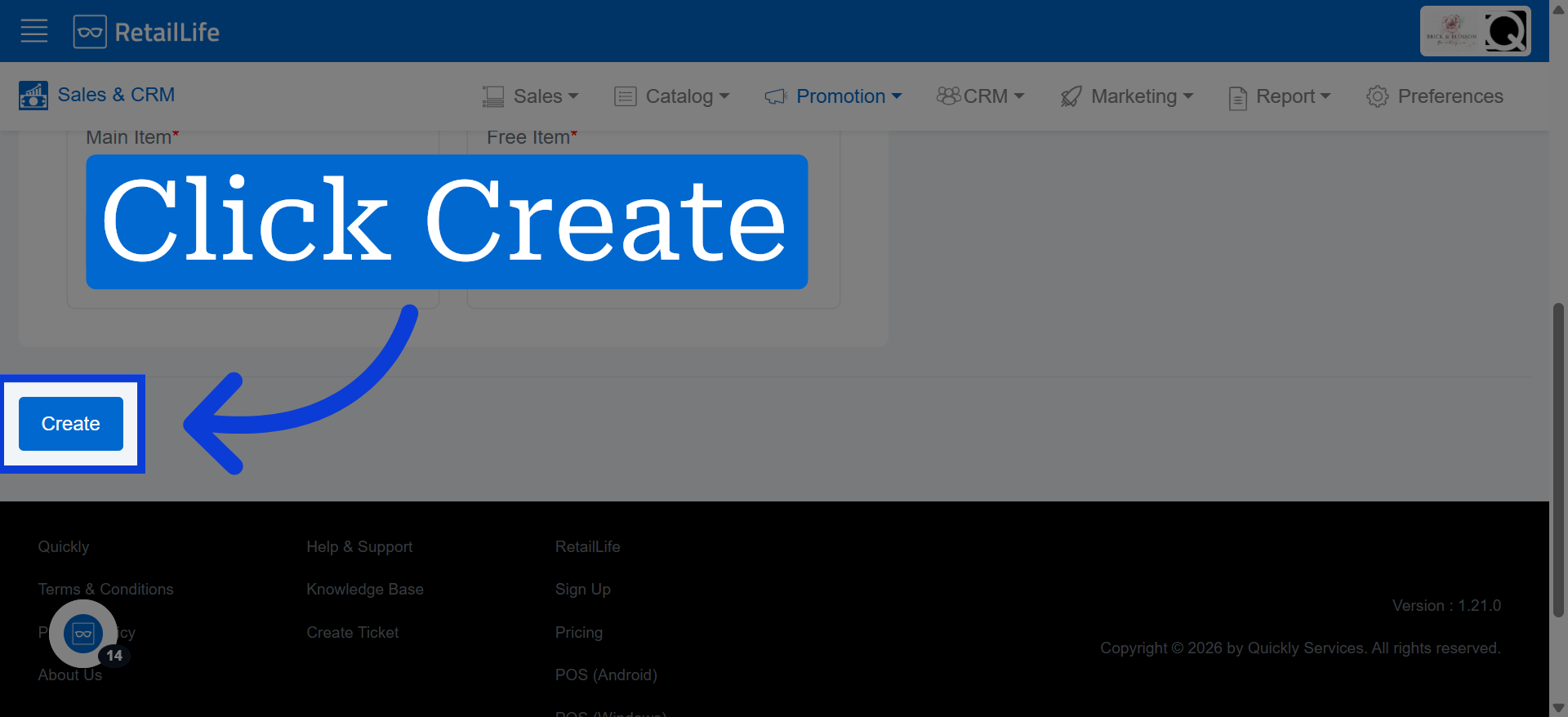
Click "Create" to finalize and save the new free item offer configuration.