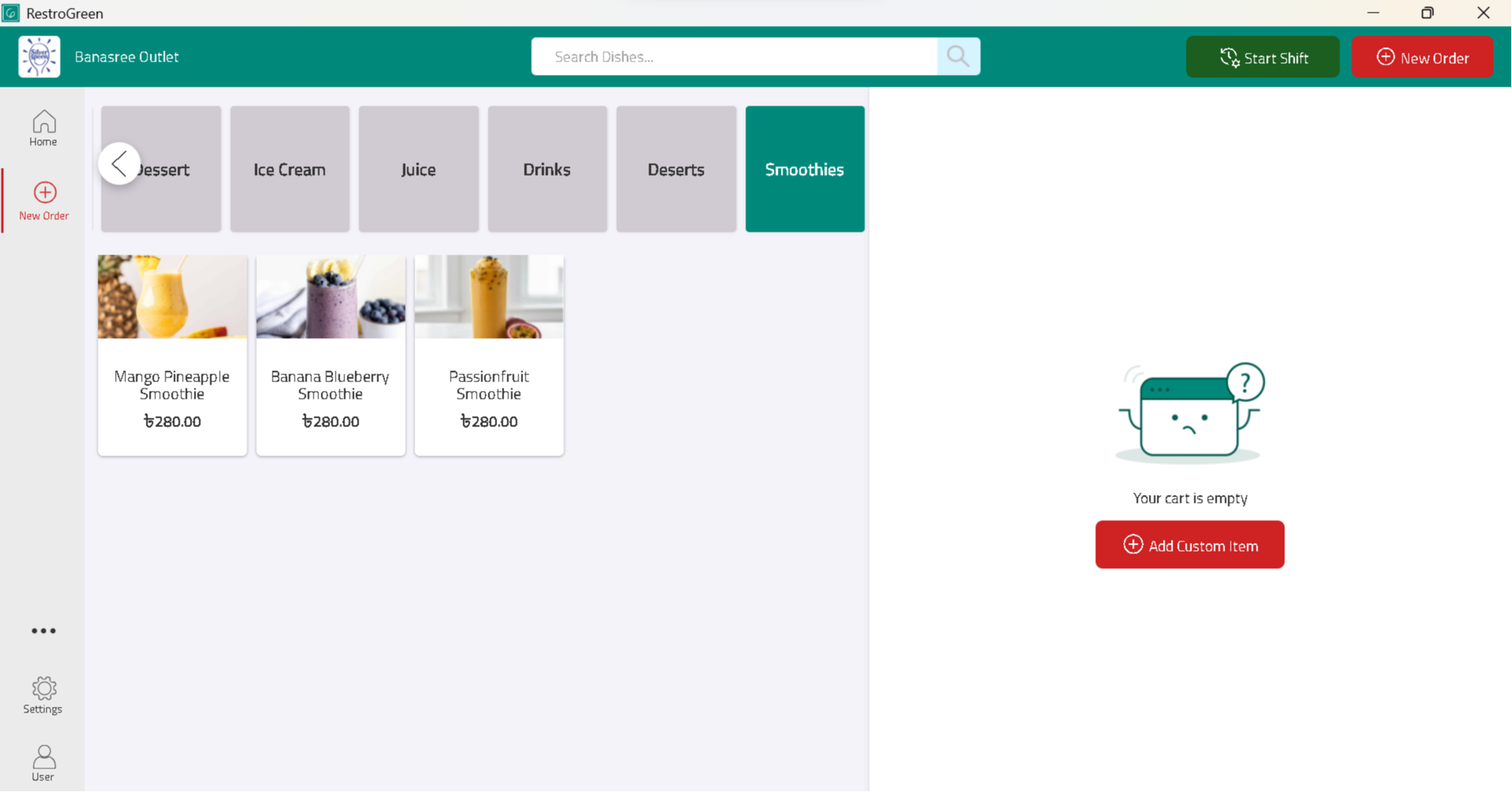
How to Add New Dish to Existing Category in RestroGreen
This tutorial guides you through adding a new dish to any existing category from the Business
Portal.
Go to
restrogreen.quicklyservices.com
1. Login to your Business Portal
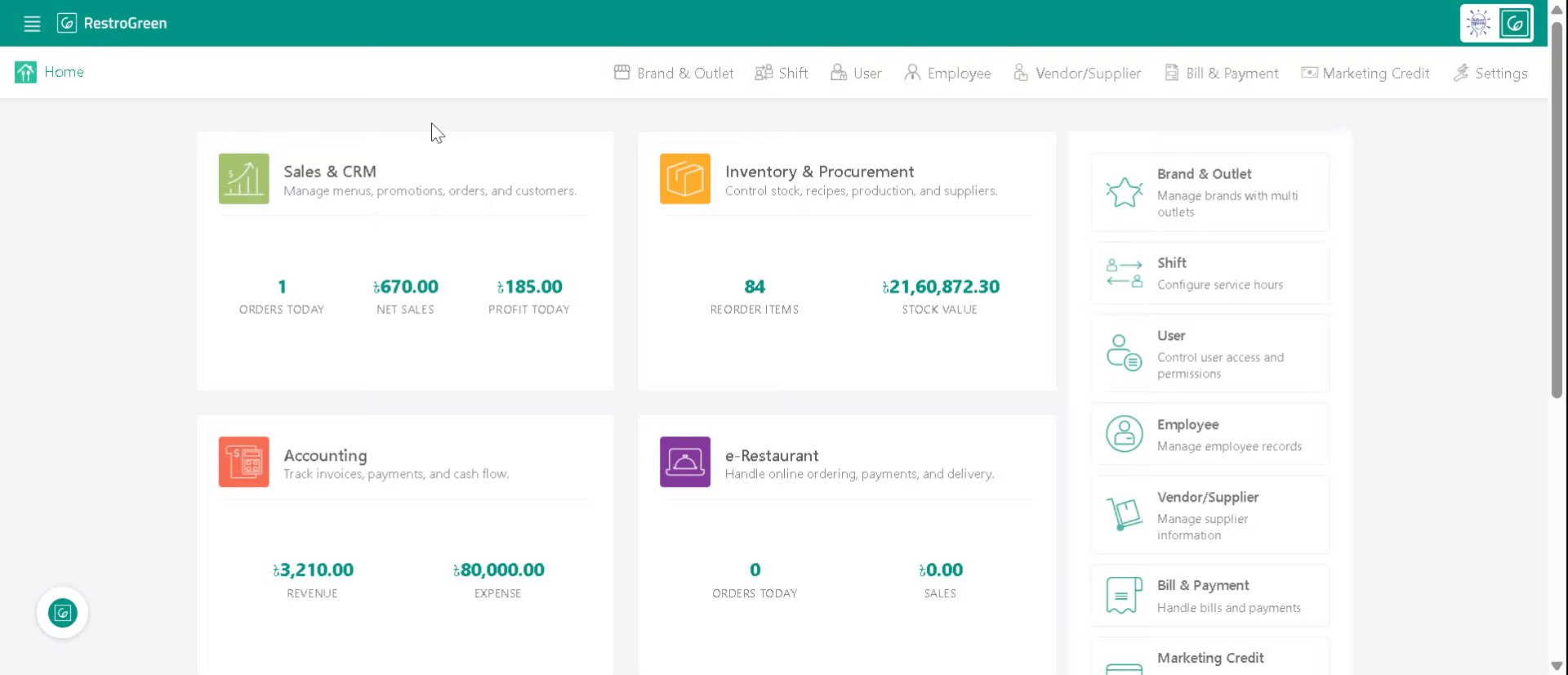
2. Access "Sales & CRM" Module
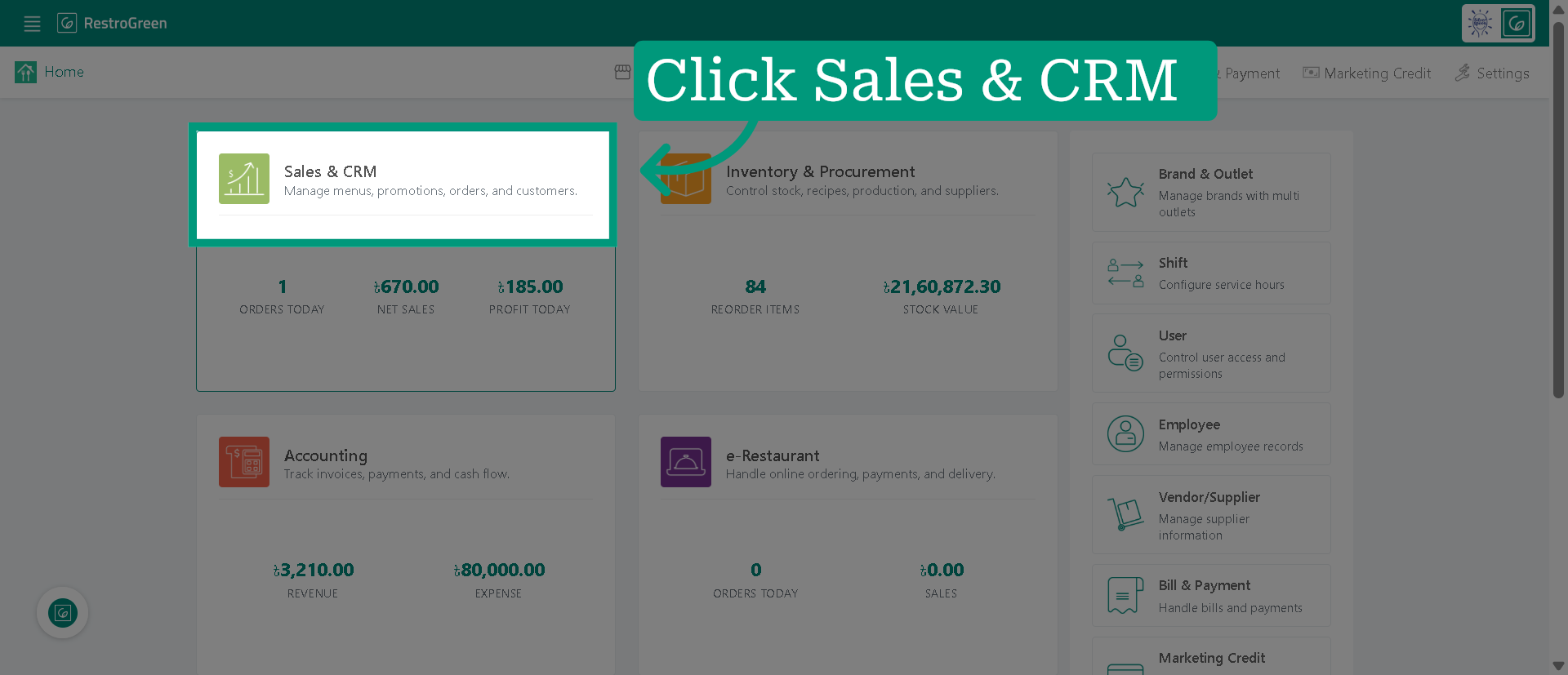
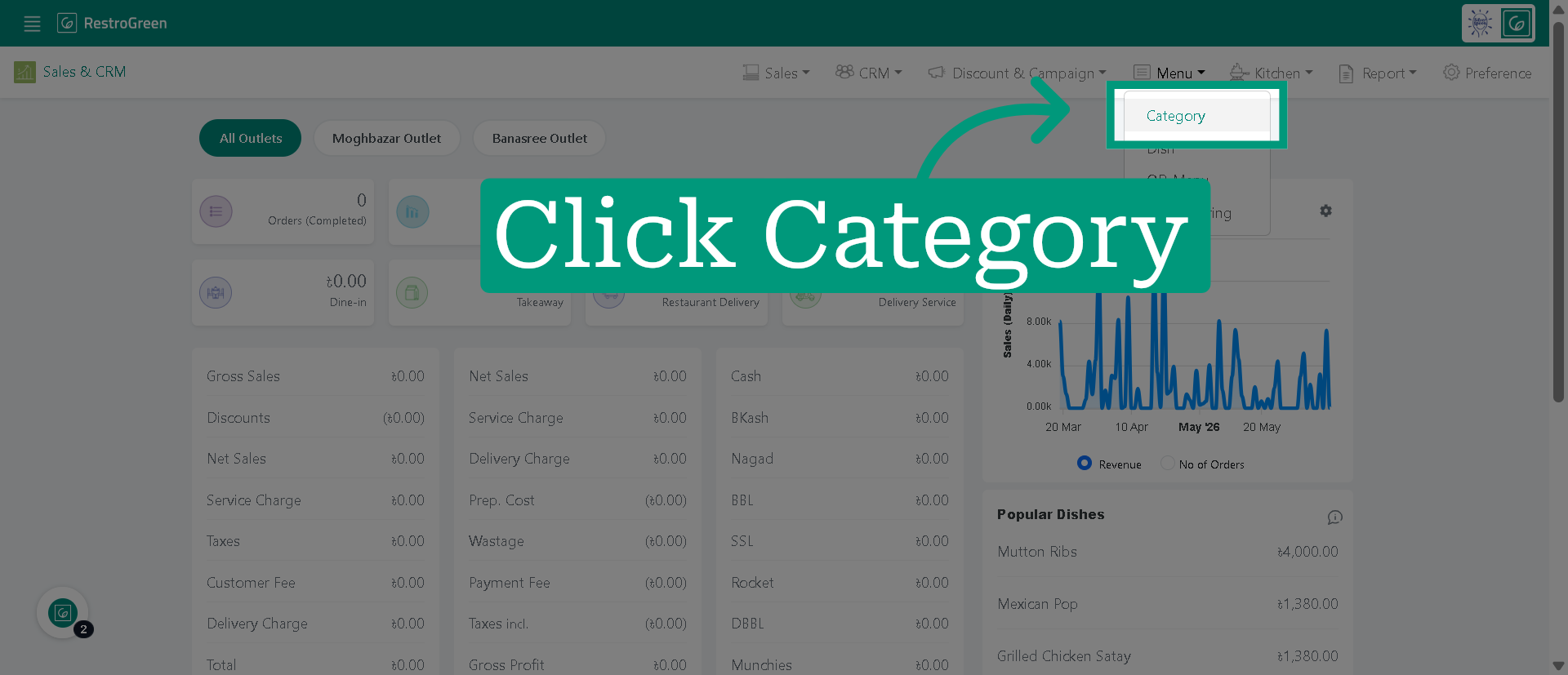
3. Click Menu from the top navigation bar
4. Click "Category" to access the available categories
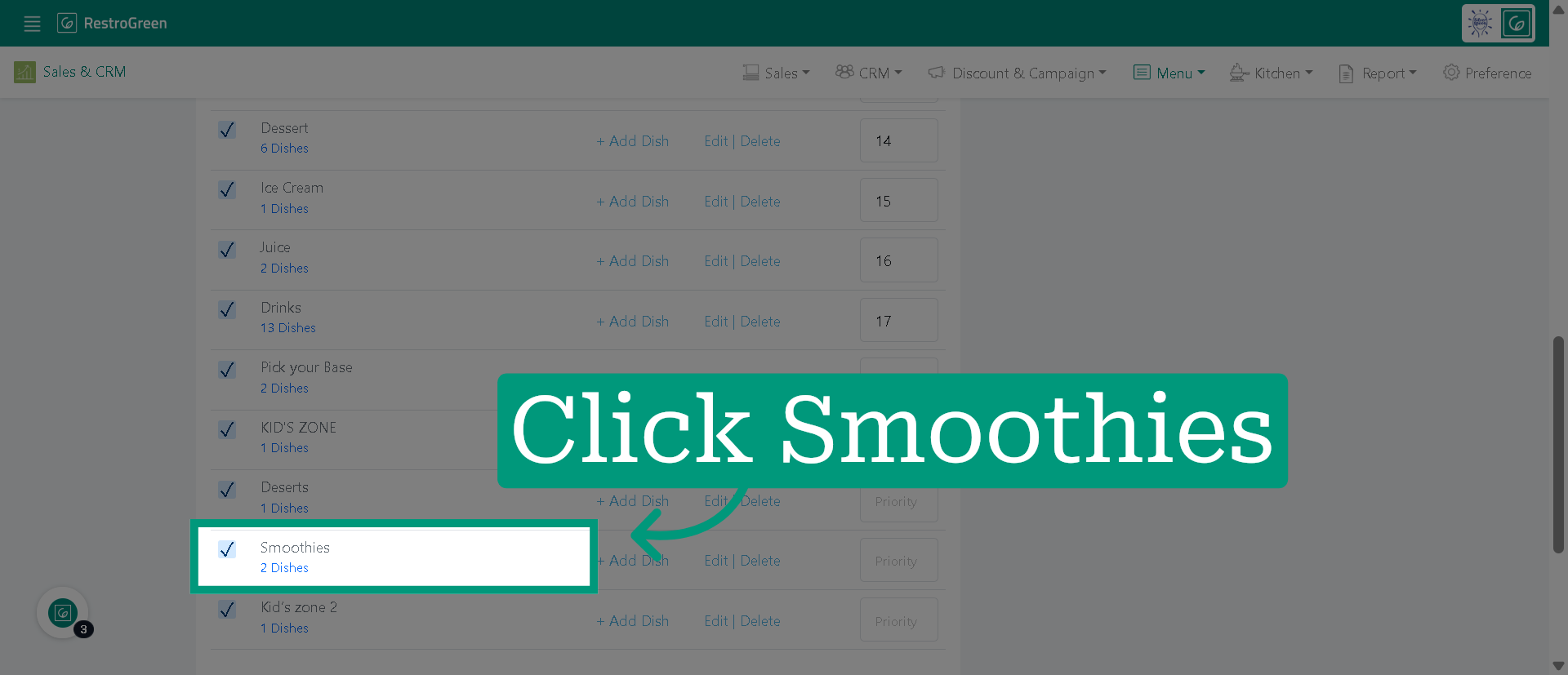
5. Choose the Category
For instance, click "Smoothies" category to display dishes within the category.
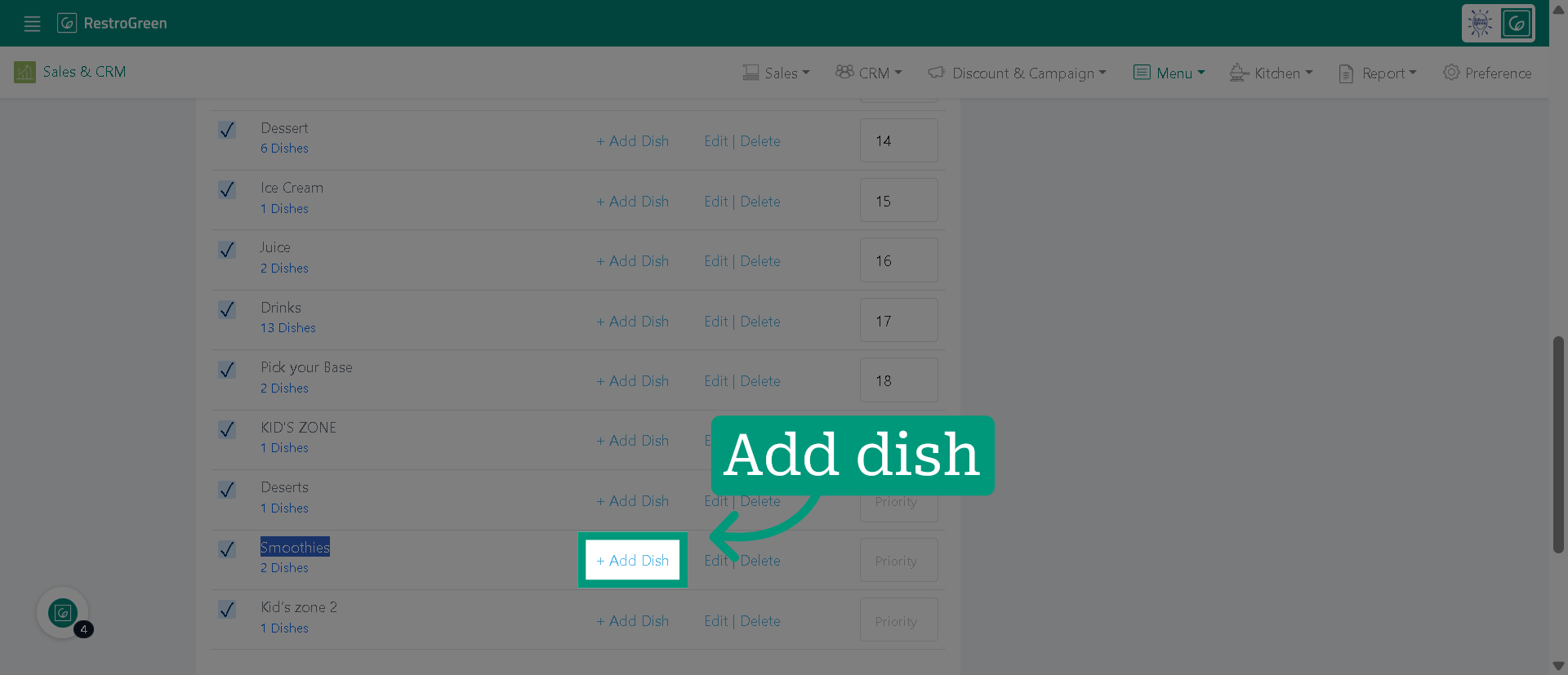
6. Click "+ Add Dish" to add a new dish in the selected category
7. Enter Dish Name
For instance, we have entered "Passionfruit Smoothie" as the name of the new dish to be added.
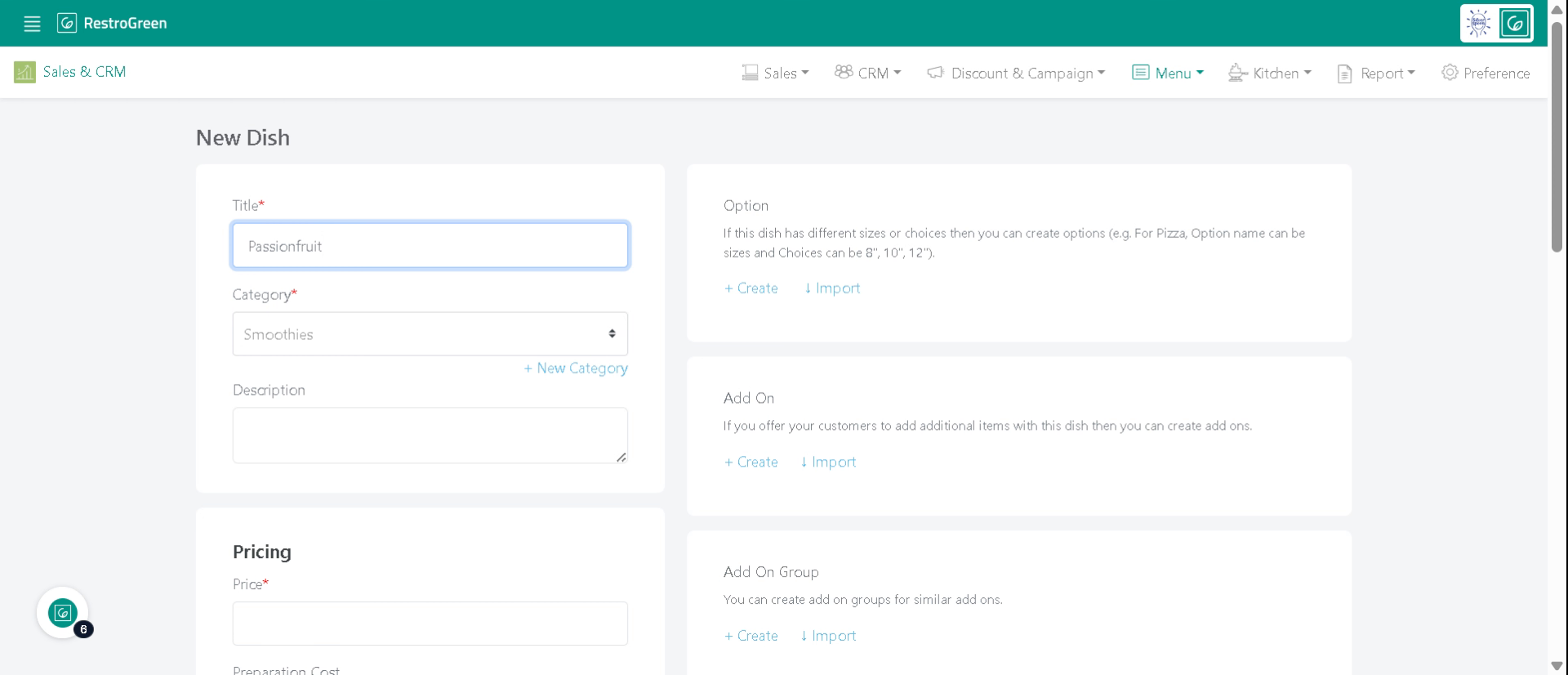
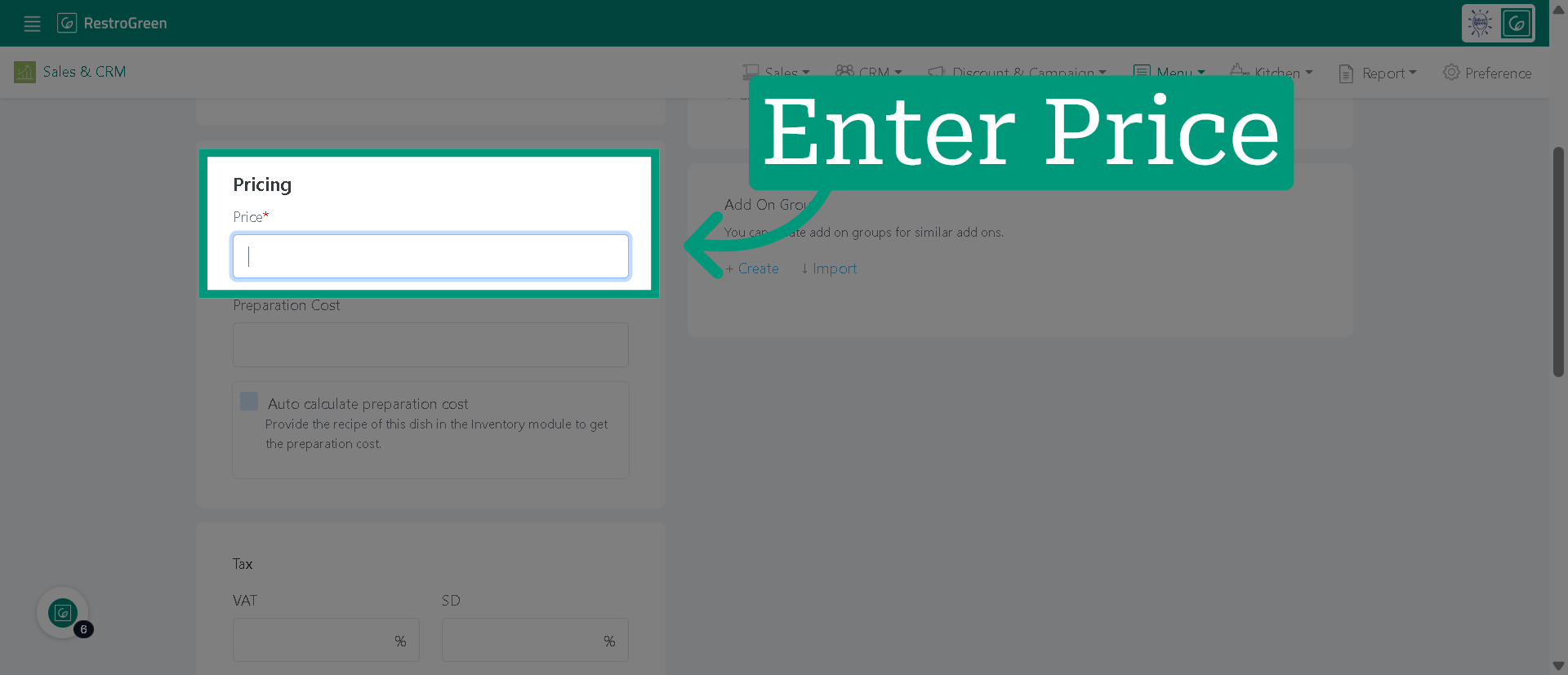
8. Enter a price for the new dish
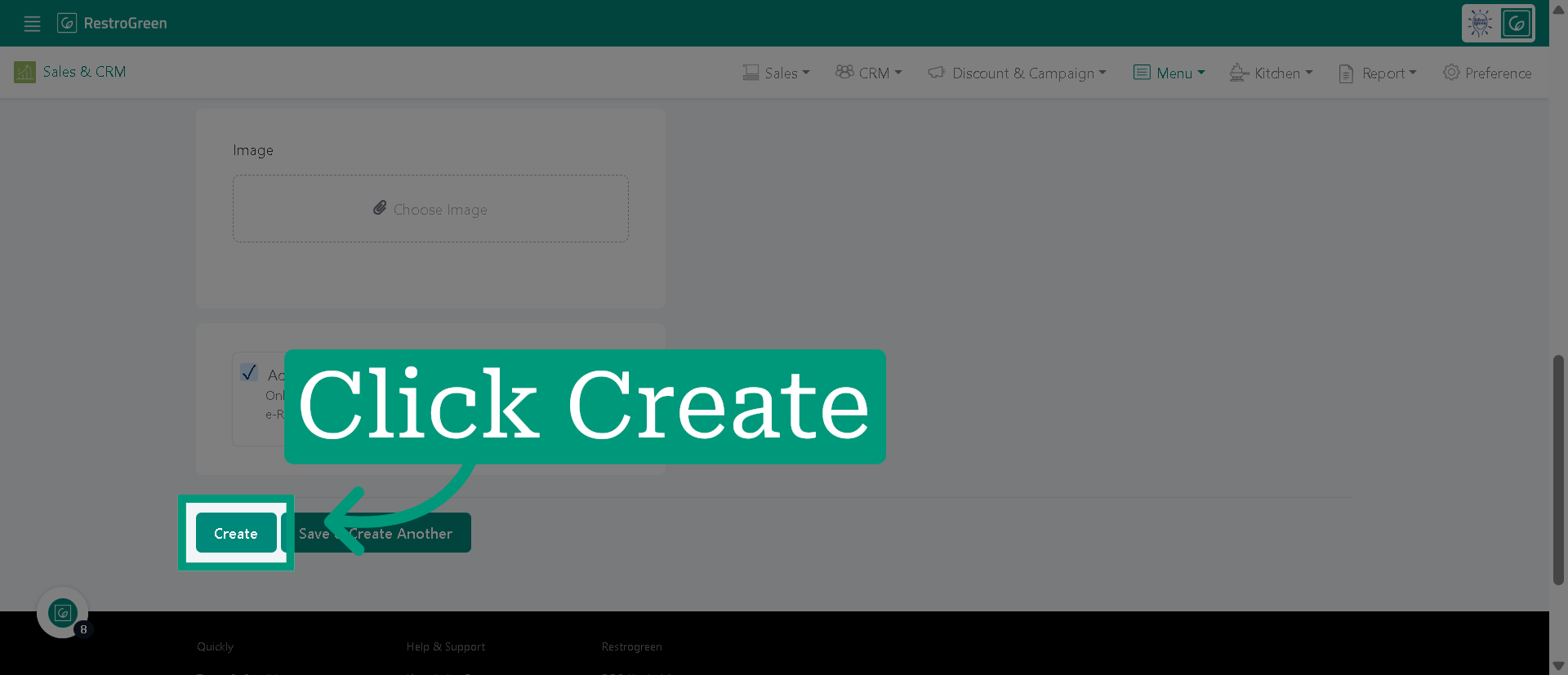
9. Click "Create" to save the new dish
10. Here's the newly added dish
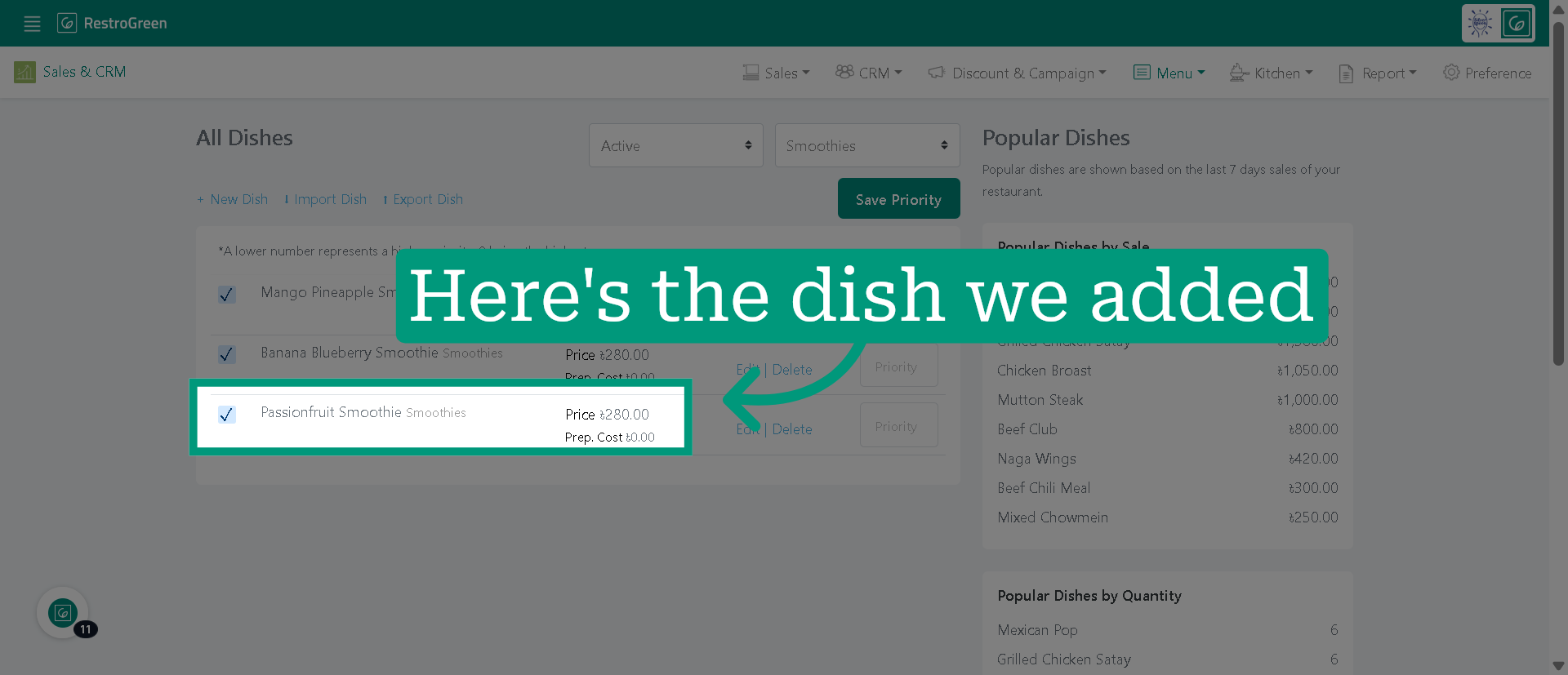
11. The new dish gets synced directly to POS app once you add it in the Business Portal