How to Configure Customer Verification Settings for Online Ordering in RestroGreen
This tutorial guides you through configuring customer verification settings for online ordering
using the Business Portal.
Go to
restrogreen.quicklyservices.com
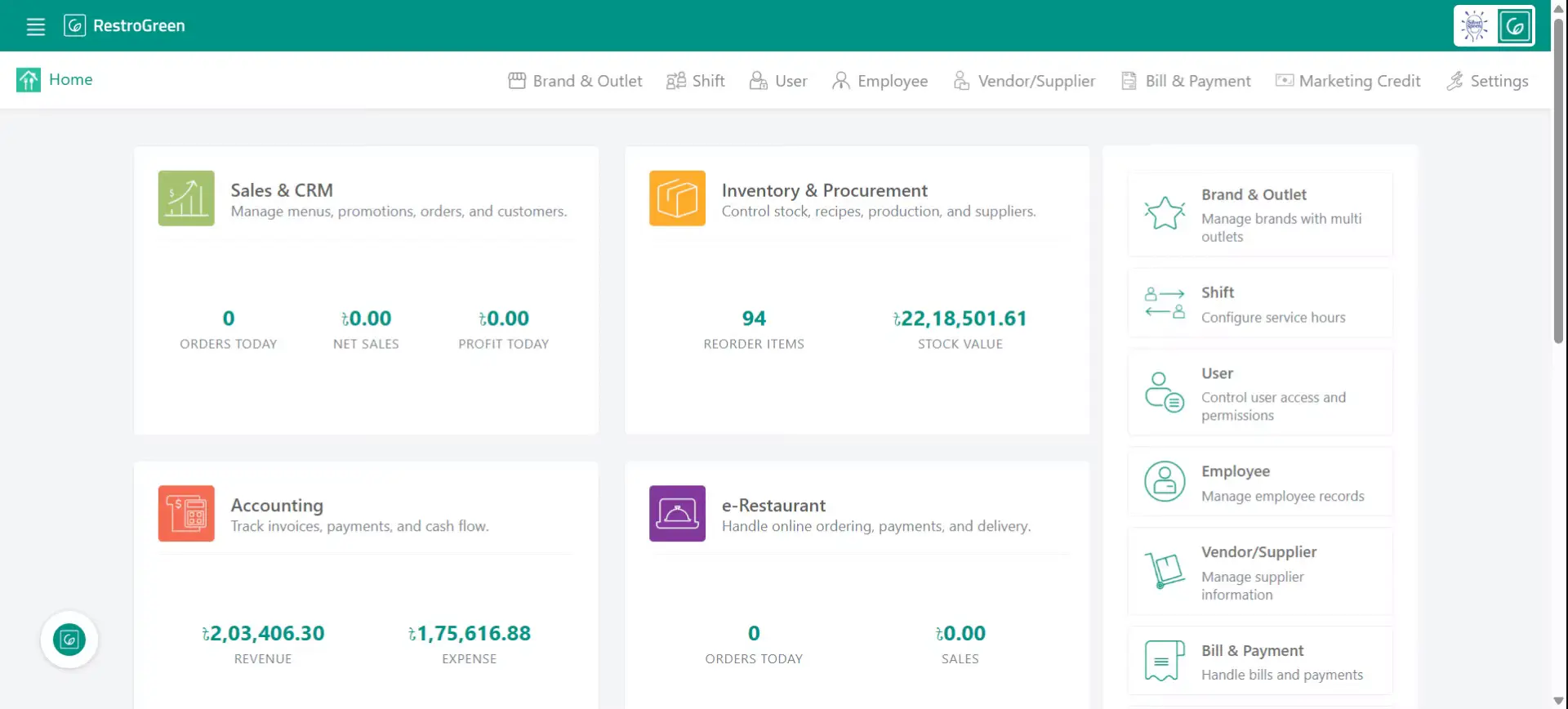
1. Go to Business Portal
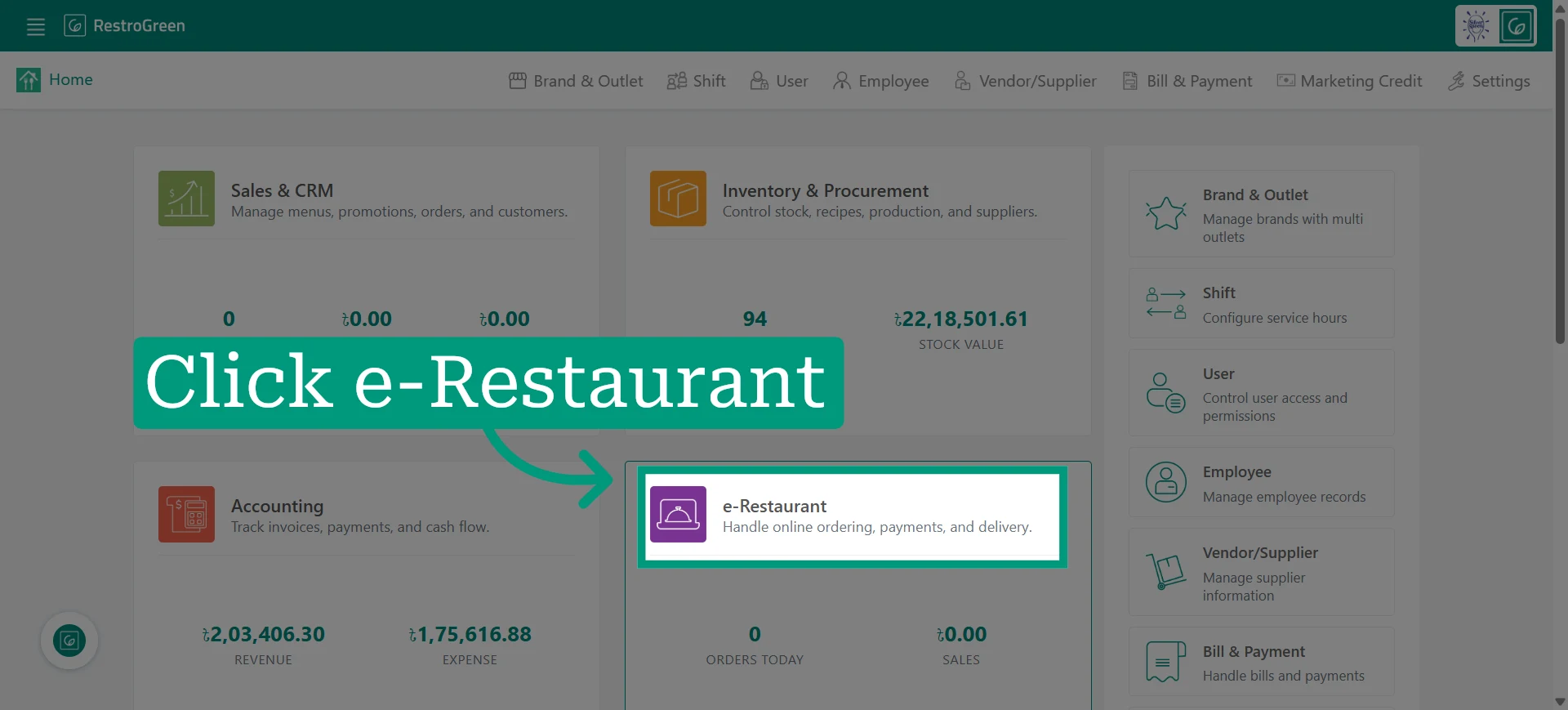
2. Click e-Restaurant to start managing restaurant website
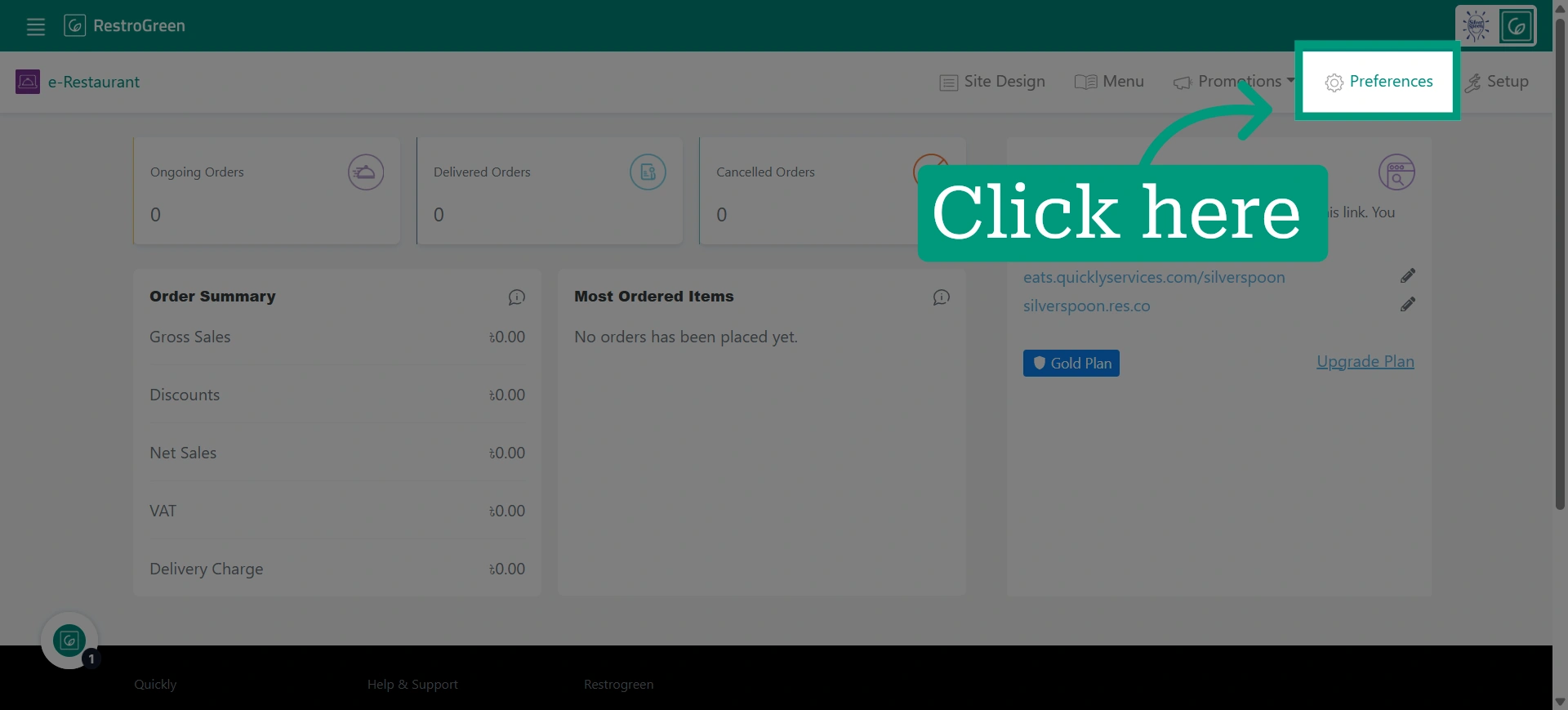
3. Click "Preferences" from the top navigation bar
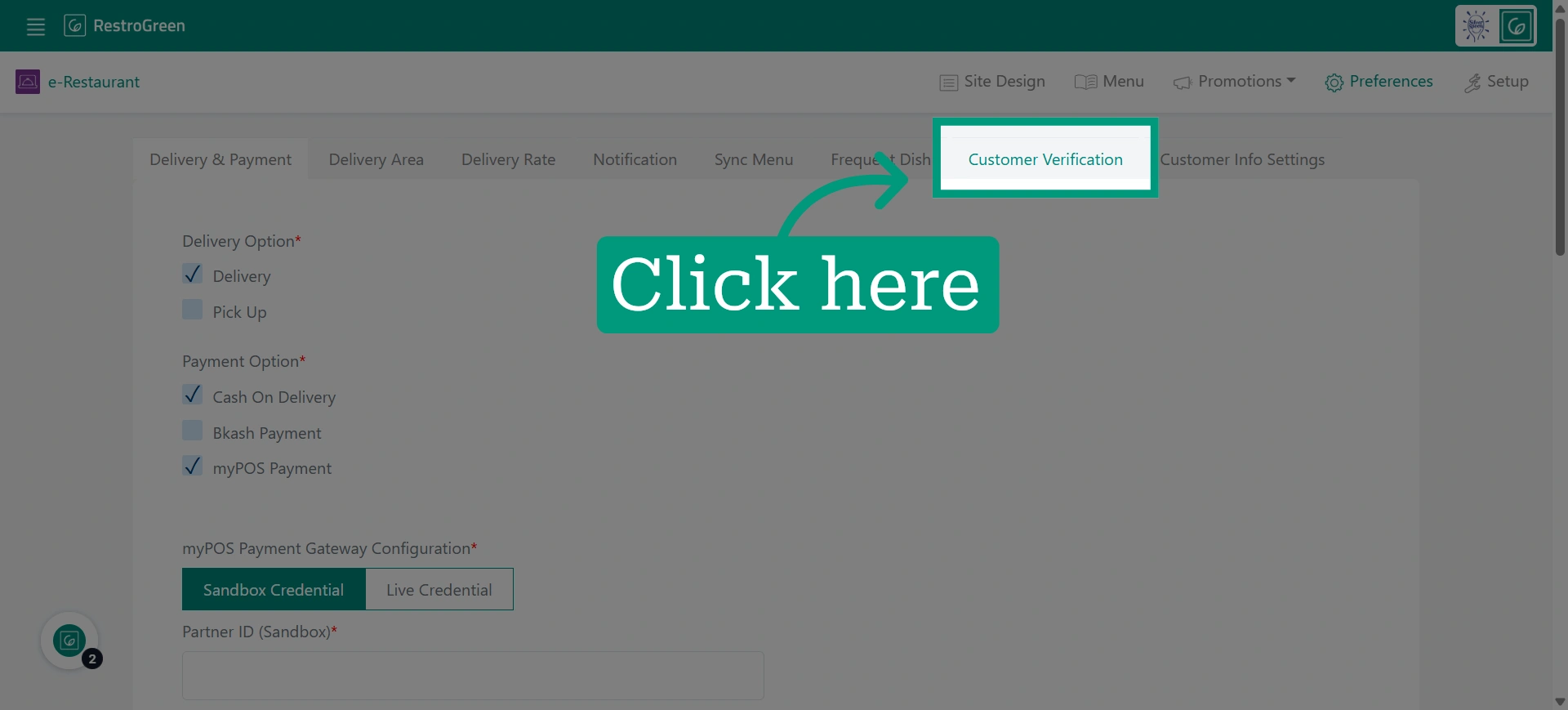
4. Click "Customer Verification" to manage how customers are authenticated
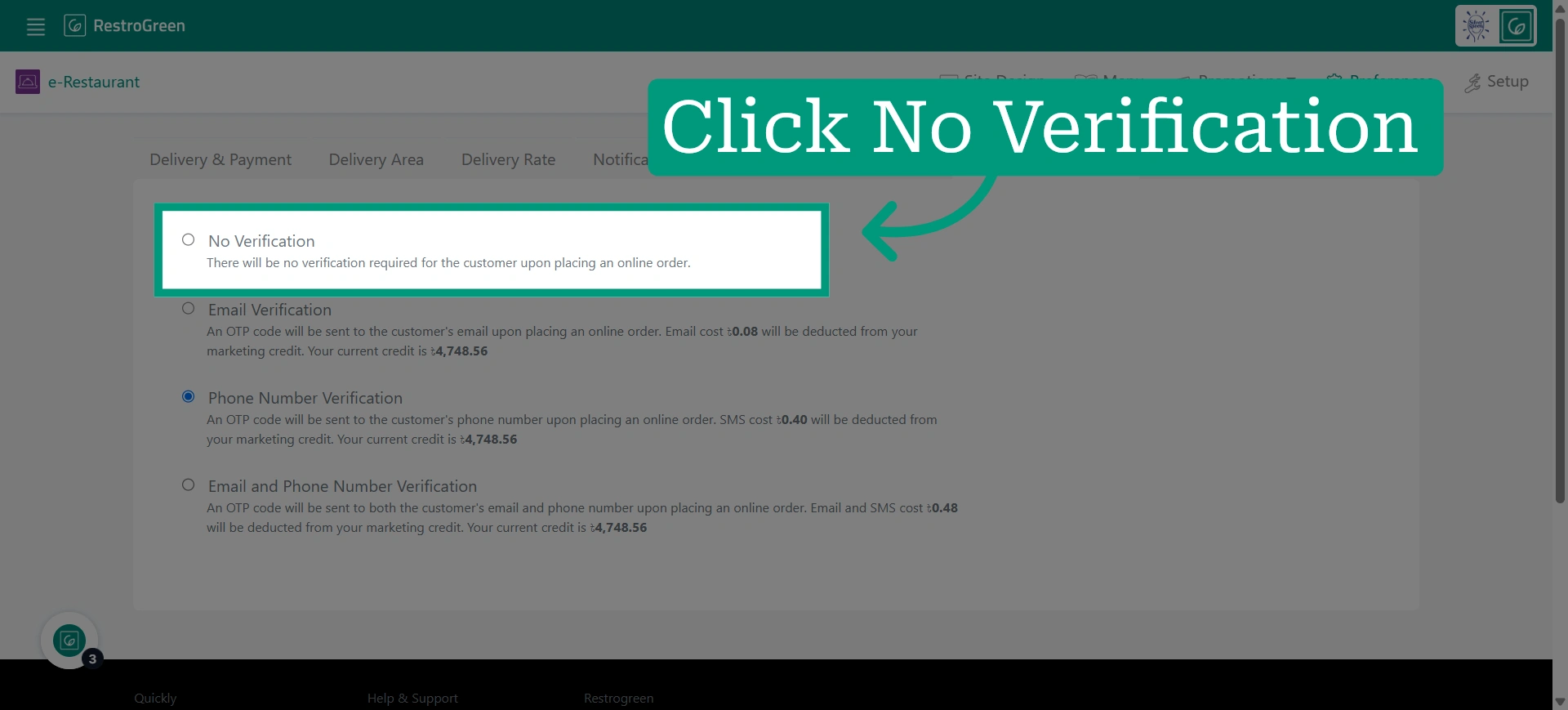
5. Choose “No Verification” if customer verification is not required
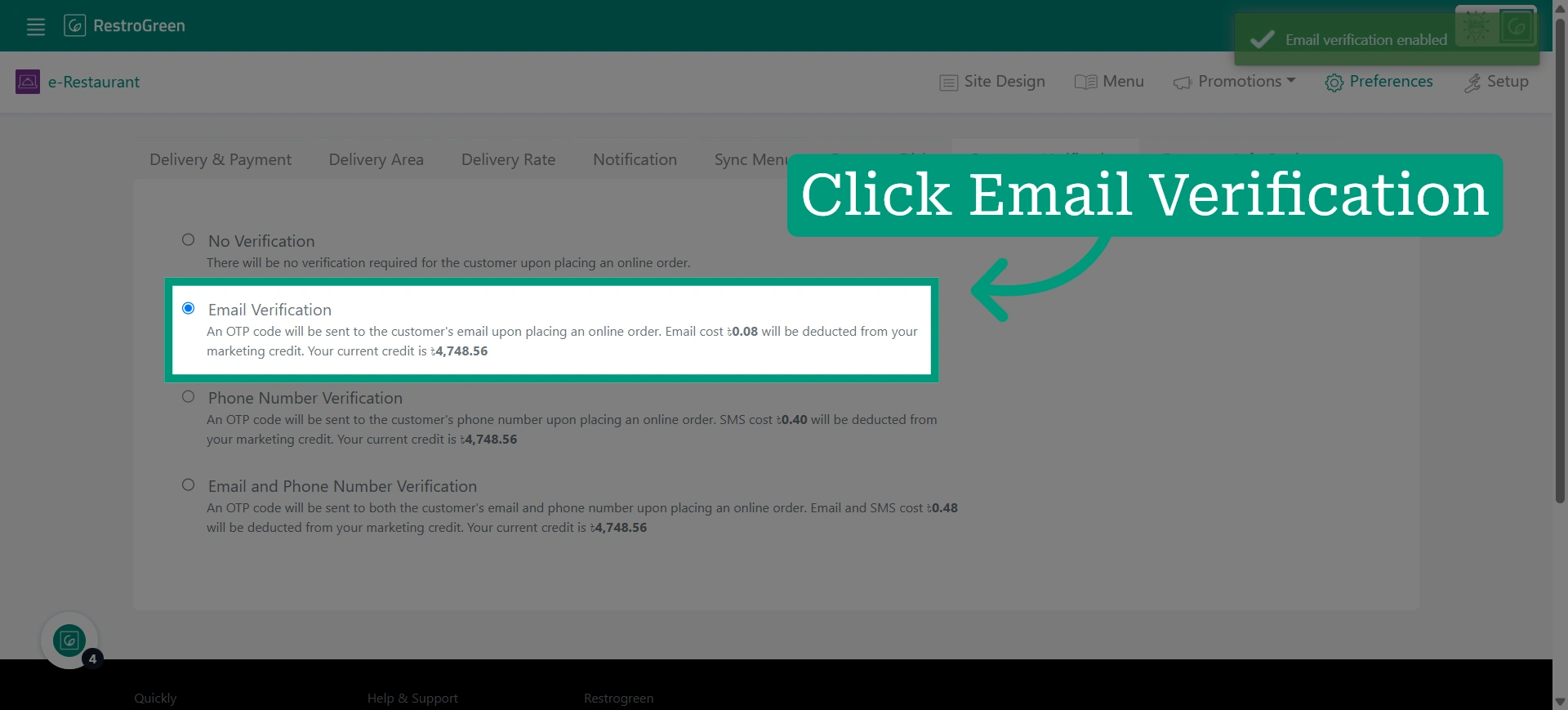
6. Choose “Email Verification” if you want to verify customers’ orders using their emails
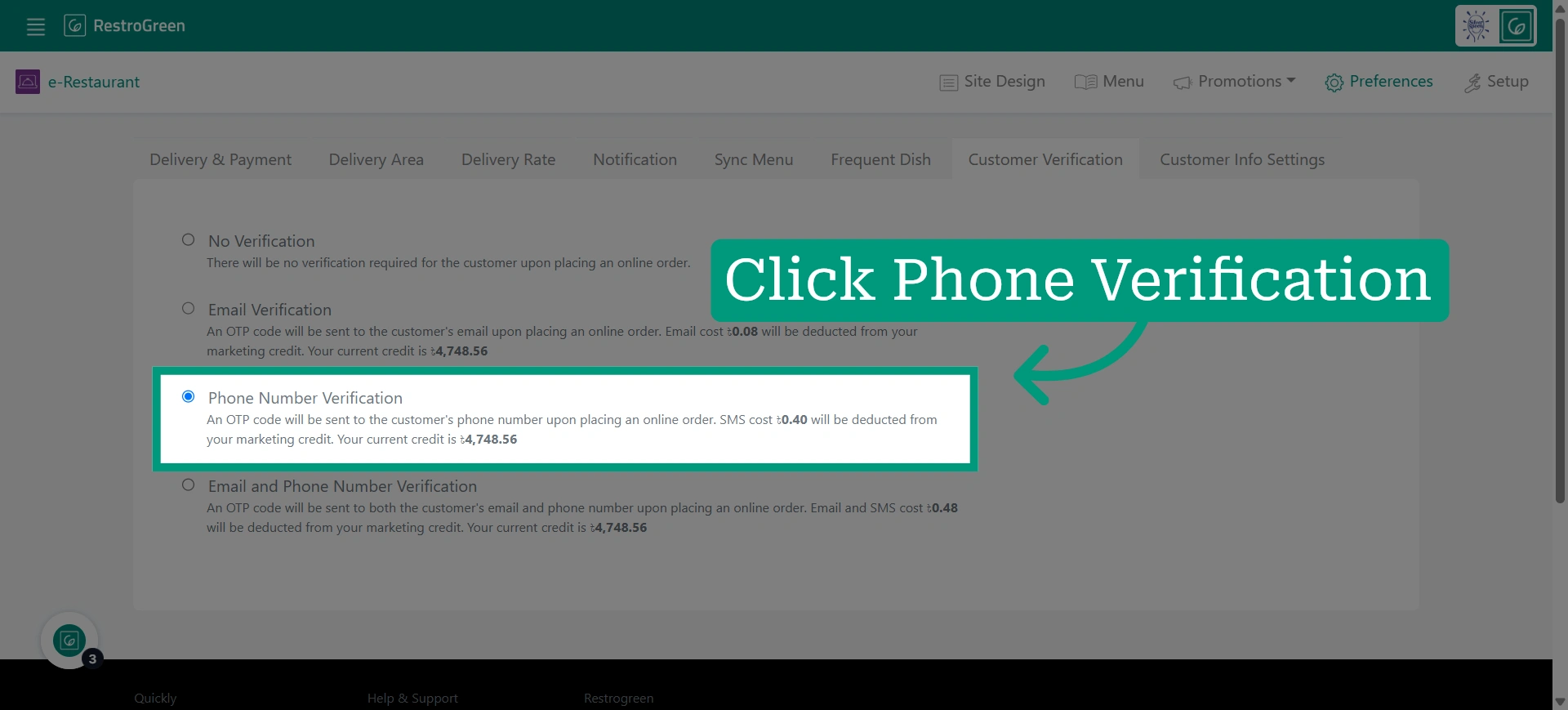
7. Choose “Phone Number Verification” if you want to verify customers’ orders using their phone numbers
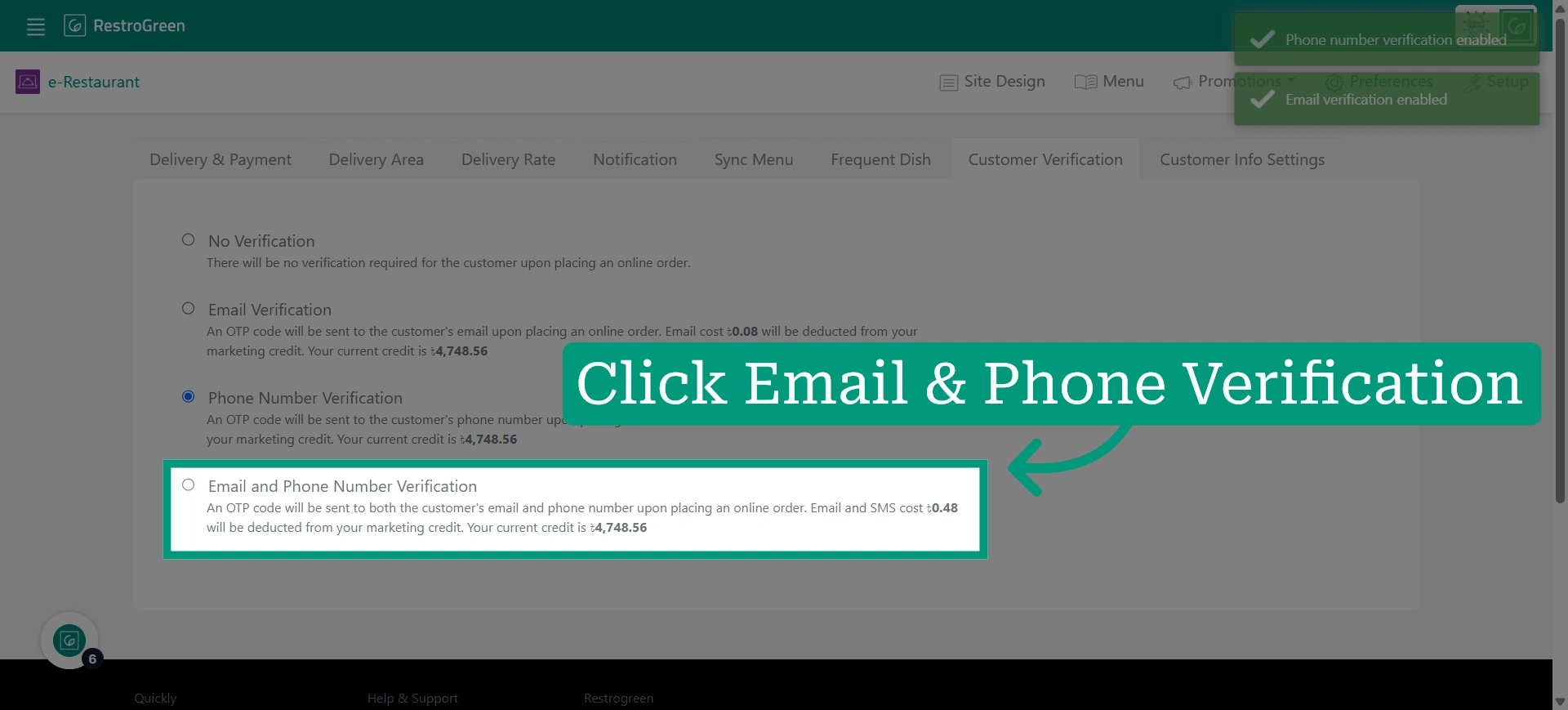
8. Enable Combined Verification
Choose “Email and Phone Verification” if you want to verify customers’ orders using both their email addresses and phone numbers.