How to Create Online Discount Voucher for Restaurant Website in RestroGreen
This tutorial guides you through creating a voucher that customers can use to get a discount when
placing orders through your online ordering website using the Business Portal.
Go to
restrogreen.quicklyservices.com
1. Go to Business Portal
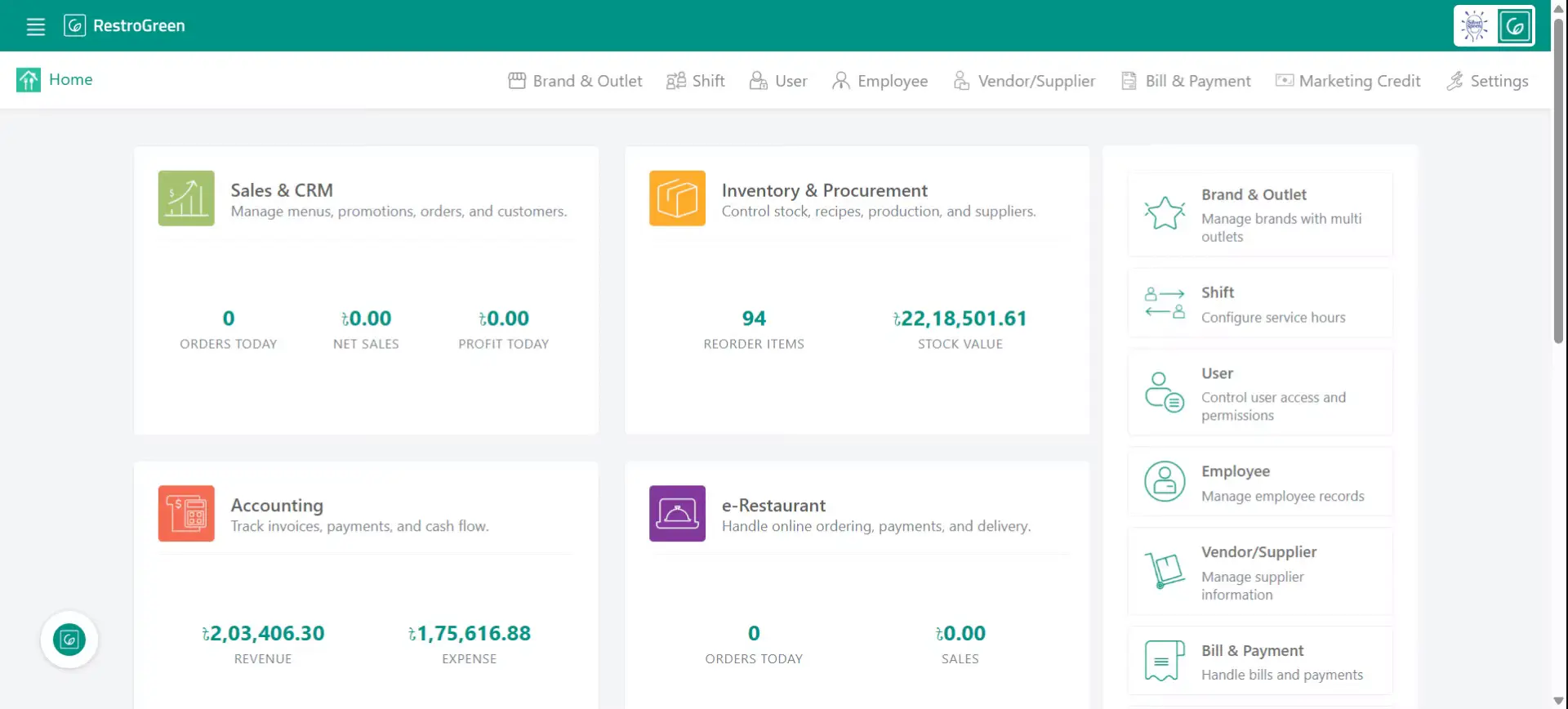
2. Click "e-Restaurant" to start managing your restaurant online
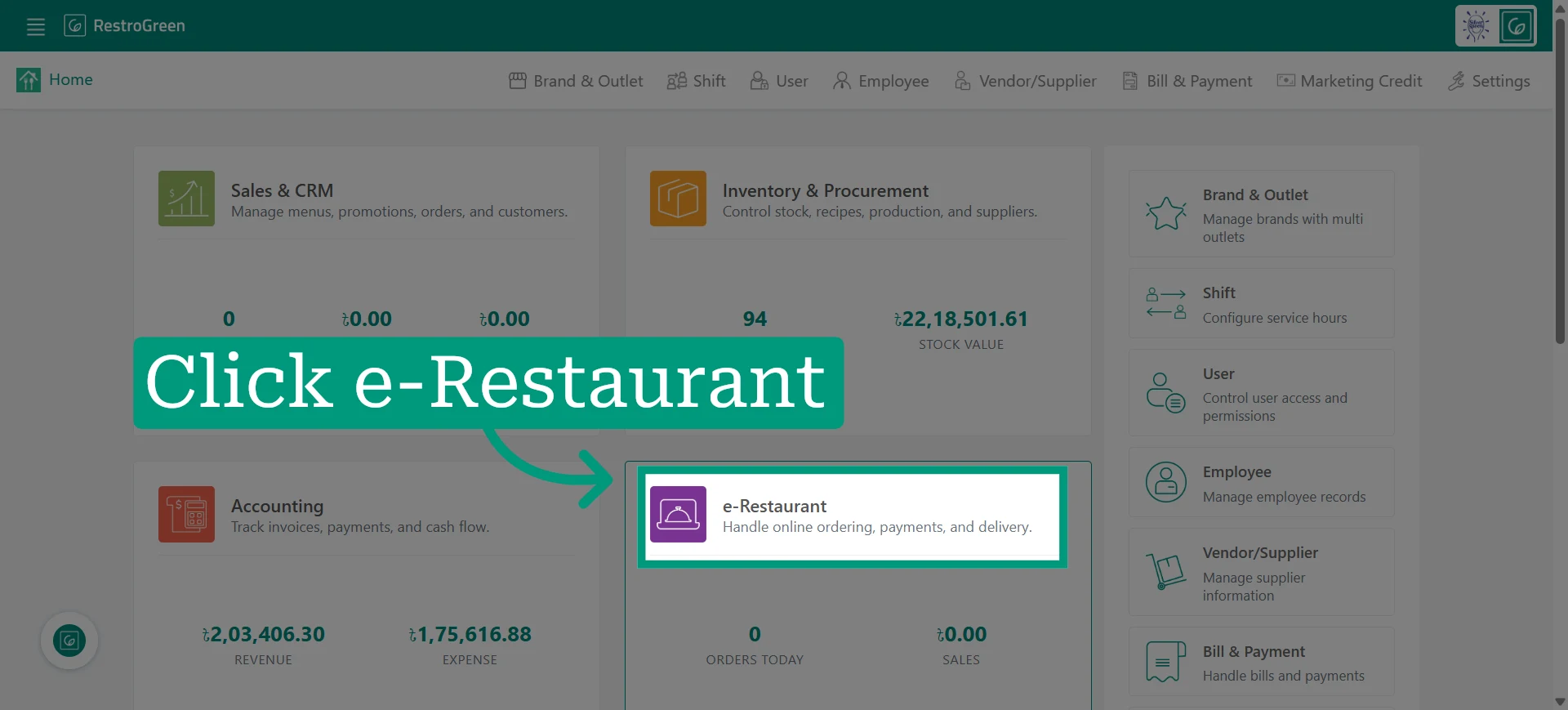
3. Click "Voucher" from the top navigation bar
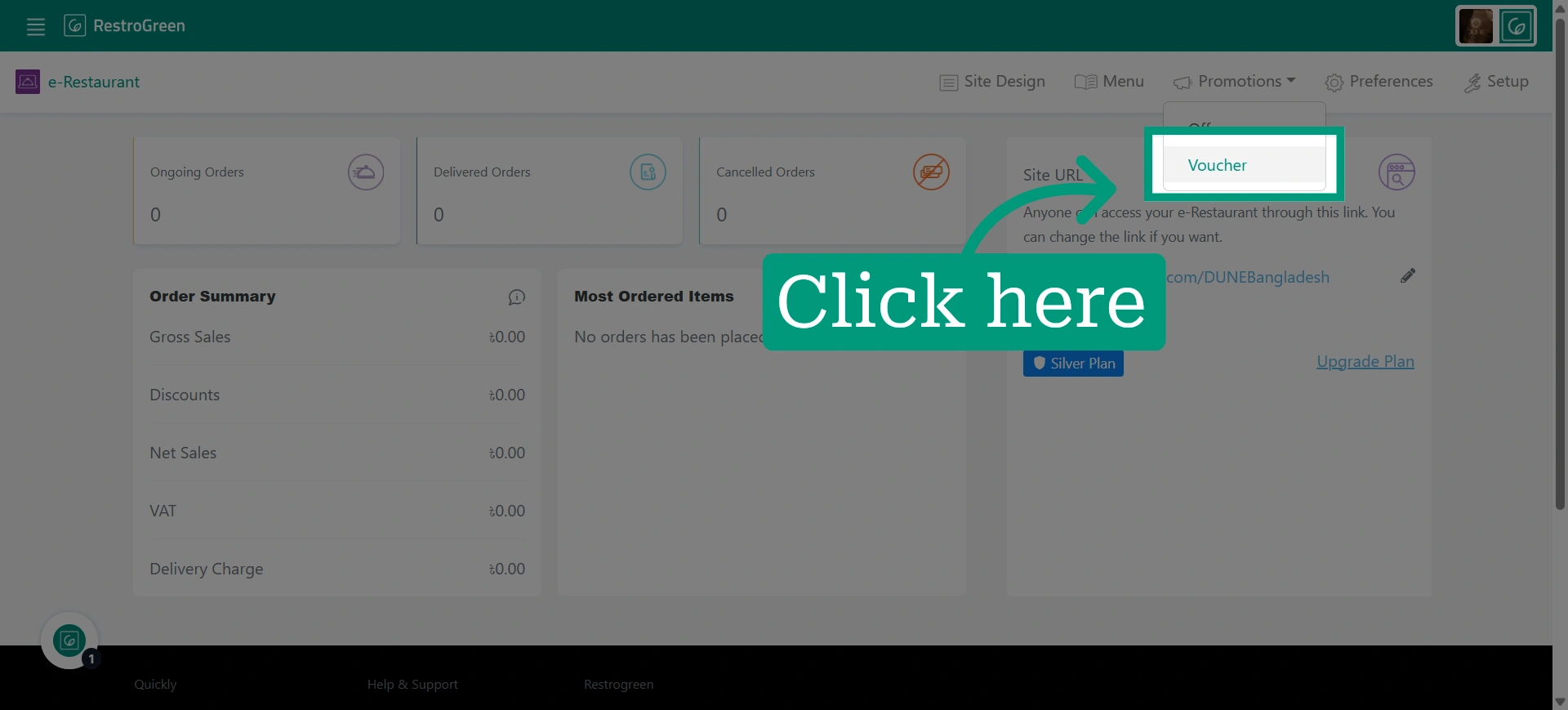
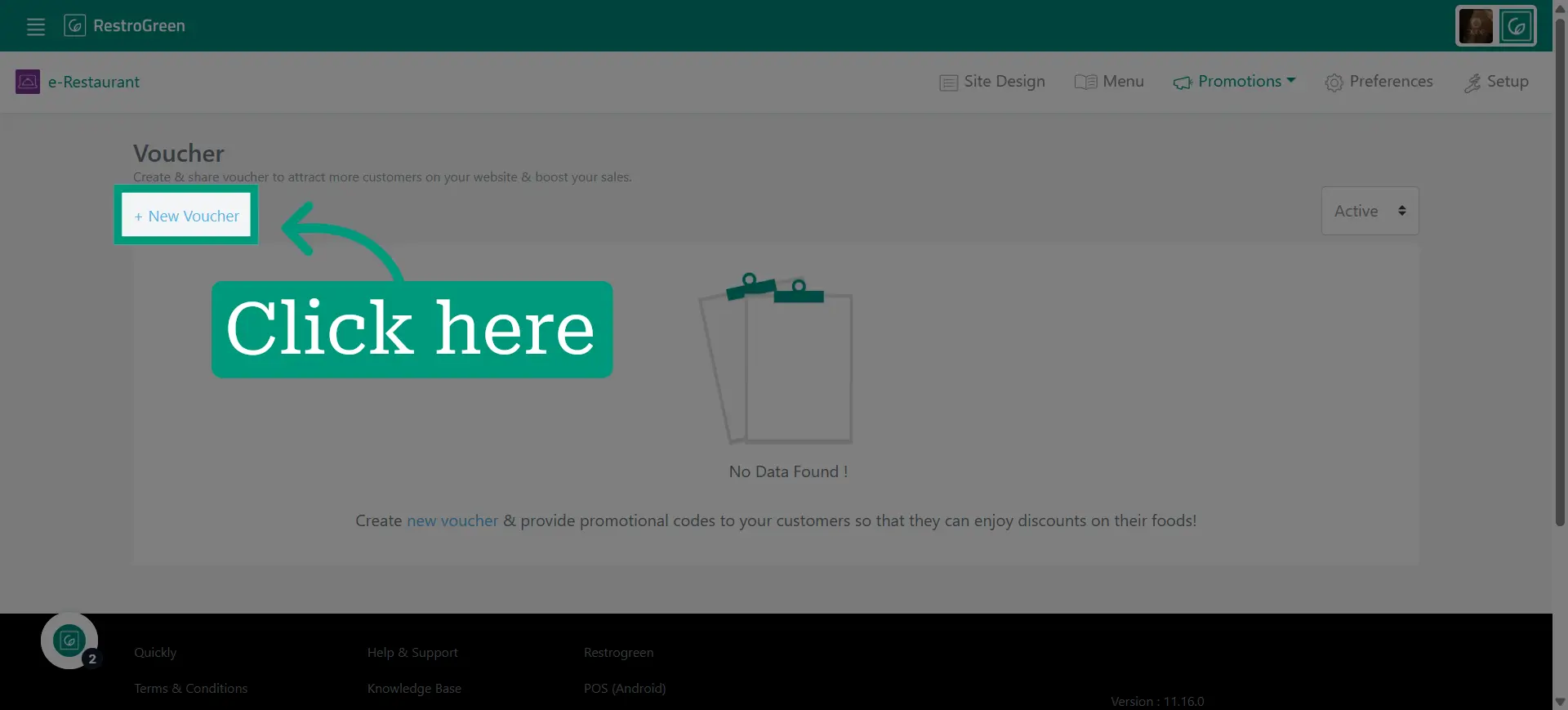
4. Initiate voucher creation by clicking "+ New Voucher"
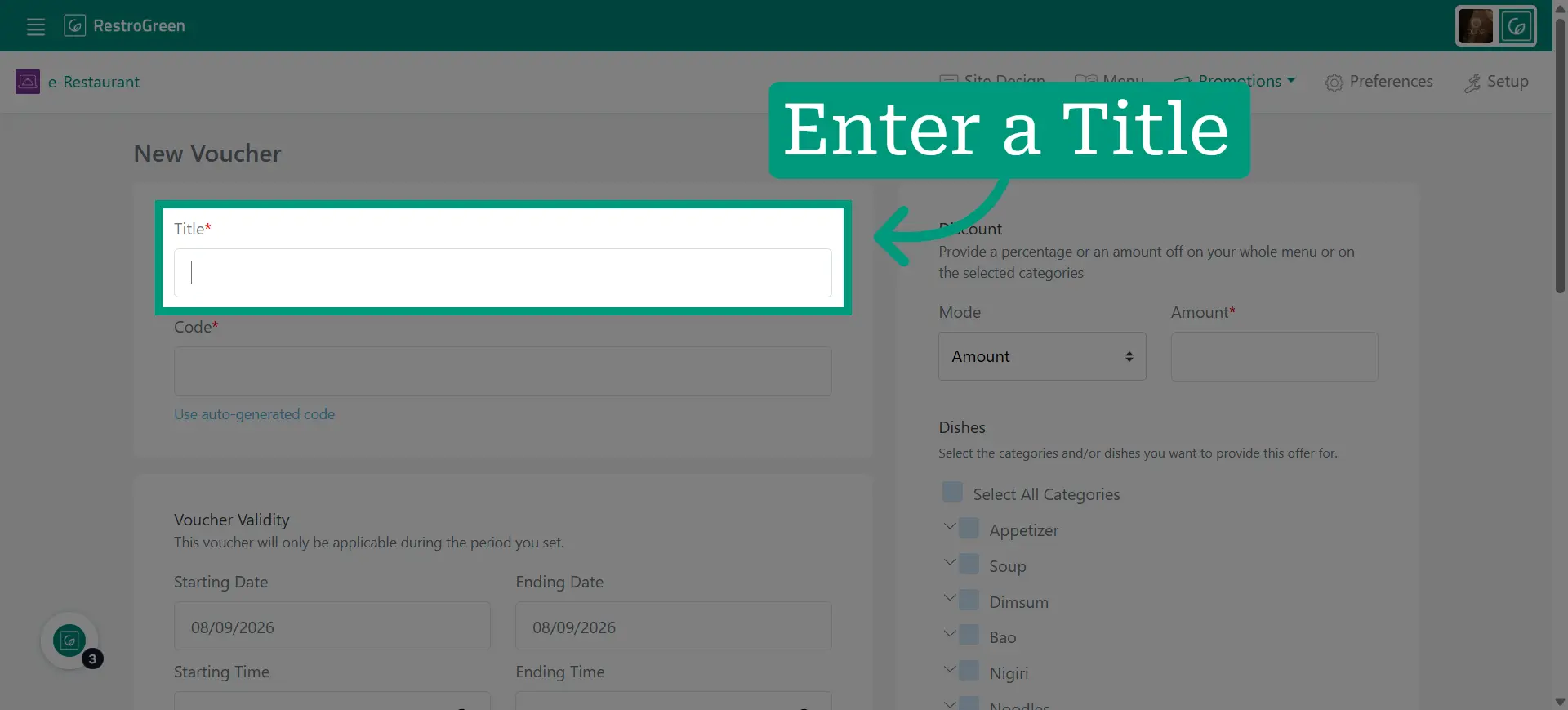
5. Type-in a name for this voucher
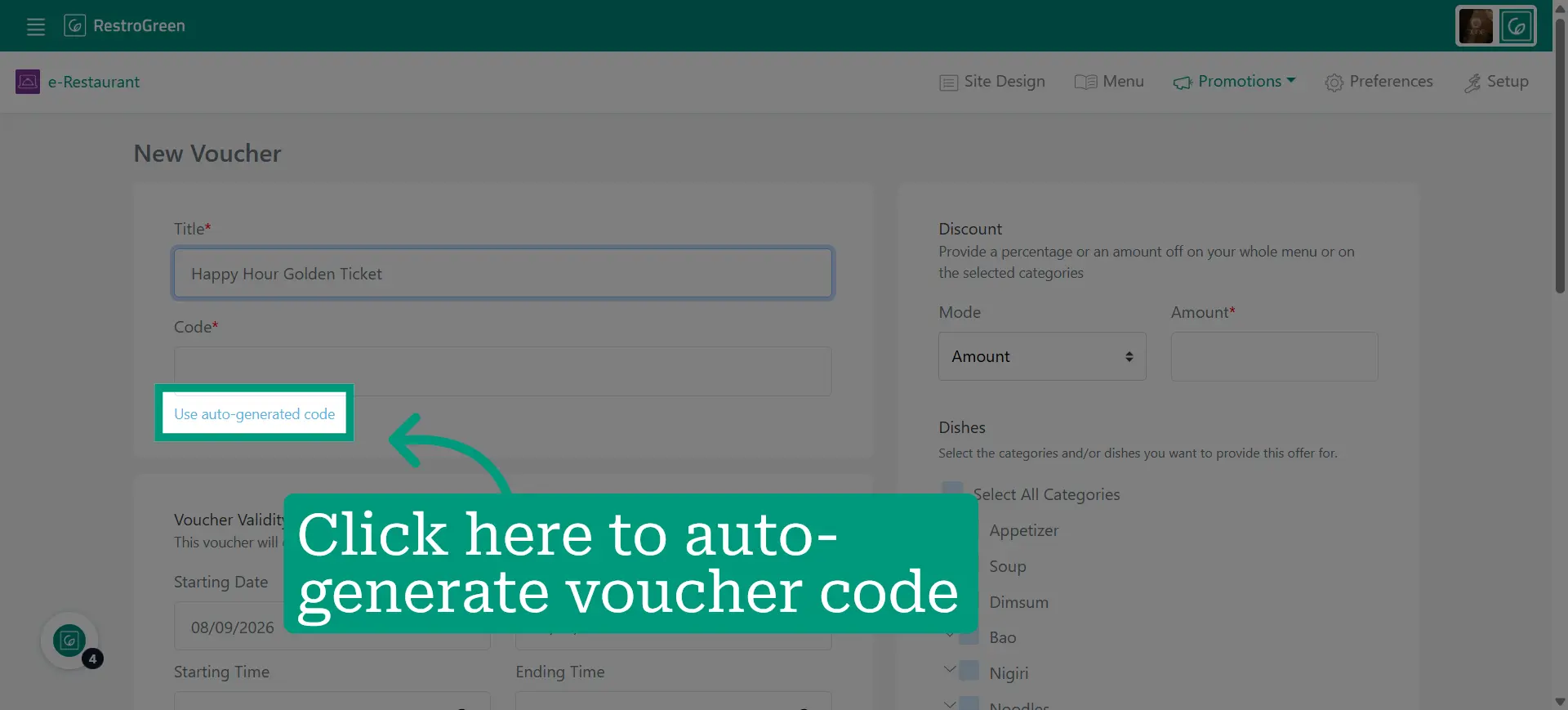
6. Use the automatically generated code for the voucher, or enter a custom code of your choice
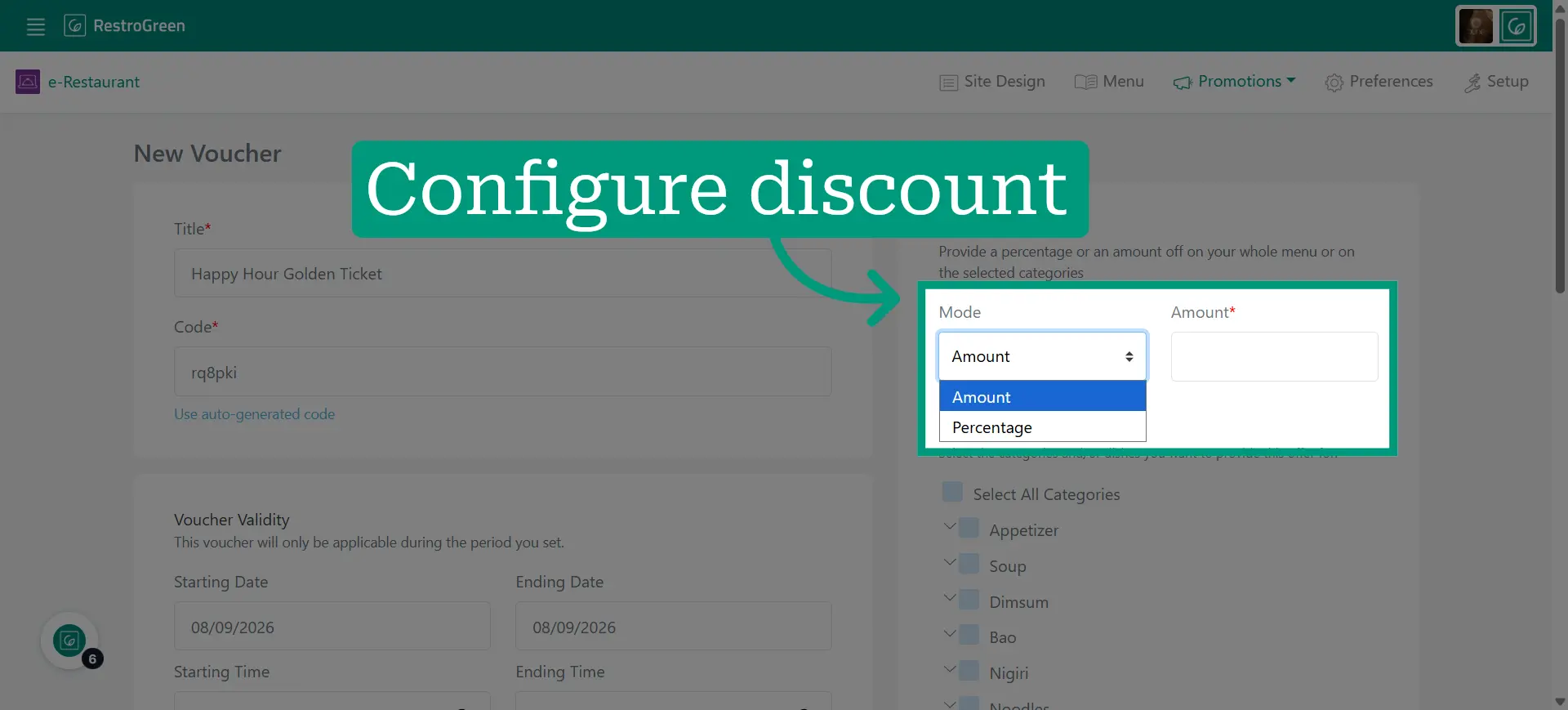
7. Choose whether to apply an amount or percentage value for discounts
8. Specify beginning date when this voucher becomes active
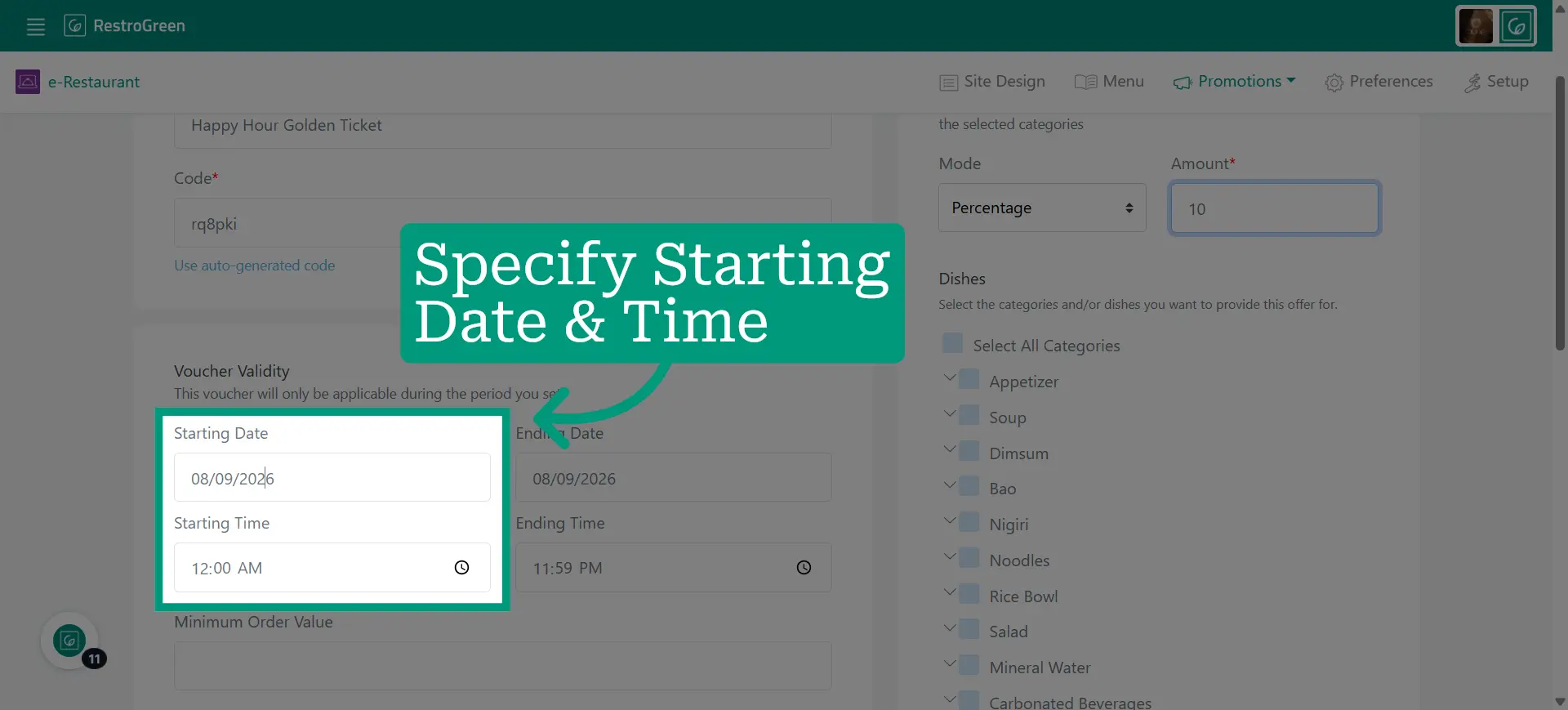
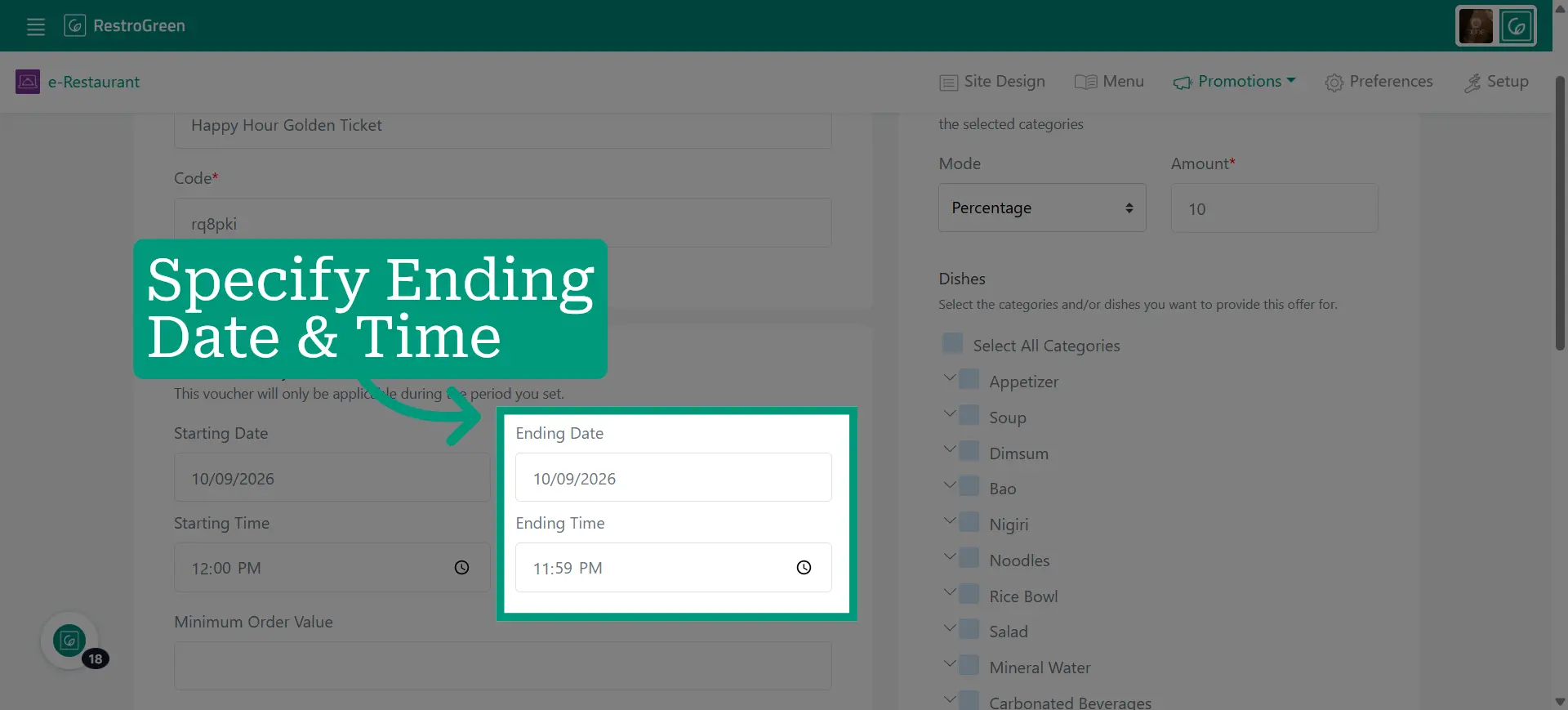
9. Specify when this voucher will no longer be valid
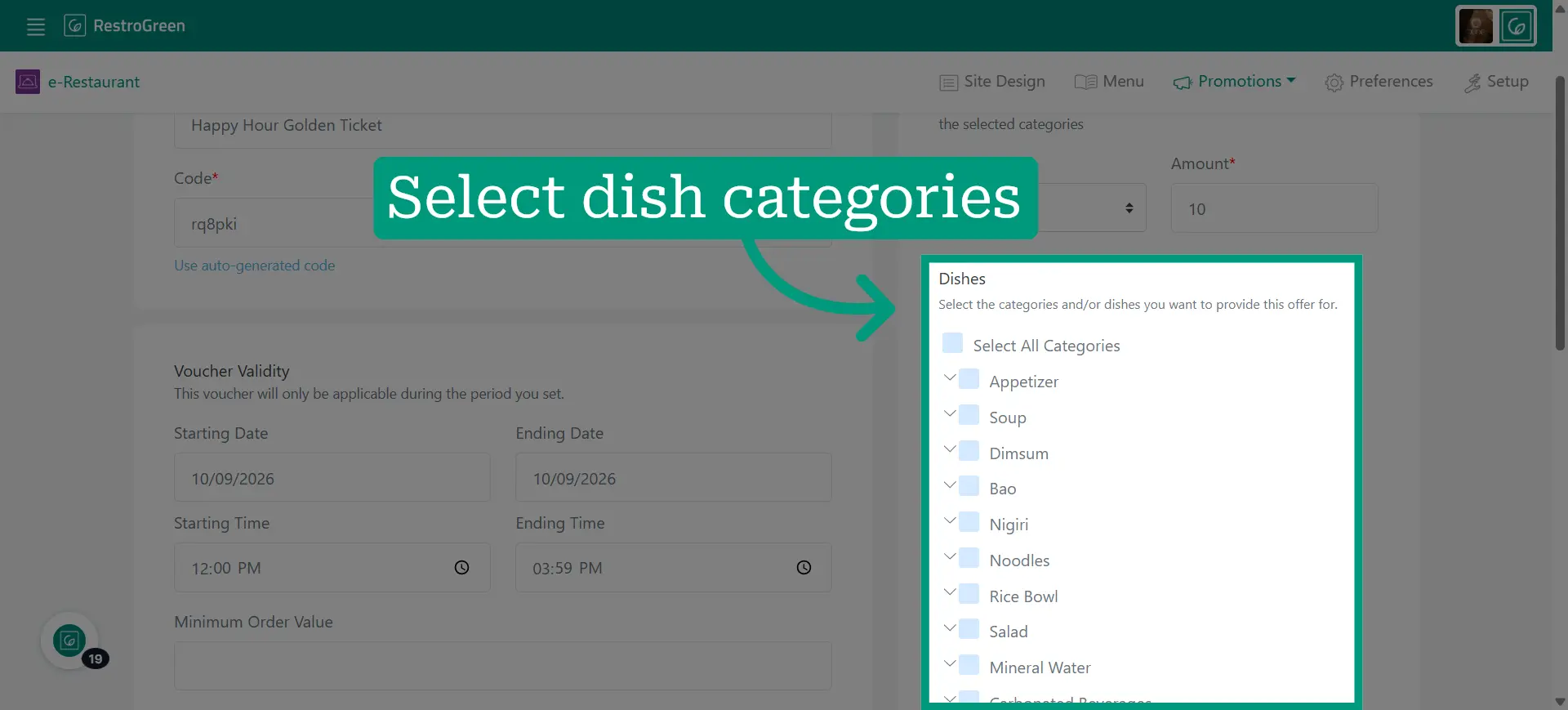
10. Choose the dish categories to include it in the discount voucher
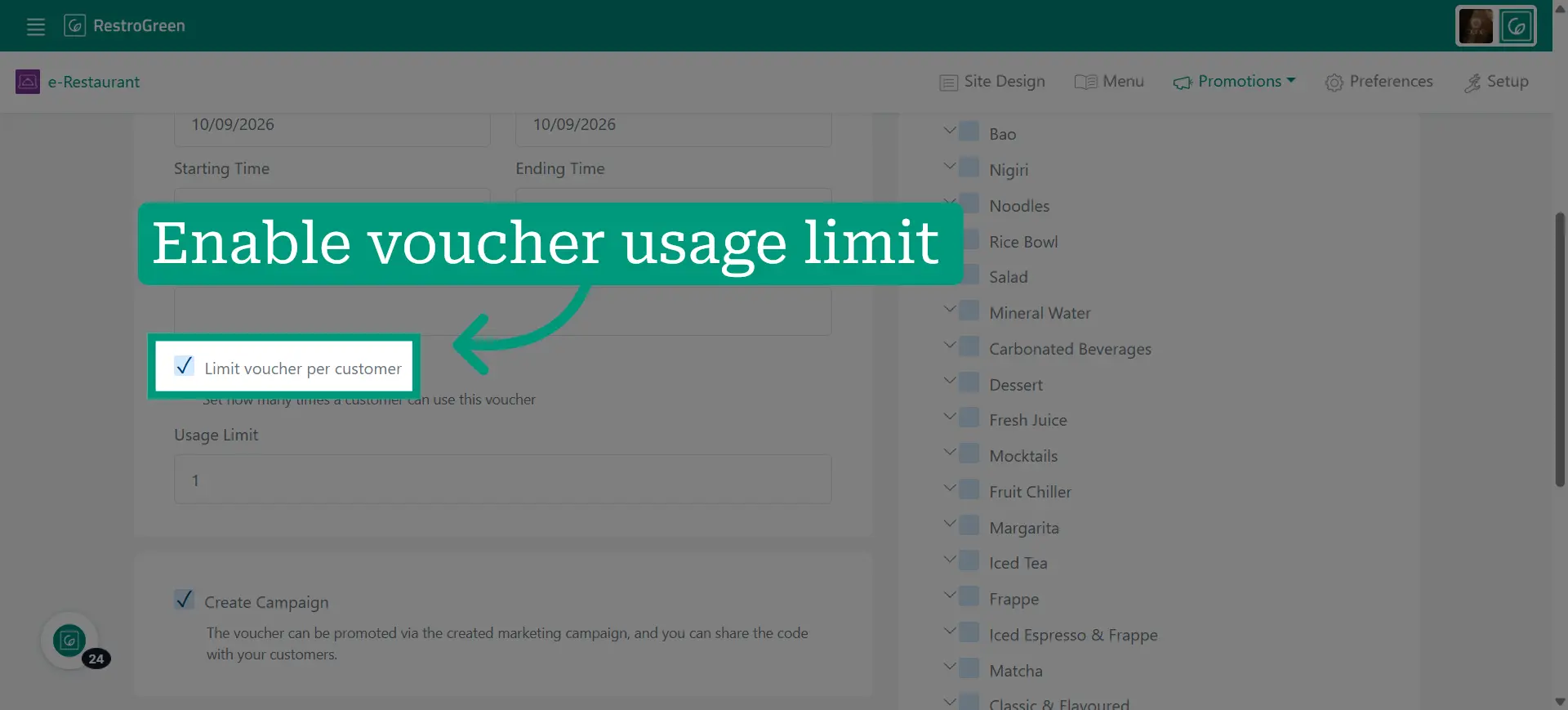
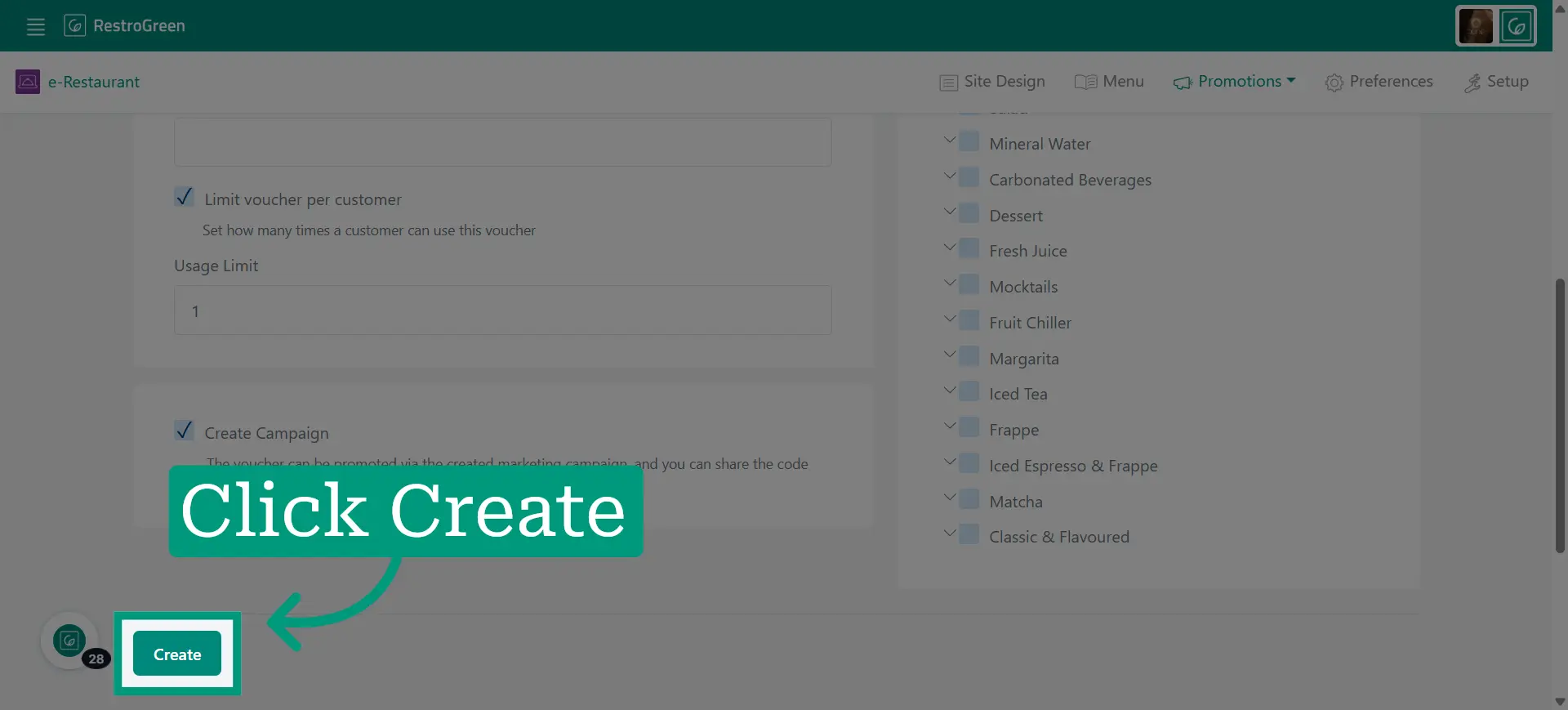
11. Activate the option to restrict the number of times a single customer can use the voucher
12. Click "Create" to save the new voucher
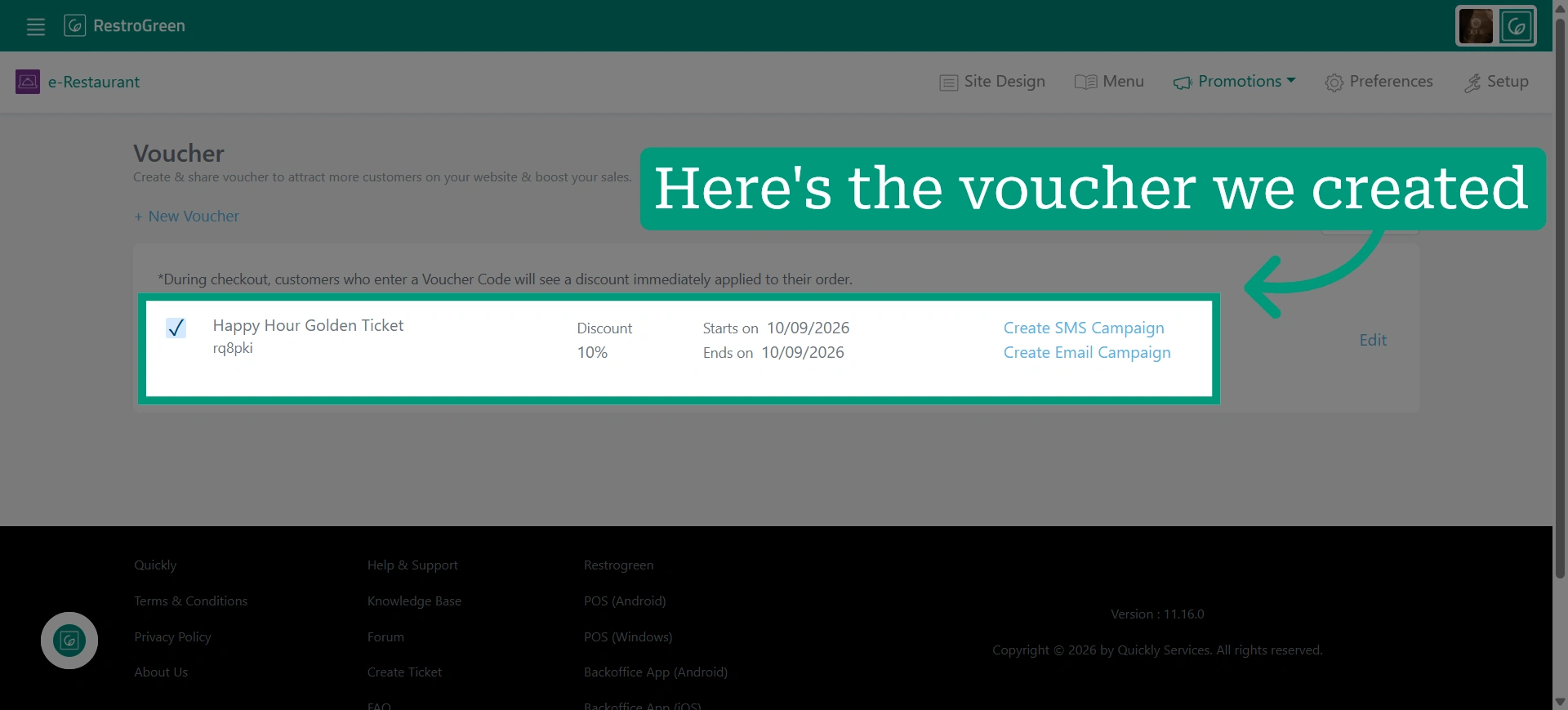
13. Your voucher is now active for your restaurant’s website
You can promote it through an SMS or email campaign to let customers know about the voucher, or modify the voucher if needed.