How to Apply an Instant Discount While Taking an Order in RestroGreen POS
This tutorial guides you through configuring instant discounts at the counter and applying them
in RestroGreen POS while taking an order.
Go to
restrogreen.quicklyservices.com
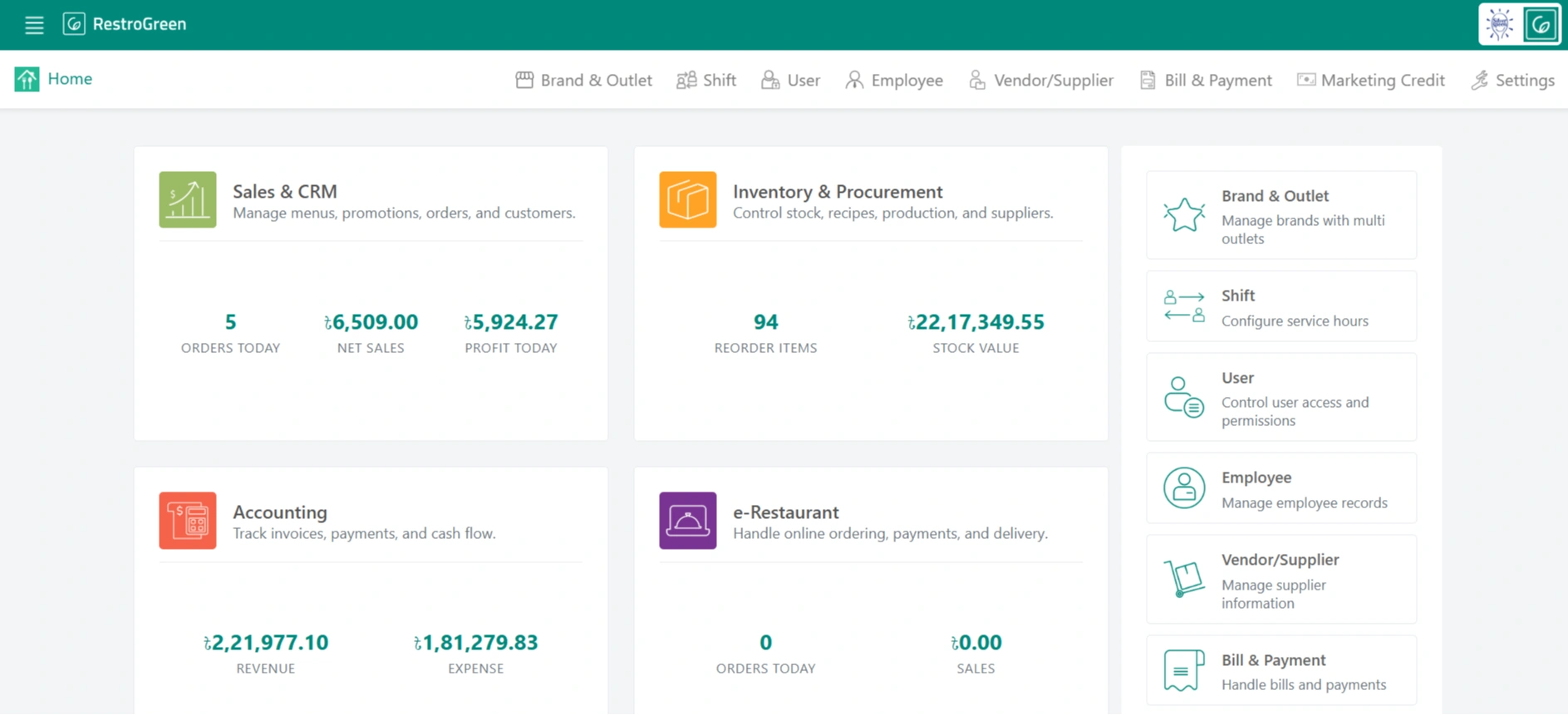
1. Go to the Business Portal
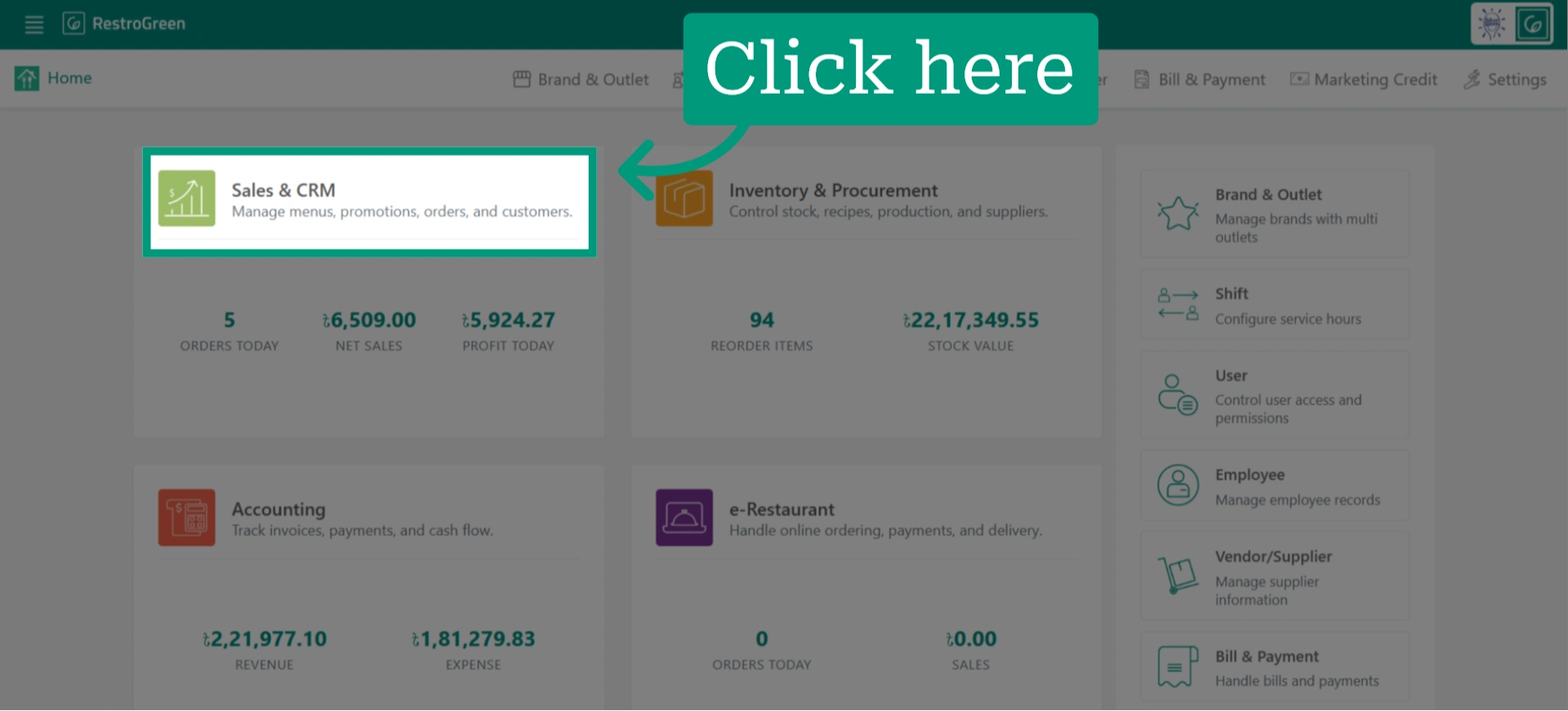
2. Click the Sales & CRM module
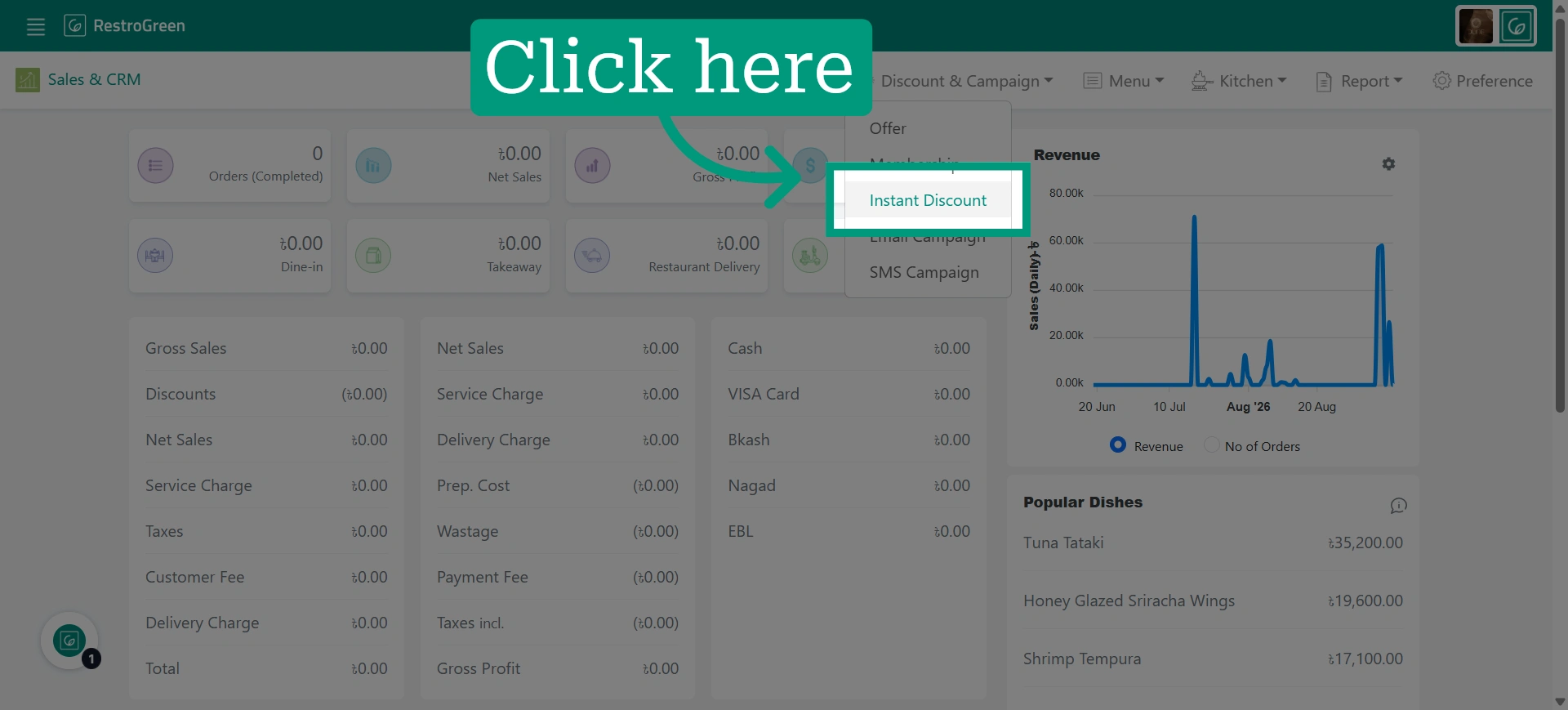
3. Click "Instant Discount" from the Discount & Campaign navigation menu
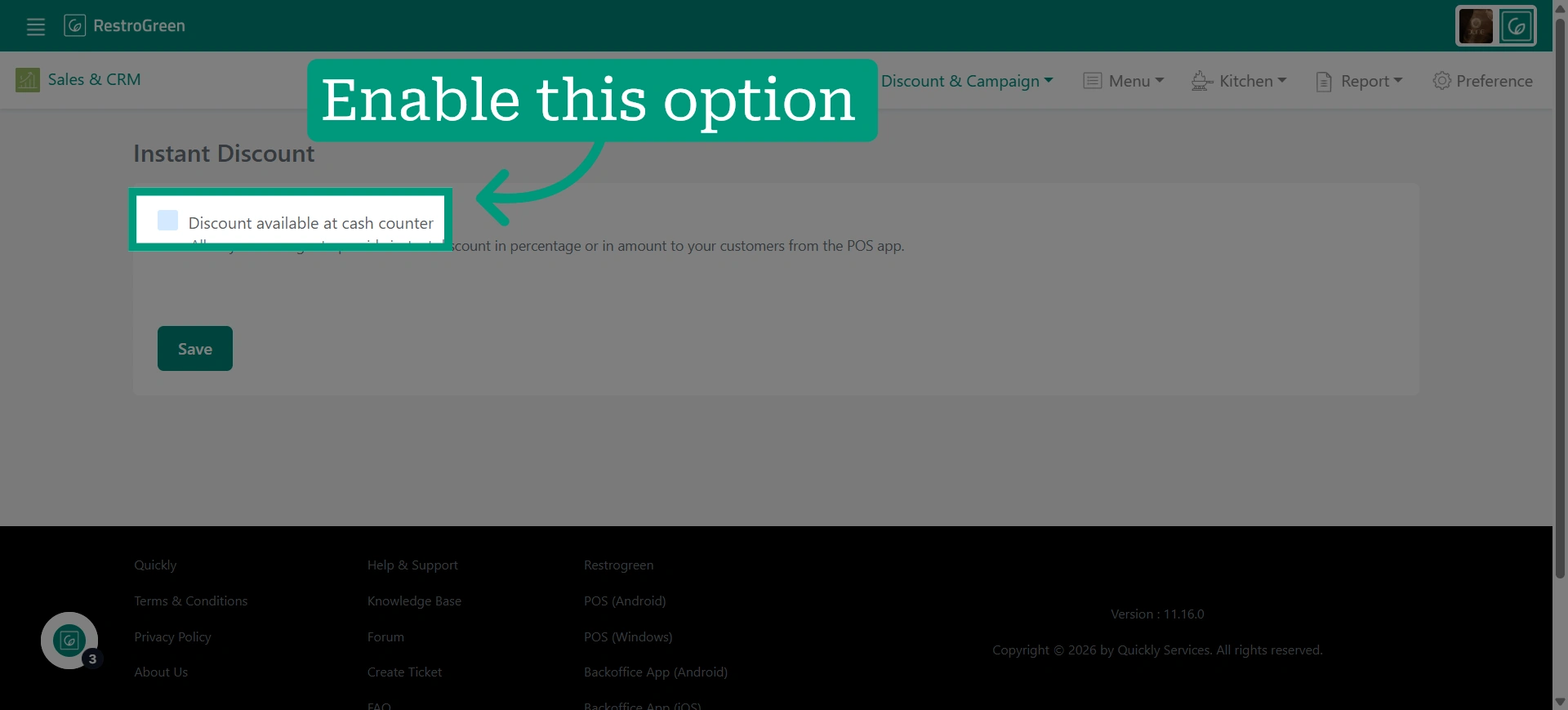
4. Select the checkbox next to the "Discount available at the counter" option
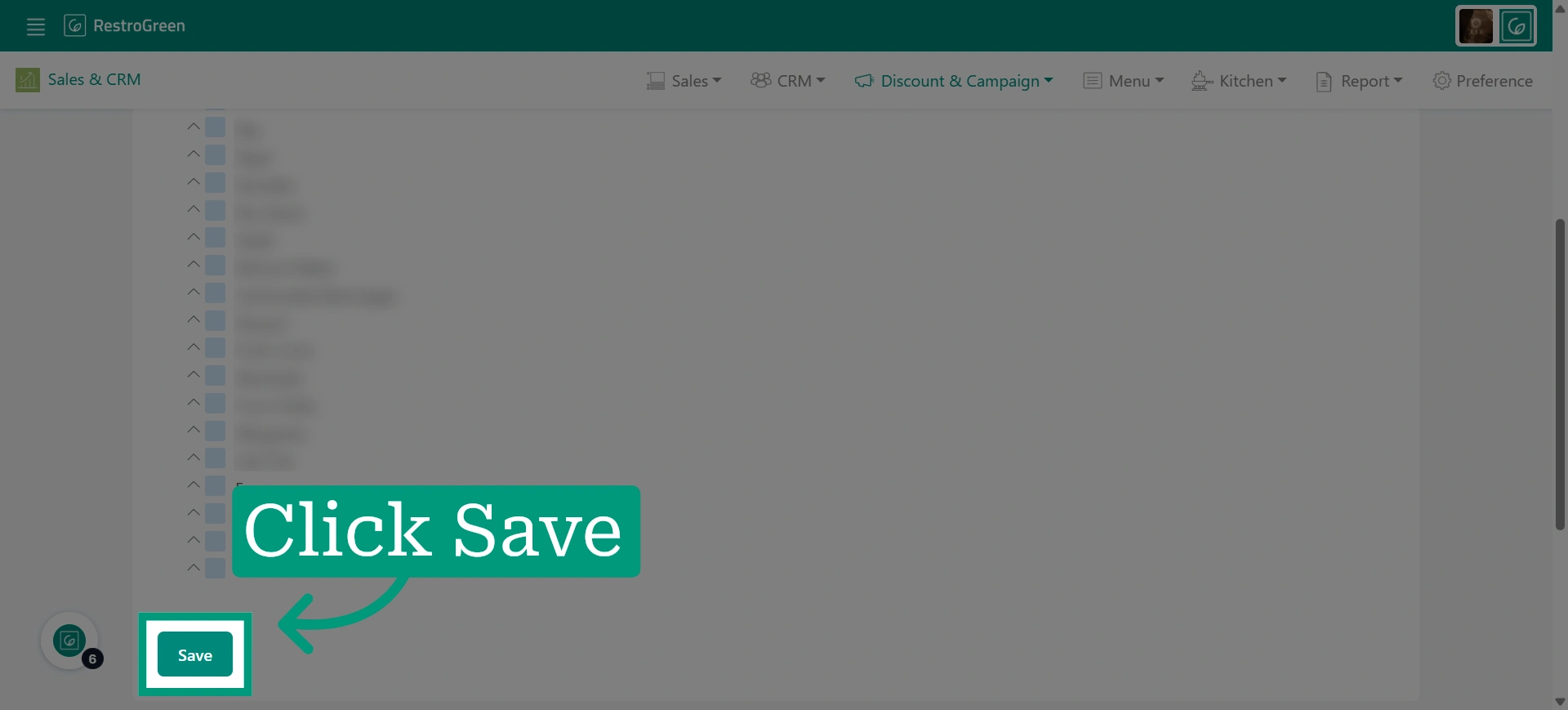
5. Click Save to finalize the settings
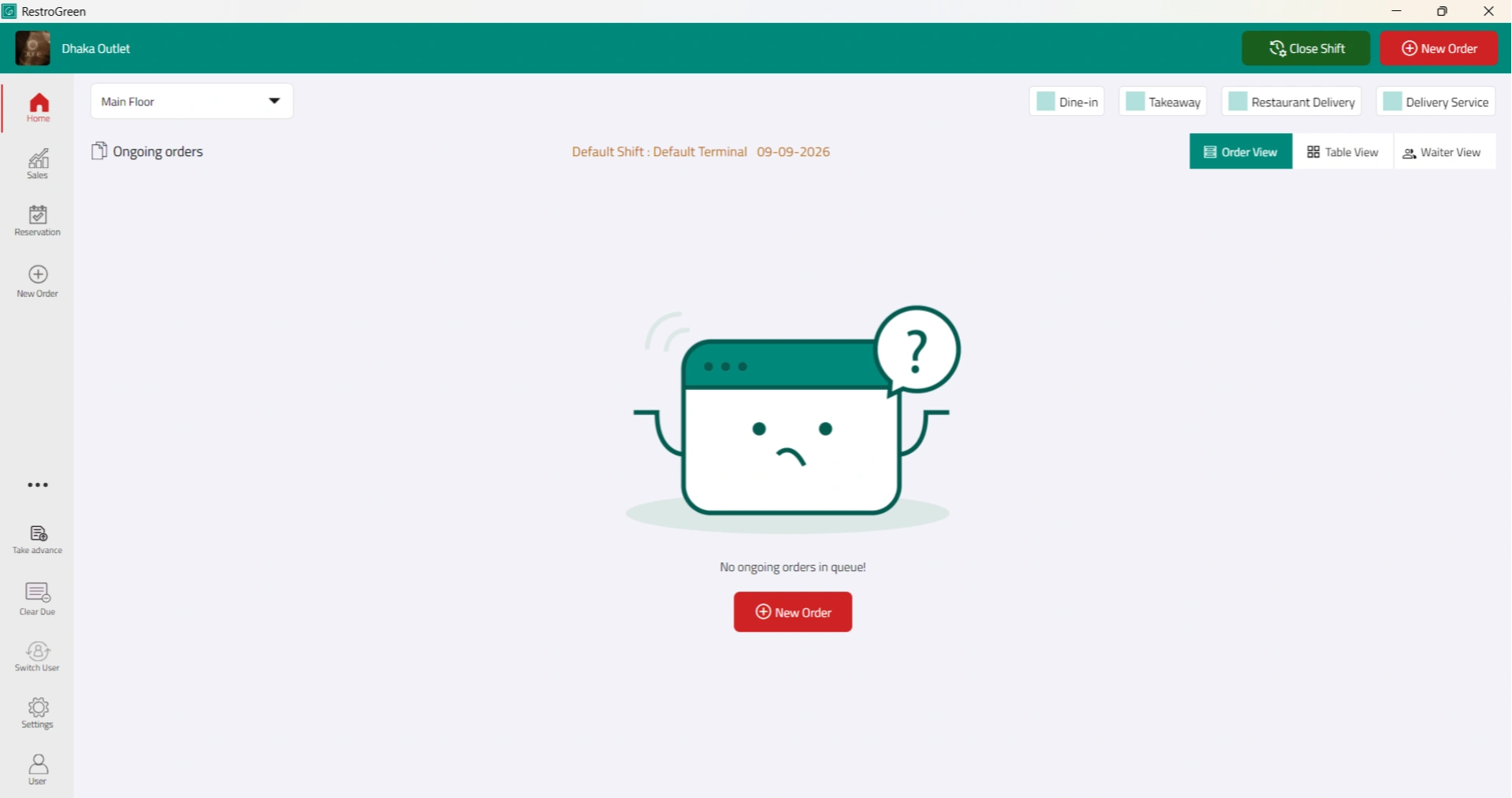
6. Go to the RestroGreen POS app
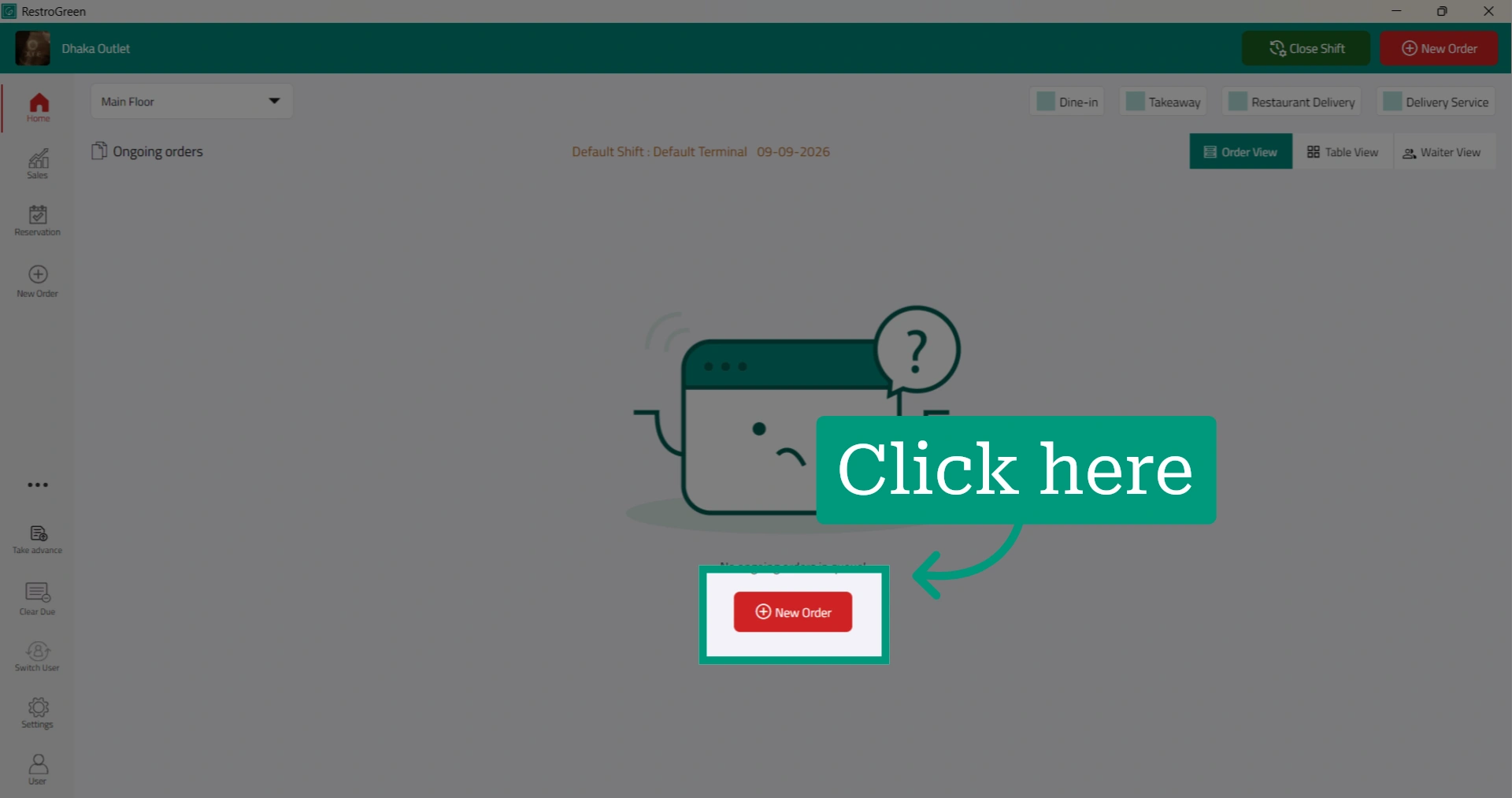
7. Start taking an order by clicking "New Order"
8. Select the service type: Dine-in, Takeaway, or Delivery
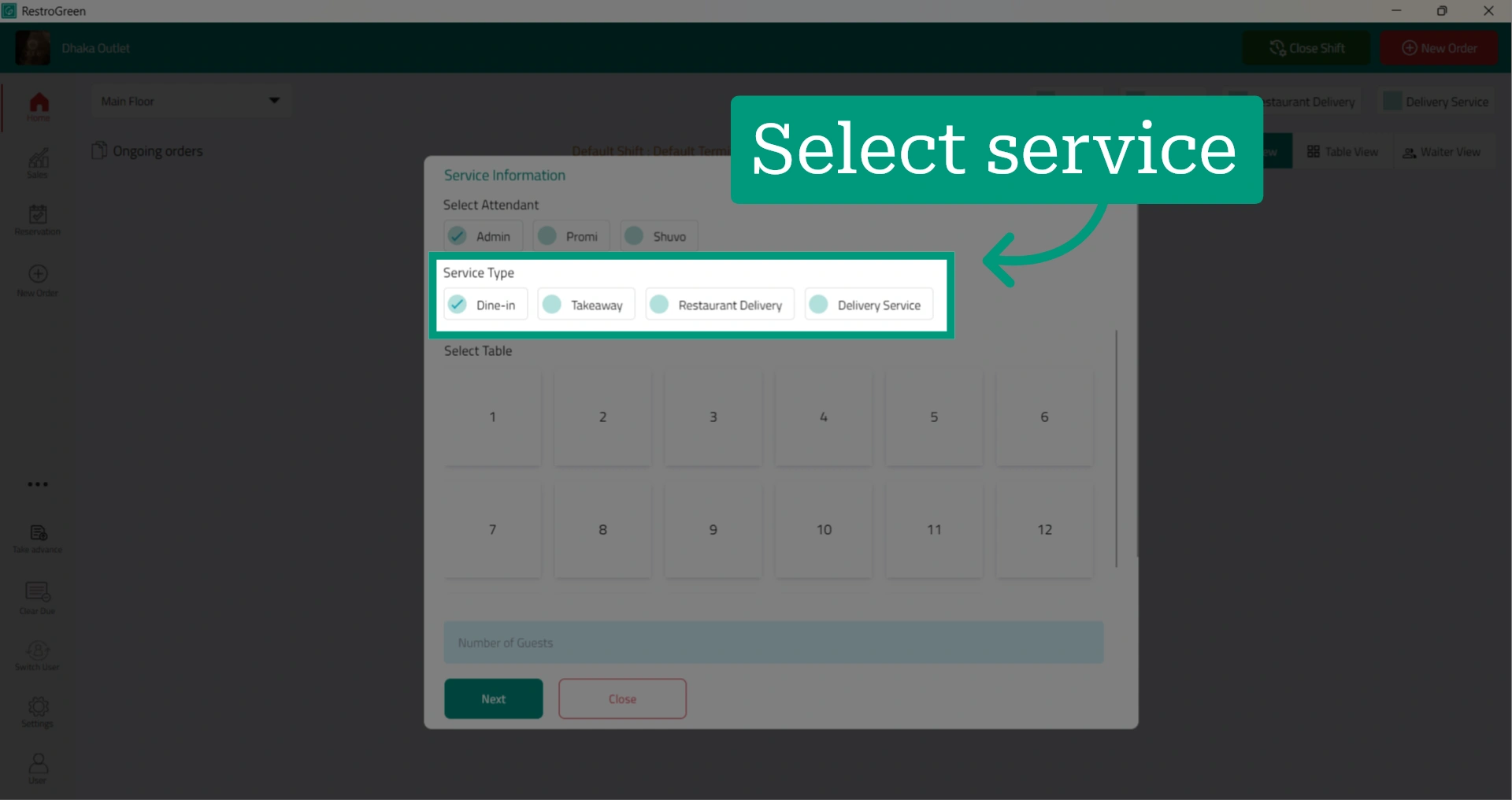
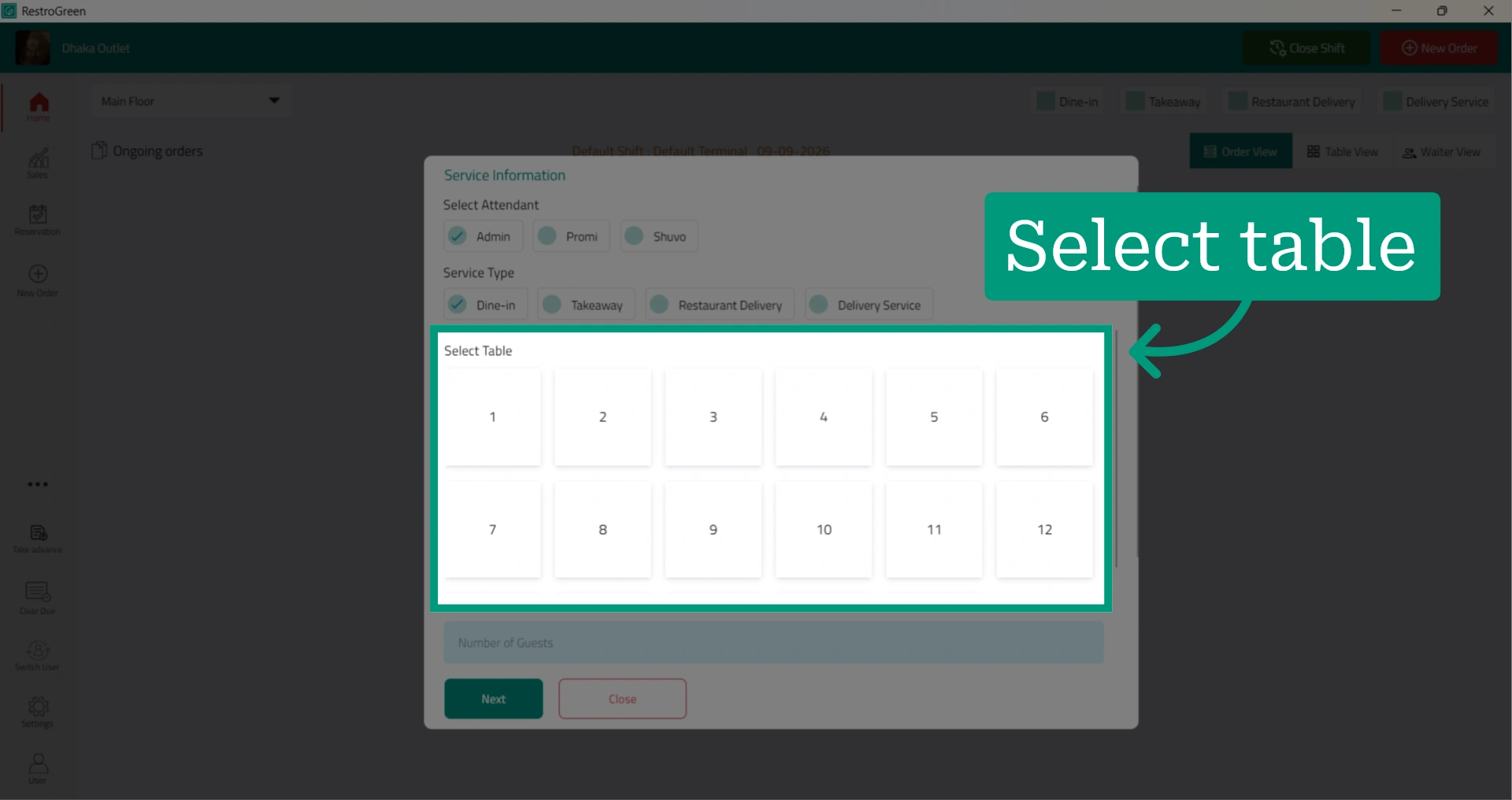
9. If you selected Dine-in, select the table where you will be serving the customer
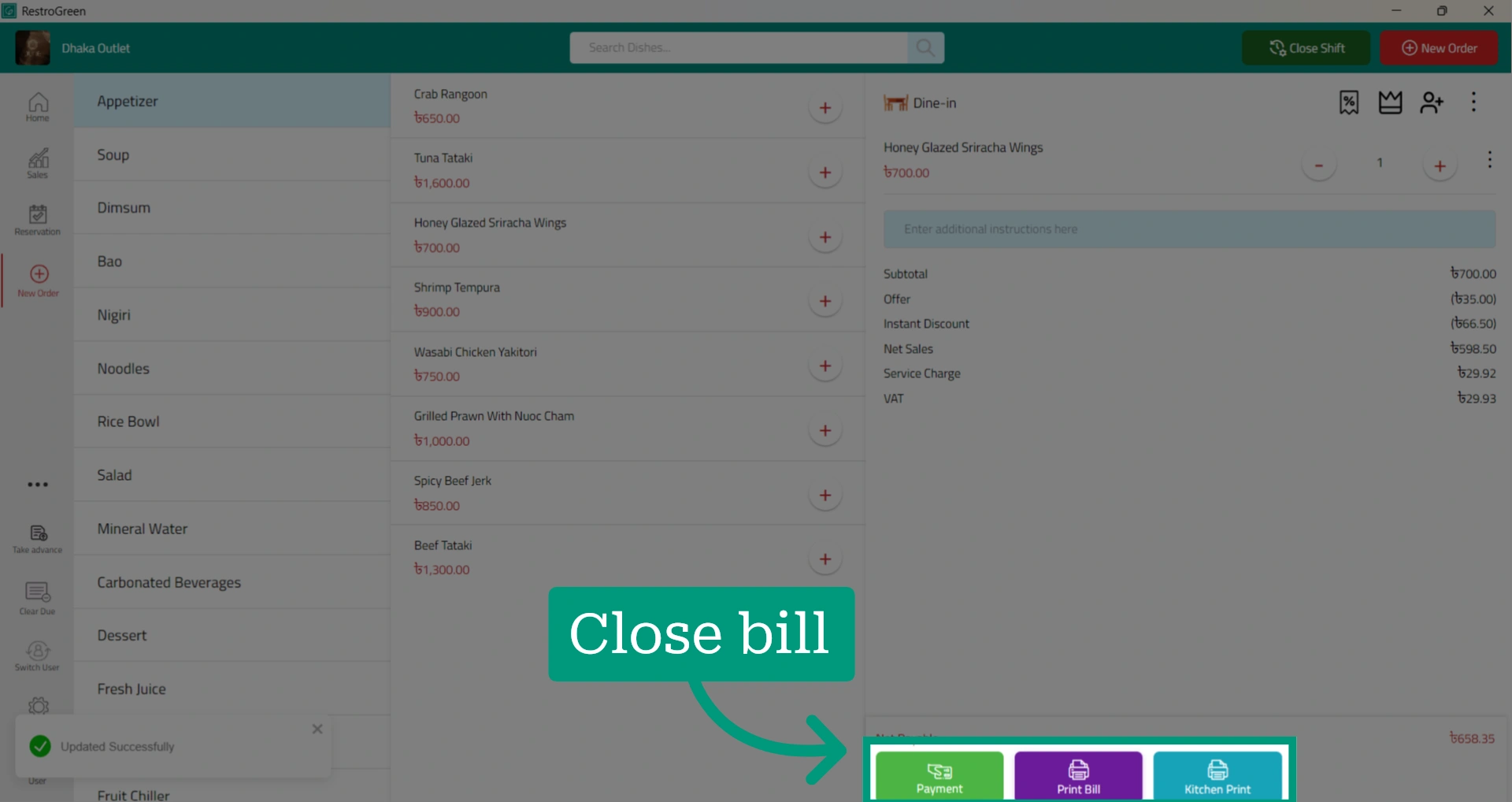
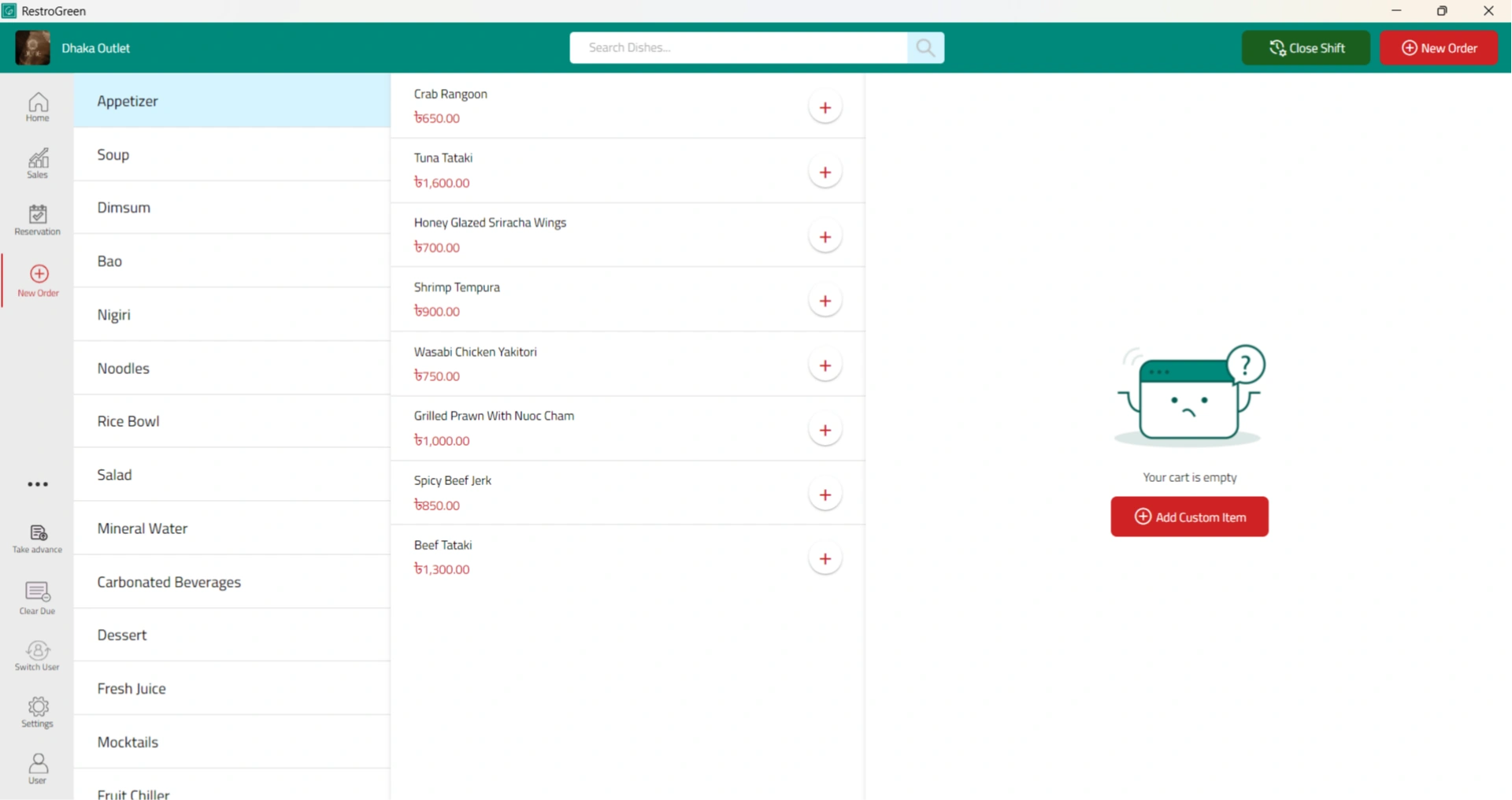
10. Add the dishes the customer wants to the cart
11. Click the Discount icon to apply an instant discount
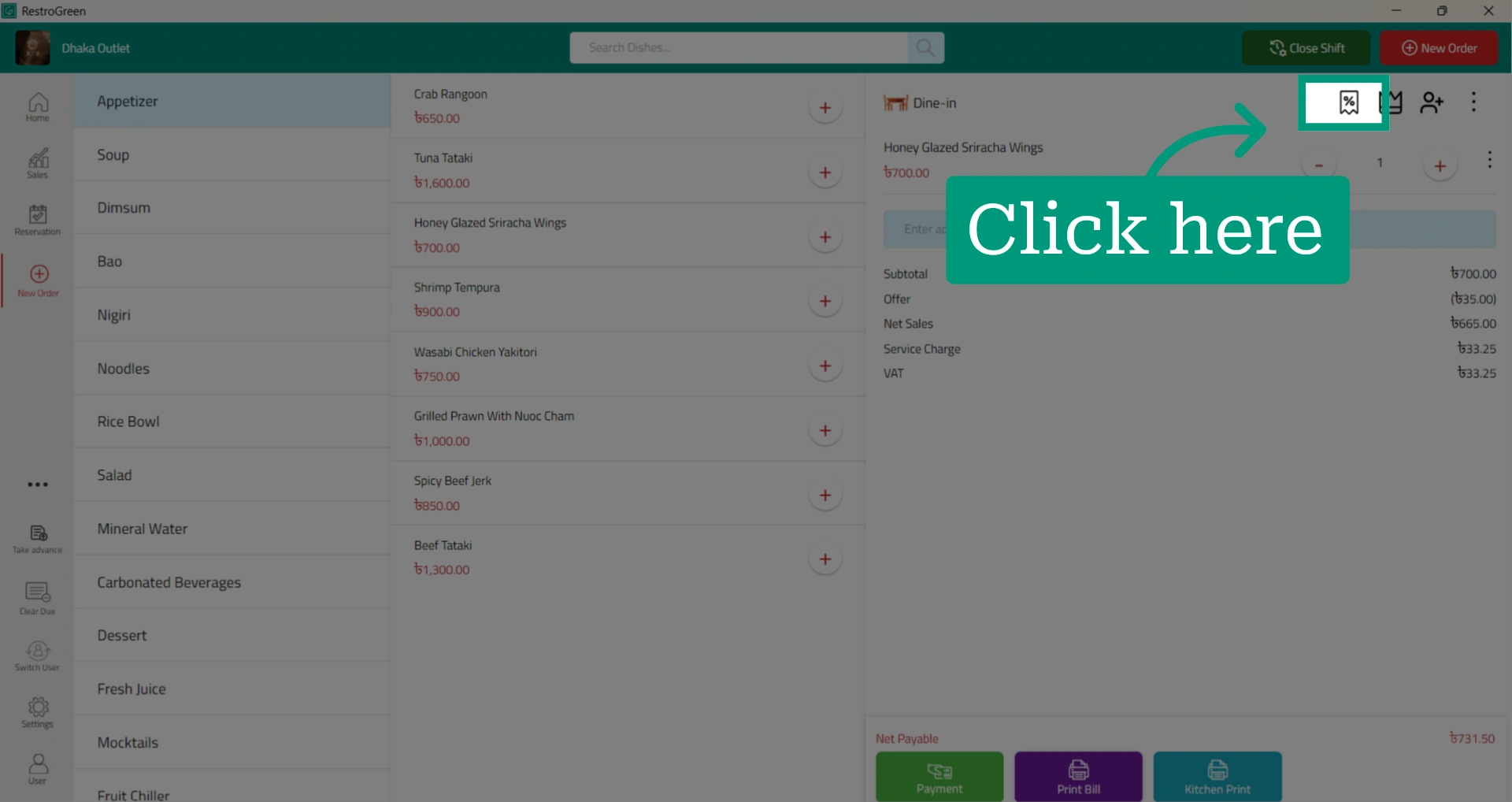
12. Select the discount type as Amount or Percentage
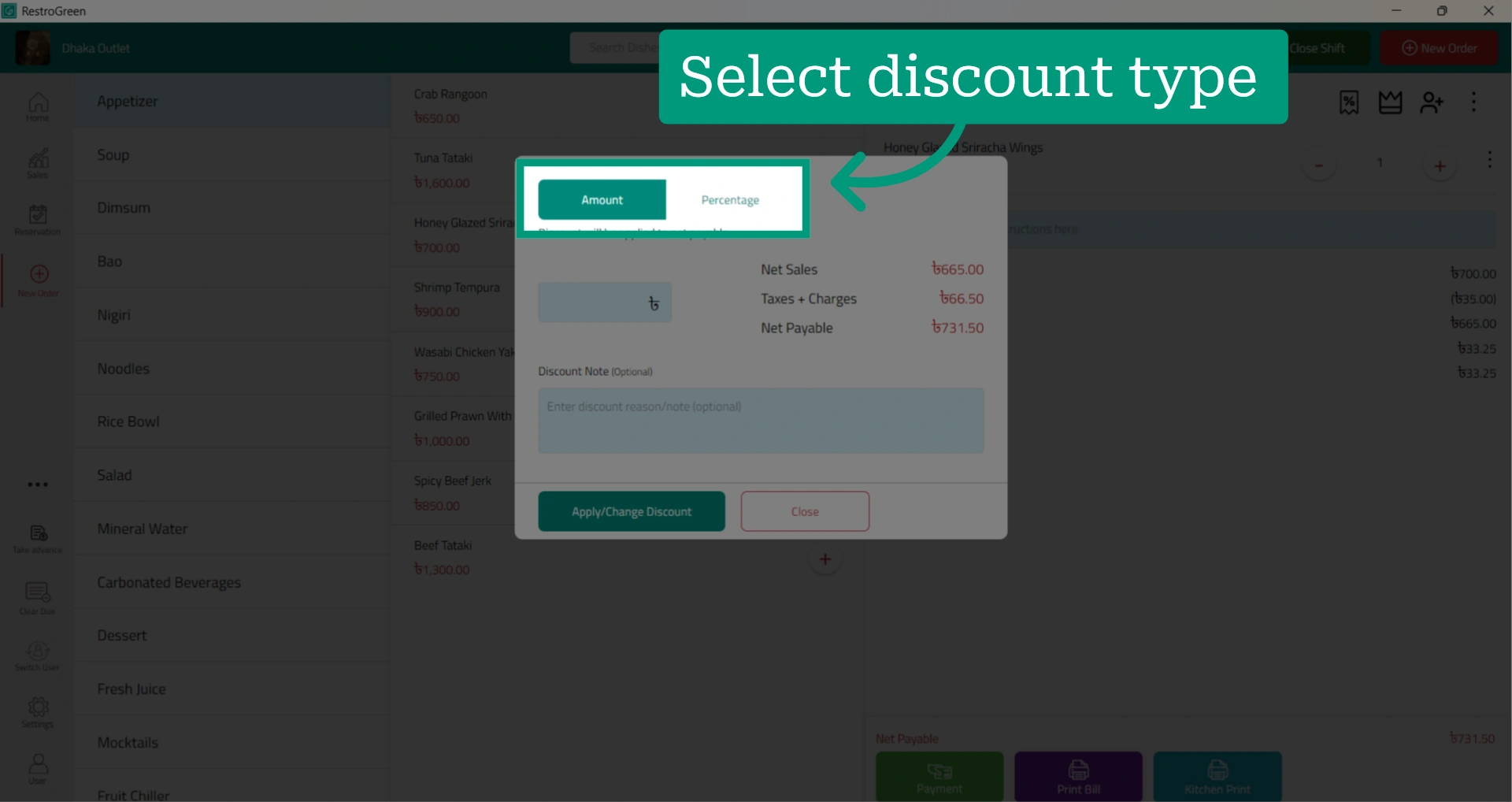
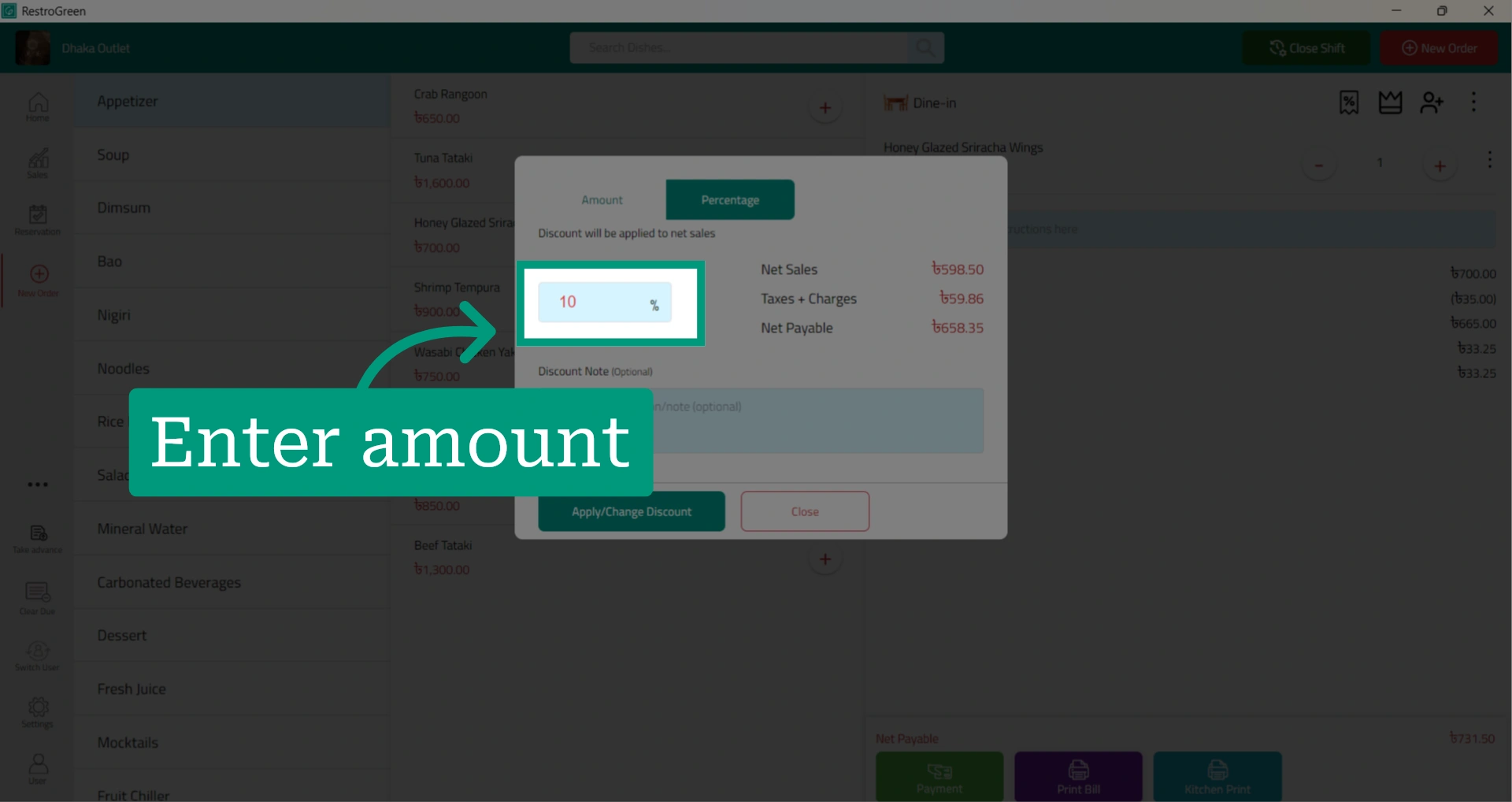
13. If you selected Percentage, enter the discount percentage you want to apply
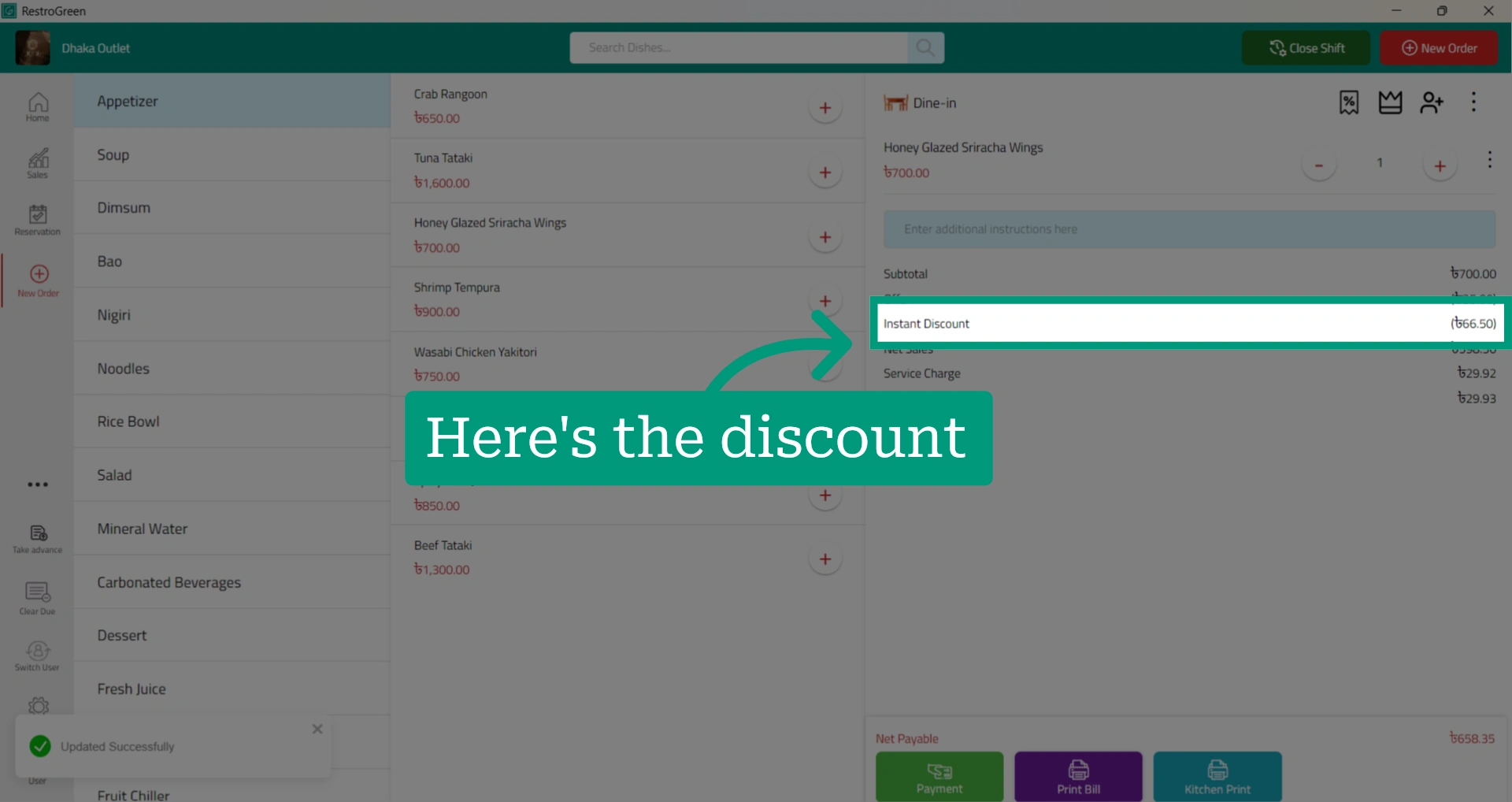
14. The discount will be applied and reflected in the cart
15. Process the order as usual