How to Take Restaurant Reservations in RestroGreen POS
This tutorial guides you through creating and managing restaurant reservations in RestroGreen
POS, including selecting the reservation time, table, guest details, and setting a reminder.
Go to
restrogreen.quicklyservices.com
1. Go to the RestroGreen POS
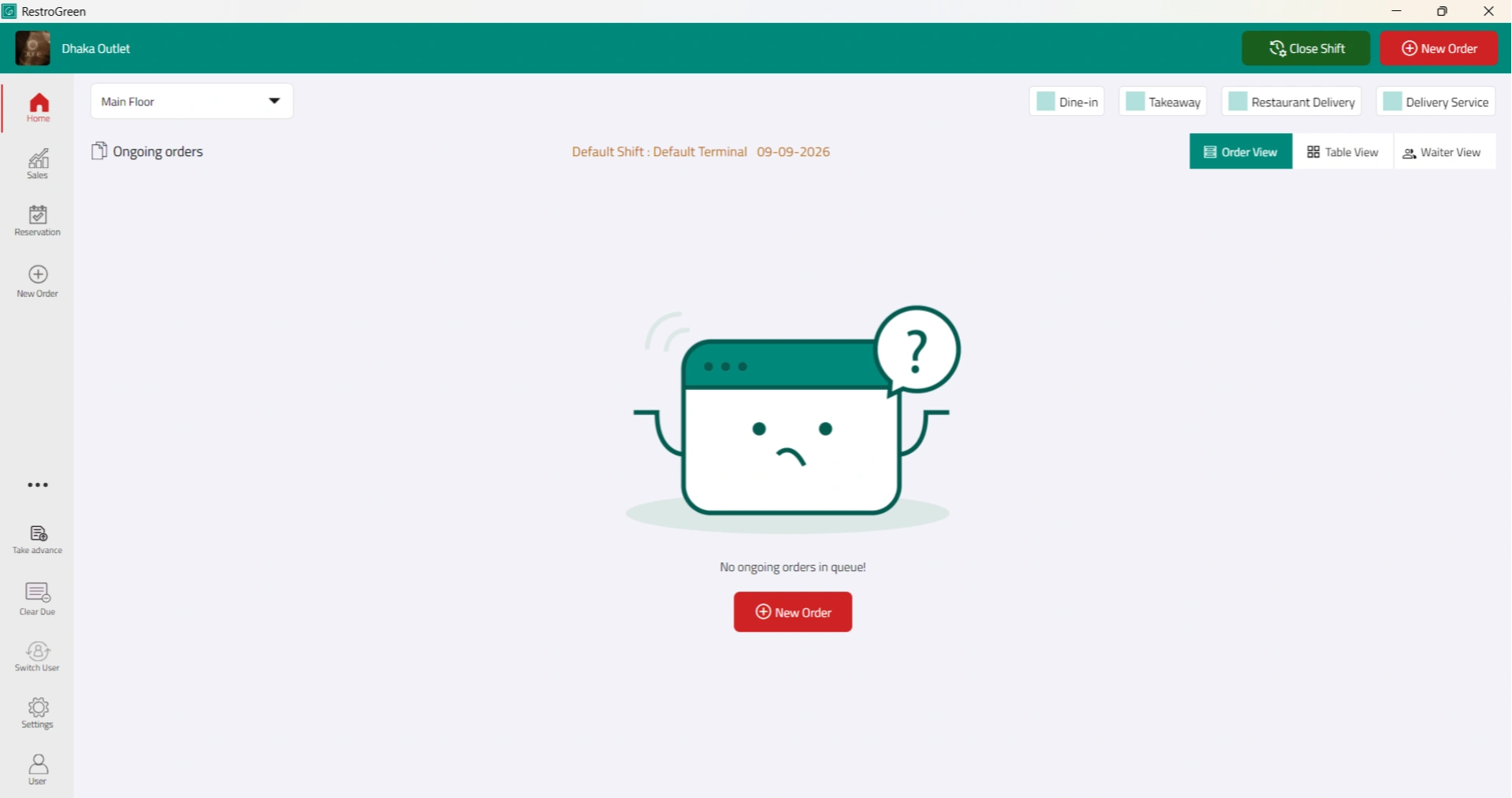
2. Select the Reservation icon from the left navigation menu
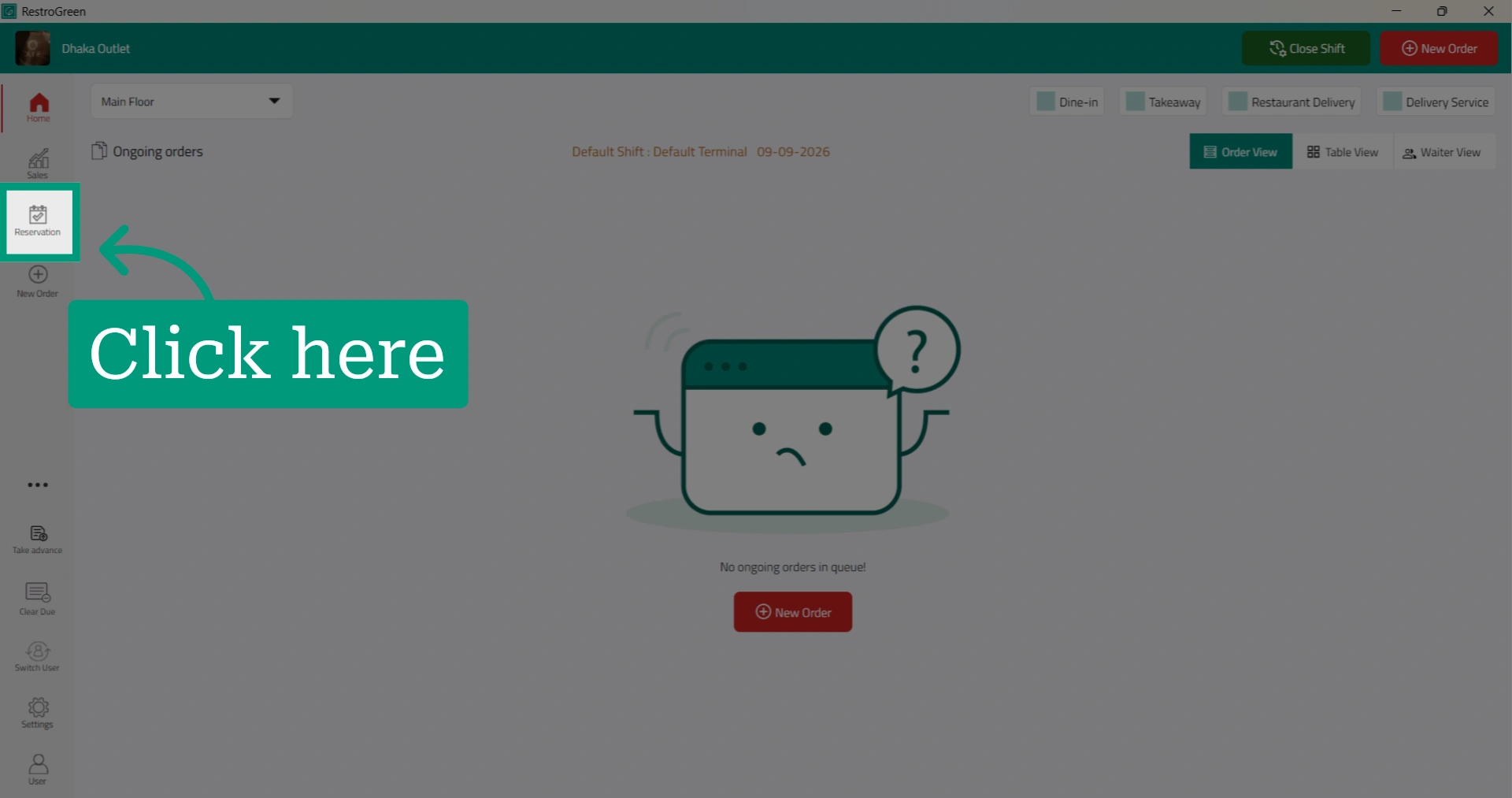
3. Click "Create Reservation"
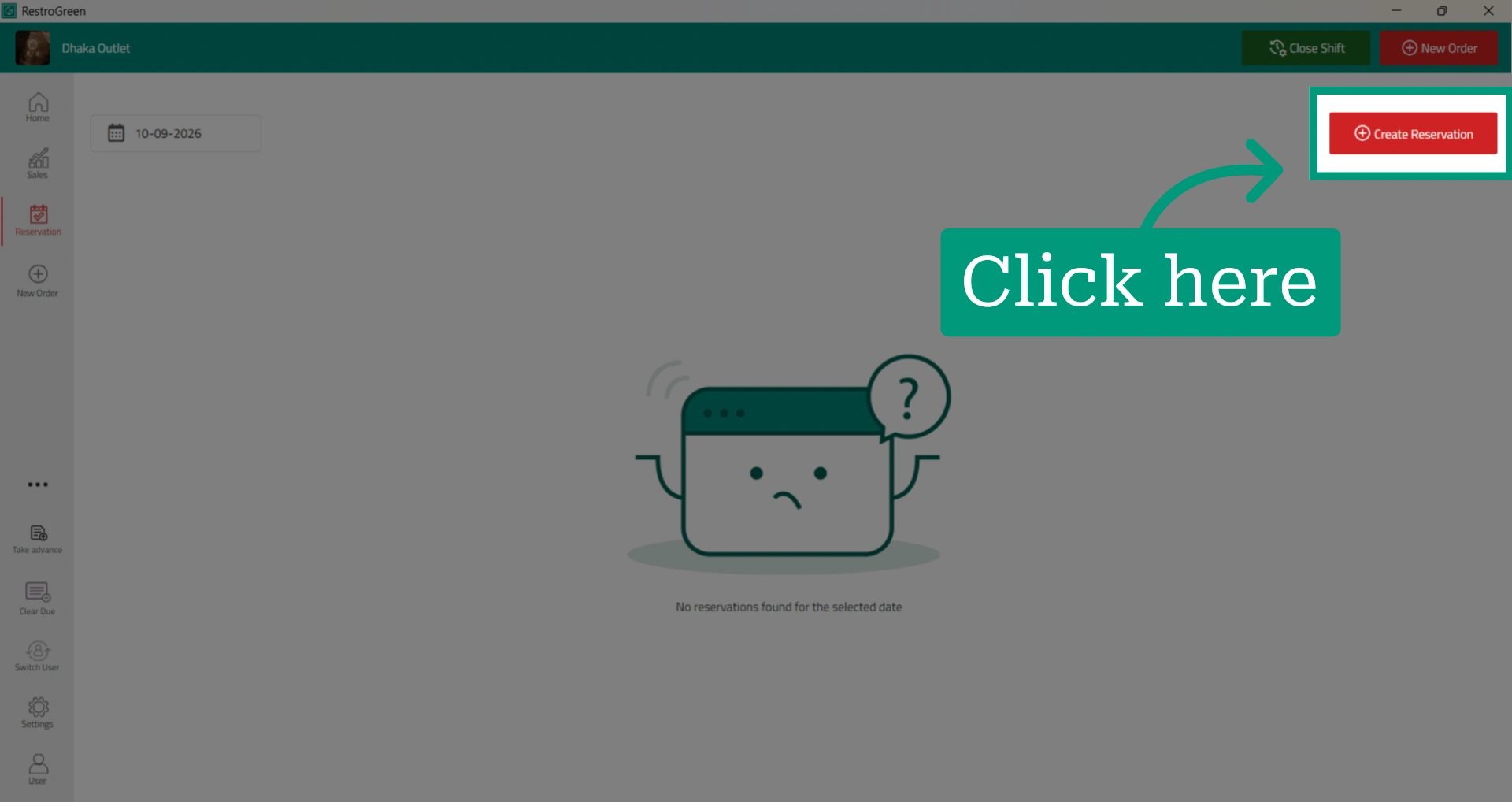
4. Select the date of the reservation
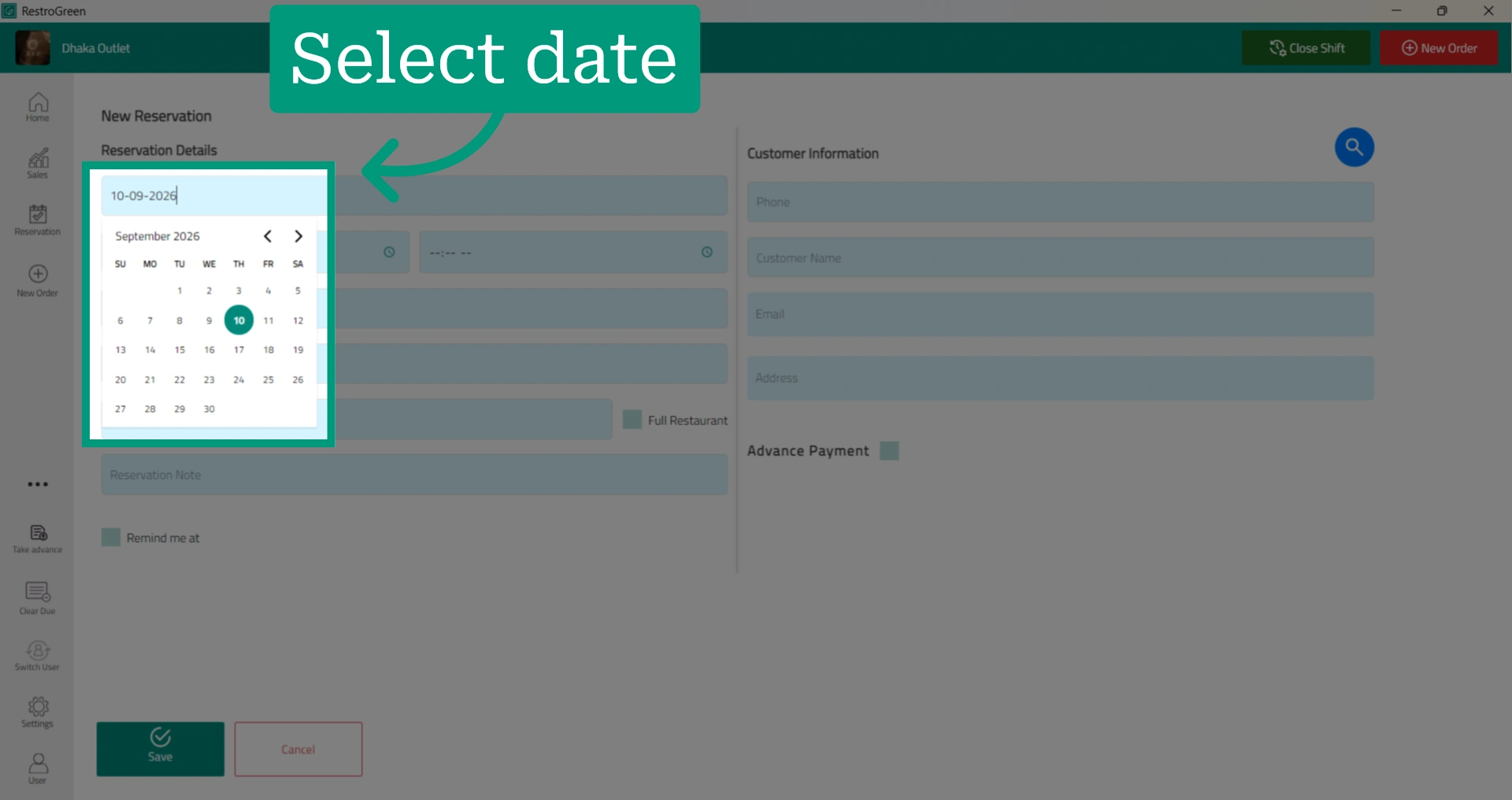
5. Select the starting time of the reservation
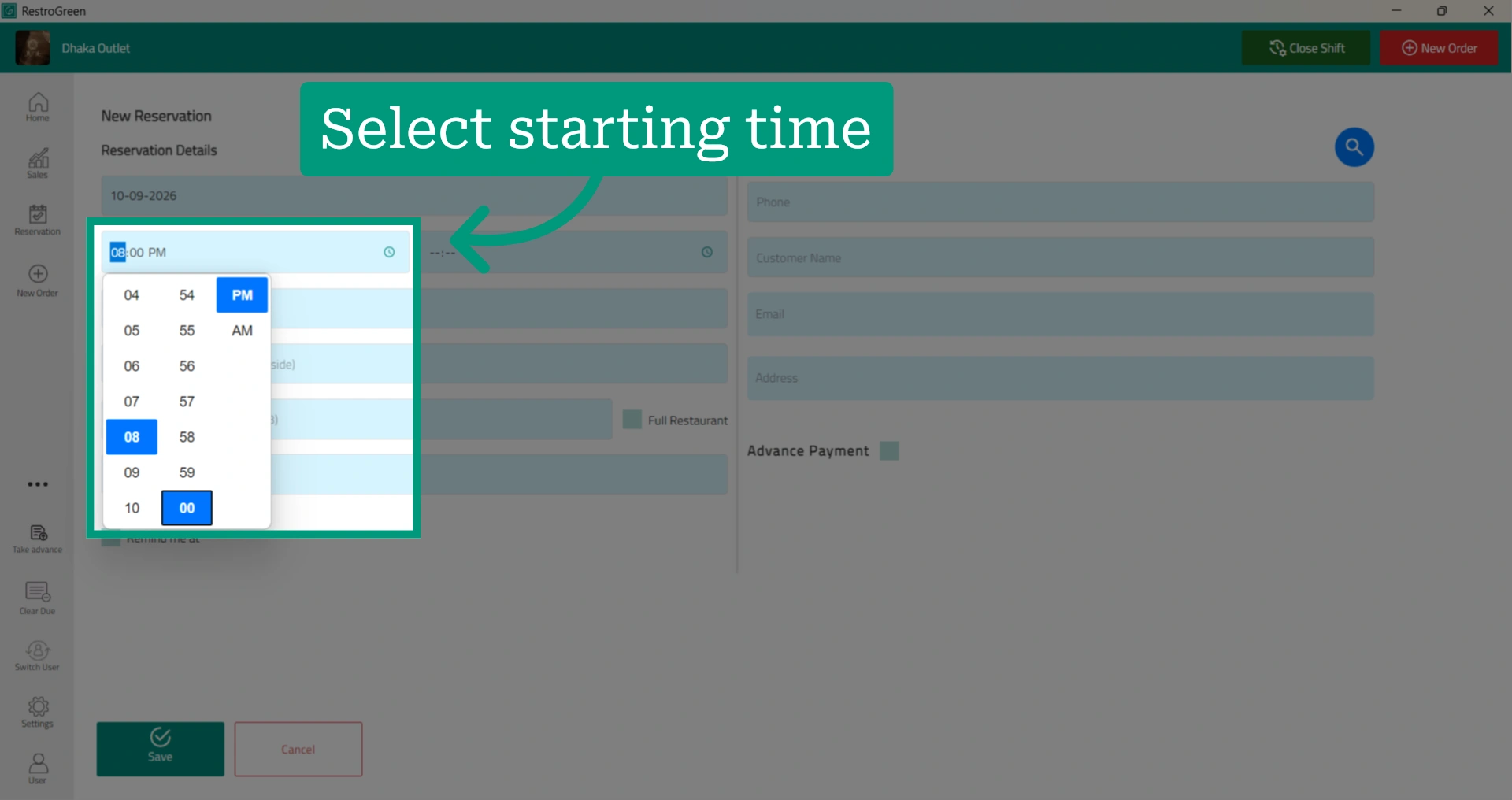
6. Select when the reservation should end
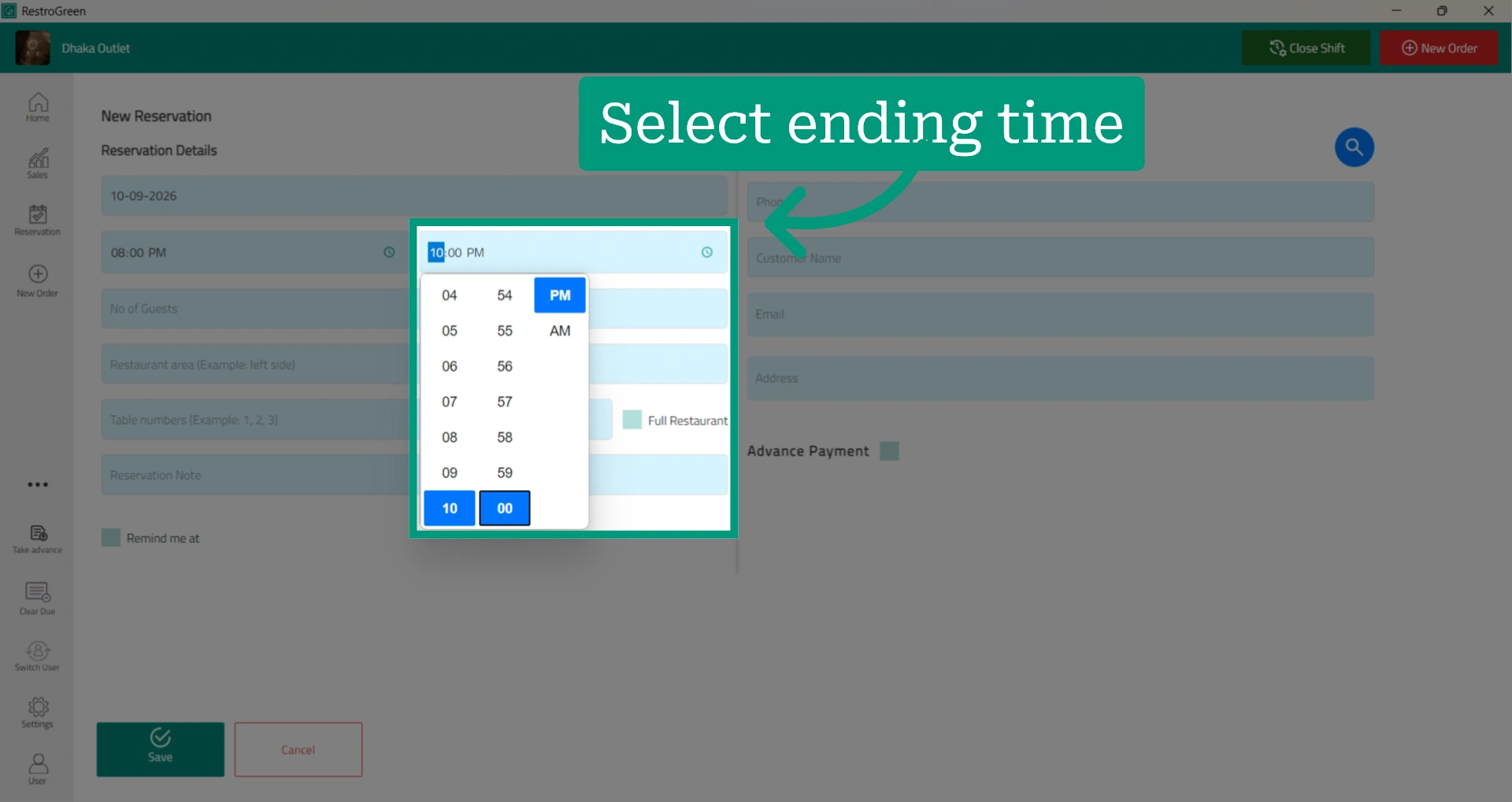
7. Specify the number of guests
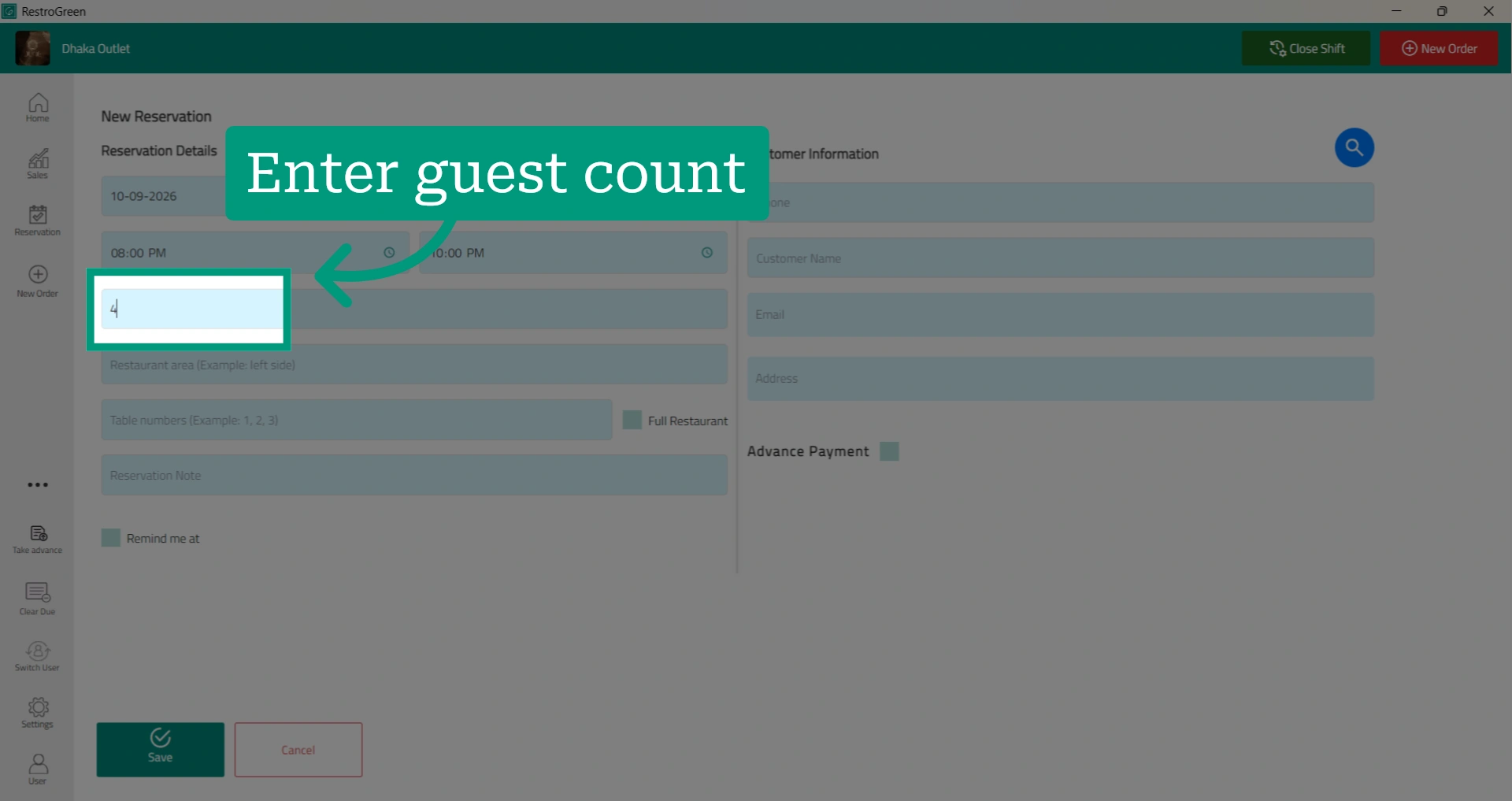
8. Select the restaurant area where the reservation will be made
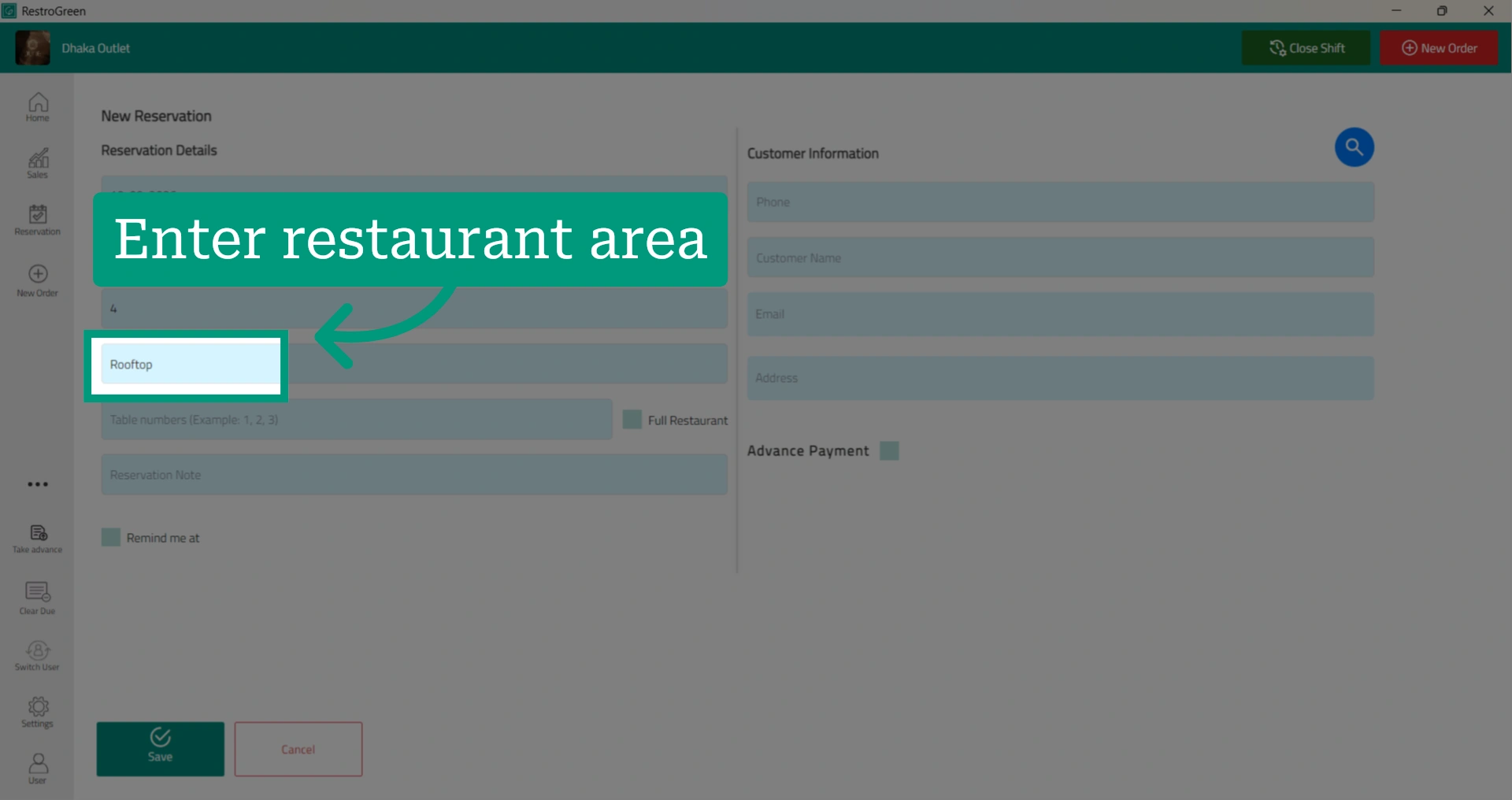
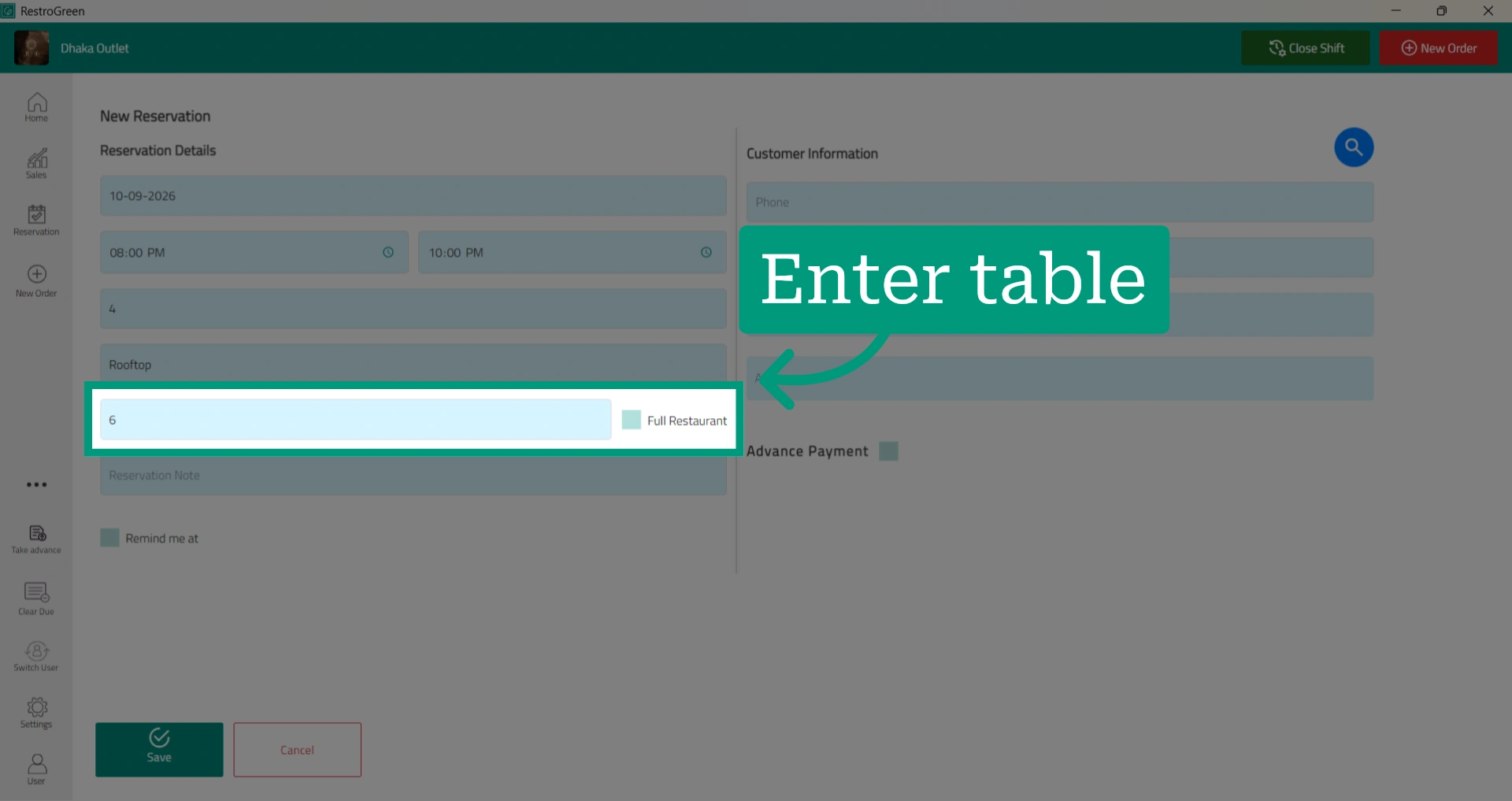
9. Specify the table number for the reservation
If the customer wants to reserve the entire restaurant, select the checkbox next to "Full Restaurant"
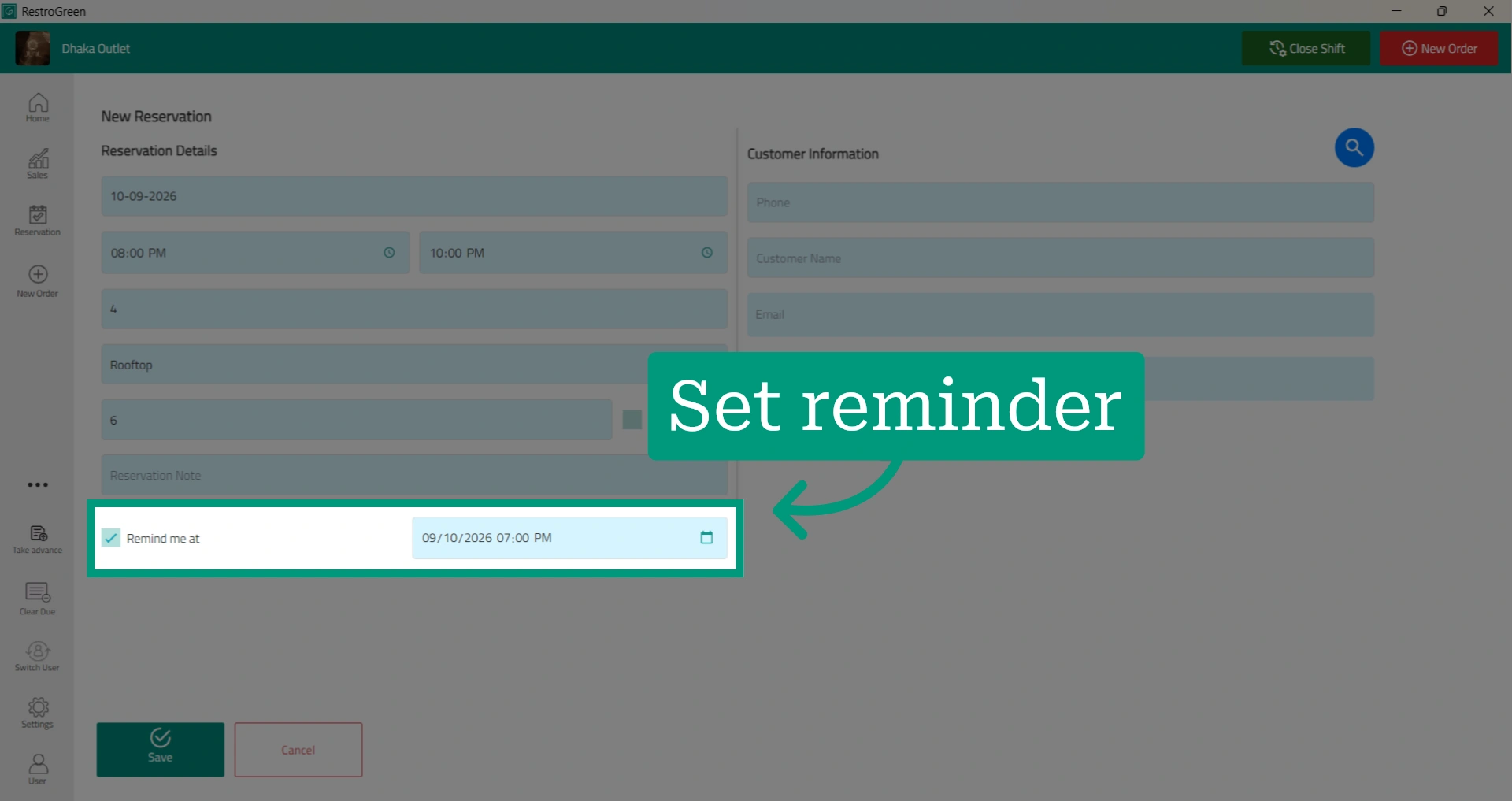
10. Set a reminder for the reservation so you have enough time to prepare the table or restaurant area
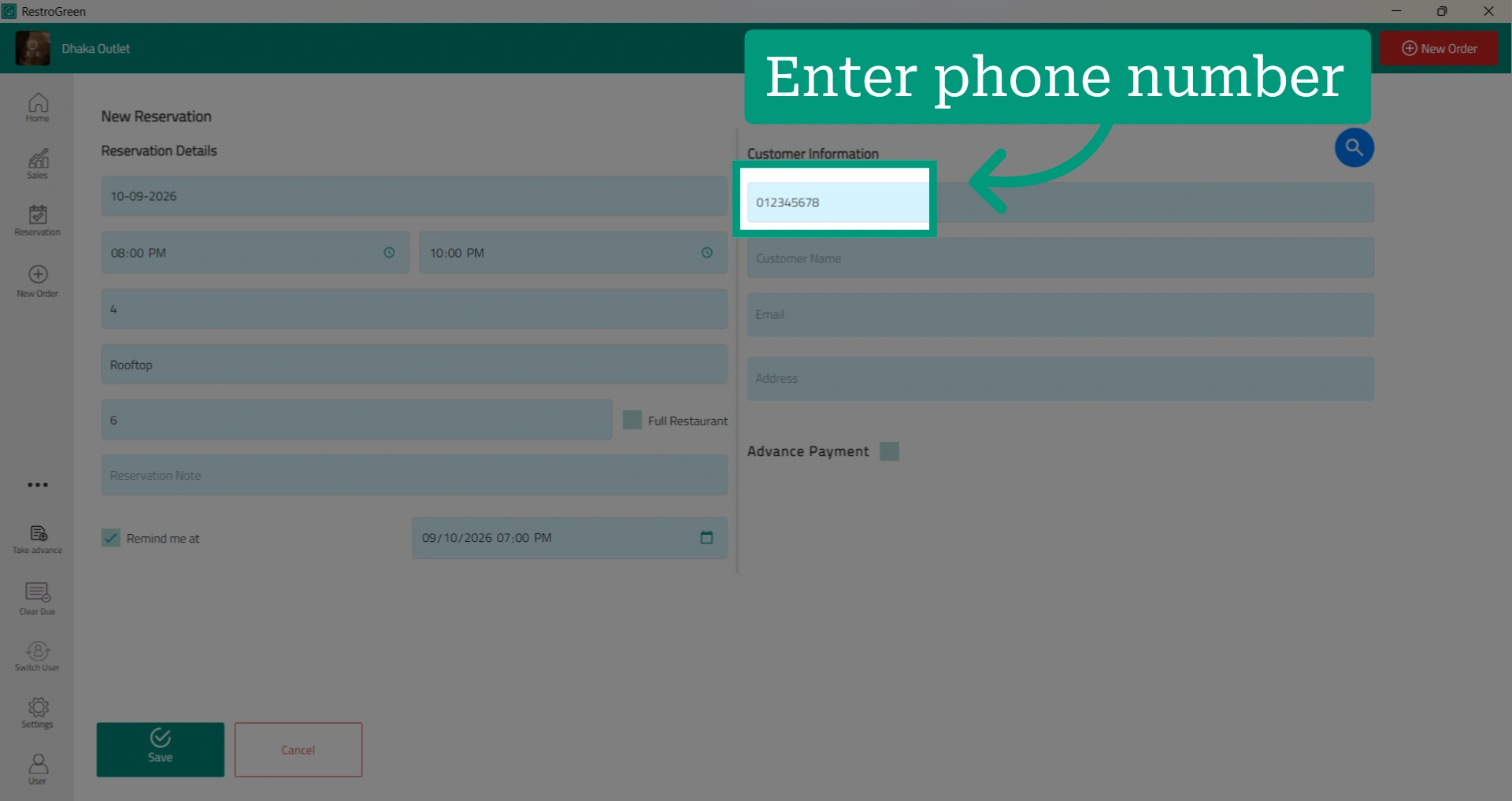
11. Enter the customer’s phone number
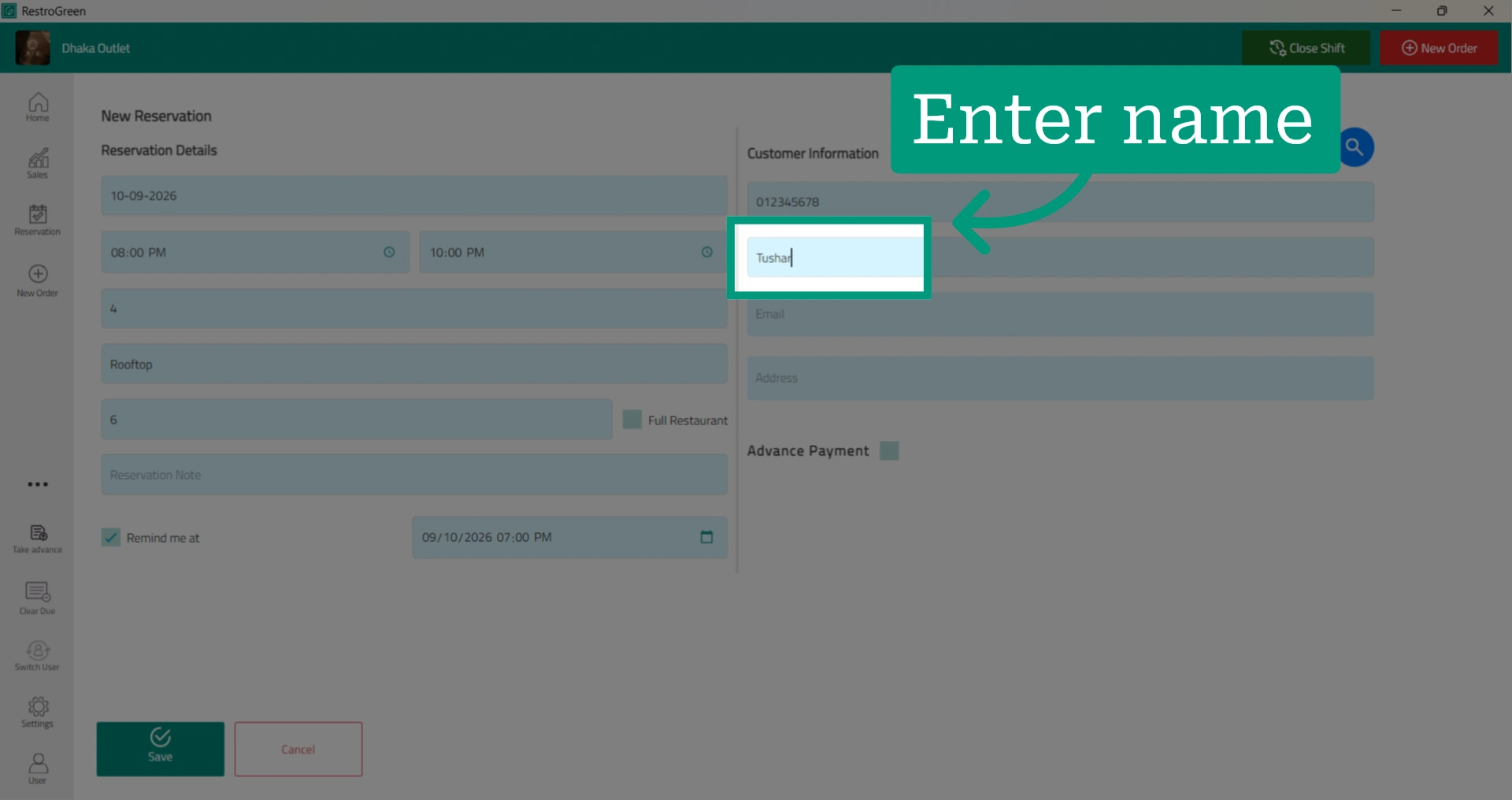
12. Enter the customer’s name
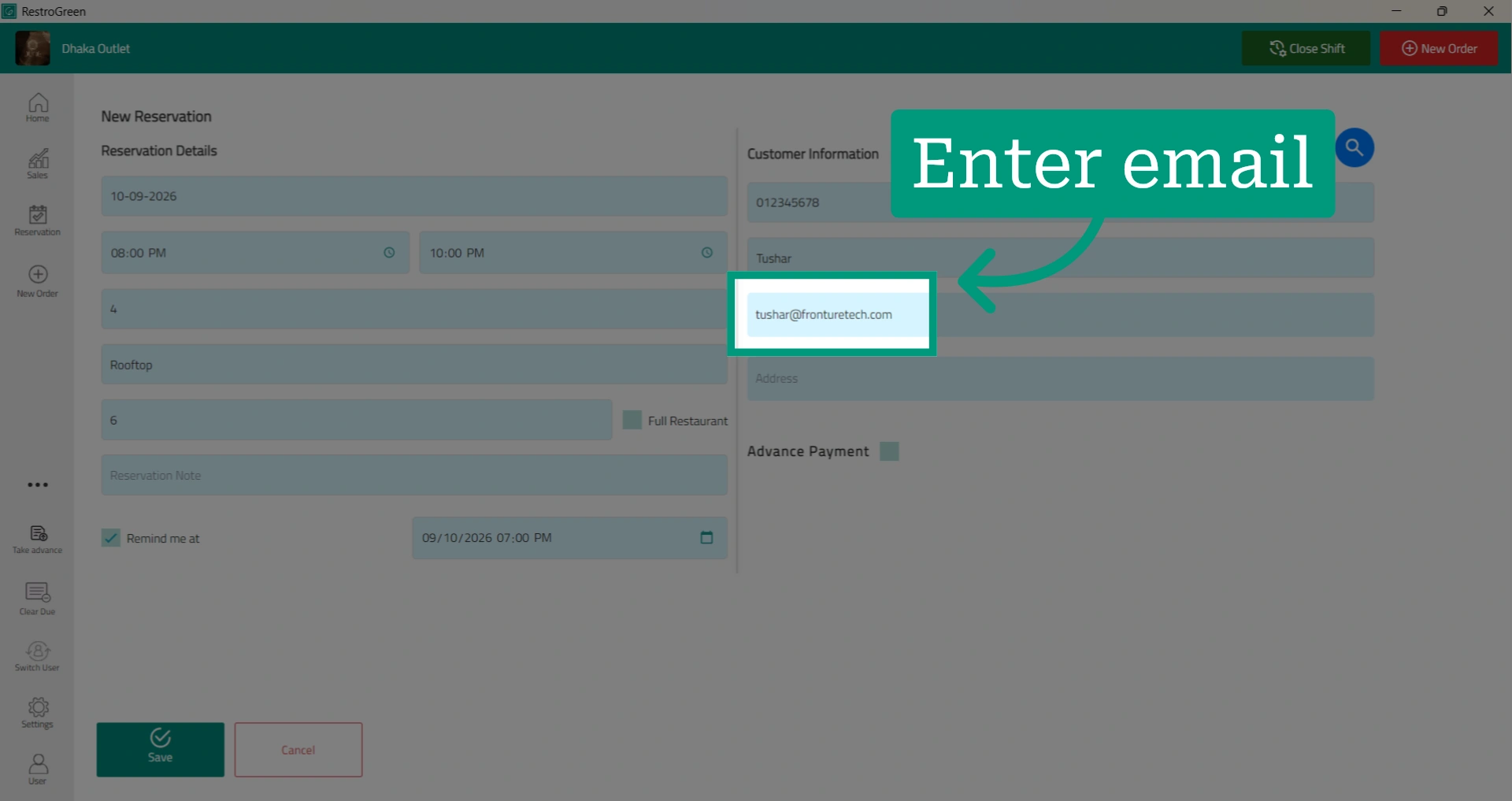
13. Enter the customer’s email address
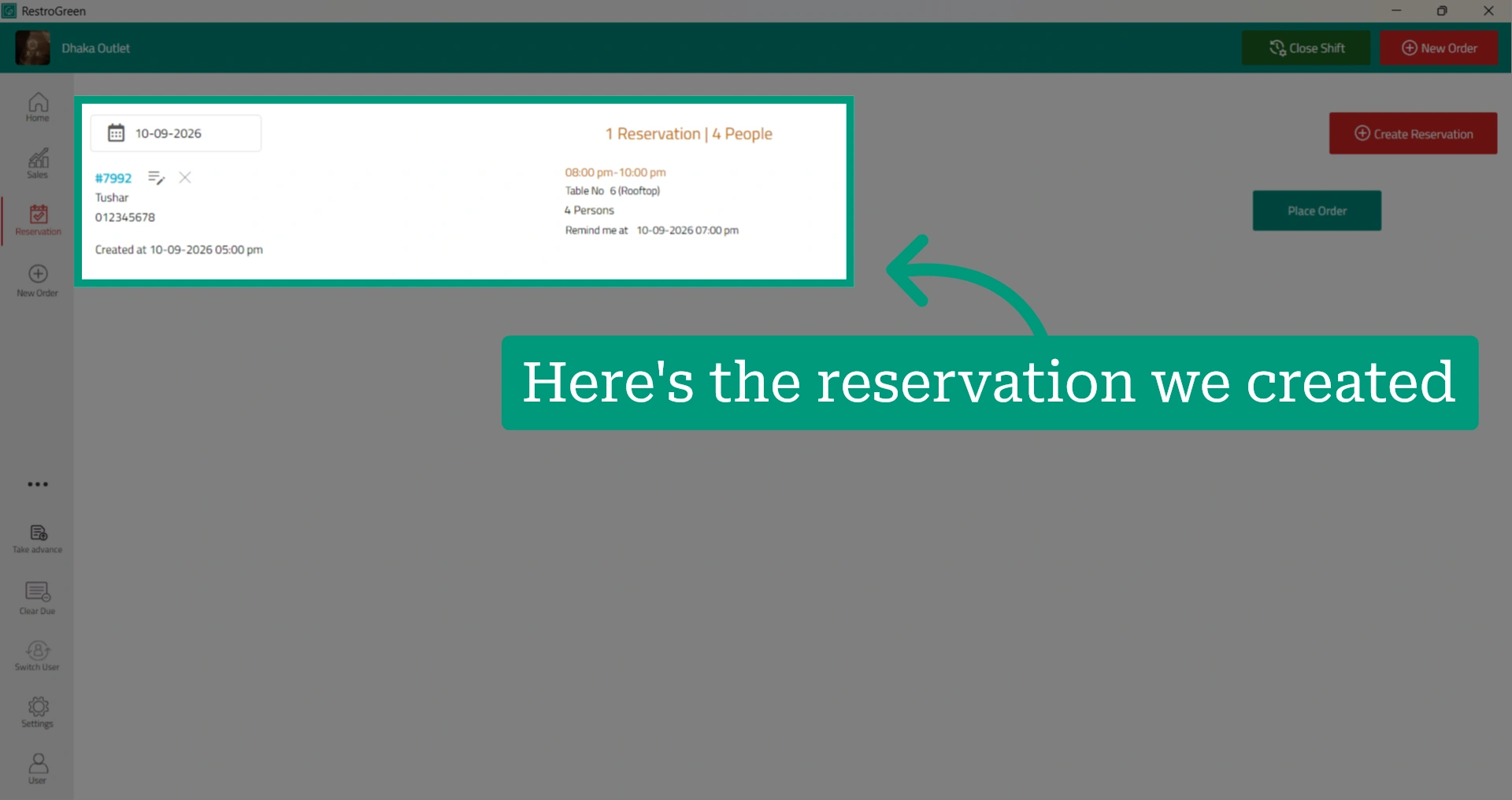
14. The reservation will be added to the Reservation tab in RestroGreen POS
You can modify or cancel the reservation, or process it when the customer arrives.