How to create Purchase or Bill entries directly from RestroGreen POS
This tutorial guides you through creating a purchase or bill entry directly from RestroGreen POS
and managing the entry from the Accounting module in the Business Portal.
Go to
restrogreen.quicklyservices.com
1. Go to RestroGreen POS
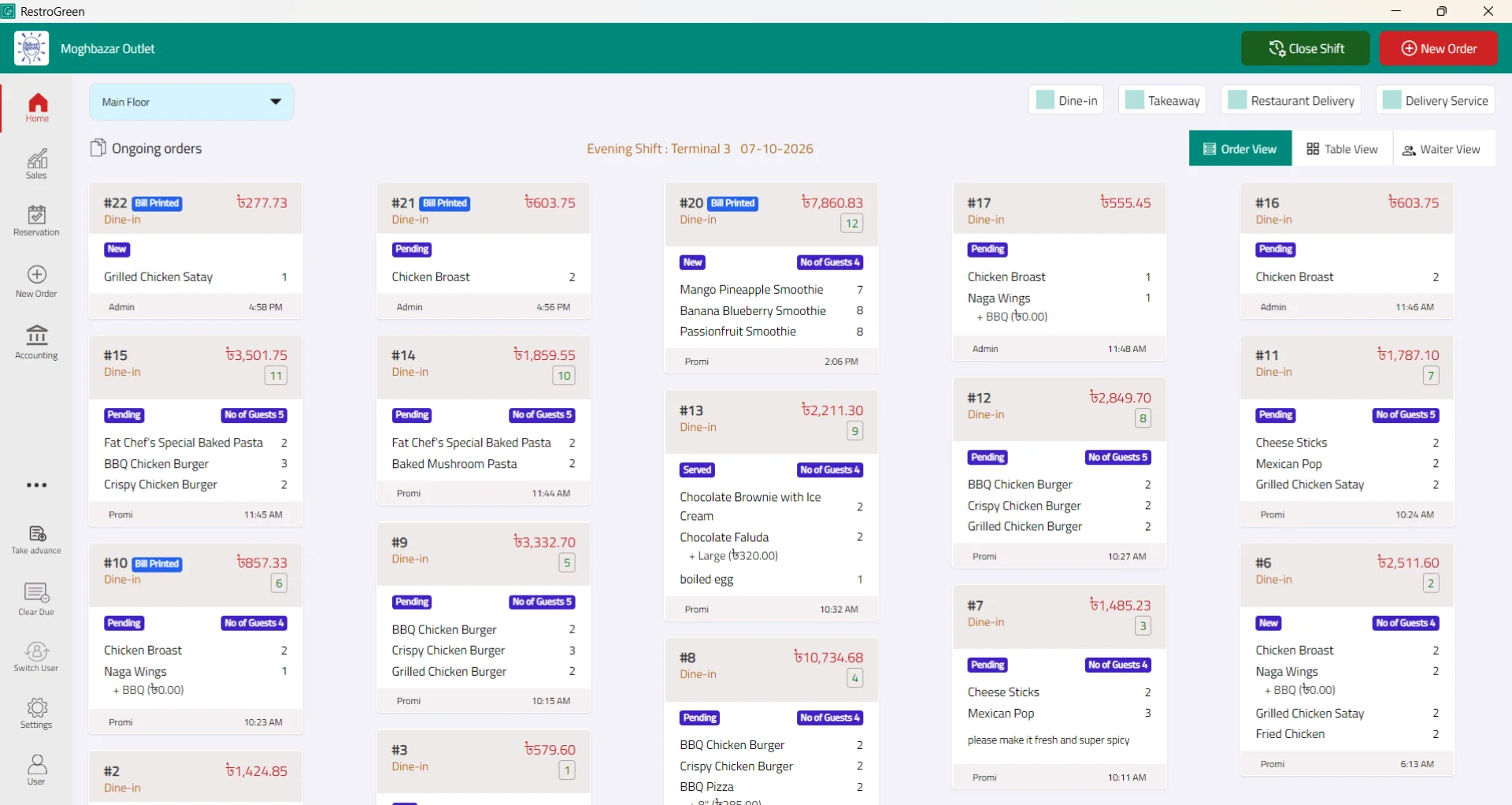
2. Click the Accounting icon
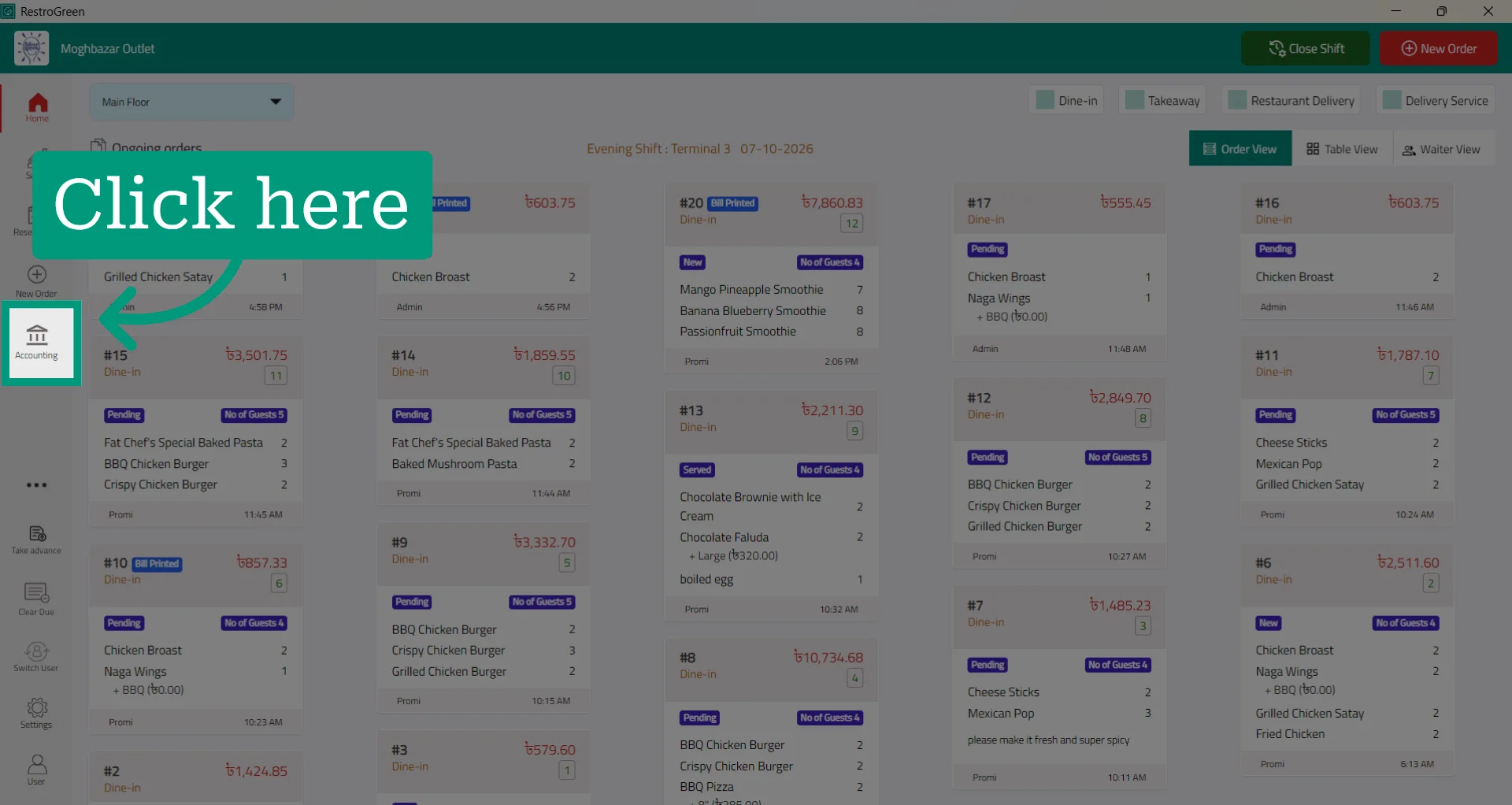
3. Click Create Bill/Purchase
4. Specify whether the entry is a Bill or Purchase
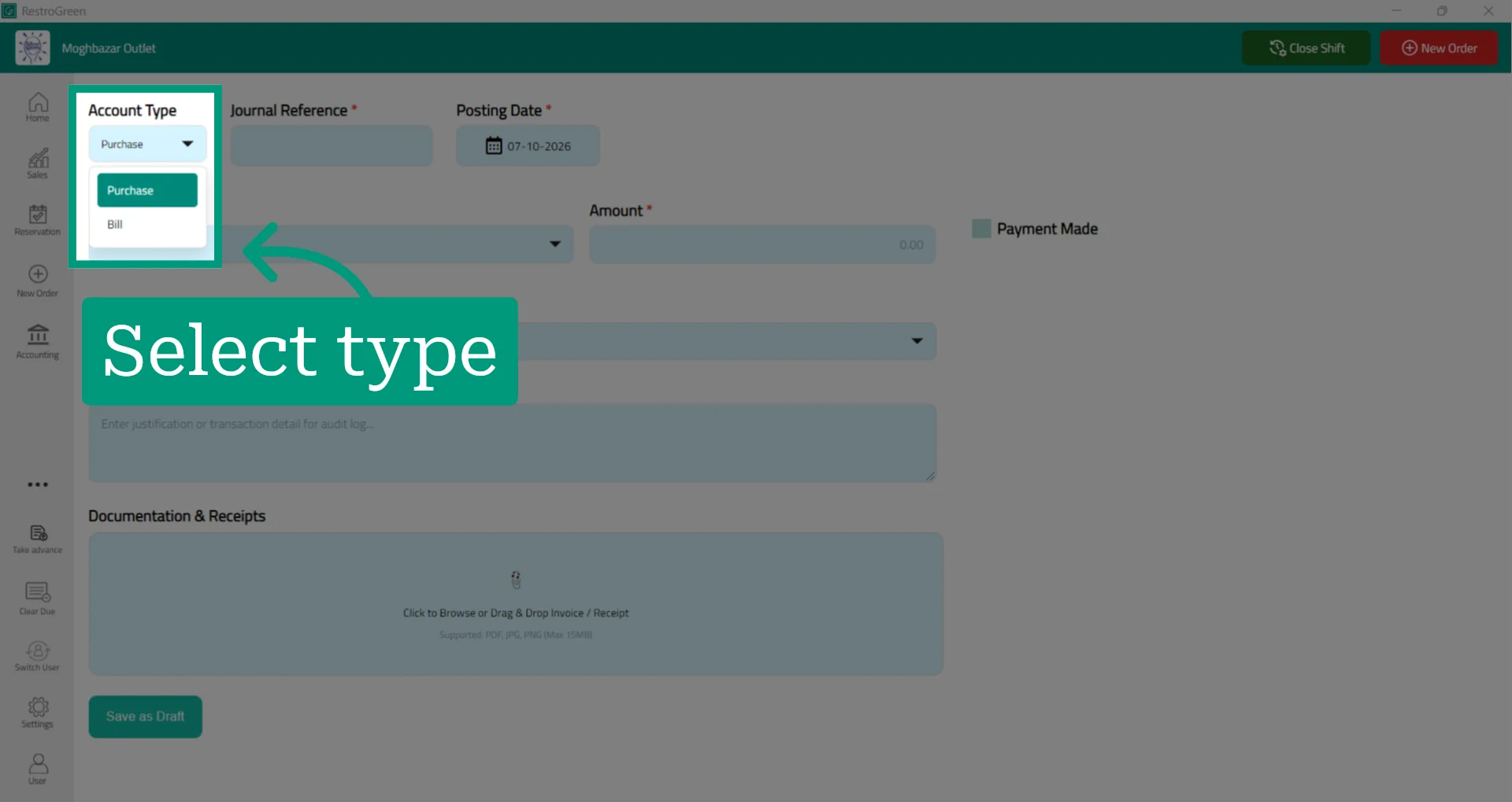
5. Enter the Journal Reference Number for the ledger
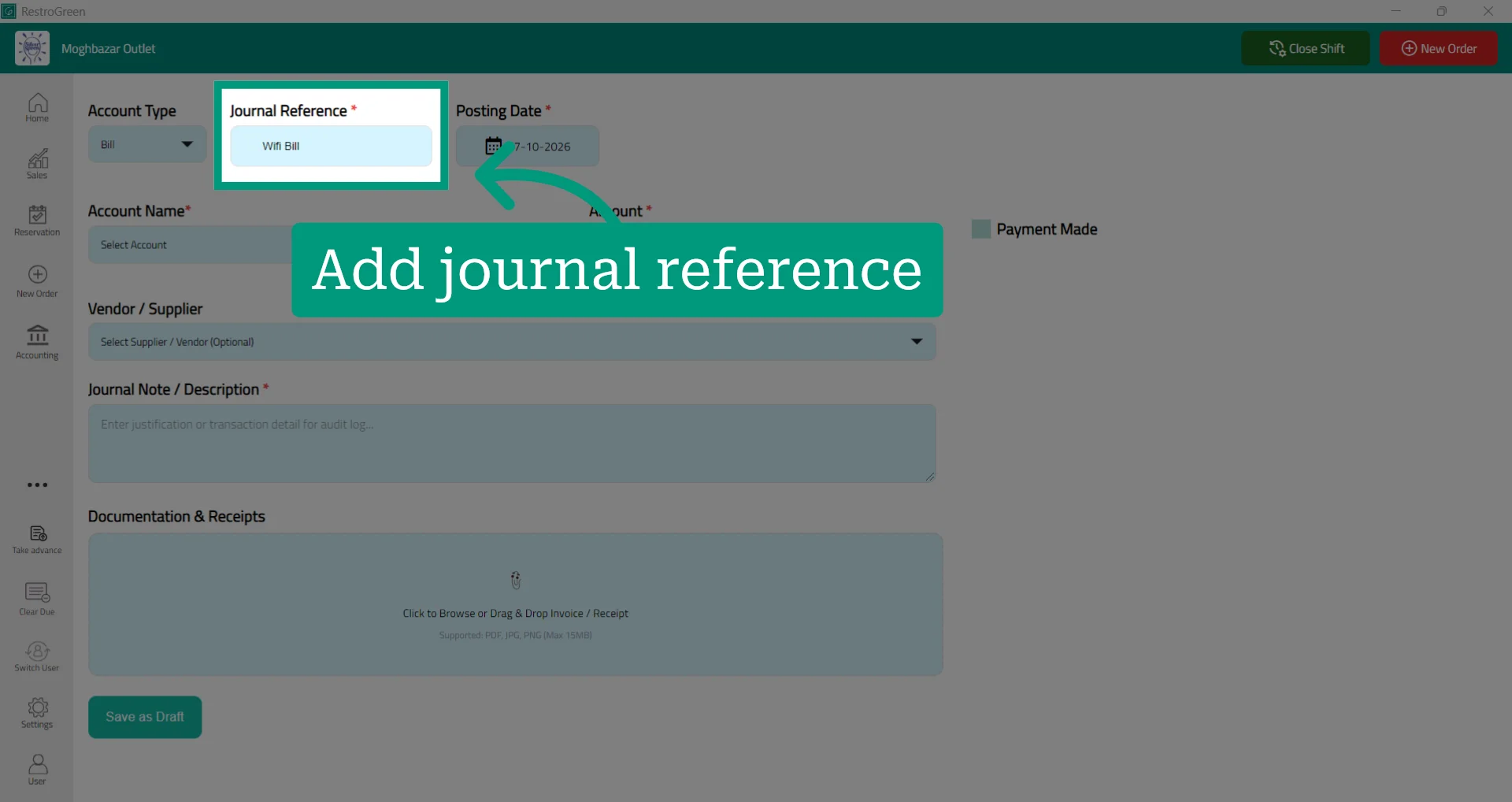
6. Select the date of the bill or purchase
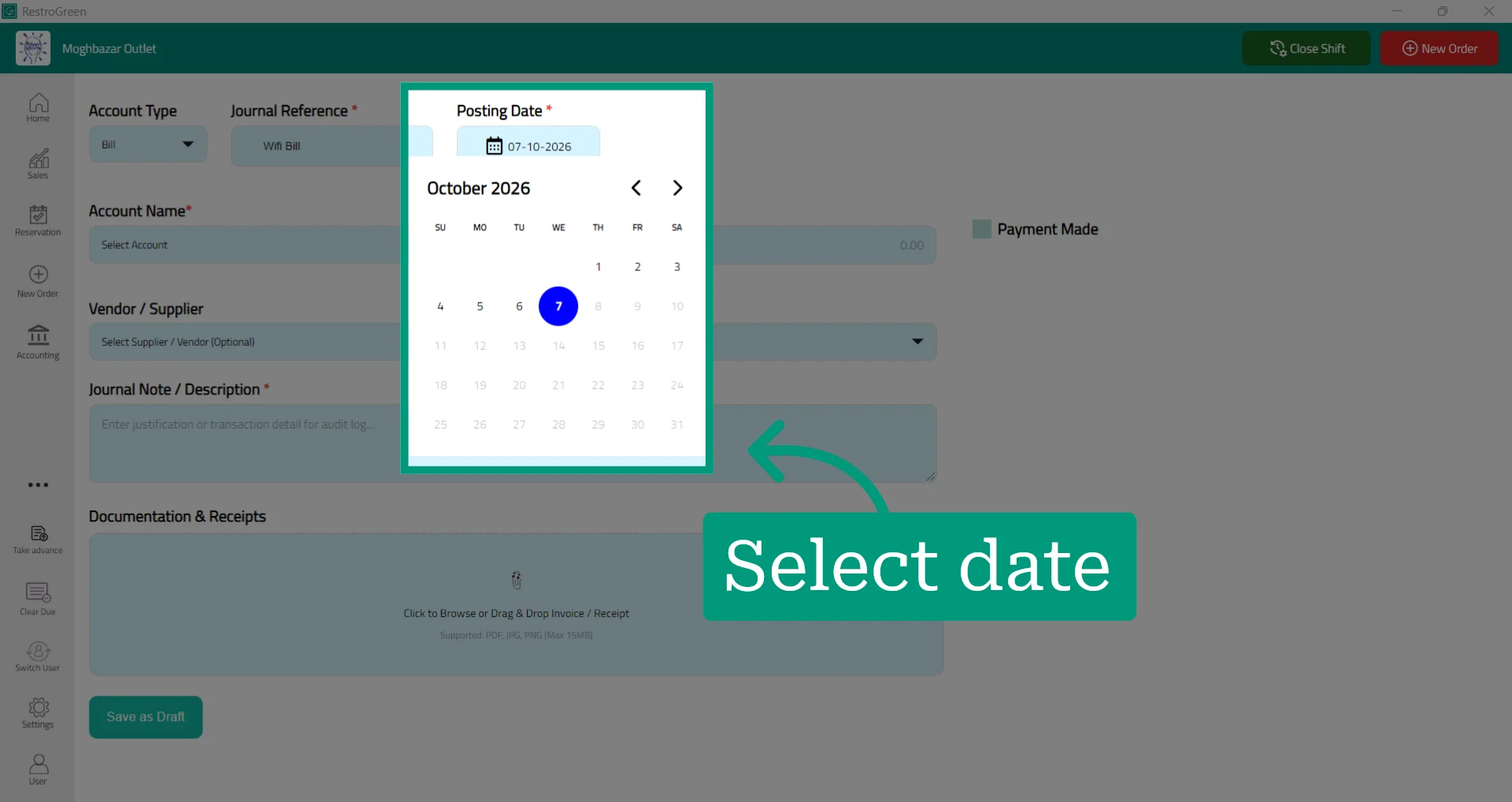
7. Select the appropriate accounting account
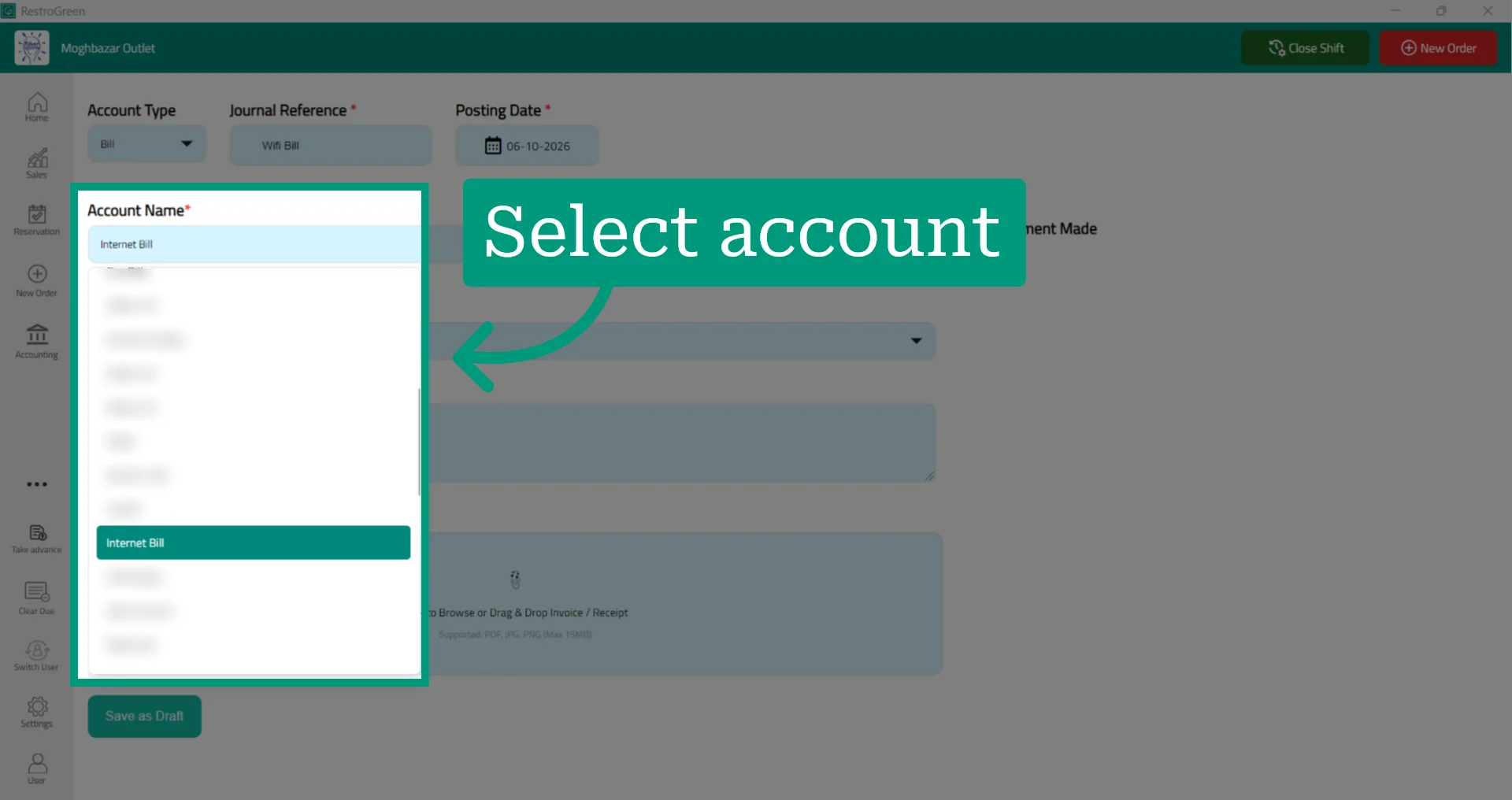
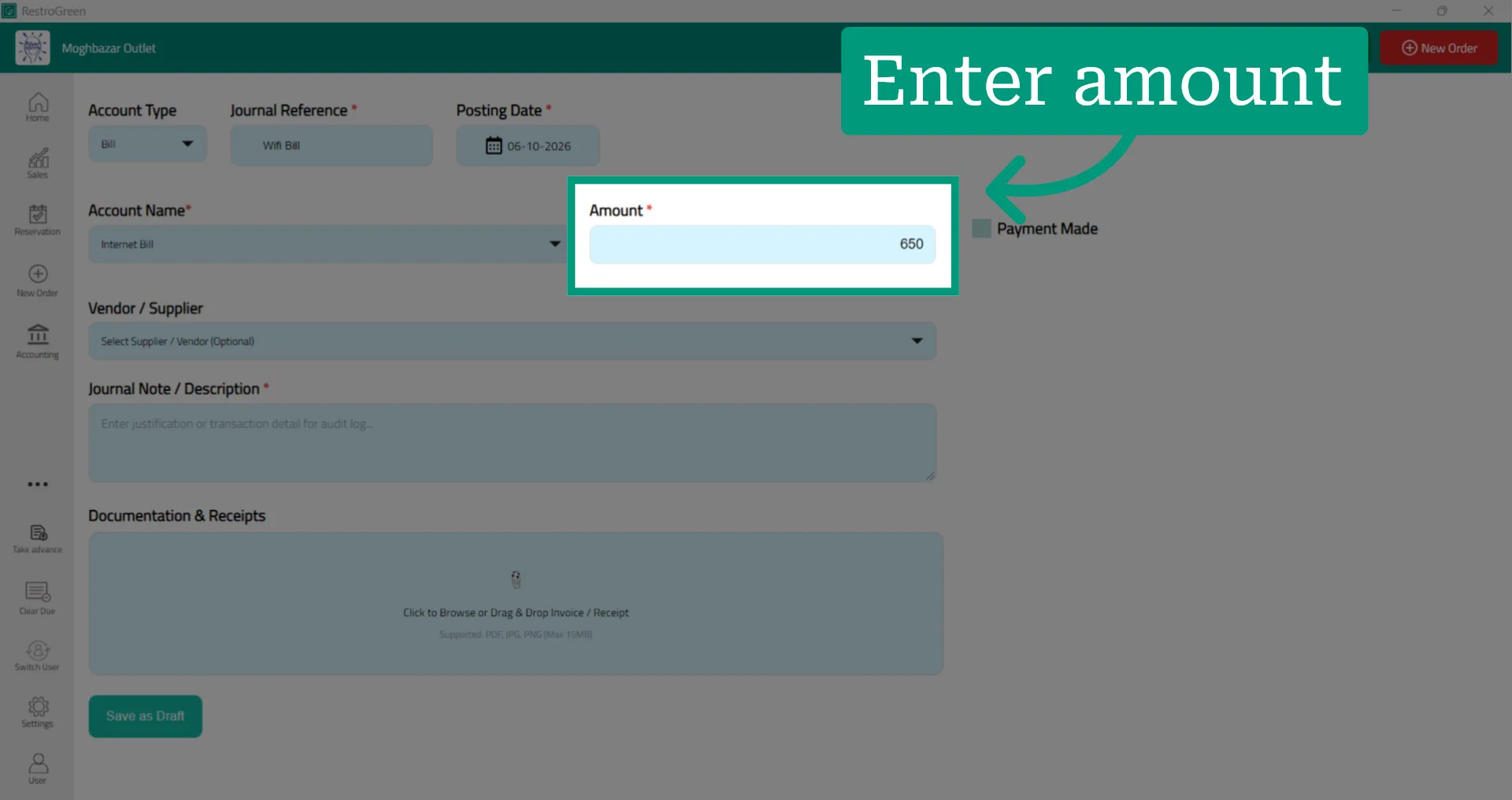
8. Enter the bill amount
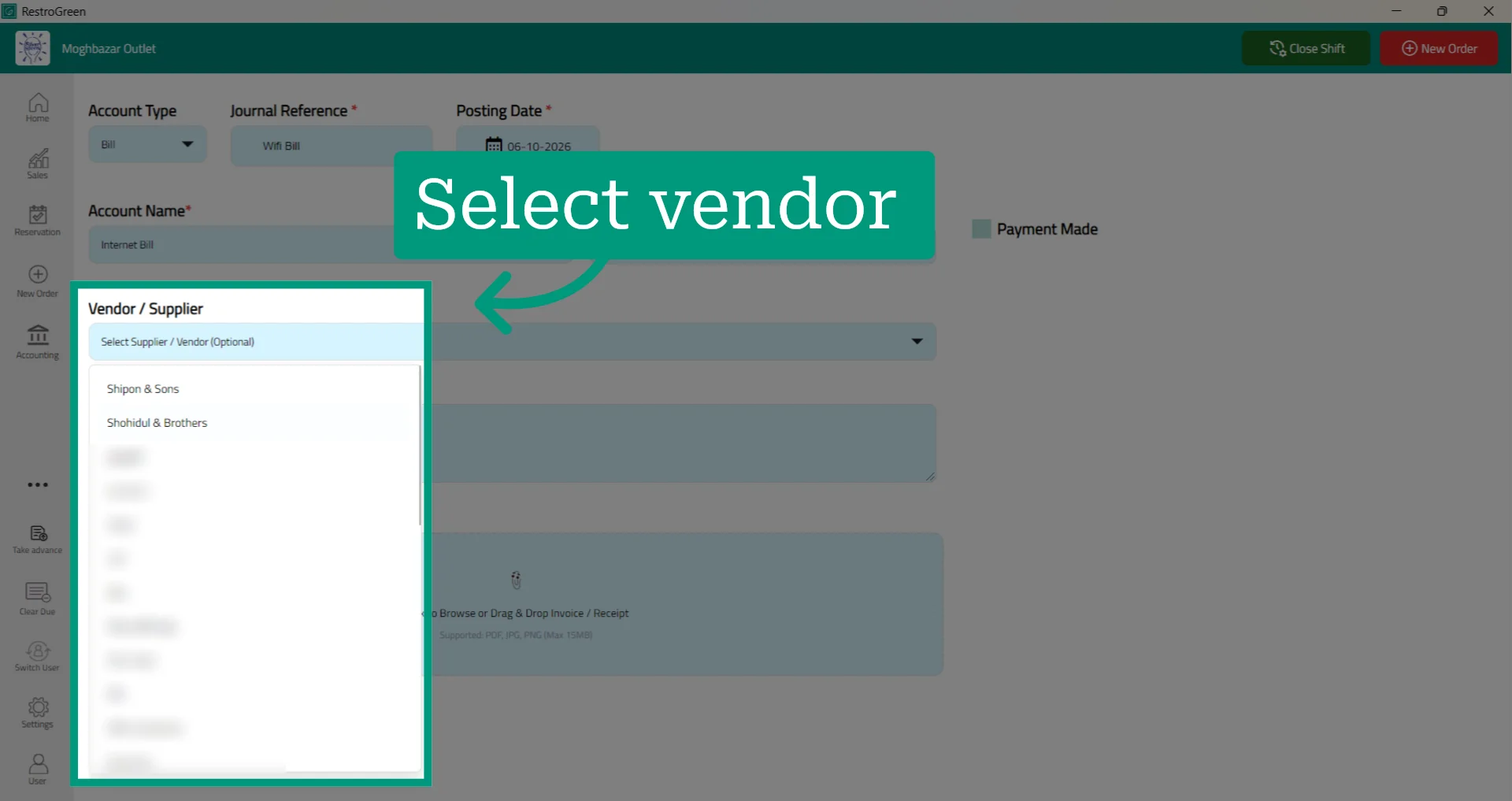
9. Select the vendor associated with the bill or purchase
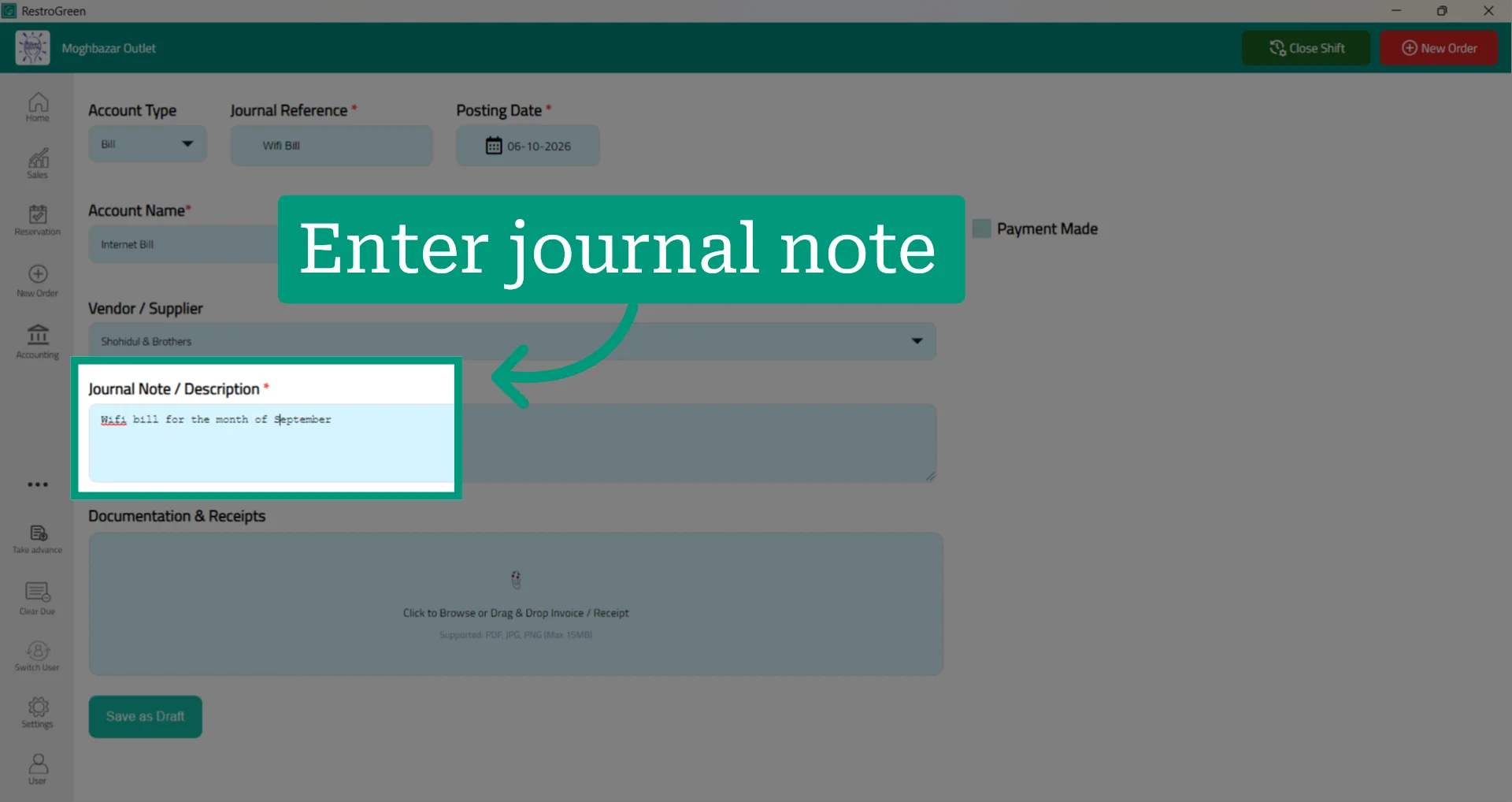
10. Enter a Journal Note if you want to add additional details
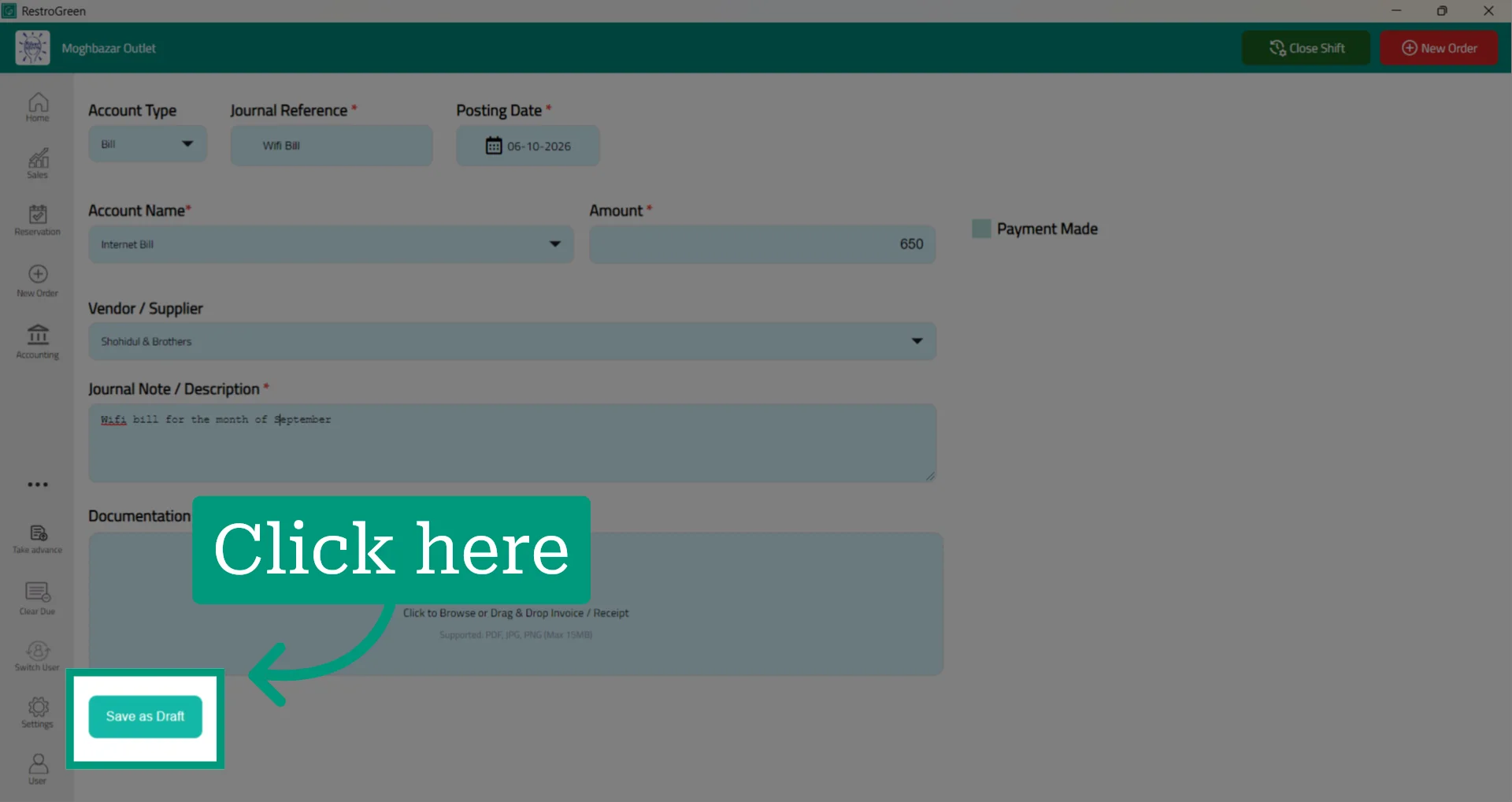
11. Click Save as Draft to save the entry
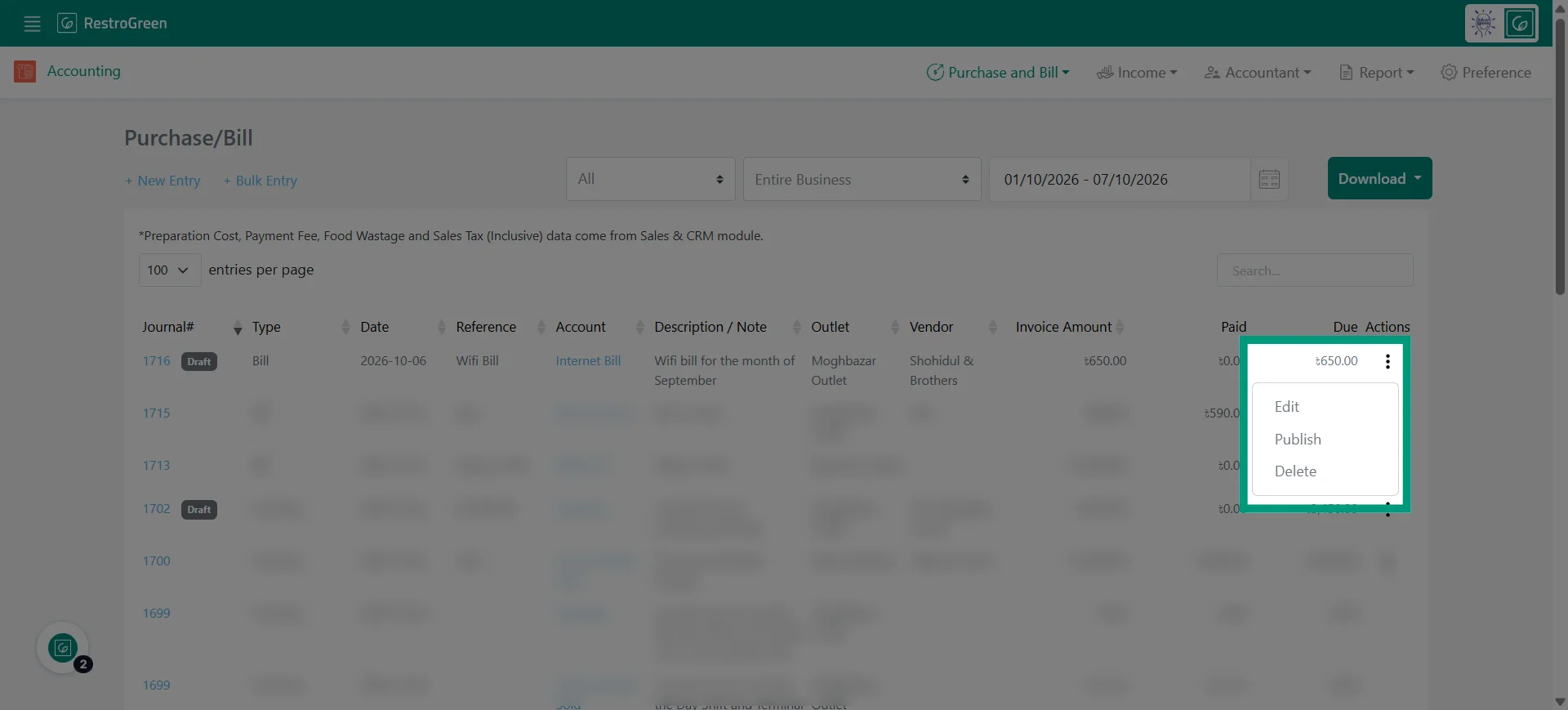
12. The bill or purchase draft will now be available in the Accounting module of the Business Portal
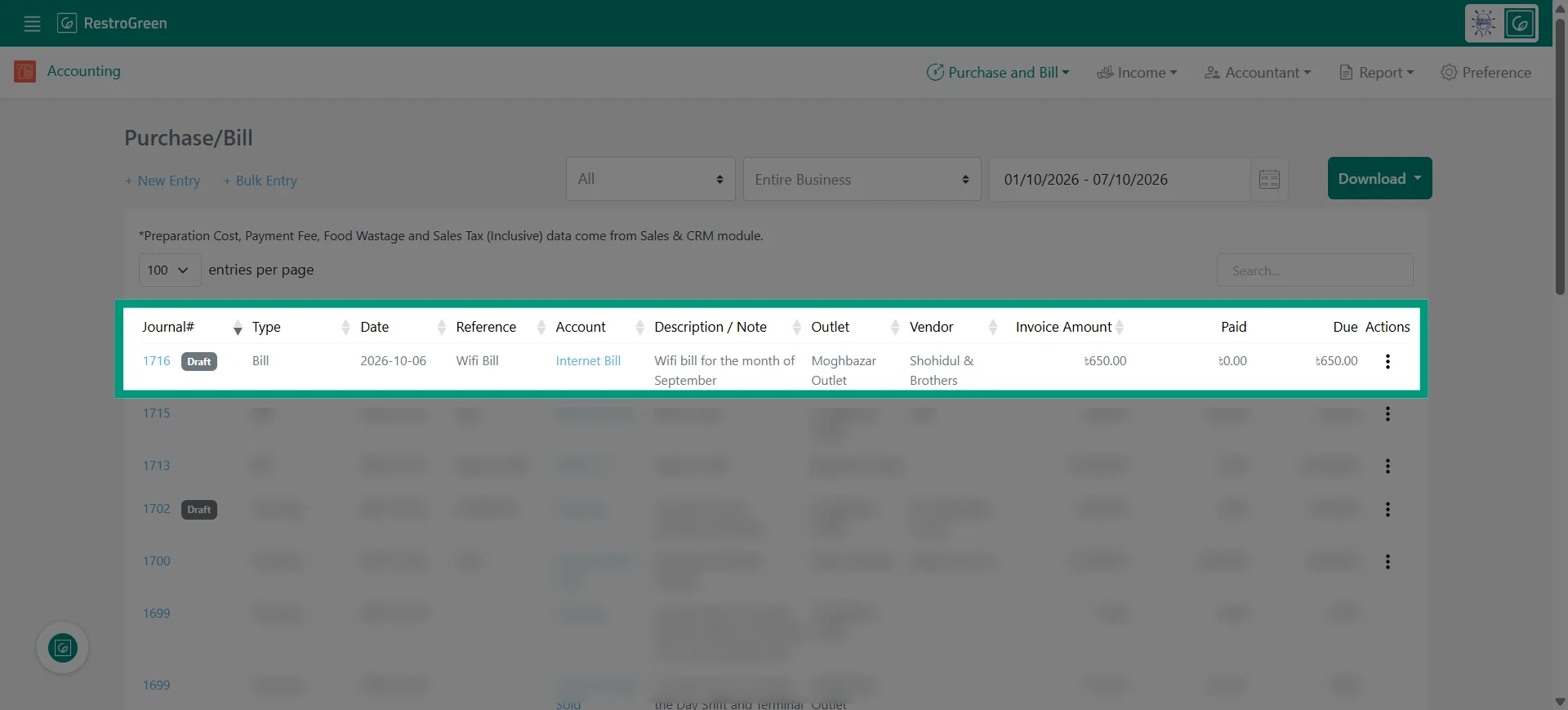
13. Choose the appropriate action
• Click Edit to modify the draft.
• Click Publish to reflect the entry in your accounting records.
• Click Delete if the entry was added by mistake.