How to Take and Manage Advance Customer Payments in RestroGreen POS
This tutorial guides you through taking an advance payment from a customer using RestroGreen
POS, viewing real-time updates in the Sales & CRM module of the Business Portal, and using the
advance payment toward future orders in RestroGreen POS.
Go to
restrogreen.quicklyservices.com
1. Go to RestroGreen POS
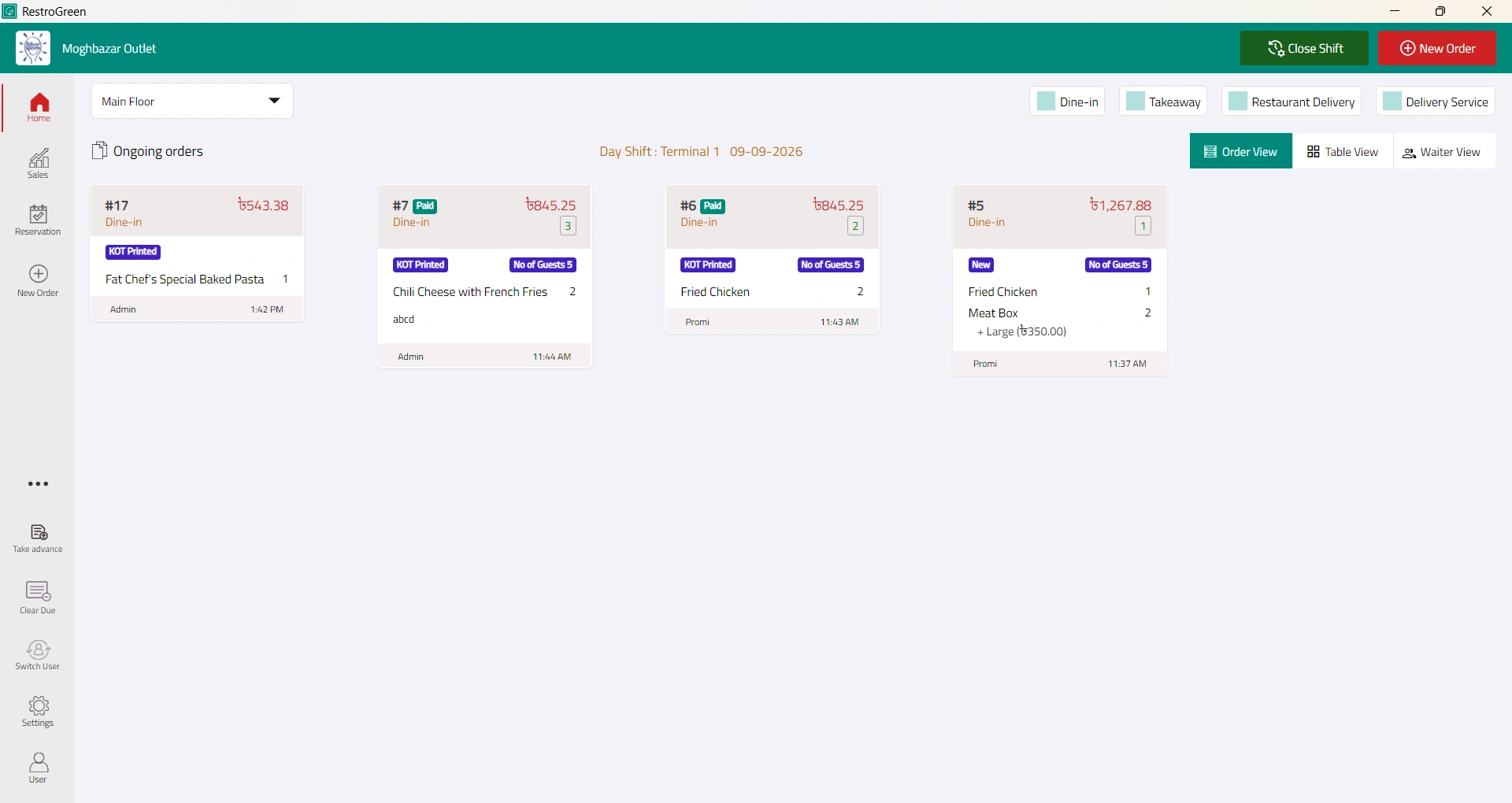
2. Initiate advance payment
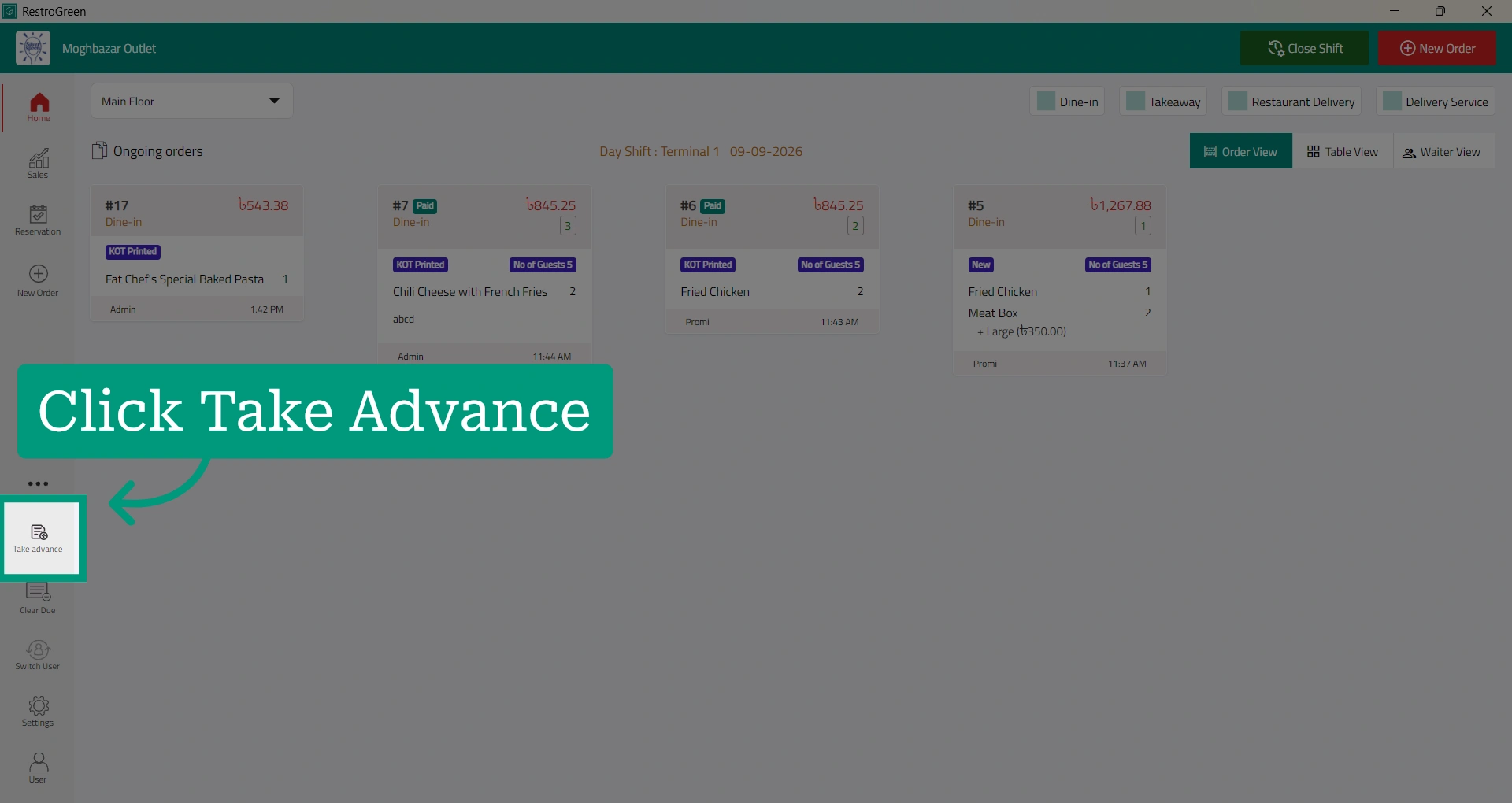
3. Type-in the customer's name or phone number to search
4. Select the customer if multiple customer accounts appear
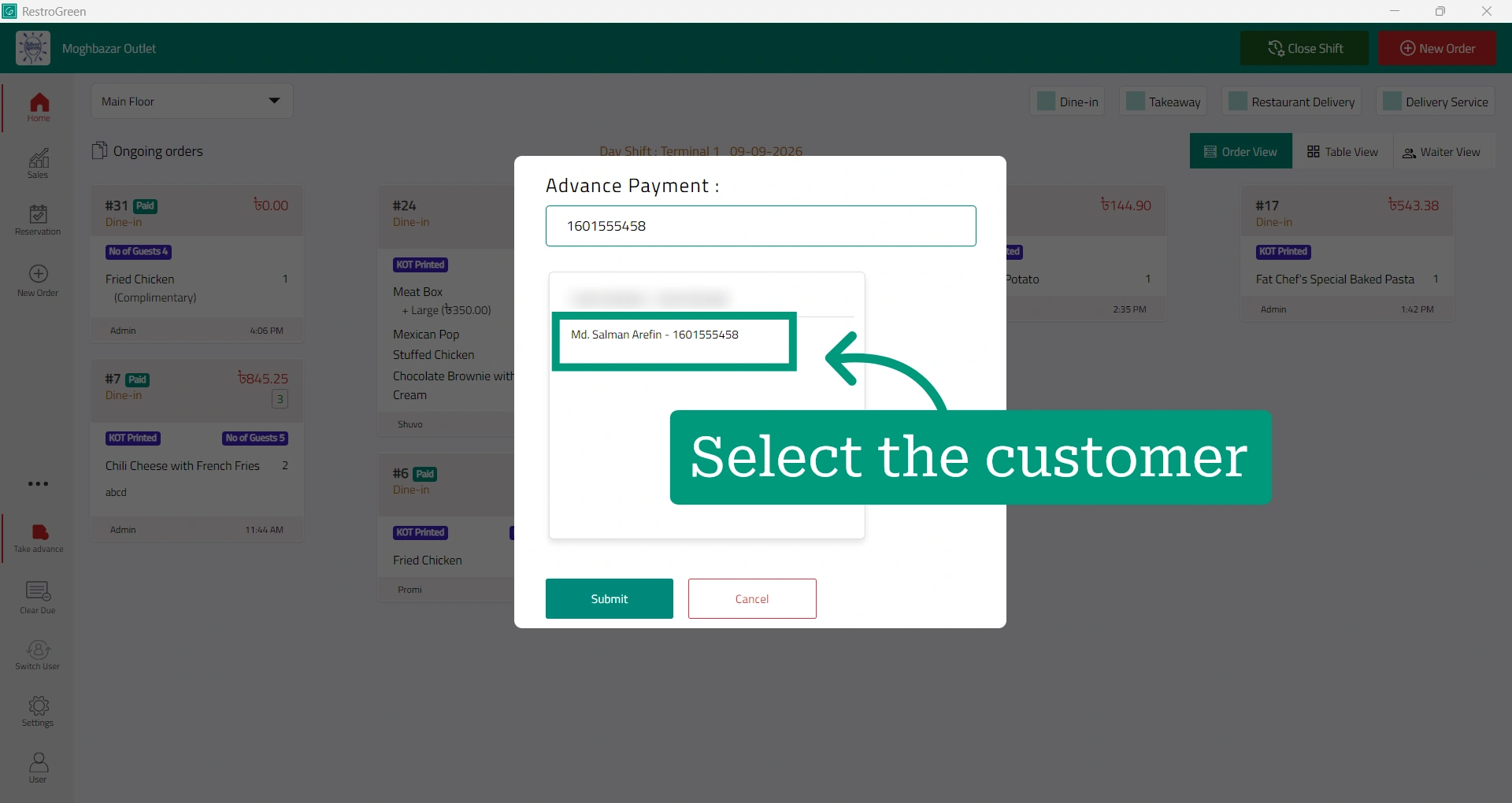
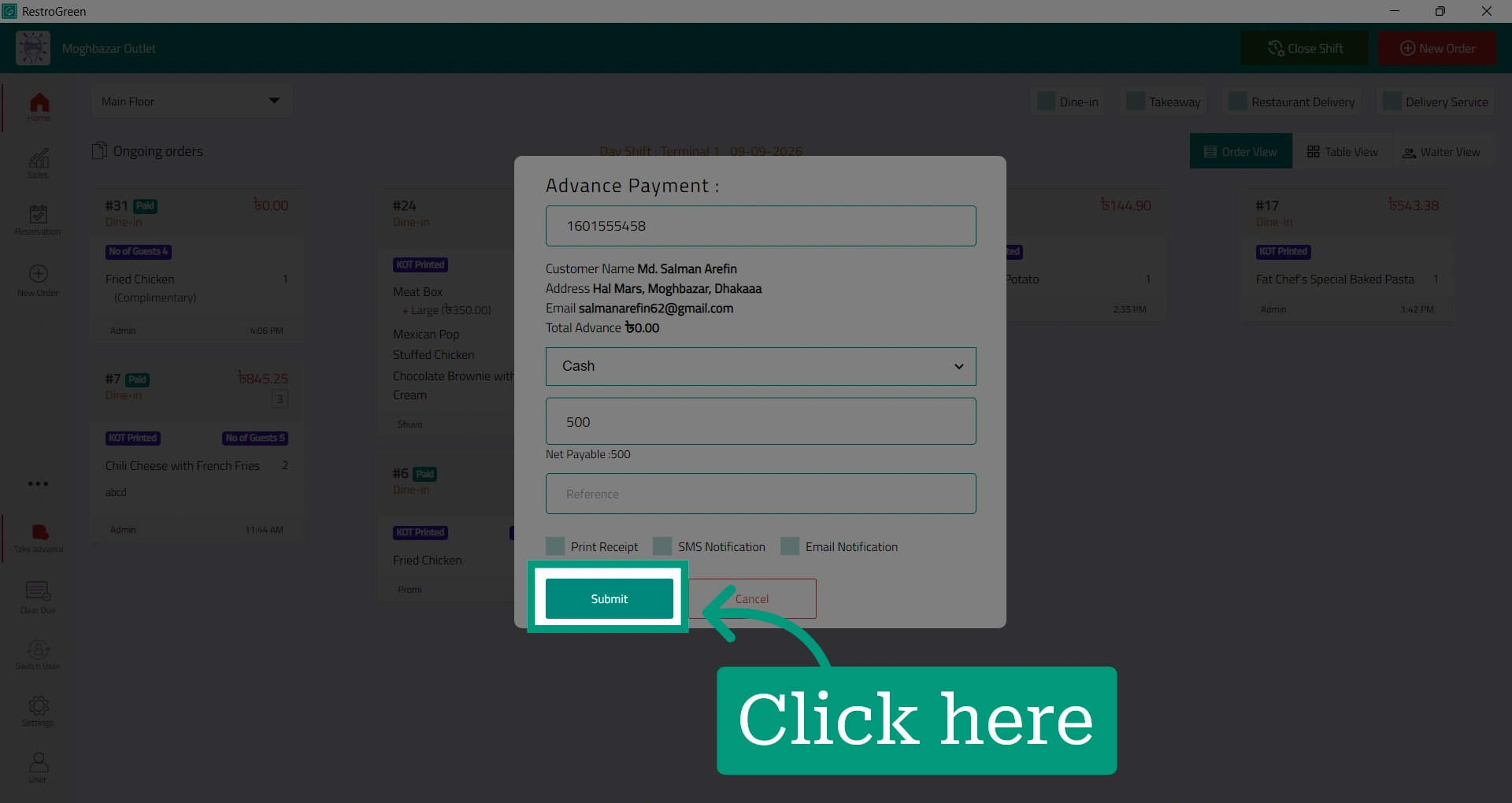
5. The customer’s information and current balance will be displayed
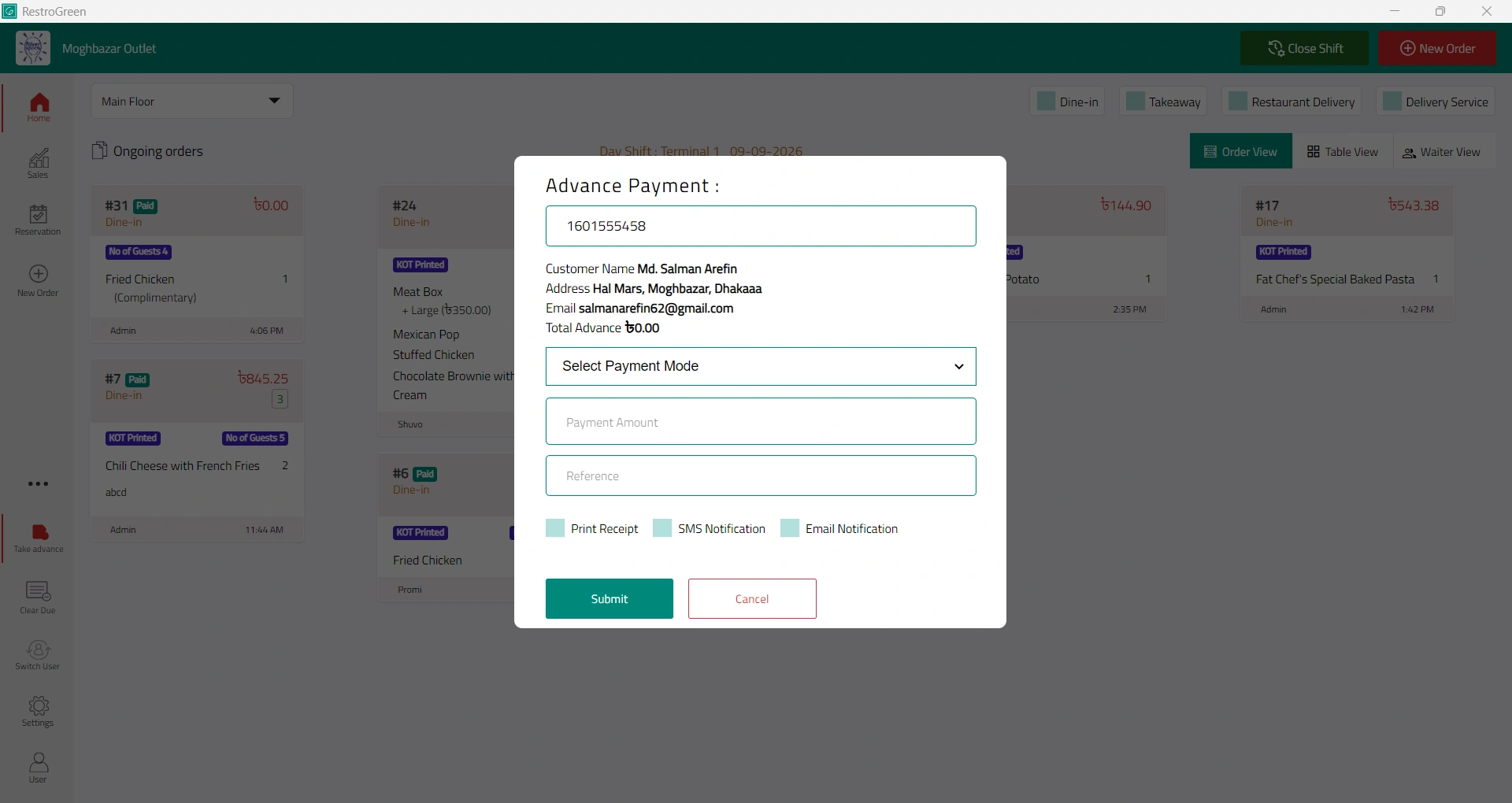
6. Select the payment mode used by the customer
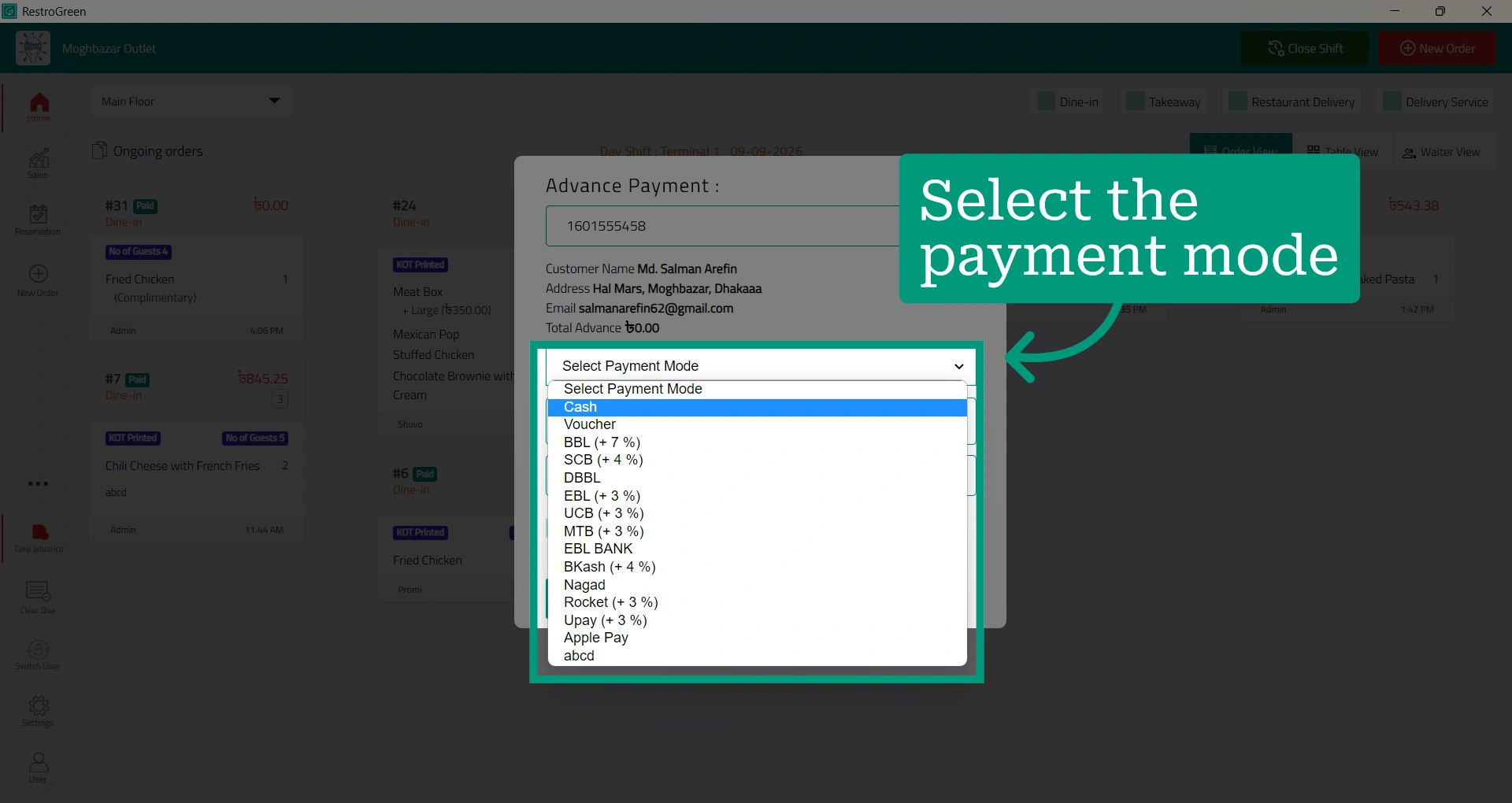
7. Enter the advance payment amount
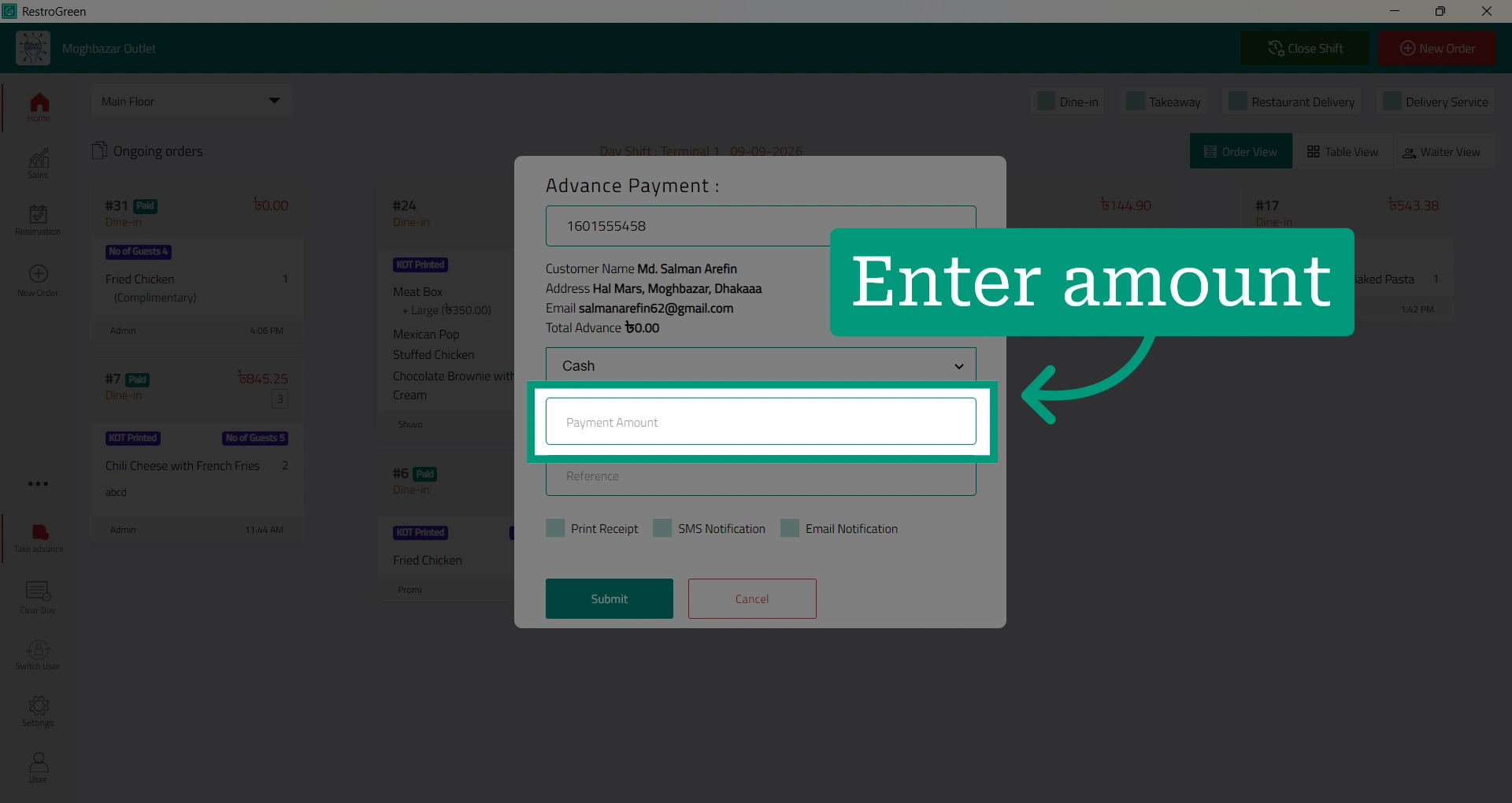
8. Click “Submit” to finalize the payment
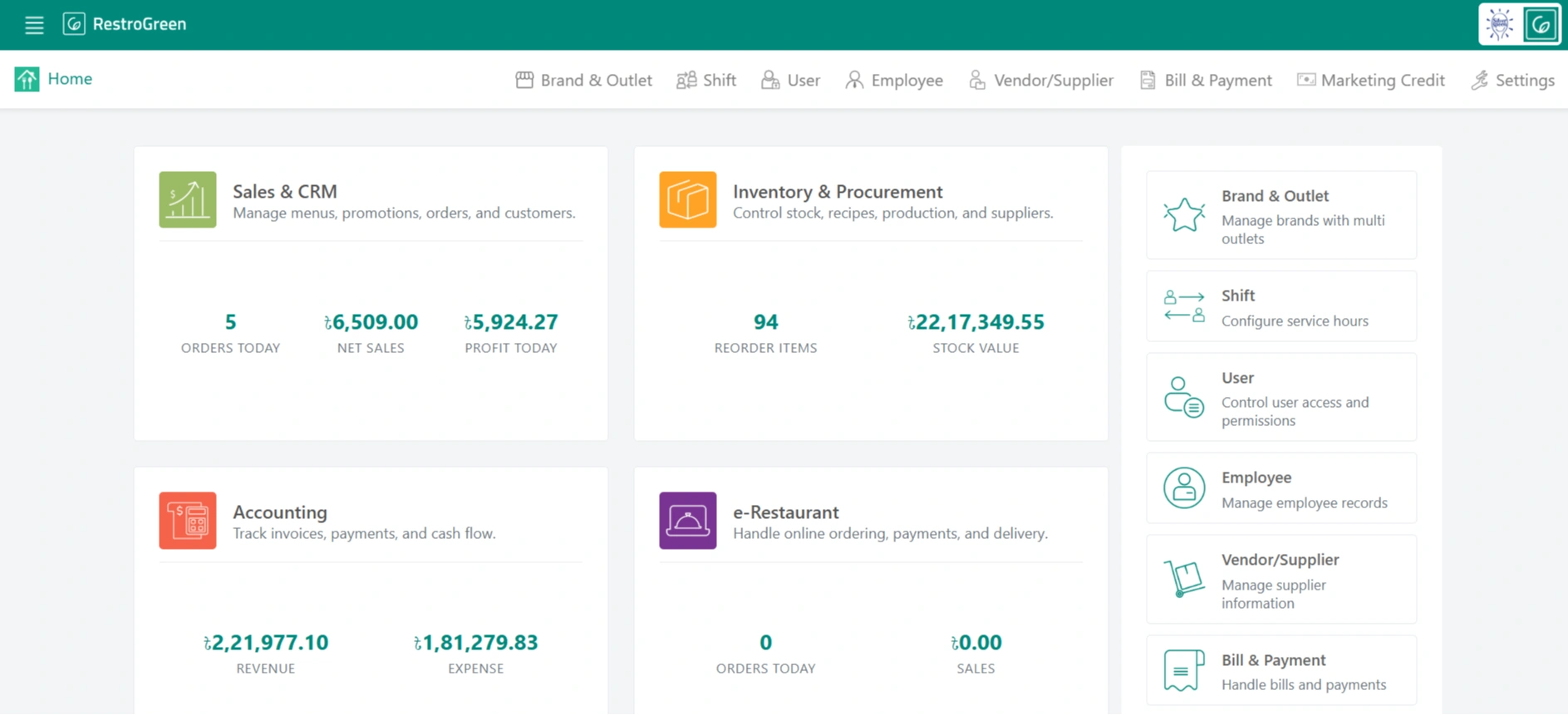
9. Go to Business Portal
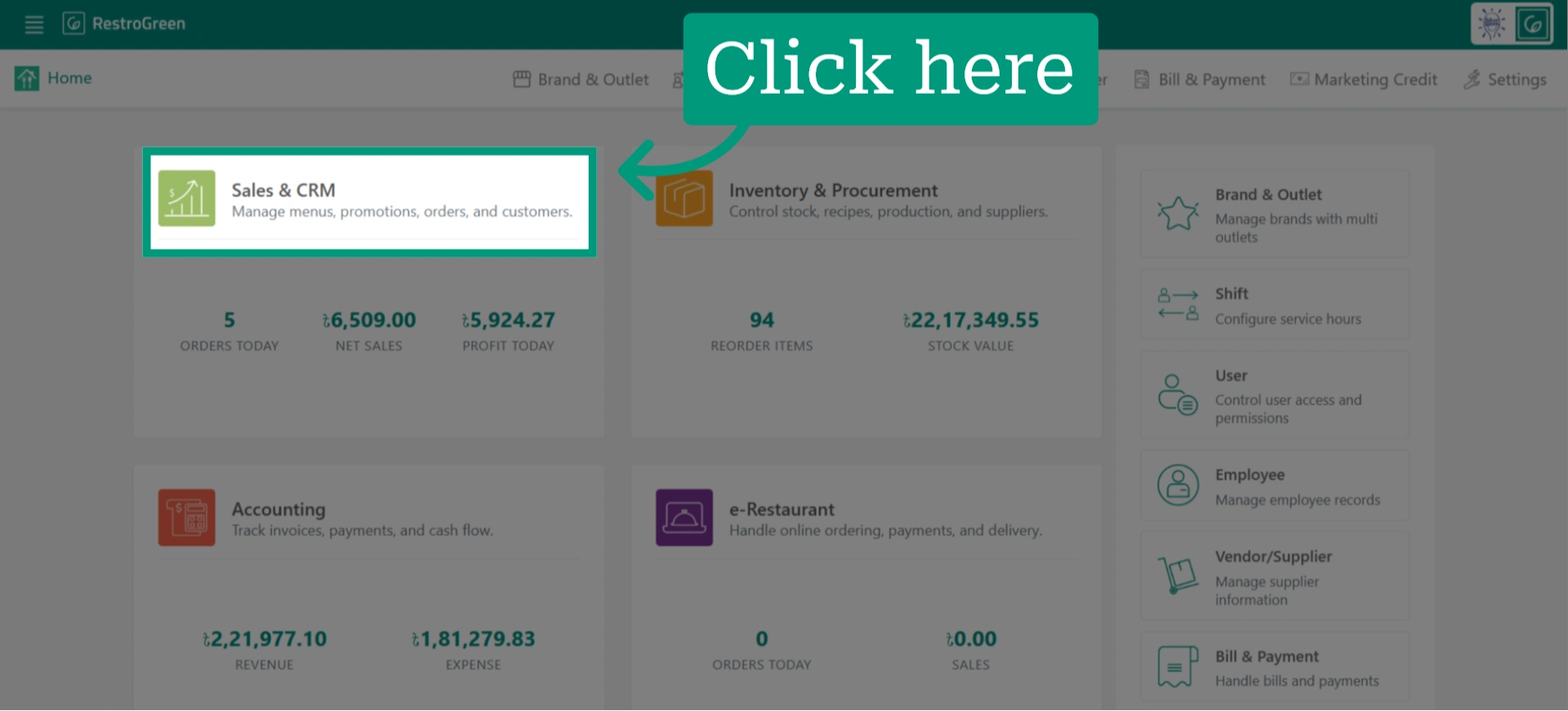
10. Click "Sales & CRM" Module
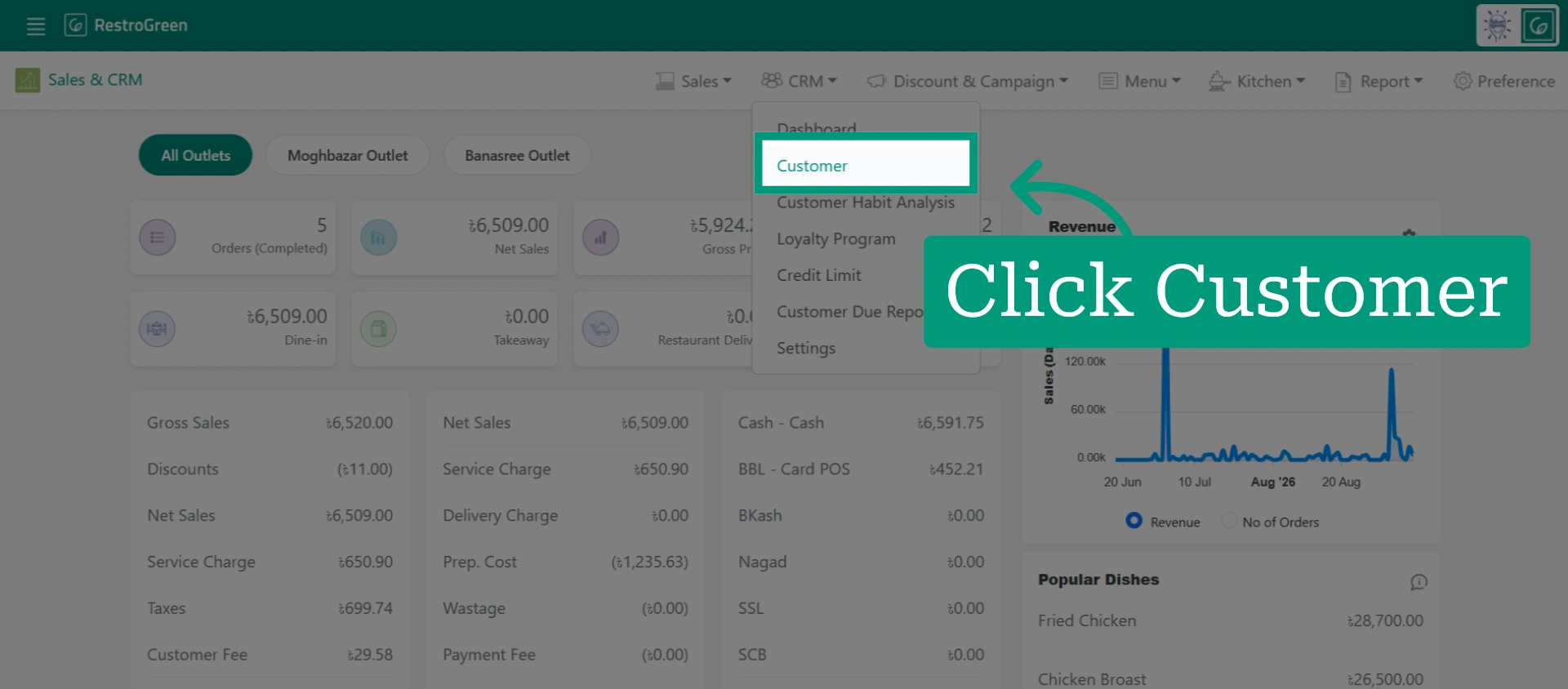
11. Click "Customer" from the top navigation bar to access the customer info
12. The customer’s balance will now be updated with the advance payment
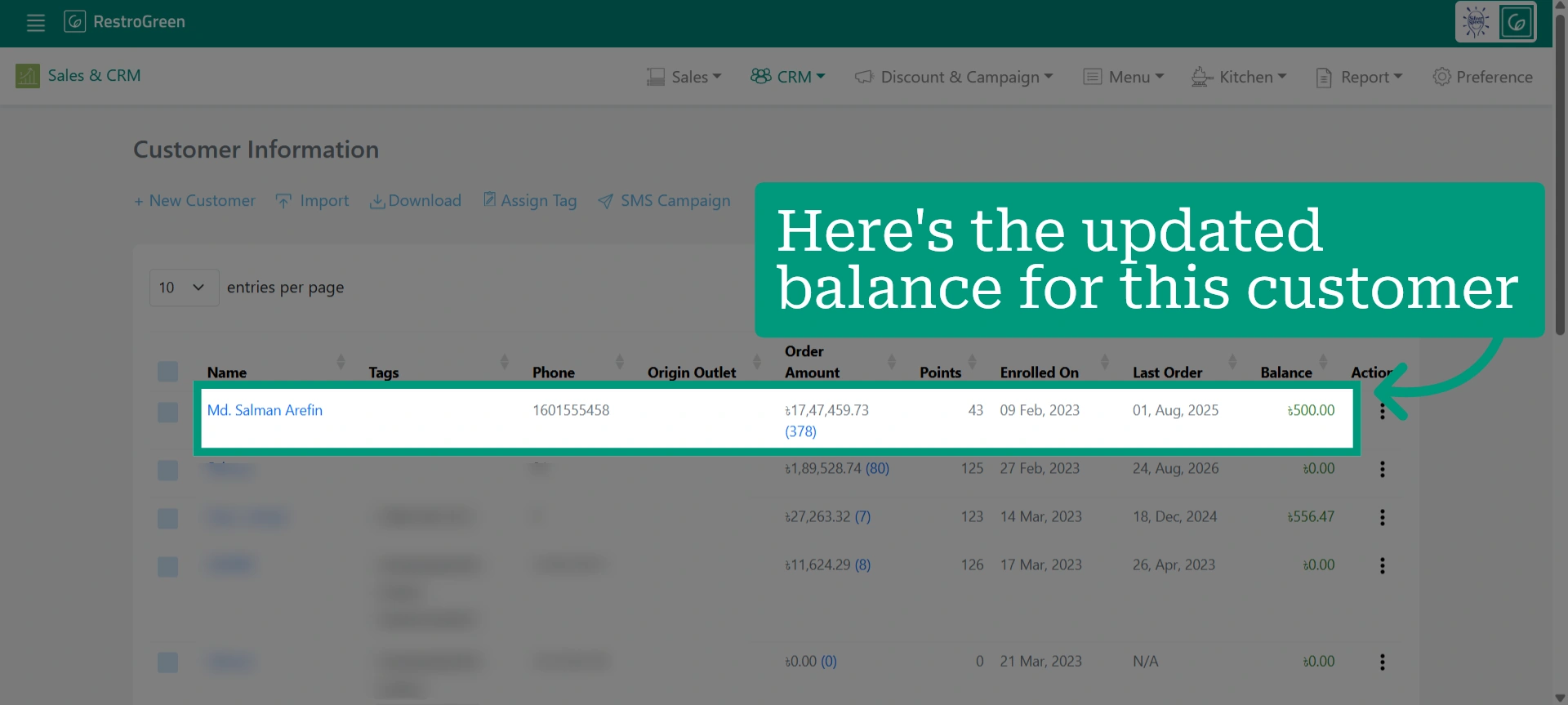
13. Go back to POS
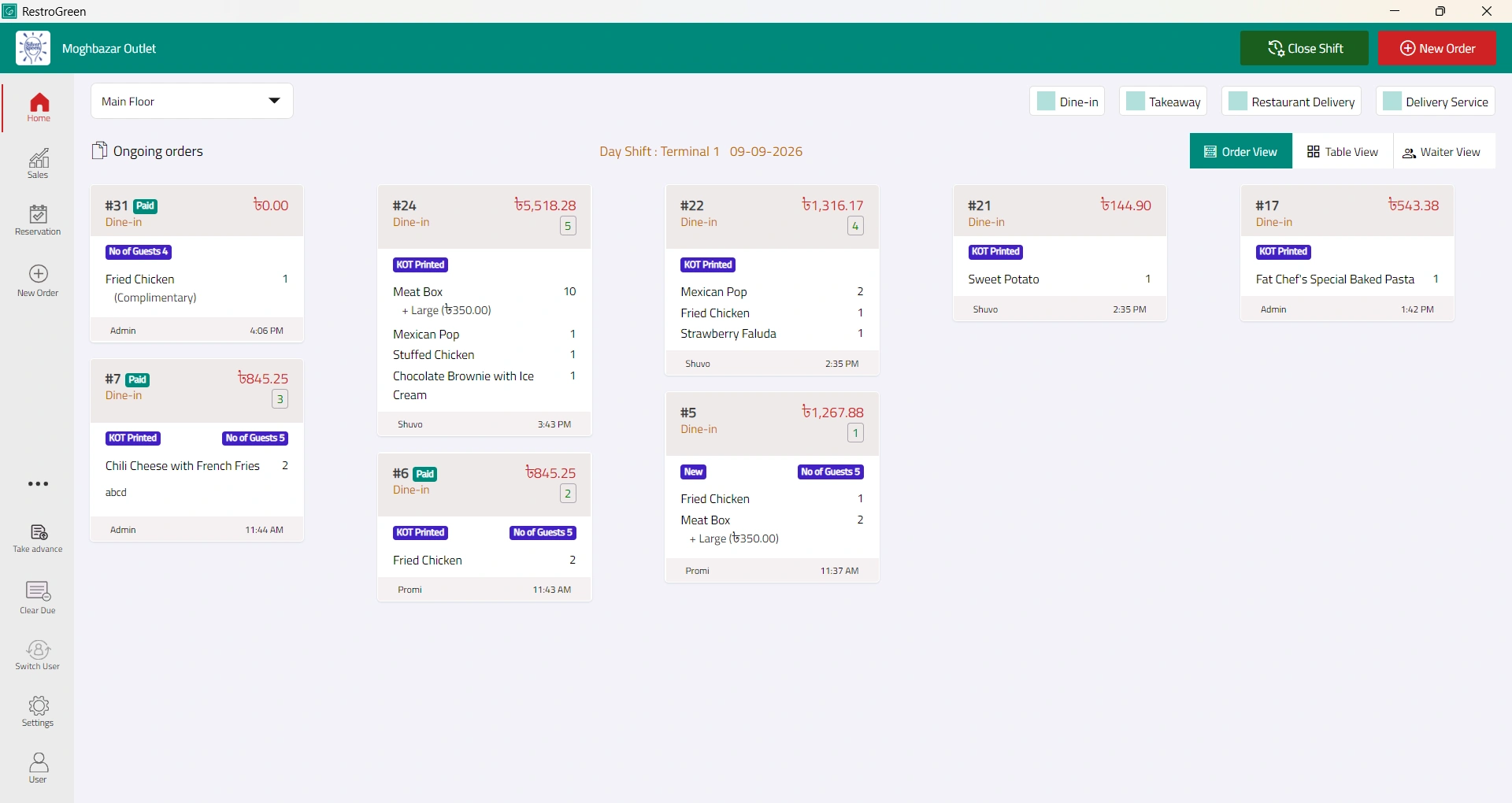
14. Start taking a new order
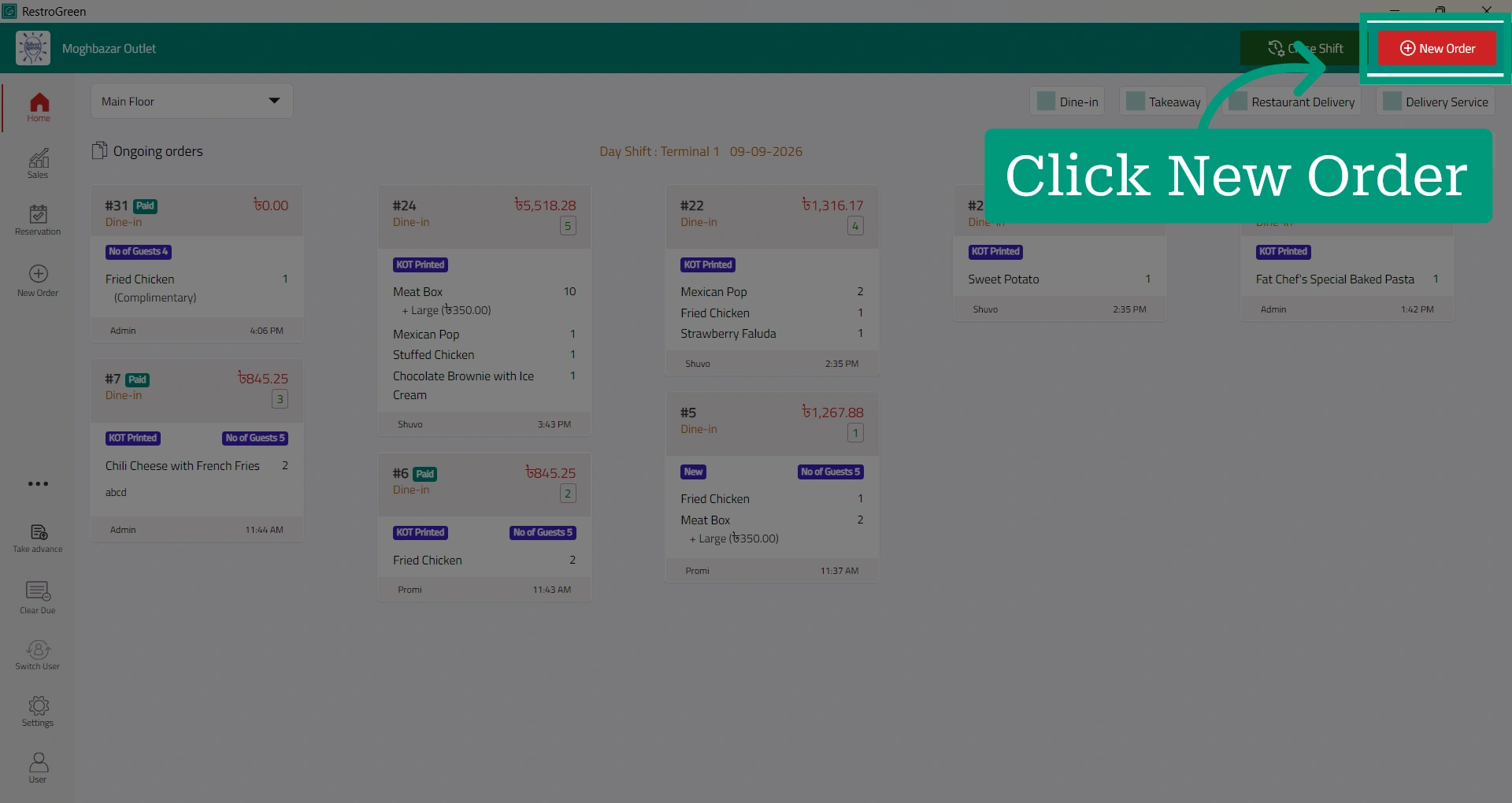
15. Click "Next" once the service information has been filled
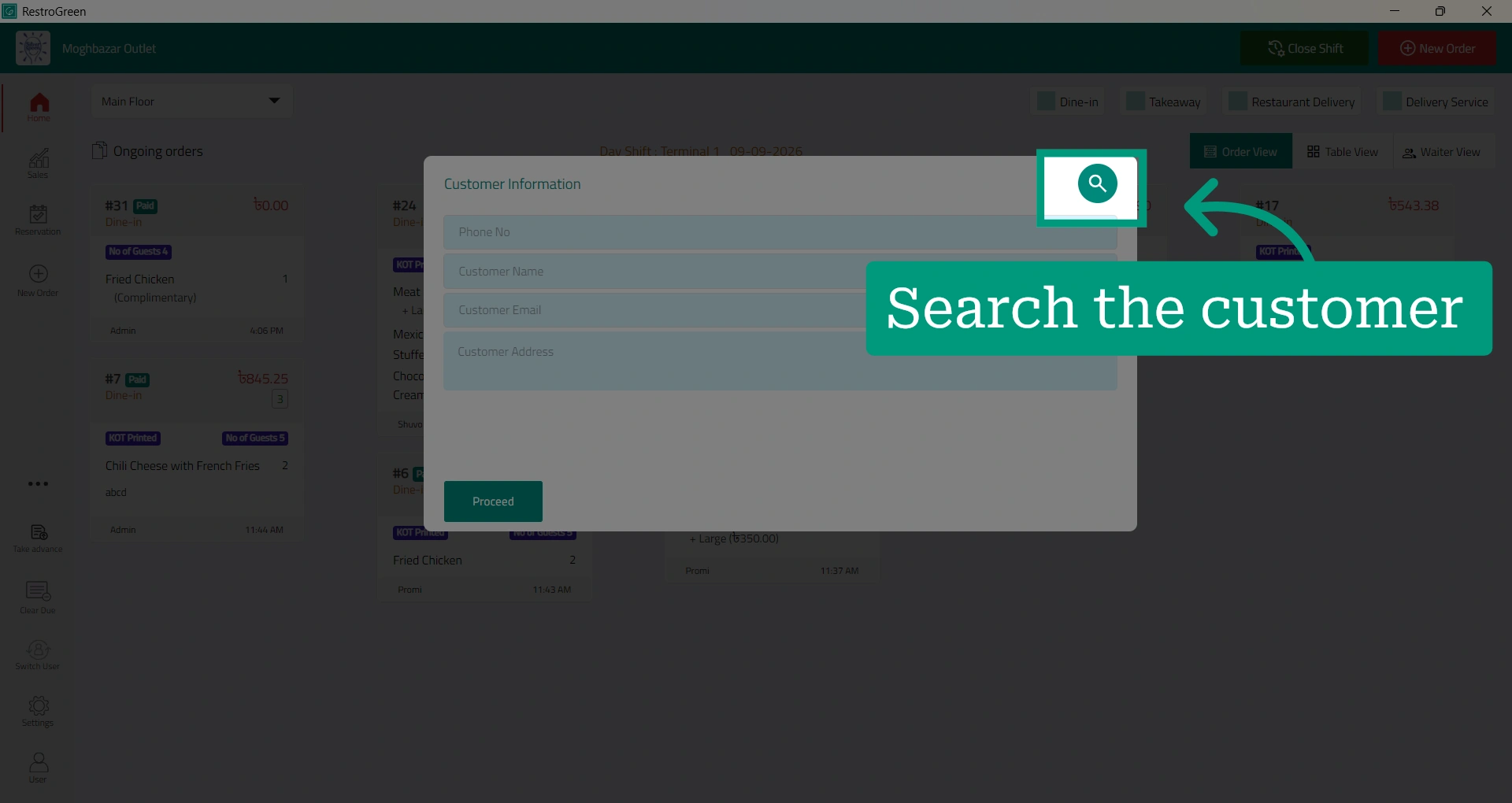
16. Click the search icon to find the customer
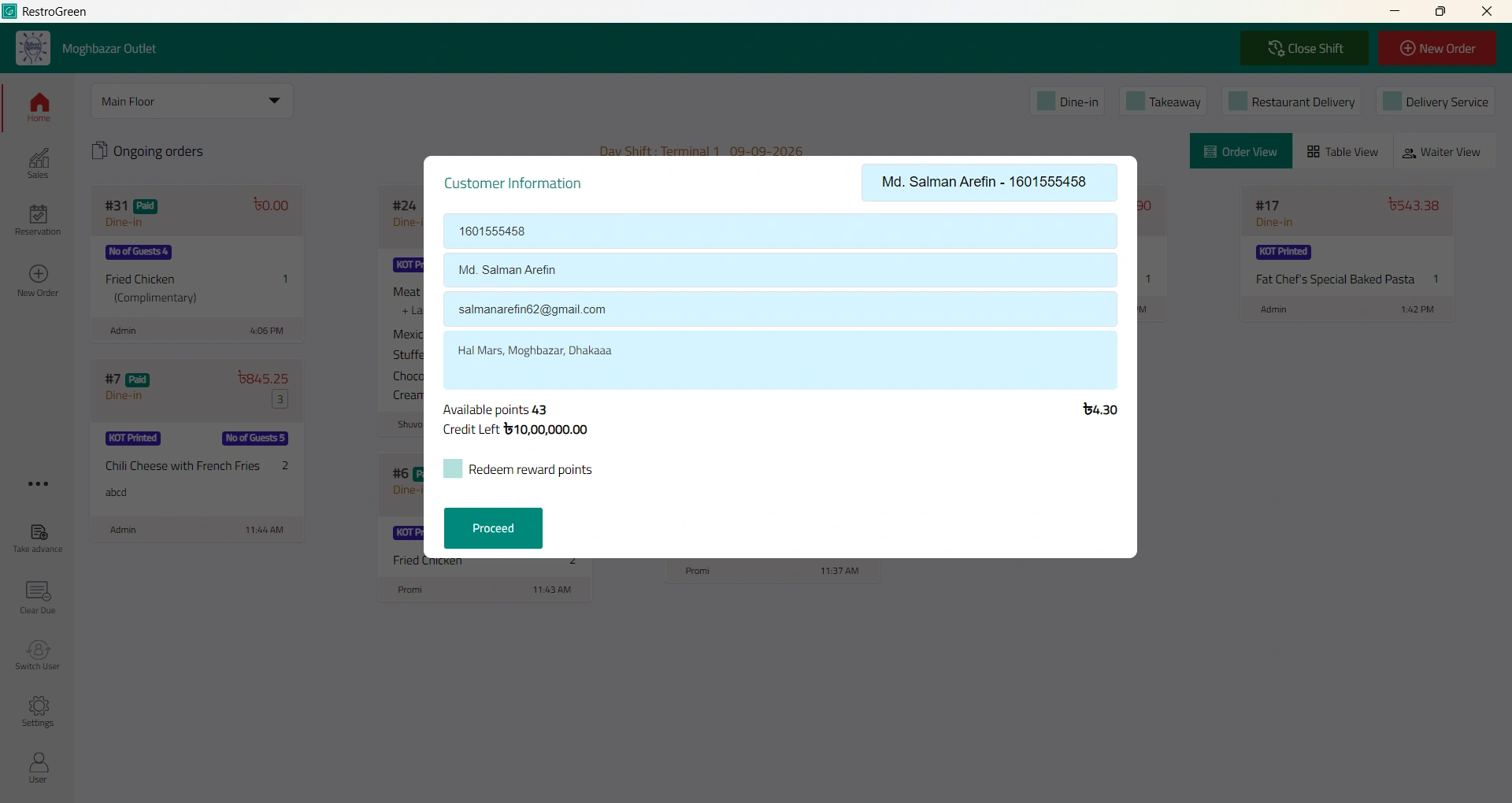
17. The customer’s information will be displayed
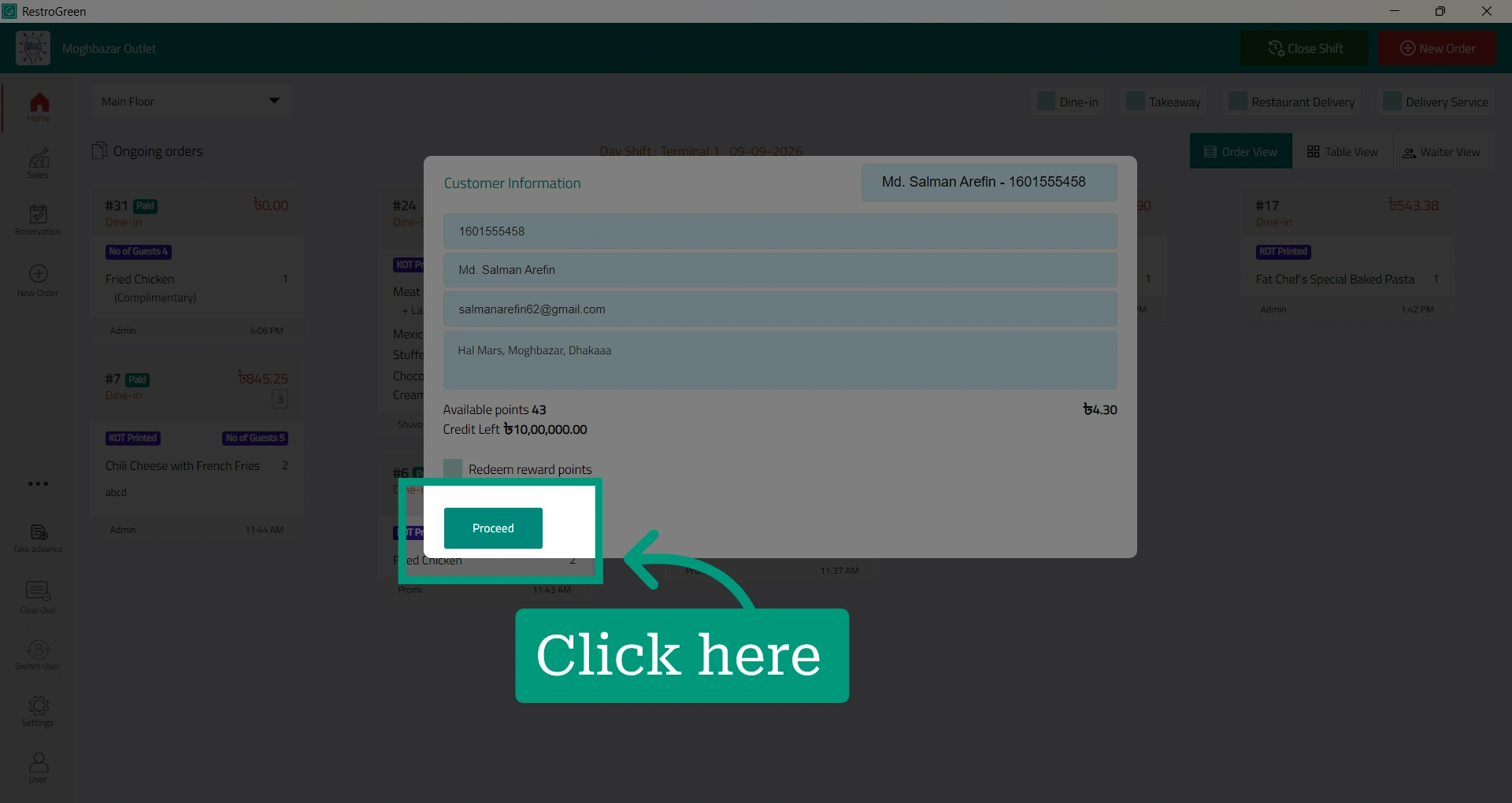
18. Click "Proceed" to add the order against this customer
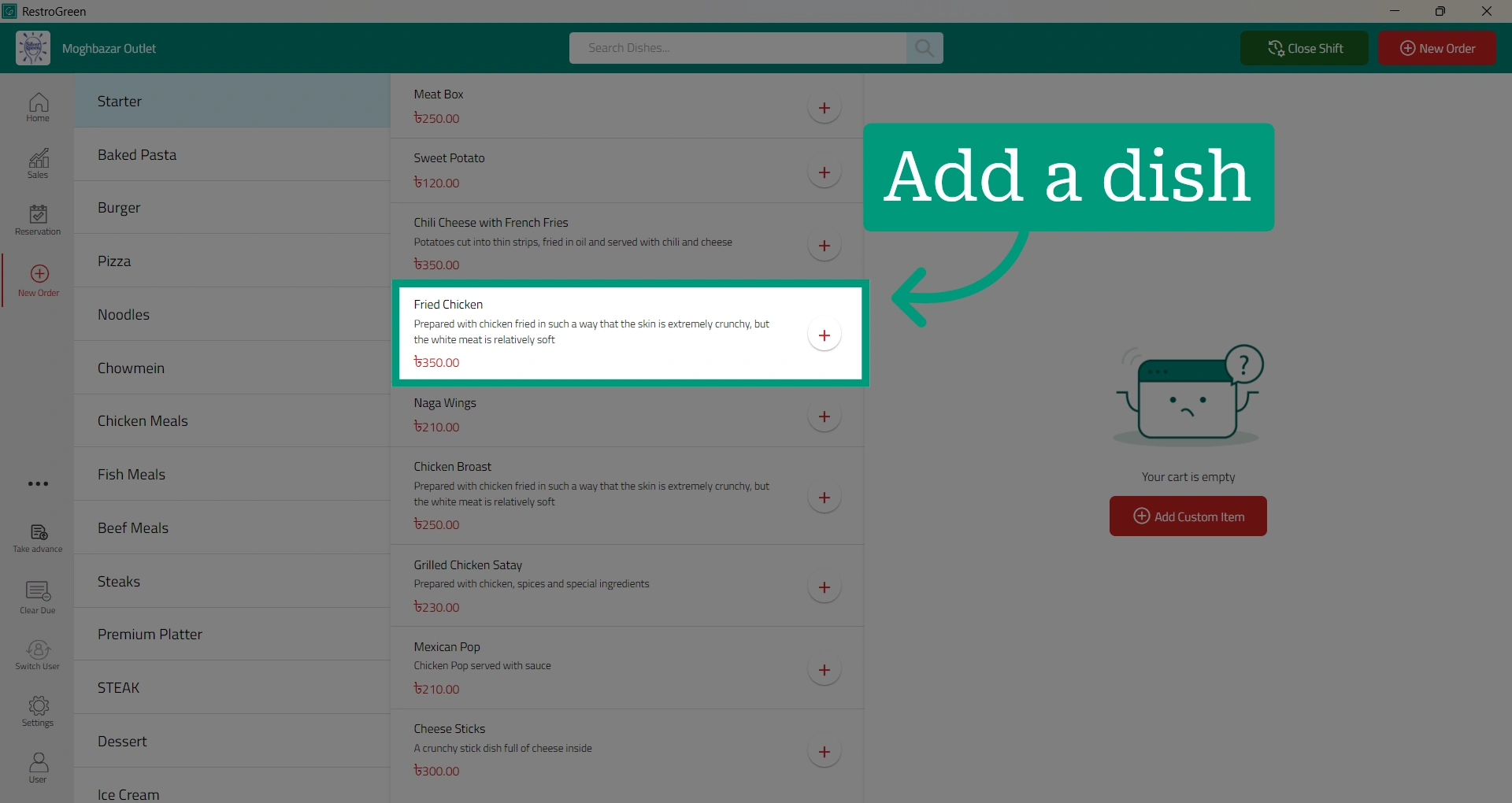
19. Add any dish the customer would like
20. Click "Payment" to initiate the payment for this order
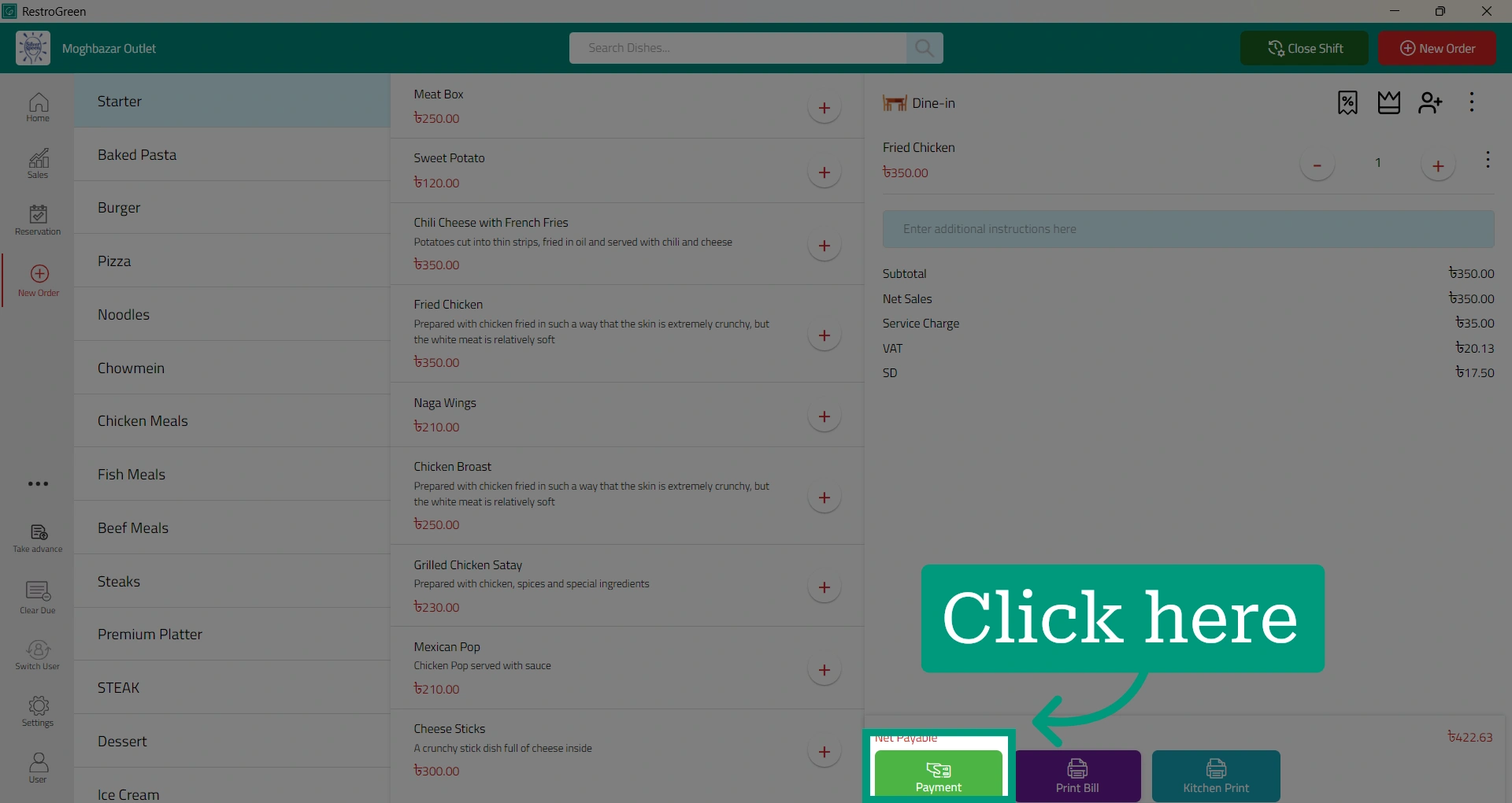
21. Select the checkbox next to “Adjust Advance Balance” to deduct the order amount from the customer’s balance
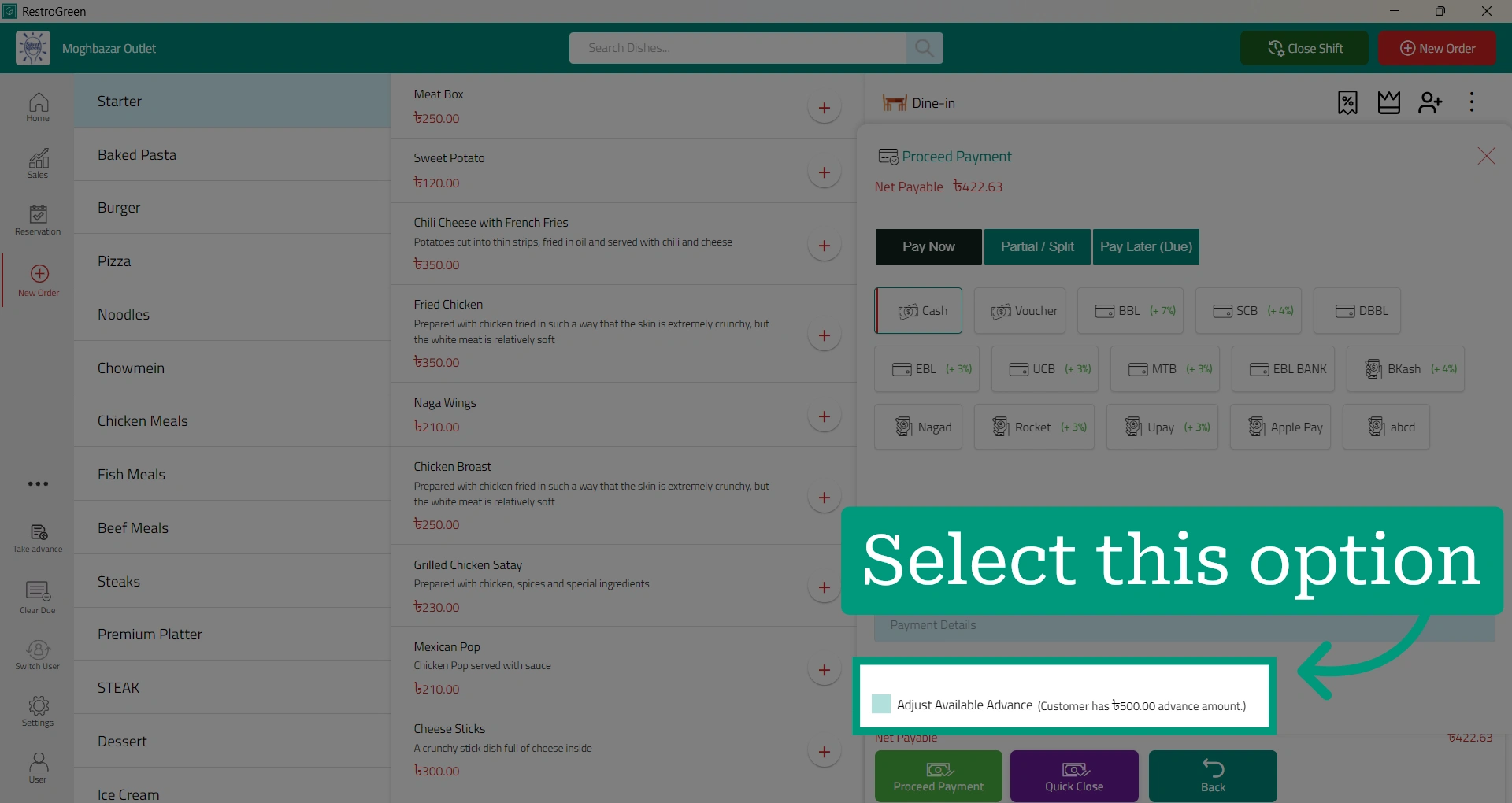
22. Once selected, the payment mode options will be locked
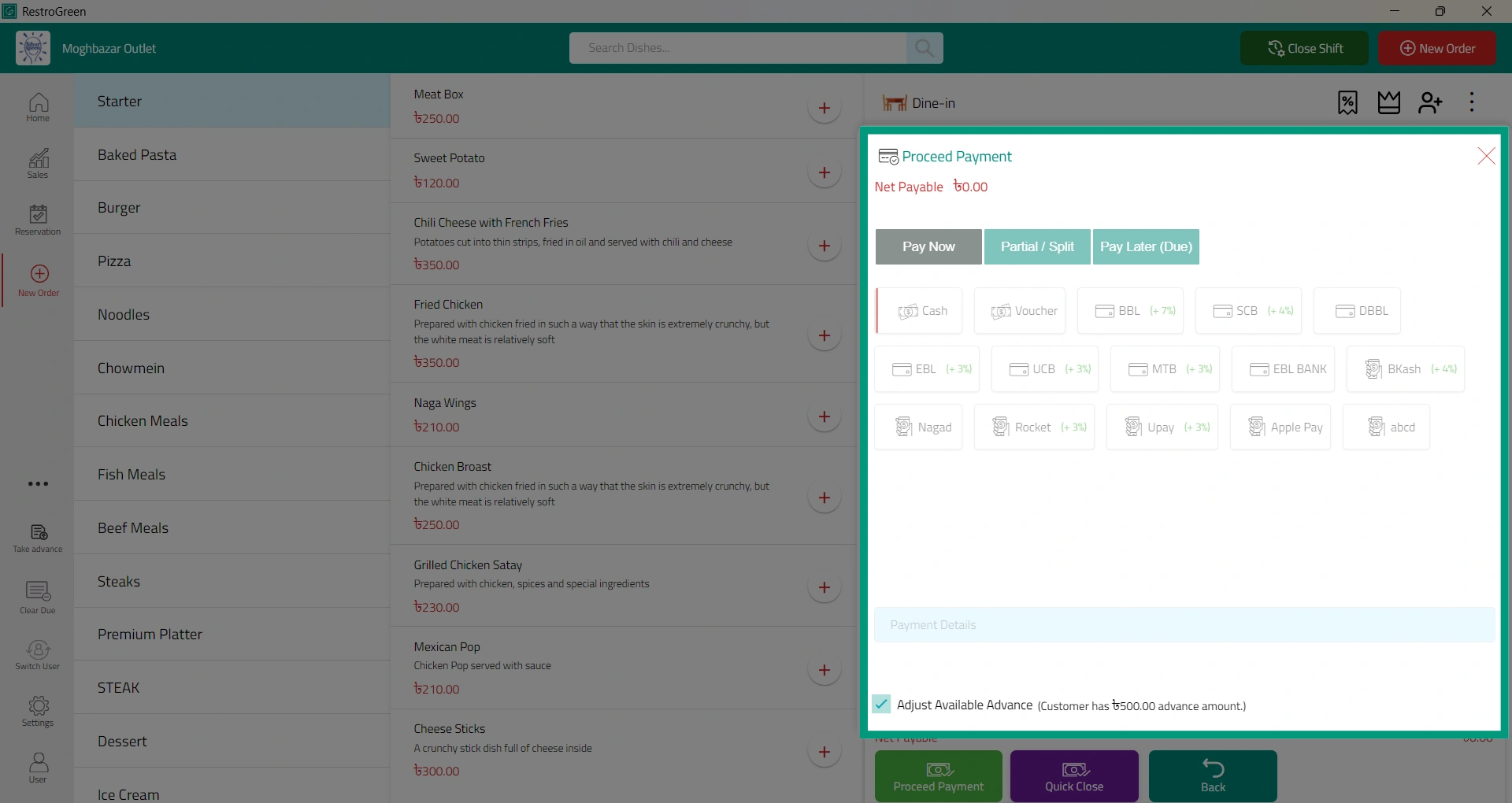
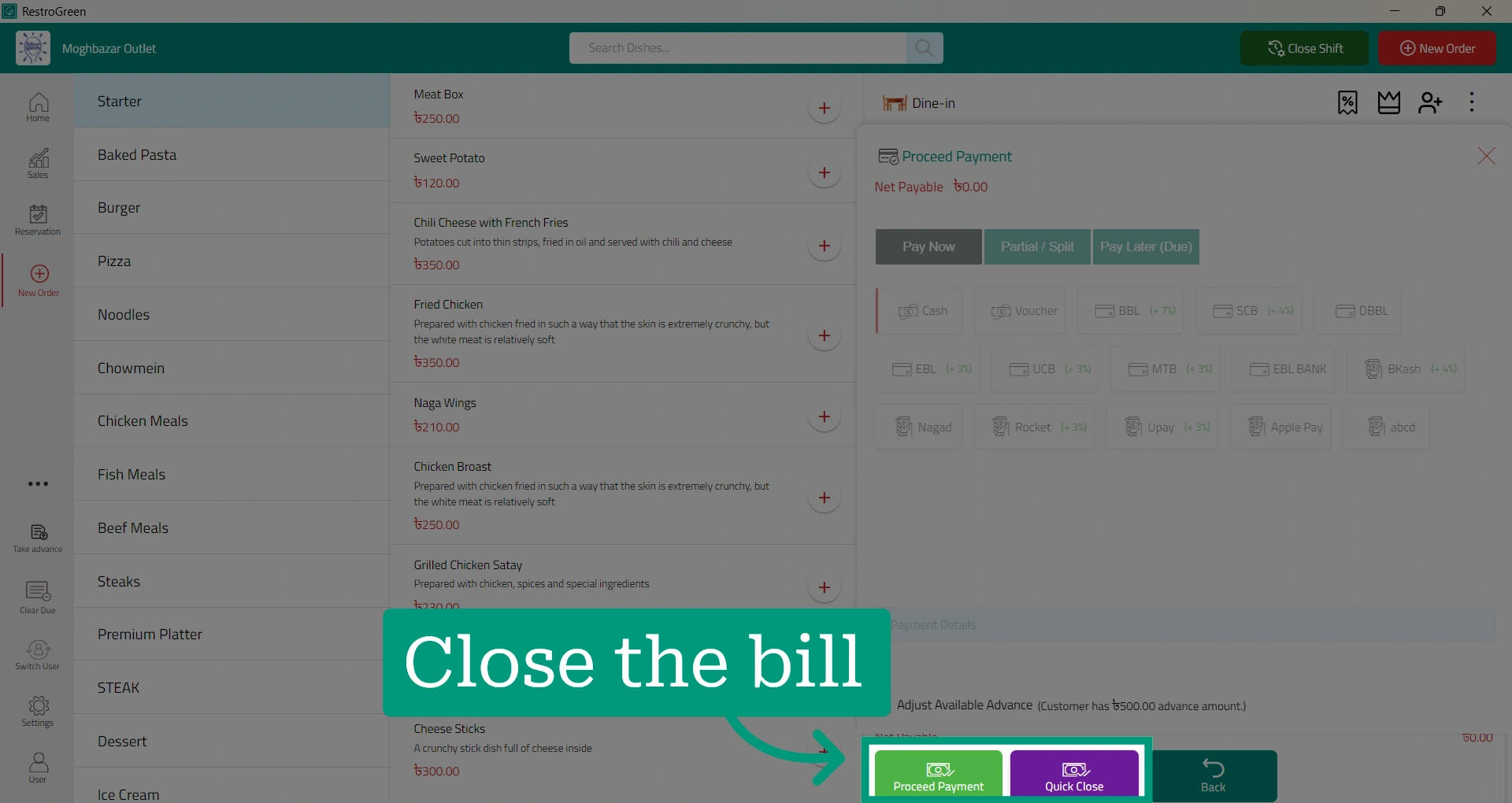
23. Complete the order by clicking “Proceed Payment” or “Quick Close"
24. Go back to Business Portal
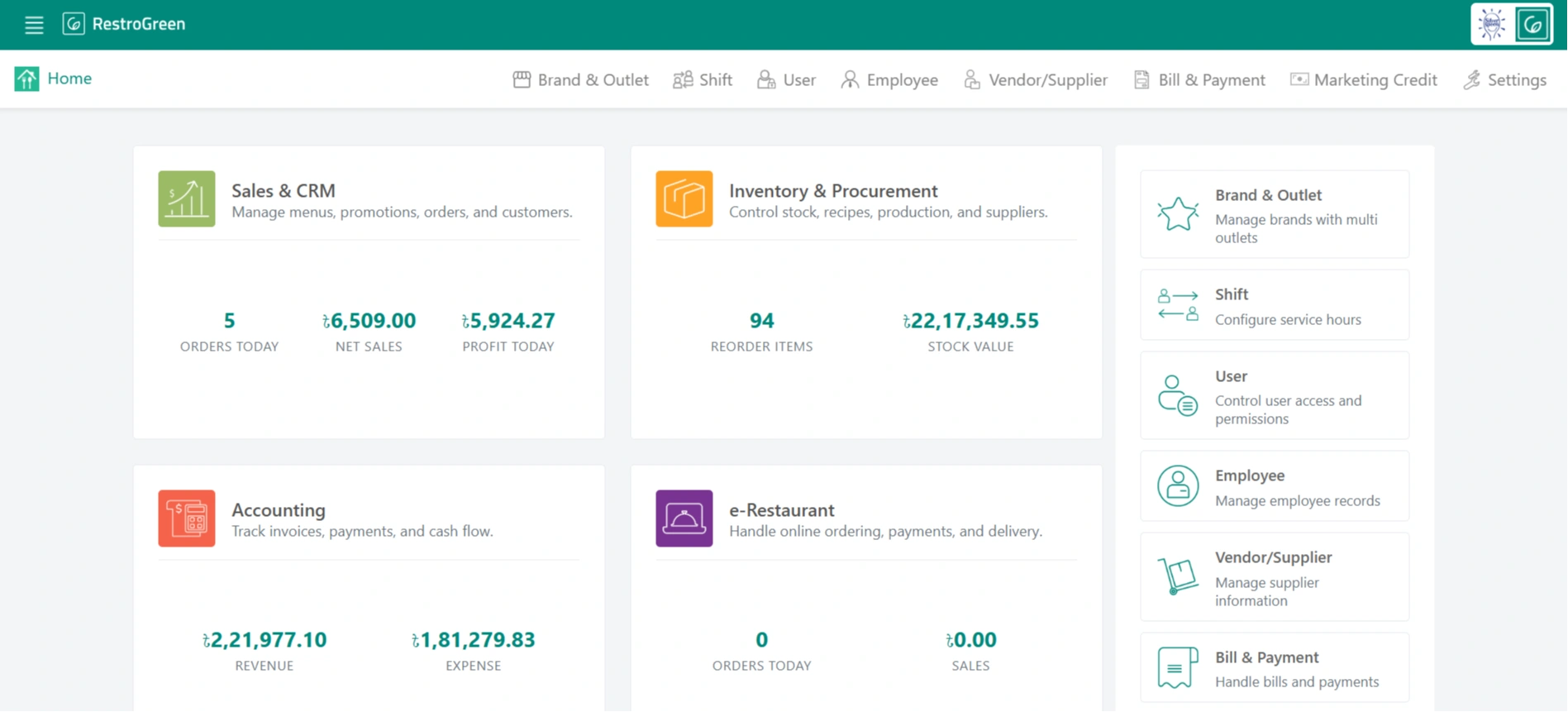
25. Click "Sales & CRM" Module
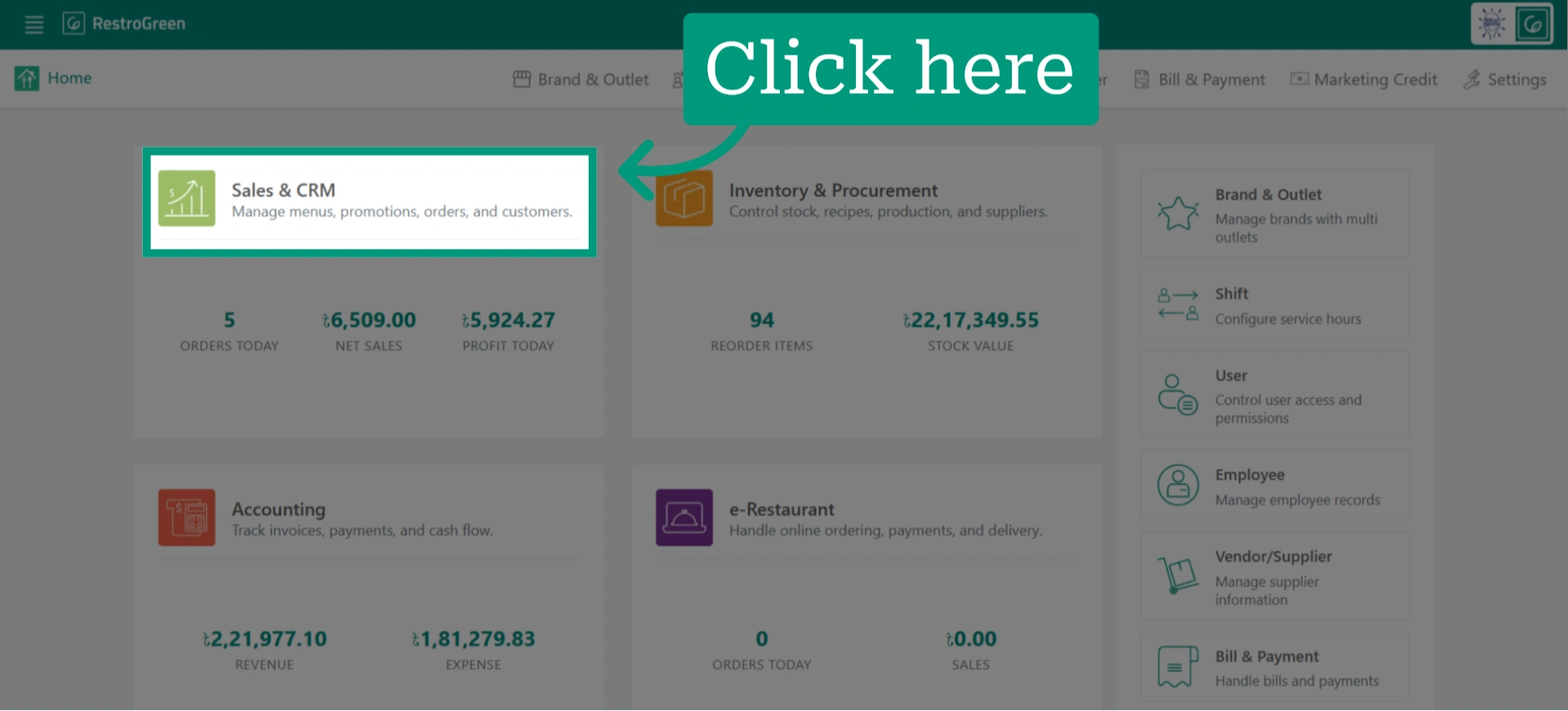
26. Click "Customer" from the top navigation bar to access the customer info
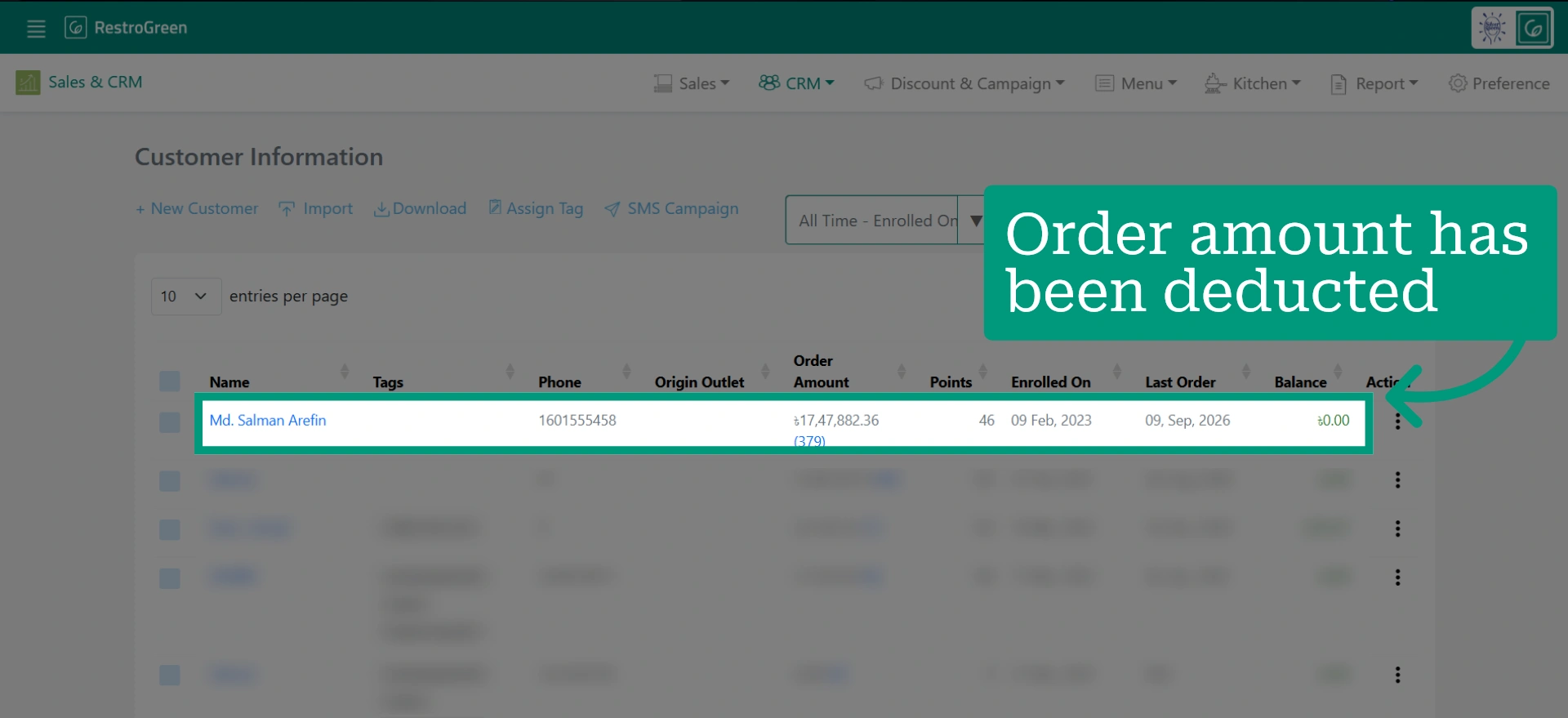
27. The customer’s balance will now be zero, as the order amount has been deducted from the advance balance