How to Configure Order Lock for RestroGreen POS
This tutorial guides you through configuring the order lock settings for RestroGreen POS through
the Business Portal.
Go to
restrogreen.quicklyservices.com
1. Login to your Business Portal
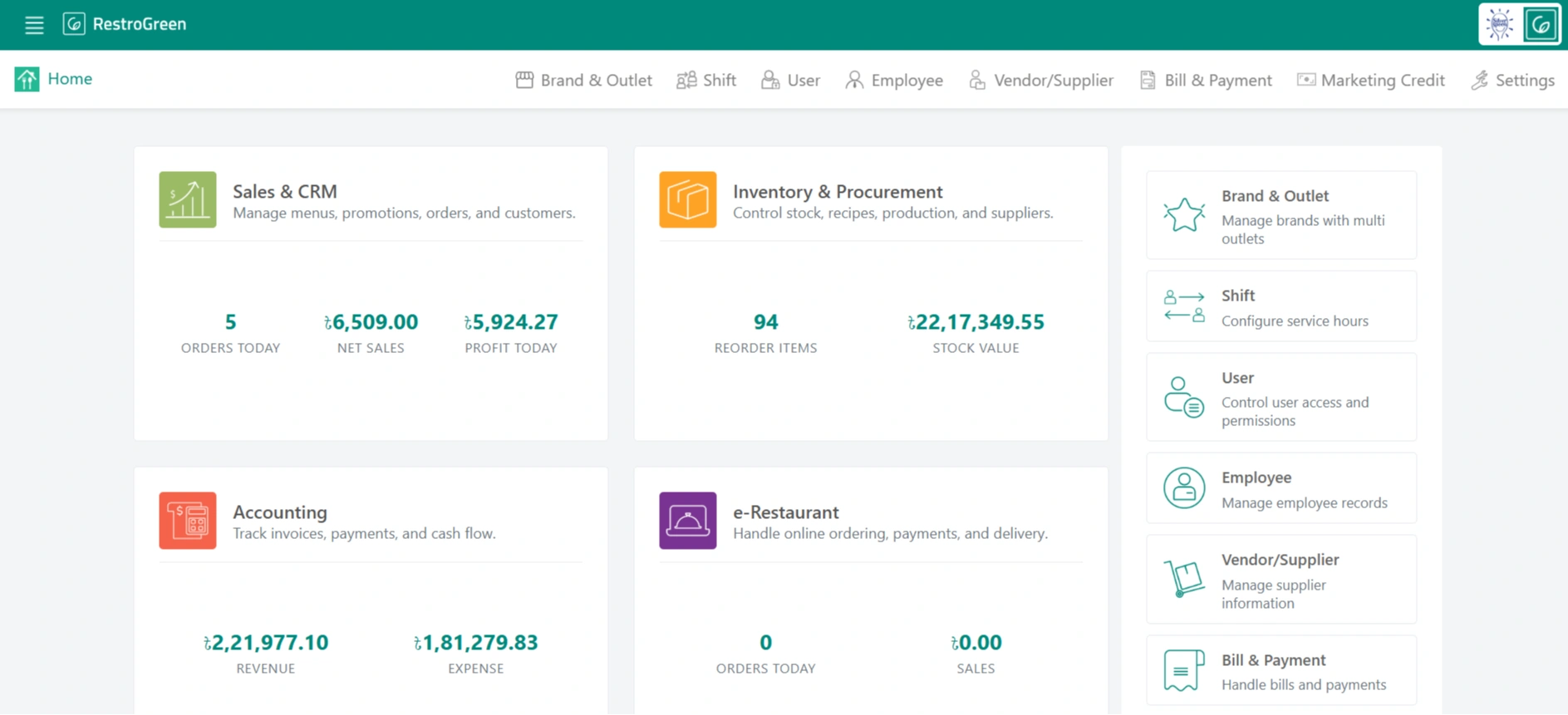
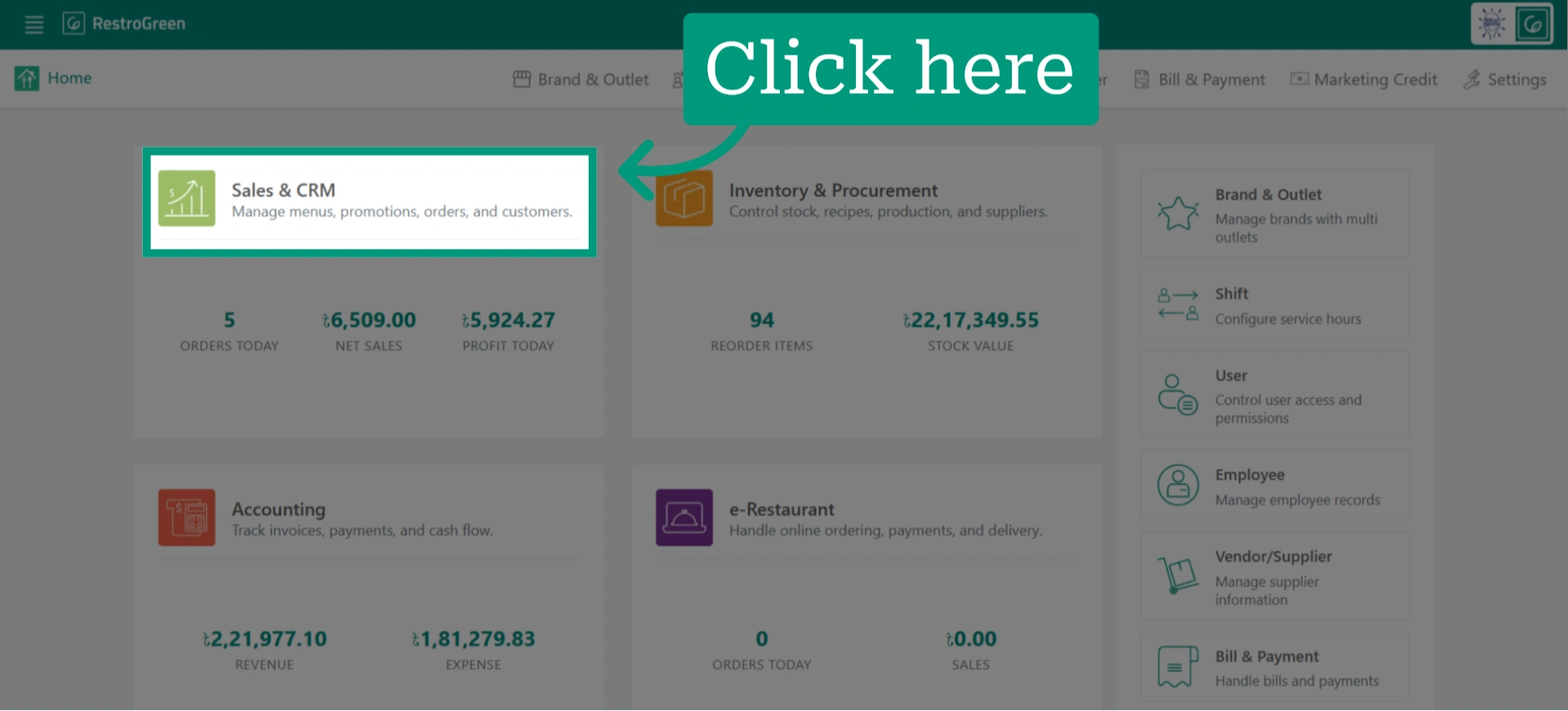
2. Access Sales and CRM Module
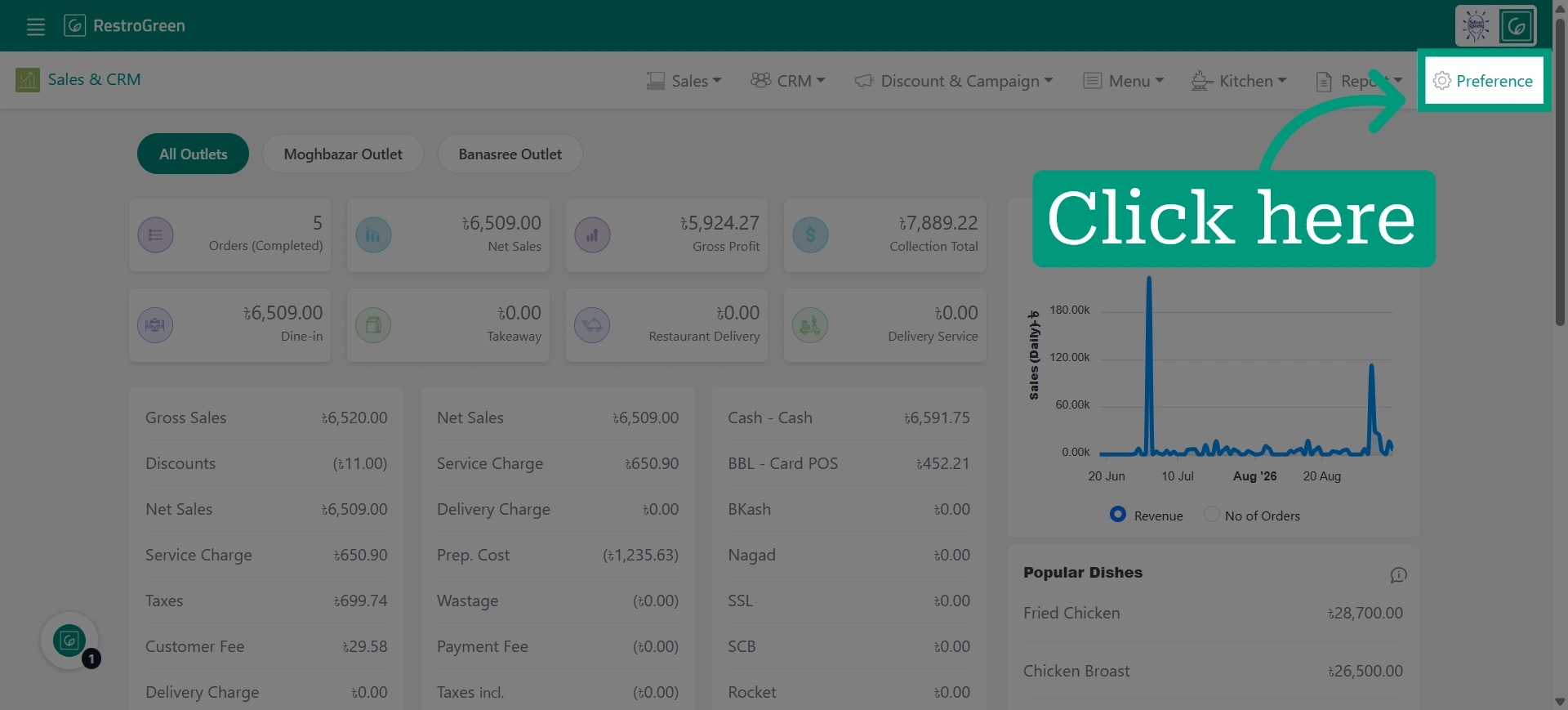
3. Click “Preference” to configure the ordering settings
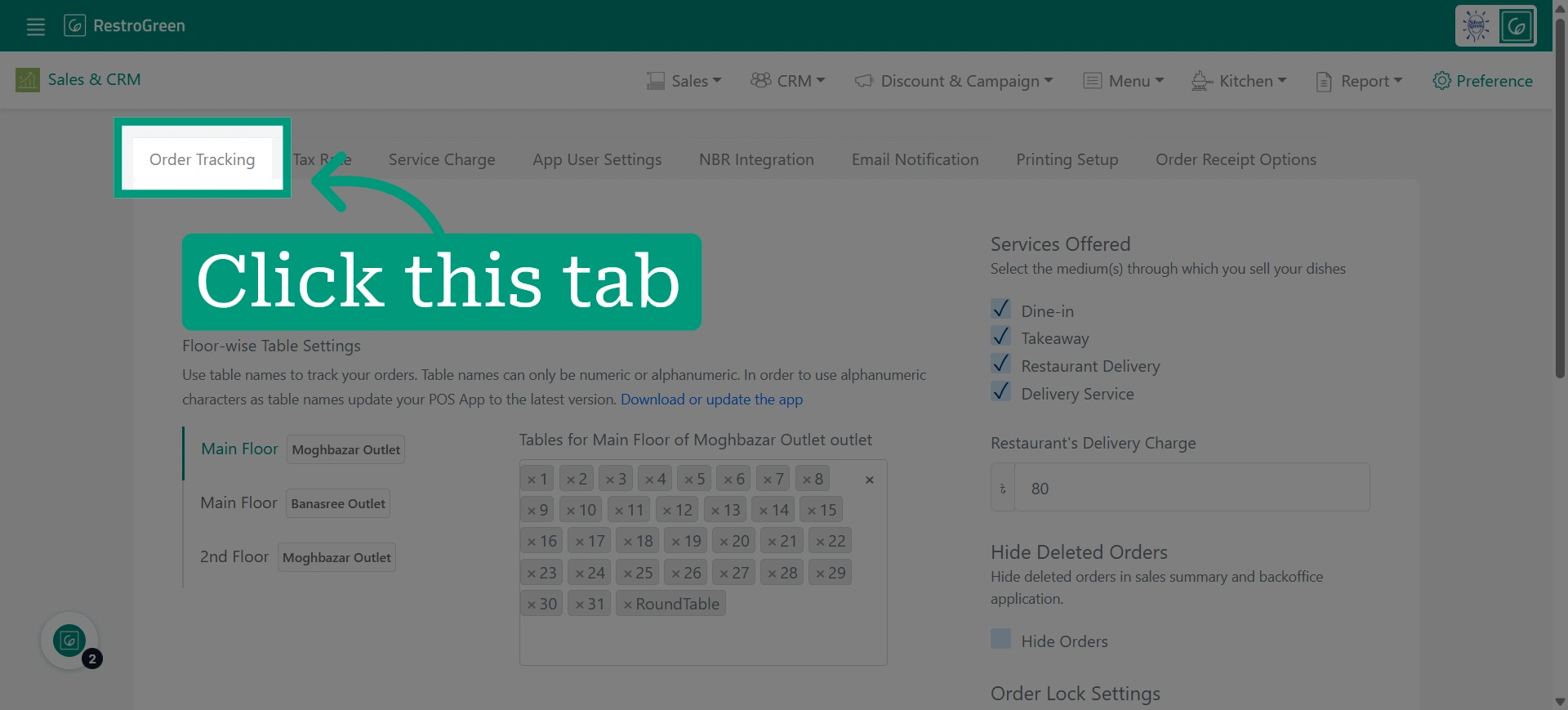
4. Go to the “Order Tracking” section to configure how orders are monitored and processed in the system
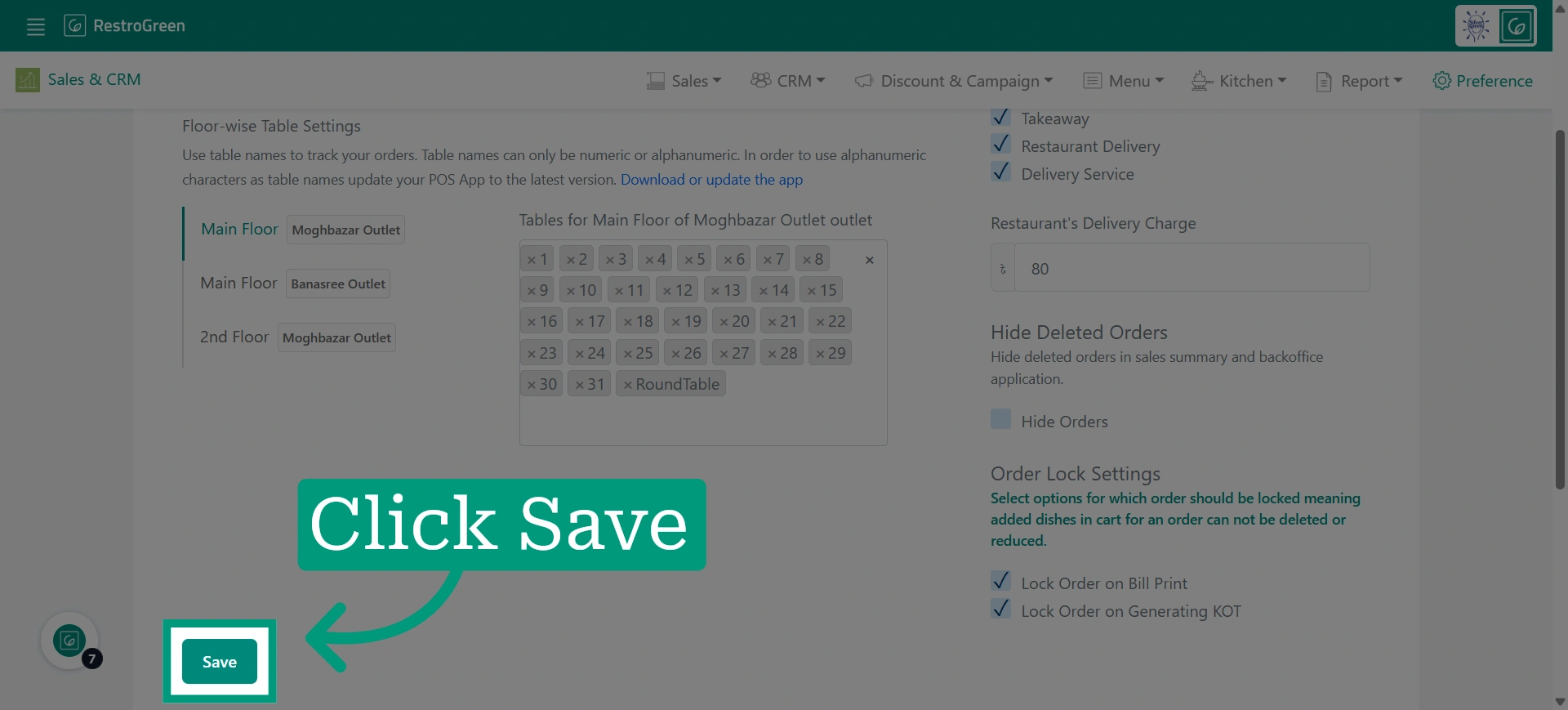
5. Select when you want the order to be locked
Once locked, dishes already added to the cart cannot be deleted or have their quantity reduced.
• Select “Lock Order on Bill Print” to lock the order once the bill has been generated.
• Select “Lock Order on Generating KOT” to lock the order once the KOT has been generated.
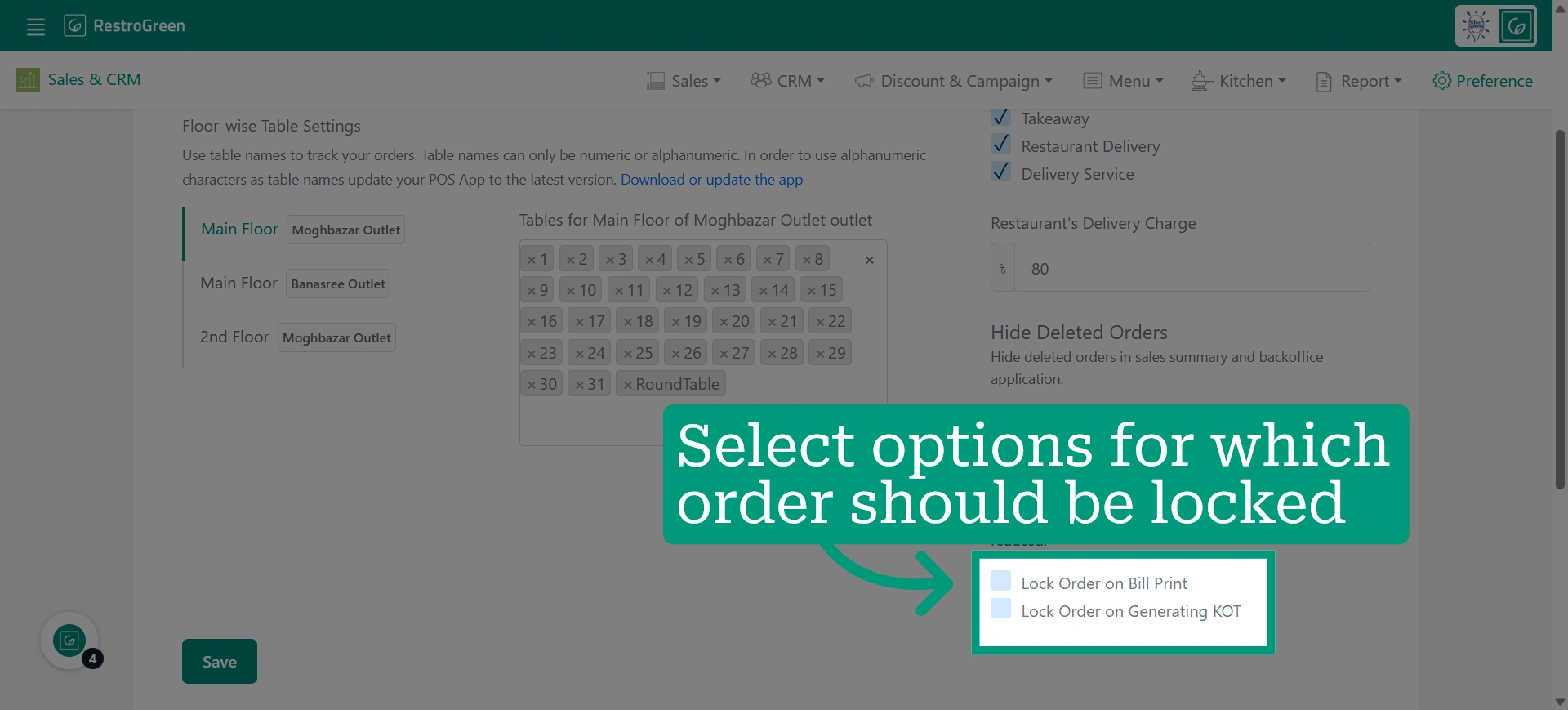
6. Click “Save” to finalize your order locking configuration