How to Take Payments Against Customer Dues in RestroGreen POS
This tutorial guides you through taking payment from a customer against their due balance using
RestroGreen POS and viewing the real-time update in the Sales & CRM module of the Business
Portal.
Go to
restrogreen.quicklyservices.com
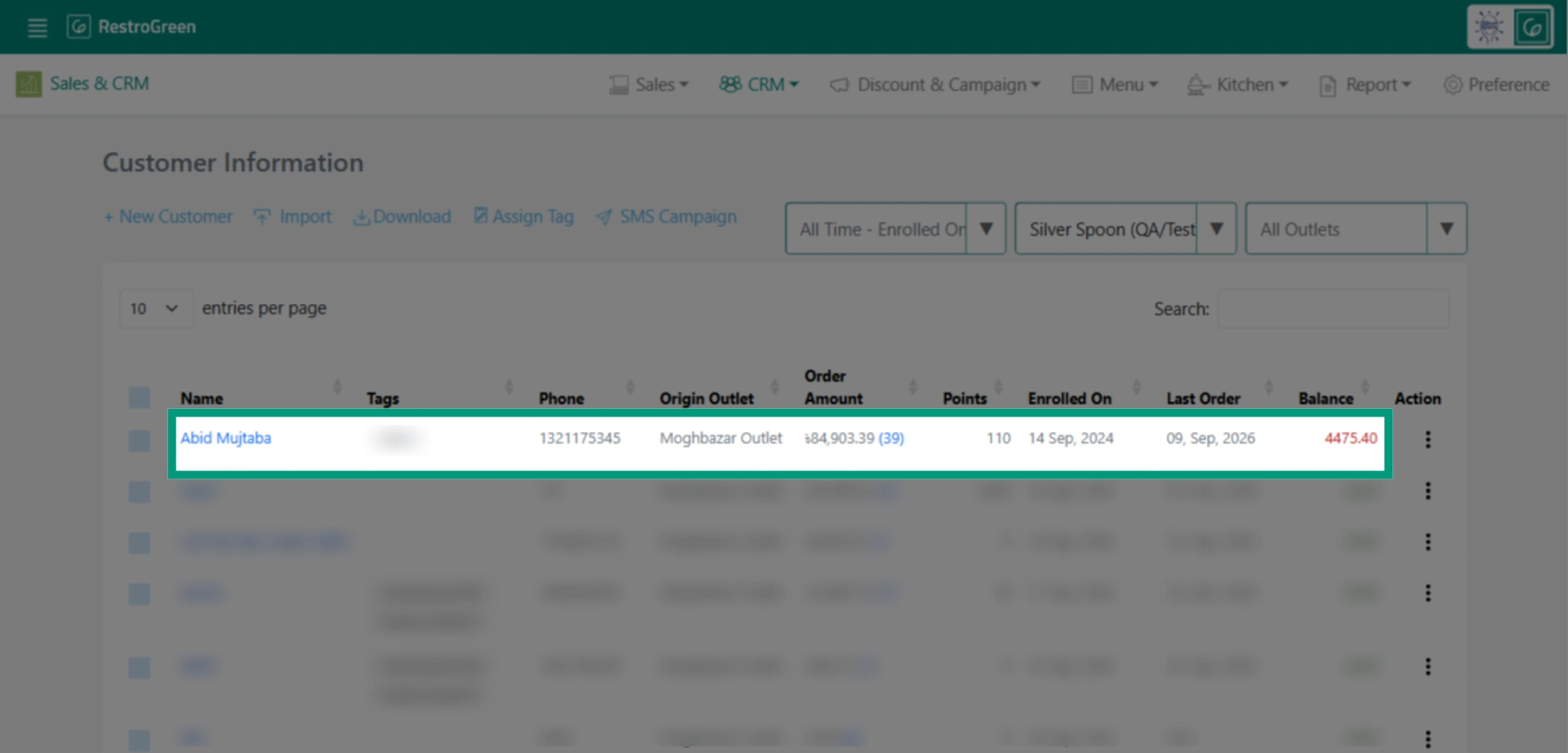
1. For this example, we’ll clear the outstanding due for this customer
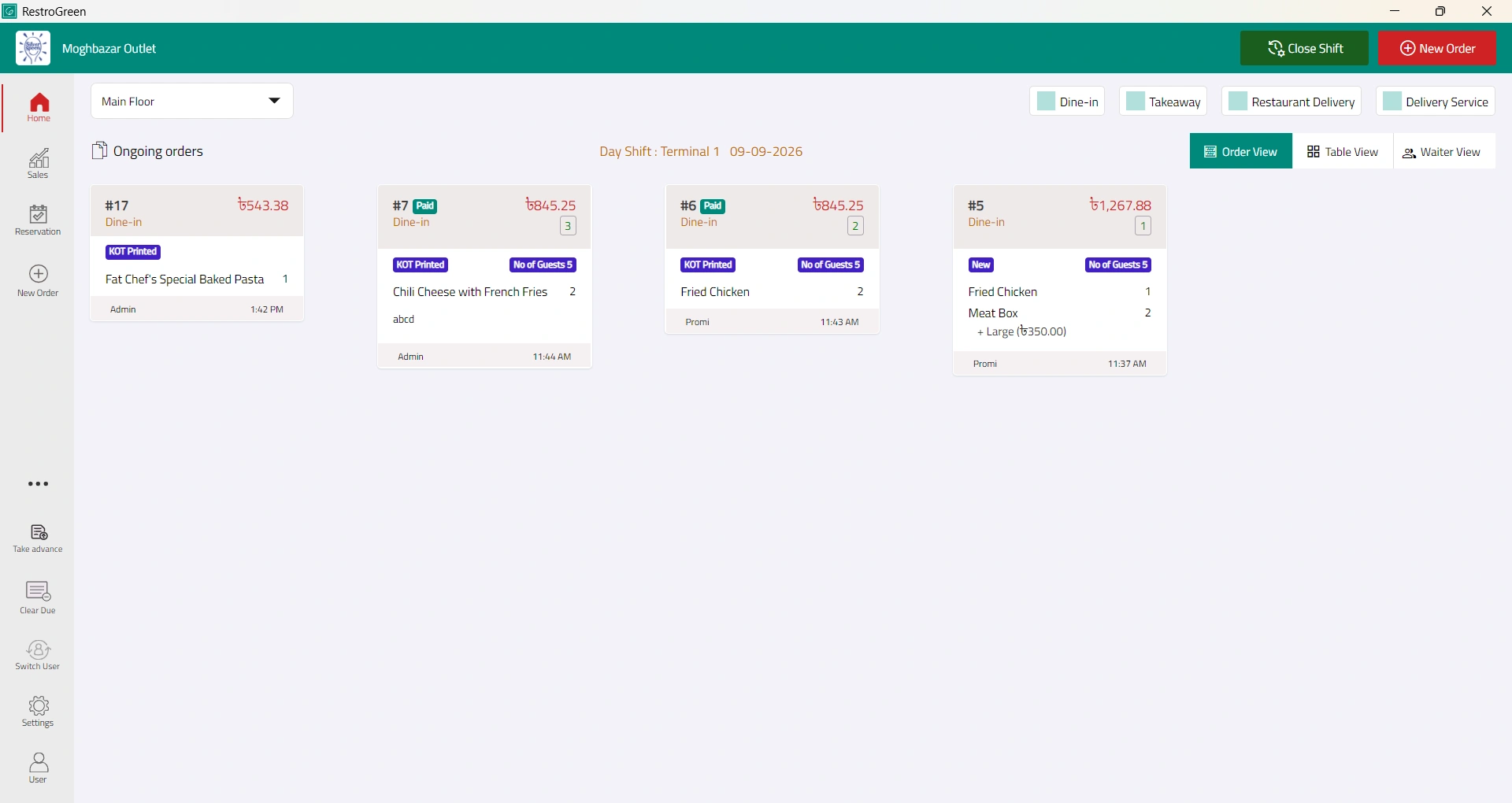
2. Go to RestroGreen POS
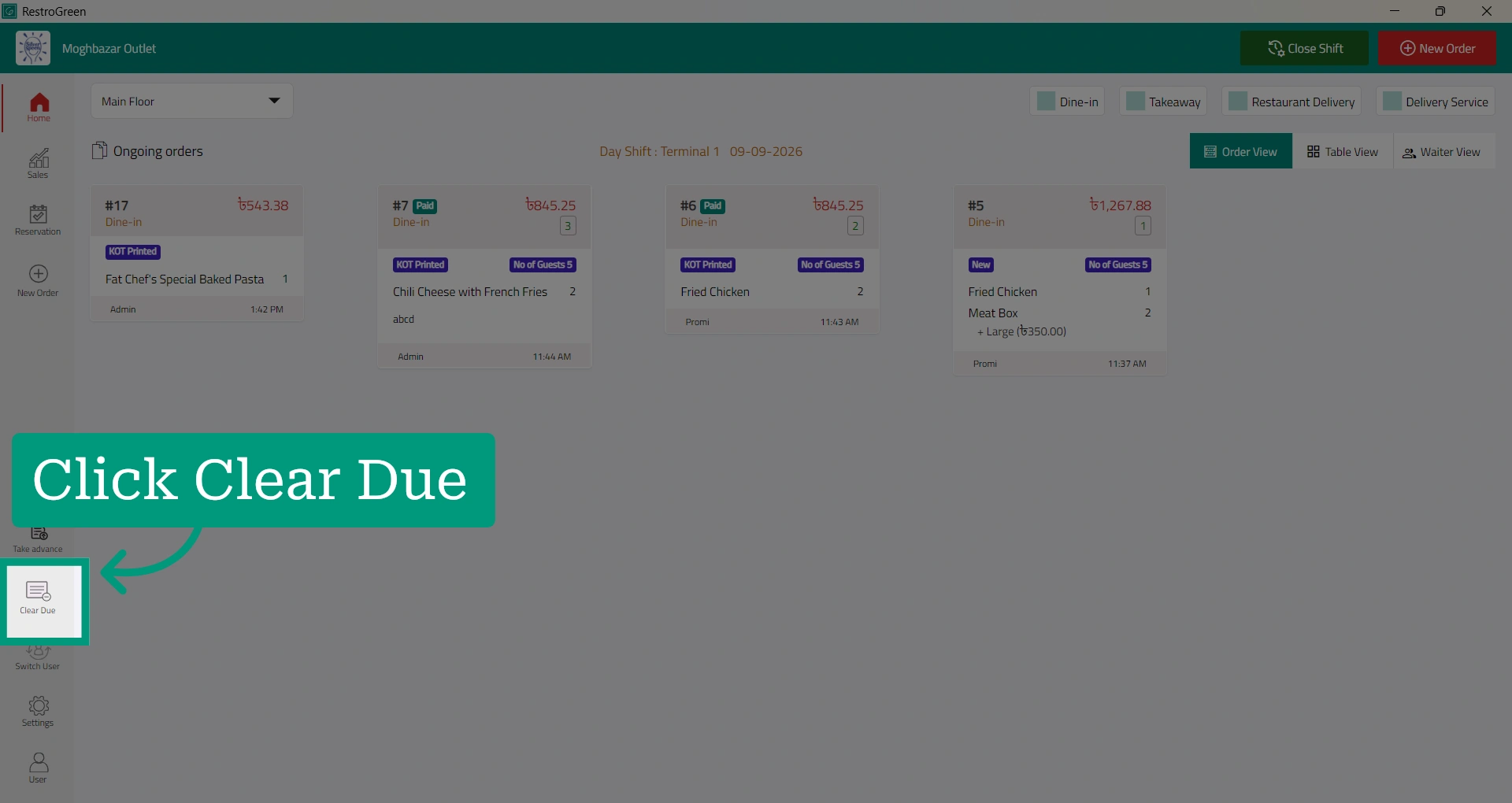
3. Click “Clear Dues" to initiate the payment
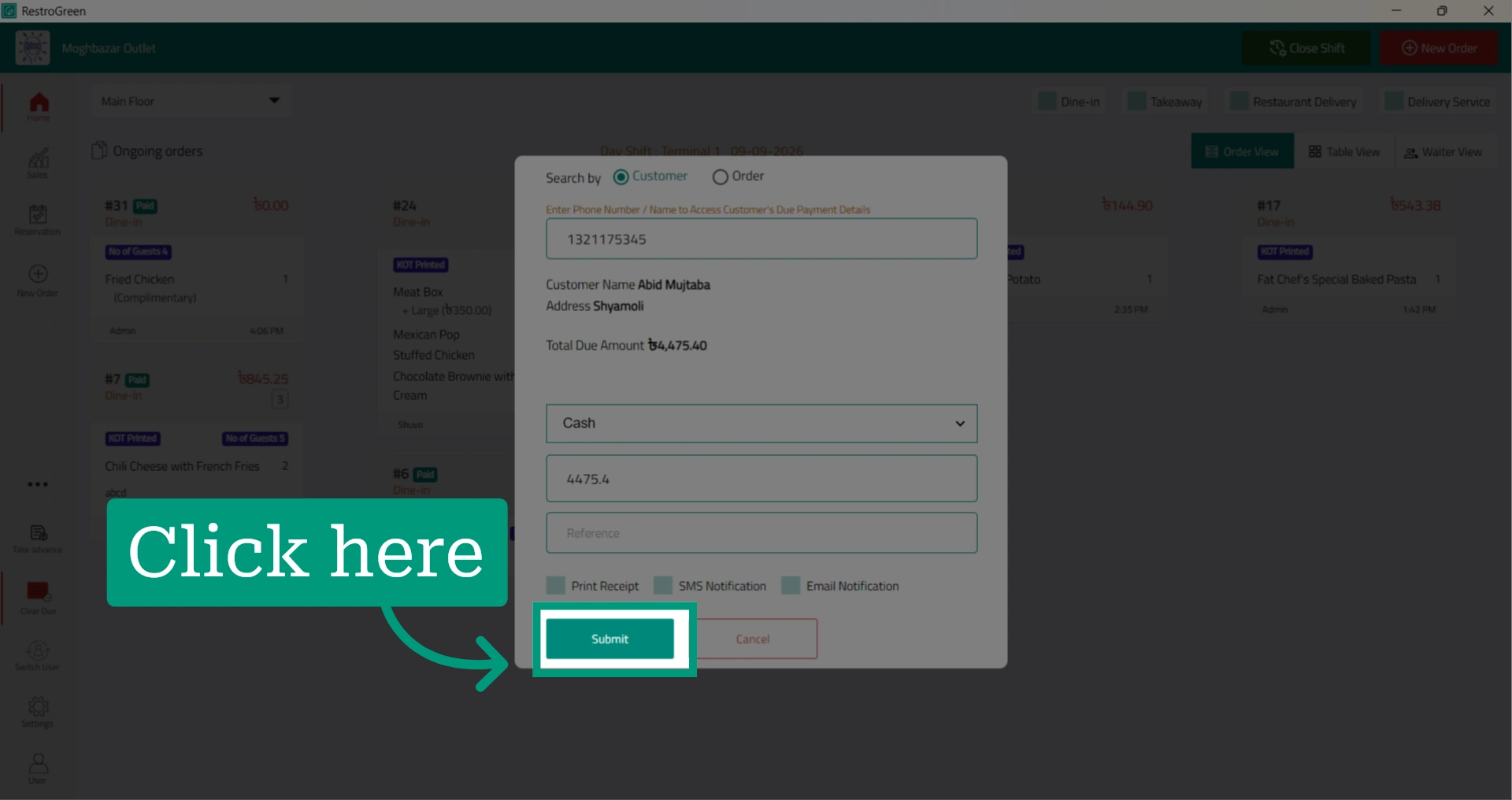
4. Enter the customer’s name or contact number to find the customer
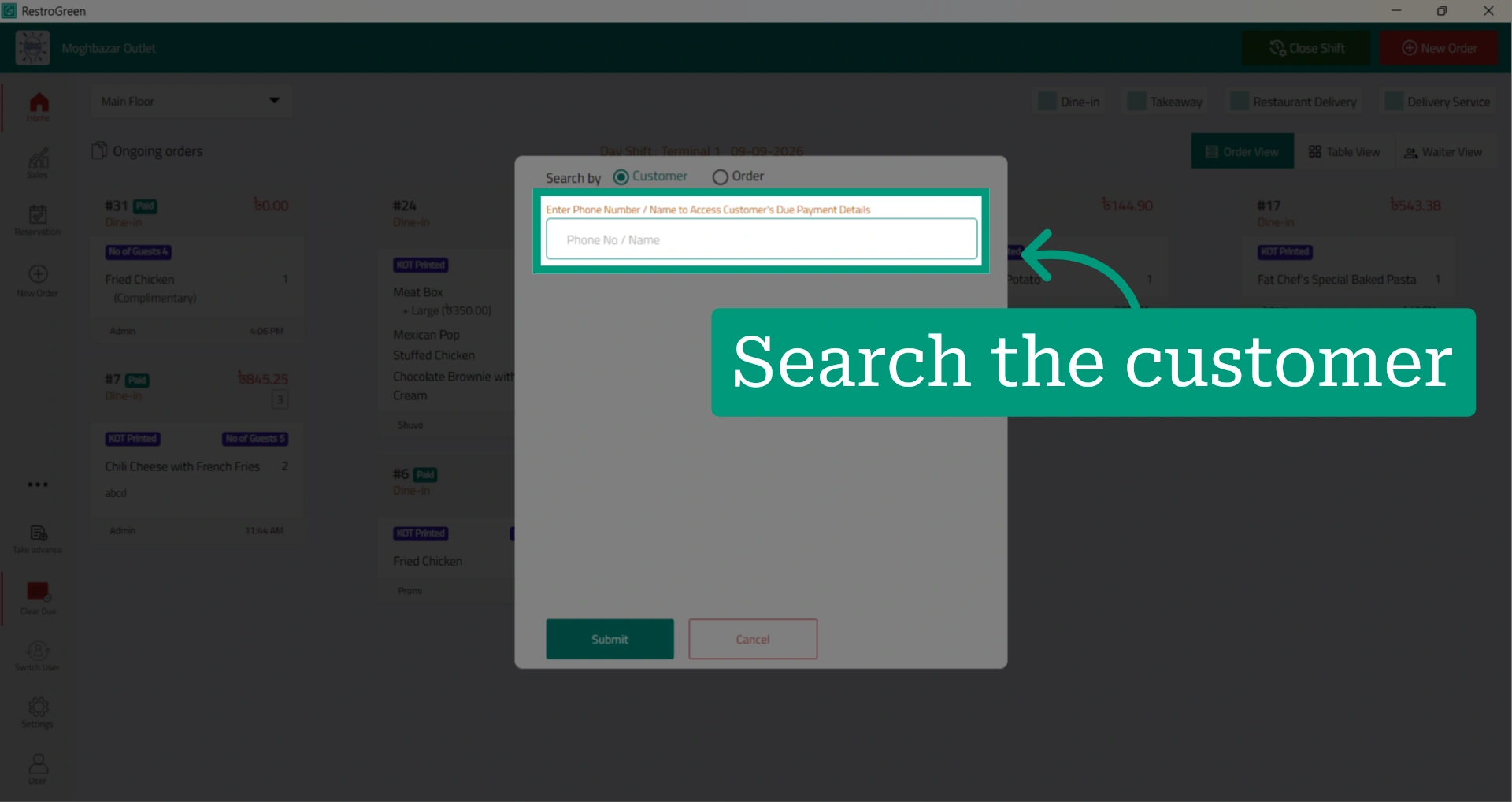
5. Customer information and outstanding due balance will be displayed
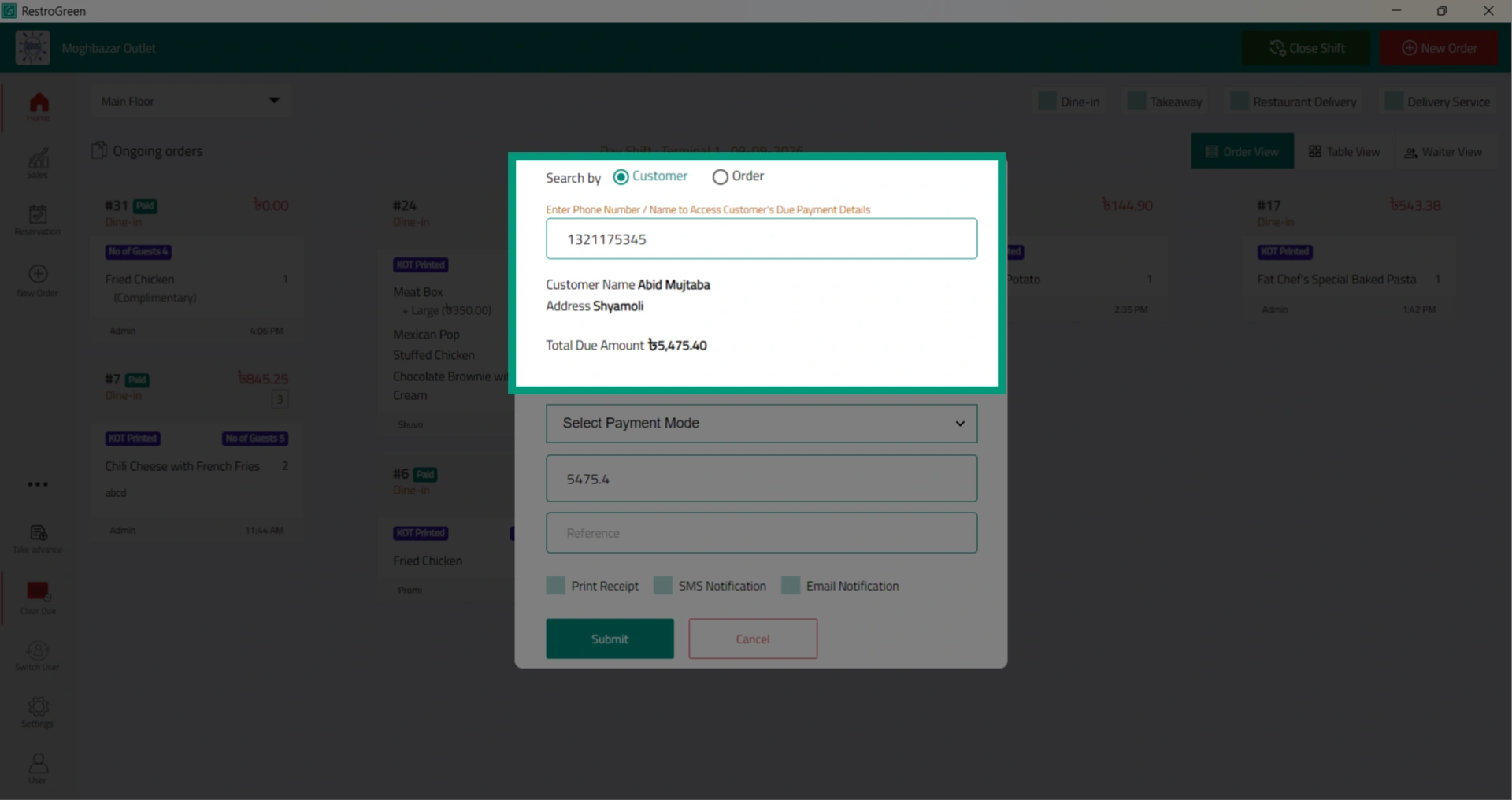
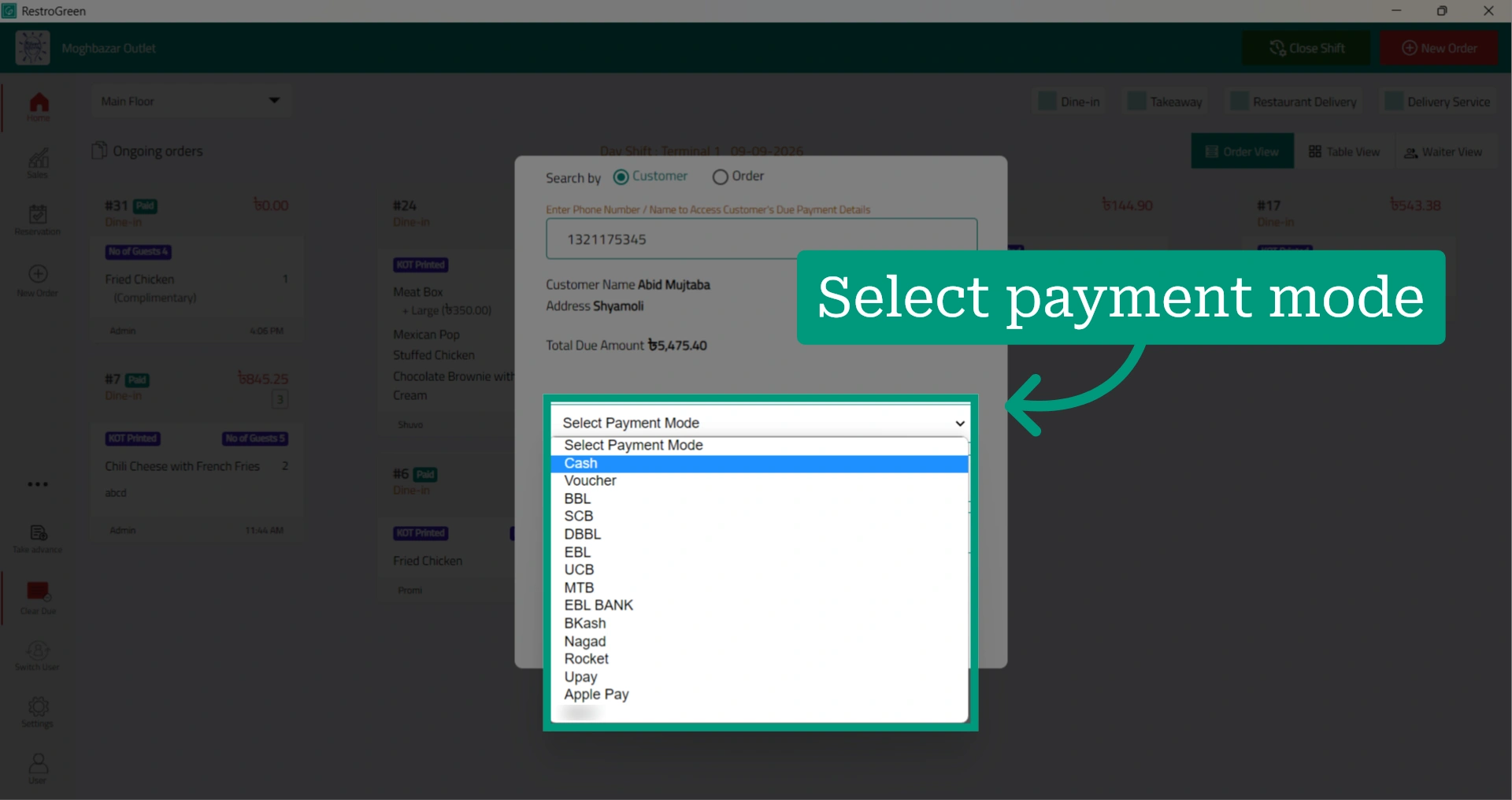
6. Select the payment method the customer is using to clear the due
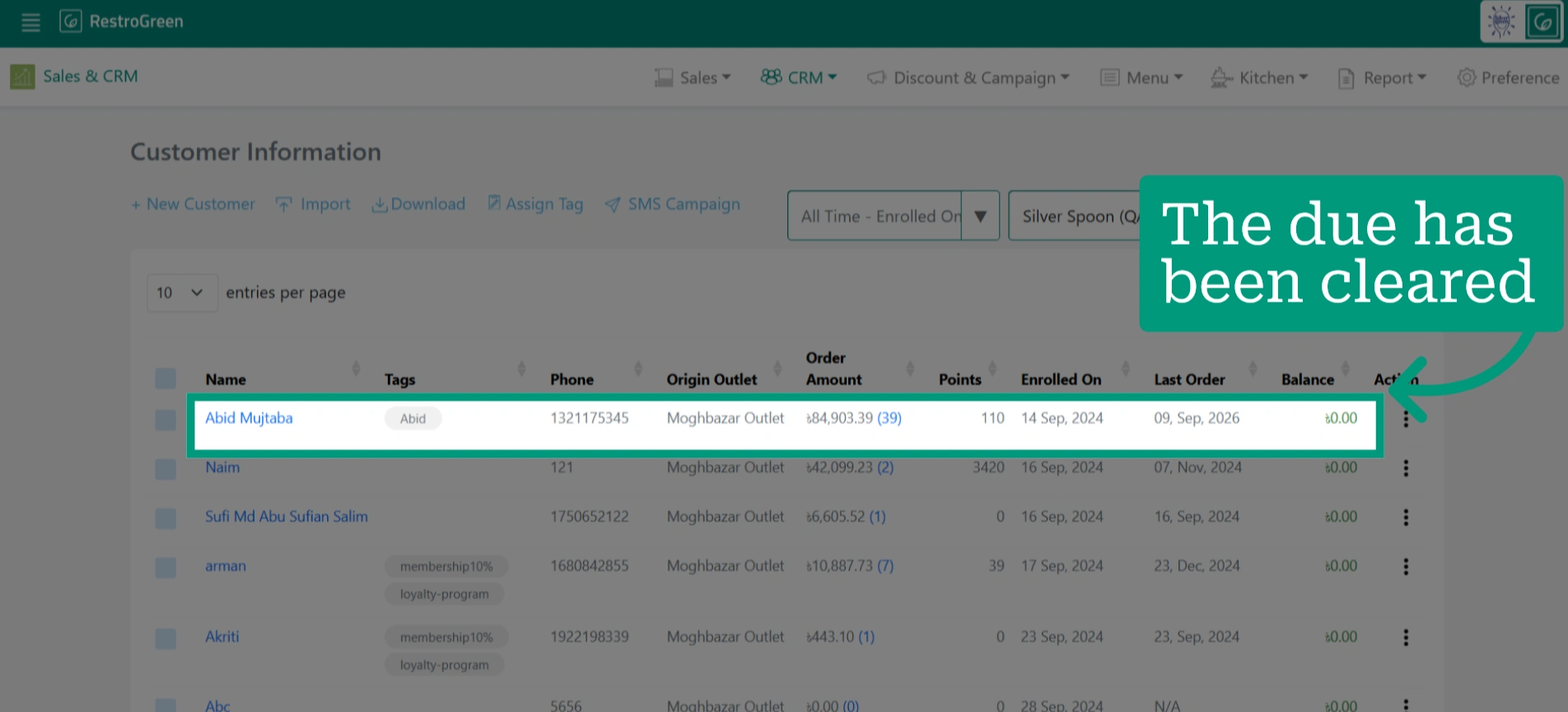
7. Enter the payment amount
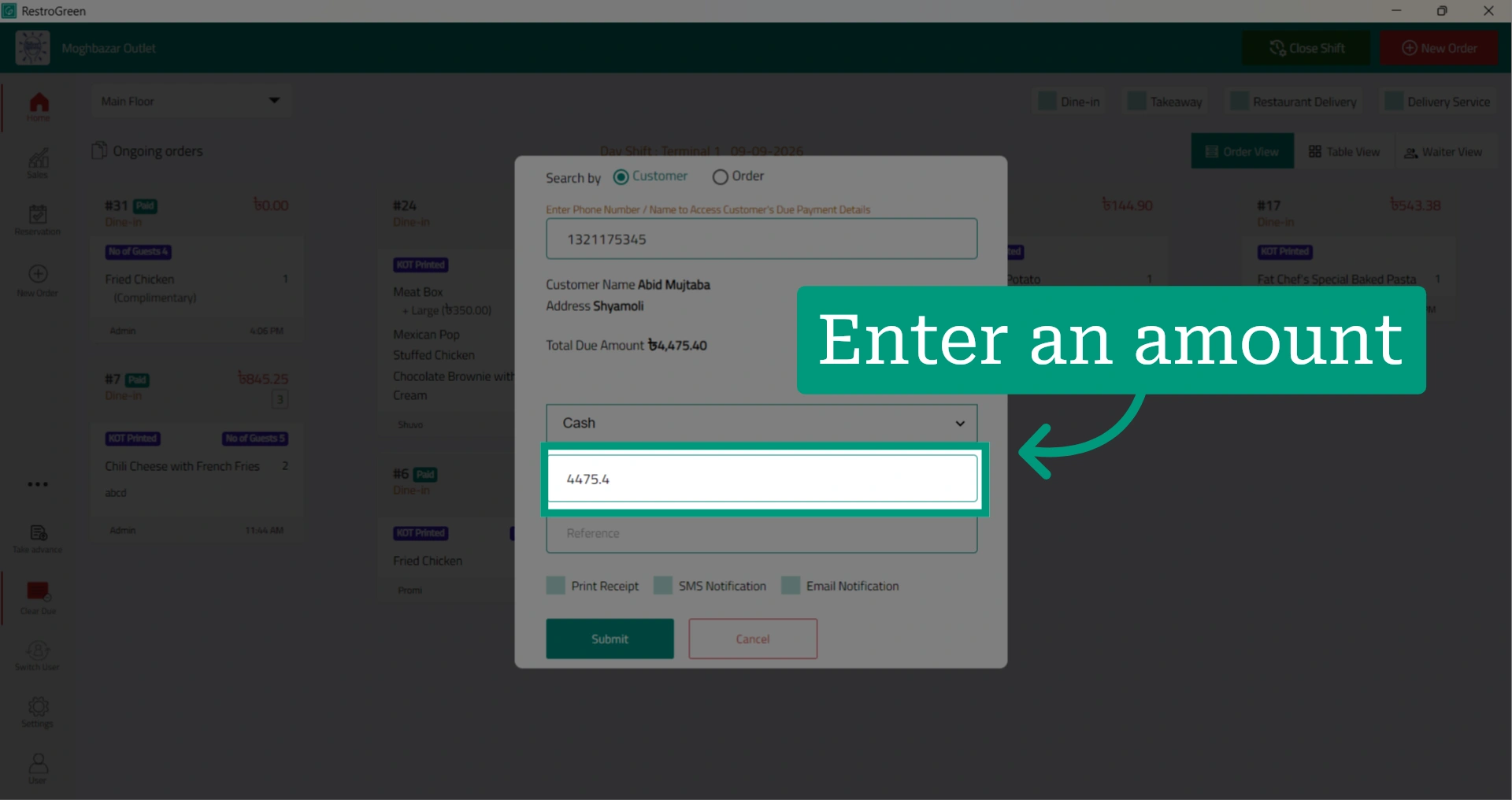
8. Click “Submit” to finalize the payment
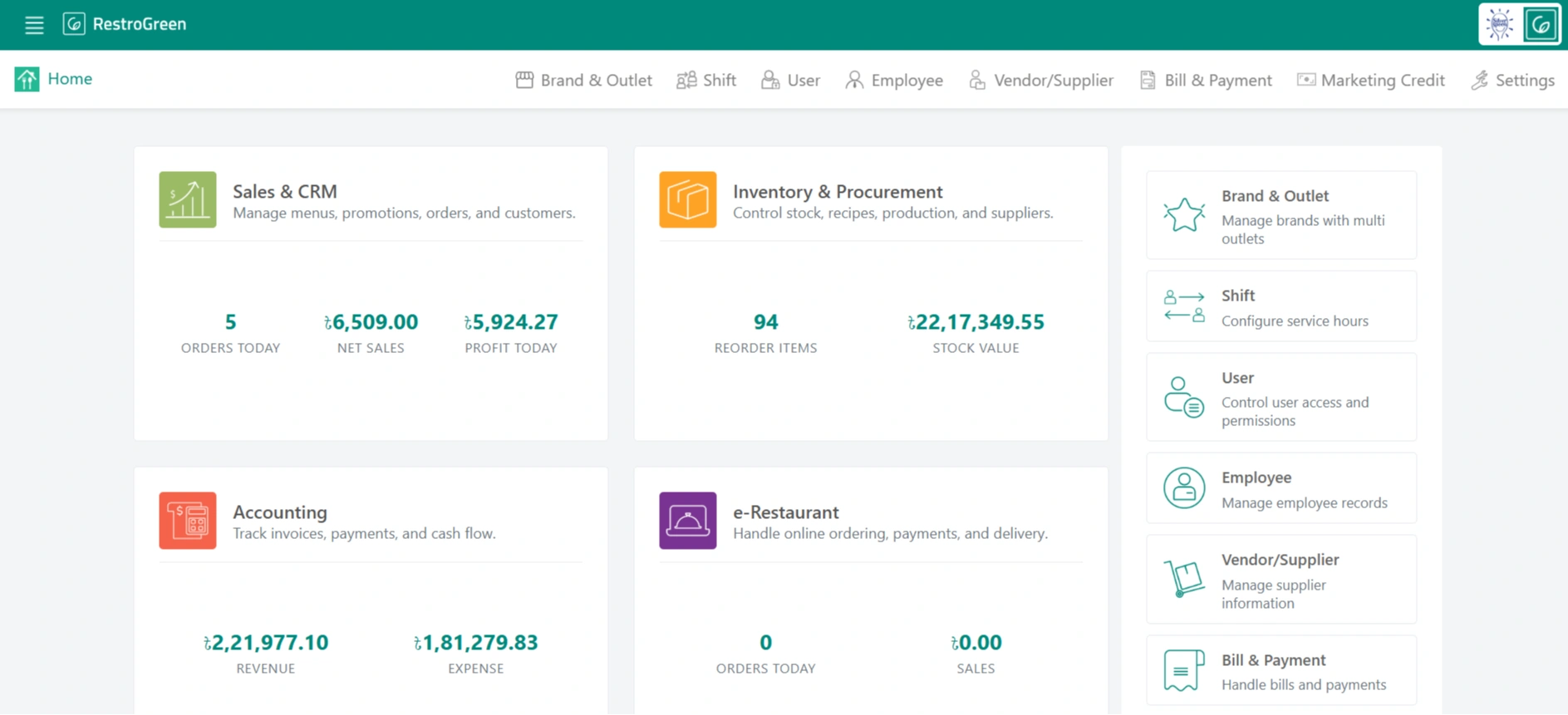
9. Go to Business Portal
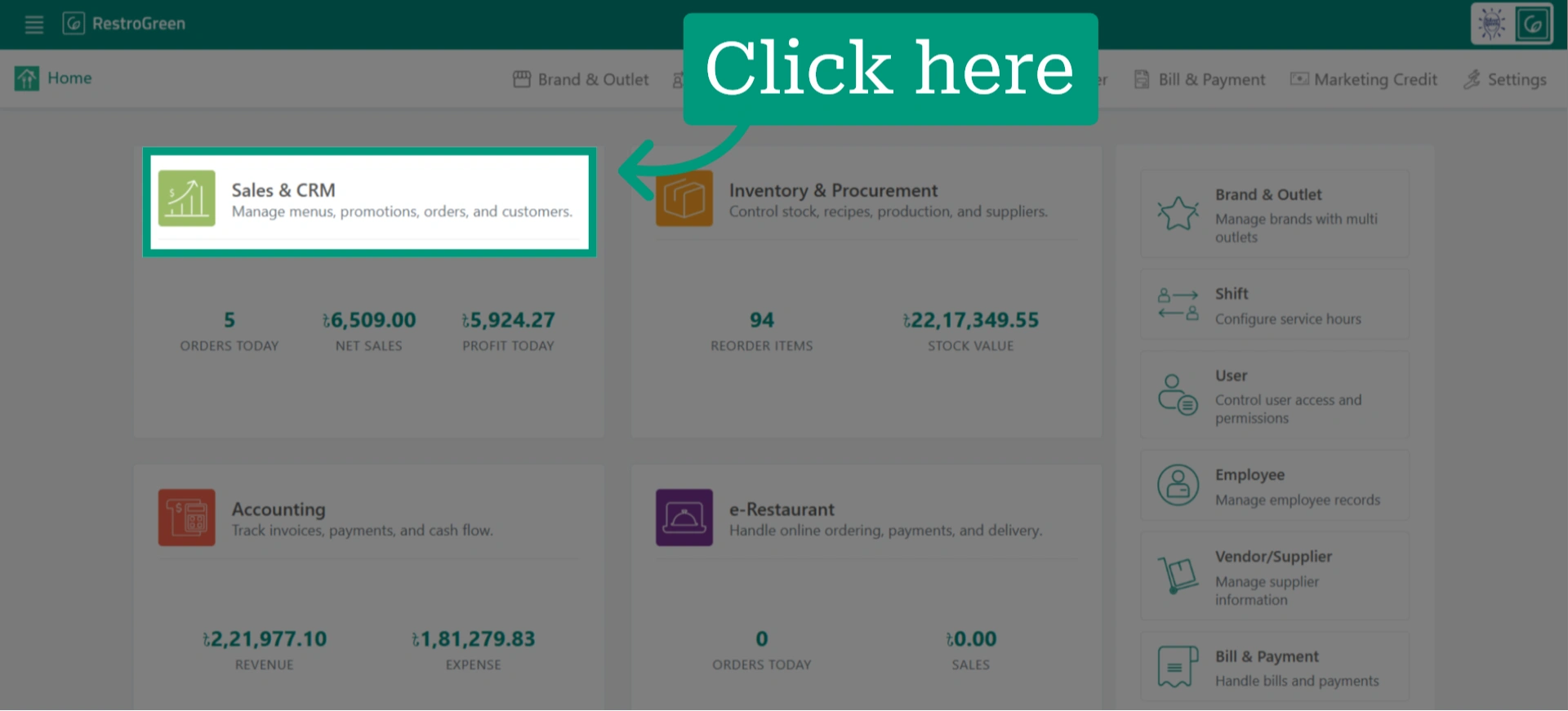
10. Click "Sales & CRM" Module
11. Click "Customer" from the top navigation bar to access the customer database
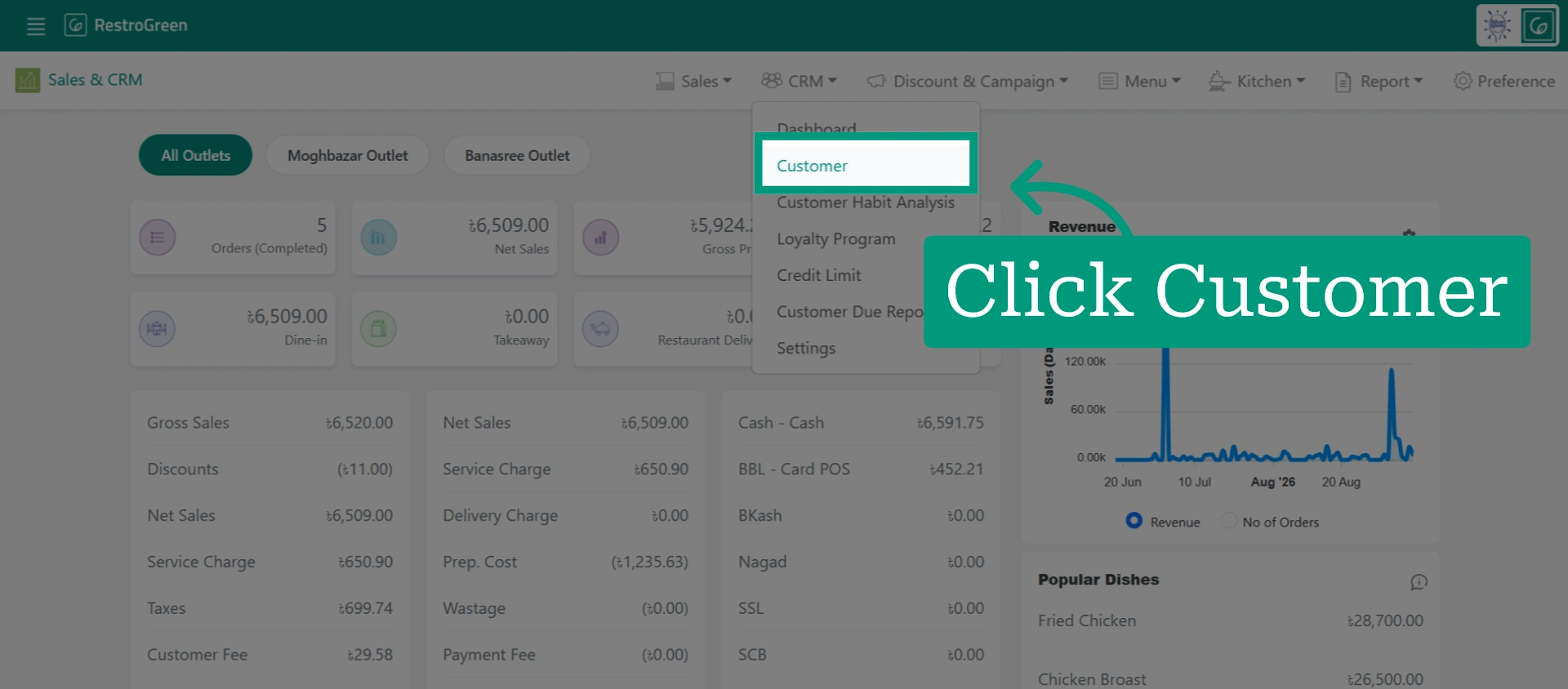
12. The customer’s due balance will now be adjusted based on the payment received