How to Collect Customer Information for CRM in RestroGreen POS
This tutorial guides you through collecting customer information during order placement in
RestroGreen POS and adding it to your CRM using RestroGreen.
Go to
restrogreen.quicklyservices.com
1. Login to your Business Portal
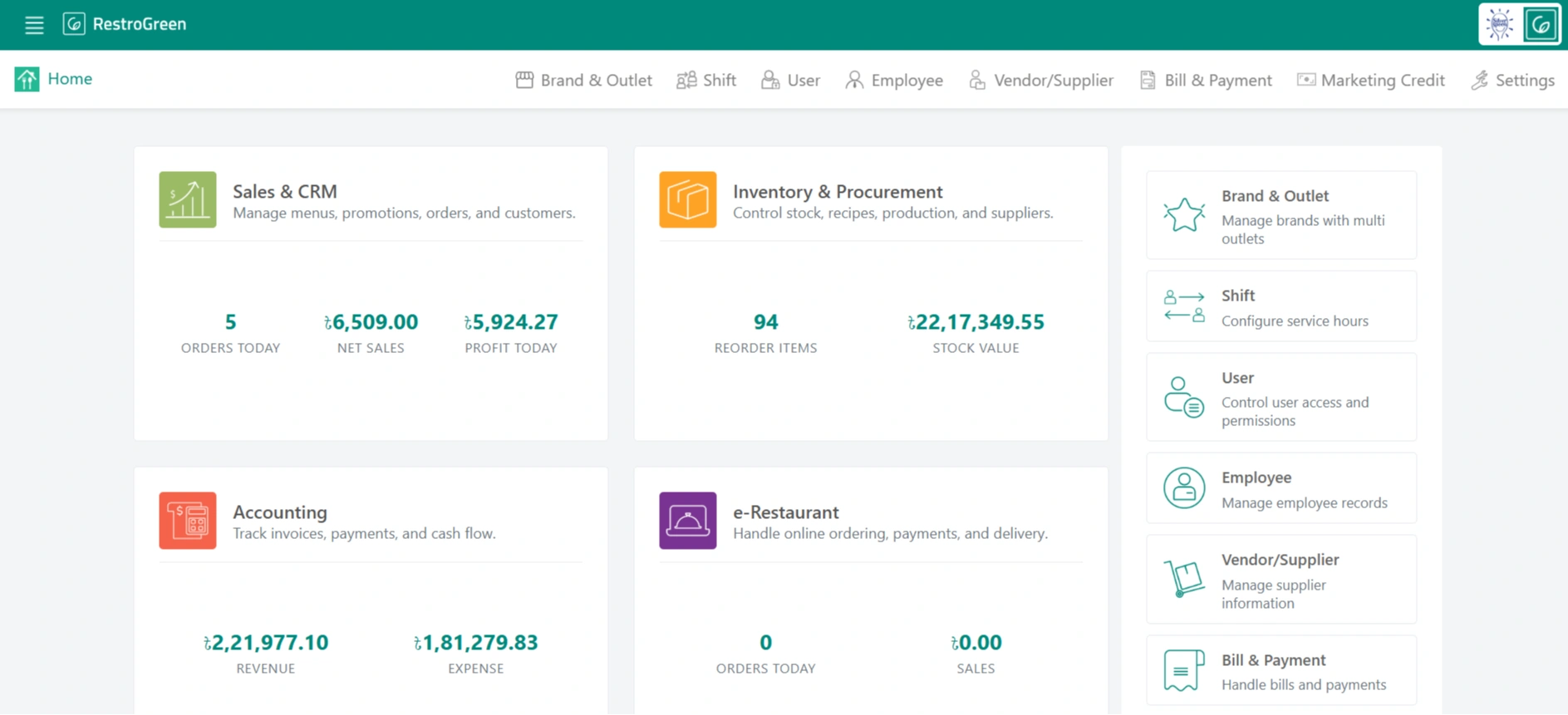
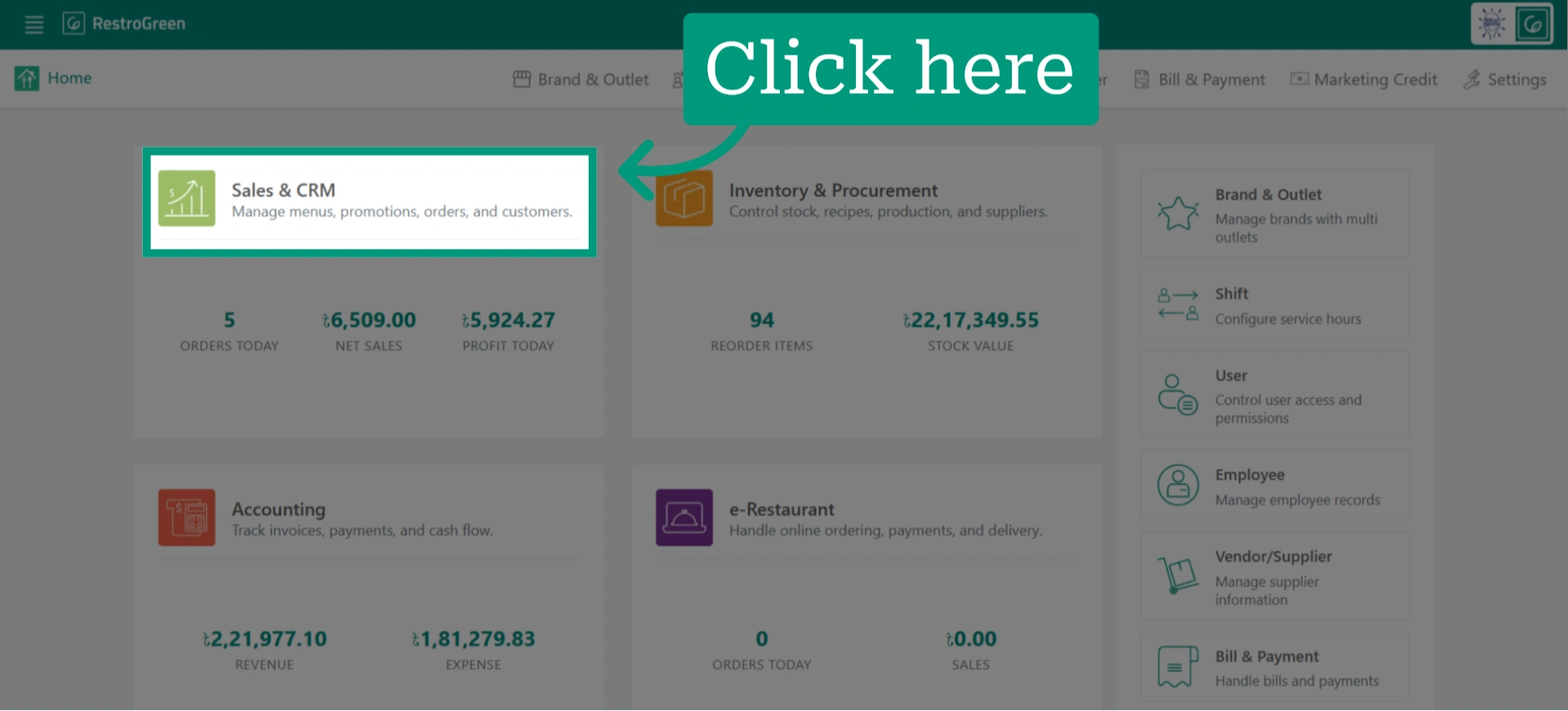
2. Access Sales and CRM Module
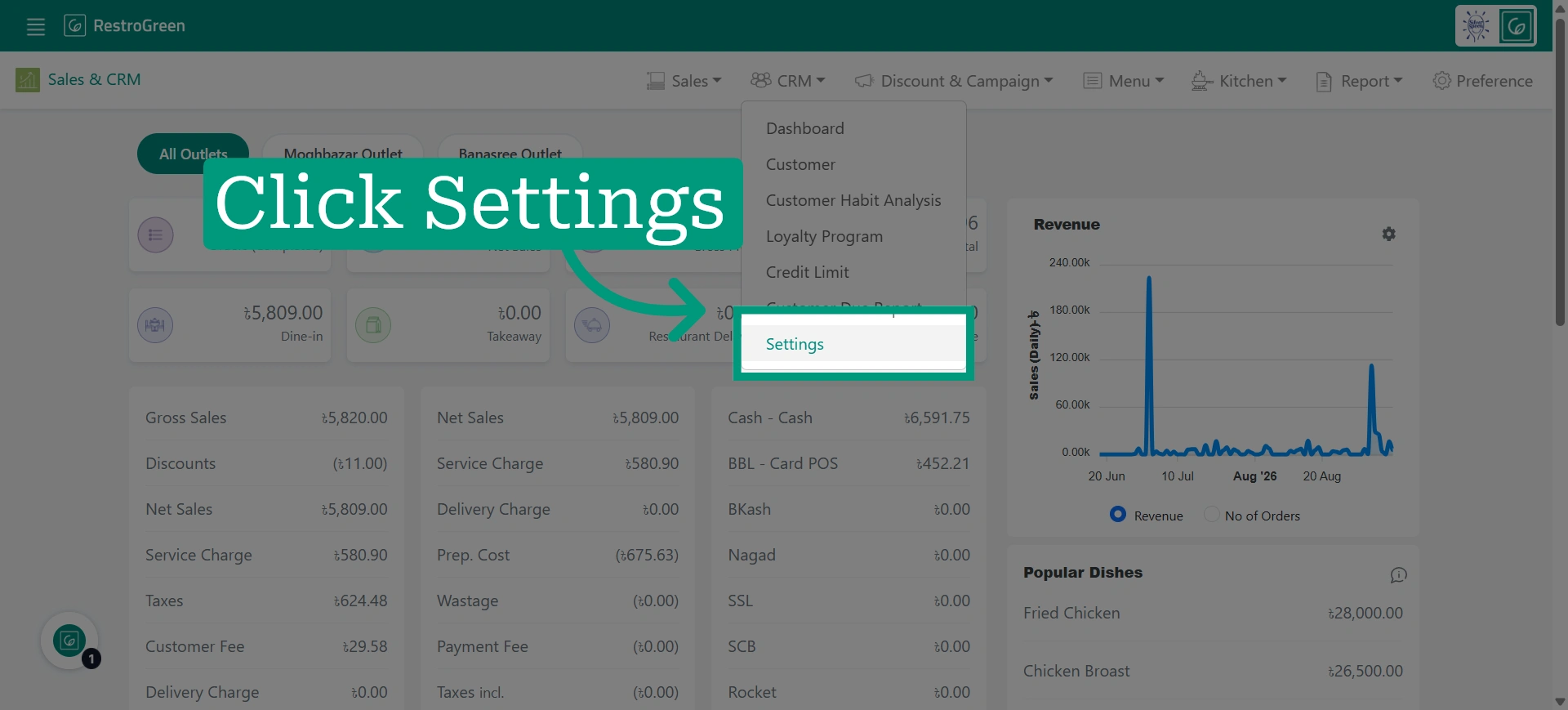
3. Open CRM Settings
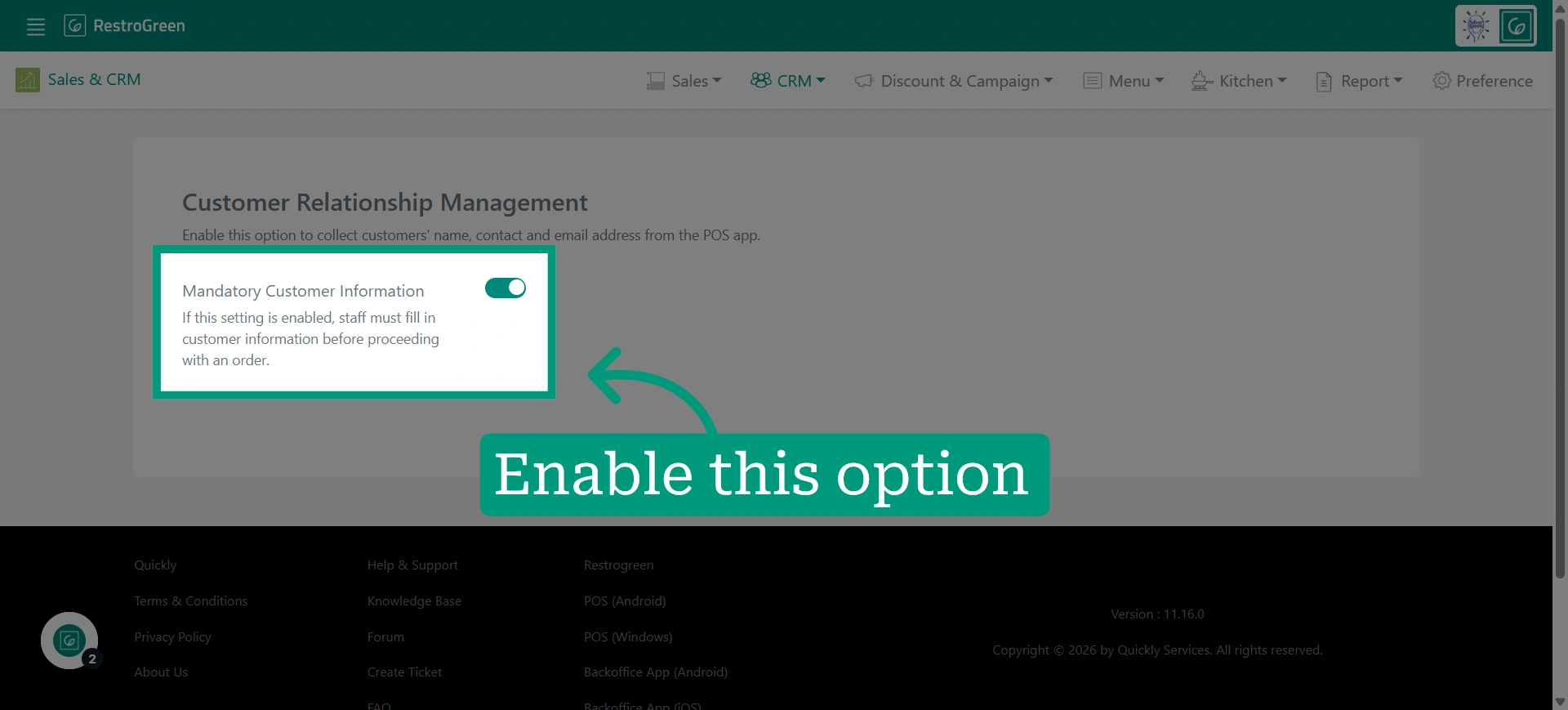
4. Under Customer Relationship Management, make sure “Mandatory Customer Information” is enabled
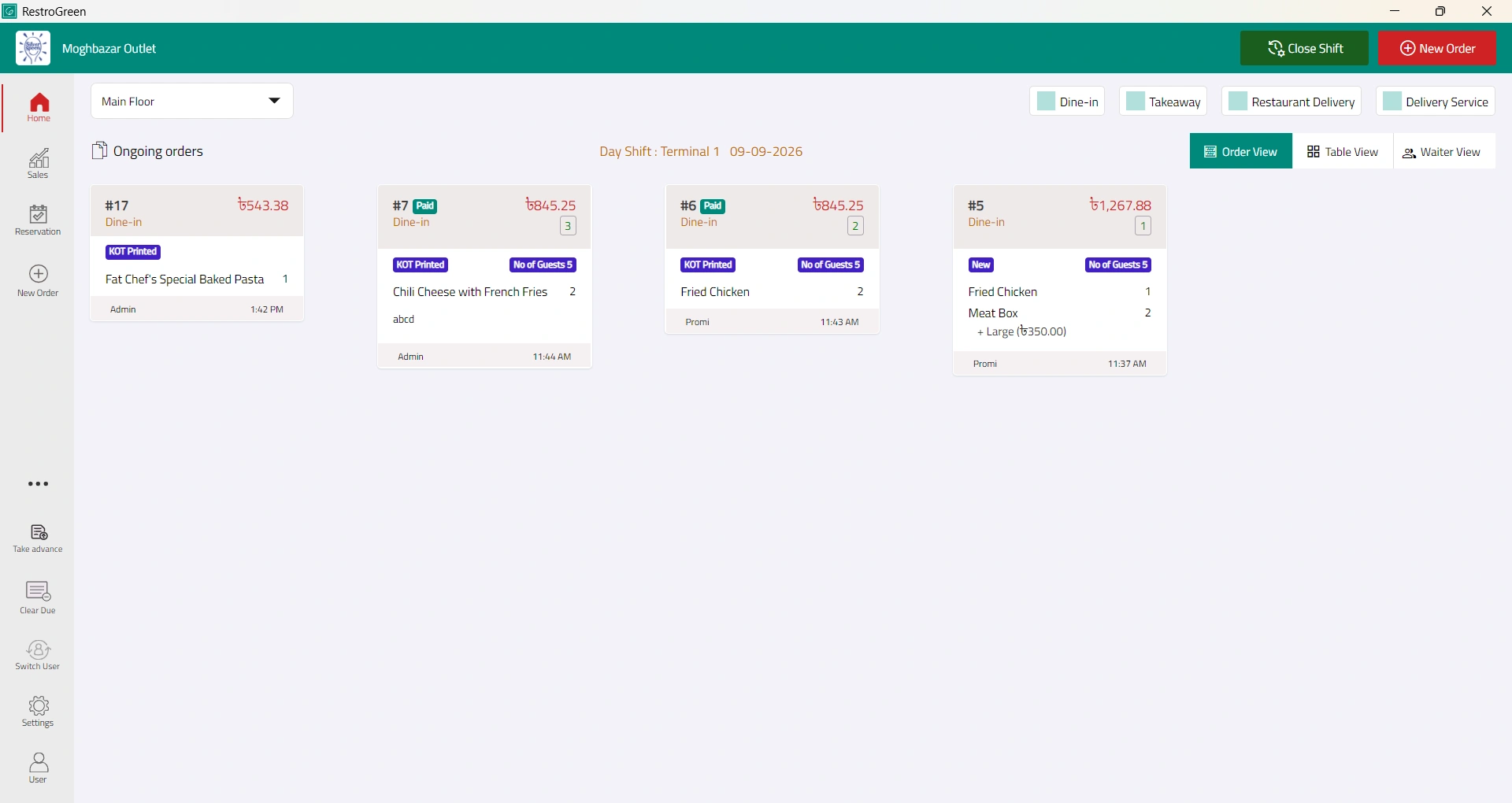
5. Go to RestroGreen POS
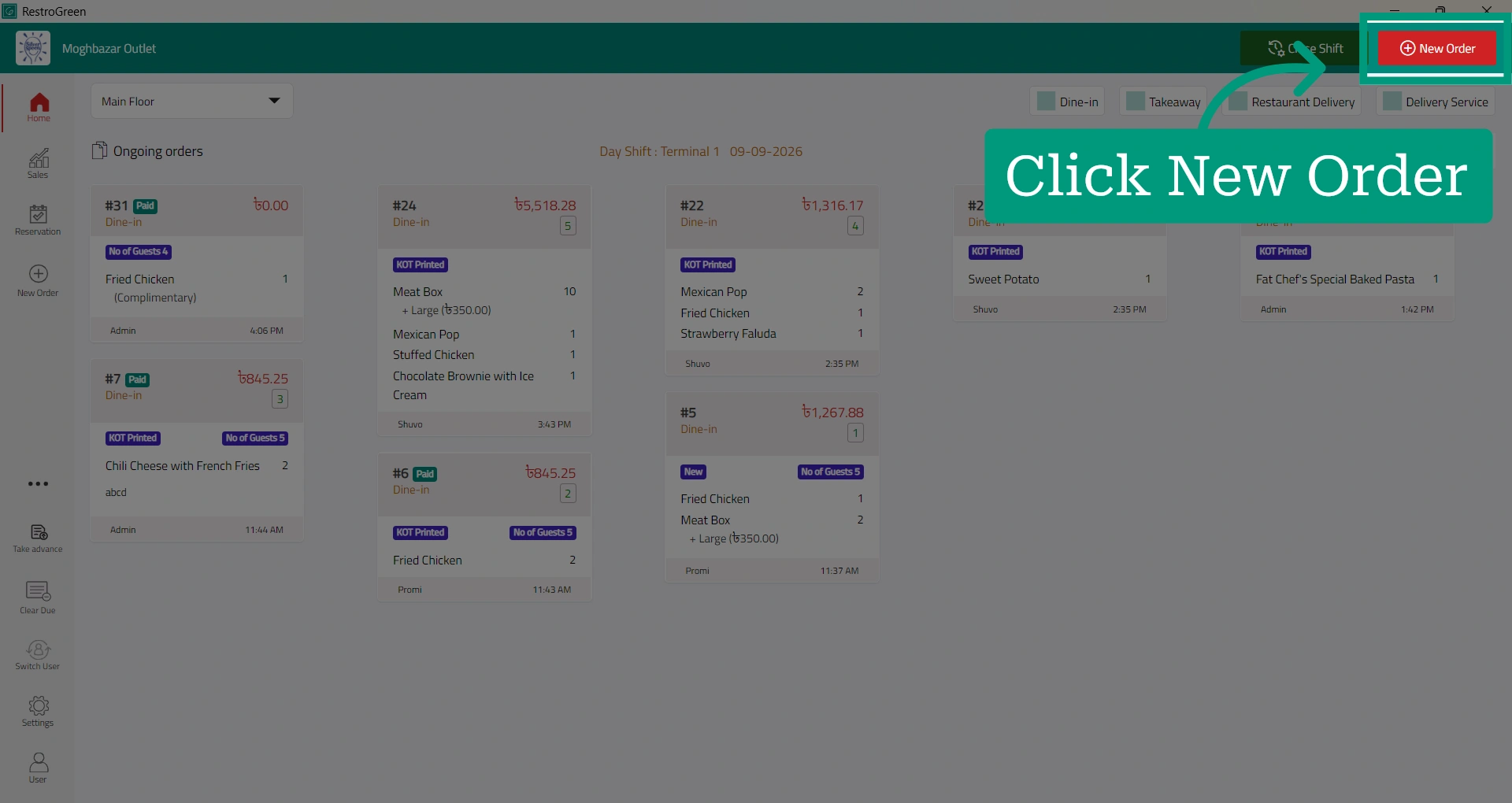
6. Start a new order
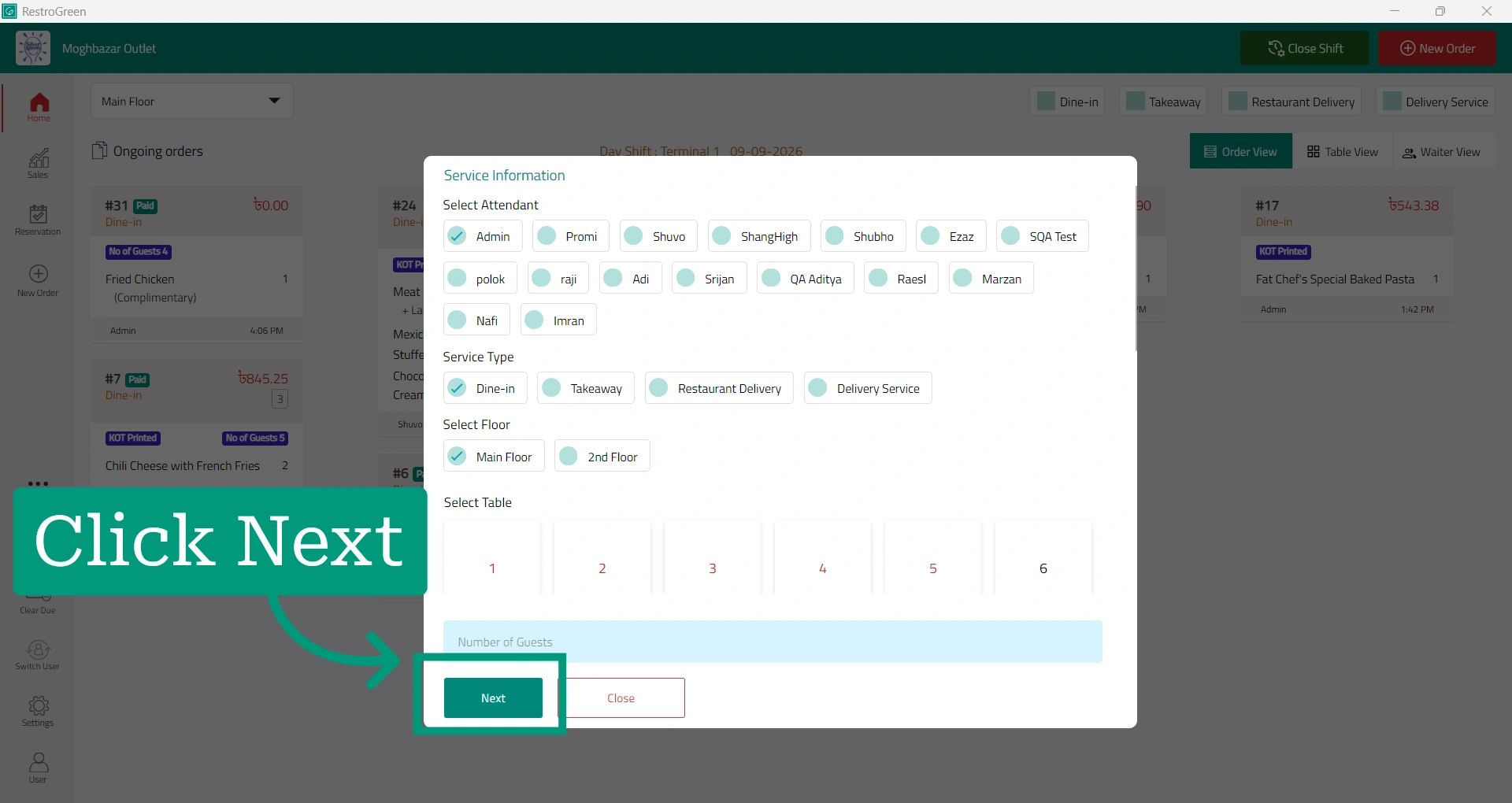
7. Fill in the service information and click “Next"
8. A pop-up will appear asking you to enter the customer’s information
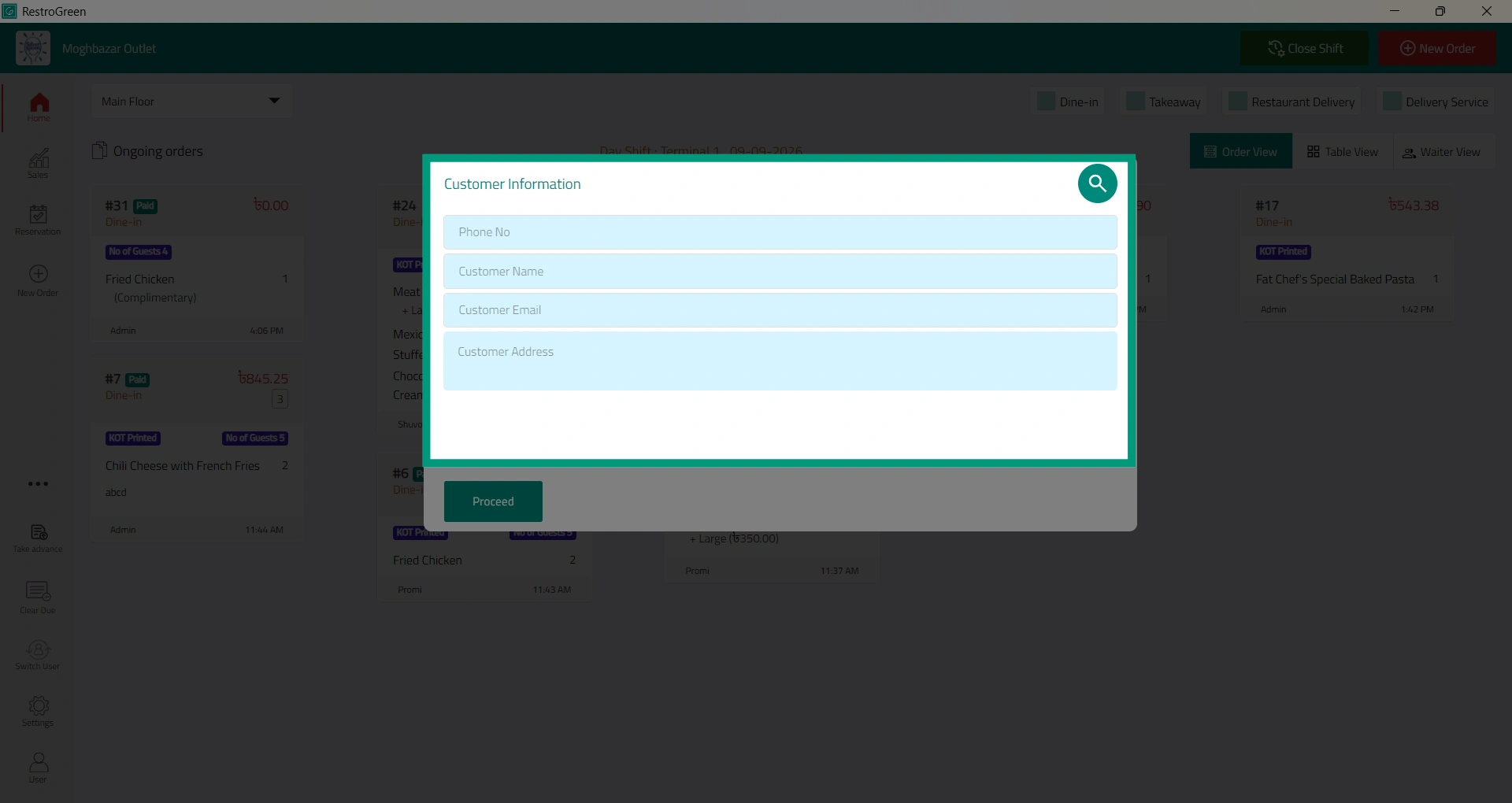
9. Enter the customer’s details, including their name and contact information
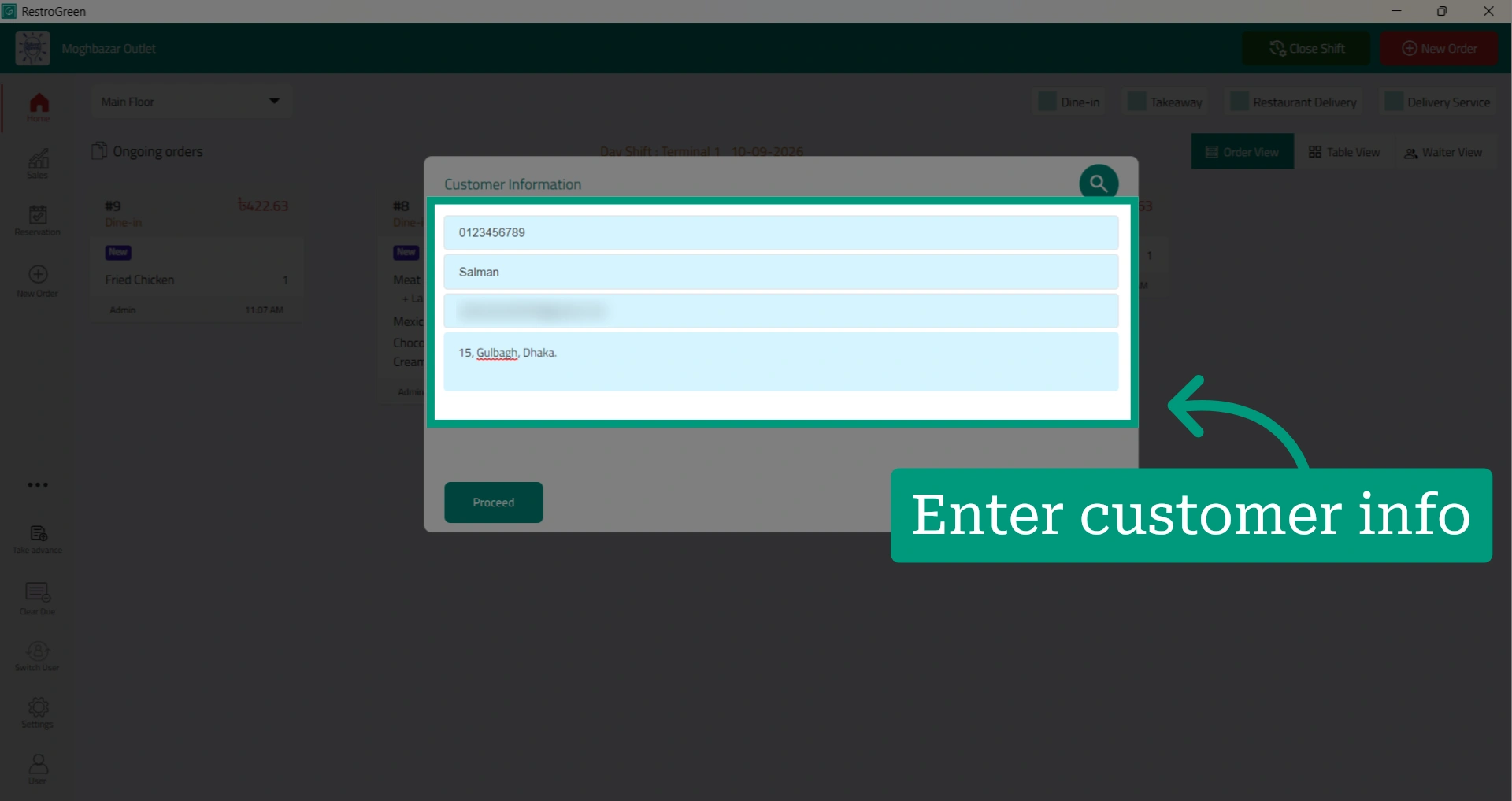
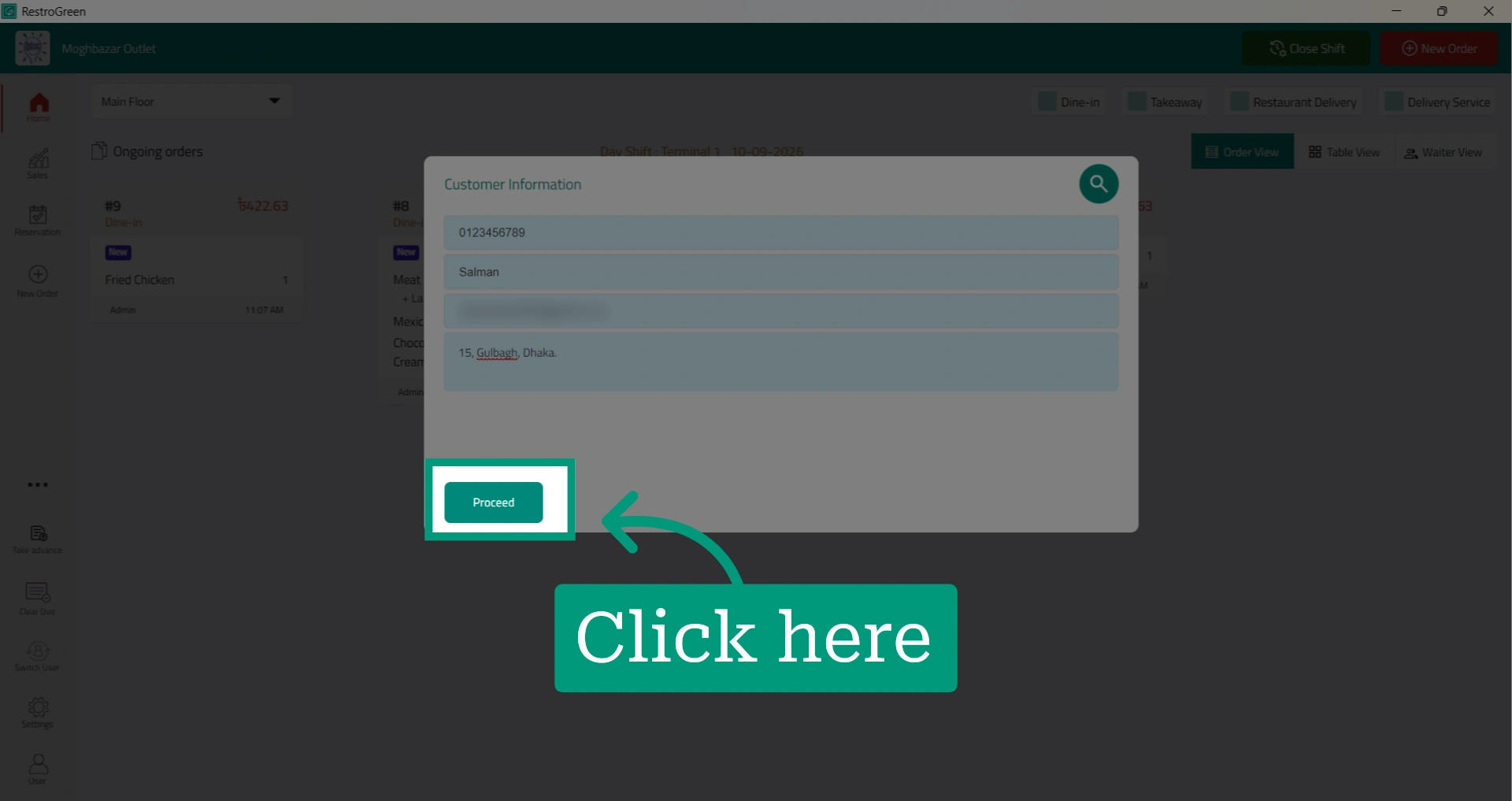
10. Click "Proceed" to save all the customer information in CRM database
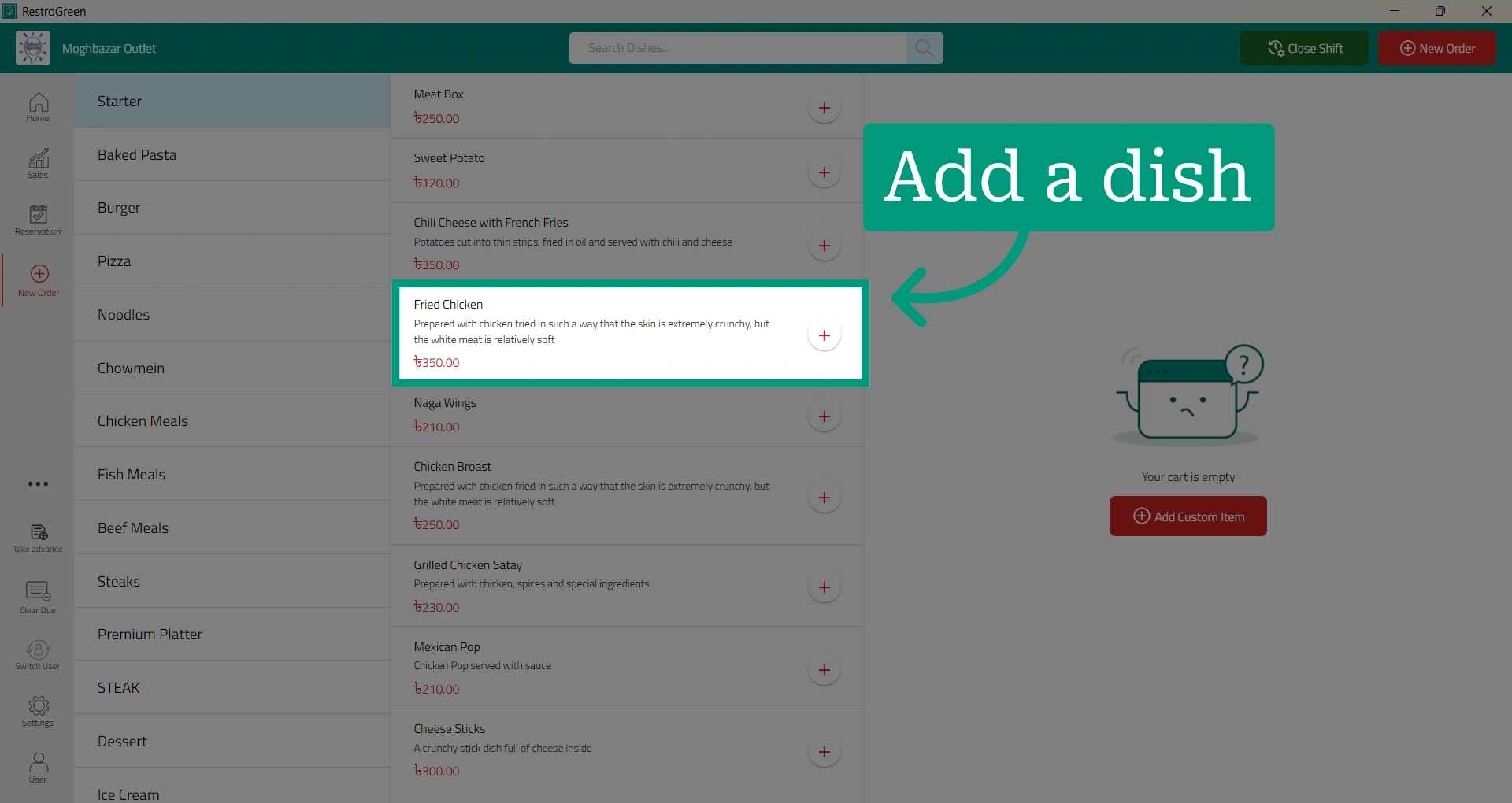
11. Add a dish from the menu to the cart
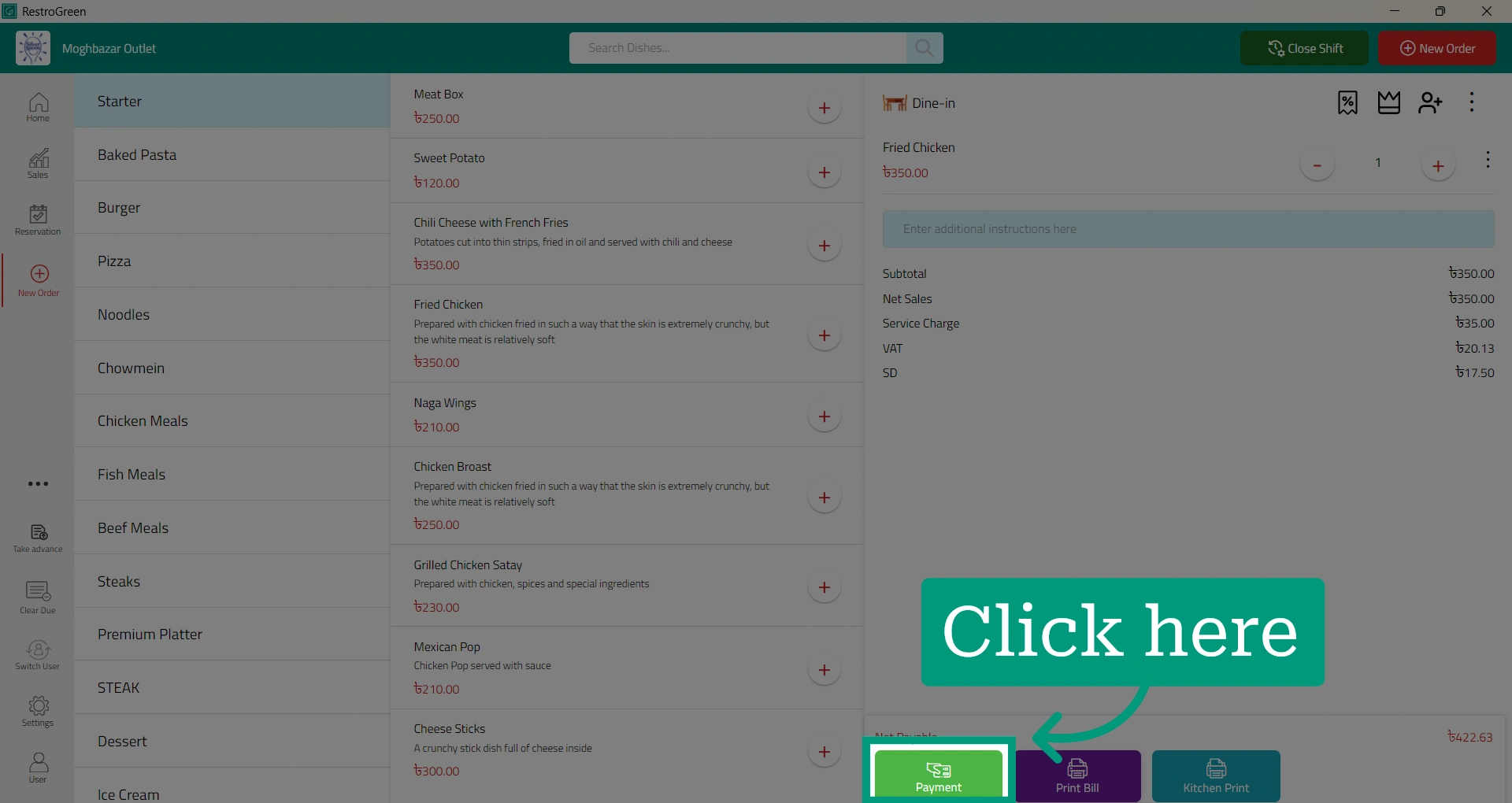
12. Click “Send to Kitchen” to print the KOT, or click “Payment” to close the bill
13. Go back to the Business Portal
14. Access "Sales & CRM" Module
15. select “Customer” from the dropdown menu to access the customer database
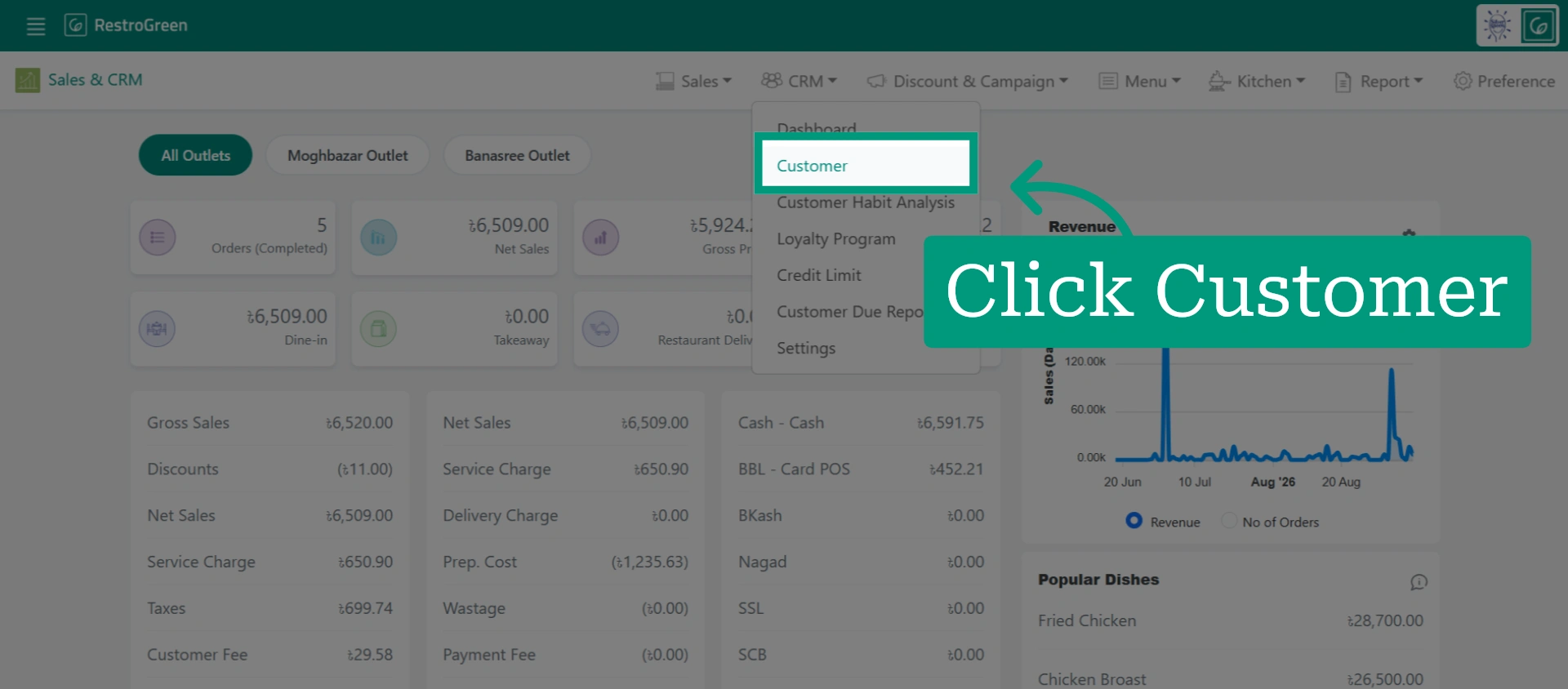
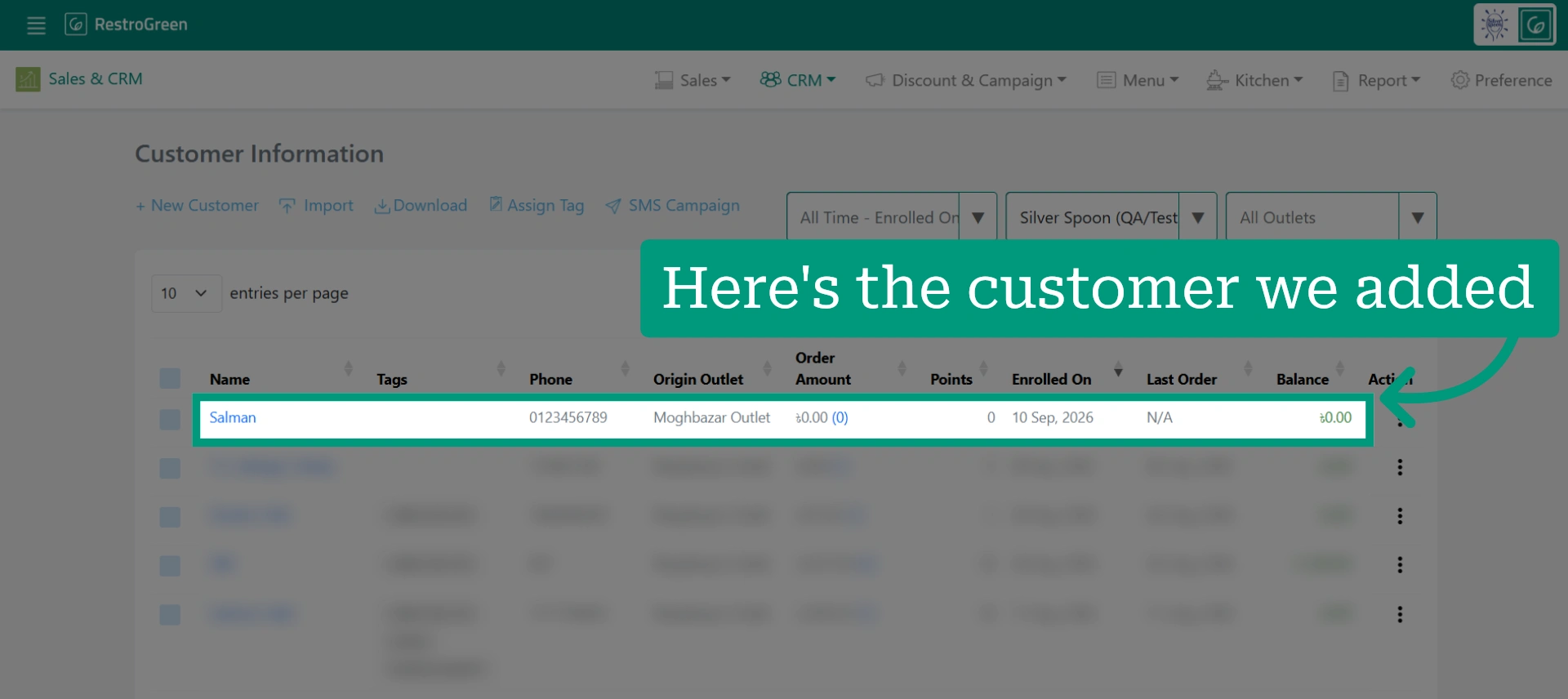
16. The customer should now be added to your CRM based on the information collected from the order